GCTF360 - Household Fan GoldAir - Free user manual and instructions
Find the device manual for free GCTF360 GoldAir in PDF.


| Product Type | Tower Fan |
| Model | GCTF360 |
| Brand | GoldAir |
| Height | 81 cm |
| Power Supply | AC 220-240V, 50Hz |
| Power Consumption | 40 W (typical) |
| Weight | Approx. 4 kg |
| WiFi Connectivity | 2.4 GHz only |
| App Compatibility | Goldair App (iOS/Android) |
| Voice Control | Amazon Alexa, Google Assistant |
| Fan Speeds | 3 levels (Low, Medium, High) |
| Modes | Normal, Natural, Sleep |
| Oscillation | Left and right swing |
| Timer | 1-12 hours (1-hour increments) |
| Anion Function | Yes |
| Display | LED indicators (WiFi, mode, etc.) |
| Remote Control | Via smartphone app only |
| Safety Features | Overheat protection, child lock (via app scenario) |
| Maintenance | Clean grille with soft, dry cloth; do not use water |
| Repairability | Contact GoldAir support for spare parts |
Frequently Asked Questions - GCTF360 GoldAir
User questions about GCTF360 GoldAir
0 question about this device. Answer the ones you know or ask your own.
Ask a new question about this device
Download the instructions for your Household Fan in PDF format for free! Find your manual GCTF360 - GoldAir and take your electronic device back in hand. On this page are published all the documents necessary for the use of your device. GCTF360 by GoldAir.
USER MANUAL GCTF360 GoldAir
natural_image
Blue background with white wavy horizontal bands (no text or symbols)Operating Instructions
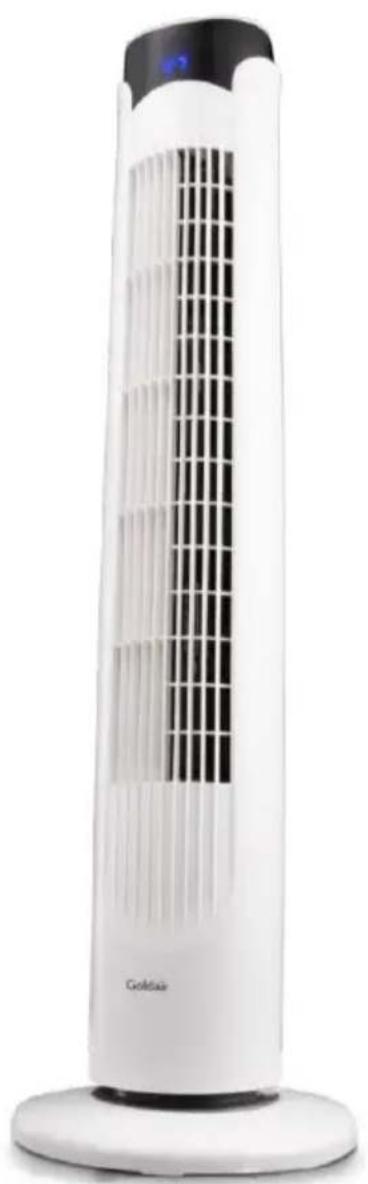
81cm Electronic Tower Fan with WiFi
natural_image
White vertical tower with black ventilation grille and 'Gold tea' branding, no visible text or symbols on the device itself.Model: GCTF360
Wifi — Downloading and Setting up APP
This APP is supported only on 2.4GHz Wifi channels.
The Goldair app and device pairing process require your 2.4ghz connection to be separated from your 5ghz connection. For instructions on how to do this please contact your internet provider.

natural_image
Red square logo with white letter 'G' (no text or symbols)Please note, we endeavour to keep our app up to date as devices and software continue to adapt and evolve. However, with ever changing technology and software we cannot guarantee as models age that their Wifi operation will continue to be supported. If you feel like the day-to-day functionality of your app is impacted, please contact our customer services team.
Download Goldair mobile APP
- Open the APP Store or Google Play on your mobile phone.
- Open 'Search' and enter 'Goldair'
- Click 'GET' and begin to download and install.
Once downloaded to your phone open the APP
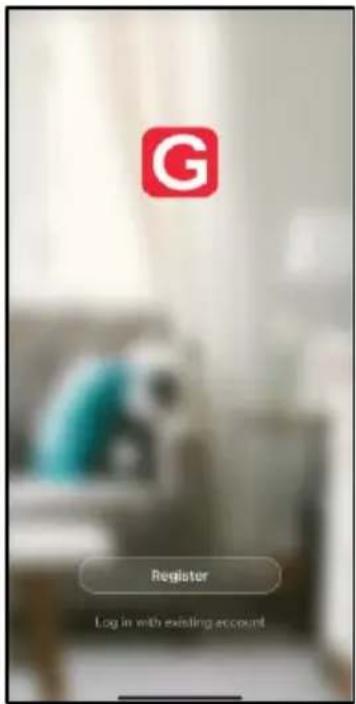
• Tap REGISTER near the bottom of the screen.
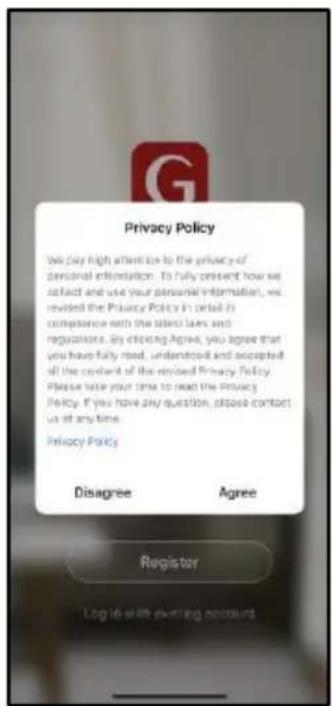
• Read and agree to the Privacy Policy.
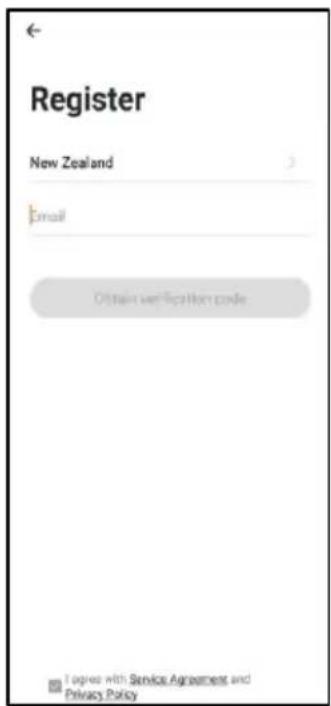
- Add your email address.
- Tap 'Obtain verification code'
You will then receive an email with a verification code.
- Enter the verification code from your email.
- Create a password.
- Then tap confirm.
If you haven't received a verification code via email, tap the resend button and when the verification code is received follow above steps.
Your APP is now registered and ready for pairing to your device.
Pairing APP to Device
Connect with 2.4ghz Wifi Network
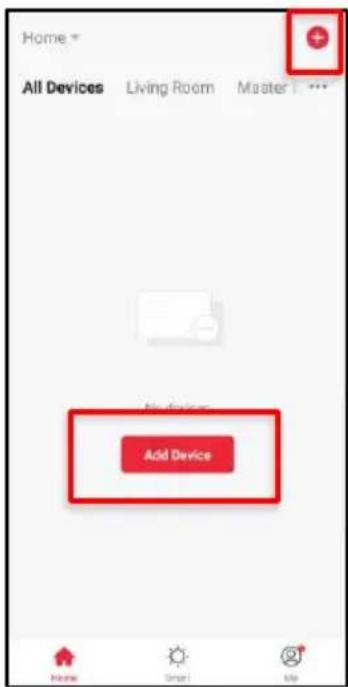
On the Home screen, tap 'Add Device' or the '+' icon.
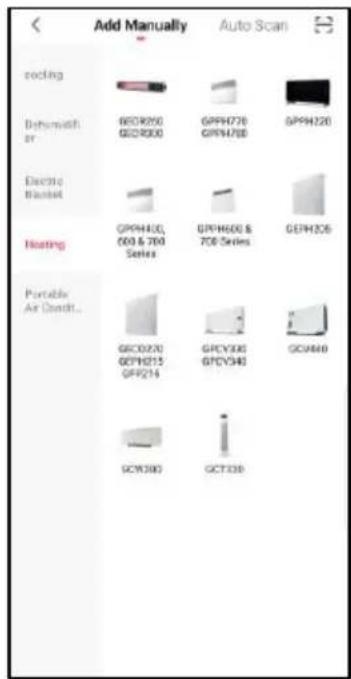
Using the categories on the left, navigate to your device and tap on the image.
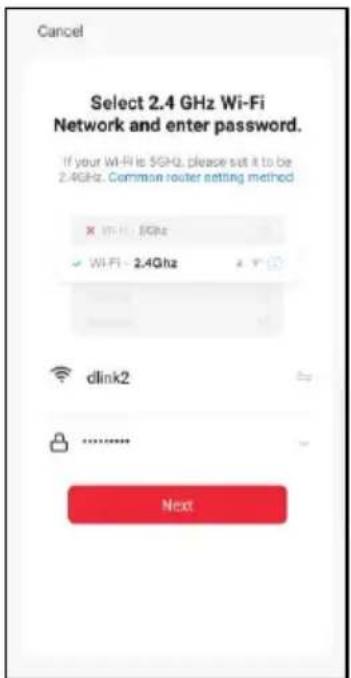
Confirm you are connected to a 2.4ghz network. If your 2.4ghz and 5ghz networks are dual banded, click 'Common router setting method' on how to split, or contact your internet provider.
Pairing APP to Device
Connect with 2.4ghz Wifi Network: EZ Mode
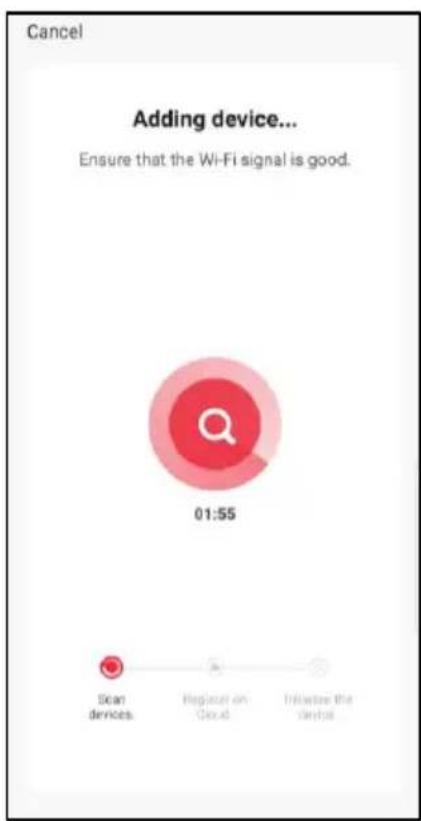
See instructions below to finalise your device pairing via EZ mode.
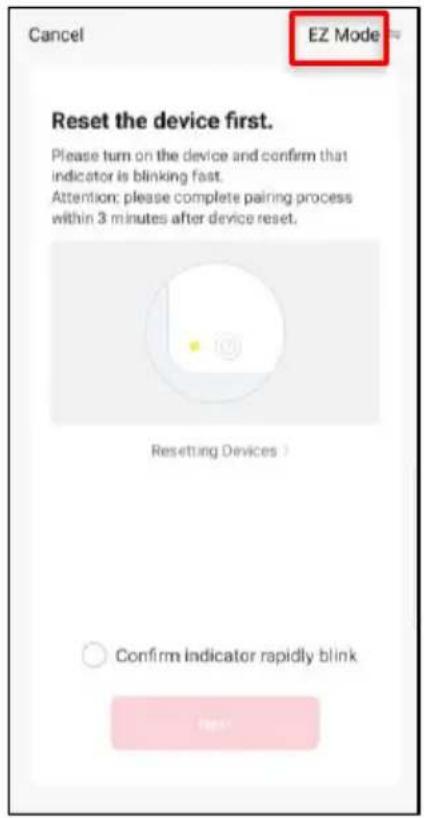
The app will default to EZ Mode in the right hand corner.
Ensure your device's Wifi LED is flashing rapidly.
If it is not, hold down the
"OSCILLATION" button for 5 seconds or until the Wifi icon begins to flash.
Click 'Confirm indicator rapidly blink' and 'Next'
Your device will now pair with the app.
Please ensure your device, modem and phone are as close together as possible and that your 2.4ghz Wifi signal is strong.
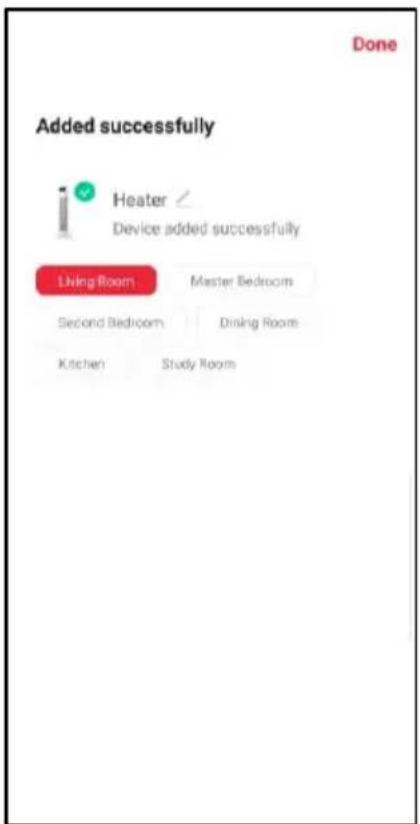
Once the device has paired, choose to rename it by tapping the Pen icon
Choose the most suitable room type and click 'Done' in the top right hand corner.
Pairing APP to Device
Connect with 2.4ghz Wifi Network: AP Mode
See instructions below to finalise your device pairing via AP Mode.
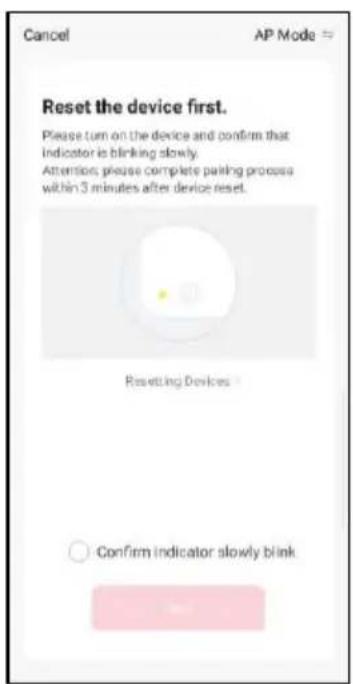
Change 'EZ Mode' to 'AP Mode' by clicking in the top right hand corner Ensure your device's Wifi LED is flashing slowly. If it is not, hold down the "OSCILLATION" button for 5 seconds or until the Wifi icon begins to flash.
Click 'Confirm indicator slowly blink' and 'Next'
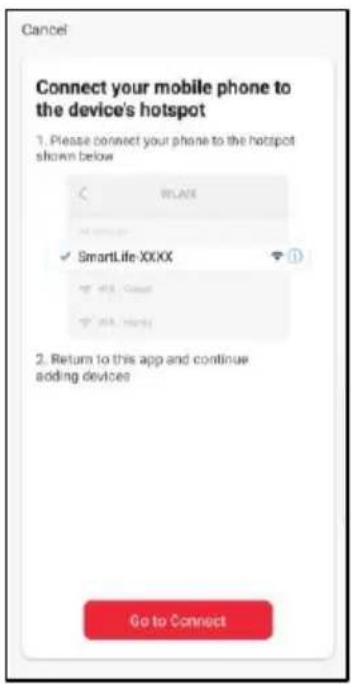
Click 'Go Connect' to connect to the device's Hotspot by selecting the network highlighted on the screen in your app, e.g. 'SmartLife- XXXX'
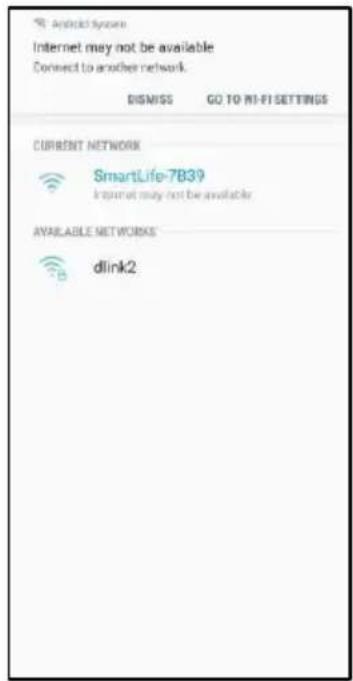
Select the device's Hotspot network and you will be returned to the app. If not, navigate back to the Goldair app. Note- if you get a notification saying 'Internet may not be available' press Dismiss.
Your device will now pair with the app.
Please ensure your device, modem and phone are as close together as possible.
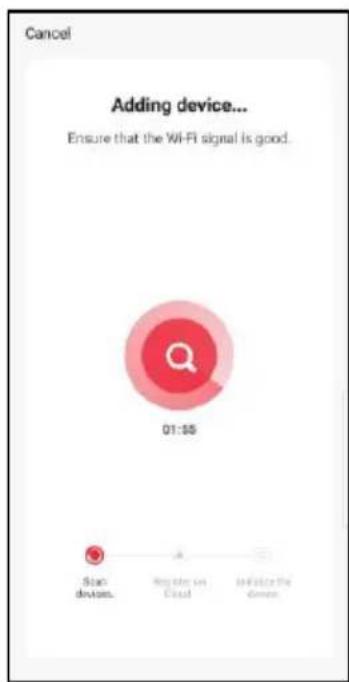
Once the device has paired, choose to rename it by tapping the Pen icon
Choose the most suitable room type and click 'Done' in the top right hand corner.
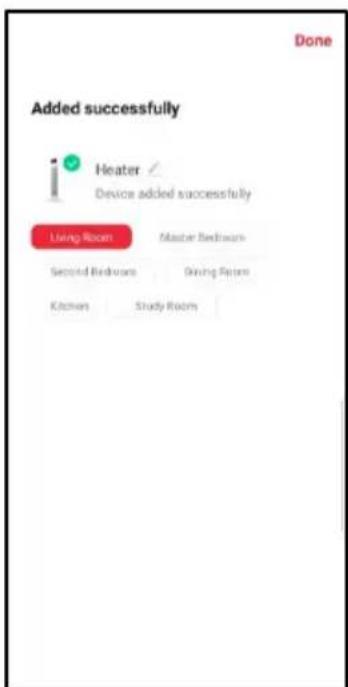
Pairing APP to Device
Connect with Bluetooth
As an alternative way of connecting your device, you can pair via Bluetooth. Please ensure you have Bluetooth switched on on your mobile phone.
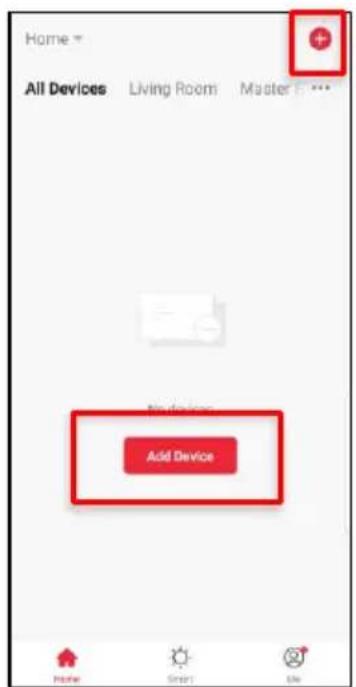
On the Home screen, tap 'Add Device' or the '+' icon.
Ensure your device's Wifi LED is flashing rapidly.
If it is not, hold down the "OSCILLATION" button for 5 seconds or until the Wifi icon begins to flash.
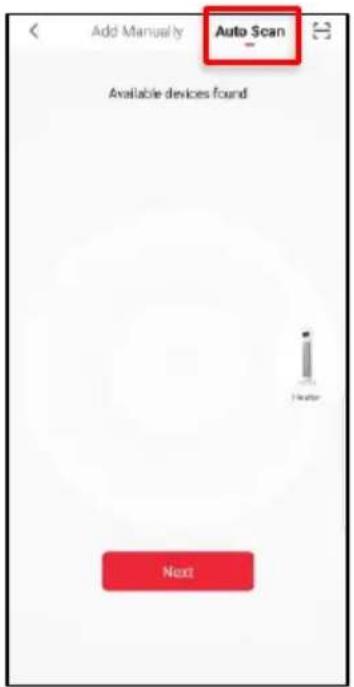
On the top right, click 'Auto Scan'
The app will now scan for Bluetooth devices.
When your device appears, click on the image.
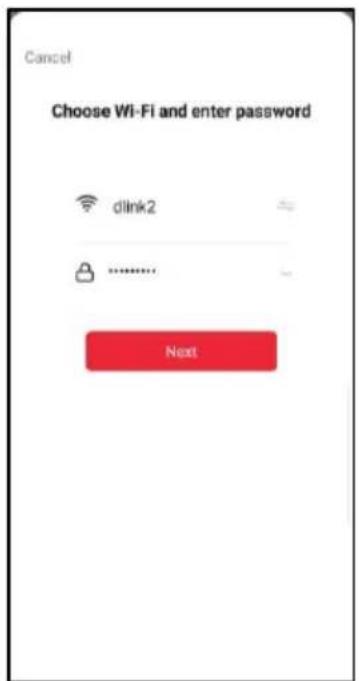
Choose your 2.4ghz Wifi network and add in the password. Click 'Next'
Your device will now pair with the app.
Please ensure your device, modem and phone are as close together as possible.
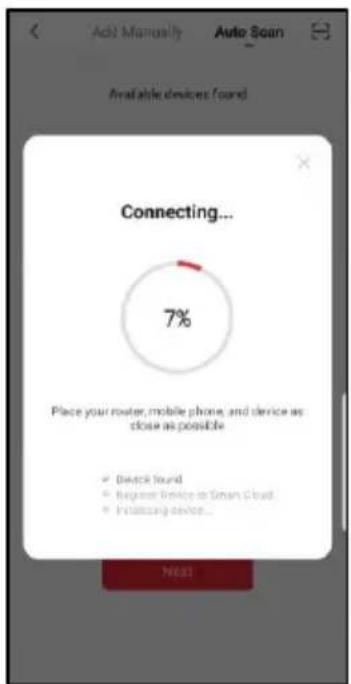
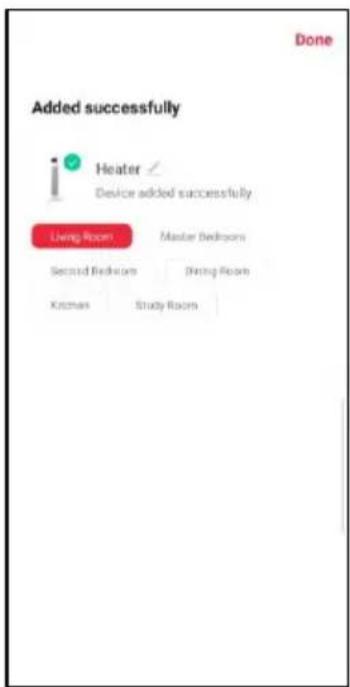
Once the device has paired, choose to rename it by tapping the Pen icon
Choose the most suitable room type and click 'Done' in the top right hand corner.
Operating your Fan from the APP
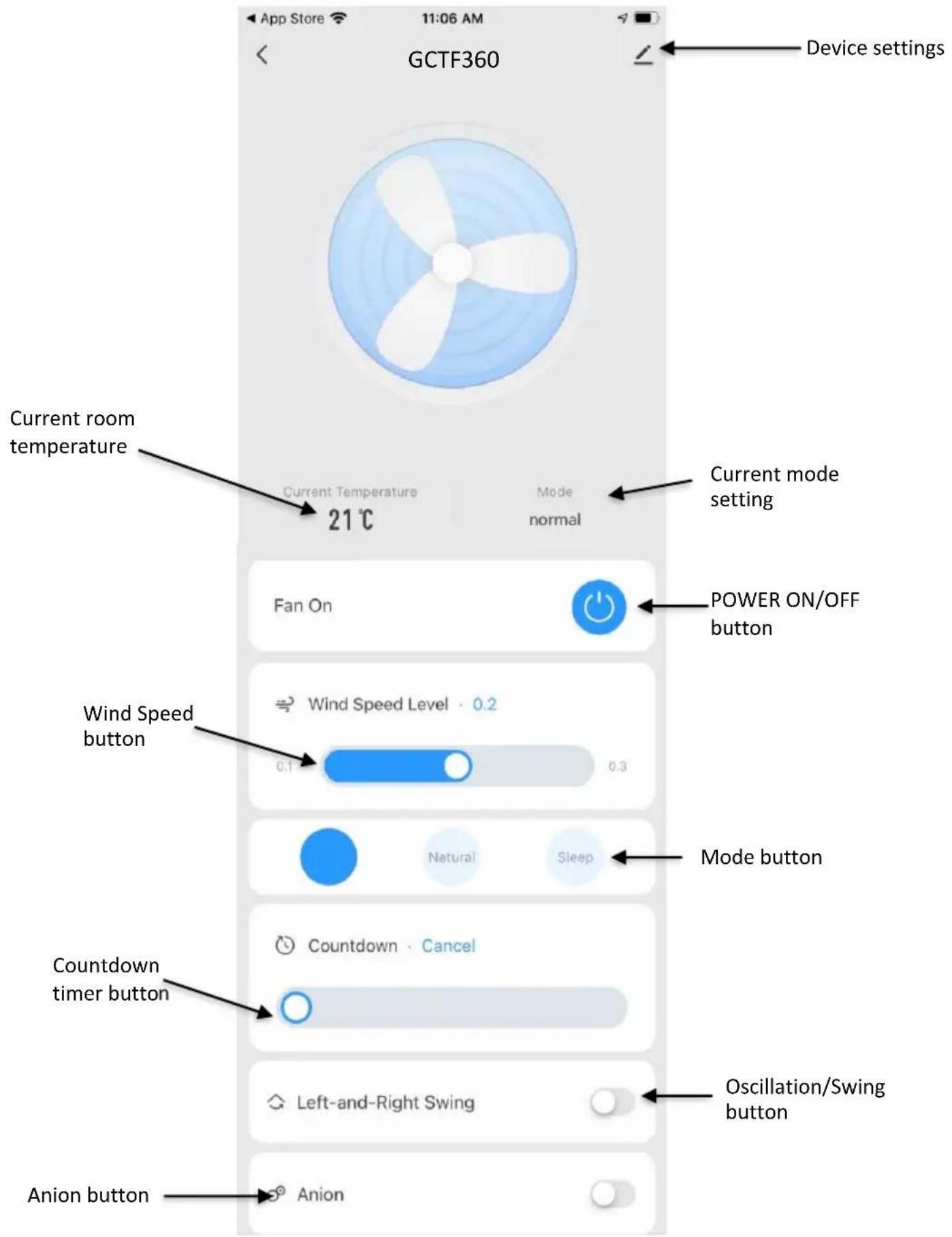
Operating your Fan from the APP
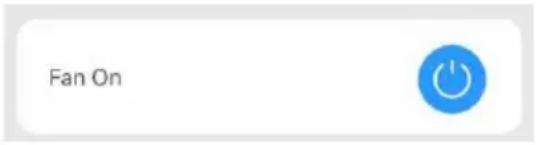
POWER
Click the Power Icon to turn the Fan ON/OFF
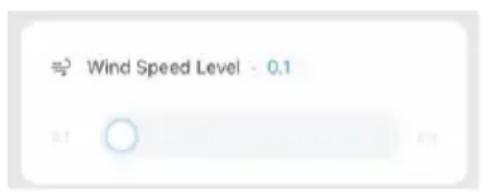
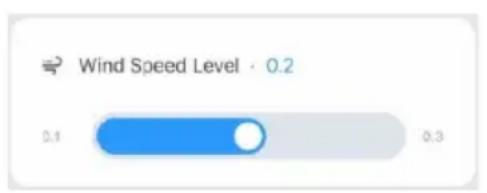
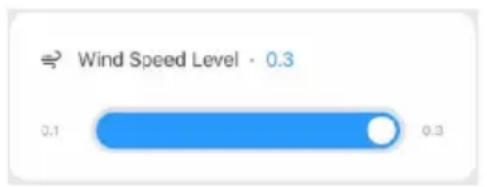
WIND SPEED
When the fan is turned on, it will default to Speed Level 1. Move the slider to the middle to activate Speed Level 2, or to the right to activate Speed Level 3.
MODE
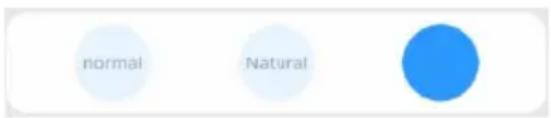
When the fan is turned on, it will default to Normal mode. Click the relevant icon to move to Natural and Sleep mode.
Normal: The fan will operate a consistent wind at the speed of your choice
Natural: the speed changes every 5 seconds in a cycle from low to medium to high to medium to low to medium to high to medium to low etc.
Sleep: the sleep function first runs at high speed for half an hour, then at the medium speed for half an hour, then at low speed until the fan is switched off.


Operating your Fan from the APP
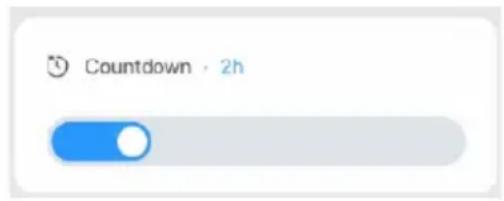
COUNTDOWN TIMER
Move the countdown slider to the hour off choice to set a timer to turn the fan OFF. Choose between 1-12 hours in 1 hr increments.
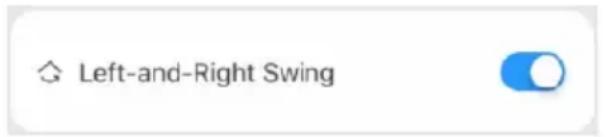
OSCILLATION
Click the Left and Right Swing icon to turn on oscillation.
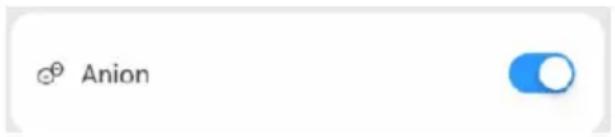
ANION
Click the Anion icon to turn on Anion.
Set up Tap-To-Run & Create Smart Scenes
Store your favourite settings or set up automated functions based on conditions in the 'Smart' part of your Goldair app.
Warning- you must remember to turn off any Smart functions prior to leaving the house or going away. We recommend you only operate your Goldair devices when someone is on the premises.
- Tap 'Smart' on the bottom of your mobile phone.
- Tap 'Create Scene' or the '+' icon on the top right.
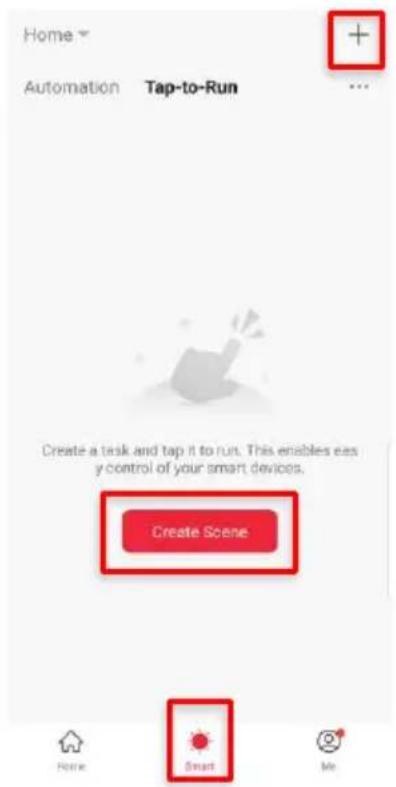
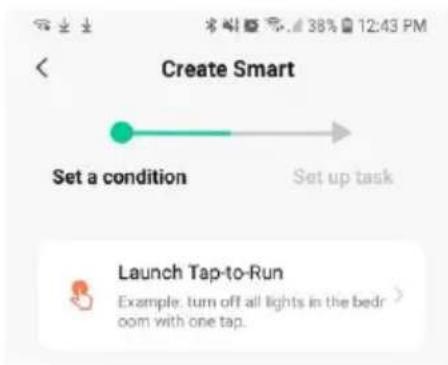
Click 'Launch Tap-to-Run' to save your preferred settings on your devices to launch at the click of a button. Click 'Run the device' and choose a device. Preset your desired functions such as Power ON/OFF, temperature, mode and timer as per on the device's functions. Click 'Next'
![Cancel Create new Smart Condition Launch Top-to-Run Task Hostor[Living Room] Power ON Name HostorPower ON Style Show on Home Page Save](/content/2026/05/934710/images/e9ae207428f9ea055825d3aa59cc5f096e5c3b04de513acced7ee826e6d4eb38.jpg)
Review your conditions and tasks on this screen, or choose to add another device or task by clicking the '+' icon.
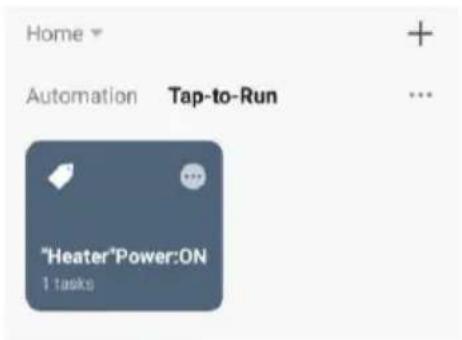
Click Save to store your settings and your new task will appear on the Smart homepage. Click it to operate your desired task.
Set up Tap-To-Run & Create Smart Scenes
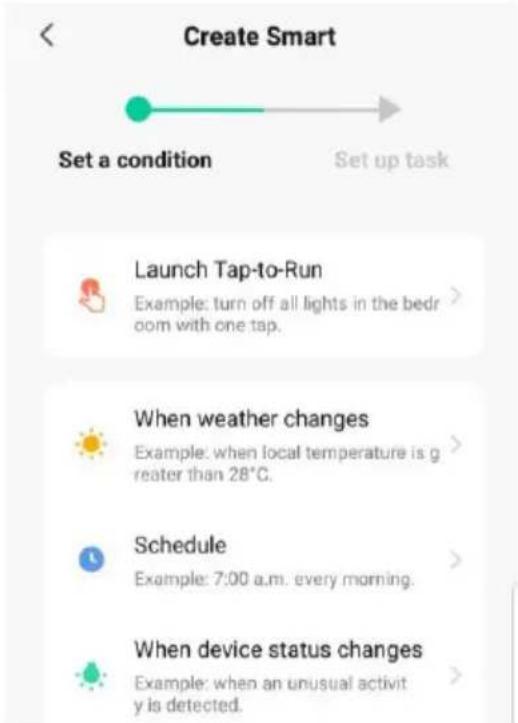
As well as setting up automated Tap-to-Run tasks, you can set conditions to operate your devices.
Weather:
Click ‘When weather changes’ to create a task based on your local outside weather. Choose between temperature, humidity, weather type, sunset/sunrise or wind speed. Select your desired condition and click ‘Next’. Click ‘Run the device’ and choose a device. Preset your desired functions such as Power ON/OFF, temperature, mode and timer as per on the device’s functions. Click ‘Next’. Review your conditions and click save. Your automation will appear on the main Smart homepage.
Schedule:
Click ‘Schedule’ to create a task for your device at selected times of the day. Click ‘Repeat’ to choose days of the week or leave as ‘Once’ to operate as a one off. Choose your desired time from the scroll bar and click ‘Next’. Click ‘Run the device’ and choose a device. Preset your desired functions such as Power ON/OFF, temperature, mode and timer as per on the device’s functions. Click ‘Next’. Review your conditions and click save. Your automation will appear on the main Smart homepage.
Status Change
Click ‘When device status changes’ to create a condition based on any function on your device, for example turning the Power Off when any device function is changed (to act as a child lock)
Voice Control
Once your smart scenes are set up, you can use Amazon Alexa or Google Home Routines to operate the scenes via voice control. Refer to your Amazon or Google Home user guides for instructions on how to pair your routine to smart scenes.
Operating your Device from the APP
Device settings:
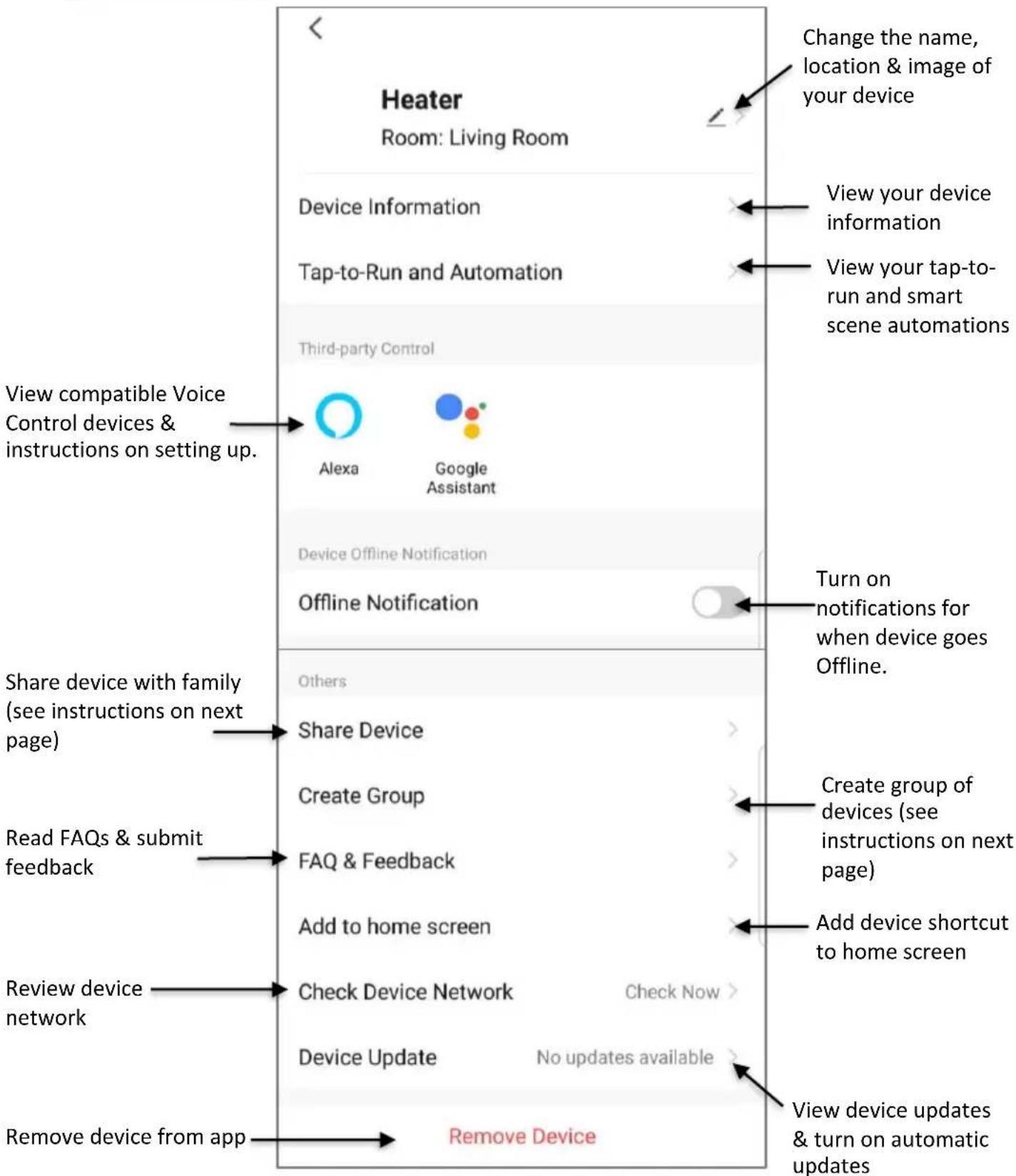
flowchart
graph TD
    A["Heater Room: Living Room"] --> B["Device Information"]
    B --> C["Tap-to-Run and Automation"]
    C --> D["Third-party Control"]
    D --> E["View compatible Voice Control devices & instructions on setting up."]
    E --> F["Alexa"]
    E --> G["Google Assistant"]
    F --> H["Device Offline Notification"]
    G --> H
    H --> I["Offline Notification"]
    I --> J["Share device with family (see instructions on next page)"]
    J --> K["Read FAQs & submit feedback"]
    K --> L["Review device network"]
    L --> M["Device Update"]
    M --> N["Remove Device from app"]

    style A fill:#f9f,stroke:#333
    style B fill:#ccf,stroke:#333
    style C fill:#cfc,stroke:#333
    style D fill:#fcc,stroke:#333
    style E fill:#cff,stroke:#333
    style F fill:#ffc,stroke:#333
    style G fill:#ffc,stroke:#333
    style H fill:#cfc,stroke:#333
    style I fill:#fcc,stroke:#333
    style J fill:#ffc,stroke:#333
    style K fill:#cfc,stroke:#333
    style L fill:#cfc,stroke:#333
    style M fill:#cfc,stroke:#333
    style N fill:#cfc,stroke:#333

    note1["Change the name, location & image of your device"] --> A
    note2["View your device information"] --> B
    note3["View your tap-to-run and smart scene automations"] --> C
    note4["Turn on notifications for when device goes Offline."] --> I
    note5["Create group of devices (see instructions on next page)"] --> K
    note6["Add device shortcut to home screen"] --> M

    %% Note labels in A,B,C,D,E,F,G,H,I,J,K,L,M,N,O,P,Q,R,S,T,U,V,W,X,Y,Z,N,N,N,N,N,N,N,N,N,N,N,N,N,N,N,N,N,N,N,N,N,N,N,N,N,N,N,N,N,N,N,N,N,N,N,N,N,N,N,N,N,N,N,N,N,N,N,N,N,N,N,N,N,N,N,N,N,N,N,N,N,N,N,N,N,N,N,N,N,N,N,N,N,N,N,N,N,N,N,N,N,N,N,N,N,N,N,N,N,N,N,N,N,N,N,N,N,N,N,N,n,n,n,n,n,n,n,n,n,n,n,n,n,n,n,n,n,n,n,n,n,n,n,n,n,n,n,n,n,n,n,n,n,n,n,n,n,n,n,n,n,n,n,n,n,n,n,n,n,n,n,n,n,n,n,n,n,n,n,n,n,n,n,n,n,n,n,n,n,n,n,n,n,n,n,n,n,n,n,n,n,n,n,n,n,n,n,n,n,n,n,n,n,n,n,n,n,n,n,n,u,k,l,m,m,m,m,m,m,m,m,m,m,m,m,m,m,m,m,m,m,m,m,m,m,m,m,m,m,m,m,m,m,m,m,m,m,m,m,m,m,m,m,m,m,m,m,m,m,m,m,m,m,m,m,m,m,m,m,m,m,m,m,m,m,m,m,m,m,m,m,m,m,m,m,m,m,m,m,m,m,m,m,m,m,m,m,m,m,m,m,m,m,m,m,m,m,m,m,m,m,m,m,k,l,l,l,l,l,l,l,l,l,l,l,l,l,l,l,l,l,l,l,l,l,l,l,l,l,l,l,l,l,l,l,l,l,l,l,l,l,l,l,l,l,l,l,l,l,l,l,l,l,l,l,l,l,l,l,l,l,l,l,l,l,l,l,l,l,l,l,l,l,l,l,l,l,l,l,l,l,l,l,l,l,l,l,l,l,l,l,l,l,l,l,l,l,l,l,l,l,l,l,l,r,k,l,r,k,r,k,r,k,r,k,r,k,r,k,r,k,r,k,r,k,r,k,r,k,r,k,r,k,r,k,r,k,r,k,r,k,r,k,r,k,r,k,r,k,r,k,r,k,r,k,r,k,r,k,r,k,r,k,r,k,r,k,r,k,r,k,r,k,r,k,r,k,r,k,r,k,r,k,r,k,r,k,r,k,r,k,r,k,r,k,r,k,r,k,r,k,r,k,r,k,r,k,r,s,r,s,r,s,r,s,r,s,r,s,r,s,r,s,r,s,r,s,r,s,r,s,r,s,r,s,r,s,r,s,r,s,r,s,r,s,r,s,r,s,r,s,r,s,r,s,r,s,r,s,r,s,r,s,r,s,r,s,r,s,r,s,r,s,r,s,r,s,r,s,r,s,r,s,r,s,r,s,r,s,r,s,r,s,r,s,r,s,r,s,r,s,r,s,r,s,r,s,r,e,k,r,k,r,k,r,k,r,k,r,k,r,k,r,k,r,k,r,k,r,k,r,k,r,k,r,k,r,k,r,k,r,k,r,k,r,k,r,k,r,k,r,k,r,k,r,k,r,k,r,k,r,k,r,k,r,k,r,k,r,k,r,k,r,k,r,k,r,k,r,k,r,k,r,k,r,k,r,k,r,k,r,k,r,k,r,k,r,k,r,k,r,k,r,k,r,k,r,k-r,k,r,k,r,k,r,k,r,k,r,k,r,k,r,k,r,k,r,k,r,k,r,k,r,k,r,k,r,k,r,k,r,k,r,k,r,k,r,k,r,k,r,k,r,k,r,k,r,k,r,k,r,k,r,k,r,k,r,k,r,k,r,k,r,k,r,k,r,k,r,k,r,k,r,k,r,k,r,k,r,k,r,k,r,k,r,k,r,k,r,k,r,k,r,k,r,k,r,k,t,x,x,x,x,x,x,x,x,x,x,x,x,x,x,x,x,x,x,x,x,x,x,x,x,x,x,x,x,x,x,x,x,x,x,x,x,x,x,x,x,x,x,x,x,x,x,x,x,x,x,x,x,x,x,x,x,x,x,x,x,x,x,x,x,x,x,x,x,x,x,x,x,x,x,x,x,x,x,x,x,x,x,x,x,x,x,x,x,x,x,x,x,x,x,x,x,x,x,x,x,u,w,w,w,w,w,w,w,w,w,w,w,w,w,w,w,w,w,w,w,w,w,w,w,w,w,w,w,w,w,w,w,w,w,w,w,w,w,w,w,w,w,w,w,w,w,w,w,w,w,w,w,w,w,w,w,w,w,w,w,w,w,w,w,w,w,w,w,w,w,w,w,w,w,w,w,w,w,w,w,w,w,w,w,w,w,w,w,w,w,w,w,w,w,w,w,w,w,w,w,w,q,p,q,p,q,p,q,p,q,p,q,p,q,p,q,p,q,p,q,p,q,p,q,p,q,p,q,p,q,p,q,p,q,p,q,p,q,p,q,p,q,p,q,p,q,p,q,p,q,p,q,p,q,p,q,p,q,p,q,p,q,p,q,p,q,p,q,p,q,p,q,p,q,p,q,p,q,p,q,p,q,p,q,p,q,p,q,p,q,p,q,p,q,p,q,p,q,p,q,p,qp,q,p,q,p,q,p,q,p,q,p,q,p,q,p,q,p,q,p,q,p,q,p,q,p,q,p,q,p,q,p,q,p,q,p,q,p,q,p,q,p,q,p,q,p,q,p,q,p,q,p,q,p,q,p,q,p,q,p,q,p,q,p,q,p,q,p,q,p,q,p,q,p,q,p,q,p,q,p,q,p,q,p,q,p,q,p,q,p,q,p,q,p,q,p,q,p,q,p,q,a,b,c,d,f,g,h,i,j,j,j,j,j,j,j,j,j,j,j,j,j,j,j,j,j,j,j,j,j,j,j,j,j,j,j,j,j,j,j,j,j,j,j,j,j,j,j,j,j,j,j,j,j,j,j,j,j,j,j,j,j,j,j,j,j,j,j,j,j,j,j,j,j,j,j,j,j,j,j,j,j,j,j,j,j,j,j,j,j,j,j,j,j,j,j,j,j,j,j,j,j,j,j,j,j,j,j,j,t,u,v,u,v,u,v,u,v,u,v,u,v,u,v,u,v,u,v,u,v,u,v,u,v,u,v,u,v,u,v,u,v,u,v,u,v,u,v,u,v,u,v,u,v,u,v,u,v,u,v,u,v,u,v,u,v,u,v,u,v,u,v,u,v,u,v,u,v,u,v,u,v,u,v,u,v,u,v,u,v,u,v,u,v,u,v,u,v,u,v,u,v,u,v,u,v,u,v,u,v,u-v,a,b,c,d,f,g,h,i,j,j,j,j,j,j,j,j,j,j,j,j,j,j,j,j,j,j,j,j,j,j,j,j,j,j,j,j,j,j,j,j,j,j,j,j,j,j,j,j,j,j,j,j,j,j,j,j,j,j,j,j,j,j,j,j,j,j,j,j,j,j,j,j,j,j,j,j,j,j,j,t,u,v,u,v,u,v,u,v,u,v,u,v,u,v,u,v,u,v,u,v,u,v,u,v,u,v,u-v,a,b,c,d,f,g,h,i,j,e,f,g,h,i,e,f,g,h,i,e,f,g,h,i,e,f,g,h,i,e,f,g,h,i,e,f,g,h,i,e,f,g,h,i,e,f,g,h,i,e,f,g,h,i,e,f,g,h,i,e,f,g,h,i,e,f,g,h,i,e,f,g,h,i,e,f,g,h,i,e,f,g,h,i,e,f,g,h,i,e,f,g,h,i,e,f,g,h,i,e,f,g,h,i,e,f,g,h,i,e,f,g,h i,e,f,g,h,i,e,f,g,h,i,e,f,g,h,i,e,f,g,h,i,e,f,g,h,i,e,f,g,h,i,e,f,g,h,i,e,f,g,h,i,e,f,g,h,i,e,f,g,h,i,e,f,g,h,i,e,f,g,h,i,e,f,g,h,i,e,f,g,h,i,e,f,g,h,i,e,f,g,h,i,e,f,g,h,i,e,f,g,h,i,e,f,g,h,i,e,f,g,h ,e,e,f,g,h,i,e,f,g,h,i,e,f,g,h,i,e,f,g,h,i,e,f,g,h,i,e,f,g,h,i,e,f,g,h,i,e,f,g,h,i,e,f,g,h,i,e,f,g,h,i,e,f,g,h,i,e,f,g,h,i,e,f,g,h,i,e,f,g,h,i,e,f,g,h,i,e,f,g,h,i,e,f,g,h,i,e,f,g,h,i,e,f,g,h,i,e,f,g,hi,e,f,g,h,i,e,f,g,h,i,e,f,g,h,i,e,f,g,h,i,e,f,g,h,i,e,f,g,h,i,e,f,g,h,i,e,f,g,h,i,e,f,g,h,i,e,f,g,h,i,e,f,g,h,i,e,f,g,h,i,e,f,g,h,i,e,f,g,h,i,e,f,g,h,i,e,f,g,h,i,e,f,g,h,i,e,f,g,h,i,e,f,g,h,i,e,f,g,h{i},\\
Operating your Device from the APP
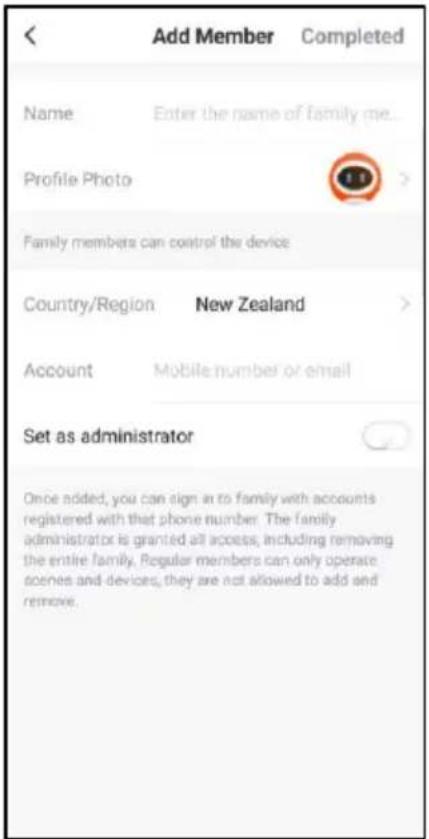
Share device with family member:
- The person you add will need to have the Goldair APP installed on their phone.
- Enter your family member's details to share device operation with them.
- Tap 'Confirm' to complete the addition.
Remove family member from device:
- Tap 'Share Devices' to delete the number of the person you want to cancel. Tap 'Confirm' to confirm.
NOTE: There can only be one user operating the device at a time. The APP needs to be closed on all other devices to enable the sharing to work.
NOTE: If someone else sets up their phone on the same device without using the 'Device Sharing' the original phone will be disconnected and the device will disappear from the device list.
Group your devices:
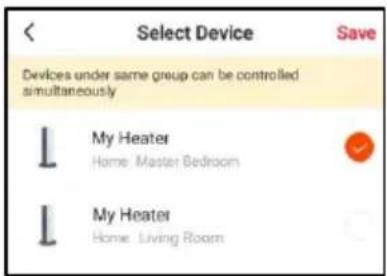
Devices within the same group can be controlled simultaneously
- Under 'Create Group' setting, select all devices you wish to group together. Click 'Save'
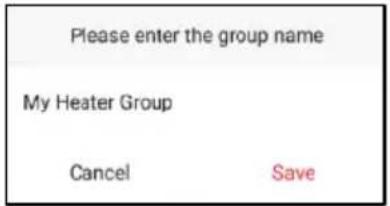
• Enter a group name of choice. Click Save.
You can now operate all devices within this group simultaneously.
Ungroup your devices:
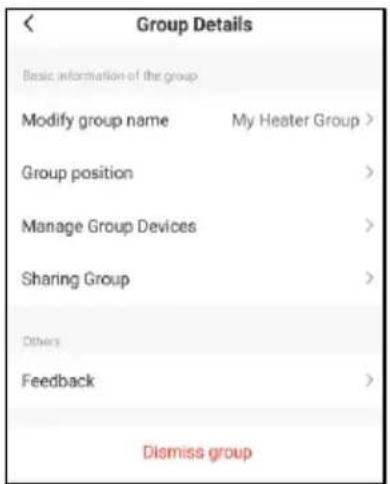
- Click on to pen icon within device group
- Select 'Dismiss Group'
You have now deleted your group.
How to connect to your Alexa devices
• Download the Goldair App and pair your device.
Note: change the name of the device to an easily identifiable name such as 'Bedroom Fan' or 'Living Room Heater'
Note: Ensure you have downloaded and have configured the Amazon Alexa app. Please see your Alexa device's user manual for instructions.
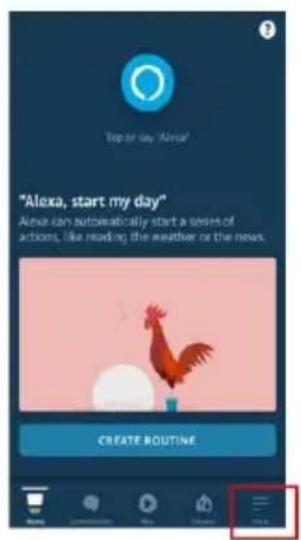
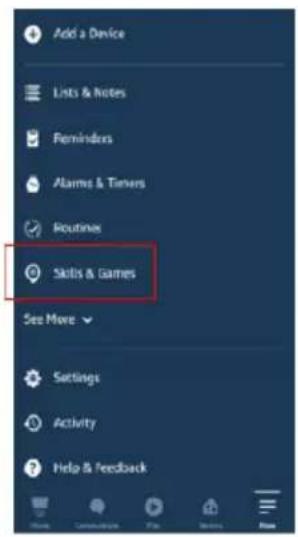
- On the main page of the Alexa app, click the 'More' icon in the bottom right hand side of the page. Click on 'Skills and Games'
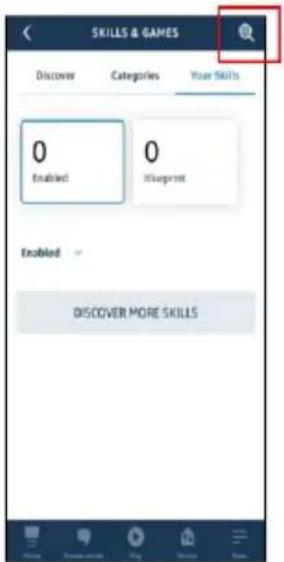
- Click on the search icon in the top right hand corner
- Click on the search icon in the top right hand corner
How to connect to your Alexa devices
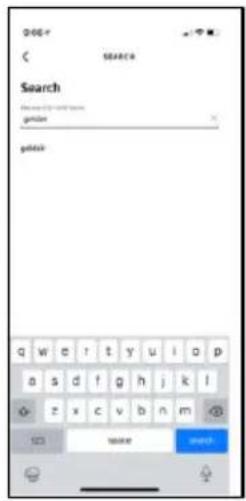
• Type 'Goldair' in the search bar and click to proceed.
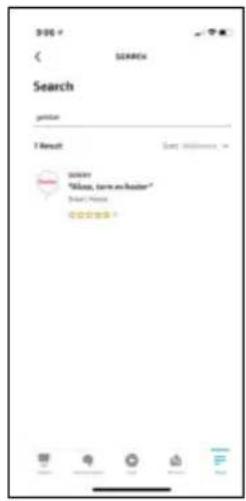
- Click 'Enable to use' and type your phone number/email address and password and click 'Link Now'
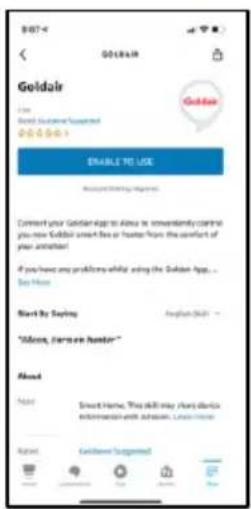
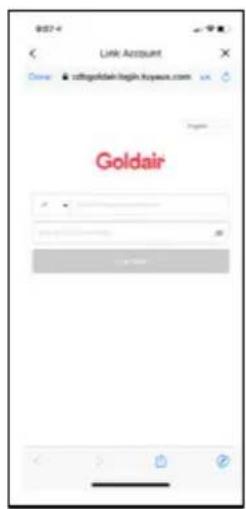
- Click 'Authorise' and go back to the Home screen. Your devices will now appear and you can operate using voice control.
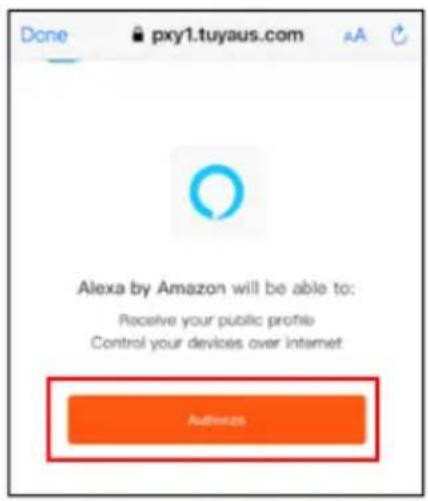
How to connect to your Alexa devices
SUGGESTED VOICE COMMANDS
Note: Amazon and Google are in control of voice control functionality and terminology. Not all functions available via the controller or APP can be controlled via voice command.
Voice control on your device will allow you to turn ON and OFF and adjust the settings.
Suggested voice commands to work with your Alexa device are:
Turning ON/OFF
Alexa, turn "Device Name" ON
Alexa, turn "Device Name" OFF
Adjust the settings
Alexa, turn "Device Name" to High (omit High with the desired setting or speed)
How to connect to your Google Home devices
Follow the below instructions to connect your device to Google Home.
• Download the Goldair App and pair your device.
Note: change the name of the device to an easily identifiable name such as 'Bedroom Fan' or 'Living Room Heater'
Note: Ensure you have downloaded and have configured the Google Home/Assistant apps. Please see your Google device's user manual for instructions.
- On the main page of the Google Home app, click the '+' icon in the top left hand side of the page.
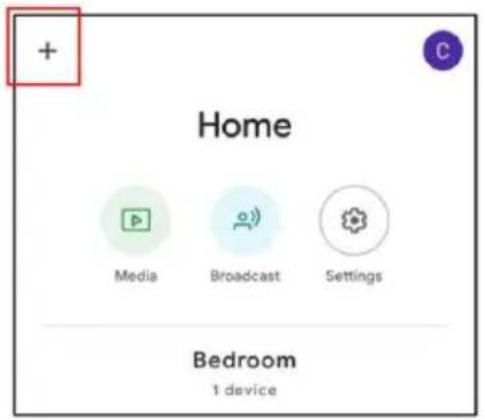
- Click 'Set up device'
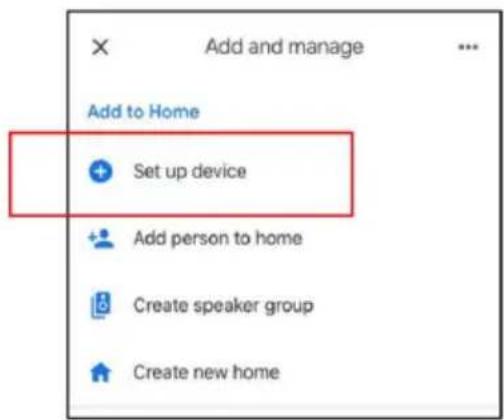
How to connect to your Google Home devices
- Click 'Works with Google'
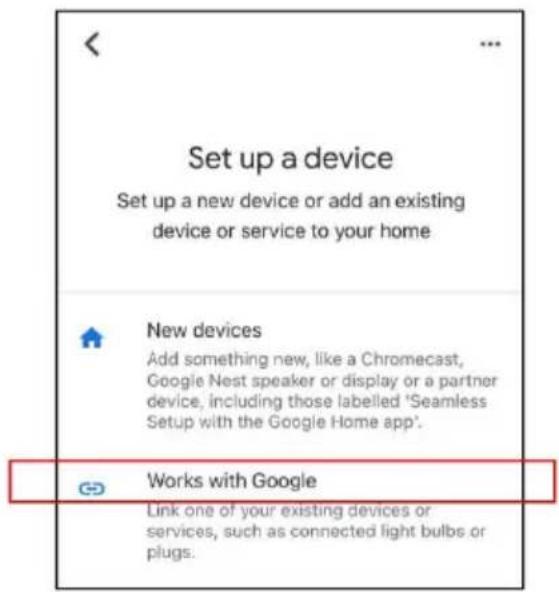
- Type 'Goldair' in the search bar and click to proceed.
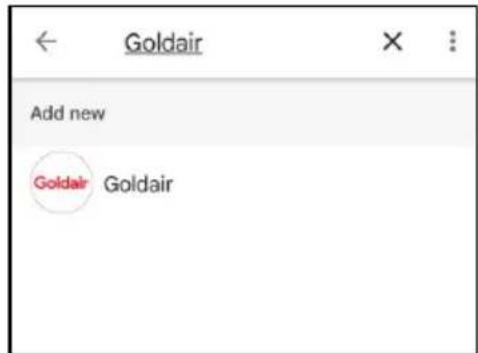
- Type your phone number/ email address and password and click 'Link Now'
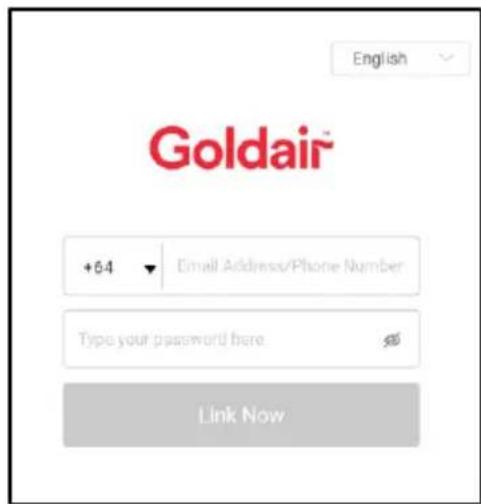
How to connect to your Google Home devices
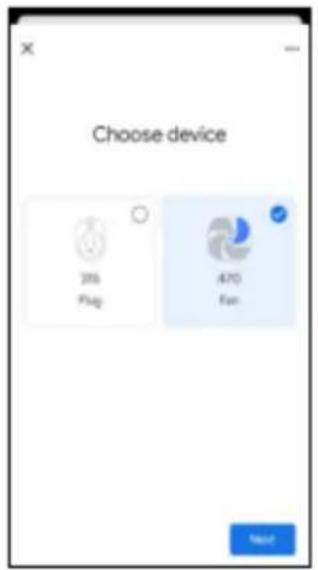
- Click Authorise and all devices from your Goldair App will appear on screen.
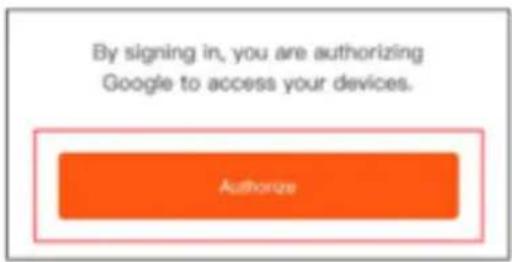
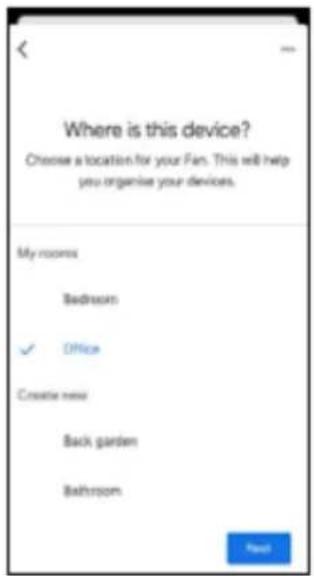
• You have the option to add these to a particular room in your home
- When you go back to the Home screen, your devices will now appear and you can operate using voice control.
SUGGESTED VOICE COMMANDS
Note: Amazon and Google are in control of voice control functionality and terminology. Not all functions available via the controller or APP can be controlled via voice command.
Voice control on your device will allow you to turn ON and OFF and adjust the settings. Suggested voice commands to work with your Google device are:
Turning ON/OFF
Ok Google, turn "Device Name" ON
Ok Google, turn "Device Name" OFF
Adjust the settings
Ok Google, turn "Device Name" to High (omit High with the desired setting or speed)
Goldair™

natural_image
Blue and white wavy flag pattern (no text or symbols)CDB Goldair
New Zealand
PO Box 100707,
North Shore Mail Centre,
Auckland, 0745
www.goldair.co.nz
Australia
PO Box 574,
South Morang,
Victoria, 3752
www.goldair.com.au
- Operating Instructions
- 81cm Electronic Tower Fan with WiFi
- Wifi — Downloading and Setting up APP
- Download Goldair mobile APP
- Pairing APP to Device
- Connect with 2.4ghz Wifi Network
- Connect with 2.4ghz Wifi Network: EZ Mode
- Connect with 2.4ghz Wifi Network: AP Mode
- Connect with Bluetooth
- Operating your Fan from the APP
- POWER
- WIND SPEED
- MODE
- COUNTDOWN TIMER
- OSCILLATION
- ANION
- Set up Tap-To-Run & Create Smart Scenes
- Weather:
- Schedule:
- Status Change
- Voice Control
- Operating your Device from the APP
- Share device with family member:
- Remove family member from device:
- Group your devices:
- Ungroup your devices:
- How to connect to your Alexa devices
- SUGGESTED VOICE COMMANDS
- Turning ON/OFF
- Adjust the settings
- How to connect to your Google Home devices
- Goldair™
Brand : GoldAir
Model : GCTF360
Category : Household Fan