
LSH-E27WW10W - Lighting Laser - Free user manual and instructions
Find the device manual for free LSH-E27WW10W Laser in PDF.


| Product Type | Smart LED Bulb |
| Brand | Laser |
| Model | LSH-E27WW10W |
| Base Type | E27 |
| Power Consumption | 10W |
| Equivalent Incandescent Wattage | 60W |
| Color Temperature Range | 2700K - 6500K |
| Color Modes | RGB + Tunable White |
| Dimmable | Yes, via app |
| Smart Features | Scheduling, tap-to-run, automation |
| Connectivity | Wi-Fi 2.4GHz + Bluetooth |
| Required Wi-Fi Band | 2.4GHz only (not 5GHz) |
| Compatible App | Laser SmartHome |
| Voice Control | Compatible with Google Assistant and Amazon Alexa |
| Dimensions (Approx.) | 60 mm diameter x 120 mm height |
| Weight (Approx.) | 100 g |
| Input Voltage | 220-240V AC, 50/60Hz |
| IP Rating | IP20 (indoor use only) |
| Material | Aluminum heatsink + plastic diffuser |
| Cleaning | Wipe with a dry, soft cloth |
| Spare Parts Availability | Not available |
| Repairability | Not user-serviceable; contact support |
Frequently Asked Questions - LSH-E27WW10W Laser
User questions about LSH-E27WW10W Laser
0 question about this device. Answer the ones you know or ask your own.
Ask a new question about this device
Download the instructions for your Lighting in PDF format for free! Find your manual LSH-E27WW10W - Laser and take your electronic device back in hand. On this page are published all the documents necessary for the use of your device. LSH-E27WW10W by Laser.
USER MANUAL LSH-E27WW10W Laser
QR Codes for Downloading Apps


2
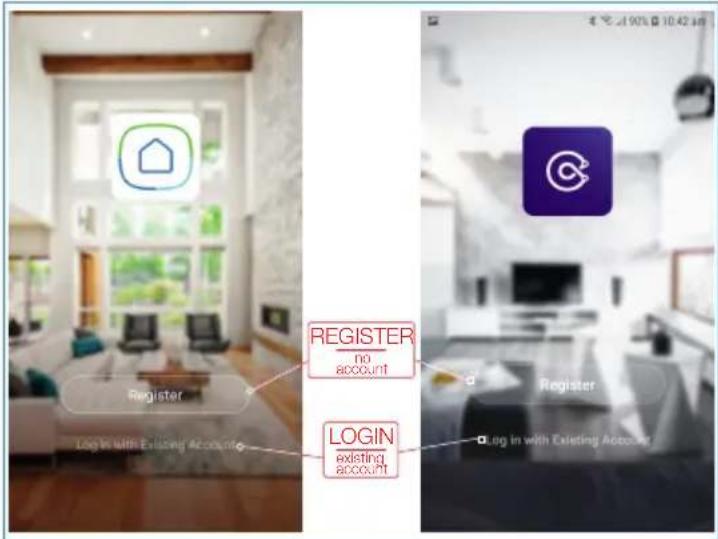
REGISTER OR LOGIN TO APP
3
RECOMMENDED APP SETTINGS

METHOD ONE
BLUETOOTH + WIFI
EASY

flowchart
graph TD
    A["Connect Light to Power"] --> B["TIP"]
    B --> C["Add device not found please check"]
    C --> D["Only 2.4G Wi-Fi networks are supported"]

    subgraph Connection Details
        E["Turn on Bluetooth on your Smart Phone"]
        F["Bluetooth"]
        G["Phone visibility"]
        H["Flight mode"]
        I["NFC and payment"]
        J["Mobile Hotspot and Tethering"]
        K["Mobile networks"]
    end

    subgraph Settings
        L["SOS only 11:40 am"]
        M["SOS only 11:40 am"]
        N["SOS only 11:41 am"]
        O["SOS only 11:41 am"]
    end

    P["Device 1: Accessed Device"] --> Q["Add device: 3% Scan devices, Register at Cloud, Wi-Fi is checked"]
    R["Devices to be added: 1: ABS 11W RGB+..."]
    S["Next"] --> T["Next"]
    end

    style A fill:#f9f,stroke:#333
    style B fill:#ccf,stroke:#333
    style C fill:#cfc,stroke:#333
    style D fill:#fcc,stroke:#333
    style E fill:#ffc,stroke:#333
    style F fill:#ffc,stroke:#333
    style G fill:#ffc,stroke:#333
    style H fill:#ffc,stroke:#333
    style I fill:#ffc,stroke:#333
    style J fill:#ffc,stroke:#333
    style K fill:#ffc,stroke:#333
    style L fill:#fff,stroke:#333
    style M fill:#fff,stroke:#333
    style N fill:#fff,stroke:#333
    style O fill:#fff,stroke:#333
    style P fill:#fff,stroke:#333
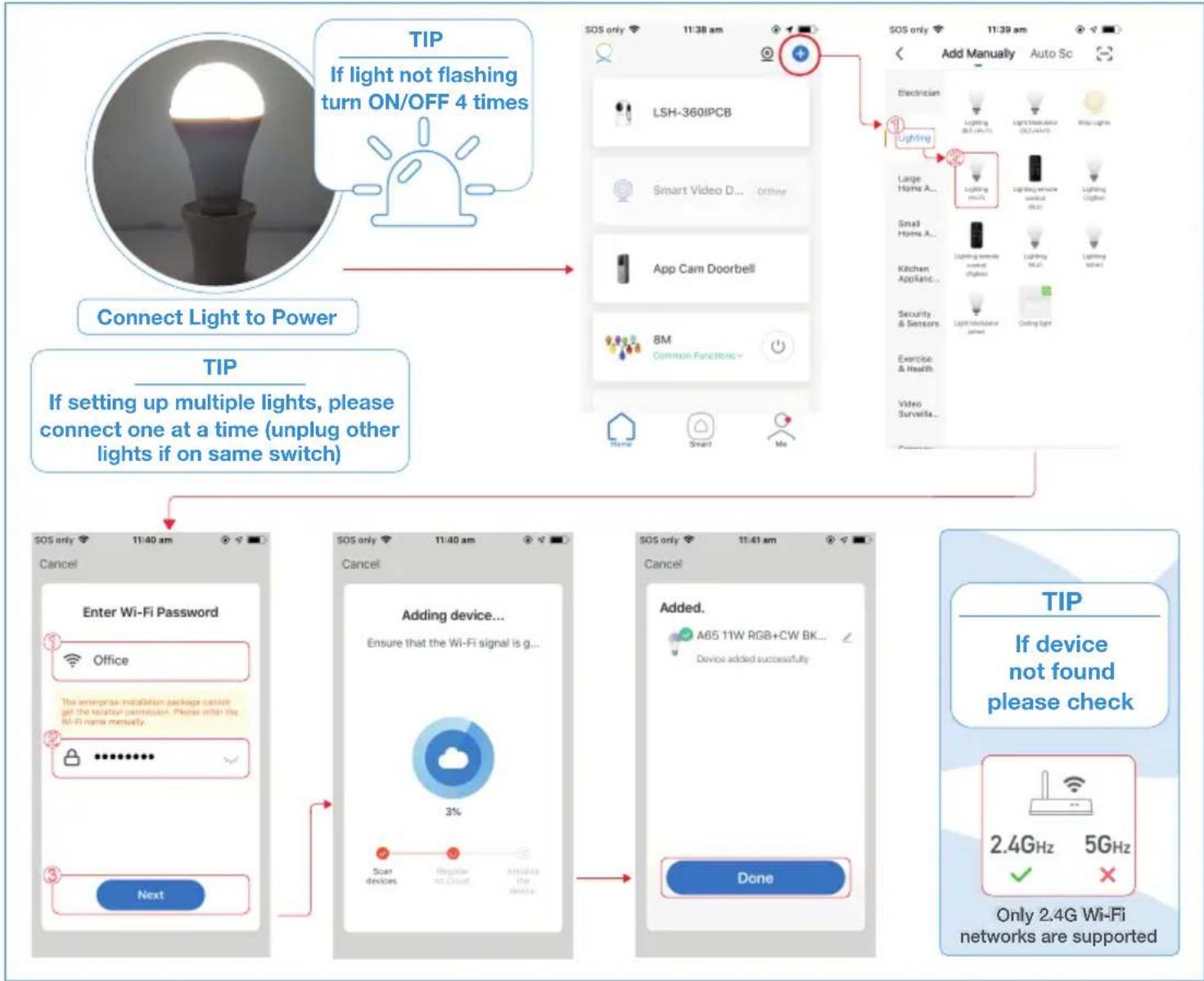
flowchart
graph TD
    A["Connect Light to Power"] --> B["TIP"]
    B --> C["If setting up multiple lights, please connect one at a time (unplug other lights if on same switch)"]
    C --> D["Add Manually Auto Sc"]
    D --> E["Add Device: 2.4G Hz 5GHz Only 2.4G Wi-Fi networks are supported"]
    E --> F["Next"]
    F --> G["Enter Wi-Fi Password"]
    G --> H["Office"]
    H --> I["The enterprise installation package cannot get the location permission. Please enter the Wi-Fi name mentally."]
    I --> J["••••••••••••••••••••••••••••••••••••••••••••••••••••••••••••••••••••••••••••••••••••••••••••••••••••"]
    J --> K["Next"]
    K --> L["SOS only 11:40 am"]
    L --> M["Cancel"]
    M --> N["Adding device... Ensure that the Wi-Fi signal is g... 3% Scan devices"]
    N --> O["Add. A65 11W RGB+CW BK... Device added successfully"]
    O --> P["Done"]
    P --> Q["Add Manually Auto Sc"]
    Q --> R["LSH-360IPC B Smart Video D... App Cam Doorbell 8M Common Functions Home Smart Me"]
    R --> S["Add Manually Auto Sc"]
5
USING THE LIGHT

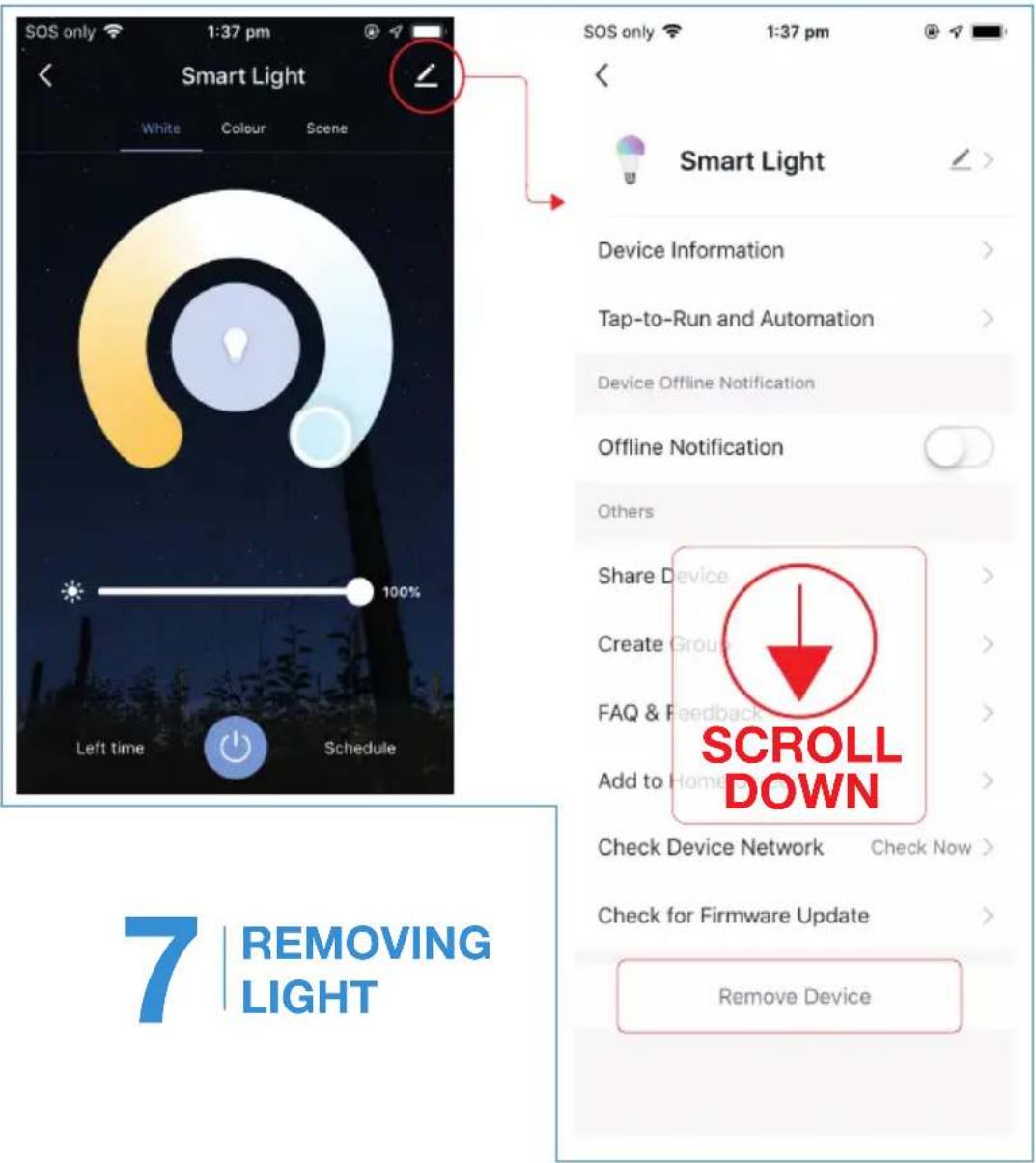

LIGHT SETTINGS
TROUBLESHOOTING
The device is not connecting to the APP:
- Check your Wifi username and password are correct and you are only using 2.4 Ghz Wifi connections as the 5Ghz band is not supported.
The light is blinking slowly and will not pair:
- The light might be in AP pairing mode. You can pair the light in AP Mode by switching from EZ Mode to AP Mode on the "Reset the Device first" screen in the APP.
- Stop pressing the pairing button and press and hold again to put the light into the fast blinking pairing mode.
For more helpful guides visit us at

LASER www.youtube.com/LasercoAu
CONNECT www.youtube.com/channel/UCCYzBiADapJN55Zzp3yfvLQ

WARRANTY
Our goods come with guarantees that cannot be excluded under the Australian Consumer Law. You are entitled to a replacement or refund for a major failure and compensation for any other reasonably foreseeable loss or damage. You are also entitled to have the goods repaired or replaced if the goods fail to be of acceptable quality and the failure does not amount to a major failure.

Brand : Laser
Model : LSH-E27WW10W
Category : Lighting