
BT-8484R - Mp3 player MAJESTIC - Free user manual and instructions
Find the device manual for free BT-8484R MAJESTIC in PDF.


| Product Type | Digital MP3 Player |
| Model | BT-8484R |
| Brand | Majestic |
| Dimensions | Approx. 70 x 40 x 12 mm (estimated) |
| Weight | Approx. 30 g (estimated) |
| Display | LCD screen with backlight |
| Storage | microSD card slot (card not included) |
| Audio Output | 3.5 mm earphone jack |
| Music Formats Supported | MP3, WMA, WAV, APE, FLAC |
| Recording Format | MP3, WAV |
| Picture Formats Supported | JPEG, BMP, GIF |
| Text Format Supported | TXT |
| Bluetooth | Bluetooth audio streaming |
| Power Source | Built-in rechargeable battery via USB (charges in ~4 hours) |
| Operating System Compatibility | Windows XP/Vista/7/8/10 |
| Operating Temperature | -5°C to 40°C |
| Signal-to-Noise Ratio (SNR) | L: 96.6 dB, R: 96.1 dB |
| Equalizer Presets | Off, Rock, Funk, Hip Hop, Jazz, Classic, Techno, Custom |
| Playback Modes | Repeat, Shuffle, Intro |
| Clip | Integrated clip for portability |
| Key Lock | Yes, via OPTIONS button |
| Maintenance | Clean with soft dry cloth; store in dry place away from extreme temperatures |
| Safety Precautions | Avoid water, impacts, and self-repair by non-professionals |
| Reparability | Not user-serviceable; contact professional service |
Frequently Asked Questions - BT-8484R MAJESTIC
User questions about BT-8484R MAJESTIC
0 question about this device. Answer the ones you know or ask your own.
Ask a new question about this device
Download the instructions for your Mp3 player in PDF format for free! Find your manual BT-8484R - MAJESTIC and take your electronic device back in hand. On this page are published all the documents necessary for the use of your device. BT-8484R by MAJESTIC.
USER MANUAL BT-8484R MAJESTIC
LIBRETTO DI ISTRUZION
Thank you for purchasing our digital MP3 player. Before you use this player, please read through this n book, so you can operate it correctly.
Caution
1) Avoid using MP3 player in a very cold or hot place.
2) Do not put the MP3 player in the water.
3) Do not knock or beat the MP3 player
4) Do not use the MP3 player during driving or riding a bike
5) Please do not open the MP3 player by yourself if you are not professional people.
Description of the parts

| 8 | ON/OFF switch | |
| 9 | Phone jack | Jack 3.5mm to insert earphones. |
| 10 | microSD slot | All files are stored and played from microSD card, if th not inserted it will not be possible to start music playba |
| 11 | VOL+/- | |
| 12 | Clip | |
| 13 | Display | |
DISPLAY

TURN ON/OFF AND VOLUME ADJUSTMENT
To turn on the unit move the switch to ON.
For standby long press PLAY button until the logo appears on screen.
To turn on from standby mode long press PLAY button until the logo appears on screen.
To turn off the unit move the switch to OFF.
To decrease or increase volume press VOL- or VOL+.
KEYS LOCK
To lock the keys keep pressed OPTIONS button until the keys lock icon appears.
To unlock the keys keep pressed OPTIONS button until the keys unlock icon appears.
MAIN MENU
After turning on the unit main menu will be displayed with 7 functions (Music, Recording, F Documents, Folder, Settings and Bluetooth).
By using PRE/NEXT buttons it is possible to move to the desired function. Pressing PLAY start the desired function. When a function is open it is possible to press PRE key to go previous menu or press NEXT key to confirm the selection.
It is possible to go back to main menu by keeping pressed RETURN key (from whatever
MUSIC
Please insert earphones in the slot, then push power switch to ON state, select music me! After choosing the mode between All tracks, Artist, Album, Genre or Playlist, select desired and press PLAY to start playback.
Long press OPTIONS key during playback to select:
- playback mode (Not repeat/Repeat 1/Repeat all/Intro) and turn on Shuffle
- EQ settings (choose between Off/Rock/Funk/Hip Hop/Jazz/Classic/
Techno/Custom)
Bookmark allows to move to a specific point in the played track (it is possible to ad
PICTURE
In picture mode it allows to play JPEG/BMP/GIF files saved in the microSD card. Select the OPTIONS/RETURN keys from the list of compatible files and confirm with PLAY. Pressing F is possible to start/stop slideshow. Pressing OPTIONS key during picture display (in pause) is possible to change display brightness, manage slideshow options and delete pictures. To exit keep pressed RETURN key.
Documents
By this function it is possible to view text files in TXT format.
FOLDER
By this mode it is possible to browse the folders inside memory card and start playback of compatible files.
SETTINGS
By this menu, selectable from main screen, it is possible to modify the unit settings. Select option with RETURN/OPTIONS keys and confirm with PLAY key. To exit settings keep pressed RETURN key.
| Audio | EQIt allows to set a limit beyond which the volume be increased further. Use volume keys to adjust t and confirm with PLAY. |
| Display | Brightness: allows to adjust the brightness level of display |
| Turn off: allows to set the time after which displa turn off automatically if no key is pressed (“always option allows to keep display always on”) |
of the player, turn on Bluetooth ® from menu "Bluetooth ® status" and start searching for "Search" option. After having detected the device select it pressing PLAY and choose "pair To start playback choose "All tracks", browse files from microSD and select the desired track. NOTE: in Bluetooth ® mode it is possible to play only WAV, WMA, APE, FLAC, MP3 for: NOTE: in Bluetooth ® mode it is not possible to view and play Playlist. NOTE: it is not guaranteed the compatibility with all Bluetooth ® audio devices.
Battery charging
The player has a built-in rechargeable battery which can be charged by using USB cable connecting to PC. The charging status of the battery will be shown on display. To charge turn on the PC and connect to it by using the supplied USB cable. The player should ch completely in about 4 hours (the charging time depends on the battery charging status).
Trouble shooting
| No power | Check if the battery have enough power.Check if the power switch is not OFF. |
| No sound from the Earphone | Make sure the volume is not at the 0 level.Make sure the earphone is connecting with th player correctly.Make sure the earphone is clean.The damaged player may have some kind of or even cannot have audio output.Make sure your downloaded files are not dam and that are supported by the player. |
| Can not download File | Check if the USB connection is ok.Check if there is available space in memory. |
| SNR | L: 96.6dB – R:96.1dB |
| MIC recording format | MP3/WAV |
| Supported picture format | JPG/BMP/GIF |
| Operate systems | Windows XP/Vista/7/8/10 |
| Operate Temperature | From -5 to 40 centigrade |
Note: SPECIFICATIONS AND FEATURES MAY BE CHANGED FOR PRODUCT IMPROVEMENT WITHOUT PRIOR NOTICE
INFORMATION TO USERS OF DOMESTIC EQUIPMENT

Pursuant to Art. 25, Paragraph 1 of the Legislative Act N. 49 14th March 2014, "Impl of the Directives 2011/65 / EU and 2012/19 / EU concerning the reduction of the use hazardous substances in electrical and electronic equipment, as well as waste disposals
The crossed bin symbol on the appliance or on its packaging indicates that the product at of its useful life must be collected separately from other waste. The user must, therefore, the equipment at the end of its life to the appropriate electronic and electro technical waste or return it to the retailer at the time of purchase of a new type of equivalent equipment,
Appropriate separate disposal for the subsequent start-up of the disused equipment for recycle
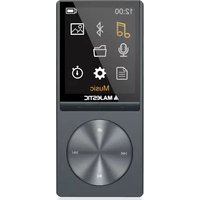
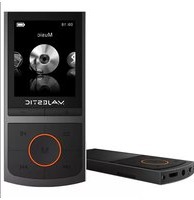

Brand : MAJESTIC
Model : BT-8484R
Category : Mp3 player