
AE415 - Pregnant DELL - Free user manual and instructions
Find the device manual for free AE415 DELL in PDF.


| Product Type | 2.1 Speaker System (subwoofer + 2 satellites) |
| Model Number | AE415 |
| Brand | Dell |
| Connectivity | Aux-in (3.5mm), Headphone jack, DIN cable for satellites |
| Audio Input | Analog via 3.5mm aux-in |
| Output Power | 2 x 5W (satellites) + 20W (subwoofer) at ≤10% THD |
| Power Supply | 20V DC, 1.5A |
| Subwoofer Diameter | 180 mm (7.09 in) |
| Subwoofer Weight | 1080 g (2.38 lb) |
| Satellite Diameter | 120 mm (4.72 in) each |
| Satellite Weight | 340 g (0.75 lb) each |
| Operating Temperature | 0°C to 40°C |
| Storage Temperature | -40°C to 65°C |
| Operating Humidity | 90% maximum relative humidity (non-condensing) |
| Storage Humidity | 90% maximum relative humidity (non-condensing) |
| Controls | Power button, Volume up/down buttons |
| Indicators | Power LED (white) |
| Special Features | Audio tone alerts for power on/off and volume limits |
| Package Contents | Subwoofer, 2 satellites, Power supply, Audio cable, Documents |
| Warranty | 1-year limited hardware warranty |
Frequently Asked Questions - AE415 DELL
User questions about AE415 DELL
0 question about this device. Answer the ones you know or ask your own.
Ask a new question about this device
Download the instructions for your Pregnant in PDF format for free! Find your manual AE415 - DELL and take your electronic device back in hand. On this page are published all the documents necessary for the use of your device. AE415 by DELL.
USER MANUAL AE415 DELL
Dell 2.1 Speaker System
AE415
User's Guide

Notes, cautions, and warnings
NOTE: A NOTE indicates important information that helps you make better use of your computer.
CAUTION: A CAUTION indicates either potential damage to hardware or loss of data and tells you how to avoid the problem
WARNING: A WARNING indicates a potential for property damage, personal injury, or death.
Copyright © 2016 Dell Inc. All rights reserved. This product is protected by U.S. and international copyright and intellectual property laws. Dell™ and the Dell logo are trademarks of Dell Inc. in the United States and/or other jurisdictions. All other marks and names mentioned herein may be trademarks of their respective companies.
2016-06
Contents
What's in the box....4
Features....5
Setting up your speaker....6
Powering your speaker on/off 6
Connecting your speaker....8
Audio-in port 8
Headphone jack 9
Adjusting the volume 10
Troubleshooting....11
Specifications....16
Statutory information....17
Warranty....17
What's in the box

NOTE: The documents that shipped with the speaker may vary based on your region.
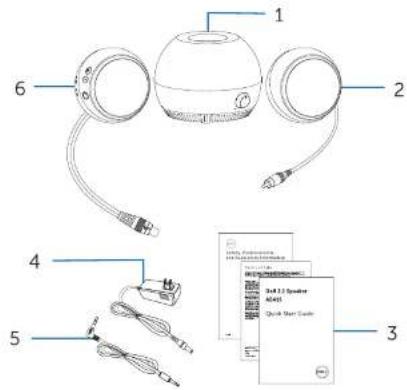
1 subwoofer
2 right satellite
3 documents
4 power supply
5 audio cable
6 left satellite
Features
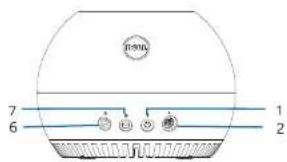
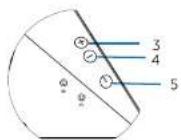
1 DC (direct current) port 2 left satellite port
3 volume up 4 volume down
5 power button 6 right satellite port
7 aux-in port
Setting up your speaker
Powering your speaker on/off
1 Connect the left and right satellites to the left and right subwoofer ports.
2 Connect one end of the power supply to the subwoofer port, and the other end to a working wall socket.
3 Connect the audio cable to the subwoofer port.
4 Plug the other end of the audio cable to the audio port of your computer.
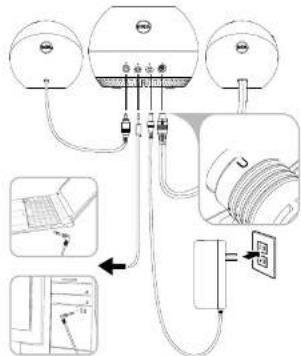
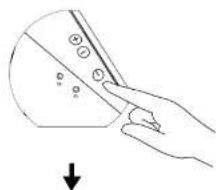
5 Press and release the power button. The LED on the power button will light up to indicate that the device is on. An audio tone can be heard when the speaker is powered on.
natural_image
Hand holding a curved object with control buttons and a downward arrow, no text or symbols present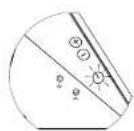
6 To power off the speaker, press and release the power button. The LED on the power button will fade out to indicate that the device is off.
Connecting your speaker
Use the audio in or headphone jack to connect your audio device (tablet, smart phone) to your Dell speaker.
Audio-in port
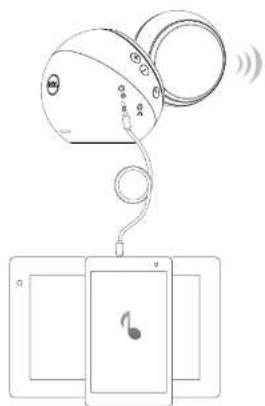
You can play audio using the audio-in cable that came with your audio device.
1 Connect the audio-in cable to the aux-in port on the speaker.
2 Connect the other end of the cable to the aux-in port on your audio device.
3 Play music and adjust the volume as desired.
natural_image
Diagram showing a device connected to a smartphone with musical notes, emitting sound waves (no text or symbols present)Headphone jack
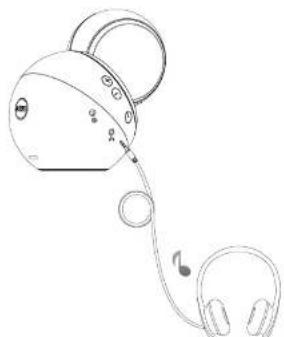
1 Connect the headphone to the headphone jack on the speaker.
2 Play music and adjust the volume as desired.
natural_image
Line drawing of a kettlebell with headphones and earphones (no text or symbols)Adjusting the volume
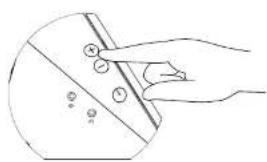
1 Press the + button to adjust the volume up. A soft dual tone can be heard when the speaker is at the maximum volume.
2 Press the - button to adjust the volume down. A soft single tone can be heard when the speaker is at the minimum volume.
natural_image
Line drawing of a hand holding a device with control buttons (no text or symbols)Troubleshooting
| Problems | Possible causes | Possible solutions |
| Speaker is not functioning properly | The power button LED is off | Check that the power supply is plugged to the wall socket.Check if your computer is on by pressing the power button.Press the power button, you will hear an alert tone and the LED on the power button turns white to indicate that the speaker is on.If the speaker does not work, follow the steps below.Unplug the power supply and plug it back in.Check that the DC plug is properly inserted to the subwoofer DC jack.Unplug and plug the left satellite DIN cable connector to the subwoofer.Try a known good power supply. |
| No sound | No sound from the external audio source | Check if a 3.5 mm aux-in cable is inserted in the speaker aux-in port.Unplug the 3.5 mm aux-in cable from the aux-in jack and insert the cable again.Check if the audio source is powered on.If the speaker is off |
| Distorted sound | Computer's sound card is used as the audio source. | Try a known good speaker or audio source.Clear any obstructions between the speaker and the user.Confirm that the audio line-in plug is completely inserted into the port of the sound card.Set all volume controls to medium.Decrease the volume of the audio application.Turn the volume level to lower setting by pressing the '-' button on the left satellite.Turn the volume level of the subwoofer by rotating the sub volume knob counterclockwise.Clean and reseat all cables.Troubleshoot the computer's sound card.Test the speaker using another audio source (for example, a portable CD player or an MP3 player).Make sure no loose objects are touching the speaker. |
| Unbalanced sound output | Sound is coming from only one side of the speaker | Clear any obstructions between the speaker and the user.Confirm that the audio line-in plug is completely inserted into the jack of the speaker or audio source.Set all Windows audio balance controls (L-R) toTroubleshoot the computer's sound card.Test the speaker using another audio source (for example, a portable CD player or an MP3 player). |
| Low volume | Volume is too low | Clear any obstructions between the speaker and the user.Turn the volume to a higher level by pressing the "+" button on the left satellite.Set all Windows volume controls to their maximum.Increase the volume of the audio application.Test the speaker using another audio source (for example, a portable CD player or an MP3 player). |
| Buzzing noise | Noise could be heard from the speaker | Make sure that the speaker is on a flat surface and no loose objects are hanging or touching the speaker.Reduce the volume to a lower level by pressing the "-" button on the left satellite.Make sure that the wires doesn't interfere with the speaker. |
| Aux-in no sound | No sound using the aux-in function | Make sure that the aux-in cable is properly plugged in the speaker's aux-in port and to the aux-out jack of the audio device.Try a known good aux-inCheck if the audio device is turned on or is playing music.Make sure that the audio device volume is not set to 0%.Try a known good speaker or audio source. |
| Aux-in distortion | Aux-in cable is not properly plugged in | Clear any obstructions between the speaker and the user.Confirm that the audio line-in plug is completely inserted into the jack of the audio source.Decrease the volume of the audio source.Turn the volume level to a lower setting by pressing the "-" button on the left satellite.Clean and reseat the cables.Make sure no loose objects are touching the speaker. |
| Headphone jack is connected, but no sound is heard | External audio source is not playing music and the volume is 0% | Check if the platform music player or external audio source is playing music.Check if the audio source and the speaker volume is not set to 0%. |
| Headphone jack connected | Audio distortion | Check if the headphone plug is properly inserted into the speaker headphone jack.Check if the headphone plug is not showing intermittent connection.Check if the music file is not |
without the headphone or connected to a known good headphone.
Missing items
Check the packaging
- Check if all items as show in "What's in the box" are present inside the package.
Specifications
| General | |
| Model number | AE411 |
| Connection type | DIN cableAudio cable |
| Electrical | |
| Operating voltage | 20 V |
| Operating current | 1.5 A |
| Audio Input | Audio InputAnalog Audio Aux-in (3.5mm jack) |
| Output Power | 2 x 5W + 20W@ ≤ 10% THD |
| Physical Characteristics | |
| Subwoofer: | |
| Diameter | 180 mm (7.09in) |
| Weight | 1080g (2.38lb) |
| Satellites: | |
| Diameter | 120 mm (4.72 in) |
| Weight | 340 g (0.75 lb) |
Environmental
| Operating temperature | 0°C to 40°C |
| Storage temperature | -40°C to 65°C |
| Operating humidity | 90% maximum relative humidity non condensing |
| Storage humidity | 90% maximum relative humidity non condensing |
Statutory information
Warranty
Limited warranty and return policies
Dell-branded products carry a 1-year limited hardware warranty. If purchased together with a Dell system, it will follow the system warranty.
For U.S. customers:
This purchase and your use of this product are subject to Dell's end user agreement, which you can find at Dell.com/terms. This document contains a binding arbitration clause.
For European, Middle Eastern and African customers:
Dell-branded products that are sold and used are subject to applicable national consumer legal rights, the terms of any retailer sale agreement that you have entered into (which will apply between you and the retailer) and Dell's end user contract terms.
Dell may also provide an additional hardware warranty—full details of the Dell end user contract and warranty terms can be found by going to Dell.com, selecting your country from the list at the bottom of the "home" page and then clicking the "terms and conditions" link for the end user terms or the "support" link for the warranty terms.
For non-U.S. customers:
Dell-branded products that are sold and used are subject to applicable national consumer legal rights, the terms of any retailer sale agreement that you have entered into (which will apply between you and the retailer) and Dell's warranty terms. Dell may also provide an additional hardware warranty—full details of Dell's warranty terms can be found by going to Dell.com, selecting your country from the list at the bottom of the "home" page and then clicking the "terms and conditions" link or the "support" link for the warranty terms.
Brand : DELL
Model : AE415
Category : Pregnant