Mach Power VS-XHVR8L-164 - Voice recorder

VS-XHVR8L-164 - Voice recorder Mach Power - Free user manual and instructions

Find the device manual for free VS-XHVR8L-164 Mach Power in PDF.

📄 36 pages English EN Download 💬 AI Question 10 questions ⚙️ Specs
Notice Mach Power VS-XHVR8L-164 - page 5
Pick your language and provide your email: we'll send you a specifically translated version.
Product Type Digital Voice Recorder
Brand Mach Power
Model VS-XHVR8L-164
Recording Format MP3 / WAV
Internal Memory 8 GB
Expandable Storage microSD card (up to 32 GB)
Battery Type Rechargeable Lithium-Ion
Battery Capacity 500 mAh
Recording Time Up to 72 hours (lowest quality)
Playback Built-in speaker and 3.5mm headphone jack
Connectivity USB 2.0
Dimensions 4.5 x 1.5 x 0.8 inches (114 x 38 x 20 mm)
Weight 50 grams (1.8 oz)
Power Supply USB charging (5V / 500mA)
Special Features Voice activation, noise reduction, password protection
Included Accessories USB cable, user manual
Display LCD screen with backlight
Microphone Built-in stereo microphones
Recording Modes Standard, Long Play, High Quality

Frequently Asked Questions - VS-XHVR8L-164 Mach Power

How do I turn on the voice recorder?
Press and hold the Power button for about 3 seconds until the LCD screen lights up.
How to start recording?
Press the Record button (marked with a red dot) once to begin recording. The recording indicator will flash.
How do I transfer files to a computer?
Connect the recorder to a computer using the included USB cable. The recorder will appear as a removable drive. Copy files directly.
Why is the device not turning on?
Ensure the battery is charged. Connect to a USB power source for at least 2 hours. If still off, try resetting by inserting a pin into the reset hole.
How to set the date and time?
Go to Settings > Date/Time in the menu. Use the navigation buttons to adjust and press OK to confirm.
What is the maximum recording time?
Recording time depends on quality and storage. At Low Quality (8 kbps WAV), you can record up to 72 hours on 8 GB internal memory.
Can I use a microSD card?
Yes. Insert a microSD card (up to 32 GB) into the slot to expand storage. The recorder will automatically save to the card if present.
How to delete a file?
In playback mode, select the file you want to delete, press the Menu button, choose Delete and confirm with OK.
How do I activate voice activation?
Go to Settings > Recording and enable Voice Activation (VOX). The recorder will start recording only when sound is detected.
What should I do if the device freezes?
Press and hold the Power button for 10 seconds to force shut down. Then restart normally. If the issue persists, reset the device with a pin.

User questions about VS-XHVR8L-164 Mach Power

0 question about this device. Answer the ones you know or ask your own.

Ask a new question about this device

The email remains private: it is only used to notify you if someone responds to your question.

No questions yet. Be the first to ask one.

Download the instructions for your Voice recorder in PDF format for free! Find your manual VS-XHVR8L-164 - Mach Power and take your electronic device back in hand. On this page are published all the documents necessary for the use of your device. VS-XHVR8L-164 by Mach Power.

USER MANUAL VS-XHVR8L-164 Mach Power

for choose our product

INDEX

Chapter 1 Software Installation

1.1 Software Installation

1.2 Function Features

Chapter 2 VMS O95: Manfred

2.1 Legiu

2.2 Abl - 1-100000000

2.17.1.1 Scan the specified to address hardware

2.1.3.1.2 Scan the specified manufacturer hardware

2.1.2.1.3 Automatic configuration ventilation

2.1.2.1 A Scan out hardware

2.1.2.1.5 Manually verify hardware

2.1.2.1.5 Complete fixing Hardware

2.1.2 Somally Cold Hot:1804-

2.1.2.2.1A. Paribasare v.s. IP activities

2.1.2.2 A34 hardware a social number

2.1.23 Edit Hardware Properties

2.1.2.3.1 Modify the hardware device name

2.1.2.3.2 Modify the hardware device port number, user name and password

2.1.2.0.3 Modify the channel rate

2.3 Storage Configuration

21.3 For figure the x-axis path, x-axis path, retention time

2.13.2 Exchange the recording type: scale

2.1.3.1 template configuration

(一)本次股东大会的召集和召开程序

2.15704 8:00

2.5 User Management

2.1.5 Edit Use Information

2.1.5.2 Edit Use Permission

7.65400

2.2 Chemical Depletion Method

321 cm

2.2 103 Prowcw

3.2.7 Line process function

2.2.2 View Switches To Video

2.2.2. Select the Camera to Provin-Vice

2.2407 Capital

3.2.25 Wider Kinclera Tcellan Fomica Desviction

2.2.3 Els-bank

1231B

2.23.5.31 cup playbox scanning

2.2.3 a Export Recording

2.2. Management Function

2.2.1 Export List

2.2.4.2 View Setting

2.2.4.3 System Parameter Options

2.2.5 [sit

CHAPTER1

SOFTWARE INSTALLATION

1.1 Software Installation

VMS consists of ten parts, VSS server and VWS client, you can choose to install server or insert into an the same computer, it can

also be installed separately or different local computer, select the default full installation

Setup VME Management Select Components Which components should be installed? Select the components you want to install clear the components you do not want to install. Click Next when you are ready to continue. Full installation Full hardware Server Only Class Only English < Back Next > Cancel

CHAPTER2

VMS USER MANUAL

2.1 VMS server user manual

2.1.1 Login

Double click this logo or your desktop, 2015 Mallware server management program, start interface as the first use of VMS

Management program, you need to use a super user. As below, need to read a suppe User. The first use of VMS Management program
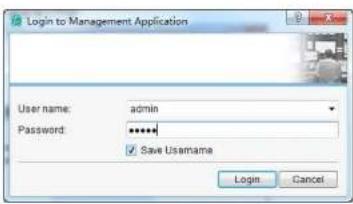
Login to Management Application User name: admin Password: ***** ✓ Save Usurname Login Cancel

YMS Management landing successfully entered the end of the main management interface

File Services Window Culture Help Add hardware Configure video storage Manage user access License Software Upgrade Plan Add hardware Configure video storage Manage user access License This software has a custom License No update the basic No update the custom software upgrade Plan (M.P.)

9.1.2 Add hardware

Click gathering Stated then click addrances are

Video Manager System File Edit View Tools Help Add hardware Configure video storage Manage user access License Software Upgrade Plan Add hardware Configure video storage Manage user access License and install from Windows

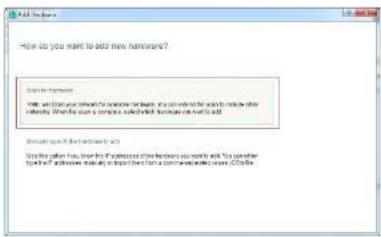
Pop-up dialog box to add card hardware, the hardware scan can scan directly insed on the LAN hardware device, you can also scan the specified network hardware, manually add the hardware is added directly to know the address or the serial number of hardware device.

How do you want to add new hardware? Start for hardware Will not cover your network for available hardware. You can extend the scope to include other networks. When the scope is complete, select which hardware you want to add. marginally specify the hardware to add Use the option. If you know the IP…

9.1.2.1 Scan hardware

How do you want to add new hardware? Add the hardware Add the power in which the hardware is added. You can add the power to add other hardware. When the power is added, you will add the hardware to add. Read your own hardware to add. Do you want to add the hardware to add. Do you want to add the ha…

2.1.2.1.1 Scan the specified IP address hardware

IP range can be set to a user search equipment, if you do not specify IP range can click Next to skip

Where do you want (URL) to switch for hardware devices? How will be done in other devices without a local server, or can switch additional features on the device is available. If this is required: If the features on the device is available

2.1.2.1.2 Scan the specified manufacturers hardware

Manufacturers can be set to file search equipment, if you do not specify manufacturers can click hex, to skip default all manu-

Architects
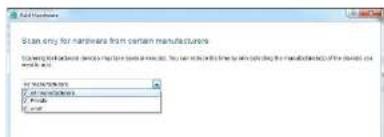
File Settings Set only for hardware from certain manufacturers Use existing hardware to install a new device. You can access to this file to any specific manufacturing device or tool, but not available.

9.1.2.1.3 Automatic Configuration verification

Add default User name and password, animal code/voice scanned hardware devices, [no need to store your automatic verification directly to the next step]
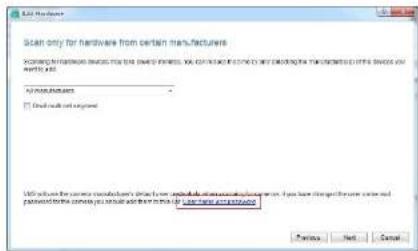
Scan only for hardware from certain manufacturers Scanning for manufacturing software for the same software, you can't have any other service for creating a manufacturing tool in this service you want to add. Manufacturers □ Do not call out required We will continue the customer manufacturer's order…

Click out the Dialog which can add user name and secret
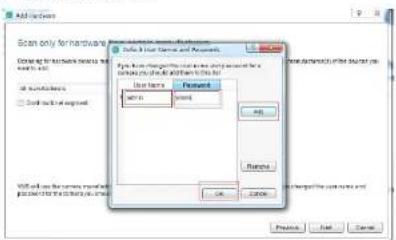
Add functions Scan only for hardware Create new hardware functions File List: Not available to Windows File List: Not available to Microsoft File List: Not available to Google File List: Not available to IBM File List: Not available to Sony File List: Not available to Amazon File List: Not available…

2.1.2.1.6 Start searching a device according to the setting mode

Start Complete Microsoft Word Player Tools Help Platform for the Web: https://www.wnt.com/ Start Complete Translation Method Changes P Ref Update Focus Quick 100% 100% 200% 100% 300% 100% 400% 100%

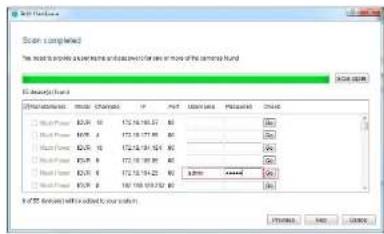
9.1.2.1.5 Manually verify hardwors

Scoring completed The results to complete the following table are displayed in the case or more of the contents found. File Edit Options Name Material Parameters IP Post Import Date Pre Slovenia Date 1 Full Power 127.14.161.57 80 CASH SETTING 1 Full Power MEM_1 B72.14.161.57 80 N/A 2 Full Power,MEM_…

2.1.2.1.6 Complete adding hardware

Choose desired device and then click, next complete new adding device or search mode.

Any Hardware Your devices are ready to use You have new desktops installed in the existing user system

2.1.2.2 Manually add hardware

Add Hardware How do you want to add how hardware? Search Hardware VMs will have your network to available software. You can't need the next step to add any hardware. When this is a tool, you can't get the hardware to add it. Do you add your hardware to add the system is now using IP to access your d…

9.1.2.2.1 Add hardware via IP address

Enter the IP, part number, user name, password and the number of channels to choose the type of new equipment Driver
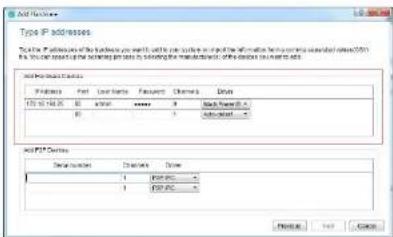
Scanned screenshot of a legacy Windows system dialog box for Type IP address settings, showing fields for IP address, name, and connection options.

2.1.2.2.2 Add hardware via Serial number

Input Devices: SN code to add new P2P Device
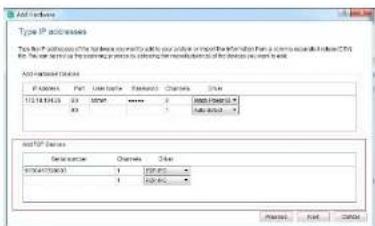
Add Textures Type IP addresses To you add to the following: To you add to your own website (http://www.wk.net/123487.com) or to you add to the following: To you add to your own website (http://www.wk.net/123487.com) Add Textures Options File Path: 0000000000000000000000000000000000000000000000000000…

Complete sliding rear device manually
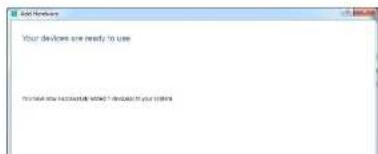
Your devices are ready to use This will be used to create a new system in your system.

9.1.2.3 Edit hardware properties

As a given selge click "1 double click 2"
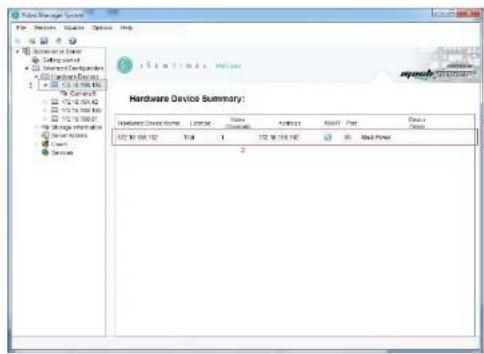
Hardware Device Summary: Hardware Device Name: LRCN Address: 122 M 108.100 Type: Normal Name: Normal Address: Normal Status: Normal Access: Normal Access Type: Normal Access Status: Normal Access Status: Normal Access Status: Normal Access Status: Normal Access Status: Normal Access Status: Normal A…

click out the dialog of Hardware Properties
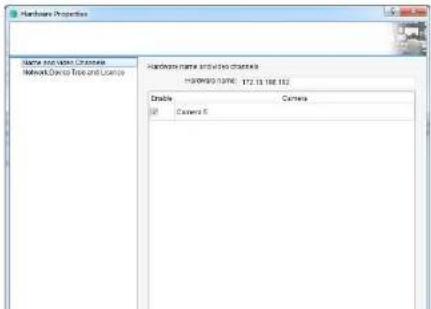
Hardware Properties Name and Name Created Network Device Type and License Hardware name and version created HKEYWORK 10796: 172.13.188.172 Details Camera IP Camera 5

9.1.2.3.1 Modify the hardware device name

Hardware Properties Name and Video Channels NOMON/OFFICE TSP and LUXERS Hardware name and video channels HANANA GROUP 172.18.103.702 Cambodia Camera Camera0 OK Cancel

2.1.2.3.2 Modify the hardware device port number, user name and password

Hardware Properties Name and View Controls Network Data / Target Location Network Address: 102-108-795 HTTP port, pc Use default HTTP port HTTP port, pc Use default HTTP port User name: admin Password: admin Device type: Hardware type: Web Server Serial number (other address): 23407-660000 License i…

9.1.2.3.3 Modify Channel name

As a season else, click the "double" check the

Camera Settings Summary: Camera Name: Real-On Solution Resolution Time Reporting Pull Overlay Pull Cancet 10000000000000000000000000000000000000000000000000000000000000000000000000000000000000000000000000000

Open camera propert co dialog box to modify

Canvas Properties Canvas Settings Canvas Settings Canvas Settings Canvas Settings Canvas Settings Canvas Settings Canvas Settings Canvas Settings Canvas Settings Canvas Settings Canvas Settings Canvas Settings Canvas Settings Canvas Settings Canvas Settings Canvas Settings Canvas Settings Canvas Set…

9.1.3 Storage configuration

Hisagena score configuration information at all the devices

Camera Summary: | Camera | Type | Value | Date | Other Dots | | :--- | :--- | :--- | :--- | :--- | | Camera 1 | None | 48.00 | 01:30 | 8.00 | | Camera 2 | None | 123.00 | 01:30 | 76.00 | | Camera 3 | None | 152.00 | 01:30 | 76.00 | | Camera 4 | None | 123.00 | 01:30 | 76.00 | | Camera 5 | None | 123…

Edit channel storage configuration, double stick the last box on the right into the record and storage properties, can only configure core cameras, or use the template to configure multi cameras. Used template configuration see 2.1.3.31.

Camera Summary: Camera Name Description Schedule Revision Time Blocking Path Accessory Path Context1 Name 3.0x 0.0000 Continuous Context2 Name 3.0x 0.0000 Continuous Context3 Name 3.0x 0.0000 Continuous Context4 Name 3.0x 0.0000 Continuous Storage Usage Summary: Storage Storage Order Other Free Lege…

9.1.3.1 Configure the storage path, stream type, retention time

Recording and New Process Recording and Working Tools Requiring New Process Recording Methods Recycling Path Inflow Path Recycling Path Newest Time Recycling Path Inflow Path Newest Time OK Cancel OK Cancel OK Cancel OK Cancel OK Cancel OK Cancel OK Cancel OK Cancel OK Cancel OK Cancel OK Cancel OK…

2.1.3.2 Configure the recording type, schedule

Recording and Manage Properties Recording and Monitoring Tools Show Print Back Show Print Information Recording Record Schedule For Reviewing Description For Reviewing Description Record Record Schedule Record PDB Record PDD Record Record Record Record Record Record Record Record Record Record Recor…

0123 Template continuation

Recording and Storage Properties Recording and Storage Properties Recording and Storage Properties Recording Description C:\Users\Locking Path C:\Users\Locking Path C:\Users\Locking Path C:\Users\Locking Path C:\Users\Locking Path C:\Users\Locking Path C:\Users\Locking Path C:\Users\Locking Path C:\…

2.1.4 S###

S= the total port number used for V&S Small Client lag ring part number

Server Manager System File Edit View Insert Help Database Server Help access Access to Windows Services Homeless Devices My Computer Services System Services Copyright Access Server Access Summary: Name: LocalPort, Interface Access: LAN Parameters: State Port, No Per Available Address: 100%

Add items Add Item Delete Item Add Item Add Item Add Item Add Item Add Item Add Item Add Item Add Item Add Item Add Item Add Item Add Item Add Item Add Item Add Item Add Item Add Item Add Item Add Item Add Item Add Item Add Item Add Item Add Item Add Item Add Item Add Item Add Item Add Item Add Item…

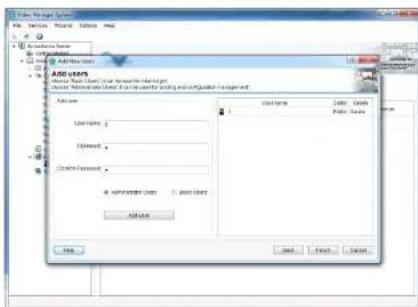
You can add new users, modify users and delete users in this window.
There are two types of users to opt for new jobs:
1. 2013 (Shao) is: 6-6 (any) Bill 7082 Management, SIC 905/Sing 13, 449
2. Basis users can find in VMs smart...net

2.1.5.2 Edit user permissions

You can restrict the permission and equipment channel of YMS Smartevent for the specified user.

Data Summary Comps Access Summary Comps Access Summary

Sales Manager Service Add User Name Add User Name Add User Sales Sales Control Add User Name Add User Name Add User Sales Control Add User Name Add User Name Add User Sales Control Add User Name Add User Name Add User Sales Control Add User Name Add User Name Add User Sales Control Add User Name Add…

The usage status of VMs server can be controlled

Only when the status is started, the VM2 server can record and store recordings in the background, and VM2 Samriscient car work normally.

2.2 Client Operation Manual

After the comparison of VMS management configuration, the VMS SmartClient can preview and overlay video.

VMS Smart Client and VMS management can be installed either in one PC or separately in different ones.

2.2.1 Login

Input: the IP and part of the PC (where VMS management is an specific VMS management and VMS smart class, are installed in one PC, IP > 127.0.0.1, port is 8C by default), when server-slice port in VMS management, is charged, the port needs to be resolved.
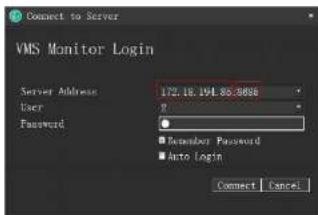
Connect to Server VMS Monitor Login Server Address 172.18.194.85.8666 User Password ■ Demember Password ■ Auto Login Connect Cancel

Use the user account created on VPS management to buy in and authenticate
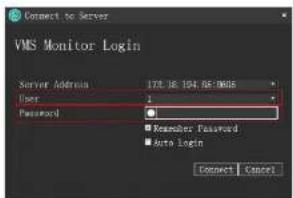
Connect to Server VMS Monitor Login Server Address 178.16.194.85:0000 User: Password: Remember Password Auto Login Connect Cancel

2.2.2 Live Preview

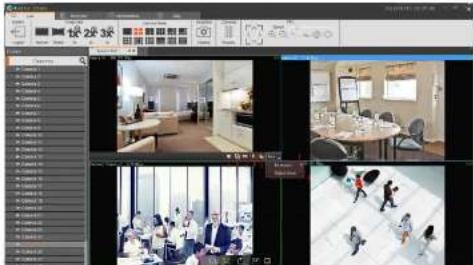
Live preview interface
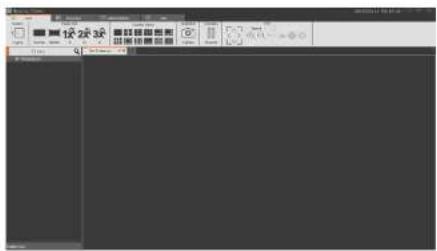
Screenshot of a graphic design software interface showing toolbars, layers, and canvas with Chinese labels

2.2.2.1 Live preview function

Screenshot of a software interface with Chinese menu items and tool panels, showing status bar and toolbar icons.

b. Stretch: Image by this layout in a 3D space

c. 1x: image is not scaled

d. 2x: image is magnified 2 times

e. 3x: mag is magned 3 times

Camera View: Select the layout type of the view window.

Snapshot: Capture the images of the current window

Close the current camera video

PTZ control [Only solid for the cesives that supces. PTZ control]

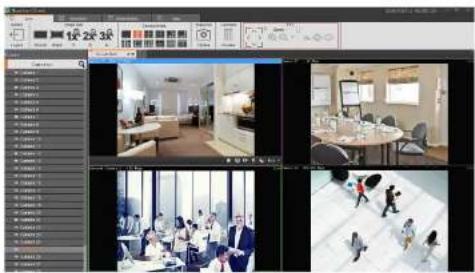
3.2.2 View Switches To Video

Use the view layout that the user selects to last switch to view preview
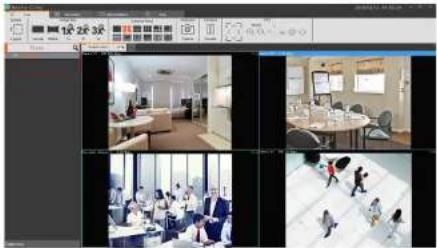
Screenshot of a digital interface displaying four scenes: office interior, meeting room, classroom, and group photo with visible text overlays.

2.2.2.3 Select the Camera to Preview Video

Select the camera to the designated windows in previous video
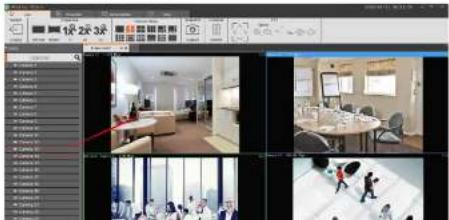
Screenshot of a video editing software interface showing multiple video thumbnails and tool panels with Chinese text labels.

Screenshot of a video editing interface displaying multiple scenes of office or meeting room views with Chinese text labels.

2.2.2.5 Video Window Toolbar Function Description

a. Current Window Video Stop and Start

b. Capture Images

c. local Recording

d. Voice Interception Volume

L. Sham Scolding

  1. Digital Zoon

Screenshot of a video editing interface with multiple video thumbnails and tool panels, showing interior scenes and user interactions.

12.3 Playback

Plushk can be operated under the VVS Server with configuration only

2.2.3.1 Playback Interlars Function Introduction
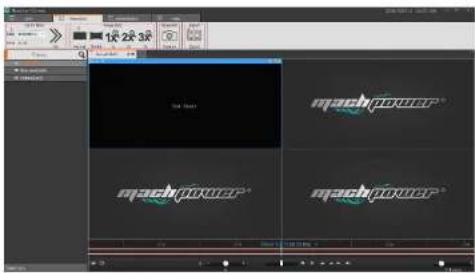
Mach Power VS-XHVR8L-164 - Client Operation Manual - 9

  1. Recording Location: according to the selected time & position to locate to the science place quickly.
  2. Image Size:
    a. Regular image be displayed as actual proscrt en:
    b. Stretch image be displayed as the window size.
    c. 1 times: image be not scaled
    d. 2 times in age be increased 2 times
    c. 3 times: image 0 = magentaed 3 times

2.2.3.2 Switching View to Playback Recording

Using user edited view to switch recording Postback feet.

快读录播 machpower™ machpower™ machpower™

9.2.3.3 Select Camera recording Playback

Select the contents to be viewed and drawn in the treated window.

快2次3R mashpower* mashpower*

2.2.3.4 Search Recording

2.2.3.4.1 Auto Search Recording

Enter or order playback interface to switch view, it will search the recording time of all windows view automatically, and display them on time axis.

快203P machpower machpower machpower

Line Axis Type

  1. The top time axis shows the recording time line of current selected window:

  2. The bottom Time Axa shows the set of all cameras' recording time lines in current view.

Mach Power VS-XHVR8L-164 - Client Operation Manual - 13

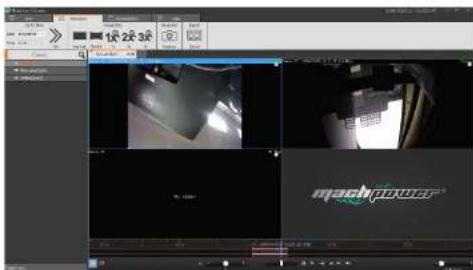
2.2.3.5 Playback recording

00851 Play back recording synchronously
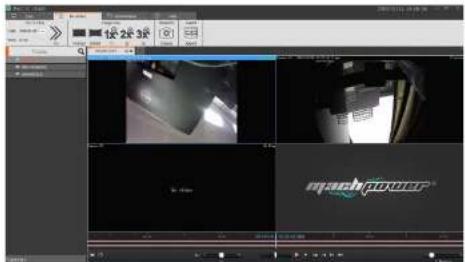
Screenshot of a video editing software interface showing multiple video thumbnails and tool panels with Chinese text labels.

Synchronous pyrock-based hunchen production

Mach Power VS-XHVR8L-164 - Client Operation Manual - 15

  1. Playback region: choose playback range, then top play back in this range

Mach Power VS-XHVR8L-164 - Client Operation Manual - 16

2.1 Multiply playback: rapidly switch to multiply playback.
3. Playback multileadjustment
4. Rsurely reticose azidec.
5.5 + 2 sinus and ulseh-1
6. Scale hises also back.
7. The first view segment in currency windows
8. The analyst's price is subject to currency volatility
9. The next video content in a recent window
10. The solution segment is equivalent to
11. 今夜看云不时看

2.2.3.6.2 Play back recording independently

If only play back the video in a certain window, this function can be used at this time. It will not be controlled by synchronously playback tools. There is easy control bar in the window.

To play seek window independently, please click out the plasbrack independently button in window 20.

Screenshot of a video editing software interface showing multiple video thumbnails and tool panels with Chinese text labels.

2.2.3.5.3 Loop playback

The video can be loop playback continuously in a designated period of time.

Screenshot of a video editing software interface showing multiple video thumbnails and tool panels with Chinese text labels.

2.2.3.6 Export Recording

The video in service side can be exported at client side according to request. It can export a video from a certain window, also the

videos from all windows

Export recording instruction.

  1. To select, there range

Screenshot of a video editing software interface showing multiple video thumbnails and tool panels with Chinese text labels.

  1. Select to aspect video setup

Screenshot of a video editing software interface showing multiple video thumbnails and tool panels with Chinese labels.

  1. Click the Exser button

Screenshot of a video editing software interface showing timeline controls and preview thumbnails

  1. Select the name or location of the respondent

慢读25.0 machpower®

  1. After the export, a completed, in management functions you can view details in the export list

Export Line Show Type: 100% Show Value: 100% Export Path: ExportPathPathPathPathPathPathPathPathPathPathPathPathPathPathPathPathPathPathPathPathPathPathPathPathPathPathPathPathPathPathPathPathPathPathPathPathPathPathPathPathPathPathPathPathPathPathPathPathPathPathPathPathPathPathPathPathPathPathPath…

2.2.4 Management Function

2.2.4.1 Export LIs

See video of the export list information
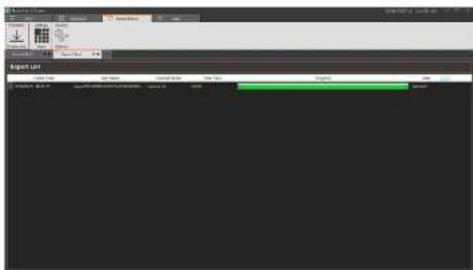
Export List File Edit View Insert Help Tools Help Tools Help Tools Help Tools Help Tools Help Tools Help Tools Help Tools Help Tools Help Tools Help Tools Help Tools Help Tools Help Tools Help Tools Help Tools Help Tools Help Tools Help Tools Help Tools Help Tools Help Tools Help Tools Help Tools He…

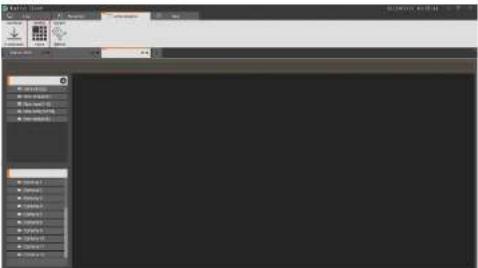
2.2.4.2 View Setting
Screenshot of a software interface with tool panels and a blank canvas, likely from an older design or editing tool.

The rate of the series, but the more users will the layout and sides of the contents in advance quickly switch the video-sea 3 and that will be saved to the YKE platform for later use.

2.2.4.2.1 View Edition

2.2.4.2.1.1 Add View

Click "Add" Dotton to choose a type of view layout
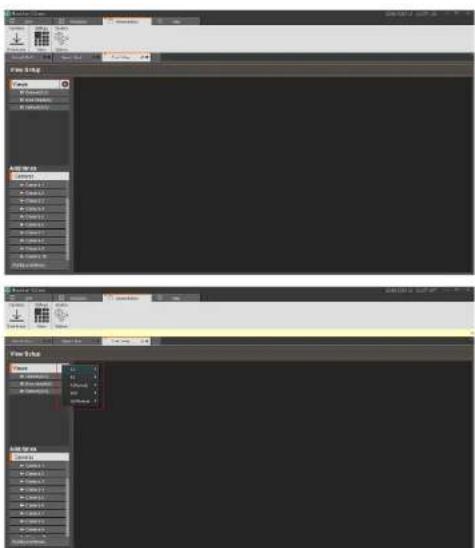
File 2.dwg Add to Web Add to Web Add to Web Add to Web Add to Web Add to Web Add to Web Add to Web Add to Web Add to Web Add to Web Add to Web Add to Web Add to Web Add to Web Add to Web Add to Web Add to Web Add to Web Add to Web Add to Web Add to Web Add to Web Add to Web Add to Web Add toWeb

12.4.2.1.2 View Edition

a b p e c f v e r v i n

(2)

2 phata

2.HIML enohatic

A. Video careuse

Select the view for setting

machpower® machpower® machpower® machpower®

  1. In the "View Setup", set items, select the camera crag to the targeted window and complete video addition

machpower machpower machpower

  1. Set the very smooth in solid shape

a. Select HTML Page

b. Drag to the specified syndes

c. not was adress

machpower machpower machpower

  1. see the electron close to add particle

a. ClickImage

b. Irag to the specified windows

c. Select picture

Screenshot of a software interface showing a file explorer with a folder named 'march2' and a red arrow pointing to a file list.

  1. Set the view window to add video tour

a. Select "Cerous"

b. Drag to the specified windows

c. Select channel of equipment to be round that

  1. Video: carpal bar, hit

c. The video stream is
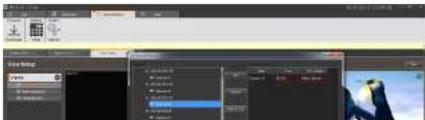
Screenshot of a video editing software interface showing timeline, preview window, and tool panels with Chinese text labels.

Complete the size of the 1 s is a "save" buffer to solve the 20% of the 20%

match power My Watch

2.2.4.2.1.3 Modify the view name

Double click to modify click view into the state, to modify the view name and then click the "save" button.
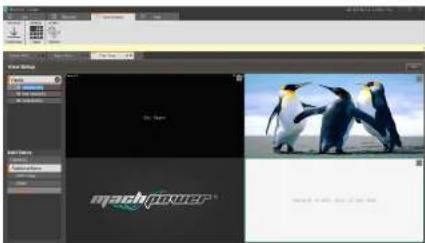
My Team mashpower

2.6.2.4 Delete View

Select the right-link up-up point, so is debate the size

View Mode Add Delete Show

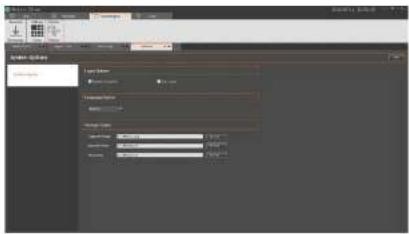
9.2.4.3 System parameter options

Screenshot of a software interface showing a settings panel with dropdowns and input fields for image processing parameters.

  1. General Options

Login options:

a. Reinster the passagand

b. Autoport

Language option: choose the different language

Storage options:

a. Client local sides pass

b. Capture path

c. Video export

2.2.5 Exit

Screenshot of a software interface showing a settings panel with options for image processing, including 'Image Size' and 'Distance' fields.

Mach Power VS-XHVR8L-164 - Client Operation Manual - 37

Mach Power VS-XHVR8L-164 - Client Operation Manual - 38

Manual assistant
Powered by Anthropic
Waiting for your message
Product information

Brand : Mach Power

Model : VS-XHVR8L-164

Category : Voice recorder