
SPK-WFQ30 - Docking Station Laser - Free user manual and instructions
Find the device manual for free SPK-WFQ30 Laser in PDF.


| Product Type | Wireless Wi-Fi Speaker / Docking Station |
| Model | SPK-WFQ30 |
| Brand | Laser |
| Dimensions (W x H x D) | 264 x 124 x 173 mm |
| Weight | 2.6 kg |
| Power Rating | 20 Watts |
| Channels | 2.0 |
| Drivers | 2 x Full Range |
| Wi-Fi Frequency | 2.4 GHz / 5 GHz |
| Multi-Speaker Support | Up to 10 speakers |
| App Support | iOS and Android (Qualcomm AllPlay Jukebox) |
| Bluetooth | No (Wi-Fi only) |
| Audio Inputs | Auxiliary (3.5 mm) |
| Setup Methods | WPS button, Web browser, App |
| LED Indicators | Red (standby), White (Wi-Fi ready), Green (factory reset), Orange (AUX) |
| Automatic Standby | After 15 minutes of no audio |
| Compatible Services | Spotify (premium), TuneIn, Napster, etc. |
| Warranty | 12 months |
| Cleaning | Soft cloth dampened with water only |
| Safety | No user-serviceable parts; avoid liquids, heat, dust |
Frequently Asked Questions - SPK-WFQ30 Laser
User questions about SPK-WFQ30 Laser
0 question about this device. Answer the ones you know or ask your own.
Ask a new question about this device
Download the instructions for your Docking Station in PDF format for free! Find your manual SPK-WFQ30 - Laser and take your electronic device back in hand. On this page are published all the documents necessary for the use of your device. SPK-WFQ30 by Laser.
USER MANUAL SPK-WFQ30 Laser
WIRELESS WI-FI SPEAKER

natural_image
Black laser speaker with textured back panel and 'LASER' branding, no visible text or symbols on device bodyPOWERED BY

natural_image
Blue play button icon with circular waves, no text or symbols presentQualcomm®
AllPlay™

Qualcomm® AllPlay™ Radio
powered by
tunein

Spotify

napster.

doubleTwist™

Rhapsody

soma fm DAR.fm AUPEO!®
INDEX
Import Safety Instructions and Precautions 1
Button Description 2
Connecting to power 2
Standby Mode 2
LED Display 2
Setup – Download the App 3
Setup – Android Users 3
Setup – Apple Users 6
Music playback 8
Grouping Speakers 9
Featured Apps 10
Restoring Factory Settings 11
FAQ 12
Specifications 12
IMPORTANT SAFETY INSTRUCTIONS AND PRECAUTIONS
- Read all instructions carefully before use.
- Retain manuals for future reference.
- Use this product only in the manner described.
- Only use a water-dampened soft-cloth to clean the surface of this product.
- The following will damage this product: any liquid such as water or moisture, extreme heat; cold; humidity, dusty or sandy environments.
- Only place this device on stable surfaces and ensure that any attached cables are secure and will not cause the device to fall.
- If charging is required, it is recommended to thoroughly charge electronic devices for the first time overnight. Subsequent charges can be as needed. During charging, or extended use, the product may become warm.
- There are no user serviceable parts in this product.
- Un-authorized attempts to dismantle or repair this product will void product warranty
- Using this device near other electronic devices may cause interference.
BUTTON DESCRIPTION

CONNECTING TO POWER
Connect your Wi-Fi speaker to a mains power outlet. This speaker has no ON OFF switch so it will turn on automatically. Note: Disconnect the power, to turn the speaker OFF.
STANDBY MODE
The system will enter Standby mode after 15 minutes without any audio signal input.
To exit out of Standby mode, begin playing music from your Phone App or, press the volume UP or DOWN buttons.
LED DISPLAY
| Status Display Status | ||
| STANDBY | Fade in and Out RED | Standby mode after 15 minutes without any audio signal inputs. |
| VOL- / + Flashes Volume increase/ decrease | ||
| LINE-IN | Lights up Orange | Connected via LINE IN (Auxiliary input) |
| WIFI | Flashes White | Booting process / Establishing Wi-Fi connection (via WPS mode) |
| Lights up White | System ready for Wi-Fi connection (AP Mode) | |
| SET | Flashes Green | Reset to Factory default / Firmware updated |
| MUTE | Flashes Slowly | Mute audio |
SETUP
Download the App
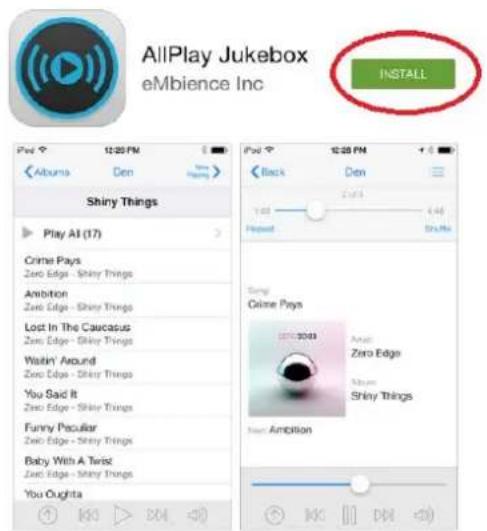
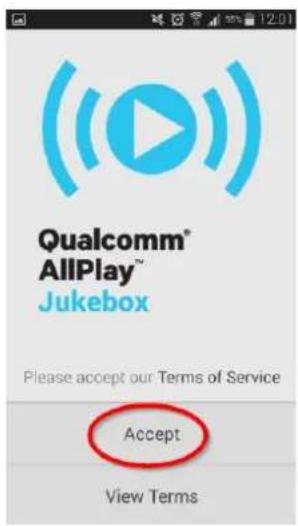
Visit the Play Store and download and install the QUALCOMM® ALLPLAY™ JUKEBOX APP and follow the prompts to connect your speaker.
Android Users
1) Connecting your Device to the Speaker
Turn on the speaker and make sure it is in pairing mode. Using your mobile phone or tablet turn on your Wi-Fi and view the available Wi-Fi networks. You will then see the speaker (LASER_WFQ30) in the list. Please select it and press CONNECT.
Please note: You will need to wait about 1 minute before the Wi-Fi speaker appears. The speaker will have 6 characters after the model number. This is the speakers' unique MAC (hardware) address


Please note: If you are unsure you are in pairing mode, press and hold the SET button on the back of the speaker for 5 seconds. This will reset the unit back to factory settings.
2) Connecting your speaker to a Wi-Fi network
There are two ways to do this. Either use the SET/WPS Button (Wi-Fi Protected Setup) at the back of the speaker and your Wi-Fi Router (only suits Routers with this button), or, manually make the connection using a web browser.
a) WPS Button Method
Place the speaker next to or close by your router and Press the SET (WPS) button on the back of the speaker and on your Wi-Fi Router. Connection should be automatic but you can refer to the LED indication chart above if you are unsure, for further setup indicators.
Note: Repeat the process above if the connection has "timed out" and a connection has not been made.
b) Web Browser Method
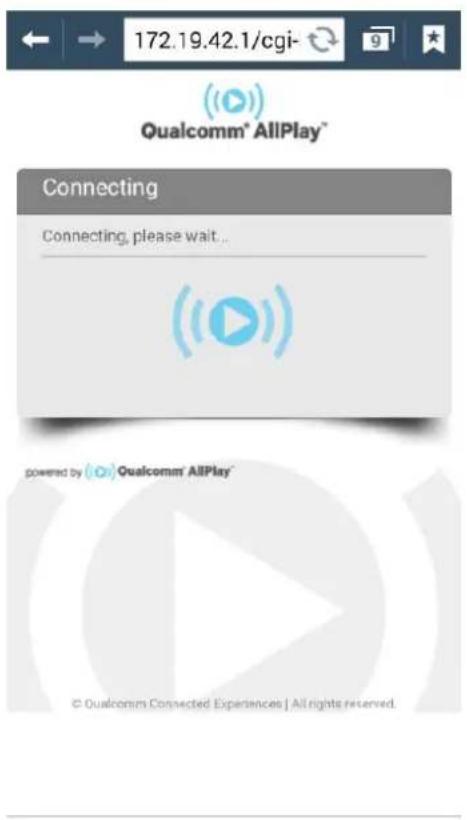
First, you will then need to manually log onto your speaker. Open a web browser on your device and in the search bar, enter the following (IP Address) number then press enter: 172.19.42.1
You will then be prompted to give your speaker a nick-name Eg Kitchen or Bedroom. When done, press next.

Now select your network via the network name list and enter your password. Select connect when finished.

The speaker is now connected to your network. The device will automatically disconnect you from the speaker and reconnect you with your previous network connection (if you were connected).

Please Note: If your network router does not assign an IP address automatically, switch the DHCP function to OFF and then enter the IP address manually. Then enter the network key again if required, and click "CONNECT".
Please Note: The speaker saves the connection, so you do not need to setup the connection next time it is switched on. It will connect automatically.
Apple Users
1) Connecting your Device to the Speaker
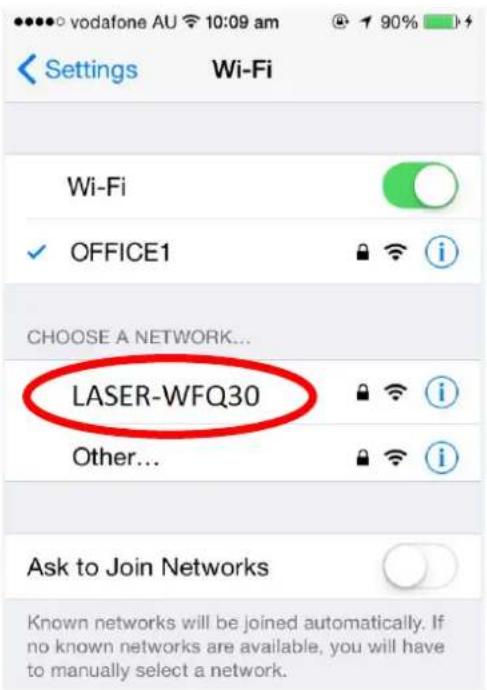
Turn on the speaker and make sure it is in pairing mode. Using your mobile phone or tablet turn on your Wi-Fi and view the available Wi-Fi networks. You will then see the speaker (LASER-WFQ30) in the list. Please select it and press CONNECT.
Please note: You will need to wait about 1 minute before the Wi-Fi speaker appears. The speaker will have 6 characters after the model number. This is the speakers' unique MAC (hardware) address
Please note: If you are unsure you are in pairing mode, press and hold the SET button on the back of the speaker for 5 seconds. This will reset the unit back to factory settings.
2) Connecting your speaker to a Wi-Fi network
After pressing connect in the previous screen you will then be automatically redirected to the following log in page where you will be prompted to give your speaker a nick name. You will also need to select your Wi-Fi network name from the drop down list and to enter your Wi-Fi password.

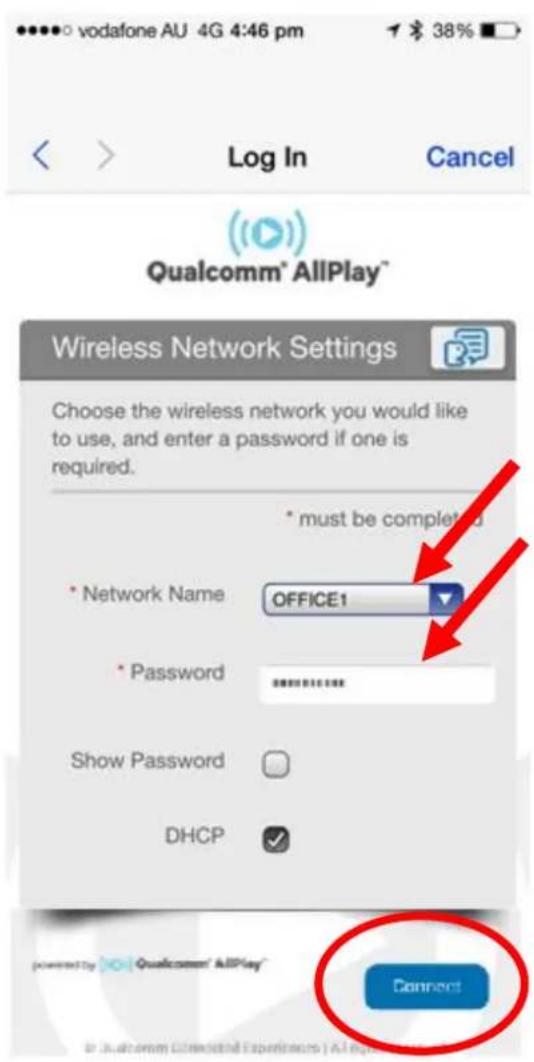
The speaker is now connected to your network. The device will automatically disconnect you from the speaker and reconnect you with your previous network connection (if you were connected).
Please Note: If your network router does not assign an IP address automatically, switch the DHCP function to OFF and then enter the IP address manually. Then enter the network key again if required, and click "CONNECT".
Please Note: The speaker saves the connection, so you do not need to setup the connection next time it is switched on. It will connect automatically.
MUSIC PLAYBACK
Select the Speaker or Speaker Group you wish to use for playback
![Cancel Select a Player speaker1 Group 10 - Motherboard - Daft Punk speaker2 Group [Nothing playing]](/content/2026/05/923170/images/85113e5a76b645f6023e1e0d5fa40fffd94b7864fd6d71b91a8a0714759283eb.jpg)
Select the Music you wish to use for playback

Please note: If you are not getting any audio, once the speaker/s are connected to the network, please allow one 1 minute or so before playback begins.
Music On This Device
Play music that is loaded on your device.
Music On The Network
With your speaker and smart phone (or Wi-Fi enabled playback device) connected to the same network, select a media server (DLNA server) from which you want to play music and then select the speaker as the medium (DLNA player) on which the music is to be played.
Note: You can select more than one speaker for the playback. Please refer to the app for details.
Music Services
Play Music via an alternative app. Some apps allow for streaming services for music or radio. See Featured apps for more information
MULTI CONNECT (via network)
You can connect multiple smart devices (such as smart phones) to the network. By doing this, you can use and control the playback and volume on any connected device. Each device can choose which music to play or which music to add on the playlist.
Please note: Each device will need to download the AllPlay Jukebox app and be connected to the network.
DIRECT MODE
Power on the speaker and the speaker will enter Searching Mode.
Or Press the SET (RESET/ WPS MODE) button for 5 seconds in order to switch the speaker to Searching mode.
Wait about 1-2 minutes and then connect the smart device (phone or tablet) directly to the speaker by going to available Wi-Fi connection and connecting to "LASER_WFQ30".
Note: When using direct mode, please remember to switch off the 'Auto-Login' and 'Auto-Join' function on smartphone, to avoid smartphone trying to connect with a valid network.
AUXILIARY INPUT
Connect an audio device via the AUX port (Auxiliary) on the back of the speaker using a 3.5mm jack cable. The LED indicator will change to orange.
Note: For best sound reproduction use the audio cable supplied.
Note: The speaker will revert back to the previous Wi-Fi mode when there has been no audio signal after 1 second.
GROUPING SPEAKERS
If you wish to connect speakers together to play the same audio, you can group speakers together.
1 Press the Group button
2 Select the speaker you wish to Group together.
3 Select done when finished.
![(o) AllPlay streaming server starting Cancel Select a Player speaker1 Group [Nothing playing] speaker2 Group [Nothing playing] Pause All](/content/2026/05/923170/images/41167d812592822f8f4eb9d4eaec9ebebeff0a45a0062c2f6c39a3f1dd8bd2c3.jpg)

![Cancel Select a Player speaker1 speaker2 [Nothing playing] Group Pause All](/content/2026/05/923170/images/33df507d1186d6044793c0e5a10ecb67e4416101784cc123953e8381adb815d5.jpg)
FEATURED APPS

Spotify
Spotify is the best way to listen to music on mobile or tablet. (premium version required for use with Wi-Fi speaker)

Qualcomm® AllPlay™ Radio

AllPlay Radio
Over 100,000 real radio stations and more than four million podcasts from all over the world
Spotify (Premium accounts only)
From the All Play Jukebox App select Music Services followed by Spotify.
Note: You will need to install the Spotify App to access this feature.
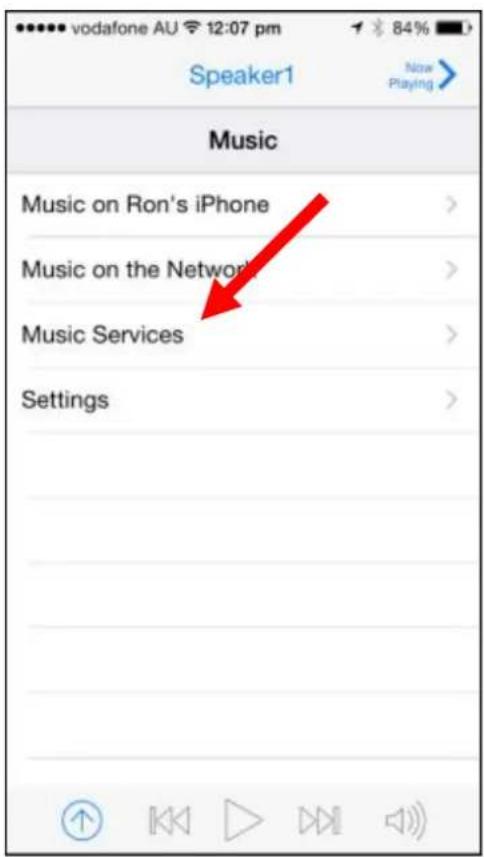

The Spotify App will then open to the CONNECT screen. Then select your WiFi Speaker for music playback.
The Spotify music playback screen will then open where you can playback your music.
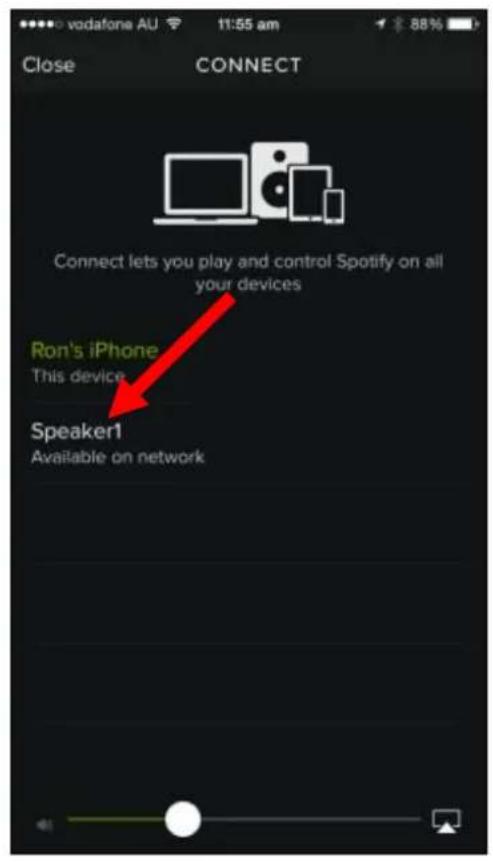

Please note: The speaker icon at the bottom right of the screen will be coloured GREEN (for premium accounts only) to indicate your speaker is connected to the Spotify App for Wi-Fi music playback.
Please note: To reconnect and disconnect playback from the Wi-Fi speaker, simply press this speaker icon.
RESTORING FACTORY SETTINGS
To reset the device back to default factory settings, press and hold the SET button for 5 seconds. The LED indicator will then change to GREEN, then to solid WHITE to indicate that the speaker is now ready to connect to a network.
Note: This process may take up to 1-2 minutes to fully reset.
FAQ
| I'm not getting any audio. How do I fix this? | Please reset the speaker/s by: press and hold the SET button on the back on the speaker for 5 seconds. |
| I can't see the speaker under my Wi-Fi. Why? | Please make sure the speaker is in “Searching” mode. It may take 1 to 2 minutes before you can see the speaker in the Wi-Fi list. |
| Using Auxiliary, I don't get any audio. | Please reset the speaker first by: press and hold the SET button on the back on the speaker for 5 seconds. |
| My speaker has a flashing red light. What is this? | The speaker is the “Standby” mode. Press the volume + or – to “wake up” the speaker. |
| Do you have any further product videos on this product to help me better understand some of the features? | Yes. Search for Laser Product Support on YouTube or click the link below:www.youtube.com/channel/UCB -v8XFr Pre 3HJLgj_lw |
SPECIFICATIONS
| Dimensions 264 x 124 x 173 mm | |
| Channels 2.0 | |
| Power Rating 20 Watts | |
| Speakers 2 x Full Range Drivers | |
| Multi Speaker (Capability) Up to ten speakers | |
| Wifi Frequency 5Ghz / 2.4Ghz | |
| Hub/Bridge | Not Required |
| Weight | 2.6kg |
| App Support | iOS / Android |
| Wifi Connect via App | WPS / Webpage |
LASER CORPORATION HOLDINGS PTY LTD
LICENSE AGREEMENT (EULA)
READ THE TERMS OF THIS LICENSE AGREEMENT AND LIMITED WARRANTY ("AGREEMENT") GOVERNING THE USE OF THE SOFTWARE AND RELATED FIRMWARE AND DOCUMENTATION (COLLECTIVELY, THE "SOFTWARE"} PROVIDED TO YOU BY LASER CORPORATION HOLDINGS PTY LTD ("LASER") CAREFULLY BEFORE BUYING THE APPLICABLE LASER CORPORATION HOLDINGS PTY LTD PRODUCT (SUCH HARDWARE, TOGETHER WITH THE SOFTWARE, REFERRED TO AS THE "PRODUCT"). BY PURCHASING THE PRODUCT, YOU ARE (1) REPRESENTING THAT YOU ARE OVER THE AGE OF 18, (2) REPRESENTING THAT YOU HAVE THE RIGHT AND AUTHORITY TO LEGALLY BIND YOURSELF OR YOUR COMPANY, AS APPLICABLE, AND (3) CONSENTING TO BE LEGALLY BOUND BY ALL OF THE TERMS OF THIS AGREEMENT. IF YOU DO NOT AGREE TO ALL THESE TERMS OR CANNOT MAKE SUCH REPRESENTATIONS, DO NOT PURCHASE THE PRODUCT.
1. GRANT OF LICENSE
(a) Subject to the terms and conditions of this Agreement, LASER CORPORATION HOLDINGS PTY LTD grants to You a worldwide, non-exclusive, non-transferable, personal license (without the right to sub-license) to (i) use the Software as embedded in the Product for the purpose of operating the Product, and (ii) use the desktop application portion(s) of the Software on any personal computer owned or controlled by You during the Term. You may not transfer the Software to any other computing device or otherwise remove the Software from the Product. Notwithstanding any license granted herein by LASER CORPORATION HOLDINGS PTY LTD, You acknowledge and agree that it is Your sole responsibility to comply with U.S. and international copyright laws with respect to Your use of the Software.
(b) You agree not to copy, modify, reverse engineer, decompile or disassemble the Product to the extent that such restriction is not prohibited by law. Except for the limited license granted herein, LASER CORPORATION HOLDINGS PTY LTD and its suppliers hereby retain all right, title and interest in and to all worldwide intellectual property rights embodied in the Software. All other rights are reserved by LASER CORPORATION HOLDINGS PTY LTD. You acknowledge and agree that the technology embedded in and used to create the Product constitute the valuable trade secrets and know-how of LASER CORPORATION HOLDINGS PTY LTD, and to the extent you discover any such trade secrets, You will not disclose them to any third party.
(c) LASER CORPORATION HOLDINGS PTY LTD shall have no obligation to provide any updates or upgrades to the Product, but in the event that it does, such updates, upgrades and any documentation shall be deemed the "Product", and shall be subject to the terms and conditions of this Agreement.
2. TERM OF AGREEMENT
(a) You may terminate this Agreement at any time by notifying LASER CORPORATION HOLDINGS PTY LTD, discontinuing use of the Product and purging the Software from Your computing device.
(b) This Agreement will automatically terminate if You violate any of its terms.
(c) Sections 1(b), 3, 4, 6(c), 7 and 9 shall survive termination or expiration for any reason.
3. COMPLIANCE WITH COPYRIGHT LAWS
LASER CORPORATION HOLDINGS PTY LTD complies with U.S. and international copyright laws and in consideration of the licenses granted herein, You agree to do the same. You acknowledge that unauthorized copying or distribution of music or other content accessed using the Product ("Content") is prohibited by such copyright laws, and You agree that You will not, directly or indirectly, copy or distribute any Content without the express written authorization of the copyright holder. You agree to indemnify and hold harmless LASER CORPORATION HOLDINGS PTY LTD and its licensors from and against any and all claims, suits, losses, damages, liabilities, costs and expenses incurred by LASER CORPORATION HOLDINGS PTY LTD or its licensors arising out of or related to Your failure to comply with the terms of this Section 3.
4. THIRD PARTY CONTENT AND TECHNOLOGIES SUPPORT
From time to time, LASER CORPORATION HOLDINGS PTY LTD may provide access to third party content providers via the Product. In addition, LASER CORPORATION HOLDINGS PTY LTD may support certain third party technologies, such as specific file formats or codecs. LASER CORPORATION HOLDINGS PTY LTD reserves the right to discontinue access to and/or support for such third party content or technologies at any time, and for any reason. LASER CORPORATION HOLDINGS PTY LTD makes no representations or warranties whatsoever regarding the selection of, or continuing support for, any such third party content or technologies.
6. INFRINGEMENT INDEMNITY
(a) Indemnity. LASER CORPORATION HOLDINGS PTY LTD shall defend or settle any claim, demand, suit, proceeding or action ("Claim") against You to the extent that such Claim is based on an allegation that any portion of the Product, as furnished to You under this Agreement and used as authorized in this Agreement, infringes any third party's copyright or misappropriates such third party's trade secrets, provided that You: (i) give prompt written notice of the Claim to LASER CORPORATION HOLDINGS PTY LTD; (ii) give LASER CORPORATION HOLDINGS PTY LTD the exclusive authority to control and direct the defense or settlement of such Claim; and (iii) give LASER CORPORATION HOLDINGS PTY LTD, at LASER CORPORATION HOLDINGS PTY LTD' expense (except for the value
of Your time), all necessary information and assistance with respect to the Claim. LASER CORPORATION HOLDINGS PTY LTD shall pay all settlement amounts, damages and costs finally awarded to the extent attributable to such Claim. You may participate in
the defense of Claim at Your expense. LASER CORPORATION HOLDINGS PTY LTD will not be liable for any costs or expenses incurred without its prior written authorization.
(b) Limit on Indemnity. The foregoing notwithstanding, LASER CORPORATION HOLDINGS PTY LTD shall have no liability for a Claim to the extent based on: (i) the use by You of any Product more than thirty (30) days after LASER CORPORATION HOLDINGS PTY LTD notifies You in writing that continued use of the Product may give rise to such Action and offers, in return for You ceasing all further use of the Product, to refund the price paid by You for the Product less amounts attributable to Your prior use; (ii) the combination of the Product, or any part thereof, with other hardware or products not provided by LASER CORPORATION HOLDINGS PTY LTD, which Claim would have been avoided if the Products had not been so combined; or (iii) use of the Products other than as authorized under this Agreement.
(c) Entire Liability. THE FOREGOING PROVISIONS OF THIS SECTION 6 STATE THE ENTIRE LIABILITY AND OBLIGATIONS OF LASER CORPORATION HOLDINGS PTY LTD, AND YOUR EXCLUSIVE REMEDY, WITH RESPECT TO ANY ACTUAL OR ALLEGED INFRINGEMENT OF OR MISAPPROPRIATION OF ANY INTELLECTUAL PROPERTY RIGHT BY THE PRODUCT.
Warranty Against Defects
Laser Corporation Pty Ltd (“Laser”) warrants your new product to be free from defects in materials and workmanship for 12 months, from the date of purchase, provided that the product is used in accordance with accompanying recommendations or instructions where provided. The benefit of this warranty is in addition to your rights under the Australian Consumer Law and to other rights and remedies of the consumer under a law in relation to the goods or services to which the warranty relates.
Through a network of retailers and resellers, Laser will provide you with your choice of a repair, exchange (where possible) or refund (within Dead on Arrival period) for this product if it becomes defective within the warranty period.
This warranty will no longer apply where the defect is a result of alteration, accident, misuse, abuse, normal wear and tear, neglect or improper storage. Please retain your receipt as proof of purchase
How to make a product warranty claim:
Step 1: Find your receipt which proves the date of purchase. Where the date of purchase cannot be verified, your place of purchase or Laser will make an assessment based on the date of manufacture, the condition of the Laser Product and the type of defect.
Step 2a): Contact your place of purchase. They will assess the nature of the fault and repair, replace or fund the product as per their store refund or warranty policy.
Step 2b): If your place of purchase cannot be contacted, then you can contact Laser. Customer Service with details of your defective Laser Product: Phone: (02) 9870 3388; or Email: support@laserco.com.au or online www.laserco.com.au/warranty (click on “Consumers (End Users)”). Our business address is at 1/6-8 Byfield Street, North Ryde, NSW 2113
Step 3: Laser will issue you with a Return Authorisation (RA) number within 48 hours. When requested, send us the defective Product and a copy of your receipt. Laser will cover the cost of the return delivery.
Step 4: Wait for us to contact you. Once we have received your defective Laser Product for inspection, we will inform you of our assessment of your claim within 7 days. When we contact you, we will firstly let you know whether you have a valid claim under this Warranty, and if so, we will inform you whether your defective Laser Product will be replaced or repaired, together with the number of days you can expect to wait to receive your replaced or repaired Laser Product.
Step 5: For further details on warranty cover and returns, please check Terms and Conditions for Warranty Returns section on http://www.laserco.com.au/warranty
Our goods come with guarantees that cannot be excluded under the Australian Consumer Law. You are entitled to a replacement or refund for a major failure and compensation for any other reasonably foreseeable loss or damage. You are also entitled to have the goods repaired or replaced if the goods fail to be of acceptable quality and the failure does not amount to a major failure.

NAVIG[8]R
PRECISION
gaming accessories
CONNECT
naum8
GPS ESSENTIALS
iRange! By LASER
Qualcomm is a trademark of Qualcomm Incorporated, registered in the United States, and other countries and used with permission. AllPlay is a trademark of Qualcomm Connected Experiences, Inc., registered in the United States and used with permission. TuneIn is a trademark of TuneIn Inc., registered in the United States and other countries and used with permission.
- INDEX
- IMPORTANT SAFETY INSTRUCTIONS AND PRECAUTIONS
- CONNECTING TO POWER
- STANDBY MODE
- SETUP
- Download the App
- Android Users
- 1) Connecting your Device to the Speaker
- 2) Connecting your speaker to a Wi-Fi network
- a) WPS Button Method
- b) Web Browser Method
- Apple Users
- MUSIC PLAYBACK
- Music On This Device
- Music On The Network
- Music Services
- MULTI CONNECT (via network)
- DIRECT MODE
- AUXILIARY INPUT
- GROUPING SPEAKERS
- FEATURED APPS
- Spotify
- AllPlay Radio
- Spotify (Premium accounts only)
- RESTORING FACTORY SETTINGS
- GRANT OF LICENSE
- TERM OF AGREEMENT
- COMPLIANCE WITH COPYRIGHT LAWS
- THIRD PARTY CONTENT AND TECHNOLOGIES SUPPORT
- INFRINGEMENT INDEMNITY
- Warranty Against Defects
Brand : Laser
Model : SPK-WFQ30
Category : Docking Station