
CDR 835 - Dash cam COBRA - Free user manual and instructions
Find the device manual for free CDR 835 COBRA in PDF.


| Product Type | Dash Cam (Car Video Recorder) |
| Brand | Cobra |
| Model | CDR 835 |
| Dimensions | Approx. 65 x 55 x 35 mm |
| Weight | Approx. 70 g |
| Power Supply | 12V DC via cigarette lighter adapter |
| Battery | Built-in rechargeable lithium-ion battery (400 mAh) |
| Recording Resolution | Full HD 1080p (1920 x 1080) at 30 fps |
| Field of View | 140° wide angle |
| Storage | MicroSD card up to 32 GB (Class 10 recommended) |
| Video Format | MOV |
| Loop Recording | Yes, with automatic overwrite |
| G-Sensor | Yes, built-in 3-axis accelerometer |
| Night Vision | Yes, with IR LEDs |
| Display | 2.0 inch LCD screen |
| Mount | Suction cup mount |
| Audio | Built-in microphone and speaker |
| Motion Detection | Yes, when parked |
| WDR Technology | Yes, Wide Dynamic Range |
| Maintenance | Clean lens with soft cloth; format SD card periodically |
| Safety | Use only in vehicle; do not obstruct driver's view |
| Spare Parts & Repairability | Replacement suction cup, charger, USB cable available |
| General Information | Manufactured by Cobra Electronics, USA |
Frequently Asked Questions - CDR 835 COBRA
User questions about CDR 835 COBRA
0 question about this device. Answer the ones you know or ask your own.
Ask a new question about this device
Download the instructions for your Dash cam in PDF format for free! Find your manual CDR 835 - COBRA and take your electronic device back in hand. On this page are published all the documents necessary for the use of your device. CDR 835 by COBRA.
USER MANUAL CDR 835 COBRA
natural_image
Top-down grayscale image of a stylized camera icon with no visible text or symbols
Bluetooth®
SMART
HDMI ^TM
HIGH-DEFINITION MULTIMEDIA INTERFACE
drive HD™
Record your Ride
BC
HDMI, the HDMI logo, and High-Definition Multimedia Interface are trademarks or registered trademarks of HDMI Licensing, LLC in the United States and/or other countries.
The Bluetooth® word mark is a registered trademark owned by Bluetooth SIG, Inc. and any use of such marks by Cobra Electronics Corporation is under license. Other trademarks and trade names are those of their respective owners.
The Driver Awareness Alert display feature is subject to US Patent Numbers 8,842,004 and 8,970,422 and additional pending US Patent Applications.
Table of Contents
Table of Contents 2
INTRODUCTION....3
CAMERA FEATURES....3
ADDITIONAL FEATURES 4
PRODUCT SERVICE AND SUPPORT ....4
YOUR DEVICE ....5
WHAT'S IN THE BOX .... 5
CONTROLS AND CONNECTIONS 6
6
INSTALLATION 7
BASIC OPERATION 8
SOFTKEY FUNCTIONS....9
GENERAL SETTINGS....12
LANGUAGE SETTING 12
iRADAR SETTINGS (CDR 855 BT only)....13
VIDEO AND PHOTO PLAYBACK MODE ....13
iRadar® APP CONNECTION ....13
iRadar® APP CONNECTION ....14
CONNECTING TO A COMPUTER OR TV....14
CONNECTING TO A COMPUTER OR TV....15
FIRMWARE UPDATE INSTRUCTIONS....15
CAMERA SPECIFICATIONS....16
TROUBLESHOOTING....17
TRADEMARK ACKNOWLEDGEMENT ....17
INTRODUCTION
Congratulations! You've made a smart choice by purchasing a Drive HD Dash Cam from Cobra. Drive HD Dash Cams provide peace of mind by continuously recording the road ahead of you in beautiful 1080P Full HD video. With cutting edge features, phenomenal video quality, and an industry-leading focus on user experience, Drive HD Dash Cams are the best solution to Record Your Ride. This User Manual describes the simple steps for mounting, setting up, and using your dash camera.
CAMERA FEATURES
1080P Full HD
Records the road ahead in resolutions up to 1080P Full HD featuring excellent image quality, nighttime performance, and advanced dynamic range
2.0" LCD Screen
Large LCD Display with video playback directly on the device or on your TV or computer
140° Viewing Angle
Ultra wide-angle view gives you a full view of the road without any edge distortion
Continuous Loop Recording
Footage is stored in 3, 5, or 10 minute clips. When the memory card fills up, the camera automatically deletes the oldest segment to make room for new ones.
Emergency Recording - Automatic or Manual
If you don't want a clip to be overwritten, simply click the Emergency Recording button and the clip will be protected. Clips are automatically protected if an impact is detected.
G-Sensor
3-axis accelerometer senses sudden accelerations, stops, and collisions and automatically protects footage surrounding the incident.
Parking Mode
While in Parking mode, Drive HD cameras will only record video when motion is detected. This feature is helpful for vehicles that have an always-on accessory port or units that are hardwired to power.
Dynamic Range
Optimized to automatically maximize video clarity in daylight or nighttime conditions
Simple Installation
Mount the unit on the windshield, apply power, and forget about it. Drive HD cameras will automatically start recording without the need for complex configuration.
Ready to Use
Includes an 8GB MicroSD memory card, vehicle power adapter, and suction cup windshield mount so the unit is ready to use out-of-the-box
ADDITIONAL FEATURES
Parking Mode
SnapShot
Action Cam Mode
Built-in Microphone & Speaker
Auto-Record and Auto-Power Off
Screen Protector
Built-in Lithium Ion Battery
Supports 9 Languages:
○ English
○ Dutch
○ Traditional Chinese
○ Spanish
o Portuguese
○ French
○ Russian
○ German
o Simplified Chinese
PRODUCT SERVICE AND SUPPORT
For any questions about operating or installing this new Cobra product, PLEASE CONTACT COBRA FIRST...do not return this product to the retail store. The contact information for Cobra will vary depending on the country in which you purchased and utilize the product. For the latest contact information, please go to www.cobra.com/support. For products purchased in the U.S.A. you may also call 1-800-262-7212 (1-800-COBRA-12).
For products purchased in the U.S.A., if your product should require factory service, please go to www.cobra.com/support and follow the instructions for returning your product to the Cobra Factory Service Department.
YOUR DEVICE
WHAT'S IN THE BOX
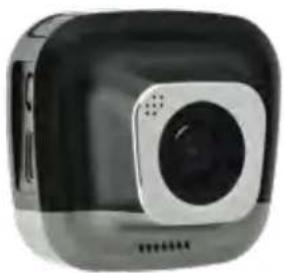
natural_image
Black and white photo of a digital camera with a circular lens (no visible text or symbols)CDR 835 or CDR 855 BT Dash Cam
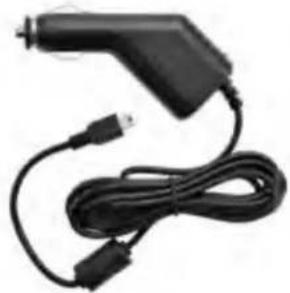
natural_image
Black handheld electronic device with attached cable and connector (no visible text or symbols)12V Vehicle Power Adapter
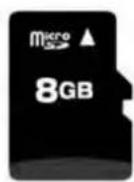
8GB Micro SD Card (pre-installed in dash cam)
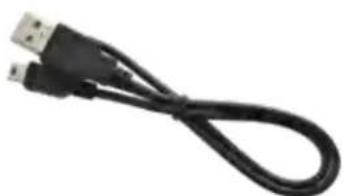
natural_image
Close-up of a black USB cable with two connectors (no text or symbols visible)USB to micro USB Cable (for connection to computer)
natural_image
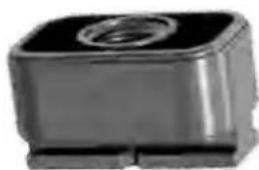
Close-up of a black rectangular electronic component with a circular top and side connectors (no visible text or symbols)Quick Release Mount
Quick Start Guide
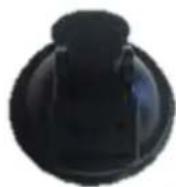
Suction Cup Windshield Mount
CONTROLS AND CONNECTIONS
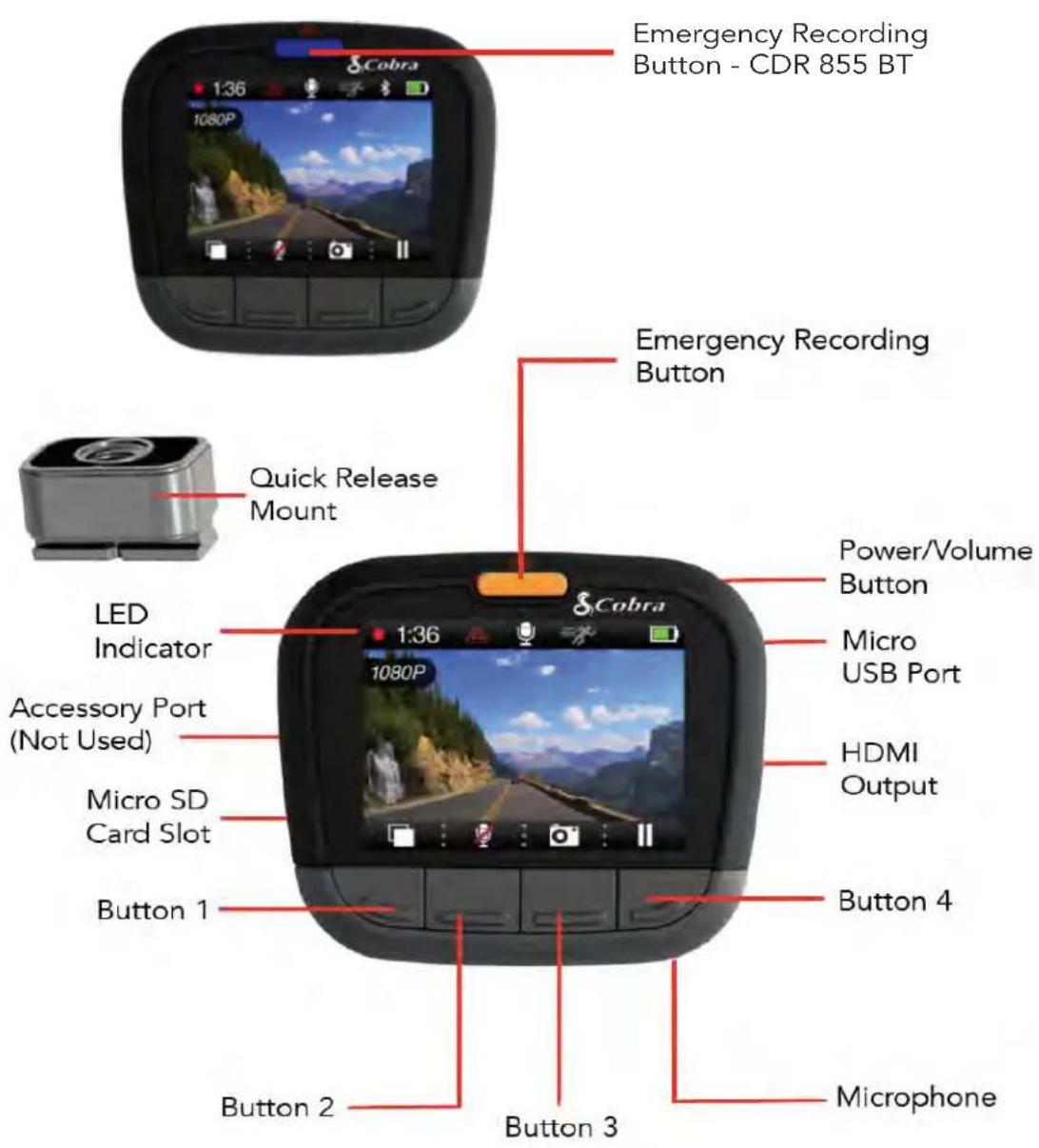
The functions of Buttons 1-4 are indicated by the icon directly above each button and change depending on the state of the unit.
INSTALLATION

MOUNT
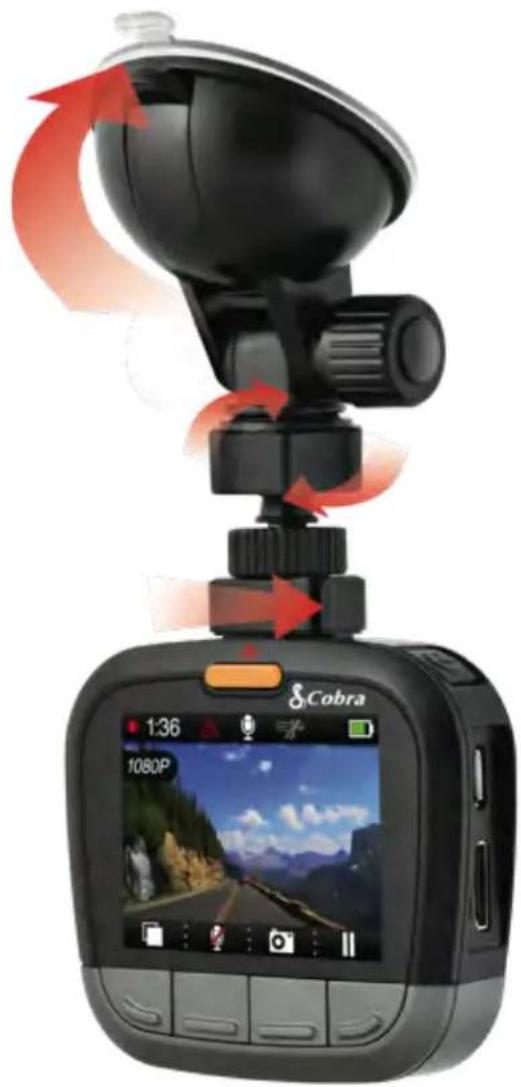
Screw the included suction cup into the mount. Slide the mount into the camera and press the lever to secure the unit to your vehicle's windshield.
Suction Cup Windshield Mount
To install the Suction Cup Windshield Mount peel the plastic film off of the suction cup. Press the suction cup FIRMLY onto the windshield. Depending on the suction cup style either twist the locking ring or flip the locking lever 90° to secure the suction cup in place. The suction cup can be moved freely by disengaging and re-engaging the locking lever. The quick release mount slides in and out of the mounting slot.

POWER
Plug one end of the supplied 12V Vehicle Power Adapter into your vehicle's cigarette lighter, and the other end into the micro USB port. The unit should power on automatically. If it does not, PRESS AND HOLD the Power button until the display activates. When the power button is used to power on the unit the user must manually start recording.
natural_image
Cobra car headlighter displayed on a digital camera, showing navigation mode and speedometer (no text or symbols on device)BASIC OPERATION
QUICK START
Press the Record/Pause button to stop and start recording.
Press the Emergency Recording button to lock the current file so that it won't be recorded over.
POWERING ON THE DEVICE
The device will power on automatically when plugged in and can also be powered by PRESSING AND HOLDING the On/Off button until the display activates.
NAVIGATING MENUS
When in a menu, press the Arrow Keys to navigate to the menu item you want to select or change and then press Enter to select or change the option associated with that item. Pressing Back at any time will exit the menu without saving changes.
VOLUME ADJUST
Briefly press the Power/Volume button to enter the volume menu. There are 5 volume settings and mute (no Volume)
THE SD MEMORY CARD
The device comes with a pre-installed 8 GB micro SD memory card. To remove the SD card, press firmly on the SD card to push it further into the slot. There will be a click and the SD card will pop out on release. Extract the card and replace as necessary by inserting a card into the slot and pressing until it locks in place.
Note: This device supports Class IV or higher micro SD cards with a capacity up to 32GB.
CHARGING THE DEVICE
You can charge the device with the included car charger or with a micro USB cable.
The battery in this unit is intended to operate the unit after power loss due to an accident or crash. Note that, while recording may continue, the device is not intended for long-term recording on battery power.
SOFTKEY FUNCTIONS
The 4 Buttons on the device allow you control multiple functions depending on the current status of the unit. These buttons allow for the following softkey functions:
| Button 1 | Button 2 | Button 3 | Button 4 | |
| Recording Functions | Menu | Playback Mode | SnapShot | Record |
| Screen On/Off | Microphone On/Off | Pause | ||
| Settings Menu Functions | Back | Arrow | Arrow | Select/Enter |
| Playback Menu Functions | Back | Lock/Unlock File | Delete File | Play File |
| Previous File | Play/Pause | Next File | ||
| Fast Rewind (press and hold) | Fast Forward (press and hold) | |||
| Other | Yes | No | ||
| iRadar Functions (CDR855BT only) | Cancel Alert | N/A | True Alert | False Alert |
OPERATION MODES
Video Mode
Video/Photo Playback Mode
Photo Playback mode
VIDEO MODE
Video Mode is the default mode for the device, and allows you to easily record HD video of the road ahead of you.
When first powered on, the device will start in video mode and automatically begin recording. To start/stop recording press the Record/Pause button.
Continuous Loop Recording: Once the memory card is full, the camera will continuously overwrite the oldest footage recorded. To protect a clip so that it will not be overwritten, press the Emergency Record button. The emergency record icon will show on the screen. Files can also be locked from the playback menu in Video Playback Mode.
G-Sensor: The G-Sensor is an accelerometer that can detect an impact caused by an accident. If the G-Sensor is triggered, the current video segment will automatically be locked so that it is not overwritten by continuous loop recording.
Note: Setting proper G-Sensor sensitivity is important for proper operation of the product. If the G-Sensor is too sensitive it will unnecessarily lock files and can result in the memory card filling up quickly. If it's not sensitive enough, then it may not lock a file in the event of a legitimate collision.
Shortcuts: While in video mode, you can perform these functions
- Menu enters the settings menu to change the video settings, general settings, iRadar app settings (CDR 855 BT only), and language settings.
Note: This option is only available when the camera is not recording.
- Screen on/off turns the LCD screen off. The device will continue recording while the screen is blank.
- Playback enters the playback menu to review previous recordings and photos. Note: this menu can only be selected when the camera is not recording.
- Microphone Toggle turns the microphone on or off. The current setting is shown at the top of the video screen.
- Snapshot takes a snapshot/photo. The unit does not have to be recording in order to take a snapshot
• Record/Pause starts or pauses a recording
VIDEO SETTINGS
Video resolution:
This setting allows you to set one of three available video recording resolutions:
Higher resolutions will give you a sharper image, but take up more memory on the card.
The available resolutions are:
1080P Full HD 1920x1080 30 Frames per Second
720P HD 60fps 1280x720 60 Frames per Second
720P HD 30fps 1280x720 30 Frames per Second
Capacity
This setting allows you to control the duration of each individual movie clip on the device.
Movie clips can be set to durations of 3 minutes, 5 minutes, or 10 minutes or Action Cam Mode. Turning the loop clip time to Action Cam Mode lets the device record one uninterrupted movie clip, but disables continuous loop recording.
G-Sensor:
The Drive HD Dash Cam includes a built in G-Sensor which allows the device to determine when the car has been in a collision. If it detects a collision, it automatically locks the recording being made at the time of the accident. You can use this setting to set the sensitivity of the G-Sensor from 1-3 or turn it off. Level 1 is the easiest to activate the G-sensor and the G-Sensor may lock files due to smaller bumps like potholes and the SD card may fill up with protected files. Level 3 is the hardest to activate the G-sensor.
Parking Mode:
Enabling this setting will allow the device to enter parking mode if no motion is detected for 5 or 10 minutes while the camera is recording. The recording will restart when motion is detected. The default setting is 10 minutes.
Cobra Watermark, Date/Time Stamp, & Time Stamp Format:
These menu options change the watermark & time stamp that will appear on the saved video files. Photo files do not contain a watermark.
GENERAL SETTINGS
Volume:
Allows you to raise and lower the volume of sound playback on the device.
Date/Time:
Allows you to set the date and time on the device and for use with the timestamp.
Screen Saver:
Allows you to set a duration after which the device's display will go dark. This setting is useful to avoid distracted driving and having a bright LED screen when driving at night. Select 1 minute or 3 minutes.
Beep Sound:
Turns the sound on or off for each time a button is pressed. Note: this only effects normal button presses. Alerts to the user of errors, or iRadar sounds (CDR855BT only) are not effected by this setting.
Format SD Card:
Allows you to format the inserted SD Card. NOTE: This action will permanently delete all data on the card.
Restore Defaults:
Resets the device to factory settings. Note that restoring defaults will NOT erase data on your memory card.
Firmware Version:
Displays the device software version.
LANGUAGE SETTING
Allows you to set the language for the device from among the 9 supported languages.
iRADAR SETTINGS (CDR 855 BT only)
Bluetooth:
Turns Bluetooth on/off so the camera can/cannot connect to a smartphone running iRadar
iRadar Alerts:
Alerts from the iRadar app will not be displayed on the CDR 855 BT. The CDR 855 BT will still communicate with a connected smartphone running iRadar to receive date/time and GPS information.
Speed Units:
Changes the units between mph and km/h
VIDEO AND PHOTO PLAYBACK MODE
This device stores video and pictures on its removable SD Card Memory. Playback mode will allow you to review the saved video and photos and play back the video with sound. To select a video or photo for playback navigate with the arrows and select with Enter key. The Back key will return you to the previous screen.
When viewing a video it can be locked, unlocked, or deleted.
During video playback pressing the >> or << keys will advance to the next/previous video. Pressing and holding these keys will playback the video in fast forward or fast rewind mode
Photos can be viewed and deleted. It is not necessary to lock photo files – they are not overwritten by continuous loop recording.
iRadar® APP CONNECTION
The CDR 855 BT uses a Bluetooth® Smart connection to the Cobra iRadar® smartphone app.
Smartphone integration allows for:
- Embedding GPS, Speed, Heading, and G-Sensor Information into video footage recorded on the dash cam.
- Displaying iRadar driver awareness alerts including:
Red Light
Cameras

Live Police
Speed Cameras

Caution Areas

Speed Traps
iRadar® APP CONNECTION
Download the app from the App Store or Google Play.

For iPhone ^® 4s and later with Bluetooth ^® Smart:
• Power on your dash cam and be sure that Bluetooth is enabled
- Make sure your iPhone's Bluetooth is ON. The dash cam will NOT APPEAR in the iPhone's Bluetooth Settings Menu.
- Start the Cobra iRadar App. Press the Menu button in the upper left of the app and select Devices. Follow the onscreen instructions to complete the pairing and connection.
- When complete, a "connected" chime will sound and will turn white on the dash cam display.
For Android™ Devices with Bluetooth® Smart:
• Power on your dash cam.
- Enter your Android device's Bluetooth Settings Menu.
- Scan for Devices and select Drive HD to pair.
- Enter the Cobra iRadar App. A "connected" chime will sound, and ■ will turn white on the dash cam display.

will turn white on the
CONNECTING TO A COMPUTER OR TV
This device can connect to a computer or television via the USB or HDMI ports located on the side of the unit.
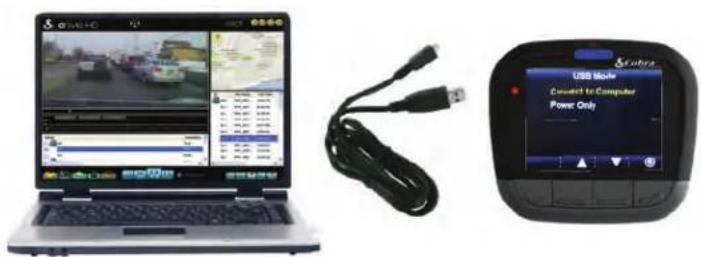
Use the USB port on the side of the device to connect the device to your computer. When connected you will be given two options: Connect to Computer or Power Only.
CONNECTING TO A COMPUTER OR TV
Select Connect to Computer to access the device via your computer.
By default, your device connects to your computer in Mass Storage mode, and acts like a flash drive. Videos can be viewed with any standard video player that supports .mov files.
Select Power Only to turn the unit on for normal operation
Use the HDMI Port to connect the device to a TV or monitor using a mini HDMI cable (not included).
FIRMWARE UPDATE INSTRUCTIONS
For optimal performance, check www.cobra.com periodically for software updates.
- Connect the Dash Cam to your computer using the included USB to Micro-USB cable.
- Power on the Dash Cam and select Connect to Computer using the record/select button.
• The camera will be listed as DRIVEHD in Windows Explorer. - Download the update file from www.cobra.com. Note: You do not need to double click or open this file on the computer.
- Copy/paste or drag the update file (SD_CarDV.bin) into the root directory of the DRIVEHD folder. Note: the file name must be SD_CarDV.bin in order to update the firmware.
- Wait for the file to transfer and then safely disconnect the Dash Cam from the computer. The Dash Cam will turn off.
- Plug the Micro USB cord into the Micro USB port. The Dash Cam will turn on and automatically boot into the Firmware Update Menu.
- Use the Up/Down arrows to highlight YES and then select it with the Select Button. The unit will update for 10-15 seconds and then turn off.
- Power the unit on. You will again be automatically booted into the Firmware Update Menu. You can now select DELETE to delete the update file off of your unit. Alternatively, you can connect to your computer and manually delete the SD_CarDV.bin file from the Micro SD card. This will prevent the unit from booting into the Firmware Update Menu in future power cycles. Your Dash Cam is now updated.
CAMERA SPECIFICATIONS
Visual Angle.... 140 degrees
Sensor 5 MP CMOS (OV2710)
Video resolution.... 1080P 1920x1080 30 fps .... 720P 1280x720 30 fps .... 720P 1280x720 60 fps .... 480P 680x480 30 fps
Video Format......MPEG4/MOV
Picture Format...... JPEG
White Balance Auto
Color Effect ...... Auto
Continuous Loop Recording.... Supported
Motion Detection.... Supported
Date and Time Stamp .... Supported
Media Supported. SD Card - 8GB Included (32GB Max)
Sound Recording.... Synchronous video and sound record
USB Interface. USB 2.0
USB Mass Storage.... Supported
Display Screen.... 2.7" LCD
Battery.... Rechargeable Lithium-Ion

1080P Full HD
Dash Cam
Loop Recording

MicroSD Card Included
Wide Angle Lens

G-Sensor
TROUBLESHOOTING
If your unit does not appear to be operating properly, please follow these troubleshooting steps:
• Make sure the power cord is properly connected.
- Make sure the socket of your vehicle's cigarette lighter is clean and free of corrosion.
- Make sure the power cord's cigarette lighter adapter is firmly seated in your cigarette lighter, and the Status LED is on.
- Check the power cord fuse. (Unscrew the ribbed end cap of the cigarette lighter adapter and examine the fuse. If required, replace it with a 2-amp fuse only.)
For detailed and up-to-date FAQ's, please visit www.cobra.com/support/faqs.
TRADEMARK ACKNOWLEDGEMENT
Cobra, the snake design, Drive HD™, the d design, and Record your ride™ are proprietary trademarks of Cobra Electronics Corporation, USA. Other trademarks and trade names are those of their respective owners. Cobra Electronics Corporation™ is a trademark of Cobra Electronics Corporation, USA. HDMI, the HDMI logo, and High-Definition Multimedia Interface are trademarks or HDMI registered trademarks of HDMI licensing LLC in the United States and other countries.
NOTE: This device complies with part 15 of FCC rules: Operation is subject to the following two conditions: (1) This device may not cause harmful interference, and (2) This device must accept any interference received including interference that may cause undesired operation.
CAUTION: Modifications or parts not approved by Cobra Electronics Corporation may violate FCC Rules and void authority to operate this equipment. This device complies with RSS-310 of Industry Canada. Operation is subject to the condition that this device does not cause harmful interference.
CAN ICES-3B/NMB-3B.
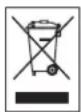
DISPOSAL OF ELECTRONICS EQUIPMENT: This product may contain hazardous substances that could impact health and the environment if not disposed of properly.
The crossed out wheeled bin symbol indicates that the product should not be disposed of along with household waste. It should be handed over to an applicable collection point for the recycling of electrical equipment. By ensuring that this product is disposed of correctly you will help/prevent potential negative impact on the environment.
If you need more information on the collection, reuse and recycling systems, please contact your local civic office or the shop where it was originally purchased.
WARNING: This product contains chemicals known to the State of California to cause cancer and birth defects or other reproductive harm.



- drive HD™
- Record your Ride
- Table of Contents
- Table of Contents 2
- INTRODUCTION....3
- CAMERA FEATURES....3
- PRODUCT SERVICE AND SUPPORT ....4
- YOUR DEVICE ....5
- iRadar® APP CONNECTION ....14
- CONNECTING TO A COMPUTER OR TV....14
- CONNECTING TO A COMPUTER OR TV....15
- FIRMWARE UPDATE INSTRUCTIONS....15
- CAMERA SPECIFICATIONS....16
- TROUBLESHOOTING....17
- TRADEMARK ACKNOWLEDGEMENT ....17
- INTRODUCTION
- CAMERA FEATURES
- 1080P Full HD
- 2.0" LCD Screen
- 140° Viewing Angle
- Continuous Loop Recording
- Emergency Recording - Automatic or Manual
- G-Sensor
- Parking Mode
- Dynamic Range
- Simple Installation
- Ready to Use
- ADDITIONAL FEATURES
- PRODUCT SERVICE AND SUPPORT
- YOUR DEVICE
- WHAT'S IN THE BOX
- INSTALLATION
- MOUNT
- Suction Cup Windshield Mount
- POWER
- BASIC OPERATION
- QUICK START
- POWERING ON THE DEVICE
- NAVIGATING MENUS
- VOLUME ADJUST
- THE SD MEMORY CARD
- CHARGING THE DEVICE
- SOFTKEY FUNCTIONS
- OPERATION MODES
- VIDEO MODE
- VIDEO SETTINGS
- Video resolution:
- G-Sensor:
- Parking Mode:
- Cobra Watermark, Date/Time Stamp, & Time Stamp Format:
- GENERAL SETTINGS
- Volume:
- Date/Time:
- Screen Saver:
- Beep Sound:
- Format SD Card:
- Restore Defaults:
- Firmware Version:
- LANGUAGE SETTING
- iRADAR SETTINGS (CDR 855 BT only)
- Bluetooth:
- iRadar Alerts:
- Speed Units:
- VIDEO AND PHOTO PLAYBACK MODE
- iRadar® APP CONNECTION
- CONNECTING TO A COMPUTER OR TV
- FIRMWARE UPDATE INSTRUCTIONS
- CAMERA SPECIFICATIONS
- TROUBLESHOOTING
- TRADEMARK ACKNOWLEDGEMENT
Brand : COBRA
Model : CDR 835
Category : Dash cam