
ZM-RS6FUSB - Headphones ZALMAN - Free user manual and instructions
Find the device manual for free ZM-RS6FUSB ZALMAN in PDF.


| Product Type | USB Surround Sound Headphones |
| Brand | Zalman |
| Model | ZM-RS6FUSB |
| Dimensions (W x H x D) | 34 x 18 x 91 mm |
| Weight (headphones only) | 386.6 g (13.64 oz) |
| Cable Length | 240 cm (7.9 ft) |
| Connectivity | USB 1.1/2.0 |
| Power Supply | Via USB, 5V DC, 500mA |
| Power Consumption | 150mA min, 500mA max |
| Audio Chipset | C-Media CM6206 5.1 Sound |
| Sampling Rate | 16-bit, 44.1kHz / 48kHz |
| Frequency Response | 50 Hz - 20 kHz |
| Sound Pressure Level | 89 dB ± 3 dB at 1kHz |
| Impedance | 16 Ohm (main) / 32 Ohm (center) |
| Output Power per Channel | 0.3W |
| Speaker Configuration | 5.1 channels (no built-in subwoofer) |
| Key Features | In-Line 5.1 Channel USB Soundcard, Real Surround Field, Programmable Spatial Processing, Graphic EQ, Volume Control |
| System Compatibility | Windows XP, Vista (32/64-bit) |
| Included Software | Driver & Utility CD, Quick Install Guide |
| Cleaning Instruction | Wipe with soft cloth and mild detergent; do not use benzene or solvents |
| Safety Precautions | Do not disassemble; avoid heat sources; increase volume gradually |
| Warranty | 1 year exchange through reseller |
| Repairability | Not user-serviceable; contact Zalman or reseller for issues |
Frequently Asked Questions - ZM-RS6FUSB ZALMAN
User questions about ZM-RS6FUSB ZALMAN
0 question about this device. Answer the ones you know or ask your own.
Ask a new question about this device
Download the instructions for your Headphones in PDF format for free! Find your manual ZM-RS6FUSB - ZALMAN and take your electronic device back in hand. On this page are published all the documents necessary for the use of your device. ZM-RS6FUSB by ZALMAN.
USER MANUAL ZM-RS6FUSB ZALMAN
ZM-RS6F USB (USB Surround Sound Headphones) User's Manual
Thank you for purchasing Zalman's ZM-RS6F USB (USB Surround Sound Headphones). Please read the User's Manual thoroughly before using the product and keep the 'Product Warranty' document.
[1] Features
● In-Line 5.1 Channel USB Soundcard
- USB Based 6-Speaker Surround Sound Headphones
- Ideal for Surround Sound with Notebooks for DVD Movies and Games
● Real Surround Field Comparable to a Complete Multi-Channel Speaker System
● Programmable Spatial Processing, Graphic EQ and More
[2] Specifications
- Unit Type : Electro Dynamic Round Type Micro Speaker
• Frequency Response : 50Hz \~ 20kHz
• Sound Pressure Level : 89dB ± 3dB at 1kHz - Impedance : 16 Ohm at 1kHz / 32 Ohm at 1kHz (center speaker unit)
- Weight : 13.64oz (386.6g) *Headphones only(excluding the cable)
- Cord: 7.9ft (240cm)
- Input: 1 USB Connection Port(USB 1.1 / 2.0 Compatible)
- Chipset: C-Media CM6206 5.1 Sound
- Sampling Rate: 16bit 44.1kHz, 48kHz Compatible
• Size(W*H*D): 34*18*91mm - Power Consumption: Minimum 3.3V, 150mA(Standard 5V, 500mA)
• Output: 0.3W per channel
[3] System Requirements
- Software
OS: Microsoft Windows XP, Vista
- Hardware
Notebook: Pentium III 700MHz or greater (1GHz or greater recommended)
Desktop: Pentium III 800MHz or greater (1GHz or greater recommended), Celeron 1.3GHz or greater
Memory: 256MB or greater
USB Port: USB 1.1 / 2.0 compatible
[4] Contents
![ZALMAN ZM-RS6FUSB - [4] Contents - 1](/content/2026/05/920960/images/12dec727919f2ed410df18da5360d23fcdf463d18001eafd7e0919c880df98df.jpg) | ![ZALMAN ZM-RS6FUSB - [4] Contents - 2](/content/2026/05/920960/images/58a607cc426e186ab6223132834b5184205ccb5f5f7a8421b64a5b7fb9b634b7.jpg) | ![ZALMAN ZM-RS6FUSB - [4] Contents - 3](/content/2026/05/920960/images/d5b950ad0ebadf559e04f8850cff0e519dc6bc21db9d876694aba34cf0970931.jpg) |
| One (1) Set of USB Headphones | One (1) Driver & Utility Installation CD (Detailed User's Manual included) | One (1) Quick Install Guide |
[5] Part Names
Headphones / Volume Control / USB Connector
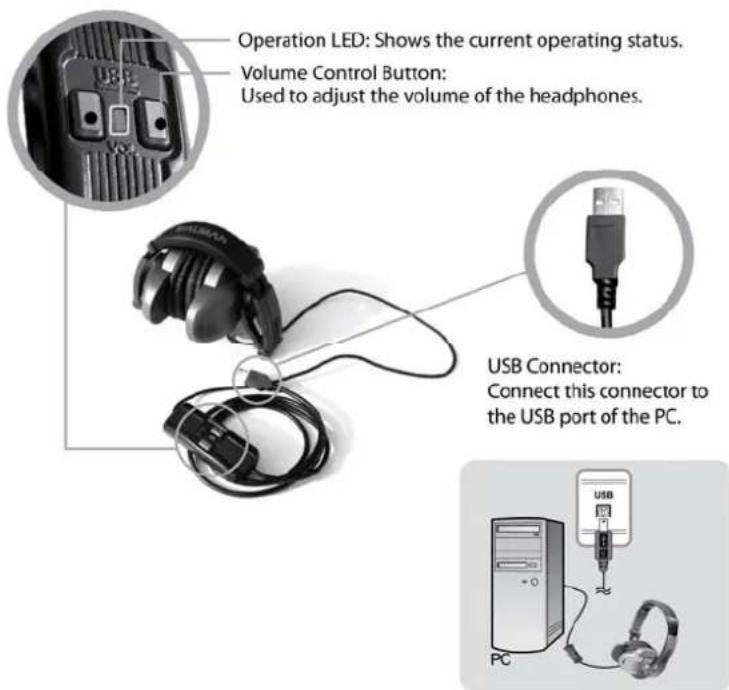
| Operation LED | Displays the operating status of the product. |
| Volume Control Buttons | Adjusts the volume of the headphones. |
| USB Connector | Connects the product to the PC's USB port. |
[6] How to Wear the Headphones
ZM-RS6F USB is designed in an Over Head Band style. Please wear the headphones as illustrated in Figure B, and keep or store it as shown in Figure A.
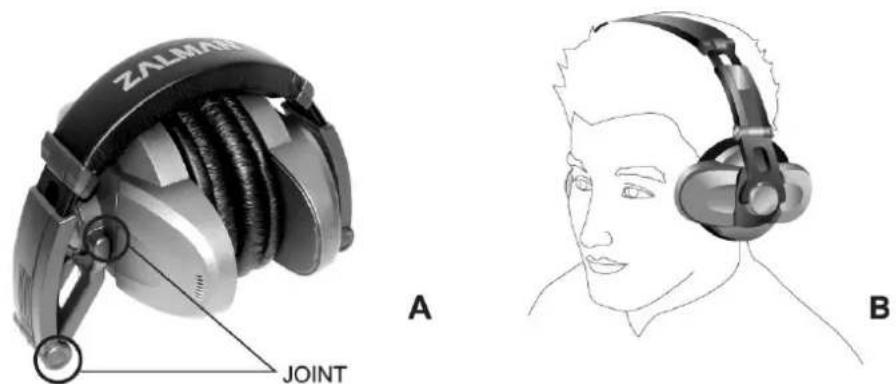
* Make sure to properly distinguish the Left/Right channels of the headphones before wearing it.
[7] Installation
Connect the headphones' USB Connector to the PC's USB port.
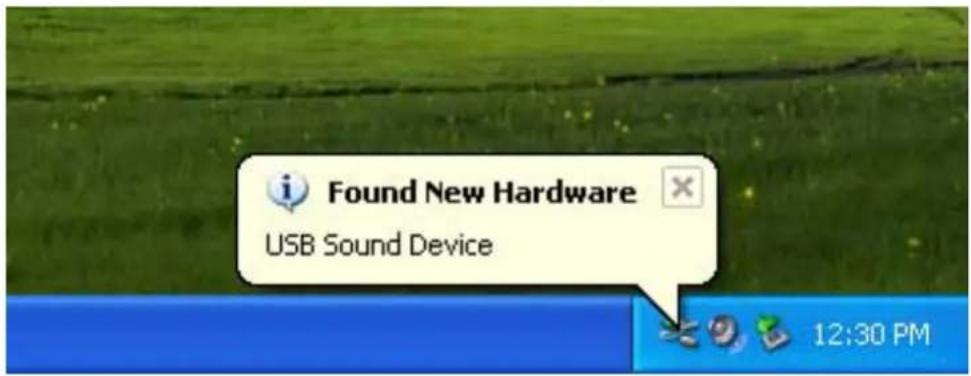
The OS will automatically detect the headphones, and the "Found New Hardware" message will pop up.
* This product could generate a slight pop-up noise during connection to or removal from of the PC's USB port.
Therefore, it is recommended that the headphones be connected or removed from the PC while not wearing the headphones.
[8] Software Installation
Inserting the provided Driver & Utility CD into the PC's CD-ROM/DVD-ROM drive will generate an auto run of the installation program.
(If auto run is not executed, then run the setup.exe file from the CD)
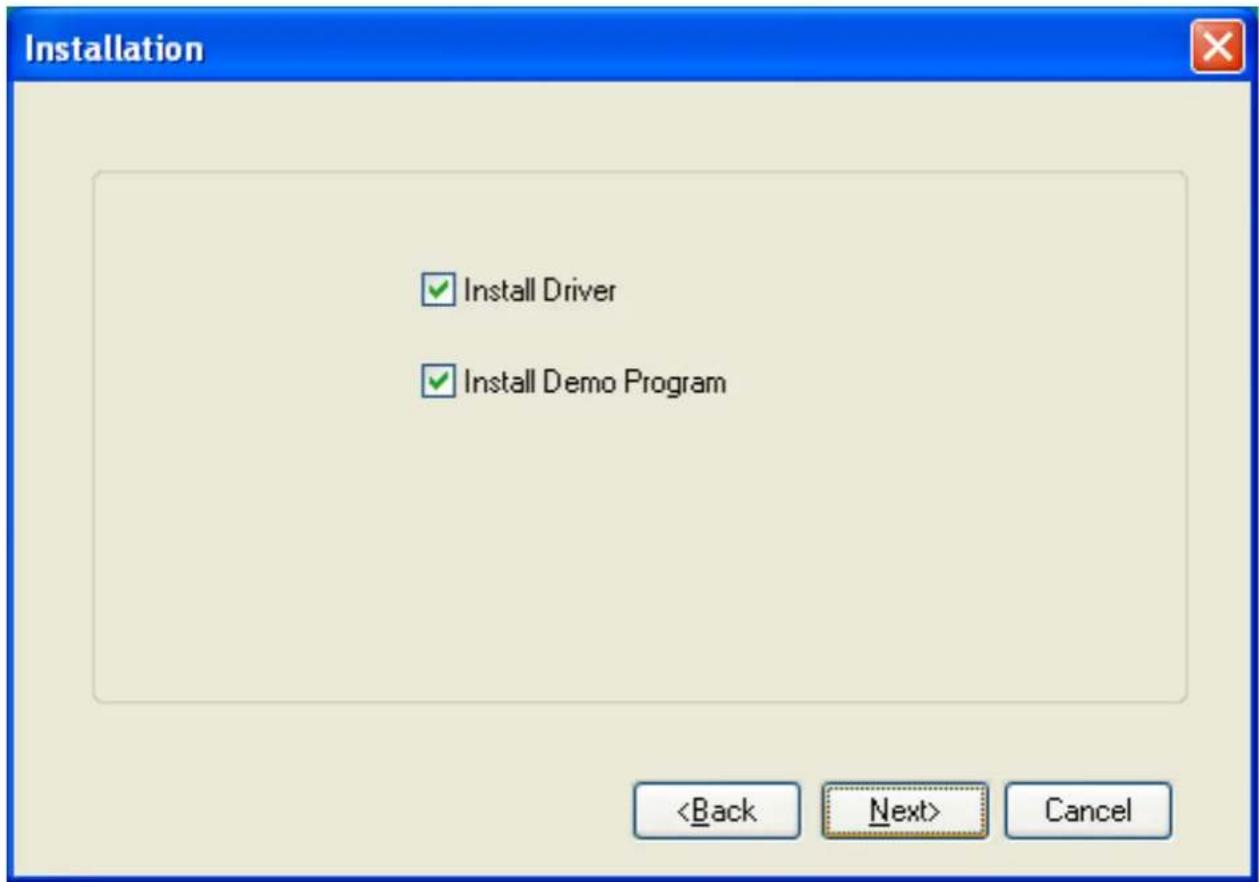
Proceed with the installation according to the directions. Once installation is complete, restart the system.
C-Media USB 106 Sound
Installing C-Media USB 106 Sound Driver...
C-Media USB 106 Sound
Installation is complete. You must restart your computer.
Yes, I want to restart my computer now.
No, I will restart my computer later.
Finish
[9] System Configuration
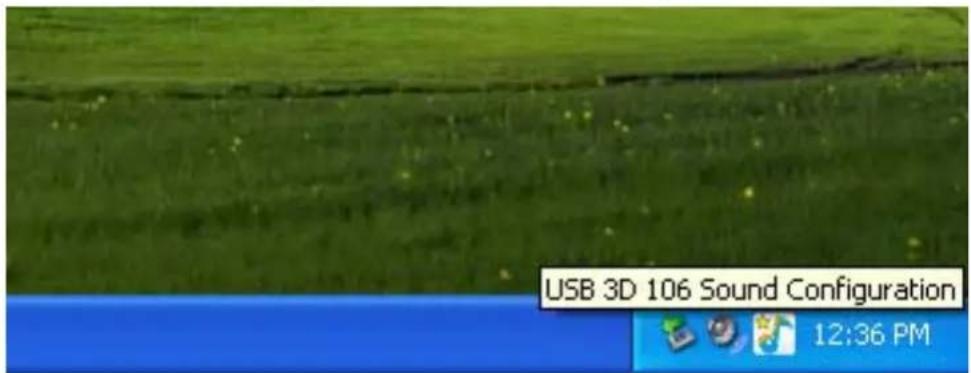
Click on the 'USB 3D Sound Configuration' icon in the Task Manager on the bottom right side of the OS.
Click on the 'Main Setting' tab.
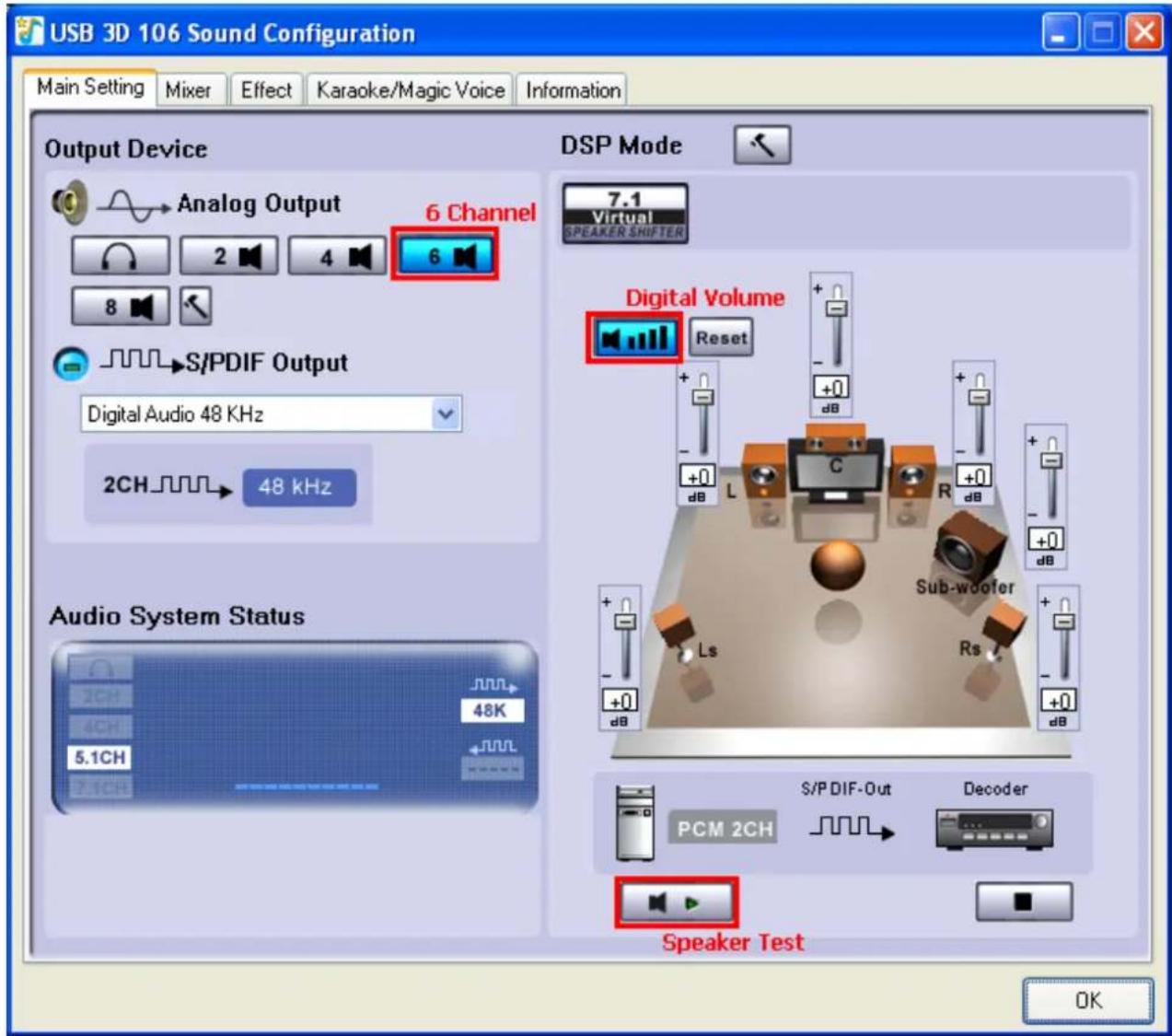
Output Device: Select '6 Channel'(6)
DSP Mode: Clicking on the Digital Volume button(
![ZALMAN ZM-RS6FUSB - [9] System Configuration - 3](/content/2026/05/920960/images/183205e706307f3595abbff6add6a9b27bba7d1a18cd2ee43f2482f5596e9fc2.jpg)
) will allow volume control per channel.
Clicking on the 'Speaker Test' button ( ) on the bottom will run the channel test.
* The ZM-RS6F USB is a five channel unit that does not have a built-in sub woofer. Therefore, the sub woofer channel will not be heard during the channel test. This is not a defect of the product.
* 'S/PDIF Output' and 'Audio Jack' settings are not applicable to ZM-RS6F USB.
Click on the 'Mixer' tab.
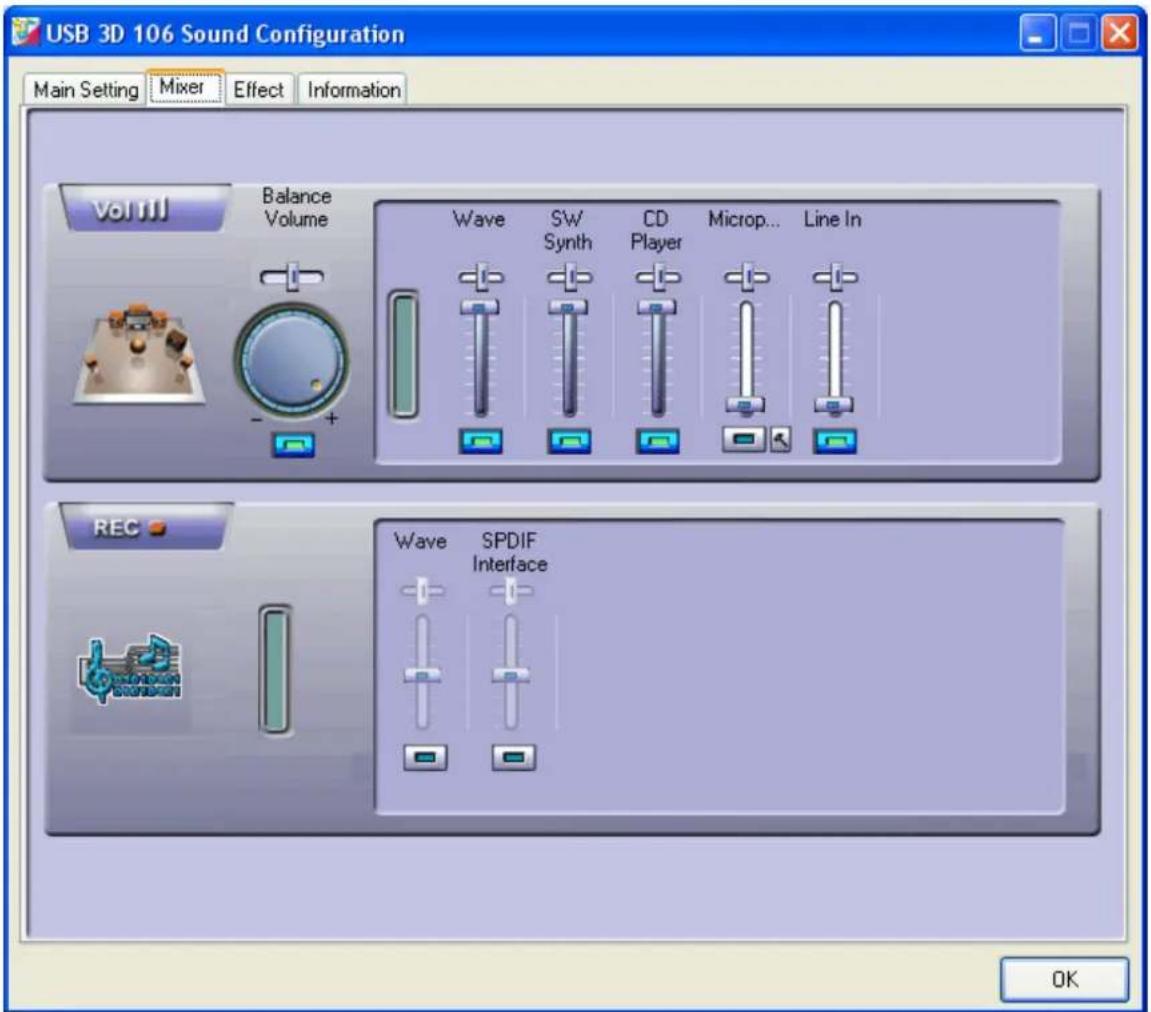
Vol: Adjusts the volume level and balance regarding the audio input source. Select 'Microphone' and 'Line In' to disable them (This product does not have MIC and line input terminals. Therefore, the features mentioned above is should be muted).
There are two ways to control the volume of this product.
- Controlling via software: The Volume can be adjusted on the 'Volume Control' or 'USB 3D Sound Configuration' on the right side of the Task bar.
- Controlling via hardware: use the Volume Control Buttons (up/down) of the headphones' Volume Control.
* The Volume Control Buttons of the headphones' Volume Control may not function properly with certain programs. In such a case, please control via the software.
* 'REC' setting is not used.
Click on the 'Effect' tab.
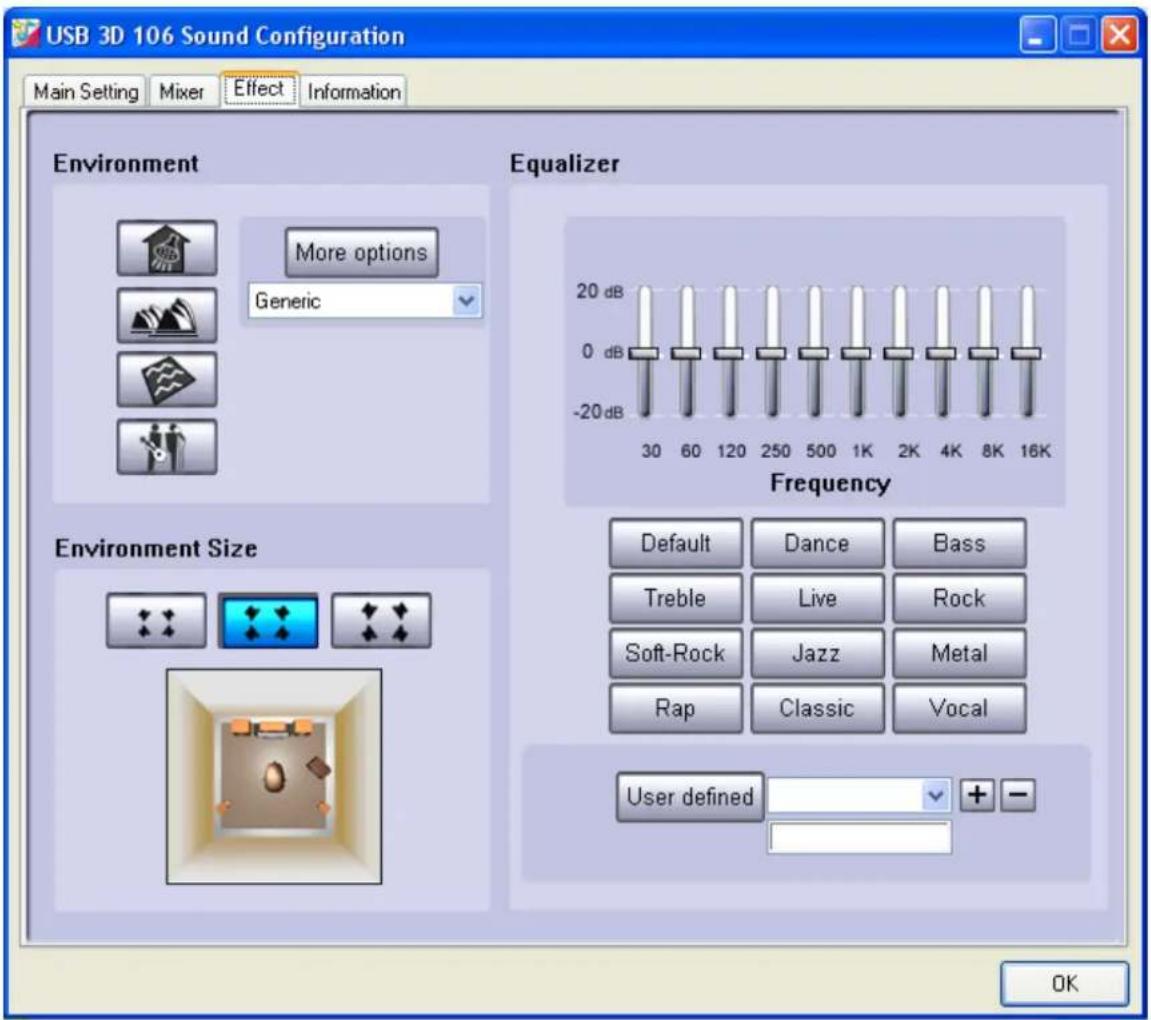
Environment: Produces various sound field effects of concert halls, living rooms, assembly halls, etc.
Environment Size: Select the size of the listening room (small, normal, large). It is set to normal by default.
Equalizer: Volume can be controlled by frequency, and a preset mode can also be used.
※ Note
C-Media 3D 106 Configuration program is a general-purpose software provided for all soundcards using C-Media chipsets. Therefore, certain features related to MIC Input, Recording, and S/PDIF Output are not applicable to ZM-RS6F USB.
[10] Trouble Shooting
1) When no sound is generated
- Check the activation status of the USB Controller in the CMOS Settings of the PC.
- Check to see if the 'C-Media USB Sound Device' has been set as the basic device for sound playback in the PC's Control Panel(Sounds and Audio Devices Properties).
- Check to see if Mute has been checked in Windows' Play Control Volume setting. If Mute has been checked, then please uncheck it to disable it.
- Check to see if the product's USB connector has been properly connected to the PC's USB port.
- Reconnect the USB connector or connect it to another USB port.
- Adjust the Media Player's volume to an adequate level.
2) When sound is split into 2 channels
- Check the Windows version of the PC. This product's multi-channel features are compatible with Windows XP and Vista(Windows 98 SE is officially not supported).
- Check to see if "6 Speaker" is selected in 'USB 3D 106 Sound Configuration.'
- When playing a DVD, check to see if the audio output has been set to "5.1 channel"
3) When the sound is distorted or noisy
- Check to see if the USB connector is connected properly and if the cable is defective or has been damaged.
- Check to see if the Media (CD or DVD) in use has been damaged.
- Installing this product on a computer that lacks proper electrical grounding, may result in noise. Electrical grounding of the PC's power supply is recommended.
* System Compatibility
Certain old motherboards that were released when USB ports were first implemented on PCs have a low USB transmission rate, which could cause malfunctioning. Using on a PC with a very low electrical capacity (power consumption of 150Watts or lower) could generate malfunctions as well.
This product cannot be used with regular audio playback devices (CD Players, MP3 Players etc.) or game consoles (X-Box, PlayStation 2 etc.)
[11] Safety Precautions
Please read the following safety precautions thoroughly before using the product. Keep in an easily accessible place after reading for future use.
The mark is intended to lead customers into using the product safely and properly to prevent any physical or monetary damages to the user.
Warnings
Ignoring or improperly reading the content of this sign could lead to death or serious physical injuries.
- In the following cases stop using the product and contact to ZALMAN.
- If smoke or strange smell is emitted
- If water or metallic objects have entered the product
- If the product has been dropped and the exterior has been broken
- Do not disassemble the product in all cases. It could lead to malfunctions.
- Do not connect the headphones jack into a power outlet.
Caution
Ignoring or improperly reading the content of this sign could lead to physical injuries or physical damages.
- Storing the product on a place exposed to direct sunlight or near a heating device like a stove could cause deformation or alteration.
- When the product gets dirty, clean with a smooth cloth and neutral detergent. Never use benzene or solvents to clean the product. It could alter the product's surface and color.
※ Lower the volume to its minimum level during initial startup. Gradually raise the volume to the right level to prevent hearing damage(exposing the ear to loud noise for long periods of time can cause hearing loss). Furthermore, do not connect the USB connector to any other ports besides the USB port of the PC.
[12] Product Warranty (International)
Warranty – If this product has any defects, then Zalman guarantees that it can be exchanged within one (1) year from the time of purchase.
* Product exchange is made with the reseller where the product was purchased. For further inquiries, contact Zalman Headquarters at www.zalman.co.kr or via e-mail to a representative.
* Disclaimer – Zalman Tech Co., Ltd. is not responsible for any damages due to external causes, including but not limited to, improper use, problems with electrical power, accident, neglect, alteration, repair, improper installation, or improper testing.
Contact Information
Homepage : www.zalman.co.kr
E-mail : zalman@zalman.co.kr
- ZM-RS6F USB (USB Surround Sound Headphones) User's Manual
- [1] Features
- [2] Specifications
- [3] System Requirements
- [4] Contents
- [5] Part Names
- [6] How to Wear the Headphones
- [7] Installation
- [8] Software Installation
- C-Media USB 106 Sound
- [9] System Configuration
- ※ Note
- [10] Trouble Shooting
- [11] Safety Precautions
- Warnings
- Caution
- [12] Product Warranty (International)
- Contact Information
Brand : ZALMAN
Model : ZM-RS6FUSB
Category : Headphones