
MMB 100 - Media player MAXELL - Free user manual and instructions
Find the device manual for free MMB 100 MAXELL in PDF.


| Product Type | Media Player |
| Dimensions | 134 x 102 x 28 mm |
| Power Supply | DC 5V, 2A |
| CPU | 400 MHz |
| RAM | 128 MB DDR2 |
| Flash Memory | 256 MB NOR Flash |
| Video Output | HDMI 1.3a, Composite AV |
| Audio Output | Stereo, SPDIF Optical |
| USB Ports | 2 x USB 2.0 Host |
| Ethernet | 1 x LAN (10/100) |
| Supported Video Formats | MPEG (TS, PS, VOB, M2TS), AVI, MOV, MP4, MKV, ASF, RM/RMVB, DVD-ISO, BD-ISO |
| Supported Audio Formats | AAC, M4A, MP3, WAV, OGG, APE, FLAC |
| Supported Picture Formats | JPEG, BMP, PNG, GIF |
| Subtitle Formats | SRT, SSA/ASS, SMI, IDX+SUB, MKV internal text/SSA/ASS |
| Max Video Resolution | 1080p |
| HDD Partition Support | FAT32, NTFS |
| Menu Languages | Simplified Chinese, Traditional Chinese, English, Spanish, Russian, Czech, Dutch, Italian, French, German, Turkish, Hebrew |
| Accessories Included | Remote control, 5V/2A power adapter, User manual, AV cable |
| Safety & Maintenance | Keep away from moisture and heat. Clean with a dry, soft cloth. Do not use liquids. |
| Repairability | No user-serviceable parts. Contact qualified service personnel for repairs. |
Frequently Asked Questions - MMB 100 MAXELL
User questions about MMB 100 MAXELL
0 question about this device. Answer the ones you know or ask your own.
Ask a new question about this device
Download the instructions for your Media player in PDF format for free! Find your manual MMB 100 - MAXELL and take your electronic device back in hand. On this page are published all the documents necessary for the use of your device. MMB 100 by MAXELL.
USER MANUAL MMB 100 MAXELL
License Notice and Trademark Acknowledgement.
Manufactured under license from Dolby Laboratories.
Dolby and the double-D symbol are trademarks of Dolby Laboratories.
Manufactured under license under U.S. Patent #s: 5,451,942; 5,956,674; 5,974,380; 5,978,762; 6,487,535 & other U.S. and worldwide patents issued & pending. DTS and the Symbol are registered trademarks, & DTS 2.0+ Digital Out and the DTS logos are trademarks of DTS, Inc. Product includes software. DTS, Inc. All Rights Reserved.
Directory
| Product overview | 02 |
| Explanation of the remote control | |
| Connecting your media player | 05 |
| Connector Indication | |
| How to connect | |
| Specification | 09 |
| Specification details | |
| Interface | 11 |
| Movie interface | |
| How to adjust the subtitle and audio | |
| Picture interface | |
| How to zoom in to the picture | |
| Music interface | |
| System interface |
Produce overview
Accessories
| NO Item Quantity | ||
| 1 | Remote control | 1 |
| 2 | 5V/2A power | 1 |
| 3 | User manual | 1 |
PS
Different model have different accessories, please check it before your order them
No.1 : Explanation of the remote control
1.0 : Remote control button definition :

Power on/off
TV mode selection
Setup
DVDROM eject control USB DVD ROM to slot in or eject
菜单
During DVD playback, press this key to return to DVD menu contents; During Blu-ray playback, press this key to select Volume, Subtitle, Chapter
1./@ Number key Input numbers
Home key back to the main menu
Return key return to the previous menu
Arrows up/down/left/right

Info key
During playback, press this button to show the information of the movie (Video format, file name, audio format, play process)

Under playback
Use these two buttons to select previous or next scene

Rewind back and fast forward key
Rewind has 1、1.5、2、4、8、16 times selections, fast forward has 1.5、2、4、8、16、32 times selections, press "play" to return to playback mode

Repeat key
When playback, It has repeat one, repeat all, repeat canceling such models

Audio-track switch
Use when playing Multi-audio track files

Time seek
Choose a specific time to start playing movies

Mute


Volume up and down key

Confirm

Play and pause

Stop
Stop playing the files, and go back to the content list

Slow
During playing, press this key to slow down. To Indicate speed: 3/4X、1/2X、1/4X、1/8X、1/16X、 1X icon will appear

Subtitle
If the movie has subtitle press this key to display or cancel subtitle, user can use up/down key to adjust color/size/location/time/size

Bookmark

Picture switching
16:9/4:3

Zoom
During playback, press this key, you can found modes of 0.9x、1x、2x、3x、4x、8x, with arrow keys to move movies During picture browsing, press this key, you can found modes of 2x、4x、8x、16x、Fit, with arrow keys to move pictures

Title
Use during DVD mode


Four color button
Function is different under different menu
NO.2: Connecting your media player
2.0: Connector indication
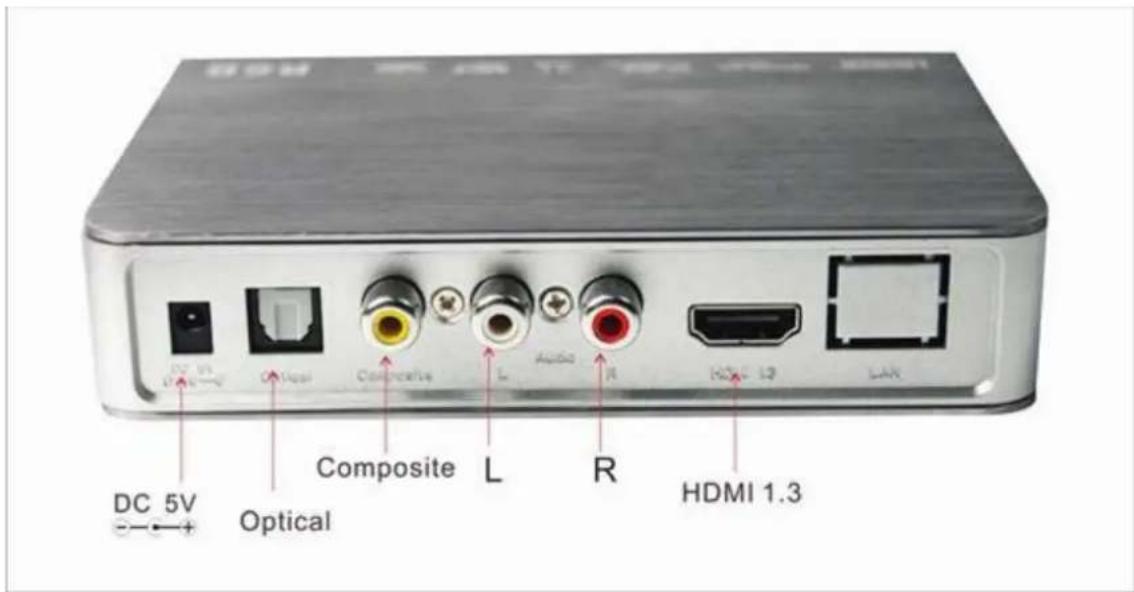
2.1: Connecting method
2.1.1: Power adapter connection

natural_image
Exterior view of a network device with power outlet and cable (no text or symbols visible)2.1.2: AV connection
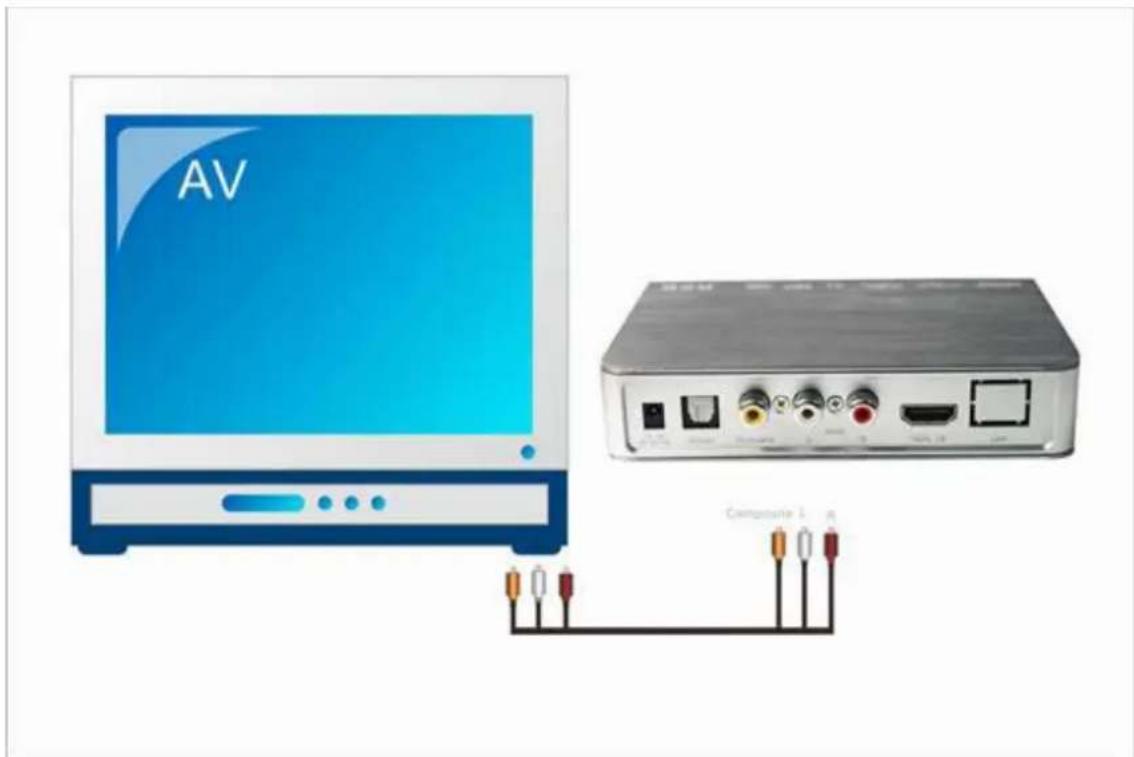
2.1.3: HDMI connection
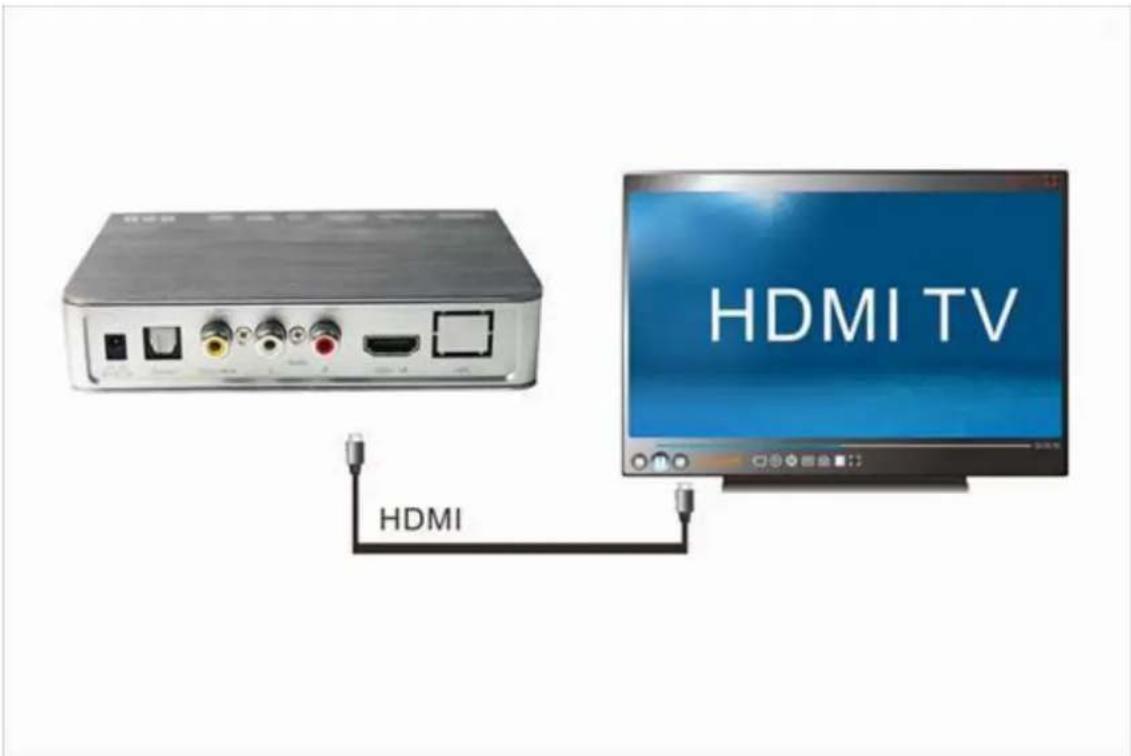
2.1.4: Optical connection

natural_image
Diagram showing a setup with two speakers, a CD, and a connected audio device (no text or symbols present)2.1.5: HDMI pass through connection

2.1.6: USB connection
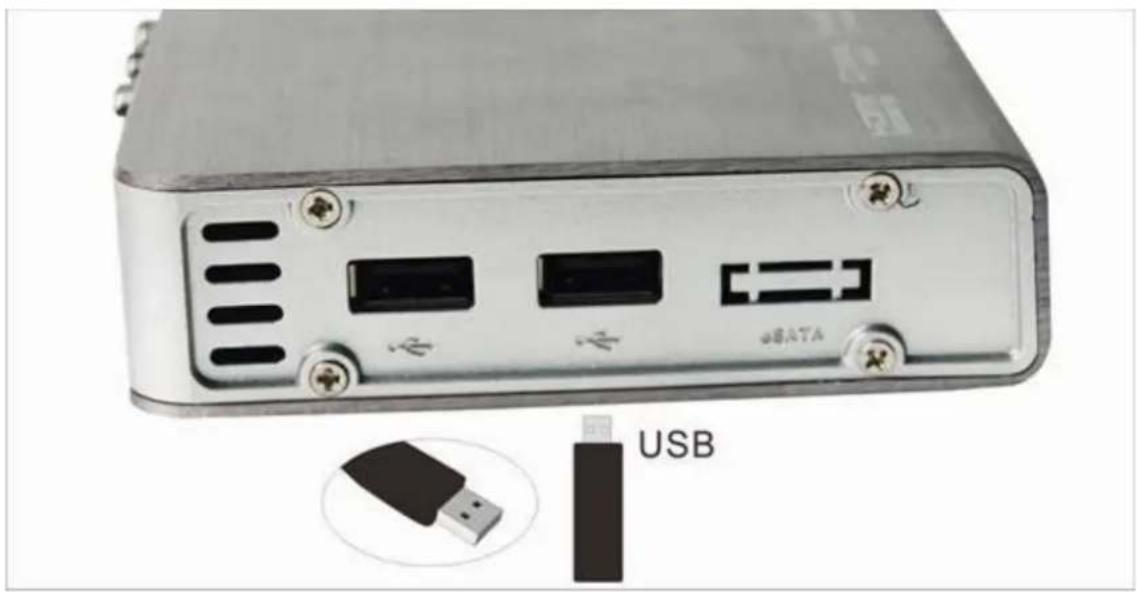
natural_image
Close-up of a USB drive with ports and connectors, no visible text or symbols on the device body2.1.7: Play video

natural_image
Illustration of a remote control system connected to a TV displaying a snowy landscape (no text or symbols visible)No.3 : Specification
| CPU 400MHZ | |
| DDR2 128MB | |
| NOR FLASH 256MB | |
| Power adapter DC5V/2A | |
| Video output AV outputHDMI 1.3a output | |
| Audio output | Stereo outputSPDIF optical output |
| USB HOST | 480Mbps USB2.0 HOST×2, connect with USB device, such as USB HDD、digital camera、USB card reader、USB DVD ROM |
| Temperature | Work temp:+5 ~ +50 degree; humidity : < 90%Save temp: -20 ~ +70 degree; humidity : < 95% |
| DisplayEquipment | LCD TV:480P/576P/720P/1080i/1080P、PDPTV 1366X768, 1280X768、TVPAL:576i/576P NTSC:480i/480P、Analog projector: YPbPr, AV Video、Digital projector:HDMI 720P/1080P |
| Displayresolution | 480i/576i/480P/576P/720P/1080i/1080P |
| Video format | MPEG (MPEG-TS, MPEG-PS, VOB, and M2TS) (typical file extensions: .MPG, .TS, .M2TS, .TP, .VOB).AVI (typical file extensions: .AVI).MOV, MP4 (typical file extensions: .MOV, .MP4, .QT).MKV (typical file extensions: .MKV).ASF (typical file extensions: .ASF, .WMV).RM/RMVB (typical file extensions: .RM, .RMVB).DVD-ISO, VIDEO_TS (DVD-Video playback, including DVD menu support).BD-ISO, BDMV ( BD-Video Playback, including BD simple menu support )Raw video. Raw audio (typical file extensions: .WAV, .MP3). |
| Video codec | MPEG-1/2/4 , WMV9/VC-1, H.264.AVC, Dvix, Xvid Real Networks ( RM/RMVB ) 8/9/10 Full-pixel JPEG decode with High resolution |
| Audio format | AAC, M4A MPEG audio (MP1, MP2, MP3, MPA) WAV OGG. APE.FLAC |
| Audio codec | MPEG1 layer1/2/3 , MPEG-2 LC-AAC , MPEG-4 LC-AAC, Dolby digital, DTS digital, DTS-HDMA/DTS-HDHR(pass through) TRUEHD ( pass-through ) Blue ray LPCM, WMA RA1/RA-cook/RA-lossless OGG/APE/FLAC |
| Picture format | JPEG BMP PNG GIF |
| Subtitle format | Plug-in SRT;SSA/ASS;SMI;IDX+SUB In MKV: plain text, SSA/ASS. |
| Menu language | Simplified Chinese/ Traditional Chinese English/Spanish/Russian/Czech/Dutch/Italian/French/German/Turkish/Hebrew |
| Subtitle language | Simplified Chinese/ Traditional Chinese Turkish/Greece/Hebrew/Czech SE European, Central European, Cyrillic, Western, Unicode (UTF8) |
| HDD partition FAT32, NTFS | |
| Unit size | 134 x102 x 28mm |
| Accessories | Remote control 1 pcs 5V/2A power adapter 1pcs User manual 1pcs AV Cable 1pcs |
No.4 : Interface
4.0: Movie
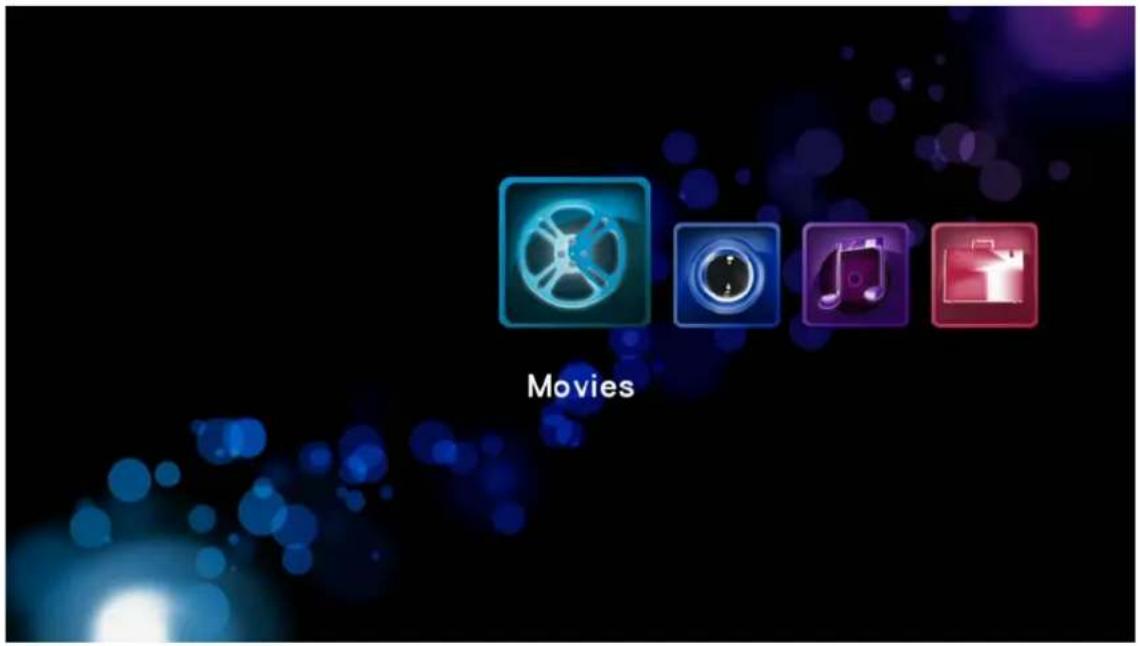
4.2: Movie listing

Note: 1 ) Press 🎨 to zoom, you can find modes of 1x、2x、3x、4x、8x, with arrow keys on display, to move movie
2 ) Press 选时 to choose the play time
3 ) Press to adjust the display or cancel subtitle, color/size/location/time/size
4 ) Press to adjust the Audio-track
5 ) Press to adjust the audio, subtitle and others
6) Press the arrows (left/right key) to choose previous or next movie
4.3 Picture
4.3.0: Picture listing
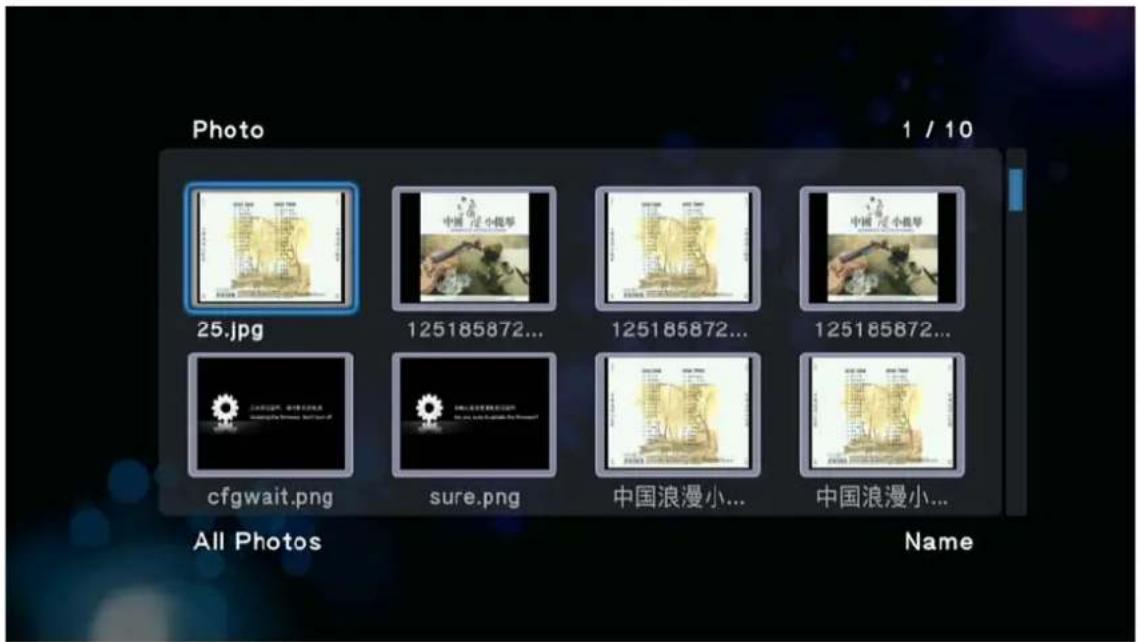
1) Press the arrows(left/right key) to choose the previous or next picture
2) Press ,you can zoom in 2x、4x、8x、16x、Fit and rotate the picture under the Fit
4.4: Music

4.4.0: Music listing

1) Under playback, use these two buttons to select previous or next song
2) Press to choose the playing mode
3 ) Support APE, FLAC format
4 ) Press the Home button to play the picture at the same time
4.5: Files
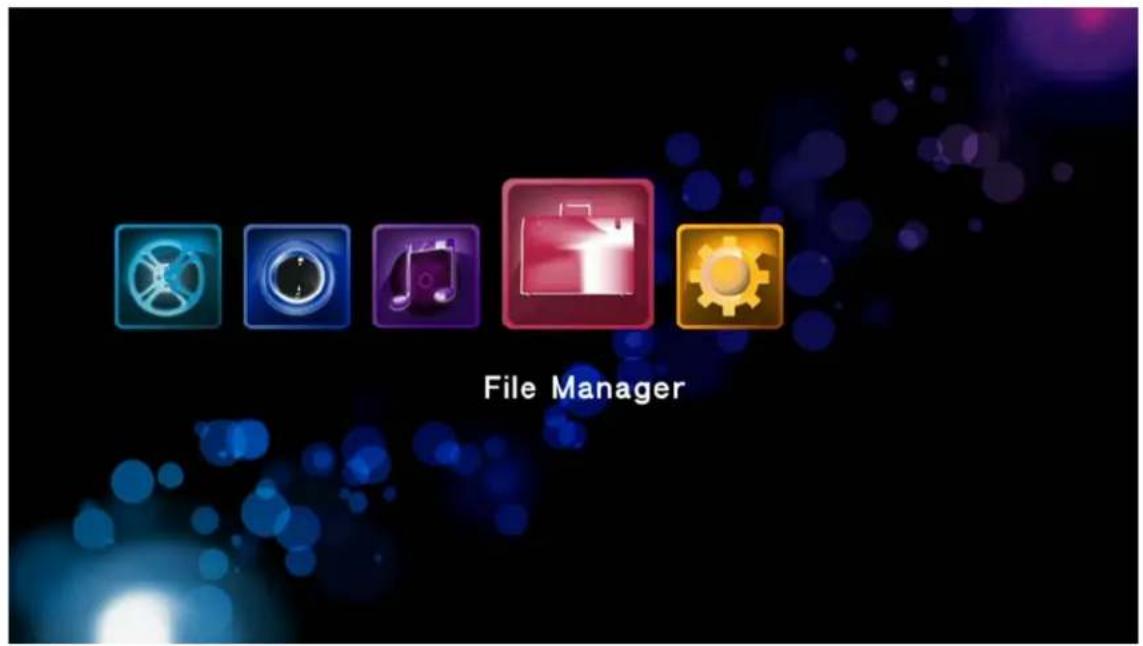
4.5.0: Files listing

4.5.1: File copy, delete, move and rename

☐ Notice: you can go to interface (see picture above) when you press the color button

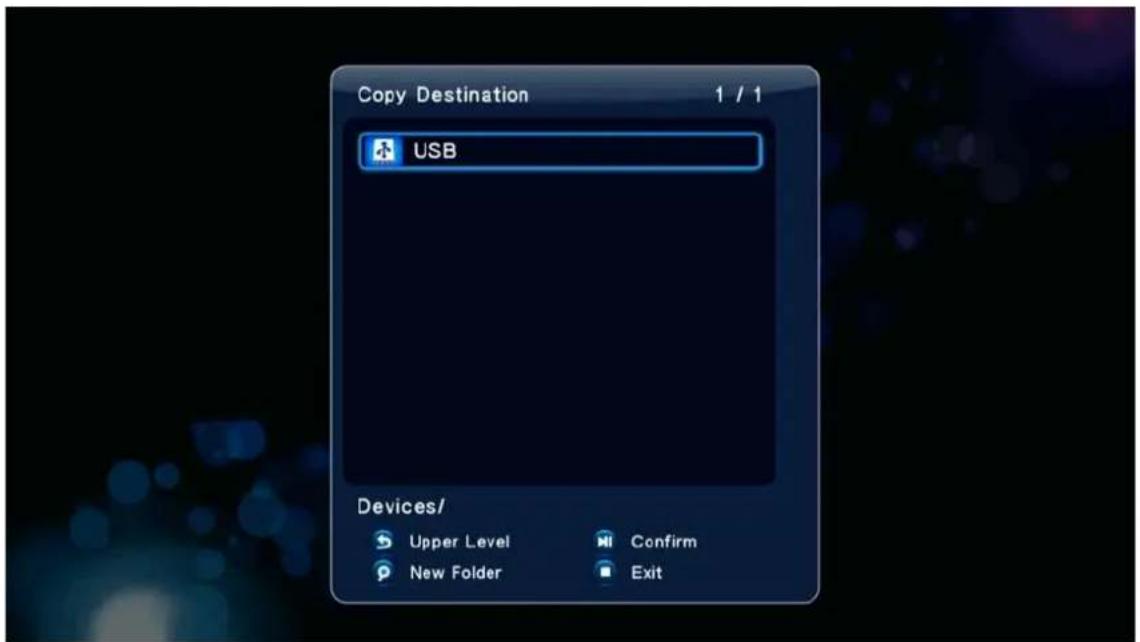
1) In destination, choose the target device, USB disk, SATA hard disk or other mobile disk
2 ) 返回 Return (use this button to return to the previous menu item)

Play /pause key
4.5.2: You can copy, delete, move as many folders as you want

1) Press the color button can do it
4.6: System setup

4.6.0: System setup interface

4.6.1:System
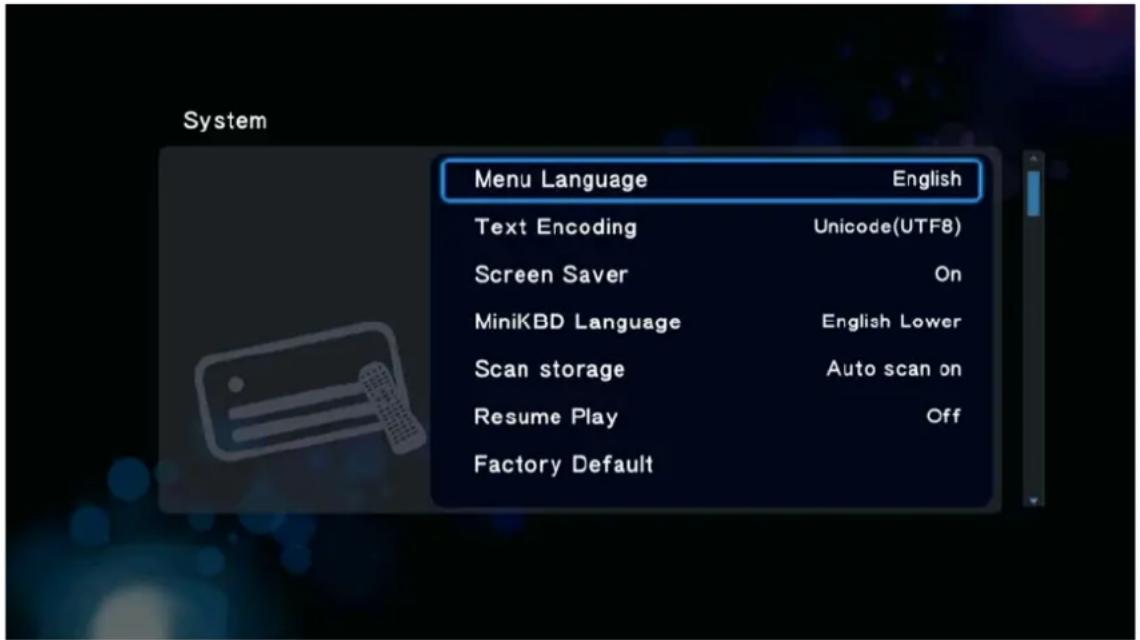
Menu language:
Simplified Chinese/ Traditional Chinese
English/Spanish/Russian/Czech/Dutch/Italian/French/German/Turkish/Hebrew
☐ Text Encoding: UTF-8, GBK...
Screen saver: it will display screen saver when the player is on stand-by
□ Minik BD language
☐ Scan STORAGE: you can check if it is auto scan on
Resume play
□ Factory Default
4.6.2: Audio setup
Night mode

HDMI output
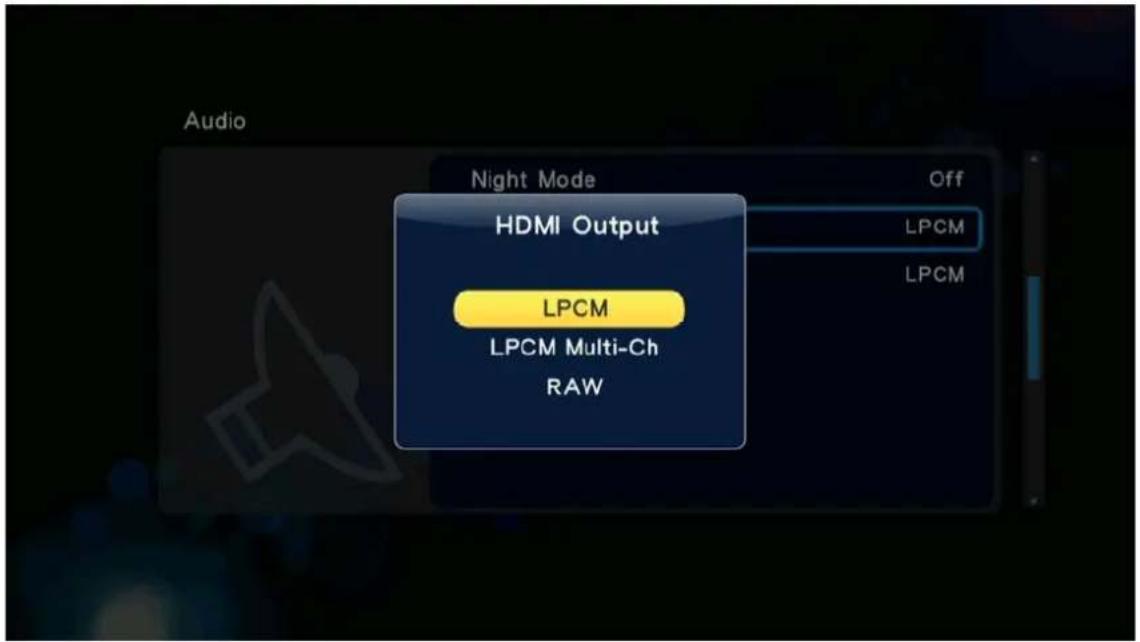
□ SPDIF optical output

4.6.3: Video setup

Aspect Ratio

1 ) You can press to change the aspect ratio
TV system

1) TV system setup: HDMI Auto : 1080P 60HZ
NTSC : 480i
PAL : 576i
4.6.4: Others

※ Software version information

- Produce overview
- Accessories
- No.1 : Explanation of the remote control
- : Remote control button definition :
- Info key
- Under playback
- Rewind back and fast forward key
- Repeat key
- Audio-track switch
- Time seek
- Mute
- Volume up and down key
- Confirm
- Play and pause
- Stop
- Slow
- Subtitle
- Bookmark
- Picture switching
- Zoom
- Title
- Four color button
- NO.2: Connecting your media player
- 2.0: Connector indication
- 2.1.3: HDMI connection
- 2.1.4: Optical connection
- 2.1.5: HDMI pass through connection
- 2.1.6: USB connection
- No.4 : Interface
- Picture
- 4.3.0: Picture listing
- 4.4: Music
- 4.4.0: Music listing
- 4.5.1: File copy, delete, move and rename
- 4.6.0: System setup interface
- 4.6.1:System
- 4.6.2: Audio setup
- Night mode
- HDMI output
Brand : MAXELL
Model : MMB 100
Category : Media player