
MuxMeet Videobar 500820 - Video Conferencing System MuxLab - Free user manual and instructions
Find the device manual for free MuxMeet Videobar 500820 MuxLab in PDF.


| Product Type | All-in-one Video Conferencing Sound Bar |
| Brand | MuxLab |
| Model | MuxMeet Videobar 500820 |
| Dimensions (DxWxH) | 4.52" x 23.62" x 5.31" (115mm x 600mm x 135mm) with bracket |
| Weight | 5.511 lbs (2.5 kg) |
| Power Supply | DC 12V, 2A (max) |
| Camera Sensor | 1/2.5 inch CMOS, 8.51 MP |
| Camera Resolution | 4K@30fps, 1080P@60fps, 1080P@30fps, 720P@60fps, 720P@30fps |
| Field of View | 120° (DFOV), 110° (HFOV) |
| Digital Zoom | 5x |
| Pan/Tilt Range | ±15° |
| Microphone Array | 4 beamforming microphones |
| Microphone Pickup Distance | 6 meters |
| Speaker Power | 8W mono |
| Speaker Frequency Range | 100Hz - 16kHz |
| Connectivity | USB 3.0 Type C, USB 2.0 Type A, HDMI 1.4b, Bluetooth 5.0 |
| Video Compression | H.264, MJPEG, YUY2, NV12 |
| USB Protocol | UVC 1.1~1.5, UAC 1.0 |
| Control Method | 2.4G Remote Control, OSD Menu |
| Installation | Table-top or wall-mountable (wall bracket included) |
| Operating Temperature | 0°C ~ 40°C |
| Storage Temperature | -40°C ~ 60°C |
| Key Features | 4K UHD camera, beamforming mic, echo cancellation, auto tracking, auto framing, presets, plug-and-play, compatible with Zoom, Teams, Skype, etc. |
| Package Contents | MuxMeet Videobar, power supply, power cable, remote control, USB cable, wall bracket with screws, user manual (download) |
| Safety Precautions | Do not disassemble, avoid moisture, use only specified parts, unplug when not in use for long periods. |
| Maintenance | Clean with soft dry cloth; for lens use special cloth; avoid strong cleaners. |
Frequently Asked Questions - MuxMeet Videobar 500820 MuxLab
User questions about MuxMeet Videobar 500820 MuxLab
0 question about this device. Answer the ones you know or ask your own.
Ask a new question about this device
Download the instructions for your Video Conferencing System in PDF format for free! Find your manual MuxMeet Videobar 500820 - MuxLab and take your electronic device back in hand. On this page are published all the documents necessary for the use of your device. MuxMeet Videobar 500820 by MuxLab.
USER MANUAL MuxMeet Videobar 500820 MuxLab
natural_image
Two black televisions with camera modules, shown from different angles (top and bottom views) against a white background.Table of Contents
- Safety Precautions....3
- Introduction......4
- Features....5
- Package Contents....5
- Appearance and Interface....6
- Specifications....7
- Remote Control....9
- Remote Control Pairing....10
- GUI Settings ...... 11
9.1 Menu....11
9.2 Setting....11
9.3 Information ...... 12
9.4 Restore Default....12 - Typical Application ...... 13
- Product Dimensions....13
- Maintenance....14
- Troubleshooting.... 14
1. Safety Precautions
To ensure the best performance from the product, please read all instructions carefully before using the device. Save this manual for future reference.
- Follow basic safety precautions to reduce the risk of fire, electrical shock, and injury.
- Do not dismantle the housing or modify the module. It may result in electrical shock or burns.
- Do not open or remove the housing of the device as you may be exposed to dangerous voltage or other hazards.
- To prevent fire or shock hazard, do not expose the unit to rain, moisture and do not install this product near water. Keep the product away from liquids.
- Spillage into the housing may result in fire, electrical shock, or equipment damage. If an object or liquid falls or spills on the housing, unplug the module immediately.
- Do not use liquid or aerosol cleaners to clean this unit. Always unplug the power to the device before cleaning.
- Using supplies or parts not meeting the product specifications may cause damage, deterioration or malfunction.
● Refer all servicing to qualified service personnel.
● Install the device in a place with adequate ventilation to avoid damage caused by overheat.
● Unplug the power when left unused for a long period of time. - Information on disposal of devices: do not burn or mix with general household waste, please treat them as normal electrical waste.
Copyright Notice
All contents in this manual are copyrighted, and cannot be cloned, copied, or translated without the express permission of MuxLab Inc. Product specifications and information in this document are for reference only, and the content may be updated from time to time without prior notice.
2. Introduction
The MuxMeet Videobar (model: 500820) is an all-in-one video conference sound bar specially designed to help enterprises realize the full potential when using small and medium meeting spaces. The three-in-one design of 4K ultra-HD camera, beamforming microphone and full-frequency range loudspeaker reduces wiring clutter and simplifies video and audio communications. Featuring an 8MP camera with 120° wide field of view, 4 microphones with a pickup distance of 6 meters, intelligent DSP technology for Acoustic Echo Cancellation and a powerful 8W speaker designed for users to clearly hear every word spoken. The system allows users to experience smarter and safer video conferencing by making remote participants feel like they are in the room.
The MuxMeet Videobar is easy to deploy, easy to manage and easy to use in small and medium rooms, when you need meetings to start on time and without any hiccups. Having plug-and-play connectivity makes it compatible with applications that support standard USB peripherals without the need to install drivers, eliminating the need for technical assistance during initial setup. The MuxMeet Videobar can be installed in a variety of configurations, including Wall Mount (above or below a screen) or Table Stand.
The MuxMeet Videobar works well with the most popular video conferencing platforms, such as Microsoft Skype, Microsoft Teams, Zoom, BlueJeans, GoToMeeting among others. Thanks to its USB connectivity, the device can be used for audio and video conferences, or as a speaker for your local devices, and thanks to Bluetooth connectivity support, the device can be used for audio calls and music playback in real time from a mobile device.
3. Features
- True plug and play all-in-one 4K-UHD Camera, beamforming microphone and full-frequency range loudspeaker
- 120° wide angle view and 5x digital zoom
- Pan / Tilt support ±15°
● Built-in microphone with 6-meter pick-up distance
● High quality noise reduction system with echo cancellation
● Auto Tracking and Auto Framing - Bluetooth 5.0 connectivity
- Local HDMI output
● May be table-top or wall-mounted
● Supports presets
● Supports extended microphones
4. Package Contents
● One (1) MuxMeet Videobar
● One (1) Power Supply
- One (1) Cable
● One (1) Remote Control
● One (1) USB Cable
● One (1) Wall bracket (with screw)
● One (1) User manual (available via download)
Notes: Confirm that the product and accessories are all included. If not, please contact the supplier from which you purchased the unit.
5. Appearance and Interface

| Item | Name | Item | Name |
| 1 | DC 12V Interface | 4 | HDMI Interface |
| 2 | USB 3.0 Interface | 5 | USB 2.0 Interface |
| 3 | Reset Button | - | - |
- Specifications
| Camera | |
| Video System | 4K@30fps, 1080P@60fps, 1080P@30fps, 720P@60fps, 720P@30fps |
| Sensor | 1/2.5 inch, CMOS, 8.51M pixel |
| Lens | 120°(DFOV), 110°(HFOV), 5x Digital Zoom, Pan/Tilt ±15° |
| PTZ | MPT + EPTZ |
| Digital Noise Reduction | 2D & 3D Digital Noise Reduction |
| Digital Output | 12-bit |
| Colour Depth (bits) | 8 bit |
| Video S/N | ≥55dB |
| Backlight Compensation | Support |
| Loadspeaker | |
| Full Frequency Speaker | 96 dB SPL in the case of 0.5 meter |
| Number of output channels | Mono |
| Real RMS power (W) | 8W |
| Real frequency range (Hz) | 100Hz-16KHz |
| Real sensitivity (dB) | 82±3 dB |
| Real SNR (dB) | 69dB |
| Speaker impedance (Ohm) | 8Ohm |
| Microphones | |
| Microphone Array | Beamforming microphone |
| Real frequency range (Hz) | 100Hz-10KHz |
| Real sensitivity (dB) | -38dB |
| Real SNR (dB) | 65dB |
| Real THD (%) | Max 1% @ 1KHz 100dB SPL |
| Real impedance (Ohm) | 400Ohm @ 1KHz |
| Pickup pattern | Omni directional |
| Sample Bitrate | 512Kbps |
| Sample frequency | 32KHz |
MuxMeet Videobar Operation Manual
| Microphone quantity build-in | 4 |
| Pickup distance | 6 meters |
| USB | |
| Connection Type | USB 3.0, downward compatible with USB 2.0 |
| Video Compression | H.264 / MJPEG / YUY2 / NV12 |
| USB Audio | 32K sampling rate, support UAC 1.0 |
| USB Communication Protocol | UVC 1.1~1.5 |
| UVC PTZ Control | Supported |
| Input/Output Interface | |
| HD Output | 1 x HDMI, Version 1.4b |
| USB Interface | 1 x USB 3.0, Type C, 1 x USB 2.0, Type A |
| Power Jack | DC 12V, 2A (Max) |
| Generic Specification | |
| Control Method | 2.4G Remote Controller |
| Installation Method | Table-top or wall-mountable |
| Operating Temperature | 0°C ~ 40°C |
| Storage Temperature | -40°C ~ 60°C |
| Unit Dimensions (DxWxH) | 4.52" x 23.62" x 5.31" (115mm x 600mm x 135mm) holder included |
| Unit Weight | 5.511 lbs (2.5Kg) |
| Order Information | 500820 MuxMeet Videobar, UHD 4K (UPC: 627699008201) |
7. Remote Control
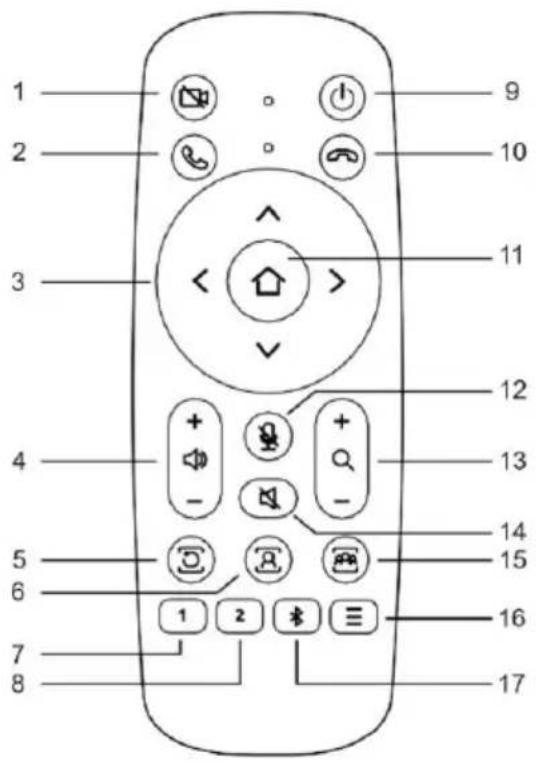
| No | Name | Function Description |
| 1 | Camera Close Key | Press to turn off the camera, press again to resume |
| 2 | Call Key | Answer the call |
| 3 | Camera Direction Keys | Press to move the camera to up, down, left, and right direction to adjust the image display; press the [OK] key to return the camera to the home position |
| 4 | Volume +/- Keys | Press to increase or decrease the volume |
| 5 | Exit Tracking Key | Press to exit the tracking mode |
| 6 | Speaker Tracking Key | Press to perform voice tracking of the speaker |
| 7 | Preset 1 Key | Long press to set preset 1; short press to call preset 1 |
| 8 | Preset 2 Key | Long press to set preset 2; short press to call preset 2 |
| 9 | Standby Key | Long press to switch the camera to standby mode; short press to resume |
| 10 | Hang Up Key | Hang up the call |
| 11 | OK Key | Confirm selection |
| 12 | Mute Key | Turn on/off the microphone |
| 13 | Zoom Keys | Zoom in the lens [+]; Zoom out the lens [-] |
| 14 | Speaker Mute Key | Turn on/off the speaker |
| 15 | Participants Tracking Key | Press to track the participants automatically |
| 16 | Menu Key | Press to enter or exit the OSD menu |
| 17 | Bluetooth Key | Enabel/Disable the Bluetooth function |
8. Remote Control Pairing
The remote control was paired with Videobar when it left the factory, and it can be used normally without special requirements. Unless there is an abnormal operation of the remote control, or a new one needs to be used, then it is necessary to pair it with the Videobar again.
Follow the steps below to pair the remote.
Step 1 Connect the camera to the power supply and wait for the camera initialization to complete, and the camera is then ready to output video normally.
Step 2 Clear the paired status of the remote control:
Press and hold the Menu + OK button at the same time until the indicator on the remote turns solid red, then release the buttons to clear the paired status of the remote.
Step 3 Activate the camera to enter remote control pairing mode:
Use a small pin to press the reset button on the camera, the camera's LED light will turn blue when it enters pairing mode. (Note: There is only 15s active operation time to enter the pairing mode. After this 15s time period, the pairing mode will automatically exit. Therefore, please press the reset button again within this 15s period to re-enter the remote control pairing mode.)
Step 4 Start pairing:
Press and hold the Menu button until the remote control light turns red, and then wait for the camera LED light to turn blue and is blinking. Now your camera can be operated via the remote control.
9. GUI Settings
9.1 Menu
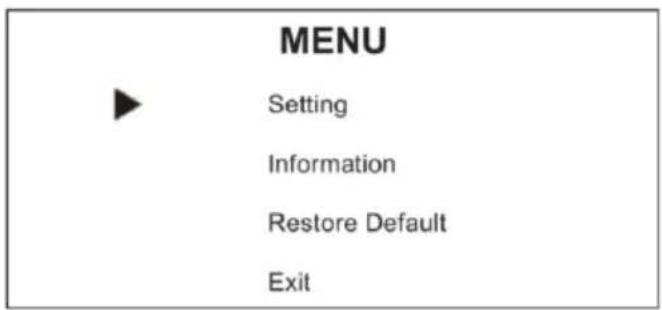
Press MENU key on remote control, the screen will display as below:
9.2 Setting
Move the cursor to "Settings" in the main menu and press [OK] to enter the setting page as shown below:
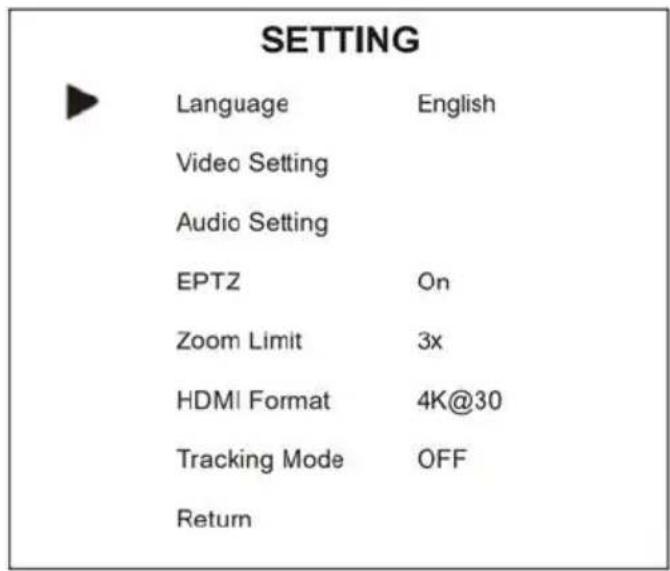
Language: Optional items: English, Chinese & Français
Video Setting: 2D NR, 3D NR, WD R Enable, Flip-H, OSD Mirroring.
Audio Setting: Setting 3A Enable, Mic Equalizer.
EPTZ: Optional items: On, Off.
Zoom Limit: Optional items: 1.5x, 2x, 3x, 4x, 5x.
HDMI Format: Optional items: 1080P@60, 1080P@50, 1080P@30, 4K@30.
Tracking Mode: Optional items: Off, Participants, Speaker.
Tracking Effect: Optional items: Smooth, Instantaneous
Tracking Speed: Optional items: Slow, Normal, Fast
9.3 Information
Move the cursor to "Information" in the main menu, and press [OK] to enter the information page as below:

Note: The above information is for reference only, please refer to the product for the actual specifications.
9.4 Restore Default
Move the cursor to "Restore Default" in the main menu, and press [OK] to enter the restore default page as below:
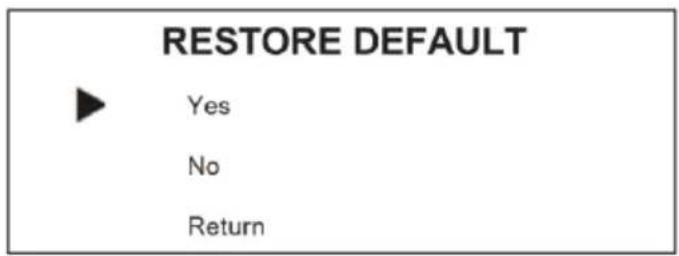
Yes / No: Confirm or cancel the restore to factory settings.
Note: GUI menu and parameter information are subject to change without notice
10. Typical Application
Applications include video conferencing, audio calls, training, remote education and more.
Typical Application Diagram
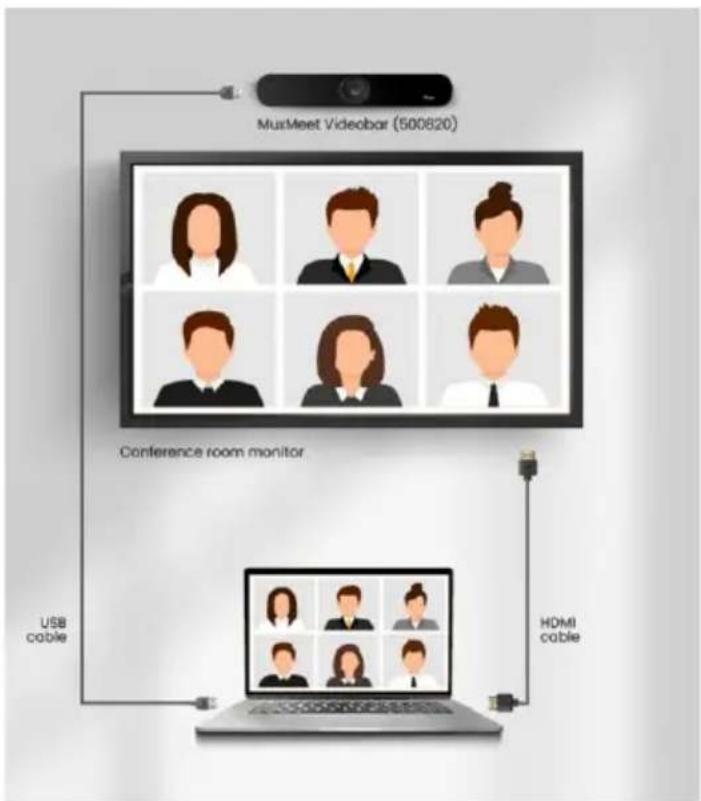
flowchart
graph TD
    A["MuxMeet Videobar (500820)"] --> B["User Profile 1"]
    A --> C["User Profile 2"]
    A --> D["User Profile 3"]
    A --> E["User Profile 4"]
    A --> F["User Profile 5"]
    B --> G["Conference room monitor"]
    C --> G
    D --> G
    E --> G
    F --> G
    G --> H["USB cable"]
    G --> I["HDMI cable"]
- Product Dimensions
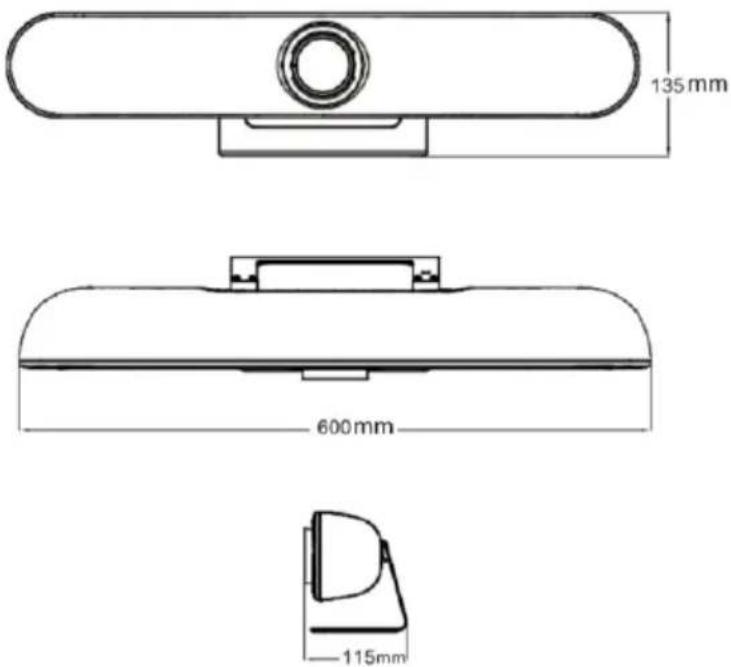
12. Maintenance
Camera Maintenance
- If the camera is not use in long-term, please disconnect the power after use.
- Use a soft cloth or cotton paper to remove dust from the camera housing.
- When cleaning the camera lens, please use a dry soft cloth made for this purpose. If the amount of dirt is more serious, then use a neutral cleaner as well.
- Do not use strong or corrosive detergent, so as not to scratch or damage the lens and affect the image quality.
Avoid Using
- The camera should avoid shooting particularly bright objects, such as sunlight.
- The camera should not work under unstable lighting conditions, otherwise the image will flash.
- Do not use around facilities that can transmit high-power radio waves, such as television stations or radio-transmitting stations.
13. Troubleshooting
The following table describes some of the symptoms and possible solutions regarding the MuxMeet Videobar.
| symptom | Probable cause | Possible solution |
| No Image | No power or wrong power supplyHDMI or USB-C cable | Check power connectionsCheck the HDMI and USB-C cables |
| Flickering Image | Synchronization | Check the HDMI and USB-C Cables |
| Choppy sound | • Synchronization | Check USB Cable |
If you still cannot diagnose the problem, please call MuxLab Customer Technical Support at 877-689-5228 (toll-free in North America) or (+1) 514-905-0588 (International).
MuxLab PRODIGITAL™
MuxLab Inc.
2321 Rue Cohen
Montreal, Quebec
Canada H4R 2N7
Tel.: +1 (514) 905-0588 Fax: +1 (514) 905-0589
Toll Free (North America): 877 689-5228
URL: www.muxlab.com
E-mail: info@muxlab.com
- Table of Contents
- Safety Precautions
- Copyright Notice
- Introduction
- Features
- Package Contents
- Appearance and Interface
- Remote Control
- Remote Control Pairing
- GUI Settings
- Menu
- Setting
- Information
- Restore Default
- Typical Application
- Maintenance
- Camera Maintenance
- Avoid Using
- Troubleshooting
- MuxLab PRODIGITAL™
Brand : MuxLab
Model : MuxMeet Videobar 500820
Category : Video Conferencing System