
USB Ranger 2204 - Wi-Fi repeater Icron - Free user manual and instructions
Find the device manual for free USB Ranger 2204 Icron in PDF.


| Product Type | USB 2.0 Extender (LEX + REX) |
| Brand | Icron |
| Model | USB Ranger 2204 |
| Extender Type | Wired over Cat5e (or better) UTP/STP cable |
| Maximum Extension Distance | 100 m (330 ft) |
| USB Standard Support | USB 2.0 (High-Speed up to 480 Mbps), USB 1.1 (Full-Speed up to 12 Mbps, Low-Speed up to 1.5 Mbps) |
| Number of USB Ports on REX | 4 x USB Type A |
| LEX Dimensions | 100 mm x 76 mm x 26 mm (3.94" x 2.99" x 1.02") |
| REX Dimensions | 100 mm x 76 mm x 26 mm (3.94" x 2.99" x 1.02") |
| Enclosure Material | Silver Anodized Aluminum |
| System Shipping Weight | 2.0 lbs (0.9 kg) |
| LEX Power | From host USB port (500 mA required) or optional 5V DC adapter (1.7 mm centre-positive) |
| REX Power | External AC adapter: Input 100-240V AC, 50-60 Hz, 600 mA max; Output 5V DC, 3A |
| Current per REX USB Port | 500 mA |
| LED Indicators (LEX & REX) | Power (Blue), Link (Green), Host (Green), Activity (Amber) |
| Operating System Compatibility | Windows, Mac OS X, Linux (plug-and-play, no drivers required) |
| Compliance | FCC Class B, IC Class B, CE Class B, RoHS2 |
| Warranty | 2 years limited hardware warranty |
| Operating Temperature | 0 °C to 50 °C (32 °F to 122 °F) |
| Storage Temperature | -20 °C to 70 °C (-4 °F to 158 °F) |
| Cleaning and Maintenance | Disconnect power; wipe with dry soft cloth; do not use liquids or abrasives. |
| Spare Parts / Accessories | Optional LEX AC adapter (5V), replacement REX AC adapter, Cat5e cables |
Frequently Asked Questions - USB Ranger 2204 Icron
User questions about USB Ranger 2204 Icron
0 question about this device. Answer the ones you know or ask your own.
Ask a new question about this device
Download the instructions for your Wi-Fi repeater in PDF format for free! Find your manual USB Ranger 2204 - Icron and take your electronic device back in hand. On this page are published all the documents necessary for the use of your device. USB Ranger 2204 by Icron.
USER MANUAL USB Ranger 2204 Icron
natural_image
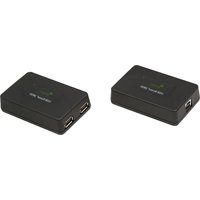
Two white USB flash drives labeled 'icron' with ports and status indicators (no readable text beyond branding)Thank you for purchasing the USB 2.0 Ranger® 2204.
Please read this guide thoroughly.
This document applies to Part Numbers: 00-00256, 00-00257, 00-00258, and 00-00259.
FCC Radio Frequency Interference Statement Warning
This device complies with Part 15 of the FCC Rules. Operation is subject to the following two conditions: (1) this device may not cause harmful interference, and (2) this device must accept any interference received including interference that may cause undesired operation.
CE Statement
We, Icron Technologies Corporation, declare under our sole responsibility that the USB 2.0 Ranger® 2204, to which this declaration relates, is in conformity with European Standard EN 55022, EN 55024, EN 61000-3-2, and EN 61000-3-3.
IC Statement
This Class B digital apparatus complies with Canadian ICES-003.
©2014 Icron Technologies Corporation. All rights reserved. Icron Technologies Corporation, the Icron Technologies Corporation logo, and the Icron Technologies Corporation products referred to herein are either the trademarks or the registered trademarks of Icron Technologies Corporation. All other trademarks are property of their respective owners. Icron Technologies Corporation assumes no responsibility for errors that may appear in this manual. Information contained herein is subject to change without notice.
Document #90-00627-A03
Contents
Introduction 3
USB 2.0 Ranger 2204 Product Contents .... 3
Requirements 3
About the USB 2.0 Ranger 2204.... 3
LEX Unit Description 4
REX Unit Description.... 5
Installation Guide 6
Installing the LEX Unit 6
Installing the REX Unit 6
Connecting the LEX Unit to the REX Unit 7
Checking the Installation 7
Connecting a USB Device 8
Compatibility 8
Troubleshooting 8
Specifications 11
Warranty Information 12
Obtaining Warranty Service 13
Contacting Technical Support 13
Technical Glossary 14
Introduction
The instructions in this guide assume a general knowledge of computer installation procedures, familiarity with cabling requirements, and some understanding of USB devices.

Notes provide additional information that could be useful.
CAUTION: Cautions provide important information about an operational requirement.
USB 2.0 Ranger® 2204 Product Contents
Your USB Ranger 2204 is packaged with:
• LEX Unit (Local Extender)
• REX Unit (Remote Extender)
• REX AC power adapter
USB 2.0 Cable
• Quick Start Guide and Warranty Information

An additional AC power adapter may be purchased for the LEX unit in the unlikely event that your USB port cannot the required 500mA current. Please contact Icron for further details. (See page 13).
Requirements
To complete the installation, you will also require the following items that are not included with the product:
• USB 1.1 or 2.0 compatible computer (host computer) with a USB compliant operating system
• USB 1.1 or 2.0 compatible device(s)
- Cat 5e Unshielded Twisted Pair (UTP) cable with two RJ45 connectors (if using surface cabling), or, Cat 5e cable with two information outlets and two Cat 5e patch cords with RJ45 connectors (if using premise cabling)

rences to Cat 5e cable in this document represent the minimum requirement. Category 6/7 STP cable may be substituted.
About the USB 2.0 Ranger 2204
The USB 2.0 Ranger 2204 incorporates Icron's patented ExtremeUSB® technology, enabling users to extend beyond the standard 5m cable limit for USB peripheral devices. With the Ranger 2204, USB devices can be located up to 100 meters from the computer. This extender system is composed of two individual units: the LEX unit and the REX unit.
The Ranger 2204 includes the ExtremeUSB® suite of features:

• Transparent USB extension
• True plug and play; no software drivers required
• Works with all major operating systems: Windows®, Mac OS X®, and Linux®
LEX Unit Description
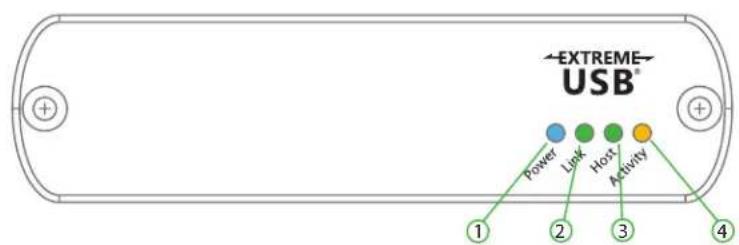
The LEX Extender (LEX) unit connects to the computer using a standard USB 2.0 cable. Power for this unit is provided by the USB on the host computer.
Front View
Rear View

| ITEM | TYPE DESCRIPTION | |
| 1 | Power LED (Blue) | LED turns on when power is supplied.LED is off when no power is supplied by the host computer. |
| 2 | Link LED (Green) | Indicates a valid ExtremeUSB® link is established between the LEX and REX units over the Cat 5e cable.LED turns on when link between LEX and REX is established.LED is off when there is no link between LEX and REX. |
| 3 | Host LED (Green) | Indicates that the Ranger 2204 system is properly enumerated on the host computer. LED blinks when in a suspended state. |
| 4 | Activity LED (Amber) | Indicates activity when data transmission is active between LEX and REX units. LED blinks intermittently with or without a USB device connected. When the LEX and REX are in suspend mode, the LED is off. |
| 5 | Power Port (optional) | Not required in normal operation. An optional 5V power supply can be connected to the LEX unit to provide power if the USB port on the host computer is not capable of delivering 500mA to the unit, (however such cases should be very rare). |
| 6 | USB Type B connector Used to connect the LEX unit to the host computer. | |
| 7 | Link Port (RJ45) | Accepts RJ45 connector for Cat 5e cable (or better) to connect the LEX unit to the REX unit. |
REX Unit Description
The REX Extender (REX) unit provides USB Type A ports for standard USB devices. The REX unit allows you to connect up to four USB devices directly. The REX unit is powered by an external AC adapter and can supply up to 500mA to each USB port. Additional devices may be connected by attaching USB hubs to the REX unit.


| ITEM TYPE DESCRIPTION | ||
| 1 | Device Port (USB Type A) | Accepts USB device(s). |
| 2 | Device LED (Green/Orange) | Indicates when a USB device is connected to the Device Port.Solid green when device is plugged in and active.Off when device is in suspend mode or REX unit is powered off.Orange when the REX unit detects an overcurrent condition, and the attached USB device attempts to draw more than 500mA of current. |
| 3 Power LED (Blue) | LED turns on when power is supplied.LED is off when no power is supplied. | |
| 4 Link | LED (Green) | Indicates a valid ExtremeUSB® link is established between the LEX and REX over Cat 5e cable.LED turns on when link between LEX and REX is established.LED is off when there is no link between LEX and REX. |
| 5 Host | LED (Green) | Indicates that the Ranger 2204 system is properly enumerated on the host computer. LED blinks when in a suspend state. |
| 6 | Activity LED (Amber) | Indicates activity when data transmission is active between LEX and REX units. LED blinks intermittently with or without a USB device connected.When the LEX and REX are in suspend mode, the LED is off. |
| 7 Power | Port Connects to | the AC power supply. Required at REX for proper operation. |
| 8 Link | Port (RJ45) | Accepts RJ45 connector for Cat 5e cable (or better) to connect the LEX unit to the REX unit. |
Installation Guide

flowchart
graph LR
    A["Computer"] -->|Up to 100m between extenders over Cat 5e cable (or better)| B["LEX"]
    B --> C["REX"]
    C --> D["All USB 2.0 and 1.1 Devices"]
    C --> E["USB"]
    C --> F["Desktop"]
Before you can install the Ranger 2204, you need to prepare your site:
- Determine where the computer is to be located and set up the computer.
- Determine where you want to locate the USB device(s).
- If you are using surface cabling, the Ranger 2204 supports a maximum distance of 100m.
OR
If you are using premise cabling, ensure Cat 5e cable is installed between the two locations, with Cat 5e information outlets located near both the computer and the USB device(s) and the total length, including patch cords is no more than 100m.
Installing the LEX Unit
- Place the LEX unit near the computer.
- Install the supplied USB cable between the LEX and USB port on the host computer.
Installing the REX Unit
- Place the REX unit near the USB device(s) in the desired remote location.
- Plug the power adapter into a suitable AC outlet.
- Connect the power adapter to the REX unit.
Connecting the LEX Unit to the REX Unit

To ensure proper operation, it is recommended that only Cat 5e (or better) Unshielded Twisted Pair (UTP) cabling I to connect the LEX unit to the REX unit. The cable must have a straight-through configuration with no
crossovers and must be terminated with 8 conductor RJ45 connectors at both ends. The combined length of any patch cords using stranded conductors must not exceed 10m.
With Surface Cabling
- Plug one end of the Cat 5e cable (not included) into the Link port (RJ45) on the LEX unit.
- Plug the other end of the Cat 5e cable into the Link port (RJ45) on the REX unit.
With Premise Cabling
- Plug one end of a Cat 5e patch cord (not included) into the Link port (RJ45) on the LEX unit.
- Plug the other end of the patch cord into the Cat 5e information outlet near the host computer.
- Plug one end of the 2 nd Cat 5e patch cord (not included) into the Link port (RJ45) on the REX unit.
- Plug the other end of the 2 nd patch cord into the Cat 5e information outlet near the USB device.
Checking the Installation
- On the LEX and REX units, check that the Power, Host, and Link LEDs are on and that the Activity LED is blinking. If the Link LED is permanently off, then the cable between the LEX and REX units is not installed properly or is defective.
- For Windows users (2000, XP, Vista, Windows 7, Windows 8), open Device Manager to confirm that the Ranger 2204 has installed correctly. Expand the entry for Universal Serial Bus controllers by clicking the + sign. If the Ranger 2204 has been installed correctly, you should find it listed as a "Generic USB Hub".
- For Mac OS X users, open the System Profiler to confirm that the Ranger 2204 has installed correctly. In the left hand column under Hardware, select "USB" and inspect the right hand panel. If the Ranger 2204 has been installed correctly, you should find it listed as a "Hub" under the USB High-Speed Bus/USB Bus.
- If the Ranger 2204 is not detected correctly or fails to detect, please consult the Troubleshooting section in this User Guide.

if the USB device is detected by your operating system.
To open System Profiler in OS X:
Open the Finder, select Applications, then open the Utilities folder and double click on the System Profiler icon.
To open Device Manager in Windows 2000 or XP:
Right click "My Computer" then select: Properties >> Hardware tab >> Device Manager
To open Device Manager in Windows Vista or Windows 7:
Open the Start menu, right click on "Computer" then select: Manage >> Device Manager
To open Device Manager in Windows 8:
Right click on the lower left bottom corner of your screen, then select: Manage >> Device Manager
Connecting a USB Device
- Install any software required to operate the USB device(s). Refer to the documentation for the USB device(s), as required.
- Connect the USB device to the device port on the REX unit.
- Check that the device is detected and installed properly in the operating system.
Compatibility
The Ranger 2204 complies with USB 1.1 and USB 2.0 specifications governing the design of USB devices. However, Icron Technologies Corporation does not guarantee that all USB devices are compatible with the Ranger 2204, as there are a number of different configurations that may impact the operation of USB devices over extended distances.
Troubleshooting
The following table provides troubleshooting tips. The topics are arranged in the order in which they should be executed in most situations. If you are unable to resolve the problem after following these instructions, please contact Technical Support at icron.com/support for further assistance.
| PROBLEM CAUSE SOLUTION | ||
| All LEDs on LEX unit are off. | ·The LEX unit is not receiving enough power from the USB port or the (optional) LEX AC adapter. | 1. Ensure the USB connection between the LEX and host computer is properly installed.2. Move the USB connector to another USB port on the host computer. |
| All LEDs on REX unit are off. | ·The REX unit is not receiving power from the AC adapter. | 1. Ensure the AC power adapter is properly connected to the REX unit.2. Check that the AC adapter is connected to a live source of electrical power. Check that the REX power LED is illuminated. |
| Link LEDs on LEX and REX units are off. | ·There is no connection between the LEX and REX units. | 1. Ensure Cat 5e cable is connected between the LEX and REX units. Cat 5e or better cable, UTP with a straight-through connection, no crossovers, and 8 connector RJ45 connectors are used at both ends.2. Connect a short Cat 5e patch cord between the LEX and REX units to determine if the original Cat 5e cable is defective. |
| Link LED on LEX unit is on, Host LED on LEX unit is off. | The host computer is not powered on.The LEX unit is not connected to the computer (when used with the optional LEX AC LEX AC adapter).The computer does not support USB hubs.The Ranger 2204 is malfunctioning. | Disconnect all USB devices from the REX unit.Disconnect the LEX unit from the computer.Disconnect the REX unit from the AC power adapter.Reconnect the LEX unit to the computer.Reconnect the REX unit to the AC power adapter.In the Universal Serial Bus controller's section of Device Manager, check that the Ranger 2204 is recognized as a "Generic USB Hub". |
| Ranger 2204 system was working, but the Host LED on LEX/REX units are suddenly blinking. | The REX unit is in suspend mode. The operating system may put the Ranger 2204 in suspend mode when the computer is put into a Suspend/Standby state or when no USB devices are attached. | Recover/Resume the operating system from Suspend/Standby mode (see your operating system's documentation).Attach a USB device to the REX. |
| All LEDs on both the LEX/REX units are on, but the USB device does not operate correctly or is detected as an "Unknown Device" in the operating system. | The USB device is malfunctioning.The computer does not recognize the USB device.The application software for the device is not operating.The Ranger 2204 is malfunctioning. | Disconnect the Ranger 2204 from the computer.Connect the USB device directly to the USB port on the computer.If the device does not operate properly, consult the user documentation for the device.Update your system BIOS, chipset, or USB Host controller drivers from your System/Mother-board manufacturer's website.If the device operates properly when directly connected to the computer, connect another device (of a different type) to the Ranger 2204. Connect the Ranger 2204 to the computer.If the second device does not operate, the Ranger 2204 may be malfunctioning. Contact technical support for assistance.If the second device operates properly, the first device may not be compatible with the Ranger 2204. |
| USB device is attached to REX USB port, but REX device LED is off. | ·A USB device must have the appropriate driver installed on the computer operating system. | 1. Install the required USB device driver on the computer operating system prior to attaching the USB device to the REX unit. Please see your USB device manufacturer's website for details.2. Consult your USB device documentation and power your USB device with the additional, USB device manufacturer supplied, power supply (if available). |
| Device LED is orange and extenders are no longer functioning. | ·Overcurrent condition has occurred because USB device draws more power than can be supplied per USB specification (500mA). | 1. Power cycle REX. |
| LED Host and LINK LEDs on LEX/REX units blink intermittently. | ·Firmware mismatch between the LEX and REX. | 1. Use a different LEX/REX pair which have the same firmware revision.2. Upgrade the LEX/REX firmware, contact technical support for assistance. |
NOTES
Specifications
| Range Up to 100m (330 feet) over C | at 5e (or better) cable |
| USB Device Support | High-speed devices (USB 2.0) - up to 480 MbpsFull-speed devices (USB 2.0 & 1.1) - up to 12 MbpsLow-speed devices (USB 2.0 & 1.1) - up to 1.5 Mbps |
| USB Hub Support Any single chain can include up to 4 USB hubs plus one Ranger 2204. | |
| USB Host Support xHCI (USB 3.0) at | USB 2.0 speed, EHCI (USB 2.0) and OHCI/UHCI (USB 1.1) |
| Maximum USB Devices Supported Up to 15 USB devices or 4 USB hubs with 11 USB devices. | |
| AC Adapter(s) | Input: 100/240 V AC, 50 – 60 Hz, 600 mA maximumOutput: 5 V DC, 3 A |
| AC Adapter Connector 1.7 mm centre-positive jack | |
| System Shipping Weight 2.0 lbs. (0.9 kg) | |
| LOCAL EXTENDER (LEX) | |
| USB Connector 1 x USB Type B Receptacle | |
| Link Connector 1 x RJ45 | |
| Dimensions 100 mm x 76 mm x 26 mm (3.94" x 2.99" x 1.02") | |
| Enclosure Material Silver Anodized Aluminum | |
| REMOTE EXTENDER (REX) | |
| USB Connector 4 x USB Type A Receptacles | |
| Link Connector 1 x RJ45 | |
| Dimensions 100 mm x 76 mm x 26 mm (3.94" x 2.99" x 1.02") | |
| Enclosure Material Silver Anodized Aluminum | |
| Available Current 500 mA to each USB port | |
| ENVIRONMENTAL | |
| Operating Temperature Range | 0°C to 50°C (32°F to 122°F) |
| Storage Temperature Range | -20°C to 70°C (-4°F to 158°F) |
| Operating Humidity | 20% to 80% relative humidity, non-condensing |
| Storage Humidity | 10% to 90% relative humidity, non-condensing |
| COMPLIANCE | |
| EMC | FCC (Class B), IC (Class B), CE (Class B) |
| Environmental | RoHS2 (CE) |
| SUPPORT | |
| Warranty | 2-year |
Contacting Technical Support
If you are experiencing problems not referenced in the Troubleshooting section of this Guide, or if you are unable to resolve the problem after following these instructions, please contact Technical Support at icron.com/support for further assistance.
Warranty Information
Limited Hardware Warranty
Icron Technologies Corporation warrants that any hardware products accompanying this documentation shall be free from significant defects in material and workmanship for a period of two years from the date of purchase. Icron Technologies Corporation's hardware warranty extends to the Licensee, its customers, and end users.
The Warranty does not include repair of failures caused by: misuse, neglect, accident, modification, operation outside a normal operating environment, failure caused by service of the device by non-authorized servicers, or failure caused by a product for which Icron Technologies Corporation is not responsible.
Hardware Remedies
Icron Technologies Corporation's entire liability and the Licensee's exclusive remedy for any breach of warranty, shall be, at Icron Technologies Corporation's option, either (a) return of the price paid or (b) repair or replacement of hardware, which will be warranted for the remainder of the original warranty period or 30 days, whichever is longer. These remedies are void if failure of the hardware has resulted from accident, abuse, or misapplication.
Limitation of Liability
The hardware warranty set forth in this agreement replaces all other warranties. Icron Technologies Corporation expressly disclaims all other merchantability and fitness for a particular purpose and non-infringement of third-party rights with respect to the hardware.
Icron Technologies Corporation dealer, agent, or employee is authorized to make any modification extension, or addition to this warranty. Under no circumstances will Icron Technologies Corporation, its suppliers or licensors be liable for any costs of procurement or substitute products or services, lost profits, loss of information or data, or any other special, indirect, consequential, or incidental damages arising in any way out of the sale of, use of, or inability to use Icron Technologies Corporation product or service, even if Icron Technologies Corporation, its suppliers or licensors have been advised of the possibility of such damages. In no case shall Icron Technologies Corporation, its suppliers and licensors' liability exceed the actual money paid for the products at issue.
Since some jurisdictions do not allow the limitation of implied warranties of liability for incidental, consequential, special or indirect damages, the above limitation may not always apply. The above limitation will not apply in case of personal injury where and to the extent that applicable law requires such liability.
Obtaining Warranty Service
To obtain warranty service, you must first contact Icron Technologies Corporation within the warranty period for a Return Material Authorization (RMA) number. Icron Technologies Corporation will not accept returns without an authorized RMA number. Be sure you have the serial numbers of the LEX unit and REX unit before calling. Package the product appropriately for safe shipment and mark the RMA number on the outside of the package. The package must be sent prepaid to Icron Technologies Corporation. We recommend that you insure it or send it by a method that provides for tracking of the package. The repaired or replaced item will be shipped to you, at Icron Technologies Corporation's expense, not later than thirty days after Icron Technologies Corporation receives the defective product.
Address the returned product to:
RMA Coordinator
Icron Technologies Corporation
4664 Lougheed Highway, Suite 221
Burnaby, BC V5C 5T5 Canada
Contacting Sales
Email: sales@icron.com
Tel: +1 604 638 3920
Contacting Technical Support
icron.com/support
Tel: +1 604 638 3939
To help us serve you better, please include the following information with your technical support request:
• Host computer make and model
• Type of operating system installed (e.g. Windows 7, Windows 8, Mac OS X, etc.)
• Part number and serial number of both the LEX and REX units
• Make and model of any USB device(s) attached to the Ranger 2204
• Description of the installation
• Description of the problem
Technical Glossary
Category 5e (Cat 5e) Network Cabling
Category 5e cable is commonly also referred to as Cat 5e. This cable is available in either solid or stranded twisted pair copper wire variants and as UTP (Unshielded Twisted Pair) or STP (Shielded Twisted Pair). UTP cables are not surrounded by any shielding making them more susceptible to electromagnetic interference (EMI). STP cables include shielded conductors and provides better protection against electromagnetic interference (EMI).
USB 2.0 Cables
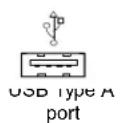
USB 2.0 cables have two distinct full-sized connectors. The Type A connector is used to connect the cable from a USB device to the Type A port on a computer or hub. The Type B connector is used to attach the USB cable to a USB device.


RJ45
The Registered Jack (RJ) physical interface is what connects the network cable (Cat 5e) to the LEX unit and REX unit. You may use either the T568A scheme (Table 1) or the T568B scheme (Table 2) for cable termination as the USB 2.0 Ranger 2204 uses all four pairs of the cable. RJ45 connectors are sometimes also referred to as 8P8C connectors. Note that any given cable must be terminated using the same T568 scheme on both ends to operate correctly.
RJ45 Pin Positioning
Table 1 - T568A Wiring
Table 2 - T568B Wiring
| PIN PAIR WIRE CABLE COLOR PIN PAIR WIRE CABLE COLOR | |||
| 1 3 1 WHITE/GREEN 1 2 1 WHITE/ORANGE | |||
| 2 3 2 GREEN 2 2 2 ORANGE | |||
| 3 2 1 WHITE/ORANGE 3 3 1 WHITE/GREEN | |||
| 4 1 2 BLUE 4 1 2 BLUE | |||
| 5 1 1 WHITE/BLUE | 5 1 1 WHITE/BLUE | ||
| 6 2 2 ORANGE | 6 3 2 GREEN | ||
| 7 4 1 WHITE/BROWN | 7 4 1 WHITE/BROWN | ||
| 8 4 2 BROWN | 8 4 2 BROWN | ||


icron
Icron Technologies Corporation
4664 Lougheed Highway, Suite 221
Burnaby, BC Canada
V5C 5T5
Tel: +1 604 638 3920
Fax: +1 604 638 3930
icron.com
- Thank you for purchasing the USB 2.0 Ranger® 2204.
- Please read this guide thoroughly.
- FCC Radio Frequency Interference Statement Warning
- CE Statement
- IC Statement
- Contents
- Introduction 3
- Installation Guide 6
- Troubleshooting 8
- Introduction
- USB 2.0 Ranger® 2204 Product Contents
- Requirements
- About the USB 2.0 Ranger 2204
- LEX Unit Description
- REX Unit Description
- Installation Guide
- Installing the LEX Unit
- Installing the REX Unit
- Connecting the LEX Unit to the REX Unit
- With Surface Cabling
- With Premise Cabling
- Checking the Installation
- Connecting a USB Device
- Compatibility
- Troubleshooting
- NOTES
- Contacting Technical Support
- Warranty Information
- Limited Hardware Warranty
- Hardware Remedies
- Limitation of Liability
- Obtaining Warranty Service
- Contacting Sales
- Technical Glossary
- Category 5e (Cat 5e) Network Cabling
- USB 2.0 Cables
- RJ45
- RJ45 Pin Positioning
- icron
- Icron Technologies Corporation
Brand : Icron
Model : USB Ranger 2204
Category : Wi-Fi repeater