T-Fit 500 S - Smartwatch Trevi - Free user manual and instructions
Find the device manual for free T-Fit 500 S Trevi in PDF.


| Product Type | Smart bracelet / Smartwatch |
| Brand | Trevi |
| Model | T-Fit 500 S |
| Display | 2.06 inch AMOLED |
| Weight | 55 g |
| Length (strap) | 25 cm |
| Strap Material | Silicone |
| Water Resistance | IP68 (rain-proof, splash-proof, not for swimming) |
| Battery Capacity | 370 mAh |
| Bluetooth | Version 5.0, 2.4 GHz band |
| Supported OS | Android 8.0 or iOS 13.0 and above |
| Package Contents | Device, charging cable, instructions |
| Health Monitoring | Heart rate, blood pressure, blood oxygen, blood glucose, temperature, sleep tracking |
| Sports Modes | Over 138 modes including cycling, running, etc. |
| Call Functions | Make/receive calls via Bluetooth, contact list, call history |
| Notifications | Message notifications from apps (e.g., WeChat) |
| Voice Assistant | Activates phone's voice assistant |
| Music Control | Control music on phone or play from watch (when audio media enabled) |
| Dialog and Watch Faces | 8 special dials, network dials, and custom photo watch face |
| Cycle Tracking | Menstrual cycle and pregnancy tracking (female users only) |
| MET Measurement | Energy metabolism equivalent indicator |
| Maintenance | Clean regularly, keep dry, adjust tightness, avoid skin contact with skincare products |
Frequently Asked Questions - T-Fit 500 S Trevi
User questions about T-Fit 500 S Trevi
0 question about this device. Answer the ones you know or ask your own.
Ask a new question about this device
Download the instructions for your Smartwatch in PDF format for free! Find your manual T-Fit 500 S - Trevi and take your electronic device back in hand. On this page are published all the documents necessary for the use of your device. T-Fit 500 S by Trevi.
USER MANUAL T-Fit 500 S Trevi
natural_image
Technical line drawing of a mechanical device with no visible text or symbolsT-Fit 500 S
Italiano
flowchart
graph LR
    A["AM (8:30)"] --> B["Communication"]
    B --> C["100%"]
T-Fit 500 S
Italiano
Welcome to use smart bracelet, the high-performance wrist-band smart bracelet will create the intimate fitness experience for you.
Maintenance
Please, remember the following tips in terms of smart bracelet maintenance:
- Clean the smart bracelet regularly, especially the inner side of it and keep it dry.
- Adjust the tightness of smart bracelet to ensure air circulation.
- Exclusive skincare product is undesirable on wrist with a smart bracelet on
- Please cease wearing the smart bracelet in case of skin allergy or any discomfort.
Charging
-
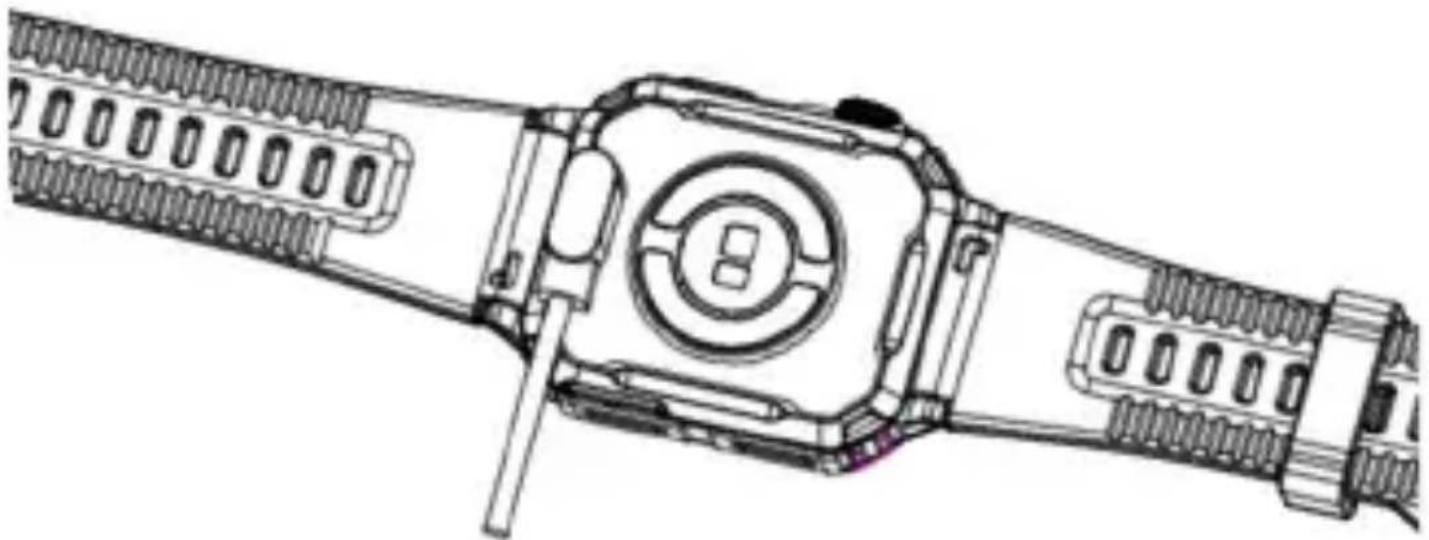
There are metal contacts on the back of the bracelet for charging the battery. Bring the magnetic clip of the charging cable close to the metal contacts, this will tend to align correctly automatically.
-
Connect the USB plug of the charging cable to a USB port of a 5V/1A charger or a computer
- You can view the charge status on the display.
natural_image
Technical line drawing of a mechanical device with no visible text or symbolsHow to wear the watch
- Wear the watch after the ulnar styloid.
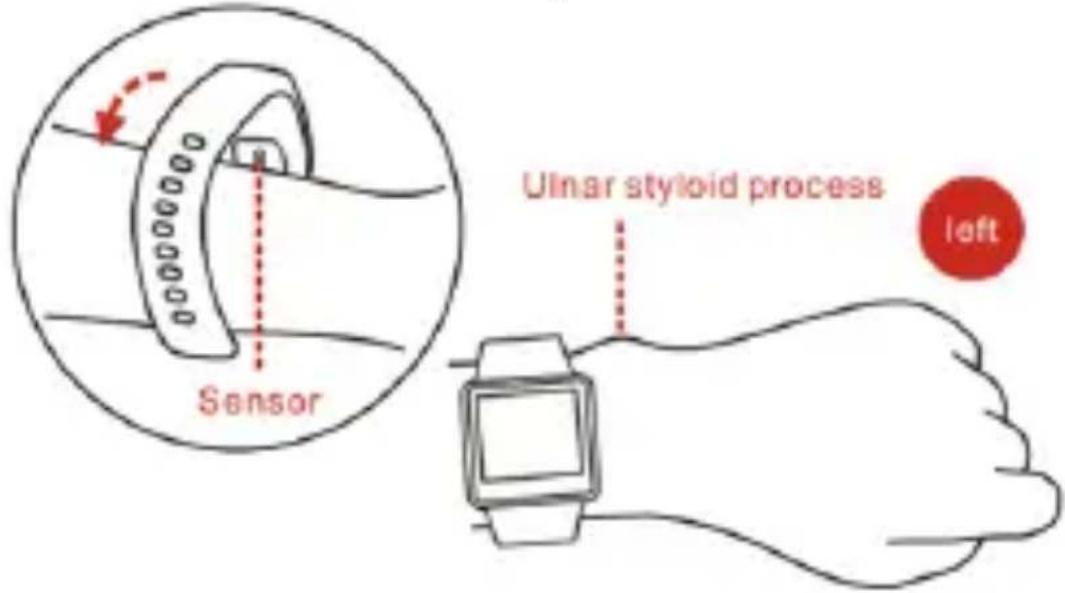
- Fasten the strap to your wrist by adjusting it perfectly to the size of your wrist.
- Keep the sensor as close to the skin, avoid any movement and that external light influences the accuracy of the tests.
- Keep the test area clean, sweat or stains will affect the test results.
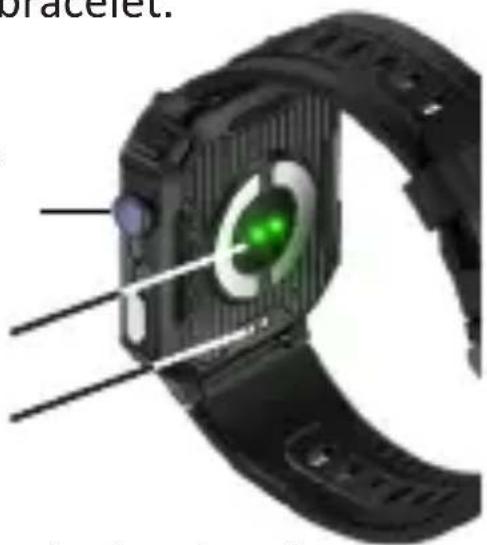
Bracelet description
- Schematic diagram of main body of smart bracelet.
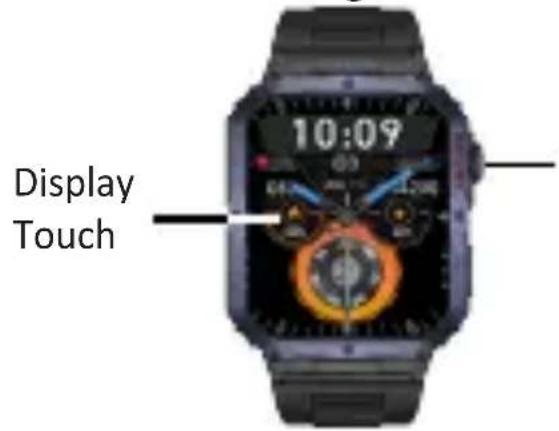
Button for Display/ bracelet On/Off
Hart rate sensor
Charging metal contact
natural_image
Close-up of a black smartwatch with green lens and blue buttons, showing mechanical components (no text or symbols visible)- Power On
You can hold the button for 5 seconds or plug in the charging clamp to charge the smart bracelet.
- Power Off
Press and hold the button for 5 seconds and select the check mark that will appear on the display.
T-Fit 500 S English
Introduction of smart bracelet features
flowchart
graph TD
    A["Split screen"] --> B["Control center"]
    B --> C["10:09"]
    C --> D["Notification list"]
    D --> E["Phone"]
    style A fill:#f9f,stroke:#333
    style B fill:#ccf,stroke:#333
    style C fill:#cfc,stroke:#333
    style D fill:#fcc,stroke:#333
    style E fill:#cff,stroke:#333
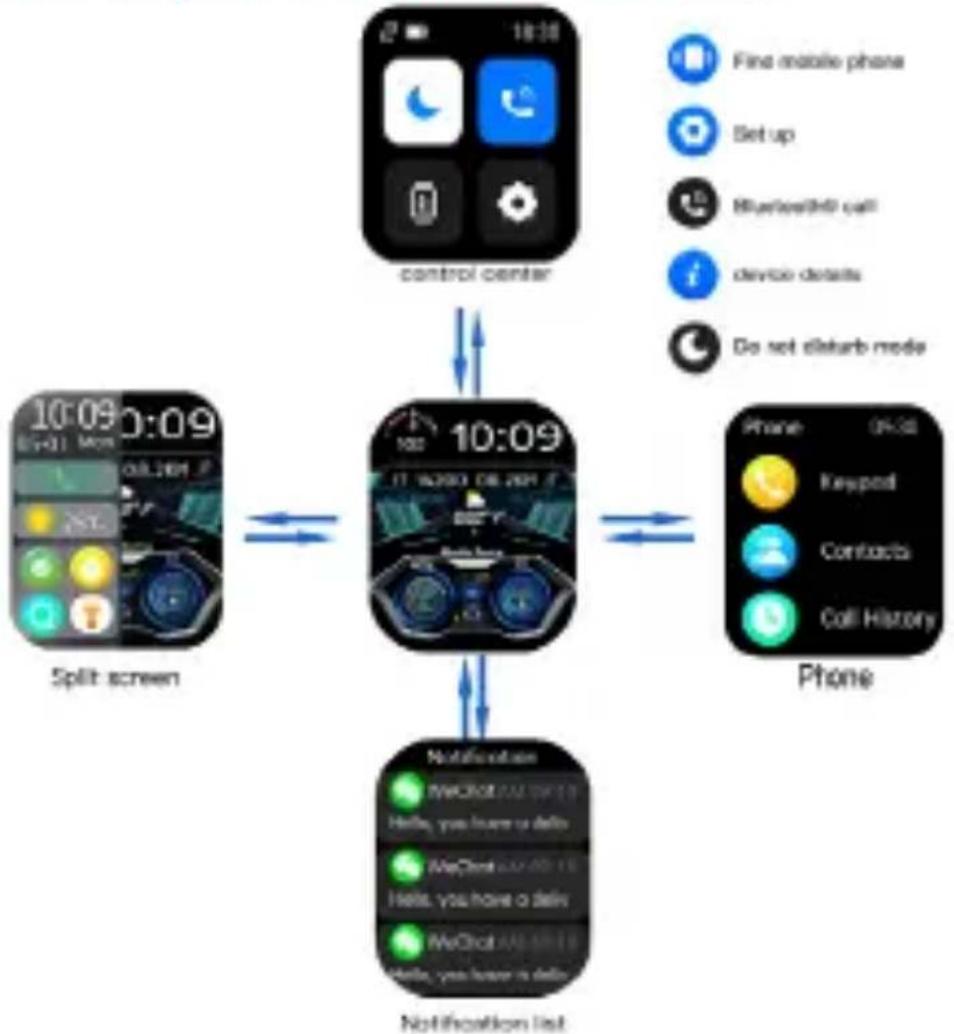
- Slide your finger on the display to view the various screens;
- Press the side button to light up the screen, press it again to access the settings, while navigating press it to return to the time display.
Main Interface
After the smart bracelet and APP are first paired, it will synchronize the time, date, steps and calories symbols of the phone.
Function Interfaces
Drag your finger to the left to view the soft keypad, contacts and call log phone functions. Drag your finger to the left again to view other function interfaces.
Menu
Drag your finger to the right to view the list of all available functions. Other functions can be found by selecting the item "Settings".
Notifications
Drag your finger right to view the Most Recently Used Features Menu.
Control center
Drag your finger down to view the page where you can quickly activate some functions.
Downloading and binding of smart bracelet APP
- Please use your phone to scan the QR code below to download the “H Band” application, or search the “H Band” application from Google Play Store and Apple Store. Then install it into your phone.
Note: Your smartphone must support Android 8.0 or iOS 13.0 or above, and Bluetooth® version 5.0 or above.
Wrong operation: Pair the smart watch directly through Bluetooth® in the phone settings.
Note: When installing and using the “H Band” APP for the first time, the system will prompt you to enable the GPS, Bluetooth ^® , file, camera, messages, notification and other permissions of the mobile phone. Click “Allow” at all prompts to ensure that all functions are normal.

Smart watch is bound to H Band APP:
- Press and hold the key for 3 seconds to turn on the smart watch;
- Turn on Bluetooth® and GPS;
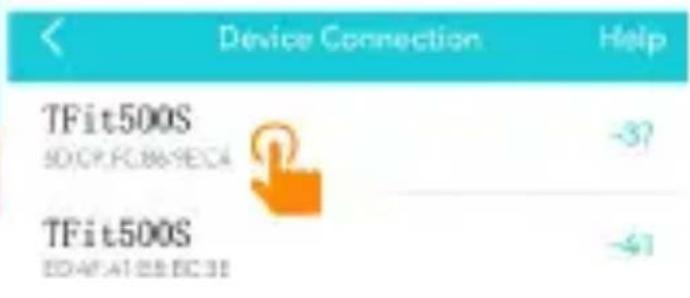
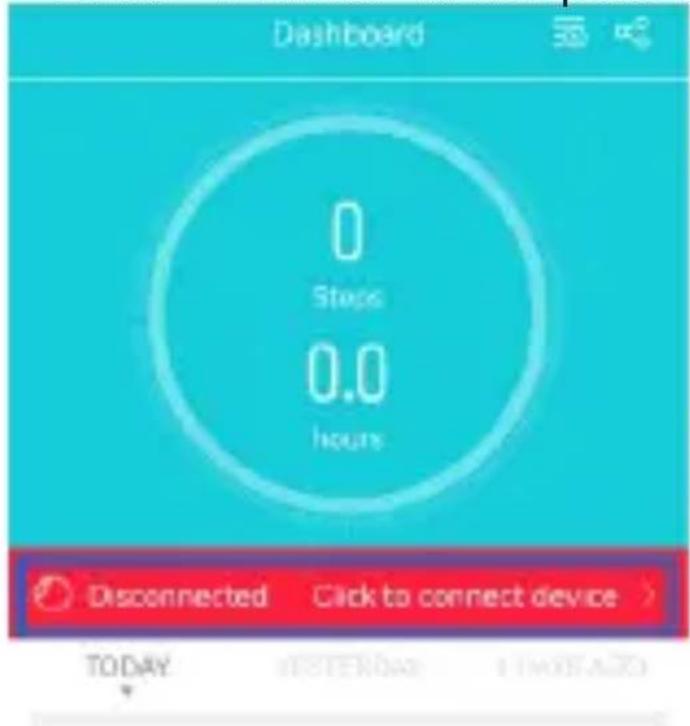
- Open the “H Band” APP, and then click “Click to connect the device” on the “Data panel” interface;
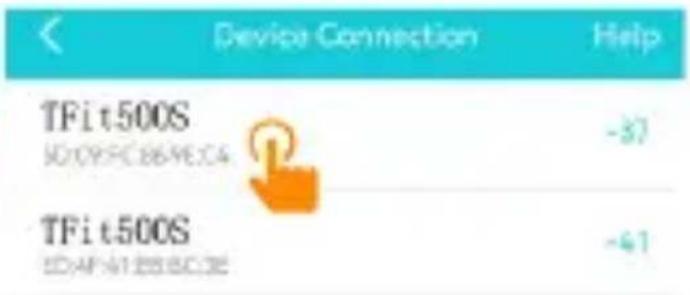
- Select “TFit500S” on the search page. If “TFit500S” is not in the list, please swipe down the screen to search again, and then select “TFit500S” to complete the binding.
Pairing for call management
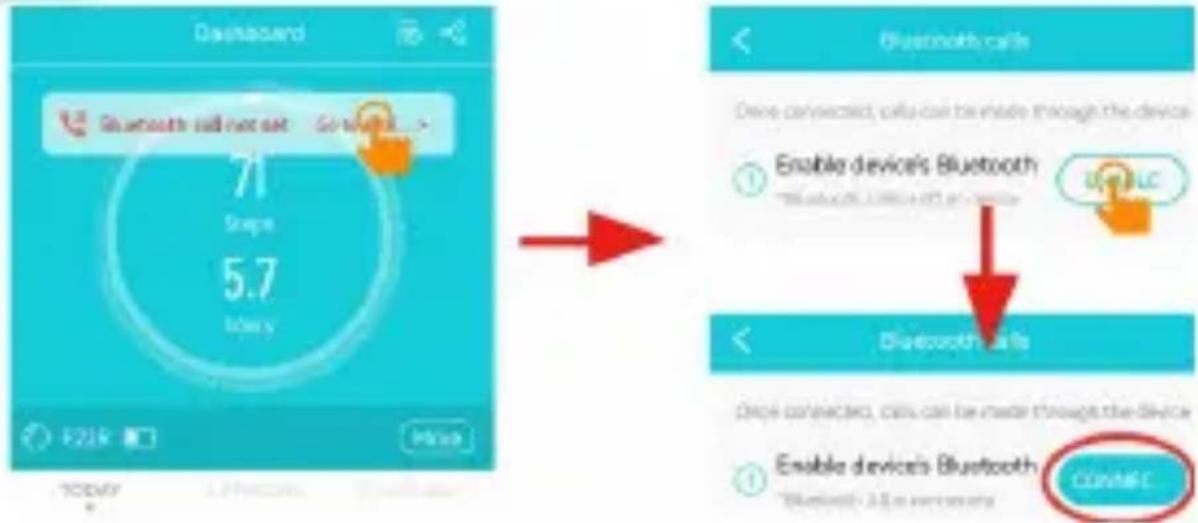
After the smart watch is correctly connected to the “H Band” APP, the call function will also be automatically connected at the same time, but due to the mobile phone system version, permissions and other reasons, it cannot be automatically connected. The solution is as follows:
- On the top of the H Band APP, there is a red button “Bluetooth® call is not set”. Click to enter the call settings. Click the “On” button. After a few seconds, it shows that it is connected.
T-Fit 500 S
English
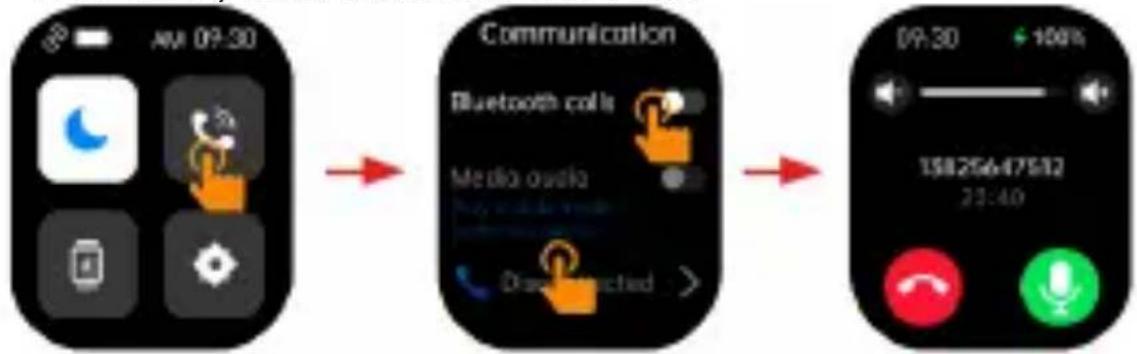
- On the watch dial interface, slide into the control panel, click the Bluetooth® call icon, and then click “Not connected” to enter the call search page.
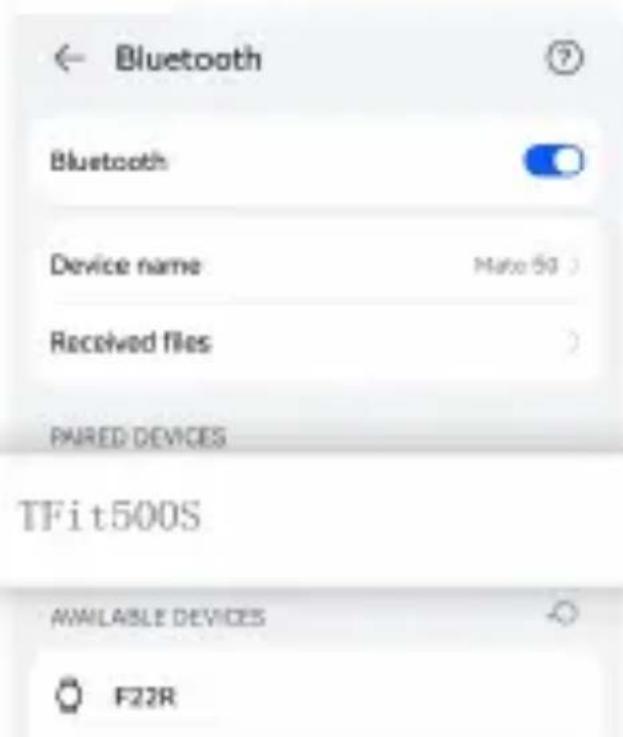
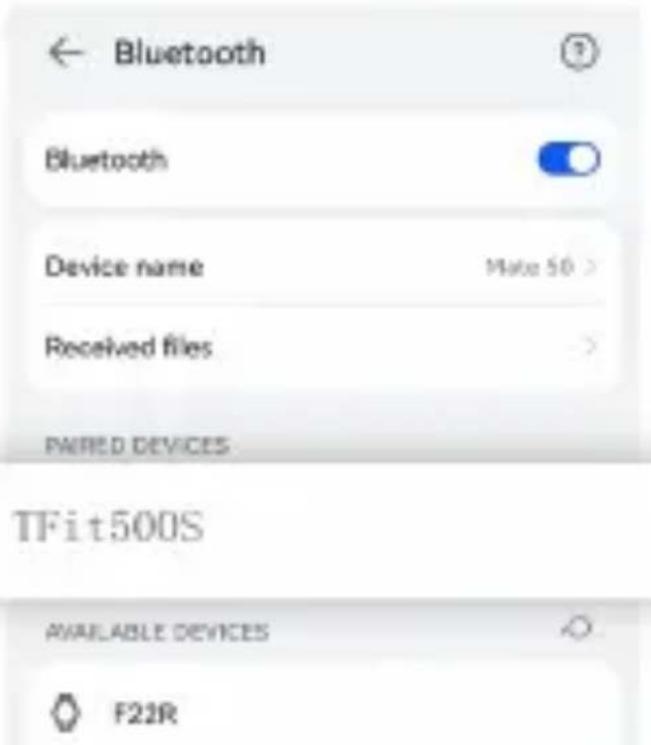
- Open the phone's "Settings" - "Bluetooth® Setting" ans search for "TFit500S", click Connect and Pair.
flowchart
graph LR
    A["AMI 09:30"] --> B["Bluetooth calls"]
    B --> C["15825647582\n23:40"]
T-Fit 500 S English
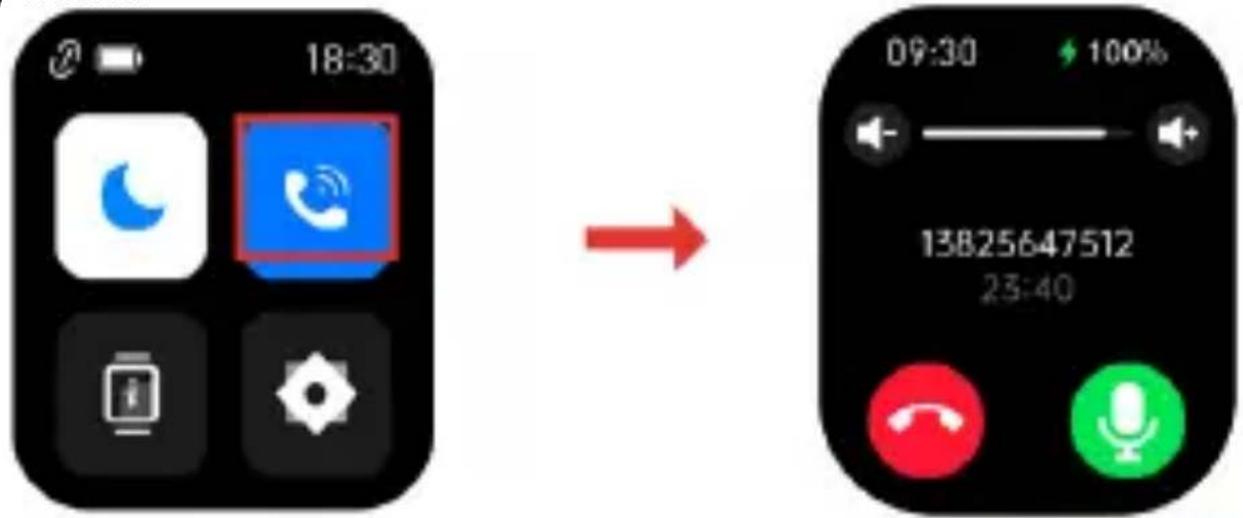
Swipe down the drop-down list of the watch face interface. If the call icon is lit, it means that your smart watch has been connected to the phone normally. You can use the watch to make calls and play music.
Remarks:
The smart watch provides users with a call function switch and a media play function switch. If you need to temporarily turn off or turn on the call function and music play function during use, you can tuen them on or off in the shortcut menu of the watch.
In order to give users a better experience, when using the connected smart watch for the first time, the media audio is turned off by default, and users can turn it on according to the actual situation. Due to the update of mobile phone system and APP version, the actual operation may be slightly different from the guide. Please follow the actual operation.
Message reminder
By default, the watch only turns on the incoming call reminder. Other reminder apps need to be set by the user according to the actual situation. (In addition to settings through APP, you can also select to open the notification in the watch settings > function settings).
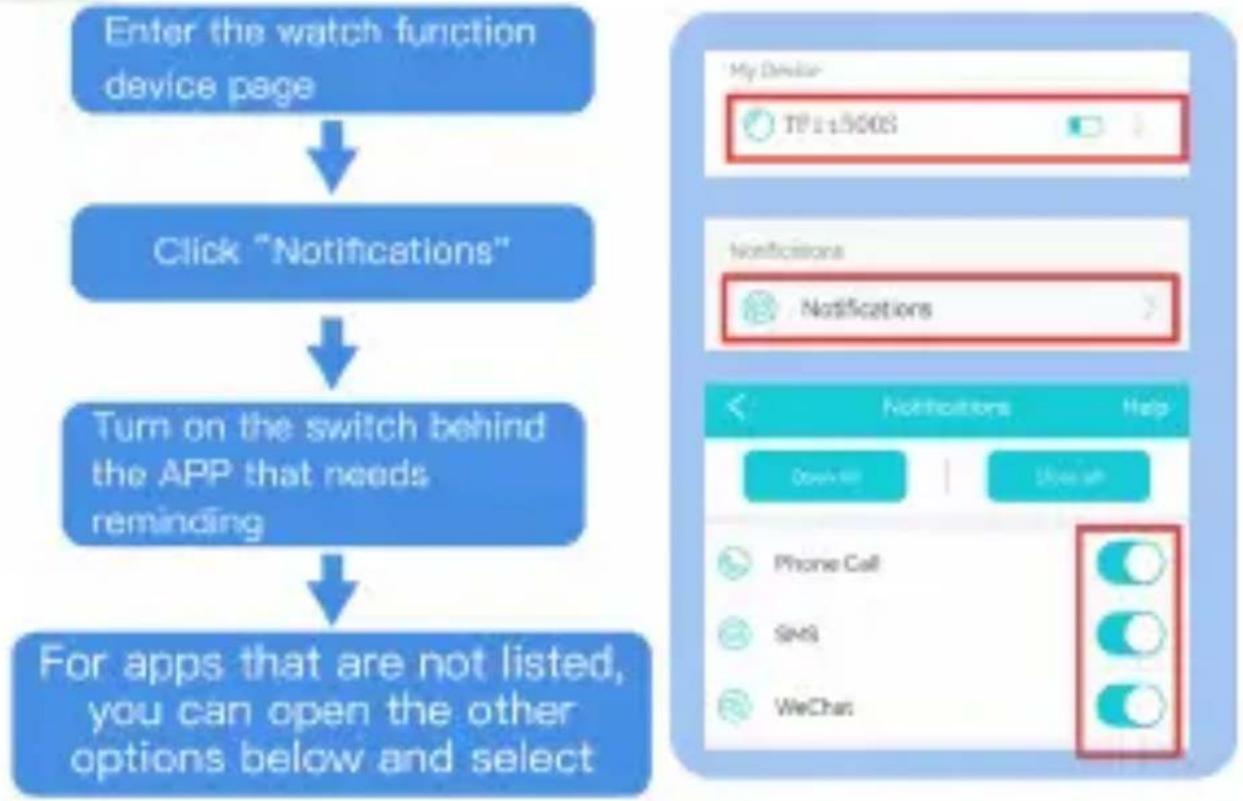
flowchart
graph TD
    A["Enter the watch function device page"] --> B["Click "Notifications""]
    B --> C["Turn on the switch behind the APP that needs reminding"]
    C --> D["For apps that are not listed, you can open the other options below and select"]
For the unlisted APP, you can open other options below and select the corresponding APP.
Permission management
-
When the app is installed for the first time, the app will pop up the relevant permission request. To ensure the normal use of the function, please allow all.
-
If you refuse the permission request carelessly, you can check it through the permission management function of the APP and reset it by pressing the reminder.
-
In order to ensure the normal use of the function, the APP needs to ensure the background operation. Some mobile phone systems will automatically clear the background. Please add the "H Band" APP to the white list on the mobile phone and lock the background operation.
-
Some chat apps have their own information management settings. Please open the information notification in the chat app settings.
Automatic detection of health function
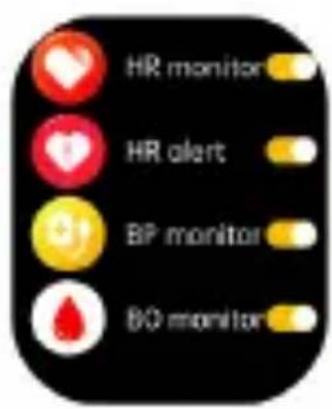
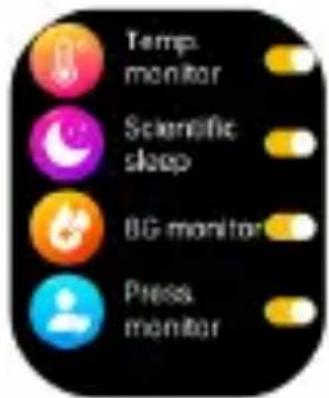
The watch provides 24-hour health detection function, including detection of heart rate, temperature, blood pressure, blood glucose and blood oxygen detection. Users can open it according to actual use.
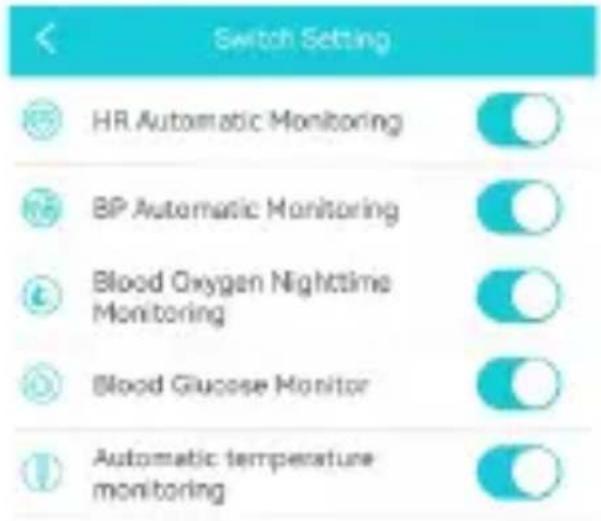
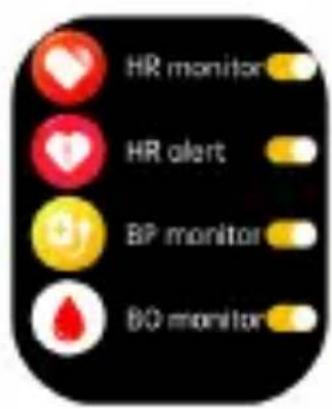
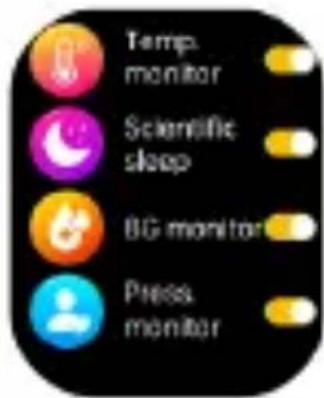
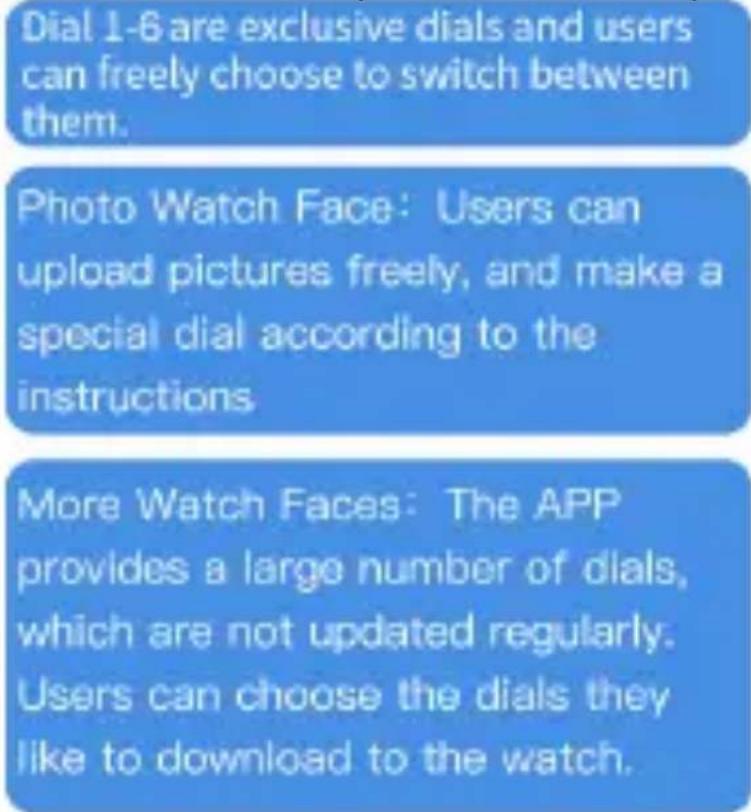
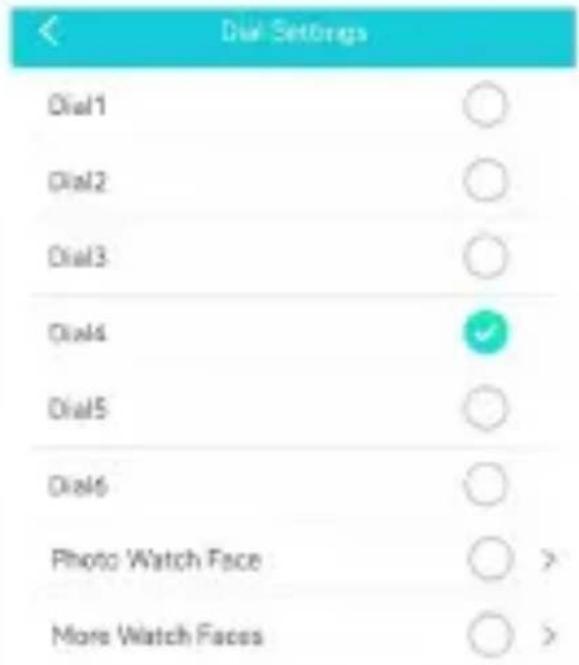
Dial settings
The watch has eight special dials and large number of network dials. Users can upload their own pictures to make dials.
Other
In addition to the above functions, the APP and the watch also provide functions such as language switching, bright screen time, weather, unit of measure, alarm clock, etc. Due to limited space, users can experience it by themselves.
Main functions
Keypad, Contacts, Call History
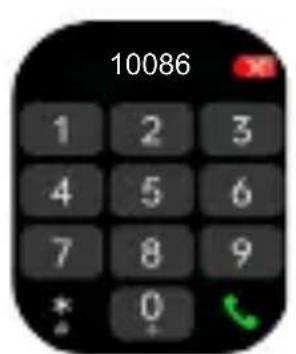
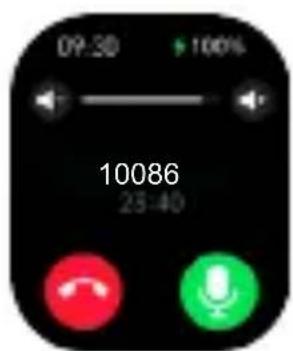
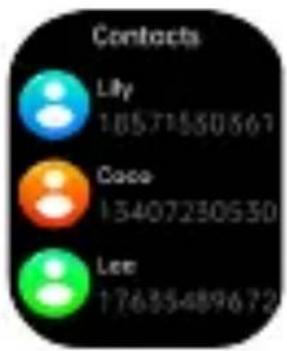
Note: To use the call related functions, you need to connect the “H Band” APP and the call function at the same time. See the above operation guide for the specific connection method.
Address book contacts need to be added through the "H Band" APP.
Message reminder
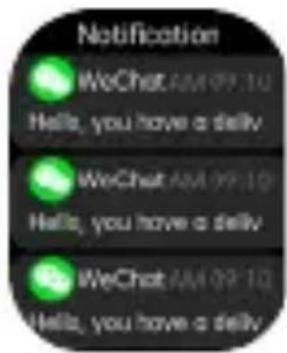
Go to the Messages interface to scroll and read all the messages received. If the maximum number of stored messages is reached, the oldest one will be deleted when a new message arrives.
Note: When viewing a message, you can delete it by selecting the icon with the bin.
Player Shutter
You can use this function to play music on your watch and control the music on your phone.
Note: The watch can only let the smart watch play music when it is connected to the call function and the audio media of the smartwatch is turned on, otherwise it can only control the phone to play music.
Sleep monitoring
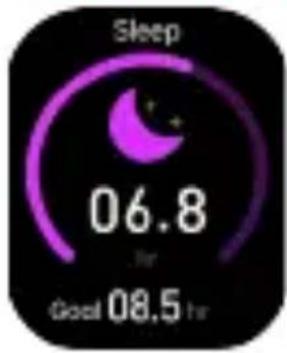
The smartwatch will monitor your sleep quality while you sleep and form a report to help you improve your sleep quality.
Note: The start time of sleep mode is from 20pm to 10am the next day, and other time is not included in sleep.
During sleep, if the sleep is short, or walking, or other actions, the smart watch may not be recognize the sleep state or the data are inaccurate.
Heart rate measurement
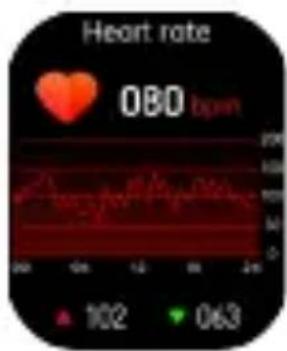
Selecting the Heart Rate interface will start the real-time measurement of your heart rate. The high and low heart rate values measured during the day will also be indicated.
Warnings to be observed to obtain correct detection:
- The heart rate sensor must be in good contact with the skin during detection. If the bracelet is too loose, the measurement may be inaccurate. It is strongly not recommended to stare at the green sensor light; otherwise, damage to the visual system could occur.
- During the measurement it is recommended that the user stay as still as possible and in rest conditions.
- The device measures heart rate dynamically and in real time, so heart rate varies according to different conditions, such as talking, eating and drinking.
- Make sure the sensor is not dirty during measurement. Skin color, hair density, tattoos and scars can affect the accuracy of the measurement results.
Blood oxygen
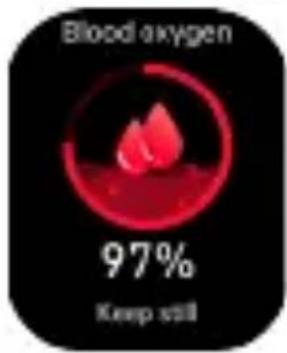
Once the blood oxygenation interface has been selected, the detection will start automatically. After measurement, the motor will vibrate once and display the current test data.
Blood oxygen saturation (SpO2) is the percentage of the volume of oxygen-bound hemoglobin (HbO2) in the binding hemoglobin in the blood, that is, the concentration of oxygen in the blood.
Note: The data of blood pressure and oxygen are for reference only, and cannot be used as basic of medical related aspects.
Blood pressure test
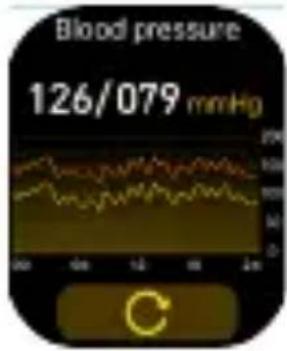
Once the blood pressure interface is selected, the detection will start automatically. After measurement, the motor will vibrate ance and display the current data. You should measure blood pressure in the quiet place with appropriate temperature, rest for at least 5 minutes before measurement to avoid tension, anxiety
and emotional excitement, measure blood pressure for three times, with two minutes apart each time and record the average of three reading.
Blood glucose
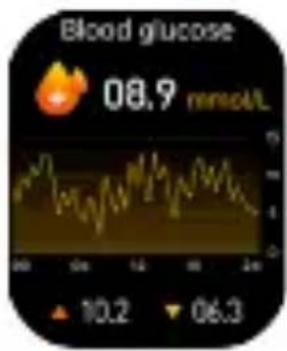
Non-traumatic blood glucose detection, portable, real-time, safe and accurate measurement of blood glucose, convenient for you to adjust your diet in time, and effective prevention in advance.

MET
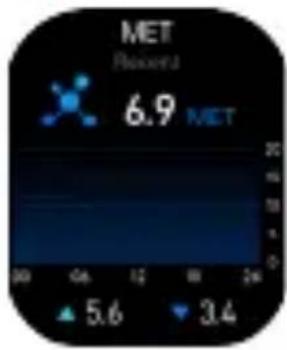
T-Fit 500 S English
MET refers to energy metabolism equivalent, which is a common indicator of relative energy metabolism level in various activities based on energy consumption in quiet and sitting position. International standard for measuring physical activity.
Voice Assistant
Start the voice assistant, which will call the phone's voice assistant, to complete the call, music playback, etc.
Note: This function can only be used after the watch call Bluetooth® is connected to the mobile phone Bluetooth®.
Cycle tracking
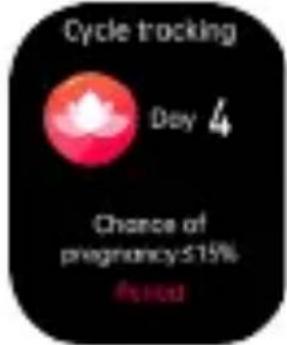
This function is only available if the gender is set to female in the APP. Female users can set their personal physiology in the App status reminder. You can set four states: menstrual period, pregnancy preparation period, pregnancy period and postpartum period.
Workout
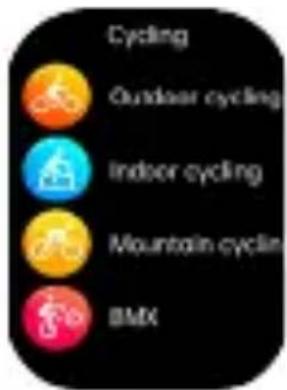
The smartwatch provides over 138 sports modes. Each exercise mode is subject to professional debugging. During the exercise, the watch will monitor the exercise time, heart rate, calories and other exercise data to help you exercise more effectively.
Frequently Asked Question (FAQ)
H Band App failed to bind to the watch
- It is recommended to update the H Band App to the latest version.
- Please make sure your mobile phone Bluetooth® is turned on, and confirm that your mobile phone system compiles with Android 8.0 or iOS 13.0 or higher.
- It is recommended to close all programs, restart the mobile Bluetooth ^® , and then open the H Band to search again.
The smartwatch cannot receive information or phone notification
- Please make sure that your smart watch is connected to your mobile phone through the H Band App.
- You need to turn on the smart reminder function and call reminder function in the H Band App.
- Please make sure the Bluetooth® of your phone is turned on.
Do I need to connect my smartwatch to my phone at all times to use the watch?
-
For the following functions: counting steps, heart rate monitoring, blood monitoring, sleep monitoring, distance, calories and exercise mode, countdown, timer, alarm clock, brightness adjustment, etc., you can use it without connecting to the App. After connecting the smart watch with the mobile phone again within three days, the relevant data will be synchronized to the App.
-
For the following functions: call, call reminder, message notification, mobile phone search, photo taking, and other functions that need to be used with mobile phones, the smartwatch can only be used after it is connected to the H Band App normally.
T-Fit 500 S English
Why can't I wear a smartwatch when I take a hot bath?
- The temperature of the bath water is very high, which will produce a lot of steam. When the temperature drops, the water will condense into droplets, which can easily lead to internal short circuit and damage. Please take off your watch when you are in the water for a long time, such as diving and bathing, to avoid water pressure changes affecting functions.
Why is there a gap between the heart rate, blood sugar, blood pressure and other physical health values of smartwatches and those measured by medical devices?
- The measuring principle used by different equipment is different, and the measuring results will also be different.
- The watch measurement also has measurement error within the allowable range.
Using in Wet Conditions
Your device is water-resistant, which means it is rain-proof and splash-proof and can stand up to even the sweatiest workout. Note:
- Do not swim with your Smart Bracelet. We also don't recommend showering with your wristband; though the water won't hurt the device.
- Wearing it 24/7 does not give your skin a chance to breathe.
- Whenever you get your bracelet wet, dry it thoroughly before putting it back on.

Warnings:
Please consult your doctor before you take part in a new sport.
The smart bracelet should not be used for medical purpose though it may monitor the heart rate in the real-time and dynamic way.
Warnings
This device is an electronic instrument of high precision; therefore, avoid using it in the following cases:
- Close to strong heat sources such as heaters and stoves.
- In environments that are too cold or too hot or very dusty.
- The appliance must not be exposed to dripping or splashing water. No liquid-filled objects, such as vases, must be placed on the appliance.
- If liquids penetrate into the device, bring the device to the nearest authorized TREVI service Centre.
- Do not use the device near flammable or explosive gases, this may cause a malfunction of the device or a fire hazard.
- No naked flame sources, such as lighted candles, must be placed on the appliance.
- Keep the device out of reach of children. The device is not a toy. The device is made up of small removable parts which, if ingested, can cause suffocation.
- Do not expose the device to strong shocks.
- Store the product in a dry place when you are not using it.
- Keep this instruction manual.
Features
Device type: Smart bracelet
Display: 2,06" AMOLED
Weight: 55g
Lenght: 25cm
Strap Material: Silicone
Water resistance Index: IP68
Battery Capacity: 370mAh
Bluetooth®: 5.0
Peak of Bluetooth® transmission power: 1mW
Maximum Bluetooth ^® transmission power: 0,8mW
Bluetooth® transmission band: 2,4GHz
Supported operating system: Android 8.0, iOS 13.0 or above
Included in the package: device, charging cable, instructions.
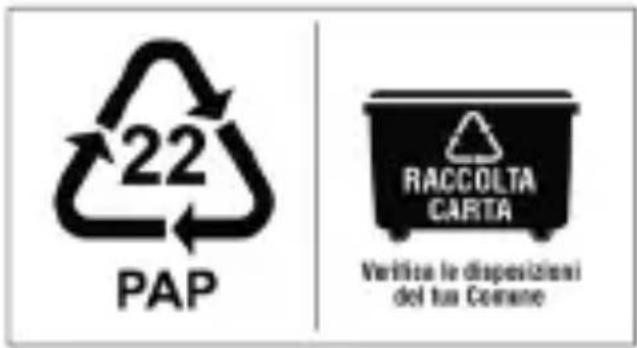
- Precautions for correct disposal of the product
The symbol shown on the equipment indicates that waste must be disposed of in “separate collection” and so the product must not be disposed of together with urban waste.
The user must take the product to special “separate waste collection centres” provided by local government, or deliver it to the retailer against the purchase of a new product.
Separate collection of waste and subsequent treatment, recycling and disposal operations promotes the production of equipment with recycled materials and limits negative effects on the environment and on health caused by improper handling of waste.
Illegal disposal of the product leads to the enforcement of administrative penalties.
T-Fit 500 S

Trevi S.p.A. Strada Consolare Rimini-San Marino, 62 47924 RIMINI (RN) Italy
https://www.trevi.it/dms/zidi/TREVI/DOCTFIT500S.pdf
Simplified EU Declaration Of Conformity
Hereby TREVI S.p.A. declares that the equipment T-Fit 500 S
is in compliance with Directive 2014/53/EU.
The full text of the EU declaration of conformity is available at the following internet address
https://www.trevi.it/dms/zidi/TREVI/DOCTFIT500S.pdf
- T-Fit 500 S
- Italiano
- Maintenance
- Charging
- How to wear the watch
- Bracelet description
- T-Fit 500 S English
- Introduction of smart bracelet features
- Main Interface
- Function Interfaces
- Menu
- Notifications
- Control center
- Downloading and binding of smart bracelet APP
- Pairing for call management
- English
- Remarks:
- Message reminder
- Permission management
- Automatic detection of health function
- Dial settings
- Other
- Main functions
- Player Shutter
- Sleep monitoring
- Heart rate measurement
- Blood oxygen
- Blood pressure test
- Blood glucose
- Frequently Asked Question (FAQ)
- H Band App failed to bind to the watch
- The smartwatch cannot receive information or phone notification
- Do I need to connect my smartwatch to my phone at all times to use the watch?
- Using in Wet Conditions
- Warnings:
- Warnings
- Features
- - Precautions for correct disposal of the product
- Simplified EU Declaration Of Conformity
Brand : Trevi
Model : T-Fit 500 S
Category : Smartwatch