Display Management - Interactive screen Newline - Free user manual and instructions
Find the device manual for free Display Management Newline in PDF.


| Product Type | Cloud-based Display Management Platform |
| Software Component | Android Display Application (runs on display) |
| Web App Interface | Newline Display Management Web App |
| Supported Android OS | Android 4.4 and higher |
| Required Network Ports | TCP/UDP 5671, TCP 443 |
| Supported Browsers | Google Chrome, Mozilla Firefox (Windows & OSX) |
| Account Requirement | Yes, sign up and log in |
| Display Pairing Method | 6-digit PIN generated by the app |
| Display List – Global View | All registered displays, can be grouped and edited |
| Individual Display Page | Overview, support tools, power options, tabs |
| Remote Support | Voice/video call and screen control |
| Power Options | Restart and power off via web app |
| Device Information Tab | Serial number, model, IP, OS, uptime, etc. |
| Settings Tab | Language, date/time, Bluetooth, volume |
| Apps & OS Tab | Install/uninstall APKs directly |
| Screensaver Tab | Multimedia playlist (images/videos), start time configurable |
| Supported Video Formats | WEBM, 3GP, MP4, MKV, MOV, M4V, MPG |
| Supported Image Formats | JPG, PNG, GIF (static), WEBP, BMP |
| Alert Feature | Post an alert (max 200 characters) to display(s) |
| Grouping Feature | Create, edit, delete groups for organization |
| Test Signal Tool | Send on-screen message with name and model for identification |
Frequently Asked Questions - Display Management Newline
User questions about Display Management Newline
0 question about this device. Answer the ones you know or ask your own.
Ask a new question about this device
Download the instructions for your Interactive screen in PDF format for free! Find your manual Display Management - Newline and take your electronic device back in hand. On this page are published all the documents necessary for the use of your device. Display Management by Newline.
USER MANUAL Display Management Newline
Newline Display Management
Support and user guide
23 July 2019
Product overview
Newline Display Management is a cloud-based management platform for Newline displays. The product is designed to assist those responsible for initial set-up and ongoing management of displays across organisations, wherever they are. Newline Display Management is comprised of two parts, described below.
Software application
The first of two parts that forms product, is a software application that runs on Android displays (Android OS 4.4 and higher), for the purposes of pairing the device to the cloud management web app.
Please note that the following ports must be open to allow communication with the application: TCP/UDP 5671, TCP 443
Web app
The cloud management web app for Newline Display Management allows users to access and configure displays. The web app is supported on Google Chrome and Mozilla Firefox (Windows & OSX).
The web app provides an array of features and functionality for the organisation and management of displays, which has 2 main areas:
- Display list: For the management and organisation of all displays paired to the cloud management account.
- Display page: For the configuration of an individual display.
Account creation
An account is required in order to access the cloud management web app. This can be achieved by accessing the Newline Display Management's log in and sign up forms.
Adding or pairing displays
Also referred to as "adding" a display, pairing a display to the web app is required to use this product, and this can be achieved by:
-
Installing and running the software application on the display will generate a six-digit PIN, to be used on the web app to pair the display.
-
Creating and signing into a Newline Display Management account by accessing the web app homepage, and following on-screen instructions (see screenshot below).

Web app overview
Display list
The display list provides web portal users with a global view of all devices registered with their Newline Display Management account. From here, new devices can be added removed, or categorised into groups. The screenshot below shows the display list.

The list of displays is comprised of individual items, each representing a display that can be managed via the web app.
Each display shows the following information, which can be edited on the individual display page: device name, location, group name, power status (on or off), hardware name, operating system version.
Editing display information
When selecting a single display from the list, users will be taken to the display page, where all information about that display can be viewed, and where its settings can be configured. For more information, see "Display page" from the user guide documentation.
When selecting multiple displays from the list, users are offered the possibility to configure all selected displays at the same time.
Grouping displays
Groups are an effective means of categorising and ordering lists, for more streamlined hardware management. These can be created via an option in the sidebar of the display list page, and can be edited or deleted by accessing groups from the sidebar, as illustrated below.

Display page
Each display registered on the web app provides access to display information and configuration. Individual display pages can be accessed via the device list area. For more information, see "Display List" from the user guide documentation.
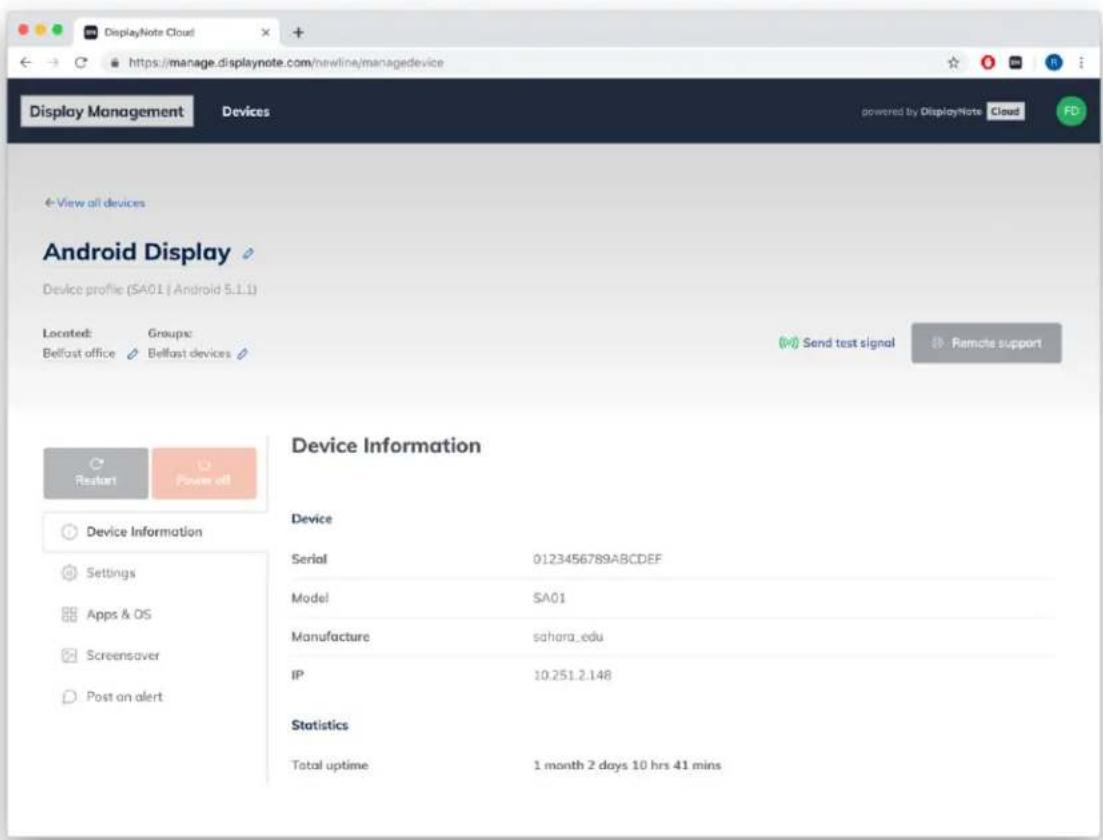
The screenshot below shows an individual display page, for a display named "Android Display". This page can be broken down into the following sections: display overview, support tools, power options, tab navigation and current tab contents.
Display overview
The display overview contains high level information about the display, such as: display name, profile, location and group.
Send test signal
Designed to help with the identification of displays, this tool allows users to send a test signal to the targeted display. The signal – which comes in the form of an on-screen message – will show the name and model of the display.
Remote support
This tool allows a web app user to make contact with in-room users of the display, by calling them using voice and video. The tool also allows the web app user to take control of the display for a more direct approach to resolving customer support problems.
Note: Web portal users must allow access to microphone and camera in order to make use of the remote support calling tool.
Power options
Web portal users have the ability to restart and/or power off displays, via options on the display page.
Tab navigation
The tab navigation provides users access to display information and tools, which are shown in the navigation as: Device information, Settings, Apps & OS, Screensaver, Post an alert.
Device Information: The device information tab provides important details about the display:
- Serial Number
- Model
- Manufacturer
- IP Address
- Operating System
- Language
- Date/Time
- Bluetooth
- Screensaver Status
- Uptime of device
Settings
The section of the web app allows users to configure the display's general settings, such as:
a. Language
b. Set the Date and Time,
c. Switch Bluetooth On or Off
d. Set the device Volume
App & OS
Software can be installed and uninstalled directly onto the targeted display via the web app. Installing software can be achieved by choosing a software APK from the local drive. Apps can be uninstalled via the list of apps installed on the display (see screenshot below).

Screensaver
A multimedia playlist allows users to compile screensavers using a combination of images and videos. Timings between transitions can be managed from the screensaver tab of the web app. The screensaver start time can also be configured using 5 minute increments (i.e. start after the display is idle for 10 minutes) before the screensaver is published.
Supported video files include: WEBM, 3GP, MP4, MKV, MOV, M4V, MPG
Supported image files include: JPG, PNG, GIF (will be shown as static), WEBP, BMP
Post an alert
An information message can be sent to a specific display or a group of displays. The message contains a maximum of 200 characters and can be dismissed by via the targeted display.



- Support and user guide
- Product overview
- Software application
- Web app
- Account creation
- Adding or pairing displays
- Web app overview
- Display list
- Editing display information
- Grouping displays
- Display page
- Display overview
- Send test signal
- Remote support
- Power options
- Tab navigation
- Settings
- App & OS
- Screensaver
- Post an alert
Brand : Newline
Model : Display Management
Category : Interactive screen