
SM72 - To scan ZEBRA - Free user manual and instructions
Find the device manual for free SM72 ZEBRA in PDF.


| Product Type | Single-plane slot scan module |
| Brand | Zebra Technologies Corporation |
| Model | SM72 (SM7201, SM7208) |
| Power Supply (SM7201) | 5VDC USB (standard USB or BC1.2) |
| Power Supply (SM7208) | 5VDC USB (standard, BC1.2, or PowerPlus) or optional 12VDC external |
| Interface Options (SM7201) | USB (5VDC) |
| Interface Options (SM7208) | USB, RS-232, TGCIS (IBM) 46xx over RS485, Keyboard Wedge, SSI |
| Scanning Technology | Embedded imaging engine with image sensor array, automatic adjustment |
| Window Material | Scratch-resistant (Gorilla Glass optional on select configurations) |
| Optional Color Camera | 2MP color camera (SM7208 only) |
| EAS Support | Checkpoint and Sensormatic |
| External Speaker Port | Yes |
| Auxiliary Scanner Port | Yes (SM7208 only) |
| Mounting Options | Panel mounting with M4 threaded studs or strap (vertical/horizontal) |
| Operating Temperature (max) | 50°C |
| Cleaning | 70% isopropyl alcohol on soft cloth; wipe window gently |
| Regulatory Compliance | FCC Part 15, ICES-003, EU Directives 2014/30/EU, 2014/35/EU, 2011/65/EU |
| Warranty | See zebra.com/warranty |
| Dimensions (H x W x D) | Refer to mounting dimensions in manual |
Frequently Asked Questions - SM72 ZEBRA
User questions about SM72 ZEBRA
0 question about this device. Answer the ones you know or ask your own.
Ask a new question about this device
Download the instructions for your To scan in PDF format for free! Find your manual SM72 - ZEBRA and take your electronic device back in hand. On this page are published all the documents necessary for the use of your device. SM72 by ZEBRA.
USER MANUAL SM72 ZEBRA
natural_image
Abstract geometric logo design with stylized white lines and a circular element (no text or symbols)ZEBRA
ZEBRA and the stylized Zebra head are trademarks of Zebra Technologies Corporation, registered in many jurisdictions worldwide. All other trademarks are the property of their respective owners. ©2023 Zebra Technologies Corporation and/or its affiliates. All rights reserved.
Information in this document is subject to change without notice. The software described in this document is furnished under a license agreement or nondisclosure agreement. The software may be used or copied only in accordance with the terms of those agreements.
For further information regarding legal and proprietary statements, please go to:
SOFTWARE: zebra.com/linkoslegal.
COPYRIGHTS: zebra.com/copyright.
WARRANTY: zebra.com/warranty.
END USER LICENSE AGREEMENT: zebra.com/eula.
Terms of Use
Proprietary Statement
This manual contains proprietary information of Zebra Technologies Corporation and its subsidiaries (“Zebra Technologies”). It is intended solely for the information and use of parties operating and maintaining the equipment described herein. Such proprietary information may not be used, reproduced, or disclosed to any other parties for any other purpose without the express, written permission of Zebra Technologies.
Product Improvements
Continuous improvement of products is a policy of Zebra Technologies. All specifications and designs are subject to change without notice.
Liability Disclaimer
Zebra Technologies takes steps to ensure that its published Engineering specifications and manuals are correct; however, errors do occur. Zebra Technologies reserves the right to correct any such errors and disclaims liability resulting therefrom.
Limitation of Liability
In no event shall Zebra Technologies or anyone else involved in the creation, production, or delivery of the accompanying product (including hardware and software) be liable for any damages whatsoever (including, without limitation, consequential damages including loss of business profits, business interruption, or loss of business information) arising out of the use of, the results of use of, or inability to use such product, even if Zebra Technologies has been advised of the possibility of such damages. Some jurisdictions do not allow the exclusion or limitation of incidental or consequential damages, so the above limitation or exclusion may not apply to you.
Service Information
If you have a problem with your equipment, contact Zebra Global Customer Support for your region. Contact information is available at: zebra.com/support.
When contacting support, please have the following information available:
- Serial number of the unit
- Model number or product name
- Software type and version number
Zebra responds to calls by email, telephone, or fax within the time limits set forth in support agreements.
If your problem cannot be solved by Zebra Customer Support, you may need to return your equipment for servicing and will be given specific directions. Zebra is not responsible for any damages incurred during shipment if the approved shipping container is not used. Shipping the units improperly can possibly void the warranty.
If you purchased your Zebra business product from a Zebra business partner, contact that business partner for support.
Getting Started
The SM72 scan module is a single-plane slot scanner that can be mounted vertically or horizontally. It comes with minimal housing for simple integration into self-checkout and kiosk solutions.
The SM72 offers the following features:
- Operates from 5VDC USB (12VDC required when an auxiliary scanner is connected)
• Vision-based application options - EAS support (Checkpoint and Sensormatic)
- A connector port to support an external speaker
- Scratch-resistant window (For improved scratch resistance, Gorilla Glass is available on select configurations.)
- Easy rebranding
Table 1 Differences between the SM7208 and SM7201
| Feature SM7208 SM7201 | ||
| Multiple interfaces: USB, RS-232, TGCIS (IBM) 46xx over RS485, Keyboard Wedge | Yes 5VDC USB | only |
| Aux port Yes No | ||
| Aux power port Yes No | ||
| 2MP color camera option Yes No | ||
Unpacking the Scanner
Remove the scanner from its packing and inspect it for damage. The following items are included in the package:
- Scanner.
• SM72 Scanner Quick Reference Guide (p/n MN-004768-xx).

NOTE: Depending on the configuration purchased, the box may also contain a combination of cables (Color Camera Cable, Checkpoint EAS Cable, USB cable).
If any items are missing or damaged, call the Zebra Technologies Support Center. See Service Information for contact information. KEEP THE PACKING. It is the approved shipping container and should be used if it is ever necessary to return the equipment for servicing.
Features
Figure 1 SM72 Scan Module
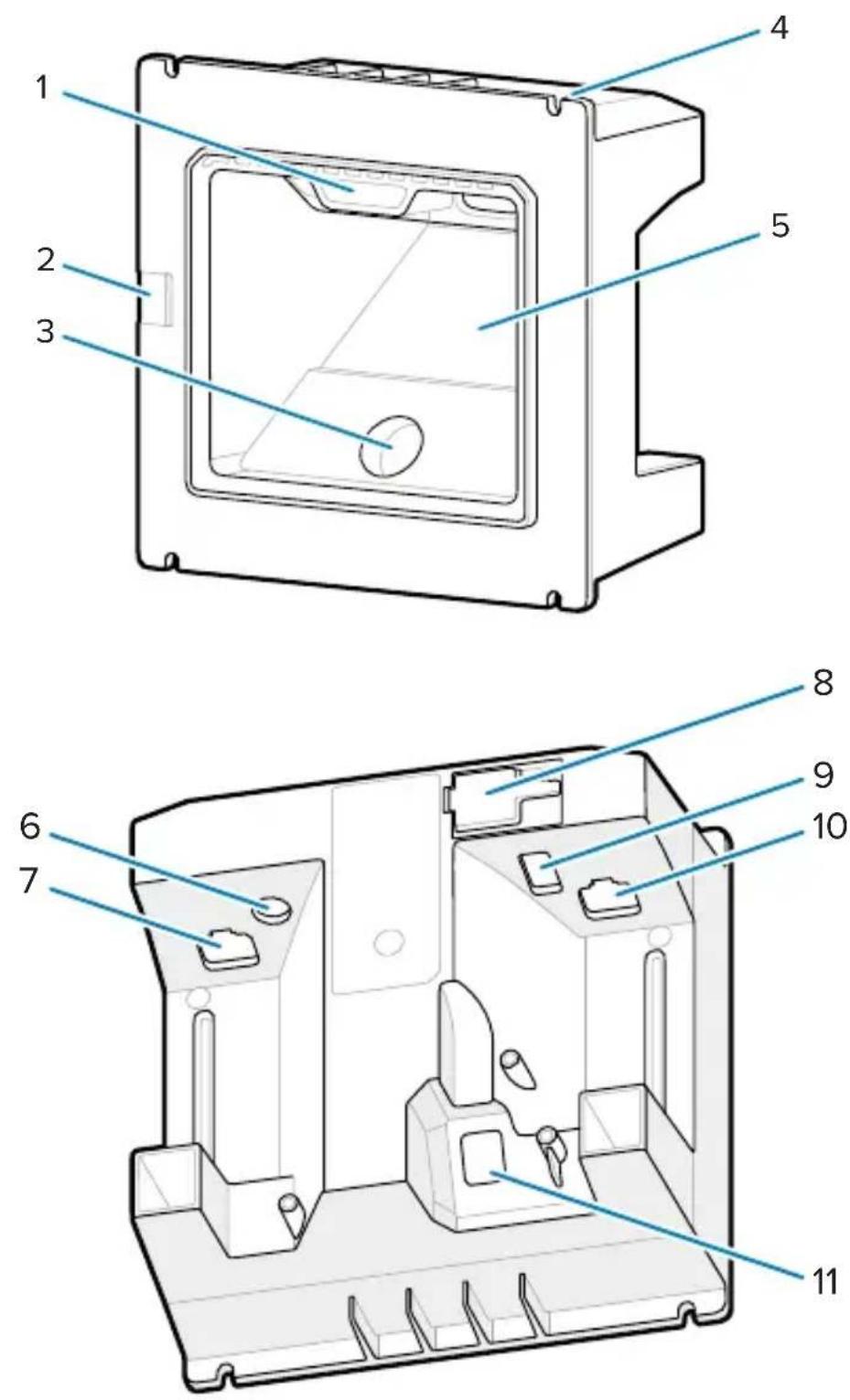
Table 2 SM72 Scan Module
| 1 User Feedback indicator | |
| 2 Speaker port | |
| 3 Color camera (optional) | |
| 4 Mounting Slots (4) | |
| 5 Scan window | |
| 6 Power port | |
| 7 EAS port (optional) | |
| 8 External Speaker port | |
| 9 AUX port (optional) | |
| 10 Host port | |
| 11 Color camera port (optional) | |
Theory of Operation
What occurs during image capture:
- The image sensor array in the embedded imaging engine captures an image of the barcode through the engine's optical lens. If necessary, the engine automatically adjusts illumination, exposure, and other parameters to obtain the best quality image.
- The imaging engine sends the image to the CPU.
- The CPU processes the image to identify the target barcode(s), decodes them, and transmits the decoded data to the host.
Set parameters in this guide to adjust SM72 performance to match the application or desired usage profile.
Power Options
SM7201 (5VDC USB Only)
The SM7201 is powered from the host via the USB host cable and is ready to scan when connected. USB power is via Standard USB (5VDC) or USB BC1.2. It does not have an on/off switch.
SM7208 (Multi-Interface)
The SM7208 is powered from the host via the host cable and is ready to scan when connected. USB power is via Standard USB (5VDC), USB BC1.2 or USB Power Plus.

NOTE: Use of auxiliary scanner and/or color camera options supported on the SM7208
require more than 500mA. This can be achieved via an external 12VDC power supply, 12VDC PowerPlus USB cable, or a high-power USB port such as USB BC1.2 compatible. Depending on the host, some BC1.2 compatible high-power USB ports still may not provide enough power. In this case an external 12VDC power supply is needed.
Host Interfaces
SM7201 (5VDC USB Only)
The SM7201 supports a 5VDC USB host connection only. The scanner defaults to the HID keyboard interface type. To select other USB interface types, scan programming barcode menus or use the Windows-based programming tool 123Scan. For international keyboard support, see Country Codes to program the keyboard to interface with a USB host.
SM7208 (Multi-Interface)
The SM7208 scanner supports the following interfaces, and automatically adapts to the connected host.
- USB host connection. The scanner defaults to the HID keyboard interface type. To select other USB interface types, scan programming barcode menus or use the Windows-based programming tool 123Scan. For international keyboard support, see Country Codes to program the keyboard to interface with a USB host.
- TTL-level RS-232 host connection. The scanner defaults to the standard RS-232 interface type. To modify communication between the scanner and the host, scan barcode menus or use the Windows-based programming tool 123Scan.
- IBM 468X/469X host connection. User selection is required to configure this interface. To modify communication between the scanner and the IBM terminal, scan barcode menus or use the Windows-based programming tool 123Scan.
- Keyboard Wedge host connection. The scanner defaults to the IBM AT Notebook interface type. The host interprets scanned data as keystrokes. For international keyboard support, see Country Codes to program the keyboard to interface with a keyboard wedge host.
- SSI communication between the scanner and a serial host, which allows the host to control the scanner.
Installation
This section provides information on mounting, installing, and connecting the SM72 with compatible accessories, illustrates the scan module's optical path, and includes window information.
Connecting Cables to the SM72
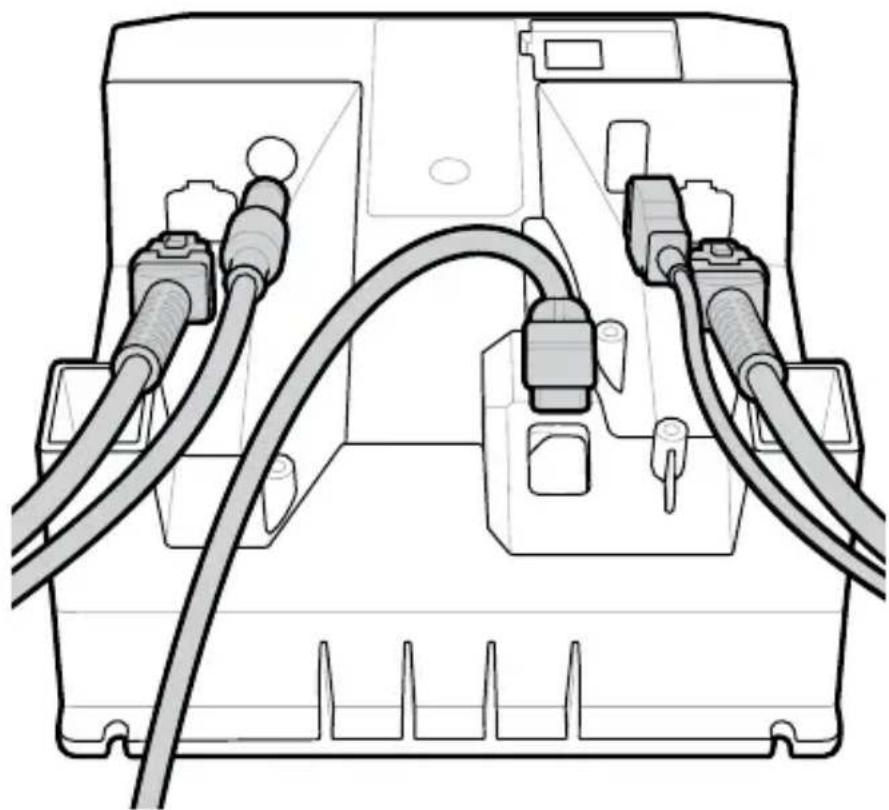
To connect cables to the SM72:
- Insert the host cable into the SM72 host port.
- If connecting an optional auxiliary scanner, insert the auxiliary scanner cable into the aux port.
- For an optional EAS connection, see Electronic Article Surveillance (EAS) in the Product Reference Guide.
- If connecting an optional color camera, insert the camera cable into the color camera port.
- If connecting an optional auxiliary scanner or color camera, connect the power supply to the power port.

NOTE: If connecting the 12V power supply, you must connect this last to ensure proper scanner operation.

WARNING: The USB-C connector on this device is not electrically symmetrical. The cable included with the device is designed to fit
in one orientation only. Using a non-provided USB-C cable may result in inserting the cable in the wrong electrical orientation rendering the color camera inoperable.

NOTE: For specific host connection instructions, see the applicable host interface chapter. The connectors illustrated are examples only, and actual cables can vary, but the steps to connect the scanner are the same.
natural_image
Technical line drawing of a battery pack with two coaxial cables and connectors (no text or symbols)Connecting an External Speaker
To connect an external speaker
Insert a 2-wire external speaker (customer-provided) into the external speaker port.

NOTE: The external speaker and cable must meet the following specifications:
- Cable must have a 2-pin micro-fit 3.0 type connector at the scanner end.
- Cable must be shielded 24-gauge wire.
- Cable must not be longer than 2 feet.
- Speaker must be 4 ohms, 1 watt.
Mounting
The following figures provide SM72 mounting dimensions.
Figure 2 SM72 Mounting Dimensions
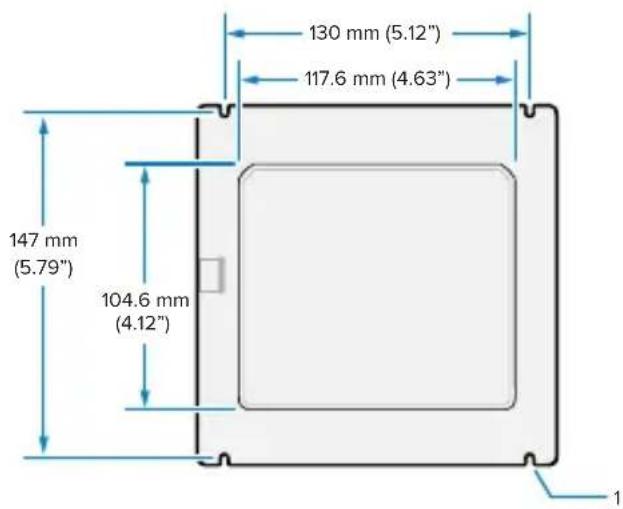
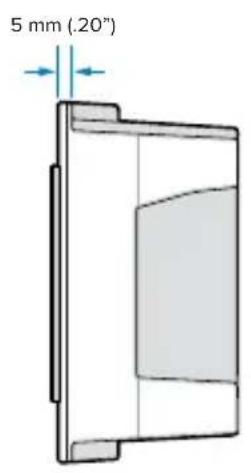
In the above figure, 1 shows the clearance slot for an M4 socket as used in Panel Mounting with Threaded Studs.
Figure 3 Kiosk Panel Opening Recommendations
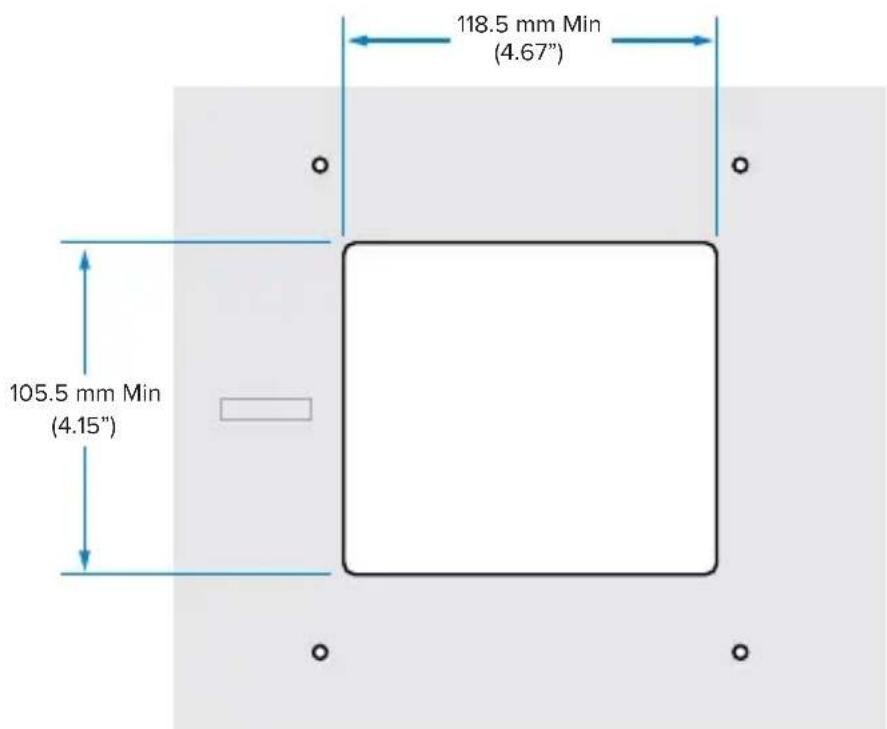
Panel Mounting with Threaded Studs
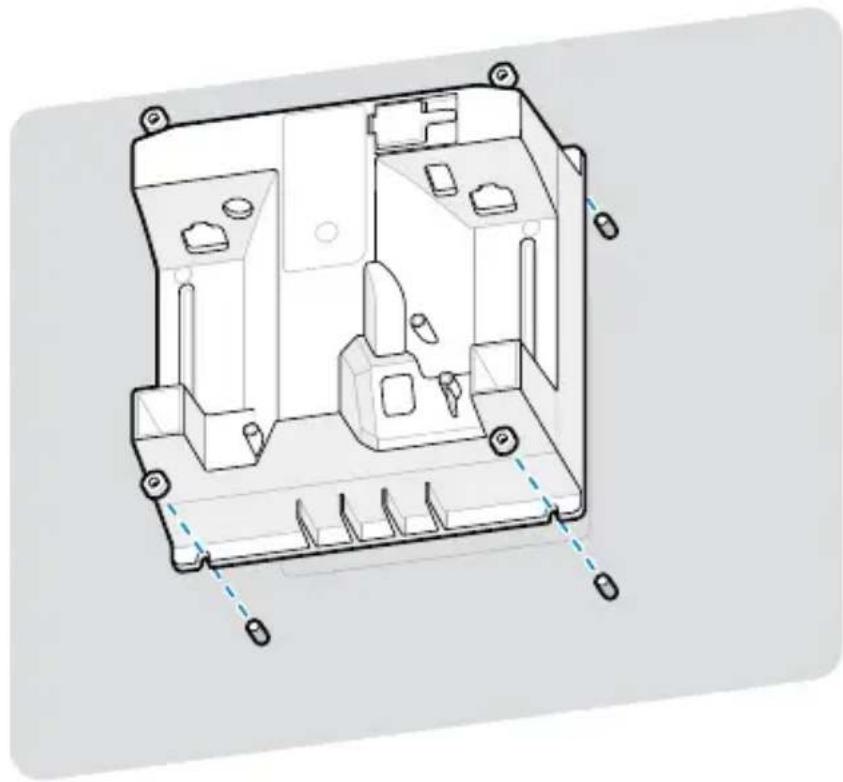
To mount the SM72 to a kiosk panel using threaded studs:
-
Align the four SM72 mounting slots with the panel M4 threaded studs (not provided).
-
Secure the SM72 to the panel using the M4 steel locknuts (not provided).
natural_image
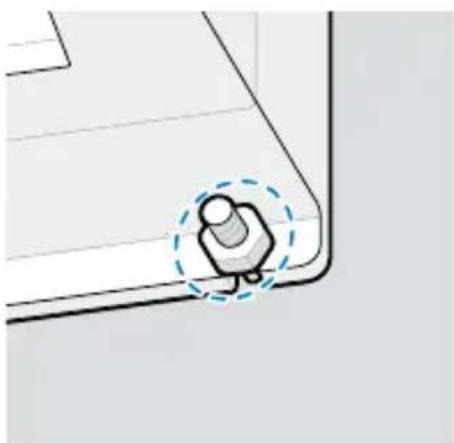
Technical line drawing of an electronic device casing with internal compartments and mounting points (no text or symbols)There should be clearance in the housing for most M4 sockets. In some cases, an open-ended wrench may fit better.
natural_image
Simple line drawing of a mechanical component with a highlighted circular feature (no text or symbols)Panel Mounting with a Strap
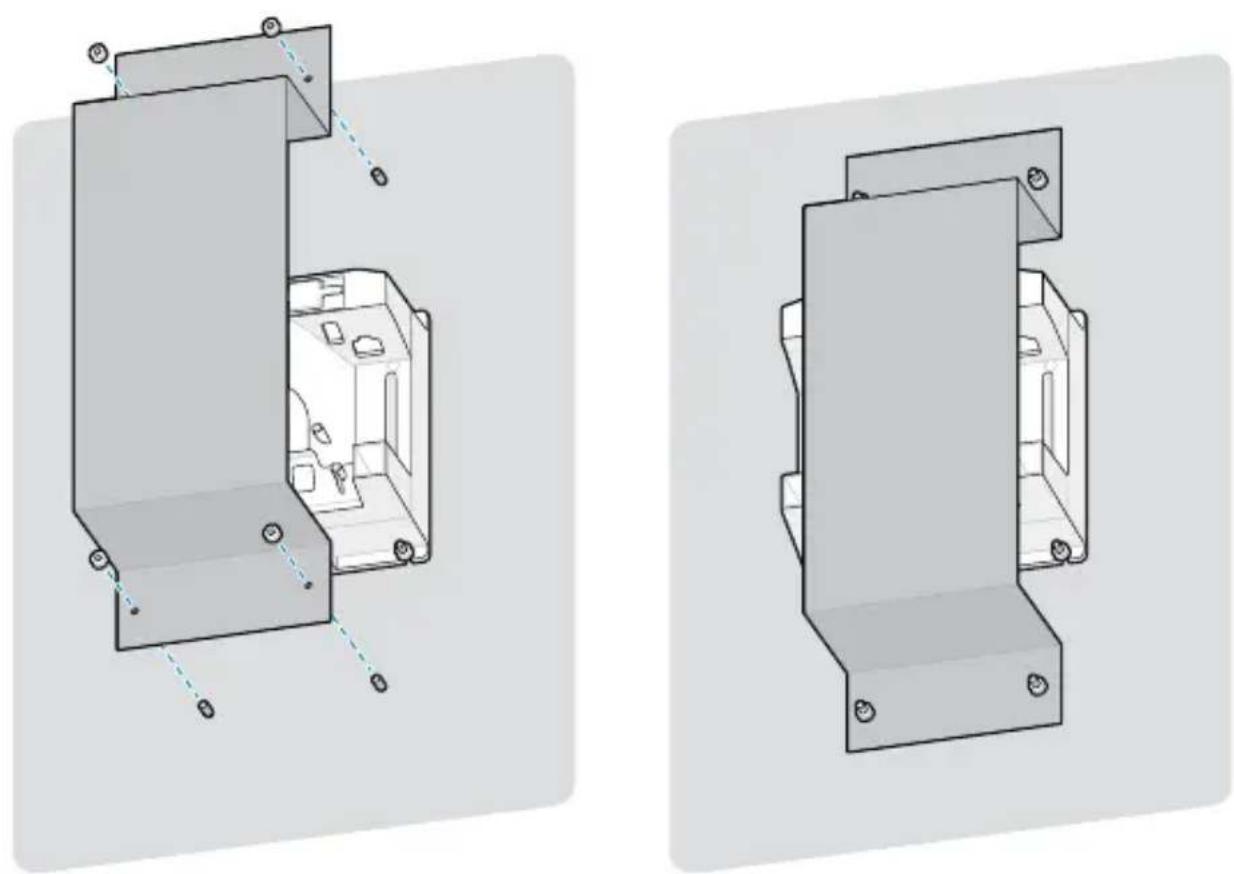
To mount the SM72 to a kiosk panel using a strap:
-
The SM72 may be secured to the panel using a mounting strap. The strap should be designed to take advantage of the flat surfaces on the rear of the unit and can be oriented either vertically or horizontally.
-
The SM72 mounting slots are not needed for this installation method and should be ignored.
natural_image
Technical line drawings of two mechanical components with mounting holes and internal compartments (no text or symbols)Kiosk Mounting
To mount the SM72 in a kiosk:
Secure the SM72 to the kiosk panel. This can be done two ways.
- Use a M4 threaded studs as described in Panel Mounting with Threaded Studs.
- Use a mounting strap as described in Panel Mounting with a Strap, in vertical or horizontal orientation.
Location and Positioning
The location and positioning guidelines do not consider unique application characteristics. Zebra recommends that an opto-mechanical engineer perform an opto-mechanical analysis prior to integration.

NOTE: Integrate the device in an environment that is not more extreme than the product's specification, where the device will not exceed its temperature range. For instance, do not mount the device onto or next to a large heat source. When integrating within another device, ensure there is proper convection or venting for heat. Follow these suggestions to ensure product longevity, warranty, and overall satisfaction with the device.
Embedded Applications Requiring a Window
Use the following guidelines for applications that require a window in front of the device.

NOTE: Zebra does not recommend placing an exit window in front of the device; however, the information for applications that require such a window is provided in the Product Reference Guide.
Maintenance, Troubleshooting, and Specifications
This section provides suggested scanner maintenance, troubleshooting, technical specifications, and connections (pinouts).
Maintenance
Known Harmful Ingredients
The following chemicals are known to damage the plastics on Zebra scanners and should not come in contact with the device:
- Acetone
- Ammonia solutions
- Aqueous or alcoholic alkaline solutions
- Aromatic and chlorinated hydrocarbons
- Benzene
-
Carbolic acid
-
Compounds of amines or ammonia
- Ethanolamine
- Ethers
- Ketones
- TB-lysoform
- Toluene
- Trichloroethylene
Approved Cleaners
Isopropyl alcohol 70% (including pre-moistened wipes).
Cleaning the Scanner
Routinely cleaning the scan window is required. A dirty window may affect scanning accuracy. Do not allow any abrasive material to touch the window.
- Dampen a soft cloth with one of the approved cleaning agents listed above or use pre-moistened wipes.
- Gently wipe all surfaces, including the front, back, sides, top and bottom. Never apply liquid directly to the scanner. Be careful not to let liquid pool around the scan window, cable connectors, or any other area on the device.
- Do not spray water or other cleaning liquids directly onto the scan window.
- Wipe the scan window with a lens tissue or other material suitable for cleaning optical material such as eyeglasses.
- Immediately dry the scan window after cleaning to prevent streaking.
- Allow the unit to air dry before use.
7. Scanner connectors:
a) Dip the cotton portion of a cotton-tipped applicator in isopropyl alcohol.
b) Rub the cotton portion of the cotton-tipped applicator back-and-forth across the connectors at least three times. Do not leave any cotton residue on the connectors.
c) Use the cotton-tipped applicator dipped in alcohol to remove any grease and dirt near the connector area.
d) Use a dry cotton tipped applicator and rub the cotton portion of the cotton-tipped applicator back-and-forth across the connectors at least three times. Do not leave any cotton residue on the connectors.
Troubleshooting

NOTE: If, after performing the possible solutions in the following table, the scanner still experiences problems, contact the distributor or call support.
Table 3 Troubleshooting
| Problem Possible Cause Possible Solution | ||
| The illumination does not appear when pressing the trigger. | No power to the scanner. | If the configuration requires a power supply, re-connect the power supply. |
| Incorrect host interface cable is used. | Connect the correct host interface cable. | |
| Interface/power cables are loose. | Re-connect cables. | |
| Scanner is disabled. For | IBM 468x and USB IBM hand-held, IBM table-top, and OPOS modes, enable the scanner via the host interface. Otherwise, see the technical person in charge of scanning. | |
| If using RS-232 Nixdorf B mode, CTS is not asserted. | Assert CTS line. | |
| Scanner emits illumination, but does not decode the barcode. | Scanner is not programmed for the correct barcode type. | Program the scanner to read that type of barcode.See Symbologies in the Product Reference Guide. |
| Barcode symbol is unreadable. | Scan test symbols of the same barcode type to determine if the barcode is defaced. | |
| The symbol is not completely inside illumination. | Move the symbol completely within the illumination. Move the symbol completely within the field of view (AIM pattern does NOT define FOV). | |
| Distance between scanner and barcode is incorrect. | Move the scanner closer to or further from the barcode.See Decode Ranges in the Product Reference Guide. | |
| Scanner decodes barcode, but does not transmit the data to the host. | Scanner is not programmed for the correct host type. | Scan the appropriate host type programming barcode. See the chapter corresponding to the host type. |
| Interface cable is loose. | Re-connect the cable. | |
| If the scanner emits four long low beeps, a transmission error occurred. This occurs if a unit is not properly configured or connected to the wrong host type. | Set the scanner's communication parameters to match the host's setting. | |
| If the scanner emits 5 low beeps, a conversion or format error occurred. | Configure the scanner's conversion parameters properly. | |
| If the scanner emits low/high/low beeps, it detected an invalid ADF rule. | Program the correct ADF rules. Refer to the Advanced Data Formatting Programmer Guide. | |
| Host displays scanned data incorrectly. | Scanner is not programmed to work with the host. | Scan the appropriate host type programming barcode. |
| Problem Possible | Cause Possible Solution | |
| For RS-232, set the scanner's communication parameters to match the host's settings. | ||
| For a Keyboard Wedge configuration, program the system for the correct keyboard type, and turn off the CAPS LOCK key. | ||
| Program the proper editing options (for example, UPC-E to UPC-A Conversion). | ||
| Scanner emits short low/short medium/ short high beep sequence (power-up beep sequence) more than once. | The USB bus may put the scanner in a state where power to the scanner is cycled on and off more than once. | Normal during host reset. |
| Scanner emits 4 short high beeps during decode attempt. | Scanner has not completed USB initialization. | Wait several seconds and scan again. |
| Scanner emits Low/ low/low/extra low beeps when not in use. | RS-232 receive error. | Normal during host reset. Otherwise, set the scanner's RS-232 parity to match the host setting. |
| Scanner emits low/ high beeps during programming. | Input error, incorrect barcode or Cancel barcode was scanned. | Scan the correct numeric barcodes within range for the parameter programmed. |
| Problem Possible Cause Possible Solution | ||
| Scanner emits low/high/low/high beeps during programming. | Out of host parameter storage space. | Scan Default Parameters. |
| Out of memory for ADF rules. | Reduce the number of ADF rules or the number of steps in the ADF rules. | |
| During programming, indicates out of ADF parameter storage space. | Erase all rules and re-program with shorter rules. | |
| Scanner emits low/high/low beeps. | ADF transmit error. Refer to the Advanced Data Formatting Guide for information. | |
| Invalid ADF rule is detected. | Refer to the Advanced Data Formatting Guide for information. | |
| Scanner emits a power-up beep after changing USB host type. | The USB bus re-established power to the scanner. | Normal when changing USB host type. |
| Scanner emits one high beep when not in use. | In RS-232 mode, acharacter was received and Beep onoption is enabled. | Normal when Beep onis enabled and the scanner is in RS-232 mode. |
| Scanner emits frequent beeps. | Inadequate power supplied to the scanner.Incorrect host interface cable is used. | Check the system power. If the configuration requires a power supply, reconnect the power supply.Verify that the correct host interface cable is used. If not, connect the correct host interface cable. |
| Interface/power cables are loose. | Check for loose cable connections and re-connect cables. | |
| Scanner emits five long low beeps after a barcode is decoded. | Conversion or format error was detected. The scanner conversion parameters are not properly configured. | Ensure the scanner conversion parameters are properly configured. |
| Conversion or format error was detected. An ADF rule was set up with characters that cannot be sent for the host selected. | Change the ADF rule, or change to a host that can support the ADF rule. | |
| Conversion or format error was detected. A barcode was scanned with characters that cannot be sent for that host. | Scan a different barcode, or change to a host that can support the barcode. | |
| The -08 model emits a low-high-high-low beep sequence (may sound once every 10 seconds) | The attached aux scanner is drawing to much current. | Disconnect/Reconnect the aux scanner. If that doesn’t solve the issue replace the aux scanner. |
| Scanner emits a high, low beeper sequence. | An unsupported USB device was plugged into the USB host port, and/or the device failed enumeration. | Disconnect the unsupported device. |
Programming
Your System Administrator should customize the scanner for your particular application using programming bar codes found in the Product Reference Guide.
If the user is programming the scanner, refer to the Product Reference Guide for more information.

IMPORTANT: When scanning the desired bar code in this guide, cover the other bar code(s) on the page.
Following are some frequently used programming bar codes. Scanner defaults include an asterisk (*).
Set Default Parameter
This parameter returns all parameters to the default values.
See the default value tables in each chapter.
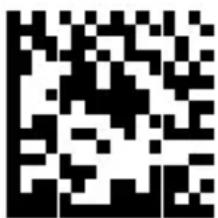
*Set All Defaults
Keyboard Wedge Host Types
Use this parameter to select the keyboard wedge host.

NOTE: For a list of supported scanner functionality by communication protocol, see Communication Protocol Functionality in the Product Reference Guide.
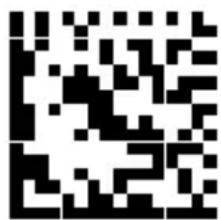
IBM PC/AT & IBM PC Compatibles
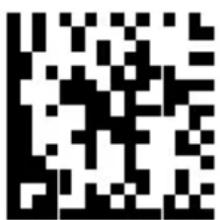
*IBM AT Notebook
Country Code Barcodes
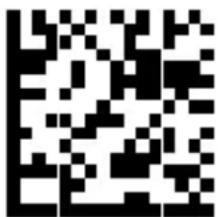
*US English (North American)
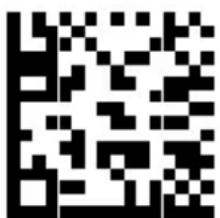
French (France)
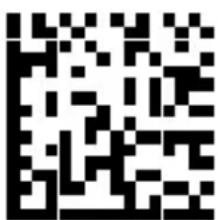
German
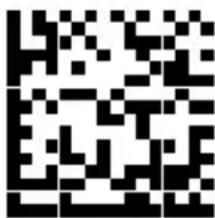
Italian
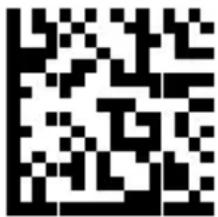
Portuguese (Brazil) (Windows XP)
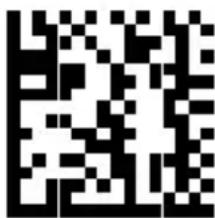
Russian
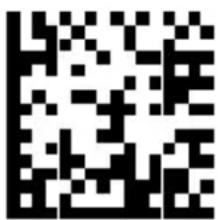
Spanish
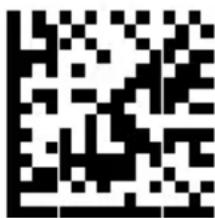
Swedish
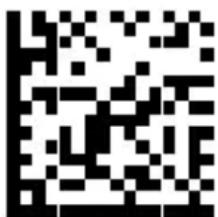
UK English
RS-232 Host Types
Select an RS-232 host interface using one of the following options.
Notes on using RS-232 host types:
- For a list of supported scanner functionality by communication protocol, see Communication Protocol Functionality in the Product Reference Guide
- Scanning Standard RS-232 activates the RS-232 driver, but does not change port settings (for example, parity, data bits, handshaking). Selecting another RS-232 host type barcode changes these settings.
- The CUTE host disables all parameter scanning, including Set Defaults. If you inadvertently select CUTE, scan Enable Parameter Barcode Scanning in the Product Reference Guide and then change the host selection.
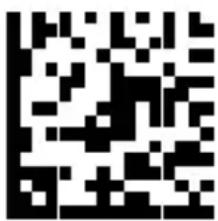
*Standard RS-232
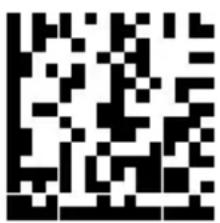
ICL RS-232
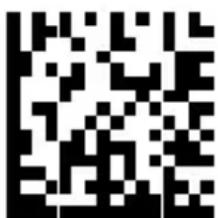
Nixdorf RS-232 Mode A
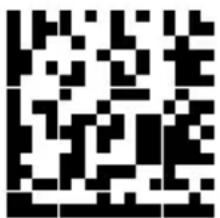
Olivetti ORS4500
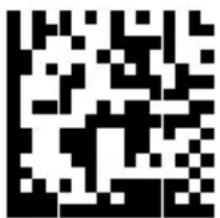
Omron
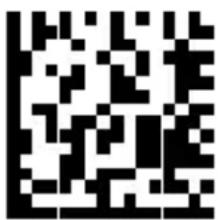
OPOS/JPOS
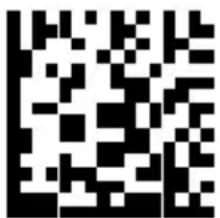
Fujitsu RS-232
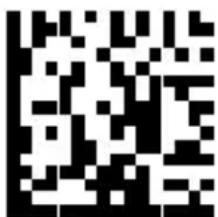
CUTE
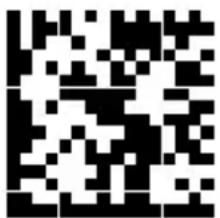
NCR
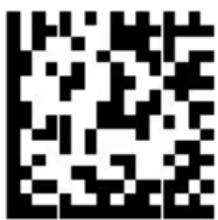
Datalogic Variant
USB Device Type
Scan one of the following barcodes to select the USB device type.
To select a country keyboard type for the USB HID Keyboard host, see Country Codes.
- When changing USB device types, the scanner resets and issues the standard startup beep sequences.
- When connecting two scanners to a host, IBM does not allow selecting two of the same device type. If you require two connections, select an IBM Table-top USB for one scanner and an IBM Hand-held USB for the second scanner.
- Select OPOS (IBM Hand-held with Full Disable) to completely shut off the scanner when an IBM register issues a Scan Disable command, including aim, illumination, decoding, and data transmission.
- Before selecting USB CDC Host, ensure your host OS has a USB CDC driver installed. For reference, Windows 10 includes a native (built-in) USB CDC driver. To recover a scanner stalled (non-functional) in USB CDC mode: Either install a USB CDC Driver or after power-up, hold the trigger for 10 seconds (which allows the scanner to recover), then scan another USB Device Type barcode.
- Select USB HID POS to communicate over a USB cable with Microsoft's Universal Windows Platform (UWP) applications running on Windows 10 devices.
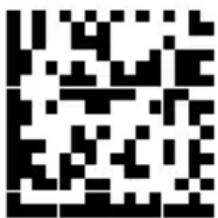
*USB HID Keyboard
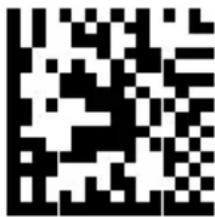
IBM Table-top USB
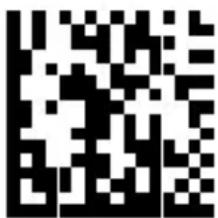
IBM Hand-held USB
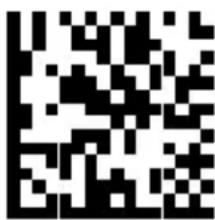
OPOS (IBM Hand-held with Full Disable)
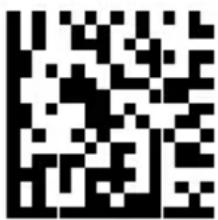
USB CDC Host
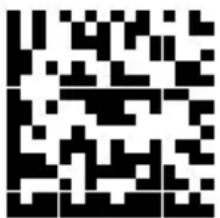
SSI over USB CDC
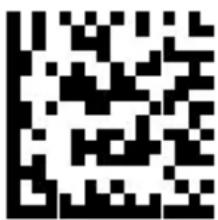
Symbol Native API (SNAPI) without Imaging Interface
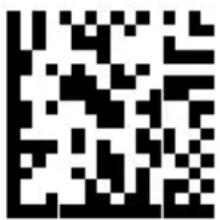
Symbol Native API (SNAPI) with Imaging Interface
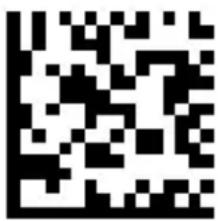
USB HID POS (Windows 10 devices only)
Regulatory Information
This device is approved under Zebra Technologies Corporation.
This guide applies to the following model numbers:
• SM7201
- SM7208
All Zebra devices are designed to be compliant with the rules and regulations in the locations they are sold and will be labeled as required.
Local language translation / (BG) Превод на местен език / (CZ) Překlad do místního jazyka / (DE) Übersetzung in die Landessprache / (EL) Μετάφραση τοπικής γλώσσας / (ES) Traducción de idiomas locales / (ET) Kohaliku keele tõlge / (FI) Paikallinen käännös / (FR) Traduction en langue locale / (HR) Prijevod na lokalni jezik / (HU) Helyi nyelvű fordítás / (IT) Traduzione in lingua locale / (JA) 現地語翻訳 / (KR) 現지 언어 번역 / (LT) Vietinės kalbos vertimas / (LV) Tulkojums vietējā valodā / (NL) Vertaling in lokale taal / (PL) Tłumaczenie na język lokalny / (PT) Tradução do idioma local / (RO) Traducere în limba locală / (RU) Перевод на местный язык / (SK) Preklad do miestneho jazyka / (SL) Prevajanje v lokalni jezik / (SR) Превод на локални језик / (SV) Översättning av lokalt språk / (TR) Yerel dil çevirisi / (ZH-CN) 当地语言翻译 / (ZH-TW) 當地語言翻譯
zebra.com/support
Any changes or modifications to Zebra equipment not expressly approved by Zebra could void the user's authority to operate the equipment.
Declared maximum operating temperature: [50]°C
不在中国之外销售服务和使用
Regulatory Markings
Regulatory markings subject to certification are applied to the device. Refer to the Declaration of Conformity (DoC) for details of other country markings. The DOC is available at: zebra.com/doc.
Optical Devices
LED
Risk Group classified according to IEC 62471:2006 and EN 62471:2008.
• Red Pulse Duration: 1.2 ms
RGO
• White Pulse Duration: 1.2 ms
RGO
• IR Pulse Duration: 7.5 us
RGO
Power Supply

WARNING: ELECTRICAL SHOCK Use only a Zebra approved,
Certified ITE LPS power supply with appropriate electrical ratings.
Use of alternative power supply will invalidate any approvals given to this unit and may be dangerous.

Marking and European Economic Area (EEA)
Statement of Compliance
Zebra hereby declares that this device is in compliance with Directives 2014/30/EU, 2014/35/EU, and 2011/65/EU.
The full text of the EU Declaration of Conformities is available at:
zebra.com/doc.
EU Importer : Zebra Technologies B.V
Address: Mercurius 12, 8448 GX Heerenveen, Netherlands
Environmental Compliance
For compliance declarations, recycling information, and materials used for products and packaging, please visit www.zebra.com/environment.
Waste Electrical and Electronic Equipment (WEEE)
For EU and UK Customers: For products at the end of their life, please refer to recycling/disposal advice at: www.zebra.com/weee.
United States and Canada Regulatory
Radio Frequency Interference Notices
This device complies with Part 15 of the FCC Rules. Operation is subject to the following two conditions: (1) this device may not cause harmful interference, and (2) this device must accept any interference received including interference that may cause undesired operation.
Radio Frequency Interference Requirements – Canada
Innovation, Science and Economic Development Canada ICES-003 Compliance Label: CAN ICES-003 (B)/NMB-003(B)
This device complies with Innovation, Science and Economic Development Canada's licence-exempt RSSs. Operation is subject to the following two conditions: (1) This device may not cause interference; and (2) This device must accept any interference, including interference that may cause undesired operation of the device.
flowchart
graph TD
    A["合格证"] --> B
产品中有害物质的名称及含量
有害物质 | ||||||
| 部件名称(Parts) | ||||||
| 铅(Pb) | 汞(Hg) | 镉(Cd) | 六价铬(Cr(VI)) | 多溴联苯(PBB) | 多溴二苯醚(PBDE) | |
| 金属部件(Metal Parts) | X O O | O O O | ||||
| 电路模块(Circuit Modules) | X O O | O O O | ||||
| 电缆及电缆组件(Cables and Cable Assemblies) | O O O | O O O | ||||
| 塑料和聚合物部件(Plastic and Polymeric Parts) | O O O | O O O | ||||
| 光学和光学组件(Optics and Optical Components) | O O O | O O O | ||||
| 电池(Batteries) | O O O | O O O | ||||
Statement of Compliance
Zebra hereby declares that this device is in compliance with Electromagnetic Compatibility Regulations 2016, the Electrical Equipment (Safety) Regulations 2016 and the Restriction of the Use of Certain Hazardous Substances in Electrical and Electronic Equipment Regulations 2012.
The full text of the UK Declaration of Conformities is available at: zebra.com/doc.
UK Importer: Zebra Technologies Europe Limited
Address:
Dukes Meadow, Millboard Rd, Bourne End, Buckinghamshire, SL8 5XF
Warranty
For the complete Zebra hardware product warranty statement, go to: zebra.com/warranty.
Service Information
Before you use the unit, it must be configured to operate in your facility's network and run your applications.
If you have a problem running your unit or using your equipment, contact your facility's Technical or System Support. If there is a problem with the equipment, they will contact Zebra support at zebra.com/support.
For the latest version of the guide go to: zebra.com/support.
Software Support
Zebra wants to ensure that customers have the latest entitled software at the time of device purchase in order to keep the device operating at peak performance levels. To confirm that your Zebra device has the latest entitled software available at the time of purchase, go to zebra.com/support.
Check for the latest software from Support > Products, or search for the device and select Support > Software Downloads.
If your device does not have the latest entitled software as of your device purchase date, e-mail Zebra at entitlementservices@zebra.com and ensure you include the following essential device information:
- Model number
- Serial number
- Proof of purchase
- Title of the software download you are requesting.
If it is determined by Zebra that your device is entitled to the latest version of software, as of the date you purchased your device, you will receive an
e-mail containing a link directing you to a Zebra Web site to download the appropriate software.
Product Support Information
- For information on using this product, see the User Guide at zebra.com/support.
- To find quick answers to known product behaviors, access our knowledge articles at supportcommunity.zebra.com/s/knowledge-base.
- Ask your questions in our Support community at supportcommunity.zebra.com.
- Download product manuals, drivers, software, and view how-to videos at zebra.com/support.
- To request a repair for your product, go to zebra.com/repair.
- Terms of Use
- Proprietary Statement
- Product Improvements
- Liability Disclaimer
- Limitation of Liability
- Service Information
- Getting Started
- Unpacking the Scanner
- Features
- Theory of Operation
- Power Options
- SM7201 (5VDC USB Only)
- SM7208 (Multi-Interface)
- Host Interfaces
- Installation
- Connecting Cables to the SM72
- Connecting an External Speaker
- Mounting
- Panel Mounting with Threaded Studs
- Panel Mounting with a Strap
- Kiosk Mounting
- Location and Positioning
- Embedded Applications Requiring a Window
- Maintenance, Troubleshooting, and Specifications
- Maintenance
- Known Harmful Ingredients
- Approved Cleaners
- Cleaning the Scanner
- Scanner connectors:
- Troubleshooting
- Programming
- Set Default Parameter
- Keyboard Wedge Host Types
- RS-232 Host Types
- USB Device Type
- Regulatory Information
- zebra.com/support
- Regulatory Markings
- Optical Devices
- LED
- Power Supply
- Marking and European Economic Area (EEA)
- Statement of Compliance
- Environmental Compliance
- Waste Electrical and Electronic Equipment (WEEE)
- United States and Canada Regulatory
- Radio Frequency Interference Notices
- Radio Frequency Interference Requirements – Canada
- Warranty
- Software Support
- Product Support Information
Brand : ZEBRA
Model : SM72
Category : To scan