
DX20 - Loudspeaker Majority - Free user manual and instructions
Find the device manual for free DX20 Majority in PDF.


| Product Type | 2.1-Channel PC Speaker System (Subwoofer + Left & Right Speakers) |
| Brand | Majority |
| Model | DX20 |
| Power Input | DC 5V (via USB or power adapter) |
| Total RMS Power | 11W (2 x 3W + 5W) |
| Bluetooth Version | 5.0 |
| Bluetooth Range | Up to 10 meters (typical) |
| Dimensions (Subwoofer) | 18.2 x 16.8 x 21 cm (W x D x H) |
| Dimensions (Satellites) | 10 x 10 x 17.6 cm each (W x D x H) |
| Input Sources | Bluetooth, USB, TF/SD Card, AUX (3.5mm) |
| Supported Audio Formats | MP3 (USB/TF) |
| Controls | Bass, Treble, Volume knobs; Power/Mode, Play/Pause, Prev, Next buttons on subwoofer; Desktop control knob for volume/mode |
| Indicator Lights | Bluetooth flashing blue (pairing), solid blue (connected); Purple for AUX, USB, SD modes |
| Box Contents | 1 Subwoofer, 1 Left Speaker, 1 Right Speaker, User Manual |
| Cable Length (Power) | Approx. 1.2 meters (unwind to full length) |
| Safety Certifications | CE, RoHS (implied) |
| Warranty | Extended warranty available via registration at majority.co.uk within 30 days |
Frequently Asked Questions - DX20 Majority
If pairing fails, ensure no other device is connected and restart the process.
User questions about DX20 Majority
0 question about this device. Answer the ones you know or ask your own.
Ask a new question about this device
Download the instructions for your Loudspeaker in PDF format for free! Find your manual DX20 - Majority and take your electronic device back in hand. On this page are published all the documents necessary for the use of your device. DX20 by Majority.
USER MANUAL DX20 Majority
natural_image
Black audio/video audio setup with three speakers and a central speaker (no visible text or labels)Instructions Guide
Contents
Controls And Functions.... 1-3
What's In The Box? 4
Mode And Parameters 5
Using the USB Input 6
Using the TF Input 7
Using the MP3 LINK Connection (AUX In) 8
Connecting to the Mains Supply 9
Bluetooth Operation 10
Troubleshooting.... 11
Support And Warranty.... 12
Safety Information.... 13
Back View
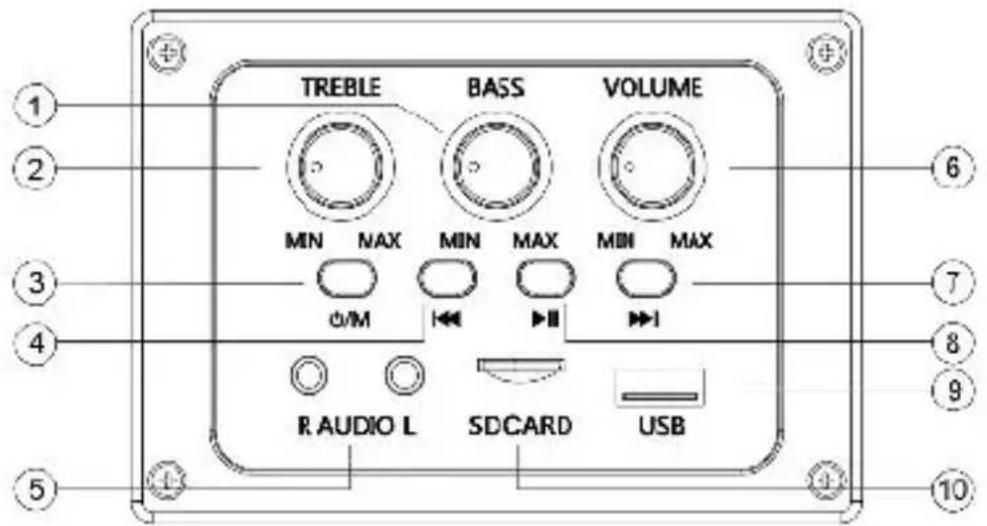
1.BASS Volume
2.TRBLE Volume
3. Power/Mode
4. Prev
5.L&R Speaker
6.Main Volume
7.Next
8.Play/Pause
9.USB
10.SD Card
Desktop Control Buttons
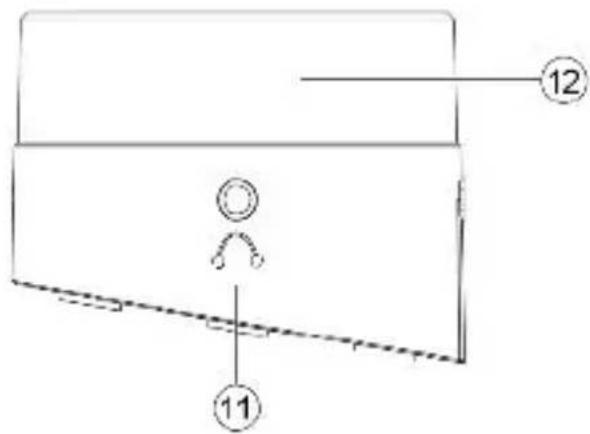
11.Earphones 12.Mode&MAIN Volume
Controls And Functions
| Button Operate Action Function | |||
| TREBLE | Rotate | Clockwise Rotation | Increase the treble volume |
| Anti-clockwise Rotation | Reduce the treble volume | ||
| BASS | Rotate | Clockwise Rotation | Increase the treble volume |
| Anti-clockwise Rotation | Reduce the treble volume | ||
| VOLUME | Rotate | Clockwise Rotation | Increase the treble volume |
| Anti-clockwise Rotation | Reduce the treble volume | ||
| Button Operate | Function | |
| Short Press | BT => AUX => USB => TF | |
| Long Press | Power On | |
| Power Off | ||
| Short Press | Bluetooth / USB / SD card function: Paused | |
| Press | Last song: PREV | |
| Press | Next song: NEXT | |
Controls And Functions
| Desktop Control | Operate | Action | Function | |
 | Rotate | Clockwise Rotation | Increase the main volume | |
| Anti-clockwise Rotation | Reduce the main volume | |||
 | Short Press | Short Press | BT => USB => SD => AUX | |
 | Insert Earphones | Insert Earphones | External headsets play. | |
| Name | Specification Function |
| AUDIO Port | Left and Right Speaker Output |
| SD Port | MP3 |
| USB Port | MP3 |
Box Contents
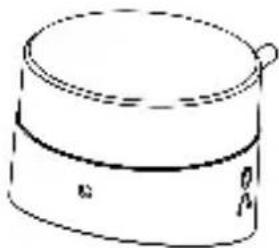
1.Subwoofer x1
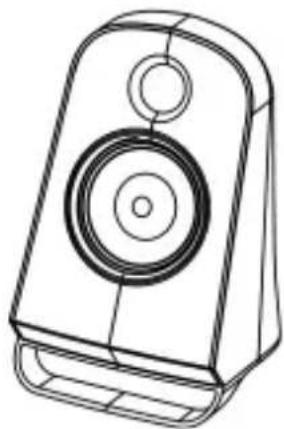
2.Left Speaker x 1
3.Right Speaker x 1
1
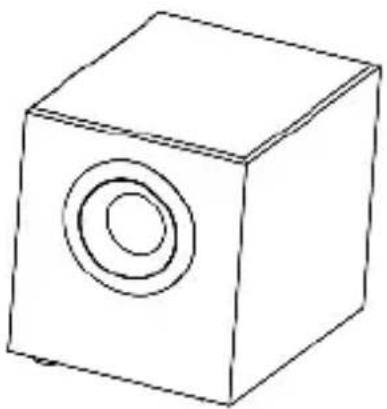
natural_image
Simple line drawing of a cube with a circular hole on its top face (no text or symbols)2
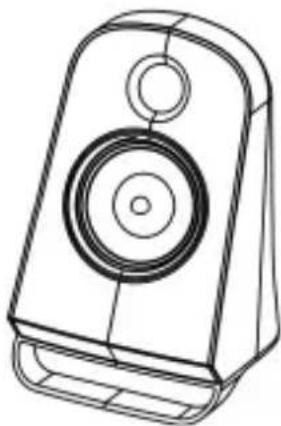
natural_image
Line drawing of a speaker with two circular components (no text or symbols)3
natural_image
Line drawing of a speaker with two circular components (no text or symbols)4
natural_image
Simple line drawing of a cylindrical container with a side handle and two labeled points (no text or symbols)5

natural_image
Simple 3D illustration of a blank rectangular book or document (no text or symbols visible)Modes And Parameters
Mode Indicator Lights
| State Indicator Lights | Product Function Prompt Sound | |
| Bluetooth ready Flashing blue | Bluetooth Mode | |
| Bluetooth connected Blue | / | |
| Aux-In Mode | Purple | AUX Mode |
| USB Mode | Purple | USB Mode |
| SD Card Mode | Purple | Play by TF Card |
Specifications
| Power Input | DC 5V |
| RMS | 2*3W+5W |
| Bluetooth V5.0 | |
| Dimension (WxHxD) | 10*10*17.6CM (Left and Right Speaker)18.2*16.8*21CM ( Wooden Case) |
Using the USB Input
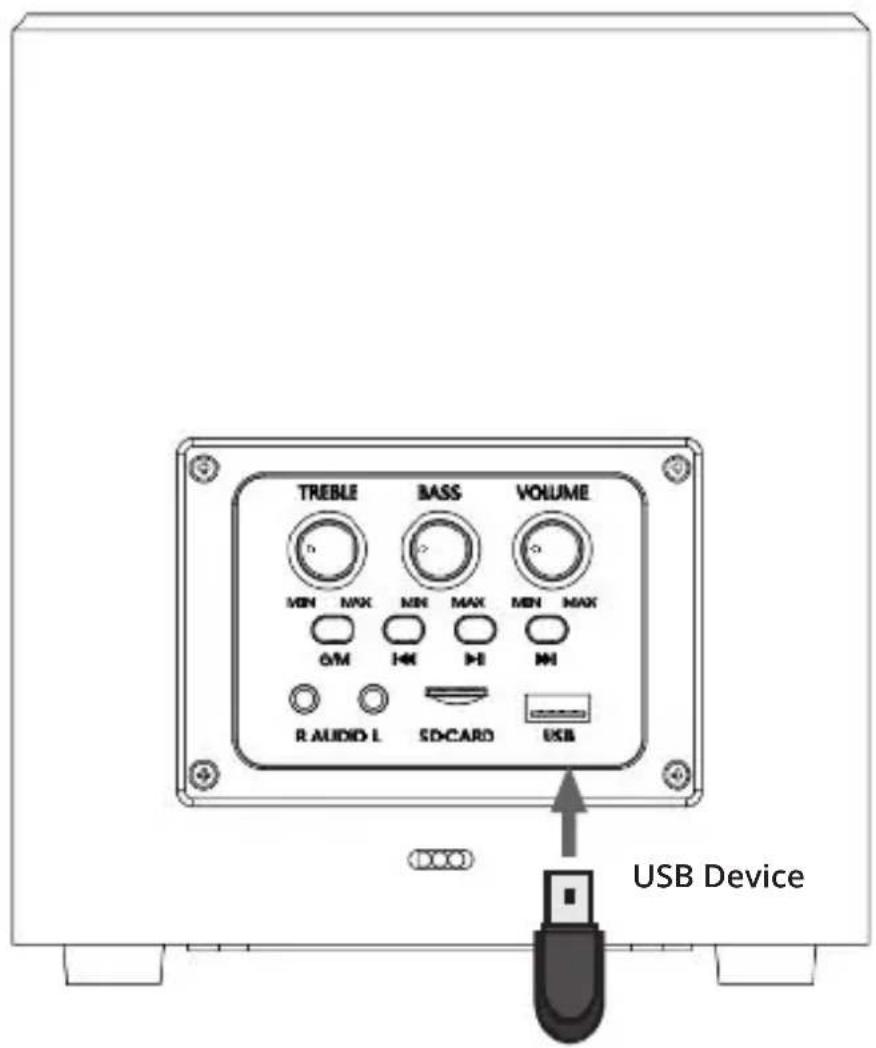
- Insert your USB drive/stick into the USB port that can be found on the back of the subwoofer
- Press POWER/MODE button on the subwoofer to change the DX20 into USB mode. The mode LED light indicator will turn Purple.
3.Once all set-up, music from USB drive/stick will automatically start to play.
Using the TF Input
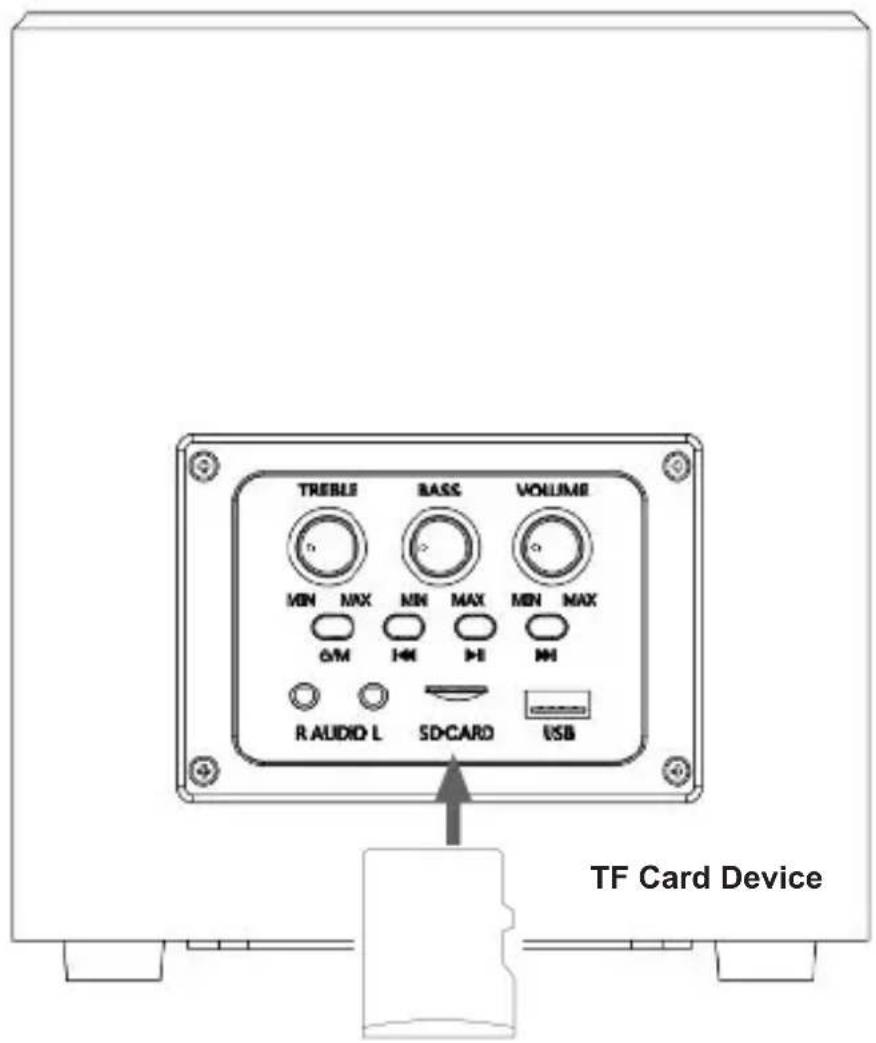
- Insert yourTF Card into the SD Card port on the subwoofer.
- Press the POWER/ MODE button on the subwoofer to change the mode for SD card. The mode LED light indicator will turn Purple.
- Once all set-up, music from SD/TF card will automatically start to play.
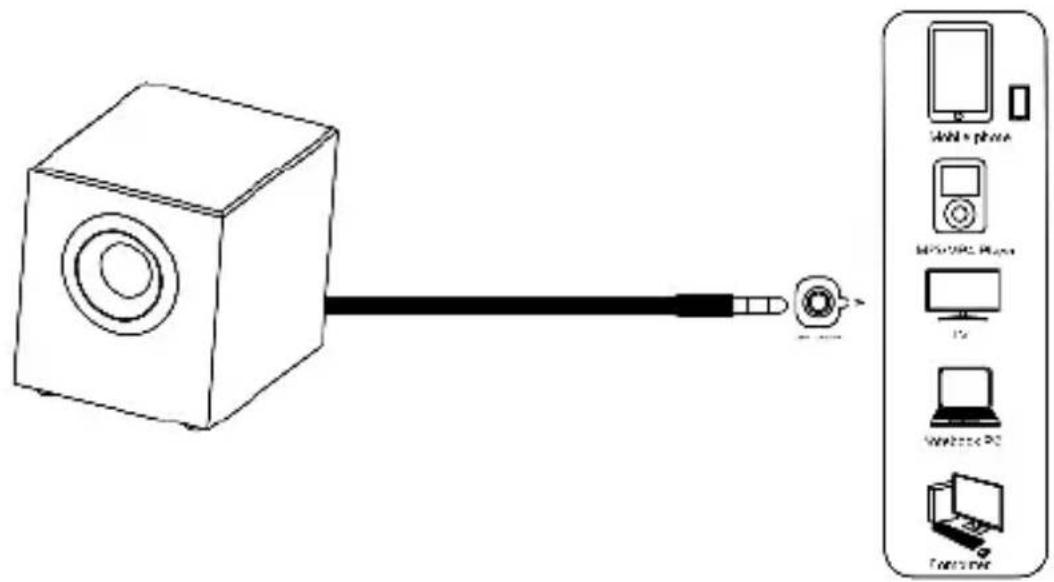
Using the MP3 Connection (AUX-In)
- Plug the other end of the AUX cable into audio output/headphone jack on your MP3 player or other audio device.
- Press the POWER/MODE button to change the mode into Line-in. The mode LED light indicator will turn Purple.
- Once all set-up, you can play audio from your MP3 player or other audio device.
Connecting to the Mains Supply
Ensure that the power supply voltage is within the range of 100V-240V.
This unit is designed to use a power adapter or USB port.
Unwind the mains cable to its full length.
Connect the mains plug to a mains socket.
Make sure the mains plug is fully inserted into the mains socket.
Connect the adapter to the unit via the DC Input socket.
(DC-5V-IN)
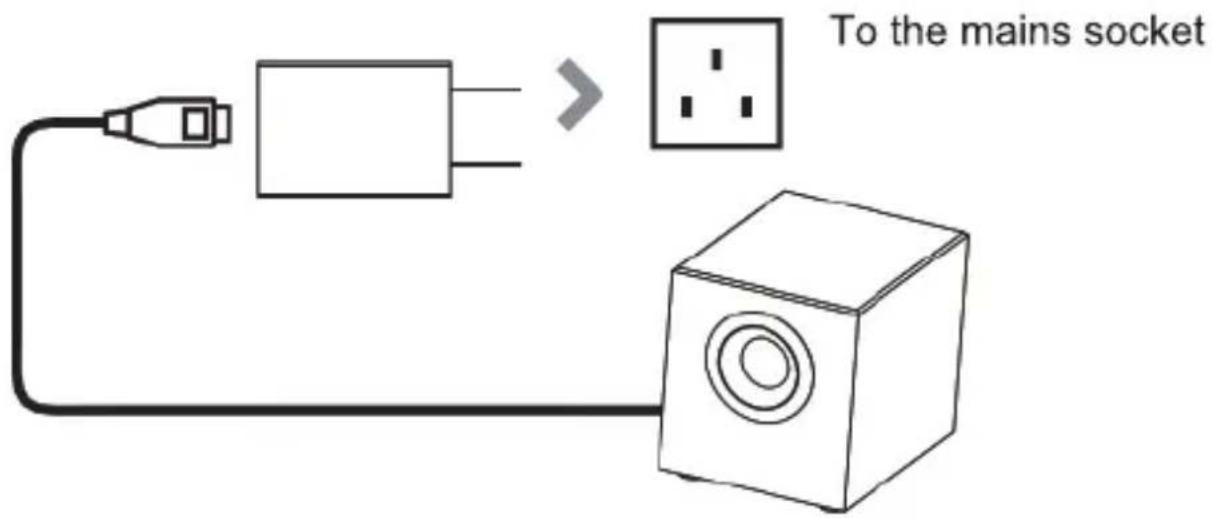

Ensure all audio cables are properly connected before inserting the power cable into the mains socket.
Unplug the power cord from the outlet when the unit is not in use for an extended period of time.
Pairing a Bluetooth Device for the First Time
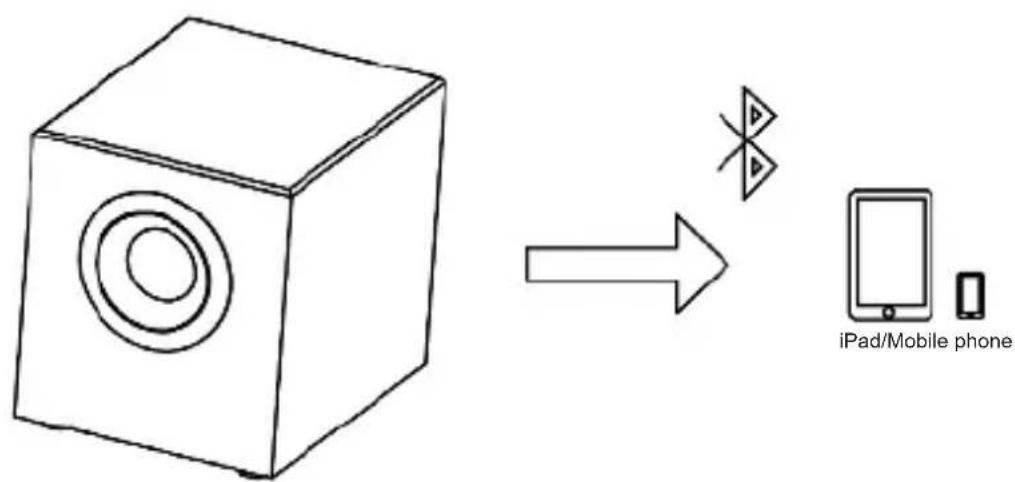
Select and press POWER/MODE button on the Subwoofer until Bluetooth mode is selected, indicated by a flashing blue light.
Using the native controls on your Bluetooth device, select the “Majority DX20” when prompted to choose a Bluetooth device.
When successfully paired and connected, a beep will be used to find the unit and the Pairing Indicator will display a solid blue light. After initial pairing, the unit will stay paired unless unpaired manually by the user, or until the device is reset.
To unpair, hold down the PAIR button for 3 seconds. You can now pair the device with another Bluetooth device.
In case your device will disconnect from DX20, or if you are unable to connect please start over again following the paring steps again.
flowchart
graph LR
    A["Speaker"] --> B["Smartphone"]
    style A fill:#f9f,stroke:#333
    style B fill:#bbf,stroke:#333
If you encounter an issue with your DX20, please refer to the following checklist.
| Issue | Possible Cause | Solution |
| Bluetooth does not connect / could not find Bluetooth device. | 1.Speakers are already paired to another Bluetooth device.Product or phone Bluetooth has not updated scanned. | 1. Make sure that the DX20 is not already connected to other devices via Bluetooth when trying to perform a Bluetooth search/connection.2. If you are having issues connecting via Bluetooth, try turning off the product and leave it switched off for 15 seconds, then right after power on the device and search for a Bluetooth connection. To do this please switch the DX20 into Bluetooth Mode and try to connect to a new device. |
| Doesn't read USB stick. | 1. Check if there are music files in the USB and the music format.2.Check if the USB is damaged. | 1 .Verify that the USB has a music file and can be reinserted.2. Replace with a new USB stick. |
| Doesn't read SD cards. | 1. Check if there are music files in the SD card and if the music format is supported.2. Check whether the SD card is damaged. | 1. Verify that the SD card has a music file and can be re-inserted.2. Replace with a new SD card. |
| AUX-IN: No sound on Line-In Mode | 1. Check whether the 3.5mm LINE-IN cable is good quality | 1.Retest with new lines.2 Re-plug the line. |
Support And Warranty
Support
If you require further assistance with your new DX20 PC Speakers, please contact our support team on the Majority website:
www.majority.co.uk/support
Warranty
Register your product at www.majority.co.uk within 30 days of purchase to activate your extended warranty. Terms and conditions applies.
Safety Information
- Read these instructions.
- Keep these instructions. Instructions are also available for download at www.majority.co.uk
- Heed all warnings.
- Follow all instructions.
- Do no clean the apparatus near or with water 6. Do not block any ventilation openings. Install in accordance with the manufacturer's instructions 7.
Do not install near any heat sources such as radiators, heat registers, stoves, or other apparatus (including amplifiers) that produce heat. 8. Protect the power from being walked on or pinched
particularly at plugs, convenience receptacles, and the point where they exit from the apparatus.
-
Only use attachments/accessories specified by the manufacturer.
-
Unplug this apparatus during light storms or when unused for long periods of time.
-
Refer all servicing to qualified service personnel. Servicing is required when the apparatus has been damaged in a way, such as power-supply cord or plug is damaged, liquid has been spilled or objects have fallen into the apparatus, the apparatus has been exposed to the rain or moisture, does not operate normally or has been dropped.
-
No naked flame sources, such as lit candles, should be placed on the apparatus.
-
Dispose of used electrical products and batteries safely according to your local authority and regulations.
ADDITIONAL WARNINGS
The apparatus shall not be exposed to dripping or splashing and no objects filled with liquid, such as vases, shall be places on the apparatus.
Main plug is used to disconnect device and it should remain readily operable during intended use. In order to disconnect the apparatus from the main mains completely, the mains plug should be disconnected from the main socket outlet completely.
Battery shall not be exposed to excessive heat such as sunshine, fire or the like.

RECYCLING ELECTRICAL PRODUCTS
You should now recycle your waste electrical goods and in doing so help the environment.
This symbol means an electrical product should not be disposed of with normal household waste.
Please ensure it is taken to a suitable facility for disposal when finished with.

IMPORTANT: Please read all instructions carefully before use and keep for future reference.

Risk of electric shock. Do not open

Read all instructions carefully before use and keep for future reference
When servicing, use only identical replacement parts

CAUTI
RISK OF ELECTRIC SHOCK DO NOT OPEN


CAUTI
RISK OF ELECTRIC SHOCK DO NOT OPEN


IMPORTANT: Please read all instructions carefully before use and keep for future reference
MAJORITY
www.majority.co.uk
- Contents
- Controls And Functions.... 1-3
- What's In The Box? 4
- Troubleshooting.... 11
- Support And Warranty.... 12
- Safety Information.... 13
- Back View
- Desktop Control Buttons
- Controls And Functions
- Box Contents
- Modes And Parameters
- Using the USB Input
- Using the TF Input
- Using the MP3 Connection (AUX-In)
- Connecting to the Mains Supply
- Pairing a Bluetooth Device for the First Time
- Support And Warranty
- Support
- Warranty
- Safety Information
- ADDITIONAL WARNINGS
- RECYCLING ELECTRICAL PRODUCTS
- CAUTI
- MAJORITY
Brand : Majority
Model : DX20
Category : Loudspeaker