
IPC324ER3-DVPF28(36) - Camera UniView - Free user manual and instructions
Find the device manual for free IPC324ER3-DVPF28(36) UniView in PDF.


| Product Type | IP Camera |
| Model | IPC324ER3-DVPF28(36) |
| Brand | UniView |
| Resolution | 4MP (2560x1440) |
| Lens | 2.8mm or 3.6mm fixed |
| IR Distance | 30m |
| Day/Night | ICR auto switch |
| Power Supply | PoE (802.3af) or 12V DC |
| Power Consumption | < 12W |
| Dimensions | 70 x 70 x 180 mm |
| Weight | 0.5 kg |
| Ingress Protection | IP66 |
| Operating Temperature | -30°C to 60°C |
| Storage Temperature | -40°C to 70°C |
| Video Compression | H.265+/H.265/H.264 |
| Network Interface | 1x RJ45 10/100Mbps |
| Motion Detection | Supported |
| ONVIF | ONVIF Profile S/G |
| Maintenance | Clean lens with soft, dry cloth. Avoid solvents. |
| Safety | Use only certified power adapter. Follow installation instructions. |
| Spare Parts | Contact UniView support for replacement parts. |
| Repairability | Repairs should be carried out by qualified personnel. |
Frequently Asked Questions - IPC324ER3-DVPF28(36) UniView
User questions about IPC324ER3-DVPF28(36) UniView
0 question about this device. Answer the ones you know or ask your own.
Ask a new question about this device
Download the instructions for your Camera in PDF format for free! Find your manual IPC324ER3-DVPF28(36) - UniView and take your electronic device back in hand. On this page are published all the documents necessary for the use of your device. IPC324ER3-DVPF28(36) by UniView.
USER MANUAL IPC324ER3-DVPF28(36) UniView
Network Camera User Manual
Manual Version: V3.00
Thank you for your purchase. If you have any questions, please do not hesitate to contact your dealer.
Disclaimer
No part of this manual may be copied, reproduced, translated or distributed in any form or by any means without prior consent in writing from Zhejiang Uniview Technologies Co., Ltd (hereinafter referred to as Uniview or us).
The content in the manual is subject to change without prior notice due to product version upgrades or other reasons.
This manual is for reference only, and all statements, information, and recommendations in this manual are presented without warranty of any kind.
To the extent allowed by applicable law, in no event will Uniview be liable for any special, incidental, indirect, consequential damages, nor for any loss of profits, data, and documents.
Safety Instructions

CAUTION!
The default password is intended only for your first login. For security, we strongly recommend you set a strong password of at least 9 characters comprising digits, letters, and special characters.
Be sure to read this manual carefully before use and strictly comply with this manual during operation.
The illustrations in this manual are for reference only and may vary depending on the version or model. The screenshots in this manual may have been customized to meet specific requirements and user preferences. As a result, some of the examples and functions featured may differ from those displayed on your monitor.
- This manual is intended for multiple product models, and the photos, illustrations, descriptions, etc, in this manual may be different from the actual appearances, functions, features, etc, of the product.
- Uniview reserves the right to change any information in this manual without any prior notice or indication.
- Due to uncertainties such as physical environment, discrepancy may exist between the actual values and reference values provided in this manual. The ultimate right to interpretation resides in our company.
- Users are fully responsible for the damages and losses that arise due to improper operations.
Environmental Protection
This product has been designed to comply with the requirements on environmental protection. For the proper storage, use and disposal of this product, national laws and regulations must be observed.
Safety Symbols
The symbols in the following table may be found in this manual. Carefully follow the instructions indicated by the symbols to avoid hazardous situations and use the product properly.
| Symbol Description | |
 | Indicates a hazardous situation which, if not avoided, could result in bodily injury or death. |
 | Indicates a situation which, if not avoided, could result in damage, data loss or malfunction to product. |
 | Indicates useful or supplemental information about the use of product. |
Contents
Disclaimer
Safety Instructions
Environmental Protection
Safety Symbols i
1 Login 1
1.1 Preparation 1
1.2 Login 2
2 Live View 4
2.1 Live View 4
2.1.1 Digital Zoom 7
2.1.2 Capture 7
2.1.3 5ePTZ 8
2.2 PTZ Control 8
2.2.1 3D Positioning....10
2.2.2 Area Focus 10
2.2.3 Preset 11
2.2.4 Patrol 11
3 Playback 18
3.1 Playback Toolbar 18
3.2 Search and Play Recordings 19
3.3 Download Recordings....19
4 Photo 21
5 Setup 22
5.1 Local Parameters 22
5.2 Network 23
5.2.1 Ethernet 23
5.2.2 Port 25
5.2.3 E-mail 27
5.2.4 EZCloud 29
5.2.5 DNS 30
5.2.6 DDNS 30
5.2.7 SNMP 31
5.2.8 802.1x 33
5.2.9 QoS 33
5.2.10 WebSocket 34
5.3 Video & Audio 34
5.3.1 Video 35
5.3.2 Snapshot 36
5.3.3 Audio 38
5.3.4 ROI 39
5.3.5 View Cropping 40
5.3.6 Media Stream 41
5.4 PTZ 43
5.4.1 Basic PTZ Settings 43
5.4.2 Home Position 44
5.4.3 Pan/Tilt Limit 44
5.4.4 Remote PTZ Control 45
5.4.5 Preset Snapshot and Patrol Resumption 46
5.4.6 Orientation Calibration 46
5.5 Image 47
5.5.1 Image 47
5.5.2 OSD 59
5.5.3 Privacy Mask 63
5.5.4 Quick Focus 64
5.6 Smart 65
5.6.1 Alarm-triggered Actions 66
5.6.2 Arming Schedule 67
5.6.3 Cross Line Detection 68
5.6.4 Enter Area Detection 70
5.6.5 Leave Area Detection 71
5.6.6 Intrusion Detection 73
5.6.7 Object Removed Detection 75
5.6.8 Object Left Behind Detection 76
5.6.9 Defocus Detection 77
5.6.10 Scene Change Detection 77
5.6.11 Face Detection 78
5.6.12 Face Recognition 81
5.6.13 Human Body Detection 83
5.6.14 Mixed-Traffic Detection 84
5.6.15 People Flow Counting 86
5.6.16 Crowd Density Monitoring 88
5.6.17 Auto Tracking 90
5.6.18 Smoke and Fire Detection 91
5.6.19 Fire Detection 94
5.6.20 Attribute Collection 95
5.6.21 Advanced Settings 96
5.7 Alarm 97
5.7.1 Common Alarm 98
5.7.2 One-key Disarming 106
5.8 Storage 106
5.8.1 Memory Card 107
5.8.2 Network Disk 108
5.8.3 FTP 109
5.9 Security 111
5.9.1 User 111
5.9.2 HTTPS 114
5.9.3 Authentication 116
5.9.4 Registration Information 116
5.9.5 ARP Protection 116
5.9.6 IP Address Filtering 117
5.9.7 Access Policy.... 117
5.9.8 Watermark 119
5.9.9 WebSockets 119
5.10 System 119
5.10.1 Time 119
5.10.2 DST 120
5.10.3 Server 121
5.10.4 Device Information 123
5.10.5 Ports & External Devices 123
5.10.6 Maintenance 127
5.10.7 Logs 130
1 Login
1.1 Preparation
Refer to the camera's quick guide to install it properly, and then connect power to start up it. You can log in to the camera's web interface to perform management or maintenance operations.
The following takes IE on a Windows 7.0 operating system as an example.
1. Check before login
• The camera runs normally.
• The PC has a network connection to the camera.
- A web browser has been installed on the PC. Microsoft Internet Explorer 10.0 or later is recommended.
- For optimal display, it is recommended to choose a monitor with the highest resolution of the camera.

NOTE!
Recommended PC specifications for 32MP live view: CPU: Intel® Core™ i7 8700; Graphics card: GTX 1080; RAM: DDR4 8GB or higher.


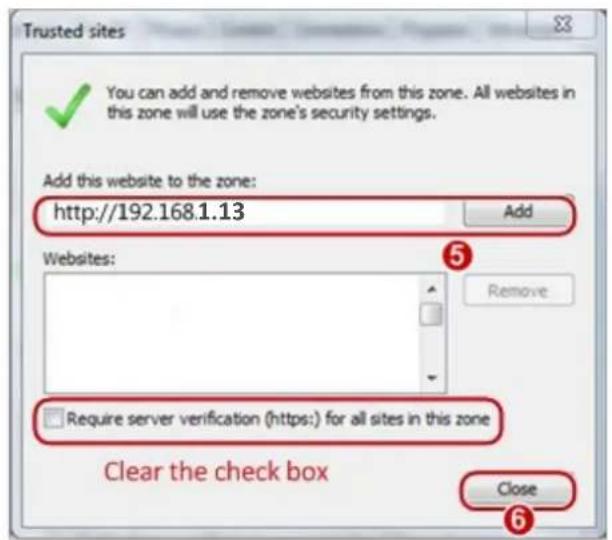

3. (Optional) Change user account control settings
Before you access the camera, it's recommended to set User Account Control to Never notify as shown below.

1.2 Login
The default static IP address of the camera is 192.168.1.13, and the default subnet mask is 255.255.255.0.
DHCP is enabled by default on the camera. If a DHCP server is deployed in the network, the camera may be assigned an IP address, and you need to use the assigned IP address to log in.
Follow the steps below to log in to the camera's web interface (take IE10 as an example):
- Open IE, enter the IP address of your camera in the address bar and press Enter.
- At your first login, you need to follow the on-screen instructions to install a plug-in (close all browsers before installation), and then open the browser again to log in. To manually load the plug-in, type http://IP address/ActiveX/Setup.exe in the address bar and press Enter.

Please click here to Download and install the latest plug-in. Close your browser before installation.
-
Set whether to start live view automatically after login.
-
With Live View selected, live view will start automatically after login.
- With Live View not selected, you need to start live view manually.
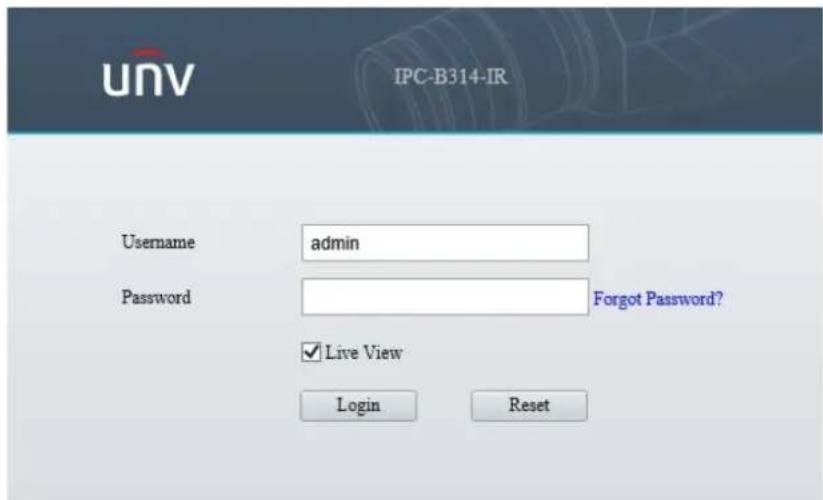
- After first login, the Change Password dialog box appears, in which you must set a strong password and enter your email address in case of password retrieval.
(1) Set a strong password of 9 to 32 characters including all three elements: digits, letters, and special characters.
(2) Enter your email address in case of password retrieval.

See User for more information.
If you forgot your password, click Forgot Password in the login page, then follow the on-screen instructions to reset your password.
2 Live View
2.1 Live View
The page shows the live video from the camera.
You may double-click the window to enter or exit full screen mode.
Live view page of dual-channel camera

Live view page of single-channel camera
![Proportional Scale Main Stream Sub Stream Third Stream 2024-04-13 17:53:04 Image Zoom Form Ira Prevent Panel 1 Preset 2 2 Preset 3 3 Preset 4 4 Preset 5 5 Preset 6 6 Preset 7 7 Preset 8 8 Preset 9 10 Preset 10 [25fps] [3.96Mfps] [250P=1440] [0.26] [0.00%]](/content/2026/05/906594/images/e01fb1f8844b0993bca873721aae8cdafba52a9dbb556386b865c41d57bd8e49.jpg)

NOTE!
Live view operations supported may vary with device model.
Live View Toolbar
| Item Description | |
 | Set the image display ratio in the window.Scale: Displays 16:9 images.Stretch: Displays images according to the window size (stretch images to fit the window).Original: Displays images with original size. |
 | Set the image display mode in the window.Single Channel: Displays live video of a single channel.Left/Right Split: Displays live video in left/right split mode.Top/Bottom Split: Displays live video in top/bottom split mode.Picture in Picture: Opens a floating live view window on top of the current window.NOTE!This function is only available on dual-channel cameras. |
 | 1: Stop/start live view of the selected channel.2: Start local recording.3: Switch streams. |
 | Select a live video stream according to your camera. |
| Image | Set image parameters. |
 | Start/stop live view. |
 | Turn off/on sound. |
 | Adjust the output volume for the media player on the PC.Range: 1 to 100. |
 | Adjust the microphone volume on the PC during audio communication between the PC and the camera.Range: 1 to 100. |
 | Frame rate/bit rate/resolution/packet loss rate. |
 | Take a snapshot from the displayed live video.NOTE!SeeLocal Parametersfor the path of the saved snapshots. |
 | Start/stop local recording.NOTE!SeeLocal Parametersfor the path of the saved local recordings.VLC media player is recommended for playing local recordings of 4K cameras. |
 | Start/stop two-way audio. |
| [7338] | Start/stop digital zoom. SeeDigital Zoomfor details. |
 | Start/stop capturing. SeeSnapshotfor details. |
 | Full screen. |
| [48XX] | Show/hide PTZ control panel. |
2.1.1 Digital Zoom
- Click in the live view toolbar to enable digital zoom.
![Proportional Scale Main Stream Sub Stream Third Stream 2022-04-13 17:33:04 星期5/02 告月 04.11 Image + - + - + - + - + - + - + - + - + - + - + - + - + - + - + - + - + - + - + - + - + - + - + - + - + - + - + - + - + - + - + - + - + - + - + - + - + - + - + - + - + - + - + - + - + - + - + - + - + - + - + + - + - + - + - + - + - + - + - + - + - + - + - + - + - + - + - + - + - + - + - + - + - + - + - + - + - + - + - + - + - + - + - + - + - + - + - + - + - + - + - + - + - + - + - + - + - + - + - + - + | + : [1] [0] [1] [2] [3] [4] [5] [6] [7] [8] [9] [10] + : [1] [2] [3] [4] [5] [6] [7] [8] [9] [10]](/content/2026/05/906594/images/4562784adbf2aa93737831021b6c60660b7ae1917c8f45d71a033a5bde1aa1d4.jpg)
-
View the magnified area.
-
Click in the live view window and roll the wheel to zoom in or out on the image. Drag your mouse to view all the magnified area. To restore, right-click in the window.
-
Click in the live view window and drag your mouse to specify the area (rectangular area) to be magnified. Drag your mouse to view all the magnified area. To restore, right-click in the window.
-
To exit, click

2.1.2 Capture

NOTE!
This function is only available on certain models.
- Click in the live view toolbar to start capture.
![Proportional Scale Main Stream Sub Stream Third Stream Image + - + - + - + - + - + - + - + - + - + - + - + - + - + - + - + - + - + - + - + - + - + - + - + - + - + - + - + - + - + - + - + - + - + - + - + - + - + - + - + - + - + - + - + - + - + - + - + - + - + - + + - + - + - + - + - + - + - + - + - + - + - + - + - + - + - + - + - + - + - + - + - + - + - + - + - + - + - + - + - + - + - + - + - + - + - + - + - + - + - + - + - + - + - + - + - + - + - + - + - + -12.5pm [4:12.5pm] [1500-1440] [1.367] [0.00%] +12.5pm [4:12.5pm] [1500-1440] [1.367] [0.00%]](/content/2026/05/906594/images/fbc823e32ee253a44e565f9220930be8998f0b6de504c1c880d10bbeb4fe94bf.jpg)
- View captured images.
- Click Open Image Folder to view the images captured from the live video on your PC. The images are saved in JPEG format.
You can change the storage location in Setup > Common > Local Parameters. If the disk has less than 100MB free space, you will be prompted to clear up the auto snapshot folder, and new snapshots will not be displayed in the live view page until the disk space is freed.
• To delete all captured images, click Clear All Records.
- To exit, click

2.1.3 5ePTZ
-
Click in the live view toolbar to enable 5ePTZ tracking.
-
Set the tracking area. In 5ePTZ tracking mode, the live view window is divided into 1 panoramic window and 5 tracking windows. You may rest the cursor on the tracking boxes in the panoramic window or tracking windows and use the scroll wheel to zoom in or out, and drag the tracking windows to rearrange them.
-
Enable perimeter protection (see Smart), then the camera can automatically detect moving objects in the detection area, and simultaneously track and enlarge 5 objects that trigger the alarm rules until the objects disappear.
-
To exit, click
2.2 PTZ Control

NOTE!
- This function is only available on PTZ cameras or cameras installed on PT mounts.
- Some lens control functions are available on cameras equipped with motorized lenses.
- The PTZ control buttons may vary with camera model.
PTZ Control Panel
| Item Description | |
 | Zoom in/out on images. |
 | Focus far/near for sharp images at a distance/at close range. |
 | Increase/reduce the amount of light that enters the camera for brighter/darker images. |
 | Scene lock, used for locking PTZ and lens.NOTE!After you lock the scene, the camera does not move, zoom and focus. |
 | 3D positioning. |
 | One-click focus. |
 | Area focus. |
 | Enable/disable wiper. |
 | Adjust the rotation speed of the camera. |
 | Adjust the rotation direction of the camera or stop rotation. |
 | Enable/disable IR. |
 | Enable/disable heater. |
 | Enable/disable light. |
 | Enable/disable snow removal. |
 | Adjust camera zoom. |
 | Auto back focus adjustment. |
 | Shortcut keys for PTZ control. After the mouse cursor changes to one of these shapes in live view, click and hold the left mouse button to operate the PTZ camera.NOTE!These buttons are unavailable when 3D positioning or digital zoom is enabled. |
 | Shortcut keys for zooming in or out in live view. Scroll the wheel forward to zoom in or backward to zoom out.NOTE!This function is only available on cameras with motorized lenses. |
2.2.1 3D Positioning

NOTE!
This function is only available on dome cameras and box cameras with motorized lens and PTZ.
- Click in the PTZ control panel to enable 3D positioning.
![Proportional Scale Main Stream Sub Stream Third Stream 20.22-04-13 17:53:09 KOSO2 停用 104.11 Image Zoom Focus Box Preview Pencil 1 Preview 1 2 Preview 2 3 Preview 3 4 Preview 4 5 Preview 5 6 Preview 6 7 Preview 7 8 Preview 8 9 Preview 9 10 Preview 10 + [150ps (4.1750ps) (2560×1440) (51.26)] [0.00%]](/content/2026/05/906594/images/fe4c62d022994340644f93636f0cd75d4030f585b36001b4f308ff5ef3281a78.jpg)
-
Click on the image and drag down/up to delineate a rectangular area to zoom in/out.
-
To exit, click
2.2.2 Area Focus
- Click in the PTZ control panel to enable area focus.
![Proportional Scale Main Stream Sub Stream Third Stream 2022-04-13 17:30:54 Image + + + - + - + - + - + - + - + - + - + - + - + - + - + - + - + - + - + - + - + - + - + - + - + - + - + - + - + - + - + - + - + - + - + - + - + - + - + - + - + - + - + - + - + - + - + - + - + - + - + - + - + + - + - + - + - + - + - + - + - + - + - + - + - + - + - + - + - + - + - + - + - + - + - + - + - + - + - + - + - + - + - + - + - + - + - + - + - + - + - + - + - + - + - + - + - + - + - + - + - + - + - + - + - + - + - + - + - + - + - + - + - + - + - + - + - + - + - + - + - + - + - + - + - + - + - + - + - + - + - + - + - + - + - + - + - + - + - + - + - + - + - + - + - + - + - + - + - + - + - + - + | + - + - + - + - + - + - + - + - + - + - + - + - + - + - + - + - + - + - + - + - + - + - + - + - + - + - + - + - + - + - + - + - + - + - + - + - + - + - + - + - + - + - + - + - + - + - + - + - + - + - + - + | + - + - + - + - + - + - + - + - + - + - + - + - + - + - + - + - + - + - + - + - + - + - + - + - + - + - + - + - + - + - + - + - + - + - + - + - + - + - + - + - + - + - + - + - + - + - + - + - + - + - + - + - [25fps (4.18Mbps) (2560=1440) (98.265) @ 0.00%] - [25fps (4.18Mbps) (2560=1440) (98.265) @ 0.00%)](/content/2026/05/906594/images/e57505ef60665827c1572fd40e5fc760225b31407a83907e001a3cd2a8ce4026.jpg)
-
Click on the image and drag to delineate a rectangular area to start auto focus in this area.
-
To exit, click
2.2.3 Preset
A preset position (preset for short) is a saved view used to quickly steer the PTZ camera to a specific position.
On the PTZ control panel, click Preset.
- Add a preset
- Use the PTZ directional buttons to steer the camera to the desired position.
- Select a preset not in use and click 🔒 to edit the preset name.
- Click to save.
- Call a preset
In the preset list, select the preset to call, and then click

- Delete a preset
In the preset list, select the preset to delete, and then click

2.2.4 Patrol
You can define a patrol route comprising several actions or presets or record a patrol route to allow the PTZ camera to automatically move along the route.
1. Add a patrol route
- Add a common patrol route
In a common patrol route, the PTZ camera performs linear motion between presets.
- On the PTZ control panel, click Patrol.

- Click +
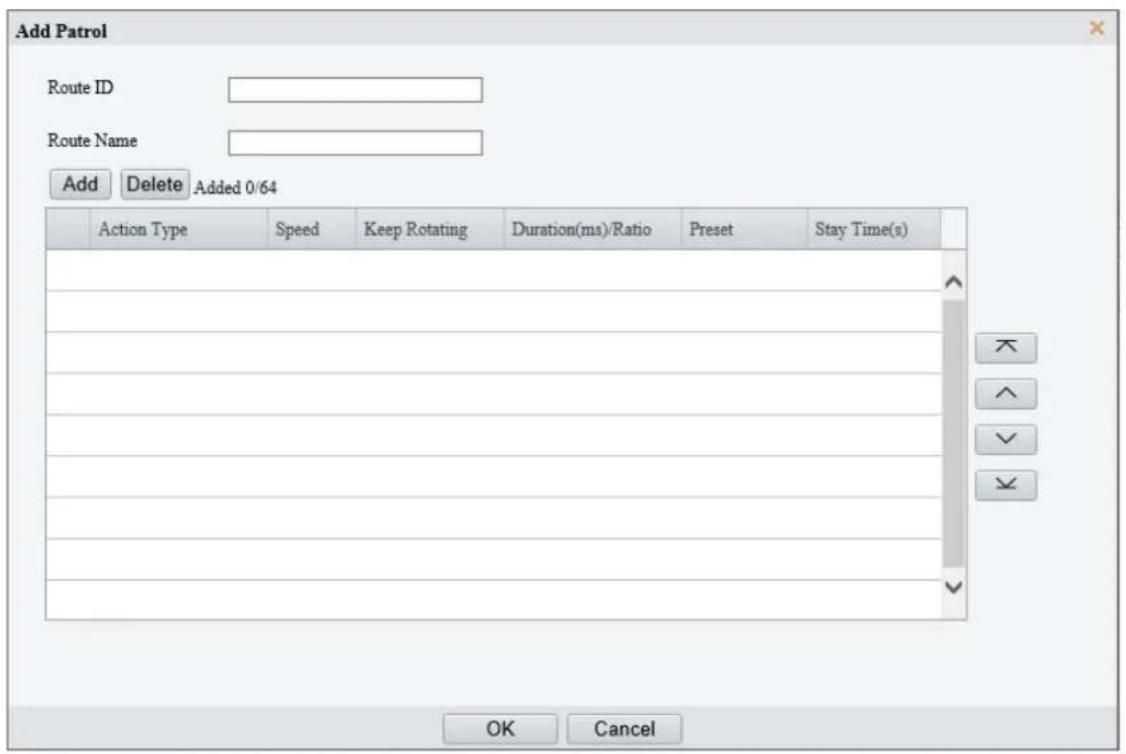
- Set the route ID and name. On certain models, you may need to set the Patrol Type to Common Patrol.
- Click Add to add patrol actions.

- Complete the action settings.
| Item Description | |
| Action Type | 10 options: Move Left, Move Right, Move Up, Move Down, Move Up Left, Move Up Right, Move Down Left, Move Down Right, Zoom, Goto Preset.Up to 64 actions are allowed. All action types except Goto Preset are recorded as 2 actions.You may use the up and down arrows to rearrange the patrol actions.NOTE!It is recommended to set the first action to Goto Preset. |
| Speed | Set how fast the camera performs the action. 1 means the slowest, 9 means the fastest. |
| Keep Rotating | When enabled, the camera repeats this action for patrol. |
| Duration(ms)/Ratio | Set the duration/zoom ratio for the action. |
| Preset | Select the preset you want the camera to go to. |
| Stay Time | Set the dwell time after the camera has performed the action.Range: 15s to 1800s. |
6. Click OK.
![Preset Patrol 1 [ceshi]](/content/2026/05/906594/images/260ca4bb9b54c41a08f0cd26e71c8ed9099cce1883cef712e8f1c7e85eab9884.jpg)
| Item Description | |
| Start patrol. | |
| Edit patrol route. | |
| Delete patrol route. | |
- Add a scan patrol route
In a scan patrol route, the camera rotates from the start preset to the end preset in a specified gradient and direction.

NOTE!
This function is only available on certain models.
- Before adding a scan patrol route, set presets first. See Preset for details.
- On the PTZ control panel, click Patrol.
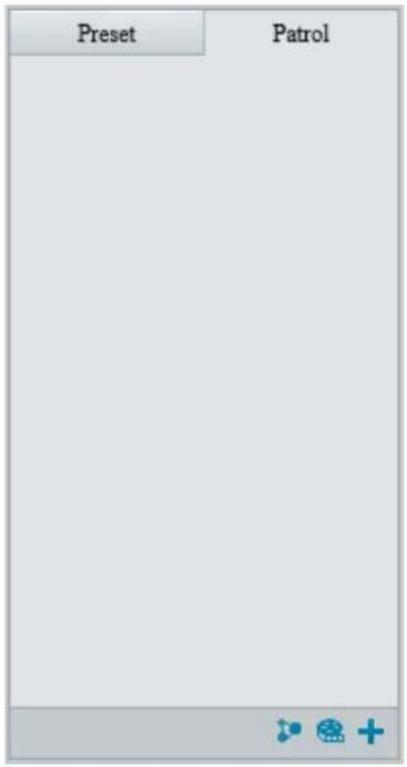
- Click +

![Add Patrol Patrol Type Scan Patrol Route ID 1 Route Name 1 Speed Tilt Gradient Initial Patrol Direction Start Preset End Preset 5 2.8 Clockwise 2[2] 1[1] OK Cancel](/content/2026/05/906594/images/98499a83314520cc16551f30216f4098272043a1bb10215831be00a90b3e01f2.jpg)
- Set the patrol type to Scan Patrol.
- Set the route ID and name.
- Set the patrol parameters.

| Item Description | |
| Speed | Set how fast the camera rotate. 1 means the slowest, 9 means the fastest. |
| Tilt Gradient | The average division value of the vertical distance between the start and end presets.The greater the value, the shorter the patrol route. |
| Initial Patrol Direction | The direction of the first rotation from the start preset to the end preset. |
| Start/End Preset | Select a preset from the drop-down list as the start/end preset. The start and end presets must be different. |
- Record a patrol route
- On the PTZ control panel, click Patrol.
![Preset Patrol 1 [1]](/content/2026/05/906594/images/a614af269d46983dce9f6cccd74ce367e3cd228f8d8186a739ae49e75f8a67b7.jpg)
- Click 📄 to start recording. You can adjust the direction, rotation speed and zoom of the camera during recording. All movement data of the camera will be recorded.
- Click ■ to finish recording and the recording is saved as a patrol route automatically.
![Preset Patrol 1 [1] 2 [Mode Route]](/content/2026/05/906594/images/f249b479d3a952aa890c772828e26308592e2c2f5d97578c773e92ce2b2e80b7.jpg)
2. Call a patrol route
Manual calls take precedence over scheduled calls.
Auto tracking and trigger tracking is executed only within the duration that the camera stays at a position during common patrol.
- Call manually
- On the PTZ control panel, click Patrol.
Select the patrol route to call and click ▶ to start patrol.
![Preset Patrol 1 [ceshi]](/content/2026/05/906594/images/dde55d86843b2bd0bf1be723cf70185eb6f0c2ac293f9ccdb898e0385fb8e906.jpg)
- Call by schedule
- On the PTZ control panel, click Patrol.
![Preset Patrol 1 [1] 2 [Mode Route]](/content/2026/05/906594/images/20f8cd86877ce9b091ffd27b36781cf96972cb828109d0faa97fce43de33fa74.jpg)
- Click
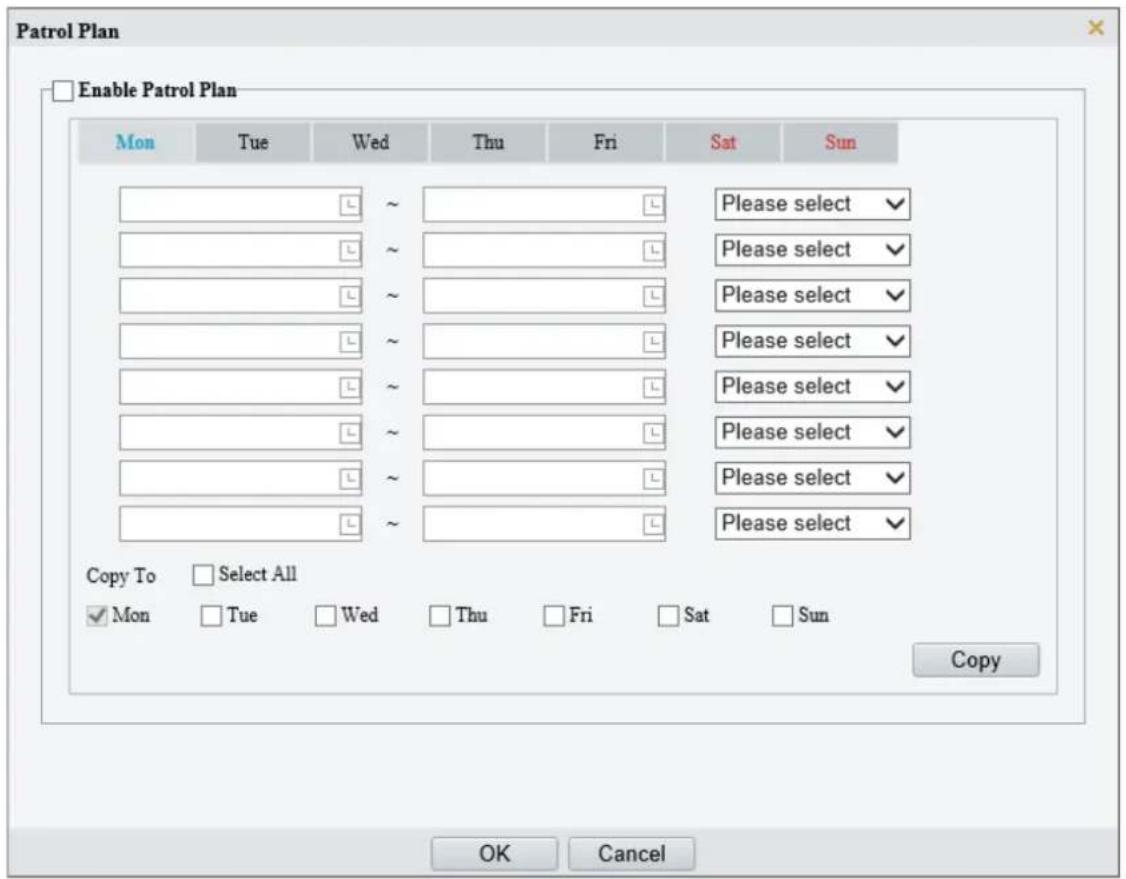
- Select the Enable Patrol Plan check box.
- Select the patrol route to call and set a start time and an end time for it.
- Click OK.
3 Playback

NOTE!
- Edge recordings refer to video recorded on storage media of cameras; local recordings refer to video recorded on a local PC.
- Before you search for edge recordings, make sure that the camera has storage resources such as memory card, and the storage parameters in Storage are properly configured.
- Recording playback and download functions are only available on certain models.
- For dual-channel devices, you can set playback parameters for the channels separately.
On the home page, click Playback.
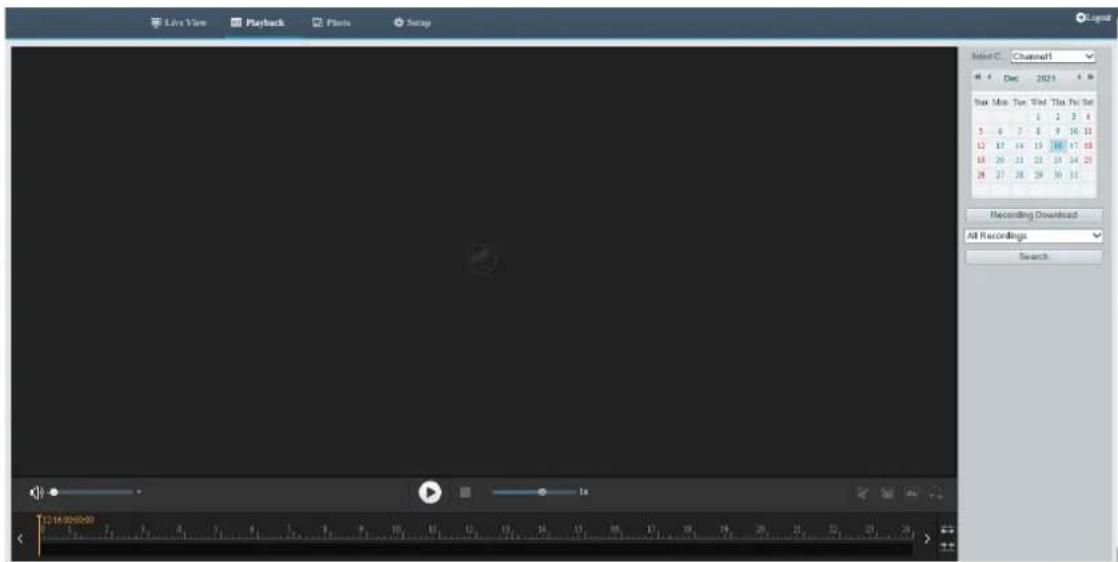
3.1 Playback Toolbar
| Button Description | |
 | Adjust sound volume. Range: 1 to 100. |
| [AZW] | Start playback. |
| [CWS] | Pause playback. |
| [KCS] | Stop playback. |
| [XICS] | Clip video. |
| [ZTCS] | Save. |
 | Adjust playback speed. The default playback speed is 1x. Both rewind and forward are supported. |
| [8Z3] | Take a snapshot. The snapshots are saved locally by default. You can change the storage location inLocal Parameters. |
| [TZHS] | Digital zoom. SeeDigital Zoomfor details. |
| [4DKS] | Zoom in/out on the time scale. You can also use the scroll wheel to zoom. |
 | When the time scale is zoomed in, you can clickorto view the previous or next section of the video. |
 | Playhead. Drag the playhead to skip to any point in the video. |
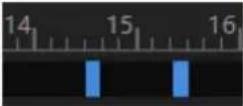 | Playback bar.Blue: Normal recording.Red: Alarm recording. To view alarm recordings, you need to configure alarm-triggered recording. See Alarm-triggered Actions for details. |
3.2 Search and Play Recordings
- In case of a multi-channel camera, select the channel to search for recordings.
- Select the date and recording type.
- Click Search.
- The search results are displayed. Double-click a result to play it back.

3.3 Download Recordings
You can download videos in batches or clip videos to download.
- Download in batches
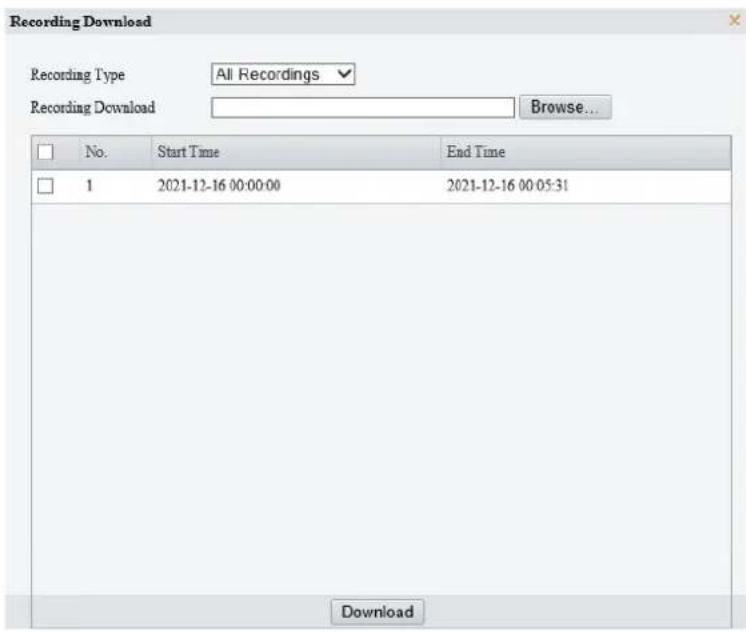
- Click Recording Download.
- Select the recording type, set the start time and end time, and then click Search.

- Click Browse... to set the path to the recordings.
- Select the recordings to download and click Download.
- Download video clips
- Search for the video to clip.

- In the playback toolbar, click
- Click in the time bar to determine the start time and end time.
- Click to finish. The time bar of the clip turns blue and green.

- Click
- Click Recording Download, select the video clip, and click Download.
4 Photo
View the photo storage status. See Storage for photo storage policy.

NOTE!
This function is only available on cameras with storage capabilities.
On the home page, click Photo.

| Item Description | |
| Refresh | Refresh the displayed content. |
| Export Export the selected photos. | |
| Delete Delete the selected photos. | |
| Export & Delete | Export the selected photos and delete them on the server. |
| Ascending Order | Arrange the items in chronological order. |
| Descending Order | Arrange the items in reverse chronological order. |
| SmartServer Used to store smart snapshots. | |
| CommonServer Used to store common snapshots. | |

NOTE!
To allocate photo capacity, go to Setup > Storage > Storage.
5.1 Local Parameters
Set local parameters for your PC, including smart, video, recording and snapshot.

NOTE!
The local parameters displayed may vary with camera model.
1. Go to Setup > Common > Local Parameters.
Smart
Intelligent Mark
On Off
Target Mark
√ Vehicle √ Non-Motor Vehicle √ Pedestrian
Object Attributes
On Off
Font Size
Small
Display Human Body Sn...
On Off
Note: When enabled, snapshots of human body will show in live view page. Only effective when face detection is enabled.
Video
Display Mode
Balanced
Protocol
TCP
Recording and Snapshot
Recording
Subsection By Time
Subsection Time (min)
30
When Storage Full
Overwrite Recording
Total Capacity(GB)
10
Local Recording
MP4
Files Folder
C:\Users\07053\WebPlugin_IPC\IPCUN
Browse... Open
Save
2. Set local parameters as needed.
| Item Description | ||
| Smart | Intelligent Mark | This function shall be used withCross Line Detection, Intrusion Detection, Enter Area,Leave Area,Mixed-Traffic Detection, andFace Detection. |
| Object Attributes | When enabled, the attributes of detected objects appear on the live view page. | |
| Font Size Set the font size of object attributes, includingLarge, Medium, and Small. | ||
| Display Human Body Snapshot | When enabled, human body snapshots appear on the live view page.NOTE!Only effective when face detection is enabled. | |
| Video | Display Mode | Set the display mode according to the network status, includingMin. Delay,Balanced, andFluent(from low delay to high delay). You may also customize the display mode as needed. |
| Protocol | Set the protocol used to transmit media streams to be decoded by the PC, includingTCP and UDP. | |
| Recording and Snapshot | Recording | Subsection By Time: Length of each local recording file. For example, 2 minutes.Subsection By Size: Size of each local recording file. For example, 10MB. |
| Subsection Time (min)/Subsection Size (MB) | Subsection Time (min): Available when Subsection By Time is selected. 1 to 60 minutes allowed.Subsection Size (MB): Available when Subsection By Size is selected. 10 to 1024MB allowed. | |
| When Storage Full | Overwrite Recording: When the local recording capacity is full, older recordings are overwritten automatically.Stop Recording: When the local recording capacity is full, recording stops automatically. | |
| Total Capacity (GB) | Allocate storage capacity for local recording.Range: 1 to 1024GB. | |
| Local Recording | Set the file format for saving local recordings, including TS and MP4. | |
| Files Folder | Set the location where snapshots and recordings are saved.Click Browse... to select the storage location.Click Open to quickly open the folder.NOTE!The maximum length of the directory is 260 bytes. If the limit is exceeded, recording or snapshot during live view will fail. | |
3. Click Save.
5.2 Network
5.2.1 Ethernet
Connect the camera to the network so that it can communicate with other devices.

NOTE!
After you change the IP address, you need to log in again with the new IP address.
- Go to Setup > Network > Network.
- Configure Ethernet parameters.
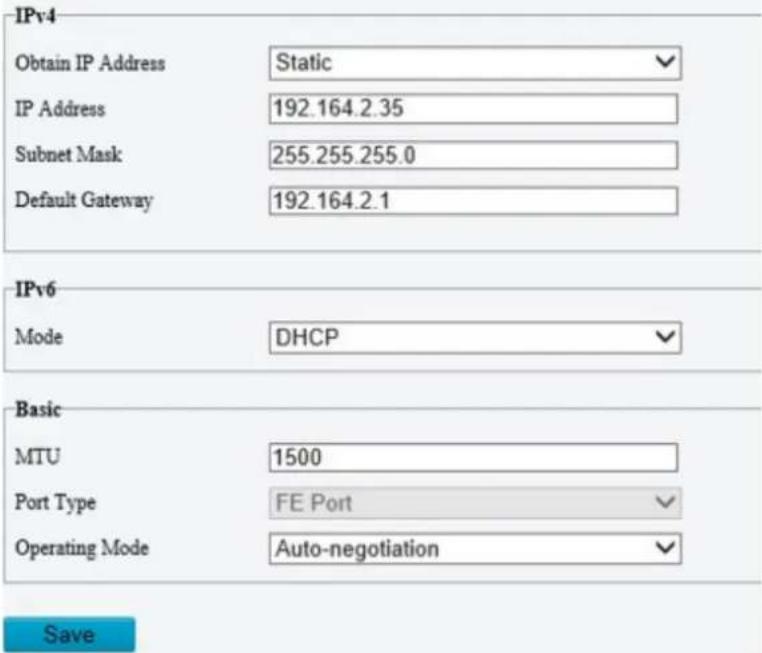
- IPv4
➢ Static Address (obtain IP manually)
(1) Select Static from the Obtain IP Address drop-down list.
(2) Enter the IP address, subnet mask, and default gateway address. Make sure that the IP address of the camera is unique in the network.
(3) Click Save.
PPPoE
Configure PPPoE to assign the camera a dynamic IP address to establish network connection.
(1) Select PPPoE from the Obtain IP Address drop-down list.
(2) Enter the username and password provided by your ISP (Internet Service Provider).
(3) Click Save.

DHCP
DHCP (Dynamic Host Configuration Protocol) is enabled by default. If a DHCP server is deployed in the network, the camera can automatically obtain an IP address from the DHCP server.
(1) Select DHCP from the Obtain IP Address drop-down list.
(2) Click Save.

• IPv6
DHCP
By default, the IPv6 mode is set to DHCP. The IP address is automatically obtained from the DHCP server.

Manual

(1) Set the IPv6 mode to Manual.
(2) Enter the IPv6 address, prefix length and default gateway. Make sure that the IPv6 address is unique in the network.
-
Set the MTU value, port type and operating mode.
-
MTU: Set the maximum packet size supported by the network in bytes. The greater the value, the higher the communication efficiency, the higher the transmission delay.
• Port Type: FE Port by default. - Operating Mode: Auto-negotiation by default.

- Click Save.
5.2.2 Port
-
Port
-
Go to Setup > Network > Port.
| HTTP Port | 80 |
| HTTPS Port | 443 |
| RTSP Port | 554 |
Note: Modifying the RTSP port number will cause the device to restart.
- You can use the defaults or customize them in case of port conflicts.

CAUTION!
- If the HTTP port number you entered has been used, a message "Port conflicts. Please try again." will appear. 23, 81, 82, 85, 3260, and 49152 have been assigned for other purposes and cannot be used.
-
In addition to the above port numbers, the system can also dynamically detect other port numbers that are already in use.
-
HTTP/HTTPS Port: If you change the HTTP/HTTPS port number, then you need to add the new port number after the IP address when logging in. For example, if the HTTP port number is set to 88, you need to use http://192.168.1.13:88 to log in to the camera.
-
RTSP Port: Real-Time Streaming Protocol port, enter an available port number.
-
Click Save.
2. Port Mapping
Configure port mapping so computers on the WAN can access your camera on the LAN.
- Go to Setup > Network > Port > Port Mapping.
- Enable Port Mapping.
- Select the mapping type.
- UPnP

Auto: Enable UPnP on the router, then the external port numbers are assigned automatically.
Manual: The external port numbers need to be set manually.
- Manual

If your router does not support UPnP, you need to set the external port numbers manually.
“Inactive” displayed in the Status column indicates that the port number you entered is already in use.
4. Click Save.
5.2.3 E-mail
Configure E-mail so that the camera can e-mail an alarm message to the specified email addresses when an alarm occurs.
1. Go to Setup > Network > E-mail.


2. Set the sender and recipient information.
| Item Description | |
| Sender Name Enter the device name. | |
| Sender Address Enter the device IP. | |
| SMTP Server/SMTP Port | Enter the IP address and port number of SMTP server of the sender's e-mail.The default SMTP port number is 25. |
| TLS/SSL Enable TLS/SSL to secure e-mail communication. | |
| Snapshot Interval | Set the interval for taking snapshots to be attached to alarm e-mails.NOTE!The interval for taking snapshots attached to alarm e-mails is subject to the settings on theE-mail page.Deep-learning exception detection functions captures 1 snapshot by default, and you do not need to set the snapshot interval for them. |
| Attach Image | When enabled, the camera will automatically send an alarm e-mail with 3 attached snapshots taken at se intervals in the event of an alarm.1. Select the Attach Image check box.2. Enable Snapshot and set the snapshot resolution as needed.Snapshot On OffResolution 2560×1440Max. Size (KB) 500Scheduled SnapshotSnapshot Interval(s) 1Number to Snapshot 1Snapshot Mode Schedule RepeatNo. Snapshot Time |
| Server Authentication | Enable SMTP server authentication to secure e-mail transmission. |
| Username/Password | Enter the username and password of the SMTP server.NOTE!The email only shows the sender name not the username.217.2.1.196-ly 217.2.1.196-ly: Motion Detection 03-07 10:23 489 KBThe password allows special characters. |
| Recipient Name/Address | Enter the e-mail name and address to receive e-mails.After recipient configuration, you can click Test to test the email sending function. |
3. Click Save.

5.2.4 EZCloud
You can add the camera to EZCloud via EZView app (without registering an EZCloud account) or EZCloud website to remotely access the camera.
Go to Setup > Network > EZCloud. EZCloud is enabled by default.
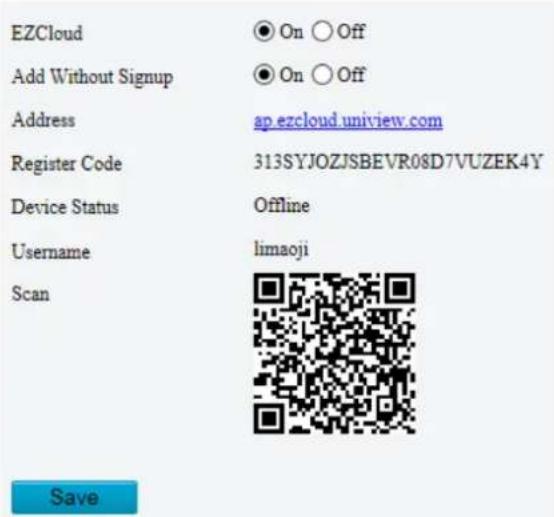
1. Add cameras on EZView app without signup
After you add the camera to EZCloud on EZView, you can view live or recorded video and receive alarm notifications from the camera on EZView. Certain functions are not available to cameras added without signup in the app.
- Enable Add Without Signup.
- Search and download EZView in the app store of your phone.
- Open EZView and tap Try Now.

NOTE!
If your have EZView on your phone already, open it, and then select > Devices > Add > Add Without Signup.
- A message pops up to inform you that no devices have been added. Tap Add.
- Tap Add Without Signup.
- Scan the OR code on the EZCloud page using EZView.
- Enter the password and tap Login to add the camera to EZCloud.
2. Add cameras on EZCloud website
- Enter en.ezcloud.uniview.com in the address bar of a web browser.
- Click Sign Up and follow the on-screen instructions to create an account.
- Log in to the EZCloud.

- Go to Device Management > My Cloud Devices and click Add.
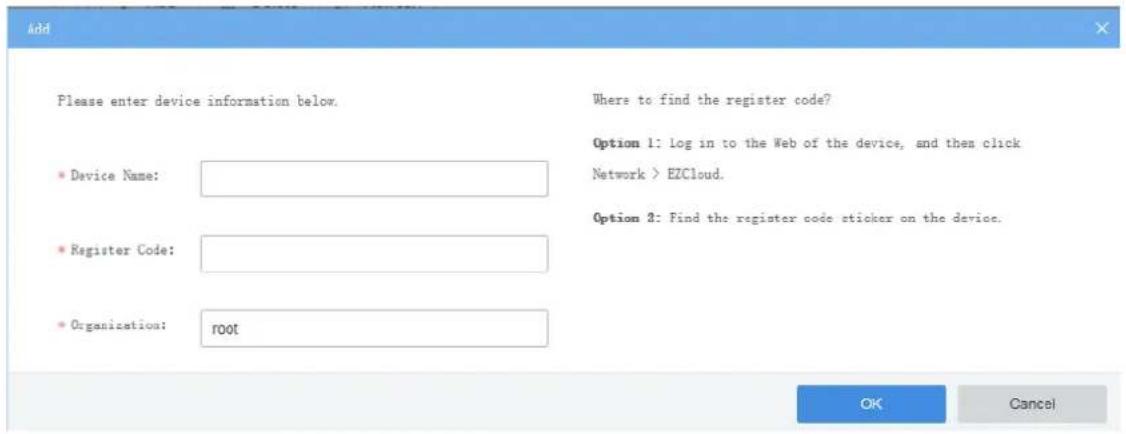
| Item Description | |
| Device Name Enter the device name. | |
| Register Code Enter the register code. | |
| Organization | Select an organization for your camera.By default, the root organization is selected. You may add or delete organizations under Organization Management > My Cloud Organizations. |
- Click OK.
- Click Save.
-
Check device status.
-
EZCloud website: Go to Device Management > My Cloud Devices to check whether the camera is online.
- Camera's web interface: Go to Setup > Network > EZCloud to check whether the camera is online.
5.2.5 DNS
DNS (Domain Name System) is a distributed database system for translating human readable domain names to machine readable IP addresses, facilitating devices to access external servers or hosts through domain names.
- Go to Setup > Network > DNS.
- The default DNS server addresses are as follows.

5.2.6 DDNS
DDNS (Dynamic Domain Name System) automatically updates the DNS server with the dynamic IP address of the device to enable remote Internet access to the device on the network.
- Go to Setup > Network > DDNS.
- Enable DDNS Service.
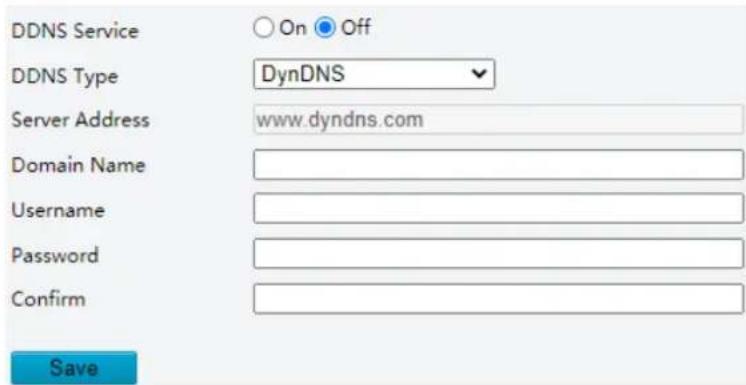
- Select the DDNS type.
DynDNS/NO-IP: Third-party DDNS service provider, enter the domain name registered with the DDNS provider.
EZDDNS: Uniview's DDNS service, enter a domain name for your camera and click Test to check if the domain name is available.

- Click Save.
5.2.7 SNMP
SNMP is required for the camera to share configuration information to servers.
- Go to Setup > Network > SNMP.

- Enable SNMP.

NOTE!
This function is enabled by default on certain models.
- Set SNMP parameters.
- SNMPv3

NOTE!
Before you enable SNMPv3, make sure that it is supported both on your camera and the server.
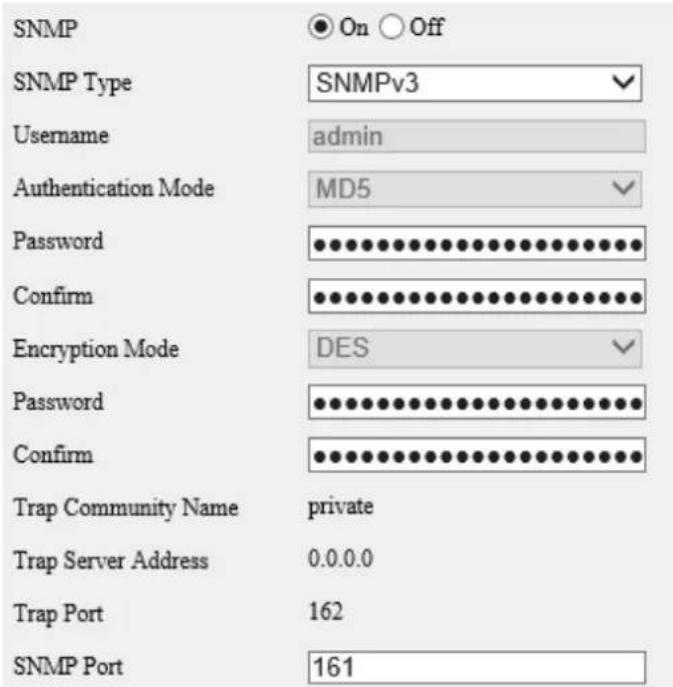
Save
| Item Description | |
| SNMP Type The default SNMP type is SNMPv3. | |
| Password | Set a password for authentication. |
| Confirm | Confirm the password you entered by entering it again. |
| Password Set a password for data | |
| Confirm | Confirm the password you entered by entering it again. |
| Trap Server Address | Set the trap server address in Management Server. |
| SNMP Port The default SNMP port number is 161. You may change it as needed. | |
- SNMPv2

| Item Description | |
| SNMP Type | Select SNMPv2. After you select SNMPv2, a message pops up to remind you of potential risks and ask if you want to continue. Click OK. |
| Read Community | The default read community name is public, and you may change it as needed. Make sure the read community names of the server and camera are the same, otherwise the two-way authentication will fail. |
| Trap Server Address | Set the trap server address in Management Server. |
| SNMP Port The default | SNMP port number is 161. You may change it as needed. |
4. Click Save.
5.2.8 802.1x
802.1x provides authentication to devices for access to the network and enhances network security by allowing only authenticated devices to access.
- Go to Setup > Network > 802.1x.
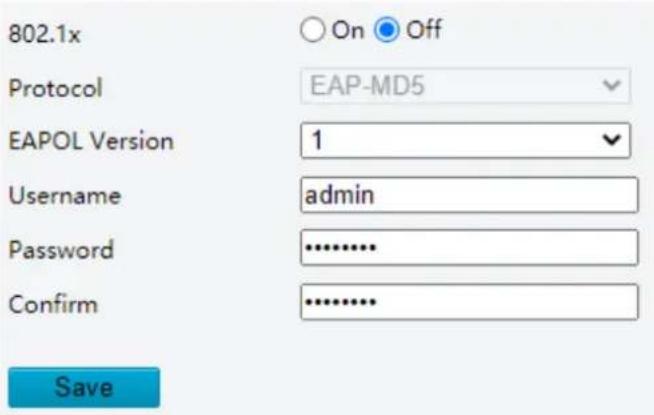
- Enable 802.1x.
- By default, the protocol is set to EAP-MD5. Select the same EAPOL version as that of the router or the switch.
- Enter the username and password for authentication.
- Click Save.
5.2.9 QoS
QoS (Quality of Service) has the ability to guarantee the performance of high-priority services under limited network capacity.
- Go to Setup > Network > QoS.
Audio & Video
46
Alarm Report
0
Configuration Manage...
0
FTP
4

- Set a priority level (0 to 63) for each service.
At present, QoS allows you to assign different priority to audio and video, alarm report, configuration management and FTP transmission. The greater the value, the higher the priority.
As shown in the figure above, the audio & video service takes priority over all other services in case of network congestion.

NOTE!
To use QoS, make sure that the router or switch is also configured with QoS.
3. Click Save.
5.2.10 WebSocket
WebSocket allows you to manage your camera on a third-party platform, such as device version and capability information acquisition, PTZ control, alarm reporting, etc.
1. Go to Setup > Network > WebSocket.

2. Set the parameters.
| Item Description | |
| WebSocket | Select to enable or disable WebSocket. |
| Destination IP | Enter the IP address of the third-party platform. |
| Destination Port | Enter the listener port of the third-party platform. |
| Device ID | The default device ID is the device's serial number. You can set a device ID as needed. |
| Authentication Key | Enter the authentication key used to connect the camera to a third-party platform. Make sure the authentication key configured on the camera and the third-party platform is the same. |
| Confirm Authentication Key | Confirm the authentication key you entered by entering it again. |
| Online Status | Check whether the device is successfully connected to the third-party platform. |
3. Click Save.
5.3 Video & Audio
For dual-channel devices, you can set video and audio parameters for the channels separately.
5.3.1 Video
1. Video
1. Go to Setup > Video & Audio > Video.

2. Select a capture mode for your camera.
The Extended Encoding function is available only when the capture mode is greater than 8MP.
Capture Mode
8192×3840@25

Extended Encoding

After you change the capture mode, the encoding settings will be reset to defaults and some models of cameras will restart.
3. Set stream parameters.
The streams are independent of each other and can be set with different resolutions, frame rates, video compression formats, etc. Only the main stream supports full resolution.
NOTE!
- The fourth and fifth streams are only available on certain models.
- Before configuring the fifth stream, you need to enable the fourth stream first.

Enable Fourth Stream
| Item Description | |
| Video Compression | Select a video compression standard for your camera: H.265, H.264 or MJPEG.NOTE!When H.265 or H.264 is selected, Image Quality is not available; When MJPEG is selected, Bit Rate, I Frame Interval, Smoothing, SVC and U-Code are not available.The bit rate restores to the default when you switch between H.264 and H.265. |
| Resolution | Select a video resolution for your camera. The higher the resolution, the clearer the image. |
| Frame Rate(fps) | Select the frame rate.NOTE!To ensure image quality, the frame rate shall not be greater than the reciprocal of the shutter speed. |
| Bit Rate(Kbps) | Set the bit rate. Range: 128 to 16384.NOTE!The bit rate range may vary with device model. |

| Bitrate Type | Select the bitrate type.CBR: The camera keeps a specific bit rate by varying the quality of video streams.VBR: The camera keeps the quality of video streams as constant as possible by varying the bit rate. |
| Image Quality | Configurable when Bitrate Type is set to VBR.The closer the slider is to Quality, the higher the bit rate, and the higher the image quality.The closer the slider is to Bit Rate, the lower the bit rate, and the image quality will be affected. |
| I Frame Interval | Set the number of frames between I-frames. A shorter interval presents better image quality but consumes more bandwidth and storage. |
| GOP | Group of Pictures, defines the basic pattern of the video stream encoded with I and P frames. |
| Smoothing | Set the smoothness of the video stream. Drag the slider to choose whether smoothness or clarity takes precedence.NOTE!Smoothing is recommended for fluent video in a poor network environment. |
| SVC | SVC (Scalable Video Coding) enables a video stream to be broken into multiple layers of resolution, quality and frame rate, reducing bandwidth consumption without compromising the image quality. |
| U-Code | Select the U-code mode.Basic Mode: The bit rate is reduced by about 25%.Advanced Mode: The bit rate is reduced by about 50%. |
-
Set the BNC output format, PAL or NTSC.
-
Click Save.
-
Adaptive Streams
The bit rate of the media stream is automatically adjusted according to the network conditions.

NOTE!
- This function is only available on certain models.
- This function is enabled by default on certain models.
-
It's recommended to enable Adaptive Streams in a poor network environment.
-
Go to Setup > Video & Audio > Video > Adaptive Streams.
Adaptive Streams

Save
-
Enable Adaptive Streams.
-
Click Save.
5.3.2 Snapshot
Configure basic snapshot parameters and scheduled snapshot.
- Go to Setup > Video & Audio > Snapshot.
NOTE!
- For dual-channel devices, you can set snapshot parameters for the channels separately.
- When you configure e-mail and FTP, you only need to enable Snapshot and set the resolution and maximum size, and do not need to configure the scheduled snapshot.

- Enable Snapshot and set the resolution and maximum size of snapshots to be saved.
- Set the snapshot mode.
Schedule: Set a time for snapshot. For example, with snapshot interval set to 20s, number to snapshot set to 3, and snapshot time set to 16:00:00, the camera will take a snapshot at 16:00:00, 16:00:20 and 16:00:40.

To delete a snapshot time, click 📄.
Repeat: Set an interval for snapshot. For example, with snapshot plan set to 16:00:00 to 20:00:00 on Monday, repeat interval set to 120s, snapshot interval set to 20s, and number to snapshot set to 2, the camera will take a snapshot at 16:00:00, 16:00:20, 16:02:00 and 16:02:20.
a Select Repeat and set the repeat interval. A valid repeat interval ranges from 1 to 86400.
b Select the Enable Snapshot Plan check box and set the snapshot plan. See Arming Schedule for details. A 24/7 snapshot plan is enabled by default.

NOTE!
• The time periods cannot overlap.
- Up to 4 time periods are allowed.
- Set the snapshot interval and number to snapshot. For example, if the interval is set to 1s and the number to snapshot is set to 2, the camera will take 2 snapshots (take one first and then take another after 1 second).
- Click Save.
5.3.3 Audio
1. Audio
- Go to Setup > Video & Audio > Audio.
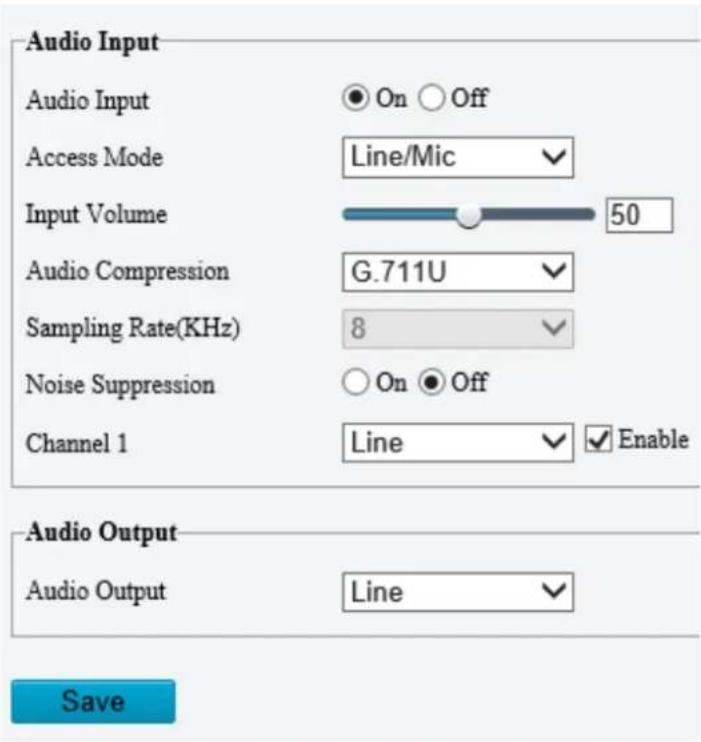
- Set audio input parameters.
| Item Description | |
| Audio Input | Enable/disable audio input.NOTE!If audio data is not required, select Off to improve camera performance. |
| Access Mode | Select the audio input mode, including Line/Mic and RS485.NOTE!This function is not available on dual-channel cameras. |
| Input Volume Set the input volume using the slider. | |
| Audio Compression | Select the audio compression format, including G.711U and G.711A. |
| Sampling Rate(KHz) | Set the sampling rate according to your required audio compression.In G.711A or G.711U format, only 8KHz is available. |
| Noise Suppression | Reduce noise in audio to improve audio output quality.NOTE!This function is enabled by default. |
| Channel 1/Channel 2 | Select the Enable check box to enable audio input for the channel. Channel 1 and Channel 2 (if available) cannot be enabled simultaneously.The default audio input mode of Channel 1 is Mic. You can change it to Line. |
- Set audio output parameters.
| Item Description | |
| Audio Output | Select the audio output mode, including Line and Speaker. |
Output Volume Set the output volume using the slider.
4. Click Save.
2. Audio File
1. Go to Setup > Video & Audio > Audio.

Save
2. Set audio file parameters.
| Item Description | |
| Alarm Volume | Set the alarm volume using the slider. |
| Alarm Audio File | ClickBrowse... to import audio files. To play an audio file, clickNOTE!This function is available only on certain models. Up to 5 audio files are allowed.Built-in audio files may vary depending on the smart functions supported by the device. |
3. Click Save.
5.3.4 ROI
ROI helps ensure image quality for the specified areas on the image first at low bit rate.
1. Go to Setup > Video & Audio > ROI.
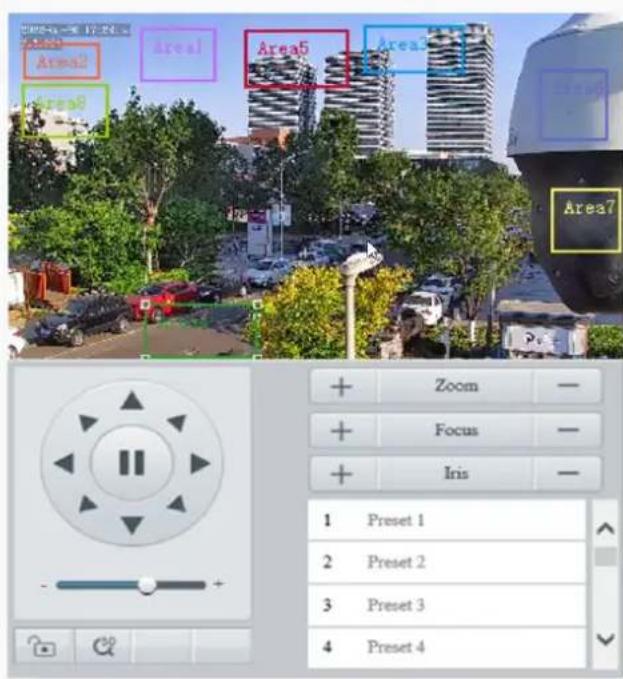

2. Set ROI areas.
(1) Click + to add a ROI area. The area is a rectangle by default. Up to 8 areas are allowed.

(2) Adjust the position and size of the area or draw an area as needed.
Adjust the position and size of the area.
- Point to a border of the area and drag it to the desired position.
- Point to a handle of the area and drag to resize it.
Draw an area.
Click on the image and drag to draw an area.
5.3.5 View Cropping
You can crop the live video to view and save only the video of the region of interest in the form of sub or third stream to save transmission bandwidth and storage.
- Go to Setup > Video & Audio > View Crop.
- Select the Enable View Crop check box.
√ Enable View Crop
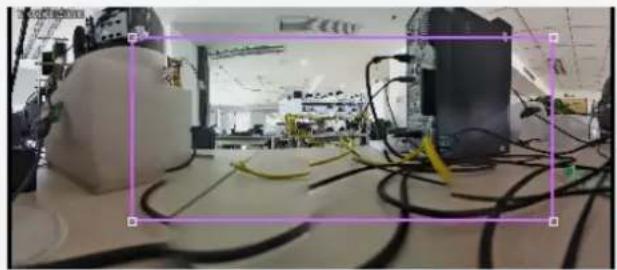
natural_image
Interior view of a robotics lab with robotic arms and wiring (no visible text or symbols)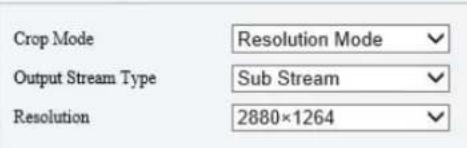

- Select the cropping mode.
- Field of View Mode: Size priority. Set the output stream type, crop size and resolution.

- Resolution Mode: Resolution priority. Set the output stream type and resolution.

- Click Save.
5.3.6 Media Stream
1. Media Stream
You can configure a media stream for your camera so that media contents from the camera such as audio and video can be transmitted over the network and played immediately on a third-party client rather than being downloaded first.
- Go to Setup > Video & Audio > Media Stream.
| Stream Profile | Protocol | Destination IP | Destination Port | Persistent | Status | + |
- Click to add a media stream.
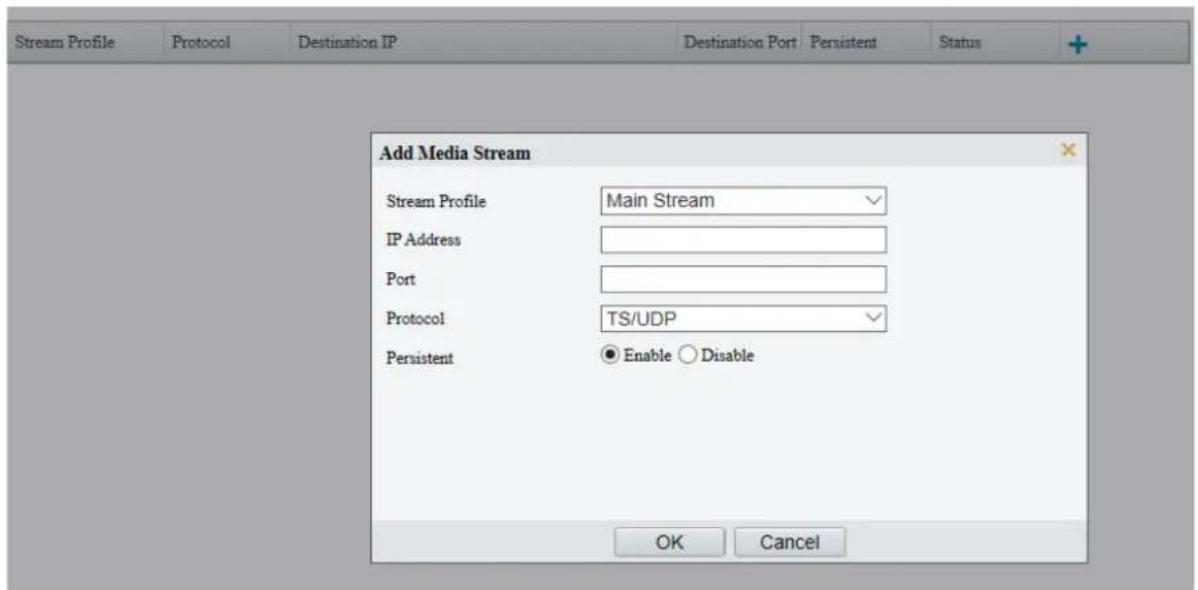
- Complete the media stream settings.
| Item Description | |
| Stream Profile | Select a stream type for the camera to transmit media contents to a third-party client. |
| Destination IP | Enter the IP address of the device receiving media streams. |
| Destination Port | Enter the port number of the device receiving media streams. |
| Protocol | Select a protocol for streaming media data over the network, including TS/UDP, ES/UDP, PS/UDP, and RTMP. |
| Persistent | Set whether to automatically establish the configured media stream after the camera restarts. |
- Click OK.
2. RTSP Multicast
RTSP multicast allows third-party players to request RTSP multicast media streams from the camera through the RTSP protocol.
- Go to Setup > Video & Audio > Media Stream > RTSP Multicast Address.

-
Set the multicast address and port number (multicast address range: 224.0.1.0 to 239.255.255.255, port number range: 0 to 65535).
-
Click Save.
5.4 PTZ
5.4.1 Basic PTZ Settings
Go to Setup > PTZ > Basic Settings.
1. Preset Image Freeze
After you enable Preset Image Freeze, as the camera moves from one preset to another, the live view window keeps displaying the image of the previous preset until the camera stops at the next preset.
Preset Image Freeze
○ On ● Off
2. PTZ Timeout
After you enable Stop PTZ Control After Timeout and set a timeout period, the camera will stop rotation when the predefined timeout period is reached.
Stop PTZ Control After Tim... ○ On ● Off
PTZ Control Timeout(s)
10
3. PTZ Speed
Speed Level between Presets

Manual Operation Speed Le...

- Speed Level between Presets: Set the rotation speed of the camera between presets.
- Manual Operation Speed Level: Set the speed level for manually controlling the PTZ on the live view page.

NOTE!
- The higher the manual operation speed level, the higher each PTZ speed level on the live view page.
- When both manual operation speed level and PTZ speed on the live view page are set to the maximum, the PTZ speed reaches the upper limit.
4. PTZ Rectification
Check for PTZ zero point offset and perform rectification.

- Rectify manually: Click Rectify to start rectification immediately.
- Rectify automatically: Select the Enable Auto Rectification check box and set the execute time. The camera automatically performs PTZ rectification at the set time.
5. Power Off Memory
When enabled, the system will record the last position of the PTZ and lens in case of power failure. This function is enabled by default.
Power Off Memory
On Off
5.4.2 Home Position
The PTZ camera can automatically operate as configured (e.g., go to a preset or start patrol) if no operation is made within a specified period.

NOTE!
Before use, you need to add a preset or a patrol route. See Preset and Add a patrol route for details.
1. Go to Setup > PTZ > Home Position.
![Home Position ● On ○ Off Mode Preset ID [None] Idle State(s) 60 Save](/content/2026/05/906594/images/d275b8a0d049df86265bb2c4d815c593e5d743c2deda06a2e75b83d48e7f806a.jpg)
2. Enable Home Position and complete the settings.
| Item Description | |
| Mode | Select the home position mode, including Preset and Patrol. |
| ID Select the desired preset or patrol route. | |
| Idle State | Set the idle duration for the camera to start auto guard. |
3. Click Save.
5.4.3 Pan/Tilt Limit
You can filter out the undesired scenes by limiting the pan and tilt movements.
1. Go to Setup > PTZ > Limit.

- Select the Enable PTZ Limit check box.
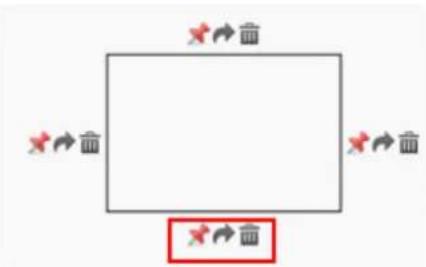
- Set the pan and tilt limits. Take the tilt limit configuration as an example:
(1) Use ▲ to move the camera to the desired upper tilt limit position.
(2) Click ✗ above the rectangle to set the position as the upper tilt limit.

(3) Use ▼ to move the camera to the desired lower tilt limit position.
(4) Click ✗ below the rectangle to set the position as the lower tilt limit.
flowchart
graph TD
    A[" "] --> B["X→窗"]
    A --> C["X→窗"]
    A --> D["X→窗"]
    A --> E["X→窗"]
    F[" "] --> G["X→窗"]
    F --> H["X→窗"]
    F --> I["X→窗"]
| Item Description | |
| Rotate the camera to the limit. | |
| Delete the limit. | |
4. Click Save.
5.4.4 Remote PTZ Control
Remote PTZ control is required when the camera is added to a third-party platform and the PTZ protocol does not match.
1. Go to Setup > PTZ > Remote Control.
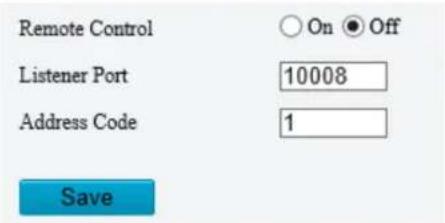
2. Enable Remote Control and complete the settings.
| Item Description | |
| Listener Port | Local port number of the camera. Make sure that the port number you entered is not in use. In general, it's recommended to keep the default value. |
| Address Code | The address code in the command must be the same as the address code configured on the camera, so that the camera can parse the command. |
5.4.5 Preset Snapshot and Patrol Resumption
Go to Setup > PTZ > Patrol.
Preset Snapshot

Resume Patrol(s)

Save
- Preset Snapshot
The camera takes a snapshot at each preset during patrol and uploads the snapshots to FTP.

NOTE!
Before use, please configure FTP and Snapshot first.
- Resume Patrol
In the event of a patrol interruption, the camera can automatically resume the patrol after a specified time period.
5.4.6 Orientation Calibration
1. North Calibration
Calibrate the north direction.
- Go to Setup > PTZ > Orientation.
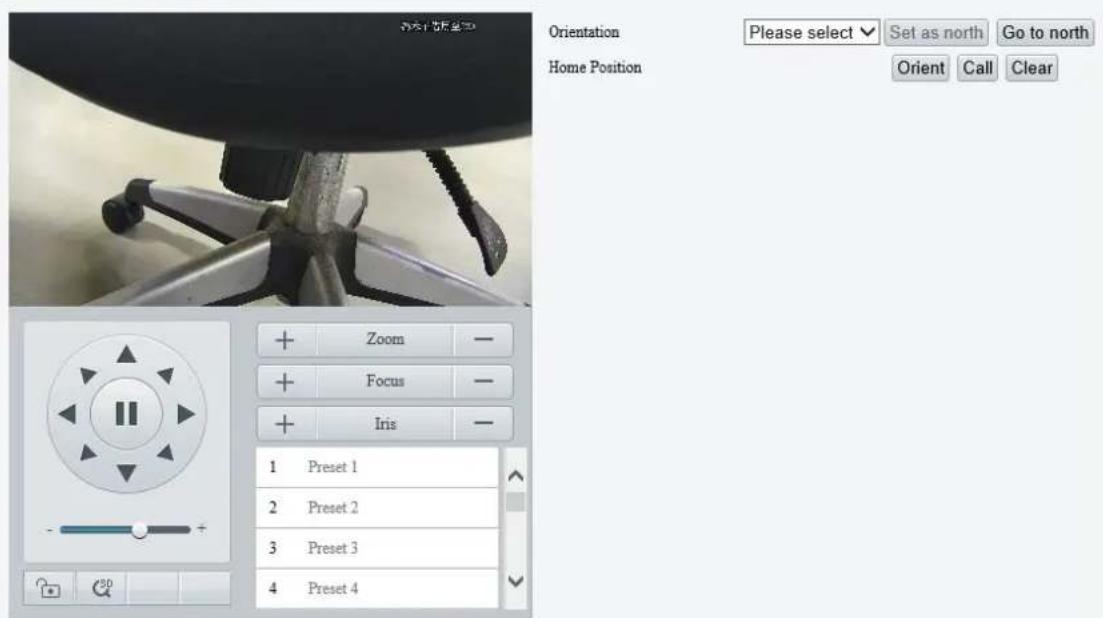
- Select the mode to calibrate the camera to north.
| Item Description | |
| Manual | Set the north direction manually.After calibration, you can clickGo to northto rotate the camera to the calibrated north direction. |
| Automatic | Automatically determines the north position based on the geomagnetic field.After calibration, you can clickGo to northto rotate the camera to the calibrated north direction.NOTE!This option is only available on cameras that support electronic compass. |
2. Home Position
Configure a home position so that the camera can use it as the zero degree pan and tilt positions.
- Go to Setup > PTZ > Orientation.

- Move the camera to the desired position.
- Click Orient to set the position as the home position.
| Item Description |
| Call Move the camera to the home position. |
| Clear Clear the home position. |
5.5 Image
5.5.1 Image
For dual-channel devices, you can set image parameters for the channels separately.
1. Scenes
A scene mode is a collection of image parameters preset in the camera. The camera provides several predefined scene modes for different application scenarios. You can select a scene as required.
- Go to Setup > Image > Image.

2. Click Scenes.

3. Set the scene parameters.
| Item Description | |||
| Current | Select the scene you want to use. | ||
| Scene Name | Select the scene mode.Common: Recommended for outdoor scenes.Indoor: Recommended for indoor scenes.Road Highlight Compensation/Park Highlight Compensation: Recommended for capturing vehicle license plates.WDR: Recommended for scenes with high-contrast lighting, such as window, corridor, front door or other scenes that are bright outside but dim inside.Custom: Set a scene as needed.Test: Recommended for test scenes.Standard: Recommended for most standard scenes both indoor and outdoor.Vivid: Enhanced saturation based on the Standard scene.Bright: Enhanced brightness based on the Standard scene.Starlight: Recommended for obtaining clear and bright images in low light conditions.Face: Recommended for capturing faces in motion in complicated scenes.Person And Vehicle: Recommended for detecting motor vehicles, non-motor vehicles and pedestrians in road scenes.Intrusion Prevention: Recommended for perimeter protection scenes. | ||
| Auto Switching | Select whether to add the scene to the auto-switching list. When enabled, if the conditions for switching to a non-default scene are met, the device will automatically switch to the scene. | ||
 | Set auto-switching conditions, including schedule, illumination and PTZ elevation. Auto switching can only be triggered when all the set conditions are met. | ||
| Schedule | Illumination | PTZ Elevation | |
| OK | Cancel | ||
| [A2C4] | Set the scene as the default scene. | ||
-
(Optional) Enable auto switching.
-
When enabled, if the conditions for switching to a non-default scene are met, the camera will automatically switch to the scene; otherwise, the camera uses the default scene.
• After you select the Enable Auto Switching check box, all scene parameters cannot be configured. - If multiple non-default scenes meet the switching condition at the same time, the camera will switch to the scene with the minimum number (starts from 1 to 5).
2. Image Enhancement
- On the Image page, click Image Enhancement.

bar
| Image Enhancement | Value | | ----------------------- | ----- | | Brightness | 128 | | Saturation | 128 | | Contrast | 128 | | Sharpness | 128 | | 2D Noise Reduction | 128 | | 3D Noise Reduction | 128 |- Set the image enhancement parameters.
| Item Description | ||
| Brightness | The overall lightness or darkness of the image. | |
 | ||
| Low brightness High brightness | ||
| Saturation | The intensity or vividness of colors in the image. | |
 |  | |
| Low saturation High saturation | ||
| Contrast | The difference between the lightest and darkest tones in the image. | |
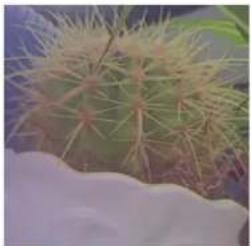 | 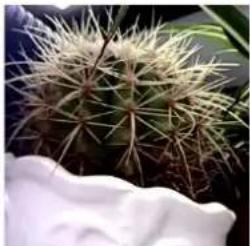 | |
| Low contrast High contrast | ||
| Sharpness | The definition of edges in the image. | |
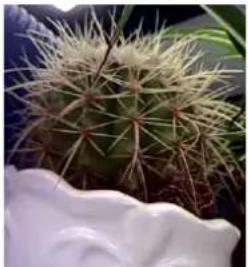 |  | |
| Low sharpness High sharpness | ||
| 2D Noise Reduction | Reduce noise by individually analyzing each frame, which may cause image blur. | |
| 3D Noise Reduction | Reduce noise by analyzing the difference between successive frames, which may cause image smearing or ghosting. | |
| Image Rotation | The rotation of the image. | |
 |  | |
| Normal Flip vertical | ||
 |  | |
| Flip horizontal 180° | ||
 |  | |
| 90° clockwise 90° anti-clockwise | ||
To restore defaults, click Default.
3. Exposure

NOTE!
- The exposure settings may vary with device model.
-
The default settings are scene-adaptive. Use default settings unless modification is necessary.
-
On the Image page, click Exposure.
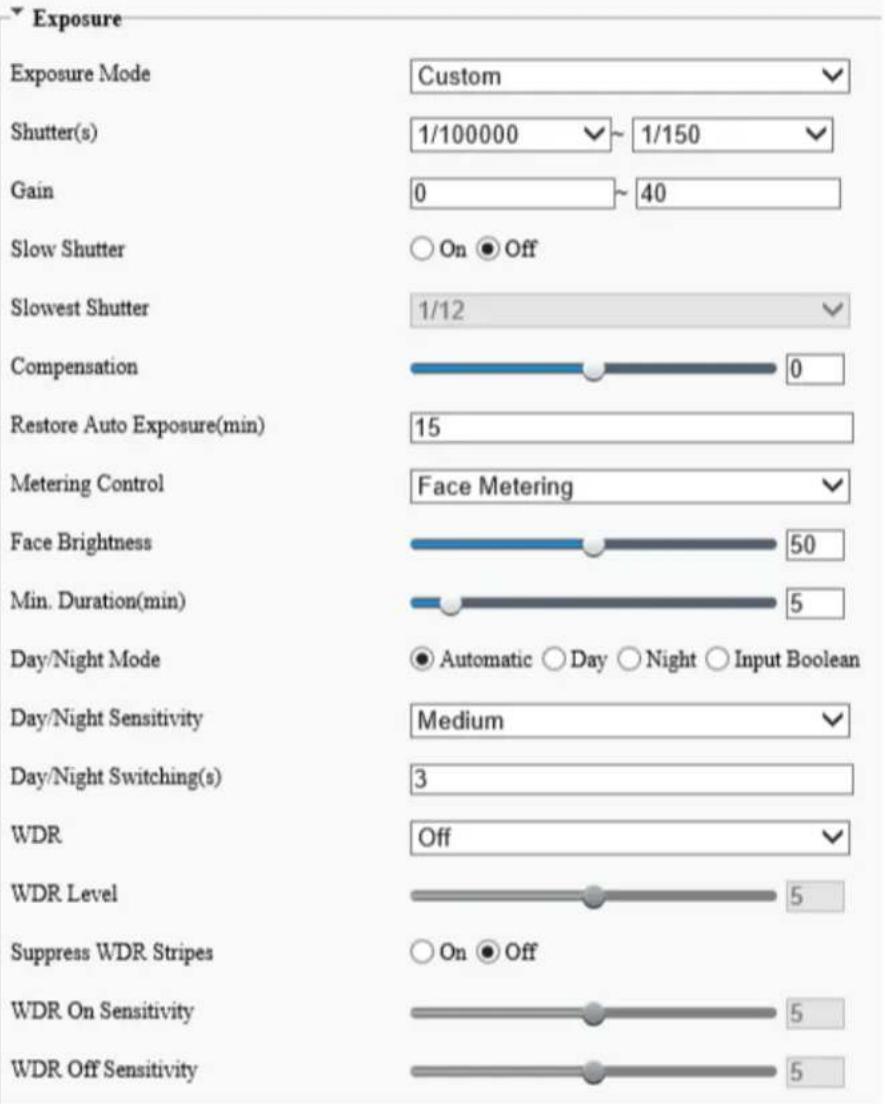
2. Set the exposure parameters.
| Item Description | |
| Exposure Mode | Select the exposure mode.Automatic: The camera automatically set the optimum shutter speed according to the scene.Custom: User can set exposure parameters as needed.Shutter Priority: The camera adjusts shutter as priority to adjust the image quality.Iris Priority: The camera adjusts iris as priority to adjust the image quality.Indoor 50Hz: Reduce stripes by limiting shutter frequency.Indoor 60Hz: Reduce stripes by limiting shutter frequency.Manual: Fine-tune image quality by setting shutter, gain and iris manually.Low Motion Blur: Control the minimum shutter to reduce motion blur in faces captured in motion. |
| Shutter(s) | Shutter is used to control the light that comes into the lens. A fast shutter speed is ideal for scenes in quick motion. A slow shutter speed is ideal for scenes that change slowly.NOTE!This parameter is configurable when Exposure Mode is set to Manual, Shutter Priority, or Custom.If Slow Shutter is disabled, the reciprocal of the shutter speed must be greater than the frame rate. |
| Gain | Control image signals so that the camera can output standard video signals in different light conditions.NOTE!This parameter is configurable when Exposure Mode is set to Manual or Custom. |
| Slow Shutter | Increase image brightness in low light conditions.NOTE!This parameter is configurable when Exposure Mode is not set to Iris Priority and Image Stabilization is disabled. |
| Slowest Shutter | Set the slowest shutter speed for exposure. |
| Compensation | Adjust the compensation value as required to achieve the desired image effect.NOTE!This parameter is configurable when Exposure Mode is not set to Manual. |
| Restore Auto Exposure(min) | Set the duration for the camera to restore automatic exposure mode. |
| Metering Control | Set how the camera measures the intensity of light..Center-Weighted Average Metering: Measure light mainly in the central part of the image..Evaluative Metering: Measure light in the specified area of the image..Spot Metering: Similar to evaluative metering. But it cannot increase the brightness of images..Face Metering: Adjust image quality in poor lighting conditions by controlling the brightness of captured faces in face scenes.NOTE!This parameter is configurable when Exposure Mode is not set to Manual. |
| Day/Night Mode | Automatic: The camera automatically switches between day mode and night mode according to the ambient lighting condition to output optimum images.Day: The camera outputs high-quality images in daylight conditions.Night: The camera outputs high-quality images in low-light conditions.Input Boolean: The camera switches between day mode and night mode according to the Boolean value input from a connected third-party device.NOTE!The Input Boolean option is only available on certain models. |
| Day/Night Sensitivity | Light threshold for switching between day mode and night mode. A higher sensitivity value means that the camera is more sensitive to the change of light and is therefore more easily to switch between day mode and night mode.NOTE!This parameter is configurable when Day/Night Mode is set to Automatic. |
| Day/Night Switching(s) | Set the length of time before the camera switches between day mode and night mode after the switching conditions are met.NOTE!This parameter is configurable when Day/Night Mode is set to Automatic. |
| WDR | Enable WDR to ensure clear images in high contrast conditions.NOTE!This parameter is configurable when Exposure Mode is set to Automatic, Custom, Shutter Priority, Indoor 50Hz or Indoor 60Hz and when Image Stabilization and Defog are disabled. |
| WDR Level | Adjust the WDR level.NOTE!Level 7 or higher is recommended if there is a high contrast between the bright and dark areas in the scene. In the case of low contrast, it is recommended to disable WDR or use level 1 to 6. |
| WDR On/Off Sensitivity | When WDR is set to Automatic, adjust the parameter to change the WDR switching sensitivity. |
| Suppress WDR Stripes | When enabled, the camera automatically adjusts the slow shutter frequency according to the light frequency to minimize stripes in the image. |
To restore defaults, click Default.
4. Smart Illumination
- On the Image page, click Smart Illumination.
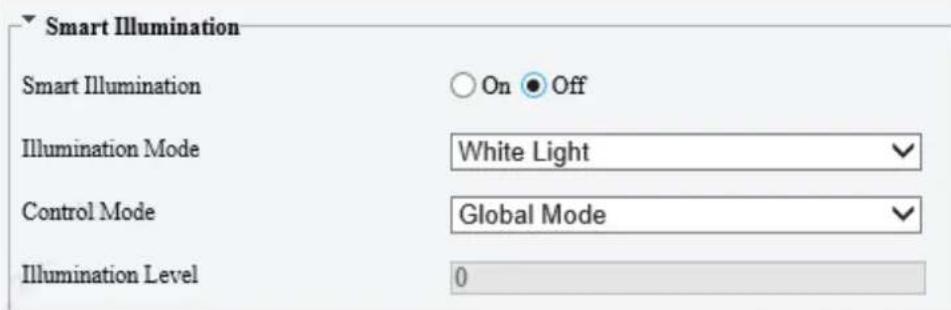
2. Enable Smart Illumination.
- Set the smart illumination parameters.
| Item Description | |
| Illumination Mode | Infrared: The camera uses infrared light illumination.White Light: The camera uses white light illumination.Warm Light: The camera uses warm light illumination.Laser: The camera uses laser light illumination.NOTE!Before you selectWarm Light, please set thePort Mode to Illumination(go to Setup > System >Ports & Devices > Serial Port). |
| Control Mode | Global Mode: The camera automatically adjusts illumination and exposure to achieve the balanced image effect. Some areas might be overexposed if you select this option. This option is recommended if you focus on the monitoring range and image brightness.Overexposure Restrain: The camera automatically adjusts illumination and exposure to avoid regional overexposure. Some areas might be dark if you select this option. This option is recommended if you focus on the clarity of the monitoring center area.Road: This mode offers a strong overall illumination and is recommended for monitoring wide-range scenes, for example, road.Park: This mode offers a uniform illumination and is recommended for monitoring small-range scenes with many obstacles, for example, park.Custom Level: This mode allows you to manually control the intensity of illumination.Custom Level(Always On): In this mode, the illumination is always on. |
| Illumination Level | Set the intensity of the illuminator. The greater the value, the higher the intensity. 0 is off.Near-illumination Level: Recommended for near focus scenes.Mid-illumination Level: Recommended for medium distance focus scenes.Far-illumination Level: Recommended for far focus scenes.NOTE!This parameter is configurable whenControl Modeis set toCustom Level. |
To restore defaults, click Default.
5. Focus
- On the Image page, click Focus.
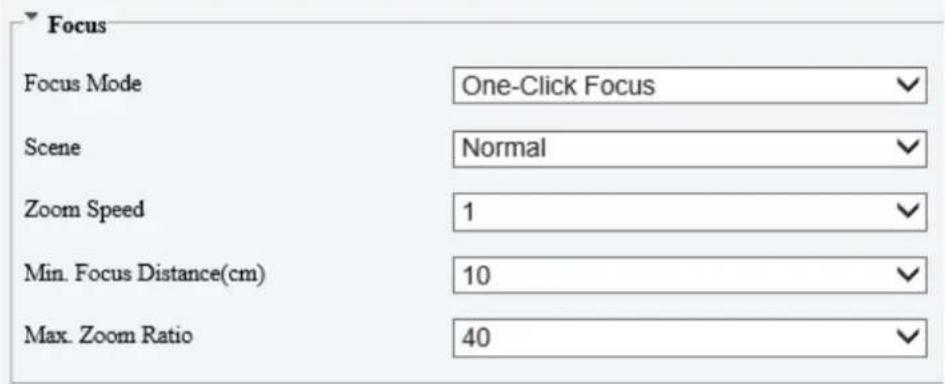
2. Set the focus parameters.
| Item Description | |
| Focus Mode | Auto Focus: Automatic focus control based on the current light conditions.Manual Focus: Manual focus control.One-Click Focus: Automatic focus in the event of rotation, zoom, and preset call.One-Click Focus (IR): Recommended for low light scenes.One-click Focus (Locked): Recommended for road highlight scenes. |
| Scene | Normal: Common monitoring scenes such as road, park, etc.Long Distance: Long-distance monitoring scenes |
| Zoom Speed | 1: Low zoom speed. Recommended for common scenes.2: High zoom speed. Recommended when Quick Focus is enabled. |
| Min. Focus Distance | Select the minimum focus distance. |
| Max. Zoom Ratio | Select the maximum digital zoom ratio, including 22, 44, 88, 176, and 352. |
To restore the default settings, click Default.
6. White Balance
White balance is used to eliminate unnatural color casts in images under different color temperatures for optimal color reproduction.
1. On the Image page, click White Balance.
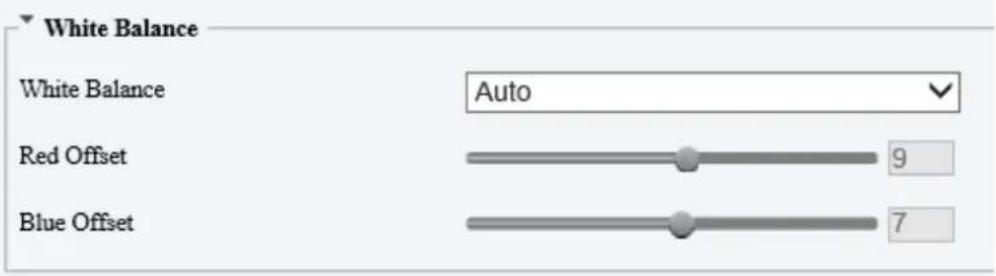
2. Set the white balance parameters.
| Item Description | |
| White Balance | Adjust the red and blue gains of the image to remove unrealistic color casts.·Auto/Auto 2: Automatically adjust the red and blue gains according to the lighting conditions. If there are still color casts in Auto mode, try Auto 2 mode.·Fine Tune: Manually adjust the red and blue offsets.·Sodium Lamp: Automatically adjust the red and blue gains for optimal color reproduction in sodium light sources.·Outdoor: Recommended for outdoor scenes where the color temperature varies widely.·Locked: Keep the current color temperature. |
| Red/Blue Offset | Set the red/blue offset.NOTE!This parameter is configurable when White Balance is set to Fine Tune. |
To restore defaults, click Default.
7. Defog
Defog is used to improve image visibility in foggy, hazy and other low-visibility scenes.
1. On the Image page, click Advanced.


NOTE!
This function is only available when WDR is disabled.
2. Set the defog parameters.
| Item Description | |
| Defog | Select the defog mode, including Automatic, On, and Off.In Automatic mode, the camera automatically adjusts the defog intensity according to the fog concentration for clear images. |
| Defog Intensity | Adjust the defog intensity.In a heavy-fog environment, the higher the defog level, the clearer the image; in a fog-free or light-fog environment, there is not much difference between levels 1 to 9.NOTE!Optical defog is available on certain models.To enable optical defog, select On and set the defog intensity to 6 or higher, or select Automatic.Optical defog is automatically turned on in thick fog, and the image changes from color to black and white. |
To restore defaults, click Default.
8. Lens Info

NOTE!
- This function is only available on cameras with external lenses.
- When using a P-IRIS lens with Z/F function, connect the iris control cable to the Z/F port of the camera.
1. On the Image page, click Lens Info.

2. Set the lens parameters.
| Item Description | |
| Lens Type Select the lens type, including Common and IR. | |
| Lens Model | Select the lens model, including LENS-DC-IRIS, LENS-DM0734P, etc.NOTE!The lens models supported may vary with device model. |
| Aperture Control | Select automatic or manual iris control. NOTE! This parameter is configurable when Lens Type is P-IRIS. |
| F-Number | Set the f-number to adjust the iris opening manually. |
| Use Recommended Value | The camera optimizes the iris opening based on the current lighting conditions. |
To restore defaults, click Default.
9. Dewarping
Dewarping is used to correct distorted images caused by wide-angle lenses.
- On the Image page, click Advanced.

- Enable Dewarping and set the dewarping level as needed.
To restore defaults, click Default.
10. Image Stabilization
A camera mounted outdoors may be shaken by external forces (e.g., wind), causing image blur. In this case, you can enable image stabilization to ensure the image quality.
- On the Image page, click Advanced.
Image Stabilization

- Select On or Off to enable or disable image stabilization.
To restore defaults, click Default.
11. Fusion Mode
In fusion mode, the object details on the visible image are overlayed on the thermal image, so that you can see the object details on the thermal image as well.
- On the Image page, select Channel 2 and click Fusion Mode.

- Select On to enable fusion mode.
- Set the fusion percentage.
| Item Description | ||
| Image Fusion Percentage | The greater the value, the closer the thermal image effect is to the visible image effect. | |
 |  | |
| Image fusion percentage: 0 | Image fusion percentage: 100 | |
| Edge fusion percentage: 50 | Edge fusion percentage: 50 | |
| Edge Fusion Percentage | The greater the value, the sharper the object edges in the thermal image. | |
 |  | |
| Image fusion percentage: 50 Edge fusion percentage: 0 | Image fusion percentage: 50 Edge fusion percentage: 100 | |

NOTE!
The frame rate of live video may be limited when the fusion mode is enabled on certain models.
12. Non-Uniformity Correction
Non-uniformity correction is used to correct the non-uniformity of pixels caused by different response rates between thermal units to generate higher quality and more accurate images.
- On the Image page, select Channel 2 and click Advanced.
Non-Uniformity Correction
Shutter Compensation
-
Select the non-uniformity correction mode.
-
Shutter Compensation: In this mode, the live video may be lost.
- Background Compensation: In this mode, scene change may occur during image collection.
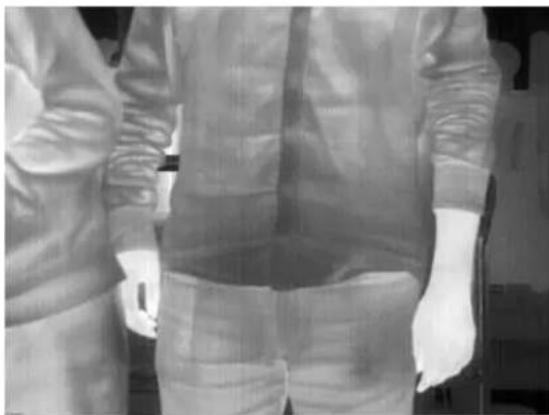
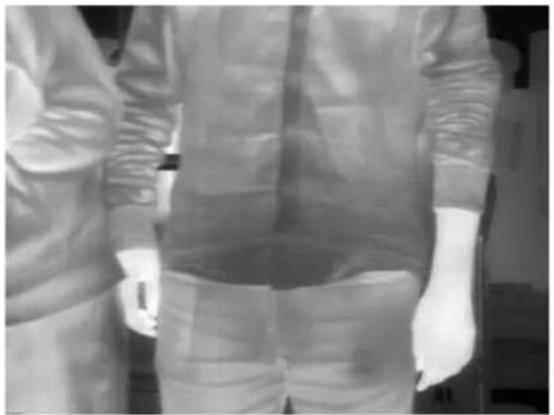
13. Reduce Vertical Stripe Noise
This function helps remove vertical stripes in images caused by sensor process or external temperature.
- On the Image page, select Channel 2 and click Advanced.
Reduce Vertical Stripe Noise

- Drag the slider or enter a value to set the intensity. The greater the value, the blurrier the image. Before removing vertical stripe noise
natural_image
Person wearing a patterned garment with hands clasped (no visible text or symbols)After removing vertical stripe noise
natural_image
Person wearing a full-body medical gown with visible surgical bandages and gloves (no text or symbols)14. Thermal Imaging Palette
The camera offers a variety of color display options for thermal imaging. The rainbow palette has a strong contrast and a clear distinction between colors of different temperatures, ideal for pinpointing objects in environments with subtle temperature differences.
- On the Image page, select Channel 2 and click Advanced.
- Select the appropriate thermal imaging palette for your camera.
Common Palette "Rainbow 3"

Common Palette "White Hot"

5.5.2 OSD
On Screen Display (OSD) are characters displayed with video images, for example, camera name, date and time.

NOTE!
• This function may vary with device model.
- For dual-channel devices, you can set OSD parameters for the channels separately.
1. Live View OSD
Configure OSD overlayed on the live video.
- Go to Setup > Image > OSD > Live View.


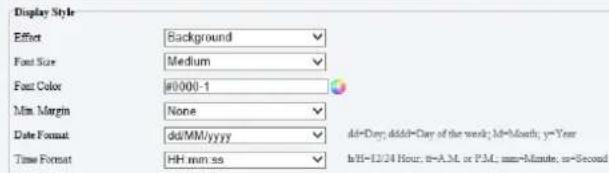
2. Set the OSD position and content.
| Item Description | |
| Enable | Select the check boxes in theEnablecolumn to overlay the corresponding contents on the live video.NOTE!Up to 8 overlays allowed. |
| Overlay Content OSD | Set the OSD content you want to overlay. Point to the OSD content, click , select the OSD content from the drop-down list or customize it.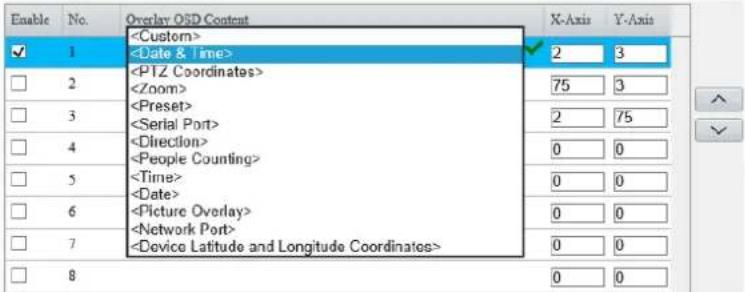 Some OSD contents are described below.Preset: When you call a preset, the preset ID will be displayed on the live image, such as "Preset 1".People Counting: Before use, you need to enable and configurePeople Flow Counting,Crowd Density Monitoring, orFace Detection, then you can view the people flow information (number of people entering/leaving), crowd density information (number of people present), or face detection information (number of people entering/leaving) on the live image.Motor Vehicle&Non-Motor Vehicle&Pedestrian Count: Before use, you need to enableMixed-Traffic DetectionandMotor Vehicle&Non-Motor Vehicle&Pedestrian Count, then you can view motor vehicle/non-motor vehicle/pedestrian counting information on the live image.NOTE!The OSD content only takes effect after you select theEnablecheck box.Some models allow different OSD contents in one overlay area. Some OSD contents are described below.Preset: When you call a preset, the preset ID will be displayed on the live image, such as "Preset 1".People Counting: Before use, you need to enable and configurePeople Flow Counting,Crowd Density Monitoring, orFace Detection, then you can view the people flow information (number of people entering/leaving), crowd density information (number of people present), or face detection information (number of people entering/leaving) on the live image.Motor Vehicle&Non-Motor Vehicle&Pedestrian Count: Before use, you need to enableMixed-Traffic DetectionandMotor Vehicle&Non-Motor Vehicle&Pedestrian Count, then you can view motor vehicle/non-motor vehicle/pedestrian counting information on the live image.NOTE!The OSD content only takes effect after you select theEnablecheck box.Some models allow different OSD contents in one overlay area. |
| X-Axis/Y-Axis | Specify the exact position of the OSD by entering the X and Y coordinates.Take the top left corner of the image as the origin coordinates (0, 0), the horizontal axis is the X-axis, and the vertical axis is the Y-axis.NOTE!You can also set the OSD position as follows: point to the OSD box in the preview window, drag the box to the desired position after the cursor shape is changed. |
| √ | √ indicates the OSD overlay is set successfully. |
| ^√√ | Use the two buttons to rearrange the OSDs. |
| Upload Picture | This parameter is available only when the Overlay OSD Content is set to Picture Overlay.1. ClickBrowse... to select the picture you want to overlay.2. ClickUpload, then the picture is displayed on the live video. |
| ScrollOSD | This parameter is available only when the Overlay OSD Content is set to Picture Overlay.1. Enter the text information you want to overlay.2. After successful configuration, the text will be scrolled from right to left on the live video Up to 200 characters are allowed and only displays in the area wnt. Up to 200 characters are allowed and only displays in the area wnt. |

NOTE!
To cancel an OSD, clear the corresponding check box in the Enable column or click × in the Overlay OSD Content text box.
3. Set the OSD display style.
| Item Description | |
| Effect | Select the display effect of the OSD content, including Background, Stroke, Hollow, or Normal. |
| Font Size | Select the font size of the OSD content, including X-large, Large, Medium, or Small. |
| Font Color | Click select the text color of the OSD content. |
| Min. Margin | Select the minimum distance between the OSD area and the edge of the image, including None, Single, and Double. |
| Date Format | Select the date format, including dd/MM/yyyy, MM/dd/yyyy, etc. |
| Time Format | Select the time format, including HH:mm:ss, HH:mm:ss.aaa, hh:mm:ss tt, and hh:mm:ss.aaa tt. |
2. Photo OSD
Configure OSD overlayed on the images captured from the live video.
1. Go to Setup > Image > OSD > Photo.

natural_image
Blurred grayscale image with no discernible text, symbols, or identifiable objects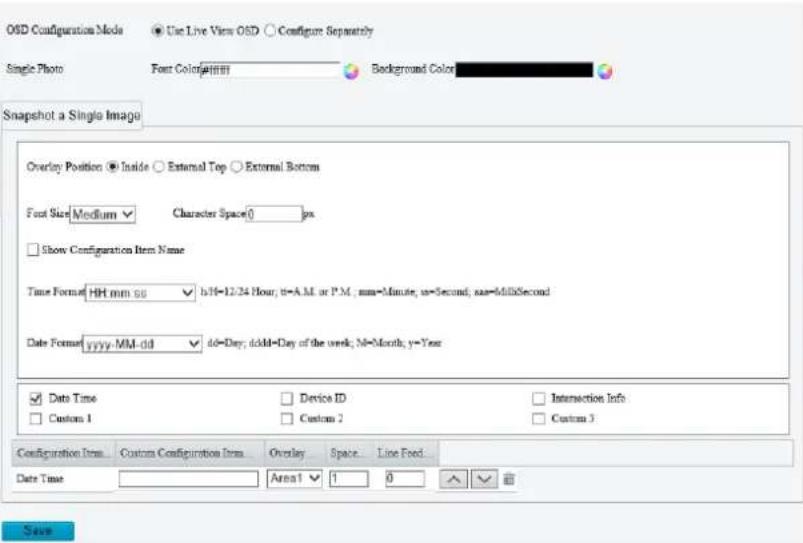
-
Select how the photo OSD is configured, Use Live View OSD or Configure Separately.
-
Use Live View OSD: Use the OSD overlayed on the live video.
- Configure Separately: Configure the OSD overlayed on the snapshots separately.
- Set the text color and background color for the OSD.
- Refer to the table below to set other parameters as needed.
| Item Description | |
| Overlay Position | Select the position for the OSD on the snapshot.Inside: Overlay inside the image.External Top: Overlay at the top outside the imageExternal Bottom: Overlay at the bottom outside the image. |
| Font Size Select the font size of the OSD content, including X-large, Large, Medium, and Small. | |
| Character Space | Set the distance between the OSD area and the edge of the image.Range: 0 to 10px. |
| Show Configuration Item Name | Select whether to show the configuration item name, such as Date Time, Device ID, etc. |
| Time Format Select the time format, including HH:mm:ss, HH:mm:ss.aaa, hh:mm:ss tt, and hh:mm:ss.aaa tt. | |
| Date Format | Select the date format, including dd/MM/yyyy, MM/dd/yyyy, etc. |
| Configuration Item Name | Select the configuration items you want to overlay, then the selected items are listed in the table.     |
| Custom Configuration Item Name |   the configuration item name. the configuration item name. |
| Overlay Area |   overlay area for the configuration item. You may change the area position by dragging it or ge or entering the X and Y coordinates. overlay area for the configuration item. You may change the area position by dragging it or ge or entering the X and Y coordinates.   Y0NOTE!This parameter is available only when Overlay Position is set to Inside. Y0NOTE!This parameter is available only when Overlay Position is set to Inside. |
| Space Count | Set the number of spaces after the overlay. Range: 0 to 10. |
| Line Feed Count | Set whether and how to break line for the subsequent configuration items.0: No line break.1: Second line.2/3: Third/fourth line.NOTE!In External Top or External Bottom mode, if the Line Feed Count is set to 2 or 3, the subsequent configuration items move to the next line.In External Top or External Bottom mode, up to 8 lines are allowed. The larger the font, the fewer lines are displayed; the smaller the font, the more lines are displayed. |
| Use the two buttons to rearrange the configuration items. | |
| Delete the configuration item. | |
NOTE!
This pa
1
Set the
Set who
NOTE!
Delete
- Click Save.
5.5.3 Privacy Mask
Privacy mask is used to cover certain areas on the image for privacy, for example, ATM keyboard.

NOTE!
• This function may vary with device model.
- For dual-channel devices, you can set privacy mask parameters for the channels separately.
1. Go to Setup > Image > Privacy Mask.


2. Select the mask mode, Rectangle or Polygon.
• 2D-mask camera: For a PTZ camera, the privacy mask does not move and zoom with the camera.
- 3D-mask camera: For a PTZ camera, the privacy mask moves and zooms with the camera and the masked area is always covered.
3. Add a privacy mask.
(1) Click Add. The privacy mask is a rectangle by default.
natural_image
Close-up of a textured surface with yellow and black lines, no visible text or symbols(2) Adjust the position and size of the mask or draw a mask as needed.
Adjust the position and size of the mask.
- Point to a border of the mask and drag it to the desired position.
- Point to a handle of the mask and drag to resize it.
Draw a mask.
- Polygon: Click on the image and drag to draw a line. Repeat the action to draw more lines to form an enclosed shape as needed. Up to 4 lines are allowed.
- Rectangle: Click on the image and drag to draw a rectangle.
4. Set the privacy mask.
| Item Description | |
| Mask style | Select the mask style, Black or Mosaic.NOTE!This parameter is configurable when Mask Mode is set to Rectangle. By default, the mask style of polygon mask is black and cannot be modified.Mosaic is only available on certain models. |
| Max. Zoom (3D-mask camera) | Set the maximum zoom ratio to determine whether to show or hide the privacy mask.If the current lens zoom ratio is less than the maximum zoom ratio, the privacy mask is invalid. |
| Set As Max. (3D-mask camera) | Click to set the current lens zoom ratio as the maximum zoom ratio. |
| Preset (3D-mask camera) | Click to rotate the camera to the masked area (generally, the masked area is in the center of the live video). |
5.5.4 Quick Focus
Fast focus effectively saves focus time and avoids missing important information after the camera changes the scene, focus and zoom.

NOTE!
- This function is only available on certain models.
-
Set the zoom speed to 2 on the Image page when quick focus is enabled.
-
Go to Setup > Image > Quick Focus.
- Select the Enable Quick Focus check box to enable it.

- Add a calibration line for the desired scene.
(1) Click Add. A line displays on the image.

(2) Adjust the position and length of the line or draw a line as needed.
Adjust the position and length of the line.
- Point to the line and drag it to the desired position.
- Point to a handle of the line and drag to resize it.
Draw a line.
Click on the image and drag to draw a line.
- Click Demarcate to start automatic zoom. After the auto zoom is completed, click Finish to complete calibration. If you click Finish during calibration, the calibration line is considered invalid.
- Repeat the above steps to calibrate more scenes. Up to 4 scenes are allowed.
5.6 Smart
On the Smart page, you can select the smart event to be monitored and click 🔒 to configure relevant parameters.
The smart events supported by the device and the parameters supported by the events may vary with device model.
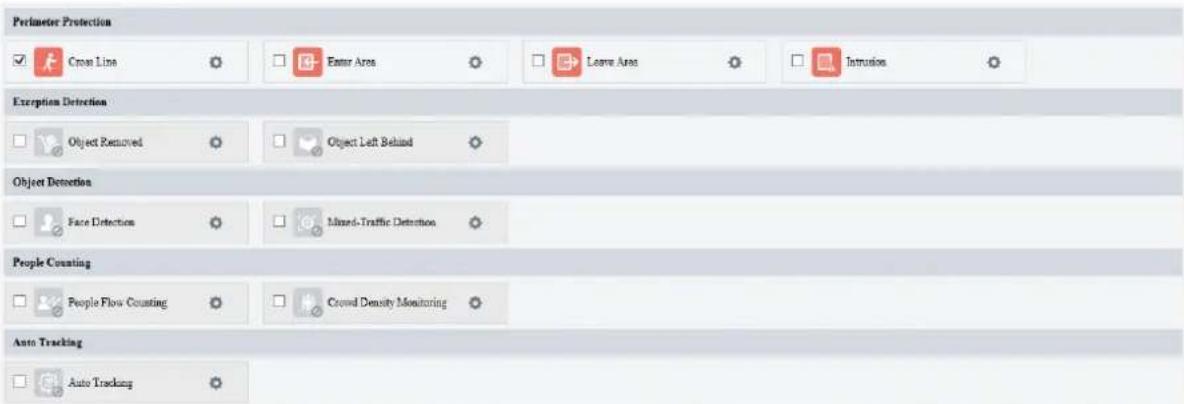
Common Button Description
| Button Description | |
| Create detection rules. Up to 4 detection rules are allowed for each smart event. | |
| Delete detection rules. | |
NOTE!
- For dual-channel devices, you can set smart parameters for the channels separately.
- Some smart functions are mutually exclusive. When a smart function is enabled, the functions that are mutually exclusive with it are grayed out.
5.6.1 Alarm-triggered Actions
You can set how the camera responds to an event to alert you to deal with it in time.
| Conventional | Alarm Output | Storage | PTZ |
| Send E-mailAttribute CollectionUpload Image(Original) | A → 1A → 2Alarm Sound | Recording Edge StorageImage Edge StorageFTP Video Storage | Trigger Tr...Tracking |
| Item Description | |
| Upload to FTP | The camera uploads snapshots to the specified FTP server when an alarm occurs.Please configure FTP and Snapshot first before use. |
| Send E-mail | The camera sends snapshots to the specified email addresses when an alarm occurs.Please configure E-mail and Snapshot first before use. |
| Alarm the Center | The camera uploads alarm information to the surveillance center when an alarm occurs. |
| Attribute Collection | The camera uploads the attribute information of the object that triggers the alarm to the server when an alarm occurs.Please configure Attribute Collection first before use. |
| Upload Image(Original) | The camera uploads the original snapshots of the object that triggers the alarm to the server when an alarm occurs. |
| Upload Image(Target) | The camera uploads the object snapshots to the server. |
| Alarm Output | The camera outputs an alarm to trigger actions by an alarm output device when an alarm occurs.Please configure Alarm Output first before use. |
| Alarm Sound | The camera plays warning sounds when an alarm occurs.1. Select the Alarm Sound check box and click to configure relevant parameters.2. Set the arming schedule for audible alarms. See Arming Schedule for details.3. Set the alarm audio content and alarm times.Audio: Set the audio content to be played when an alarms occurs. See Audio File for details.Repeat: Set the number of times the audio to be played when an alarm occurs. NOTE!This function may vary with device model. NOTE!This function may vary with device model. |
| Alarm Light | The illuminator of the camera flashes for a certain period of time when an alarm occurs.1. Select the Alarm Light check box and click to configure relevant parameters.2. Set the duration that the illuminator flashes when an alarm occurs.3. Set the arming schedule for visible alarms. See Arming Schedule for details. NOTE!This function may vary with device model. NOTE!This function may vary with device model. |
| Recording Edge Storage | The camera saves alarm recordings to its memory card or NAS when an alarm occurs.Please configure Memory Card or Network Disk first before use. |
| Image Edge Storage | The camera saves alarm snapshots to its memory card or NAS when an alarm occurs.Please configure Memory Card or Network Disk first before use. |
| FTP Video Storage | The camera uploads alarm recordings to the specified FTP server when an alarm occurs.Please configure FTP first before use. |
| Trigger Tracking | The camera starts tracking the object that triggers the alarm automatically until the set tracking time is reached or the object disappears when an alarm occurs.You can click Tracking to configure tracking parameters. See Tracking for details. |
| Go to Preset | The camera automatically goes to a preset position when an alarm occurs.Select the preset position you want the camera to go to. See PTZ for details. |
5.6.2 Arming Schedule
You can set an arming schedule to determine when the camera performs detection.
- Draw a schedule
To set an armed period, click Armed, and then click or drag on the schedule to select the time cells you want to enable arming. To set a disarmed period, click Unarmed, and then click or drag on the schedule to select the time cells you want to disable arming.


NOTE!
Only browsers of IE 9 or higher allows schedule drawing.
- Edit a schedule
Click Edit, set the arming time, and then click OK.


NOTE!
- Up to 4 time periods are allowed per day. The time periods cannot overlap.
• To apply the same time settings to other days, select the desired day(s), and then click Copy.
5.6.3 Cross Line Detection
Cross line detection detects objects crossing a user-specified virtual line in a specified direction. The camera reports an alarm when the detection rule is triggered.
- Go to Setup > Intelligent > Smart.
2. Select Cross Line and click 🔗 to configure it.

3. Add a detection rule.
(1) Click + to add a detection line. Up to 4 detection rules are allowed.

(2) Adjust the position and length of the line or draw a line as needed.
Adjust the position and length of the line.
- Point to the line and drag it to the desired position.
- Point to a handle of the line and drag to resize it.
Draw a line.
Click on the image and drag to draw a line.
4. Set the detection rule.
| Item Description | |||
| Trigger Direction | Select the direction from which the object crosses the line to trigger an alarm.A->B: The camera reports a cross line alarm when it detects an object crossing the line from A to B.B->A: The camera reports a cross line alarm when it detects an object crossing the line from B to A.A<->B (default): The camera reports a cross line alarm when it detects an object crossing the line from A to B or from B to A. | ||
| Sensitivity | Set the detection sensitivity.The higher the sensitivity, the more likely cross line behaviors will be detected, and the more likely false alarms will occur. | ||
| Level | Select the priority of the detection rule, includingHigh, Medium, andLow.The camera detects the rule that is triggered first by default. If multiple rules are triggered at the same time, the camera detects the rule with higher priority. | ||
| Detection Object | Select the object to be detected, includingMotor Vehicle, Non-Motor Vehicle, and Pedestrian. | ||
| Filter Type | After you select a detection object, you can set a filter rule for it.For example, if you have selectedMotor Vehicleas a detection object, selectMotor Vehicle from theFilter Typedrop-down listand set theMax. SizeorMin. Sizefor it, then motor vehicles larger than the Max. Size or smaller than the Min. Size will not be detected. | ||
| Max. Size/Min. Size | When enabled, a box appears on the image, you can point to a handle of the box and drag to resize it. The camera filters objects larger than the Max. Size or smaller than the Min. Size. The width and height of the maximum filter area must be greater than that of the minimum filter area. |  | 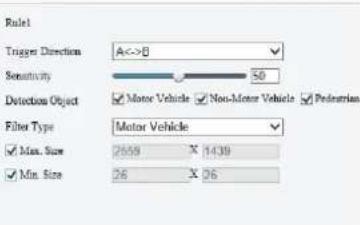 |
-
Set the alarm-triggered actions and arming schedule. See Alarm-triggered Actions and Arming Schedule for details.
-
Click Save.
5.6.4 Enter Area Detection
Enter area detection detects objects entering a user-specified area. The camera reports an alarm when the detection rule is triggered.
- Go to Setup > Intelligent > Smart.
- Select Enter Area and click ⚙ to configure it.

- Add a detection rule.
(1) Click + to add a detection area. The detection area is a hexagon by default. Up to 4 detection rules are allowed.
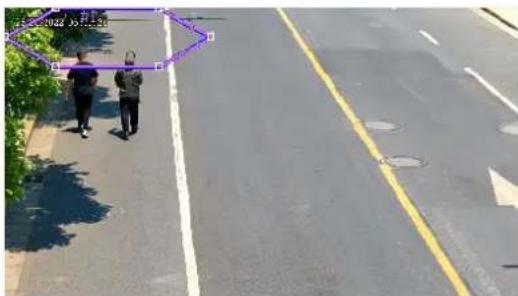
(2) Adjust the position and size of the area or draw an area as needed.
Adjust the position and size of the area.
- Point to a border of the area and drag it to the desired position.
- Point to a handle of the area and drag to resize it.
Draw an area.
Click on the image and drag to draw a line. Repeat the action to draw more lines to form an enclosed shape as needed. Up to 6 lines are allowed.
- Set the detection rule.
| Item Description | |||
| Sensitivity | Set the detection sensitivity.The higher the sensitivity, the more likely entry behaviors will be detected, and the more likely false alarms will occur. | ||
| Level | Select the priority of the detection rule, includingHigh, Medium, and Low.The camera detects the rule that is triggered first by default. If multiple rules are triggered at the same time, the camera detects the rule with higher priority. | ||
| Detection Object | Select the object to be detected, includingMotor Vehicle, Non-Motor Vehicle, and Pedestrian. | ||
| Filter Type | After you select a detection object, you can set a filter rule for it.For example, if you have selectedMotor Vehicleas a detection object, selectMotor Vehiclefrom theFilter Typedrop-down list and set theMax. SizeorMin. Sizefor it, then motor vehicles larger than the Max. Size or smaller than the Min. Size will not be detected. | ||
| Max. Size/Min. Size | When enabled, a box appears on the image, you can point to a handle of the box and drag to resize it. The camera filters objects larger than the Max. Size or smaller than the Min. Size. The width and height of the maximum filter area must be greater than that of the minimum filter area. | ||
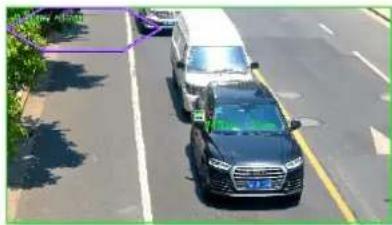 |  |  | |
- Set the alarm-triggered actions and arming schedule. See Alarm-triggered Actions and Arming Schedule for details.
- Click Save.
5.6.5 Leave Area Detection
Leave area detection detects objects leaving a user-specified area. The camera reports an alarm when the detection rule is triggered.
- Go to Setup > Intelligent > Smart.
2. Select Leave Area and click ⚙ to configure it.
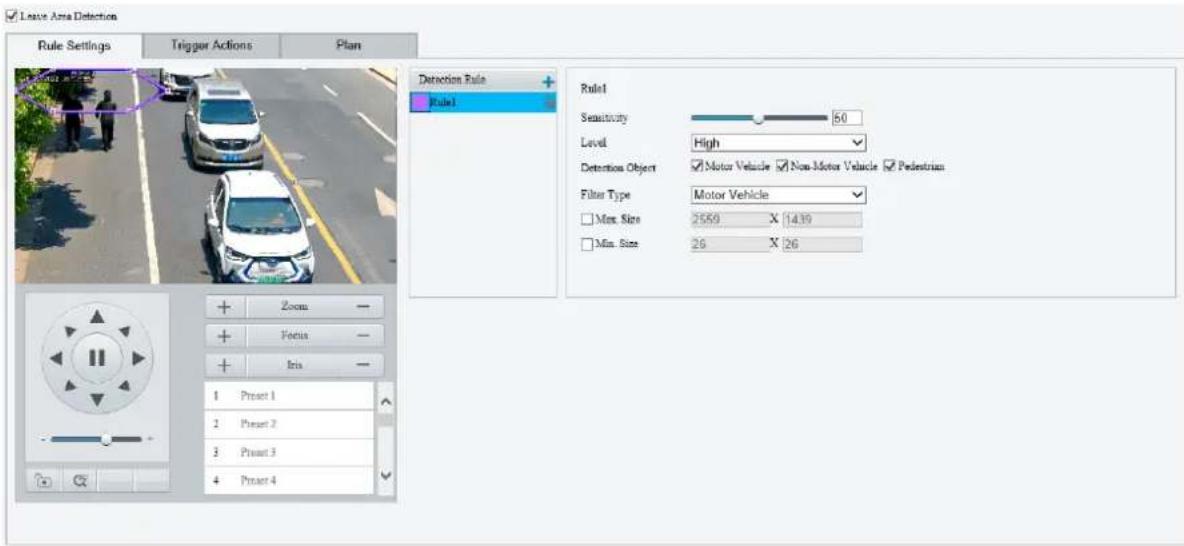
3. Add a detection rule.
(1) Click + to add a detection area. The detection area is a hexagon by default. Up to 4 detection rules are allowed.
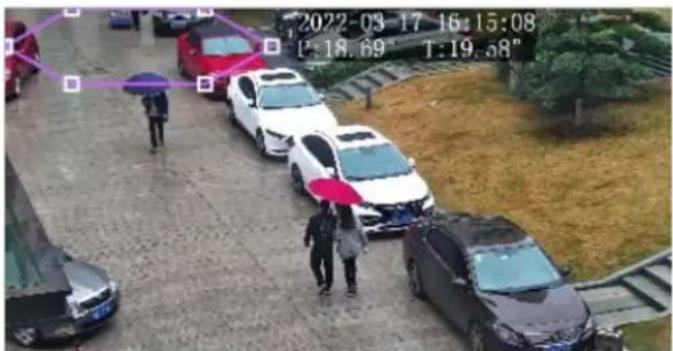
(2) Adjust the position and size of the area or draw an area as needed.
Adjust the position and size of the area.
- Point to a border of the area and drag it to the desired position.
- Point to a handle of the area and drag to resize it.
Draw an area.
Click on the image and drag to draw a line. Repeat the action to draw more lines to form an enclosed shape as needed. Up to 6 lines are allowed.
4. Set the detection rule.
| Item Description | |||
| Sensitivity | Set the detection sensitivity.The higher the sensitivity, the more likely cross line behaviors will be detected, and the more likely false alarms will occur. | ||
| Level | Select the priority of the detection rule, including High, Medium, and Low.The camera detects the rule that is triggered first by default. If multiple rules are triggered at the same time, the camera detects the rule with higher priority. | ||
| Detection Object | Select the object to be detected, including Motor Vehicle, Non-Motor Vehicle, and Pedestrian. | ||
| Filter Type | After you select a detection object, you can set a filter rule for it.For example, if you have selectedMotor Vehicleas a detection object, selectMotor Vehiclefrom theFilter Typedrop-down list and set theMax. Size orMin. Sizefor it, then motorvehicles larger than the Max. Size or smaller than the Min. Size will not be detected. | ||
| Max. Size/Min. | When enabled, a box appears on the image, you can point to a handle of the box and dragto resize it. The camera filters objects larger than the Max. Size or smaller than the Min. Size.The width and height of the maximum filter area must be greater than that of the minimumfilter area. | ||
 |  |  | |
-
Set the alarm-triggered actions and arming schedule. See Alarm-triggered Actions and Arming Schedule for details.
-
Click Save.
5.6.6 Intrusion Detection
Intrusion detection detects objects entering a user-specified area and staying for a preset time. The camera reports an alarm when the detection rule is triggered.
- Go to Setup > Intelligent > Smart.
- Select Intrusion and click ⚙ to configure it.
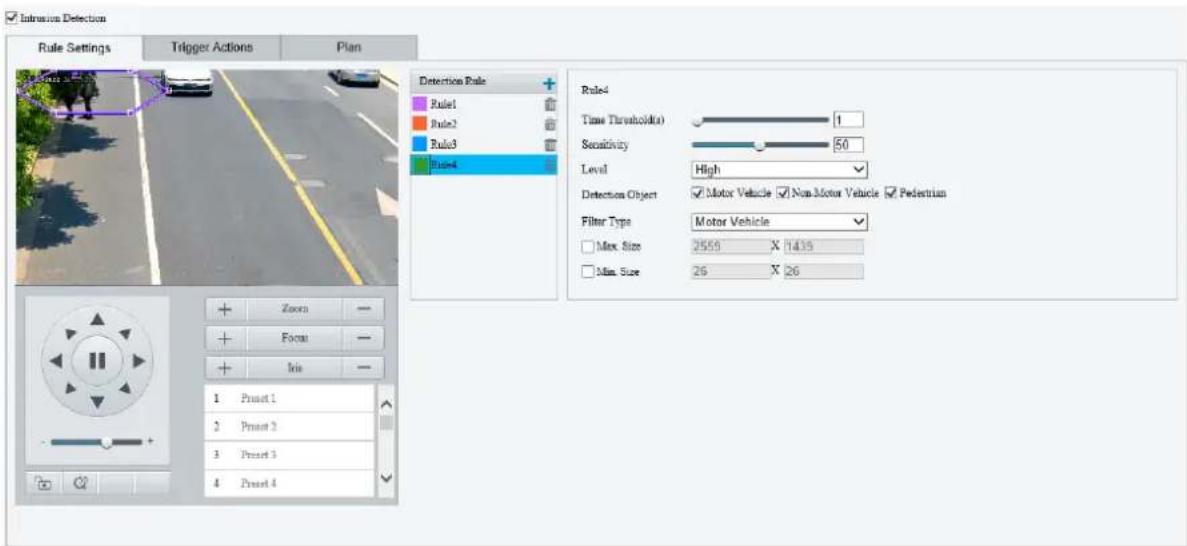
- Add a detection rule.
(1) Click + to add a detection area. The detection area is a hexagon by default. Up to 4 detection rules are allowed.

(2) Adjust the position and size of the area or draw an area as needed.
Adjust the position and size of the area.
- Point to a border of the area and drag it to the desired position.
- Point to a handle of the area and drag to resize it.
Draw an area.
Click on the image and drag to draw a line. Repeat the action to draw more lines to form an enclosed shape as needed. Up to 6 lines are allowed.
- Set the detection rule.
| Item Description | |||
| Time Threshold(s) | Set how long the object stays in the detection area to trigger an intrusion alarm. If an object stays in the detection area for the set time, an intrusion alarm will be triggered. | ||
| Sensitivity | Set the detection sensitivity.The higher the sensitivity, the more likely intrusion behaviors will be detected, and the more likely false alarms will occur. | ||
| Level | Select the priority of the detection rule.The camera detects the rule that is triggered first by default. If multiple rules are triggered at the same time, the camera detects the rule with higher priority. | ||
| Detection Object | Select the object to be detected, includingMotor Vehicle, Non-Motor Vehicle, and Pedestrian. | ||
| Filter Type | After you select a detection object, you can set a filter rule for it.For example, if you have selectedMotor Vehicleas a detection object, selectMotor Vehiclefrom theFilter Typedrop-down list and set theMax. SizeorMin. Sizefor it, then motor vehicles larger than the Max. Size or smaller than the Min. Size will not be detected. | ||
| Max. Size/Min. Size | When enabled, a box appears on the image, you can point to a handle of the box and drag to resize it. The camera filters objects larger than the Max. Size or smaller than the Min. Size. The width and height of the maximum filter area must be greater than that of the minimum filter area. | ||
 |  |  | |
- Set the alarm-triggered actions and arming schedule. See Alarm-triggered Actions and Arming Schedule for details.
- Click Save.
5.6.7 Object Removed Detection
Object removed detection detects objects removed from a user-specified area. The camera reports an alarm when the detection rule is triggered.
- Go to Setup > Intelligent > Smart.
- Select Object Removed and click 🔍 to configure it.
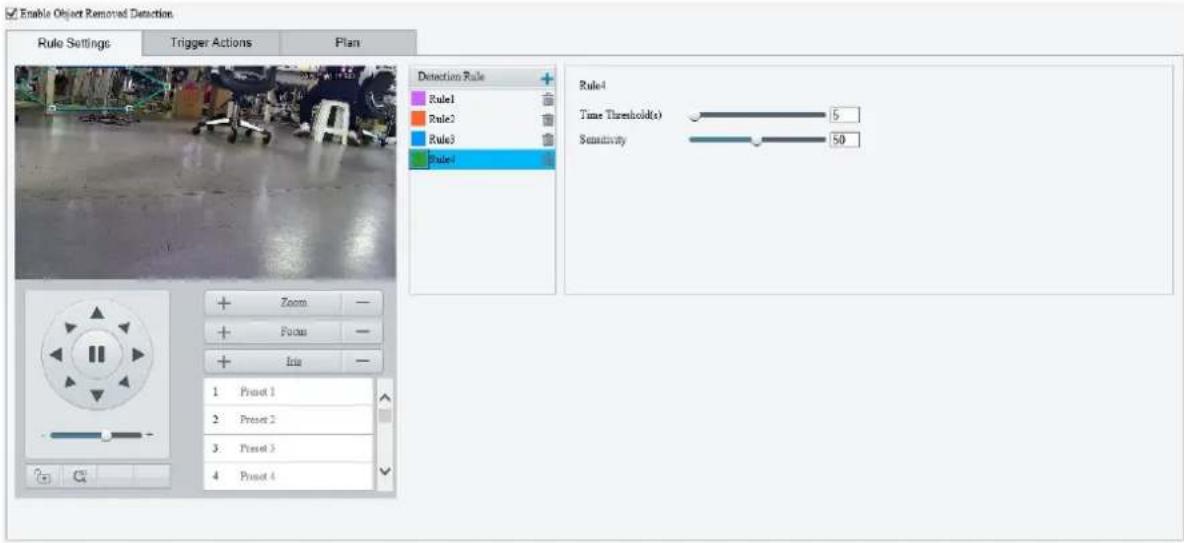
- Add a detection rule.
(1) Click + to add a detection area. The detection area is a hexagon by default. Up to 4 detection rules are allowed.
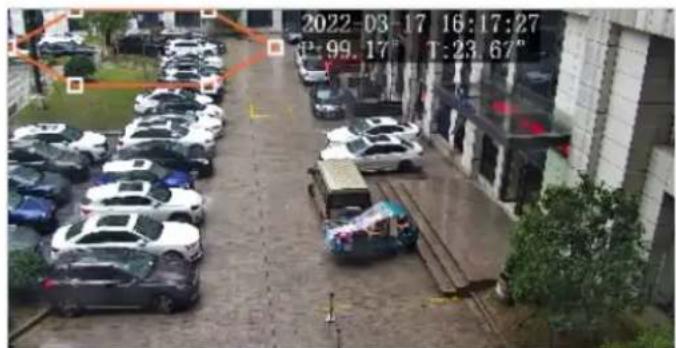
(2) Adjust the position and size of the area or draw an area as needed.
Adjust the position and size of the area.
- Point to a border of the area and drag it to the desired position.
- Point to a handle of the area and drag to resize it.
Draw an area.
Click on the image and drag to draw a line. Repeat the action to draw more lines to form an enclosed shape as needed. Up to 6 lines are allowed.
- Set the detection rule.
| Item Description | |
| Time Threshold(s) | Set how long the object is removed from the detection area to trigger an alarm.If an object is removed from the detection area for the set time, an alarm will be triggered. |
| Sensitivity | Set the detection sensitivity.The higher the sensitivity, the more likely object removal behaviors will be detected, and the more likely false alarms will occur. |
-
Set the alarm-triggered actions and arming schedule. See Alarm-triggered Actions and Arming Schedule for details.
-
Click Save.
5.6.8 Object Left Behind Detection
Object left behind detection detects objects left behind in a user-specified area. The camera reports an alarm when the detection rule is triggered.
- Go to Setup > Intelligent > Smart.
- Select Object Left Behind and click 🔗 to configure it.
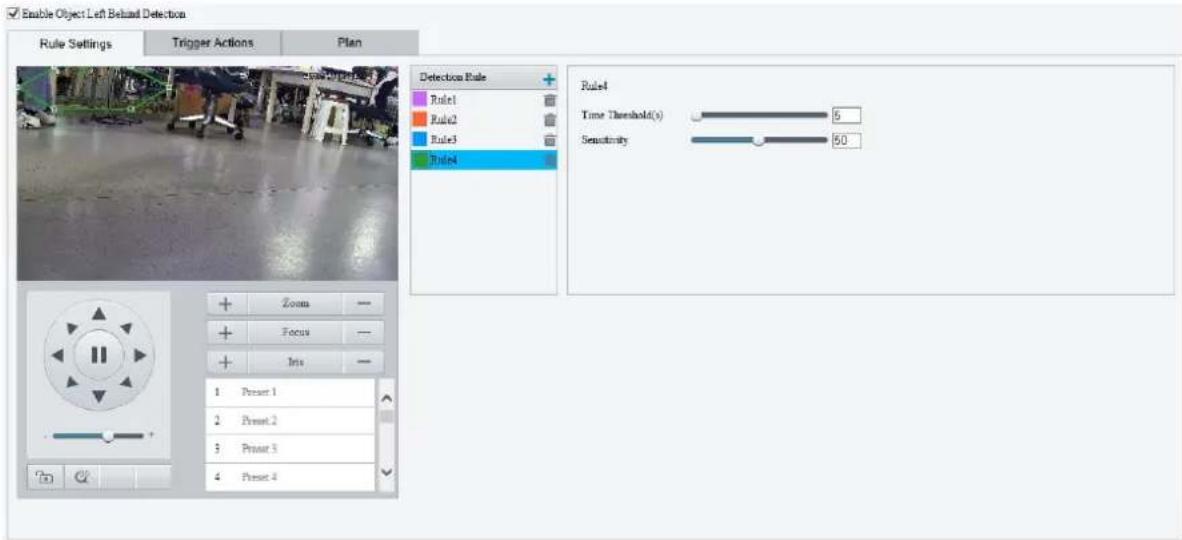
- Add a detection rule.
(1) Click + to add a detection area. The detection area is a hexagon by default. Up to 4 detection rules are allowed.

(2) Adjust the position and size of the area or draw an area as needed.
Adjust the position and size of the area.
- Point to a border of the area and drag it to the desired position.
- Point to a handle of the area and drag to resize it.
Draw an area.
Click on the image and drag to draw a line. Repeat the action to draw more lines to form an enclosed shape as needed. Up to 6 lines are allowed.
- Set the detection rule.
| Item Description | |
| Time Threshold(s) | Set how long the object is left behind in the detection area to trigger an alarm.If an object is left behind in the detection area for the set time, an alarm will be triggered. |
| Sensitivity | Set the detection sensitivity.The higher the sensitivity, the more likely object left behind behaviors will be detected, and the more likely false alarms will occur. |
-
Set the alarm-triggered actions and arming schedule. See Alarm-triggered Actions and Arming Schedule for details.
-
Click Save.
5.6.9 Defocus Detection
Defocus detection detects lens defocus. The camera reports an alarm when the detection rule is triggered.
-
Go to Setup > Intelligent > Smart.
-
Select Defocus and click ⚙ to configure it.
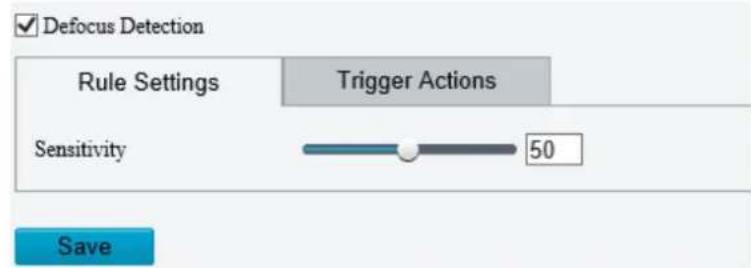
-
Set the detection sensitivity. The higher the sensitivity, the more likely defocus will be detected, and the more likely false alarms will occur.
-
Set the alarm-triggered actions. See Alarm-triggered Actions for details.
-
Click Save.
5.6.10 Scene Change Detection
Scene change detection detects the change of surveillance scene caused by external factors such as intentional camera movement. The camera reports an alarm when the detection rule is triggered.
-
Go to Setup > Intelligent > Smart.
-
Select Scene Change and click ⚙ to configure it.
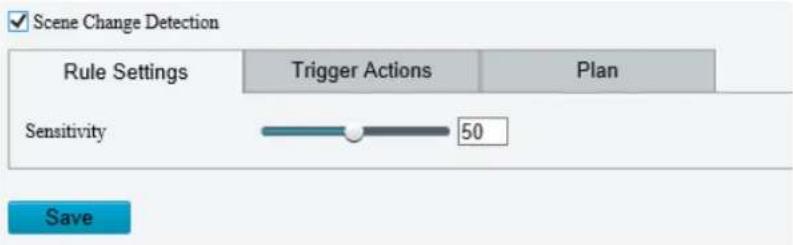
- Set the detection sensitivity. The higher the sensitivity, the more likely scene change behaviors will be detected, and the more likely false alarms will occur.
- Set the alarm-triggered actions and arming schedule. See Alarm-triggered Actions and Arming Schedule for details.
- Click Save.
5.6.11 Face Detection
Face detection detects and captures faces in a specified detection area.
- Go to Setup > Intelligent > Smart.
- Select Face Detection and click 🔗 to configure it.

- Set the face detection rule.
| Item Description | |
| Snapshot Area | Select the snapshot area.Full Screen: The camera detects and captures all faces in the live video.Specified Area: The camera only detects and captures faces in a specified area of live video.Select Specified Area and a detection box appears in the left preview window. Adjust the position and size of the area or draw an area as needed.- Adjust the position and size of the area. Point to a border of the area and drag it to the desired position. Point to a handle of the area and drag to resize it.- Draw an area. Click on the image and drag to draw a line. Repeat the action to draw more lines to form an enclosed shape as needed. Up to 6 lines are allowed. Adjust the position and size of the area or draw an area as needed.- Adjust the position and size of the area. Point to a border of the area and drag it to the desired position. Point to a handle of the area and drag to resize it.- Draw an area. Click on the image and drag to draw a line. Repeat the action to draw more lines to form an enclosed shape as needed. Up to 6 lines are allowed. |
| Snapshot Sensitivity | Set the snapshot sensitivity.The higher the sensitivity, the more likely a face will be detected. |
| Snapshot Mode | Set the snapshot mode.Intelligent Recognition: The camera continuously performs face detection.Alarm Input: The camera only performs face detection in the event of an alarm input. Before use, you need to enable alarm input and configure arming schedule for it. See Alarm Input for details. |
| Human Body Snapshot | Select to enable or disable human body snapshot. |
| Min. Pupillary Distance (px) | The minimum distance (measured in pixels) between two pupils. The face with pupillary distance smaller than the value will not be captured.To set the minimum pupillary distance, you can click Draw and drag the corners of the box in the preview window to resize it, or type the pupillary distance value in the text box. |
| Static Object Detection | Select whether to detect static objects. |
| Counting | After you enable Counting and select the people counting direction, the statistics of people entering or leaving are displayed on the live image.Before use, please configure a people counting OSD overlay on the OSD page. See OSD for details. |
| Reset Counter at | Select the Reset Counter at check box and set a time for the camera to clear people counting statistics.To clear people counting statistics immediately, click Clear Counting Result. This operation only clears the people statistics displayed on the OSD, and does not affect the reported data. |
- Set the face selection rule.
| Item Description | |
| Selection Mode | Select the face selection mode.Effect Priority: The camera selects 1 to 3 snapshots with the best quality to report. You can specify the number of photos to select.Speed Priority: The camera selects certain number of snapshots from the moment that the face is detected tillSelection Timeoutis up. You can specify the number of photos to select.Periodic Selection: The camera selects a snapshot in every selection period. For example, ifSelection Periodis set to 500ms, the camera selects a face snapshot every 500ms, and ifUpload Original Imageis enabled, both the original snapshot containing the face and the face cutout will be uploaded. |
| Number of Selected Photos | Set the number of snapshots to be selected in the range of 1 to 3. This parameter is set to 1 by default and cannot be modified on certain models. |
| Filter by Angle | After you enable Filter by Angle and set the filtering rule, faces with unqualified angles (larger than the set angles) will be filtered during face detection. |
- Set the face recognition rule. See Face Recognition for details.

NOTE!
Face recognition and human body snapshot cannot be enabled at the same time.
- Mask undesired areas.
(1) Click + to add a masked area. The masked area is a hexagon by default. Up to 4 masked areas are allowed.
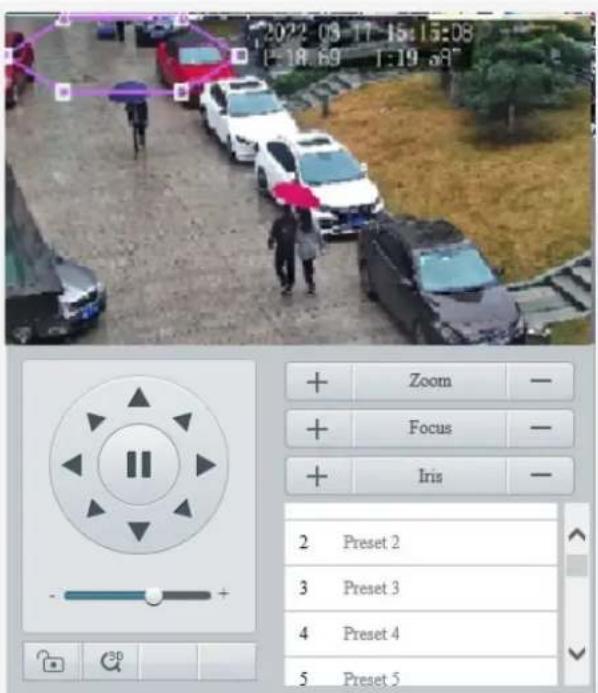

(2) Adjust the position and size of the area or draw an area as needed.
Adjust the position and size of the area.
- Point to a border of the area and drag it to the desired position.
- Point to a handle of the area and drag to resize it.
Draw an area.
Click on the image and drag to draw a line. Repeat the action to draw more lines to form an enclosed shape as needed. Up to 6 lines are allowed.
- Set the alarm-triggered actions and arming schedule. See Alarm-triggered Actions and Arming Schedule for details.
- Click Save.
5.6.12 Face Recognition
Face recognition compares the faces captured in live view with the faces stored in face libraries, and uploads the comparison results to the server.
- Go to Setup > Intelligent > Smart.
- Select Face Detection and click ⚙️.
- Click the Face Library tab.

- Create face libraries.
Click Add in the left area, enter the library name, and click OK.
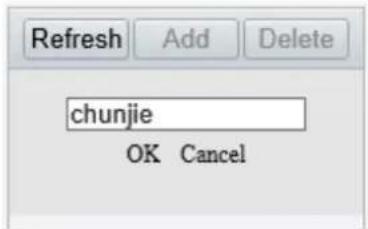
- Add face data.
| Item Description | |
| Add one by one | 4. Click Add. |
| Add in batches | 1. Click Export Template to export the CSV face template file to the PC.2. Complete the required face data in the template with reference to the import guide. Refer to the import guide to fill in the template with the required face data.3. Click Batch Import, select the CSV file you have edited, and click Upload. |
The imported face data are shown as below:
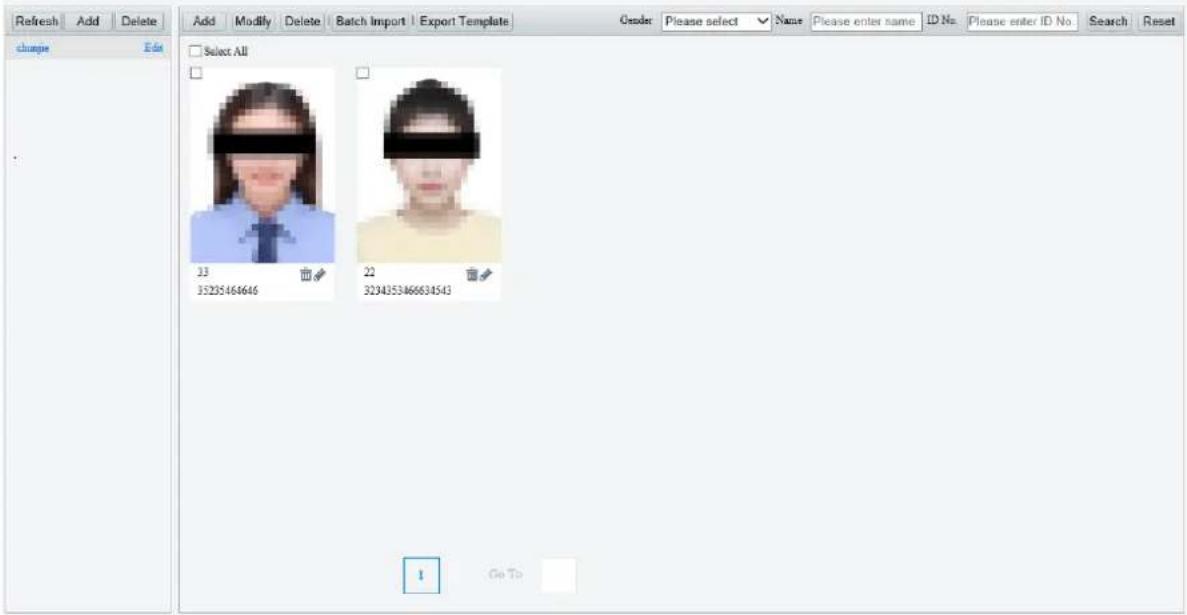
6. Add monitoring tasks.
Open the Monitoring Task tab.

(1) Click Add.
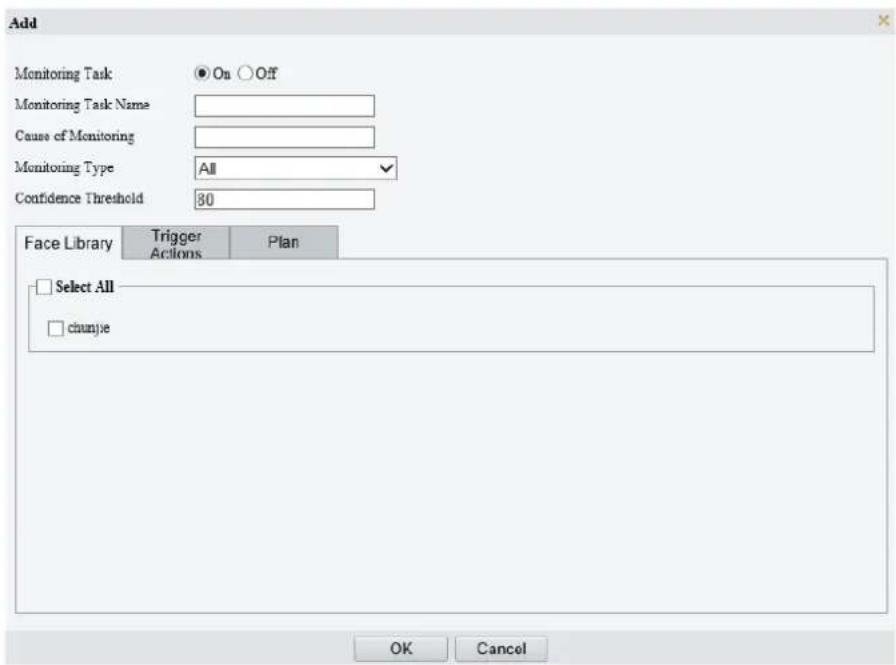
(2) Complete the monitoring task settings.
| Monitoring Type | Description |
| Monitoring Task | Select to enable or disable the monitoring task. |
| Monitoring Task Name | Enter a name for the monitoring task. |
| Cause of Monitoring | Enter the cause of the monitoring task. |
| Monitoring Type | Select the monitoring type.All: The camera reports an alarm and performs the set alarm-triggered actions once it detects a face.Match Alarm: The camera reports a match alarm and performs the set alarm-triggered actions when the similarity between a captured face and a face in the monitored face library reaches the confidence threshold.Not Match Alarm: The camera reports a not match alarm and performs the set alarm-triggered actions when the similarity between a captured face and a face in the monitored face library fails to reach the confidence threshold. |
| Confidence Threshold | By default, the confidence threshold is set to 80. A match alarm/not match alarm occurs when the similarity between a captured face and a face in the face library reaches/fails to reach the threshold.The higher the value, the more accurate the face recognition. |
(3) Select the face library to be monitored.
(4) Set the alarm-triggered actions and arming schedule. See Alarm-triggered Actions and Arming Schedule for details.
(5) Click OK.
- Click Save.
5.6.13 Human Body Detection
Human body detection detects humans in a specified area. The camera reports an alarm when the detection rule is triggered.
- Go to Setup > Intelligent > Smart.
- Select Human Body Detection and click 🔍 to configure it.

- Add a snapshot area.
(1) Click +. The snapshot area is a hexagon by default. Only one snapshot area is allowed.
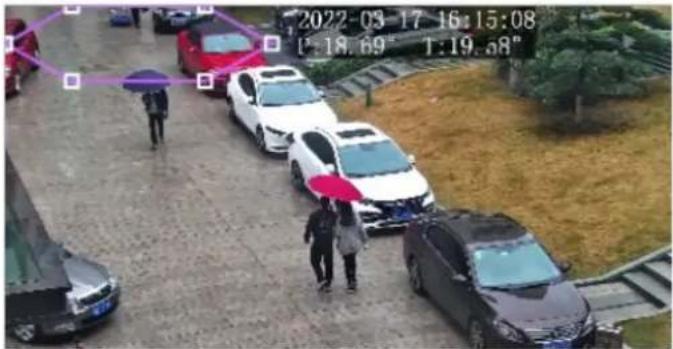
(2) Adjust the position and size of the area or draw an area as needed.
Adjust the position and size of the area.
Point to the area and drag it to the desired position. Drag the corners of the area to resize it.
Draw an area.
Click in the preview window to draw a polygonal area with up to 6 sides.
-
Set the detection sensitivity. The higher the sensitivity, the more likely humans will be detected, and the more likely false alarms will occur.
-
Set the alarm-triggered actions and arming schedule. See Alarm-triggered Actions and Arming Schedule for details.
-
Click Save.
5.6.14 Mixed-Traffic Detection
Mixed-traffic detection detects and captures motor vehicles, non-motor vehicles, and pedestrians in a user-specified area. You can set a mixed-traffic counting OSD to view realtime motor vehicle, non-motor vehicle and pedestrian statistics on the live video. See Live View OSD for details.
-
Go to Setup > Intelligent > Smart.
-
Select Mixed-Traffic Detection and click to configure it.
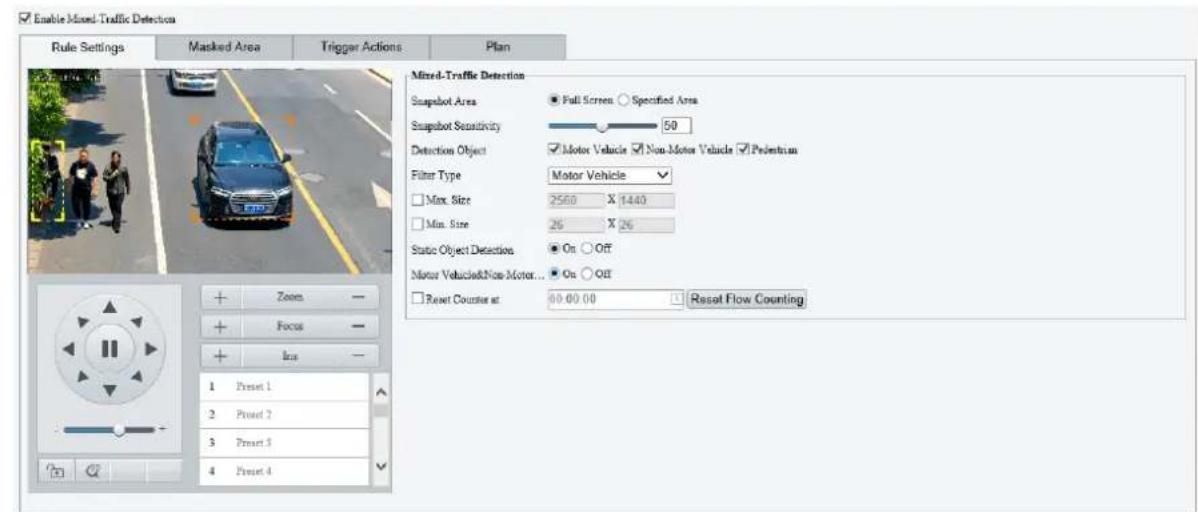
- Set the detection rule.
| Item Description | ||
| Snapshot Area | Select the snapshot area.Full Screen: The camera detects and captures objects in the live video.Specified Area: The camera only detects and captures objects in a specified area of live video.Select Specified Area and a detection box appears in the left preview window. | |
 |  | |
| Adjust the position and size of the area or draw an area as needed.Adjust the position and size of the area. Point to the area and drag it to the desired position. Drag the corners of the area to resize it.Draw an area. Click in the preview window to draw a polygonal area with up to 6 sides.Select the area you want to monitor. | ||
| Snapshot Sensitivity | Set the detection sensitivity.The higher the sensitivity, the more likely objects will be detected, and the more likely false alarms will occur. | |
| Detection Object | Select the object to be detected, includingMotor Vehicle, Non-Motor Vehicle, and Pedestrian. | |
| Filter Type | After you select a detection object, you can set a filter rule for it.For example, if you have selectedMotor Vehicleas a detection object, selectMotor Vehiclefrom theFilter Typedrop-down listand set theMax.SizeorMin.Sizefor it, then motor vehicles larger than the Max. Size or smaller than the Min. Size will not be detected. | |
| Max. Size/Min. Size | When enabled, a box appears on the image, you can point to a handle of the box and drag to resize it. The camera filters objects larger than the Max. Size or smaller than the Min. Size. The width and height of the maximum filter area must be greater than that of the minimum filter area. | |
 |  | |
| Static Object Detection | Select whether to detect static objects. | |
| Motor Vehicle&Non-Motor Vehicle&Pedestrian Count | Select whether to count motor vehicles, non-motor vehicles and pedestrians. | |
| Reset Counter at | You can set a time for the camera to clear the traffic statistics or clickReset Flow Counting to clear immediately. | |
4. Mask undesired areas.
(1) Click + to add a masked area. The masked area is a hexagon by default. Up to 4 masked areas are allowed.


(2) Adjust the position and size of the area or draw an area as needed.
Adjust the position and size of the area.
Point to the area and drag it to the desired position. Drag the corners of the area to resize it.
Draw an area.
Click in the preview window to draw a polygonal area with up to 6 sides.
-
Set the alarm-triggered actions and arming schedule. See Alarm-triggered Actions and Arming Schedule for details.
-
Click Save.
5.6.15 People Flow Counting
People flow counting counts people passing a specified tripwire and triggers an alarm if the number of people exceeds the set alarm threshold.
- Go to Setup > Intelligent > Smart.
- Select People Flow Counting and click 🔒 to configure it.

- A tripwire is displayed in the left preview window by default. You can adjust the position and size of it or draw a tripwire as needed. Only one tripwire is allowed.

- Adjust the position and size of the tripwire.
Point to the tripwire and drag it to the desired position. Drag the endpoints of the tripwire to resize it.
- Draw a tripwire.
Click in the preview window to draw a tripwire.
- Set the people flow counting rule.
| Item Description | |
| Data Report Interval(s) | Set the time interval for the camera to report people flow statistics.Default: 60.Range: 1 to 60.For example, if the interval is set to 60, the camera will report people flow statistics to the server every 60 seconds. |
| Reset Counter at | Select the Reset Counter at check box and set a time for the camera to clear people counting statistics on the OSD.To clear now, click Clear. |
| Enter Set the entry direction. | |
| Counting Type | Select the counting type.Before use, configure a people counting OSD first. See OSD for details.Total: The number of people entering and leaving the area is displayed in real time on the video image.People Entered: The number of people entering the area is displayed in real time on the video image.People Exited: The number of people leaving the area is displayed in real time on the video image. |
| People Present Alarm | Set the people present alarm threshold. When the number of people present reaches a set threshold, an alarm is triggered.Range: 1 to 180.Minor Alarm: A minor alarm is triggered when the number of people present reaches the set value.Major Alarm: A major alarm is triggered when the number of people present reaches the set value. The value of major alarm must be greater than that of minor alarm.Critical Alarm: A critical alarm is triggered when the number of people present reaches the set value. The value of critical alarm must be greater than that of major alarm. |
- Set the alarm-triggered actions and arming schedule. See Alarm-triggered Actions and Arming Schedule for details.
| Rule Settings | Trigger Actions | Plan | |
| No. | Trigger Actions | ||
| 1 | People Present Minor Alarm | ||
| 2 | People Present Major Alarm | ||
| 3 | People Present Critical Alarm | ||

- Click Save.
5.6.16 Crowd Density Monitoring
Crowd density monitoring monitors the number of people in a specified area and triggers an alarm if the number exceeds the set alarm threshold.
- Go to Setup > Intelligent > Smart.
- Select Crowd Density Monitoring and click ⚙ to configure it.

- A detection box is displayed in the left preview window by default. You can adjust the position and size of it or draw an area as needed. Only one area is allowed.

- Adjust the position and size of the area.
Point to the area and drag it to the desired position. Drag the corners of the area to resize it.
- Draw an area.
Click in the preview window to draw a polygonal area with up to 6 sides.
- Set the crowd density monitoring rule.
| Item Description | |
| Report Interval(s) | Set the time interval for reporting crowd density statistics.Default: 60.Range: 1 to 60.For example, if the interval is set to 60, the camera will report crowd density statistics to the server every 60 seconds. |
| People Present Alarm | Set the crowd density alarm threshold. When the number of people in the specified area reaches a set threshold, an alarm is triggered.Range: 1 to 40.Minor Alarm: A minor alarm is triggered when the number of people in the specified area reaches the set value.Major Alarm: A major alarm is triggered when the number of people in the specified area reaches the set value. The value of major alarm must be greater than that of minor alarm.Critical Alarm: A critical alarm is triggered when the number of people in the specified area reaches the set value. The value of critical alarm must be greater than that of major alarm. |
- Set the alarm-triggered actions and arming schedule. See Alarm-triggered Actions and Arming Schedule for details.


- Click Save.
5.6.17 Auto Tracking
The camera can automatically track objects that trigger the predefined tracking rule.
- Go to Setup > Intelligent > Smart.
- Select Auto Tracking and click 🔍 to configure it.

- Set the tracking rule.
| Item Description | |
| Tracking Object | Select the object to be tracked, includingMotor Vehicle, Non-Motor Vehicle, and Pedestrian. |
| Filter Type | After you select a detection object, you can set a filter rule for it.For example, if you have selectedMotor Vehicleas a detection object, selectMotor Vehiclefrom theFilter Typedrop-down list and set theMax. SizeorMin. Sizefor it, then motor vehicles larger than the Max. Size or smaller than the Min. Size will not be detected. |
| Max. Size/Min. Size | When enabled, a box appears on the image, you can point to a handle of the box and drag to resize it. The camera filters objects larger than the Max. Size or smaller than the Min. Size. The width and height of the maximum filter area must be greater than that of the minimum filter area. |
| Tracking | Click to set tracking parameters. See Tracking for details. |
-
Set the alarm-triggered actions and arming schedule. See Alarm-triggered Actions and Arming Schedule for details.
-
Click Save.
5.6.18 Smoke and Fire Detection
Smoke and fire detection detects smoke and fire in the visible light channel and triggers an alarm. The camera uploads the original snapshots triggered by smoke and fire alarms by default.
- Go to Setup > Intelligent > Smart.
- Select Smoke and Fire Detection and click 🔗 to configure it.

-
Set the detection rule.
-
Bounding Box Overlay: A rectangular box is used to frame the object that triggers the detection rule for you to quickly locate it.
- Sensitivity: Set the detection sensitivity. The higher the sensitivity, the more likely smoke and fire will be detected, and the more likely false alarms will occur.
- Shield Area: Shield areas that may interfere with detection or trigger false alarms. A total of 64 shielding areas are allowed, with a maximum of 8 shielding areas per image.
(1) Move the camera to the desired position manually or using presets.

(2) Click Add.

(3) Adjust the position and size of the area or draw an area as needed.
Adjust the position and size of the area. Point to the area and drag it to the desired position. Drag the corners of the area to resize it.
Draw an area. Click in the preview window to draw a polygonal area with up to 6 sides.
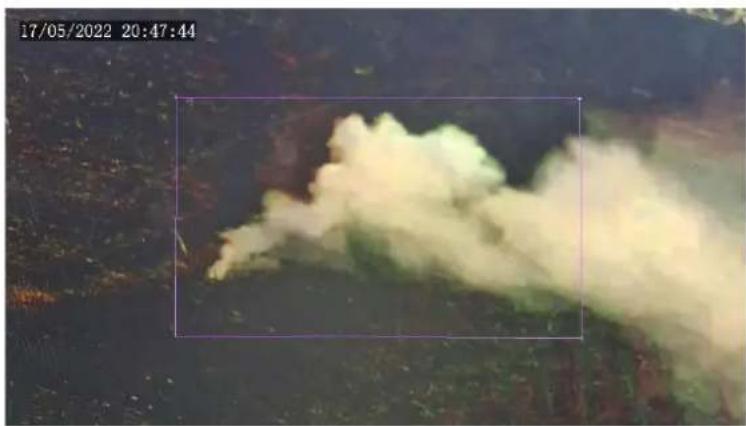
natural_image
Aerial view of a large smoke plume in a dark, forested area, captured at 20:47:44 on 17/05/2022 (no visible text or symbols)Item Description
Click to move the shielding area to the center of the image.
For example:
Area 1 in the figure below is set as a shielding area.
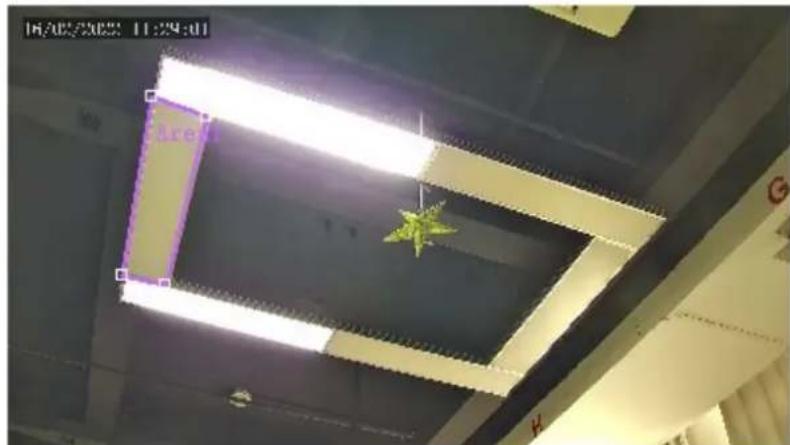
Preset
After you click Preset, the shielding area is moved to the center of the image.
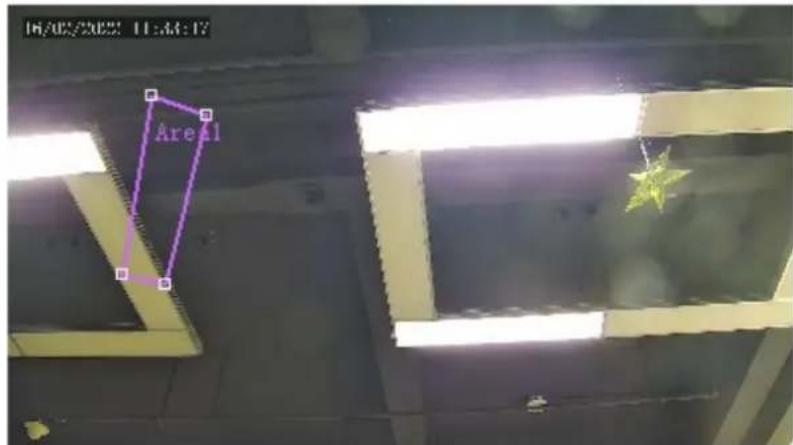
NOTE!
The area box does not move with the shielding area.
Delete
Delete the shielding area.
- Set the alarm-triggered actions and arming schedule. See Alarm-triggered Actions and Arming Schedule for details.
- Click Save.
5.6.19 Fire Detection
Fire detection detects fire or heat in a specified detection area and triggers an alarm.
- Go to Setup > Events > Thermal Alarm > Fire Detection.
This function may vary with device model. The following shows the fire detection page of two models for reference.
Model 1

Model 2
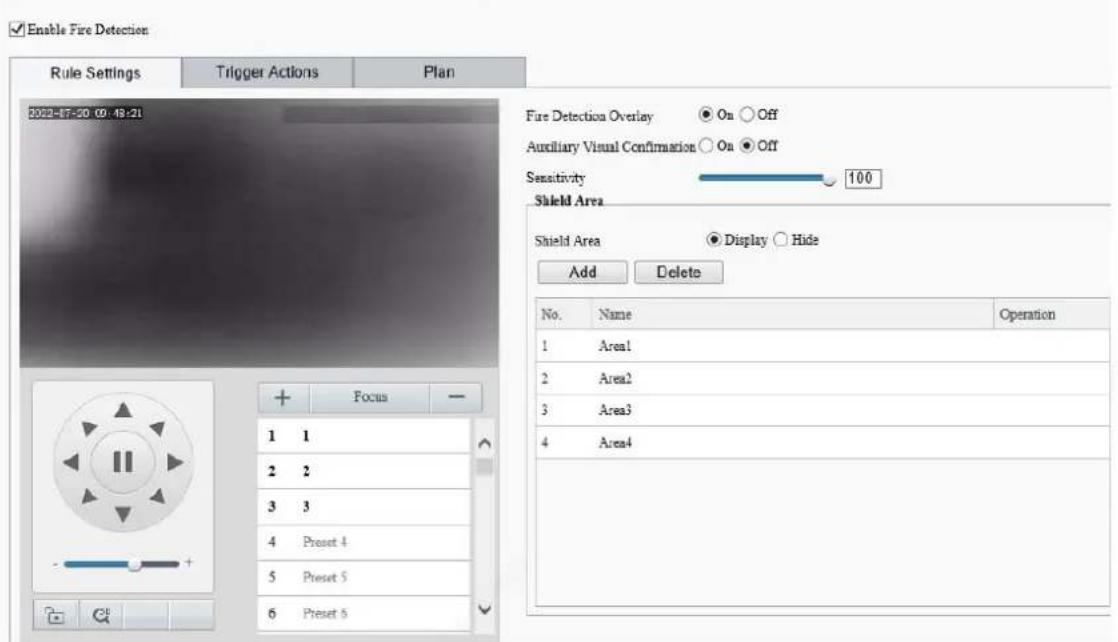
- Enable fire detection.
- Set the detection rule.
| Item Description | |
| Detection Mode | Select the detection mode. |
| Fire Detection Overlay | Select whether to show the object bounding box. |
| Auxiliary Visual Confirmation | EnableAuxiliary Visual Confirmationto work with smoke and fire detection to confirm detected fire or heat for more accurate detection results. After the fire detection detects a fire point, if the smoke and fire detection confirms that the fire point has smoke, a fire alarm will be reported.NOTE!When both fire detection and auxiliary visual confirmation are enabled, all smart functions except smoke and fire detection are unavailable.This function only works during the day. |
| Sensitivity | Set the detection sensitivity.The higher the sensitivity, the more likely fire or heat will be detected, and the more likely false alarms will occur. |
- Shield areas that may interfere with detection or trigger false alarms. A total of 24 shielding areas are allowed, with a maximum of 8 shielding areas per image.
(1) Move the camera to the desired position manually or using presets.
(2) Click Add.
(3) Adjust the position and size of the area or draw an area as needed.
Adjust the position and size of the area.
Point to the area and drag it to the desired position. Drag the corners of the area to resize it.
Draw an area.
Click in the preview window to draw a polygonal area with up to 6 sides.
| Item Description | |
| Shield Area | Select to show or hide the shielding area. |
| Preset | Click to move the shielding area to the center of the image. |
| Delete | Delete the shielding area. |
- Set the alarm-triggered actions and arming schedule. See Alarm-triggered Actions and Arming Schedule for details.
- Click Save.
5.6.20 Attribute Collection
1. Collect Attributes
You can collect attribute information of monitored objects.
- Go to Setup > Intelligent > Attribute Collection.

- Select the attributes to be collected.
- Click Save.
-
Monitor by Attribute
-
Go to Setup > Intelligent > Attribute Collection > Monitor by Attribute.

- Click to add a monitoring rule.
- Set the monitoring rule.
| Item Description | |
| Rule Name | Set a name for the rule. |
| Trigger Source | Select the attribute to trigger monitoring. |
| Trigger Actions | See Alarm-triggered Actions for details. |
- Click OK.
5.6.21 Advanced Settings
Advanced settings include snapshot clarity and detection mode for smart functions.
1. Photo
- Go to Setup > Intelligent > Advanced Settings > Photo Parameters.
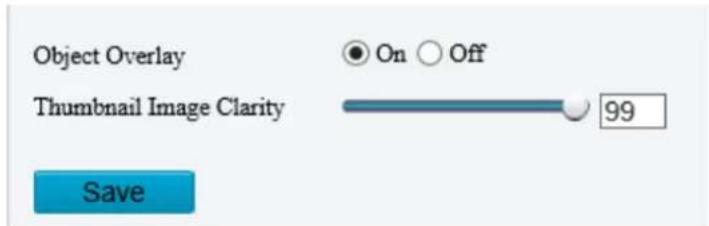
- Select to enable or disable object overlay on the image.
- Adjust the thumbnail image clarity. Please disable Face Detection before setting the photo parameters.
- Click Save.
2. Detection
- Go to Setup > Intelligent > Advanced Settings > Detection Parameters.
- Set the detection parameters.
| Item Description | |
| Detection Mode | Select the detection mode.Filter Repeated Motion Modeis used to prevent repeated alarm reporting caused by repeated motion detected in the surveillance scene. |
| Sync Intelligent Mark with Video | When enabled, the intelligent mark will follow the detected object. |
- Click Save.
3. Tracking
- Go to Setup > Intelligent > Advanced Settings > Tracking.

- Set the tracking parameters.
| Item Description | |
| Continuously Track | When enabled, the camera continuously tracks the object that triggers the tracking rule until the object disappears. |
| Tracking Timeout(s) | Set the tracking time. When the set time is reached, the camera stops tracking.NOTE!This parameter is not configurable when Continuously Track is enabled.If the object disappears within the set time, the actual tracking time is the time from the appearance to the disappearance of the object. |
| Zoom | Select the tracking zoom ratio.Auto: The camera automatically adjusts the zoom ratio according to the object distance during tracking.Current Zoom: The camera keeps the current zoom ratio during tracking. |
5.7 Alarm
Configure the alarm function, so the camera can report alarms when an event occurs. Configure alarm linkage, so the camera can trigger other devices to perform specified actions when an event occurs.

NOTE!
The supported alarms and linkage actions (or trigger actions) may vary with camera model.
5.7.1 Common Alarm
1. Motion Detection
The camera detects motions in specified detection areas or grids on the image and reports an alarm when detection rules are triggered.

NOTE!

The icon appears in the upper right corner of the image when a motion detection alarm occurs.
1. Go to Setup > Events > Common Alarm > Motion Detection.
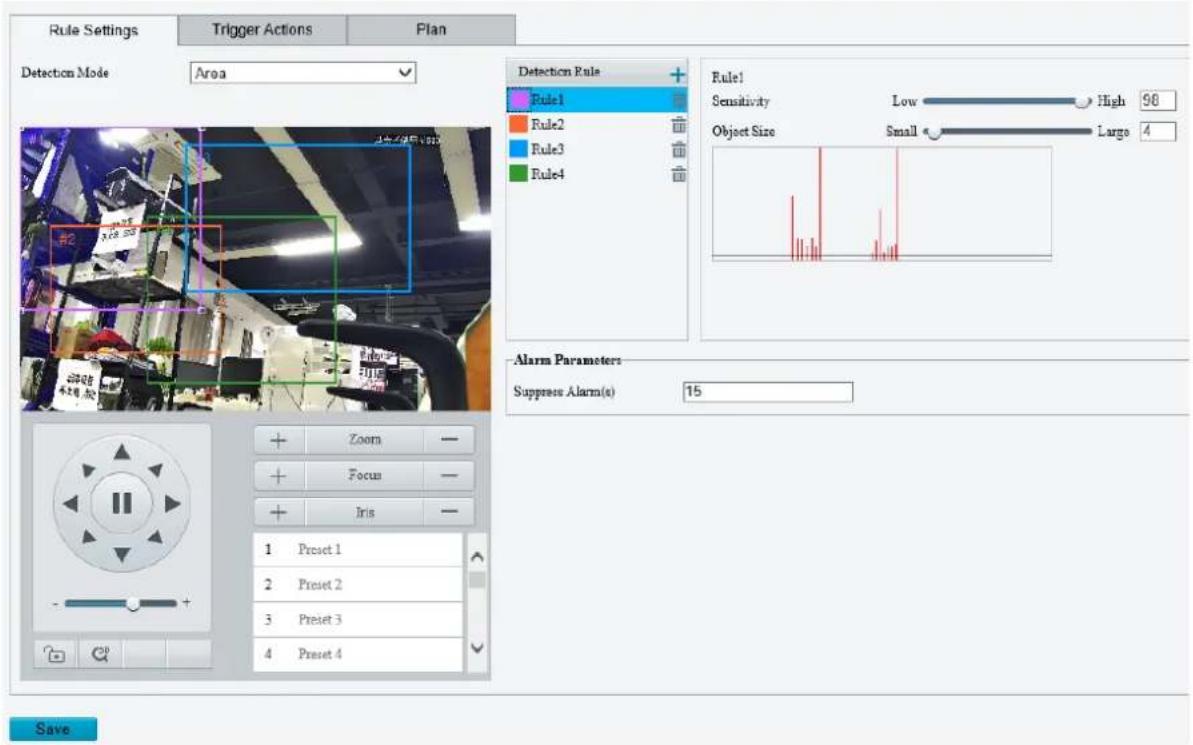
2. Choose a detection mode from the drop-down list.
- Detection area
(1) Up to four detection rules are allowed. To add one, click + . A rectangle appears on the image.

(2) Adjust the position, size and shape of the rectangle detection area, or draw a new one.
Point to a border of the area and drag it to the desired position.
Point to a handle of the area and drag to resize it.
➢ Click anywhere on the image, and then drag to draw a new area.
(3) Set detection rules.
| Item Description | |
| Sensitivity | Drag the slider to adjust detection sensitivity.The higher the sensitivity level, the higher the detection rate of small motions, and the higher the false alarm rate. Set based on the scene and your actual needs. |
| Object size | Drag the slider to set object size.Object size: The ratio of the size of the detected object to the size of the detection area. An alarm is triggered when the ratio reaches the set value. To detect motion of small objects, you need to draw a small detection area separately.Motion detection results of the current detection area are shown below in real time. The red means motions that have triggered a motion detection alarm. The height of the lines indicates the extent of motion. The density of the lines indicates the frequency of motion. The higher a line, the greater the extent. The denser the lines, the higher the frequency. |
(4) Set Suppress Alarm to avoid receiving the same alarms within a certain length of time (alarm suppression time). For example, alarm suppression time is set to 5s, after an alarm is reported:
If no motion is detected within the next 5s, new alarms can be reported after 5s when the alarm suppression time is over.
If motion is detected within the next 5s, the alarm suppression time recounts from the time of the last alarm, and new alarms can be reported when the alarm suppressions time (5s) is over.
- Grid detection
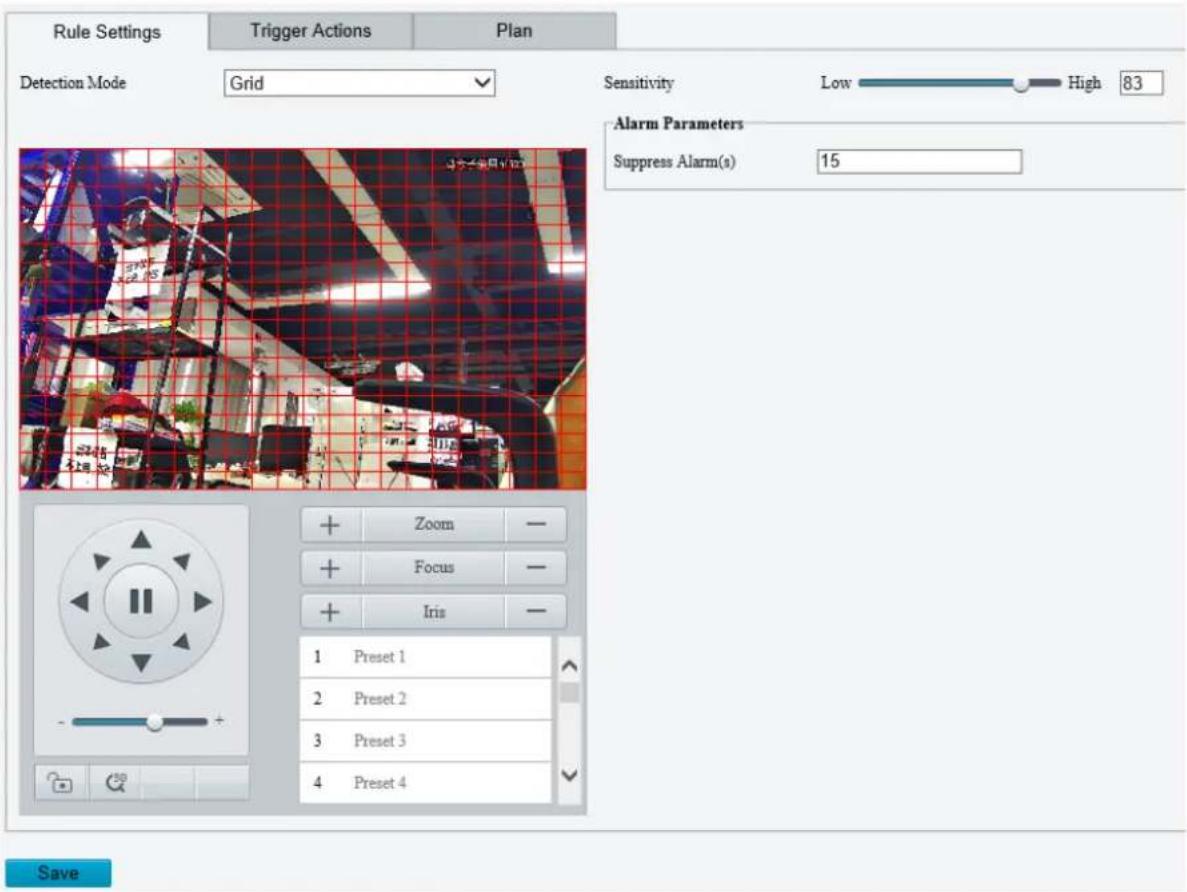
(1) Set grid detection areas (covered by grid), which is by default the whole screen.

(2) Edit detection areas as needed.
➢ Click or drag on grid areas to erase grids.
➢ Click or drag on blank areas to draw grids.
(3) Drag the slider to adjust detection sensitivity.
The higher the sensitivity level, the higher the detection rate of small motions, and the higher the false alarm rate. Set based on the scene and your actual needs.
(4) Set Suppress Alarm to avoid receiving the same alarms within a certain length of time (alarm suppression time). For example, alarm suppression time is set to 5s, after an alarm is reported:
If no motion is detected within the next 5s, new alarms can be reported after 5s when the alarm suppression time is over.
If motion is detected within the next 5s, the alarm suppression time recounts from the time of the last alarm, and new alarms can be reported when the alarm suppression time (5s) is over.
- Set alarm linkage and an arming schedule. See Alarm-triggered Actions and Arming Schedule for details.
- Click Save.
2. Tampering Detection
The camera triggers a tampering alarm after the lens is blocked for a certain length of time.
- Go to Setup > Events > Common Alarm > Tampering Detection.

- Select Enable Tampering Detection.
- Set detection rules.
(1) Drag the slider to adjust detection sensitivity. The higher the sensitivity level, the higher the detection rate, and the higher the false alarm rate. Set based on the scene and your actual needs.
(2) Set the duration of lens blocking. The camera reports an alarm when the duration of lens blocking exceeds the set value. Set based on the scene and your actual needs.
- Set alarm linkage and an arming schedule. See Alarm-triggered Actions and Arming Schedule for details.
- Click Save.
3. Audio Detection
The camera monitors input audio signals and triggers an audio detection alarm when an exception is detected. Make sure an audio collection device (e.g. sound pickup) is connected, and audio detection is enabled (see Audio).
When audio input mode is Line/Mic.
- Go to Setup > Events > Common Alarm > Audio Detection.

- Enable Audio Detection.
- Set audio detection rules.
| Item Description | |
| Detection Type | Sudden Rise: Detects sudden rising sound volume, and triggers an alarm when the rise of volume exceeds the difference.Sudden Fall: Detects sudden falling sound volume, and triggers an alarm when the fall of volume exceeds the difference.Sudden Change: Detects sudden rising and falling sound volume, and triggers an alarm when the rise or fall of volume exceeds the difference.Threshold: Triggers an alarm when the volume exceeds the threshold. |
| Difference/Threshold | Difference: The difference between two sound volumes. The camera triggers an alarm when the rise or fall of volume exceeds the difference (range: 0-400). This parameter is applicable when the detection type is Sudden Rise, Sudden Fall, or Sudden Change.Threshold: The camera triggers an alarm when the sound volume exceeds the threshold (range: 0-400). This parameter is applicable when the detection type is Threshold. |
| Diagram of relative audio intensity | Audio detection results are displayed and updated in real time. You can control the display progress by clicking theStart/Stopbutton.The scales are used to measure sound volume. Gray indicates relative sound intensity. Red means sound volume that has triggered alarms.  |
- Set alarm linkage and an arming schedule. See Alarm-triggered Actions and Arming Schedule for details.
- Click Save.
- When audio input mode is RS485.
- Go to Setup > Events > Common Alarm > Audio Detection.
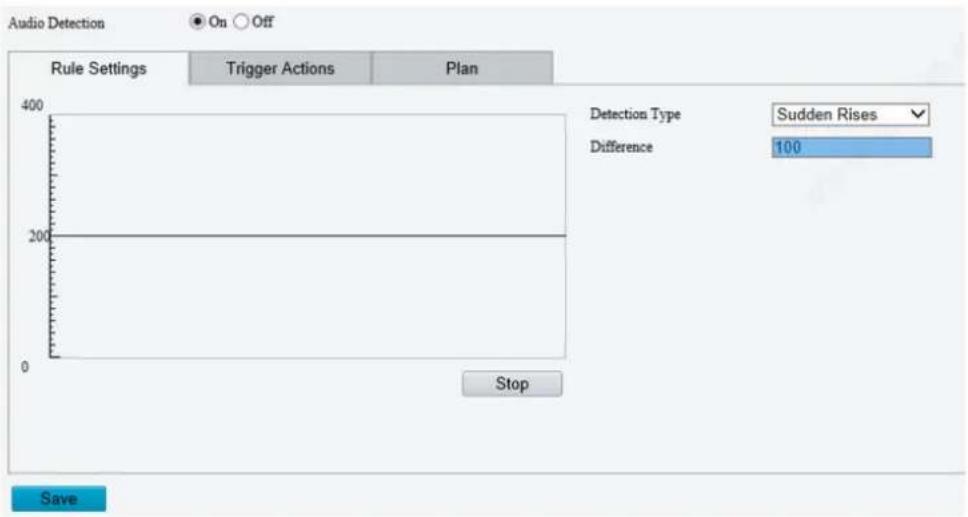
- Enable Audio Detection.
- Set audio detection rules.
| Item Description | |
| Detection Type | Volume Difference: Compare the difference between the actual ambient volume and the reference value. |
| Reference Volume | Standard value of ambient volume. Range: 0-90. |
- Set alarm linkage and an arming schedule. See Alarm-triggered Actions and Arming Schedule for details.
- Click Save.
- Alarm Input
The camera can receive alarms from external third-party devices such as infrared detectors, smoke detectors, etc. After alarm input is configured, the third-party device can send signals to the camera after an event occurs.
- Go to Setup > Events > Common Alarm > Alarm Input.
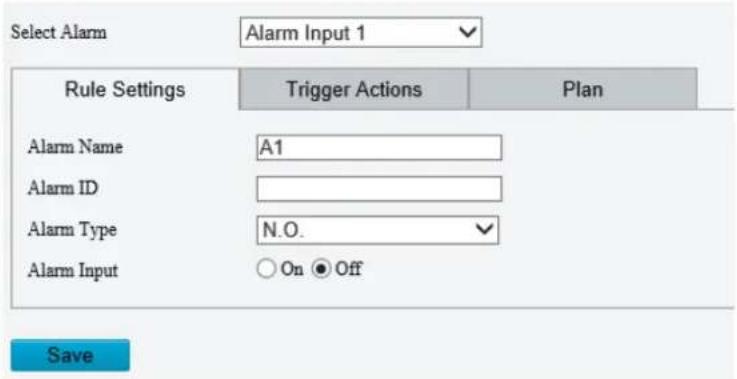
- Choose an alarm input from the drop-down list.
The number of alarm inputs available may vary with camera model. For example, if the camera has two alarm inputs on the tail cable, you can configure alarm input 1 and alarm input 2 separately.
- Configure alarm input.
| Item Description | |
| Alarm Name | The default name is the alarm input channel ID. You rename it as needed. |
| Alarm ID | Set an alarm ID as you need. |
| Alarm Type | Set the alarm type according to the alarm input device.If the alarm input device is normally open (N.O.), choose N.C..If the alarm input device is normally closed (N.C.), choose N.O.. |
| Alarm Input | Click On to enable Alarm Input. |
-
Set alarm linkage and an arming schedule. See Alarm-triggered Actions and Arming Schedule for details.
-
Click Save.
-
Alarm Output
The camera can output alarms to external third-party devices such as alarm bell, buzzer, etc. After alarm output is configured, the camera can output alarm signals when an alarm (such as motion detection alarm, tamping alarm) occurred and trigger the third-party device to perform certain actions.
- Go to Setup > Events > Common Alarm > Alarm Output.

- Choose an alarm output from the drop-down list. The number of alarm outputs available may vary with camera model.
- Configure alarm output parameters.
| Item Description | |
| Alarm Name | The default name is the alarm output channel ID. You can rename it as needed. |
| Default Status | Choose the default status. The default is N.O..If the external alarm device is normally open (N.O.), choose N.O..If the external alarm device is normally closed (N.C.), choose N.C.. |
| Delay(s) | The duration of alarm output after the alarm is triggered. Set it as needed. |
| Relay Mode | The default is Monostable.Monostable: The circuit can only remain in one stable state. When a trigger pulse is applied, the circuit switches to another state, and then automatically switches back to the original stable state. The circuit will repeat the same actions when the next trigger pulse arrives.Bistable: The circuit can remain in two stable states. When a trigger pulse is applied, the circuit switches to another state, and remains in this state after the trigger pulse is removed. When the next trigger pulse is applied, the circuit switches back to the other stable state and remains in that state.NOTE!Set relay mode to better adapt to third-party alarm devices such as alarm lights. Please set the relay mode according to the trigger mode of the third-party alarm device. |
- On the Output Schedule page, select Enable Plan, and then set when the camera can output alarms. By default, the schedule (plan) is disabled.

Two methods are available to make an arming schedule:
- Draw a schedule
Click Armed, and then drag on the calendar to set when the camera can output alarms. Click Unarmed, and then drag on the calendar to set when the camera cannot output alarms.

bar
| Day | Armed | Unarmed | |---|---|---| | Mon | 1 | 0 | | Tue | 1 | 0 | | Wed | 1 | 0 | | Thu | 1 | 0 | | Fri | 1 | 0 | | Sat | 1 | 0 | | Sun | 1 | 0 |
NOTE!
You need Internet Explorer (higher than IE8) to draw on the calendar. IE10 is recommended.
- Edit the schedule
Click Edit, set a refined schedule, click OK.


NOTE!
- Four periods are allowed each day. The periods must not overlap.
-
To apply the current settings to other days, select the check box for the days one by one or select the Select All check box, and then click Copy.
-
Click Save.

CAUTION!
- Strictly follow the instructions below when powering on external alarm devices (e.g., alarm light) to avoid device damage.
- Check that Alarm Type is set to Normally Open (default) on the camera. Make sure the camera and the external alarm device are disconnected from power.
- After you connect the alarm device to the camera, connect the alarm device to power first, and then connect the camera to power.
5.7.2 One-key Disarming
The camera cannot trigger linked actions when disarmed.
-
Go to Setup > Events > One-key Disarming.
-
Choose a disarming mode.
-
Disarm by Schedule: Disarm according to a weekly schedule.
• Disarm Once: Disarm during a specified time period. -
Configure disarming schedule or time according to the disarming mode you chose. The disarming schedule or time applies to all the actions selected.
- Disarm by schedule: Click ⚙ to configure disarming time.
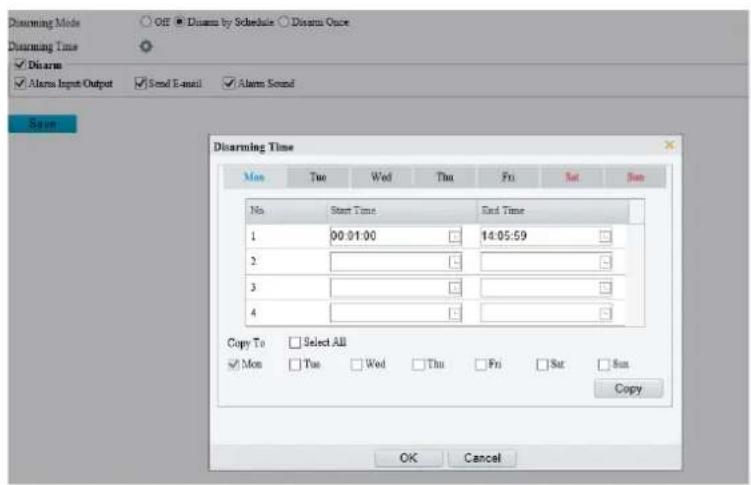
- Disarm Once: Set the disarming time.
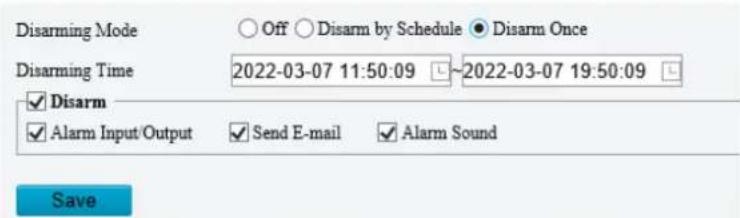
-
Choose actions to be disarmed. The actual actions available, for example, for example, alarm light, alarm sound, email, alarm output, may vary with camera model and version.
-
Click Save.
5.8 Storage
Go to Setup > Storage > Storage.

5.8.1 Memory Card

NOTE!
Before you use this function, make sure a memory card has been mounted on the camera.
1. Set Storage Media to Memory Card, and select Enable.

| Item Description | |
| Storage Media Includes Memory Card and NAS. | |
| Format | Stop using the storage resource and then click Format. The camera will restart after completing the formatting. |
| Memory Card Health Index | Show the health status of the memory card.NOTE!This feature is not available to all devices.This feature is available to TF cards only. |
| When Storage Full | Overwrite: When space is used up on the memory card, new data overwrites old data.Stop: When space is used up on the memory card, the camera stops saving new data. |
| Post-Record(s) | Sets the duration of alarm-triggered recording after the alarm ended. |
- Allocate storage space as needed.
- Configure storage information.
• To store manual recordings and alarm recordings
Choose Manual and Alarm Recording. By default, the main stream is stored.

• To store scheduled recordings and alarm recordings
(1) Choose Scheduled and Alarm Recording.

(2) The default recording schedule is 24/7. To change the schedule, drag on the calendar or click Edit.

bar
| Day | Armed | Unarmed | |---|---|---| | Mon | 0 | 1 | | Tue | 1 | 2 | | Wed | 2 | 3 | | Thu | 3 | 4 | | Fri | 4 | 5 | | Sat | 5 | 6 | | Sun | 6 | 7 | | Mon | 7 | 8 | | Tue | 8 | 9 | | Wed | 9 | 10 | | Thu | 10 | 11 | | Fri | 11 | 12 | | Sat | 12 | 13 | | Sun | 13 | 14 | | Mon | 14 | 15 | | Tue | 15 | 16 | | Wed | 16 | 17 | | Thu | 17 | 18 | | Fri | 18 | 19 | | Sat | 19 | 20 | | Sun | 20 | 21 | | Mon | 21 | 22 | | Tue | 22 | 23 | | Wed | 23 | 24 | Edit• To store alarm recordings only
Choose Alarm Recording Only.

5.8.2 Network Disk
Use a Network Attached Storage (NAS) server to store camera videos.
- Set Storage Medium to NAS.
- Enter the server address.
- Enter the path to the destination folder on the NAS server. You can find the path by viewing the folder properties.


NOTE!
Letters, digits, dots, spaces, and symbols / : , - _ @ = are allowed in the path.
Other characters are not allowed and will cause failed NAS test.
3. After the test succeeded, click Save.


NOTE!
- The capacity status appears after you click Save. So to change the settings, click Save first.
- By default, 85% of the folder space is used to store videos, and the remaining 15% is used to store common snapshots. To allocate space for smart snapshots, you need to reduce space for videos and common snapshots.
5.8.3 FTP
Upload images and videos to an FTP server for storage.
- Go to Setup > Storage > FTP.

- Configure server parameters.
| Item Description | |
| Server IP IP address of the FTP server. | |
| Port No. | The default is 21. You can set a different port as needed. |
| Username Username used to log in to the FTP server. | |
| Password | Password used to log in to the FTP server. |
| Test | Test the connection to the FTP server. |
| Upload Images | Select the check box if you want to upload common (non-smart) snapshots. To configure an FTP server for smart snapshots, go to Setup > System > Server > Intelligent Server.Overwrite Storage: When the number of images in the folder of the lowest level reaches the threshold, the server continues to save new images by overwriting the existing images. For example, if the folder path is \IP\date, the level-2 folder “date” is the lowest. When the images uploaded on Jan. 4, 2022 exceeds 1,000, existing images in the 20220104 folder will be overwritten by new images.NOTE!If you select Overwrite Storage, make sure the last naming element of filename is Photo No..The default overwrite storage threshold is 1000 images, and the maximum is 100,000 images. |
| Upload Video | Select if you want to upload alarm-triggered recordings. |
| Convert Path into UTF8 Format | Select if you want to convert the path into UTF8 format. |
| Post-Record(s) | Fill in the number of seconds, which is the duration of the alarm-triggered recording after the alarm has ended. |
- Configure the storage path.
| Item Description | |
| Photo | File path, up to 6 levels. If not specified, the default path “\IP\Data\Common” will be used. Common means common snapshots. |
| Filename, up to 20 fields are allowed. If not specified, the sequence number such as 1, 2, 3, ... will be used as the filename. | |
| Recording | File path, up to 6 levels. If no path is specified, the default path “\IP\Data\Common” will be used. |
| The default filename is “S+recording start time+E+recording end time”. For example, S20220104174903E20220104175002. | |
4. Click Save.
5.9 Security
The security functions available may vary with camera model and version.
5.9.1 User
Go to Setup > Security > User. You can add, edit, and delete users.

- Add user
- Click Add.
Common User
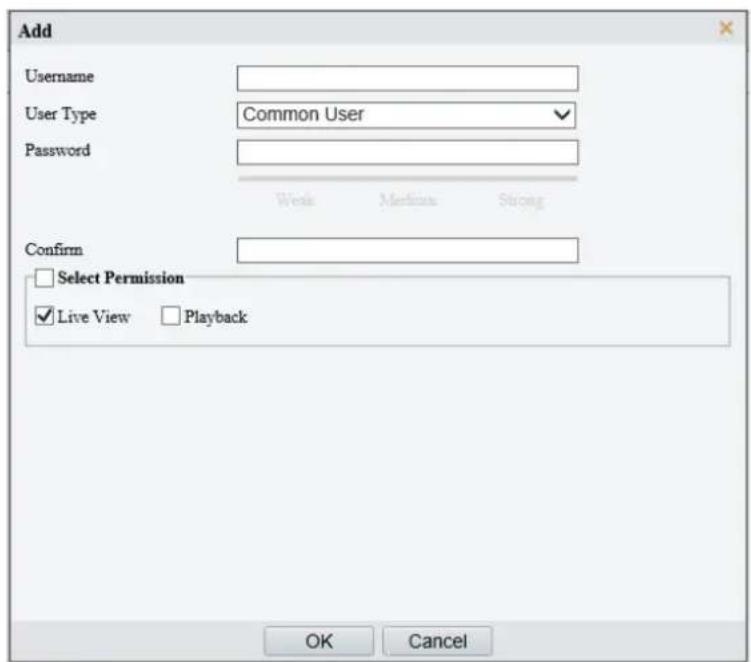
Operator

2. Configure the parameters.
| Item Description | |
| Username Set the username that you prefer. | |
| User Type | Choose Common User or Operator.NOTE!Up to 32 users are allowed, including admin (at least one), common users and operators (up to 31).Admin has all permissions in the system, including device operation and user management.Operator has higher privilege than common user and can configure in the web interface. |
| Password | Enter a password.NOTE!A strong password is required for the new user. |
| Confirm Password Enter | the password again. |
| Select Permission | Different user types have different permissions. Select permissions you want to assign to the new user.NOTE!You can select the Select Permission check box to select/deselect all permissions. |
3. Click OK.
- Edit user information
- Click the user.
- Click Edit.
Common User

Admin

3. Configure the parameters.
| Item Description | |
| Admin Password | Password of administrator, not the user being editing. |
| Password | Enter a password that you prefer. |
| Confirm Password Enter the password again. | |
| Select Permission | Different user types have different permissions. Select permissions you want to assign to the new user.NoteYou can select the Select Permission check box to select/deselect all permissions. |
4. Click OK.

NOTE!
- When editing admin information, you can change the registered mobile phone number. The phone number can be used to reset the device password if you forgot it.
- Only admin can change the device password. The new password must be different from the old.
- Only admin can change the username and password of a new user. If the user is logged in, the user will log out automatically and must use the new username and password to log in.
- Delete a user
Click the user, click Delete, and then click OK to confirm.
5.9.2 HTTPS
You can choose to enable HTTPS to enhance data security during network transmission.
1. Enable HTTPS.
Go to Setup > Security > Network Security > HTTPS.

NOTE!
The default HTTPS port is 443. To use a different port, go to Setup > Network > Port.
The camera automatically generates a default certificate. To edit certificate contents (such as expiration date), you can delete the installed certificate and re-create one.
- Use the default certificate

(1) Enable HTTPS.
(2) Click Save.
- Create a certificate
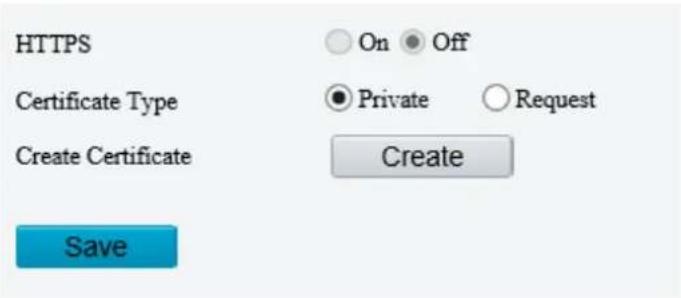
(1) Click Delete to delete the current certificate.
(2) Choose a certificate type: private certificate or certificate request.
Private certificate: Suitable for low-security application scenarios without any signature from a third-party certificate authority.
➢ Certificate request: Suitable for high-security application scenarios and with a third-party certificate.
(3) Click Create, and fill in the required information.
Create a private certificate

Create a certificate request

| Item Description | |
| Public Key | Length of the public key: 2048 or 1024. Default: 2048. |
| Country | Two-character country code, for example, CN for China. |
| Domain Name/IP | Device's IP address or domain name. |
| Valid Period(day) Validity period of the certificate. | |
| Province Complete province name. | |
| City Complete city name. | |
| Organization Organization name. | |
| Organizational Unit | Organizational unit name. |
| Email Email address of the contact. | |
(4) Click OK.

NOTE!
After the certificate request is created, click Export to export the certificate request file. After the third-party certificate authority (CA) signs and issues the certificate request, import the acquired CA certificate into the device.
(5) Enable HTTPS.
(6) Click Save.
2. Log in
The login page appears when HTTPS is enabled. A secure data transmission channel is established after you log in.
5.9.3 Authentication
Configure RTSP authentication and HTTP authentication to improve the security of network transmission. Only after successful authentication can data such as videos, audios, text, and images be transferred on the network.
1. Go to Setup > Security > Network Security > Authentication.
RTSP Authentication
Digest MD5
HTTP Authentication
Digest MD5
Save
2. Choose an authentication mode.
| Item Description | |
| RTSP Authentication | Choose an authentication mode from the drop-down list.Basic: Basic authentication. The username and password are transferred on network in plaintext, which imposes serious security risks.Digest MD5: Digest authentication, which uses MD5 to protect the username, password, and domain of the requester, and provides higher security.Digest SHA256: Digest authentication, which uses SHA256 for authentication and provides higher security than Digest MD5.None: Transmit message without authenticating the RTSP address. |
| HTTP Authentication | Choose an authentication mode from the drop-down list.Digest MD5: Digest authentication, which uses MD5 to protect the username, password, and domain of the requester, and provides higher security.Digest SHA256: Digest authentication, which uses SHA256 for authentication and provides higher security than Digest MD5.None: Transmit message without authenticating the RTSP address. |
3. Click Save.
5.9.4 Registration Information
You can set to hide vendor information of the camera from the server.
- Go to Setup > Security > Registration Information.
- Enable Hide Vendor Info. Vendor information will not be displayed on the management platform.
Hide Vendor Info
On Off
Save
3. Click Save.
5.9.5 ARP Protection
Protect the camera from ARP spoofing attacks by binding the gateway's IP address and MAC address.
- Go to Setup > Security > Network Security > ARP Protection.

- Enable ARP Protection.
- Enter the gateway's MAC address.
- Click Save.
5.9.6 IP Address Filtering
Use IP address filtering to allow or forbid access from specified IP addresses.
- Go to Setup > Security > Network Security > IP Address Filtering.

- Enable IP Address Filtering.
- Choose Allow or Forbid to filter IP addresses. When Allow is selected, access is allowed only from the added IP addresses. If Forbid is selected, access is forbidden from the added IP addresses.
- Click, enter IP addresses.
Up to 32 IP addresses can be added. Duplicate addresses are not allowed.
The first byte of the IP must be 1-233, and the fourth byte cannot be 0. Invalid IP addresses such as 0.0.0.0, 127.0.0.1, 255.255.255.255, and 224.0.0.1 are not allowed.
- Click Save.
5.9.7 Access Policy
Access policies are used to prevent unauthorized access and operation from the network.
- Go to Setup > Security > Network Security > Access Policy.
- Illegal Login Lock
Illegal Login Lock


NOTE!
By default, illegal login lock is enabled, and the account will be locked for 5 minutes after 5 consecutive failed login attempts due to a wrong password. If illegal login lock is disabled, the camera will not lock the account no matter how many times an incorrect password is input.
| Item Description | |
| Illegal Login Lock | If the client IP address is not on the blocklist, the input username is correct, but the input password is wrong, it is an illegal login attempt.NOTE!When an account is locked, information including the username, IP address, etc, is logged by the system.The user can unlock the account by disconnecting power and rebooting the camera. |
| Illegal Login Limit | The maximum number of illegal login attempts allowed. Range: 2-10.The account is locked when the limit is reached. |
| Lock Time (min) | Integer within the range of 1-120. |
Example: User A tries to log in from the client IP address 192.168.1.33 and is locked. Then user A cannot log in within the lock time, but user B is not affected and can still log in from the same IP address.
- Session timeout
A session is the connection established between the client (Web browser) and the server (camera). When session timeout is enabled, if the client cannot obtain or save configurations within the set time, the user will automatically log out and go to the login page.
NOTE!
Only admin can enable or disable this feature.
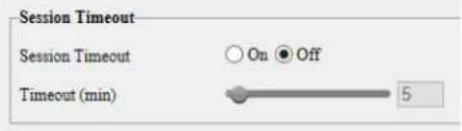
| Item Description | |
| Session Timeout | Sessions are counted as follows. Take one device as an example.If the session is established using one web browser from one client IP, there is one session.If sessions are established using one web browser from one client IP, there are two sessions.If sessions are established using two web browsers from two client IPs (two browsers from each IP), there are four sessions.NOTE!Up to 36 sessions are allowed at the same time. |
| Timeout (min) | Enter an integer within the range of 1-120.NOTE!The timer restarts when the session is re-established after a reboot. |
2. Click Save.
- Friendly password
Users are not affected when friendly password is enabled. When friendly password is disabled, users who are already logged in with a weak password will be forced to set a strong password before the user can proceed with other actions in the web interface.

NOTE!
Friendly password is not available to all cameras.
5.9.8 Watermark
Use watermark to encrypt custom information in videos to prevent tampering.

NOTE!
• Watermarks can be verified using EZPlayer (available for download from Uniview website).
- For devices with two video channels, watermark parameters need to be configured for the channels separately.
- Go to Setup > Security > Watermark.

- Enable Watermark.
- Set watermark contents, which may include uppercase letters, lowercase letters, and digits. Up to 16 characters are allowed.
- Click Save.
5.9.9 WebSockets
WebSockets encrypts data based on SSL. You can enable WebSockets to enhance the security of data transmission.
- Go to Setup > Security > Network Security > WebSockets.
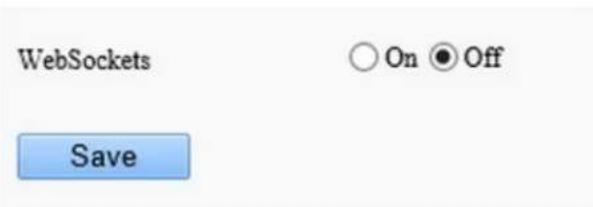
- Enable WebSockets.
- Click Save.
5.10 System

NOTE!
User operations in this module may vary with camera model.
5.10.1 Time
Set the device's system time manually or sync it with a server.
1. Go to Setup > System > Time.
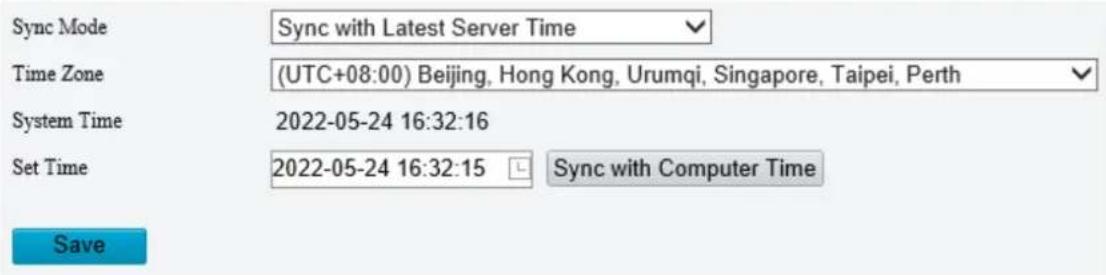
2. Set system time.
- Set manually in the Set Time field.

NOTE!
Make sure Sync Mode is set to Sync with System Configuration; otherwise, the device time will still sync with other sources after you set it manually.
- Sync time
| Item Description | |
| Sync with System Configuration | Default. Time provided by the system's built-in time module. |
| Sync with Latest Server Time | The camera regularly syncs time with all the connected servers. |
| Sync with Management Server(Non-ONVIF) | The camera regularly syncs time with the server that is not connected via Onvif. |
| Sync with Management Server(ONVIF) | The camera regularly syncs time with the server that is connected via Onvif. |
| Sync with NTP Server | The camera syncs time with the NTP server, for which you need to configure the server address, port, and update interval. |
| Sync with Cloud Server | The camera syncs time with the cloud server once when it gets online, and does not sync again until it gets offline. |
| BeiDou Module Auto Sync | The camera syncs time with BeiDou satellites through the BeiDou module (if equipped). |
| Sync with Computer Time | The camera syncs time with the client computer from which you log in to the camera. |
3. Click Save.
5.10.2 DST
1. Go to Setup > System > Time > DST.
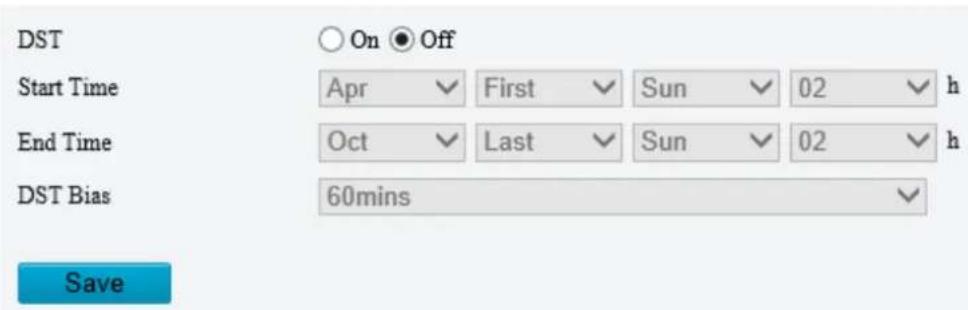
- Enable DST, and set the start time, end time, and DST bias.
- Click Save.
5.10.3 Server
1. Intelligent Server
If the camera needs to report smart alarms to a server, you need to configure an intelligent server. The camera can be managed by two intelligent servers simultaneously.
- UNV
- Go to Setup > System > Server > Intelligent Server.
- Set Platform Communication Type to UNV.

- Enter the server's IP address. Keep the defaults for other parameters.
- Click Save.
- FTP
- Go to Setup > System > Server > Intelligent Server.
- Set Platform Communication Type to FTP.

3. Click Configure FTP.

- Configure the parameters.
| Item Description | |
| Server IP IP address of the FTP server. | |
| Port No. Use the default port. | |
| Username Username used to log in to the FTP server. | |
| Password | Password used to log in to the FTP server. |
| Test | Click to test the connection to the FTP server. |
| Upload Images | Select the check box if you want to upload smart snapshots.Overwrite Storage: When the number of images in the folder of the lowest level reaches the threshold, the server will continue to save new images by overwriting the existing images. For example, if the folder path is\IP\date, the folder of the lowest level is the level-2 folderdate. When the images uploaded on Jan. 4, 2022 exceeds 1000, existing images in the20220104folder will be overwritten by new images.NOTE!If you selectOverwrite Storage, make sure the last naming element of filename is Photo No..ForOverwrite storage threshold, the default is 1000 images, and the maximum is 100,000 images. |
| Custom Naming Rules | ChooseEnableand then set the naming rule (see step 5). |
| Convert Path into UTF8 Format | Select if you want to convert the path into UTF8 format. |
- Configure the storage path.
| Item Description | |
| File Path | Up to 6 levels. If not specified, the default path “\IP\Data\Intelligent” will be used. Intelligent means smart snapshots. |
| Filename | Naming element: Up to 20 fields are allowed. If not specified, the sequence number such as 1, 2, 3, ... will be used as the filename. |
6. Click Save.
- GA/T1400
- Go to Setup > System > Server > Intelligent Server.
- Set Platform Communication Type to Video&Image Database.
Intelligent Server 1
| Server IP | 0.0.0.0 |
| Server Port | 5196 |
| Platform Communication Type | Video&Image Database |
| VIID Version | VIID_2017 |
| Device ID | 001 |
| Username | |
| Platform Access Code | |
| Confirm Platform Access Code |
Video&Image Database Settings
| Coordinate Mode | Percentage Mode |
| Connection Mode | Short Connection |
| Report Data Type | Motor Vehicle Non-Motor Vehicle Person Face |
- Configure the parameters.
| Item Description | |
| Server IP Server's IP address. | |
| Server Port Use the default port. | |
| VIID Version Choose the correct version, VIID_2017 or VIID_2018. | |
| Device ID | Make sure the entered device ID conforms to the VIID protocol, and digits 11-13 must be 119. |
| Username | Username configured at VIID Management > VIID Device Management > Gateway Authentication on the VM. |
| Platform Access Code | Password configured at VIID Management > VIID Device Management > Gateway Authentication on the VM. |
| Confirm Platform Access Code | Enter the password again. |
4. Configure the VIID parameters.
| Item Description | |
| Coordinate Mode Includes | Percentage Mode, Pixel Mode, and Normalized Mode. |
| Connection Mode | Short Connection: This mode is implemented based on the standard HTTP protocol, and the server decides the connection mode.Standard: This mode is applicable only when the camera connects to a Uniview server. |
| Report Data Type Types of date to be reported. | |
- LAPI
Only Intelligent Server 2 supports LAPI. Choose LAPI and then click Save.
5.10.4 Device Information
Set device information including device name, location, mounting height, etc., which can be used in smart FTP, OSD, etc.
1. Go to Setup > System > Device Info.

-
Complete the information as needed.
-
Click Save.
5.10.5 Ports & External Devices
The RS485 port is used for data transmission between the camera and external third-party devices for PTZ control, OSD, audio collection, illumination control, etc. The serial port parameters configured on the camera must match that of the connected external device.
- Go to Setup > System > Ports & Devices > Serial Port.
- Set Port Mode and configure the parameters.
| Item Description | |
| Baud Rate | Data transmission speed (unit: bits per second). The greater the value, the faster the transmission speed, and the shorter the transmission distance. Usually the default value is applicable. |
| Data Bit | The actual number of data bits in a group of data packets. Usually the default value is applicable. |
| Stop Bit | Indicates the end of transmission of a group of data. Usually the default value is applicable. |
| Parity Bit | Used to check whether the received data bits are erroneous. You can choose Odd-Parity Check or Even-Parity Check. |
| Flow Control | Used to control data transmission to prevent data loss. |
- PTZ control
To control the PTZ using a third-party device, set Port Mode to PTZ Control.
By sending PELCO-D instructions through the RS485, you can control PTZ without using the PTZ control panel.
(1) Set Port Mode to Local PTZ Control.
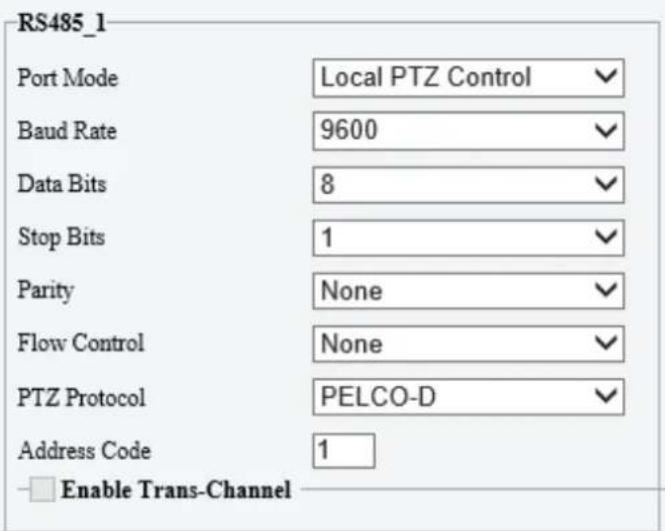
Save
(2) Configure the parameters.
| Item Description | |
| PTZ Protocol | Choose the correct PTZ protocol: PELCO-D, PELCO-P, INTERNAL-PTZ, ALEC, VISCA, ALEC_PELCO-D, ALEC_PELCO-P, MINKING_PELCO-D, MINKING_PELCO-P, YAAN, Private-KR.Some camera models support preset IDs from 1 to 1024 when the PTZ protocol is PELCO-D, and preset IDs from 1 to 255 when the PTZ protocol is other protocols. |
| Address Code | Set the PTZ address code.NOTE!This parameter is configurable only whenPort Modeis set to PTZ Controland PTZ Protocolis set toLocal PTZ Control. |
- Trans-channel
Used to transmit data between the RS485 port and the third-party device.

NOTE!
This feature is not available to all camera models.
(3) Set Port Mode to Trans-Channel.

Save
(4) Enable Trans-Channel.
(5) Enter the destination address and port, that is, the IP address and port number of the third-party device to which the transparent channel is connected.
(6) Click Save.
- OSD
Receive serial port information from the third-party device through the RS485 port and then overlay the parsed information on the OSD.

NOTE!
In order for the camera to correctly parse the received serial port information, make sure the serial port information sent from the third-party device conforms to our data formats. Contact our technical support for more information.
(1) Set Port Mode to OSD.

Save
(2) Select Enable OSD Report, so OSD data will be uploaded to the platform.
(3) Click Save.
• Trans-Channel via ONVIF
Use the RS485 port for data transmission between the camera and third-party devices via Onvif.
(1) Set Port Mode to Trans-Channel via ONVIF.

(2) Configure the parameters.
(3) Click Save.
- Illumination
Use the RS485 port to transmit data between the camera and the third-party illuminator.
(1) Set Port Mode to Illumination.

(2) Configure the parameters.
(3) Click Save.
- Wiper Control
Configure wiper parameters to control the wiper.
(1) Go to System > Ports & Devices > External Device.

(2) Configure wiper parameters.
| Item Item Description | ||
| Control Mode | Serial Port | The wiper is controlled through PELCO-D instructions, so the PTZ protocol must be set to PELCO-D. See PTZ Protocol for more information. |
| Alarm Input/Output | Use alarm input and output to open or close the circuit and control the wiper. | |
| Enable Wiper | Normally Open/Normally Closed | Set according to the actual working status of the wiper. |
| Move Mode | One Time/Repeat/Automatic | One Time: The wiper works once every time you click the wiper icon on the PTZ control panel.Repeat: You need to set theEffective ForandTime Intervalparameters.TheEffective Forparameter sets the duration of theRepeatmode (1 to 24 hours), and theTime Intervalparameter sets the interval between two wiper movements (1 to 60 minutes).NOTE!IfTime Intervalis set to 60 minutes andEffective Foris set to 1 hour, then the wiper works once at the last minute and then stops.Only integers are allowed.Automatic: Use a rain sensor to detect rains and automatically activate the wiper when the threshold is reached. |
(3) Click Save.
5.10.6 Maintenance
1. Maintenance
System maintenance include software upgrade, system configuration, diagnosis information, power output, and heater settings.
Go to Setup > System > Maintenance.
- Software upgrade

NOTE!
Make sure the version to be used matches the device; otherwise, exceptions may occur.
- The version file is a .zip file that includes all the upgrade files.
- Power must be connected throughout the upgrade.
Local upgrade
(1) Click Browse, locate the version. (If applicable) select Upgrade Boot Program to upgrade the boot program.
(2) Click Upgrade to start. The device will restart automatically after the upgrade is completed.
▶ Peripheral upgrade
Check for upgradable peripherals such as pan/tilt unit, illuminator, etc., and available versions.
Cloud upgrade
Click Detect to check for new versions. You can perform a cloud upgrade if a new version is available on the cloud server.
- System configuration
You can export the current configurations of the camera to the client computer or an external storage device for backup, so when necessary, you can restore camera configurations by importing the backup file.

CAUTION!
- Restoring defaults will restore all settings to factory defaults except the administrator password, network interface settings, and system time.
- Before you import a configuration file, make sure the file matches the camera model; otherwise, unexpected results may occur.
- The camera will restart after importing the configuration file.
Import configurations

(1) Click Browse beside the Import button.
(2) Locate the configuration file, click Import. A dialog box appears.
(3) Enter the password and confirm.
(4) Click OK.
Export configurations
(1) Click Browse beside the Export button.
(2) Choose the destination folder, click Export. The File Encryption dialog box appears.
(3) Enter the password and confirm.
(4) Click OK.
Restore defaults
Click Default. The system will restore default settings except network settings and user settings. To restore all settings, select Restore all settings to defaults without keeping current network and user settings.
• Diagnosis information
Diagnosis information includes logs and system configurations and can be exported to your client computer. Select Collect Image Debugging Info to collect diagnosis information with accompanying video images to facilitate troubleshooting.

(1) Click Browse and choose the destination.
(2) Click Export.

NOTE!
Diagnosis information is exported as a compressed file. You need to decompress it first (using decompression tools like WinRAR) and then open the file using a text editor (like Notepad).
- Power output
The camera can supply power to external devices with lower power consumption such as a sound pickup.
Power Output
12 VDC

- Restart device

CAUTION!
Restarting the camera will interrupt the ongoing service.
Restart
Restart device
Click Restart and then confirm to restart the device. You may set a schedule to reboot the camera automatically at the set time.
- Heater
Use the heater to eliminate water droplets on the lens in a high humidity environment.

(1) Enable Heater.
(2) Set Remaining Heating Time.
2. Network Diagnosis
Go to Setup > System > Maintenance > Network Diagnosis.
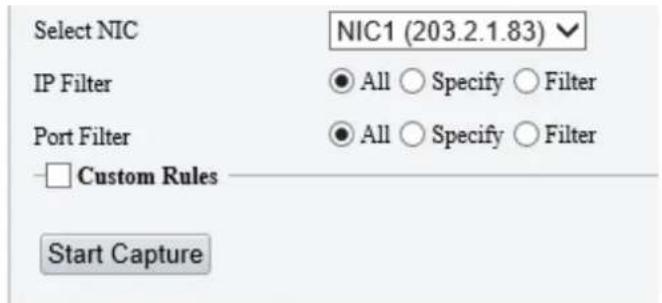
- Select NIC
NIC1 is the camera's IP address.
- IP/port filter
All: Capture all packets of the camera.
Specify: Capture packets of the specified port or IP.
Filter: Filter packets of the specified port or IP and capture other packets.
- Custom Rules
Select Custom Rules and set the rules.
Click Start Capture to start capturing packets. After packet capture is finished, save data and view the diagnosis.
• Test network delay and packet loss rate
Test network connectivity by sending test packets to a test address.

Test Address: Must be a valid IP address or domain name.
Packet Size (Bytes): Size of test packets to be sent. Range: [64-65507]. Sometimes a high delay may be caused by a large packet size. If the test failed, set a smaller packet size and then try again.
Test results include average delay and packet loss rate.
– Average delay: Average length of time from test packets are sent till responses are received.
- Packet loss rate: Ratio of lost packets to the sent packets.
5.10.7 Logs
Search camera operation logs and download to your computer.
Go to Setup > System > Log.
![Time 2022-06-09 00:00:00 ~2022-06-09 23:59:59 Main Type AlarmEvent Sub Type All Operation Query Export No. Type Sub Type Date Time Username IP Result 1 Operator Login 2022-06-09 10:25:03 admin ✓ ✓ ✓ ✓ Succeeded 2 Operator Upgrade 2022-06-09 10:18:25 admin ✓ ✓ ✓ ✓ Succeeded 3 Operator Login 2022-06-09 10:05:29 admin ✓ ✓ ✓ ✓ ✓ Succeeded Total 3 < < [1] / [ ] >](/content/2026/05/906594/images/3a2900411c3036118906b4c054f0468cfbe55c609f753fffe6b57a7a1fafe4f9.jpg)
-
Set a time range and choose main and sub log types.
-
Main type: Including system operation, alarm parameter configuration, network configuration, audio and video configuration, PTZ configuration, image configuration, smart configuration, system configuration, storage configuration, and alarm events.
- Sub type: You can choose up to 5 types or choose All.
- Click Search. Up to 100 logs can be displayed. The latest logs are displayed on the top.
- Click Export to save search results as a .csv file to the client computer.



- Network Camera User Manual
- Disclaimer
- Safety Instructions
- CAUTION!
- Environmental Protection
- Safety Symbols
- Contents
- Safety Symbols i
- Login 1
- Live View 4
- Playback 18
- Photo 21
- Setup 22
- Video & Audio 34
- PTZ 43
- Image 47
- Smart 65
- Alarm 97
- Storage 106
- Security 111
- System 119
- Login
- Preparation
- Check before login
- NOTE!
- (Optional) Change user account control settings
- Login
- Live View
- Live View
- Digital Zoom
- Capture
- 5ePTZ
- PTZ Control
- 3D Positioning
- Area Focus
- Preset
- Patrol
- Add a patrol route
- Click OK.
- - Add a scan patrol route
- Call a patrol route
- Playback
- Playback Toolbar
- Search and Play Recordings
- Download Recordings
- Photo
- Local Parameters
- Go to Setup > Common > Local Parameters.
- Smart
- Video
- Recording and Snapshot
- Set local parameters as needed.
- Click Save.
- Network
- Ethernet
- Port
- Port Mapping
- Click Save.
- Go to Setup > Network > E-mail.
- Set the sender and recipient information.
- EZCloud
- Add cameras on EZView app without signup
- Add cameras on EZCloud website
- DNS
- DDNS
- SNMP
- Save
- - SNMPv2
- 802.1x
- QoS
- WebSocket
- Go to Setup > Network > WebSocket.
- Set the parameters.
- Video & Audio
- Video
- Video
- Go to Setup > Video & Audio > Video.
- Select a capture mode for your camera.
- Set stream parameters.
- Enable Fourth Stream
- Snapshot
- Audio
- Audio
- Audio File
- Go to Setup > Video & Audio > Audio.
- Set audio file parameters.
- ROI
- Go to Setup > Video & Audio > ROI.
- Set ROI areas.
- View Cropping
- Media Stream
- Media Stream
- RTSP Multicast
- PTZ
- Basic PTZ Settings
- Preset Image Freeze
- PTZ Timeout
- PTZ Speed
- PTZ Rectification
- Power Off Memory
- Home Position
- Go to Setup > PTZ > Home Position.
- Enable Home Position and complete the settings.
- Pan/Tilt Limit
- Go to Setup > PTZ > Limit.
- Remote PTZ Control
- Go to Setup > PTZ > Remote Control.
- Enable Remote Control and complete the settings.
- Preset Snapshot and Patrol Resumption
- Orientation Calibration
- North Calibration
- Home Position
- Image
- Image
- Scenes
- Click Scenes.
- Set the scene parameters.
- Image Enhancement
- Exposure
- Set the exposure parameters.
- Smart Illumination
- Enable Smart Illumination.
- Focus
- Set the focus parameters.
- White Balance
- On the Image page, click White Balance.
- Set the white balance parameters.
- Defog
- On the Image page, click Advanced.
- Set the defog parameters.
- Lens Info
- On the Image page, click Lens Info.
- Set the lens parameters.
- Dewarping
- Image Stabilization
- Fusion Mode
- Non-Uniformity Correction
- Reduce Vertical Stripe Noise
- Thermal Imaging Palette
- OSD
- Live View OSD
- Set the OSD position and content.
- Set the OSD display style.
- Photo OSD
- Go to Setup > Image > OSD > Photo.
- This pa
- 1
- Set the
- Set who
- Privacy Mask
- Go to Setup > Image > Privacy Mask.
- Select the mask mode, Rectangle or Polygon.
- Add a privacy mask.
- Set the privacy mask.
- Quick Focus
- Smart
- Alarm-triggered Actions
- Arming Schedule
- Cross Line Detection
- Select Cross Line and click 🔗 to configure it.
- Add a detection rule.
- Set the detection rule.
- Enter Area Detection
- Leave Area Detection
- Select Leave Area and click ⚙ to configure it.
- Intrusion Detection
- Object Removed Detection
- Object Left Behind Detection
- Defocus Detection
- Scene Change Detection
- Face Detection
- Face Recognition
- Add monitoring tasks.
- Human Body Detection
- Mixed-Traffic Detection
- Mask undesired areas.
- People Flow Counting
- Crowd Density Monitoring
- Auto Tracking
- Smoke and Fire Detection
- Item Description
- Preset
- Delete
- Fire Detection
- Attribute Collection
- Collect Attributes
- Advanced Settings
- Photo
- Detection
- Tracking
- Alarm
- Common Alarm
- Motion Detection
- Go to Setup > Events > Common Alarm > Motion Detection.
- Choose a detection mode from the drop-down list.
- Set detection rules.
- - Grid detection
- Tampering Detection
- Audio Detection
- One-key Disarming
- Storage
- Memory Card
- Set Storage Media to Memory Card, and select Enable.
- Network Disk
- After the test succeeded, click Save.
- FTP
- Security
- User
- Operator
- Configure the parameters.
- Click OK.
- Common User
- Admin
- Configure the parameters.
- Click OK.
- HTTPS
- Enable HTTPS.
- Log in
- Authentication
- Go to Setup > Security > Network Security > Authentication.
- Choose an authentication mode.
- Registration Information
- ARP Protection
- IP Address Filtering
- Access Policy
- - Session timeout
- Click Save.
- Watermark
- WebSockets
- System
- Time
- Go to Setup > System > Time.
- Set system time.
- - Sync time
- DST
- Go to Setup > System > Time > DST.
- Server
- Intelligent Server
- Click Configure FTP.
- Click Save.
- Configure the VIID parameters.
- Device Information
- Go to Setup > System > Device Info.
- Ports & External Devices
- Set Port Mode to Trans-Channel.
- Set Port Mode to OSD.
- Click Save.
- Maintenance
- Maintenance
- Power Output
- Network Diagnosis
- Logs
Brand : UniView
Model : IPC324ER3-DVPF28(36)
Category : Camera