IPC3635SS-ADZK-I0 - Camera UniView - Free user manual and instructions
Find the device manual for free IPC3635SS-ADZK-I0 UniView in PDF.


Pick your language and provide your email: we'll send you a specifically translated version.
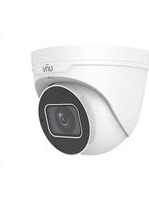
| Brand | UniView |
| Model | IPC3635SS-ADZK-I0 |
| Product Type | IP Security Camera |
| Image Sensor | 1/2.7" CMOS |
| Resolution | 5 MP (2592 x 1944) |
| Lens | 2.8 mm fixed lens |
| Night Vision | IR illumination up to 30 m |
| Field of View | 100° (diagonal) |
| Housing | IP67 weatherproof metal casing |
| Power Supply | PoE (802.3af) or 12V DC |
| Operating Temperature | -30°C to 60°C |
| Main Features | Smart H.265+ compression, motion detection, privacy masks |
| Storage | MicroSD card slot up to 256 GB |
| Interface | 10/100 Mbps Ethernet port |
| Certifications | CE, FCC, RoHS |
| Dimensions | 200 × 95 × 95 mm |
| Weight | 0.55 kg |
| Maintenance and Cleaning | Use a dry microfiber cloth; check cable connections periodically |
| Security | Password protection, HTTPS encryption, IP address filter |
| Spare Parts and Repairability | Modular design, available mount brackets and IR boards |
Frequently Asked Questions - IPC3635SS-ADZK-I0 UniView
How do I reset the UniView IPC3635SS-ADZK-I0 to factory defaults?
Press and hold the reset button located on the camera base for 10 seconds using a pin. The camera will reboot and restore default settings. Alternatively, use the web interface via Maintenance > Factory Defaults.
How do I connect the camera to my local network?
Connect the camera to your network switch or router using an Ethernet cable. The camera supports PoE (Power over Ethernet), so a single cable provides both power and data. If you don't have a PoE switch, use a 12V DC power adapter and a standard RJ45 cable.
What is the default IP address of the camera?
The factory default IP address is 192.168.1.200. Ensure your computer is on the same subnet, then open a web browser and enter this address. You can also use the UniView Discovery Tool to locate the camera on the network.
How can I access the camera remotely over the internet?
Enable DDNS and set up port forwarding for HTTP/RTSP in your router. Alternatively, use the UniView Cloud service or P2P feature by scanning the QR code in the mobile app UniView Pro. For enhanced security, use a VPN.
Can I use this camera without an NVR recorder?
Yes, the camera is standalone. Insert a MicroSD card (up to 256 GB) into the slot for local recording. It also supports RTSP streaming to VLC or other media players and can be accessed directly via the web interface.
How do I update the firmware?
Download the latest firmware from the official UniView website. In the camera's web interface, go to Maintenance > Device Upgrade and upload the .bin file. Do not disconnect power during the upgrade process.
How should I clean the camera lens?
Use a soft, dry microfiber cloth to gently wipe the lens. For stubborn dirt, slightly dampen the cloth with pure water or lens cleaner. Do not use abrasive chemicals, as they may damage the infrared filter and lens coating.
What is the warranty period for this camera?
UniView provides a 24-month limited warranty for this model. The warranty covers manufacturing defects, but not damage caused by misuse, lightning, or improper installation. Keep your purchase receipt for service claims.
Can I mount the camera outdoors?
Yes, the camera is rated IP67, making it fully resistant to dust and temporary submersion in water. Its operating temperature range of -30°C to 60°C suits extreme outdoor environments. Use the included mounting bracket and ensure cables are sealed to prevent moisture ingress.
How do I store video recordings from the camera?
You can store recordings on a MicroSD card directly in the camera, or configure it to record to an NVR, FTP server, or network share using NAS settings. The camera supports scheduled recording and motion-triggered recording.
User questions about IPC3635SS-ADZK-I0 UniView
0 question about this device. Answer the ones you know or ask your own.
Ask a new question about this device
No questions yet. Be the first to ask one.
Download the instructions for your Camera in PDF format for free! Find your manual IPC3635SS-ADZK-I0 - UniView and take your electronic device back in hand. On this page are published all the documents necessary for the use of your device. IPC3635SS-ADZK-I0 by UniView.
USER MANUAL IPC3635SS-ADZK-I0 UniView



Manual assistant
Powered by Anthropic
Waiting for your message
Product information
Brand : UniView
Model : IPC3635SS-ADZK-I0
Category : Camera