
US221 - USB Switch ATEN - Free user manual and instructions
Find the device manual for free US221 ATEN in PDF.


| Product Type | USB 2.0 Peripheral Switch |
| Model | US221A (2-port) / US421A (4-port) |
| Number of Computer Connections | 2 |
| Computer Ports | 2 x USB Type B |
| Peripheral Port | 1 x USB Type A |
| Port Selection Methods | Pushbuttons, Software Utility, Auto Switch |
| USB Standard | USB 2.0 |
| Data Transfer Rate | Up to 480 Mbps |
| Power Supply | USB Bus Powered |
| Power Consumption | DC5V, 2.5W |
| Weight | 54 g |
| Dimensions (L x W x H) | 7.20 x 6.60 x 2.50 cm |
| Operating Temperature | 5°C to 40°C |
| Storage Temperature | -20°C to 60°C |
| Humidity | 0–80% RH, Non-condensing |
| Housing Material | Plastic |
| LED Indicators | Lock (Orange), Port Selected (Green) |
| Buzzer | Yes (hardware switchable) |
| Hot Pluggable | Yes |
| Overcurrent Protection | Yes |
| Multifunction Printer Support | Yes |
| Supported Operating Systems | Windows 2000, XP, 2003, 2008, Vista; Mac OS X 10.4.5, 10.5 |
| Package Contents | US221A switch, 1 USB Type A to USB Type B cable (1.8 m), User Manual |
| Auto Switch Function | Yes (first-come, first-served command queuing) |
Frequently Asked Questions - US221 ATEN
User questions about US221 ATEN
0 question about this device. Answer the ones you know or ask your own.
Ask a new question about this device
Download the instructions for your USB Switch in PDF format for free! Find your manual US221 - ATEN and take your electronic device back in hand. On this page are published all the documents necessary for the use of your device. US221 by ATEN.
USER MANUAL US221 ATEN
Simply Better Connections™
USB 2.0 Peripheral Switch
USER MANUAL
US221A / US421A
FCC Information
FEDERAL COMMUNICATIONS COMMISSION INTERFERENCE
STATEMENT: This equipment has been tested and found to comply with the limits for a Class B digital service, pursuant to Part 15 of the FCC rules. These limits are designed to provide reasonable protection against harmful interference in a residential installation. Any changes or modifications made to this equipment may void the user's authority to operate this equipment. This equipment generates, uses, and can radiate radio frequency energy. If not installed and used in accordance with the instructions, may cause harmful interference to radio communications. However, there is no guarantee that interference will not occur in a particular installation.
If this equipment does cause harmful interference to radio or television reception, which can be determined by turning the equipment off and on, the user is encouraged to try to correct the interference by one or more of the following measures:
◆ Reorient or relocate the receiving antenna.
◆ Increase the separation between the equipment and receiver.
- Connect the equipment into an outlet on a circuit different from that to which the receiver is connected.
Consult the dealer or an experienced radio/TV technician for help.
FCC Caution: Any changes or modifications not expressly approved by the party responsible for compliance could void the user's authority to operate this equipment.
This device complies with Part 15 of the FCC Rules. Operation is subject to the following two conditions:
(1) this device may not cause harmful interference, and
(2) this device must accept any interference received, including interference that may cause undesired operation.
KCC Statement
This product is RoHS compliant.
US221A / US421A
User Manual
Online Registration
You can register your product at our online support center:
International http://support.aten.com
Online Support
International
| Email Support support@aten.com | ||
| Online Support | Technical Support http://support.aten.com | |
| Troubleshooting Documentation Software Updates | http://www.aten.com | |
Telephone Support
For telephone support, call this number:
| International 886-2-8692-6959 |
| China 86-400-810-0-810 |
| Japan 81-3-5615-5811 |
| Korea 82-2-467-6789 |
| North America 1-888-999-ATEN ext 4988 |
| 1-949-428-1111 |
North America
| Email Support support@aten-usa.com | ||
| Online Technical Support | Troubleshooting Documentation Software Updates | http://www.aten-usa.com/support |
| Telephone Support 1-888-999-ATEN ext 49881-949-428-1111 | ||
Package Contents
The US221A / US421A USB 2.0 Peripheral Switch package contains the following items:
◆ 1 2-port (US221A) or 4-port (US421A) USB 2.0 Peripheral Switch
◆ 1 1.8 m USB Type A to USB Type B Cable
◆ 1 User Instructions*
Check to make sure that all the components are present and that nothing got damaged in shipping. If you encounter a problem, contact your dealer.
Read this manual thoroughly and follow the installation and operation procedures carefully to prevent any damage to the unit, and/or any of the devices connected to it.
* Features may have been added to the US221A / US421A since this manual was printed. Please visit our website to download the most up-to-date version of the manual.
Copyright © 2020 ATEN® International Co., Ltd.
Manual Part No. PAPE-1245-110G
ATEN and the ATEN logo are trademarks of ATEN International Co., Ltd. All rights
reserved. All other trademarks are the property of their respective owners.
Overview
The US221A / US421A is a 2/4-port USB 2.0 Peripheral Switch that allows up to 2/4 computers to share the use of a single USB peripheral device (such as a printer, scanner, mass storage drive, etc.*) on a one-at-a-time basis.
The peripheral focus can be given to a computer manually by using pushbuttons on the switch or by using the software-based configuration utility. In addition, the US221A / US421A has a new Auto Switch function that stores commands sent to the USB peripheral device to be processed on a first-come, first-served basis, meaning that a print server is not required.
Compatible with both Windows and Mac, and with multifunction printer support, the US221A / US421A is the ideal way to share the latest USB 2.0 peripherals in a multimedia SOHO environment.
Note: The US221A / US421A does not support a USB hub peripheral device.
Features
- Enables two (US221A) or four (US421A) computers to share a single USB peripheral device
- Simple port selection via pushbuttons or easy-to-use configuration utility
- Auto Switch function – no need for a separate print server
USB 2.0 compliant
◆ Supports transfer rates up to 480 Mbps - Multiplatform support – Windows and Mac
◆ LED indicators display port focus
◆ Overcurrent protection
Bus-powered - Hot pluggable
◆ Buzzer indicates switching between computers
◆ Supports multifunction printers
System Requirements
Computers
The following equipment must be installed on each computer that is to be connected to the system:
USB host controller
Cables
- USB to USB cables to connect the computers to the peripheral device.
Note: Only one USB Type A to USB Type B cable is provided in the US221A / US421A package. You will need to purchase an additional USB Type A to USB Type B cables for each computer you wish to connect to the US221A / US421A.
Operating Systems
Supported operating systems are shown in the table, below:
| OS Version | |
| Windows 2000, XP, 2003, 2008, Vista | |
| Mac OS X 10.4.5, 10.5 |
Components
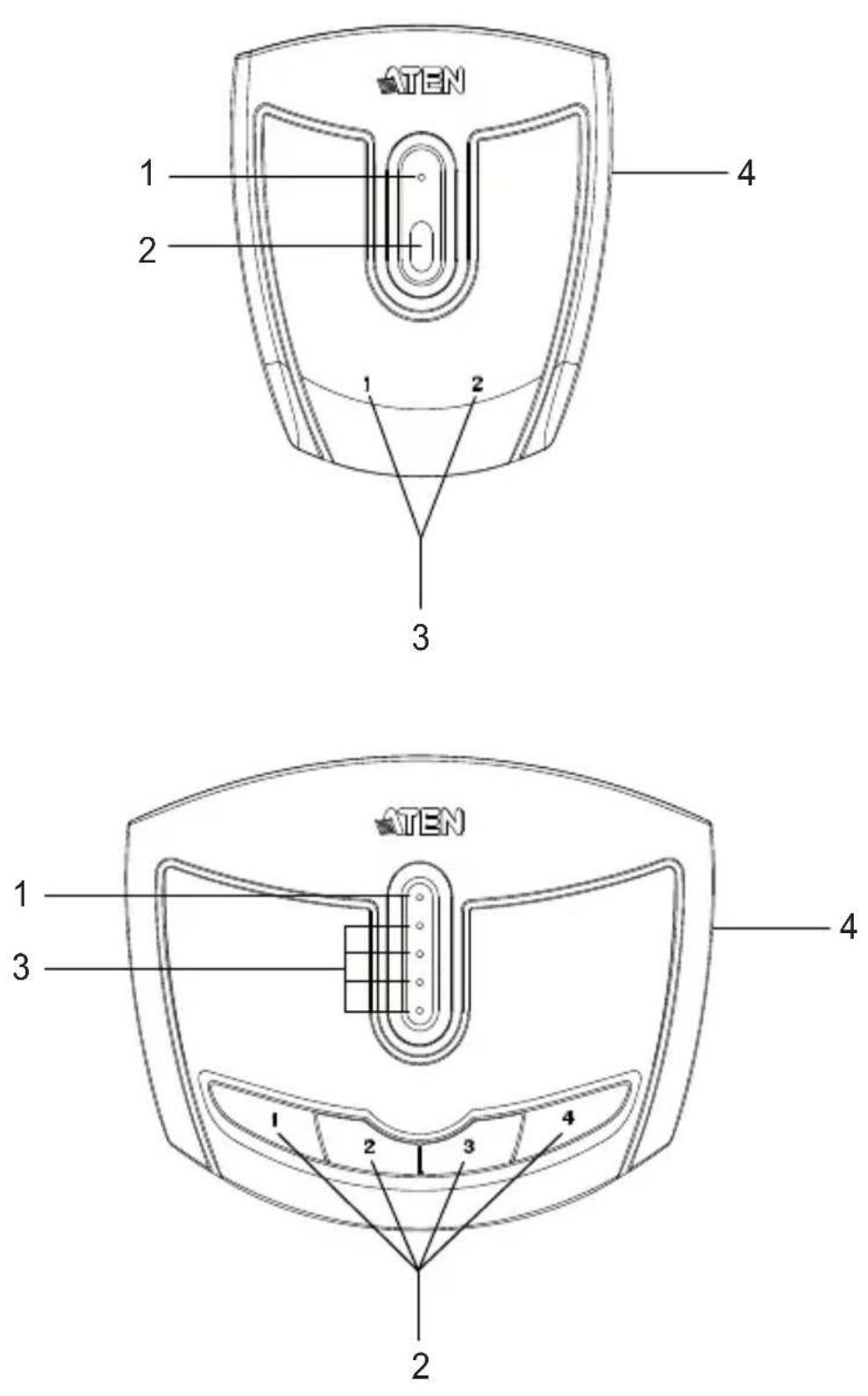
Top View
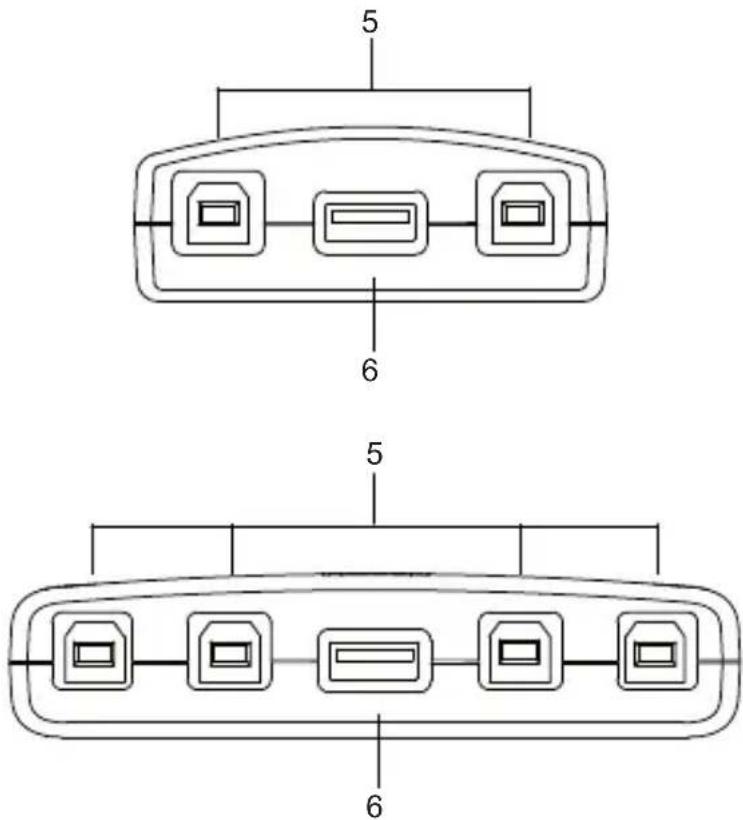
Rear View
| No. | Component Description | |
| 1 | Lock LED Lights orange to show that the US221A / US421A is locked. | |
| 2 | Port Selection Pushbutton(s) | Pressing a Port Selection Pushbutton brings control to the computer attached to its corresponding port. See Manual Operation – Pushbutton, page 13 for further details. |
| 3 | Port Selected LEDs | Lights green to show that the computer attached to its corresponding port has control. |
| 4 | Beeper On/Off Switch (on side) | Use this recessed switch to turn the US221A / US421A's beeper on or off. |
| 5 | USB Type B Computer Port | Your computers plug into these ports. See Installation, page 11 for further details. |
| 6 | USB Type A Peripheral Port | Your USB 2.0 peripheral device plugs into this port. |
Installation

- Make sure that the power to any device that you connect to the installation has been turned off and that all devices are properly grounded.
The US221A / US421A USB 2.0 Peripheral Switch provides 2/4 USB Type B ports for computers to connect to, and one USB Type A port for the peripheral device (multifunction printer, scanner, mass storage device, etc.) that the computers will share.
To install the US221A / US421A, do the following:
- Use your USB device's USB cable to connect it to the US221A / US421A's USB Type A port.
- Plug the USB Type B connector of the USB Type A to USB Type B cable provided with the US221A / US421A package into any available port on the US221A / US421A.
- Plug the Type A connector into the computer's USB host port.
Repeat steps 2 and 3 for any other computers you are installing.
Note: Only one USB Type A to USB Type B cable is provided in the US221A / US421A package. You will need to purchase an additional USB Type A to USB Type B cables for each computer you wish to connect to the US221A / US421A.

flowchart
graph TD
    A["Printer"] -->|1| B["USB Port"]
    B --> C["Server 1"]
    B --> D["Server 2"]
    B --> E["Server 3"]
    C --> F["Server 1"]
    C --> G["Server 2"]
    C --> H["Server 3"]
    D --> I["Server 1"]
    D --> J["Server 2"]
    D --> K["Server 3"]
Manual Operation – Pushbutton
Note: Manual operation and the software-based configuration utility operate independently; commands from one will not override the other.
US221A
To toggle the USB peripheral focus between the two computers, press the port selection pushbutton (located on the top of the unit). The selected port LED flashes and the unit beeps. When the flashing stops and the LED becomes steady (in about four seconds), that port has the peripheral focus.
US421A
To switch the peripheral focus to another port, press the pushbutton that corresponds to that port. The selected port LED flashes and the unit beeps. When the flashing stops and the LED becomes steady (in about four seconds), that port has the peripheral focus.
Lock/Unlock Peripheral Focus
To lock the peripheral focus on a certain computer, press and hold the pushbutton that corresponds to that port for two seconds, or until the orange LED lights up.
To unlock the peripheral focus, press and hold the pushbutton that corresponds to that port for one second, or until the orange LED turns off.
Software Operation
Installing the Configuration Utility
The US221A / US421A has a software-based configuration utility that can be used to configure the US221A / US421A's settings, such as the Auto Switch function, Manual Switch and Release reminder, and sound effects. The utility can also be used to lock and unlock control of the US221A / US421A.
Note: Microsoft Windows users should login as an administrator to install and launch the US221A / US421A software.
To install the configuration utility, do the following:
Note: 1. Below examples are based on a Windows 10 operating system.
-
The screens shown in this section are for reference only. The wording and layout of the actual screens put up by the Software Installation Utility may vary slightly from these examples.
-
From a computer that is connected to the US221A / US421A using USB Type A to USB Type B cable, go to our Aten Support & Download → Downloads site and choose the model name that relates to your device (US221A / US421A) to get a list of available Software Installation Packages.
-
Choose the Software Installation Package you want to install (usually the most recent), and download it to your computer.
-
Extract and open the downloaded software installation package file, right click on the Setup icon, and select Run as administrator as shown in the picture below.

- The Software Installation Utility welcome screen appears, and select Next.
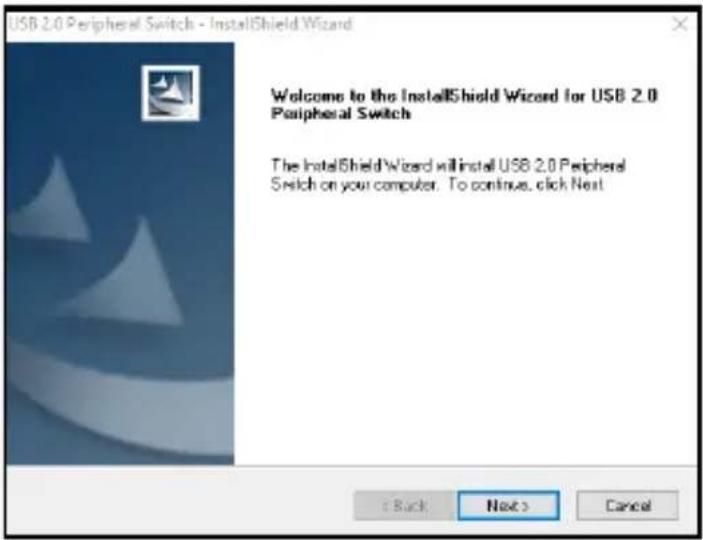
- To choose a destination location, click Change, or click Next to continue.

- A confirmation screen appears, click Next to begin the upgrade.

- After the upgrade has completed, you will be asked to restart the PC. Click Yes to restart the PC now, or click No to restart the PC later, then click Finish to exit the Software Installation Utility.

- When the installation completes, an icon labeled USB 2.0 Peripheral Switch Utility appears on your desktop and another icon appears in your system tray.

The icon on your system tray displays in four colors to indicate the US221A / US421A's status, as shown in the following table:
| Color Status | |
| Green Locked on local computer | |
| Yellow Connected to local computer | |
| Red Peripheral device not connected | |
| Grey Disconnected or busy |
Basic Operation
When you click on the icon in your system tray, a menu bar of shortcuts appears. The first item at the top of the menu is one of four shortcuts, depending on the current status of the US221A / US421A. Shortcut options are Lock Connection, Unlock Connection, Switch to Local Computer, and Cancel Switch Request.
Lock / Unlock Connection
To lock the connection from your computer to the USB peripheral, click on the icon in the system tray and select Lock Connection.

This method is a toggle between Lock and Unlock, so to unlock the connection, do the same but click Unlock Connection.
Switch to Local Computer
To bring the control of the USB peripheral device to your computer, click on the icon in the system tray and select Switch to Local Computer.
Cancel Switch Request
If you have sent a request to the USB peripheral device and the USB peripheral device is busy, your request is queued. To cancel a sent request, click on the icon in the system tray and select Cancel Switch Request.
Advanced Operation and Settings
To use the Configuration Utility to view and change the US221A / US421A's settings, click on the icon in your system tray and select Settings. The following dialog box appears:

Auto Switch and Release
Enable these buttons to activate the US221A / US421A's Auto Switch function for a printer or other devices.
When Auto Switch and Release is enabled, commands sent to the USB peripheral device are stored to be processed on a first-come, first-served basis. Control of the US221A / US421A and the USB peripheral device is locked on the computer currently performing the action and then automatically released after the action is completed.
Printers
If your USB device is a printer or MFP (multifunction printer) and you wish to use its print function, enable the Print Function Only button and select the printer from the drop-down menu.
Note: 1. If the USB peripheral device is a printer, you do not need a separate print server.
2. If you cannot find your printer in the drop-down menu, the printer may need to be reinstalled. See Troubleshooting, page 23 for further details.
3. If your printer is a multifunction printer and you want to use its scan function, you must also enable the Other Devices/Applications button if these functions have dedicated applications. See Multifunction Printers, page 21 for further details.
Other Devices
To add another device (such as a scanner) and associate its application with the Auto Switch function, enable the Other Devices/Applications button and click Add. In the dialog box that appears, click Browse to search for the application program.* (In Microsoft Windows only, you can also key in the device name for easy reference).
Note: Be sure to search for the full application path. A desktop shortcut, for example, does not work.
Once a device and application has been associated with the Auto Switch function, the US221A / US421A automatically takes control of the attached USB 2.0 peripheral when the application is opened. Control is released when the application is closed.
Multifunction Printers
If your USB 2.0 peripheral device is a multifunction printer and you wish to use its scan function, there are three ways to do this:
- If the multifunction printer's scan function have dedicated applications, enable both the Print Function Only and the Other Devices/Applications buttons and click Add. In the dialog box that appears, click Browse to search for the application program. (In Microsoft Windows only, you can also key in the device name for easy reference).
- Simply operate the US221A / US421A manually. See Manual Operation – Pushbutton, page 13.
- Use the shortcut in the system tray. See Basic Operation, page 18.
To use the fax function of a multifunction printer, operate the US221A / US421A manually. See Manual Operation – Pushbutton, page 13.

If your printer is a multifunction printer and you want to use its print and scan functions, you must enable both the Print Function Only and the Other Devices/Applications buttons, if these functions have dedicated applications.
Manual Switch and Release
If the US221A / US421A is operating under manual control (with a USB 2.0 peripheral such as a storage device, for example), enable this button to set the time for a reminder to release control of the US221A / US421A. The reminder will appear as a dialog box on screen of the PC currently in control of the US221A / US421A.
General
Enable this button to turn the US221A / US421A's configuration utility beeper on.
Note: 1. This enables the software beeper. To enable/disable the hardware beeper, use the On/Off switch located on the side of the US221A / US421A unit.
2. Default settings are Enabled.
Troubleshooting
First, make sure that all cables are securely attached and seated completely in their sockets.
| Problem Possible Cause Action | ||
| Unit operates erratically | Static electricity may cause the unit to operate erratically. | Disconnect the appropriate USB cable from the US221A / US421A port, then reconnect it. |
| Printer does not appear in configuration utility. | Printer was not installed correctly. | Re-install the printer; the configuration utility will now find the printer. |
| Monitor program of a printer does not respond / Print error messages are generated | The printer's USB port is configured for a PC; the US221A / US421A is in Auto Switch mode. | Disable the Auto Switch function and operate the US221A / US421A manually. |
| The Lock / Unlock function does not respond | The too rapid or continuous connecting / disconnecting of a USB connector from a locked port can cause the status of the lock to be misread. | Disconnect all USB cables from the US221A / US421A, then reconnect them. |
| Auto Switch print function does not respond. | OS printer settings not sent / not set correctly. | Reboot your PC to re-establish settings, or re-install the Configuration Utility. See Software Operation, page 14. |
| Auto Switch function for other devices does not release control after application closes. | OS failed to close the application. | Manual close the application in your OS. |
Specifications
| Function US221A US421A | |||
| Computer Connections 2 4 | |||
| Computer Selection Pushbuttons, Software, Auto Switch | |||
| Connectors Computer 2 x USB Type B 4 x USB Type B | |||
| LEDs Device 1 (Orange) | |||
| Switches 2 x Pushbutton 4 x Pushbutton | |||
| Power Supply | USB Bus Powered | ||
| Power Consumption | DC5V, 2.5W | ||
| Environment | Humidity | 0–80% RH, Non-condensing | |
| Storage Temp. | -20–60°C | ||
| Operating Temp. | 5–40°C | ||
| Physical Properties | Housing | Plastic | |
| Weight | 54 g 97 g | ||
| Dimensions(L x W x H) | 7.20 x 6.60 x 2.50 cm | 10.20 x 7.60 x 2.30 cm | |
ATEN warrants its hardware in the country of purchase against flaws in materials and workmanship for a Warranty Period of two [2] years (warranty period may vary in certain regions/countries) commencing on the date of original purchase. This warranty period includes the LCD panel of ATEN LCD KVM switches. Select products are warranted for an additional year (see A+ Warranty for further details). Cables and accessories are not covered by the Standard Warranty.
What is covered by the Limited Hardware Warranty
ATEN will provide a repair service, without charge, during the Warranty Period. If a product is detective, ATEN will, at its discretion, have the option to (1) repair said product with new or repaired components, or (2) replace the entire product with an identical product or with a similar product which fulfills the same function as the defective product. Replaced products assume the warranty of the original product for the remaining period or a period of 90 days, whichever is longer. When the products or components are replaced, the replacing articles shall become customer property and the replaced articles shall become the property of ATEN.
To learn more about our warranty policies, please visit our website: http://www.aten.com/global/en/legal/policies/warranty-policy
MEMO
MEMO
MEMO
- USB 2.0 Peripheral Switch
- FCC Information
- FEDERAL COMMUNICATIONS COMMISSION INTERFERENCE
- KCC Statement
- US221A / US421A
- User Manual
- Online Registration
- Online Support
- International
- Telephone Support
- Package Contents
- Overview
- Features
- System Requirements
- Computers
- Cables
- Operating Systems
- Components
- Top View
- Rear View
- Installation
- Manual Operation – Pushbutton
- US221A
- US421A
- Lock/Unlock Peripheral Focus
- Software Operation
- Installing the Configuration Utility
- Basic Operation
- Lock / Unlock Connection
- Switch to Local Computer
- Cancel Switch Request
- Advanced Operation and Settings
- Auto Switch and Release
- Printers
- Other Devices
- Multifunction Printers
- Manual Switch and Release
- General
- Troubleshooting
- What is covered by the Limited Hardware Warranty
- MEMO
Brand : ATEN
Model : US221
Category : USB Switch