K1 Max - Keyboard Keychron - Free user manual and instructions
Find the device manual for free K1 Max Keychron in PDF.


| Product Type | Wireless Mechanical Keyboard |
| Brand | Keychron |
| Model | K1 Max |
| Number of Keys | 87 |
| Switch Type | Mechanical (Low Profile) |
| Connectivity | Bluetooth 5.1, 2.4GHz, USB-C Wired |
| Battery Capacity | 2000mAh |
| Charging Time | Approximately 3 hours |
| Charging Port | USB Type-C |
| Bluetooth Range | Up to 10 meters (open space) |
| Compatible Systems | macOS, iOS, Windows, Android |
| Backlight | RGB with multiple effects and brightness/speed control |
| Key Remapping | VIA software (wired mode) |
| Multi-Device Pairing | Up to 3 Bluetooth devices |
| Dimensions (approx.) | 360 x 130 x 22 mm (low profile) |
| Weight (approx.) | 600 g |
| Included Accessories | Type-C cable, 2.4GHz receiver, extension adapter, extra keycaps, manual |
| Safety Precautions | Keep dry, avoid extreme temperatures (-10°C to 50°C), keep away from children |
| Warranty | Limited warranty covering defective parts (not entire keyboard) |
Frequently Asked Questions - K1 Max Keychron
User questions about K1 Max Keychron
0 question about this device. Answer the ones you know or ask your own.
Ask a new question about this device
Download the instructions for your Keyboard in PDF format for free! Find your manual K1 Max - Keychron and take your electronic device back in hand. On this page are published all the documents necessary for the use of your device. K1 Max by Keychron.
USER MANUAL K1 Max Keychron
K1 Max Wireless Mechanical Keyboard
IN THE BOX:
Keychron K1 Max Wireless Mechanical Keyboard x 1
Type-C Cable x 1
Manual x 1
Quick Start Guide x 1
Extra Keycaps Set x 1
Type-A to Type-C Adapter x 1
Type-A 2.4GHz Receiver x 1
QUICK START GUIDE
If you are a Windows user, please find the appropriate keycaps in the box, then follow the instructions below to find and replace the following keycaps.
Mac / Windows
![esc F1 F2 F3 F4 F5 F6 F7 F8 F9 F10 F11 F12 # # # # # # # # # # # # # # # # # # # # # # # # # # # # # # # # # # # # # # # # # # # # # # # # # # # # # # # # # # # # # # # # # # # # # # # # # # # # # # # # # # # # # # # # # # # # # # # # # # # # ## # # # # # # # # # # # # # # # # # # # # # # # # # # # # # # # # # # # # # # # # # # # # # # # # # # # # # # # # # # # # # # # # # # # # # # # # # # # # # # # # # # # # # # # # # # # # # # @ 2 3 $ 4 % 5 & 7 * 8 ( 9) 0 - - + = backspace Ins home pgup tab Q W E R T Y U I O P [ ] I\ del end pgdn caps lock A S D F G H J K L : : : enter shift Z X C V B N M : : ? shift ctrl option # option fn ctrl < alt alt](/content/2026/05/899704/images/18ec4c6b5c6602c641fe410cd687fc650cf1842eea256fe4ffba13149e540661.jpg)
1 Connect 2.4GHz Receiver
Connect the 2.4GHz receiver to the device USB port.

natural_image
Line drawing of a laptop connected to a file folder with an arrow indicating data transfer (no text or symbols present)Switch toggle to 2.4GHz mode
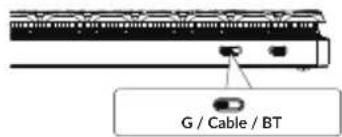
G = 2.4GHz
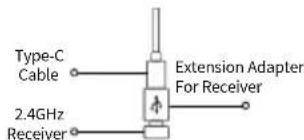

Note: For the best wireless experience, we recommend using the extension adapter for receiver and putting the 2.4GHz receiver somewhere on your desk close to your keyboard for a low rate of latency and fewer signal interferences.
2 Connect Bluetooth

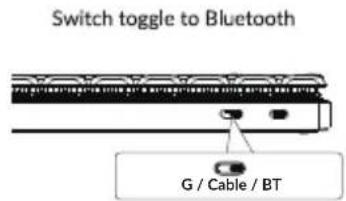

3 Connect Cable

4 Switch To The Right System
Please make sure the system toggle on the top left corner has been switched to the same system as your computer's operating system.

5 The VIA Key Remapping Software
Please visit usevia.app to use the online
VIA software to remap the keys.
If the VIA cannot recognize your keyboard,
please reach our support to get the instruction.

*The online VIA software can only run on the latest version of Chrome, Edge, and Opera browsers yet.
*VIA only works when the keyboard is connected by wire to the computer.
6 The Layers
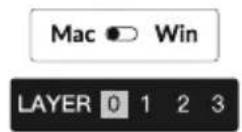
There are four layers of key settings on the keyboard. The layer 0 and layer 1 are for the Mac system. The layer 2 and layer 3 are for the Windows system.
If your system toggle is switched to Mac, then the layer 0 will be activated.
If your system toggle is switched to Windows, then the layer 2 will be activated. Remember that if you are using it in Windows mode, please make changes to the layer 2 instead of the top layer (the layer 0). This is a common mistake people are making.


7 The Backlight
Press fn + Q to change the lighting effect Press fn + tab to turn the backlight on/off
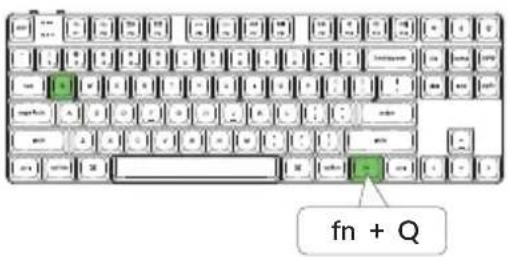

8 Adjust The Backlight Brightness
Press fn + W to increase the backlight brightness Press fn + S to decrease the backlight brightness


9 Adjust The Backlight Speed
Press fn + T to increase the light effect speed Press fn + G to decrease the light effect speed


10 Warranty
The keyboard is highly customizable and easy to be rebuilt. If anything goes wrong with any of the keyboard components of keyboard during the warranty period, we will only replace the defective parts of the keyboard, not the whole keyboard.

11 Factory Reset
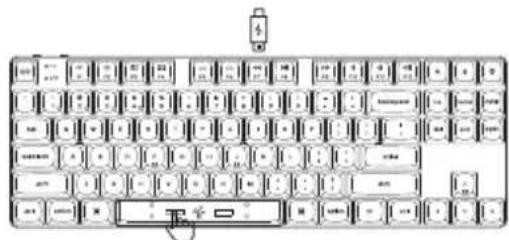
natural_image
Line drawing of a standard computer keyboard with no text or symbolsTroubleshooting? Don't know what's going on with the keyboard?
- Download the right firmware and QMK Toolbox from our website.
- Unplug the power cable and switch the keyboard to Cable mode.
- Remove the space bar keycap to find the reset button on the PCB.
- Hold the reset key first, then plug the power cable into the keyboard. Release the reset key after 2 seconds, and the keyboard will now enter DFU mode.
- Flash the firmware with the QMK Toolbox.
- Factory reset the keyboard by pressing fn + J + Z (for 4 seconds).
*Step by step guide can be found on our website.
K1 MAX WIRELESS MECHANICAL KEYBOARD SPECIFICATIONS
Number of keys: 87
Switch type: Mechanical
Battery: 2000mAh
Charging time: Around 3 hours
Charging port: USB Type-C
Mode: Bluetooth / Wired / 2.4GHz
Bluetooth operating distance: Within 10 meters (open space)
Name of Bluetooth device: Keychron K1 Max
LED STATUS OVERVIEW
| Function | LED Location | Status |
| Charging | Battery Indicator | Low Power - Red Light BlinkingCharging - Static RedFull charged - Static Green |
| Bluetooth | Bluetooth Indicator | Switching - Fast BlinkingPaired - Light OffPairing - Slow Blinking |
| 2.4G | 2.4G Indicator | Reconnecting-Fast BlinkingPaired - Light OffParing - Slow Blinking |
K1 MAX WIRELESS MECHANICAL KEYBOARD OVERVIEW

① Caps Lock Indicator
② BT / 2.4G Indicator
③ Type-C Port
④ 2.4G / Cable / BT
(Connection Mode Toggle)
⑤ Win/Android Mac/iOS (OS Toggle Switch)
⑥ Battery Indicator
DEFAULT KEY LAYOUT:
LAYER 0: This layer will be activated when your keyboard's system toggle is switched to Mac.

LAYER 1: This layer will be activated when your keyboard's system toggle is switched to Mac and press the fn/MO(1) key.

LAYER 2: This layer will be activated when your keyboard's system toggle is switched to Windows.
![esc F1 F2 F3 F4 F5 F6 F7 F8 F9 F10 F11 F12 Print Cortar RGB Md+ ! 1 @ 2 # 3 $ 4 % 5 ^ 6 & 7 * 8 ( 9 ) 0 - + = backspace ins home pg-up tab Q W E R T Y U I O P [ ] | del end pgdn caps lock A S D F G H J K L : " enter Left Shift Right Shift Z X C V B N M < ? / LWin RWinLAit RAItLeft Ctrl Space RCtI MO(3) < < >](/content/2026/05/899704/images/c012ef9f2a68b71ffca00685bb36ebb4535fe462cce267aa1ede1bc49fb9d96e.jpg)
LWin = Left Windows LAlt = Left Alt RAlt = Right Alt RWin = Right Windows RCtl = Right Ctrl
LAYER 3: This layer will be activated when your keyboard's system toggle is switched to Windows and press the fn/MO(3) key.

KEY DESCRIPTION
| Key Description | Key Description | ||
| Scr- | Screen Brightness Decrease | RGBMd- | RGB Mode Previous |
| Scr+ | Screen Brightness Increase | Hue+ | Hue Increase |
| Bright- | Backlight Decrease | Hue- | Hue Decrease |
| Bright+ | Backlight Increase | RGB SPI | RGB Speed Increase |
| Prvs | Previous | RGB SPD | RGB Speed Decrease |
| Play | Play/Pause | MO(1) | Layer 1 will be activated when holding this key |
| Next | Next | MO(2) | Layer 2 will be activated when holding this key |
| Mute | Mute | MO(3) | Layer 3 will be activated when holding this key |
| Vol- | Volume Decrease | Bluetooth Host 1BTH1 | |
| Vol+ | Volume Increase | Bluetooth Host 2BTH2 | |
| RGB Toggle | Turn Backlight on/off | BTH3 | Bluetooth Host 3 |
| RGB Mode NextRGBMd+ | 2.4G 2.4GHz Host | ||
FUNCTION DESCRIPTION: CHARGING
Plug the cable into a USB port and plug the other end into the keyboard port. Charging Indicator: A red light will stay on while charging; Fully charged in around 3 hours, a green battery indicator will appear.
*The K1 Max keyboard is compatible with all USB ports. Please use a 5V 1A adapter or USB 3.0 for the best performance. The K1 Max can be charged in 2.4GHz/Cable/Bluetooth mode. **This product supports up to 5V charging voltage and 1A charging current. We are not responsible for any problems caused by improper charging.
2.4GHZ / CABLE / BLUETOOTH MODE (MODE TOGGLE SWITCH)
2.4GHZ MODE
- Connect the 2.4GHz receiver to your device's USB Port.
- Switch the toggle switch to the 2.4GHz option. The keyboard will automatically connect to your device.
*Press the key combination "fn" + "4" to enter the forced pairing mode. During this period, it is recommended that the keyboard be within 20cm of the receiver.
BLUETOOTH MODE
- Switch the toggle switch to the Bluetooth option.
- Backlighting will be turned on.
-
Hold "fn+1" key for 4 seconds to activate Bluetooth pairing (the Bluetooth indicator fast flashes for 3 minutes to detect pairing).
-
Search for the Bluetooth device "Keychron K1 Max" on your device and connect it (the Bluetooth indicator goes off after successful pairing).
Note: This keyboard supports pairing up to 3 devices simultaneously via key combination "fn" + "1" / "fn" + "2" / "fn" + "3".
*The Bluetooth indicator will continue to flash for 3 minutes.
**Slow or failed connections may exist due to different Bluetooth versions, please make sure all the settings are correct.
SWITCH BLUETOOTH DEVICES
Short press key combination "fn" + "1" / "fn" + "2" / "fn" + "3" to switch to other device.
RECONNECT:
- Switch the keyboard to the Bluetooth option to activate the keyboard.
- The Bluetooth indicator flashes for 3 seconds and automatically pairs with the last paired device.
- If the Bluetooth indicator is off, press any button to enter the connection again.
*The keyboard must have been paired with the device to perform this function.
WIRED MODE
- Switch the toggle switch to the Cable option.
- Connect our cable with your PC and keyboard.
- Backlighting will be turned on.
*Under Wired Mode, keyboard will not enter into Battery Saver Mode.
Switch the keyboard to the Cable option and unplug the power cable.
BACKLIGHT SETTING
- Short press [icon] to switch between different types of lighting effects.
OS TOGGLE SWITCH
1 - MAC/iOS
Switch the toggle to Mac/iOS when the keyboard is connected to a Mac or iOS operating system.
2-WINDOWS/ANDROID
Switch the toggle to Windows/Android when the keyboard is connected to a Windows or Android operating system.
*When using the Windows/Android mode, ☐ = [±] keys are used for "Windows" and "Alt" functions.
3 - INPUT METHOD SWITCH
For iOS:
Input method switch: Ctrl + Space
Caps Lock: Caps (Enable General>Keyboards>Hardware Keyboard>Caps Lock Language Switch)
For Android:
Input method switch: Shift + Space
NOTE: Functions of certain multimedia key may be disabled due to compatibility, versions, brands and drivers of Windows/Android OS. We also recommend not to switch OS frequently as it may impact keyboard operations.
TROUBLESHOOTING
If unable to pair keyboard to device, confirm that the device you're trying to pair with is Bluetooth-capable. If so, restart the device and try pairing it with the keyboard again.
Note: On a Windows computer, a new Bluetooth connection will sometimes require additional software updates—a process that may still be ongoing after a message appears indicating a successful completion. Wait at least 20 minutes after pairing to make sure all updates are completed before restarting the computer.
Confirm that the device is configured to accept Bluetooth connections (Windows) and supports an external keyboard (HID profile).
Go to Bluetooth Devices > Open Settings and select the following:
Allow Bluetooth devices to find this computer
Allow Bluetooth devices to connect to this computer
Alert me when a Bluetooth device wants to connect
My keyboard isn't working in Bluetooth mode.
For the computer/smartphone:
Go to your device Bluetooth settings>Select the keyboard and remove/delete/unpair it.
Then restart your device.
For the keyboard:
Turn the keyboard off and back on. Then reconnect it to your device.
Bluetooth connection is interrupted even within 10 meters.
Check if the keyboard is resting on a metal surface that can interfere with the Bluetooth signal.
Third-party input tools are not compatible with the keyboard.
Due to compatibility, versions, brands and drivers of Windows/Android OS, functions of third-party input tools may be affected while using the keyboard. Please make sure your operating system and drivers are up to date.
Certain multimedia keys or function keys do not work.
Functions of certain multimedia keys may be disabled due to compatibility, versions, brands, and drivers of devices.
| *Multimedia keys: | ※/※/马口/圆□/业□/业□/◇◇/◇||/◇◇/◇◇/◇◇/◇◇ |
| Function keys: | F1 / F2 / F3 / F4 / F5 / F6 / F7 / F8 / F9 / F10 / F11 / F12 |
Safety Precaution:
Keep the product, accessories and packaging parts out of the reach of children to prevent any accidents and choking hazards.
Always keep the product dry to avoid corrosion.
Do not expose the product to extreme temperatures below -10°C (5°F) or above 50°C (131°F) to preserve the lifespan of the keyboard and battery.
Keychron, Inc.
Dover, DE 19901, United States
Find us at:
https://www.keychron.com
Support@keychron.com
@keychron
@keychron
@keychronMK
Designed by Keychron
Made in China

Keychron
K1 Max 无线机械键盘
内容清单
natural_image
Line drawing of a laptop connected to a file and a folder (no text or symbols)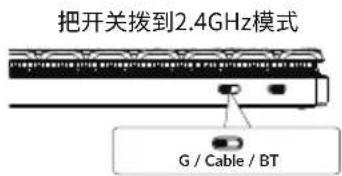

natural_image
Line drawing of a standard computer keyboard with no text or symbols on the keys or background如果键盘出现了故障,不知道怎么办?
⑤ Win/Android Mac/iOS (OS切换开关)
⑥ 电量指示灯
K1 Max 键盘规格
按键:87键
轴:机械轴
电池:2000mAh
充电时间:3小时
充电端口:USB Type-C
模式:蓝牙 / 有线 / 2.4G
蓝牙工作距离:最长10米(开放空间)
LWin = Left Windows LAlt = Left Alt RAlt = Right Alt RWin = Right Windows RCtl = Right Ctrl
Dover, DE 19901, United States
https://www.keychron.com
通过以下方式与我们联系
Support@keychron.com
@keychron
@keychron
@keychronMK
Keychron设计
中国制造
中国区总代:渴创技术(深圳)有限公司
- K1 Max Wireless Mechanical Keyboard
- IN THE BOX:
- QUICK START GUIDE
- 3
- Connect 2.4GHz Receiver
- Connect Bluetooth
- Connect Cable
- Switch To The Right System
- The VIA Key Remapping Software
- The Layers
- The Backlight
- Adjust The Backlight Brightness
- Adjust The Backlight Speed
- Warranty
- Factory Reset
- K1 MAX WIRELESS MECHANICAL KEYBOARD SPECIFICATIONS
- DEFAULT KEY LAYOUT:
- FUNCTION DESCRIPTION: CHARGING
- 2.4GHZ / CABLE / BLUETOOTH MODE (MODE TOGGLE SWITCH)
- 2.4GHZ MODE
- BLUETOOTH MODE
- SWITCH BLUETOOTH DEVICES
- RECONNECT:
- WIRED MODE
- BACKLIGHT SETTING
- OS TOGGLE SWITCH
- - MAC/iOS
- 2-WINDOWS/ANDROID
- - INPUT METHOD SWITCH
- TROUBLESHOOTING
- My keyboard isn't working in Bluetooth mode.
- Bluetooth connection is interrupted even within 10 meters.
- Third-party input tools are not compatible with the keyboard.
- Certain multimedia keys or function keys do not work.
- Safety Precaution:
- Keychron, Inc.
- Keychron
- K1 Max 无线机械键盘
- 内容清单
- K1 Max 键盘规格
Brand : Keychron
Model : K1 Max
Category : Keyboard