
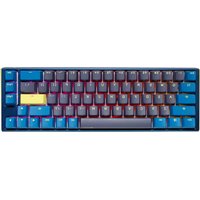
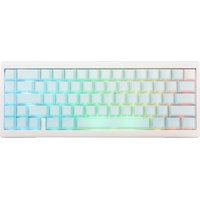
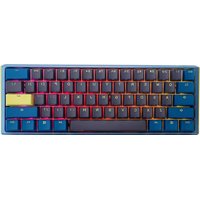
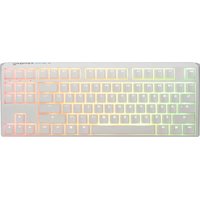
Origin - Keyboard Ducky - Free user manual and instructions
Find the device manual for free Origin Ducky in PDF.


| Product Type | Mechanical Keyboard |
| Brand | Ducky |
| Model | Origin |
| Layout | Full-size (104 keys) |
| Switch Type | Cherry MX (available in various colors) |
| Keycap Material | PBT Double-shot |
| Backlighting | RGB per-key lighting |
| Connection | USB Type-C (detachable cable) |
| Cable Length | 1.5 m braided cable |
| Polling Rate | 1000 Hz |
| Rollover | N-key rollover |
| Macro Support | On-board macro recording |
| Dimensions (L x W x H) | 440 x 135 x 40 mm |
| Weight | 1.2 kg (approx) |
| Power Source | USB bus power |
| Compatibility | Windows, macOS, Linux |
| Warranty | 2 years limited warranty |
| Cable Management | Three-way cable routing |
| Keyboard Feet | Two-stage adjustable tilt |
| Cleaning | Use compressed air and damp cloth; avoid liquids |
| Repairability | User-replaceable switches and keycaps; PCB accessible |
Frequently Asked Questions - Origin Ducky
User questions about Origin Ducky
0 question about this device. Answer the ones you know or ask your own.
Ask a new question about this device
Download the instructions for your Keyboard in PDF format for free! Find your manual Origin - Ducky and take your electronic device back in hand. On this page are published all the documents necessary for the use of your device. Origin by Ducky.
USER MANUAL Origin Ducky
Ducky Origin Non-backlit Specs 15
Indicator light brightness adjustment 16
Reset Back to Factory Defaults 16
Windows Key Lock Feature 17
Mouse Function 18
DIP Switch Functions 19
Key Switch Function 20
Ducky Macro V2.1 21
Ducky Macro V2.1 Setting Section 22
Ducky Macro V2.1 Multimedia Function Keys 23
Ducky Macro V2.1 Windows Common Function Keys 24
Ducky Macro V2.1 Keyboard Button Function Keys 25
Ducky Macro V2.1 Set Up Example 26
Hot-swap Set-up Example 27
Disclaimers 28
Ducky Origin

非背光
型號:DKOR2308A/DKOR2308I
Ducky Macro V2.1
Step1. 選取要錄製的Profile

免責說明
Size: 450 x 140 x 40 mm
Weight: 1250g
For more information on the specs and details of our keyboards, please contact the distributor for your region.
ANSI 100%
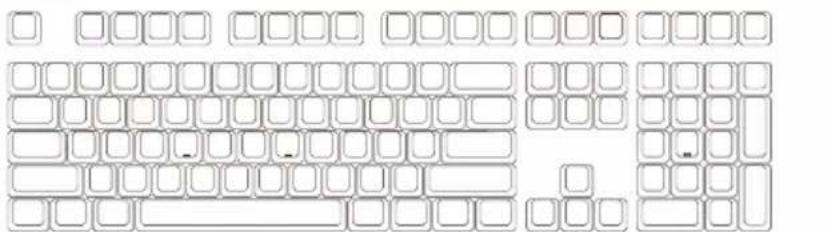
natural_image
Pure grid pattern of empty rectangular blocks without any text, numbers, or symbolsISO 100%

natural_image
Pure grid layout of empty square tiles without any text, numbers, or symbolsIndicator light brightness adjustment
Increase brightness
Fn + Alt + ↑
Decrease brightness
Fn + Alt + ↓
Reset Back to Factory Defaults
US ANSI and EU ISO layout
Left Windows key + Right Windows key
Note:
Hold for 3 seconds. The keyboard's backlit will flash 3 times to indicate the keyboard have been reset.
Open / Close Windows Function (Windows Key Lock)
While DIP 1 is ON, press and hold Fn + any Alt keys + any Windows key for 3 seconds, the keyboard's backlit will flash 3 times to indicate the keyboard that have been turned ON / OFF(The default setting is ON).
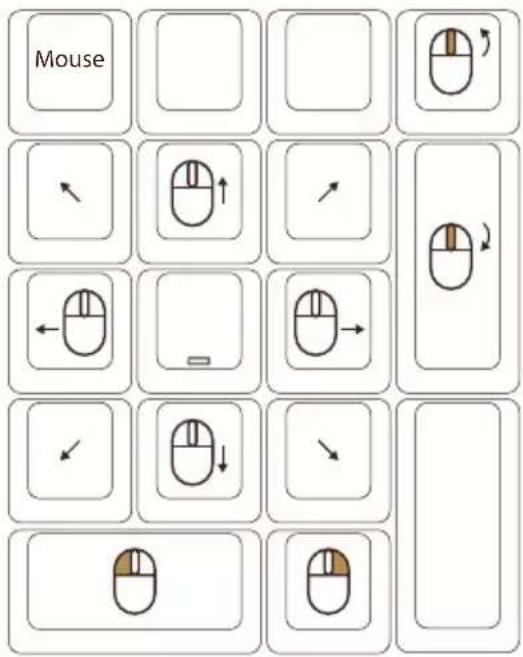
Mouse Function
ON/OFF (default setting):
Full Size →
Fn + Alt + Number Lock
Note:
The corner right indicator "M" key will light up upon activation.
Mouse function diagram
100% (Full Size)
DIP Switch Functions
Note : You can input the ideal VID in both situation, but the VID can be only changed when DIP 3 turned on.
DIP Switches are on the underside of your keyboard.
DIP Switches are defaulted as OFF when you receive the keyboard.
| DIP1 | OFF (Default) | ON |
| Disable Windows keyLock Function | Enable Windows keyLock Function |
| DIP2 | OFF (Default) | ON |
| NKRO Mode 6 Key Rollover | - Useful for Mac and Linux devices |
| DIP3 | OFF (Default) | ON |
| Ducky Vendor ID (VID) User defined VID | ||
| DIP4 | OFF (Default) | ON |
| Right Windows key is default Right | Windows key changes to the Menu key |
Key Switch Functions
Note : You can press Esc key to leave the switching function before starting it.
-
Applicable keys: Fn/Alt/Ctrl/Windows/Caps Lock
-
Operation:
- Press Fn + Alt + k for 5 seconds.
● Until the Esc, L_Ctrl, L_Win, L_Alt, R_Alt, R_Win, Fn, R_Ctrl, and Caps Lock keys are all lighting up. The colorways are respectively pink, red, orange, yellow, green, blue, indigo, purple and white.
● Except for Esc & Caps Lock key, the rest of 7 keys are able to switch each function and color at will. (2 keys max at the same time)
- Press Caps Lock once will change its own function to Fn (turns into indigo LED color) then L_Ctrl key (turns into red LED color) in order.
● Press Caps Lock again to resume Caps Lock (it will be illuminated White for Caps Lock).
● Press Esc key once to save and exit.

Ducky Macro V2.1
Step1. Profile Selections
| Fn+ | = | Switch to profile 1 | Factory settings (Default) | |
| 2 | Switch to profile 2 | Customize Macro Key Features | ||
| 3 | Switch to profile 3 | |||
| 4 | Switch to profile 4 | |||
| 5 | Switch to profile 5 | |||
| 6 | Switch to profile 6 |
Note:
Once the profile is selected then the Caps Lock or indicator lights will blink in the amount of selected profile number.
Step2. To enter Macro recording
Press and hold Fn + Alt + Tab for 3 seconds to enter Macro recording.
Once in recording mode the Caps Lock or indicator lights will flash slowly.
Step3. Press a key to start recording Macro
Press on the key you want to use to activate Macro. The key pressed will blink (Non-backlit version will not) and the Caps Lock or indicator lights will flash swiftly.
Step4. Recording Macro
Enter any key, and choose the Macro implementation.
Step5. To exit or continuing recording
Press and hold Fn + Alt + Tab for 1 seconds to exit recording or press Fn + Alt to continue.
Ducky Macro V2.1 Setting Section
Unable to set Macro function
| Fn |
| Fn + ESC |
| Fn + F1~F12 |
| Fn + PrtSc |
| Fn + ScrLk |
| Fn + Pause |
| Fn + 0~9 |
| Fn + Ctrl |
| Fn + Alt |
| Fn + Windows |
| Fn + ↑ ↓ ← → |
| Fn + Space |
can be set to Macro (US ANSI keyboard as example)

● White keys can be set to Macro, grey keys cannot be set to Macro.
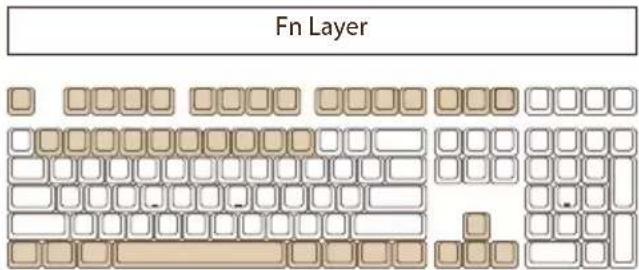
● White keys can be set to Macro, grey keys cannot be set to Macro.
Ducky Macro V2.1 Multimedia Function Keys
Note :
Need to be recorded first before use.
| Fn + Windows Key + Keys below | |||
| A | Mute | M | Search |
| B | Volume up | N | Previous page |
| C | Volume down | O | Next page |
| D | Play / Pause | P | Mouse Left Click |
| E | Stop | Q | Mouse Right Click |
| F | Next playlist | R | Mouse Middle Click |
| G | Previous playlist | S | Mouse Cursor Up |
| H | Calculator | T | Mouse Cursor Down |
| I | My Computer | U | Mouse Cursor Left |
| J | Browser | V | Mouse Cursor Right |
| K | W | Mouse Scroll Up | |
| L | Multimedia | X | Mouse Scroll Down |
Reset Macro setting for single profile
| US ANSI and EU ISO layout | Hold any Windows key + Spacebar for 3 seconds. |
| JP JIS layout | Hold Windows key + Spacebar for 3 seconds. |
Ducky Macro V2.1 Windows Common Function Keys
| Ctrl + C | Copy select item | Windows + D | Desktop |
| Ctrl + X | Cut select item | Windows + M | Minimized all windows |
| Ctrl + V | Paste select item | Windows + L | Lock computer or change user |
| Ctrl + Z | Undo | Windows + R | Open [Run] window |
| Ctrl + Y | Redo | Windows + F | Search files or folders |
| Ctrl + N | Open new file | Windows + ↑ | Maximized all windows |
| Ctrl + O | Open current file | Windows + ↓ | Minimized windows |
| Ctrl + S | Save file change | Windows + ← | Maximized window to the left side |
| Ctrl + P | Print file | Windows + → | Maximized window to the right side |
| Alt + F4 | Quit the software | Windows + Home | Minimized all windows other than the one used |
- http://windows.microsoft.com/en-us/windows/keyboard-shortcuts
Ducky Macro V2.1 Keyboard Button Function Keys
Note:
- Need to be recorded first before use.
| Fn + Shift + Keys below | |||
| A | Prompt Profile value Backlit mode | N | ive mode (Default) |
| B | Profile 1 Backlit mode : Co | O | tle mode |
| C | Profile 2 | P | Backlit mode : Rain Drop mode |
| D | Profile 3 Backlit mode : Rip | Q | ode |
| E | Profile 4 | R | Backlit mode : Random Reactive mode |
| F | Profile 5 | S | Backlit mode : Reactive mode |
| G | Profile 6 Backlit mode : 10 | T | I backlit mode |
| H | Backlit modes switching Backlit mode | U | reathe mode |
| I | Adjust color red Backlit mode : | V | mode |
| J | Adjust color green Backlit mode | W | klit OFF |
| K | Adjust color blue The key" . "or | X | per pad (Num_) |
| L | Erase all value | Y | Number Lock |
| M | Color Palette | ||
Ducky Macro V2.1 Set Up Example


Note:
Set the Profile from Profile 2\~6 before setting Macro.
Example A Configure the key "Z" to "Q" output.
Operation method :
Press Fn + Alt + Tab for 3 seconds → Press Z → Press down Q → Press Fn + Alt →
Press Fn + Alt + Tab for 1 second
Example B To set Z as show "desktop" (under Windows system)
Operation method :
Press Fn + Alt + Tab for 3 seconds → Press Z → Press Windows key + D → Press Fn + Alt →
Press Fn + Alt + Tab for 1 second
Example C + To set Fn + Ctrl + M as "mute volume"
Operation method :
Press Fn + Alt + Tab for 3 seconds → Press Fn + Ctrl + M → Press Fn + Windows key + A →
Press Fn + Alt → Press Fn + Alt + Tab for 1 second
Example D. To set Fn + Ctrl + Q as "Reactive mode"
Operation method :
Press Fn + Alt + Tab for 3 seconds → Press Fn + Ctrl + Q → Press Fn + Shift + S →
Press Fn + Alt → Press Fn + Alt + Tab for 1 second
Hot-swap
Set-up Example
Use key puller to pull out the key caps Use switch puller to pull out the switches

natural_image
Close-up of a keyboard with blue and purple keys and two red screw pads (no text or symbols visible)Align switch pins with the holes

natural_image
Close-up of a hand using a screwdriver to press small components on a keyboard (no text or symbols visible)Gently push the switch in
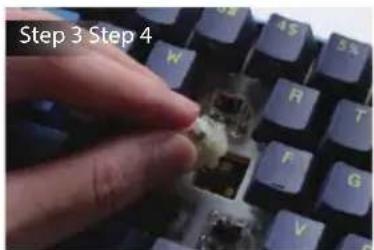

natural_image
Close-up of a keyboard with blue and purple keys and black connectors (no visible text or symbols)Disclaimers
- When swapping out switches, please make sure to secure the keyboard in place and then pull the switch out.
- Please ensure the correct pin direction and avoid applying excessive force to prevent damaging the PCB and switch during inserting switches.
● Products that have been exposed to liquid damage will not be under warranty coverage.
● Products that have been subjected to any modifications will not be under warranty coverage.
Warranty is 1 year from date of purchase via our Official Vendors vhttps://www.duckychannel.com.tw/en/location/global Please contact the vendor you purchased from for RMA procedures.
Origin

Ducky
www.duckychannel.com.tw
- Ducky Origin
- Ducky Macro V2.1
- Step1. 選取要錄製的Profile
- 免責說明
- Indicator light brightness adjustment
- Reset Back to Factory Defaults
- Open / Close Windows Function (Windows Key Lock)
- Mouse Function
- Mouse function diagram
- DIP Switch Functions
- Key Switch Functions
- Step2. To enter Macro recording
- Step3. Press a key to start recording Macro
- Step4. Recording Macro
- Step5. To exit or continuing recording
- Ducky Macro V2.1 Setting Section
- Unable to set Macro function
- can be set to Macro (US ANSI keyboard as example)
- Ducky Macro V2.1 Multimedia Function Keys
- Ducky Macro V2.1 Windows Common Function Keys
- Ducky Macro V2.1 Keyboard Button Function Keys
- Note:
- Ducky Macro V2.1 Set Up Example
- Example A Configure the key "Z" to "Q" output.
- Example B To set Z as show "desktop" (under Windows system)
- Example C + To set Fn + Ctrl + M as "mute volume"
- Example D. To set Fn + Ctrl + Q as "Reactive mode"
- Hot-swap
- Set-up Example
- Disclaimers
- Origin
Brand : Ducky
Model : Origin
Category : Keyboard