2443 - Access Point Insteon - Free user manual and instructions
Find the device manual for free 2443 Insteon in PDF.


| Product Type | Access Point |
| Brand | Insteon |
| Model | 2443 |
| Dimensions (approx) | 3.5 x 2.5 x 1.5 inches (89 x 64 x 38 mm) |
| Weight (approx) | 4 oz (113 g) |
| Power Supply | 5V DC via USB or included AC adapter |
| Operating Frequency | 915 MHz (RF) and 120/240 V AC powerline |
| Maximum RF Range | Up to 150 ft (45 m) line of sight |
| Primary Function | Extends and bridges Insteon dual-mesh network between RF and powerline |
| Compatibility | All Insteon devices and hubs |
| LED Indicators | Status LED for power and network activity |
| Enclosure Material | Plastic |
| Operating Temperature | 32°F to 104°F (0°C to 40°C) |
| Storage Temperature | -4°F to 140°F (-20°C to 60°C) |
| Humidity Range | Up to 90% non-condensing |
| Installation | Plug into any AC outlet; USB optional |
| Maintenance | Wipe with dry, soft cloth; avoid liquids |
| Safety Certifications | FCC, UL, CE |
| Spare Parts | Power adapter (if included); not user-repairable |
| Repairability | No user-serviceable parts; contact support for issues |
| Warranty | 1 year limited |
Frequently Asked Questions - 2443 Insteon
User questions about 2443 Insteon
0 question about this device. Answer the ones you know or ask your own.
Ask a new question about this device
Download the instructions for your Access Point in PDF format for free! Find your manual 2443 - Insteon and take your electronic device back in hand. On this page are published all the documents necessary for the use of your device. 2443 by Insteon.
USER MANUAL 2443 Insteon
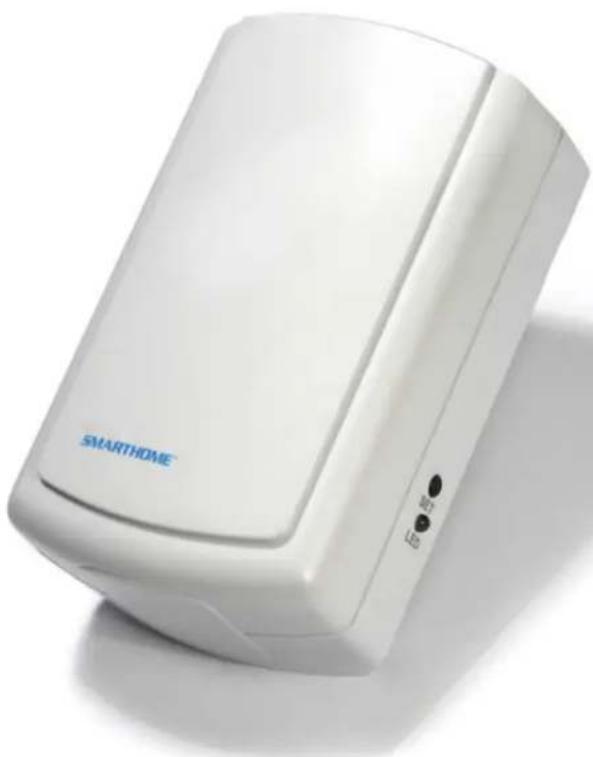
Dual-Band Access Point INSTEON® Wireless Phase Coupler Owner's Manual (#2443)
natural_image
White smart home device with 'SMARTHOME' branding and a small indicator light (no readable text beyond branding)N S T E G Z

About Dual-Band Access Point .... 3
Features and Benefits .... 3
What's in the Box? 4
Preparing to Install Access Point....4
An Important Note About INSTEON Networks....4
Split Single-Phase vs. 3-Phase Installation....4
Installing Access Points....4
Installing the First Access Point 4
Installing the Second Access Point 5
Installing Additional Access Points....5
Using Access Point Rev 2.0 with Prior Access Point Models ....5
Understanding INSTEON Reliability....6
Additional Resources....6
Specifications....6
Troubleshooting....7
Certification and Warranty 8
Certification 8
FCC and Industry Canada Compliance Statement 8
ETL/UL Warning (Safety Warning) 8
Limited Warranty 8
Limitations 8
About Dual-Band Access Point
Congratulations on purchasing the INSTEON Dual-Band Access Point. Installing at least two Access Points in your INSTEON-compatible home will improve INSTEON signal strength and network coverage throughout your home and provide an interface between wireless-only INSTEON devices and your overall INSTEON network. Access Points also tie together your dual-band mesh INSTEON network by transmitting INSTEON signals across radio-frequency to bridge your home's power line wiring phases.
Features and Benefits
- Quick setup links to other INSTEON devices in minutes
- Beeper and dual-color status LED indicate setup activity
- Communicates simultaneously over both RF and powerline
- Couples INSTEON messages across opposite electrical phases
- Uses the 900MHz band for reliable transmissions, even through walls
- Expands INSTEON networks across large or complex installations
- Approved by the FCC/ETL
- Manufactured in an ISO:9001 certified facility
- Two-year warranty

What's in the Box?
- Dual-Band Access Point
- Quick Start Guide
Preparing to Install Access Point
CAUTIONS AND WARNINGS
Read and understand these instructions before installing and retain them for future reference.
This product is intended for installation in accordance with the National Electric Code and local regulations in the United States or the Canadian Electrical Code and local regulations in Canada. Use indoors only. This product is not designed or approved for use on power lines other than 120V 60Hz, single phase. Attempting to use this product on non-approved powerlines may have hazardous consequences.
Recommended installation practices:
- Don't plug Access Point into an outlet controlled by a switch. If the switch is inadvertent turned off, Access Point will not have power.
- Don't plug Access Point into a filtered power strip or AC line filter.
- Install Access Point modules in different areas of your home, keeping them within communication range of each other.
- In multi-story homes, install Access Points on different floors.
- Don't install Access Point near large metal objects such as a refrigerator, filing cabinet or television. These may absorb radio-frequency (RF) signals.
- Access Point works best when installed in an open area.
- Unlike many other INSTEON devices, Access Point does not process X10 traffic. In the design of your home auto
IMPORTANT!
Before setting up and using other INSTEON devices, you should properly install at least two Access Points or other dual-band INSTEON products so that INSTEON messages can travel everywhere in your home. Installing two Access Points will wirelessly couple the 120V electrical phases in your home. This allows INSTEON devices on one phase to communicate reliably with the INSTEON devices on the other phase. You can add more Access Points as needed for superior performance and maximized coverage of your INSTEON network. For larger applications, it is recommended that you install at least one Access Point (or other dual-band product) for each 750-1,000 square feet.
If you have any questions, call the INSTEON Support Line at 1-800-762-7845.
An Important Note About INSTEON Networks
Split Single-Phase vs. 3-Phase Installation
For the best INSTEON network performance, be sure you have properly installed at least two Access Points or other dual-band INSTEON products to completely bridge the opposite electrical phases in your home. INSTEON has only been officially tested in a split single-phase residential environment, but has been known to work in many 3-phase systems with three dual-band products installed (one on each phase). However, due to the potential complexity of its troubleshooting, the INSTEON Support Line is unable to support INSTEON in 3-phase environments.
Installing Access Points
Installing the First Access Point
1) Plug the first Access Point into a convenient wall outlet. Don't use an outlet controlled by a switch; if the switch is inadvertently turned off, Access Point won't have power.
The Access Point LED will turn on dim green. Tip: choose an outlet that is not near large metal objects that may absorb RF signals.
2) Put the first Access Point into setup mode by rapidly pressing the Set button four times. Access Point will continuously beep and its LED will turn on bright green. You will have 9 minutes to install the second Access Point before the first Access Point's setup mode times out.
Installing the Second Access Point
Once you install the first Access Point, you will have about 9 minutes to perform these steps before the first Access Point's setup mode times out. If the first Access Point times out, simply follow the steps above to put it back into setup mode.
1) Plug second Access Point into another unswitched outlet, preferably one located on the other side of your home.
2) Watch the LED on the second Access Point.
If the LED is blinking green, proceed to step 3.
If the LED is blinking red/green or shining solid red or green, unplug the second Access Point, plug into a different outlet and repeat steps 1 and 2.
3) Tap the Set button on the first Access Point to exit setup mode. The first Access Point will stop beeping. Both Access Points' LEDs will turn on dim green.
Note: If you can't locate a pair of outlets on opposite electrical phases, contract your local installer or call the INSTEON Support Line at 1-800-762-7845.
Installing Additional Access Points
To extend your INSTEON network's coverage and maximize its performance, you can add additional Access Points. Simply use the first Access Point that you installed and follow the steps in Installing the Second Access Point to confirm that the new Access Points are communicating with your existing Access Points. After the two opposite electrical phases in your home are bridged with at least two Access Points, it does not matter which electrical phase into which you plug additional Access Points.
Using Access Point Rev 2.0 with Prior Access Point Models
All Access Point models (whether Rev 2.0 or below) are compatible with one another. There are just a few small differences between the Status LEDs of each model:
- Access Points with Rev 2.0 or higher have a dual-color (red/green) LED
- Access Points models below 2.0 have a white LED
The table below explains the how the different Access Point models will interact with one another.
| Initiator's (First Access Point) LED Color | Receivers' (subsequent Access Points) LED Color | Resulting Receivers' LED Behavior |
| Installed Correctly - Access Points are installed on opposite electrical phases | ||
| Dual-color | White | Bright solid white |
| White | Dual-color | Blinking green |
| Installed Incorrectly - Access Points are installed on the same electrical phase and proper bridging is not occurring | ||
| Dual-color | White | Blinking white |
| White | Dual-color | Blinking green/redSolid green or red |
Understanding INSTEON Reliability
INSTEON messages travel throughout the home via powerline (the existing house wiring) or wirelessly via RF using Access Points or other dual-band INSTEON products. As the messages make their way to the INSTEON responders, they are picked up and retransmitted by all other INSTEON devices along the way. This method of communicating is called a mesh network because every device becomes a signal repeater. Plus, every INSTEON device confirms that it has received a command. If an INSTEON controller does not receive this confirmation, it will automatically retransmit the command up to five times.
Additional Resources
Find home automation solutions, helpful tips, interactive demos, videos, user forums, and more at the INSTEON Learning Center: www.smarthome.com/learningcenter.html
Specifications
| General | |
| Product Name | Access Point |
| Brand | INSTEON |
| Manufacturer Product Number | 2443 |
| UPC | 689076406840 |
| Patent Number | Protected under U.S. and foreign patents (see www.insteon.com) |
| Status LED | Yes |
| Available Modes | INSTEON Only |
| Warranty | Two years, limited |
| INSTEON Features | |
| INSTEON Powerline Frequency | 131.65 KHz |
| Radio Frequency | 915 MHz |
| INSTEON Messages Repeated | Yes |
| Mechanical | |
| Dimensions | 3 7/8" x 1 1/2" x 2 7/16" |
| Weight | 4.3 oz. |
| Operating Environment | Indoors |
| Operating Temperature Range | 32°F to 104°F |
| Operating Humidity Range | Up to 85% relative humidity |
| Electrical | |
| Supply Voltage | 120 volts AC +/- 10%, 60 Hertz, single phase |
| Frequency | 120 volts AC +/- 10%, 60 Hertz, single phase |
| Surge Protection | Rated for 150V |
| Power Consumption | 1.46W |
| Certification | Safety tested for use in USA and Canada (ETL #3017581) |
| FCC ID | SBP2443A |
Troubleshooting
| Problem | Possible Cause | Solution |
| The Status LED on Access Point is not turning on. | Access Point is not getting power, | Make sure Access Point is not plugged into a switched outlet that is turned off. |
| The Status LED on the first Access Point I installed is not steadily bright after I press the Set button. | The Set button wasn't tapped four times, or there was too long a pause between button taps. | Tap the Set button four times in rapid succession. The Status LED will not change to steadily bright until after you let go of the Set button after the fourth tap. |
| I have tried several outlets and the second Access Point is blinking or steadily dim. | The Access Points are out of range from each other. | Move the Access Points closer together. |
| Install a third Access Point between the first two. SeeInstalling Additional Access Points. | ||
| Something made of metal is blocking the wireless signal. | Move the Access Points away from metal objects. | |
| The Status LED has turned off and does not flicker during INSTEON transmissions. | A surge or excessive noise on the powerline may have locked up Access Point. | Unplug Access Point, wait 10 seconds, then plug back in. |
| My X10 system performance is not improved by installing Access Points. | Access Point is not designed to retransmit X10 signals. | Install anX10 phase coupler module. |
| Install an INSTEON-compatibleBoosterLinc(4827). |
If you have tried these solutions, reviewed this Owner's Manual, and still cannot resolve an issue you are having with Access Point, please call the INSTEON Support Line at 1-800-762-7845.
Certification and Warranty
Certification
This product has been thoroughly tested by ITS ETL SEMKO, a nationally recognized independent third-party testing laboratory. The North American ETL Listed mark signifies that the device has been tested to and has met the requirements of a widely recognized consensus of U.S. and Canadian device safety standards, that the manufacturing site has been audited, and that the manufacturer has agreed to a program of quarterly factory follow-up inspections to verify continued conformance.
FCC and Industry Canada Compliance Statement
This device complies with FCC Rules Part 15 and Industry Canada RSS-210 (Rev. 7 or 8). Operation is subject to the following two conditions:
(1) This device may not cause harmful interference, and
(2) This device must accept any interference, including interference that may cause undesired operation of the device.
The digital circuitry of this device has been tested and found to comply with the limits for a Class B digital device, pursuant to Part 15 of the FCC Rules. These limits are designed to provide reasonable protection against harmful interference in residential installations. This equipment generates, uses, and can radiate radio frequency energy and, if not installed and used in accordance with the instructions, may cause harmful interference to radio and television reception. However, there is no guarantee that interference will not occur in a particular installation. If this device does cause such interference, which can be verified by turning the device off and on, the user is encouraged to eliminate the interference by one or more of the following measures:
- Re-orient or relocate the receiving antenna of the device experiencing the interference
- Increase the distance between this device and the receiver
- Connect the device to an AC outlet on a circuit different from the one that supplies power to the receiver
- Consult the dealer or an experienced radio/TV technician
WARNING: Changes or modifications to this device not expressly approved by the party responsible for compliance could void the user's authority to operate the equipment.
ETL/UL Warning (Safety Warning)
CAUTION: To reduce the risk of overheating and possible damage to other equipment, do not install this device to control a receptacle, a motor-operated appliance, a fluorescent lighting fixture, or a transformer-supplied appliance.
Seller warrants to the original consumer purchaser of this product that, for a period of two years from the date of purchase, this product will be free from defects in material and workmanship and will perform in substantial conformity to the description of the product in this Owner's Manual. This warranty shall not apply to defects or errors caused by misuse or neglect. If the product is found to be defective in material or workmanship, or if the product does not perform as warranted above during the warranty period, Seller will either repair it, replace it, or refund the purchase price, at its option, upon receipt of the product at the address below, postage prepaid, with proof of the date of purchase and an explanation of the defect or error. The repair, replacement, or refund that is provided for above shall be the full extent of Seller's liability with respect to this product. For repair or replacement during the warranty period, call the INSTEON Support Line at 800-762-7845 with the Model # and Revision # of the device to receive an RMA# and send the product, along with all other required materials to:
INSTEON
ATTN: Receiving
16542 Millikan Ave.
Irvine, CA 92606-5027
Limitations
The above warranty is in lieu of and Seller disclaims all other warranties, whether oral or written, express or implied, including any warranty or merchantability or fitness for a particular purpose. Any implied warranty, including any warranty of merchantability or fitness for a particular purpose, which may not be disclaimed or supplanted as provided above shall be limited to the two-year of the express warranty above. No other representation or claim of any nature by any person shall be binding upon Seller or modify the terms of the above warranty and disclaimer.
Home automation devices have the risk of failure to operate, incorrect operation, or electrical or mechanical tampering. For optimal use, manually verify the device state. Any home automation device should be viewed as a convenience, but not as a sole method for controlling your home.
In no event shall Seller be liable for special, incidental, consequential, or other damages resulting from possession or use of this device, including without limitation damage to property and, to the extent permitted by law, personal injury, even if Seller knew or should have known of the possibility of such damages. Some states do not allow limitations on how long an implied warranty lasts and/or the exclusion or limitation of damages, in which case the above limitations and/or exclusions may not apply to you. You may also have other legal rights that may vary from state to state.
Protected under U.S. and foreign patents (see www.insteon.com).
© Copyright 2012 INSTEON, 16542 Millikan Ave., Irvine, CA 92606, 800-762-7845, www.insteon.com


- N S T E G Z
- About Dual-Band Access Point .... 3
- Preparing to Install Access Point....4
- An Important Note About INSTEON Networks....4
- Installing Access Points....4
- Understanding INSTEON Reliability....6
- Specifications....6
- Troubleshooting....7
- Certification and Warranty 8
- About Dual-Band Access Point
- Features and Benefits
- Preparing to Install Access Point
- CAUTIONS AND WARNINGS
- Recommended installation practices:
- IMPORTANT!
- An Important Note About INSTEON Networks
- Split Single-Phase vs. 3-Phase Installation
- Installing Access Points
- Installing the First Access Point
- Installing the Second Access Point
- Installing Additional Access Points
- Using Access Point Rev 2.0 with Prior Access Point Models
- Understanding INSTEON Reliability
- Additional Resources
- Certification and Warranty
- Certification
- FCC and Industry Canada Compliance Statement
- ETL/UL Warning (Safety Warning)
- INSTEON
- Limitations
Brand : Insteon
Model : 2443
Category : Access Point