
2477SA2 - Switch Insteon - Free user manual and instructions
Find the device manual for free 2477SA2 Insteon in PDF.


| Product Type | 240V 30A Load Controller (Normally Closed) |
| Model Number | 2477SA2 |
| Brand | Insteon |
| Voltage | 240V AC, 60Hz, single split-phase |
| Maximum Load Current | 30A resistive |
| Relay Type | Normally Closed |
| Communication | Dual-band (powerline and RF) |
| Power Supply | Powered from load circuit; no neutral required |
| Set Button | Toggles load on/off; initiates linking/mode changes |
| Status LED | Dual-color (green = load on, red = load off) and beeper |
| Memory | Non-volatile; retains settings during power outages |
| X10 Compatibility | Yes, programmable X10 address |
| INSTEON Compatibility | Yes, dual-band mesh network with repeating |
| Installation | Requires junction box and 2-pole tandem circuit breaker (max 30A) |
| Certifications | ETL Listed, FCC Part 15, Industry Canada RSS-210 |
| Warranty | 2-year limited warranty |
| Indoor Use Only | Yes |
| Load Type | Resistive loads only (e.g., electric heaters, pumps) |
| Safety Notes | No over-current protection; must use circuit breaker. Not for life safety. |
| Ground Connection | Not required; ground wire is capped |
Frequently Asked Questions - 2477SA2 Insteon
User questions about 2477SA2 Insteon
0 question about this device. Answer the ones you know or ask your own.
Ask a new question about this device
Download the instructions for your Switch in PDF format for free! Find your manual 2477SA2 - Insteon and take your electronic device back in hand. On this page are published all the documents necessary for the use of your device. 2477SA2 by Insteon.
USER MANUAL 2477SA2 Insteon
240V 30A Load Controller
INSTEON® 240V 30 Amp Load Controller (Dual-Band)
Model : 2477SA1 (Normally Open) 2477SA2 (Normally Closed)
240V Load Controller Owner's Manual
TABLE OF CONTENTS
ABOUT 240V LOAD CONTROLLER....3
Key 240V Load Controller Features .... 3
WHAT IS INSTEON?......4
INSTALLATION....5
Tools You Will Need 5
Preparing to Install 240V Load Controller ....5
Installing 240V Load Controller 6
USING 240V LOAD CONTROLLER....6
CONTROLLING 240V LOAD CONTROLLER FROM AN INSTEON CONTROLLER....7
Linking an INSTEON Controller to 240V Load Controller 7
Unlinking 240V Load Controller from an INSTEON Controller....7
CONTROLLING INSTEON RESPONDERS FROM 240V LOAD CONTROLLER....8
Linking 240V Load Controller to an INSTEON Responder 8
Unlinking an INSTEON Responder from 240V Load Controller....8
CREATING AN INSTEON SCENE....9
ADVANCED FEATURES 9
Restoring Power to 240V Load Controller....9
Resetting 240V Load Controller to its Factory Default Settings....9
X10 PROGRAMMING OPTIONS....10
Setting the X10 Address....10
Removing the X10 Address....10
ABOUT INSTEON 10
Using Dual-Band INSTEON Devices to Upgrade Your Network....10
Important Note about INSTEON Networks; Split Single-Phase vs. 3-Phase Installation....11
Further Enhancing Reliability 11
ADDITIONAL RESOURCES....11
TROUBLESHOOTING....11
SPECIFICATIONS, CERTIFICATION, AND WARRANTY....13
Specifications 13
Certification....13
FCC and Industry Canada Compliance Statement 13
Limited Warranty 14
ABOUT 240V LOAD CONTROLLER
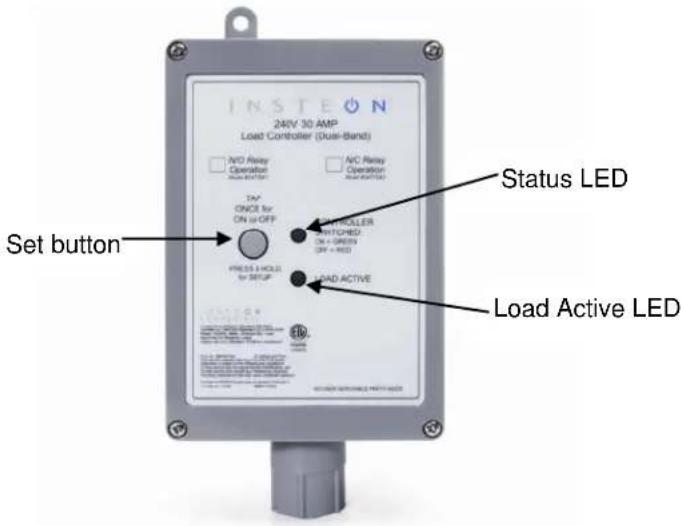
240V Load Controller lets you efficiently control the use of heavy-duty appliances to save energy and cut down on utility costs. Remotely control your appliances that run on higher voltages, up to 30 Amps (resistive loads only).
Key 240V Load Controller Features
• After installation, setup is easy – installs and links to other INSTEON devices in minutes
• Controls high-voltage appliances up to 240 Volts, 30 Amps, split-single phase (resistive loads only)
- Communicates simultaneously over both radio frequency (RF) and the power line
- Acts as an access point for RF-only devices
- Indicates INSTEON setup mode activity and operational states with a Load Active LED, dual-color Status LED and beeper
• Does not require a Neutral connection
- Set button functions as an On/Off toggle switch for the attached load
- Stores setup state in non-volatile memory so settings aren't lost during power outages
- Two-year warranty
WHAT IS INSTEON?
Since its inception in 2005, INSTEON has become the industry gold standard in home-control networking technology, offering more reliability and flexibility than any other home management system on the market. INSTEON is simple, reliable and affordable.
• Simple: each device takes just minutes to install.
- Reliable: every INSTEON device works as a network repeater, ensuring your commands will not be lost.
- Affordable: INSTEON can be integrated into any number of devices easily and at a very low cost. An INSTEON home grows in value with each added INSTEON device, making life more convenient, safe and fun.
How Does INSTEON Work?
What makes INSTEON the most reliable home automation network is its dual-mesh network. INSTEON devices use both radio frequency (RF) signals and the home's existing wiring to talk to each other. In an INSTEON network, every INSTEON device also acts as a repeater, receiving and sending every message to all other devices in the network. So by integrating more INSTEON devices you will strengthen the network and ensure no commands will be lost.
No central controller or networking setup is required with an INSTEON network. Simply install your devices and then use a series of button presses or taps to link your devices together. Throughout this Owner's Manual, you may see the terms "controller" or "responder." These generic INSTEON terms refer to the components of an INSTEON scene, and are used on a scene-by-scene basis.
- Controller – sends INSTEON commands to other devices
- Responder – reacts to commands sent out by another INSTEON device
An INSTEON device may act as a controller, responder or sometimes both.
INSTEON networks are also extremely secure. Each INSTEON device is assigned a unique INSTEON I.D., so unless neighbors or would-be hackers have access to your particular device's INSTEON I.D., they won't be able to control your home, even if they are using similar products.
INSTALLATION
Tools You Will Need
- Screwdriver (to remove the cover of the junction box)
- Wire cutter/stripper
• Various tools to wall-mount 240V Load Controller
Preparing to Install 240V Load Controller
CAUTION
Read and understand these instructions before installing and retain them for future reference.
240V Load Controller is intended for installation in accordance with the National Electric Code and local regulations in the United States or the Canadian Electrical Code and local regulations in Canada. Use indoors only. 240V Load Controller is not designed nor approved for use on power lines other than 120V 60Hz, single phase. Attempting to use 240V Load Controller on non-approved power lines may have hazardous consequences.
Prior to installing 240V Load Controller, please review the entire installation procedure and take the following precautions:
- Because 240V Load Controller involves high voltage levels, it is recommended that installation be performed only by a qualified electrician or by a homeowner who is extremely knowledgeable and familiar with electrical circuitry. Please take an extra level of precaution when installing this device. If you have any questions regarding installation, please consult an electrician.
- 240V Load Controller must be connected to a 2-pole tandem circuit breaker, rated for no more than 30 Amps. 240V Load Controller does not have over-current protection and therefore must be connected through a circuit breaker.
- Be sure that you have turned off the circuit breaker or removed the fuse for the circuit you are installing 240V Load Controller in. Installing 240V Load Controller with the power on will expose you to dangerous voltages.
- Connect only copper or copper-clad wire to 240V Load Controller
- 240V Load Controller may feel warm during operation. The amount of heat generated is within approved limits and poses no hazards. To minimize heat buildup, ensure that the area surrounding the rear of 240V Load Controller has adequate ventilation by clearing away excess insulation.
- Don't use 240V Load Controller to control devices that preserve, maintain, or contribute to human or animal safety or life support
- Don't bury 240V Load Controller or any electrical cable or components connected to it. A buried power cord may result in electrocution if improper cables are used or if digging occurs over the cable.
- Don't allow vegetation to grow on or around 240V Load Controller
- Don't install 240V Load Controller in a manner that allows water to accumulate around the unit
- Don't attempt to open 240V Load Controller. The 240V Load Controller case is sealed and can't be opened. There are no user-serviceable parts inside.
- Each 240V Load Controller is assigned a unique INSTEON I.D., which is printed on the device's label. It is recommended that you prepare a list of all the devices you are installing, including their INSTEON I.D. and their location (e.g., 01.F7.G5, Mike's bedroom light). It is only necessary to know the INSTEON I.D.s if you will be using optional automation software (such as Smarthome's HouseLinc) to program and control your devices. However, it will be helpful to have a list of your devices, should you choose to use automation software later. Creating a list prior to installation will prevent you from needing to re-open all the junction boxes and fixtures to determine the INSTEON I.D.s.
IMPORTANT!
If you are not knowledgeable about and comfortable with electrical circuitry, you should have a qualified electrician install 240V Load Controller for you. If you have any questions, please consult an electrician or call:
INSTEON Support Line
800-762-7845
Installing 240V Load Controller
1) At the circuit breaker or fuse panel, disable the circuit supplying power to the electrical junction box that is wired to the appliance you wish to control with 240V Load Controller.
2) Remove the cover of the junction box and disconnect the two supply lines coming from the circuit breaker, ensuring that you have 12 " of bare wire on the ends.
3) Refer to the diagram below to properly connect 240V Load Controller to the load and junction box. The Ground wire will not be connected to 240V Load Controller, so cap the Ground wire with a wire nut.
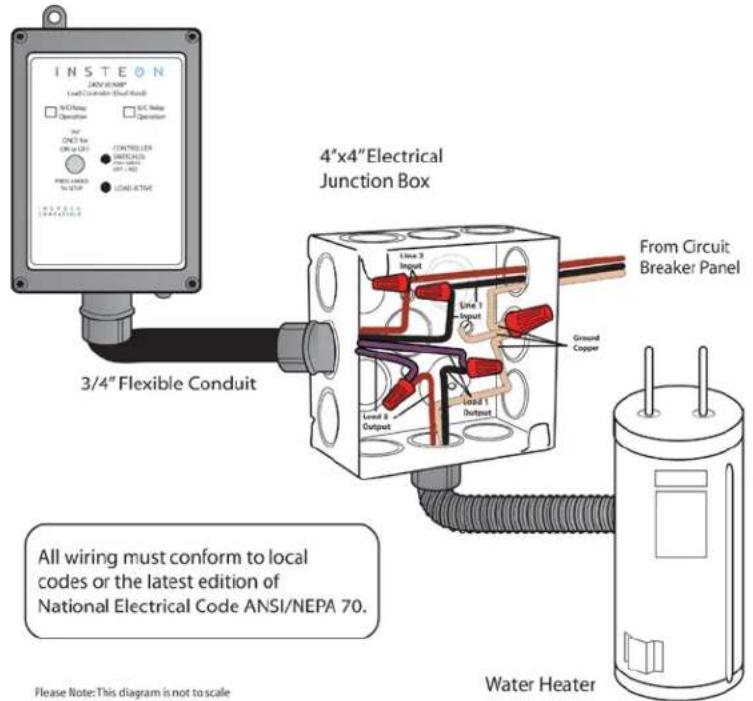
4) Ensure that all wire connectors are firmly attached and that there is no exposed copper except for the Ground wire.
5) Enable power to the junction box from the circuit breaker or fuse panel.
6) Test that 240V Load Controller is working properly by pressing the Set button to toggle the load on and then off.
USING 240V LOAD CONTROLLER
You can use the Set button on 240V Load Controller to toggle the load on and off
The 240V Load Controller Status LED will be solid green when the load is on and solid red when it is off. See the following table for the Load Active LED status:
| 240V Load Controller Model (SKU #) | Relay Status | Active Status LED |
| Normally Open Relay (#2477SA1) | Open | Off |
| Closed | Solid green | |
| Normally Closed Relay (#2477SA2) | Open | Off |
| Closed with load on | Solid green | |
| Closed with load off | Off |
CONTROLLING 240V LOAD CONTROLLER FROM AN INSTEON CONTROLLER
Linking an INSTEON Controller to 240V Load Controller
To use 240V Load Controller as a responder to an INSTEON controller, follow these steps to link 240V Load Controller and the controller together. Refer to the controller's Owner's Manual for detailed instructions on how to properly install and link it to 240V Load Controller.
The following will work for the most common INSTEON devices:
1) Use the Set button on 240V Load Controller to set the load to the state you wish to activate from the controller (turn it on if you wish it to be on or off if you wish it to be off when the controller activates the scene)
2) Set the controller to linking mode. (For most controllers, press and hold an On or Scene button for 10 seconds or the Set button for 3 seconds.)
You will have 4 minutes to complete the next step before linking mode automatically times out.
3) Press and hold the Set button on 240V Load Controller until it double-beeps (3 seconds)
The 240V Load Controller Status LED will flash once and then turn on solid green if the load is on or solid red if it is off
4) Confirm that linking was successful by tapping the button you just linked to on the controller
240V Load Controller will respond appropriately
Unlinking 240V Load Controller from an INSTEON Controller
If you are going to discontinue using 240V Load Controller, it is very important that you unlink it from any linked controllers. Otherwise, the controller will retry any commands repetitively, thus slowing down the system.
The following will work for the most common INSTEON devices:
1) Set the controller to unlinking mode. (For most controllers, press and hold an On or Scene button for 10 seconds twice or the Set button for 3 seconds twice.)
You will have 4 minutes to complete the next step before unlinking mode automatically times out.
2) Press and hold the Set button on 240V Load Controller until it double-beeps (3 seconds)
The 240V Load Controller Status LED will flash once and then turn on solid green if the load is on or solid red if it is off
3) Confirm that unlinking was successful by tapping the button you just unlinked from on the controller
240V Load Controller will no longer respond
CONTROLLING INSTEON RESPONDERS FROM 240V LOAD CONTROLLER
Linking 240V Load Controller to an INSTEON Responder
To use 240V Load Controller as an INSTEON controller, follow these steps to link 240V Load Controller and an INSTEON responder (the device you wish to control with 240V Load Controller) together. Refer to the responder's Owner's Manual for detailed instructions on how to properly install and link it to 240V Load Controller.
The following will work for the most common INSTEON devices:
1) At the responder, set it to the state you wish to be activated from 240V Load Controller (turn it on if you wish it to be on, or off if you wish it to be off when 240V Load Controller activates the scene, set On-Levels, etc.)
- If the responder is a multi-scene device (e.g., KeypadLinc), tap the Scene button you wish to control until its LED illuminates
2) Set 240V Load Controller to linking mode by pressing and holding the Set button until it beeps (3 seconds) The 240V Load Controller Status LED will begin blinking green
You will have 4 minutes to complete the next step before linking mode automatically times out.
3) Press and hold the responder's Set button for 3 seconds
240V Load Controller will double-beep and its Status LED will turn on solid green if the load is on or solid red if it is off
4) Confirm that linking was successful by tapping the Set button on 240V Load Controller on and then off The responder will respond appropriately
5) If you wish to link multiple responders to the same 240V Load Controller, repeat steps 1-4 with each responder
Unlinking an INSTEON Responder from 240V Load Controller
If you are no longer going to use an INSTEON responder that has previously been linked to 240V Load Controller, it is very important that you unlink it. Otherwise, 240V Load Controller will retry any commands repetitively, thus slowing down the system.
The following will work on the most common INSTEON devices:
1) If the responder is a multi-scene device, tap the Scene button you wish to remove control from until its LED illuminates
2) Set 240V Load Controller to linking mode by pressing and holding the Set button until it beeps (3 seconds)
The 240V Load Controller Status LED will begin blinking green
3) Set 240V Load Controller to unlinking mode by pressing and holding the Set button until it beeps again (3 seconds)
The 240V Load Controller Status LED will begin blinking red
You will have 4 minutes to complete the next step before unlinking mode automatically times out.
4) Press and hold the responder's Set button for 3 seconds
240V Load Controller will double-beep and its Status LED will turn on solid green if the load is on or solid red if it is off
5) Confirm that unlinking was successful by tapping the Set button on 240V Load Controller on and then off
The responder will no longer respond
CREATING AN INSTEON SCENE
INSTEON scenes let you activate dramatic lighting moods with the press of just one button. For example, you can set all the lights in a scene to dim to 50% or turn certain lights on while turning others off, all with the tap of a button on a controller.
INSTEON scenes are very easy to set up – just link more than one responder to the same On/Off or Scene button on a controller. Then, when you press any of the linked buttons on the controller, all of the INSTEON devices linked in the scene will respond as a group.
ADVANCED FEATURES
Restoring Power to 240V Load Controller
240V Load Controller stores all of its settings, such as links to other INSTEON devices, with non-volatile memory. Because settings are saved in this non-volatile memory, they will not be lost in the event of a power failure.
Resetting 240V Load Controller to its Factory Default Settings
The factory reset procedure will clear 240V Load Controller of all INSTEON links and programmed X10 addresses.
NOTE: Depending on the location of your circuit breaker or fuse panel, you might need to recruit someone to help you perform the following procedure.
1) If you are using a controller to control 240V Load Controller, be sure to unlink it from the controller. See Unlinking 240V Load Controller from an INSTEON Controller.
2) If you are using 240V Load Controller to control any INSTEON devices, unlink those devices from 240V Load Controller. See Unlinking an INSTEON Responder from 240V Load Controller.
3) At the circuit breaker or fuse panel, disable the circuit supplying power to the junction box for about 10 seconds
4) While holding down the Set button on 240V Load Controller, re-enable power to the junction box from the circuit breaker or fuse panel, making sure not to let go of the Set button
240V Load Controller will beep
5) Continue to hold down the Set button for 3 seconds and then release
A few seconds after you release the button, 240V Load Controller will double-beep and its Status LED will turn on solid green
The load will turn on
X10 PROGRAMMING OPTIONS
240V Load Controller is X10 ready, meaning that it can respond to X10 commands from X10 controllers and it can send commands to X10 devices. However, to operate 240V Load Controller in X10 mode, you must first set up an X10 address. As it ships from the factory or after a factory reset procedure, 240V Load Controller will not have an X10 address set up.
Setting the X10 Address
You must complete the following before 240V Load Controller will respond to X10 commands:
1) Set 240V Load Controller to linking mode by pressing and holding the Set button until it beeps (3 seconds)
The 240V Load Controller will begin blinking green
You will have 4 minutes to complete the next step before linking mode automatically times out.
2) Using an X10 controller, send the X10 address you want to assign followed by the ON command three times
For example, to assign the address A1, you would send "A1 ON A1 ON A1 ON."
3) Once 240V Load Controller has received the preceding sequence three times, it will exit linking mode
240V Load Controller will double-beep and its Status LED will turn on solid green if the load is on or solid red if it is off
Removing the X10 Address
If you are no longer going to control 240V Load Controller with an X10 address, it is very important that you unlink it, because otherwise 240V Load Controller will respond to the X10 command and may cause the device to turn on by itself.
1) Set 240V Load Controller to linking mode by pressing and holding the Set button until it beeps (3 seconds)
The 240V Load Controller will begin blinking green
2) Set 240V Load Controller to unlinking mode by pressing and holding the Set button until it beeps again (3 seconds)
The 240V Load Controller will begin blinking red
You will have 4 minutes to complete the next step before unlinking mode automatically times out.
3) Using an X10 controller, send the X10 address you want to remove, followed by the ON command three times
For example, to remove the address A1, you would send "A1 ON A1 ON A1 ON."
4) Once 240V Load Controller has received the preceding sequence three times, it will exit unlinking mode
240V Load Controller will double-beep and its Status LED will turn on solid green if the load is on or solid red if it is off
ABOUT INSTEON
Using Dual-Band INSTEON Devices to Upgrade Your Network
What are phases?
The majority of single-family homes in North America have two phases (or "legs") of 110 Volts coming into their electricity panels. From the panel, they are distributed throughout the home, providing power to outlets and wall switches. These phases come together in some parts of the home to provide 220 Volts of power to large appliances, such as an electric oven or pool pump.
Why do I need to bridge these phases?
Single-band power line devices send commands via the home's electricity, but only on a single phase. If the command is intended for a device on the opposite phase, there is a good chance the command will go unnoticed. Installing dual-band INSTEON devices, such as Access Points (#2443), on each phase will allow for devices to communicate between the two phases via RF.
Dual-band INSTEON devices embody the full potential of a true INSTEON mesh network. Taking the power line band signal and working in conjunction with the RF band signal, its dual-band function plays out in two ways:
- Phase bridger – a receiver of commands, reacting to and translating signals sent from one power phase to the opposite via RF
- Signal repeater – a participant in an INSTEON network, repeating commands intended for other devices whether those commands are generated from RF or power line-only devices. To ensure reliability, every INSTEON device confirms that it has received a command. If a controller does not receive this confirmation, it will automatically retransmit the command up to five times.
While using at least one dual-band device is required when using an RF-only device, at least two dual-band devices are recommended to ensure reliable communication across two-phase home wiring systems. For larger applications, it is recommended to install at least one dual-band device for every 750 - 1,000 square feet.
Search for dual-band INSTEON devices at: www.smarthome.com/dualband
Important Note about INSTEON Networks; Split Single-Phase vs. 3-Phase Installation
For the best INSTEON network performance, be sure you have properly installed at least two dual-band INSTEON devices. INSTEON has only been officially tested in a split single-phase residential environment but has been known to work in many 3-phase systems, where three dual-band devices are used (one on each phase). However, due to the potential complexity of its troubleshooting, the INSTEON Support Line is unable to support INSTEON in 3-phase environments.
Further Enhancing Reliability
As signals travel via the power line or RF throughout the home, they naturally become weaker the farther they travel. The best way to overcome weakened signals is to increase the coverage of the mesh network by introducing more INSTEON devices.
It is possible that some audio-video devices, computers, power strips, or other electrical equipment may attenuate INSTEON signals on the power line. You can temporarily unplug suspected devices to test whether the INSTEON signal improves. If it does, then you can plug in filters that will permanently fix the problem.
ADDITIONAL RESOURCES
Find home automation solutions, helpful tips, interactive demos, user forums, and more at the Smarthome Learning Center: www.smarthome.com/learningcenter.html
TROUBLESHOOTING
| Problem | Possible Cause | Solution |
| The Status LED on 240V Load Controller is not turning on and won't control the load. | 240V Load Controller may not be getting power. | Make sure the circuit breaker is turned on. |
| Check the junction box wires to ensure all connections are tight and no bare wires are exposed. | ||
| Check the attached load to ensure all connections are tight and no bare wires are exposed. | ||
| The load is not being controlled after I've linked 240V Load Controller to a controller. | The load is not getting power. | Make sure the load's built-in switch is in the on position. |
| The controller may have been reset without first unlinking 240V Load Controller from it. | Relink 240V Load Controller to the controller. See Linking an INSTEON Controller to 240V Load Controller. | |
| 240V Load Controller is taking a long time to respond to a controller. | The controller may be sending commands to a responder that is no longer in use. Commands for the unused responder are being resent and loading down the signal. | Unlink any unused responders from the controller. HINT: If you are using home automation software, you can easily check scene membership and eliminate unnecessary links. |
| If the above doesn't work, perform a factory reset on the controller. | ||
| The INSTEON signal may be too weak. | Add additional INSTEON devices or move around existing INSTEON devices. All INSTEON devices act as INSTEON network repeaters. | |
| The load turned on by itself. | Another controller, a timer, or stray X10 signals triggered 240V Load Controller. | Perform a factory reset. See Resetting 240V Load Controller to its Factory Default Settings. |
| 240V Load Controller doesn't respond to X10 address A1 after I installed it. | 240V Load Controller does not have an X10 address set up at the factory. | Set up an X10 address. See Setting the X10 Address. |
| The controller can turn off 240V Load Controller, but it does not turn on when I send an ON command from the controller. | 240V Load Controller may be linked at its off state. | Relink 240V Load Controller to your controller, while the load is on. See Linking an INSTEON Controller to 240V Load Controller. |
| 240V Load Controller is locked up. | A surge or excessive noise on the power line may have glitched it. | Disable power at the circuit breaker for 10 seconds and then restore power. |
| If the above doesn't work, perform a factory reset. See Resetting 240V Load Controller to its Factory Default Settings. |
If you have tried these solutions, reviewed this Owner's Manual, and still cannot resolve an issue you are having with 240V Load Controller, please call:
SPECIFICATIONS, CERTIFICATION, AND WARRANTY
Specifications
View specifications for 240V Load Controller (Normally Open) at: www.smarthome.com/2477SA1.html or 240V Load Controller (Normally Closed) at: www.smarthome.com/2477SA2.html
Certification
This product has been thoroughly tested by ITS ETL SEMKO, a nationally recognized independent third-party testing laboratory. The North American ETL Listed mark signifies that the device has been tested to and has met the requirements of a widely recognized consensus of U.S. and Canadian device safety standards, that the manufacturing site has been audited, and that the manufacturer has agreed to a program of quarterly factory follow-up inspections to verify continued conformance.
FCC and Industry Canada Compliance Statement
This device complies with FCC Rules Part 15 and Industry Canada RSS-210 (Rev. 7). Operation is subject to the following two conditions:
(1) This device may not cause harmful interference, and
(2) This device must accept any interference, including interference that may cause undesired operation of the device.
The digital circuitry of this device has been tested and found to comply with the limits for a Class B digital device, pursuant to Part 15 of the FCC Rules. These limits are designed to provide reasonable protection against harmful interference in residential installations. This equipment generates, uses, and can radiate radio frequency energy and, if not installed and used in accordance with the instructions, may cause harmful interference to radio and television reception. However, there is not guarantee that interference will no occur in a particular installation. If this device does cause such interference, which can be verified by turning the device off and on, the user is encouraged to eliminate the interference by one or more of the following measures:
• Re-orient or relocate the receiving antenna of the device experiencing the interference
- Increase the distance between this device and the receiver
- Connect the device to an AC outlet on a circuit different from the one that supplies power to the receiver.
- Consult the dealer or an experienced radio/TV technician
WARNING: Changes or modifications to this device not expressly approved by the party responsible for compliance could void the user's authority to operate the equipment.
Limited Warranty
Seller warrants to the original consumer purchaser of this product that, for a period of two years from the date of purchase, this product will be free from defects in material and workmanship and will perform in substantial conformity to the description of the product in this Owner's Manual. This warranty shall not apply to defects or errors caused by misuse or neglect. If the product is found to be defective in material or workmanship, or if the product does not perform as warranted above during the warranty period, Seller will either repair it, replace it, or refund the purchase price, at its option, upon receipt of the product at the address below, postage prepaid, with proof of the date of purchase and an explanation of the defect or error. The repair, replacement, or refund that is provided for above shall be the full extent of Seller's liability with respect to this product. For repair or replacement during the warranty period, call the INSTEON Support Line at 800-762-7845 with the Model # and Revision # of the device to receive an RMA# and send the product, along with all other required materials to:
Smarthome, Inc.
ATTN: Receiving Dept.
16542 Millikan Ave.
Irvine, CA 92606-5027
SMARTHOME™
Limitations
The above warranty is in lieu of and Seller disclaims all other warranties, whether oral or written, express or implied, including any warranty or merchantability or fitness for a particular purpose. Any implied warranty, including any warranty of merchantability or fitness for a particular purpose, which may not be disclaimed or supplanted as provided above shall be limited to the two-year of the express warranty above. No other representation or claim of any nature by any person shall be binding upon Seller or modify the terms of the above warranty and disclaimer.
Home automation devices have the risk of failure to operate, incorrect operation, or electrical or mechanical tampering. For optimal use, manually verify the device state. Any home automation device should be viewed as a convenience, but not as a sole method for controlling your home.
In no event shall Seller be liable for special, incidental, consequential, or other damages resulting from possession or use of this device, including without limitation damage to property and, to the extent permitted by law, personal injury, even if Seller knew or should have known of the possibility of such damages. Some states do not allow limitations on how long an implied warranty lasts and/or the exclusion or limitation of damages, in which case the above limitations and/or exclusions may not apply to you. You may also have other legal rights that may vary from state to state.
INSTEON Technology Patent
U.S Patent No. 7,345,998, International patents pending
© Copyright 2011
Smarthome, 16542 Millikan Ave., Irvine, CA 92606, 800-762-7845, www.smarthome.com
Rev 04-28-2011


- 240V 30A Load Controller
- 240V Load Controller Owner's Manual
- TABLE OF CONTENTS
- ABOUT 240V LOAD CONTROLLER....3
- WHAT IS INSTEON?......4
- INSTALLATION....5
- USING 240V LOAD CONTROLLER....6
- CONTROLLING 240V LOAD CONTROLLER FROM AN INSTEON CONTROLLER....7
- CONTROLLING INSTEON RESPONDERS FROM 240V LOAD CONTROLLER....8
- CREATING AN INSTEON SCENE....9
- ADVANCED FEATURES 9
- X10 PROGRAMMING OPTIONS....10
- ABOUT INSTEON 10
- ADDITIONAL RESOURCES....11
- TROUBLESHOOTING....11
- SPECIFICATIONS, CERTIFICATION, AND WARRANTY....13
- ABOUT 240V LOAD CONTROLLER
- Key 240V Load Controller Features
- WHAT IS INSTEON?
- How Does INSTEON Work?
- INSTALLATION
- Tools You Will Need
- Preparing to Install 240V Load Controller
- CAUTION
- IMPORTANT!
- INSTEON Support Line
- Installing 240V Load Controller
- USING 240V LOAD CONTROLLER
- CONTROLLING 240V LOAD CONTROLLER FROM AN INSTEON CONTROLLER
- Linking an INSTEON Controller to 240V Load Controller
- Unlinking 240V Load Controller from an INSTEON Controller
- CONTROLLING INSTEON RESPONDERS FROM 240V LOAD CONTROLLER
- Linking 240V Load Controller to an INSTEON Responder
- Unlinking an INSTEON Responder from 240V Load Controller
- CREATING AN INSTEON SCENE
- ADVANCED FEATURES
- Restoring Power to 240V Load Controller
- Resetting 240V Load Controller to its Factory Default Settings
- X10 PROGRAMMING OPTIONS
- Setting the X10 Address
- Removing the X10 Address
- ABOUT INSTEON
- Using Dual-Band INSTEON Devices to Upgrade Your Network
- Why do I need to bridge these phases?
- Important Note about INSTEON Networks; Split Single-Phase vs. 3-Phase Installation
- Further Enhancing Reliability
- ADDITIONAL RESOURCES
- TROUBLESHOOTING
- SPECIFICATIONS, CERTIFICATION, AND WARRANTY
- Specifications
- Certification
- FCC and Industry Canada Compliance Statement
- Limited Warranty
- SMARTHOME™
- Limitations
- INSTEON Technology Patent
Brand : Insteon
Model : 2477SA2
Category : Switch