
C824dn - Printer OKI - Free user manual and instructions
Find the device manual for free C824dn OKI in PDF.


| Product Type | Color LED Printer |
| Print Technology | OKI LED (Light Emitting Diode) |
| Print Resolution | Up to 1200 x 1200 dpi |
| Print Speed | Up to 35 ppm (A4, mono/color) |
| Duplex Printing | Automatic duplex (standard) |
| Paper Handling | Input: 530-sheet standard tray, 100-sheet MP tray; Output: 250-sheet face-down |
| Media Sizes | A4, A5, A6, B5, Letter, Legal, Executive, Envelopes (Com-9, Com-10, Monarch, DL, C5) |
| Connectivity | Ethernet 10/100Base-TX, USB 2.0, optional Wi-Fi |
| Supported OS | Windows, macOS, Linux |
| Dimensions (W x D x H) | Approx. 430 x 400 x 340 mm (16.9 x 15.7 x 13.4 in) |
| Weight | Approx. 20 kg (44 lbs) |
| Power Consumption | Typical: 550W, Standby: 60W, Sleep: 1W |
| Power Supply | 220-240V AC, 50/60 Hz |
| Duty Cycle | Up to 60,000 pages per month |
| Warm-up Time | Approx. 30 seconds from power on |
| First Print Out Time | Approx. 8 seconds (mono), 9 seconds (color) |
| Toner Cartridges | Separate toner for each color (Cyan, Magenta, Yellow, Black) – high yield available |
| Security Features | Secure Print (PIN release), IPsec, SNMPv3, 802.1X authentication |
| Maintenance | Replace toner cartridges, waste toner box, and transfer belt periodically |
| Repairability | Spare parts available through OKI authorized service providers |
Frequently Asked Questions - C824dn OKI
User questions about C824dn OKI
0 question about this device. Answer the ones you know or ask your own.
Ask a new question about this device
Download the instructions for your Printer in PDF format for free! Find your manual C824dn - OKI and take your electronic device back in hand. On this page are published all the documents necessary for the use of your device. C824dn by OKI.
USER MANUAL C824dn OKI
C824/C834/C844/ES8434
OKI
User's Manual
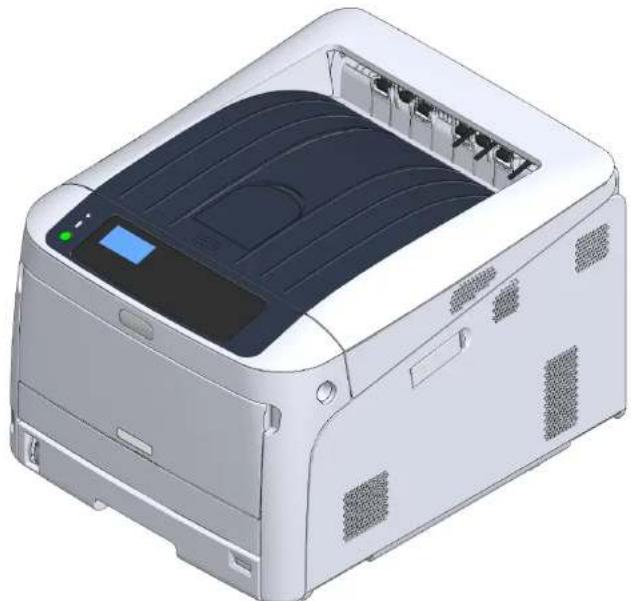
natural_image
3D rendering of a white server with a black ventilation cover and ports, showing internal structure without any text or symbols.Table of contents
1 Before starting 4
For Your Safety 5
About This Manual 7
About Descriptions ....7
Preface 9
Trademarks 10
License 11
2 Setup 12
Setup Flow 13
Checking the Placement Environment ....14
Checking Package Contents 16
Names of Components 17
How to Use of the Operator Panel ....18
How to Use the Numeric Keypad ....19
How to Use the Fn Key 19
Function Menu List 20
Preparing Your Printer 21
Unpacking 21
Installing Consumables 22
Loading Paper 24
About the Power Supply 27
Power Supply Conditions 27
Connecting the Power Code 28
Turning On the Power 29
Turning Off the Power 29
What You Should Do If You Do Not Use This Machine for an Extended Period of Time ....30
Test Printing from the Printer 31
Changing the Administrator Password ....32
3 Connecting to a Computer 33
Connection Method and Flow 34
Product Requirements 35
Types of Drivers ....36
Connecting to a Wireless LAN 37
Connecting to an Access Point (Infrastructure) 37
Connecting to the Machine Directly (AP Mode) 41
Connecting a USB Cable 42
Connecting a LAN Cable 43
Installing a Printer Driver to a Computer 46
For Windows 46
For Mac 49
Selecting a connecting method between different segments 50
4 Print ....51
Supported Paper 52
Paper Loaded on the Tray 54
How to Print from the Tray 56
How to Print from the MP Tray 59
Paper Output 64
Canceling Printing 66
5 Energy Saving Function 67
About Energy Saving 68
Setting the Time Before Entering the Power Save Mode 69
Setting the Time Before Entering the Sleep Mode 70
Automatically Turning the Machine Off (Auto Power Off) 71
Setting the Time Before Entering the Auto Power Off Mode 72
6 Troubleshooting ....73
When an Error Message Appears on the Display Screen (When the ATTENTION Indicator Lights
Up/Blinks) 74
Error Messages 75
When Paper Jams Occur 83
Error Code "370", "371", "373" 83
Error Code "372" 84
Error Code "380", "401", "637" 86
Error Code "381", "638" 87
Error Code "382", "383", "385", "639", "640" 90
Error Code "390", "637" 94
Error Code "391", "392", "393", "394", "632", "633", "634" 95
Other Issues 97
Unable to Print from a Computer 97
Unable to Install a Printer Driver Successfully 100
Image Quality Issues 101
Vertical White Lines Appear 102
Printed Images are Fading Vertically 103
Printed Images are Light 103
White Spots and Lines Appear 104
Dew Condensation Appears on Printed Paper 104
Vertical Lines Appear 105
Horizontal Lines and Spots Appear Periodically 105
White Area on Paper is Lightly Stained 106
The Periphery of Characters is Smudged 106
The Entire Paper Area is Lightly Stained When Printing on Envelopes or Coated Paper 107
Toner Comes Off When Printed Paper is Rubbed 107
Uneven Gloss 108
Black or White Dots Appear 108
Dirt is Printed 109
The Entire Page is Printed Black 109
Nothing is Printed 110
White Patches Appear 110
Color of the printed image is not what you expect 111
Feeding Issues 111
Problems on the Machine 113
7 Maintenance ....116
Replacing Consumables 117
Cautions When Replacing 117
Replacing the Toner Cartridge 118
For K (black) Toner Cartridge Only 119
For C (cyan), M (magenta), Y (yellow) Toner Cartridge 121
Replacing the Image Drum 124
Replacing the Image Drum Only 125
Replacing the Image Drum and Toner Cartridge at the Same Time 128
Replacing Maintenance Units 132
Replacing the Belt Unit 132
Replacing the Fuser Unit 136
Cleaning 140
Cleaning the Surface of the Machine 140
Cleaning the LED Head 141
Cleaning the Light-shielding Film 142
Cleaning the Paper Feed Rollers (Tray 1/Tray 2/Tray 3/Tray 4/Tray 5)....144
Cleaning the Paper Feed Rollers (MP Tray) 145
Cleaning the Resist Roller 147
Moving This Machine 148
Transporting This Machine 149
Before the printer disposal 152
Deleting a Printer Driver 153
Updating the Software 154
Updating the Firmware 156
8 Appendix ....158
How to open printer folder 159
Menu List of the Operator Panel 160
Options 161
Installing the Duplex Unit (C824n, C834nw Only) 162
Installing the Wireless LAN module (C824, ES8434 Only) 163
Installing the Caster Base 165
Installing the Additional Tray Unit(s) 169
When Adding Options 173
Specifications 176
General Specifications 176
Printing Specifications 177
Network Specifications 178
Wireless LAN Specifications 178
Printer Dimensions 179
1 Before starting
For Your Safety
About This Manual
Preface
Trademarks
License
For Your Safety
• Cautions Related to Safety
| Indicates additional information which, if ignored or not followed, may result in personal injury or death. | |
| Indicates additional information which, if ignored, may result in personal injury. |
- General Cautions
| WARNING | |
| Do not touch the safety switch inside this machine. High voltage may occur, resulting in electric shock. Also, a gear may rotate, resulting in injury. | |
| Do not use a highly combustible spray near this machine. Some parts inside the machine become very hot, possibly resulting in fire. | |
| If the cover becomes extremely hot, the machine emits smoke or odor, or you hear a strange sound, unplug the power plug from the outlet, and contact your dealer.Fire may result. | |
| If liquid such as water gets inside the machine, unplug the power plug from the outlet, and contact your dealer.Fire may result. | |
| If you drop a clip or other foreign objects into the machine, unplug the power plug from the outlet, and take the foreign objects out.Electric shock, fire, or injury may result. | |
| Do not perform any operation or disassembly other than instructed in the user manual.Electric shock, fire, or injury may result. | |
| WARNING | |
| If the machine is dropped or the cover is damaged, unplug the power plug from the outlet, and contact your dealer.Electric shock, fire, or injury may result. | |
| Unplug the power plug regularly, and clean the bases of and in between the plug blades.If the power plug is left plugged into the outlet for an extended period of time, dust adheres on the bases of the plug blades, and a short may occur, possibly resulting in fire. | |
| Do not vacuum spilled toner with an electric vacuum cleaner. Vacuuming spilled toner with an electric vacuum cleaner may result in ignition due to sparks from electric contacts or other reasons.If toner spills on the floor or other places, wipe the toner gently with a damp rag or other cloth while using care not to scatter the toner. | |
| Do not insert any object into a vent hole.Electric shock, fire, or injury may result. | |
| Do not place a cup filled with water or other objects on the machine.Electric shock or fire may result. | |
| Do not let pet urine or other liquid get inside this machine, or allow this machine to get wet. Electric shock or fire may result. | |
| When the machine cover is opened, do not touch the fuser unit. Burns may result. | |
| Do not throw the toner cartridge or image drum into a fire. The toner may ignite, resulting in burns. | |
| Do not connect the power cord, cables, or the ground wire in any way other than instructed in the user manual.Fire may result. | |
| Operation using an UPS (uninterruptible power supply) or inverter is not guaranteed. Do not use an uninterruptible power supply or inverter. Fire may result. | |
| CAUTION | |
| Do not go near the paper output part when you turn the power on or when printing is in progress. Injury may result. | |
| Do not touch a broken liquid crystal display. Injury may result. If you get liquid (liquid crystal) spilled from the liquid crystal display into your eyes or mouth, immediately rinse with a large amount of water. Seek medical advice if necessary. | |
| Do not disassemble the image drum or toner cartridge, or force them open. You may inhale the scattered toner, or the toner may land on your hands or clothes, making them dirty. | |
NOTE!
This product is not intended for use in the immediate visual field on the display work place. To avoid disturbing reflections on the display work place, this product shall not be placed in the immediate field of vision.
- Before starting
About This Manual
Various information about this manual is provided here. Read these sections before using this manual.
- Disclaimer
Every effort has been made to ensure that the information in this document is complete, accurate, and up-to-date. The manufacturer assumes no responsibility for the result of errors beyond its control. The manufacturer also cannot guarantee that changes in software and equipment made by other manufacturers and referred to in this manual will not affect the applicability of the information in it. Mention of software products manufactured by other companies does not necessarily constitute endorsement by the manufacturer.
While all reasonable efforts have been made to make this document as accurate and helpful as possible, we make no warranty of any kind, expressed or implied, as to the accuracy or completeness of the information contained herein.
• Copyright of the manual
All rights reserved by Oki Data Corporation. No part of this document may be reproduced in any form or by any means without prior written permission from Oki Data Corporation.
© 2018 Oki Data Corporation
- Manual Composition
The following manual is included in this product.
- User's Manual (PDF) ---- Stored in the DVD-ROM which comes with the machine.
- Advanced Manual (PDF) ---- Download this manual from the Oki Data web site and refer to it.
• Online Manual ---- Can be browsed on the Oki Data web site.
- About Descriptions
- Before starting
About Descriptions
Unless otherwise specified, this manual uses screenshots of the following screens.
- For Windows: Windows 10
• For Mac : mac OS High Sierra 10.13
This manual sometimes uses the following notation.
• [OKI Printer] may be written as the model name.
- A printer driver icon in each Windows version is referred to as "Printer folder" in this manual.
- Generic name for Windows 10, Windows Server 2012, etc. -Windows
Depending on your OS, model or version, the description on this document may be different.
About Marks
This manual uses the following marks.
| Symbol Meaning | |
 | Indicates the cautions and restrictions for operating this machine correctly. Be sure to read to ensure that you can operate the machine correctly. |
 | Indicates information that is useful for using this machine. It is recommended to read. |
 | Indicates a reference topic. Read when you need more information. |
About Symbols
This section describes symbols and their meaning in this manual.
| Symbol Meaning | |
| « » Indicates a button/ key on the operator panel of the machine. | |
| [ ] Indicates a menu name, item name, option, or other items that are displayed on the display screen on the operator panel.Indicates a menu, window, or dialog name that is displayed on the screen on a computer. | |
| * " Indicates a message on the display screen or entered text.Indicates a file name on a computer.Indicates the topic title of a link destination. | |
| < > Indicates a key on the computer keyboard. | |
| > Indicates how to display the required menu of the machine or computer. | |
About Illustrations
The illustrations of C844 are used in this manual as examples.
Illustrations of the display screen on the operator panel used in this manual are with the factory default settings.

• The descriptions in this manual may vary depending on your model.
- Before starting
Preface
• EMERGENCY FIRST AID
Take care with toner powder:

If swallowed, give small amounts of cold water and seek medical attention. DO NOT attempt to induce vomiting.
If inhaled, move the person to an open area for fresh air. Seek medical attention. If it gets into the eyes, flush with large amounts of water for at least 15 minutes keeping eyelids open. Seek medical attention.
Spillages should be treated with cold water and soap to help reduce risk of staining skin or clothing.
• ENVIRONMENTAL INFORMATION

- Before starting
Trademarks
OKI is a registered trademark of Oki Electric Industry Co., Ltd.
ENERGY STAR® is a trademark of the United States Environmental Protection Agency.
Microsoft, Windows, Windows Server, Windows Vista and Internet Explorer are registered trademarks of Microsoft Corporation.
Apple, Macintosh, Mac and Mac OS are the registered trademarks of Apple Inc.
iPad, iPhone, iPod, iPod touch and Safari are trademarks registered to Apple Inc. in the United States and other countries.
AirPrint and the AirPrint logo are trademarks of Apple Inc.
Google, Google Docs, Android, and Gmail are trademarks of Google Inc.
Google Cloud Print is a trademark of Google Inc.
Adobe, Illustrator, Photoshop, PostScript and Reader are trademarks or trademarks of Adobe Systems Incorporated in the United States and other countries.
Other product names and brand names are registered trademarks or trademarks of their proprietors.

As an ENERGY STAR® Program Participant, the manufacturer has determined that this product meets the ENERGY STAR® guidelines for energy efficiency.
Target countries of the ENERGY STAR® program are the United States, Canada and Japan. It is not applicable to other countries.

This product complies with the requirements of the Council Directives 2014/30/EU (EMC), 2014/35/EU (LVD), 2014/53/EU (RED), 2009/125/EC (EP) and 2011/65/EU(RoHS), as amended where applicable, on the approximation of the laws of the member states relating to Electromagnetic Compatibility, Low Voltage, Radio & Telecommunications Terminal Equipment, Energy related Products and Restriction on the use of certain Hazardous Substances in electrical and electronic equipment.
The following cables were used to evaluate this product for EMC directive 2014/30/EU compliance, and configurations other than this may affect that compliance.
- Before starting
| CABLE TYPE LENGTH(METER) | CORE SHIELD | ||
| Power 1.8 | × | × | |
| USB 5.0 | × | √ | |
| LAN 10.0 | × | × | |
The simplified EU declaration of conformity
Hereby, Oki Data Corporation declares that the radio equipment type "DNUB-O1, 4666411A" are in compliance with Directive 2014/53/EU.
The full text of the EU declaration of conformity is available at the following internet address:
https://www.oki.com/eu/printing/support/declaration-of-conformity
License
This product contains software developed by the Heimdal Project.
Copyright (c) 1995 - 2008 Kungliga Tekniska Högskolan
(Royal Institute of Technology, Stockholm, Sweden).
All rights reserved.
Redistribution and use in source and binary forms, with or without modification, are permitted provided that the following conditions are met:
1 Redistributions of source code must retain the above copyright notice, this list of conditions and the following disclaimer.
2 Redistributions in binary form must reproduce the above copyright notice, this list of conditions and the following disclaimer in the documentation and/or other materials provided with the distribution.
3 Neither the name of the Institute nor the names of its contributors may be used to endorse or promote products derived from this software without specific prior written permission.
THIS SOFTWARE IS PROVIDED BY THE INSTITUTE AND CONTRIBUTORS "AS IS" AND ANY EXPRESS OR IMPLIED WARRANTIES, INCLUDING, BUT NOT LIMITED TO, THE IMPLIED WARRANTIES OF MERCHANTABILITY AND FITNESS FOR A PARTICULAR PURPOSE ARE DISCLAIMED. IN NO EVENT SHALL THE INSTITUTE OR CONTRIBUTORS BE LIABLE FOR ANY DIRECT, INDIRECT, INCIDENTAL, SPECIAL, EXEMPLARY, OR CONSEQUENTIAL DAMAGES (INCLUDING, BUT NOT LIMITED TO, PROCUREMENT OF SUBSTITUTE GOODS OR SERVICES; LOSS OF USE, DATA, OR PROFITS; OR BUSINESS INTERRUPTION) HOWEVER CAUSED AND ON ANY THEORY OF LIABILITY, WHETHER IN CONTRACT, STRICT LIABILITY, OR TORT (INCLUDING NEGLIGENCE OR OTHERWISE) ARISING IN ANY WAY OUT OF THE USE OF THIS SOFTWARE, EVEN IF ADVISED OF THE POSSIBILITY OF SUCH DAMAGE.
- Open Source License Disclosure
The following open source software is included to use Google Cloud Print. The descriptions about the open source license are as follows. json-c
- Before starting
Copyright (c) 2009-2012 Eric Haszlakiewicz
Permission is hereby granted, free of charge, to any person obtaining a copy of this software and associated documentation files (the "Software"), to deal in the Software without restriction, including without limitation the rights to use, copy, modify, merge, publish, distribute, sublicense, and/or sell copies of the Software, and to permit persons to whom the Software is furnished to do so, subject to the following conditions:
The above copyright notice and this permission notice shall be included in all copies or substantial portions of the Software.
THE SOFTWARE IS PROVIDED "AS IS", WITHOUT WARRANTY OF ANY KIND, EXPRESS OR IMPLIED, INCLUDING BUT NOT LIMITED TO THE WARRANTIES OF MERCHANTABILITY, FITNESS FOR A PARTICULAR PURPOSE AND NON INFRINGEMENT. IN NO EVENT SHALL THE AUTHORS OR COPYRIGHT HOLDERS BE LIABLE FOR ANY CLAIM, DAMAGES OR OTHER LIABILITY, WHETHER IN AN ACTION OF CONTRACT, TORT OR OTHERWISE, ARISING FROM, OUT OF OR IN CONNECTION WITH THE SOFTWARE OR THE USE OR OTHER DEALINGS IN THE SOFTWARE.
Copyright (c) 2004, 2005 Metaparadigm Pte Ltd
Permission is hereby granted, free of charge, to any person obtaining a copy of this software and associated documentation files (the "Software"), to deal in the Software without restriction, including without limitation the rights to use, copy, modify, merge, publish, distribute, sublicense, and/or sell copies of the Software, and to permit persons to whom the Software is furnished to do so, subject to the following conditions:
The above copyright notice and this permission notice shall be included in all copies or substantial portions of the Software.
THE SOFTWARE IS PROVIDED "AS IS", WITHOUT WARRANTY OF ANY KIND. EXPRESS OR IMPLIED, INCLUDING BUT NOT LIMITED TO THE WARRANTIES OF MERCHANTABILITY, FITNESS FOR A PARTICULAR PURPOSE AND NON INFRINGEMENT. IN NO EVENT SHALL THE AUTHORS OR COPYRIGHT HOLDERS BE LIABLE FOR ANY CLAIM, DAMAGES OR OTHER LIABILITY, WHETHER IN AN ACTION OF CONTRACT, TORT OR OTHERWISE, ARISING FROM, OUT OF OR IN CONNECTION WITH THE SOFTWARE OR THE USE OR OTHER DEALINGS IN THE SOFTWARE.
2 Setup
Setup Flow
Checking the Placement Environment
Checking Package Contents
Names of Components
How to Use of the Operator Panel
Preparing Your Printer
About the Power Supply
Test Printing from the Printer
Changing the Administrator Password
Setup Flow
How to set up is explained in this chapter.
-
Checking Products
-
Checking package contents
- Checking names of product parts
- Printer
- Operator panel
• Available Options

- Checking the placement environment
- Placement Environment
- Placement Space

-
Preparing Your Printer
-
Unpacking
• Installing Consumables - Loading Paper
• Turning On/Off the Power
• Test Printing from the Printer

- Connecting to a Computer
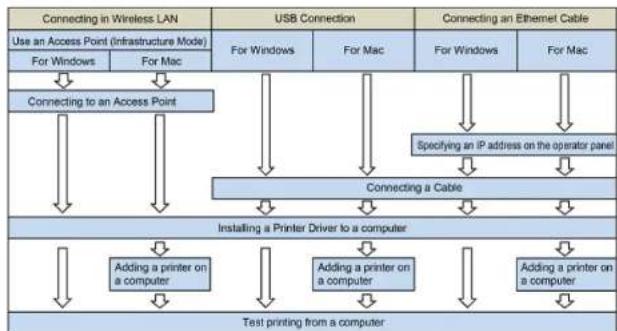
flowchart
graph TD
    A["Connecting in Wireless LAN"] --> B["Use an Access Point (Infrastructure Mode)"]
    A --> C["For Windows"]
    A --> D["For Mac"]
    A --> E["Connecting to an Access Point"]
    E --> F["USB Connection"]
    F --> G["For Windows"]
    F --> H["For Mac"]
    F --> I["Connecting a Cable"]
    I --> J["For Windows"]
    I --> K["For Mac"]
    I --> L["Spocifying an IP address on the operator panel"]
    L --> M["For Windows"]
    L --> N["For Mac"]
    O["Installing a Printer Driver to a computer"] --> P["Adding a printer on a computer"]
    O --> Q["Adding a printer on a computer"]
    O --> R["Adding a printer on a computer"]
    S["Test printing from a computer"] --> T["Adding a printer on a computer"]
    S --> U["Adding a printer on a computer"]
    S --> V["Adding a printer on a computer"]
- Setup
Checking the Placement Environment
• Installation Environment
Install the machine in the following environment.
Ambient temperature: 10°C to 32°C
Ambient humidity: 20% to 80% RH (relative humidity)
Maximum wet bulb temperature: 25°C
!
- Use care to prevent condensation. It may cause a malfunction.
- If installing your machine where the ambient humidity is 30% RH or below, use a humidifier or antistatic mat.
- Depending on the installation environment, the operation noise may be louder. If the noise bothers you, we suggest you to install the machine in the place away from you or in another room.
WARNING
- Do not install the machine in a location subject to high temperatures or in a location near fire.
- Do not install the machine in a location where chemical reactions may occur (such as a laboratory).
- Do not install the machine near alcohol, thinners, or other flammable solvents.
- Do not install the machine in a location within the reach of small children.
- Do not install the machine in an unstable location (such as on an unsteady stand or slanted location).
- Do not install the machine in a location with high level of humidity or dust, or in a location where the machine is exposed to direct sunlight.
- Do not install the machine in an environment where it is exposed to salty air, NOx, SOx or corrosive gas.
- Do not install the machine in a location where it is exposed to a high level of vibration.
-
Do not install the machine in a location where its vent hole is blocked.
-
Setup
CAUTION
- Do not install this machine directly on a thick rug or carpet.
- Do not install this machine in a closed room or other locations with bad circulation and ventilation.
- If you use this machine in a small room continuously for an extended period of time, make sure to ventilate the room.
• Install this machine away from a source that emits strong magnetic fields or noise.
• Install this machine away from a monitor or television. - Moving the machine requires that two people stand in front and back of the machine respectively, hold the handles at the bottom of the machine, and move it.
- Installation Space
Install the machine on a flat surface that is wide enough to accommodate the legs of the machine.
Allow for enough room around the machine as shown in the following figures.
- Top view
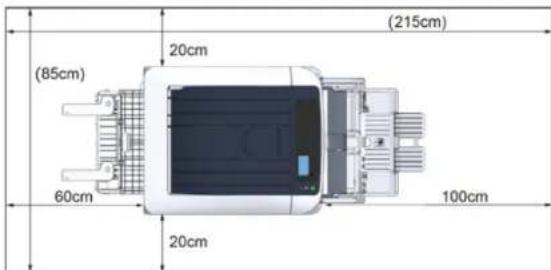
text_image
(215cm) (85cm) 20cm 60cm 20cm 100cm- Side view
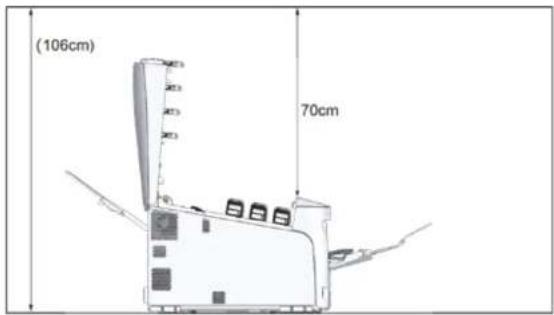
text_image
(106cm) 70cm- Setup
Checking Package Contents
Check that you have everything shown below.
| CAUTION | Injury may result. | |
| Lift this machine by 2 persons, because it weighs approximately 40 kg. | ||

For instructions on how to unpack, see "Unpacking".
!
- Be sure to use the supplied consumables first. If other consumables are used first, the life may not be shown correctly or supplied consumables may not be applied.
- Printer
• Four image drums (black, cyan, magenta and yellow)
- Four starter toner cartridges (black, cyan, magenta and yellow)
!
- The starter toner cartridges are installed in the image drums, which are installed in the machine before shipment.
- Do not remove a starter toner cartridge from an image drum.
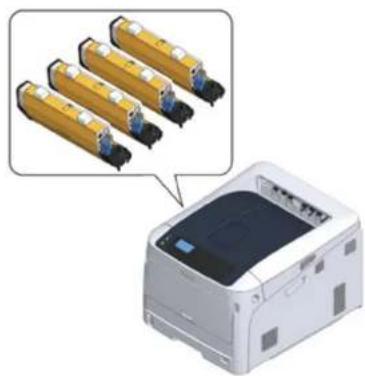
natural_image
Illustration of a printer with four yellow cylindrical components and a close-up view of its cover (no text or symbols present)- Setup
!
- The starter toner cartridge is not installed in the ES model. Install the toner cartridge that is included in this machine. Refer to "Replacing the Image Drum".
- Software DVD-ROM

- Power cord
!
• LAN cables or USB cables are not included in the package. Prepare the cable that suits your connection environment separately.
- Packaging and cushioning materials are used when transporting the machine. Do not dispose packaging materials as they may be used in the future.
Names of Components
This section explains the names and functions of components of the printer.
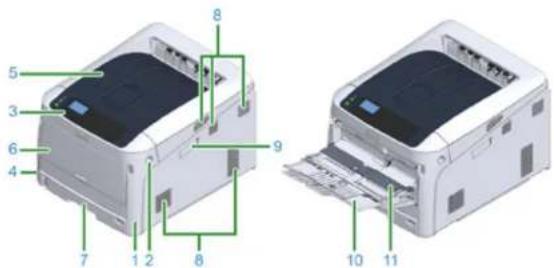
text_image
Technical diagram of a printer with numbered parts for identification and assembly reference.| No. | Name Functions | |
| 1 | Front cover Front cover of the printer. Pull the front | cover open lever to open the cover. |
| 2 | Front cover open lever Lever to unlock when opening the front cover. | |
| 3 | Operator panel This is the panel to operate the printer. | Display screen operation buttons, numeric keys, function keys, and attention indicator lamp are on the panel. |
| 4 | Power switch Turns the machine on and off. | |
| 5 | Output tray (Top Cover) Printouts are stocked here. | After opening the front cover, press the open button inside the printer to pop up. |
| 6 | Multipurpose tray (MP Tray) Various sizes of paper can be loaded. | |
| 7 | Tray 1 Load paper. | |
| 8 | Air vents Outlet/inlet for air. | Please be careful not to block the opening when placing the printer. |
| 9 | Wireless LAN module cover Cover for installation part of the wireless LAN module. | |
| 10 | Paper supporter Supports paper. | |
| 11 | Paper set cover | Holds paper loaded on the Multipurpose tray. |
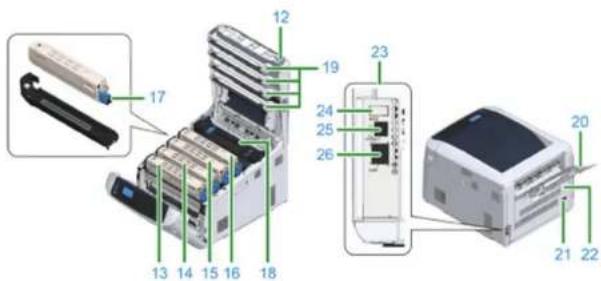
text_image
Diagram of a printer internal structure with numbered components and labeled parts| No. Name | Functions | |
| 12 Open button | Press this button to unlock when opening the output tray (Top Cover). | |
| 13 | Toner cartridge, Image drum (K: black) | A toner cartridge contains toner (powdery ink) for printing.Image drum electrifies paper and transcribes toner using static electricity. A drum is combined with a drum cartridge.Toner cartridges and image drums are consumables. |
| 14 Toner cartridge, Image drum (Y: yellow) | ||
| 15 Toner cartridge, Image drum (M: magenta) | ||
| 16 Toner cartridge, Image drum (C: cyan) | ||
| 17 Toner cartridge lock lever | Fasten a toner cartridge to an image drum. | |
| 18 Fuser unit | Add heat and pressure to toner transcribed on paper to bond it. | |
| 19 LED head (four heads) | Expose image drum to light to copy letters and images. | |
| 20 Rear output tray | Outlet when paper is output with the printed side up. | |
| 21 AC power socket | Insert the supplied power code. | |
| 22 Duplex unit * 1 | Component for duplex printing. | |
| 23 Interface part Connectors for connecting to a computer can be found. | ||
| 24 Accessory connector | Port to insert a USB memory. | |
| 25 | USB interface connection | Insert a USB cable when connecting a computer to the printer with a USB cable. |
| 26 | Network interface connection | Insert a LAN cable when connecting a computer to the printer via a network. |
*1 C824n, C834nw: Option
- Setup
How to Use of the Operator Panel
This section explains the names and functions of components on the operator panel.
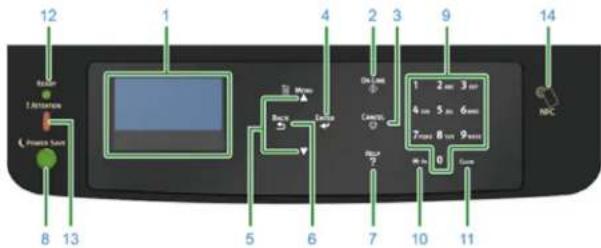
text_image
12 1 4 2 3 9 14 8 13 5 6 7 10 11 1 2 sec 3 sec 4 sec 5 sec 6 sec 7 sec 8 sec 9 sec Rscs Rscs Rscs RPC| No. | Name Function | |
| 1 | Display screen Displays operating instructions and | the status of the printer. |
| 2 | «ON LINE» button Switches between online and offline modes. | |
| 3 | «CANCEL» button Cancels the current print immediately. | |
| 4 | «ENTER» button Confirms the highlighted item. | |
| 5 | Scroll button or Select▲the menu or scrolls the screen. | screen. |
| 6 | «BACK» button Returns to the previous screen. | |
| 7 | «HELP» button Displays the help screen. To close, press the «HELP» button,«BACK» button, or «CANCEL» button. | |
| 8 | «POWER SAVE» button • Enters or exits the power saving mode.• Exits the sleep mode.Lights up green in the power save mode and blinks green in the sleep mode. | |
| 9 | Numeric Keypad • Enters numbers.• Enters alphabetical characters and symbols.A password can be entered only with a numeric keypad. | |
| 10 | «Fn» key | Displays the equipment setting menu screen with a shortcut function. |
| No. Name | Function | |
| 11 | «CLEAR» key | Executes the following actions according to the entered items when pressed or held down.Minimizes a setting value.Enters zero for a setting value.Deletes a character.Cancels the selected item.Returns to the previous settings. Not available when entering an IP address. |
| 12 | «READY» indicator Lights up green in online mode and turns off in offline mode. | |
| 13 | «ATTENTION» indicator | Lights up or blinks orange when an error occurs in the device. |
| 14 | NFC mark | Bring the device closer to this mark when using the NFC function.For details on the NFC function, refer to "Using from a Mobile Device (Advanced Manual)". |
• How to Use the Numeric Keypad
• How to Use the Fn Key
- Function Menu List
- Setup
How to Use the Numeric Keypad
Use to enter numbers and characters. Press the key consecutively to switch between numbers and characters. Press the key until the desired character is displayed, and then press the «ENTER» button.
Available characters and how to switch types of characters are shown below.
Alphabetic characters do not appear on the menu which accepts only numbers.
| «1» 1 | |
| «2» 2 | a-b c+A-B Θ 2→ → → |
| «3» 3 | d-e f=D-f F P 3→ → → |
| «4» 4 | g-h i=G-i+4→ → → |
| «5» | 5→ +→ -k→ +→ -l→ K L 5 |
| «6» 6 | m-m o=M-N Θ 6→ → → |
| «7» | 7→ p→ -q→ +→ -s→ P→ -θ R S 7 |
| «8» | 8→ +→ -u→ v→ -T→ U V 8 |
| «9» 9 | w-x y+z-W X Y→Z 9→ → → → |
| «0» 0 (space) 0 → | |
| «%» | @H→ ←(space)+←! * $ %-&→(→ → ←== → ?→ → → → → → → → → → → → [→] ^→→ (-→) → → → → → * |
For example,
To enter "abc",
Deletes a character when entering a password.
How to Use the Fn Key
Press numeric keys after pressing the «Fn» key when the message "Ready To Print" appears on the display screen. The function menu corresponding to the number entered is displayed.
3 The setting screen of the selected function is displayed. Check or change the settings.
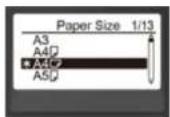
Function Menu List
| Function No. | Function menu |
| 1 Shared Print | |
| 2 Private Print | |
| 10 Paper Size (Tray 1) | |
| 11 X Dimension (Tray 1) | |
| 12 Y Dimension (Tray 1) | |
| 13 Media Type (Tray 1) | |
| 14 Media Weight (Tray 1) | |
| 20 Paper Size (Tray 2) | |
| 21 X Dimension (Tray 2) | |
| 22 Y Dimension (Tray 2) | |
| 23 Media Type (Tray 2) | |
| 24 Media Weight (Tray 2) | |
| 30 Paper Size (Tray 3) | |
| 31 X Dimension (Tray 3) | |
| 32 Y Dimension (Tray 3) | |
| 33 Media Type (Tray 3) | |
| 34 Media Weight (Tray 3) | |
| 40 Paper Size (Tray 4) | |
| 41 X Dimension (Tray 4) | |
| 42 Y Dimension (Tray 4) | |
| 43 Media Type (Tray 4) | |
| 44 Media Weight (Tray 4) | |
| 50 Paper Size (Tray 5) | |
| 51 X Dimension (Tray 5) | |
| 52 Y Dimension (Tray 5) | |
| 53 Media Type (Tray 5) | |
| 54 Media Weight (Tray 5) | |
| 80 Paper Feed | |
| 90 Paper Size (MP Tray) | |
| 91 X Dimension (MP Tray) | |
| 92 Y Dimension (MP Tray) | |
| 93 Media Type (MP Tray) | |
| 94 Media Weight (MP Tray) | |
| 95 Tray Usage (MP Tray) | |
| 100 Print Information (Configuration) | |
| 101 Print Information (Network) | |
| Function No. | Function menu |
| 102 Print Information (Usage Report) | |
| 103 Print Information (Error Log) | |
| 200 Power Save | Time |
| 201 Sleep Time | |
| 202 Auto Power | Off Time |
| 210 Error Report | |
| 220 Print Position | Adjust (MPTray) |
| 221 Print Position | Adjust (Tray 1) |
| 222 Print Position | Adjust (Tray 2) |
| 223 Print Position | Adjust (Tray 3) |
| 224 Print Position | Adjust (Tray 4) |
| 225 Print Position | Adjust (Tray 5) |
| 230 Paper Black | Setting |
| 231 Paper Color | Setting |
| 232 Trans. Black | Setting |
| 233 Trans. Color | Setting |
| 234 SMR Setting | |
| 235 BG Setting | |
| 236 Drum Cleaning | |
| 237 Hex Dump | |
| 300 Adjust Density | |
| 301 Adjust Registration | |
| 302 Print Color Tuning Pattern | |
| 310 Cyan Density | |
| 311 Magenta Density | |
| 312 Yellow Density | |
| 313 Black Density | |
!
- An error results when the option item selected is not currently installed.

- For menus with no number assigned, see "Menu List of the Operator Panel".
- Setup
Preparing Your Printer
This section explains how to unpack your printer and a set of consumables and paper.
- Unpacking
• Installing Consumables -
Loading Paper
-
Setup
Unpacking
 | Injury may result. | [3307] |
| Lift this machine by 2 persons, because it weighs approximately 40 kg. | ||
!
- Be sure to use the consumables or maintenance units provided with this printer at first. Otherwise, the life of the consumables or maintenance units may not be displayed correctly, or you may not be able to use them later.
- Use extra care when handling the image drum (the green cylinder), because it is fragile.
- Do not expose the image drum to direct sunlight or strong light (approximately 1,500 lux or more). Even under room lighting, do not leave the image drum for 5 minutes or more.
- Packaging and cushioning materials are required for transporting the machine. Do not dispose of it, and keep it for future use.
1 Remove the machine from the box, and then remove all cushioning materials and the plastic bag from the machine.
2 Remove the two strips of protective tape (Blue) at the back of your printer.
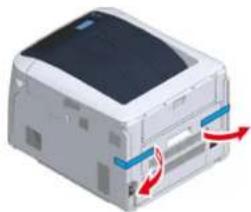
natural_image
3D rendering of a computer monitor with a blue scroll and red directional arrows indicating motion (no text or symbols)3
Lift the machine, and then place it where it is to be installed.
[NO TEXT]
- If you use optional additional tray units, see "Options" in "Appendix".
Installing Consumables
1 Insert your finger into the recess on the right side of the printer and pull the front cover open lever (1) to open the front cover (2) forward.
!
- Open the front cover gently. If opening rapidly, an MP tray may open.
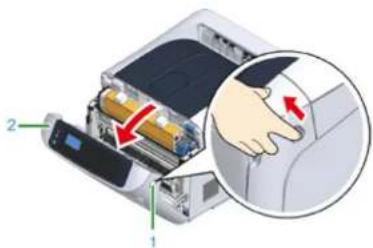
text_image
Diagram of a printer's internal structure with labeled parts and a magnified view showing hand placement on the side panel.2 Press the open button (3) and open the output tray (4).
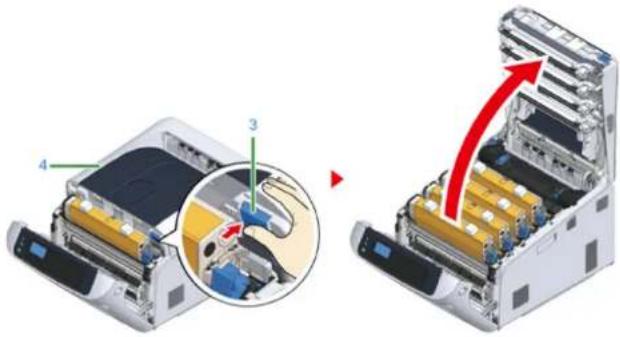
natural_image
Diagram showing a device's internal structure with numbered components and a red arrow indicating upward motion (no text or symbols present)3 Prepare flat surface covered with sheets of newspaper, etc. to remove protective sheets from the image drums set in the printer.
- Setup
4 Take the image drum "K: Black" set forward with the toner cartridge attached and put it on the surface prepared in step 3.
[NO TEXT]
- Image drums are not locked on the printer. It can be removed by lifting it up.
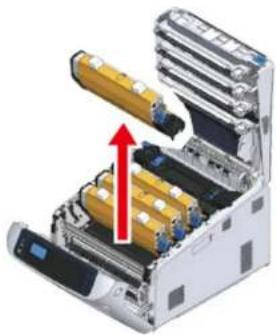
natural_image
3D rendering of a mechanical device with yellow components and a red upward arrow indicating motion (no text or symbols)!
- The starter toner cartridges are shipped with the image drums attached. Please do not remove starter toner cartridges from the image drums.
5 Remove the protective sheet (5) from the image drum.
(1) Remove a tape (6) stuck on a protective sheet (5) and open it.
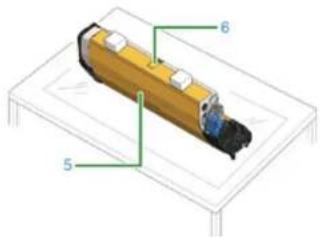
text_image
Diagram of a yellow vehicle with numbered parts labeled 5, 6, and 7 on a flat base(2) Draw the protective sheet (5) in the direction of the arrow. Do not turn the toner cartridge lock lever (7) (blue).
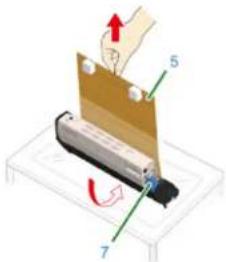
text_image
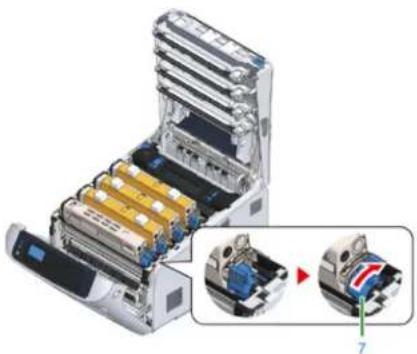
Diagram showing a mechanical device with labeled parts and directional arrows indicating motion or force6 Put the image drum with the protective sheet removed into the printer unit and turn the toner cartridge lock lever (7) (blue) in the direction of the arrow until it lines up with the ▶
You will hear a click when it is locked in place.
natural_image
3D diagram of a battery pack assembly with internal components and a close-up inset showing internal components (no text or symbols)!
- Closing the cover without turning the toner cartridge lock lever (blue) may cause a malfunction. Make sure to turn the cartridge lock lever until it lines up with the in the far end.
- Setup
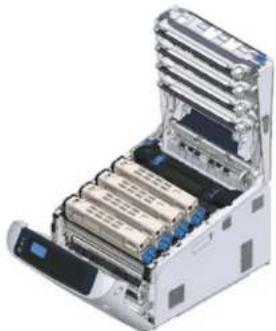
7 Repeat from step 4 to step 6 to pull out all the image drum and remove all the protective sheet in the order of "Y: Yellow", "M: Magenta", and "C: Cyan". And put them back to the printer, then turn the toner cartridge lock lever.
natural_image
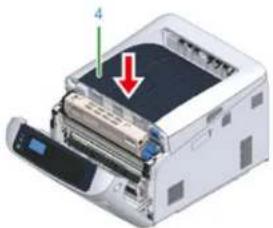
3D rendering of a battery pack with multiple batteries and a control panel (no visible text or symbols)8 Close the output tray (4) by pushing the center of the cover firmly.
natural_image
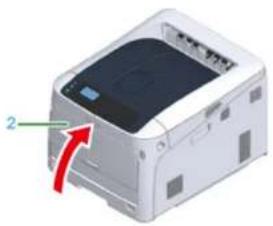
3D printer image showing internal components with a red arrow indicating a component (no text or symbols present)9 Close the front cover (2).
!
- The front cover cannot be closed securely if the output tray is not closed.
- When the error message that the top or front cover is open does not disappear from the operator panel's display screen, make sure they are closed securely.
natural_image
3D rendering of a printer with a green arrow indicating rotation (no text or symbols)- Setup
Loading Paper
For details on available paper, see "Supported Paper".
1 Pull out the paper cassette (1).
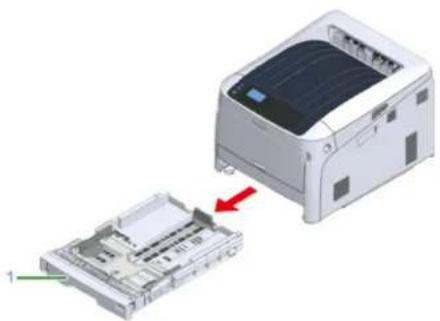
natural_image
3D diagram showing a printer with a paper feeding into a plastic sheet, no text or symbols present2 Set the paper size dial (2) to match the loading paper size.
Set the dial to [A4] when loading the A4 size paper with a landscape orientation.
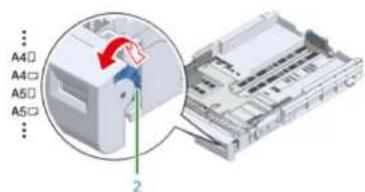
text_image
A4 A4 A5 A5 2
- If the size of paper cannot be found in items of the dial, set "Other".
!
- If you draw the cassette with the printer power on, the paper size, paper type, and paper thickness of the tray are sometimes displayed on the panel.
If you change paper, change the settings to the appropriate values. You can change the setting to hide the screen. To hide the tray paper size message, select [Admin Setup] > [Panel Setup] > [Paper setup when paper exchange] and set it to [Off]. - Make sure to match the size of paper and that on the paper size dial. Otherwise, paper size error occurs and printing cannot be done.
- For size of paper which can be loaded either horizontal or vertical such as A4, please be careful of the direction.
3 Slide the paper guide (3) and paper stopper (4) to the size of paper to be loaded.
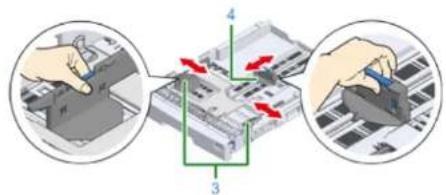
text_image
Diagram illustrating a mechanical assembly or processing process with numbered components and directional arrows indicating movement or flow.4 Fan a stack of paper well, and then align the edges of the paper.
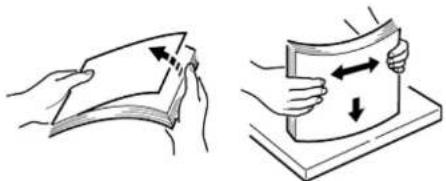
natural_image
Illustration showing two hand-drawn diagrams: one folding a sheet with arrows, the other holding a card or notebook (no text or symbols present)5 Load paper with the print side face down.
- Setup
!
- Do not load paper above the "mark (5) on the paper guide.
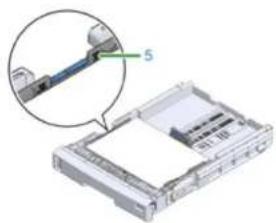
natural_image
Diagram of a computer drive with an inset showing a component labeled '5' (no text or symbols on the device itself)6 Secure the loaded paper with the paper guide.
7 Check if a size of loaded paper matches the setting of paper size dial.
!
- If the size of paper and that on the paper size dial do not match, paper size error occurs and printing cannot be done.
8 Return the paper cassette to the printer.
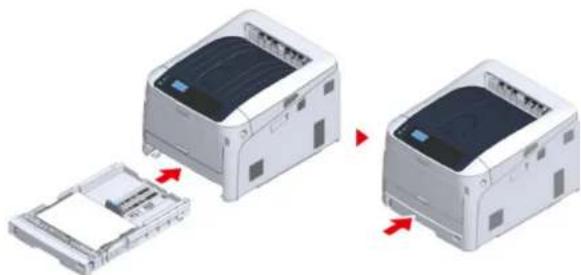
natural_image
Two 3D printer units with red arrows indicating process flow, showing internal components and packaging (no text or symbols)9 If paper that cannot be selected from the sizes on the paper size dial (the dial setting: [Other]) is loaded, set paper size to [Custom] on the operator panel and enter the width and length of paper.
See "Printing on Custom Size Paper (Advanced Manual)".
![OKI C824dn - If paper that cannot be selected from the sizes on the paper size dial (the dial setting: [Other]) is loaded, set paper size to [Custom] on the operator panel and enter the width and length of paper. - 1](/content/2026/05/882561/images/f2b85f679efe8927edb583cda1913cbedc019cb01c9bd89d833c51341f73e0ae.jpg)
- If the size of paper whose size can be found on the dial such as A3 and A4, set [Cassette Size]. [Cassette Size] is set by factory default and you do not need to change for normal use.
- Setup
About the Power Supply
This section explains condition of the power supply and how to turn on/off the printer.
• Power Supply Conditions
- Connecting the Power Code
- Turning On the Power
- Turning Off the Power
• What You Should Do If You Do Not Use This Machine for an Extended Period of Time
- Setup
Power Supply Conditions
The power supply must meet the following conditions.
Voltage: 110 to 127V AC (Range 99 to 140V AC) / 220 to 240V AC (Range 198 to 264V AC)
Frequency: 50/60 Hz ± 2%
!
- If the power supply is unstable, use a voltage regulator.
- The maximum power consumption of the machine is 1118 W. Check that the power supply is sufficient.
- The operation that uses an uninterruptible power supply (UPS) or inverter is not guaranteed. Do not use an uninterruptible power supply (UPS) or inverter.
WARNING
Fire or electric shock may result.

- Be sure to turn this machine off before connecting and disconnecting the power cord and the ground wire.
- Be sure to connect the ground wire to the designated ground terminal. If this machine cannot be grounded, contact your dealer.
- Be sure not to connect the ground wire to the ground of a water pipe, gas pipe or telephone line, or to a lightning rod.
- Be sure to connect the ground wire before connecting the power cord to the outlet. Also, be sure to unplug the power cord from the outlet before disconnecting the ground wire.
- Be sure to plug or unplug the power cord by holding its power plug.
- Securely plug the power cord into the outlet.
- Do not plug or unplug the power cord with wet hands.
- Install the power cord in a location where users cannot step on it, and do not place any object on the power cord.
- Do not bundle or tie the power cord.
- Do not use a damaged power cord.
- Do not overload the outlet.
- Do not connect the power cords of this machine and other electric products to the same outlet. If the power cord of this machine is connected to the same outlet as other electric products, especially an air conditioning machine, copier, or shredder, this machine may malfunction due to electrical noise. If you have to connect the power cord of this machine to the same outlet as other products, use a commercially available noise filter or noise cut transformer.
- Use the power cord included in this machine, and plug the cord directly into the outlet. Do not use the power cords of other products for this machine.
- Do not use an extension cord. If you have to use an extension cord, use a cord rated 15A or higher.
- Use of an extension cord may result in this machine malfunctioning due to AC voltage drop.
- Do not turn this machine off or unplug the power cord during printing.
- If you do not use this machine for an extended period of time due to holidays, trips, or other reasons, unplug the power cord.
-
Do not use the power cord included in this machine for other products.
-
Setup
Connecting the Power Code
1 Plug the power cord into the power connector.
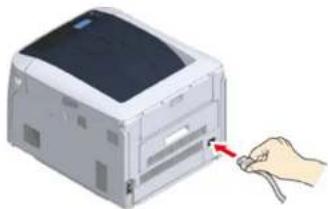
natural_image
Illustration of a hand inserting a red arrow into a computer device (no text or symbols visible)2 Plug the power cord into the outlet.
Turning On the Power Turning Off the Power
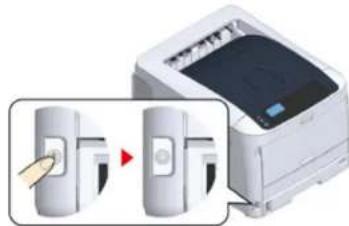
1 Hold down the power switch for about 1 second to turn on the power.
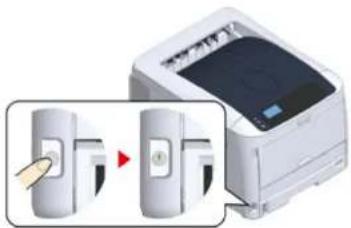
natural_image
Product photo of a white industrial machine with two buttons and a close-up view showing the button being inserted (no text or symbols visible)The Power switch LED indicator lights up when the printer turns on.
The message "Ready To Print" is displayed in the operator panel once printer is ready.
- Setup
1 Hold down the power switch for about a second.
The message "Shutting down. Please wait. Printer will turn off automatically" appears in the operator panel, and the power switch indicator blinks every 1 second.
Then the printer turns off automatically and the power switch indicator goes out.
!
- It may take about 5 minutes to turn off the power. Wait until it turns off.
- Holding down the power switch for more than 5 seconds turns off printer forcibly. Only perform this procedure when a problem occurs. For printer problems, refer to *Problems on the Machine*.
natural_image
Diagram showing two cylindrical devices with a button, one being inserted and the other holding a pointer (no text or symbols present)What You Should Do If You Do Not Use This Machine for an Extended Period of Time
If you do not use this machine for an extended period of time due to holidays, trips, or other reasons, unplug the power cord from the outlet.
C
- This machine does not have functional failures if the power cord is unplugged for an extended period of time (four weeks or more).
- Setup
Test Printing from the Printer
Check that you can print with the printer. Check the detailed settings and status of your printer by printing the contents of the settings (Configuration).

- If you purchased optional equipment such as the additional tray unit, check the printer after mounting the optional equipment. For details on attaching optional equipment, see "Options".

- When a printer is in the power saving mode, press the «POWER SAVE» button to restore from the mode.
1 Press the «Fn» key on the operator panel.
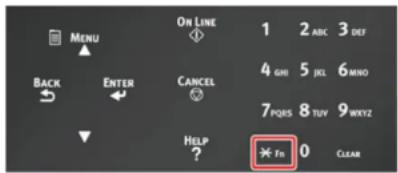
text_image
MENU ON LINE 1 2 ABC 3 DEF 4 GHI 5 JXL 6 MINO BACK ENTER CANCEL 7 PQRS 8 TUV 9 WKYZ HELP ? * Fn 0 CLEAR2 Enter «1», «0», «0» using the numeric keypad, check [100] is displayed on the display screen, and press the «ENTER» button.
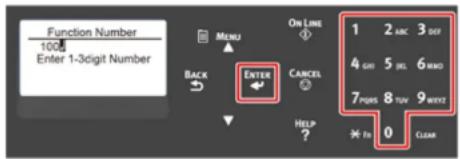
text_image
Function Number 100# Enter 1-3digit Number MENU ON LINE 1 2 ABC 3 DIST 4 GHI 5 JEL 6 MNO 7 PORT 8 TUV 9 NEXT CANCE ENTER HELP ? * Fa 0 CLEAR- Setup
3 Press the «ENTER» button as [Execute] is selected.
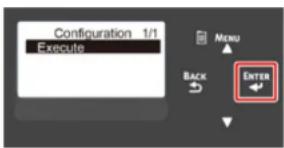
text_image
Configuration 1/1 Execute MENU BACK ENTERAfter finishing a print of printer settings, a setup for printing from a printer completes.

- You can also print reports and lists for each function. Refer to "Checking the Current Settings (Advanced Manual)".
- When optional equipment is mounted
After mounting an optional equipment, check the printer settings in the same manner and check if the mounted optional equipment is properly displayed on the printing result.
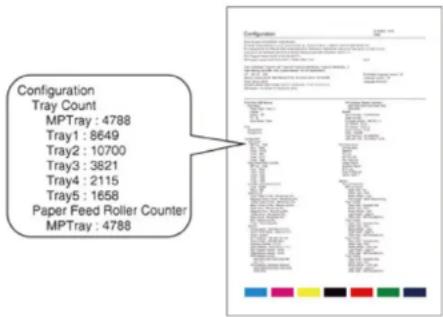
text_image
Configuration Tray Count MPTray : 4788 Tray1 : 8649 Tray2 : 10700 Tray3 : 3821 Tray4 : 2115 Tray5 : 1658 Paper Feed Roller Counter MPTray : 4788Changing the Administrator Password
It is recommended to change the administrator password to protect your security. Set the administrator password using from 6 to 12 alphanumeric characters. Be careful not to forget the set password.
1 Press the scroll button ▼ several times to select [Admin Setup] and press the «ENTER» button.
2 Enter the administrator password using the numeric (0-9) keys, and then press «ENTER» button.
The factory default password is "123456".
Press «1»→«2»→«3»→«4»→«5»→«6»→«ENTER» in that order. The password is displayed as "*****".
3 Press the scroll button ▼ several times to select [Change Password] and press the «ENTER» button.
4 Enter a new administrator password and press the «ENTER» button.
5 Enter the new administrator password again and press the «ENTER» button.
3
Connecting to a Computer
Connection Method and Flow
Product Requirements
Types of Drivers
Connecting to a Wireless LAN
Connecting a USB Cable
Connecting a LAN Cable
Installing a Printer Driver to a Computer
Selecting a connecting method between different segments
This section describes how to connect the printer to a computer and install the printer driver on the supplied DVD-ROM.
When using the software DVD-ROM, prepare a computer with DVD drive.
!
- Depending on your OS, model or version, the description on this document may be different.
- When a DVD drive is not mounted on your computer, download the printer driver or utility from the Oki Data Web site.
Connection Method and Flow
This section describes the flow to connect the printer to a computer.
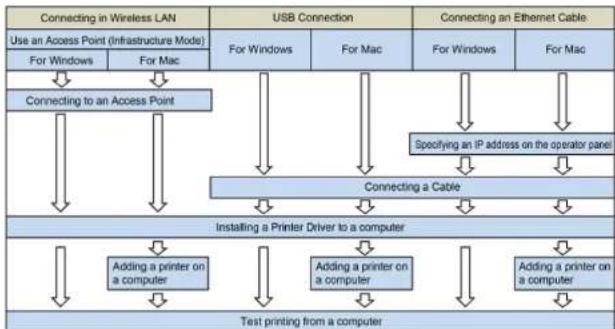
flowchart
graph TD
    A["Connecting in Wireless LAN"] --> B["Use an Access Point (Infrastructure Mode)"]
    A --> C["For Windows"]
    A --> D["For Mac"]
    A --> E["Connecting to an Access Point"]
    E --> F["USB Connection"]
    E --> G["For Windows"]
    E --> H["For Mac"]
    E --> I["Connecting a Cable"]
    I --> J["Spocifying an IP address on the operator panel"]
    I --> K["Installing a Printer Driver to a computer"]
    K --> L["Adding a printer on a computer"]
    K --> M["Adding a printer on a computer"]
    K --> N["Adding a printer on a computer"]
    K --> O["Test printing from a computer"]
    style A fill:#f9f,stroke:#333
    style K fill:#ccf,stroke:#333
- Connecting to a Computer
Product Requirements
Your printer supports the following operating systems:
• Windows 10/Windows 10 (64bit Version)
- Windows 8.1/Windows 8.1 (64bit Version)
• Windows 8/Windows 8 (64bit Version)
• Windows 7/Windows 7 (64bit Version)
- Windows Server 2019
- Windows Server 2016
• Windows Server 2012 R2
- Windows Server 2012
• Windows Server 2008 R2
• Windows Server 2008/Windows Server 2008 (64bit Version)
• macOS 10.14 - 10.12 / Mac OS X 10.11 - 10.10
Depending on your OS or version, the description on this document may be different.
Check details on the latest driver on the Oki Data Web site.
- Connecting to a Computer
Types of Drivers
The types of the drivers that can be installed are as follows. If you do not know what driver to choose, choose the PCL printer driver.
• PCL Printer Driver
You can use it in C824/C834/C844/ES8434.
The PCL printer driver is suitable for printing of business documents.
- PS Printer Driver
You can use it in C834/C844/ES8434.
The PS printer driver is suitable for printing of documents including PostScript fonts and EPS data.
- Connecting to a Computer
Connecting to a Wireless LAN
This section describes how to connect the printer and a computer using wireless LAN. For C824 and ES8434, the optional wireless LAN module is required to use wireless connection.

Installing the Wireless LAN module (C824, ES8434 Only)
!
- Wireless(Infrastructure) and Wireless(AP Mode) cannot be enabled at the same time.
- Do not place any electric products that emit weak radio waves (such as microwaves or digital cordless telephones) close to the machine.
- The communication speed of a wireless LAN connection may be slower than that of a wired LAN or USB connection depending on the environment. If you want to print big data such as a photo, it is recommended to print with a wired LAN or USB connection.
-
This printer can use a wired LAN and wireless LAN simultaneously. If the wired LAN and wireless LAN are connected to the same subnet, communications may become unstable.
-
Connecting to an Access Point (Infrastructure)
-
Connecting to the Machine Directly (AP Mode)
-
Connecting to a Computer
Connecting to an Access Point (Infrastructure)
!
• Install this machine in a place with a good view of the wireless access point. (We suggest that the distance between the machine and the wireless device be 30 m or less.)
- If there is metal, aluminum sash, or a reinforced concrete wall between the machine and wireless LAN access points, connections may be harder to be established.
- Outdoor use of IEEE802.11a (W52/W53) is prohibited by the Radio Law. Use IEEE802.11a (W52/W53) only indoors.
- [Wireless(Infrastructure)] and [Wireless(AP Mode)] cannot be enabled at the same time.
- If you connect using 2.4 GHz, use channels 1 to 11, Channels 12 and 13 are not available. If you connect using 5 GHz, use channels 36 to 48, 52 to 64, 100 to 140, or 149 to 165.
Enabling Wireless LAN (Infrastructure)
1 Turn on the printer.
2 Press the scroll button ▼ several times to select [Wireless(Infrastructure) Setting], and press the «ENTER» button.
3 Enter the administrator password using the numeric (0-9) keys, and press the «ENTER» button.
The factory default administrator password is "123456". If the administrator password is changed, enter the updated password.
4 As [Wireless(Infrastructure)] is [Disable], press the scroll button ▲ to select [Enable].
5 Press the «ENTER» button.
Connecting to an Access Point
There are three connecting methods as follows. Connecting with WPS is the easiest way and used for normal use.
Connecting with WPS
Connecting by Selecting a Wireless LAN Access Point from the Operator Panel
Connecting by Manual Setup from Operator Panel
When connecting to a wireless LAN with WPA/WPA3-EAP, refer to the "Setting IEEE802.1X (Wireless LAN) (Advanced Manual)".
Connecting with WPS
If the wireless LAN access point supports WPS, you can easily connect to the wireless LAN with the easy setup button (WPS button).
1 Check the position of the WPS button by referring to the instruction manual that is included in a wireless LAN access point or other document.
2 Check that the wireless LAN access point starts and is operating properly.
3 Turn on the machine.
4 Press the scroll button ▲ several times to select [Wireless(Infrastructure) Setting] and press the «ENTER» button.
5 Enter the administrator password using the numeric (0-9) keys, and then press the «ENTER» button.
The factory default administrator password is "123456". If the administrator password is changed, enter the updated password.
The "It is not possible to use the Wireless(AP Mode) at the same time." message is displayed for approximately five seconds.
6 Press the scroll button ▲ to select [Enable] and then press the «ENTER» button.
7 Press the scroll button ▼ several times to select [Automatic setup(WPS)] and press the «ENTER» button.
8 Select [WPS-PBC], and press the «ENTER» button.
9 When [Pushbutton method] is displayed, select [Yes] and press the «ENTER» button.
The machine starts searching for wireless LAN access points. The "Running pushbutton method..." message is displayed on the screen.
10 Press for a few seconds the WPS button on the wireless LAN access point while the message is displayed.
!
- [Running pushbutton method...] is displayed for approximately two minutes. While this message is displayed, press the push button of the wireless LAN access point.
- You cannot operate the panel when WPS is in progress.
11 When [WPS connection successful.] is displayed, it indicates that the wireless LAN setup has completed.
Go to the procedure to "Installing a Printer Driver to a Computer".
[Non-Text]
- If [Connection failed. Timeout] is displayed, repeat the procedure from step 6.
• [Overlap] is displayed when multiple WPS push buttons are pressed almost at the same time at two or more wireless LAN access points and connection is not established. Wait for a while, and then try again.
If the antenna mark is displayed at the top right of the display screen, the connection is established correctly.
If WPS method does not work, go to "Connecting by Selecting a Wireless LAN Access Point from the Operator Panel".
Connecting by Selecting a Wireless LAN Access Point from the Operator Panel
If the wireless LAN access point does not support WPS, you can specify a wireless LAN access point you want to use from the wireless LAN access points that the machine detects to establish a connection. In such a case, you must enter an encryption key.
1 Check the SSID and encryption key by referring to the instruction manual that is included in a wireless LAN access point or other documents, and write the information down.
!
- WPA-EAP and WPA2-EAP cannot be set on the operator panel. Set these in the Web site for the printer.
Open the Web Page of This Machine (Advanced Manual)
[Non-Text]
• An SSID is also called a network name, ESSID or ESS-ID.
- An encryption key is also called a network key, security key, password or Pre-shared Key.
2 Check that the wireless LAN access point starts and is operating properly.
- Connecting to a Computer
3 Turn on the machine.
4 Press the scroll button ▼ several times to select [Wireless(Infrastructure) Setting] and press the «ENTER» button.
5 Enter the administrator password using the numeric (0-9) keys, and then press the «ENTER» button.
The factory default administrator password is "123456". If the administrator password is changed, enter the updated password.
The "It is not possible to use the Wireless(AP Mode) at the same time." message is displayed for approximately five seconds.
6 Press the scroll button ▲ select [Enable] and then press the «ENTER» button.
7 Press the scroll button several times to select [Wireless Network Selection] and press the «ENTER» button.
The machine starts searching for wireless LAN access points. Wait for a while.
8 A list of available wireless LAN access point SSIDs are displayed. Press the scroll button ▼ or , select a wireless LAN access point to connect, and then press the «ENTER» button.
①
- If only [Manual Setup] is displayed, or the SSID of the wireless LAN access point you want to use is not included in the list, set by following the procedure in "Connecting by Manual Setup from Operator Panel". The encryption key entry screen that is suitable for the encryption method of the selected wireless LAN access point is displayed.
9 Enter the encryption key, and then press the «ENTER» button.
B
- The encryption key varies depending on the wireless LAN access point or security.
- If the [WPA Pre-shared Key] is displayed
| Item Description | |
| Encryption method WPA/WPA2-PSK | |
| Encryption key Enter the Pre-shared Key. |
• If the [WEP Key] is displayed
| Item Description | |
| Encryption method WEP | |
| Encryption key Enter the WEP key. |
- If neither of the above two cases is applied
| Item Description | |
| Encryption method Disable | |
| Encryption key No entry is required. |
10 If the displayed SSID is the same as the SSID that you checked in step 1, press the «ENTER» button.
11 When "Connection successful." is displayed, select [Close], and then press the «ENTER» button.
Go to the procedure to "Installing a Printer Driver to a Computer".
If "Connection failed." is displayed, repeat the procedure from step 4.
If the antenna mark is displayed at the top right of the display screen, the connection is established correctly.
If WPS method does not work, go to "Connecting by Manual Setup from Operator Panel".
Connecting by Manual Setup from Operator Panel
Set the wireless LAN access point information (the SSID, encryption method and encryption key) manually to connect to the wireless LAN.
1 Check the SSID, encryption key, and encryption method by referring to the instruction manual that is included in a wireless LAN access point or other documents, and write the information down.
!
- WPA-EAP and WPA2-EAP cannot be set on the operator panel. Set these in the Web site for the printer.

Open the Web Page of This Machine (Advanced Manual)
G
• An SSID is also called a network name, ESSID, or ESS-ID.
• An encryption key is also called a network key, security key, password, or Pre-shared Key.
2 Check that the wireless LAN access point starts and is operating properly.
3 Turn on the machine.
4 Press the scroll button ▼ several times to select [Wireless(Infrastructure) Setting] and press the «ENTER» button.
5 Enter the administrator password using the numeric (0-9) keys, and then press the «ENTER» button.
The factory default administrator password is "123456". If the administrator password is changed, enter the updated password.
The "It is not possible to use the Wireless(AP Mode) at the same time." message is displayed for approximately five seconds.
6 Press the scroll button ▲o select [Enable] and then press the «ENTER» button.
7 Press the scroll button ▼ several times to select [Wireless Network Selection] and press the «ENTER» button.
The machine starts searching for wireless LAN access points. Wait for a while.
8 A list of available wireless LAN access point SSIDs are displayed. Press the scroll button ▼ or , select [Manual Setup] at the end of the list, and then press the «ENTER» button.
9 Enter the SSID you checked in step 1, and then press the «ENTER» button.
!
• The SSID is case sensitive. Enter the SSID correctly.
10 Select the encryption method you checked in step 1, and then press the «ENTER» button.

• The encryption key varies depending on the wireless LAN access point or security.
11 The procedure depends on the encryption method you selected in step 9. If you selected [WPA/WPA2-PSK], select [TKIP/AES], and then press the «ENTER» button. Enter the Pre-shared Key afterward and select [Next]. If you selected [WPA2-PSK], select [AES], and then press the «ENTER» button. Enter the Pre-shared Key afterward and select [Next]. If you selected [WEP], enter the WEP Key, and press [Next].
12 If the displayed value is the same as the value that you checked in step 1, press the «ENTER» button.

- It takes approximately 30 seconds for the machine to detect the wireless LAN access point.
When the screen indicates that connection is established, select [Close] and press the «ENTER» button.
Go to the procedure to "Installing a Printer Driver to a Computer".
If the screen indicates that connection failed, press [Close] and go back to step 7.
If the antenna mark is displayed at the top right of the display screen, the connection is established correctly.
Connecting to the Machine Directly (AP Mode)
Wireless LAN (AP mode) directly connects wireless devices (computers, tablets, smartphones, etc.) to the machine without using a wireless LAN access point.
!
- If there is metal, aluminum sash, or a reinforced concrete wall between the machine and wireless devices, connections may be harder to be established.
- Up to four devices can be connected to the machine via the wireless LAN (AP mode). The fifth device will be rejected.
- You cannot enable wireless LAN (infrastructure) and wireless LAN (AP mode) at the same time.
Automatic Connection (Push-button)
If your wireless devices support WPS-PBC (push button), you can connect to the wireless LAN (AP mode) with the WPS button.
1 Confirm the position of the WPS button on your wireless device by the manual attached to the device.
2 Turn on the machine.
!
- If the "Do you want to Set-up wireless?" message appears, select [No (Do not show next time)].
3 Press the scroll button several times to select [Wireless(AP Mode) Setting] and press the «ENTER» button.
4 Enter the administrator password using the numeric (0-9) keys, and then press the «ENTER» button. The factory default administrator password is "123456". If the administrator password is changed, enter the updated password.
5 Press the scroll button ▲o select [Enable] and then press the «ENTER» button.
6 Press the scroll button ▼ to select [Automatic Setup (PushButton)] and press the «ENTER» button.
7 Select [Yes], and then press the «ENTER» button.
8 Start the WPS-PBC (push button) operation on your wireless device to connect to the machine.
When [Connection successful] is displayed, the setup of the wireless LAN is completed.
If [Connection failed] is displayed, follow the steps in "Manual Setup" to try again.
If connection failed, go to "Manual Setup".
Manual Setup
If your wireless devices do not support WPS-PBC (push button), you can enter [SSID] and [Password] of the machine in your wireless devices to connect to the wireless LAN.
1 Turn on the machine.
2 Press the scroll button ▼ several times to select [Wireless(AP Mode) Setting] and press the «ENTER» button.
3 Enter the administrator password using the numeric (0-9) keys, and then press the «ENTER» button.
The factory default administrator password is "123456". If the administrator password is changed, enter the updated password.
4 Press the scroll button ▲ to select [Enable] and then press the «ENTER» button.
5 Press the scroll button ▼ several times to select [Manual Setup] and press the «ENTER» button.
6 Check the [SSID] and [Password] of the machine.
7 Input the machine's [SSID] and [Password] that were confirmed in step 6 for your wireless device.
Connecting a USB Cable
Connect the printer to a computer using a USB cable.
1 Prepare a USB cable.
A USB cable is not supplied. A USB2.0 cable is required.
!
- USB3.0 is not supported.
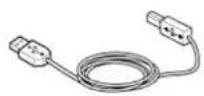
Q
- If you want to connect in USB 2.0 Hi-Speed mode, use a Hi-Speed USB 2.0 USB cable.
2 Turn off the machine.
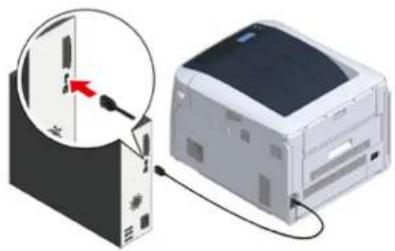
3 Insert one end of the USB cable into the USB interface connector on the machine.
!
- Do not insert the USB cable into the network interface connector. It may cause a malfunction.
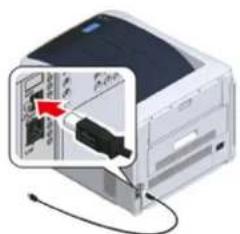
natural_image
Illustration of a computer monitor with an attached cable and a black connector (no text or symbols visible)4 Insert one end of the USB cable into the USB interface connector on the machine.
- Connecting to a Computer
!
- For Windows, do not insert the other end of the USB cable into the computer until the instruction is displayed on the screen when the driver installation is in progress.
natural_image
Illustration of a printer connected to a device via cable, showing a magnified view of the device's internal structure (no text or symbols present)Go to the procedure to "Installing a Printer Driver to a Computer".
Connecting a LAN Cable
Connect the printer to a computer using wired LAN network.
Before installing the printer driver, connect the printer to a network using a LAN cable.
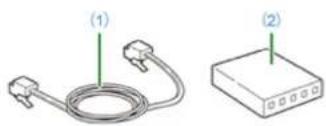
1 Prepare a LAN cable (1) and hub (2).
A LAN cable is not supplied. A LAN cable (category 5e or higher, twist pair, strait) is required.
natural_image
Diagram showing two connected devices: a coiled cable labeled (1) and a rectangular device labeled (2), both without any text or symbols.2 Turn off the machine.
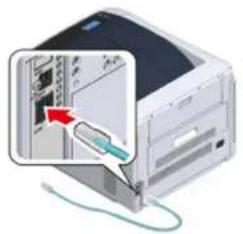
3 Insert one end of the LAN cable (1) into the network interface connector.
natural_image
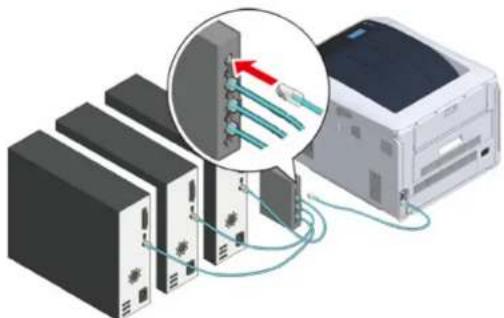
Illustration of a computer setup with an open drive and cable, showing internal components (no text or symbols)4 Insert the other end of the LAN (1) cable into the hub (2).
natural_image
Illustration of server rack connected to printer via cable, with a magnified inset showing cable routing (no text or symbols)Next, set the Network information such as IP addresses of the printer.
5 Turn on the printer.
6 Press the scroll button ▼ several times to select [Admin Setup], and press the «ENTER» button.
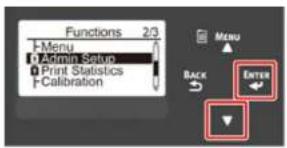
text_image
Functions 2/3 Menu Admin Setup Print Statistics Calibration Menu Back Enter ↓- Connecting to a Computer
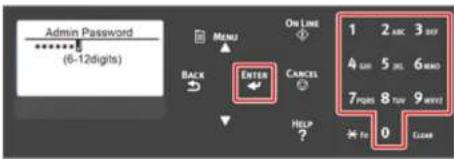
7 Enter the administrator password, using the numeric (0-9) keys and press the «ENTER» button.
The factory default administrator password is "123456". If the administrator password is changed, enter the updated password.
text_image
Admin Password (6-12digits) MENU ON LINE 1 2 ABC 3 DAY 4 5 AM 5 200 6 MHz 7 POPS 8 TAV 9 MHz HAPP ? OK TO 0 Guam8 Check that [Network Setup] is selected, press the «ENTER» button.
9 Press the scroll button ▼ several times to select [IP Address Set], and press the «ENTER» button.
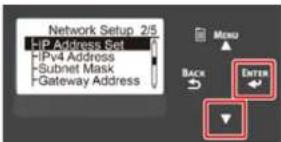
text_image
Network Setup 2/5 HP Address Set IPv4 Address Subnet Mask Gateway Address MENU BACK ENTER ↓If setting the IP address manually, press the scroll button and select [Manual], and press the «ENTER» button. Proceed to the step 10.
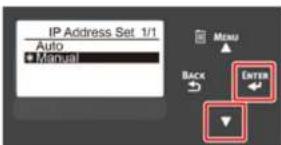
text_image
IP Address Set 1/1 Auto ■ Manual MENU BACK ENTER ▼If obtaining the IP address automatically, check that [Auto] is selected, and press the «ENTER» button. Proceed to the step 16.
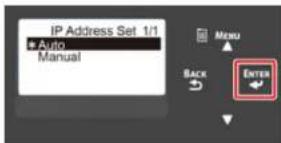
text_image
IP Address Set 1/1 + Auto Manual MENU BACK ENTER10 Press the «BACK» button until [Network Setup] is displayed. Press the scroll button ▼ several times to select [IPv4 Address], and press the «ENTER» button.
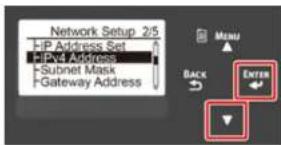
text_image
Network Setup 2/5 IP Address Set IPv4 Address Subnet Mask Gateway Address Menu BACK ENTER11 Enter the IP address using the numeric (0-9) keys, and press the «ENTER» button.
In the same way, enter the next 3 digits. To move to the next box, press the «ENTER» button.
All input was completed, then press the «BACK» button.

text_image
IPv4 Address 192. 168. 0 2 MENU ON LINE 1 2 ABC 3 DUT 4 OR 5 PRI 6 MIND 7 PDR 8 TUR 9 WAVE HUIP ? M TO 0 CLEAR- Connecting to a Computer
12 Press the scroll button ▼ to select [Subnet Mask], and press the «ENTER» button.
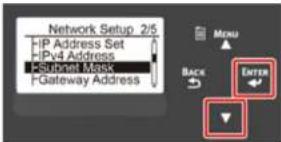
text_image
Network Setup 2/5 HP Address Set IPv4 Address Subnet Mask Gateway Address MENU BACK ENTER ↓13 Enter the subnet mask in the same manner of IP address. All input was completed, then press the «BACK» button.
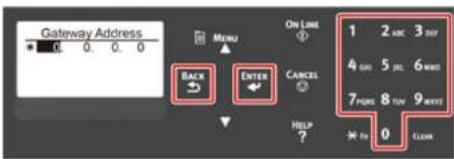
text_image
Gateway Address * 0 0 0 0 MENU ON LINE 1 2 abc 3 dur 4 dir 5 jul 6 wnt 7 pns 8 rev 9 wvt Help ? * to 0 Glue14 Press the scroll button ▼ to select [Gateway Address], and press the «ENTER» button.
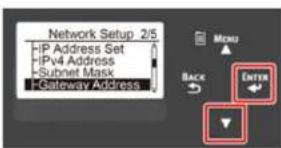
text_image
Network Setup 2/5 Address Set Pv4 Address Subnet Mask Gateway Address MENU BACK ENTER ↓15 Enter the Gateway Address in the same manner of IP address. All input was completed, then press the «BACK» button.
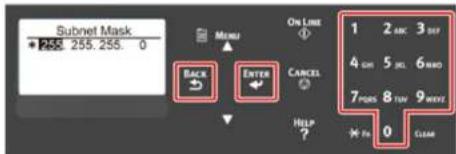
text_image
Subnet Mask 255 255. 0 Menu ON Line 1 2 ANC 3 DEF 4 ON 5 SEL 6 MWD 7 PORE 8 TUN 9 WAVE Hairs 0 Clean BACK ENTER CANCEL HELP ? Fia16 Press the «ON LINE» button to complete the network settings.
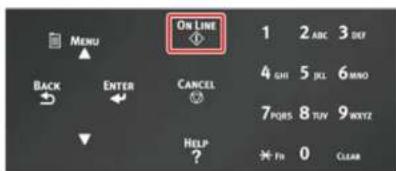
text_image
ON LINE MENU BACK ENTER CANCEL HELP ? * Fn 0 CLEARGo to the procedure to "Installing a Printer Driver to a Computer".
Installing a Printer Driver to a Computer
Install the printer driver from the "Software DVD-ROM" to the computer.
B
1
- If your computer is not equipped with DVD-ROM drive or when updating the printer driver, download the printer driver from the "Oki Data website" to install.
- Check the status of this machine before installing.
- This machine is turned on.
- For network connection, this machine is connected to the network via a LAN cable and required information such as IP address is already set.
- Depending on your OS, model or version, the description on this document may be different.
- For Windows
- For Mac
For Windows
1 Check that the printer is connected to a computer and turned on.
2 Insert the included "Software DVD-ROM" into a computer.
When installing the printer driver downloaded from the Oki Data Web site, double-click the downloaded file.
3 When [Auto Play] is displayed, click [Run Setup.exe].
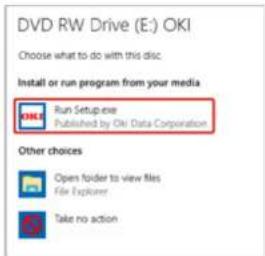
text_image
DVD RW Drive (E:) OKI Choose what to do with this disc Install or run program from your media Run Setup.exe Published by Oki Data Corporation Other choices Open folder to view files File Explorer Take no action
- If the [User Account Control] dialog is displayed, click [Yes].
4 Select a language from the drop-down list.
5 Read the license agreement, and then click [Accept].
6 Read [Environment advice], and then click [Next].
- Connecting to a Computer
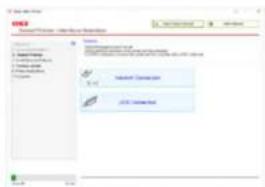
7 Select [Network connection] or [USB connection] in accordance to the connection method of the machine and computer. If the [Windows Security Alert] dialog is displayed, click [Allow access].
text_image
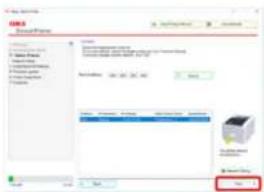
ENCF New York Times - 10.0.2.2017 File Edit View Insert Help New York Times New York Times New York Times New York Times New York Times New York Times New York Times New York Times New York Times New York Times New York Times New York Times New York Times New York Times New York Times New York Times New York Times New York Times New York Times New York Times New York Times New York Times New York Times New York Times New York Times New York Time New York Time New York Time New York Time New York Time New York Time New York Time New York Time New York Time New York Time New York Time New York Time New York Time New York Time New York Time New York Time New York Time New York Time New York Time New York Time New York Time New York Time New York Time New York Time New York Time New York Times New York Times New York Times New York Times New York Times New York Times New York Times New York Times New York Times New York Times New York Times New York Times New York Times New York Times New York Times New York Times New York Times New York Times New York Times New York Times New York Times New York Times New York Times New York Times New York Systems8 Select the model name of the machine, and then click [Next].

- If the printer is not displayed, select [IP Address], enter the address assigned to the printer, and click [Next].
text_image
OK Save As/Remove Save As/Remove Save As/Remove Save As/Remove Save As/Remove Save As/Remove Save As/Remove Save As/Remove Save As/Remove Save As/Remove Save As/Remove Save As/Remove Save As/Remove Save As/Remove Save As/Remove Save As/Remove Save As/Remove Save As/Remove Save As/Remove Save As/Remove Save As/ Remove Save As/ Remove Save As/ Remove Save As/ Remove Save As/ Remove Save As/ Remove Save As/ Remove Save As/ Remove Save As/ Remove Save As/ Remove Save As/ Remove Save As/ Remove Save As/ Remove Save As/ Remove Save As/ Remove Save As/ Remove Save As/ Remove Save As/ Remove Save As/ Remove Save As/ Remove Save As/ Reduce Save As/ Reduce Save As/ Reduce Save As/ Reduce Save As/ Reduce Save As/ Reduce Save As/ Reduce Save As/ Reduce Save As/ Reduce Save As/ Reduce Save As/ Reduce Save As/ Reduce Save As/ Reduce Save As/ Reduce Save As/ Reduce Save As/ Reduce Save As/ Reduce Save As/ Reduce Save As/ Reduce Save As/ Reduce Save As/ Lower Save As/ Lower Save As/ Lower Save As/ Lower Save As/ Lower Save As/ Lower Save As/ Lower Save As/ Lower Save As/ Lower Save As/ Lower Save As/ Lower Save As/ Lower Save As/ Lower Save As/ Lower Save As/ Lower Save As/ Lower Save As/ Lower Save As/ Lower Save As/ Lower Save As/ Lower Save As/ Upper Save As/ Upper Save As/ Upper Save As/ Upper Save As/ Upper Save As/ Upper Save As/ Upper Save As/ Upper Save As/ Upper Save As/ Upper Save As/ Upper Save As/ Upper Save As/ Upper Save As/ Upper Save As/ Upper Save As/ Upper Save As/ Upper Save As/ Upper Save As / Lower < img src="box12340123401234012340123401234012340123401234012340123401234012340123401234012340123401234012340123401234 56789888888888888888888888888888888888888888888888888888888888888888888888888888888888888888888888 567898888888888888888888888888 567 567 567 567 567 567 567 567 567 567 567 567 567 567 567 567 567 567 567 567 567 567 567 567 567 56 567 567 567 567 567 567 567 567 567 567 567 567 567 567 567 567 567 567 567 567 567 567 567 567 569 Click [Recommended Install].
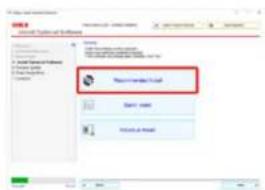
text_image
Recommendated Book Start new End newCheck the software and click [Start].
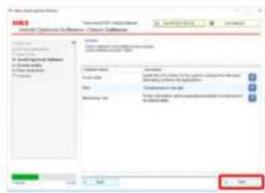
text_image
USE Microsoft Internet Explorer Microsoft Internet Explorer - Microsoft Internet Explorer Internet Explorer Microsoft Internet Explorer Microsoft Internet Explorer Microsoft Internet Explorer Microsoft Internet Explorer Microsoft Internet Explorer Microsoft Internet Explorer Microsoft Internet Explorer Microsoft Internet Explorer Microsoft Internet Explorer Microsoft Internet Explorer Microsoft Internet Explorer Microsoft Internet Explorer Microsoft Internet Explorer Microsoft Internet Explorer Microsoft Internet Explorer Microsoft Internet Explorer Microsoft Internet Explorer Microsoft Internet Explorer Microsoft Internet Explorer Microsoft Internet Explorer Microsoft Internet Explorer Microsoft Internet Explorer Microsoft Internet Explorer Microsoft Internet Explorer Microsoft Internet Explorer Microsoft Ethernet Explorer Microsoft Ethernet Explorer Microsoft Ethernet Explorer Microsoft Ethernet Explorer Microsoft Ethernet Explorer Microsoft Ethernet Explorer Microsoft Ethernet Explorer Microsoft Ethernet Explorer Microsoft Ethernet Explorer Microsoft Ethernet Explorer Microsoft Ethernet Explorer Microsoft Ethernet Explorer Microsoft Ethernet Explorer Microsoft Ethernet Explorer Microsoft Ethernet Explorer Microsoft Ethernet Explorer Microsoft Ethernet Explorer Microsoft Ethernet Explorer Microsoft Ethernet Explorer Microsoft Ethernet Explorer Microsoft Ethernet Explorer Microsoft Ethernet Explorer Microsoft Ethernet Explorer Microsoft Ethernet Explorer Microsoft Ethernet Explorer Microsoft Internet Explorer Microsoft Internet Explorer Microsoft Internet Explorer Microsoft Internet Explorer Microsoft Internet Explorer Microsoft Internet Explorer Microsoft Internet Explorer Microsoft Internet Explorer Microsoft Internet Explorer Microsoft Internet Explorer Microsoft Internet Explorer Microsoft Internet Explorer Microsoft Internet Explorer Microsoft Internet Explorer Microsoft Internet Explorer Microsoft Internet Explorer Microsoft Internet Explorer Microsoft Internet Explorer Microsoft Internet Explorer Microsoft Internet Explorer Microsoft Internet Explorer Microsoft Internet Explorer Microsoft Internet Explorer Microsoft Internet Explorer Microsoft Digital ServerInstallation starts.

• The following software is installed.
- PCL6 Printer Driver (Including Network Extension and Color Swatch Utility)
- FAQ
- Monitoring Tool
• Install other software from Custom Install.

Installing Software (Advanced Manual)
10 Make sure that the software is successfully installed.
11 Click [Exit].
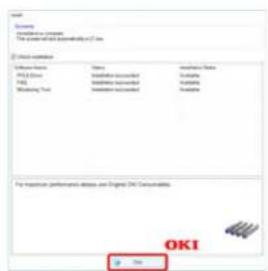
text_image
System System name: C:\Users\Control\Program Files\OS\Control\Windows\Control\OS\Control\OS\Control\OS\Control\OS\Control\OS\Control\OS\Control\OS\Control\OS\Control\OS\Control\OS\Control\OS\Control\OS\Control\OS\Control\OS\Control\OS\Control\OS\Control\OS\Control\OS\Control\OS\Control\OS\Control\OS\Control\OS\Control\OS\Control\OS\Control\OS\Control\Okl OKIThe [Firmware update] screen is displayed.
12
If you do not need to update, click [Next].
Click [Confirm] if you need to update or you are not sure if updating is required.
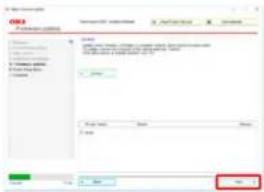
text_image
OK Form 10: 2000 OK Form 10: 2000 Form 10: 2000 OK Form 10: 2000 OK Form 10: 2000 OK Form 10: 2000 OK Form 10: 2000 OK Form 10: 2000 OK Form 10: 2000 OK Form 10: 2000 OK Form 10: 2015 OK Form 10: 2015 OK Form 10: 2015 OK Form 10: 2015 OK Form 10: 2015 OK Form 10: 2015 OK Form 10: 2015 OK Form 10: 2015 OK Form 10: -2015 OK Form 10: -2015 OK Form 10: -2015 OK Form 10: -2015 OK Form 10: -2015 OK Form 10: -2015 OK Form 10: -2015 OK Form 10: -2015 OK Form Form 10: -2015 OK Form 10: -2015 OK Form 10: -2015 OK Form 10: -2015 OK Form 10: -2015 OK Form 10: -2015 OK Form 10: -2015 OK Form 10: -2If the following screen is displayed, click [Yes].
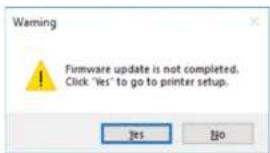
text_image
Warning ! Firmware update is not completed. Click "Yes" to go to printer setup. Yes NoWhen the updating process is complete, click [Go].
13
Click [Next].
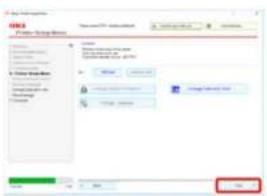
text_image
OK File Selection Notes OK File Selection Notes 1.0000000000000000000000000000000000000000000000000000000000000000000000000000000000000000 2. 1. 2. 3. 4. 5. 6. 7. 8. 9. 10. 11. 12. 13. 14. 15. 16. 17. 18. 19. 20. 21. 22. 23. 24. 25. 26. 27. 28. 29. 30. 31. 32. 33. 34. 35. 36. 37. 38. 39. 40. 41. 42. 43. 44. 45. 46. 47. 48. 49. 50. 51. 52. 53. 54. 55. 56. 57. 58. 59. 60. 61. 62. 63. 64. 65. 66. 67. 68. 69. 70. 71. 72. 73. 74. 75. 76. 77. 78. 79. 80. 81. 82. 83. 84. 85. 86. 87. 88. 89. 90. 91. 92. 93. 94. 95. 96. 97. 98. 99. 100.- Connecting to a Computer
If the following dialog is displayed, click [Yes].
14
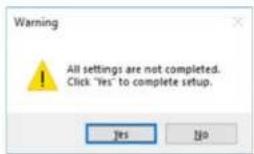
text_image
Warning All settings are not completed. Click "Yes" to complete setup. Yes No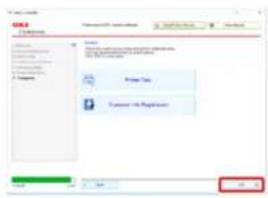
text_image
OK Cancel OK Cancel OK Cancel OK Cancel OK Cancel OK Cancel OK Cancel OK Cancel OK Cancel OK Cancel OK Cancel OK Cancel OK Cancel OK Cancel OK Cancel OK Cancel OK Cancel OK Cancel OK Cancel OK Cancel OK Cancel OK Cancel OK Cancel OK Cancel OK Cancel OK CancelFor Mac
This section describes how to install the PS printer driver.
1 Make sure that the machine and a computer are connected and the machine is turned on.
2 Insert the "Software DVD-ROM" into a computer.
3 Double-click the [OKI] icon on the desktop.
4 [Drivers] > [PS] > Double-click [Installer for OSX].
5 Enter the administrator password, and then click [OK].
Follow the on-screen instructions to complete the installation.
6 Select [System Preferences] from the Apple menu.
7 Click [Printers & Scanners].
8 Click [+].
Select [Add Printer or Scanner...] when the menu is displayed.
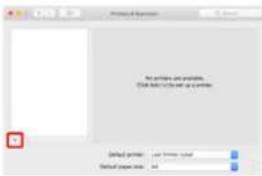
text_image
Printed & Document For all files are available... Click to access to the next page. Printed format: 1x100000000 Printed paper size: 5x100000009 Click [Default].
10 Select the machine, and then select [OKI C844 PS] in [Use].
| Types of Names Displayed in the Connection Methods List | ||
| Network OKI-C844 (last 6 digits of MAC address) | Bonjour | |
| USB OKI DATA CORP C844 USB | ||

• To change the name, enter a new name into [Name].
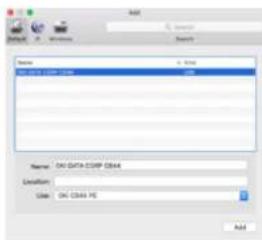
text_image
Add Name: CN DATA-COMP-0344 Location: Date: CN 0344 PE Add11 Click [Add].
12 If the confirmation screen for optional equipment appears, click [OK].
13 Make sure that the machine is added to [Printers] and [OKI C844 PS] is displayed for [Kind].
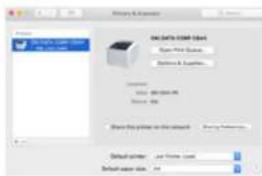
text_image
ODA DATA CMP Tool Open Print Status Options & Settings Show this print on the network Drawing Elements Virtual printer Last Print Date Default size: 10x
- If [OKI C844 PS] is not displayed for [Kind] correctly, click [-], delete the machine from [Printers], and then newly perform steps 8 to 12.
14 Click [Open Print Queue...].
15 Select [Print Test Page] from the [Printer] menu. When a test page is printed, installing the driver is complete.
Selecting a connecting method between different segments
The printer can use wired LAN and wireless LAN simultaneously, to connect a device out of the segment, enable the default gateway of the connection method first.
[Enabling Default Gateway] is [Wired] by factory default. When connecting between different segments using wired LAN, the following steps are not required. Change the settings only when connecting between different segments using wireless LAN.
1 Press the scroll button ▼ several times to select [Admin Setup] and press the «ENTER» button.
2 Enter the administrator password using the numeric (0-9) keys, and then press the «ENTER» button.
The factory default administrator password is "123456". If the administrator password is changed, enter the updated password.
3 Check that [Network Setup] is selected, and then press the «ENTER» button.
4 Check that [Enabling Default Gateway] is selected, and then press the «ENTER» button.
5 Press the scroll button ▼ to select [Wireless(Infrastructure)] and press the «ENTER» button.
4 Print
Supported Paper
Paper Loaded on the Tray
How to Print from the Tray
How to Print from the MP Tray
Paper Output
Canceling Printing
This chapter describes how to print documents from a computer.
Supported Paper
This chapter describes various information about paper that can be loaded in a paper tray of this machine.
• Supported Paper Types
For high-quality printing, be sure to use paper types that satisfy requirements such as those for material quality, weight, and surface finish. Please use digital photo print paper.
If not using recommended paper, please check the print quality and the movement of the paper sufficiently beforehand to make sure that there are no problems. Your printer supports the following types of paper.
| Paper Type Paper Size mm (inch) Paper Weight | |||
| Plain paper A3 297 x 420 A4/ Letter size or more: | 64 to 256 g/m ^2 Under A4/ Letter size:64 to 256 g/m ^2 For duplex printing:64 to 220 g/m ^2 (1)* If the paper size is set at A6, A5, or with a paper width narrower than 216 mm, the printing will be slower. | ||
| A4 210 x 297 | |||
| A5 148 x 210 | |||
| A6 105 x 148 | |||
| B4 257 x 364 | |||
| B5 182 x 257 | |||
| B6 128 x 182 | |||
| B6 Half 64 x 182 | |||
| B7 91 x 128 | |||
| B8 64 x 91 | |||
| Letter | 215.9 x 279.4 (8.5 x 11) | ||
| Legal 13" | 215.9 x 330.2 (8.5 x 13) | ||
| Legal 13.5" | 215.9 x 342.9 (8.5 x 13.5) | ||
| Legal 14" | 215.9 x 355.6 (8.5 x 14) | ||
| Executive | 184.2 x 266.7 (7.25 x 10.5) | ||
| Tabloid (11 x 17) | |||
| Statement | (5.5 x 8.5) | ||
| 8.5" SQ | (8.5 x 8.5) | ||
| Folio (210 x 330 mm) | 210 x 330 | ||
| 8K (260 x 368 mm) | 260 x 368 | ||
| 8K (270 x 390 mm) | 270 x 390 | ||
| 8K (273 x 394 mm) | 273 x 394 | ||
| 16K (184 x 260 mm) | 184 x 260 | ||
| 16K (195 x 270 mm) | 195 x 270 | ||
| 16K (197 x 273 mm) | 197 x 273 | ||
| Banner (210 x 900 mm) | 210 x 900 | ||
| Banner (215 x 900 mm) | 215 x 900 | ||
| Banner (215 x 1200mm) | 215 x 1200 | ||
| Banner (297 x 900 mm) | 297 x 900 | ||
| Banner (297 x 1200 mm) | 297 x 1200 | ||
| 4 x 6 inch | (4 x 6) | ||
| 5 x 7 inch | (5 x 7) | ||
| Custom Size | Width: 55 to 297Length: 90 to 1320.8 | ||
| Envelope | Com-10 | 104.8 x 241.3 (4.125 x 9.5) | Envelopes should be 85 g/m ^2 (24lb) paper, and flap parts of envelopes should be folded. |
| DL | 110 x 220 (4.33 x 8.66) | ||
| C5 | 162 x 229 (6.4 x 9) | ||
| C4 | 229 x 324 (9 x 12.76) | ||
| Paper Type | Paper Size mm (inch) | Paper Weight | |
| Index card | Index card | 76.2 x 127 (3 x 5) | |
| Label A4 210 x 297 0.1 to 0.2 mm | |||
| Letter | 215.9 x 279.4 (8.5 x 11) | ||
| Partly-printing paper Subject to plain paper*1 64 to 256 g/m | ^2 | ||
| Color paper | Subject to plain paper*2 64 to 256 g/m | ^2 | |
*1 Use paper that meets the following conditions:
- Paper that meets the conditions for plain paper.
- An ink used for a part printing is heat resistant (230°C).
!
- When specifying a printing area, please take into account the differences of printing position as followings:
Print start position: ±2 mm, Paper skew: ±1 mm/100 mm, Image stretch: ±1 mm/100 mm (when paper ream weight is 70 kg)
• This printer cannot print on an ink.
*2 Use paper that meets the following conditions:
- A pigment or an ink used to color paper is heat resistant (230°C).
- Paper that has same characteristics with light paper.
- Paper used for an electronic photo printer.
• Paper Recommendations
The machine supports a variety of print media, including a range of paper weights and sizes. This section describes how to choose and use media. To obtain the best performance, use 75 to 90 g/m ^2 plain paper that is designed for use in copiers and laser printers. Use of heavily embossed or very rough textured paper is not recommended. Pre-printed stationery can be used, but the ink must not offset when exposed to the high fuser temperatures used in the printing process.
- Envelopes
Envelopes must be free from twists, curls or other deformations. The envelopes must also be of the rectangular flap type, with glue that remains intact when subjected to hot roll pressure fusing in the machine. Window envelopes are not suitable.
- Labels
Labels must be of the type recommended for use in copiers and laser printers, in which the base carrier page is entirely covered by labels. Other types of label stocks may damage the machine due to the labels peeling off during the printing process.
- Paper storage
Store paper under the following conditions to maintain quality.
- Inside a cabinet or other dry and dark place
- On a flat surface
• Temperature: 20°C
• Humidity: 50% RH (relative humidity)
Do not store paper in the places as shown below:
- Directly on the floor
• Where paper is exposed to direct sunlight
• Near the inside of an exterior wall - On an uneven surface
• Where static electricity may be generated - Where temperature excessively rises high and temperature rapidly changes
- Near this machine, an air conditioner, a heater, or duct
!
- Do not unwrap paper until just before you use.
- Do not leave paper unwrapped for a long period. Doing so may result in printing problems.
- Depending on the print media, environment, storage conditions, the print quality may deteriorate or printout may get curled.
Paper Loaded on the Tray
Available paper sizes and types, and tray capacity are as follows.
- Tray 1
| Available paper size Tray capacity Paper weight | ||
| A3 | 300 sheets | Ultra Light |
| A4 | (if paper weight is 80 g/m2) | Light(64 to 82 g/m2) |
| A5 | ||
| A6 (lengthwise direction)*1 | Medium Light(83 to 90 g/m2) | |
| B4 | ||
| B5 | Medium(91 to 105 g/m2) | |
| B6 (lengthwise direction)*1 | ||
| Tabloid | Heavy(106 to 128 g/m2) | |
| Letter | ||
| Legal13 | Ultra Heavy1(129 to 188 g/m2) | |
| Legal13.5 | ||
| Legal14 | Ultra Heavy2(189 to 220 g/m2) | |
| Executive (lengthwise direction)Statement (lengthwise direction)*1 | ||
| 8.5" SQ | ||
| Folio | ||
| 8K (270 x 390 mm) | ||
| 8K (273 x 394 mm) | ||
| 8K (260 x 368 mm) | ||
| 16K (184 x 260 mm) | ||
| 16K (195 x 270 mm) | ||
| 16K (197 x 273 mm) | ||
| Custom size*2 | ||
*1 Paper cannot be used for duplex printing.
^2 Width: 105 to 297 mm (4.1 to 11.7 inches), Length: 148 to 431.8 mm (5.8 to 17 inches)
- Tray 2/3/4/5 (Optional)
| Available paper size Tray capacity Paper weight | ||
| A3 | 530 sheets(if paper weight is 80 g/m2) | Ultra LightLight(64 to 82 g/m2)Medium Light(83 to 90 g/m2)Medium(91 to 106 g/m2)Heavy(106 to 128 g/m2)Ultra Heavy1(129 to 176 g/m2) |
| A4 | ||
| A5 (lengthwise direction) | ||
| B4 | ||
| B5 | ||
| Tabloid | ||
| Letter | ||
| Legal13 | ||
| Legal13.5 | ||
| Legal14 | ||
| Executive (lengthwise direction) | ||
| 8.5" SQ | ||
| Folio | ||
| 8K (270 x 390 mm) | ||
| 8K (273 x 394 mm) | ||
| 8K (260 x 368 mm) | ||
| 16K (184 x 260 mm) | ||
| 16K (195 x 270 mm) | ||
| 16K (197 x 273 mm) | ||
| Custom size*2 | ||
*1 Width: 148 to 297 mm (5.8 to 11.7 inches), Length: 182 to 431.8 mm (7.2 to 17 inches)
• M P T r a y
| Available paper size Tray capacity Paper weight | ||
| A3 | 100 sheets | Ultra Light |
| A4 | (if paper weight is 80 g/m2) | Light |
| A5 | 10 sheets (envelopes) | (64 to 82 g/m2) |
| A6 (lengthwise direction)*1 | Medium Light | |
| B4 | (83 to 90 g/m2) | |
| D5 | Medium | |
| B6 | (91 to 105 g/m2) | |
| B6 Half (lengthwise direction)*1 | Heavy | |
| B7*1 | (106 to 128 g/m2) | |
| B8 (lengthwise direction)*1 | Ultra Heavy1 | |
| Tabloid | (129 to 188 g/m2) | |
| Letter | Ultra Heavy2 | |
| Legal13 | (189 to 220 g/m2) | |
| Legal13.5 | Ultra Heavy3 | |
| Legal14 | (221 to 256 g/m2) | |
| Executive Statement*1 | ||
| 8.5" SQ | ||
| Folio | ||
| 8K (270 x 390 mm) | ||
| 8K (273 x 394 mm) | ||
| 8K (260 x 368 mm) | ||
| 16K (184 x 260 mm) | ||
| 16K (195 x 270 mm) | ||
| 16K (197 x 273 mm) | ||
| Index Card*1 | ||
| 4x6 inch*1 | ||
| 5x7 inch*1 | ||
| Custom size *2 | ||
| Com-9 Envelope*1 | ||
| Com-10 Envelope*1 | ||
| Monarch Envelope*1 | ||
| DL Envelope*1 | ||
| C5 Envelope*1 | ||
*1 Paper cannot be used for duplex printing.
*2 Width: 55 to 297 mm (2.2 to 11.7 inches), Length: 90 to 1,321 mm (3.5 to 52 inches)
How to Print from the Tray
This section explains how to load paper in tray and print from tray.
Regarding media flexibility, please refer to "Supported Paper", "Paper Loaded on the Tray".
This procedure explains to load paper in tray 1. The same procedure is applied to tray 2/3/4/5 (optional).
1 Pull out the paper cassette (1).
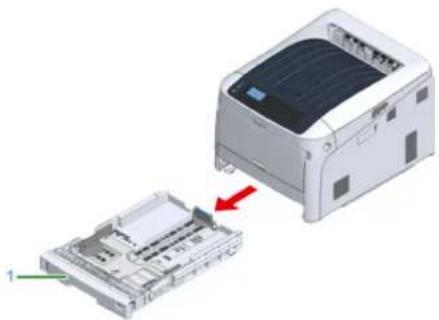
natural_image
3D diagram showing a printer with a paper holder and a printer emitting a fan (no text or symbols present)2 Set the paper size dial (2) to match the size of the paper to be loaded. Set the dial to [A4] when loading A4 size paper in horizontal orientation.
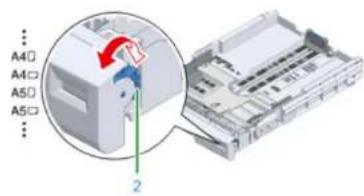
text_image
A4 A4 A5 A5 2
- If the size of paper cannot be found in items of the dial, set "Other".
!
- Make sure to match the size of paper and that on the paper size dial. Otherwise, paper size error occurs and printing cannot be done.
- For size of paper which can be loaded either horizontal or vertical such as A4, please be careful of the direction.
- The paper size, paper type, and paper thickness of the tray are sometimes displayed on the panel. You can change the setting to hide the screen. To hide this screen, select [Admin Setup] > [Panel Setup] > [Paper setup when paper exchange] and set it to [Off].
3 Pinch the blue parts of the paper guide (3) and paper stopper (4) and slide them according to the size of paper you set.
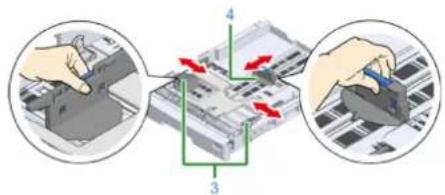
text_image
Diagram illustrating a mechanical assembly process with labeled components and directional arrows indicating movement or force.4 Fan a stack of paper well, and then align the edges of the paper.
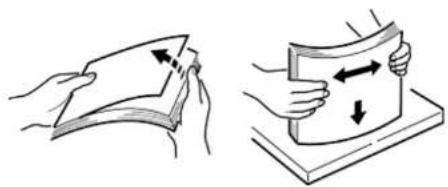
natural_image
Illustration showing two steps of folding a document: one being folded, the other holding a card with arrows indicating movement (no text or symbols present)5 Load paper with the print side face down.
①
- Do not load paper above the * * mark (5) on the paper guide.
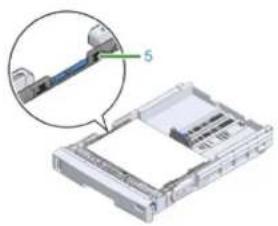
natural_image
3D diagram of a computer chassis with an inset showing a mechanical component (no text or symbols visible)6 Secure the loaded paper with the paper guide.
7 Check if a size of loaded paper matches the setting of paper size dial.
!
- If the size of paper and that on the paper size dial do not match, paper size error occurs and printing cannot be done.
8 Return the paper cassette to the printer.
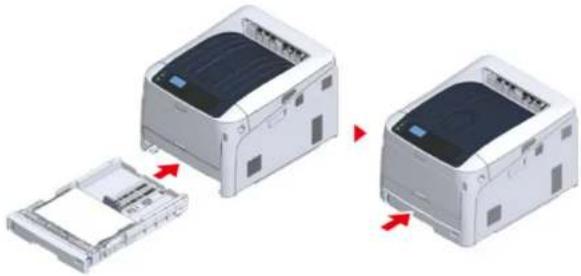
natural_image
Illustration of two industrial printing machines with arrows indicating process flow (no text or symbols)9 If using media that you cannot select the size with a paper size dial options, set the dial to [Other], and then set [Custom Size] on the operator panel and enter the width and length of paper.
See "Printing on Custom Size Paper (Advanced Manual)".
If the size of paper whose size can be found on the dial such as A3 and A4, set [Cassette Size]. The factory default is [Cassette Size] and you do not need to change usually.
Open a file you want to print, and print it in the following procedure
• For Windows PCL Printer Driver
1 Select [Print] from the [File] menu.
2 Click [Preferences] (or [property]).
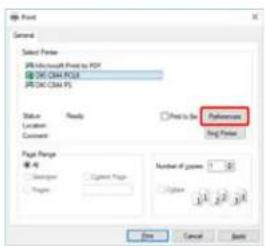
text_image
Print General Select Frame MS Microsoft Print to PDF MS DC-CHF-PS1 MS DC-CHF-PS Status Location Current Page Range Name: Document Page Pages Selected Page Number of pages 1 - 20 Global Find Cancel Save3 On the [Setup] tab, select a paper size from [Size].
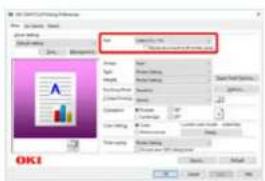
text_image
File Edit View Help Open Save As... Delete As... Save As... Save As... Save As... Save As... Save As... Save As... Save As... Save As... Save As... Save As... Save As... Save As... Save As... Save As... Save As... Save As... Save As... Save As... Save As... Save As... Save As... Save As... Save As... Save As... Save As... Save As... Save As... Save As... Save As... Save As... Save As... Save As... Save As... Save as... Save as... Save as... Save as... Save as... Save as... Save as... Save as... Save as... Save as... Save as... Save as... Save as... Save as... Save as... Save as... Save as... Save as... Save as... Save as... Save as... Save as... Save as... Save as... Save as... Save as... Save as... Save as... Save as... Save as... Save as... Save as... Save as... Save as...4 Select [Tray 1] from [Source].
5 Click [OK].
6 Click [Print] on the [Print] Screen.
• For Windows PS Printer Driver (C834/C844/ES8434)
1 Select [Print] from the [File] menu.
2 Click [Preferences] (or [property]).
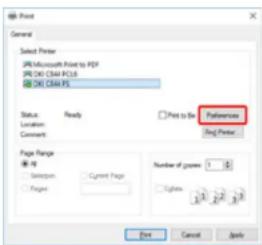
text_image
Print General Select Printer JPM Microsoft Print to PDF JPM JCM4 PC18 JCM4 PC18 Status Ready Location Context Page Range 0 Selection Current Page Pages Print to be Preference Ring Printer Number of groups 0 10 Cycles Print Cancel Apply3 Select the [Paper/Quality] tab.
4 Select [Tray 1] from [Paper Source]
5 Click [Advanced].
6 Click [Paper Size] and select a paper size from the drop-down list.
7 Click [OK].
8 Click [Print] on the [Print] Screen.
• Mac PS Printer Driver (C834/C844/ES8434)
1 From the [File] menu, select [Page Setup].
2 Select a paper size from [Paper Size] and then click [OK].
3 From the [File] menu, select [Print].
4 Select [Paper Feed] from the panel menu.
5 Select [All pages From] and then select [Tray 1].
6 Start printing.
1 From the [File] menu, select [Page Setup].
2 Select a paper size from [Paper Size] and then click [OK].
3 From the [File] menu, select [Print].
4 Select [Setup] from the panel menu.
5 Select [Tray 1] from [Paper Source].
6 Start printing.
• Mac PCL Printer Driver (C824 Only)
How to Print from the MP Tray
This section explains how to load paper in the MP Tray and print from the MP Tray.
Regarding media flexibility, please refer to "Supported Paper", "Paper Loaded on the Tray".
!
- Do not load paper of different sizes, types or weights at the same time.
- When adding paper, remove the paper on the MP tray and straighten the edges of both stacks of paper, and then load them again.
- Do not put anything other than paper for printing in the MP tray.
- Do not leave paper in the MP tray for a long time. Dust and dirt will adhere to the paper and cause print quality to deteriorate.
1 Open the MP tray (1) forward by inserting your fingers into the front recesses (2).
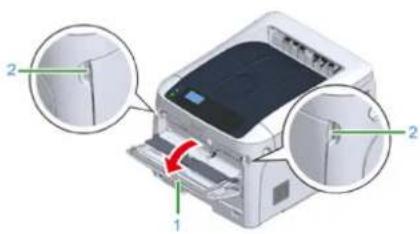
text_image
Diagram of a printer with labeled parts and directional arrows indicating movement or assembly2 Pull out the paper supporter (3) by holding the center part of it.
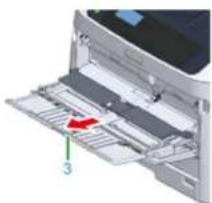
natural_image
Close-up of a mechanical device with a red arrow pointing to a component, no visible text or symbols3 Unfold the sub support (4).
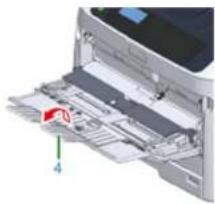
natural_image
Close-up of a printer drawer with a green arrow indicating a specific component (no text or symbols visible)4 Open the paper set cover (5).
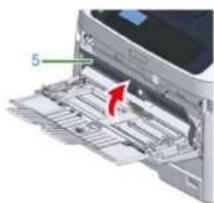
natural_image
Close-up of a printer's internal structure showing a green arrow pointing to a component, with no visible text or symbols.5 Adjust the manual feeding paper guide (6) to the width of paper to be loaded.
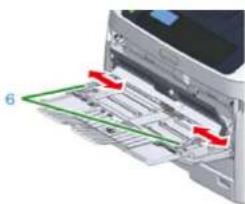
natural_image
Diagram of a printer's internal structure showing paper feeding into a slot (no text or symbols visible)6 Insert the paper with the print side face up.
①
- Do not load paper exceeding the [] Mark (7) of the paper guide.
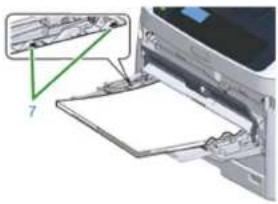
natural_image
Diagram of a printer's internal structure showing a clamping mechanism and a green arrow indicating a component (no text or symbols present)- Use paper stored in proper temperature and humidity conditions. Do not use paper that is curled or waved because of humidity.
- Do not print on the back side of paper on which other printer has printed.
- The paper size, paper type, and paper thickness of the MP tray are sometimes displayed on the panel. You can change the setting to hide the screen. To hide this screen, select [Admin Setup] > [Panel Setup] > [Paper setup when paper exchange] and set it to [Off].
7 Close the paper set cover (5).
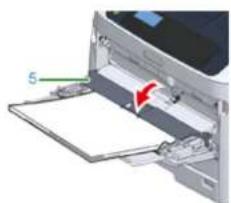
natural_image
Close-up of a printer's paper feeding into a plastic sheet, showing a green arrow and label '5' (no text or symbols on the diagram itself)!
- Paper is not fed if the paper set cover is open.
If always printing on same size or type paper from the MP tray, register the paper on the operator panel.
If printing once, proceed to the "Open the file to print, and print it by following the procedure below".
!
- When a printer is in the power saving mode, press «POWER SAVE» button to restore from the mode.
- Make sure that the message "Ready To Print" is displayed in the operator panel. If the message is not displayed, press the «ON LINE» button.
10 When [Paper Size] is displayed, select the size of the loaded paper and then press the «ENTER» button.
![OKI C824dn - When [Paper Size] is displayed, select the size of the loaded paper and then press the «ENTER» button. - 1](/content/2026/05/882561/images/2bee7afbb9e1c1445d0772a332974970a5b52916615791589bea7ab6d20d35d5.jpg)
text_image
Paper Size 1/13 A3 A4D *A4D* A5D Menu Back Enter ↓[NO TEXT]
- If [Custom] is selected for [Paper Size], you need to register the custom size. For how to register the custom size, refer to "Printing on Custom Size Paper (Advanced Manual)".
- When using envelopes, refer to "Printing on Envelopes (Advanced Manual)".
11 Press the «BACK» button until [MPTray Config] is displayed.
![OKI C824dn - [NO TEXT] - 1](/content/2026/05/882561/images/9739266bc7cb713646a00840e3f2243d92694af19fd7bc82a55460b1726f6910.jpg)
text_image
MPTray Config 1/1 Paper Size Media Type Media Weight Tray Usage Back Enter12 Press the scroll button ▼ to select [Media Type] and then press the «ENTER» button.
![OKI C824dn - [NO TEXT] - 2](/content/2026/05/882561/images/74952a116b73582bf6504b1a73aa543ddeb2723522ca974d6683c0e6483e8f72.jpg)
text_image
MPTray Config 1/1 Paper Size Media Type Media Weight Tray Usage Back Enter13 Press the scroll button ▼ to select the type of the loaded paper and then press the «ENTER» button.
![OKI C824dn - [NO TEXT] - 3](/content/2026/05/882561/images/e5c32f8326e5062e519502cb8a2247d377a412a676de16e526344aad0a076733.jpg)
text_image
Media Type 1/3 Plain Letterhead Transparency Labels Menu Back Enter14 Press the «BACK» button until [MPTray Config] is displayed.
![OKI C824dn - [NO TEXT] - 4](/content/2026/05/882561/images/355d90982e8313a3a1561fb2ed0b7b88cdd999a6119af73bf8bf591b7d0f67a7.jpg)
text_image
MPTray Config 1/1 Paper Size Media Type Media Weight Tray Usage Back15 Press the scroll button ▼ to select [Media Weight] and then press the «ENTER» button.
![OKI C824dn - [NO TEXT] - 5](/content/2026/05/882561/images/51bd1f33e0c8ac890f1e2386a97d3bb7a5178a9ce3201a906753b21109b8a75a.jpg)
text_image
MPTray Config 1/1 Paper Size Media Type Media Weight Tray Usage Menu BACK ENTER ↓16 Press the scroll button ▼ to select the weight of the loaded paper and then press the «ENTER» button.
![OKI C824dn - [NO TEXT] - 6](/content/2026/05/882561/images/b00077264d82c7dce31bdb189367ce6de1d4ec5cd736d7bc19fd11c2095cdf9e.jpg)
text_image
Media Weight 1/2 Ultra Light Light Medium Light Medium MENU BACK ENTER17 Press the «ON LINE» button to exit the menu mode.
![OKI C824dn - [NO TEXT] - 7](/content/2026/05/882561/images/083fc909b0a76fac95268c9e3da9e1dd4df908b7fabdd56f96d8f4a4a7e9445f.jpg)
text_image
ON LINE MENU BACK ENTER CANCEL HELP ? * Fn 0 CLEAROpen the file to print, and print it by following the procedure below
• For Windows PCL Printer Driver
1 Select [Print] from the [File] menu.
2 Click [Preferences] (or [property]).
![OKI C824dn - [NO TEXT] - 8](/content/2026/05/882561/images/bb5bbf0e2edf32bac2b38a53fb6d67eb49b495a818e7cd8ee78e77ad6496028a.jpg)
text_image
Print General Select Power 2M Microsoft Print to PDF 2M CM34 PC16 2M CM34 PC17 Status Ready □ Print to be Preferences Location Comment Page Range 名称 Description Cancel Page Pages Number of pages: 0 Casp Edit Cancel Help3 On the [Setup] tab, select a paper size from [Size].
4 Select [Multipurpose Tray] from [Source].
![OKI C824dn - [NO TEXT] - 9](/content/2026/05/882561/images/a858559e1333bc4185c67168002712dd1a11618f32d85cd6beb786cb6e20c7db.jpg)
- Printing one by one:
Click [Paper feed option] on the [Setup] tab, and check the [Use MP tray as manual feed].
![OKI C824dn - [NO TEXT] - 10](/content/2026/05/882561/images/c3bbbc3938ccfea7a5331d4ef12d88fe63b30932c34d29074e4551f17ae18549.jpg)
text_image
Paper feed options Cover Printing Use different sources for first page Paper feed options □ Auto Tray Change Media Check □ Multi-Furpose Tray □ Other Tays Multi-Furpose Tray Options □ Use MP Tray at (general feed) □ Using Image From Custom Type... OK Cancel Help- To print consecutively, uncheck [Use MP tray as manual feed]. This option is unchecked by default.
5 Click [OK].
6 Click [Print] on the [Print] Screen.
• For Windows PS Printer Driver (C834/C844/ES8434)
1 Select [Print] from the [File] menu.
2 Click [Preferences] (or [property]).
![OKI C824dn - [NO TEXT] - 11](/content/2026/05/882561/images/270ffa3e023a705aa2a03fca6bd34f1b1a2e953fb93826ab5e518855318142e9.jpg)
text_image
Print General Select Price PDF Microsoft Print to PDF PDF PDF CDF P233 PDF PDF P245 Status Location Context Page Range -0 Selected Pages Page1 Page2 Page3 Page4 Page5 Page6 Page7 Page8 Page9 Page10 Page11 Page12 Page13 Page14 Page15 Page16 Page17 Page18 Page19 Page20 Page21 Page22 Page23 Page24 Page25 Page26 Page27 Page28 Page29 Page30 Page31 Page32 Page33 Page34 Page35 Page36 Page37 Page38 Page39 Page40 Page41 Page42 Page43 Page44 Page45 Page46 Page47 Page48 Page49 Page50 Page51 Page52 Page53 Page54 Page55 Page56 Page57 Page58 Page59 Page60 Page61 Page62 Page63 Page64 Page65 Page66 Page67 Page68 Page69 Page70 Page71 Page72 Page73 Page74 Page75 Page76 Page77 Page78 Page79 Page80 Page81 Page82 Page83 Page84 Page85 Page86 Page87 Page88 Page89 Page90 Page91 Page92 Page93 Page94 Page95 Page96 Page97 Page98 Page99 Page1003 Select the [Paper/Quality] tab.
4 Select [Multi-Purpose Tray] from [Paper Source].
5 Click [Advanced].
6 Click [Paper Size] and select a paper size from the drop-down list.
![OKI C824dn - [NO TEXT] - 12](/content/2026/05/882561/images/5f7d556bcf22c1014438bdd2fc5018726fa3c73cb5d7af452ce4c8d34ecc3989.jpg)
- To print one by one, select [Printer Features] > [Multipurpose tray is handled as manual feed] and then select [Yes].
![OKI C824dn - [NO TEXT] - 13](/content/2026/05/882561/images/e479be706a916df29a139d9c7a48af8cd91fd13ac9826fe2a0e2b406359fbe13.jpg)
text_image
DO CMH PL Advanced Options DO CMH PL Advanced Document Settings Paper/Output Format 100 Quality Image Color Management CMH Method: CMH-Modified CMH Style: CMH-Modified Type-Type Font Substitute with Devel Font Document Options Advanced Printing Features (Unvisited) Pages per Sheet Layout: Right/Left/Right Balance Binding Pattern: Left/Right/Left PostScript Options Paste Features Page Numbers (Standard) Check paper in any other type (Up) Check paper in the multi-purpose type (Up) Add to a software dialog Multiurpose to be rendered as manual format Yes Help Print to add Show Mode: Home Setting OK Cancel- To print consecutively, select [No] for [Multipurpose tray is handled as manual feed]. This item is selected by default.
7 Click [OK].
8 Click [Print] on the [Print] Screen.
• Mac PS Printer Driver (C834/C844/ES8434)
1 From the [File] menu, select [Page Setup].
2 Select a paper size from [Paper Size] and then click [OK].
3 From the [File] menu, select [Print].
4 Select [Paper Feed] from the panel menu.
5 Select [All pages From] and then select [Multi-Purpose Tray].
6 Start printing.
• Mac PCL Printer Driver (C824 Only)
1 From the [File] menu, select [Page Setup].
2 Select a paper size from [Paper Size] and then click [OK].
3 From the [File] menu, select [Print].
4 Select [Setup] from the panel menu.
5 Select [Multi-Purpose Tray] from [Paper Source].
6 Start printing.
Paper Output
The machine outputs paper to the Output tray or Rear output tray.
Available paper for output trays.
| Output tray Supported paper type Capacity | ||
| Output tray • Plain paper | • Recycled paper | 250 sheets (80 g/m ^2 ) |
| Rear output tray • Plain paper | • Recycled paper• Envelope• 3x5inch, 4x6inch, 5x7inch• Label | • 100 sheets (80 g/m ^2 )• 10 sheets (thick paper and envelopes) |
!
- Do not open or close the Rear output tray during printing. Paper jams may result.
• Using the Output Tray
Paper is output with the printed side down and piled in chronological order. They are not available for envelopes, labels, or long paper.
[NO TEXT]
- Open the paper support so that outputs do not slip down from the output tray.
![OKI C824dn - [NO TEXT] - 1](/content/2026/05/882561/images/676b0e7fba6073788b03f3b66f35e276869b1e594b21db1c9d03ab581c5ceeff.jpg)
natural_image
Illustration of a printer with a red arrow pointing to the cover area (no text or symbols visible)!
- Check that the rear output tray (1) on the rear side of the machine is closed. While the rear output tray is open, paper is always output to the rear output tray.
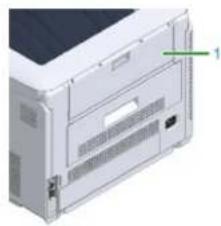
natural_image
3D rendering of a server rack with ventilation slots and a green indicator arrow (no text or symbols)• Using the Rear Output Tray
Use rear output tray when printing on envelopes, labels, or long paper. Paper is output with the printed side up and piled in reverse chronological order. Plain paper is also available for this output tray.

Open the rear output tray (1) on the rear side of the machine.
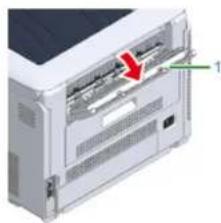
natural_image
3D diagram of a computer monitor with an open drive and a red arrow indicating a component (no text or symbols present)2 Unfold the paper support.
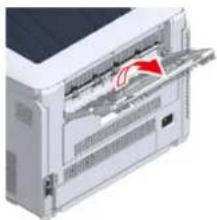
natural_image
Diagram of a computer monitor with an open drive and a red arrow indicating a motion or operation (no text or symbols present)3 Open the sub support.
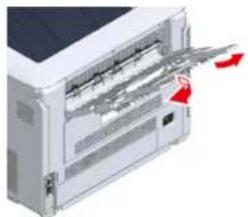
natural_image
Diagram of a server rack with ventilation slots and a red directional arrow indicating movement (no text or symbols present)Canceling Printing
To cancel data currently being printed or ready to print, press the «CANCEL» button on the operator panel.
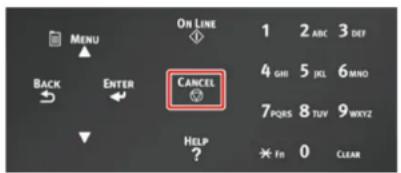
text_image
ON LINE 1 2 ABC 3 DEF BACK ENTER CANCEL 4 GHI 5 JKL 6 MNO 7 PQRS 8 TUV 9 MKYZ HELP ? * Fn 0 CLEARPress «CANCEL» button to display the screen below.
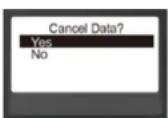
To cancel printing, select "Yes", then press the «ENTER» button.
To continue printing, select "No", and then press the «ENTER» button.
If no operation is made for three minutes, the screen disappears and printing resumes.
Cancelling Printing from a Computer
If you send a large amount of data from a computer by accident, you can cancel printing on the computer.
- For Windows
1 Open the "Printer folder".
2 Right-click the printer icon, and then select [See what's printing].
3 Select the file name you want to cancel printing.
4 Press the
5 Check the display on the operator panel of the machine.
When "Processing ..." or "Data present." is displayed, cancel printing on the operator panel of the machine.
- For Mac
1 Select [System Preferences] from the Apple menu.
2 Click [Printers & Scanners].
3 Click the printer icon.
4 Click [Open Print Queue...].
5 Select the file name you want to cancel printing.
6 Click ✗.
7 Check the display on the operator panel of the machine.
When "Processing ..." or "Data present." is displayed, cancel printing on the operator panel of the machine.
5
Energy Saving Function
About Energy Saving
Setting the Time Before Entering the Power Save Mode
Setting the Time Before Entering the Sleep Mode
Automatically Turning the Machine Off (Auto Power Off)
Setting the Time Before Entering the Auto Power Off Mode
This section describes the energy-saving function of the printer.
Two power save modes called Power Save Mode and Sleep Mode help you save energy consumption of the printer.
In addition, the printer has the auto-power off function which automatically turns off when the printer is left for a certain period of time.
About Energy Saving
This section describes each energy saving function.
This printer has three energy saving functions: Power Save Mode, Sleep Mode and Auto Power OFF Mode.
- Power Save Mode
If you do not use the printer for a certain period of time, the printer automatically enters the Power Save mode, saving power consumption.
Or press the «POWER SAVE» button to enter the Power Save Mode manually. When the printer is in the Power Save Mode, the «POWER SAVE» button lights in green.
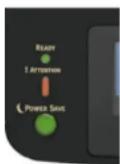
Q
- The time that elapses before entering the Power Save Mode is one minute by factory default. How to change the time that elapses before entering the Power Save Mode, see "Setting the Time Before Entering the Power Save Mode".
- Sleep Mode
The printer moves from the Power Save Mode to the Sleep Mode when the printer is left for the time set from the Power Save Mode status. In the Sleep Mode, the printer status and power consumption are almost the same as when the power is off.
When the printer is in the Sleep Mode, the «POWER SAVE» button blinks.
!
- If an error has occurred, the printer does not enter Sleep mode.
[NO TEXT]
- The time that elapses before entering the Sleep Mode is 15 minutes by factory default. How to change the time that elapses before entering the Sleep Mode, see "Setting the Time Before Entering the Sleep Mode".
- Energy Saving Function
- Restore from the Sleep Mode or the Power Save Mode
Press the «POWER SAVE» button to recover from Power Save Mode or Sleep Mode.

- The machine also recovers from Power Save mode, when some data is received from a computer or another device.
• Auto Power Off Mode
The machine equipped with the Auto Power Off function which automatically turns off the power if the machine is left unoperated for a certain period of time. To use the printer, turn the power on.

• The period of time before the printer automatically turns off is four hours.
• To change the period of time before the printer turns off, see * Setting the Time Before Entering the Auto Power Off Mode*.

- In the factory default, a printer does not enter the auto power off mode while connecting to the network. To enable the Auto Power Off Mode while connecting to the network, refer to the "Automatically Turning the Machine Off (Auto Power Off)".
Setting the Time Before Entering the Power Save Mode
!
- When a printer is in the power saving mode, press the «POWER SAVE» button to restore from the mode.
- Check if the message "Ready To Print" appears. If the message is not displayed, press the «ON LINE» button.
1 Press the «Fn» key on the operator panel.
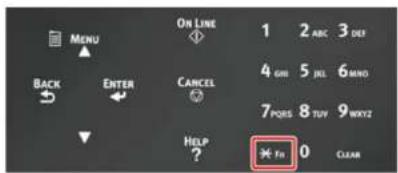
text_image
MENU ON LINE 1 2 ABC 3 DEF BACK ENTER CANCEL 4 GRI 5 JKL 6 MINO 7 PORS 8 TUY 9 RWZ HELP ? * Fm 0 CLEAN2 Enter «2» «0» «0» using the numeric keypad and then press the «ENTER» button.
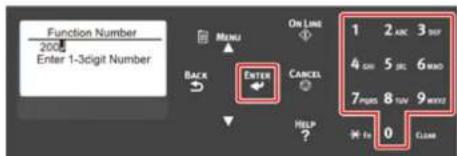
text_image
Function Number 2000 Enter 1-3digit Number MENU ON LINE 1 2 ABC 3 OUT 4 OR 5 OR 6 MIND 7 PPG 8 TUV 9 MXYZ HIF 0 Back ENTER CANCEL HELP ? Clam3 Press the scroll button ▲ to specify the time and then press the «ENTER» button.
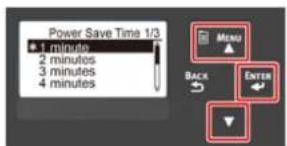
text_image
Power Save Time 1/3 + 1 minute 2 minutes 3 minutes 4 minutes- Energy Saving Function

• Available values are as follows. The factory default setting is 1 minute.
1 minute, 2 minutes, 3 minutes, 4 minutes, 5 minutes, 10 minutes, 15 minutes, 30 minutes, 60 minutes (For C824, [60 minutes] is not available.)
4
Press the «ON LINE» button.
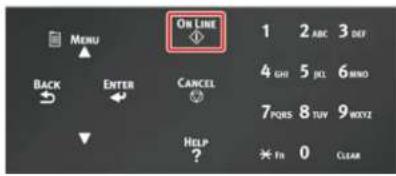
text_image
ON LINE 1 2 ABC 3 DEF 4 GH 5 JL 6 MINO 7 PQRS 8 TUV 9 MOVZ Help ? * Fn 0 CLEARSetting the Time Before Entering the Sleep Mode
!
- When a printer is in the power saving mode, press the «POWER SAVE» button to restore from the mode.
- Check if the message "Ready To Print" appears. If the message is not displayed, press the «ON LINE» button.
1 Press the «Fn» key on the operator panel.
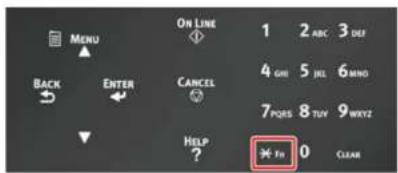
text_image
MENU ON LINE 1 2 ABC 3 DEF BACK ENTER CANCEL 4 GHI 5 JHL 6 MNO 7 PQRS 8 TUV 9 MRYZ HELP ? ✕ Fn 0 CLEAR2 Enter «2» «0» «1» using the numeric keypad and then press the «ENTER» button.
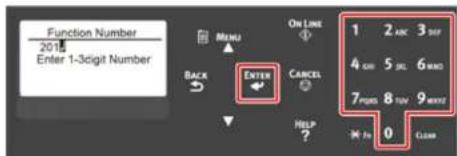
text_image
Function Number 2018 Enter 1-3digit Number MENU ON LINE 1 2 ABC 3 DEF 4 OR 5 SE 6 MIND 7 PMR 8 TAV 9 MAXV HIF 0 Back ENTER CANCEL HELP ? Clam3 Press the scroll button ▲r to specify the time and then press the «ENTER» button.
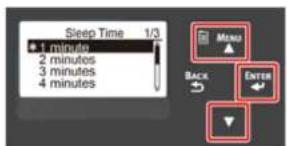
text_image
Sleep Time 1/3 + 1 minute 2 minutes 3 minutes 4 minutes Back Menu ENTER- Energy Saving Function

• Available values are as follows. The factory default setting is 15 minutes.
1 minute, 2 minutes, 3 minutes, 4 minutes, 5 minutes, 10 minutes, 15 minutes, 30 minutes, 60 minutes (For C824, [60 minutes] is not available.)
4
Press the «ON LINE» button.
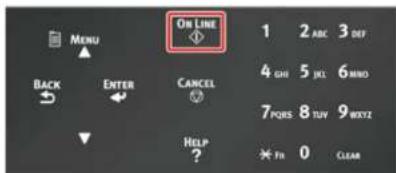
text_image
ON LINE MENU BACK ENTER CANCEL HELP ? * Fn 0 CLEARRestrictions in Sleep Mode
The machine does not enter Sleep mode in the following case.
- When an error occurs on the machine
- Access Control in the Access Control settings is enabled and Local IC Card or LDAP IC Card in the Authentication Method is enabled.
- When [Admin Setup] > [Panel Setup] > [Paper setup when paper exchange] is set to "On", and the printer is left with the paper confirmation message displayed.
Automatically Turning the Machine Off (Auto Power Off)
The machine is equipped with the Auto Power Off function which automatically turns the power off if the machine is left unoperated for a certain period of time.
There are three options for the Auto Power Off setting and [Auto Config] is set by factory default.
- [Auto Config]: The machine automatically turns off after being left unoperated for a certain period of time unless the machine is in the following conditions.
- A LAN cable is connected to the network interface connector.
- Wireless LAN is enabled.
- [Enable]: If you do not use the machine for a certain period of time, the machine automatically turns off.
- [Disable]: Disables the Auto Power Off function. The machine does not automatically turn off.
!
• The machine does not automatically turn off in the following case.
- In the factory default, the machine does not enter the auto power off mode while connecting to the network (wired/Wireless).
- When an error has occurred
Follow the steps below to change the Auto Power Off setting.
1 Press the scroll button ▼ several times to select [Admin Setup] and press the «ENTER» button.
2 Enter the administrator password using the numeric (0-9) keys, and then press the «ENTER» button.
The factory default administrator password is "123456". If the administrator password is changed, enter the updated password.
3 Press the scroll button ▼ several times to select [Power Setup] and press the «ENTER» button.
4 Press the ▼ button several times to select [Auto Power Off] and press the «ENTER» button.
5 Press the scroll button or button to select value you want to set and press the «ENTER» button.
6 Make sure that [*] is displayed on the left of the set time.
7 Press the «BACK» button to display the [Ready To Print] screen.
Setting the Time Before Entering the Auto Power Off Mode
[NO TEXT]
- When a printer is in the power saving mode, press the «POWER SAVE» button to restore from the mode.
- Check if the message "Ready To Print" appears. If the message is not displayed, press the «ON LINE» button.
1 Press the «Fn» key on the operator panel.
![OKI C824dn - [NO TEXT] - 1](/content/2026/05/882561/images/7e60678bf99162422bb4ac9a9eec51b3c0497ad303a5b56b41a8836ab7121ab7.jpg)
text_image
ON LINE 1 2 ABC 3 DEF 4 GHI 5 JKL 6 MNO 7 PQRS 8 TUV 9 MKYZ HELP ? * Fn 0 OK MENU BACK ENTER CANCEL ?2 Enter «2» «0» «2» using the numeric keypad and then press the «ENTER» button.
![OKI C824dn - [NO TEXT] - 2](/content/2026/05/882561/images/9ff97137ae8b32c55a714b335281e0c34239726140e88d8a08d3e3a032ea8718.jpg)
text_image
Function Number 2020 Enter 1-3digit Number MENU ON LINE 1 2 ABC 3 DEF 4 SEE 5 JBL 6 MBD 7 PORE 8 TOW 9 KWO HAPP ? 0 BACK ENTER CANCEL HELP ?3 Press the scroll button ▲r to▼specify the time and then press the «ENTER» button.
![OKI C824dn - [NO TEXT] - 3](/content/2026/05/882561/images/71ba74b90bf9e5be7fb67faab7a7ac26c0d169a0c5063816b5146e92ce07ac0d.jpg)
text_image
Auto Power Off T... 1/2 1 hour 2 hours 3 hours +4 hours MENU BACK ENTER ↓- Energy Saving Function
![OKI C824dn - [NO TEXT] - 4](/content/2026/05/882561/images/3db5de7f01d01d5be4fe67cd2e394888bf51fcabb19f76228570a10b68c2c688.jpg)
• Available values are as follows. The factory default setting is 4 hours. 1 hour, 2 hours, 3 hours, 4 hours, 8 hours, 12 hours, 18 hours, 24 hours
4 Press the «ON LINE» button.
![OKI C824dn - [NO TEXT] - 5](/content/2026/05/882561/images/634d891b3068aecbfdfee700d07c7d65c4770076534d19c4b2543dccc845ed55.jpg)
text_image
ON LINE 1 2 ABC 3 BEI 4 GHI 5 JLX 6 MINO 7 PQRS 8 TUV 9 RWZ HELP ? * Fn 0 CLEAR6
Troubleshooting
When an Error Message Appears on the Display Screen (When the ATTENTION Indicator Lights Up/Blinks) Error Messages
When Paper Jams Occur
Other Issues
This chapter provides solutions to the problems you may encounter while operating your machine.
Meanings of symbols in error messages are as follows.
• %COLOR% : Either of Cyan (C), Magenta (M), Yellow (Y) or Black (K).
• %TRAY% : Either of Tray1, Tray2, Tray3, Tray4, Tray5 or MP Tray.
• %COVER% : Either of front cover or top cover (output tray).
- %CODE% : A code number displayed in 1 to 3 digits. A code number changes according to an error.
• %MEDIA_SIZE% : Paper size.
• %MEDIA_TYPE% : Paper type.
• %NUM% : Number of all jammed areas.
When the message "Please see Help for details" appears on the display screen, you can check an error code and remedy error by pressing the «HELP» button on the operator panel.
When an Error Message Appears on the Display Screen (When the ATTENTION Indicator Lights Up/Blinks)
When a printer problem occurs, an error message appears on the display screen and the «ATTENTION» indicator on the operator panel lights up or blinks.
Check the error message and deal with the problem according to the relevant procedure.
When "Please see Help for details" appears on the display screen, press the «HELP» button to display a remedy. (If you press the «HELP» button when the message is not displayed, the display screen does not show a remedy.)
[NO TEXT]
- If a search keyword is displayed, open the app on your smartphone or visit the "Oki Data website" and enter the keyword under [ENTER FAQ KEYWORD OR PHRASE] in [FAQ] to search the solution.
- If a search keyword is displayed with the NFC function enabled, bring the NFC device to the NFC mark on the operator panel. The solution is displayed on the device. For details, refer to "Using from a Mobile Device (Advanced Manual)".
![OKI C824dn - [NO TEXT] - 1](/content/2026/05/882561/images/a03eaafc4503df8d837b28d09a69a97f9ba88962d897236c00479e0444aefa12.jpg)
text_image
1 2 3 Reset ✓ 1. Attention Power Start ON/OFF Back CANCE Cancel 7mm 8 mm 9 mm M in 0 NFC1 «ATTENTION» indicator
2 Message on the display screen
3 «HELP» button
- Troubleshooting
Display Screen when the «HELP» button is pressed
![OKI C824dn - [NO TEXT] - 2](/content/2026/05/882561/images/c0285c3b31403770fb18eb6721ee40327d053f3136cdb8845afa2b99ee876c51.jpg)
text_image
NFC Help Record Keyword Pason Free Clicks Only Used Item Only OK On Line 1 2=3 sec 4 min 5 min 6 sec 7 min 8 min 9 sec Help? Wt = 0 sec| 1 Error Code |
| 2 Measures method |
| 3 Scroll display upward |
| 4 Scroll display downward |
Error Messages
Please see the explanation of the message and handle the problem.
At "XXX", a different message is displayed depending on the printer status.
If [Please see HELP for details] is displayed on the bottom line of the display screen, press the «HELP» button to display the error code and solution.
| Message Error | code | Indicator | Cause/Solution |
| Detected an abnormality of internal database.The data must be deleted. After pressing [Enter], the data will be deleted, and then reboot. | - Database in the machine has been broken.Press «ENTER» button. | ||
| PU Flash Error - Goes off Turn off the machine, and then back on.If the same error occurs, contact your dealer. | |||
| Data Present -- Data remains unprinted. | To manually print, press «ON LINE» button.To delete the data without printing, press «CANCEL» button. | ||
| Changing Language Please wait | - Blinks Display language is being changed.Wait for a while. | ||
| Language Change Failed Error num: %CODE% | - Blinks Switching display languages failed.Press the power button to turn off the machine, and then back on. | ||
| XXX %COLOR% Toner Low. Search keyword: P10081 | - Lights up The toner indicated on the screen is low. Have a new toner cartridge ready.And replace the old image drums with new ones after a message for replacement of image drum appears. | ||
| XXX %COLOR% Waste Toner Full. Replace Toner. Search keyword: P40028 | - Lights up Waste toner is full. Replace with a new toner cartridge of the indicated color.The printer can be used for a while when the front cover is opened and closed. However, replace with a new toner cartridge quickly as the image drum might become damaged. | ||
| XXX %COLOR% Toner Sensor Error.%COLOR% Non Recommended Toner. Search keyword: P40947 | - Lights up An optimum toner cartridge is not installed.Use a toner cartridge that matches your machine.The print quality is not guaranteed. | ||
- Troubleshooting
| Message Error | code | Indicator | Cause/Solution |
| XXX Toner Sensor Error. Search keyword: P40959 | 540, 541, 542, 543 | Lights up | Something is wrong with the toner sensor of the indicated color or the image drum is not installed correctly. Install the toner cartridge or image drum of the indicated color correctly. If the error occurred in Yellow (Y) or Magenta (M), make sure that the blue knob on the belt unit is turned sideway. If the same error occurs, contact your dealer. 540: Yellow, 541: Magenta (red), 542: Cyan (blue), 543: Black |
| XXX Error Postscript | -- A postscript error has occurred. The job has been dismissed. | ||
| XXX PDL Error Occurred | -- PDL error has occurred. To erase the message, press «ENTER» button. | ||
| XXX %COLOR% Image Drum Near Life. Search keyword: P10076 | - Lights up | Prepare new image drums. And replace the old image drums with new ones after a message for replacement of image drum appears. | |
| XXX Fuser Unit Near Life. Search keyword: P10979 | - Lights up | Prepare a new fuser unit. And replace the old fuser unit with new ones after a message for replacement of fuser unit appears. | |
| XXX Belt Unit Near Life. Search keyword: P10978 | - Lights up | Prepare a new belt unit. And replace the old belt unit with new ones after a message for replacement of belt unit appears. | |
| XXX Non Recommended Fuser Unit Detected. Search keyword: P40439 | - Lights up | An optimum | fuser unit is not installed. Use a fuser unit that matches your machine. The print quality is not guaranteed. |
| XXX Change Fuser Unit. Search keyword: P40971 | - Lights up | The fuser unit reaches its lifetime. Replace the fuser unit with a new one. | |
| XXX Non Recommended Belt Unit Detected. Search keyword: P40444 | - Lights up | An optimum | belt unit is not installed. Use a belt unit that matches your machine. The print quality is not guaranteed. |
| XXX Change Belt Unit. Search keyword: P40970 | - Lights up | The belt unit reaches its lifetime. Replace the belt unit with a new one. | |
| XXX %COLOR% Toner Empty. Search keyword: P40028 | - Lights up | The toner indicated on the screen is empty. Replace the empty toner cartridge with a new one. | |
| XXX %COLOR% Toner Not Installed. Search keyword: P40902 | - Lights up | The toner cartridge of the indicated color is not installed correctly. Install the toner cartridge correctly. | |
- Troubleshooting
| Message Error | code | Indicator | Cause/Solution |
| XXX%COLOR% Non Recommended Image Drum Detected. Search keyword: P40485 | - Lights up | An optimum | image drum is not installed.Use a image drum that matches your machine.The print quality is not guaranteed. |
| XXX%COLOR% Image Drum Life. Search keyword: P40936 | - Lights up | The image drum | indicated on the screen reaches its lifetime.Replace the image drum with a new one. |
| XXX%COLOR% Image Drum Life, %PAGES% Pages Left. Search keyword: P40936 | - Lights up | The image drum | indicated on the screen reaches its lifetime.The number of pages you can print is displayed in "%PAGES%". |
| XXX%COLOR% Image Drum Life, Print Quality Not Guaranteed. Search keyword: P40936 | - Lights up | The image drum | indicated on the screen reaches its lifetime.Replace the image drum with a new one.The print quality is not guaranteed. |
| XXX%TRAY% Empty | - Lights up | No paper is loaded in the indicated tray.Load paper.Other trays are available. | |
| XXXFile System is Full | - Lights up | Memory in the file system is full.Delete unnecessary files. | |
| XXXFile System is Write Protected | - Lights up | The file you are trying to write is write-protected.Contact the printer administrator. | |
| XXXFile Erasing | - Lights up | Stored document files are being deleted.Wait for a while. | |
| Deleting data - Lights up This machine ran out of color toner. Color print data is being deleted.Wait for a while. | |||
| XXXDeleting data | - Lights up | Deleting data stored in private printing.Wait for a while. | |
| XXXErased Data Full | - Lights up | Files supposed to be deleted are full. Erase the files. | |
| XXXWait Timeout is Disabled | - Lights up | Wait Timeout is disabled. | |
| XXXJob Log Buffer Full(Delete old logs) | -- Old job logs were deleted, because job log buffer was full. | ||
| Message Error | code | Indicator | Cause/Solution |
| XXXNFC Unit Error. NFC function is not available.Press ONLINE Button | -- There is something wrong in the NFC unit.Functions related to the NFC are not available.Turn off the machine, and then back on.If the same error occurs, contact your dealer. To hide this message, select [Admin Setup] > [Others Setup] > [NFC Setup], and then select [Disable]. | ||
| XXXUSB Hub Unsupported Please detach it | -- A USB hub is connected. Remove the USB hub.This machine does not support USB hub. | ||
| XXXUnsupported USB DeviceDetactedPlease detach it | -- An unsupported USB device is connected.Remove the USB device. | ||
| XXXIncompatible USB device connectedPlease detach it | -- An unsupported USB device is connected.Remove the USB device. | ||
| XXXNo communication with the SNTP server. | -- Obtaining current time from the SNTP server failed.Check the server or network connection. | ||
| XXXGetting target IP failed.Please check DHCP settings. | -- The DHCP server cannot be detected.Check the network connection. | ||
| XXXCollate Fail:Too ManyPagesPress ONLINE Button | -- A collate print error has occurred.Reduce the data amount. If that does not work, reduce the size of the print data.To erase the message, press «ONLINE» button. | ||
| XXXFailed to read or write the usage management information of Print QuantityPress ONLINE Button | - Lights up The usage management information could not be read.Press «ONLINE» button. | ||
| XXXDuplex Print FailedPress ONLINE Button | - Lights up For the paper setting that a duplex printing is not possible, it was printed in simplex.Check the size and thickness of paper. | ||
| XXXColor Restricted. MonoPrintedPress ONLINE Button | - Lights up A color print job was converted to a mono print job due to an unauthorized user. Contact your administrator for color printing.To erase the message, press «ONLINE» button. | ||
| XXXColor Restricted. JobRejectedPress ONLINE Button | - Lights up A color print job was deleted due to an unauthorized user.Contact your administrator for color printing.To erase the message, press «ONLINE» button. | ||
- Troubleshooting
| Message Error | code | Indicator | Cause/Solution |
| XXXPrint Restricted. JobRejectedPress ONLINE Button | - Lights up | A print job | was deleted due to an unauthorized user. Contact your administrator for printing.To erase the message, press «ONLINE» button. |
| XXXLog Buffer is Full. JobRejectedPress ONLINE Button | - Lights up | Print data is | deleted because the accounting log buffer is full.Contact a printer administrator and remove the log buffer. |
| XXXExpired saved files have been deletedPress ONLINE Button | - Lights up | Private printing | files whose storage period expired were automatically deleted.To erase the message, press «ONLINE» button. |
| XXXE-mail receiving has been cancelledPress ONLINE Button | - Lights up | Indicates that | Email receiving has been canceled.It has the following possibilities.The format of email that has received is illegal or not supported.The attached file is illegal or not supported.The attached file that has received is too large.Network connection has disconnected. |
| XXXFile System Operation failedPress ONLINE Button | - Lights up | An error has | occurred in the file system.To erase the message, press «ONLINE» button. |
| XXXInvalid Print Data ReceivedPress ONLINE Button | -- Invalid data received. | If you performed private printing, the data was deleted because it was incomplete. Print again.To erase the message, press «ONLINE» button. | |
| XXXJob Log Database ErrorContact the device administratorPress ONLINE Button | -- A data base access error has occurred while writing or reading the job log.Turning off and on the machine may resolve the problem.To erase the message, press «ONLINE» button. | ||
| XXXIPv4 Address is conflictedChange IPv4 Address | -- The IP address assigned to this machine is duplicated with that of another device.Check the IP addresses, and then assign another IP address. | ||
| XXXError PDFPress ONLINE Button | -- The PDF file is damaged. | Check the file.To erase the message, press «ONLINE» button. | |
| XXXInvalid PasswordPress ONLINE Button | -- Notifies that the entered password does not match the password set to encrypted PDF.The file will not be printed unless the passwords match. | ||
| XXXPDF Cache Write ErrorPress ONLINE Button | -- Notifies that writing a PDF file to the cache has failed.To erase the message, press «ONLINE» button. | ||
| Message Error | code | Indicator | Cause/Solution |
| XXXDecode error occurredPress ONLINE Button | - - Indicates that an error | or has occurred during analysis of image data input from an external source.This appears when an error has occurred during analysis of TIFF or JPEG data in USBMemoryPrint, DirectPrint, E-mailPrint mode.To erase the message, press «ONLINE» button. | |
| XXXCan not read the filePress ONLINE Button | - - The USB Memory was removed while printing from USBMemory. Do not remove USB Memory while printing is in progress.To erase the message, press «ONLINE» button. | ||
| XXXColor toner empty. Job cancelledPress ONLINE Button | - - The print data was cancelled because color toner is empty.To erase the message, press «ONLINE» button. | ||
| XXXJob Type restrictedJob rejectedPress ONLINE Button | - - A job of a JobLimitation setting violation is received, and when discarding the job, it's indicated.To print this job, contact the printer administrator. | ||
| Install PaperMPTray%MEDIA_SIZE%Press ONLINE Button | - Goes off Manual Printing from the MP tray is specified.Load the paper of the size indicated in the MP tray, and then press the «ONLINE» button. | ||
| Change Paper in %TRAY%%MEDIA_SIZE%%MEDIA_TYPE%Press ONLINE ButtonPlease see HELP for details | 661, 662, 663, 664, 665 | Blinks Paper loaded on the indicated tray does not match selected paper size. Check the paper settings on the application and on the tray, and match the settings.661: Tray 1, 662: Tray 2, 663: Tray 3, 664: Tray 4, 665: Tray 5 | |
| Change Paper in MPTray%MEDIA_SIZE%%MEDIA_TYPE%Press ONLINE ButtonPlease see HELP for details | 660 Blinks Paper loaded on the MP tray does not match selected paper size. Check the paper settings on the application and on the MP tray, and match the settings. | ||
| Change Paper in %TRAY%%MEDIA_SIZE%%MEDIA_TYPE%Press ONLINE ButtonPlease see HELP for details | 461, 462, 463, 464, 465 | Blinks Paper loaded on the indicated tray does not match selected paper size. Check the paper settings on the application and on the tray, and match the settings.For paper which can be set both horizontally and vertically, check the direction of paper.461: Tray 1, 462: Tray 2, 463: Tray 3, 464: Tray 4, 465: Tray 5 | |
| Install PaperMPTray%MEDIA_SIZE%Press ONLINE ButtonPlease see HELP for details | 460 Blinks Paper loaded on the MP tray does not match selected paper size. Check the paper settings on the application and on the MP tray, and match the settings.For paper which can be set both horizontally and vertically, check the direction of paper. | ||
- Troubleshooting
| Message Error | code | Indicator | Cause/Solution |
| Summary Account balance is 0.%USERNAME%%ACCOUNTNAME%Increase the balance and press [Enter]Press [Cancel] to cancel. | - Blinks The number of | print jobs excesses the limit.No more print jobs are authorized.Contact the printer administrator. | |
| Remove PaperOutput TrayPlease see HELP for details | 480 Blinks Paper in the output tray is full.Remove the handout. | ||
| Press ONLINE Button for RestorationMemory OverflowPlease see HELP for details | 420 Blinks Data is too complicated.Memory full error has occurred during processing.Reduce the volume of the print data.If the same error is displayed again, contact your dealer. | ||
| Insufficient memory.If using multiple functions, finish the function being used before attempting another.If the problem does not improve, reduce the resolution.Press ONLINE Button | - Blinks Memory is full.Print after the ongoing operation is over.If the error persists, lower the image quality on the printer driver. | ||
| Wireless startup failedPress ONLINE ButtonPlease see HELP for details | 517 - Turn off the machine, check that the wireless LAN module is correctly installed, and then reboot the machine. If the error persists, contact your dealer. | ||
| This wireless firmware version does not operate on this devicePress ONLINE ButtonPlease see HELP for details | 504 - The version of the firmware does not match this machine.Contact your dealer. | ||
| Wireless settings are incompletePress ONLINE ButtonPlease see HELP for details | 505 - Wrong values are set or items remain unset in the wireless LAN settings.Check the wireless settings.If the error persists, initialize the network settings, and set up the wireless LAN settings again. | ||
| Not connected to wireless access pointPress ONLINE ButtonPlease see HELP for details | 506 - No wireless LAN access points are found.Make sure that the access point is turned on.Disconnect and re-connect to wireless LAN. | ||
| Wait a MomentMessage Data Processing | -- Updating messages displayed on the operator panel.Please wait. | ||
| Wait a MomentMessage Data Writing | -- Updating messages displayed on the operator panel.Please wait. | ||
| Message Error | code | Indicator | Cause/Solution |
| Power Off/OnMessage Data Received OK | -- Updating messages | displayed on the operator panel is completed.Turn the power of the printer off and on again. | |
| Check DataMessage Data WriteError<%CODE%> | -- Writing of message data to be uploaded to a printer has been failed.Check if the message data to be updated matches the printer. | ||
| Press ONLINE Button for RestorationReceiving Data TimeoutPlease see HELP for details | 519 Blinks | When receiving data by Port9100, LPR, FTP, IPP, WSD, or Email, a timeout occurred in stream. | |
| Firmware Update ErrorPlease try againIf network doesn't work,please try firmware update over USB | -- Updating the firmware failed.Update again. | ||
| Install Paper%TRAY%%MEDIA_SIZE%Please see HELP for details | 491, 492, 493, 494, 495 | Blinks No paper is loaded in the indicated tray. Load paper of the displayed size.491: Tray 1, 492: Tray 2, 493: Tray 3, 494: Tray 4, 495: Tray 5 | |
| Install PaperMPTray%MEDIA_SIZE%Please see HELP for details | 490 Blinks | MP tray is empty.Set paper.If paper is set, paper set cover is not set. Lower the paper set cover. | |
| Install Paper Cassette%TRAY%Please see HELP for details | 430, 431, 432, 433, 434, 440, 441, 442, 443 | Blinks A paper cassette is not in the indicated tray.Insert the paper cassette into the indicated tray.If the cassette is already inserted in the printer, pull out the cassette and set it again to correctly locate it.430, 440: Tray 1431, 441: Tray 2432, 442: Tray 3433, 443: Tray 4434: Tray 5 | |
| Replace Toner%COLOR% Waste TonerFullPlease see HELP for details | 415, 416 B | Blinks Waste toner of the toner cartridge is full. Opening and closing the front cover can resume printing for a while, but it may damage the image drum. Replace the toner cartridge with a new one as soon as possible.415: Magenta (red), 416: Cyan (blue) | |
| Install Toner%COLOR%Please see HELP for details | 410, 411, 412, 413 | Blinks The indicated cartridge ran out of toner.Opening and closing the front cover can resume printing for a while, but it may damage the image drum. Replace the toner cartridge with a new one as soon as possible.410: Yellow, 411: Magenta (red), 412: Cyan (blue), 413: Black | |
- Troubleshooting
| Message Error | code | Indicator | Cause/Solution |
| Non Recommended Toner %COLOR% Please see HELP for details | 549, 550, 551, 552, 553, 554, 555, 556, 557, 614, 615, 616, 617, 620, 621, 622, 623 | Blinks The | Indicated toner cartridge is not optimum.We recommend using an optimum toner cartridge.550, 554, 614, 620: Yellow551, 555, 615, 621: Magenta (red)552, 556, 616, 622: Cyan (blue)549, 553, 557, 617, 623: Black |
| Toner Not Installed %COLOR% Please see HELP for details | 610, 611, 612, 613 | Blinks The | supplied starter toner cartridges are installed in the consumable image drums.Install the consumable toner cartridges in the consumable image drums.610: Yellow, 611: Magenta (red), 612: Cyan (blue), 613: Black |
| Non Recommended Image Drum %COLOR% Please see HELP for details | 684, 685, 686, 687, 690, 691, 692, 693, 700, 701, 702, 703, 704, 705, 706, 707 | Blinks The | Indicated image drum is not optimum.We recommend using an optimum Image Drum.684, 690, 700, 704: Yellow685, 691, 701, 705: Magenta (red)686, 692, 702, 706: Cyan (blue)687, 693, 703, 707: Black |
| Image Drum Not Installed %COLOR% Please see HELP for details | 694, 695, 696, 697 | Blinks The | Indicated image drum is not installed.Install the image drum.694: Yellow, 695: Magenta (red), 696: Cyan (blue), 697: Black |
| Caution: Non-Genuine Consumable detected Check user's manual "Trouble Shooting" to restore machine operation | 709 Blinks | This error means that a non-OKI Original consumable has been installed in the machine.The warranty is applicable when the product is used with its designated OKI Original consumables. Use caution when choosing other consumables. The entire risk as to the quality and performance of the product due to the use of non-OKI Original consumables is with you. Should the product prove defective due to non-OKI Original consumables, you assume the cost of all necessary servicing, repair or correction, as our warranty may not cover these defects.To accept these risks and to restore function:1) Turn off your printer.2) Turn the machine on. Press the «CANCEL» button when [PLEASE WAIT] is displayed.3) Release the «CANCEL» button when [Ready To Print] is displayed.Note: This operation will be recorded for future reference. | |
| Message Error | code | Indicator | Cause/Solution |
| Paper jam occurredPaper remained in %NUM% place(s)Remove the paperPress Help for details | 632, 633, 634, 635 | Blinks A paper | paper jam has occurred and paper remains in the paper input area.Remove the jammed paper.632: Tray2, 633: Tray3, 634: Tray4, 635: Tray5 |
| 637 Blinks | Paper has jammed around the front cover. Open the front cover and remove the jammed paper. | ||
| 638 Blinks | Paper has jammed under the image drum.Remove the jammed paper. | ||
| 639, 640 Blinks A paper | Jam has occurred and paper remains near the fuser unit.Remove the jammed paper.639, 640: Fuser unit | ||
| 641, 642 Blinks A paper | Jam has occurred and paper remains near the duplex unit.Remove the jammed paper.641: Duplex unit, Backside of the duplex unit642: Duplex unit, Middle part of the duplex unit | ||
| Toner Sensor Error%COLOR%Please see HELP for details | 540, 541, 542, 543 | Blinks The toner cartridge of the indicated color is not locked properly.Check to make sure the blue lever (toner cartridge lock lever) of the toner cartridge is turned until it lines up with the ▶ the far end.If the error occurred in Cyan and the toner cartridge lock lever is turned until it is lined up with the ▶ the far end, check if the 2 blue knobs on the belt unit are properly locked.540: Yellow, 541: Magenta (red), 542: Cyan (blue), 543: Black | |
| Check PaperPaper Multi Feed%TRAY%Please see HELP for details | 401 Blinks | The indicated tray fed multiple sheets of paper at a time.Remove the cassette from the tray, and then load paper again. After loading, open and close the front cover to release the error. | |
| Check PaperPaper Size Error%TRAY%Please see HELP for details | 400 Blinks | Paper size error has occurred in the indicated tray. Make sure that the size made by paper loaded in the tray matches the setting made by the paper size dial in the paper cassette. Load paper according to the paper size and direction set for the paper size dial.If the setting made by the paper size dial is wrong, cancel printing first, set the paper size dial, and then print again.Make sure that the cassette does not feed multiple sheets of paper at a time after starting printing. If it happens, remove paper, and then load paper correctly.Open and close the front cover to release the error. | |
- Troubleshooting
| Message Error | code | Indicator | Cause/Solution |
| Paper jam occurredPaper remained in %NUM% place(s)Remove the paperPress Help for details | 390 Blinks | A paper jam | has occurred in the paper feed path from the MP tray.Remove the jammed paper. |
| 391. 392, 393, 394, 395 | Blinks A paper | paper jam has occurred in the paper feed path from the indicated tray.Remove the jammed paper.If paper is not jammed, feeding paper may fail.Reduce the number of sheets of paper loaded on the paper cassette. Make sure that the paper stoppers are set in the right position.391: Tray 1, 392: Tray 2, 393: Tray 3, 394: Tray 4, 395: Tray 5 | |
| 380 Blinks | A paper jam | has occurred around the front cover.Open the front cover and remove the jammed paper.If jammed paper is invisible, close the front cover. If the error persists, paper jams may occur in the duplex unit. | |
| 381 Blinks | Paper has jam | ammed under the image drum.Remove the jammed paper. | |
| 382. 383, 385 | Blinks A paper | paper jam has occurred around the fuser unit.Remove the jammed paper.382: The back of the machine, around the output bin383: The back of the machine, around the duplex unit385: Inside of the machine, around the fuser unit | |
| 370, 371, 373 | Blinks A paper | paper jam has occurred around the duplex unit.Pull out the duplex unit and remove the jammed paper.For the Error code 373, make sure that paper does not remain inside the printer after pulling out the duplex unit. | |
| 372 Blinks | A paper jam | has occurred in the paper feeding path from the duplex unit.Open the front cover and remove the jammed paper.If paper is invisible, pull out the duplex unit from the back side of the machine and check if paper jams inside of the duplex unit or machine. | |
| Install Duplex UnitPlease see HELP for details | 360 Blinks | The duplex | unit is not properly installed. Install the duplex unit. |
| Install New Image DrumImage Drum Life%COLOR%Please see HELP for details | 350. 351, 352. 353 | Blinks The | image drum indicated on the screen reaches its lifetime.Replace the image drum with a new one.Opening and closing the front cover can resume printing for a while. Replace with a new one as soon as possible, however.350: Yellow, 351: Magenta (red), 352: Cyan (blue), 353: Black |
| Install New Image DrumImage Drum Life%COLOR%Please see HELP for details | 560, 561, 562, 563 | Blinks The | image drum indicated on the screen reaches its lifetime.Replace the image drum with a new one.560: Yellow, 561: Magenta (red), 562: Cyan (blue), 563: Black |
| Message Error | code | Indicator | Cause/Solution |
| Install New Image DrumImage Drum Life%COLOR%To Exceed the Life. Press Online ButtonPlease see HELP for details | 564, 565, 568, 567 | Blinks The | Image drum indicated on the screen reaches its lifetime.Replace the image drum with a new one.Pressing «ONLINE» button can resume printing for a while.Replace with a new one as soon as possible for maintaining the print quality.564: Yellow, 565: Magenta (red), 566: Cyan (blue), 567: Black |
| Install New Image DrumPrinting disabled due to low threshold of Image Drum life.%COLOR%Please see HELP for details | 680, 681, 682, 683 | Blinks Printing | has stopped because the image drum indicated on the screen reached its lifetime. Replace with a new image drum to print.680: Yellow, 681: Magenta (red), 682: Cyan (blue), 683: Black |
| Install New Fuser UnitFuser Unit LifePlease see HELP for details | 354 Blinks | The fuser unit | reaches its lifetime.Replace the fuser unit with a new one.Opening and closing the front cover can resume printing for a while. Replace with a new one as soon as possible for maintaining the print quality. |
| Install New Belt UnitBelt Unit LifePlease see HELP for details | 355 Blinks | The belt unit | reaches its lifetime.Replace the belt unit with a new one.Opening and closing the cover can resume printing for a while.Replace with a new one as soon as possible for maintaining the print quality. |
| Check Fuser UnitPlease see HELP for details | 348 Blinks | The fuser unit | is not properly installed. Remove and re-install the fuser unit. If the error persists after re-installing, replace the fuser unit with a new one. |
| Install New Belt UnitBelt Unit LifePlease see HELP for details | 356 Blinks | Waste toner | of the belt unit is full. Replace the belt unit with a new one. Opening and closing the front cover can resume printing. Printing stops after 500 sheets are printed. |
| Check Toner CartridgeImproper Lock LeverPosition%COLOR%Please see HELP for details | 544, 545, 546, 547 | Blinks A color | toner cartridge indicated on the screen is not installed.Make sure to turn the toner cartridge lock lever (blue) on the right side of the cartridge until it lines up with the in the far end. If the lever is in the correct position, check that the white protective tape has been removed.544: Yellow, 545: Magenta (red), 546: Cyan (blue), 547: Black |
| Check Image Drum%COLOR%Please see HELP for details | 340, 341, 342, 343 | Blinks The | indicated image drum is not installed correctly.Remove and re-install the image drum.340: Yellow, 341: Magenta (red), 342: Cyan (blue), 343: Black |
| Check Fuser UnitPlease see HELP for details | 320 Blinks | The fuser unit | is not properly installed. Remove and re-install the fuser unit. |
| Non Recommended Fuser UnitPlease see HELP for details | 698-01, 698-02, 698-03, 698-04, 698-06 | Blinks Check | ck the model number of the fuser unit mentioned in the User's manual. Use a fuser unit that matches your machine. |
- Troubleshooting
| Message Error | code | Indicator | Cause/Solution |
| Fuser Unit Not Installed Please see HELP for details | 699 Blinks | The fuser unit | it is not properly installed. Remove and reinstall the fuser unit. |
| Check Belt Unit Please see HELP for details | 330 Blinks | The belt unit | is not properly installed. Remove and re-install the belt unit. |
| Non Recommended Belt Unit Please see HELP for details | 688-01, 688-02, 688-03, 688-04 | Blinks Check | the model number of the belt unit mentioned in the User's manual. Use a belt unit that matches your machine. |
| Belt Unit Not Installed Please see HELP for details | 689 Blinks | The belt unit | is not properly installed. Remove and reinstall the belt unit. |
| %COVER% Open. Please see HELP for details | 310, 311 Blinks | Indicated cover is open. Close the cover. 310: Output tray (Top cover), 311: Front cover | |
| Wait a Moment Rebooting < | -Lights up | Rebooting the printer. Wait for a while. | |
| Power Off and Wait for a while 126:Condensing Error | Fatal 126 Blinks A condensation has occurred inside a printer. Turn the printer off and turn on again after a while. | ||
| Message Error | code | Indicator | Cause/Solution |
| Power Off/Onmm:Error | 131, 132, 133, 134 | Blinks The | LED head cannot be detected.131: Yellow (Y)132: Magenta (M)133: Cyan (C)134: Black (K) |
| 136-02, 136-03, 136-04, 980 | Blinks An error has occurred in or around the fuser unit.Turn off the printer and turn on again after a while.If the error persists after rebooting, contact your dealer and tell them the number in the error message and how the machine works. | ||
| 166-03 Blinks The inside of the printer is hot. Remove any objects blocking the ventilation holes on the printer, and restart the printer. If the same error is displayed again, contact your dealer. | |||
| 166-04 Blinks The inside of the printer is at a low temperature. Raise the room temperature, then restart the printer. If the same error is displayed again, contact your dealer. | |||
| 181 Blinks This is a duplex unit error. Turn the power off, and re-install the duplex unit. If the same error is displayed again, contact your dealer. | |||
| 231-05, 231-06, 231-07, 231-08, 231-23 | Blinks Reading the consumables information failed.If the following number is displayed, replace the corresponding consumable.231-05 to 231-08: Toner cartridge / Image drum231-23: Fuser unit/ Belt unitTurn off the printer and turn on again after a while.If the error persists after rebooting, contact your dealer and tell them the number in the error message and how the machine works. | ||
| 260, 261, 262, 263, 264, 265, 266, 267, 268, 269, 270, 271, 272, 273, 274 | Blinks An error has occurred in or around the fuser unit.Check that size and thickness of paper in the tray is correctly.Turn off the printer and turn on again after a while.If the error persists after rebooting, contact your dealer and tell them the number in the error message and how the machine works. | ||
| 904 Blinks The belt unit is at a low temperature. Raise the room temperature, then restart the printer. If the same error is displayed again, contact your dealer. | |||
| nnn^ Blinks An error occurred inside the printer.Turn off the machine, and then back on.If the same error occurs, contact your dealer.*** is a 3-digit error code. The number that is displayed changes according to the error content. | |||
| Power Off/Onnnn:Fatal ErrorPC:nnnnnnnnnLR:nnnnnnnnnFR:nnnnnnnnn | Fatal,002-011,F0C, F0D,FFE, FFF | Blinks A fatal error occurred on the printer.Contact your dealer and tell them the number in the error message and how the machine works.The error code is displayed within the range 0x001 to 0xff. | |
- Troubleshooting
When Paper Jams Occur
This section describes how to handle when a paper jam occurs.
Check the error code on the operator panel and see the corresponding section.
- Error Code "370", "371", "373"
- Error Code "372"
- Error Code "380", "401", "637"
- Error Code "381", "638"
- Error Code "382", "383", "385", "639", "640"
- Error Code "390", "637"
-
Error Code "391", "392", "393", "394", "632", "633", "634"
-
Troubleshooting
Error Code "370", "371", "373"
A paper jam has occurred around the duplex unit.
1 Take out the duplex unit (1) by pulling it upward while holding the center recess on the back of the machine.
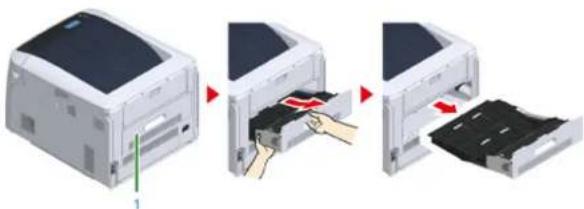
natural_image
Three-step illustration of a printer's internal structure showing the open and closed states (no text or symbols)2 Check for jammed paper inside the machine. If jammed paper remains, remove it.
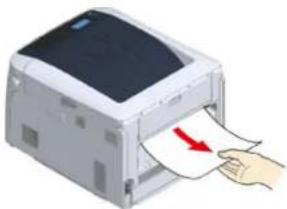
natural_image
Illustration of a hand inserting a paper into a printer (no text or symbols visible)
- If paper is invisible, check the innermost part of the printer.
- If the paper removed from the printer is shredded or torn, remove all paper fragments from inside the unit so that none are left inside.
3 Check for jammed paper in the duplex unit. If jammed paper remains, pull it out gently. Check the back side of the duplex unit and remove jammed paper gently if it remains.
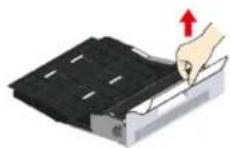
4 Open the upper duplex unit cover (2) and check for jammed paper. If jammed paper remains, pull it out gently and close the cover.

natural_image
Four-step diagram showing a mechanical component being cut, with arrows indicating motion direction (no text or symbols)5 Replace the duplex unit (1) into the machine.
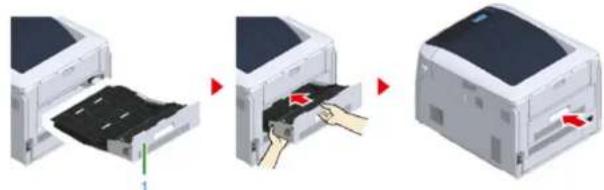
natural_image
Three-step illustration showing a printer being inserted into a drive, with no visible text or symbols.Task is complete.
Error Code "372"
A paper jam has occurred around the front cover.
1 Insert your finger into the recess on the right side of the machine and pull the front cover open lever (1) to open the front cover (2) forward.
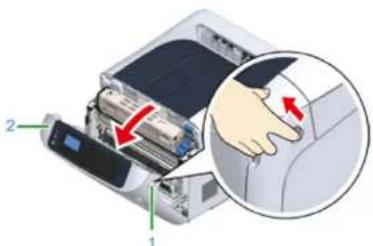
text_image
Diagram of a printer's internal structure with labeled parts and a magnified view showing hand placement on the side panel.2 Remove the jammed paper gently in the direction of the arrow if an edge of jammed paper can be seen, and then go to step 8. If you cannot find jammed paper, go to step 3.
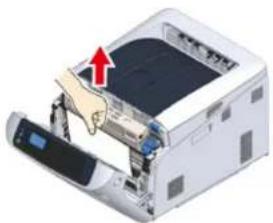
natural_image
3D illustration of a printer or scanner with a hand inserting a component, showing no text or symbols.- Troubleshooting
3 Take out the duplex unit (3) by pulling it obliquely upward while holding the center recess on the back of the machine.
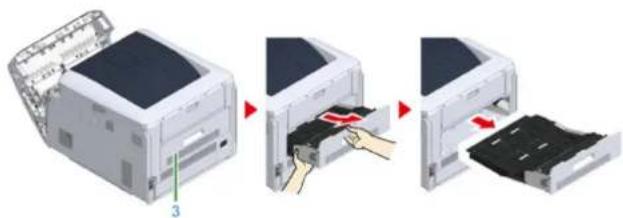
natural_image
Illustration of a printer being inserted into a physical device, showing three sequential steps (no text or symbols present)4 Check for jammed paper inside the machine. If jammed paper remains, remove it.
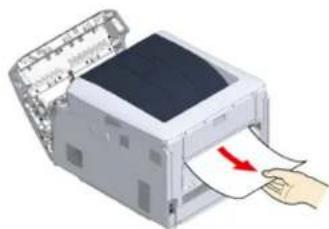
natural_image
Illustration of a printer with a hand inserting paper into it, showing a red arrow indicating the paper's direction (no text or symbols present)
- If paper is invisible, check the innermost part of the printer.
5 Check if paper remains in the duplex unit. If jammed paper remains, pull it out gently. Check the back side of the duplex unit and remove jammed paper gently if it remains.
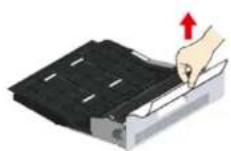
6 Open the upper duplex unit cover (4) and check for jammed paper. If jammed paper remains, remove it, and close the cover.

natural_image
Four-step diagram showing a mechanical component being folded into a housing, with red arrows indicating motion direction (no text or symbols)7 Replace the duplex unit (3) to the machine.
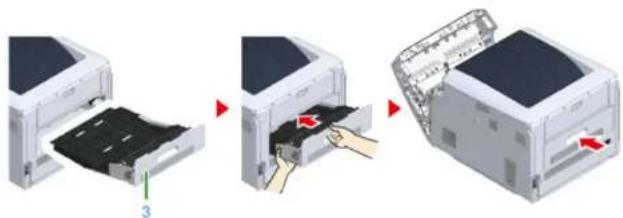
natural_image
Three-step illustration showing a printer being inserted into a paper airplane, with no visible text or symbols.8 Close the front cover (2).
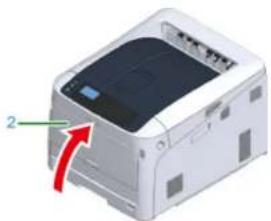
natural_image
3D rendering of a printer with a green arrow pointing to its side panel (no text or symbols visible)Task is complete.
Error Code "380", "401", "637"
A paper jam has occurred around the front cover.
When the error code 401 is displayed, paper may have automatically ejected. In this case, open and close the front cover to clear the error.
1 Insert your finger into the recess on the right side of the machine and pull the front cover open lever (1) to open the front cover (2) forward.
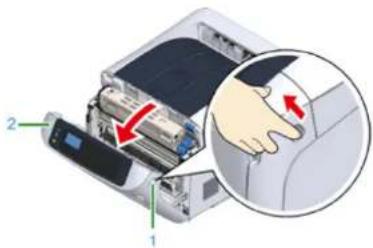
natural_image
Diagram of a printer's internal structure with a magnified view showing hand placement on the side panel (no text or symbols present)2 Remove the jammed paper gently in the direction of the arrow if an edge of jammed paper can be seen.
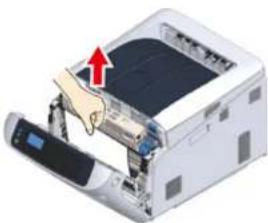
natural_image
Illustration of a printer's internal structure with a hand inserting a component, showing no text or symbols.
- If jammed paper is invisible, close the front cover.
If the error persists, paper jams may occur in the duplex unit. Refer to 'Error Code "372"' to remove the jammed paper.
3 Close the front cover (2).
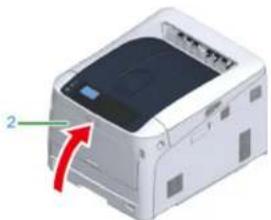
natural_image
3D rendering of a printer with a red arrow pointing to its front panel (no text or symbols visible)Task is complete.
- Troubleshooting
Error Code "381", "638"
A paper jam has occurred near the image drum.
Remove the jammed paper by following the procedure below.
1 Insert your finger into the recess on the right side of the machine and pull the front cover open lever (1) to open the front cover (2) forward.
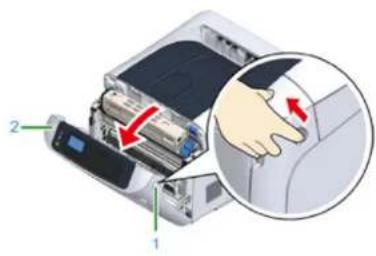
text_image
Diagram of a printer's internal structure with labeled parts and a magnified view showing hand placement on the side panel.2 Press the open button (3) and open the output tray (4).
| CAUTION | Burns may result. | |
| The fuser unit is extremely hot. Do not touch it. | ||
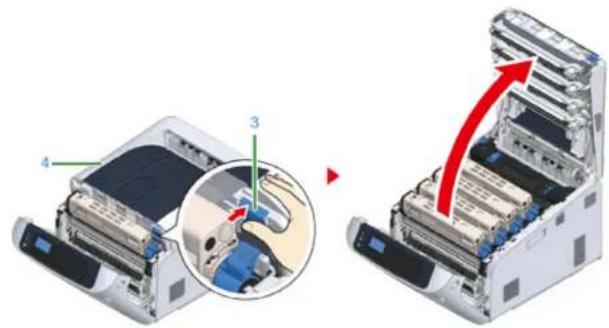
text_image
Diagram illustrating a device's internal structure and external assembly, with numbered components and directional arrows indicating movement.3 Remove all four image drums and place them on a flat surface.
!
- Use extra care when handling the image drum (the green cylinder), because it is fragile.
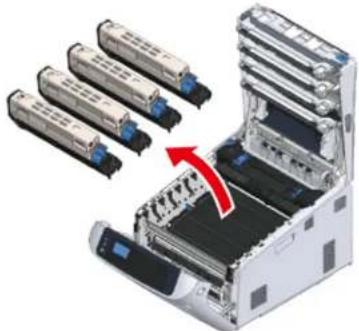
natural_image
Illustration of a mechanical device with multiple cylindrical components and a red arrow indicating a process or operation (no text or symbols present)4 Cover the removed image drums with paper so that the image drums are not exposed to light.
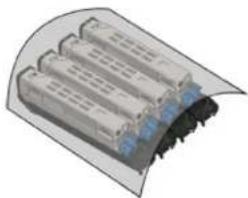
natural_image
Illustration of stacked cylindrical batteries with blue connectors, enclosed in a curved paper frame (no text or symbols)- Troubleshooting
5 Pull out the jammed paper gently to the rear of the machine (the direction of the arrow) if an edge of jammed paper can be seen.
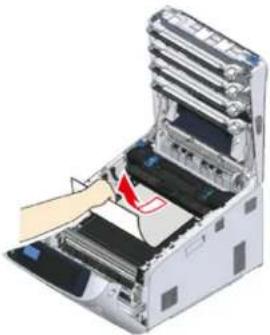
natural_image
3D diagram of a mechanical device with internal components and a red arrow indicating a specific part (no text or symbols present)Pull out the jammed paper gently while lifting the release levers (5) on the fuser unit if an edge of jammed paper cannot be seen.
If an edge of jammed paper still remains inside the unit, pull out the jammed paper gently to the rear of the machine.
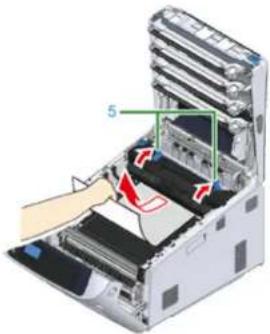
text_image
Technical diagram of a device with labeled components and directional arrows indicating movement or assembly.6 Return all four image drums into the machine carefully.
!
- Use extra care when handling the image drum (the green cylinder), because it is fragile.
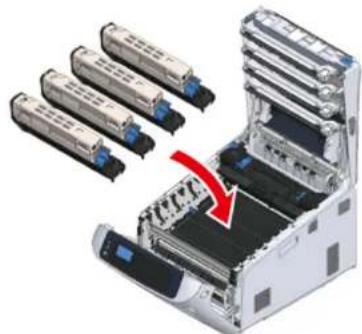
natural_image
Illustration of a multi-chamber electronic device with a red arrow indicating a process or operation (no text or symbols present)7 Close the output tray (4) by pushing the center of the cover firmly.
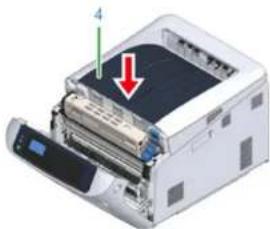
natural_image
3D rendering of a printer with a green arrow pointing to the top panel (no text or symbols visible)8 Close the front cover (2).
6. Troubleshooting
!
- The front cover cannot be closed if the output tray is not closed securely.
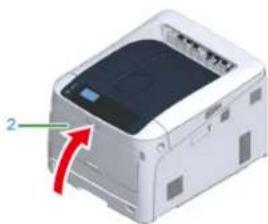
natural_image
3D rendering of a printer with a green arrow pointing to the front panel (no text or symbols visible)Task is complete.
- Troubleshooting
Error Code "382", "383", "385", "639", "640"
A paper jam has occurred near the fuser unit.
Remove the jammed paper by following the procedure below.
1 Insert your finger into the recess on the right side of the machine and pull the front cover open lever (1) to open the front cover (2) forward.
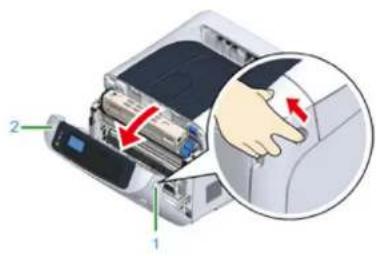
text_image
Diagram of a printer's internal structure with labeled parts and a magnified view showing hand placement on the side panel.2 Press the open button (3) and open the output tray (4).
| CAUTION | Burns may result. | |
| The fuser unit is extremely hot. Do not touch it. | ||
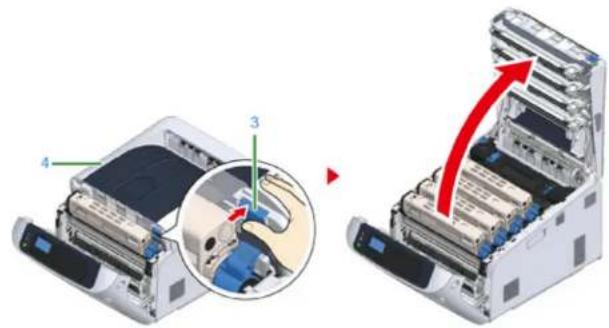
text_image
Diagram illustrating a device's internal structure and external assembly, with numbered components and directional arrows indicating movement.3 Remove all four image drums and place them on a flat surface.
!
- Use extra care when handling the image drum (the green cylinder), because it is fragile.
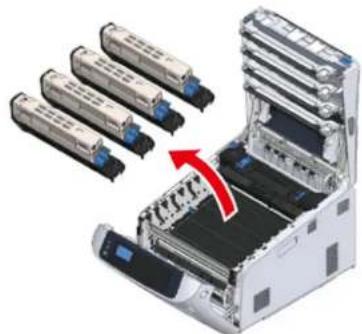
natural_image
Illustration of a multi-chamber electronic device with battery modules and an open panel, showing internal structure and a red arrow indicating rotation (no text or symbols present)4 Cover the removed image drums with paper so that the image drums are not exposed to light.
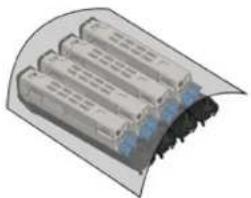
natural_image
Illustration of stacked cylindrical batteries with visible battery spools (no text or symbols)- Troubleshooting
5 Remove the jammed paper remaining inside of the unit.
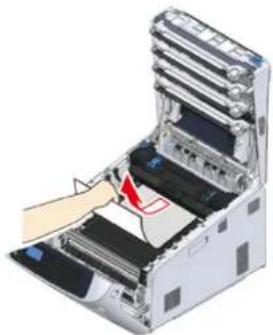
natural_image
3D illustration of a computer chassis with an open panel and a hand inserting a red arrow (no text or symbols)6 Lift the left lock lever (5) of the fuser unit forward.
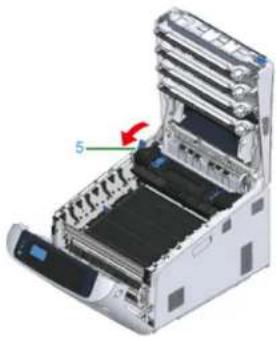
natural_image
3D rendering of a mechanical device with a highlighted component (no text or symbols visible)- Troubleshooting
7 Hold the fuser unit handle (6) and lift the fuser unit out of the machine.
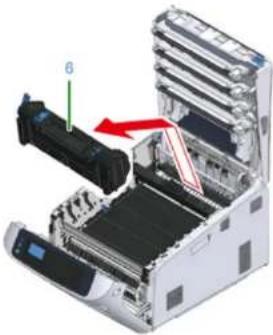
natural_image
3D diagram of a mechanical device with internal components and a red arrow indicating direction (no text or symbols)8 Lift the release levers (7) on the fuser unit, and pull out the jammed paper forward gently.
!
- If paper is pulled out towards the rear, this may result in soiled prints.
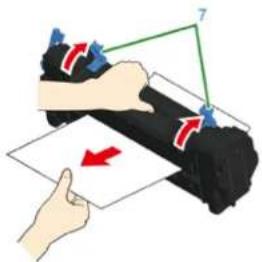
text_image
Diagram showing hands holding a black object with arrows indicating movement, labeled with numbers 7 and 8.9 If jammed paper remains in the machine, hold the both sides of the paper to remove it gently.
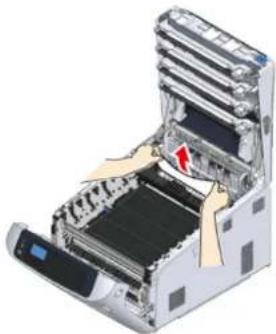
natural_image
3D diagram of a mechanical device with internal components and a red arrow indicating a specific part (no text or symbols present)10 Hold the fuser unit handle (6) and place the fuser unit into the machine.
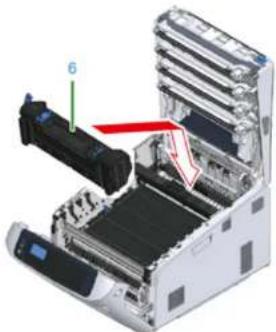
natural_image
3D mechanical assembly diagram showing internal components with no visible text or symbols11 Push the left lock lever (5) of the fuser unit backward.
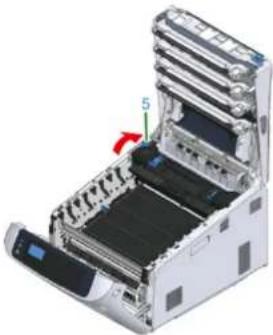
natural_image
3D rendering of a mechanical device with a green arrow pointing to a component labeled '5' (no text or symbols beyond the label)12 Return all four image drums into the machine carefully.
!
- Use extra care when handling the image drum (the green cylinder), because it is fragile.
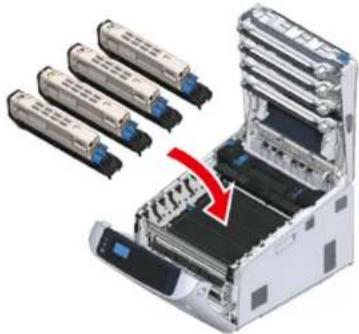
natural_image
Illustration of a server rack with multiple battery modules and a red arrow indicating a process (no text or symbols present)- Troubleshooting
13 Close the output tray (4) by pushing the center of the cover firmly.
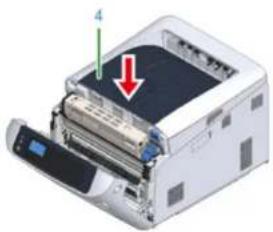
natural_image
3D rendering of a printer with a red arrow indicating a component, no visible text or symbols14 Close the front cover (2). Cannot close the front cover securely if the output tray is not closed.
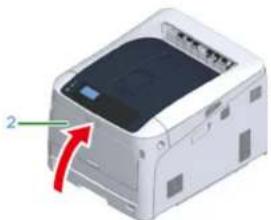
natural_image
3D rendering of a printer with a green arrow pointing to the front panel (no text or symbols visible)Task is complete.
Error Code "390", "637"
A paper jam has occurred while feeding paper from a tray.
Remove the jammed paper by following the procedure below.
1 If there is any paper on the MP tray, lift the paper set cover (1) and take it out.
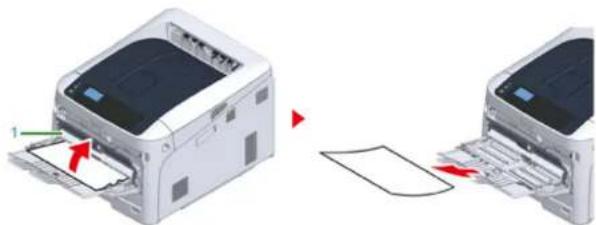
natural_image
Illustration of a printer being inserted into a paper airplane, showing the process with red arrows indicating the motion (no text or symbols present)2 Insert your finger into the recess on the right side of the machine and pull the front cover open lever (2) to open the front cover (3) forward.
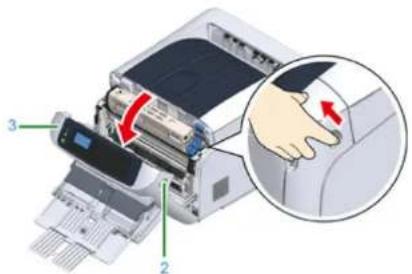
text_image
Diagram of a printer with labeled parts and a magnified inset showing hand pressing a button on the side panel.3 Remove the jammed paper gently by pulling the edge of paper.
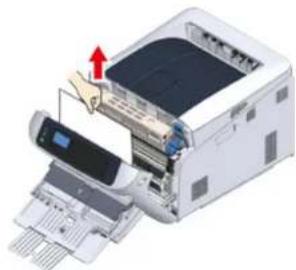
natural_image
3D illustration of a printer with a paper feed into the output, showing internal components and a red arrow indicating motion (no text or symbols present)
- Do not use force when pulling out paper. This might damage the printer.

• If a paper jam has not occurred, then the paper has failed to feed. Please reduce the amount of paper set in the tray.
Remove the paper from the back gently if the edge of paper cannot be seen.
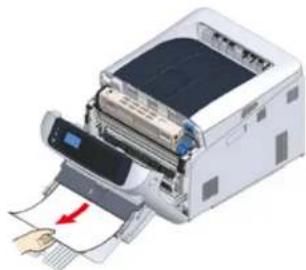
natural_image
Illustration of a printer with paper being inserted, showing paper feed and printer blade (no text or symbols)4 Close the front cover (3).
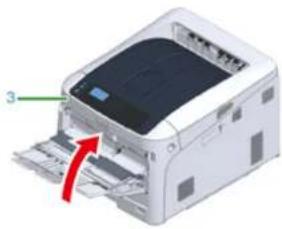
natural_image
3D rendering of a printer with paper feed and paper tray, showing internal structure and a red arrow indicating motion (no text or symbols)5 If loading paper on MP tray, lift the paper set cover (1) and set the paper with the print side face up.
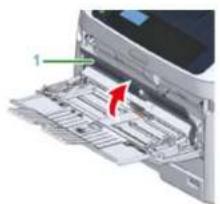
natural_image
Close-up of a printer's internal structure showing paper feed and paper tray, with no visible text or symbols6 Lower the paper set cover (1).
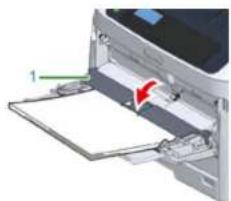
natural_image
Close-up of a printer's paper feeding mechanism, showing paper holder and green arrow indicator (no text or symbols)Task is complete.
Error Code "391", "392", "393", "394", "632", "633", "634"
A paper jam has occurred while feeding paper from a tray.
!
- If paper jams occur frequently, clean the paper feed rollers. For details, refer to "Cleaning".
This procedure uses Tray 1 as an example.
1 Gently pull out from the machine the paper cassette (1) for which an error is indicated.
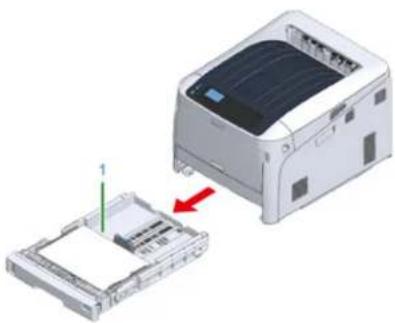
natural_image
3D diagram showing a printer with a paper holder and a printer with a solar panel, connected to a green arrow indicating rotation (no text or symbols present)2 Remove the jammed paper.
!
- If paper is not jammed, feeding paper may fail. Reduce the number of sheets of paper loaded on the paper cassette. Make sure that the paper stoppers are set in the right position.
3 Push the paper cassette (1) back into the machine.
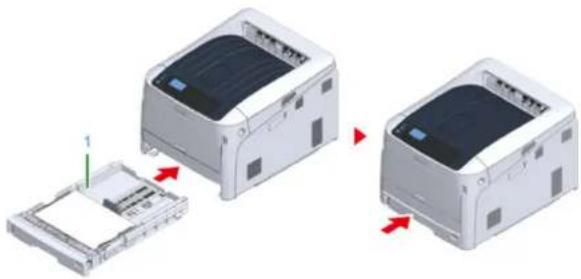
natural_image
Illustration of two printer units with red arrows indicating process flow (no text or symbols)Open and close the front cover to clear the error.
4 Insert your finger into the recess on the right side of the machine and pull the front cover open lever (2) to open the front cover (3) forward.
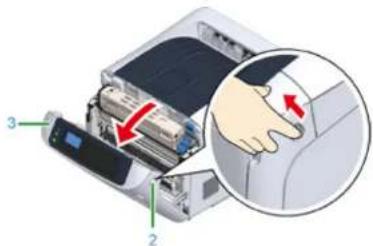
text_image
Diagram of a printer's internal structure with labeled parts and a magnified view showing hand placement on the side panel.- Troubleshooting
5 Close the front cover (3).
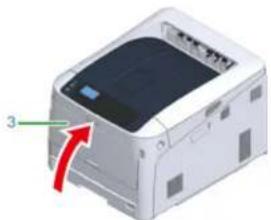
natural_image
3D rendering of a printer with a green arrow pointing to a component (no text or symbols visible)Task is complete.
Other Issues
This section explains the issues you may encounter while operating your printer and how to solve them. See the corresponding items for Monitoring Tool, Mobile Print, AirPrint, Google Cloud Print, and troubles related to the NFC.

Monitoring Tool (Advanced Manual)

Mobile Device Problems (Advanced Manual)
- Unable to Print from a Computer
- Unable to Install a Printer Driver Successfully
• Image Quality Issues
• Vertical White Lines Appear
• Printed Images are Fading Vertically - Printed Images are Light
- White Spots and Lines Appear
• Dew Condensation Appears on Printed Paper - Vertical Lines Appear
• Horizontal Lines and Spots Appear Periodically
• White Area on Paper is Lightly Stained
• The Periphery of Characters is Smudged
• The Entire Paper Area is Lightly Stained When Printing on Envelopes or Coated Paper - Toner Comes Off When Printed Paper is Rubbed
- Uneven Gloss
- Black or White Dots Appear
- Dirt is Printed
• The Entire Page is Printed Black - Nothing is Printed
- White Patches Appear
• Color of the printed image is not what you expect - Feeding Issues
-
Problems on the Machine
-
Troubleshooting
Unable to Print from a Computer

- Check the following explanations, smartphone app and "FAQ" in the Oki Data Web site.
- If you cannot solve a problem with the following solutions, contact your dealer.
- For problems caused by an application, contact the manufacturer of the application.
General Causes
• Common to Windows and Mac
| Cause Solution Reference | ||
| The machine is in Sleep mode. Press the «POWER SAVE» button to enter standby status. | Energy Saving Function | |
| The machine is turned off. Tum on the machine. | Turning On the Power | |
| A LAN cable or USB cable is unplugged. | Check that the cable is plugged into the machine and computer properly. | Connecting to a Computer |
| There may be a problem with a cable. | Replace the cable with a new cable. - | |
| The machine is offline. Press the «ONLINE» button on the operator panel. | - | |
| An error message is displayed on the display screen. | Check the error messages displayed on the display screen. | Error Messages |
| The interface setting is disabled. Check the interface setting on the display screen to make sure that there is a consistency with the machine's settings and the network connection environment. | Connecting to a ComputerConnecting to a Wireless LAN | |
| There is a problem with the print function. | Check if the menu map can be printed. | Test Printing from the Printer |
- For Windows
| Cause Solution Reference | ||
| The machine is not set as the default printer. | Set the machine as the default printer.Right-click the printer icon to open "Printer folder", and then select [Set as Default Printer].For Windows 10 users, uncheck "Let Windows manage my default printer". | - |
| The output port of the printer driver is incorrect. | Select the output port for connecting the machine. | - |
| The machine is processing data from another interface. | Wait until printing is complete. - | |
| [Receiving data timeout] or [Invalid Data] is displayed on the operator panel and the machine does not print. | Press the scroll button ▼ or▲ the operator panel to select [Menus] > [System Adjust] > [Timeout Injob] and set a longer period of time. The factory default setting is 40 seconds. If the job is not printed with "Received invalid data" displayed, the selected emulation language may not match this machine (model). Make sure that the printer driver you use supports this model of the machine. | - |
Network Connection Problems
• Common to Windows and Mac
| Cause Solution Reference | ||
| Using a cross cable. Use a straight cable. - | ||
| The machine was turned on before a cable was connected. | Connect cables before turning the machine on. | Connecting a LAN Cable |
| There is a problem with the compatibility with the hub. | Press the scroll button in the operator panel to select [Admin Setup] > [Network Setup] > [HUB Link Setting], and then change the setting. | - |
| The network connection setting is incorrect. | To connect to a wired network, set [Wired] for [Network Setup] to [Enable]. | Connecting a LAN Cable |
- For Windows
| Cause Solution Reference | ||
| The IP address is incorrect. • Check that the same IP address is set for the machine and the machine's port setting on the computer.• Check that the IP address is not duplicated by another device.• Check that the correct IP address, subnet mask, and gateway address are set.• If using OKI LPR Utility, check the IP address setting with OKI LPR Utility. | Test Printing from the PrinterOKI LPR Utility (Advanced Manual) | |
| All pages are not printed. If you are using the WSD port, change it to the standard TCP/IP port. | - | |
Wireless LAN is Not available (Infrastructure)
At Print Network Information and Wireless(Infrastructure) Information, check the following explanation while checking the items numbered (1) to (6) in the figure below.
To print Network Information, select [Functions] > [Print Information] > [Network].
| Wireless(Infrastructure) Information | |||
| Network PW Version | 02.01 | MAC Address | D8:61:82:06:5A:4F |
| 1 Wireless(Infrastructure) | Disable | ||
| 2 SSID | |||
| 3 Security | Disable | 4 State | Disabled |
| WEIP Key Length | 64bit | 5 Band | |
| WEIP Key Format | ASCII | BGSID | |
| TWA Encryption Type | AES | Channel | |
| TWA Pre-shared Key Format | PASSPHRASE | 6 RSBTx Rate | |
- Unable to connect to an access point (indicates the status other than "Connected".)
| Cause Solution Reference | ||
| [Wireless(Infrastructure)] indicates "Disable".* Refer to ☑s shown above. | Select [Enable] for [Wireless(Infrastructure)].* You cannot enable wireless LAN (infrastructure) and wireless LAN (AP mode) at the same time. | Connecting to an Access Point (Infrastructure) |
| [SSID] is incorrect. Or it is blank.* Refer to ☑s shown above. | Check whether the SSID of the desired wireless LAN access point is correct.If it is blank, the SSID is not set. | Connecting to an Access Point (Infrastructure) |
| [Security] is incorrect.* Refer to ☑s shown above. | Check whether to correspond with the security (ciphering method) of the desired wireless LAN access point. | Connecting to an Access Point (Infrastructure) |
| The encryption key is incorrect. | Check whether to correspond with the encryption key of the desired wireless LAN access point. | Connecting to an Access Point (Infrastructure) |
| The desired wireless LAN access point is set to Channel 12 or 13. | The printer does not support Channel 12 and 13.Change the channel setting of the wireless LAN access point. | - |
• Network communication is Not stable
| Cause Solution Reference | ||
| RSSI is low.* Refer to 📊s shown above. | The received signal strength is weak.Install this machine in a place with a good view of the wireless access point. (We suggest that the distance between the machine and the wireless device be 30 m or less.)Do not place any electric appliances that emit weak radio waves (such as microwaves or digital cordless (telephones) close to the machine.If there is metal, aluminum sash, or a reinforced concrete wall between the machine and wireless access points, connections may be harder to be established. | - |
| The frequency band you are using is congested.* Refer to 📊s shown above. | When [Band] is 2.4 GHz and the wireless LAN access point supports 5 GHz, change to the 5 GHz SSID.When [Band] is 5 GHz, change the wireless LAN access point to be connected to 2.4 GHz SSID. | Connecting to an Access Point (Infrastructure) |
- Able to connect to an access point but network communication is Not available
| Cause Solution Reference | ||
| The IP address is the same segment as the wired network. | The printer can use the wired LAN and wireless LAN simultaneously. However, if a wired LAN and wireless LAN are connected to the same subnet, the communication may be unstable. | - |
| [Enabling Default Gateway] is set to [Wired]. | To communicate with a device out of the segment using the wireless LAN, press the scroll button on in the operator panel, select [Admin Setup] > [Network Setup] > [Enabling Default Gateway], and then select [Wireless(Infrastructure)]. In that case, the printer cannot communicate with a device out of the segment using the wired LAN. * To check the [Enabling Default Gateway] status, select [General Information] > [Enabling Default Gateway]. | Selecting a connecting method between different segments |
Wireless LAN is Not available (AP Mode)
At Print Network Information and Wireless(AP Mode) Information, check the following explanation while checking the items numbered (1) to (6) in the figure below.
To print Network Information, select [Functions] > [Print Information] > [Network].
| Wireless(AP Mode) Information | |||
| 1 (Wireless(AP Mode)) | Enable | ||
| 2 SSID | OKI-C83A-A17103 | ||
| 3 Security | WPA2-PSK | ||
| 4 WPA Encryption Type Channel | AES | ||
| 11 | 4 Number Of Connected | 0 | |
• Devices cannot be connected
| Cause Solution Reference | ||
| [Wireless(AP Mode)] indicates "Disable".* Refer to 3s shown above. | Select [Enable] for [Wireless(AP Mode)].* You cannot enable wireless LAN (infrastructure) and wireless LAN (AP mode) at the same time. | Connecting to the Machine Directly (AP Mode) |
| [SSID] is incorrect.* Refer to 3s shown above. | Check whether the SSID of the desired wireless device corresponds with the SSID of the printer. | Connecting to the Machine Directly (AP Mode) |
| [Security] is incorrect.* Refer to 3s shown above. | Check whether the Security of the desired wireless device corresponds with the Security of the printer. | Connecting to the Machine Directly (AP Mode) |
| The encryption key is incorrect. Check whether the encryption key of the desired wireless device corresponds with the encryption key of the printer.^ To check the encryption key, select [Wireless(AP Mode) Setting] > [Manual Setup]. | Connecting to the Machine Directly (AP Mode) | |
| [Number Of Connected] indicates 4.* Refer to 3s shown above. | Up to four devices can be connected to the machine via the wireless LAN (AP mode). The fifth device will be rejected. Disconnect at least one device and try again. | Connecting to the Machine Directly (AP Mode) |
USB Connection Problems
• Common to Windows and Mac
| Cause Solution Reference | ||
| An unsupported USB cable is used. Use a USB 2.0 cable. USB 3.0 is not supported. | - | |
| A USB hub is used. When using a USB cable, directly connect the machine to the computer. USB hub is not supported. | Connecting a USB Cable | |
| A printer driver is not installed correctly. | Reinstall the printer driver. | Installing a Printer Driver to a Computer |
- For Windows
| Cause Solution Reference | ||
| The machine is offline. Right-click the printer icon to open "Printer folder", and then select [See print jobs]. In the dialog, select the [Printer] menu and then clear the check of [Use Printer Offline]. | - | |
| A switch, buffer, extension cable, or USB hub is used. | When using a USB cable, directly connect the machine to the computer. USB hub is not supported. | Connecting a USB Cable |
| Another printer driver that works when connected via a USB interface is installed. | Remove the other printer driver from the computer. | - |
- Troubleshooting
Unable to Install a Printer Driver Successfully
W
- Check the following explanations, smartphone app and "FAQ" in the Oki Data Web site.
- If you cannot solve a problem with the following solutions, contact your dealer.
- For problems caused by an application, contact the manufacturer of the application.
• USB Connection Problems
| Symptom Cause/solution Reference | ||
| An icon for the machine is not created on the "Printer folder". | The printer driver is not installed correctly.Reinstall the printer driver correctly. | Installing a Printer Driver to a Computer |
| The "Unable to install printer driver" error message is displayed. | Use Plug-and-Play. Follow the procedure below:1. Check that the machine and computer are turned off.2. Connect a USB cable.3. Turn the machine on.4. Turn the computer on.5. When the [Found New Hardware Wizard] is displayed, follow the on-screen instructions to complete the setup. | |
Image Quality Issues
This section describes problems with print results.
Click the corresponding symptom and check the remedy.
Q
- Check the following explanations, smartphone app and "FAQ" in the Oki Data Web site.
- If you cannot solve a problem with the following solutions, contact your dealer.
Vertical White Lines Appear


Paper feeding direction
Printed Images are Light White Spots and Lines Appear

Dew Condensation Appears on Printed Paper Vertical Li
Printed Images are Fading Vertically


Paper feeding direction



Paper feeding direction
- Troubleshooting
Horizontal Lines and Spots Appear Periodically


White Area on Paper is Lightly Stained

Paper feeding direction
The Periphery of Characters is Smudged

The Entire Paper Area is Lightly Stained When Printing on Envelopes or Coated Paper
Toner Comes Off When Printed Paper is Rubbed Uneven Gloss


Black or White Dots Appear Dirt is Printed


The Entire Page is Printed Black Nothing is Printed


White Patches Appear Color of the printed image is not what you expect

Vertical White Lines Appear

| Cause Solution Reference | |
| The LED head is dirty. Wipe the LED Head with a soft tissue paper. | Cleaning the LED Head |
| The toner is low. If "Toner Low" or "Toner Empty. Replace with new Toner Cartridge." appears, replace the toner cartridge. | Replacing the Toner Cartridge |
| The light-shielding film of the image drum is dirty. | Wipe the light-shielding film with a soft tissue paper. Cleaning the Light-shielding Film |
| The image drum is not installed properly. | Install the image drum properly. Replacing the Image Drum |
| There may be foreign objects in the image drum. | Replace the image drum. Replacing the Image Drum |
Printed Images are Fading Vertically

| Cause Solution Reference | |
| The LED head is dirty. Wipe the LED head with a soft tissue paper. | Cleaning the LED Head |
| The toner is low. If "Toner Low" or "Toner Empty.Replace with new Toner Cartridge." appears, replace the toner cartridge. | Replacing the Toner Cartridge |
| The paper is unsuitable. Use recommended paper. | Loading PaperSupported Paper |

Printed Images are Light
| Cause Solution Reference | ||
| The toner is low. If "Toner Low" or "Toner Empty Replace with new Toner Cartridge." appears, replace the toner cartridge. | Replacing the Toner Cartridge | |
| The paper is damp. Use paper stored under proper temperature and humidity conditions. | Loading PaperSupported Paper | |
| The paper is unsuitable. Use recommended paper. | Loading PaperSupported Paper | |
| The paper is unsuitable.The settings of the media type and weight are incorrect. | Press the scroll button ▼r , ▲ select [Menus] > [Tray Configuration] > the paper tray you are using, and then select the proper values for [Media Type] and [Media Weight]. Or, select a thicker values for [Media Weight]. | Loading PaperSupported Paper |
| Recycled paper is used. Press the scroll button or ,▼▲ select [Menus] > [Tray Configuration] > the paper tray you are using, and then select the proper values for [Media Type] and [Media Weight]. | Loading PaperSupported Paper | |
| The opening of the toner cartridge is still sealed with tape. | Peel off the tape. | Replacing the Toner Cartridge |
- Troubleshooting
White Spots and Lines Appear

| Cause Solution Reference | |
| The paper is damp or dry. Use paper stored under proper temperature and humidity conditions. | Loading PaperSupported Paper |
Dew Condensation Appears on Printed Paper
| Cause Solution Reference | ||
| The paper is damp. Use paper stored under proper temperature and humidity conditions. | Loading PaperSupported Paper | |
| The machine is printing when the temperature and humidity conditions are high. | Use the machine under proper temperature and humidity conditions. | Checking the Placement Environment |
| Edge of paper is damp. Press the scroll button to select ▼[Menus] > [Print Adjust] > [Moisture Control] and change the setting. | - | |
Vertical Lines Appear

| Cause Solution Reference | ||
| The toner is low. If "Toner Low" or "Toner Empty. Replace with new Toner Cartridge." appears, replace the toner cartridge. | Replacing the Toner Cartridge | |
| The image drum is damaged. Replace the image drum. | Replacing the Image Drum | |
| The paper guides are not properly set. | Check the positions of the paper guides on the paper tray. | Loading Paper |
Horizontal Lines and Spots Appear Periodically

| Cause Solution Reference | ||
| If lines or spots in a specific color occur in approximately 94 mm (3.7 in) intervals, the green tube of the image drum is damaged or dirty. | Lightly wipe the image drum with a soft tissue paper.Replace the image drum if it is damaged. | Replacing the Image Drum |
| If lines or spots in various colors occur in approximately 94 mm (3.7 in) intervals, the fuser unit is damaged or dirty. | Replace the fuser unit. | Replacing the Fuser Unit |
| If the interval of lines or spots are approximately 50 mm (2 inches), some parts inside of the belt unit are broken. | Replace the belt unit. | Replacing the Belt Unit |
| If the intervals of lines or spots are approximately 40mm (1.6inches) or 58mm (2.3inches), the part in the image drum is damaged. | Replace the image drum. | Replacing the Image Drum |
| If the intervals of lines or spots are approximately 37 mm (1.5 inches), there may be foreign objects in the image drum. | Open and close the front cover, and then print again. | - |
| If the intervals of lines or spots are approximately 31mm (1.2inches), the resist roller is dirty. | Open the front cover, and wipe the resist roller with a soft tissue paper. | Cleaning the Resist Roller |
| The image drum has been exposed to light. | Place the image drum back into the machine, and then do not use for a few hours. If the problem persists, replace the image drum. | Replacing the Image Drum |
| The paper feed path is dirty. Print a few test pages. | Test Printing from the Printer | |
White Area on Paper is Lightly Stained

| Cause Solution Reference | ||
| The paper has a static charge. Use paper stored under proper temperature and humidity conditions. | Loading PaperSupported Paper | |
| The paper is too thick. Use thinner paper. | Loading PaperSupported Paper | |
| The toner is low. If "Toner Low" or "Toner Empty. Replace with new Toner Cartridge." appears, replace the toner cartridge. | Replacing the Toner Cartridge | |
The Periphery of Characters is Smudged

| Cause Solution Reference | ||
| The LED head is dirty. Wipe the LED head with a soft tissue paper. | Cleaning the LED Head | |
| The paper is unsuitable. Use recommended paper. | Loading PaperSupported Paper | |
| The paper is damp. Replace the damp paper with new paper. | Loading PaperSupported Paper | |
The Entire Paper Area is Lightly Stained When Printing on Envelopes or Coated Paper
| Cause Solution Reference | ||
| The toner may stick to the whole area of the envelope or coated paper. | This is not a malfunction.Coated paper is not recommended. | - |
Toner Comes Off When Printed Paper is Rubbed

| Cause Solution Reference | ||
| The settings of the media type and weight are incorrect. | Press the scroll button √r , ▲ select [Menus] > [Tray Configuration] > the paper tray you are using, and then select the proper values for [Media Weight]. Or, select a thicker value for [Media Weight]. | Loading PaperSupported Paper |
| Recycled paper is used. Press the scroll button or , ▼▲ select [Menus] > [Tray Configuration] > the paper tray you are using, and then select a thicker value for [Media Weight]. | Loading PaperSupported Paper | |
Uneven Gloss

| Cause Solution Reference | ||
| The settings of the media type and weight are incorrect. | Press the scroll button r , ▲ select [Menus] > [Tray Configuration] > the paper tray you are using, and then select the proper value for [Media Weight]. Or, select a thicker value for [Media Weight]. | Loading PaperSupported Paper |
Black or White Dots Appear

| Cause Solution Reference | ||
| The paper is unsuitable. Use recommended paper. | Loading PaperSupported Paper | |
| If the intervals of lines or spots are approximately 94 mm (3.7 inches), the green tube of the image drum is damaged or dirty. | Lightly wipe the image drum with a soft tissue paper.Replace the image drum if it is damaged. | Replacing the Image Drum |
- Troubleshooting
Dirt is Printed

| Cause Solution Reference | ||
| The paper is damp. Replace the damp paper with new paper. | Loading PaperSupported Paper | |
| The paper is unsuitable. Use recommended paper. | Loading PaperSupported Paper | |
The Entire Page is Printed Black

| Cause Solution Reference | ||
| A malfunction may occur in the machine. | Contact your dealer. - | |
Nothing is Printed

| Cause Solution Reference | ||
| Two or more sheets of paper are fed at the same time. | Fan the paper well and load the paper again. | Loading Paper |
| A malfunction may occur in the machine. | To check if the machine can print alone, print a menu map.If the menu map cannot be printed correctly, contact your dealer. | Test Printing from the Printer |
White Patches Appear

| Cause Solution Reference | ||
| The paper is damp. Replace the damp paper with new paper. | Loading PaperSupported Paper | |
| The paper is unsuitable. Use recommended paper. | Loading PaperSupported Paper | |
Color of the printed image is not what you expect
| Cause Solution Reference | ||
| The toner is low. If "Toner Low" or "Toner Empty. Replace with new Toner Cartridge." appears, replace the toner cartridge. | Replacing the Toner Cartridge | |
| The setting of [Black Finish] is not suitable for the application. | On the printer driver, select [Composite Black (CMYK)] or [True Black (K)] for [Black Finish]. | About Screens and Functions of Each Printer Driver (Advanced Manual) |
| The color adjustment has been modified. | Do color matching from the printer driver. | Using Color Matching on Printer Driver (Advanced Manual) |
| The color balance is out of adjustment. | Press the scroll button to select [Calibration], and adjust density or color balance. | Adjusting the Density (Advanced Manual)Adjusting Color Balance (Density) (Advanced Manual) |
| Color registration is out of alignment. | Open and close the front cover. Or, press the scroll button to select [Calibration], and then [Adjust Registration]. | Administrator Setup Menu (Advanced Manual) |
Feeding Issues

- Check the following explanations, smartphone app and "FAQ" in the Oki Data Web site.
- If you cannot solve a problem with the following solutions, contact your dealer.
| Symptom Cause Solution Reference | |||
| Paper often jams.Multiple sheets of paper are pulled in at the same time.Paper is pulled in at an angle. | The machine is inclined. Place the machine on a flat surface. - | ||
| The paper is too light or too heavy. | The paper is too light or too heavy. Use the appropriate paper for the machine. | Loading PaperSupported Paper | |
| The paper is damp or has a static charge. | Use paper stored under proper temperature and humidity conditions. | Loading PaperSupported Paper | |
| The paper is wrinkled, folded, or curled. | Use the appropriate paper for the machine. Fix the curled paper. | Loading PaperSupported Paper | |
| The back side of the paper is printed. | The paper that has been printed once cannot be used in Tray 1 and Tray 2/3/4/5.Load the paper in the MP tray for printing. | - | |
| The edges of the paper are not aligned. | Fan a stack of the paper well, and then align the edges of the paper. | Loading Paper | |
| There is only one sheet of paper in the tray. | Load multiple sheets of paper. | - | |
| You added new paper onto the paper that is already loaded in the tray. | Remove the already loaded paper, stack up it onto the new paper, and then align the edges of all the paper. | Loading Paper | |
| Paper is loaded at an angle. | For Tray 1 and Tray 2/3/4/5, adjust the paper guide and paper stopper to the paper.For the MP tray, adjust the manual feeding paper guide to the paper. | Loading Paper | |
| Envelopes are loaded in the wrong direction. | Load the envelopes correctly. | Loading Paper | |
| Envelopes are sticking to each other. | Either fan the envelopes thoroughly, or load the envelopes on top of each other one envelope at a time. | - | |
| Paper, envelopes, or labels whose weight is 221 to 256 g/m ^2 (56 to 95 lb) is loaded in Tray 1 and Tray 2/3/4/5. | Load the paper whose weight is 221 to 256 g/m ^2 (56 to 95 lb), envelops and labels should be fed from the MP tray regardless of their thickness. | Loading PaperSupported Paper | |
| The rear output tray is not closed firmly. | Close the rear output tray firmly. | Paper Output | |
- Troubleshooting
| Symptom Cause Solution Reference | |||
| Paper often jams. | Paper dust attaches to the paper feed rollers. | Clean the paper feed rollers. | Cleaning the Paper Feed Rollers (Tray 1/ Tray 2/ Tray 3/ Tray 4/ Tray 5)Cleaning the Paper Feed Rollers (MP Tray) |
| Paper is not fed. | The [Paper Feeding Source] setting on the printer driver is specified incorrectly. | Check the paper tray, and then select the correct tray in [Paper Feeding Source] on the printer driver. | - |
| The manual feeding is specified on the printer driver. | Disable the [Use MP tray as manual feed] setting on the printer driver. | Printing Manually One by One (Advanced Manual) | |
| Paper is not fed from Tray 2/3/4/5 (optional). | Tray 2/3/4/5 is not set with the printer driver. | Set Tray 2/3/4/5 with the printer driver. | When Adding Options |
| Even after the jammed paper was removed, the machine does not work. | - Open and close the front cover. - | ||
| Paper is curled. Paper is creased. | The paper is damp or has a static charge. | Use paper stored under proper temperature and humidity conditions. | Loading PaperSupported Paper |
| The paper is light. Press the scroll button or , select ▲ [Menus] > [Tray Configuration] > [(tray name) Config] > [Media Weight], and then specify a lighter weight. | Loading PaperSupported Paper | ||
| The paper twists around the rollers in the fuser unit. | The settings of media weight and type are incorrect. | Press the scroll button ☑, Select [Menus] > [Tray Configuration] > [(tray name) Config] > [Media Weight], and then specify the appropriate values. Alternatively, specify heavier weight in [Media Weight]. | Loading PaperSupported Paper |
| The paper is light. Use heavier paper. - | |||
| There are nearly solid fill on the leading edge of the paper. | Insert a margin into the leading edge of the paper.For duplex printing, insert a margin into the bottom edge of the paper as well. | - | |
| Symptom Cause Solution Reference | |||
| The paper twists around the rollers in the belt unit. | Paper is too light or thin. Use | se heavier paper.Or load the paper in the different direction. (If the paper is set in landscape orientation, set the paper in the portrait orientation.) | - |
| A corner of paper is folded (edge folded). | Paper is curled. Use paper | stored under proper temperature and humidity conditions. | Loading PaperSupported Paper |
| The paper is twinkled when printing on envelopes. | The paper is damp. Use paper | paper stored under proper temperature and humidity conditions. | Loading PaperSupported Paper |
| The machine is printing when the temperature and humidity conditions are high. | Select a mode (Mode 1, Mode 2 or OFF) from the options for [High Humid Mode] of [Print Adjust] in [Menus]. | Administrator Setup Menu (Advanced Manual) | |
| If you cannot solve a problem with the above solutions | Load the envelope with the flap (for gluing) on the printer side, and then set the reverse page orientation ( 180^ ) on the printing preferences. | About Screens and Functions of Each Printer Driver (Advanced Manual) | |
| Images printed on paper fed from the additional tray are out of the correct position. | The print position on the tray is not aligned. | Press the scroll button ▼ to select [Menus] > [Print Adjust] > [Print Position Adjust] and change the value in [X Adjust] (horizontal) and [Y Adjust] (vertical) for the tray you want to adjust. | Adjusting the Print Position in the Additional Tray (Advanced Manual) |
Problems on the Machine
[NO TEXT]
- Check the following explanations, smartphone app and "FAQ" in the Oki Data Web site.
- If you cannot solve a problem with the following solutions, contact your dealer.
| Symptom Cause | Solution Reference | ||
| Nothing is displayed on the display screen after turning the machine on. | The power cord is unplugged. | Turn the machine off, and then plug in the power cord firmly. | - |
| The power is out. Check whether the power is supplied to the outlet. | - | ||
| The machine does not operate. | The power cord is not firmly plugged in. | Plug in the power cord firmly. | - |
| The machine is turned off. | Turn the machine on. | Tuming On the Power | |
| The auto-power off function turns off the power. | Turn the machine on, or disable the auto-power off function. | Automatically Turning the Machine Off (Auto Power Off) | |
| The printer froze. Press and hold the power switch of the printer for over 5 seconds to force stop the printer. | - | ||
| The power switch LED lamp quickly flashes at approximately 0.3-second intervals. | A malfunction may occur in the machine. | Unplug the power cord immediately, and then contact your dealer.![OKI C824dn - [NO TEXT] - 1](/content/2026/05/882561/images/f9493ac25d2b5d02987ca50dd98f3463f717e4937d604ec6e88bafc584331fa0.jpg) | - |
| The output tray and front cover cannot be closed. | The belt unit and image drums are not properly installed. | Remove the four image drums and reinstall the belt unit. If the blue locks on the both sides of the belt unit are not locked, the output tray and front cover cannot be closed. | Replacing the Belt Unit |
| Symptom Cause | Solution Reference | ||
| The machine does not start printing. | An error is displayed. Check | the error code, and then follow the on-screen instructions. | Error Messages |
| A LAN cable or USB cable is unplugged. | Plug in a LAN cable or USB cable firmly. | Connecting to a Computer | |
| There may be a problem with a LAN cable or USB cable. | Use another LAN cable or USB cable. | - | |
| A LAN cable or USB cable does not meet the standard. | • Use a USB cable compatible with this printer.• Use an Ethernet 10BASE-T/ 100BASE-TX cable. | - | |
| There may be a problem with the print function. | Press the scroll button▼select [Print Information] > [Configuration], and print out the configuration list to check the printing performance. | Test Printing from the Printer | |
| A communication protocol is disabled. | Press the scroll button▼several times, select [Admin Setup] > [Network Setup], and then enable the communication protocol that you are using. | - | |
| A printer driver is not selected. | Set the printer driver of the machine as the default printer. | - | |
| The output port of the printer driver is incorrect. | Specify the output port for connecting a LAN cable or USB cable. | - | |
| Nothing is displayed on the display screen. | The machine is in Sleep mode. | Check the «POWER SAVE» button flashes, and then start the machine by pressing the «POWER SAVE» button. | Energy Saving Function |
| Print data is not sent. A LAN | cable or USB cable is damaged. | Connect a new cable. - | |
| The time-out period set on the computer has elapsed. | Set a longer time-out period. | - |
-
Troubleshooting
-
Troubleshooting
| Symptom Cause | Solution Reference | ||
| There is an abnormal sound. | The machine is inclined. Place the machine on a flat surface. | - | |
| There are waste paper or foreign objects inside the machine. | Check inside the machine, and then remove any objects. | - | |
| The output tray is opened. Close the output tray. - | |||
| There is a buzzing sound. The machine is printing on heavy or light paper when the temperature inside is high. | This is not a malfunction. You can proceed with the operation. | - | |
| The machine does not start printing immediately. | The machine is warming up to exit Power Save or Sleep mode. | You can set to extend the time of period for entering Power Save mode or Sleep mode by following the procedure below. Press the scroll button ▼ and select [Menus] > [System Adjust], and then change [Power Save Time] or [Sleep Time]. | Energy Saving Function |
| The machine may be cleaning the image drum. | Wait for a while. - | ||
| The machine is adjusting the temperature of the fuser unit. | Wait for a while. - | ||
| The machine is processing data from another interface. | Wait until printing is completed. | - | |
| Even if the [Density] setting is changed, printing results do not change. | The settings for [Color Density] are changed. | The [Density] setting goes together with the [Color Density] setting. They move within an appropriate range. | Adjusting Color Balance (Density) (Advanced Manual) |
| Printing stops halfway. The temperature inside the machine rises due to continuous printing for a long time, resulting in the temperature being adjusted. | Wait for a while. When the machine reaches the suitable temperature, printing restarts automatically. | - | |
| Free space in memory is insufficient. Memory full error has occurred. The data is too large to print. | Reduce the resolution on the printer driver. | - | |
| All pages are not printed. The WSD port is used. Change the print port to Standard TCPIP Port. | - | ||
| Symptom Cause | Solution Reference | |||
| Printing, search printer or settings are not possible in the Sleep Mode. | The NBT/WINS protocol is suppressed in the Sleep Mode. | Press scroll button ▼ select [Admin Setup] > [USB Setup] > [Connected Host], and then select [Specific]. | - | |
| E-mail alerts cannot be notified periodically in the Sleep Mode. | Periodic notification of e-mail alerts is suppressed in the Sleep Mode. | Press scroll button ▼ select [Admin Setup] > [USB Setup] > [Connected Host], and then select [Specific]. | - | |
| As the time and date settings of the unit are set to be acquired from the server, the time and date settings of the unit sometimes deviate. | The update time function set for the SNTP server is suppressed in the Sleep Mode. | Press scroll button ▼ select [Admin Setup] > [USB Setup] > [Connected Host], and then select [Specific]. | - | |
| Printing is slow. Printing process is also processed in the computer. | Use a computer with faster processing speed. | - | ||
| You have selected [ProQ / High Quality] or [Fine / Detail (1200x1200)] on the [Print Job Options] tab of the printer driver. | - | |||
| The print data is complicated. | Simplify the print data. - | |||
| Paper is narrow (narrower than 216 mm). | Press the scroll button ▼ to select [Menus] > [Print Adjust] > [Narrow Paper Speed], and then change the setting mode. | - | ||
| When Moisture Control is set to Mode1 or Mode2, it may take time to complete printing of the first page. | Press the scroll button ▼ to select [Menus] > [Print Adjust] > [Moisture Control], and then change to [Off]. | - | ||
| The printer driver is not correctly displayed. | The printer driver may not be operating correctly. | Uninstall the printer driver, and then install it again. | Deleting a Printer DriverInstalling Software (Advanced Manual) | |
- Troubleshooting
| Symptom Cause | Solution Reference | ||
| The machine turns off automatically. | If the machine is not used for a certain period of time (the factory default is 4 hours). the machine turns off automatically. This function is called Auto Power Off. | Press the scroll button to select [Admin Setup] > [Power Setup] > [Auto Power Off], and then disable the function. | Energy Saving Function |
| The web page does not open. | The IP address is incorrect. | Check the IP address to the machine, and then enter proper value. | Open the Web Page of This Machine (Advanced Manual) |
| The LAN cable is disconnected. | Make sure that the LAN cable is securely connected. | Connecting to a Computer | |
| Paper is curled. The paper is light. Press the scroll button ,select [Menus] > [Print Adjust] > [High Humid Mode], and then change the setting mode. | - | ||
| Edge of paper is damp. Paper is damp. Press the scroll button ,select [Menus] > [Print Adjust] > [Moisture Control], and then change the setting mode. | - | ||
7 Maintenance
Replacing Consumables
Replacing Maintenance Units
Cleaning
Moving This Machine
Transporting This Machine
Before the printer disposal
Deleting a Printer Driver
Updating the Software
Updating the Firmware
This chapter explains how to replace consumables and maintenance units, clean the printer, and move or transport the printer.
Replacing Consumables
This section explains how to replace consumable items.
Toner cartridges and image drums are consumables.
• Cautions When Replacing
• Replacing the Toner Cartridge
• For K (black) Toner Cartridge Only
• For C (cyan), M (magenta), Y (yellow) Toner Cartridge
- Replacing the Image Drum
• Replacing the Image Drum Only
- Replacing the Image Drum and Toner Cartridge at the Same Time
- Maintenance
Cautions When Replacing
Observe the following cautions when replacing.
 | |
 | Do not throw the toner or toner cartridge into a fire. The toner will scatter, resulting in burns. |
 | Do not store a toner cartridge in a location where it is exposed to open flames. The toner may ignite, resulting in fire or burns. |
 | Do not vacuum spilled toner with an electric vacuum cleaner. Vacuuming spilled toner with an electric vacuum cleaner may result in ignition due to sparks from electric contacts or other reasons. If toner spills on the floor or other places, wipe the toner with a damp rag or other cloth. |
| CAUTION | |
 | Some parts inside the machine become very hot. Do not touch the locations around a "CAUTION HOT" label. Burns may result. |
 — — | Keep toner cartridges out of the reach of children. If a child accidentally swallows toner, immediately seek medical advice. |
 | If you inhale toner, gargle with a large amount of water, and move to a place with fresh air. Seek medical advice if necessary. |
 | If toner lands on your hands or other areas of skin, wash thoroughly with soap and water. |
 | If toner gets into your eyes, immediately rinse with a large amount of water. Seek medical advice if necessary. |
| If you swallow toner, spit it out. Seek medical advice if necessary. | |
| When handling a paper jam or replacing toner cartridges, use care not to let your clothes or hands get dirty with toner. If toner lands on your clothes, wash with cold water. If toner gets hot by washing with hot water or other methods, the toner will stain the fabric and become impossible to remove. | |
| Do not disassemble the image drum or toner cartridge. You may inhale the scattered toner, or the toner may land on your hands or clothes, making them dirty. | |
| Store used toner cartridges by putting them into a bag while using care not to scatter the toner. | |
!
- Use Oki Data genuine consumables to ensure optimum performance of the products.
- Charges for services for problems caused by the use of consumables other than Oki data genuine consumables are incurred, regardless of the warranty or in the maintenance contract. (Although the use of non-genuine consumables does not always result in problems, use extra care when using them.)
Replacing the Toner Cartridge
This section describes how to recognize the replacement period of Toner Cartridges.
When the "[COLOR] Toner Low" message ("[COLOR]" indicates C (cyan), M (magenta), Y (yellow) or K (black)) which appears on the display screen, prepare a replacement toner cartridge.
When the "[COLOR] Toner Empty" appears and printing is stopped, replace the toner cartridge.

• Even if the cyan (blue), magenta (red) or yellow toner cartridges run out, you can print in black and white by selecting [Monochrome] or [Grayscale]. However, please replace the toner cartridge quickly after it runs out, as not doing so may cause the image drum to be damaged.
!
- Have a new toner cartridge ready, as the print quality declines after more than one year following breaking the seal.
- If you replace the toner cartridge/image drum while it is being used, the amount of toner used will not be counted normally.
- By opening and closing the front cover after the message "Color toner has run out" is displayed, you are able to print. However further printing operations will not be possible after that. Please replace the toner cartridge as failure to do so may damage the image drum.
- Toner powder may spill if you remove a loner cartridge before the toner runs out.
For K (black) Toner Cartridge Only
For C (cyan), M (magenta), Y (yellow) Toner Cartridge
For K (black) Toner Cartridge Only
[NO TEXT]
- When replacing the C, M, Y toner cartridges, refer to "For C (cyan), M (magenta), Y (yellow) Toner Cartridge".
1 Prepare a new [K] toner cartridge.
2 Insert your finger into the recess on the right side of the machine and pull the front cover open lever (1) to open the front cover (2) forward.
![OKI C824dn - [NO TEXT] - 1](/content/2026/05/882561/images/a4283773ef0ad4d8de29b76e396436a7b7514930af4e9650d55a328b1ea97203.jpg)
text_image
Diagram showing a device with labeled parts and a magnified view highlighting a hand interacting with a control panel.3 Turn the toner cartridge lock lever (blue) (3) of the toner cartridge toward you until its top aligns on the ▶ mark to detach the toner cartridge from the image drum.
![OKI C824dn - [NO TEXT] - 2](/content/2026/05/882561/images/74ba6f00c515065178e7d6361e2d995b70cc8a0d4dfe68de366f8a52b153e800.jpg)
natural_image
Close-up of a digital air conditioner unit with a control panel and indicator lights (no visible text or symbols)- Maintenance
4 Lift the toner cartridge (4) from the right side, and remove it from the machine.
![OKI C824dn - [NO TEXT] - 3](/content/2026/05/882561/images/418d09371444f5f4b0b1531df6a07497ffe0c8bd05a8e92908bc4e85708662fc.jpg)
WARNING
Burns may result.

Never throw used toner cartridges into a fire. They may explode, and the toner inside may fly off and cause burns.
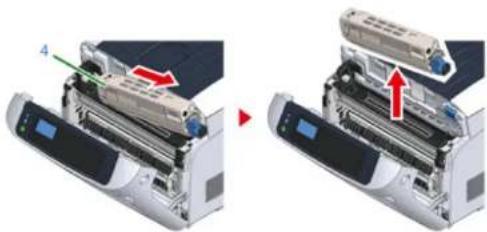
natural_image
Two views of a printer's internal structure showing internal components and directional arrows (no text or symbols)!
- When toner powder drops to the paper feeding area inside the machine, wipe it off with a wet cloth that has been well wrung.
5 Unpack a new toner cartridge, and shake the cartridge several times vertically and horizontally.
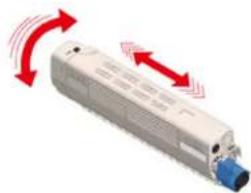
natural_image
Illustration of a handheld electronic device with red signal waves and directional arrows (no text or symbols)6 Remove the tape (5) from the toner cartridge.
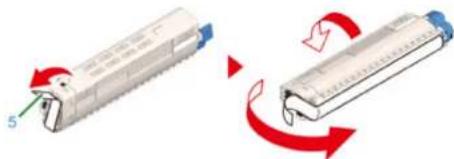
text_image
57 Insert a new toner cartridge (6) by aligning its left side indentation (7) with the protrusion (8) on the image drum so the toner cartridge and image drum [K] color label align. Then insert the right side gently into place.
!
- Make sure to take off the tape from the toner cartridge before setting. Peel off the tape before setting the new cartridge.
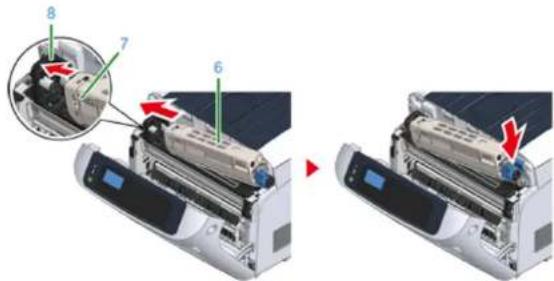
text_image
Diagram showing a printer's internal structure with numbered parts and red arrows indicating motion or force, likely illustrating a printing or assembly process.- Maintenance
8 While pressing the toner cartridge, turn the toner cartridge lock lever (blue) (3) backward until its to aligns on the ▶ mark, and lock the toner cartridge to the image drum.
You will hear a click when it is locked in place.
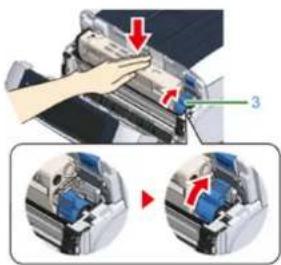
text_image
Diagram showing mechanical assembly steps with labeled components and directional arrows indicating motion!
- Closing the cover without turning the loner cartridge lock lever (blue) may cause a malfunction. Make sure to turn the cartridge lock lever until it lines up with the in the far end.
9 Close the front cover (2).
!
- The front cover cannot be closed if the output tray is not closed securely.
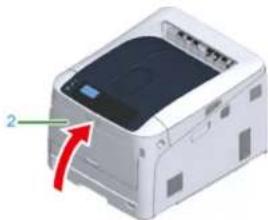
natural_image
3D rendering of a printer with a green arrow pointing to its side panel (no text or symbols visible)10 Please recycle toner cartridges.

- If you have to dispose of used toner cartridges, put them into polyethylene bags or other container, and be sure to follow the regulations or instructions of your local government.
For C (cyan), M (magenta), Y (yellow) Toner Cartridge

- When replacing only the K toner cartridge, refer to "For K (black) Toner Cartridge Only".
1 Prepare new toner cartridges.
2 Insert your finger into the recess on the right side of the machine and pull the front cover open lever (1) to open the front cover (2) forward.
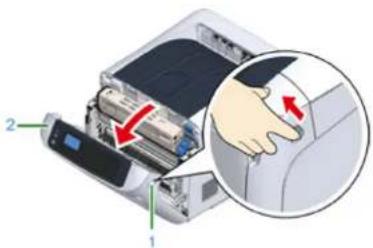
text_image
Diagram showing a device with labeled parts and a magnified view highlighting a hand pressing a button on the side panel.3 Press the open button (3) and open the output tray (4).
| CAUTION | Burns may result. | |
| The fuser unit is extremely hot. Do not touch it. | ||
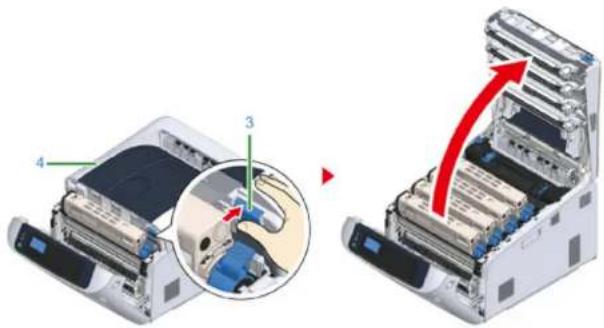
text_image
Diagram illustrating a device's internal structure with numbered components and a red arrow indicating rotation or movement.4 Identify an empty toner cartridge by its label color.
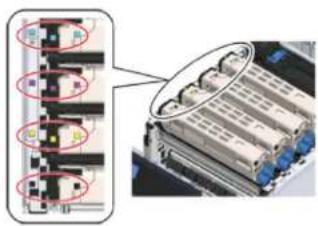
natural_image
Diagram showing battery charging process with three rows of connected components and a close-up of the battery casing (no text or symbols visible)- Maintenance
5 Turn the toner cartridge lock lever (blue) (5) of the toner cartridge toward you until its top align on the ▶ mark to detach the toner cartridge from the image drum.
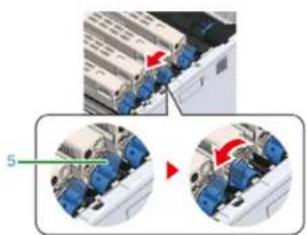
natural_image
Three-panel diagram showing mechanical assembly with blue components and red directional arrows (no text or symbols)6 Lift the toner cartridge (6) from right side, and remove it from the machine.
| WARNING | Burns may result. | |
| Never throw used toner cartridges into a fire. They may explode, and the toner inside may fly off and cause burns. | ||
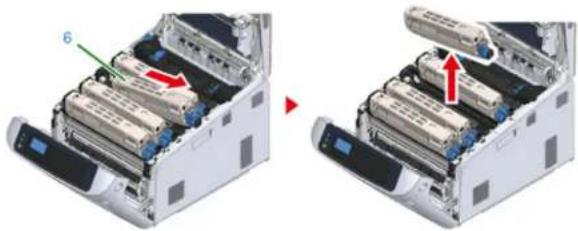
natural_image
Two views of a mechanical device showing internal components and a close-up view (no text or symbols visible)- Maintenance
7 Unpack a new toner cartridge and shake it several times vertically and horizontally.
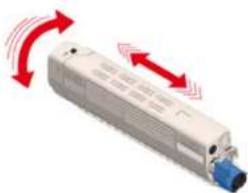
natural_image
Illustration of a cylindrical electronic device with red arrows indicating motion or signal flow (no text or symbols)8 Remove the tape (7) from the toner cartridge.
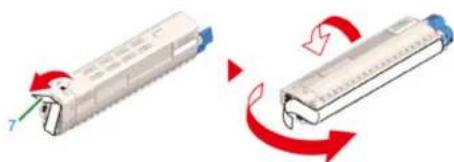
text_image
Diagram illustrating a mechanical or electrical component with red arrows indicating rotation or movement, showing two sequential states.9 Insert the left indentation (8) of the toner cartridge to the protrusion (9) of the image drum so that the labels of color attached to a new toner cartridge (6) and image drum come to the same side and set the right side firmly.
!
- Make sure to take off the tape from the toner cartridge before setting. Peel off the tape before setting the new cartridge.
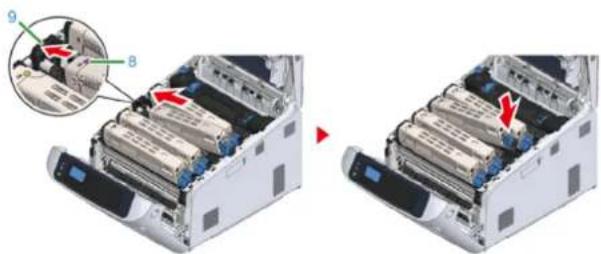
natural_image
Two views of a server rack with internal components and a magnified inset showing a device (no text or symbols visible)10 While pressing the toner cartridge, turn the toner cartridge lock lever (blue) (5) backward until its to aligns on the mark, and lock the toner cartridge to the image drum.
You will hear a click when it is locked in place.
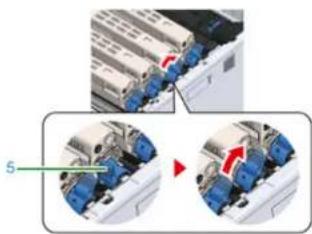
natural_image
Three-panel diagram showing mechanical assembly with blue components and red arrows indicating motion (no text or symbols)!
- Closing the cover without turning the toner cartridge lock lever (blue) may cause a malfunction. Make sure to turn the cartridge lock lever until it lines up with the in the far end.
11 Close the output tray (4) by pushing the center of the output tray (4) firmly.
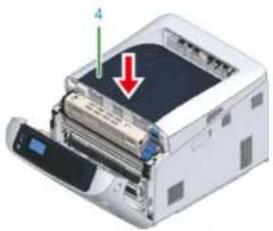
natural_image
3D rendering of a printer with a green arrow pointing to a component, no visible text or symbols12
Close the front cover (2).
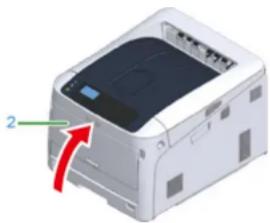
natural_image
3D rendering of a printer with a green arrow pointing to the front panel (no text or symbols visible)!
- The front cover cannot be closed if the output tray is not closed securely.
13

- If you have to dispose of used toner cartridges, put them into polyethylene bags or other container, and be sure to follow the regulations or instructions of your local government.
- Maintenance
Replacing the Image Drum
This section describes how to recognize the replacement period of an image drum, and how to replace the image drum.
When the "[COLOR] Image Drum Near Life" message appears on the display screen, prepare a replacement image drum. If you continue printing, the message "[COLOR] Image Drum Life" will be displayed and printing will stop.
When the "Please install new Image Drum Unit." message is displayed and printing stops, replace the image drum.
When using A4 paper (simplex printing), the estimated replacement cycle of an image drum is approximately 30,000 pages. This estimation assumes the standard use condition (three pages are printed at a time). Printing one page at a time reduces the drum lifetime approximately by half.
!
- The actual number of pages you can print with the image drum depends on how you use the machine. It may be less than half the above estimation depending on the printing conditions.
- Printing quality may deteriorate after 1 year following the unpacking of the image drum. Replace the image drum with a new one.
- Though opening and closing the front cover may extend the life of an image drum for a while, it is recommended to replace it soon after the "Install New image drum" is displayed.
- When the [Admin Setup] > [Panel Setup] > [Near Life Status] is set to [Disable], the "[COLOR] Image Drum Near Life" message does not appear.

Replacing the Image Drum Only

Replacing the Image Drum and Toner Cartridge at the Same Time
Replacing the Image Drum Only
This section describes how to replace the image drum when you want to continue using the toner cartridge.
!
- If you use a new image drum with the toner cartridges currently in use, the remaining amount indication of the toner cartridges will not display correctly. The messages "[COLOR] Image Drum Near Life" or "[COLOR] Image Drum Life" may also be displayed soon after replacement.
- Use extra care when handling the image drum (the green cylinder), because it is fragile.
- Do not expose the image drum to direct sunlight or strong light (approximately 1,500 lux or more). Even under room lighting, do not leave the image drum for 5 minutes or more.
- Use Oki Data genuine consumables to ensure optimum performance of the products.
- Charges for services for problems caused by the use of consumables other than Oki data genuine consumables are incurred, regardless of the warranty or in the maintenance contract. (Although use of non-genuine consumables does not always result in problems, use extra care when using them.)
[NO TEXT]
- You can change the setting for displaying the "[COLOR] Image Drum Near Life" message. Set from [Admin Setup] > [Others Setup] > [Near Life Setup] > [Drum Near Life Timing]. Available values are from 500 to 5,000 (in 500 increments).
1 Prepare new image drum.
2 Insert your finger into the recess on the right side of the machine and pull the front cover open lever (1) to open the front cover (2) forward.
![OKI C824dn - [NO TEXT] - 1](/content/2026/05/882561/images/083e508ba5daf96849b1a4d4ca762b6dd0162136f1c3ce78ce43548f7c3cb342.jpg)
text_image
Diagram showing a device's internal components with labeled parts and a magnified view highlighting a hand pressing a button.3 Press the open button (3) and open the output tray (4).
| CAUTION | Burns may result. | |
| The fuser unit is extremely hot. Do not touch it. | ||
![OKI C824dn - [NO TEXT] - 2](/content/2026/05/882561/images/8da2ff81a813124733fa0854bbb2b389cbd4c3fe6838914c5b9417d13642279a.jpg)
text_image
Diagram illustrating a printer's internal structure and external assembly, with numbered parts and directional arrows indicating movement.4 Identify the image drum to be replaced by its label color.
![OKI C824dn - [NO TEXT] - 3](/content/2026/05/882561/images/cfdef26b0e2b2f392cc2e88336eaa04242adda23d86bdba3dbe6527736d41f53.jpg)
natural_image
Diagram showing a device with multiple ports and a close-up of its internal components (no text or symbols visible)5 Remove the image drum (5) from the machine and place the image drum on a flat surface.
!
- Use extra care when handling the image drum (the green cylinder), because it is fragile.
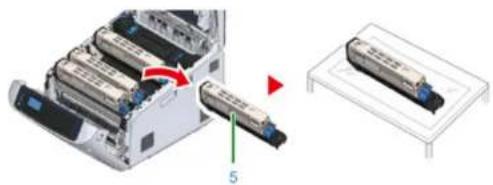
natural_image
Diagram showing a server rack with a device being inserted, alongside its exploded view (no text or symbols present)Q
- Image drums are not locked on the printer. They can be removed just by lifting.
6 Turn the toner cartridge lock lever (blue) (6) of the toner cartridge toward you until its top align on the mark while pressing the toner cartridge.
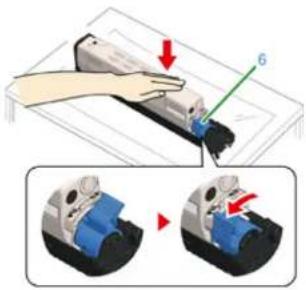
text_image
Diagram illustrating a hand using a tool to adjust a component, with red arrows indicating direction and blue components highlighted.- Maintenance
7 Lift the toner cartridge (7) from the right side, and remove it from the image drum.
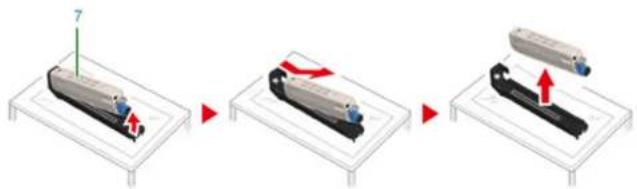
natural_image
Three-step diagram showing a device being processed, with arrows indicating motion direction (no text or symbols)8 Unpack a new image drum and place it on a flat surface.
9 Remove the protective sheet and the desiccant pack.
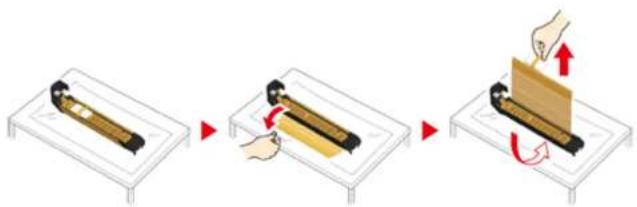
text_image
Diagram illustrating a three-step mechanical process: rolling pin, turning tool, and cutting board with rotation arrows.10 Remove the toner cover.
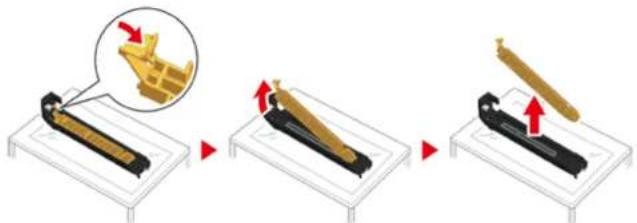
text_image
Diagram illustrating three-step mechanical assembly process with highlighted component and directional arrows11 Insert the toner cartridge (7) removed in step 7 by aligning its left side indentation (8) with the protrusion (9) on the image drum so that the toner
cartridge and image drum color label align. Then insert the right side gently into place.
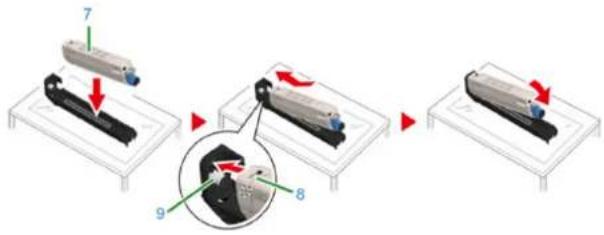
text_image
Diagram illustrating a mechanical assembly process with numbered steps and directional arrows indicating motion or movement.12 Turn the toner cartridge lock lever (blue) (6) of the toner cartridge backward until its top align on the ▶ mark while pressing the toner cartridge to attach the toner cartridge to the image drum.
You will hear a click when it is locked in place.
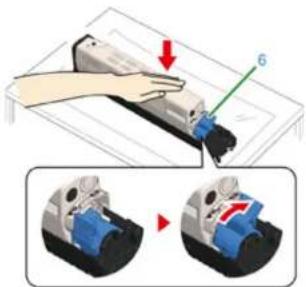
text_image
Diagram illustrating a hand operating a tool with a green needle and red arrow, alongside two close-up views of a mechanical component.13 Check the label color of the new image drum and place the drum into the machine.
- Maintenance
!
- Use extra care when handling the image drum (the green cylinder), because it is fragile.
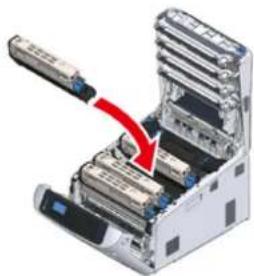
natural_image
3D illustration of a computer tower with a red arrow indicating a component or operation (no text or symbols present)14 Close the output tray (4) by pushing the center of the output tray (4) firmly.
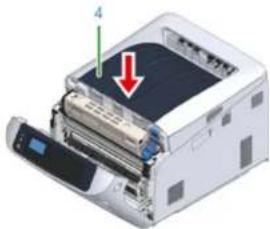
natural_image
3D rendering of a printer with a green arrow pointing to the cover (no text or symbols visible)15 Close the front cover (2).
!
- The front cover cannot be closed if the output tray is not closed securely.
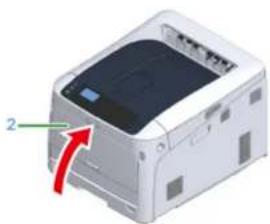
natural_image
3D rendering of a printer with a green arrow pointing to a component (no text or symbols visible)16 Please recycle image drums.
[NO TEXT]
- If you must dispose of an image drum, put it in a plastic bag or similar container and dispose of it in accordance with your municipality's ordinances or guidelines.
- Maintenance
Replacing the Image Drum and Toner Cartridge at the Same Time
This section describes how to replace the image drum and toner cartridge with new ones at the same time.
!
- Use extra care when handling the image drum (the green cylinder), because it is fragile.
- Do not expose the image drum to direct sunlight or strong light (approximately 1,500 lux or more). Do not leave the image drum for 5 minutes or more even under room light.
- Use Oki Data genuine consumables to ensure optimum performance of the products.
- Charges for services for problems caused by the use of consumables other than Oki data genuine consumables are incurred, regardless of the warranty or in the maintenance contract. (Although use of non-genuine consumables does not always result in problems, use extra care when using them.)
1 Prepare new image drum and toner cartridge.
2 Insert your finger into the recess on the right side of the machine and pull the front cover open lever (1) to open the front cover (2) forward.
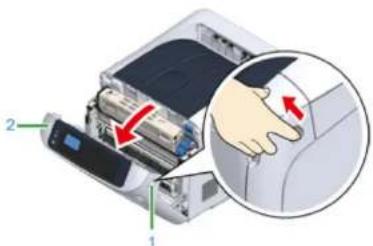
text_image
Diagram showing a device with labeled parts and a magnified view highlighting a hand pressing a button on the side panel.3 Press the open button (3) and open the output tray (4).
| CAUTION | Burns may result. | |
| The fuser unit is extremely hot. Do not touch it. | ||
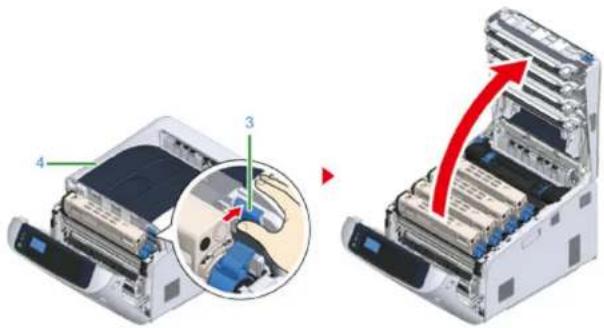
text_image
Diagram illustrating a printer's internal structure and external expansion, with numbered parts and a red arrow indicating the process.4 Identify the image drum to be replaced by its label color.
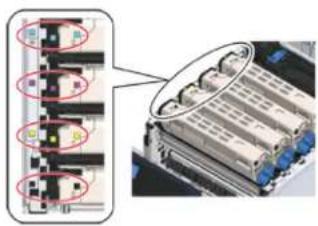
natural_image
Diagram showing battery charging process with three connected modules and a close-up of the final module (no text or symbols visible)- Maintenance
5 Remove the image drum (5) from the machine and place it on a flat surface.
| WARNING | Burns may result. | |
| Never throw a used image drum or toner cartridge into a fire. They may explode, and the toner inside may fly off and cause burns. | ||

- Use extra care when handling the image drum (the green cylinder), because it is fragile.
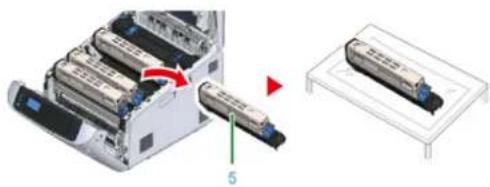
natural_image
Illustration of a server rack with a device being inserted, showing internal components and a close-up view (no text or symbols)
• Image drums are not locked on the printer. They can be removed just by lifting.
6 Unpack a new image drum and place it on the flat surface.
7 Remove the protective sheet and the desiccant pack.
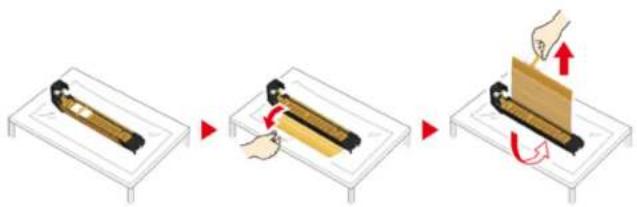
natural_image
Three-step diagram showing a wooden object being turned into a box, with arrows indicating motion (no text or symbols)8 Remove the toner cover.
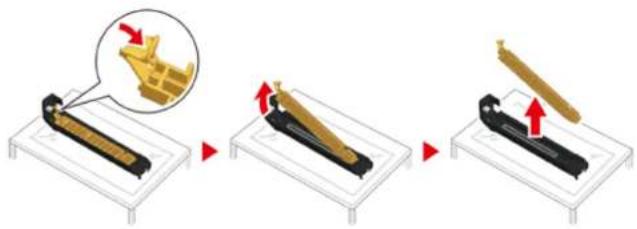
text_image
Diagram illustrating three-step mechanical assembly process with arrows indicating motion and component placement9 Unpack a new toner cartridge and shake it several times vertically and horizontally.
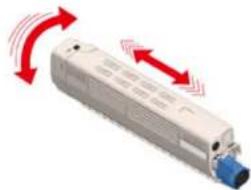
natural_image
Illustration of a handheld electronic device with red arrows indicating signal flow (no text or symbols)10 Remove the tape (6) from the toner cartridge.
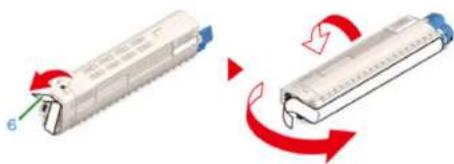
text_image
Diagram illustrating a mechanical or electrical component with labeled parts and directional arrows indicating rotation or movement.- Maintenance
11 Insert a new toner cartridge (7) by aligning its left side indentation (8) with the protrusion (9) on the image drum so that the toner cartridge and image drum color label align. Then insert the right side gently into place.
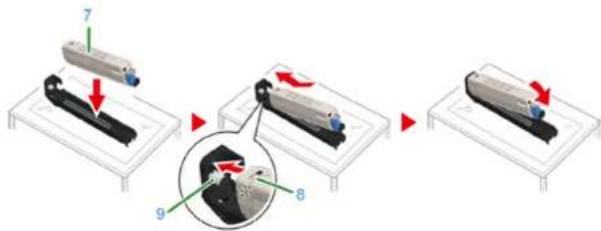
text_image
Diagram illustrating a mechanical assembly process with numbered steps and directional arrows indicating motion or movement.12 Turn the toner cartridge lock lever (blue) (10) of the toner cartridge backward until its top align on the ▶mark while pressing the toner cartridge to attach the toner cartridge to the image drum.
You will hear a click when it is locked in place.
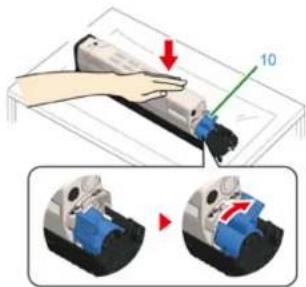
text_image
Diagram illustrating a robotic arm tool interacting with a device, showing step 10 and action sequence with red arrows indicating motion.13 Check a label color of a new image drum and place the drum into the machine.
!
- Use extra care when handling the image drum (the green cylinder), because it is fragile.
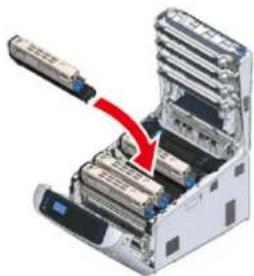
natural_image
3D illustration of a computer chassis with a red arrow indicating a process or operation (no text or symbols present)14 Close the output tray (4) by pushing the center of the output tray (4) firmly.
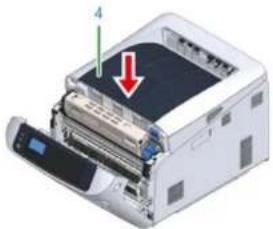
natural_image
3D rendering of a printer with a red arrow indicating a component, no visible text or symbols15 Close the front cover (2).
- Maintenance
!
- The front cover cannot be closed if the output tray is not closed securely.

natural_image
3D rendering of a printer with a green arrow indicating direction (no text or symbols)16 Please recycle image drums and toner cartridges.
[NO TEXT]
- If you must dispose of an image drum, put it in a plastic bag or similar container and dispose of it in accordance with your municipality's ordinances or guidelines.
Replacing Maintenance Units
This section explains how to replace maintenance units.
A fuser unit and a belt unit are maintenance parts.
- Replacing the Belt Unit
-
Replacing the Fuser Unit
-
Maintenance
Replacing the Belt Unit
When the "Belt Unit Near Life" message appears on the display screen, prepare a replacement belt unit. You can keep printing approximately 2,000 pages until the next message appears.
When the "Change Belt Unit" message appears, replace the belt unit.
The life expectancy of the belt unit is approximately 80,000 pages for A4 simplex printing (three pages per job).
!
- The actual number of pages you can print with the belt unit depends on how you use it.
- "Install New Belt Unit" may be displayed without "Belt Unit Near Life" being displayed. Replace the belt unit in this case, too.
- When "Change Belt Unit" is displayed and printing is stopped, quickly replace with a new fuser unit. Although printing is resumed by opening and closing the front cover, this may cause a malfunction or cause print quality to deteriorate. Also, after a fixed time has elapsed, printing is no longer possible even by opening and closing the front cover. (The fixed time that printing is possible differs according to the operating status.)
- When the [Admin Setup] > [Panel Setup] > [Near Life Status] is set to [Disable], the [Belt Unit Near Life] message does not appear.
- Use extra care when handling the image drum (the green cylinder), because it is fragile.
- Do not expose the image drum to direct sunlight or very bright interior light (approximately more than 1,500 lux). Even under the normal interior light, do not leave it for more than 5 minutes.
[NO TEXT]
- You can change the setting for displaying the "Belt Unit Near Life" message. Set from [Admin Setup] > [Others Setup] > [Near Life Setup] > [Belt Near Life Timing]. Available values are from 500 to 5,000 (in 500 increments).
![OKI C824dn - [NO TEXT] - 1](/content/2026/05/882561/images/a9263749b468736ef6d1a4fbaa27b8356282f64061045c17ebaebb62b48216fa.jpg)
Prepare a replacement belt unit.
2 Insert your finger into the recess on the right side of the machine and pull the front cover open lever (1) to open the front cover (2) forward.
![OKI C824dn - [NO TEXT] - 2](/content/2026/05/882561/images/41acfb8e824dfe0a45f92d37d784994ab39f775fa1fe134bf63c44671a939f08.jpg)
text_image
Diagram showing a device with labeled parts and a magnified view highlighting a hand pressing a button on the side panel.3 Press the open button (3) and open the output tray (4).
| CAUTION | Burns may result. | |
| The fuser unit is extremely hot. Do not touch it. | ||
![OKI C824dn - [NO TEXT] - 3](/content/2026/05/882561/images/aca87bb3f17ab2f339d06f9204889e43d3c6052ffaed2e0caf4079c7a62dff0c.jpg)
text_image
Diagram illustrating the internal structure of a server rack with labeled components and a red arrow indicating motion or force.4 Take all the four image drums out of the machine, and then place them on a flat surface.
- Maintenance
!
- Use extra care when handling the image drum (the green cylinder), because it is fragile.
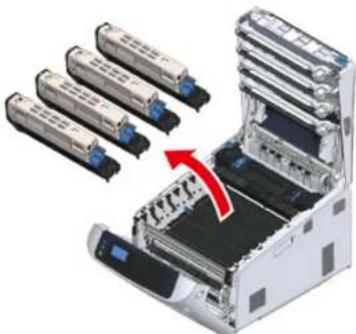
natural_image
Illustration of a mechanical device with multiple cylindrical components and a red arrow indicating a process or operation (no text or symbols present)5 Cover the image drums you took out with paper so that the image drums do not expose to the light.
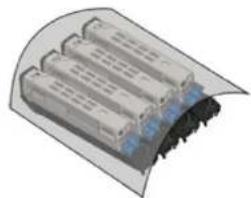
natural_image
Illustration of stacked batteries with visible internal structure (no text or symbols)- Maintenance
6 Turn the blue knobs (5) on each side of the belt unit in direction of the arrow to unlock.
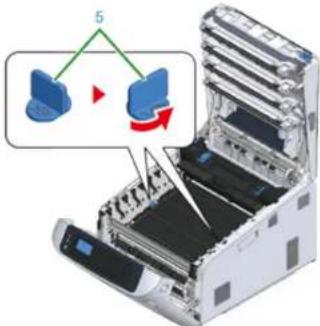
text_image
57 Remove the belt unit by holding the blue handle (6).
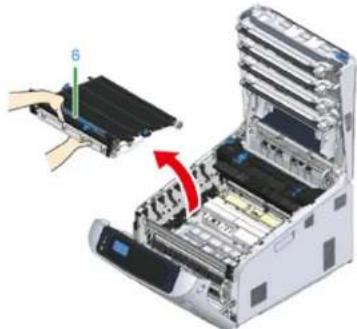
natural_image
3D illustration of a computer rack with a hand inserting a component into the rack (no text or symbols visible)8 Hold the blue handle of a new belt unit, support the bottom of the belt unit, and insert the axis of the belt unit into the groove (7) in the printer.
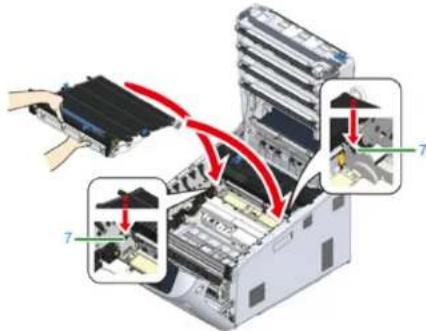
text_image
Diagram showing server rack with labeled components and red arrows indicating connection paths9 Lower the handle side of the belt unit and set the belt unit to the machine.
natural_image
Interior view of a computer or printer with visible internal components and a red arrow indicating a specific part (no text or symbols present)10 Turn the blue knobs (5) on both sides of the belt unit in the direction of the arrow to lock the belt unit.
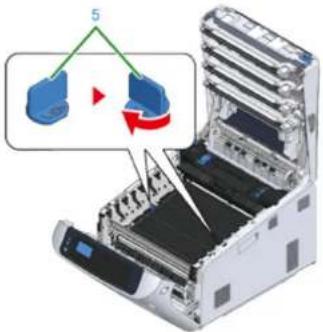
natural_image
3D rendering of a mechanical device with internal components and a labeled diagram (no text or symbols)!
- Do not forget to turn the knobs and lock the belt unit. If you do not turn the knobs to lock the belt unit, image drum cannot be attached properly.
11 Return all the four image drums to the machine.
- Maintenance
!
- Use extra care when handling the image drum (the green cylinder), because it is fragile.
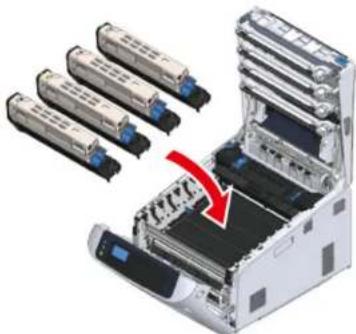
natural_image
Illustration of a mechanical device with multiple cylindrical components and a red arrow indicating a process or operation (no text or symbols present)12 Close the output tray (4) by pushing the center of the output tray firmly.
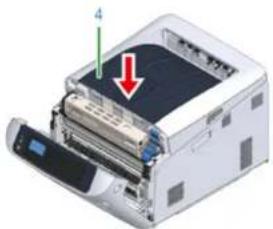
natural_image
3D rendering of a printer with a paper roll and green arrow indicating a component (no text or symbols)13 Close the front cover (2).
!
- The front cover cannot be closed if the output tray is not closed securely.
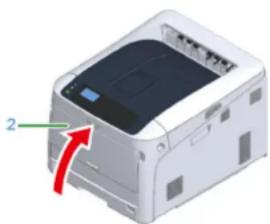
natural_image
3D rendering of a printer with a green arrow pointing to a component (no text or symbols visible)14 Please recycle belt unit.
[NO TEXT]
- If you must dispose of a belt unit, put it in a plastic bag or similar container and dispose of it in accordance with your municipality's ordinances or guidelines.
- Maintenance
Replacing the Fuser Unit
When the "Fuser Unit Near Life" message appears on the display screen, prepare a replacement fuser unit. You can keep printing approximately 2,500 pages until the next message appears.
When the "Change Fuser Unit" message appears, replace the fuser unit.
When using A4 paper (simplex printing), the estimated replacement cycle of a fuser unit is approximately 100,000 pages. This estimation assumes the standard use condition (three pages are printed at a time). Printing one page at a time reduces the fuser unit lifetime approximately by half.
!
- The actual number of pages you can print with the fuser unit depends on how you use it.
- When "Change Fuser Unit" is displayed and printing is stopped, quickly replace with a new fuser unit. Although printing is resumed by opening and closing the front cover, this may cause a malfunction or cause print quality to deteriorate. Also, after a fixed time has elapsed, printing is no longer possible even by opening and closing the front cover. (The fixed time that printing is possible differs according to the operating status.)
- When the [Admin Setup] > [Panel Setup] > [Near Life Status] is set to [Disable], the [Fuser Unit Near Life] message does not appear.
- Do not expose the image drum to direct sunlight or very bright interior light (approximately more than 1,500 lux). Even under the normal interior light, do not leave it for more than 5 minutes.
[NO TEXT]
- You can change the setting for displaying the "Fuser Unit Near Life" message. Set from [Admin Setup] > [Others Setup] > [Near Life Setup] > [Fuser Near Life Timing]. Available values are from 500 to 5,000 (in 500 increments).
1 Prepare a new fuser unit.
- Maintenance
2 Insert your finger into the recess on the right side of the machine and pull the front cover open lever (1) to open the front cover (2) forward.
![OKI C824dn - [NO TEXT] - 1](/content/2026/05/882561/images/f2187fdd8816ae4b6c772b498d0d0407a81e78f6d98fd892c5fd1dba668304de.jpg)
text_image
Diagram showing a printer's internal components with labeled parts and a magnified view highlighting the hand interacting with a device.3 Press the open button (3) and open the output tray (4).
| CAUTION | Possible to get burned. | |
| Since the fuser unit gets hot, carry out the operation carefully, and when lifting it up you must hold it by the handle. Do not try to hold it whilst it is hot. Wait until it has cooled down and then carry out the operation. | ||
![OKI C824dn - [NO TEXT] - 2](/content/2026/05/882561/images/f35077706441d06f9a114b391ba180772cf851811fd1130ff774fce31a0e0cf8.jpg)
natural_image
Diagram showing a device with labeled parts and a magnified inset highlighting a cable or connector (no text or symbols present)4 Pull forward the left locking lever (5) of the fuser unit to unlock.
![OKI C824dn - [NO TEXT] - 3](/content/2026/05/882561/images/4d99aa1c7faa9f4180d50f237ace2f968bfdd145794e4eba6393fae6445fbe8f.jpg)
text_image
55 Hold the fuser unit handle (6) and take out the fuser unit from the machine.
![OKI C824dn - [NO TEXT] - 4](/content/2026/05/882561/images/5c295afeabfa8b5e1cfaf9b79e458ee84b2358c276fffaac365c33df81e52060.jpg)
natural_image
3D diagram of an open battery pack with internal components and a red arrow indicating direction (no text or symbols)- Maintenance
6 Peel off the tape from the new fuser unit, and pass the tape through the handle of the fuser unit.
![OKI C824dn - [NO TEXT] - 5](/content/2026/05/882561/images/9060fc0a1ef324213776c68a0152ccdb881af9531f0a812e0470153870e93c37.jpg)
natural_image
Two black cylindrical electronic components with blue and red arrows indicating motion, one with a white paper clip (no text or symbols)7 Pull the protective sheet in the direction of the arrow to remove.
![OKI C824dn - [NO TEXT] - 6](/content/2026/05/882561/images/84c7f4e098b7091c6e2da8e61e5daa78cd825b54a14018ec6a8aa45760874ab1.jpg)
natural_image
Black cylindrical electronic component with blue ports and a white paper box, accompanied by a red arrow pointing to its side (no text or symbols visible)8 Pull forward the left locking lever (5) of the fuser unit.
![OKI C824dn - [NO TEXT] - 7](/content/2026/05/882561/images/b2ceacdcf89f103be6e9a6715d0fdfc4b7b76313a13c183e5b02cbc7d3caf6a8.jpg)
natural_image
3D rendering of a black cylindrical object with blue connectors and a green arrow pointing to a small component (no text or symbols visible)9 Hold the handle and place the new fuser unit into the machine.
![OKI C824dn - [NO TEXT] - 8](/content/2026/05/882561/images/fc38f1b0009f5782548f0417671055264f37c47af9b07812b69216d603f97e07.jpg)
natural_image
3D rendering of an open battery pack with a red arrow indicating a component (no text or symbols visible)10 Push back the left locking lever (5) of the fuser unit to lock.
![OKI C824dn - [NO TEXT] - 9](/content/2026/05/882561/images/5e19c27cbf5deb6440b0416e17dcd559f8dae58330ed6e5642d94516e3b18e80.jpg)
text_image
511 Close the output tray (4) by pushing the center of the output tray firmly.
![OKI C824dn - [NO TEXT] - 10](/content/2026/05/882561/images/59d215f4e39bc9cbc828616d1a5e863f8ffc532e643c2a4e62c33012b76dc11c.jpg)
natural_image
3D rendering of a printer with a green arrow pointing to a component, no visible text or symbols12 Close the front cover (2).
!
- The front cover cannot be closed if the output tray is not closed securely.
![OKI C824dn - [NO TEXT] - 11](/content/2026/05/882561/images/fb7d8a0029d7489dca544e03a4eee3a078870ad0acafce8f5b874eaf89bfded7.jpg)
natural_image
3D rendering of a printer with a green arrow pointing to the front panel (no text or symbols visible)13 Please recycle fuser unit.
a
- If you must dispose of a fuser unit, put it in a plastic bag or similar container and dispose of it in accordance with your municipality's ordinances or guidelines.
- Maintenance
Cleaning
This section describes how to clean each part of the printer.
• Cleaning the Surface of the Machine
- Cleaning the LED Head
• Cleaning the Light-shielding Film
- Cleaning the Paper Feed Rollers (Tray 1/Tray 2/Tray 3/Tray 4/Tray 5)
• Cleaning the Paper Feed Rollers (MP Tray)
- Cleaning the Resist Roller
- Maintenance
Cleaning the Surface of the Machine
!
- Do not use benzine, thinners, or alcohol, because they may damage the plastic parts of the machine.
- Do not lubricate the machine with oil. Do not apply oil.
1 Turn off the machine.
Turning Off the Power
2 Wipe the surface of the machine with a soft cloth that has been slightly moistened with water or neutral detergent and then squeezed well.

- Do not use other than water or neutral detergent.
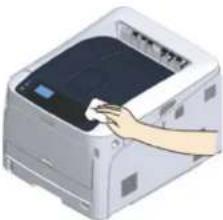
natural_image
Illustration of a hand cleaning a printer with a cloth (no text or symbols visible)3 Dry the surface of the machine with a dry soft cloth.
Cleaning the LED Head
Clean the LED head if vertical white lines appear, images are faded, or the periphery of letters are smudged in the printouts.
!
- Do not use solvents, such as methyl alcohol or thinners, because they may damage the LED head.
- Do not expose the image drum to direct sunlight or strong light (approximately 1,500 lux or more). Even under room lighting, do not leave the image drum for 5 minutes or more.
1 Insert your finger into the recess on the right side of the machine and pull the front cover open lever (1) to open the front cover (2) forward.
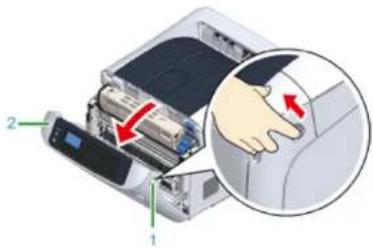
text_image
Diagram showing a printer's internal structure with labeled parts and a magnified view highlighting the hand interacting with the interior.2 Press the open button (3) and open the output tray (4).
| CAUTION | Burns may result. | |
| The fuser unit is extremely hot. Do not touch it. | ||
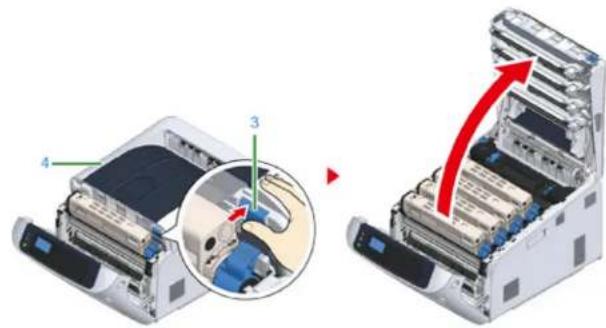
text_image
Diagram illustrating a device's internal structure with numbered components and a red upward arrow indicating rotation or movement.3 Wipe the four lenses of the LED heads with a soft tissue paper lightly.
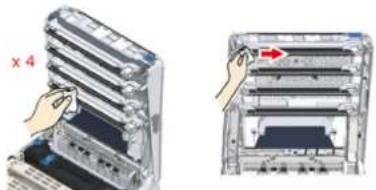
natural_image
Illustration of two views of a server rack with hands installing or adjusting the internal components (no text or symbols visible)4 Close the output tray by pushing the center of the output tray firmly.
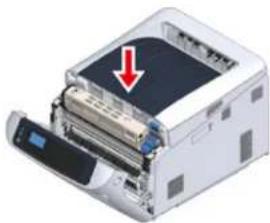
natural_image
3D rendering of a mechanical device with a red arrow pointing to a component (no text or symbols visible)5 Close the front cover (2).
!
- The front cover cannot be closed if the output tray is not closed securely.
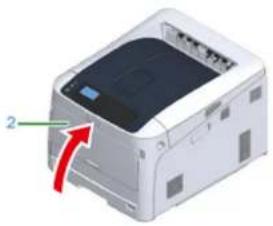
natural_image
3D rendering of a printer with a green arrow indicating rotation (no text or symbols)- Maintenance
Cleaning the Light-shielding Film
If the light-shielding film of the image drum becomes dirty, wipe the film by following the procedures below.
1 Insert your finger into the recess on the right side of the machine and pull the front cover open lever (1) to open the front cover (2) forward.
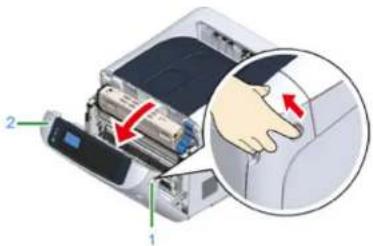
text_image
Diagram showing a device with labeled parts and a magnified view highlighting a hand pressing a button on the side panel.2 Press the open button (3) and open the output tray (4).
| CAUTION | Burns may result. | |
| The fuser unit is extremely hot. Do not touch it. | ||
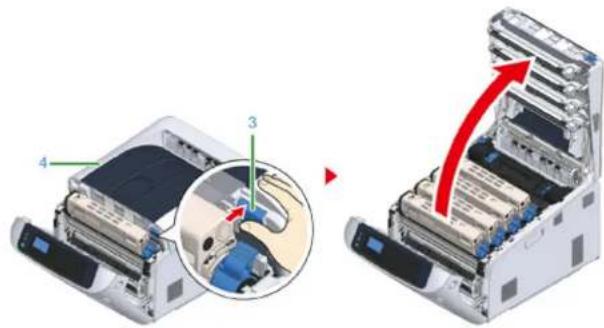
natural_image
Diagram showing a printer's internal structure with a magnified inset highlighting a component (no text or symbols present)3 Remove the image drum.
4 Wipe the light-shielding film (5) with soft tissue paper.
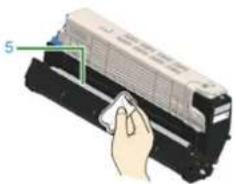
natural_image
Illustration of a hand holding a white object next to a black rectangular device with a green label '5' pointing to it (no text or symbols on the device itself)5 Put the image drum back to the printer.
- Maintenance
6 Close the output tray by pushing the center of the output tray firmly.
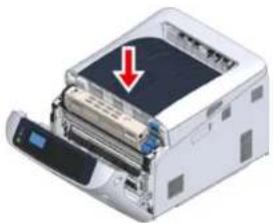
natural_image
3D printer image showing internal components with a red arrow pointing to a component (no text or symbols visible)7 Close the front cover (2).

- The front cover cannot be closed if the output tray is not closed securely.
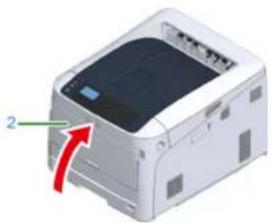
natural_image
3D rendering of a printer with a green arrow pointing to a component (no text or symbols visible)Cleaning the Paper Feed Rollers (Tray 1/Tray 2/Tray 3/Tray 4/Tray 5)
Clean the paper feed roller in the paper tray and the rollers inside the machine.
An example of Tray 1 is covered in the following procedure, and the same procedure applies to Tray 2/3/4/5.
1 Pull out the paper cassette (1).
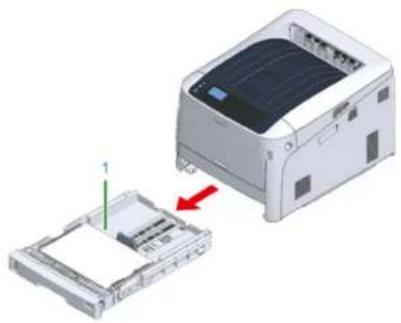
natural_image
3D illustration of a printer with a green arrow indicating a component, showing no text or symbols on the device itself.2 Wipe the two paper feed rollers (2) inside the machine with a wet cloth that has been wrung out well.
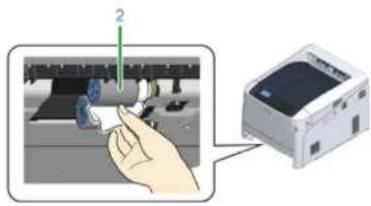
natural_image
Illustration of a hand pressing a component on a machine, next to a device with a screen (no text or symbols visible)3 Remove paper loaded in the paper cassette.
4 Wipe the paper feed roller (3) on the paper cassette with a wet cloth that has been wrung out well.
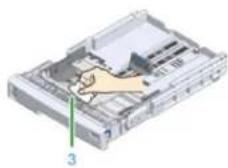
5 Load paper in the paper cassette.
6 Push the paper cassette back into the machine.
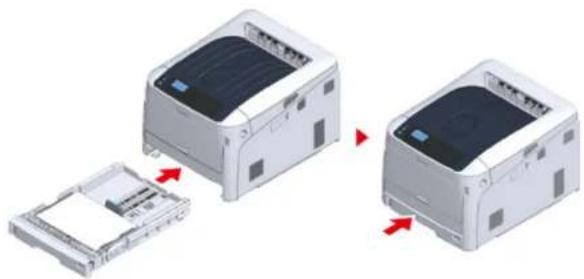
natural_image
Illustration of two industrial printing machines with arrows indicating process flow (no text or symbols)Cleaning the Paper Feed Rollers (MP Tray)
If paper jams occur frequently, clean the paper feed rollers.
1 Open the MP tray (2) forward by inserting your fingers into the front recesses (1).
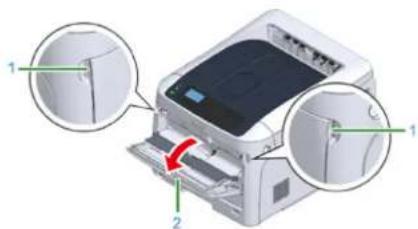
text_image
Diagram of a printer with labeled parts and directional arrows indicating movement or assembly2 Slightly lifting the MP tray (2), press the right arm (3) inward, then unlock the tab (4).
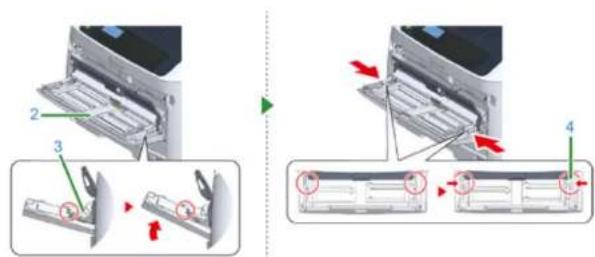
text_image
Diagram illustrating a device's internal structure and assembly process, showing labeled parts and directional arrows.3 In the same manner, slightly lifting the MP tray, press the left arm inward, then unlock the tab.
4 Open the paper set cover (5) until it touches to the machine body.
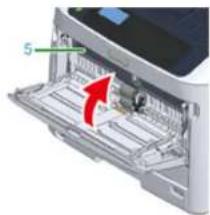
natural_image
Close-up of a printer drawer with a red arrow indicating a component, no visible text or symbols5 Wipe paper feed rollers with a wet cloth that has been wrung out well.
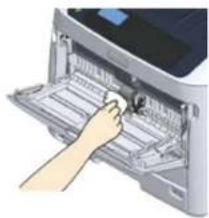
natural_image
Hand inserting a card into a printer drawer (no text or symbols visible)!
- Do not damage the paper end sensor lever when cleaning the rollers.

natural_image
Illustration of hands operating a printer drawer with a warning symbol (no text or labels present)6 Open the separation roller cover (6) forward while pressing the center part of the MP tray.
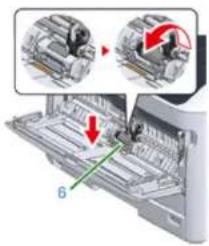
text_image
Technical diagram showing mechanical assembly with labeled components and directional arrows indicating motion or movement7 Wipe the separation rollers (7) with a wet cloth that has been wrung out well.
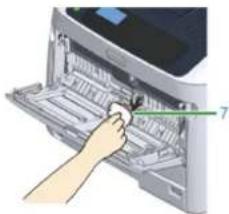
natural_image
Hand inserting a card into a printer drawer (no text or symbols visible)8 Close the separation roller cover (6).
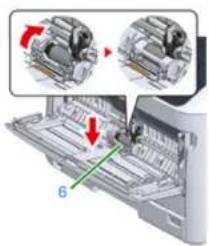
natural_image
Mechanical assembly diagram showing internal components and directional arrows (no text or symbols)9 Lower the paper set cover (5).
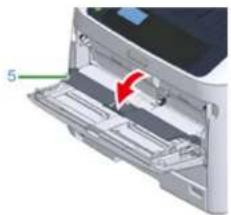
natural_image
Close-up of a printer's internal structure showing a green arrow indicating a component, with no visible text or symbols.10 While pressing the right arm (3) on the MP tray (2) inward, slightly lift the MP tray (2) and hook the tab (4).
!
- Closing the MP tray without putting the tab back in place may crack the paper set cover. Be sure to put it back in place.
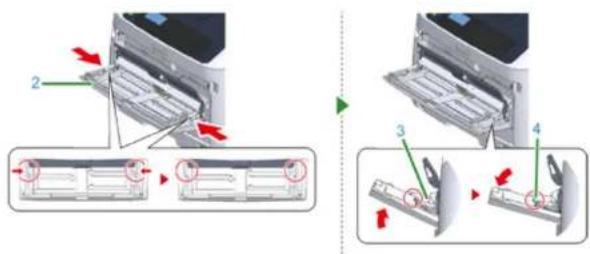
text_image
Diagram illustrating the process of a device's internal structure and assembly, with numbered steps and directional arrows indicating movement.11 In the same manner, while pressing the left arm on the MP tray inward, slightly lift the MP tray and hook the tab.
①
- Closing the MP tray without putting the tab back in place may crack the paper set cover. Be sure to put it back in place.
12
Close the MP tray.
If the MP tray cannot be closed, press the paper setting part of the MP tray downward to put the paper set cover back in place.
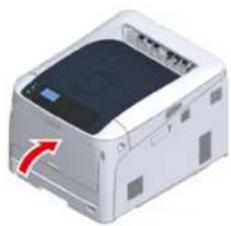
natural_image
3D rendering of a white industrial machine with a red arrow pointing to its side panel (no text or symbols visible)- Maintenance
Cleaning the Resist Roller
Clean the resist rollers in the following steps when they are dirty.
1 Open the front cover.
2 Wipe the metal part (1) and (2) of the resist roller which can be seen in front with a soft tissue paper.
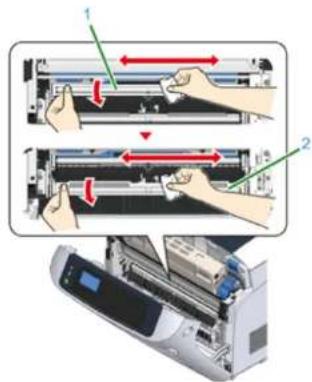
text_image
Diagram illustrating the process of printer printing or printing, showing steps 1 and 2 with red arrows indicating movement.
- When cleaning the metal part (2), do not touch the rubber roller which contacts the metal part (2).
3
Turn the metal parts downwards and wipe them until they get clean.
4
Close the front cover.
Moving This Machine
| CAUTION | Injury may result. | |
| Lift this machine by 2 persons, because it weighs approximately 40 kg. | ||
1 Turn off the machine.
2 Unplug all the cables.
• Power cord
• LAN or USB cable
3 Remove any paper from the paper cassettes.
4 Lift up this machine, and then move it to a new location.
- Maintenance
Transporting This Machine
| CAUTION | Injury may result. | |
| Lift this machine by 2 persons, because it weighs approximately 40 kg. | ||
| CAUTION | Burns may result. | |
| The fuser unit is extremely hot. Do not touch it. | ||
!
- Use extra care when handling the image drum (the green cylinder), because it is fragile.
- Do not expose the image drum to direct sunlight or strong light (approximately 1,500 lux or more). Do not leave the image drum for 5 minutes or more even under room light.
- Please use the packaging and packing materials that came with the product at the time of purchase.
1 Turn off the machine.
Turning Off the Power
2 Unplug all the cables.
- Power cord
• LAN or USB cable
3 Remove any paper from the paper cassettes.
- Maintenance
4 Insert your finger into the recess on the right side of the machine and pull the front cover open lever (1) to open the front cover (2) forward.
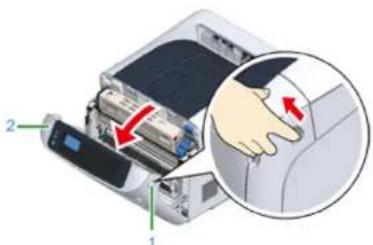
text_image
Diagram showing a printer's internal components with labeled parts and a magnified view highlighting the hand interacting with a device.5 Press the open button (3) and open the output tray (4).
| CAUTION | Burns may result. | |
| The fuser unit is extremely hot. Do not touch it. | ||
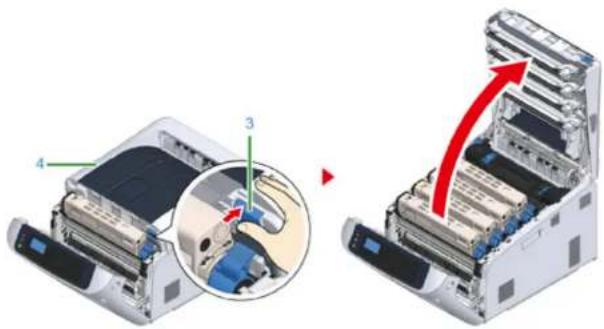
text_image
Diagram illustrating the internal structure of a printer with numbered parts and a red arrow indicating motion or assembly.6 Hold the toner cartridge with both hands and pull it out along with the image drum. Pull out all 4 colors of toner cartridge and image drums, and set it on a flat surface covered with sheets of newspaper, etc.
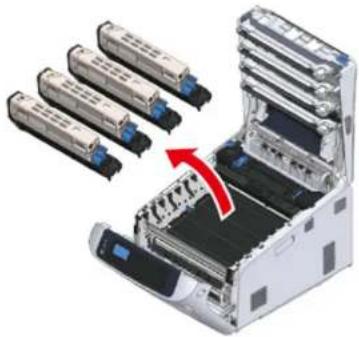
natural_image
Illustration of a mechanical device with multiple cylindrical components and a red arrow indicating a process or operation (no text or symbols present)7 Secure the toner cartridge with plastic tape (5) on each image drum.
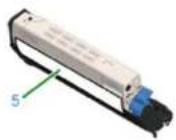
- Maintenance
8 Put the 4 image drums/toner cartridges into the machine.
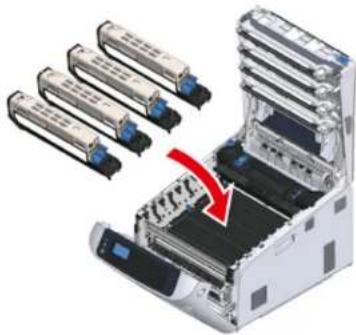
natural_image
Illustration of a mechanical device with multiple cylindrical components and a red arrow indicating a process or operation (no text or symbols present)9 Close the output tray (4) by pushing the center of the output tray firmly.
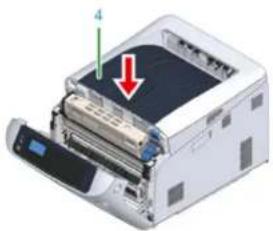
natural_image
3D rendering of a printer with a green arrow pointing to the top panel (no text or symbols visible)10 Close the front cover (2).
- Maintenance
!
- The front cover cannot be closed securely if the output tray is not closed.
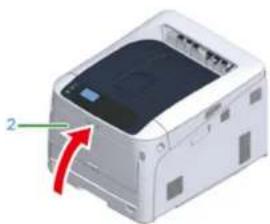
natural_image
3D rendering of a printer with a green arrow pointing to its side panel (no text or symbols visible)11 If optional additional tray units are installed, detach the parts connecting the machine and the additional tray units.
Follow the steps for installation in reverse to detach.
Installing the Additional Tray Unit(s)
!
• Take care not to lose the connecting parts.
- Do not yet detach the parts connecting the additional trays.
12 Lift the printer up and detach from the additional trays.
!
- Pack the printer unit and optional additional tray units separately and transport them.
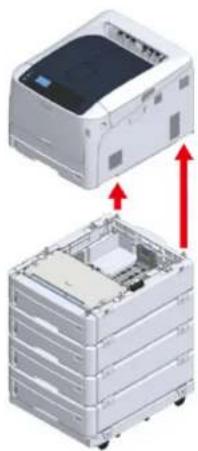
natural_image
3D diagram showing a printer with a stack of boxes and an upward arrow indicating motion (no text or symbols present)13 Attach the packing material to the machine, and put it in the packing box.
14 If there are multiple additional trays or caster bases installed, detach the parts connecting them and pack together with each connecting part.
Follow the steps for installation in reverse to detach.
Installing the Additional Tray Unit(s)
!
• Take care not to lose the connecting parts.
!
• After transporting the machine, when reinstalling, remove the tape securing the image drums and toner cartridges.
Before the printer disposal
We highly recommend you to erase registered personal information and saved data in the machine before you relinquish the machine.
The following information is saved in the machine.
Admin Password
Values set to menu items
Private print data
Various histories
Access control, user management data (local users, external user cache [LDAP, Kerberos])
Erase the stored data by following the procedures below.
1 Press the scroll button ▼ several times to select [Admin Setup], and press the «ENTER» button.
2 Input the admin password and press the «ENTER» button.
3 Press the scroll button ▼ several times to select [Others Setup], and press the «ENTER» button.
4 Press the scroll button ▼ several times to select [Erase Privacy Data], and press the «ENTER» button.
5 Once [Are You Sure?] is displayed, select [Yes], and press the «ENTER» button.
6 Once [Would you like really?] is displayed, select [Yes], and press the «ENTER» button.
Restart the machine to erase the data.
!
- Once the action is executed, the erased data cannot be restored. To cancel the erasing, select [No] in step 5 or step 6.
Deleting a Printer Driver
This section describes how to remove the printer driver that is installed in a computer.
Depending on your OS, printer driver version, the description on this document may be different.
- For Windows
!
- You must log in as the administrator to perform this procedure.
- Restart the computer before removing the printer driver.
1 Open the "Printer folder".
2 Right-click the you want to remove icon, and then select [Remove device].
3 When a confirmation message is displayed, click [Yes].
!
- When a message is displayed to inform you of the device in use, restart a computer, and then repeat steps 1 to 2.
4 Select an icon in [Printers], and then click [Print server properties] on the top bar.
5 Select the [Drivers] tab.
6 If [Change Driver Settings] is displayed, click it.
7 Select a driver to remove, and then click [Remove].
8 When a message is displayed to ask you to select whether you want to remove the printer driver only or the printer driver and package from the system, select to remove the driver and package, and then click [OK].
9 When a confirmation message is displayed, click [Yes].
10 When the [Remove Driver Package] dialog is displayed, click [Delete] > [OK].
!
- If removal is rejected, restart the computer, and then repeat steps 4 to 10.
- Maintenance
11 Click [Close] in the [Print Server Properties] dialog.
12 Restart the computer.
- For MacOS
!
- You must log in as the administrator to perform this procedure.
1 Select [System Preferences] from the Apple menu.
2 Select [Printers & Scanners].
3 Select a device to remove, and then click [-].
If a confirmation message is displayed, click [Delete Printer].
4 Close the [Printers & Scanners] dialog.
5 Insert the "Software DVD-ROM" into a computer.
6 Double-click [OKI] > [Drivers] > [PS] > [Uninstaller].
7 Check the model to remove displayed on the dialog, and then click [OK].
8 Enter the administrator password, and then click [OK] twice.
9 Remove the "Software DVD-ROM" from the computer.
Updating the Software
Update the printer software to the latest version.
A computer connected to the Internet is required.
For Windows users, use Monitoring Tool.
For Mac OS, visit the Oki Data website.
- For Windows
1 In order to update the software, install [Monitoring Tool] to the computer.
If you select [Recommended Install] when installing the printer driver, Monitoring Tool is automatically installed.
2 When updatable software is detected, the following screen is displayed.

text_image
Settings Help, Privacy Settings Tool 1. To choose the options to select the Project Files or other categories: On Project Files or Web sites Settings Name: Microsoft Windows Control Security Web sites Help Settings Settings Options Settings Help Preview Event Preview Event Preview Event Preview Event Preview Event Preview Event Preview Event Preview Event Preview Event Preview Event Preview Event Preview Event Preview Event Preview Event Preview Event Preview Event Preview Event Preview Event Preview Event Preview Event Preview Event Preview Event Preview Event Preview Event Preview Event Preview Event Preview Event Preview Event Preview Event Preview Event Preview Event Preview Event Preview Event Preview Event3 If there is updatable software, [Update recommended] is displayed in the [Status] field of the List of installed software, and then click [Update].
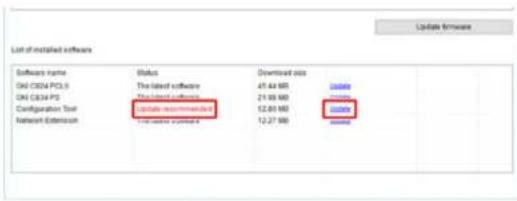
text_image
List of installed software Software name Status Downloaded size ON CB3M PCS The latest software 41.44 MB Install ON CB3M PS The latest software 21.95 MB Install Configuration Tool Install recommended 12.00 MB Install Network Extension Install required 12.27 MB Install Update firmware- Maintenance
4 Read the license agreement, and then click [Accept].
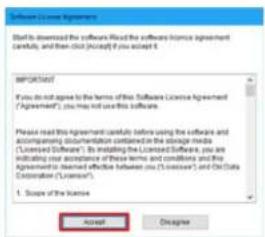
text_image
Software License Agreement Start to download the software that the software license agreement carefully, and then click (if you accept it) IMPORTANT If you do not agree to the terms of the Software License Agreement ("Agreement"), you may not use this software. Please read this agreement certificate before using the software and accompanying documentation contained in the storage media ("Licensed Software"). To including the Licensed Software, you are indicating our acceptance of these terms and conditions and the Agreement to learn enough between you ("Licensed") and the Data Center ("License").5 Installation starts.
The procedure below varies depending on the selected software.
The installation of the Configuration Tool is used as an example.
6 Click [Next] to start the installation.
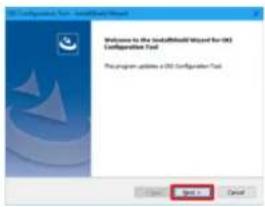
text_image
Configuration Tool - Install Wizard Welcome to the Install Wizard for iOS Configuration Tool This program updates a iOS Configuration Tool Start Cancel7 When the installation is complete, click [Finish].
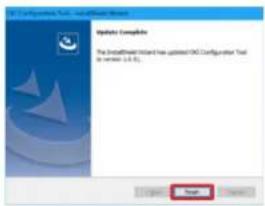
text_image
C:\Configuration\Tool - install\Program Files Update Complete The Installment Wizard has installed OK Configular Tool to version 1.0.0.8 When [The latest software] is displayed in the [Status] field of the installed software, the software update is complete.
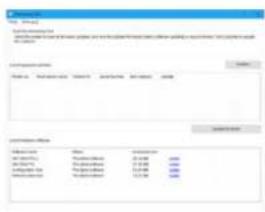
text_image
My Path Set up to 100% of the path is to the following: All other paths are available in this configuration. The path is available in this configuration. Name: Subtitle "Baidu" Subtitle "http://www.baidu.org/baidu.org/baidu.org/baidu.org/baidu.org/baidu.org/baidu.org/baidu.org/baidu.org/baidu.org/baidu.org/baidu.org/baidu.org/baidu.org/baidu.org/baidu.org/baidu.org/baidu.org/baidu.org/baidu.org/baidu.org/baidu.org/baidu.org/baidu.org/baidu.org/baidu.org/baidu.org/baidu.org/baidu.org/baidu.org/baidu.org/baidu.org/baidu.org/baidu.org/bid Subtitle Subtitle Subtitle: Subtitle: Baidu Subtitle: Baidu Subtitle: Baidu Subtitle: Baidu Subtitle: Baidu Subtitle: Baidu Subtitle: Baidu Subtitle: Baidu Subtitle: Baidu Subtitle: Baidu Subtitle: Baidu Subtitle: Baidu Subtitle: Baidu Subtitle: Baidu Subtitle: Baidu Subtitle: Baidu Subtitle: Baidu Subtitle: Subtitle Subtitle: Baidu Subtitle: Baidu Subtitle: Baidu Subtitle: Baidu Subtitle: Baidu Subtitle: Baidu Subtitle: Baidu Subtitle: Baidu Subtitle: Baidu Subtitle: Baidu Subtitle: Baidu Subtitle: Baidu Subtitle: Baidu Subtitle: Baidu Subtitle: Baidu Subtitle: Baidu Subtitle: Subtitle: Subtitle: Subtitle: Subtitle: Subtitle: Subtitle: Subtitle: Subtitle: Subtitle: Subtitle: Subtitle: Subtitle: Subtitle: Subtitle: Subtitle: Subtitle: Subtitle: Subtitle: Subtitle: Subtitle: Subtitle: Subtitle: Subtitle: Subtitle: Subtitle: Subtitle: Subtitle: Subtitle: Subtitle: Subtitle: Subtitle: Subtitle: Subtitle: Baidu Baidu Baidu Baidu Baidu Baidu Baidu Baidu Baidu Baidu Baidu Baidu9 Quit [Monitoring Tool].
- Maintenance
Updating the Firmware
Update the printer firmware (device control program) to the latest version.
A computer connected to the Internet is required.
For Windows users, use Monitoring Tool.
For Mac OS, visit the Oki Data website.
For Windows
• The flow of updating firmware
1 In order to update the firmware, install [Monitoring Tool] to the computer.
If you select [Recommended Install] when installing the printer driver, Monitoring Tool is automatically installed.
2 Register the printer to [Monitoring Tool].
Only C824, and C844 can be registered.
Now the firmware is ready to update.
When a printer with updatable firmware is detected, [Monitoring Tool] is displayed on the computer. Update the firmware.
- Register the printer to the Monitoring Tool
1 Select [Start] > [Okidata] > [Monitoring Tool].
2 Select [Register printer] from the [Setup] menu.
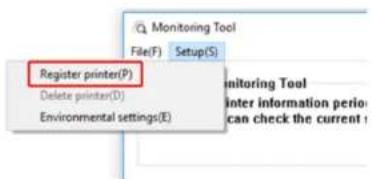
text_image
Register printer(P) Delete printer(D) Environmental settings(E)- Maintenance
3 Registrable printers are displayed on the [Register printer] screen. Check the printers that you want to register and click [Register].
text_image
Register printer To register a printer *Describe the power to have in information acquired periodically. Application models Printer 10.0000000000000000000000000000000000000000000000000000000000000000000000000000000000000000000000000000 E324 19.45.191.48 Social Number Status CSC238/86244 Strategy formed Select all Registered Exit4 Enter the administrator password of the printer on the [Administrator password authentication] screen, click [OK].
5 Make sure that the checked printer is displayed on the [Monitoring Tool] screen, and finish [Monitoring Tool].
- Updating the Firmware
1 [Monitoring Tool] checks the printer condition regularly, and displays the following screens.
text_image
Software Net (M) Settings Set up to 100% or more, then set up to 100% or more. For the next step, the settings are set up to 100%. The settings are set up to 100% or more. For the next step, the settings are set up to 100%. The settings are set up to 100%. For the next step, the settings are set up to 100%. For the next step, the settings are set up to 100%. For the next step, the settings are set up to 100%. For the next step, the settings are set up to 100%. For the next step, the settings are set up to 100%. For the next step, the settings are set up to 100%. For the next step, the settings are set down to 100%. For the next step, the settings are set down to 100%. For the next step, the settings are set down to 100%. For the next step, the settings are set down to 100%. For the next step, the settings are set down to 100%. For the next step, the settings are set down to 100%. For the next step, the settings are set down to 150%. For the next step, the settings are set down to 150%. For the next step, the settings are set down to 150%. For the next step, the settings are set down to 150%. For the next step, the settings are set down to 150%. For the next step, the settings are set down to 150%. For the next step, the settings are set down to 150%. For all steps: - Settings: - Settings A: - Settings B: - Settings C: - Settings D: - Settings E: - Settings F: - Settings G: - Settings H: - Settings I: - Settings J: - Settings K: - Settings L: - Settings M: - Settings N: - Settings O: - Settings P: - Settings Q: - Settings R: - Settings S: - Settings T: - Settings U: - Settings V: - Settings W: - Settings X: - Settings Y: - Settings Z: - Settings AA: - Settings AB: - Settings AC: - Settings AD: - Settings AE: - Settings AF: - Settings AG: - Settings AH: - Settings AI: - Settings AJ: - Settings AK: - Settings AL: - Settings AM: - Settings ANA: - Settings AO: - Settings AP: - Settings AQ: - Settings AR: - Settings AS: - Settings AT: - Settings AU: - Settings AV: - Settings AW: - Settings AX: - Settings AY: - Settings AZ: - Settings BA: - Settings BB: - Settings BC: - Settings BD: - Settings BE: - Settings BF: - Settings BG: - Settings BH: - Settings BI: - Settings BJ: - Settings BK: - Settings BL: - Settings BM: - Settings BMN: - Settings BNN: - Settings BNNQ: - Settings BNNQY: - Settings BNNQYY: - Settings BNNQYYY: - Settings BNNQYYYY: - Settings BNNQYYYYY: - Settings BNNQYYYYY: - Settings BNNQYYYYYY: - Settings BNNQYYYYYY: - Settings BNNQYYYYYY: - Settings BNNQYYYYYY: - Settings BNNQYYYYYY: - Settings BNNQYYYYY: - Settings BNNQYYYYY - Settings BNNQYYY - Settings BNNQY - Settings BNNQ - Settings BNN - Settings BNN - Settings BNN - Settings BNN - Settings BNN - Settings BNN - Settings BNN - Settings BNN - Settings BNN - Settings BNN - Settings BNN - Settings BNN - Settings BNN - Settings BNN - Settings BNN - Settings BNN - Settings BNN - Settings BNN - Settings BNN - Settings BNN - Settings BNNN - Settings BNNN - Settings BNNN - Settings BNNN - Settings BNNN - Settings BNNN - Settings BNNN - Settings BNNN - Settings BNNN - Settings BNNN - Settings BNNN - Settings BNNN - Settings BNNN - Settings BNNN - Settings BNNN - Settings BNNN - Settings BNNN - Settings BNNN - Settings BNNN - Settings BNNN - Settings BNIN - Settings BNIN - Settings BNIN - Settings BNIN - Settings BNIN - Settings BNIN - Settings BNIN - Settings BNIN - Settings BNIN - Settings BNIN - Settings BNIN - Settings BNIN - Settings BNIN - Settings BNIN - Settings BNIN - Settings BNIN - Settings BNIN - Settings BNIN - Settings BNIN - Settings BNIN - Settings BNBN - Settings BNBN - Settings BNBN - Settings BNBN - Settings BNBN - Settings BNBN - Settings BNBN - Settings BNBN - Settings BNBN - Settings BNBN - Settings BNBN - Settings BNBN - Settings BNBN - Settings BNBN - Settings BNBN - Settings BNBN - Settings BNBN - Settings BNBN - Settings BNBN - Settings BNBN - Settings BNBNT - Settings BNTNT - Settings BNTNT - Settings BNTNT - Settings BNTNT - Settings BNTNT - Settings BNTNT - Settings BNTNT - Settings BNTNT - Settings BNTNT - Settings BNTNT - Settings BNTNT - SOUT: Settings: Settings: Settings: Settings: Settings: Settings: Settings: Settings: Settings: Settings: Settings: Settings: Settings: Settings: Settings: Settings: Settings: Settings: Settings: Settings: Settings: Settings: Settings: Settings: Settings: Settings: Settings: Settings: Settings: Settings: Settings: Settings: Settings: Settings: Settings: Settings: Settings: Settings: Settings: Settings: Settings: Settings: Settings: Settings: Settings: Settings: Settings: Settings: Settings: Settings: Technologies: Technologies: Technologies: Technologies: Technologies: Technologies: Technologies: Technologies: Technologies: Technologies: Technologies: Technologies: Technologies: Technologies: Technologies: Technologies: Technologies: Technologies: Technologies: Technologies: Technologies: Technologies: Technologies: Technologies: Technologies: Technologies: Technologies: Technologies: Technologies: Technologies: Technologies: Technologies: Technologies: Technologies:2 If there are printers with updatable firmware, [Update recommended] is displayed in the [Update] field. Mark the checkbox of the device, and click [Update firmware].
3 Enter the administrator password of the printer on the [Administrator password authentication] screen, click [OK].
4 The latest firmware is downloaded from the Oki Data website and the firmware of the printer is updated.
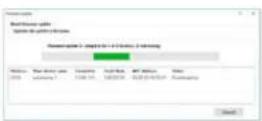
!
- Please do not turn the power of the printer off while the firmware is being updated.
5 When [Succeed] is displayed, updating firmware is finished.
!
- When [Update error] is displayed, wait a while and then repeat the steps above.
6 Quit [Monitoring Tool].
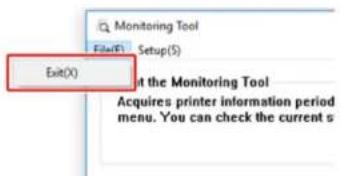
text_image
Exit(X) Monitoring Tool File(F) Setup(S) at the Monitoring Tool Acquires printer information period menu. You can check the current s8
Appendix
How to open printer folder
Menu List of the Operator Panel
Options
Specifications
How to open printer folder
This section describes how to open the printer driver icon folder in each version of Windows.
- For Windows 10 (Version 1703 and later)/ Windows Server 2019
1 Click [Start] and display the application list.
2 Select [Windows System] > [Control Panel] > [View devices and printers].
• For Windows Server 2012 R2/ Windows Server 2016
Select [Control Panel] > [View devices and printers].
- For Windows 10/ Windows 8/ Windows 8.1/ Windows Server 2012
Open the control panel and select [View devices and printers].
• For Windows 7/Windows Server 2008 R2
Select [Start] > [Devices and Printers].
Menu List of the Operator Panel
Numbers following the Fn in the menu items indicate the function numbers.
menu_tree_en[650KB]
Adobe Reader must be installed on your computer to view the manual in PDF format.
- Appendix
Options
This section explains how to install optional equipment.
The following options are available for your printer:
- Duplex Unit
Model Number:N35320A
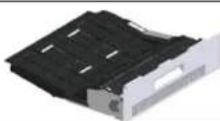
- Wireless LAN module

- Caster Base
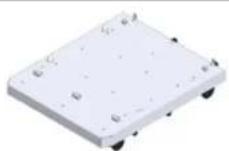
• Additional Tray Unit
Model Number:N35310A
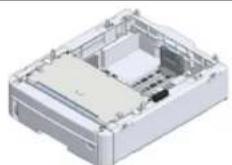
- Appendix
!
- Be sure to turn off your printer and unplug the AC cord and Ethernet or USB cable before installing options. Installing options while your printer is turned on may damage your printer and options.

- After installing options, set the option settings with a printer driver. Refer to "When Adding Options".
• Installing the Duplex Unit (C824n, C834nw Only)
• Installing the Wireless LAN module (C824, ES8434 Only)
• Installing the Caster Base
• Installing the Additional Tray Unit(s)
- When Adding Options
- Appendix
Installing the Duplex Unit (C824n, C834nw Only)
The duplex unit adds the function of two-sided printing, using less paper and making large documents easier to handle. It also enables booklet printing, which uses even less paper and makes large documents even easier to handle.
The duplex unit slides straight into the rear of the printer and requires no tools to install.
Model Number:N35320A
1 Turn off your printer, and then unplug the AC cord and the Ethernet or USB cable.

- Installing options while your printer is turned on may damage your printer and duplex unit.
2 Remove the two strips of protective tape.
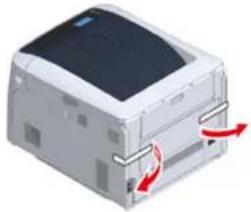
natural_image
3D rendering of a mechanical device with a blue top and red directional arrows indicating motion (no text or symbols)3 Remove blind cover of the printer back.
natural_image
3D rendering of a printer with a red arrow pointing to a side panel (no text or symbols visible)4 Ensure that the duplex unit is the right way up, as shown, and push it into the slot at the rear of the printer.
Push the duplex unit all the way in until it stops and latches home.
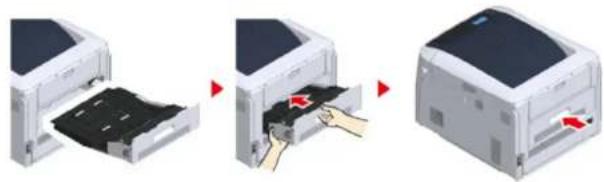
natural_image
Three-step illustration showing a printer being inserted into a paper case, with no visible text or symbols.
- Ensure that the duplex unit is properly installed.
5 Plug the AC cord and Ethernet or USB cable into your printer, and then turn on the power switch.
6 Print "Menu map".
If "Duplex unit" is displayed, the duplex unit is properly attached.
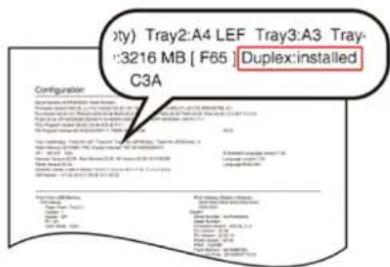
text_image
Tray2:A4 LEF Tray3:A3 Tray- 3:3216 MB [ F65 ] Duplex:installed C3A Configuration: Duplex: installed Tray2:A4 LEF Tray3:A3 Tray- 3:3216 MB [ F65 ] Duplex: installed C3A Pre installation: Tray2:A4 LEF Tray3:A3 Tray- 3:3216 MB [ F65 ] Duplex: installed C3A Pre installation: Tray2:A4 LEF Tray3:A3 Tray- 3:3216 MB [ F65 ] Duplex: installed C3A Pre installation: Tray2:A4 LEF Tray3:A3 Tray- 3:3216 MB [ F65 ] Dupex: installed C3A7 Make settings for optional equipment on the printer driver.
Refer to "When Adding Options".
- Appendix
Installing the Wireless LAN module (C824, ES8434 Only)
Install the wireless LAN module when you want to use a wireless connection. Set the wireless LAN module to [Enable] after installing.
Also you can directly connect wireless devices (computers, tablets, smartphones, etc.) to the machine without using a wireless LAN access point.

The wireless LAN module is equipped on the C834, and C844 models by the factory default.
1 Turn off your printer, and then unplug the AC cord.
!
- Installing options while your printer is turned on may damage your printer and wireless LAN module.
2 Open the Wireless LAN module cover on the right side of a printer.
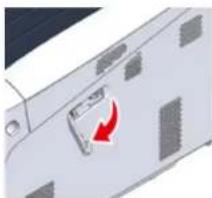
natural_image
Close-up of a mechanical device with a red arrow indicating a component or feature (no visible text or symbols)3 Pull out the connector, and plug it into the Wireless LAN module.
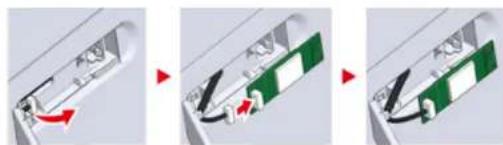
text_image
Three-step diagram showing a device with labeled components and directional arrows indicating motion or movement.4 Install the Wireless LAN module to the printer.
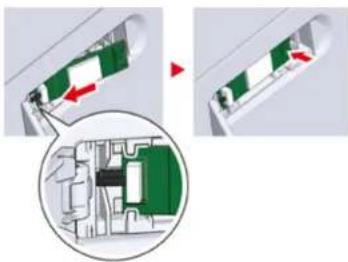
natural_image
Diagram showing a mechanical assembly with green components and red directional arrows, no visible text or symbols5 Close the Wireless LAN module cover.
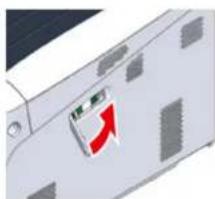
natural_image
Close-up of a computer drive with a red arrow pointing to the button (no text or symbols visible)6 Plug the AC cord, and then Turn on your printer.
7 When this machine turns on and [PLEASE WAIT] is displayed on the display screen, press the «ENTER» button.
When [Boot Menu] is displayed, release your finger and press the «ENTER» button again.
8 Enter the administrator password using the numeric (0-9) keys, and press the «ENTER» button.
The factory default administrator password is "123456". If the administrator password is changed, enter the updated password.
- Appendix
9 Press the scroll button, select [Wireless Module], and then press the «ENTER» button.
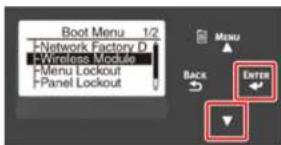
text_image
Boot Menu 1/2 Network Factory D Wireless Module Menu Lockout Panel Lockout Menu BACK ENTER10 Press the scroll button ▲select [Enable], and then press the «ENTER» button.
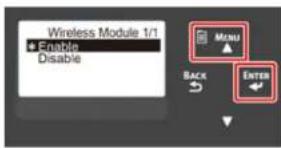
text_image
Wireless Module 1/1 + Enable Disable MENU BACK ENTER11 Press «Online» button.
Installing the Caster Base
Caster Base is a base with casters for moving the printer.
Stoppers for fall prevention are equipped. When you attach the additional tray units, the use of the caster base is highly recommended.
!
- When attaching three or more additional tray units, be sure to install the caster base.
- The packing box and packing material are required for transporting the caster base. Do not dispose of them, and keep them for future use.
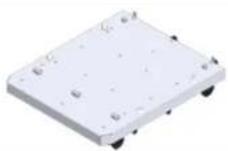
| CAUTION | It may cause injury! | |
| At least two people are needed to lift the printer safely because it weighs about 40 kg. | ||
1 Turn off your printer, and then unplug the AC cord and the Ethernet or USB cable.
①
- If you mount the printer with a cable plugged, you may catch your foot on the cable and get injured.
- Appendix
2 Place the printer unit or the additional tray unit on the base so that the back of the printer unit or the additional tray unit aligns to the protrusion (1) on the back of the caster base.
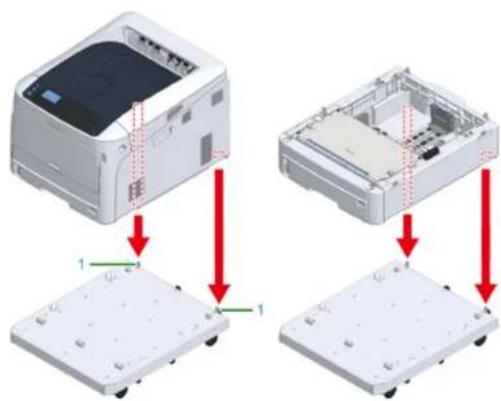
text_image
Diagram showing two views of a printer with red arrows indicating assembly steps, labeled with numbers 1 and directional arrows.3 Connect the printer unit and the caster base or the additional tray unit and the caster base. The figure shows an example of the additional tray unit and the caster base connected.
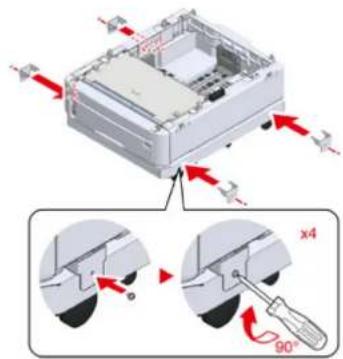
text_image
Diagram illustrating a mechanical assembly with labeled parts and directional arrows, including a magnified view of the component being threaded.4 When adding on a further additional tray unit, gently place the unit on top so that the protrusions at the rear of the additional tray unit to be attached are
- Appendix
aligned with the back of the additional tray unit that is already connected to the caster base.
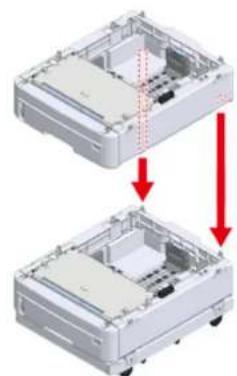
natural_image
Two 3D mechanical components with red arrows indicating assembly or transformation (no text or symbols)5 Join the additional tray units together.
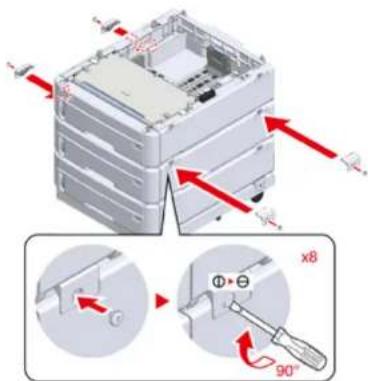
text_image
Technical diagram showing a 3D printer internal structure with red directional arrows and a close-up of the component being inserted, including a 90-degree angle indicator.6 When two or more additional tray units have been attached, gently place the printer unit on top so that the back of the additional tray unit is aligned with the back of the printer unit.
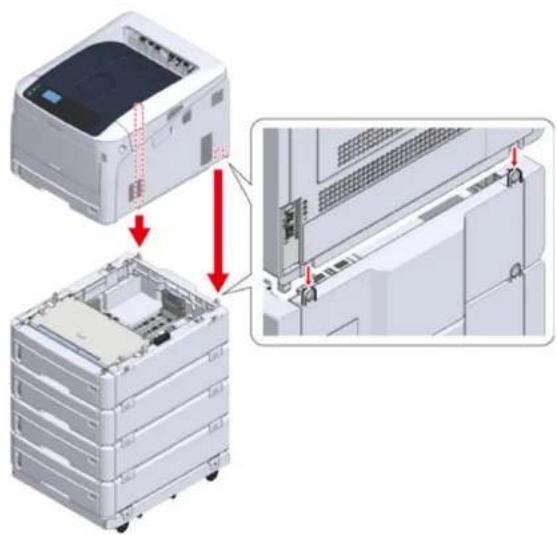
natural_image
3D diagram showing a printer assembly with red arrows indicating parts of the base and top, and a close-up of the printer's internal structure (no text or symbols present)- Appendix
7 When attaching the additional tray unit, connect the printer unit and the additional tray unit.
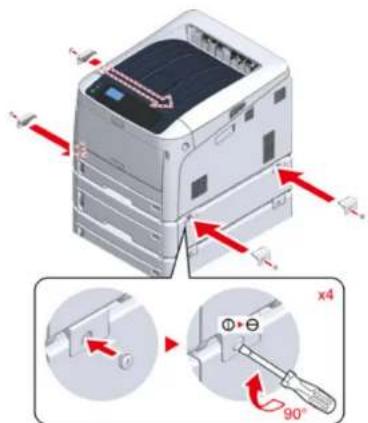
text_image
Diagram illustrating a device's internal structure and 90-degree angle measurement, with red arrows indicating directional movement.8 Lock the casters.
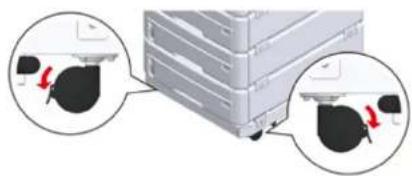
natural_image
Diagram showing a mechanical device with two circular insets highlighting internal components (no text or symbols present)9 When three or more additional tray units have been attached, pull out the tip-over protection tools before using the printer.
Up to four additional trays may be installed.
How to Use the Tip-over
You can find two tip-over protection tools on the left and right sides of the caster base, and also two tools on its back side. Pull them straight out, then turn them 90° counter-clockwise until they click.
| _Y552] | Injury may result. | (W338) |
| When the number of additional tray units is three or more, completely pull out the tip-over protection tools. If these tip-over protection tools are not set in place, the printer might tip over and cause an injury. | ||
Injury may result.
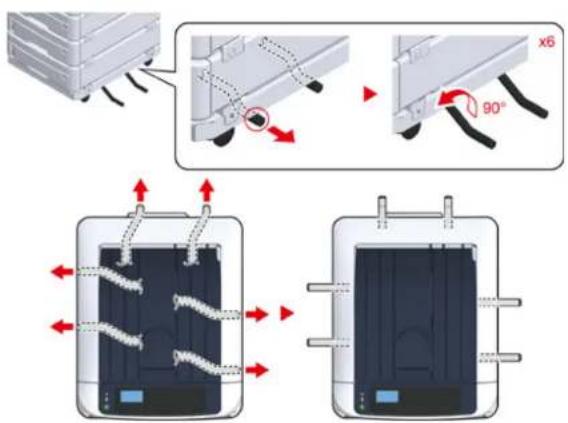
text_image
Diagram illustrating the installation of a battery with 90-degree angle and cable routing, showing component assembly and fluid flow directions.!
- When performing actions such as transporting this machine, replacing consumable and maintenance parts, or setting paper onto the tray, please observe the following precautions to prevent the machine from tipping over. - Do not push the output tray when the machine's output tray is open.
natural_image
Illustration of a printer with multiple stacks of books and red X marks indicating file orientation (no text or symbols present)- Do not push down on the paper cassette while it is pulled out.
- Do not push the machine from the behind while the paper cassette is pulled out.
10 Plug the power cord and the unplugged cables, and then turn on the machine.
After the additional tray unit is mounted, you need to check the mounting status and make the settings of the printer driver.
Refer to "When Adding Options".
- Appendix
Installing the Additional Tray Unit(s)
If you want to load more paper, install additional tray units. You must set the printer driver after installing.
Up to four additional tray units can be attached. When installing three or more additional trays, attach the optional caster base used to prevent tip-over and set the tip-over prevention tools in place.
!
- The packing box and packing material are required for transporting the additional trays. Do not dispose of them, and keep them for future use.
Model Number:N35310A
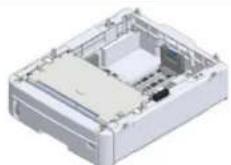
| CAUTION | Injury may result. | |
| Lift this machine by 2 persons, because it weighs approximately 40 kg. | ||
The following describes an example of installing three additional tray units.
Installing the Caster Base
1 Turn the machine off, and then unplug the power cord and all the cables.
!
- Be sure to turn the machine off and unplug the power cord and all the cables before installing the additional tray. Installing the additional tray with the machine turned on may cause the machine and additional tray to malfunction.
- If you mount the printer with the AC cord plugged, you may catch your foot on the cord and get injured.
2 Place the additional tray unit on the base so that the back of the additional tray unit aligns to the protrusion (1) on the back of the caster base.
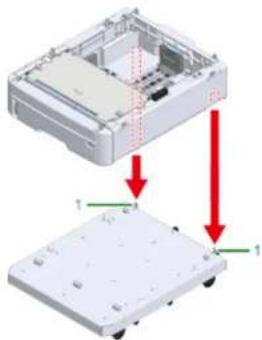
natural_image
3D diagram of a device housing with arrows indicating assembly or transformation (no text or symbols)3 Connect the additional tray unit to the caster base.
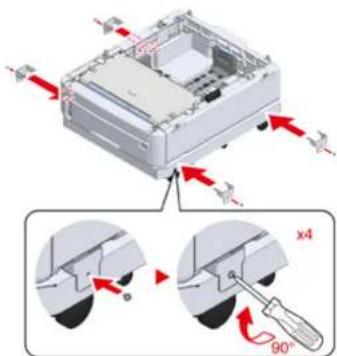
text_image
Technical diagram showing a mechanical assembly with red arrows indicating motion and a magnified view of the component's rotation, including a 90° angle annotation.- Appendix
4 Align the back of the bottom-layer additional tray unit with the protrusion on the back of the additional tray to be mounted, and gently pile them up.
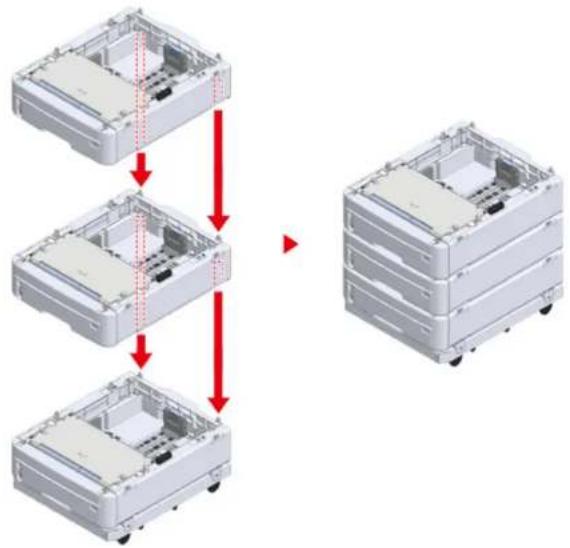
flowchart
graph TD
    A["Step 1: Initial assembled component"] --> B["Step 2: Internal assembly"]
    B --> C["Step 3: Final assembly"]
5 Connect the additional tray units.
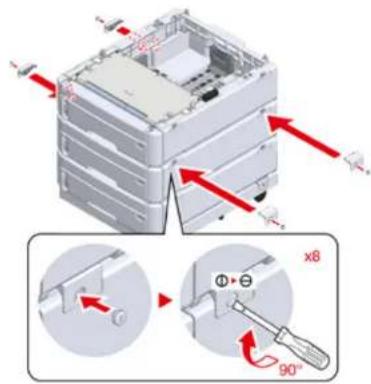
text_image
Technical diagram showing a 3D printer with red arrows indicating force application and a close-up of the device's internal structure, including a 90° angle indicator.- Appendix
6 Gently place the printer unit on top so that the rear side of the additional tray unit is aligned with the back of the printer unit.
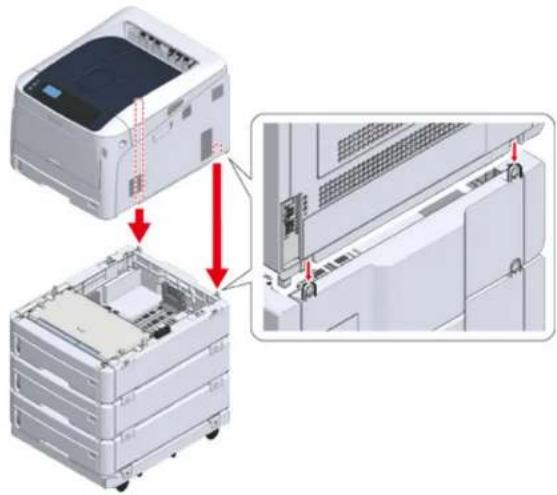
natural_image
Diagram showing a printer's internal structure being inserted into a rack, with red arrows indicating the process (no text or symbols present)- Appendix
7 Join the additional tray unit to the printer unit.
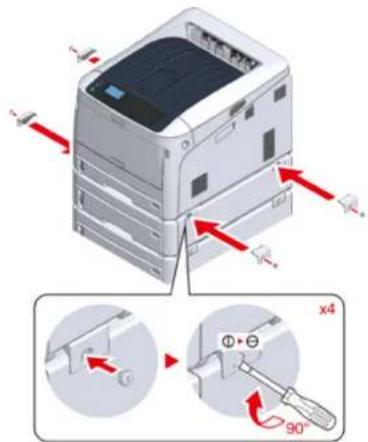
text_image
Diagram illustrating a printer's internal structure with red arrows indicating assembly and angle measurement, including magnified views of the device.8 Lock the casters.
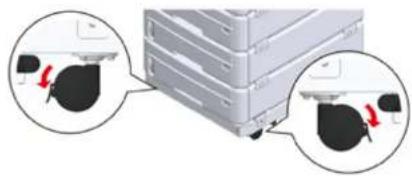
natural_image
Diagram showing a device with two circular insets highlighting the components (no text or symbols present)9 When three or more additional tray units have been attached, pull out the tip-over protection tools before using the machine.
Up to four additional trays may be installed.
How to Use the Tip-over
You can find two tip-over protection tools on the left and right sides of the caster base, and also two tools on its back side. Pull them straight out, then turn them 90° counterclockwise until they click.
 | Injury may result. | (bwell) |
| When the number of additional tray units is three or more, completely pull out the tip-over protection tools. If these tip-over protection tools are not set in place, the printer might tip over and cause an injury. | ||
Injury may result.
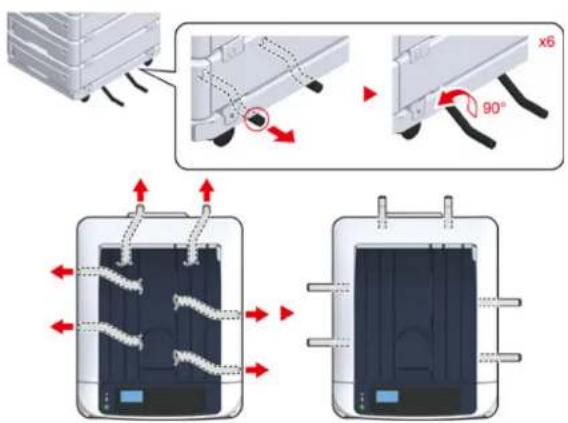
text_image
Diagram illustrating the installation of a battery module with 90° angle and cable routing, showing component positioning and fluid flow directions.!
- When performing actions such as transporting this machine, replacing consumable and maintenance parts, or setting paper onto the tray, please observe the following precautions to prevent the machine from tipping over. - Do not push the output tray when the machine's output tray is open.
natural_image
Illustration of a printer with multiple stacks of books and red X marks indicating file orientation (no text or symbols present)- Do not push down on the paper cassette while it is pulled out.
- Do not push the machine from the behind while the paper cassette is pulled out.
10
Plug the power cord and the unplugged cables.
- Appendix
11 Press the power switch for approximately a second. When the machine is turned on, the power switch LED lamp is lit.
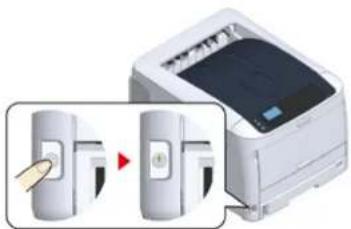
natural_image
Diagram showing a printer with a scroll wheel and a close-up of its cable being inserted (no text or symbols visible)12 Press the scroll button on the operator panel several times to select [Configuration], and press «ENTER».
13 Check that [Tray Count] is selected, and press «ENTER».
14 Check that the additional tray units that were installed are displayed on the operator panel.
15 When you have finished checking the display details, press «BACK».
16 Make settings for the optional equipment on the printer driver. Proceed to "When Adding Options".
- Appendix
When Adding Options
If the additional tray unit(s) or Duplex Unit are installed, set the options information to a printer driver.
!
• To follow this procedure, you must log in to a computer as the administrator.
- If your Mac OS applies to the following conditions, the information about the installed option is automatically obtained, not requiring you to set the printer driver.
If the USB connection or the network connection with Bonjour is used and you install the option to the machine before installing the driver
- You must register the printer driver in the computer in advance.
- If images printed on paper fed from the additional tray are out of the correct position, adjust the print position on each additional tray. For details, refer to "Adjust Print Position of Additional Tray Unit".
• For Windows PCL Printer Driver
1 Open the "Printer folder".
2 Right-click [OKI C844 PCL], and then select [Printer properties].
3 Select the [Device Options] tab.
4 For network connection, click [Get Printer Settings].
For USB connection, enter the number of trays excluding the multi-purpose tray in [Installed Paper Trays]. For example, if four optional tray units are installed, tray 1, 2, 3, 4, and 5 are available. Enter "5".
If the Duplex Unit is installed, check [Duplex Unit] check box.
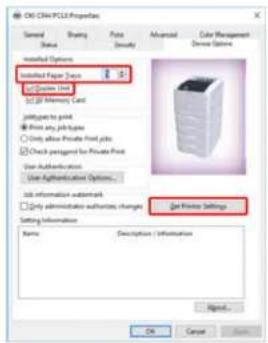
text_image
O&I CMAV PLE Properties General Sharing Pots Security Advanced Clear Management Installed Options Installed Paper Type □ Display Type □ Memory Card □ Injunct to print □ Print any job types □ Only allow Private Print jobs □ Check pgPeriod for Private Print User Authentication User Authentication Options... Job information authorities □ No administered authorities, changes Setting Information Name Description | Information Send... OK Cancel Help5 Click [OK].

- If a TCP/IP network connection is used, click [Get Printer Settings] to set the driver automatically.
• For Windows PS Printer Driver
1 Open the "Printer folder".
2 Right-click [OKI C844 PS], and then select [Printer properties].
3 Select the [Device Settings] tab.
- Appendix
4 For network connection, select [Get installed options automatically] for [Installable Options], and then click [Setup]. For USB connection, select the total number of trays for [Available Trays] in [Installable Options].
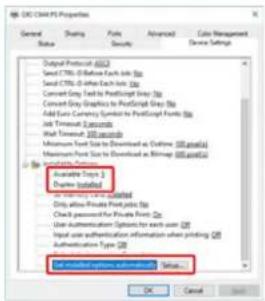
text_image
OEC CHAM PS Properties General Sharing Pole Security Advanced Care Management Status Output Protocol: 6002 Send 1795 to Receive Each Info Zip Send 1795 to Send Each Info Zip Connect Grey Text to PrintScript Info Zip Connect Grey Graphics to PrintScript Grey Zip Add Auto Currency Symbol to PrintScript Grey Zip Job Timeout & Sequence What Nexted: 300 seconds Minimum Text Use to Download as Outline: 300 packets Maximum Text Use to Download as Missing: 300 packets Available Type 1 Options Updated To determine the updated Only allow other Private Phone Zip Check password for Private Phone Zip User Authentication Options for each user Input code authentication information when printing QRT Authentication Type QRT Not installed options available... Setup... OK Cancel5 Click [OK].
• For Mac OS Printer Driver
1 Select [System Preferences] from the Apple menu.
2 Click [Printers & Scanners].
3 Select the machine, and then click [Options & Supplies].
4 Select the [Options] tab.
5 Select the total number of trays for [Available Tray], and then click [OK].
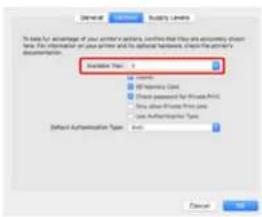
text_image
General Supply Category To have full acceptance of your primary system, confirmed that they are completely closed. Note: For information on your primary system and to optimal networks, check the primary's description. Available Type: 1 2 3 4 5 6 7 8 9 10 11 12 13 14 15 16 17 18 19 20 21 22 23 24 25 26 27 28 29 30 31 32 33 34 35 36 37 38 39 40 41 42 43 44 45 46 47 48 49 50 51 52 53 54 55 56 57 58 59 60 61 62 63 64 65 66 67 68 69 70 71 72 73 74 75 76 77 78 79 80 81 82 83 84 85 86 87 88 89 90 91 92 93 94 95 96 97 98 99 100- Appendix
Specifications
This section describes the specifications of the machine.
- General Specifications
- Printing Specifications
• Network Specifications
• Wireless LAN Specifications -
Printer Dimensions
-
Appendix
General Specifications
| SFP Model Model Number | |
| C824/C834/ES8434 N35300A/N35300B | |
| C844 N35301A/N35301B | |
| Item C824 C834/ES8434 C844 | |||
| CPU ARM Processor (667MHz) | |||
| Memory DDR3 32bit 1GB | |||
| ROM 3GB | |||
| Weight (including consumables) approx. 40 kg | |||
| Dimensions (W x D x H) 449 x 552 x 360 mm | |||
| Power supply N35300A/N35301A: 110V - 127V AC +/-10%N35300B/N35301B: 220V - 240V AC +/-10% | |||
| Power consumption | Typical operation | N35300A/N35301A: 680 W / N35300B/N35301B: 680 W | |
| Idle | 13 W | ||
| Peak | N35300A/N35301A: 1118 W / N35300B/N35301B: 1118 W | ||
| Power save mode | Less than 11 W | ||
| Sleep mode | N35300A/N35301A : Less than 0.7 W / N35300B/N35301B : 1.0W | ||
| Auto power off mode | N35300A/N35301A : Less than 0.1 W / N35300B/N35301B : 0.15 W | ||
| Operating condition | Operating | Temperature : 10 - 32°C, Humidity : 20 - 80% RH | |
| Idle | Temperature : 0 - 43°C, Humidity : 10 - 90% RH | ||
| Interface | USB 2.0, Ethernet 10BASE-T/100BASE-TX/1000BASE-T, Host USB IEEE802.11 big/n/a Wireless LAN (C824/ES8434: Option) | ||
| Display | Mono Graphics LCD (128 x 64 dots) | ||
| Supported OS | Windows 10/ Windows 8.1/ Windows &/ Windows 7Windows Server 2019/ Windows Server 2016/ Windows Server 2012 R2/Windows Server 2012/ Windows Server 2008 R2/ Windows Server 2008macOS 10.14 - 10.12 / Mac OS X 10.11 - 10.10 | ||
| Storage environment | Temperature: -10 to 43 degreesRelative humidity: 10 to 90% | ||
Printing Specifications
| Item C824 C834/ES8434 C844 | |||
| Printing method Dry electrophotographic recording method with LED (Light-emitting diode) | |||
| Page-description language PCL5c, PCL6 (XL),EPSON FX, IBM ProPrinter | PostScript 3, PCL5c, PCL6 (XL), EPSON FX, IBM ProPrinter, PDF (v1.7 or earlier) | ||
| Resident fonts PCL: 87 European | PCL: 87 European fontsPS: 80 European fonts | ||
| Resolution | 600 x 600 dpi, 600 x 1200 dpi, 600 x 600 dpi 2bit | 600 x 600 dpi, 1200 x 1200 dpi | |
| Color Yellow, Magenta, Cyan, Black | |||
| Print speed (A4 LEF) Color/Mono | Simplex: 26 ppmDuplex: 19 ppm | Color/MonoSimplex: 36 ppmDuplex: 27 ppm | |
| First print out time Color Approx. 8.5 seconds(A4) | Approx. 6.3 seconds (A4) | ||
| Paper size | Tray 1 | A3, A4, A5, A6, B4, B5, B6, Letter, Legal 13/13.5/14, Executive, Tabloid, Statement, 8.5 SQ, Folio, 8K (260 x 368 mm, 270 x 390 mm, 273 x 394 mm), 16K (197 x 273 mm, 195 x 270 mm, 184 x 260 mm), Custom size | |
| Additional tray unit(Optional) | A3, A4, A5, B4, B5, Letter, Legal 13/13.5/14, Executive, Tabloid, 8.5 SQ, Folio, 8K (260 x 368 mm, 270 x 390 mm, 273 x 394 mm), 16K (197 x 273 mm, 195 x 270 mm, 184 x 260 mm), Custom size | ||
| MP Tray | A3, A4, A5, A6, B4, B5, B6, B6 Half, B7, B8, Letter, Legal 13/13.5/14, Executive, Tabloid, Statement, 8.5 SQ, Folio, Index card (3x5inches), 4 x 6 inches, 5 x 7 inches, Banner up to 1321 mm (52 inches), 8K (260 x 368 mm, 270 x 390 mm, 273 x 394 mm), 16K (197 x 273 mm, 195 x 270 mm, 184 x 260 mm), C4, C5, DL, Com-10, Custom size | ||
| Duplex Printing | A3, A4, A5, B4, B5, B6, Letter, Legal 13/13.5/14, Executive, Tabloid, 8.5 SQ, Folio, 8K (260 x 368 mm, 270 x 390 mm, 273 x 394 mm), 16K (197 x 273 mm, 195 x 270 mm, 184 x 250 mm), Custom size | ||
| Custom size | Tray 1105 - 297 mm (W), 148 - 431.8 mm (L) (4.1 - 11.7 inches (W), 5.8 - 17.0 inches (L))Additional tray unit (optional)148 - 297 mm (W), 182 - 431.8 mm (L) (4.1 - 11.7 inches (W), 7.2 - 17.0 inches (L))MP tray55 - 297 mm (W), 90 - 1321 mm (L) (2.2 - 11.7 inches (W), 3.5 - 52 inches (L))Duplex127 - 297 mm (W), 182 - 431.8 mm (L) (5.0 - 11.7 inches (W), 7.2 - 17.0 inches (L)) | ||
- Appendix
| Item | C824 C834/ES8434 C844 | |
| Media type | Plain paper ( 64 g/m^2 , 256 g/m^2 ), Envelopes, Label | |
| Feeding method | Automatic feeding from Tray 1, MP tray and Additional tray unit (optional) Manual feeding from MP tray | |
| Paper loading capacity | Tray 1300 sheets (less than 80 g/m^2 ). total thickness 30 mm or lower.MP tray100 sheets (less than 80 g/m^2 ) and total thickness 10 mm or lower, 10 envelopes ( 85 g/m^2 ).Additional tray unit (optional)535 sheets of Standard paper / 80 g/m^2 and total thickness 53 mm or lower. | |
| Output method | Output tray/Rear output tray | |
| Paper output capacity | Output Tray250 sheets ( 80 g/m^2 )Rear Output Tray100 sheets ( 80 g/m^2 ) | |
| Print guaranteed area | 6.35 mm or more from the paper edge (not applicable to special media such as envelopes) | |
| Print precision*1 | Print beginning: ± 2 mm, paper skew: ± 1 mm/100 mmImage expansion: ± 1 mm/100 mm ( 80 g/m^2 ) | |
| Warm-up time | From power on20 seconds (at room temperature 25^ , rated voltage)From power save mode9.9 seconds (at room temperature 25^ , rated voltage) | |
| Usage Environment Conditions | When in operation10 - 32^ / Relative Humidity of 20 - 80% (maximum wet bulb temperature of 25^ , maximum dry bulb temperature of 2^ )When not in operation0 - 43^ / Relative Humidity of 10 - 90% (maximum wet bulb temperature of 26.8^ , maximum dry bulb temperature of 2^ ) | |
| Conditions for the guarantee of print quality | Operating RangeTemperature 10^ , humidity 20 to 80% RHTemperature 32^ , humidity 20 to 60% RHHumidity 20% RH, temperature 10 to 32^ Humidity 80% RH, temperature 10 to 27^ Full-color Print Quality Assured RangeTemperature 17 to 27^ , humidity 50 to 70% RH | |
| Consumables | Toner cartridges, Image drums | |
| Maintenance Unit | Bell unit, Fuser unit | |
*1 Standard size paper.
Network Specifications
| Item C824/C834/C844/ES8434 | |
| Interface Ethernet 10BASE-T/100BASE-TX/1000BASE-T, IEEE802.11 a/b/g/n | |
| Wireless LAN ^-1 | |
| Protocol TCP/IPv4, TCP/IPv6, NetBIOS over T | TCP, LPR, Port9100, IPP, FTP,HTTP, TELNET, SMTP, POP3, SNMPv1/v3, DHCP, DHCPv6, DNS,DDNS, UPnP, WINS, Bonjour, SNTP, LLTD, Web Services Discovery (WSD), SSL/TLS, IPSec, LDAPv3, Kerberos, IEEE802.1X, AirPrint ^ , Google Cloud Print |
^1 C824/ES8434: Option
*2 C834/C844/ES8434 only
Wireless LAN Specifications
| Item C824/C834/C844/ES8434 |
| Wireless LAN standard IEEE802.11a/b/g/n conformity (2.4 GHz / 5 GHz) |
| Security Disable, WEP, WPA-PSK, WPA2-PSK, WPA-EAP, WPA2-EAP |
C824/ES8434: Option
Regulatory wireless LAN statements
- FCC Statement
- IC Statement
- Europe-CE Declaration of conformity.
FCC statement
FCC WARNING
Changes or modifications not expressly approved by the party responsible for compliance could void the user's authority to operate the equipment.
Note: This equipment has been tested and found to comply with the limits for a Class B digital device, pursuant to part 15 of the FCC Rules. These limits are designed to provide reasonable protection against harmful interference in a residential installation. This equipment generates, uses and can radiate radio frequency energy and, if not installed and used in accordance with the instructions, may cause harmful interference to radio communications. However, there is no guarantee that interference will not occur in a particular installation. If this equipment does cause harmful interference to radio or television reception, which can be determined by turning the equipment off and on, the user is encouraged to try to correct the interference by one or more of the following measures:
- Reorient or relocate the receiving antenna.
- Increase the separation between the equipment and receiver.
- Connect the equipment into an outlet on a circuit different from that to which the receiver is connected.
- Consult the dealer or an experienced radio/TV technician for help.
This transmitter must not be co-located or operating in conjunction with any other antenna or transmitter.
IC statement
- Appendix
This device complies with Part 15 of FCC Rules and Industry Canada licence-exempt RSS standard(s). Operation is subject to the following two conditions: (1) this device may not cause interference, and (2) this device must accept any interference, including interference that may cause undesired operation of this device.
This Class [B] digital apparatus complies with Canadian ICES-003.
5.15-5.25 GHz band is restricted to indoor operations only.
This equipment complies with FCC/IC radiation exposure limits set forth for an uncontrolled environment and meets the FCC radio frequency (RF) Exposure Guidelines and RSS-102 of the IC radio frequency (RF) Exposure rules. This equipment should be installed and operated keeping the radiator at least 20 cm or more away from person's body.
Europe - CE Declaration of Conformity
CE
This equipment complies with the essential requirements of the European Union directive 2014/53/EU.
The telecommunications functionality of this product may be used in the following EU and EFTA countries: Austria, Belgium, Bulgaria, Cyprus, Czech Republic, Denmark, Estonia, Finland, France, Germany, Greece, Hungary, Iceland, Ireland, Italy, Latvia, Liechtenstein, Lithuania, Luxembourg, Malta, Netherlands, Norway, Poland, Portugal, Romania, Slovak Republic, Slovenia, Spain, Sweden, Switzerland, Turkey and United Kingdom.
Printer Dimensions
-
Top view
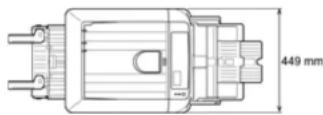
-
Side view
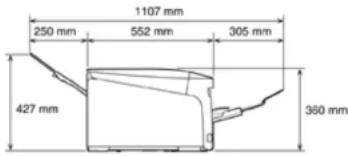
text_image
1107 mm 250 mm 552 mm 305 mm 427 mm 360 mm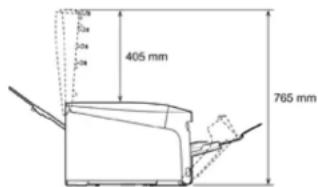
text_image
405 mm 765 mm- When options are attached
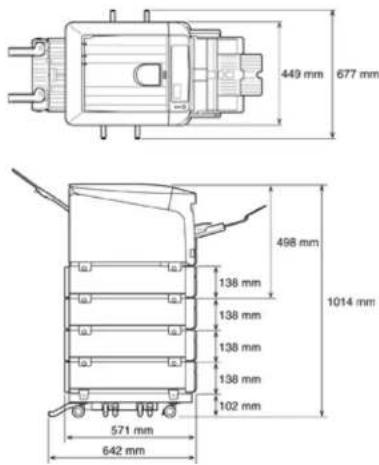
text_image
449 mm 677 mm 498 mm 138 mm 1014 mm 138 mm 138 mm 138 mm 102 mm 571 mm 642 mm- Appendix
Menu Map
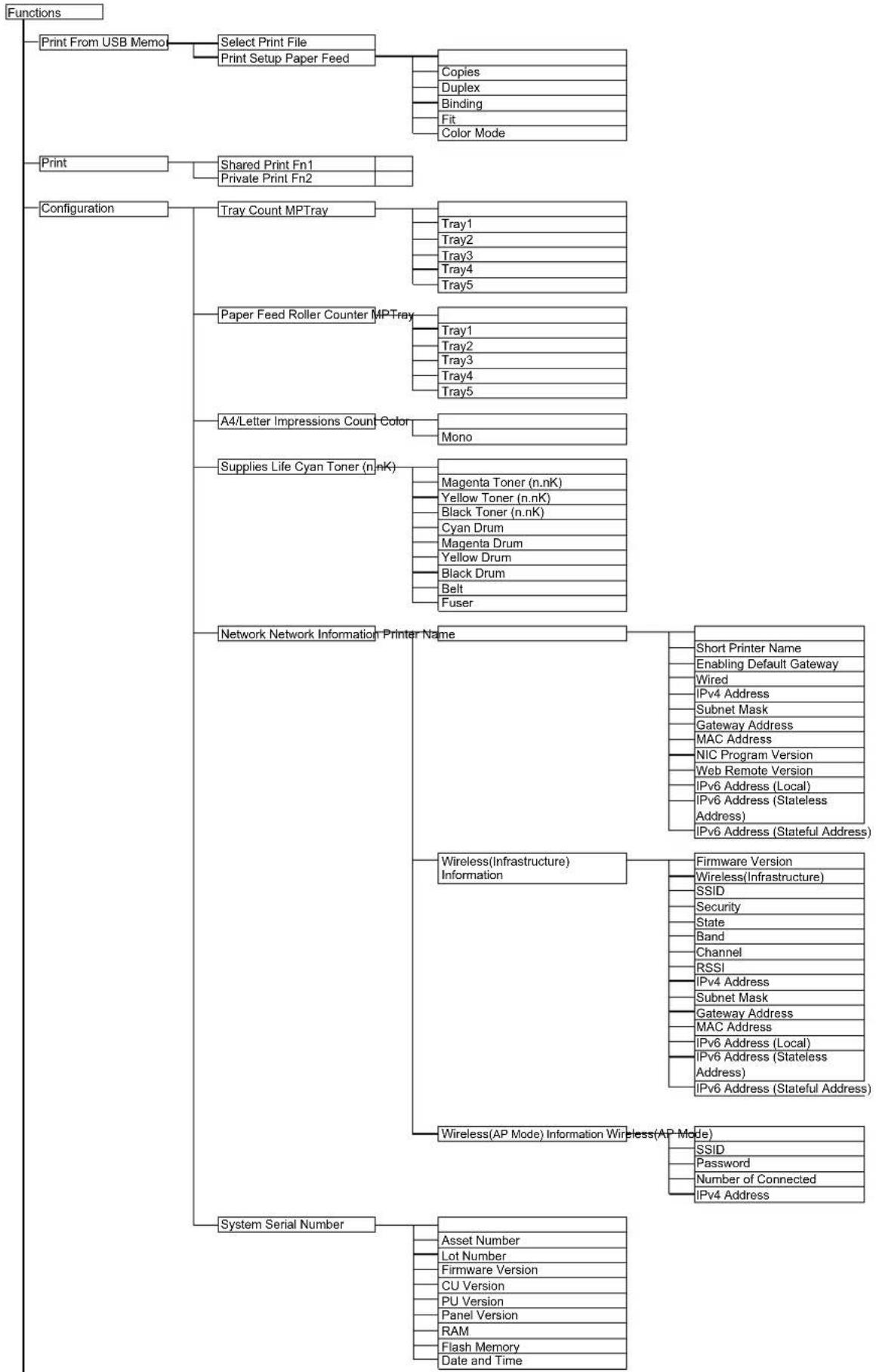
flowchart
graph TD
    A["Functions"] --> B["Print From USB Memo"]
    B --> C["Select Print File"]
    B --> D["Print Setup Paper Feed"]
    D --> E["Copies"]
    D --> F["Duplex"]
    D --> G["Binding"]
    D --> H["Fit"]
    D --> I["Color Mode"]

    A --> J["Print"]
    J --> K["Shared Print Fn1"]
    J --> L["Private Print Fn2"]

    A --> M["Configuration"]
    M --> N["Tray Count MPTray"]
    N --> O["Tray1"]
    N --> P["Tray2"]
    N --> Q["Tray3"]
    N --> R["Tray4"]
    N --> S["Tray5"]

    M --> T["Paper Feed Roller Counter MPTray"]
    T --> U["Tray1"]
    T --> V["Tray2"]
    T --> W["Tray3"]
    T --> X["Tray4"]
    T --> Y["Tray5"]

    M --> Z["A4/Letter Impressions Count Color"]
    Z --> AA["Mono"]

    M --> AB["Supplies Life Cyan Toner (n.nK)"]
    AB --> AC["Magenta Toner (n.nK)"]
    AB --> AD["Yellow Toner (n.nK)"]
    AB --> AE["Black Toner (n.nK)"]
    AB --> AF["Cyan Drum"]
    AB --> AG["Magenta Drum"]
    AB --> AH["Yellow Drum"]
    AB --> AI["Black Drum"]
    AB --> AJ["Belt"]
    AB --> AK["Fuser"]

    M --> AL["Network Network Information Printer Name"]
    AL --> AM["Short Printer Name"]
    AL --> AN["Enabling Default Gateway"]
    AL --> AO["Wired"]
    AL --> AP["IPv4 Address"]
    AL --> AQ["Subnet Mask"]
    AL --> AR["Gateway Address"]
    AL --> AS["MAC Address"]
    AL --> AT["NIC Program Version"]
    AL --> AU["Web Remote Version"]
    AL --> AV["IPv6 Address (Local)"]
    AL --> AW["IPv6 Address (Stateless Address)"]
    AL --> AX["IPv6 Address (Stateful Address)"]

    AL --> AY["Wireless(Infrastructure) Information"]
    AY --> AZ["Firmware Version"]
    AY --> BA["Wireless(Infrastructure)"]
    AY --> BB["SSID"]
    AY --> BC["Security"]
    AY --> BD["State"]
    AY --> BE["Band"]
    AY --> BF["Channel"]
    AY --> BG["RSSI"]
    AY --> BH["IPv4 Address"]
    AY --> BI["Subnet Mask"]
    AY --> BJ["Gateway Address"]
    AY --> BK["MAC Address"]
    AY --> BL["IPv6 Address (Local)"]
    AY --> BM["IPv6 Address (Stateless Address)"]
    AY --> BN["IPv6 Address (Stateful Address)"]

    AL --> BO["Wireless(AP Mode) Information Wireless(AP Mode)"]
    BO --> BP["SSID"]
    BO --> BQ["Password"]
    BO --> BR["Number of Connected"]
    BO --> BS["IPv4 Address"]

    AL --> BT["System Serial Number"]
    BT --> BU["Asset Number"]
    BT --> BV["Lot Number"]
    BT --> BW["Firmware Version"]
    BT --> BX["CU Version"]
    BT --> BY["PU Version"]
    BT --> BZ["Panel Version"]
    BT --> CA["RAM"]
    BT --> CB["Flash Memory"]
    BT --> CC["Date and Time"]
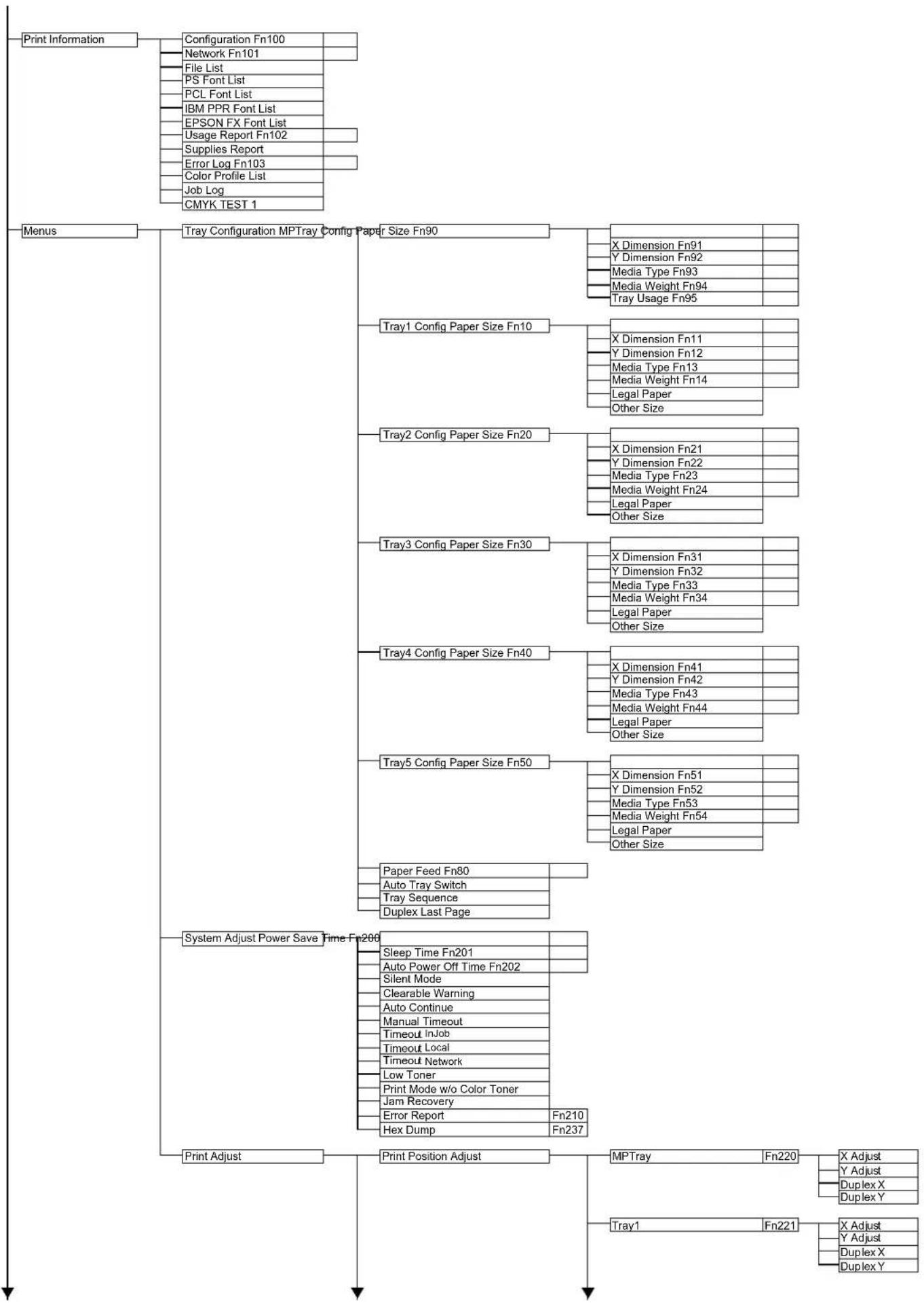
flowchart
graph TD
    A["Print Information"] --> B["Configuration Fn100"]
    B --> C["Network Fn101"]
    C --> D["File List"]
    D --> E["PS Font List"]
    E --> F["PCL Font List"]
    F --> G["IBM PPR Font List"]
    G --> H["EPSON FX Font List"]
    H --> I["Usage Report Fn102"]
    I --> J["Supplies Report"]
    J --> K["Error Log Fn103"]
    K --> L["Color Profile List"]
    L --> M["Job Log"]
    M --> N["CMYK TEST 1"]

    O["Menus"] --> P["Tray Configuration MPTray Config Paper Size Fn90"]
    P --> Q["X Dimension Fn91"]
    P --> R["Y Dimension Fn92"]
    P --> S["Media Type Fn93"]
    P --> T["Media Weight Fn94"]
    P --> U["Tray Usage Fn95"]

    V["Tray1 Config Paper Size Fn10"] --> W["X Dimension Fn11"]
    V --> X["Y Dimension Fn12"]
    V --> Y["Media Type Fn13"]
    V --> Z["Media Weight Fn14"]
    V --> AA["Legal Paper"]
    V --> AB["Other Size"]

    AC["Tray2 Config Paper Size Fn20"] --> AD["X Dimension Fn21"]
    AC --> AE["Y Dimension Fn22"]
    AC --> AF["Media Type Fn23"]
    AC --> AG["Media Weight Fn24"]
    AC --> AH["Legal Paper"]
    AC --> AI["Other Size"]

    AJ["Tray3 Config Paper Size Fn30"] --> AK["X Dimension Fn31"]
    AJ --> AL["Y Dimension Fn32"]
    AJ --> AM["Media Type Fn33"]
    AJ --> AN["Media Weight Fn34"]
    AJ --> AO["Legal Paper"]
    AJ --> AP["Other Size"]

    AQ["Tray4 Config Paper Size Fn40"] --> AR["X Dimension Fn41"]
    AQ --> AS["Y Dimension Fn42"]
    AQ --> AT["Media Type Fn43"]
    AQ --> AU["Media Weight Fn44"]
    AQ --> AV["Legal Paper"]
    AQ --> AW["Other Size"]

    AX["Tray5 Config Paper Size Fn50"] --> AY["X Dimension Fn51"]
    AX --> AZ["Y Dimension Fn52"]
    AX --> BA["Media Type Fn53"]
    AX --> BB["Media Weight Fn54"]
    AX --> BC["Legal Paper"]
    AX --> BD["Other Size"]

    BE["Paper Feed Fn80"] --> BF["Auto Tray Switch"]
    BE --> BG["Tray Sequence"]
    BE --> BH["Duplex Last Page"]

    BI["System Adjust Power Save Time Fn200"] --> BJ["Sleep Time Fn201"]
    BJ --> BK["Auto Power Off Time Fn202"]
    BK --> BL["Silent Mode"]
    BL --> BM["Clearable Warning"]
    BM --> BN["Auto Continue"]
    BN --> BO["Manual Timeout"]
    BO --> BP["Timeout In Job"]
    BP --> BQ["Timeout Local"]
    BQ --> BR["Timeout Network"]
    BR --> BS["Low Toner"]
    BS --> BT["Print Mode w/o Color Toner"]
    BT --> BU["Jam Recovery"]
    BU --> BV["Error Report"]
    BV --> BW["Hex Dump"]

    BX["Print Adjust"] --> BY["Print Position Adjust"]
    BY --> BZ["MPTray"] & BX
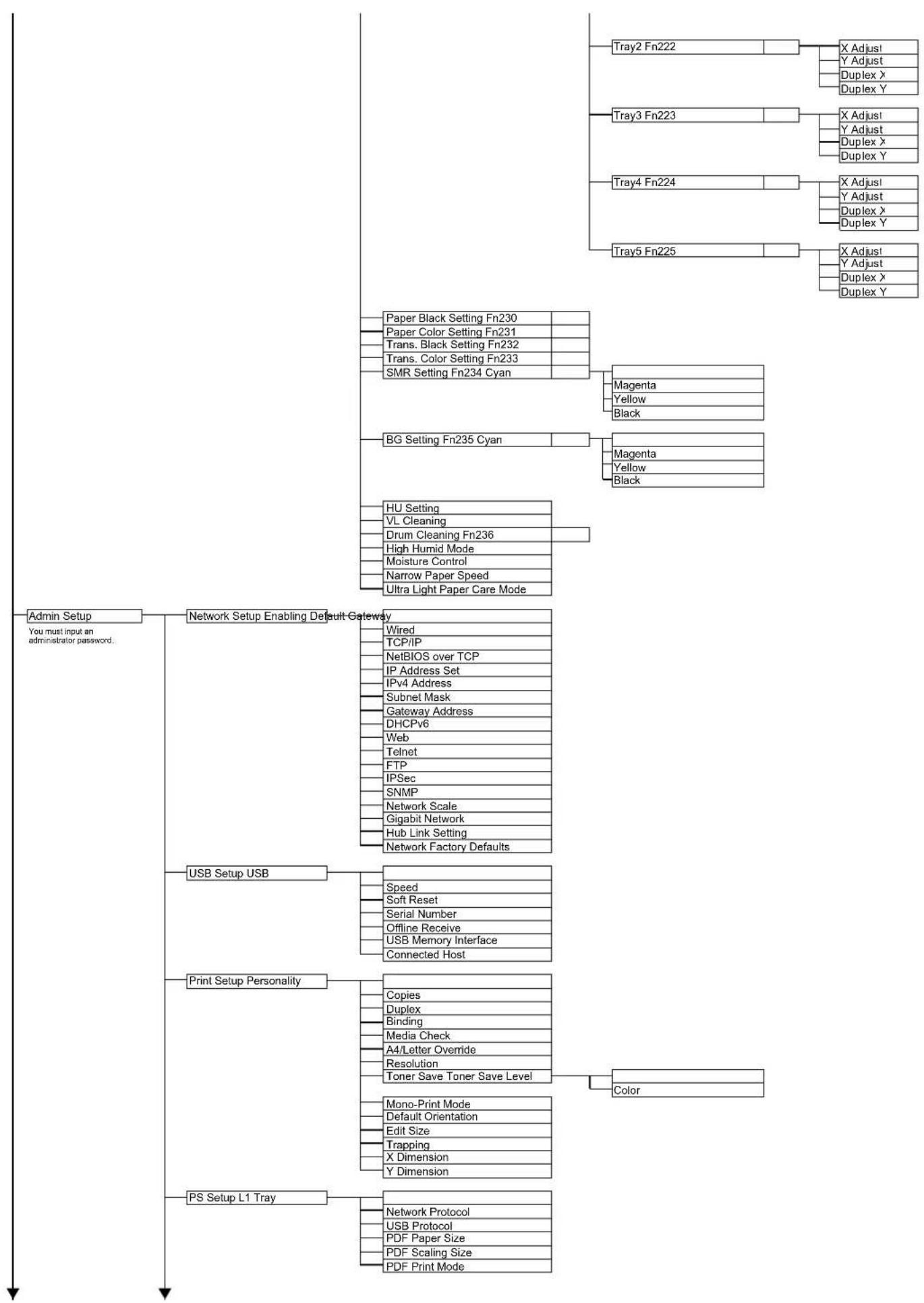
flowchart
graph TD
    A["Admin Setup\nYou must input an administrator password."] --> B["Network Setup Enabling Default Gateway"]
    B --> C["USB Setup USB"]
    B --> D["Print Setup Personality"]
    B --> E["PS Setup L1 Tray"]

    C --> F["Wired"]
    C --> G["TCP/IP"]
    C --> H["NetBIOS over TCP"]
    C --> I["IP Address Set"]
    C --> J["IPv4 Address"]
    C --> K["Subnet Mask"]
    C --> L["Gateway Address"]
    C --> M["DHCPv6"]
    C --> N["Web"]
    C --> O["Telnet"]
    C --> P["FTP"]
    C --> Q["IPSec"]
    C --> R["SNMP"]
    C --> S["Network Scale"]
    C --> T["Gigabit Network"]
    C --> U["Hub Link Setting"]
    C --> V["Network Factory Defaults"]

    D --> W["Copies"]
    D --> X["Duplex"]
    D --> Y["Binding"]
    D --> Z["Media Check"]
    D --> AA["A4/Letter Override"]
    D --> AB["Resolution"]
    D --> AC["Toner Save Toner Save Level"]

    E --> AD["Mono-Print Mode"]
    E --> AE["Default Orientation"]
    E --> AF["Edit Size"]
    E --> AG["Trapping"]
    E --> AH["X Dimension"]
    E --> AI["Y Dimension"]

    F --> AJ["Paper Black Setting Fn230"]
    F --> AK["Paper Color Setting Fn231"]
    F --> AL["Trans. Black Setting Fn232"]
    F --> AM["Trans. Color Setting Fn233"]
    F --> AN["SMR Setting Fn234 Cyan"]

    G --> AO["Magenta\nYellow\nBlack"]

    H --> AP["Gray Box"]
    H --> AQ["Gray Box"]
    H --> AR["Gray Box"]
    H --> AS["Gray Box"]
    H --> AT["Gray Box"]

    I --> AU["Gray Box"]
    I --> AV["Gray Box"]

    AJ --> AW["X Adjust\nY Adjust\nDuplex X\nDuplex Y"]

    AK --> AX["X Adjust\nY Adjust\nDuplex X\nDuplex Y"]

    AL --> AY["X Adjust\nY Adjust\nDuplex X\nDuplex Y"]

    AM --> AZ["X Adjust\nY Adjust\nDuplex X\nDuplex Y"]

    AN --> BA["X Adjust\nY Adjust\nDuplex X\nDuplex Y"]

    AO --> BB["X Adjust\nY Adjust\nDuplex X\nDuplex Y"]

    AP --> BC["X Adjust\nY Adjust\nDuplex X\nDuplex Y"]

    AQ --> BD["X Adjust\nY Adjust\nDuplex X\nDuplex Y"]

    AR --> BE["X Adjust\nY Adjust\nDuplex X\nDuplex Y"]
| PCL Setup Font Source | |
| Font Number | |
| Font Pitch | |
| Font Height | |
| Symbol Set | |
| A4 Print Width | |
| White Page Skip | |
| CR Function | |
| LF Function | |
| Print Margin | |
| True Black | |
| Pen Width Adjust | |
| Tray ID# MP Tray | |
| SIDM Setup SIDM Manual ID# | |
| SIDM Manual2 ID# | |
| SIDM MP Tray ID# | |
| SIDM Tray1 ID# | |
| SIDM Tray2 ID# | |
| SIDM Tray3 ID# | |
| SIDM Tray4 ID# | |
| SIDM Tray5 ID# | |
| IBM PPR Setup Character Pitch | |
| Font Condense | |
| Character Set | |
| Symbol Set | |
| Letter O Style | |
| Zero Character | |
| Line Pitch | |
| White Page Skip | |
| CR Function | |
| LF Function | |
| Line Length | |
| Form Length | |
| TOF Position | |
| Left Margin | |
| Fit to Letter | |
| Text Height | |
| Continuous Paper Mode | |
| EPSON FX Setup Character Pitch | |
| Character Set | |
| Symbol Set | |
| Letter O Style | |
| Zero Character | |
| Line Pitch | |
| White Page Skip | |
| CR Function | |
| Line Length | |
| Form Length | |
| TOF Position | |
| Left Margin | |
| Fit to Letter | |
| Text Height | |
| Continuous Paper Mode | |
| Private Print Setup Verify job option | |
| Erase job option | |
| Keep job for | |
| Job Limitation | |
| Verify job password | |
| Job Auto Search | |
| Color Setup Ink Simulation | |
| UCR | |
| CMY 100% Density | |
| CMYK Conversion | |
| Panel Setup Near Life Status | |
| Near Life LED | |
| Paper setup when paper exchange | |
| Idle Display | |
| Panel Contrast | |
| Touch Key Calibration | |
| Buzzer Setup Key Touch Tone Volume | |
| Error Volume | |
| Print Completion Buzzer Volume | |
| AirPrint Buzzer Volume | |
| Card Hold Buzzer Volume |
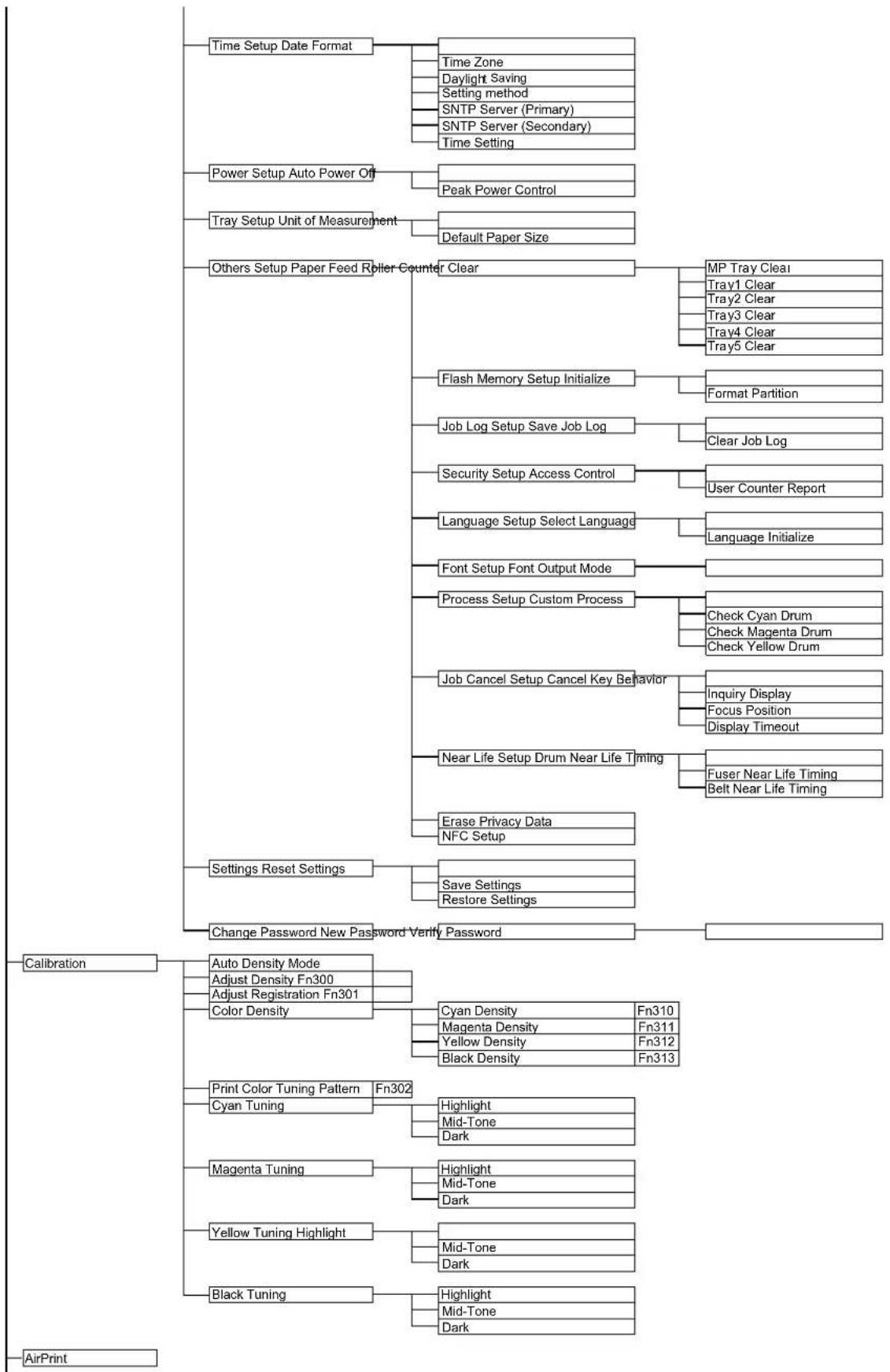
flowchart
graph TD
    A["Time Setup Date Format"] --> B["Time Zone"]
    A --> C["Daylight Saving"]
    A --> D["Setting method"]
    A --> E["SNTP Server (Primary)"]
    A --> F["SNTP Server (Secondary)"]
    A --> G["Time Setting"]
    H["Power Setup Auto Power Off"] --> I["Peak Power Control"]
    J["Tray Setup Unit of Measurement"] --> K["Default Paper Size"]
    L["Others Setup Paper Feed Roller Counter Clear"] --> M["MP Tray Clear"]
    L --> N["Tray1 Clear"]
    L --> O["Tray2 Clear"]
    L --> P["Tray3 Clear"]
    L --> Q["Tray4 Clear"]
    L --> R["Tray5 Clear"]
    S["Flash Memory Setup Initialize"] --> T["Format Partition"]
    U["Job Log Setup Save Job Log"] --> V["Clear Job Log"]
    W["Security Setup Access Control"] --> X["User Counter Report"]
    Y["Language Setup Select Language"] --> Z["Language Initialize"]
    AA["Font Setup Font Output Mode"] --> AB["Process Setup Custom Process"]
    AC["Process Setup Custom Process"] --> AD["Check Cyan Drum"]
    AC --> AE["Check Magenta Drum"]
    AC --> AF["Check Yellow Drum"]
    AG["Job Cancel Setup Cancel Key Behavior"] --> AH["Inquiry Display"]
    AG --> AI["Focus Position"]
    AG --> AJ["Display Timeout"]
    AK["Near Life Setup Drum Near Life Timing"] --> AL["Fuser Near Life Timing"]
    AK --> AM["Belt Near Life Timing"]
    AN["Erase Privacy Data"] --> AO["NFC Setup"]
    AP["Settings Reset Settings"] --> AQ["Save Settings"]
    AP --> AR["Restore Settings"]
    AS["Change Password New Password Verify Password"] --> AT["..."]

    AU["Calibration"] --> AV["Auto Density Mode"]
    AU --> AW["Adjust Density Fn300"]
    AU --> AX["Adjust Registration Fn301"]
    AU --> AY["Color Density"]
    AU --> AZ["Print Color Tuning Pattern Fn302"]
    AU --> BA["Cyan Tuning"]
    AU --> BB["Magenta Tuning"]
    AU --> BC["Yellow Tuning Highlight"]
    AU --> BD["Black Tuning"]
    AU --> BE["AirPrint"]

    BF["Print Color Tuning Pattern"] --> BG["Fn302"]
    BH["Cyan Tuning"] --> BI["Highlight"]
    BJ["Magenta Tuning"] --> BK["Highlight"]
    BL["Yellow Tuning Highlight"] --> BM["Mid-Tone Dark"]
    BN["Black Tuning"] --> BO["Highlight"]
    BP["AirPrint"] --> BQ["..."]
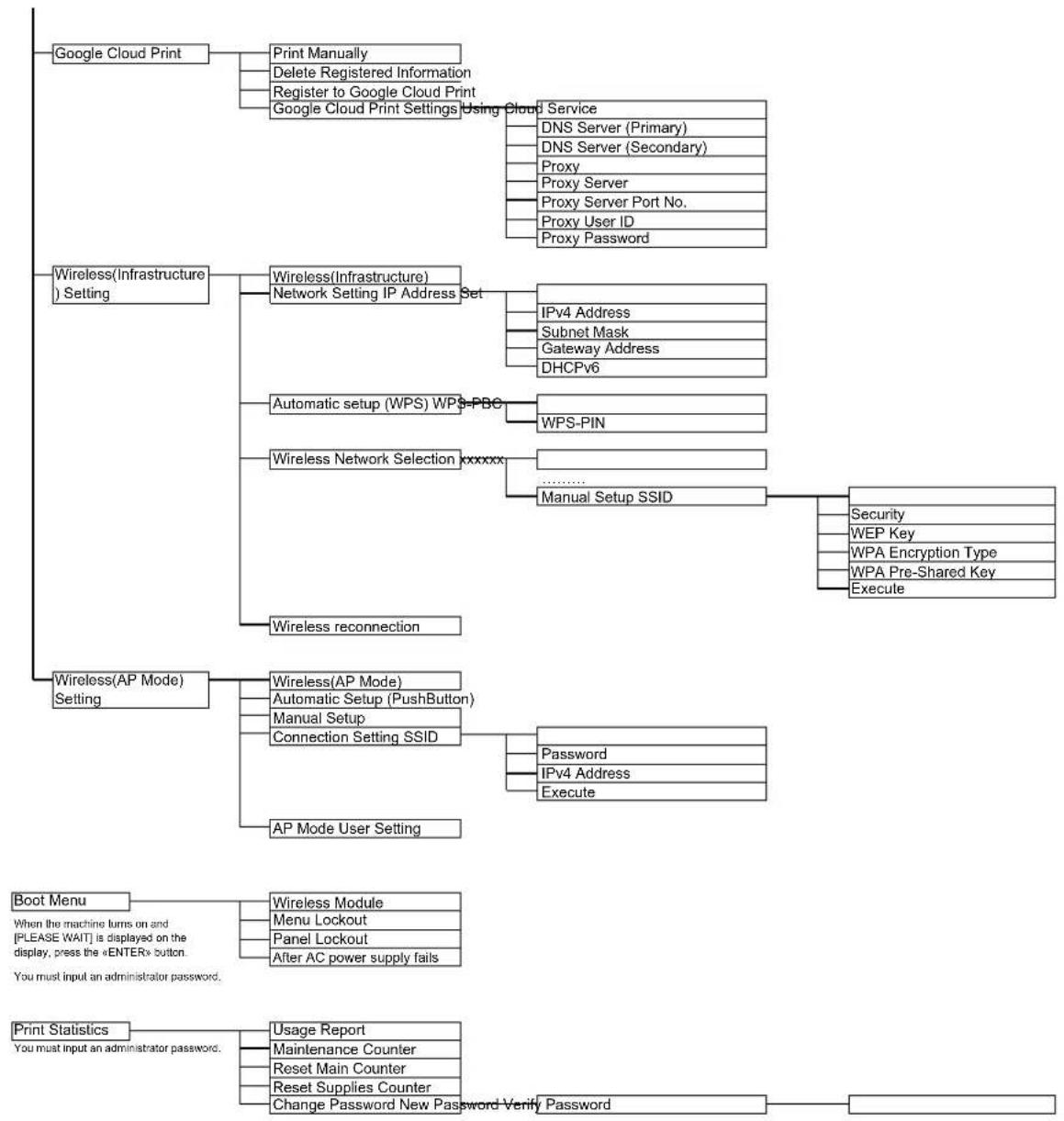
flowchart
graph TD
    A["Google Cloud Print"] --> B["Print Manually"]
    B --> C["Delete Registered Information"]
    B --> D["Register to Google Cloud Print"]
    D --> E["Google Cloud Print Settings Using Cloud Service"]
    E --> F["DNS Server (Primary)"]
    E --> G["DNS Server (Secondary)"]
    E --> H["Proxy"]
    E --> I["Proxy Server"]
    E --> J["Proxy Server Port No."]
    E --> K["Proxy User ID"]
    E --> L["Proxy Password"]

    M["Wireless(Infrastructure) Setting"] --> N["Wireless(Infrastructure) Network Setting IP Address Set"]
    N --> O["IPv4 Address"]
    N --> P["Subnet Mask"]
    N --> Q["Gateway Address"]
    N --> R["DHCPv6"]

    S["Wireless(AP Mode) Setting"] --> T["Wireless Network Selection xxxxxx"]
    T --> U["Manual Setup SSID"]
    U --> V["Security"]
    U --> W["WEP Key"]
    U --> X["WPA Encryption Type"]
    U --> Y["WPA Pre-Shared Key"]
    U --> Z["Execute"]

    S --> AA["Wireless reconnection"]

    AB["Boot Menu"] --> AC["Wireless Module"]
    AC --> AD["Menu Lockout"]
    AC --> AE["Panel Lockout"]
    AC --> AF["After AC power supply fails"]

    AG["Print Statistics"] --> AH["Usage Report"]
    AH --> AI["Maintenance Counter"]
    AH --> AJ["Reset Main Counter"]
    AH --> AK["Reset Supplies Counter"]
    AH --> AL["Change Password New Password Verify Password"]
Contact Us
Italia www.oki.com/it
Ireland www.oki.com/ie
Portuguesa www.oki.com/pt
Sverige www.oki.com/se
Serbia www.oki.com/rs
Croatia www.oki.com/hr
Greece www.oki.com/gr
Romania www.oki.com/ro
OKI Europe www.oki.com/eu
Singapore www.oki.com/sg/
Malaysia www.oki.com/my/
www.oki.com/th/
Australia www.oki.com/au/
New Zealand www.oki.com/nz/
United States www.oki.com/us/
Canada www.oki.com/ca/
Brasil www.oki.com/br/printing
Other countries www.oki.com/printing/