
ES8 - Piano KAWAI - Free user manual and instructions
Find the device manual for free ES8 KAWAI in PDF.


| Product Type | Digital Piano |
| Keyboard | 88 weighted keys with Responsive Hammer II (RHII) action |
| Touch Sensitivity | 6 levels + fixed touch |
| Sound Engine | Progressive Harmonic Imaging (PHI) with 88-key grand piano sampling |
| Polyphony | 192 notes (max) |
| Number of Voices | 34 sounds (including 8 piano types) |
| Effects | Reverb (6 types), Chorus, Brilliance |
| Pedals | Grand Feel Pedal (damper half-pedaling support) |
| Speakers | 2 x 8W (12 cm x 6 cm oval) |
| Headphone Outputs | 2 x 1/4" stereo jacks (front and rear) |
| Line Out | 1 x 1/4" L/Mono, R |
| USB | USB to Host and USB to Device |
| MIDI | In/Out via USB-MIDI or DIN connectors (5-pin) |
| Display | LED indicators (no LCD) |
| Dimensions (W x D x H) | 1350 x 360 x 770 mm (without music rest and stand) |
| Weight | 21 kg (without stand and optional accessories) |
| Power Consumption | 15 W (with supplied AC adapter) |
| Power Supply | AC adapter (12V DC, 2.5A) or optional battery pack (6x D cells, not included) |
| Accessories Included | Music rest, AC adapter, damper pedal |
| Maintenance | Wipe with a soft, dry cloth. Do not use chemical cleaners. |
| Safety Precautions | Place on a stable surface; avoid extreme temperatures and moisture. |
Frequently Asked Questions - ES8 KAWAI
User questions about ES8 KAWAI
0 question about this device. Answer the ones you know or ask your own.
Ask a new question about this device
Download the instructions for your Piano in PDF format for free! Find your manual ES8 - KAWAI and take your electronic device back in hand. On this page are published all the documents necessary for the use of your device. ES8 by KAWAI.
USER MANUAL ES8 KAWAI
Thank you for purchasing this Kawai ES8 digital piano.
This owner's manual contains important information regarding the usage and operation of the ES8 digital piano. Please read all sections carefully, keeping this manual handy for future reference.
■ About this Owner's Manual
Before attempting to play the ES8 digital piano, please read the Introduction chapter from page 10 of this owner's manual. This chapter explains the name and function of each part, how to set-up the instrument, and how to perform basic operations.
The Playing the Piano chapter (page 16) provides an overview of the instrument's most commonly used functions, such as selecting and combining sounds, and splitting the keyboard into separate sections. This chapter also explains how to apply reverb and effects to sounds, transpose the pitch of the keyboard, and how to use the metronome feature.
The Rhythm Section chapter (page 36) explains how performances can be enhanced with backing accompaniments, while the Recorder section (page 48) provides instructions on how to record and play back pieces stored in the instrument's internal memory, and MP3/WAV audio files saved to a USB memory device. Additional functions to load and save songs and registration memories from/to USB devices are further explained in the USB Functions chapter (page 67).
The Settings section (page 76) details the various options and settings that can be used to adjust the sound and operation of the ES8 digital piano, in addition to explaining the instrument's useful MIDI capabilities. Finally, the Appendix section (page 133) includes listings for all internal sounds, demo songs, and Rhythm Section data, in addition to troubleshooting recommendations, MIDI reference information, and full specification details.
Important Safety Instructions
SAVE THESE INSTRUCTIONS
INSTRUCTIONS PERTAINING TO A RISK OF FIRE, ELECTRIC SHOCK, OR INJURY TO PERSONS

CAUTION
RISK OF ELECTRIC SHOCK DO NOT OPEN

WARNING
TO REDUCE THE RISK OF FIRE OR ELECTRIC SHOCK, DO NOT EXPOSE THIS PRODUCT TO RAIN OR MOISTURE.
AVIS : RISQUE DE CHOC ELECTRIQUE - NE PAS OUVRIR.
TO REDUCE THE RISK OF ELECTRIC SHOCK, DO NOT REMOVE COVER (OR BACK).
NO USER-SERVICEABLE PARTS INSIDE. REFER SERVICING TO QUALIFIED SERVICE PERSONNEL.

The lighting flash with arrowhead symbol, within an equilateral triangle, is intended to alert the user to the presence of uninsulated "dangerous voltage" within the product's enclosure that may be of sufficient magnitude to constitute a risk of electric shock to persons.

The exclamation point within an equilateral triangle is intended to alert the user to the presence of important operating and maintenance (servicing) instructions in the literature accompanying the product.
Examples of Picture Symbols
| denotes that care should be taken.The example instructs the user to take care not to allow fingers to be trapped. | |
| denotes a prohibited operation.The example instructs that disassembly of the product is prohibited. | |
| denotes an operation that should be carried out.The example instructs the user to remove the power cord plug from the AC outlet. |
Read all the instructions before using the product.
1) Read these instructions.
2) Keep these instructions.
3) Heed all warnings.
4) Follow all instructions.
5) Do not use this apparatus near water.
6) Clean only with dry cloth.
7) Do not block any ventilation openings. Install in accordance with the manufacturer's instructions.
8) Do not install near any heat sources such as radiators, heat registers, stoves, or other apparatus (including amplifiers) that produce heat.
9) Do not defeat the safety purpose of the polarized or grounding-type plug. A polarized plug has two blades with one wider than the other. A grounding type plug has two blades and a third grounding prong. The wide blade or the third prongs are provided for your safety. If the provided plug does not fit into your outlet, consult an electrician for replacement of the obsolete outlet.
10) Protect the power cord from being walked on or pinched particularly at plugs, convenience receptacles, and the point where they exit from the apparatus.
11) Only use attachments/accessories specified by the manufacturer.
12) Use only with the cart, stand, tripod, bracket, or table specified by the manufacturer, or sold with the apparatus. When a cart is used, use caution when moving the cart/apparatus combination to avoid injury from tip-over.
13) Unplug this apparatus during lightning storms or when unused for long periods of time.
14) Refer all servicing to qualified service personnel. Servicing is required when the apparatus has been damaged in any way, such as power-supply cord or plug is damaged, liquid has been spilled or object have fallen into the apparatus, the apparatus has been exposed to rain or moisture, does not operate normally, or has been dropped.

WARNING - When using electric products, basic precautions should always be followed, including the following:

WARNING
Indicates a potential hazard that could result in death or serious injury if the product is handled incorrectly.
The product should be connected to an AC outlet of the specified voltage.
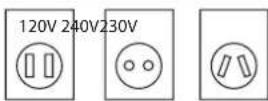
- If you are going to use an AC power cord, make sure that its has the correct plug shape and conforms to the specified power voltage. - Failure to do so may result in fire.
Do not insert or disconnect the power cord plug with wet hands.
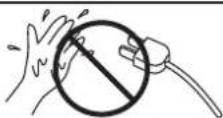
Doing so may cause electric shock.
Take care not to allow any foreign matter to enter the product.

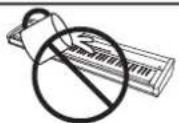
Entry of water, needles or hair pins may result in breakdown or short-circuit. The product shall not be exposed to dripping or splashing. No objects filled with liquids, such as vases, shall be placed on the product.
When using the headphones, do not listen for long periods of time at high volume levels.
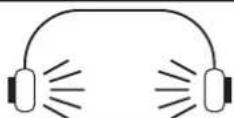
Doing so may result in hearing problems.
Do not lean against the keyboard.
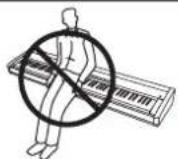
Doing so may cause the product to fall over, resulting in injury.
Do not use the product in wet areas, or areas close to water.

Doing so may cause a short circuit, leading to an electric shock, or a fire.
Do not disassemble, repair or modify the product.
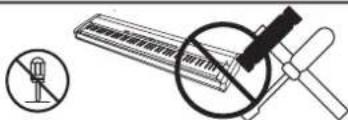
natural_image
Illustration of a musical instrument with a no-smoking symbol and a crossed handle, no text or labels present.Doing so may result in product breakdown, electric shock or short-circuit.
When disconnecting the AC power cord's plug, always hold the plug and pull it to remove it.

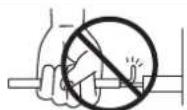
● Pulling the AC power cord itself may damage the cord, causing a fire, electric shock or short-circuit.
The product is not completely disconnected from the power supply even when the power switch is turned off. If the product will not be used for a long time, unplug the AC power cord from the AC outlet.

- Failure to do so may cause fire in case of lightning. - Failure to do so may over-heat the product, resulting in fire.
This product may be equipped with a polarized line plug (one blade wider than the other). This is a safety feature. If you are unable to insert the plug into the outlet, contact an electrician to replace your obsolete outlet. Do not defeat the safety purpose of the plug.
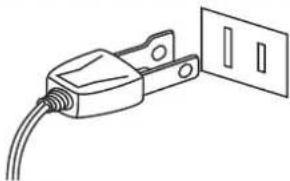
natural_image
Line drawing of a plug with a cable and two outlets (no text or symbols)This product shall be near the AC outlet and the power cord plug in a position so that it can readily be disconnected in an emergency because electricity is always charging while the plug is in the AC outlet even in a power switch off condition.

CAUTION
Indicates a potential hazard that could result in injury or damage to the product or other property if the product is handled incorrectly.
Do not use the product in the following areas.
● Areas, such as those near windows, where the product is exposed to direct sunlight
● Extremely hot areas, such as near a heater
● Extremely cold areas, such as outside
● Extremely humid areas
● Areas where a large amount of sand or dust is present
● Areas where the product is exposed to excessive vibrations
Using the product in such areas may result in product breakdown.
Use the product only in moderate climates (not in tropical climates).
- Do not stand the main unit on its side for extended periods of time.
- Do not attempt to play the main unit at unusual angles.
Doing so may place stress on the keyboard action, resulting in breakdown of the product.
Use only the AC adaptor included with this instrument to power the instrument.
- Do not use other AC adaptors to power this instrument.
- Do not use the included AC adaptor or AC power cord to power other equipment.
Before connecting cords, make sure that the power to this product and other devices is turned OFF.

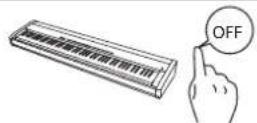
Failure to do so may cause breakdown of this product and other devices.
Do not drag the product on the floor. Take care not to drop the product.
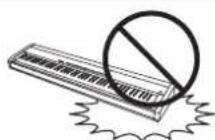
Please lift up the product when moving it. Please note that the product is heavy and must be carried by more than two persons. Dropping the product may result in breakdown.
Do not place the product near electrical appliances such as TVs and radios.

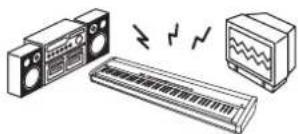
● Doing so may cause the product to generate noise.
- If the product generates noise, move the product sufficiently away from the electrical appliance or connect it to another AC outlet.
When connecting the AC power cord and other cords, take care not to get them tangled.

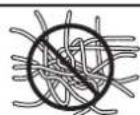
Failure to do so may damage them, resulting in fire, electric shock or short-circuit.
Do not wipe the product with benzene or thinner.

● Doing so may result in discoloration or deformation of the product.
- When cleaning the product, put a soft cloth in lukewarm water, squeeze it well, then wipe the product.
Do not stand on the product or exert excessive force.
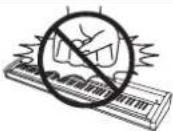
● Doing so may cause the product to become deformed or fall over, resulting in breakdown or injury.
Do not place naked flame, such as lighted candles on the product.
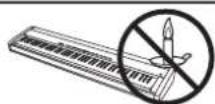
Doing so may cause the illumination to fall over, resulting in fire.
Ensure that the ventilation is not impeded by covering the ventilation openings with items, such as newspaper, table-cloths, curtains, etc.
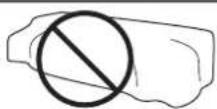
Failure to do so may over-heat the product, resulting in fire.
The product should be located so that its location or position does not interfere with its proper ventilation. Ensure a minimum distance of 5cm around the product for sufficient ventilation.
The product should be serviced by qualified service personnel when:
● The power supply cord or the plug has been damaged.
- Objects have fallen, or liquid has been spilled into the product.
● The product has been exposed to rain.
● The product does not appear to operate normally or exhibits a marked change in performance.
●The product has been dropped, or the enclosure damaged.
Notes on Repair
Should an abnormality occur in the product, immediately turn the power OFF, disconnect the power cord plug, and then contact the shop from which the product was purchased.
CAUTION:
To prevent electric shock, match wide blade of plug to wide slot, fully insert.
ATTENTION:
An information on Disposal for users
If your product is marked with this recycling symbol it means that, at the end of its life, you must dispose of it separately by taking it to an appropriate collection point.
You should not mix it with general household waste. Disposing of this product correctly will prevent potential negative effects on the environment and human health which could otherwise arise due to inappropriate waste handling. For further details, please contact your local authority.
(European Union only)
Instruction for AC power cord (U.K.)
IMPORTANT
THE WIRES IN THIS MAINS LEAD ARE COLOURED IN ACCORDANCE WITH THE FOLLOWING CODE.
BLUE: NEUTRAL
BROWN : LIVE
As the colours of the wires in the mains lead of this apparatus may not correspond with the coloured markings identifying the terminals in your plug, proceed as follows:
The wire which is coloured BLUE must be connected to the terminal which is marked with the letter N or coloured BLACK. The wire which is coloured BROWN must be connected to the terminal which is marked with the letter L or coloured RED. Do not plug either terminal of the power cord to the ground AC outlet on the wall.
Canadian Radio Interference Regulations
This instrument complies with the limits for a class B digital apparatus, pursuant to the Radio Interference Regulations, C.R.C., c. 1374.
FCC Information (U.S.A)
CAUTION: Changes or modifications not expressly approved by the party responsible for compliance could void the user's authority to operate the equipment.
NOTE: This equipment has been tested and found to comply with the limits for a Class B digital device, pursuant to Part 15 of the FCC Rules. These limits are designed to provide reasonable protection against harmful interference in a residential installation. This equipment generates, uses and can radiate radio frequency energy and, if not installed and used in accordance with the instructions, may cause harmful interference to radio communications. However, there is no guarantee that interference will not occur in a particular installation. If this equipment does cause harmful interference to radio or television reception, which can be determined by turning the equipment off and on, the user is encouraged to try to correct the interference by one or more of the following measures:
- Reorient or relocate the receiving antenna.
- Increase the separation between the equipment and receiver.
- Connect the equipment into an outlet on a circuit different from that to which the receiver is connected.
- Consult the dealer or an experienced radio/TV technician for help.

Declaration of Conformity
Products: Electronic Piano
Model Number: ES8
Responsible Party Name : Kawai America Corporation
Address: 2055 East University Drive Rancho
Dominguez, CA 90220
Telephone 310-631-1771
This device complies with Part 15 of the FCC Rules. Operation is subject to the following two conditions:
(1) this device may not cause harmful interference, and
(2) this device must accept any interference received, including interference that may cause undesired operation.
The nameplate label is located on the underside of the instrument, as indicated below.
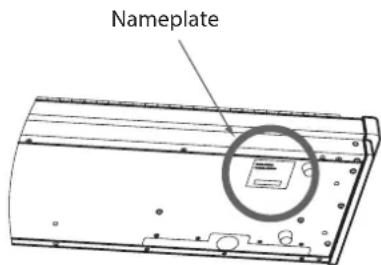
Important Safety Instructions 4
Table of Contents 8
Introduction
Welcome to the Kawai ES8 10
-
Package Contents ...... 10
-
Feature Highlights 11
Part Names and Functions 12
Setting Up the Piano 14
Basic Operation 15
Playing the Piano
Selecting Sounds 16
Demo Songs 17
Dual Mode 18
Split Mode 20
Four Hands Mode 22
Enhancing the Sound 24
-
Reverb 24
-
Effects 26
-
Amp Simulator 28
Panel Lock 29
Transpose 30
Metronome 32
Registration Memories 34
Rhythm Section
Rhythm Section Basic Operation 36
Rhythm Section Style 38
Rhythm Section Parts 39
Rhythm Section Settings 40
-
Rhythm Volume 41
-
Auto Fill-in 42
-
One Finger Ad-lib 43
-
ACC Mode 44
Bass Inversion....46
Preset Chord 47
Recorder
Song Recorder (Internal memory) 48
-
Recording a Song 48
-
Playing a Song 50
-
Recording a Song with the Rhythm Section . . . 52
-
Erasing a Part/Song 53
Audio Record/Playback (USB memory) 54
-
Recording an Audio file 54
-
Playing an Audio file 56
-
Overdubbing an Audio file ..... 58
-
Playing a MIDI file 60
-
Converting a MIDI file to an Audio file ..... 62
-
Recording an Audio file with the Rhythm Section 64
-
Converting a Song to an Audio file ..... 65
-
Deleting an Audio/MIDI file....66
USB Functions
USB Menu 67
-
Load Internal Song 68
-
Load Registration 69
-
Save SMF Song 70
-
Save Internal Song 71
-
Save Registration 72
-
Rename File....73
-
Delete File 74
-
Format USB 75
Settings
Settings Menus....76
Basic Settings 77
1-1. Tone Control....78
Brilliance....79
User EQ 80
1-2. Wall EQ 81
1-3. Speaker Volume 82
1-4. Phones Volume 83
1-5. Line Out Volume 84
Settings (cont.)
1-6. Audio Recorder Gain 85
1-7. Tuning 86
1-8. Damper Hold 87
1-9. F-20 Mode 87
1-10. Four Hands 88
1-11. Startup Setting 89
1-12. Factory Reset 90
Virtual Technician 91
2-1. Touch Curve 93
2-2. Voicing 95
User Voicing 96
2-3. Damper Resonance 97
2-4. Damper Noise 98
2-5. String Resonance 99
2-6.Key-off Effect 100
2-7. Fall-back Noise....101
2-8. Hammer Delay.... 102
2-9. Topboard 103
2-10. Decay Time 104
2-11. Minimum Touch 105
2-12. Temperament 106
Stretch Tuning....107
Stretch Curve 108
User Tuning....109
Temperament Key 110
User Temperament....111
2-13. User Key Volume.... 112
2-14. Half-Pedal Adjust 113
2-15. Soft Pedal Depth 115
Key Settings.... 116
3-1. Lower Octave Shift 117
3-2. Lower Pedal 118
3-3. Split Balance 119
3-4. Layer Octave Shift 120
3-5. Layer Dynamics.... 121
3-6. Dual Balance.... 122
MIDI Settings....123
MIDI Overview 123
4-1. MIDI Channel 125
4-2. Send Program Change Number ..... 126
4-3. Local Control 127
4-4. Transmit Program Change Numbers.....128
4-5. Multi-timbral Mode.... 129
Channel Mute....130
USB MIDI (USB to Host connector) 131
Power Setting 132
- Auto Power Off 132
Appendix
Connecting to Other Devices 133
Rear Connectors 134
Front Connectors 134
Troubleshooting 135
Demo Song List 136
Program Change Number List 137
Drum Sound Mapping List.... 139
Rhythm Section Style List....140
Rhythm Section Chord Types 141
Rhythm Section Preset Chord Sequences ..... 145
Settings List 147
Specifications 150
MIDI Exclusive Data Format 151
MIDI Implementation Chart 152
Owner's Manual Conventions 153
1 Package Contents
The Kawai ES8 digital piano package contains the following items:
ES8 digital piano
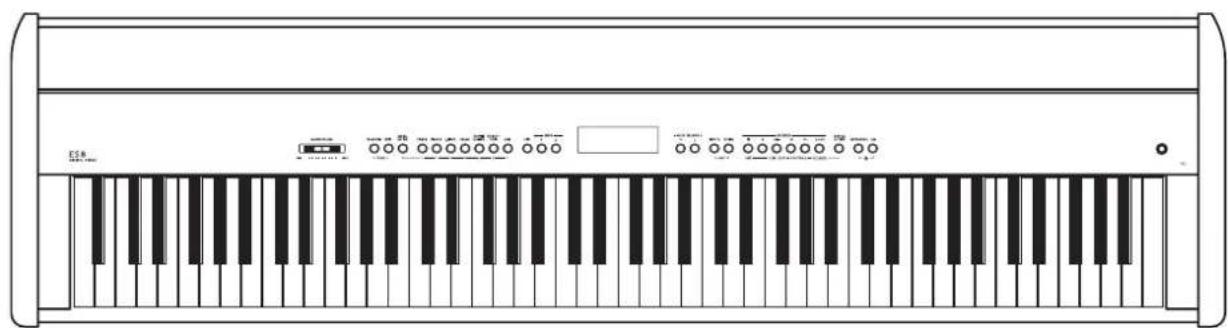
natural_image
Front view of a standard electronic device with black keys and control buttons (no text or symbols visible)AC power adaptor (PS-154)
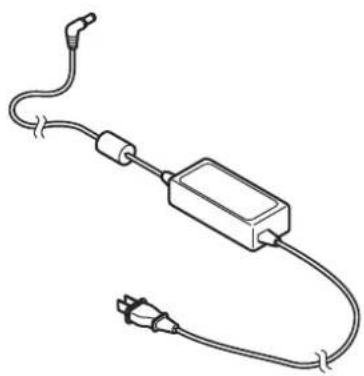
natural_image
Line drawing of a simple electrical plug with wires and connectors (no text or symbols)■ Foot pedal (F-10H)
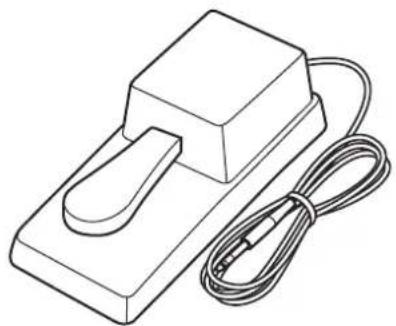
natural_image
Line drawing of a manual push-button press device with a coiled cable (no text or symbols)Music rack/rest
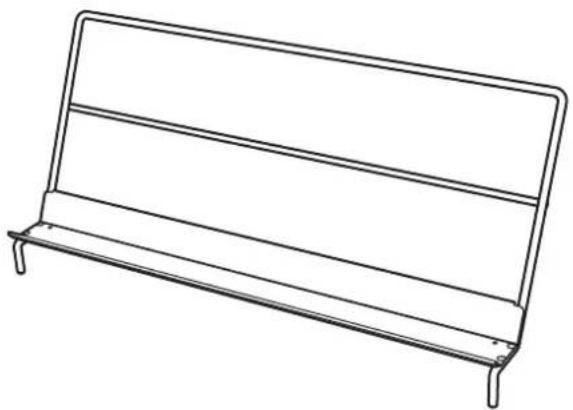
natural_image
Line drawing of a simple metal-framed table or shelf with two legs and three horizontal bands (no text or symbols)Owner's manual
2 Feature Highlights
'Responsive Hammer III' weighted-key action, with Ivory Touch key surfaces and Let-off simulation
The new Responsive Hammer III (RHIII) action recreates the distinctive touch of an acoustic grand piano, with its realistic movement and accurate 3-sensor technology providing a smooth, natural, and highly responsive piano playing experience. The weight of the keyboard is appropriately graded to mirror the heavier bass hammers and lighter treble hammers of an acoustic piano, while structural reinforcements within the action assembly ensure greater stability during fortissimo and staccato passages.
The ES8 digital piano also features Kawai's Ivory Touch key surfaces that gently absorb finger moisture to assist the player's performance, while, let-off simulation recreates the subtle 'notch' sensation felt when softly playing the keys of a grand piano, satisfying the expectations of the most discerning pianists.
Shigeru Kawai SK-EX, SK-5, and Kawai EX instruments reproduced with Harmonic Imaging sound technology
The ES8 digital piano captures the rich, expressive sound of the Kawai SK-EX, SK-5, and EX grand pianos, with all 88 keys of these exceptional instruments meticulously recorded, analysed and faithfully reproduced using Harmonic Imaging ^™ sound technology. This unique process accurately recreates the broad dynamic range of the original grand pianos, affording pianists an extraordinary level of expressiveness ranging from the softest pianissimo to the strongest, boldest fortissimo.
The instrument's built-in Virtual Technician feature allows various characteristics of these acoustic piano sounds to be shaped at the touch of a button, with settings to adjust string and damper resonance, in addition to subtle hammer, damper, and key release noises. This personalised piano sound is further enhanced with atmospheric reverberation effects, delivering a rich, vibrant piano tone with breathtaking realism and authenticity.
Strong selection of additional instrument sounds
Supplementing the realistic acoustic piano voices, the ES8 digital piano also features a strong selection of additional instrument sounds, ranging from electric pianos and drawbar and church organs, to string, choir, and mallet instruments, inviting musicians to add greater variety to their performances.
Furthermore, the Dual playing mode also allows two different sounds, such as grand piano and strings, to be layered together, while the Split and Four Hands modes divide the keyboard into two independent sections. The volume balances for each playing mode can also be adjusted quickly and easily using the real-time panel controls.
Professional accompaniment styles
Featuring a variety of styles ranging from pop and rock ballads, to jazz-funk, dance, and latin flavours, the Rhythm Section function of the ES8 digital piano provides solo performers with professionally arranged backing accompaniment at the touch of a button. In addition, the 100 preset chord progressions and One Finger Ad-lib ^™ solo phrases allow musicians to breathe life into their repertoire, while maintaining control over each performance.
USB to Device functionality, with MP3/WAV file recording and playback
The ES8 digital piano is equipped with USB connectors that not only allow the instrument to be connected to a computer for MIDI use, but also to load and save data to USB memory devices directly. This USB to Device feature allows registration memories and songs recorded and stored in internal memory to be saved to USB for posterity, or standard MIDI files (SMF) downloaded from the internet to be conveniently played back without additional hardware.
USB memory devices can also be used to play back MP3 or WAV audio files, allowing musicians to learn the chords or melody for a new piece, or to simply play along with their favourite songs. It is even possible to save performances as MP3 or WAV files for emailing to friends and family, listening to on a smartphone, or for further editing using an audio workstation.
Wide range of connectivity options
The ES8 digital piano features a variety of standard connectivity options, with Line-level output jacks that allow the instrument to be enjoyed in larger settings such as churches and schools. Standard MIDI and USB to Host connectors ensure flexibility when using computers and other electronic instruments, while the Line-in stereo jack provides a convenient method of mixing in audio from a laptop, tablet, or other digital device.
Part Names and Functions
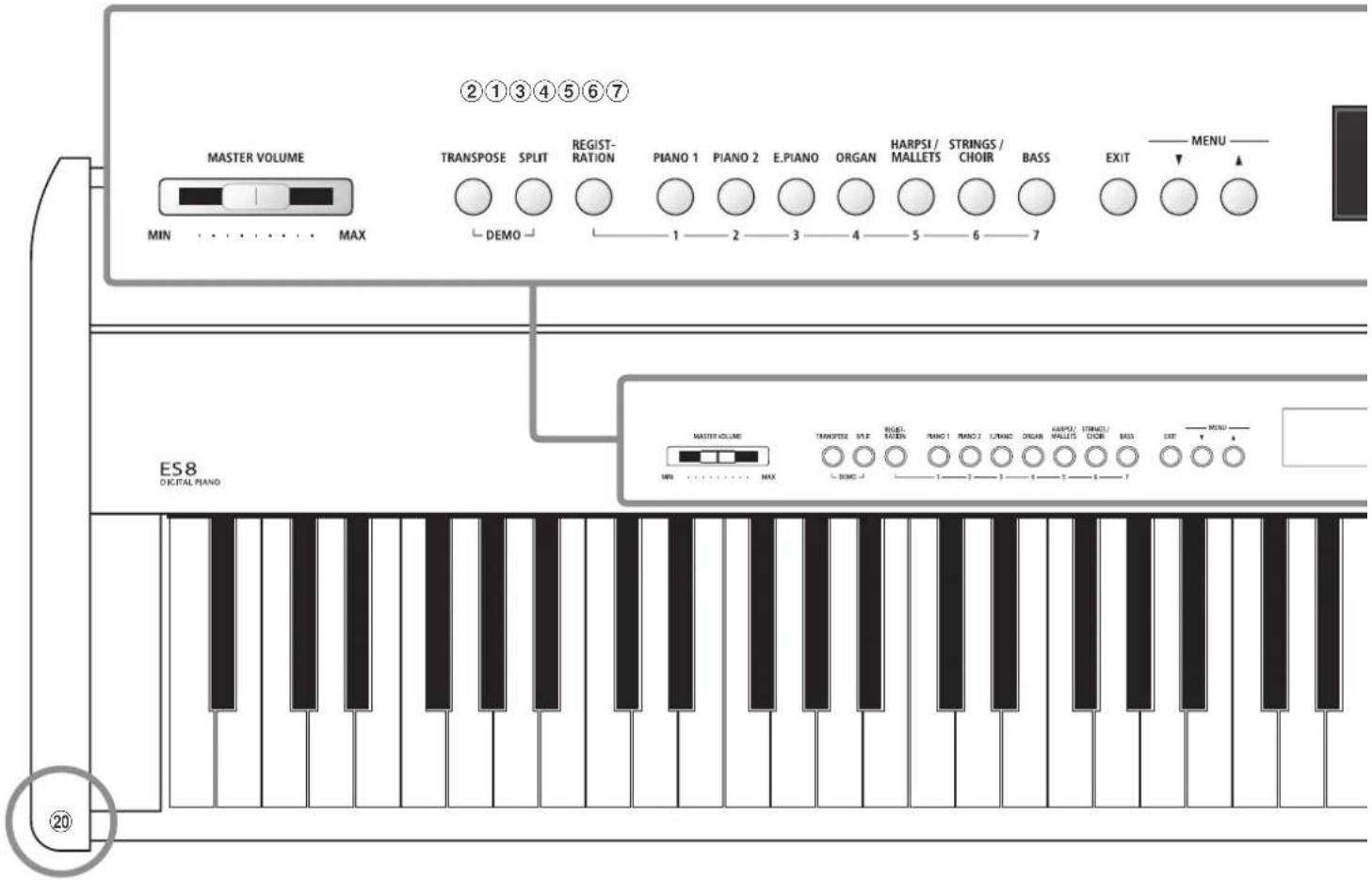
① MASTER VOLUME slider
This slider controls the master volume level of the instrument's built-in speakers or headphones, if connected.
* This slider does not affect the LINE OUT level. For information about adjusting the LINE OUT level, please refer to page 84.
② TRANSPOSE button
This button is used to adjust the pitch of the instrument's keyboard in semi-tone steps.
③ SPLIT button
This button is used to select and adjust the instrument's Split/ Four Hands mode functions.
When pressed simultaneously, the TRANSPOSE and SPLIT buttons are also used to select the instrument's Demo mode.
④ REGISTRATION button
This button is used to store and recall one of the 28 different Registration memories. Each Registration can store sound, Rhythm Section, reverb/effects, and Virtual Technician settings, as well as various other panel and menu options.
⑤ SOUND buttons
These buttons are used to select the sound(s) that will be heard when playing the instrument's keyboard.
These buttons are also used to select Registration memories.
⑥ EXIT button
This button is used to exit the current function, or return to the previous screen, and can also be used as a shortcut to jump to the Line Out Volume setting.
⑦ MENU buttons
These buttons are used to navigate through the instrument's various function and settings menus.
⑧ LCD display
The LCD display provides important information relating to the currently selected sound, style, function, and setting.
* A protective plastic film is attached to the display during production. Please remove this film before attempting to play the instrument.
⑨ VALUE/BALANCE buttons
These buttons are used to adjust values, change settings, and answer on-screen prompts.
These buttons are also used to increase or decrease the volume balance when using Dual or Split playing modes.
⑩ EFFECTS and REVERB buttons
These buttons are used to turn the instrument's reverb and effects functions on/off, and to adjust effect/reverb settings.
When pressed simultaneously, the EFFECTS and REVERB buttons are also used to adjust the instrument's AMP settings.
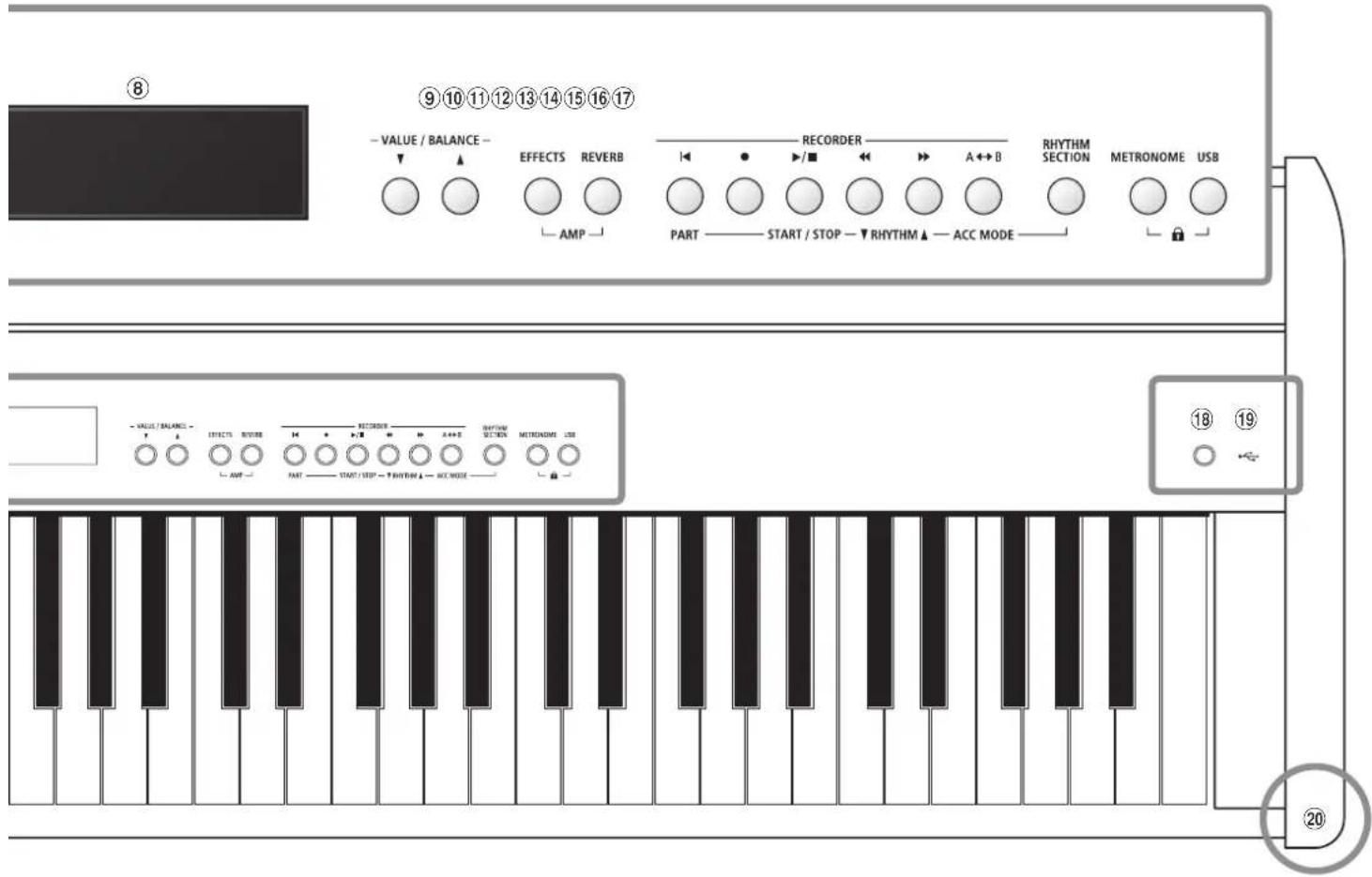
⑪ ◀ (RESET) button
This button is used to reset the instrument's song recorder, and to rewind songs and MP3/WAV/SMF files to the beginning.
This button is also used to select the Rhythm Section part.
⑫ ● (REC) and ▶/■ (PLAY/STOP) buttons
These buttons are used to record and playback songs stored in the instrument's internal memory, or MP3/WAV/SMF files saved to a USB memory device.
⑬ ◀ (REW) and ▶ (FWD) buttons
These buttons are used to move the playing position of the current recorder song or MP3/WAV/SMF backward or forward.
These buttons are also used to select the recorder song and Rhythm Section style.
⑭ A↔B (LOOP) button
This button is used to enable the instrument's A-B Loop function, allowing passages of a recorder song or MP3/WAV/SMF file to be played back repeatedly.
This button is also used to select the Rhythm Section ACC mode.
⑮ RHYTHM SECTION button
This button is used to select the instrument's Rhythm Section function, featuring drum rhythms and accompaniment styles.
⑯ METRONOME button
This button is used to turn the instrument's metronome function on/off, and to adjust metronome settings.
⑰ USB button
This button is used to access the instrument's USB functions.
When pressed simultaneously, the METRONOME and USB buttons are used to toggle the instrument's Panel Lock feature.
⑱ POWER button
This switch is used to turn the instrument on/off.
* The ES8 digital piano features a power saving mode that can turn off the instrument automatically after a specified period of inactivity. For more information, please refer to the Auto Power Off setting on page 132.
⑲ USB to Device port
This port is used to connect a FAT or FAT32 formatted USB memory device to the instrument in order to load/save recorded song data, registration memories, and MP3/WAV/SMF files etc.
⑳ PHONES jacks
These jacks, located on either side of the keyboard, are used to connect stereo headphones to the instrument. Two pairs of headphones can be connected and used simultaneously.
* For more information about connectors/jacks, please refer to page 133.
Setting Up the Piano
Upon unboxing the instrument, please follow the instructions below which explain how to attach the music rest, connect the F-10H (or optional F-20) foot pedal, and if desired, connect a pair of headphones.
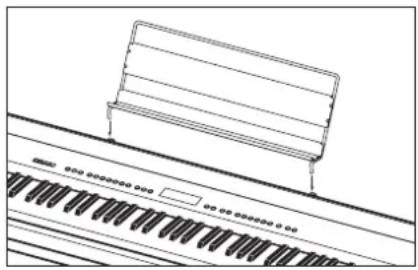
■ Attaching the music rest
Insert the legs of the music rest into the holes located at the rear of the ES8 digital piano, taking care not to scratch the rear of the instrument.
To prevent possible damage, avoid applying excessive force when attaching/detaching the music rest from the instrument.
natural_image
Line drawing of a piano keyboard with no text or symbols■ Connecting the F-10H foot pedal
Connect the included Kawai F-10H foot pedal to the DAMPER pedal jack located on the rear panel of the instrument.
The foot pedal will function as a damper pedal, sustaining the sound after hands are lifted from the keyboard. This pedal is capable of responding to 'half pedaling'.
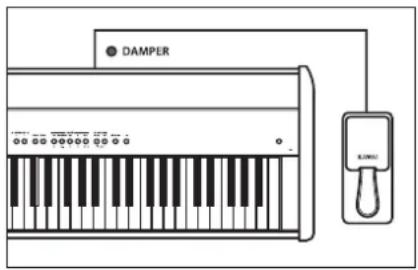
■ Connecting the optional F-20 double pedal
Connect the optional Kawai F-20 double pedal to the DAMPER/SOFT pedal jack located on the rear panel of the instrument.
The right pedal will function as a damper pedal, sustaining the sound after hands are lifted from the keyboard. This pedal is also capable of responding to 'half pedaling'.
The left pedal will function as a soft pedal, softening the sound and reducing its volume.
* When 'Jazz Organ' or 'Drawbar Organ' sounds are selected, the soft pedal can also be used to alternate the speed of the rotary speaker effect between 'Slow' and 'Fast' modes.
* The 'F-20 Mode' setting can be used to change the default pedalling behaviour, allowing the F-10H and F-20 pedals to be connected simultaneously to create a triple pedal system. For more information, please refer to page 87.
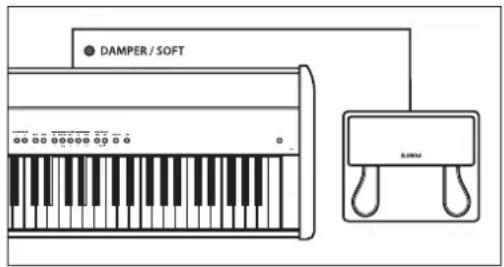
■ Connecting headphones
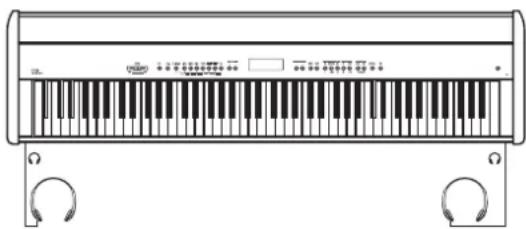
Use the jacks located on either side of the keyboard to connect stereo headphones to the ES8 digital piano.
Two pairs of headphones can be connected and used simultaneously. When a pair of headphones is connected, sound will not be produced by the built-in speakers.
natural_image
Front view of a piano keyboard with headphones at the base (no text or symbols visible)The following instructions explain how to connect the instrument to the power outlet, turn on the power, adjust the volume to a comfortable level, and begin playing the piano.
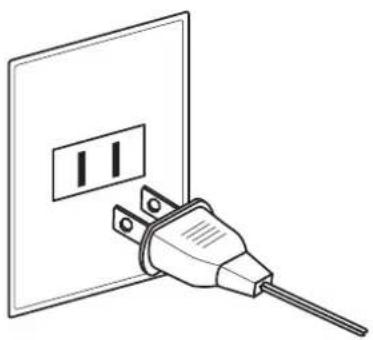
1. Connecting the power adaptor
Connect the included AC power adaptor to the 'DC IN' jack located on the rear panel of the instrument, indicated below.
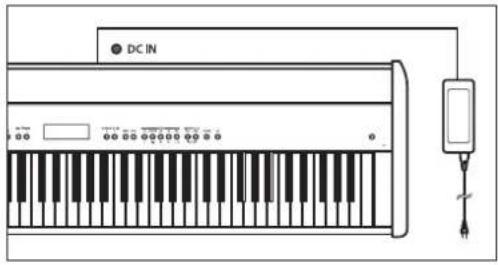
Connect the AC power adaptor to an AC outlet.
natural_image
Line drawing of an electrical outlet with a plug inserted into a wall (no text or symbols)2. Turning on the instrument's power
Press the POWER button located on the right side of the instrument's control panel.
The instrument will turn on, and the words 'SK ConcertGrand' will be shown in the LCD display, indicating that the SK ConcertGrand sound is selected. The LED indicator for the PIANO 1 button will also turn on.
SK ConcertGrand
* The ES8 digital piano features a power saving mode that can turn off the instrument automatically after a specified period of inactivity. For more information, please refer to the Auto Power Off setting on page 132.

PIANO 1 PIANO 2 E.PIANO ORGAN
Sound category is selected.
3. Adjusting the volume
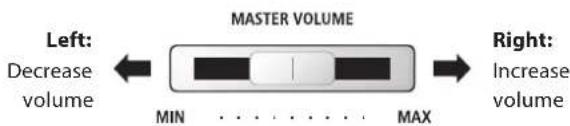
The MASTER VOLUME slider controls the volume level of the instrument's speakers, or headphones if connected.
Move the slider to the right to increase the volume, and to the left to decrease the volume.
Use this slider to set the volume to a comfortable listening level - the middle is often a good starting point.
* This slider does not affect the LINE OUT level. For information about adjusting the LINE OUT level, please refer to page 84.
4. Play the piano
Begin playing the piano.
The rich sound of a Kawai SK-EX Concert Grand Piano will be heard as the keys are pressed.
natural_image
Illustration of two hands typing on a piano keyboard (no text or symbols)Selecting Sounds
The ES8 digital piano features a wide selection of realistic instrument sounds suitable for various musical styles. Sounds are arranged into seven categories, with multiple sounds assigned to each category button. For a complete listing of the available instrument sounds, please refer to page 137 of this owner's manual.
By default, the 'SK ConcertGrand' sound will be selected automatically when the instrument is turned on.
■ Sound categories and variations
PIANO 1
1 SK ConcertGrand
2 EX ConcertGrand
3 Jazz Clean
4 Warm Grand
5 Pop Grand
PIANO 2
1 SK-5 GrandPiano
2 Upright Piano
3 Pop Grand 2
4 Modern Piano
5 Rock Piano
E. PIANO
1 Classic E.P.
2 60's E.Piano
3 Modern E. P.
4 Classic E.P.2
ORGAN
1 Drawbar Organ
2 Jazz Organ
3 Principal Oct.
4 Church Organ
HARPSI / MALLETS
1 Harpsichord
2 Vibraphone
3 Clavi
4 Marimba
STRINGS / CHOIR
1 Slow Strings 5 Choir Ooh/Aah
2 String Pad 6 Choir Aah
3 Warm Strings 7 New Age Pad
4 String Ensemble 8 Atmosphere
BASS
1 Wood Bass
2 Electric Bass
3 Fretless Bass
4 W. Bass & Ride
1. Selecting a sound category
Press the desired SOUND button.
The LED indicator for the button will turn on to indicate that this category has been selected, and the name of the sound will be shown in the LCD display.
Classic E.P.
2. Changing the selected sound variation
Several sound variations are assigned to each category button.
Press a SOUND button repeatedly to cycle through the different sound variations.
SK-5 GrandPiano

Pop Grand 2
The ▼ or ▲ VALUE buttons can also be used to select sounds, and cycle through the different sound variations.
Example: To select the 'Pop Grand 2' sound, press the PIANO2 button three times.
- VALUE / BALANCE -

The Demo function provides an excellent introduction to the varied capabilities of the ES8 digital piano.
There are 29 different demonstration songs available, highlighting the instrument's rich selection of high quality sounds, convenient Rhythm Section feature, and powerful speaker system.
For a complete listing of the available demonstration songs, please refer to page 136 of this owner's manual.
* Kawai regrets that sheet music for Kawai original demo songs is not available.
1. Entering demo mode
Press the TRANSPOSE and SPLIT buttons simultaneously.
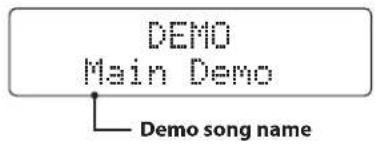
The LED indicators for both buttons will start to flash to indicate that demo mode is in use, and the Main Demo song will start to play.
TRANSPOSE SPLIT

* When the Main Demo song has finished, a sound demo song will be selected at random, and will start to play.
* During demo mode, pedals connected to the ES8 will not be effective.
2. Selecting a demo song
While Demo mode is selected and the demo songs are playing:
Press the desired SOUND button.
The LED indicator for the button will start to flash, and the first demo in the selected sound category will start to play.
Press the selected sound category button repeatedly to cycle through the different demo songs in that category.
In addition, press the RHYTHM SECTION button to play the Rhythm Section demo song.
* When the Rhythm Section song has finished, the Main Demo song will be re-selected, and will start to play.
The ▼ or ▲ VALUE buttons can also be used to cycle through all of the different demo songs.
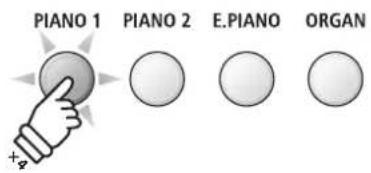
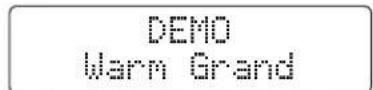
Example: To select the Warm Grand demo song, press the PIANO1 button four times.

3. Stopping the demo song and exiting demo mode
While Demo mode is selected and the demo songs are playing:
Press the EXIT or PLAY/STOP button.
The LED indicators will stop flashing, the demo songs will stop playing, and the instrument will return to normal playing mode.
The Dual Mode function allows two sounds to be layered together, creating a more complex sound.
For example, a piano sound layered with strings, or a church organ combined with a choir, etc.
1. Entering Dual mode
Press and hold a SOUND button to select the main sound, then press another SOUND button to select the layered sound.
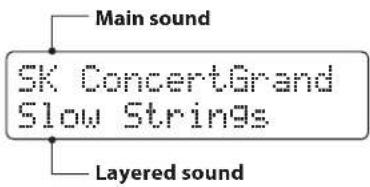
The LED indicators for both SOUND buttons will turn on to indicate that Dual mode is in use, and the respective sound names will be shown in the LCD display.
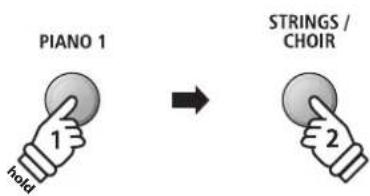
Example: To layer the 'Slow Strings' sound with the 'SK ConcertGrand' sound, press and hold the PIANO1 button, then press the STRINGS/CHOIR button.
2. Changing the main/layered sounds
To select a different variation for the layered sound:
Press and hold the main SOUND button, then press the layered SOUND button repeatedly to cycle through the different sound variations.
SK ConcertGrand String Ensemble
To select a different variation for the main sound:
Press and hold the layered SOUND button, then press the main SOUND button repeatedly to cycle through the different sound variations.
Jazz Clean String Ensemble
To layer two variations assigned to the same SOUND button:
Press and hold a SOUND button, then press the ▼ or ▲ VALUE buttons to select the layered sound variation.
Classic E.P. 60's E.Piano
* Preferred Dual mode sound combinations can be stored to a Registration memory for convenient recall. Please refer to page 34 for more information.
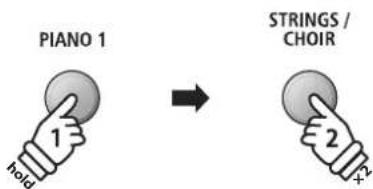
Example: To change the layered 'Slow Strings' sound to the 'String Ensemble' sound, press and hold the PIANO1 button, then press the STRINGS/CHOIR button twice.
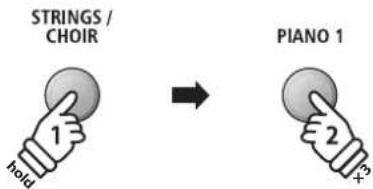
Example: To change the main 'SK ConcertGrand' sound to the 'Jazz Clean' sound, press and hold the STRINGS/CHOIR button, then press the PIANO1 button three times.
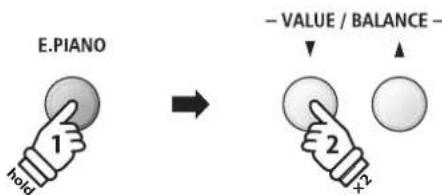
Example: To layer the 'Classic E.P.' and '60's E.Piano' sounds together, press and hold the E.PIANO button, then press the VALUE ▼ button twice.
3. Adjusting the main/layered sound volume balance
While Dual mode is in use:
Press the ▼ or ▲ VALUE/BALANCE buttons to adjust the volume balance between the main and layered sounds.
The volume balance will briefly be shown in the LCD display.
* The default Dual mode volume balance is 9-9.
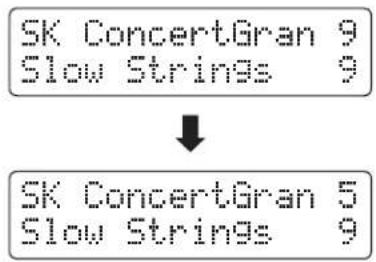
flowchart
graph TD
    A["SK ConcertGran 9\nSlow Strings 9"] --> B["SK ConcertGran 5\nSlow Strings 9"]
* The preferred Dual mode volume balance can also be stored to a Registration memory for convenient recall. Please refer to page 34 for more information.
* The Layer Octave Shift setting can be used to adjust the octave range of the layered sound. Please refer to page 120 for more information.
* The Layer Dynamics setting can be used to adjust the dynamic sensitivity of the layered sound. Please refer to page 121 for more information.
4. Exiting Dual mode
While Dual mode is in use:
Press a single SOUND button.
The LED indicator for the button will turn on, the name of the selected sound will be shown in the LCD display, and the instrument will return to normal (single voice mode) operation.
SK Concert.Grand
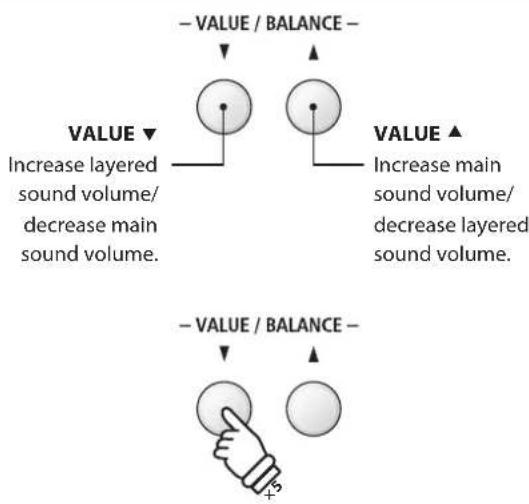
Example: To decrease the volume of the main sound to 5, press the VALUE▼ button five times.
The Split Mode function divides the keyboard into two sections, allowing each section to be played with a different sound. For example, a bass sound in the lower section, and a piano sound in the upper section.
1. Entering Split mode
Press the SPLIT button.
The LED indicator for the SPLIT button will turn on to indicate that Split mode is in use.
* The default split point is set between keys F #3 and G3.
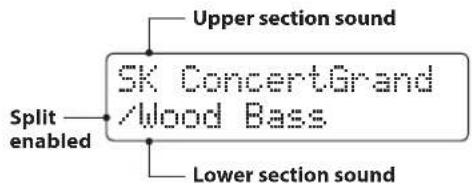
The LED indicator for the upper section sound button will turn on, and the LED indicator for the lower section sound button will start to flash. The respective sound names will also be shown in the LCD display.
PIANO 1 PIANO 2

PIANO 2

Default Split mode:
The previously selected sound is used for the upper section, and the 'Wood Bass' sound is selected for the lower section.
2. Changing the upper/lower section sounds
To select a different sound for the upper section:
Press the desired SOUND button.
Jazz Organ /Wood Bass
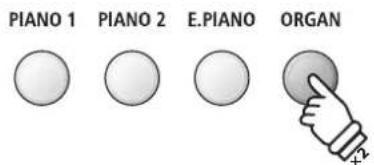
Example: To select the 'Jazz Organ' sound for the upper section, press the ORGAN button twice.
To select a different sound for the lower section:
Press and hold the SPLIT button, then press the desired SOUND button.
Jazz Organ /4. Bass & Ride
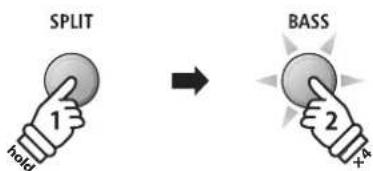
Example: To select the 'W. Bass & Ride' sound for the lower section, press and hold the SPLIT button, then press the BASS button four times.
* The Lower Octave Shift setting can be used to adjust the octave range of the lower section. Please refer to page 117 for more information.
* The Lower Pedal setting can be used to enable/disable the damper pedal for the lower section. Please refer to page 118 for more information.
* Preferred Split mode upper/lower sound combinations can be stored to a Registration memory for convenient recall. Please refer to page 34 for more information.
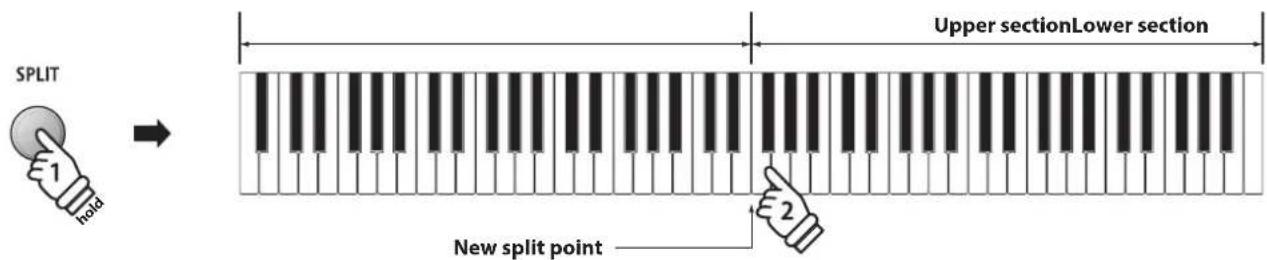
3. Changing the split point
Press and hold the SPLIT button, then press the desired split key on the keyboard.
The name of the pressed key will briefly be shown in the LCD display, and will become the new split point.
* Split Mode and the Rhythm Section share the same split point.
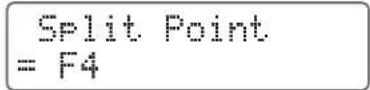
Example: To set the split point to key F4, press and hold the SPLIT button, then press the F4 key.
4. Adjusting the upper/lower sound volume balance
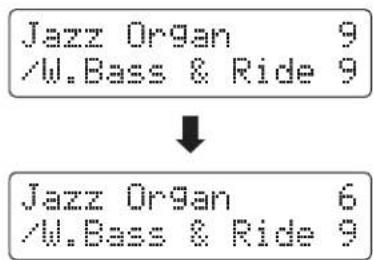
While Split mode is in use:
Press the ▼ or ▲ VALUE/BALANCE buttons to adjust the volume balance between the upper and lower sections.
The volume balance will briefly be shown in the LCD display.
* The default Split mode volume balance is 9-9.
* The preferred Split mode upper/lower volume balance can also be stored to a Registration memory for convenient recall. Please refer to page 34 for more information.
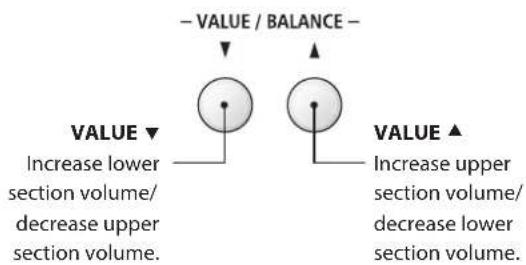
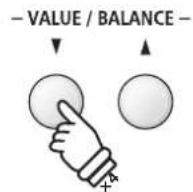
Example: To decrease the volume of the upper section sound to 6, press the VALUE▼ button four times.
5. Exiting Split mode
While Split mode is in use:
Press the SPLIT button.
The LED indicator for the SPLIT button will turn off, and the instrument will return to normal (full keyboard) operation.
Jazz Organ
SPLIT

Four Hands Mode
The Four Hands Mode function divides the keyboard into two sections in a similar way to that of the Split Mode function. However, with Four Hands Mode enabled, the octave/pitch of each section is automatically adjusted to create two separate 44-key instruments with the same playing range. This function is intended to allow two people to practise together or perform piano duets using a single instrument.
1. Entering Four Hands mode
Press and hold the SPLIT button, then press the damper pedal.
The LED indicator for the SPLIT button will start to flash to indicate that Four Hands mode is in use.
* The default four hands mode split point is set between keys E4 and F4.
The LED indicator for the PIANO1 button will turn on, and the 'SK ConcertGrand' sound will automatically be selected for both the upper and lower sections.
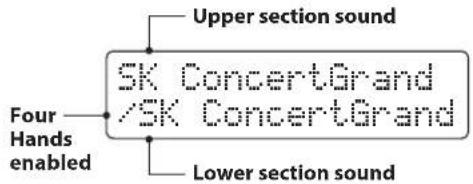
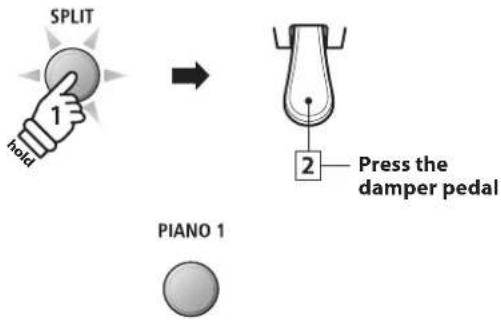
Default Four Hands mode: The 'SK ConcertGrand' sound is selected for both the upper and lower sections.
2. Changing the upper/lower section sounds
To select a different sound for the upper section:
Press the desired SOUND button.
Classic E.P. /SK ConcertGrand
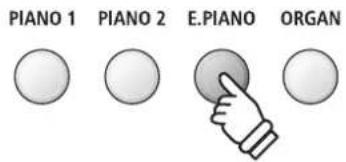
Example: To select the 'Classic E.P.' sound for the upper section, press the E.PIANO button.
To select a different sound for the lower section:
Press and hold the SPLIT button, then press the desired SOUND button.
Classic E.P. /Upright Piano
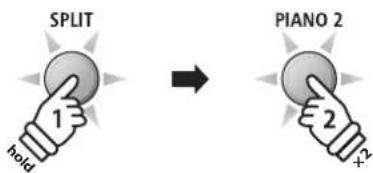
Example: To select the 'Upright Piano' sound for the lower section, press and hold the SPLIT button, then press the PIANO2 button twice.
* If the included F-10H foot pedal is connected to the instrument, the pedal will function as a damper pedal for the upper section only. However, if the optional F-20 double pedal is connected, the right (sustain) and left (soft) pedals will function as independent damper pedals for the upper and lower sections respectively.
* Preferred Four Hands mode upper/lower sound combinations can be stored to a Registration memory for convenient recall. Please refer to page 34 for more information.
3. Changing the Four Hands mode split point
Press and hold the SPLIT button, then press the desired split key on the keyboard.
The name of the pressed key will briefly be shown in the LCD display, and will become the new Four Hands mode split point.
* The Four Hands Mode split point can be changed independently of the Split Mode and Rhythm Section split point.
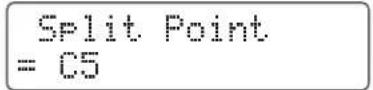
Example: To set the split point to key C5, press and hold the SPLIT button, then press the C5 key.

4. Adjusting the upper/lower sound volume balance
While Four Hands mode is in use:
Press the ▼ or ▲ VALUE/BALANCE buttons to adjust the volume balance between the upper and lower sections.
The volume balance will briefly be shown in the LCD display.
* The default Four Hands mode volume balance is 9-9.
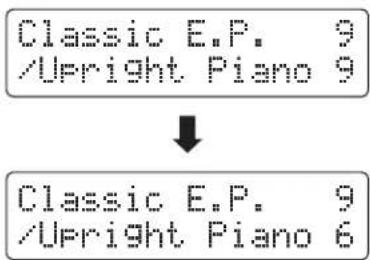
* The preferred Four Hands mode upper/lower volume balance can also be stored to a Registration memory for convenient recall. Please refer to page 34 for more information.
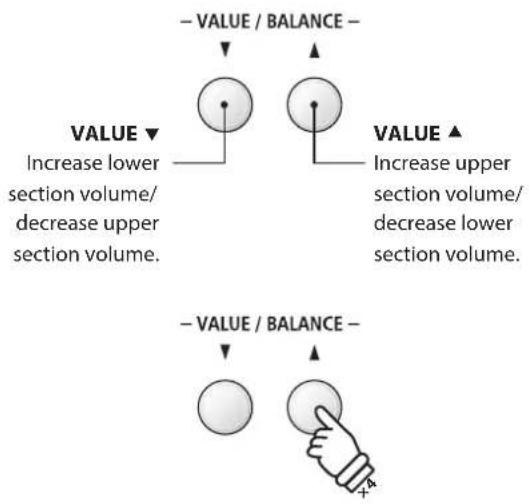
Example: To decrease the volume of the lower section sound to 6, press the VALUE ▲ button four times.
5. Exiting Four Hands mode
While Four Hands mode is in use:
Press the SPLIT button.
The LED indicator for the SPLIT button will stop flashing, and the instrument will return to normal (full keyboard) operation.
Classic E.P.
Enhancing the Sound
The ES8 digital piano offers a variety of features to adjust and enhance the character of a particular sound. Some of these features (e.g. Reverb), are enabled automatically when a sound is selected, however players may also wish to change the strength or type of enhancement to suit their personal preferences or different styles of music.
1 Reverb
Reverb adds reverberation to the sound, simulating the acoustic environment of a recital room, stage, or concert hall. Some sound types, such as acoustic piano, enable reverb automatically in order to improve acoustic realism. The ES8 digital piano features six different reverb types.
■Reverb types
Reverb type Description
Room Simulates the ambiance of a small rehearsal room.
Lounge Simulates the ambience of piano lounge.
Small Hall Simulates the ambiance of a small hall.
Concert Hall Simulates the ambiance of a concert hall or theater.
Live Hall Simulates the ambiance of a live hall or stage.
Cathedral Simulates the ambiance of a large cathedral.
1. Turning Reverb on/off
Press the REVERB button to turn reverb on/off.
The LED indicator for the REVERB button will turn on to indicate when reverb is in use, and the current status will briefly be shown in the LCD display.
Room
On
EFFECTS REVERB


2. Entering the Reverb settings menu
Press and hold the REVERB button.
The reverb settings menu will be shown in the LCD display.
Reverb Type = Room
EFFECTS REVERB


■Reverb settings
Reverb setting Description Range
| Type Changes the type of environment. | ||
| Depth | Adjusts the depth of the environment (i.e. amount of reverberation to apply). | 1~10 |
| Time | Adjusts the decay length/speed of the reverberation. | 1~10 |
3. Adjusting the Reverb settings (type/depth/time)
While the reverb settings menu is shown, to change the reverb type:
Press the ▼ or ▲ VALUE buttons to cycle through the different reverb types.

flowchart
graph TD
    A["Reverb Type\n= Room"] --> B["↓"]
    B --> C["Reverb Type\n= Small Hall"]
To change the reverb depth:
Press the ▼ or ▲ MENU buttons to select the 'Reverb Depth' page, then press the ▼ or ▲ VALUE buttons to decrease or increase the reverb depth setting.
* The reverb depth setting can be adjusted within the range of 1\~10.
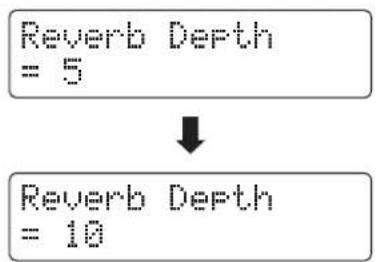
To change the reverb time:
Press the ▼ or ▲ MENU buttons to select the 'Reverb Time' page, then press the ▼ or ▲ VALUE buttons to decrease or increase the reverb time setting.
* The reverb time setting can be adjusted within the range of 1\~10.
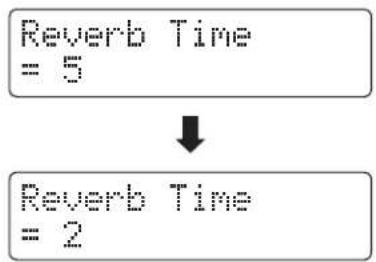
flowchart
graph TD
    A["Reverb Time\n= 5"] --> B["↓"]
    B --> C["Reverb Time\n= 2"]
To exit the reverb settings menu and return to normal playing mode, press the EXIT button or wait 4 seconds.
* Reverb settings are independent for each sound variation.
* Any changes made to the reverb type, settings, or on/off status will remain until the power is turned off.
* Preferred reverb settings can be stored to a Registration memory for convenient recall. Please refer to page 34 for more information.
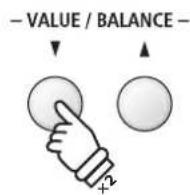
Example: To change the reverb type from 'Room' to 'Small Hall', press the VALUE▼ button twice.
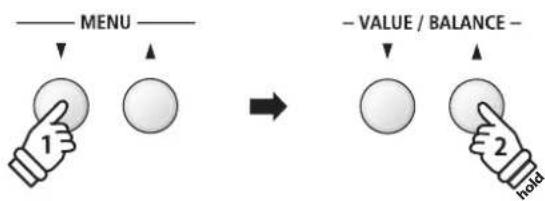
Example: To increase the reverb depth, press the MENU ▼ button to select the 'Reverb Depth' page, then press and hold the VALUE▲ button.
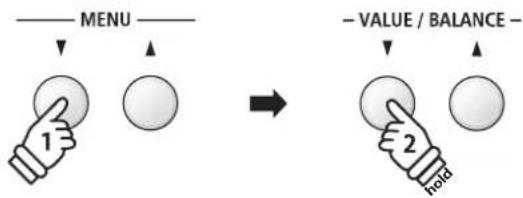
Example: To reduce the reverb time, press the MENU ▼ button to select the 'Reverb Time' page, then press and hold the VALUE ▼ button.
2 Effects
In addition to reverb, various other effects can be applied to the selected sound, altering the tonal character and feeling of the instrument. As with reverb, some sound types enable certain effects automatically in order to enhance tonal quality. The ES8 digital piano features eleven different effect types, and four combination effects.
■ Effect types
Effect type Description
| Stereo Delay Adds an echo effect to the sound, playing through both speakers (stereo) simultaneously. | |
| Ping Delay Adds a 'ping pong' echo effect to the sound, giving the impression that it is 'bouncing' from left to right. | |
| Triple Delay Similar in principle to Ping Delay, but with an additional centre echo. | |
| Chorus | Layers a slightly detuned version of the sound over the original, thus enriching its tonal character. |
| Classic Chorus Similar in principle to Chorus, but intended for vintage electric piano sounds. | |
| Tremolo | Continuously varies the volume at a constant speed, adding a vibrato type effect to the sound. |
| Classic Tremolo Similar in principle to Tremolo, but intended for vintage electric piano sounds. | |
| Auto Pan Alternates the sound output from left to right across the stereo field using a sine wave. | |
| Classic Auto Pan Similar in principle to Auto Pan, but intended for vintage electric piano sounds. | |
| Rotary | Simulates the sound of a rotary speaker commonly used with vintage electronic organs.* Pressing the ▼ and ▲ MENU buttons simultaneously alternates the speed of the rotary simulation between 'Slow' and 'Fast' effect modes. If the optional F-20 double pedal is connected, the left (soft) pedal can also be used. |
| Phaser | Applies a cyclic phase change to the sound, giving the impression that the sound is moving. |
| Combination Effects | Different combinations of the above effects, applied simultaneously.* Combination effect types: Phaser+Chorus, Tremolo+Chorus, Phaser+AutoPan, Chorus+Chorus |
1. Turning Effects on/off
Press the EFFECTS button to turn effects on/off.
The LED indicator for the EFFECTS button will turn on to indicate when effects are in use, and the current status will briefly be shown in the LCD display.
EFFECTS REVERB


Chorus On
2. Entering the Effects settings menu, selecting the Effect type
Press and hold the EFFECTS button.
The first page of the effects settings menu will be shown in the LCD display.
Effect Type = Stereo Delay
Press the ▼ or ▲ VALUE buttons to cycle through the different effect types.
EFFECTS REVERB


- VALUE / BALANCE -


■ Effect settings
| Effect type Setting 1 Setting 2 Setting 3 Setting 4 | ||||
| Stereo Delay / Ping Delay / Triple Delay | Dry / Wet | Time | Feedback | High Damp |
| Chorus Dry / Wet Speed Feedback Depth | ||||
| Classic Chorus Mono / Stereo Speed -- | ||||
| Tremolo Dry / Wet Speed -- | ||||
| Classic Tremolo Dry / Wet Speed -- | ||||
| Auto Pan Dry / Wet Speed -- | ||||
| Classic Auto Pan Dry / Wet Speed -- | ||||
| Rotary | Accel. Speed | Rotary Speed | Chorus | Balance |
| Phaser | Dry / Wet Speed Feedback Depth | |||
| Combination Effects | Dry / Wet Speed | |||
3. Selecting and adjusting the Effect settings
While the effects settings menu is shown in the LCD display:
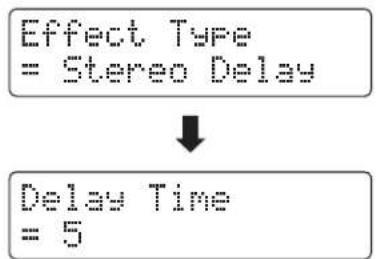
Press the ▼ or ▲ MENU buttons to cycle through the different effects settings pages.
flowchart
graph TD
    A["Effect Type\n= Stereo Delay"] --> B["Delay Time\n= 5"]
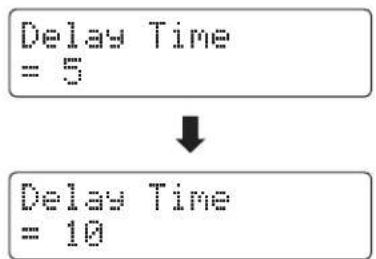
Press the ▼ or ▲ VALUE buttons to adjust the value of the selected effects setting.
* Effect settings can be adjusted within the range of 1\~10.
flowchart
graph TD
    A["Delay Time\n= 5"] --> B["↓"]
    B --> C["Delay Time\n= 10"]
To exit the effects settings menu and return to normal playing mode, press the EXIT button or wait 4 seconds.
* Effects settings are independent for each sound variation.
* Any changes made to the effect type, settings, or on/off status will remain until the power is turned off.
* Preferred effects settings can be stored to a Registration memory for convenient recall. Please refer to page 34 for more information.
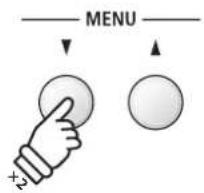
Example: To select the 'Delay Time' effects setting, press the MENU ▼ button twice.
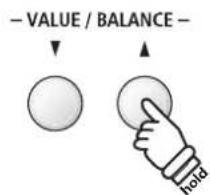
Example: To increase the 'Delay Time' effects setting, press and hold the VALUE ▲ button.
3 Amp Simulator
The ES8's Amp Simulator (Amp Sim) attempts to reproduce the sound, response, and overdrive characteristics of a typical amp/speaker combination, giving electric piano and drawbar organ sounds an authentic vintage quality. Once enabled, the amplifier type can be selected, with adjustable drive, level, and Low/Hi EQ settings. As with the Reverb and Effects functions, selecting certain sounds will enable the Amp Sim automatically.
1. Turning the Amp Sim on/off
Press the EFFECTS and REVERB buttons simultaneously.
The amp sim settings menu will be shown in the LCD display.
$$ \begin{array}{l} \text { AmF Sim } \ = \text { Off } \end{array} $$
Press the ▼ or ▲ VALUE buttons to turn the amp sim on/off.
* If Dual or Split/Four Hands modes are selected, the Amp Sim will not affect the layered or lower section sounds.
EFFECTS REVERB

- VALUE / BALANCE -
■ Amp Sim settings
| Amp Sim setting Description Range | ||
| Type Selects the amplifier/speaker type. See below | ||
| Drive | Adjusts the drive (overdrive) level of the selected amplifier. | 1~10 |
| Level Adjusts the volume level of the selected amplifier. 1~10 | ||
| EQ Low Adjusts the low frequency EQ level of the selected amplifier. -6 dB~+6 dB | ||
| EQ High | Adjusts the high frequency EQ level of the selected amplifier. | -6 dB~+6 dB |
2. Changing the Amp Sim type
While the amp sim settings menu is shown in the LCD display:
Press the ▼ or ▲ MENU buttons to select the Amp Sim Type setting, then press the ▼ or ▲ VALUE buttons to cycle through the different amp sim types.
$$ \begin{array}{l} \text {Amp Sim Type} \ = S. \text {Case I} \end{array} $$
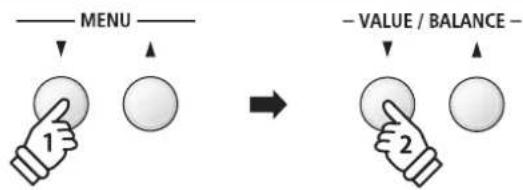
flowchart
graph TD
    A["MENU"] --> B["1"]
    A --> C["2"]
    D["VALUE / BALANCE"] --> E["1"]
    D --> F["2"]
■ Amp Sim types
| Amp Sim type | Description |
| S. Case I | A distantly miked suitcase type speaker, suitable for vintage electric piano sounds. |
| S. Case II | A closely miked suitcase type speaker, suitable for vintage electric piano sounds. |
| L. Cabinet | A speaker enclosed within a wooden cabinet, suitable for vintage drawbar organ sounds. |
3. Adjusting the Amp Sim settings (drive/level/eq low/eq high)
While the amp sim settings menu is shown in the LCD display:
Press the ▼ or ▲ MENU buttons to cycle through the different amp sim settings pages, then press the ▼ or ▲ VALUE buttons to adjust the value of the selected amp sim setting.
$$ \begin{array}{l} \text {AmF Sim Drive} \ = 5 \end{array} $$
To exit the amp sim settings menu and return to normal playing mode, press the EXIT button or wait 4 seconds.
* Amp sim settings are independent for each sound variation.
* Any changes made to the amp sim type, settings, or on/off status will remain until the power is turned off.
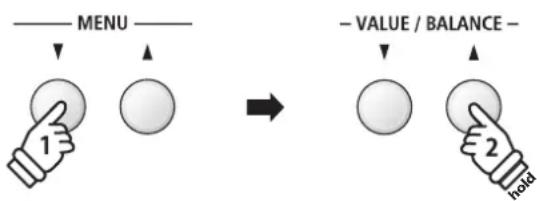
Example: To increase the drive of the amp sim, press the MENU ▼ button to select the 'Amp Sim Drive' page, then press and hold the VALUE ▲ button.
* Preferred amp sim settings can be stored to a Registration memory for convenient recall. Please refer to page 34 for more information.
Panel Lock
The Panel Lock function allows the state of all panel buttons to be temporarily locked, preventing sounds and other settings from being changed. This function may prove useful in teaching environments, ensuring that students are not distracted by changing sounds etc.
1. Activating the Panel Lock
Press the METRONOME and USB buttons simultaneously.
The Panel Lock screen will be shown in the LCD display, and the instrument will stop responding to panel button presses.
Panel Lock On
If panel buttons are pressed while the Panel Lock is activated, a reminder message will briefly be shown in the LCD display.
Panel Lock
Press: METRO.+USD
METRONOME USB

* When activated, the Panel Lock will remain even after the power is turned off/on.
2. Deactivating the Panel Lock
Press the METRONOME and USB buttons simultaneously again.
A message will be shown in the LCD display to indicate that the Panel Lock has been deactivated, and the instrument will resume responding to panel button presses as normal.
Panel Lock Off
METRONOME USB

Transpose
The Transpose function allows the pitch of the ES8 digital piano's keyboard to be raised or lowered in semi-tone intervals. This is particularly useful when accompanying instruments tuned for different keys, or when a song learned in one key must be played in another key.
■ Adjusting the Key Transpose value: Method 1
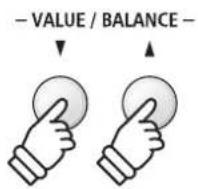
Press and hold the TRANSPOSE button, then press the ▼ or ▲ VALUE buttons to adjust the key transpose value.
The LED indicator for the TRANSPOSE button will turn on to indicate that the transpose function is in use, and the key transpose value will briefly be shown in the LCD display.
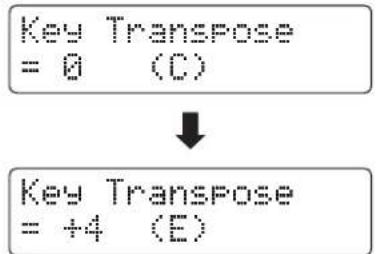
flowchart
graph TD
    A["Key Transpose\n= 0 (C)"] --> B["Key Transpose\n= +4 (E)"]
* The keyboard pitch can be raised or lowered by up to 12 semi-tones.
* To reset the key transpose value to 0, press and hold the TRANSPOSE button, then press the ▼ and ▲ VALUE buttons simultaneously.
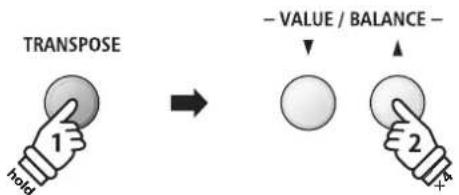
Example: To increase the key transpose value from 0 (off) to +4 (i.e. raise the keyboard pitch by 4 semi-tones), press and hold the TRANSPOSE button, then press the VALUE ▲ button four times.
■ Adjusting the Key Transpose value: Method 2
Press and hold the TRANSPOSE button, then press a key within the range of C2 to C4.
The LED indicator for the TRANSPOSE button will turn on to indicate that the transpose function is in use, and the key transpose value will briefly be shown in the LCD display.
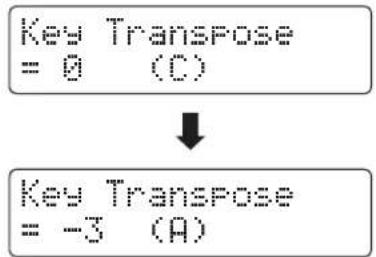
* The keyboard pitch can be adjusted within the range of C2 to C4.
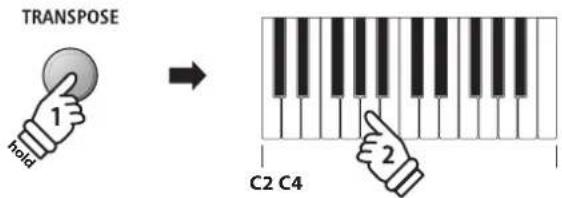
Example: To change the key transpose from C (off) to A (i.e. lower the keyboard pitch by three semi-tones), press and hold the TRANSPOSE button, then press the A key.
■ Turning Key Transpose on/off
Press the TRANSPOSE button to turn the key transpose function on/off.
* The specified key transpose setting will be retained even after the key transpose function is turned off. This allows the key transpose function to be turned on and off freely, without the need to adjust the value each time.
* The specified key transpose setting will return to the default value of 0 after the power is turned off.
* Preferred key transpose settings can be stored to a Registration memory for convenient recall. Please refer to page 34 for more information.
Using the Song Transpose function it is also possible to transpose recorder songs stored in internal memory, and SMF song files stored on a USB memory device. This allows the pitch of the song to be adjusted without affecting the pitch of the keyboard.
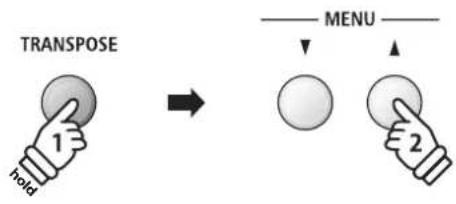
■ Selecting the Song Transpose/Key Transpose settings
Press and hold the TRANSPOSE button, then press the ▼ or ▲ MENU buttons to alternate between the key transpose and song transpose settings.
■ Adjusting the Song Transpose value
While the Song Transpose screen is shown in the LCD display:
Press the ▼ or ▲ VALUE buttons to adjust the song transpose value.
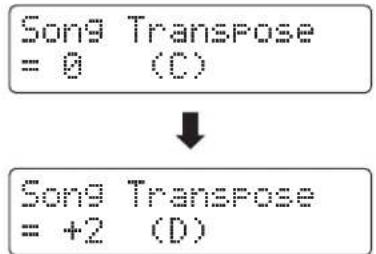
* The song pitch can be raised or lowered by up to 12 semi-tones.
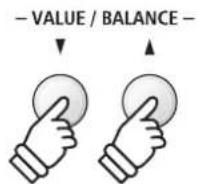
* To reset the song transpose value to 0, press the ▼ and ▲ VALUE buttons simultaneously.
* The song transpose value will automatically reset to 0 when a different song is selected.
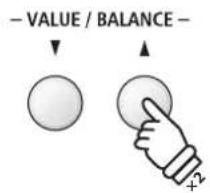
Example: To increase the song transpose value from 0 (off) to +2 (i.e. raise the song pitch by 2 semi-tones), press and hold the TRANSPOSE button, then press the VALUE ▲ button twice.
The Metronome function provides a steady beat to aid practicing the piano at a consistent tempo.
The time signature, volume, and tempo of the metronome can all be freely adjusted.
1. Turning the Metronome on/off
Press the METRONOME button.
The LED indicator for the METRONOME button will turn on to indicate that the metronome function is in use, and a 1/4 beat will start to count.
The current metronome tempo in beats per minute (BPM) and beat of the bar will also be shown in the LCD display.
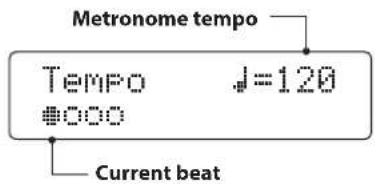
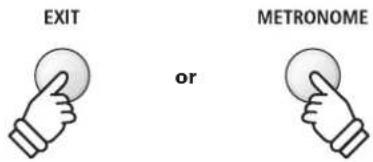
Press the EXIT or METRONOME button again to stop the metronome.
The LED indicator for the METRONOME button will turn off, the beat will stop counting, and the LCD display will return to the normal playing mode screen.
METRONOME

2. Adjusting the Metronome settings (tempo/beat/volume)
While the Metronome tempo screen is shown in the LCD display, to adjust the metronome tempo:
Press the ▼ or ▲ VALUE buttons to adjust the value of the metronome tempo.
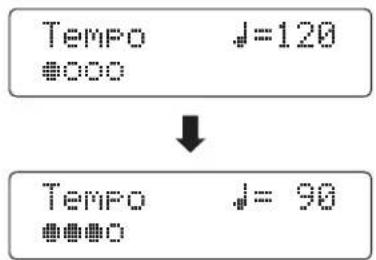
* The metronome tempo can be adjusted within the range of 10\~400 beats per minute (BPM).
*To reset the metronome tempo to 120, press the ▼ and▲ VALUE buttons simultaneously.
To adjust the metronome beat (time signature):
Press the ▼ or ▲ MENU buttons to select the 'Beat' page, then press the ▼ or ▲ VALUE buttons to cycle through the different metronome beat (time signature) types.
* There are ten different types of beat (time signature) available: 1/4, 2/4, 3/4, 4/4, 5/4, 3/8, 6/8, 7/8, 9/8, and 12/8.
* To reset the metronome beat to 4/4, press the ▼ and▲ VALUE buttons simultaneously.
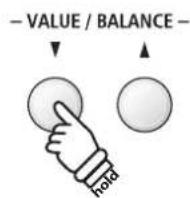
Example: To decrease the tempo of the metronome, press and hold the VALUE ▼ button.
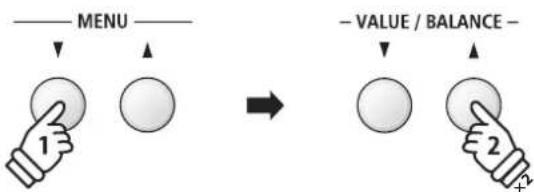
Example: To change the beat (time signature) from 1/4 to 3/4, press the MENU ▼ button to select the 'Beat' page, then press and the VALUE ▼ button twice.
2. Adjusting the Metronome settings (tempo/beat/volume)
To adjust the metronome volume:
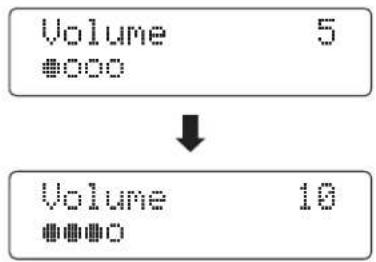
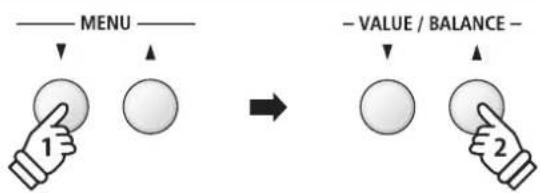
Press the ▼ or ▲ MENU buttons to select the 'Volume' page, then press the ▼ or ▲ VALUE buttons to adjust the value of the metronome volume.
flowchart
graph TD
    A["MENU"] --> B["1"]
    B --> C["○"]
    C --> D["→"]
    D --> E["VALUE / BALANCE"]
    E --> F["2"]
Example: To increase the volume of the tempo, press the MENU ▼ button to select the 'Volume' page, then press and the VALUE▲ button.
* The metronome volume can be adjusted within the range of 0\~10.
* To reset the metronome volume to 5, press the ▼ and▲ VALUE buttons simultaneously.
* Any changes made to the metronome tempo, beat, or volume settings settings will remain until the power is turned off.
* Preferred metronome settings can be stored to a Registration memory for convenient recall. Please refer to page 34 for more information.
■ Changing sounds while the Metronome is in use
Press the desired SOUND button.
The LED indicator for the button will turn on to indicate that this category has been selected.
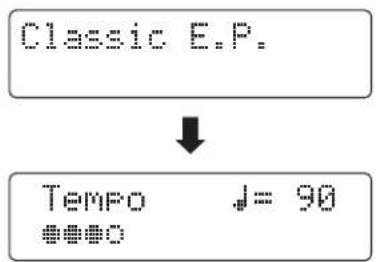
The name of the sound will briefly be shown in the LCD display, before returning to the metronome screen.
flowchart
graph TD
    A["Classic E.P."] --> B["Tempo\n###"]
    B --> C["= 90"]
natural_image
Illustration of a hand pointing at four empty circles (no text or symbols)Example: To select the 'Classic E.P'. sound, press the E.PIANO button.
■ Jump to Recorder shortcut
While the Metronome function is in use:
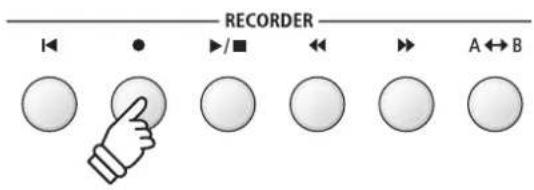
Press the REC button.
The Recorder standby screen will be shown in the LCD display, and the metronome will count. A one bar count-in will also be played before the recording begins.
* Please refer to page 48 for more information about the instrument's Recorder functions.
Registration Memories
The Registration function allows the current instrument setup (sound/style selection, all settings, etc.) to be stored to a registration memory, and conveniently recalled at the touch of a button. Each of the seven registration buttons contain four banks (A, B, C, and D), allowing up to 28 different registration memories to be stored.
Registrations can also be loaded from/saved to USB memory devices. Please refer to page 67 for more information.
■ Settings stored in Registration memories
General
Selected sound
Dual Mode / Split Mode (sounds, volume balance, split point)
Reverb, Effects, Amp Simulator (type, settings)
Transpose (Key Transpose only)
Metronome (Beat, Tempo, Volume)
Settings
Basic Settings*
Virtual Technician
Rhythm Settings
Key Settings
MIDI Settings
* Wall EQ, Speaker Volume, Phones Volume, Line Out Volume, Audio Recorder Gain, and Power Settings will not be stored to Registration memories.
■ Selecting a Registration memory
Press the REGISTRATION button.
The LED indicator for the REGISTRATION button will turn on to indicate that the registration function is in use, and the registration selection screen will be shown in the LCD display.
Press the SOUND buttons to select the desired registration memory. Press the same SOUND button repeatedly to cycle through the four banks (A, B, C, and D).
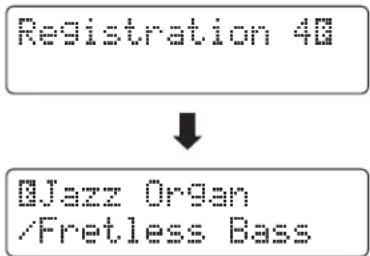
flowchart
graph TD
    A["Registration 40"] --> B["QJazz Organ /Fretless Bass"]
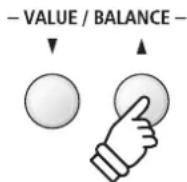
Alternatively, press the ▼ or ▲ VALUE buttons to cycle through all 28 different registration memories.
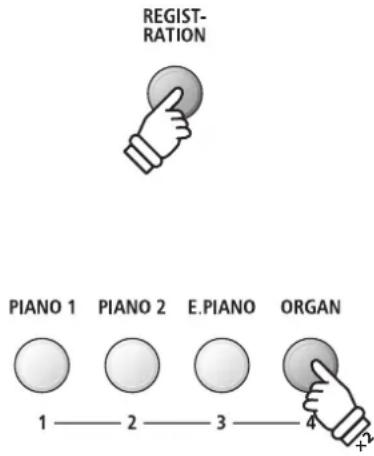
Example: To select registration memory 4B, press the ORGAN button (memory #4) twice.
■ Exiting Registration mode (restore previous settings)
To return to normal playing mode without selecting the registration (i.e. restore the previous panel settings):
Press the REGISTRATION button.
The LED indicator for the REGISTRATION button will turn off, and the instrument will return to normal playing mode.
REGISTRATION

■ Exiting Registration mode (retain new settings)
To return to normal playing mode with the current registration memory settings selected:
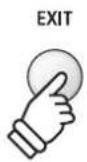
Press the EXIT button.
The LED indicator for the REGISTRATION button will turn off, and the instrument will return to normal playing mode.
■ Storing a Registration memory
To store a registration memory to the current banks (e.g. bank A):
Press and hold the REGISTRATION button, then press and hold a SOUND button.
The current instrument setup will be stored to the registration memory assigned to the pressed SOUND button, and a confirmation message will briefly be shown in the LCD display.
Registration 60 Stored
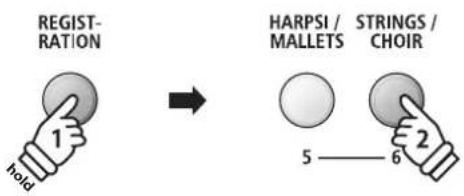
Example: To store the current instrument setup to memory 6A, press and hold the REGISTRATION button, then press the STRINGS/CHOIR button.
To store a registration memory to a different banks (e.g. bank D):
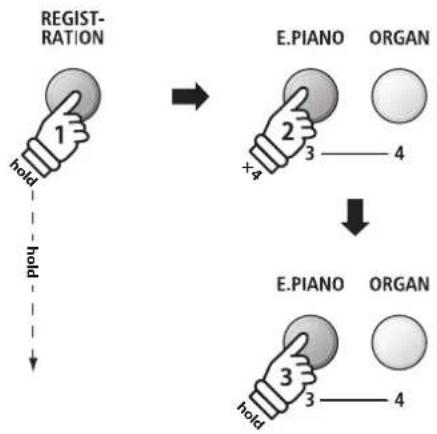
Press and hold the REGISTRATION button, press the same SOUND button repeatedly to cycle through the four banks (A, B, C, and D), then press and hold the SOUND button.
* The ▼ or ▲ VALUE buttons can also be used to change the bank.
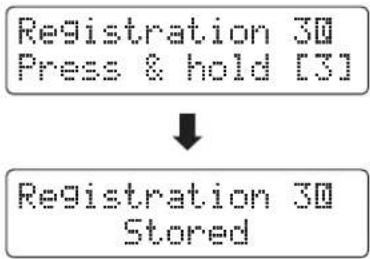
The current instrument setup will be stored to the registration memory and bank specified, and a confirmation message will be briefly shown in the LCD display.
flowchart
graph TD
    A["Registration 30\nPress & hold [3"]] --> B["Registration 30\nStored"]
flowchart
graph TD
    A["REGISTRATION"] --> B["E.PIANO"]
    B --> C["ORGAN"]
    A --> D["Place 1: hold"]
    D --> E["Place 2: hold ×4"]
    E --> F["Place 3: hold 3"]
    F --> G["Place 4: hold 4"]
Example: To store the current instrument setup to memory 3D, press and hold the REGISTRATION button, press the E.PIANO button four times, then press and hold the same E.PIANO button.
■ Resetting all Registration memories
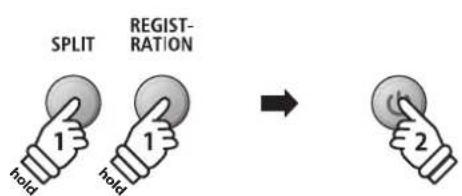
Press and hold the SPLIT and REGISTRATION buttons, then turn the instrument's power off/on.
All registration memories will be reset to the factory default settings.
Rhythm Section Basic Operation
The ES8's Rhythm Section feature contains 100 built-in accompaniment styles, covering a wide range of musical genres. Each style can be used simply as a drum or percussion track, or as a full musical accompaniment with bass, guitar, organ, brass, etc. parts. In addition, each style includes separate introduction, fill-in, variation, and ending passages, allowing musicians to enliven their performances at the touch of a button.
For a complete listing of the available Rhythm Section styles, please refer to page 140 of this owner's manual.
■ Rhythm Section pattern types
| Pattern type Description No. of bars | ||
| Count-in (drums only) | A short introduction pattern used to count-in the Basic/Variation pattern. | 1 or 2 |
| Basic A simple, unobtrusive backing accompaniment pattern. 4 or 8 | ||
| Variation A more complicated version of the basic pattern, with additional phrases etc. 4 or 8 | ||
| Fill-in | A short pattern that can be used when repeating phrases or as a bridge between the Basic and Variation patterns. | 1 |
| Ending A short pattern used to bring the currently playing accompaniment style to an end. 1 | ||
1. Entering the Rhythm Section
Press the RHYTHM SECTION button.
The LED indicator for the RHYTHM SECTION button will turn on to indicate that the Rhythm Section is in use.
Information about the currently selected style will also be shown in the LCD display.
RHYTHM SECTION

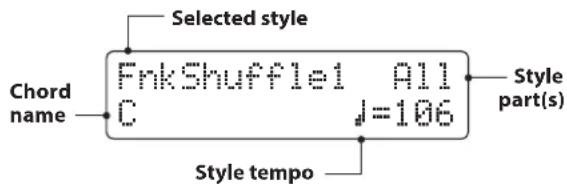
The entire keyboard can be used to play the melody, with the ES8 detecting and changing the Rhythm Section chord/key automatically.
Full keyboard:
Used to control the accompaniment, and play the melody.

2. Playing with the Rhythm Section
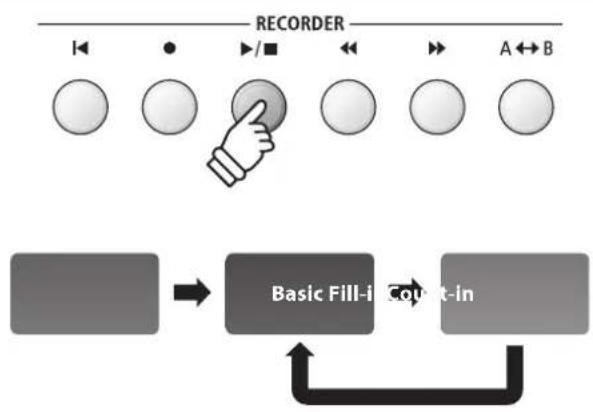
Press the PLAY/STOP button.
The LED indicator for the PLAY/STOP button will turn on, and the count-in drum pattern will start to play.
After the Count-in, the Rhythm Section will change to the Basic pattern. During this time, playing full fingered chords will also change the accompaniment's chords, while single notes play the melody.
After 8 bars of the Basic pattern have been played, the Rhythm Section will automatically play the Fill-in pattern.
* Please refer to page 42 for more information about the Rhythm Section's Auto Fill-in function.
flowchart
graph TD
    A["REORDER"] --> B["○"]
    B --> C["●"]
    C --> D["▶/■"]
    D --> E["○"]
    E --> F["▶"]
    F --> G["○"]
    G --> H["○"]
    H --> I["○"]
    I --> J["○"]
    J --> K["○"]
    K --> L["○"]
    L --> M["○"]
    M --> N["○"]
    N --> O["○"]
    O --> P["○"]
    P --> Q["○"]
    Q --> R["○"]
    R --> S["○"]
    S --> T["○"]
    T --> U["○"]
    U --> V["○"]
    V --> W["○"]
    W --> X["○"]
    X --> Y["○"]
    Y --> Z["○"]
    Z --> AA["○"]
    AA --> AB["○"]
    AB --> AC["○"]
    AC --> AD["○"]
    AD --> AE["○"]
    AE --> AF["○"]
    AF --> AG["○"]
    AG --> AH["○"]
    AH --> AI["○"]
    AI --> AJ["○"]
    AJ --> AK["○"]
    AK --> AL["○"]
    AL --> AM["○"]
    AM --> AN["○"]
    AN --> AO["○"]
    AO --> AP["○"]
    AP --> AQ["○"]
    AQ --> AR["○"]
    AR --> AS["○"]
    AS --> AT["○"]
    AT --> AU["○"]
    AU --> AV["○"]
    AV --> AW["○"]
    AW --> AX["○"]
    AX --> AY["○"]
    AY --> AZ["○"]
    AZ --> BA["○"]
    BA --> BB["○"]
    BB --> BC["○"]
    BC --> BD["○"]
    BD --> BE["○"]
    BE --> BF["○"]
    BF --> BG["○"]
    BG --> BH["○"]
    BH --> BI["○"]
    BI --> BJ["○"]
    BJ --> BK["○"]
    BK --> BL["○"]
    BL --> BM["○"]
    BM --> BN["○"]
    BN --> BO["○"]
    BO --> BP["○"]
    BP --> BQ["○"]
    BQ --> BR["○"]
    BR --> BS["○"]
    BS --> BT["○"]
    BT --> BU["○"]
    BU --> BV["○"]
    BV --> BW["○"]
    BW --> BX["○"]
    BX --> BY["○"]
    BY --> BZ["○"]
    BZ --> CA["○"]
    CA --> CB["○"]
    CB --> CC["○"]
    CC --> CD["○"]
    CD --> CE["○"]
    CE --> CF["○"]
    CF --> CG["○"]
    CG --> CH["○"]
    CH --> CI["○"]
    CI --> CJ["○"]
    CJ --> CK["○"]
    CK --> CR["○"]
    CR --> CS["○"]
    CS --> CT["○"]
    CT --> CU["○"]
    CU --> CV["○"]
    CV --> CW["○"]
    CW --> CX["○"]
    CX --> CY["○"]
    CY --> CZ["○"]
    CZ --> DA["○"]
    DA --> DB["○"]
    DB --> DC["○"]
    DC --> DD["○"]
    DD --> DE["○"]
    DE --> DF["○"]
    DF --> DG["○"]
    DG --> DH["○"]
    DH --> DI["○"]
    DI --> DJ["○"]
    DJ --> DK["○"]
    DK --> DL["○"]
    DL --> DJ
3. Adding the full backing accompaniment
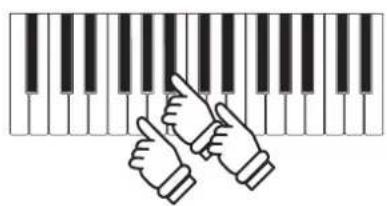
Play with all 88 keys of the keyboard freely.
The full backing accompaniment will begin to play in the key specified, and the name of the chord will be shown in the LCD display.
* The Rhythm Section recognises 15 different chords types, including most inversions. Please refer to page 141 for more information.
* When the Bass Inv. setting is set to 'On', the On-Bass chord can be recognised when playing bass notes with the left hand. Please refer to page 46.
* When the ACC Mode setting is set to '1 Finger Chord', the Rhythm Section accompaniment can be changed by playing single notes's. Please refer to page 44.
natural_image
Illustration of two hands typing on a piano keyboard (no text or symbols)Example: To play the backing accompaniment in the key of G minor, press the G, B^b and D keys in the lower section simultaneously.
4. Stopping and exiting the Rhythm Section
Press the PLAY/STOP button again.
The Rhythm Section will play the ending pattern, the backing accompaniment will stop, and the LED indicator for the PLAY/STOP button will turn off.
Press the RHYTHM SECTION button again to return to normal playing mode.
■ Jump to Recorder function
While the Rhythm Section function is in use:
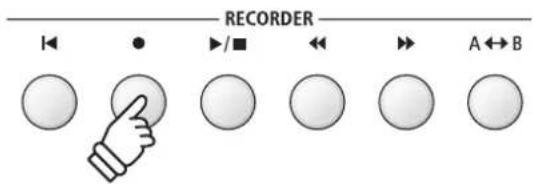
Press the REC button.
The Recorder selection screen will be shown in the LCD display, with the current Rhythm Section pattern/settings pre-selected.
* Please refer to page 48 for more information about the instrument's Recorder functions.

RHYTHM SECTION

Rhythm Section Style
The ES8 digital piano features 100 different accompaniment styles, ranging from Pop, Rock, Ballads, and Jazz, to Funk, Dance, Latin, and World Music styles.
For a complete listing of the available Rhythm Section styles, please refer to page 140 of this owner's manual.
■ Selecting the Rhythm Section style
While the main Rhythm Section screen is shown in the LCD display:
Press the ▼ or ▲ RHYTHM (REW or FWD) buttons to cycle through the different Rhythm Section styles.
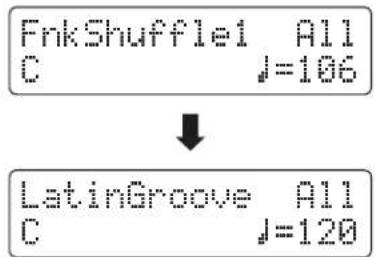
flowchart
graph TD
    A["FnkShuffle1 A11\nC J=106"] --> B["↓"]
    C["LatinGroove A11\nC J=120"] --> B
Each style features both a 'basic' and 'variation' pattern. If the 'variation' pattern is selected, a symbol will be shown in the LCD display.
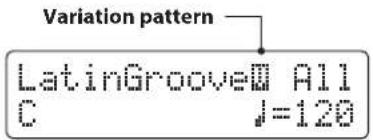
* The selected Rhythm Section style setting will remain until the power is turned off.
* The preferred Rhythm Section style can be stored to a Registration memory for convenient recall. Please refer to page 34 for more information.
■ Jump to Rhythm Section genre
It is also possible to cycle through the different Rhythm Section genres, instead of individual styles.
Press and hold the RHYTHM SECTION button, then press the ▼ or ▲ RHYTHM (REW or FWD) buttons to cycle through the different Rhythm Section genres.
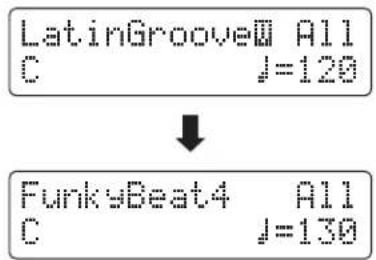
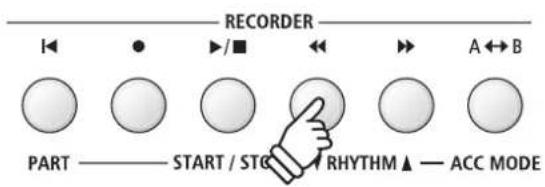
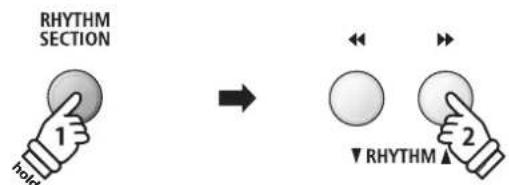
Rhythm Section Parts
Each Rhythm Section style consists of several different instrument parts. It is possible to specify whether the Rhythm Section should play drums only, bass and drums, or a full backing accompaniment.
■ Rhythm Section parts
| R.S. Parts LCD display Description | ||
| Drums Drum The Rhythm Section will play a drum track only. | ||
| Bass & Drums B+Dr The Rhythm Section will play both bass and drum tracks. | ||
| All Parts (default) | All | The Rhythm Section will play a full backing accompaniment (drums, bass, guitar, etc.) |
■ Changing the Rhythm Section parts
While the main Rhythm Section screen is shown in the LCD display:
Press the PART (RESET) button to cycle through the different Rhythm Section part settings.
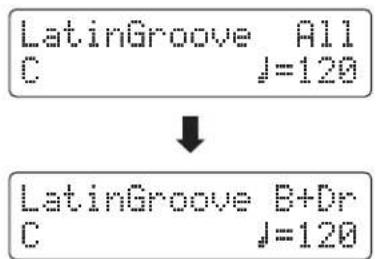
flowchart
graph TD
    A["LatinGroove A11 C J=120"] --> B["↓"]
    B --> C["LatinGroove B+Dr C J=120"]
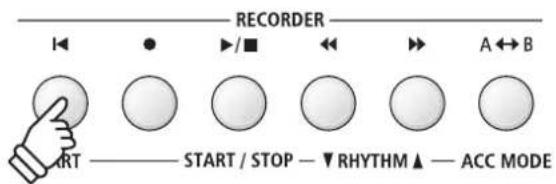
* The selected Rhythm Section parts setting will remain until the power is turned off.
* The preferred Rhythm Section parts setting can be stored to a Registration memory for convenient recall. Please refer to page 34 for more information.
Rhythm Section Settings
■ Adjusting the Rhythm Section tempo
While the main Rhythm Section screen is shown in the LCD display:
Press the ▼ or ▲ VALUE buttons to decrease or increase the tempo of the Rhythm Section.
* The Rhythm Section and Metronome share the same tempo setting.
■ Rhythm Section settings
| Page no. | Setting Description | Default setting | |
| 1 | Rhythm Volume Adjust the volume of the Rhythm Section 5 | ||
| 2 | Auto Fill-in Specify how frequently an Auto Fill-in will be played. 8 bars | ||
| 3 | O.F. Ad-lib Turn the ‘One Finger Ad-lib’ feature on or off. Off | ||
| 4 | ACC Mode Specify the chord input mode used for the Rhythm Section accompaniment. Normal | ||
| Bass Inv. | Turn the ‘Bass Inv.’ (On-Bass chord detection) function on or off. | Off | |
| Preset Chord | Select the preset chord progression type. Chord 1 | ||
* The Bass Inv. page will only appear when ACC Mode is set to 'Normal'.
* The Preset Chord page will only appear when ACC Mode is set to 'Preset Chord'.
■ Selecting and adjusting the Rhythm Section settings
Press the ▼ or ▲ MENU buttons to select the Rhythm Settings menu, then press the VALUE ▲ button to enter the Rhythm Settings menu.
Press the ▼ or ▲ MENU buttons to cycle through the different Rhythm Section settings pages.
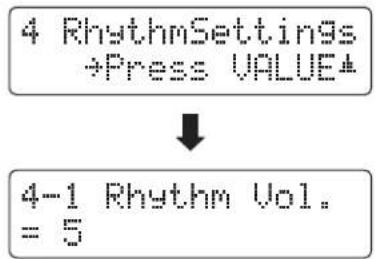
flowchart
graph TD
    A["4 Rhythm Settings +Press VALUE"] --> B["4-1 Rhythm Vol. = 5"]
Press the ▼ or ▲ VALUE buttons to adjust the value of the selected Rhythm Section setting.
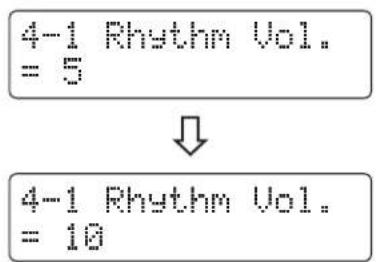
flowchart
graph TD
    A["4-1 Rhythm Vol. = 5"] --> B["4-1 Rhythm Vol. = 10"]
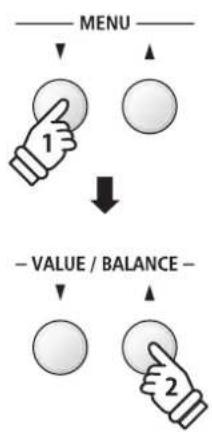
flowchart
graph TD
    A["MENU"] --> B["1"]
    B --> C["Value / BALANCE"]
    C --> D["2"]
* Any changes made to the Rhythm Section settings will remain until the power is turned off.
* Preferred Rhythm Section settings can be stored to a Registration memory for convenient recall. Please refer to page 34 for more information.
1 Rhythm Volume
The Rhythm Volume setting is used to adjust the volume level of the Rhythm Section accompaniment, relative to the main keyboard sound.
■ Adjust the Rhythm Volume setting
While the Rhythm Settings menu is shown in the LCD display:
Press the ▼ or ▲ MENU buttons to select the Rhythm Volume settings page, then press the ▼ or ▲ VALUE buttons to adjust the volume level of the Rhythm Section.
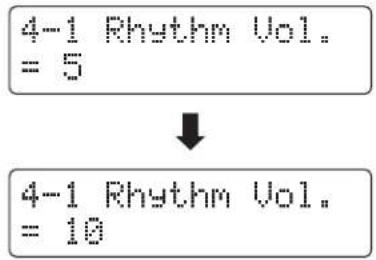
* The Rhythm Volume setting can be adjusted within the range of 1\~10.
* Any changes made to the Rhythm Volume setting will remain until the power is turned off.
* The preferred Rhythm Volume setting can be stored to a Registration memory for convenient recall. Please refer to page 34 for more information.
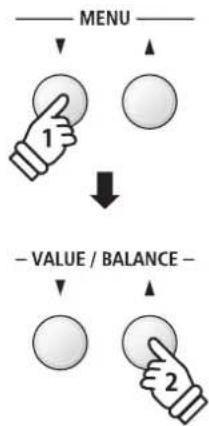
flowchart
graph TD
    A["MENU"] --> B["1"]
    A --> C["2"]
    B --> D["↓"]
    C --> E["↓"]
    D --> F["VALUE / BALANCE"]
    E --> G["VALUE / BALANCE"]
■ Jump to Rhythm Volume setting shortcut
It is also possible to access the Rhythm Volume setting directly while the Rhythm Section is in use.
Press and hold the MENU ▼ or MENU ▲ buttons.
The Rhythm Volume setting will be shown in the LCD display.
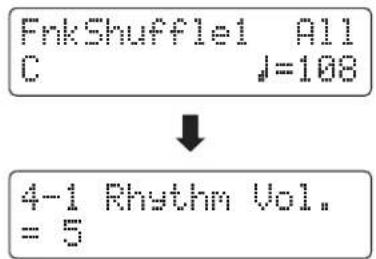
Press the ▼ or ▲ VALUE buttons to adjust the Rhythm Volume setting.
To exit the Rhythm Volume setting and return to the previous screen, press the EXIT button twice.
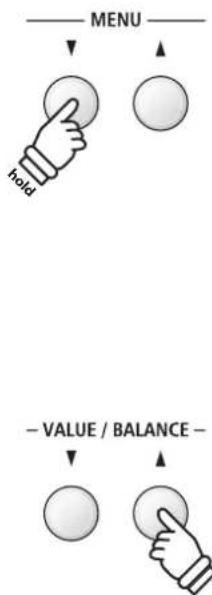
2 Auto Fill-in
The Auto Fill-in setting is used to specify how many bars of the Rhythm Section should be played before a fill-in passage is automatically added. This function can be turned off if the Auto Fill-in feature is not required.
■ Auto Fill-in settings
| Auto Fill-in setting Description | |
| Off The Rhythm Section will not play a fill-in passage automatically. | |
| 4 bars The Rhythm Section will play an automatic fill-in passage after every 4 bars. | |
| 8 bars (default) | The Rhythm Section will play an automatic fill-in passage after every 8 bars. |
| 12 bars The Rhythm Section will play an automatic fill-in passage after every 12 bars. | |
| 16 bars The Rhythm Section will play an automatic fill-in passage after every 16 bars. | |
■ Changing the Auto Fill-in setting
While the Rhythm Settings menu is shown in the LCD display:
Press the ▼ or ▲ MENU buttons to select the Auto Fill-in settings page, then press the ▼ or ▲ VALUE buttons to change the value.
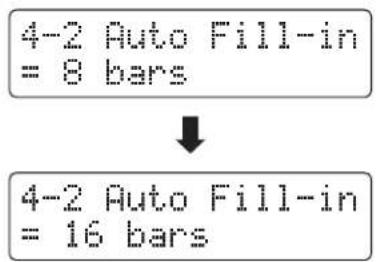
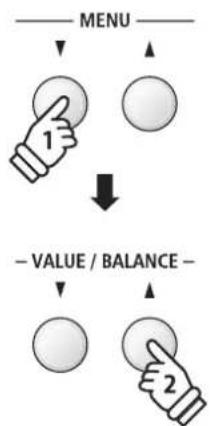
flowchart
graph TD
    A["MENU"] --> B["1"]
    B --> C["Value / BALANCE"]
    C --> D["2"]
* Any changes made to the Auto Fill-in setting will remain until the power is turned off.
* The preferred Auto Fill-in setting can be stored to a Registration memory for convenient recall. Please refer to page 34 for more information.
3 One Finger Ad-lib
The One Finger Ad-lib setting is used to turn the Rhythm Section's One Finger Ad-lib function on or off.
When turned on, One Finger Ad-lib allows various musical phrases to be performed at any time by pressing one of the topmost 17 keys on the keyboard. Each phrase will play for one bar, and will match the key/chord currently used by the Rhythm Section accompaniment.

One Finger Ad-lib
■ One Finger Ad-lib settings
One Finger Ad-lib setting Description
| Off (default) | A One Finger Ad-lib phrase will not be played when pressing one of the topmost 17 keys. |
| On | A One Finger Ad-lib phrase will be played when pressing one of the topmost 17 keys. |
■ Changing the One Finger Ad-lib setting
While the Rhythm Settings menu is shown in the LCD display:
Press the ▼ or ▲ MENU buttons to select the One Finger Ad-lib settings page, then press the ▼ or ▲ VALUE buttons to turn the One Finger Ad-lib feature on or off.
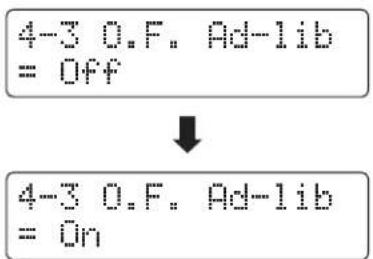
flowchart
graph TD
    A["1"] --> B["○"]
    C["2"] --> D["○"]
    style A fill:#fff,stroke:#000
    style B fill:#fff,stroke:#000
    style C fill:#fff,stroke:#000
    style D fill:#fff,stroke:#000
* Any changes made to the One Finger Ad-lib setting will remain until the power is turned off.
* The preferred One Finger Ad-lib setting can be stored to a Registration memory for convenient recall. Please refer to page 34 for more information.
4 ACC Mode
The ACC Mode setting is used to select the Rhythm Section's chord input method.
By default, the entire keyboard can be used to play the melody, with the ES8 detecting and changing the Rhythm Section chord/key automatically. However, selecting the '1 Finger Chord' mode allows the Rhythm Section chord/key to be changed by playing single notes in the lower section, with the upper section reserved for playing the melody.
Finally, when the 'Preset Chord' mode is selected, the Rhythm Section will follow the preset chord sequence specified on the Preset Chord settings page. For a complete listing of the available Rhythm Section Preset Chord sequences, please refer to page 145 of this owner's manual.
* The default split point is set between keys F #3 and G3.
* The Rhythm Section and Split Mode share the same split point. Please refer to page 21 for information about changing the split point.
■ ACC Mode settings
ACC Mode setting Rhythm Section play/control mode
| Normal (default) Full keyboard | plays melody, and controls Rhythm Section key. |
| 1 Finger Chord | Upper section plays melody, lower section controls Rhythm Section key.Playing single notes in the lower section can change the accompaniment's chords easily. |
| Preset Chord Full keyboard | plays melody, Rhythm Section changes key automatically. |
Normal
Full keyboard:
Used to control the accompaniment, and play the melody.

■ 1 Finger Chord
Lower section:
Used to control the accompaniment.
Upper section:
Used to play the melody.

Split point: adjustable, please refer to page 21.
■ Preset Chord
Full keyboard:
Used to play the melody only. The accompaniment is controlled automatically.

■ Changing the ACC Mode setting
While the Rhythm Settings menu is shown in the LCD display:
Press the ▼ or ▲ MENU buttons to select the ACC Mode settings page, then press the ▼ or ▲ VALUE buttons to cycle through the different chord recognition methods.
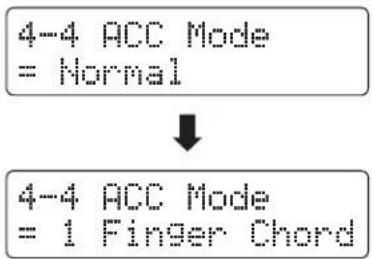
* The Auto Fill-in feature will be disabled when the 'Preset Chord' method is selected. However, the Rhythm Section will automatically play a fill-in pattern at the end of the final bar of the specified Preset Chord sequence.
* Any changes made to the ACC Mode setting will remain until the power is turned off.
* The preferred ACC Mode setting can be stored to a Registration memory for convenient recall. Please refer to page 34 for more information.
Bass Inversion
The Bass Inversion setting is used to play 'On-Bass' chords or bass lines with the left hand.
By default, the bass part of the Rhythm Section will follow the detected chord's root. However, when the Bass Inversion setting is set to 'On', the bass part of the Rhythm Section will follow the lowest key played on the keyboard, allowing 'On-Bass' chords to be played.
An 'On-Bass' chord is chord that has a different bass note to the chord's root. This is typically indicated by the addition of slash and the letter of the bass after the root note letter. For example, a C chord over a G bass will be shown as 'C/G', while a B ^b 7 chord over a C bass will be shown as 'B ^b /C'.
* This setting will only appear when the ACC Mode setting is set to 'Normal'. Please refer to page 44 for more information.
■ Bass Inv. settings
Bass Inv. setting Description
| Off (default) The bass part of the Rhythm Section will follow the detected chord's root. |
| On | On-Bass chord recognition is enabled, and the bass part of the Rhythm Section will follow the lowest key played on the keyboard. |
Off
Full keyboard:

On
Full keyboard:
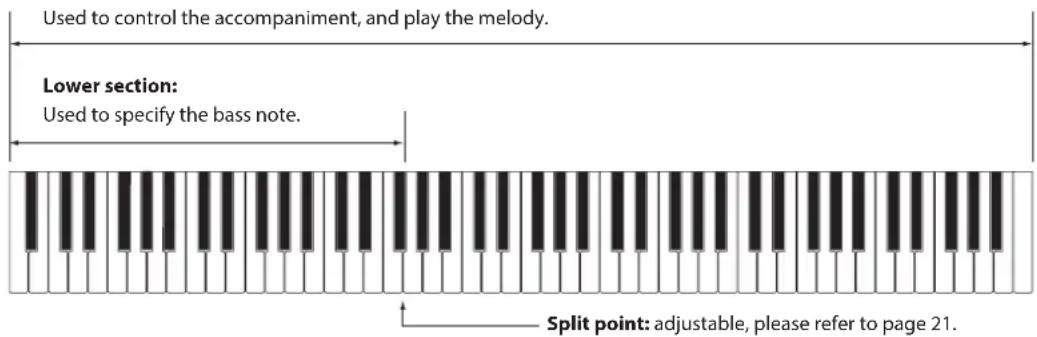
The lowest key played on the keyboard will be recognised as the bass note. However, when the lowest key is played in the upper section of the keyboard, or when three other keys are played around the lowest key, the notes will be detected as a chord, and the On-Bass note will not be specified.
■ Changing the Bass Inv. setting
While the Rhythm Settings menu is shown in the LCD display:
Press the ▼ or ▲ MENU buttons to select the Bass Inv. settings page, then press the ▼ or ▲ VALUE buttons to turn the Bass Inv. setting on or off.
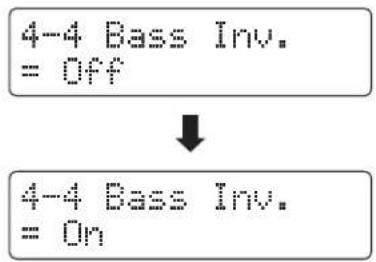
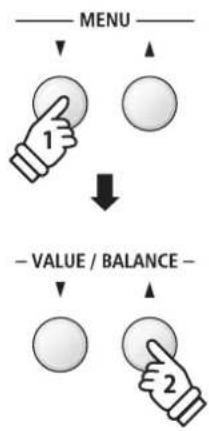
flowchart
graph TD
    A["MENU"] --> B["1"]
    B --> C["○"]
    C --> D["2"]
    D --> E["○"]
    style A fill:#fff,stroke:#000
    style B fill:#fff,stroke:#000
    style C fill:#fff,stroke:#000
    style D fill:#fff,stroke:#000
    style E fill:#fff,stroke:#000
* This setting will only appear when the ACC Mode setting is set to 'Normal'. Please refer to page 44 for more information.
Preset Chord
The Preset Chord setting is used to specify which preset chord sequences the Rhythm Section will follow. For a complete listing of the available Rhythm Section Preset Chord sequences, please refer to page 145 of this owner's manual.
* This setting will only appear when the ACC Mode setting is set to 'Preset Chord'. Please refer to page 44 for more information.
■ Changing the Preset Chord setting
While the Rhythm Settings menu is shown in the LCD display:
Press the ▼ or ▲ MENU buttons to select the Preset Chord settings page, then press the ▼ or ▲ VALUE buttons to cycle through the different Preset Chord sequences.
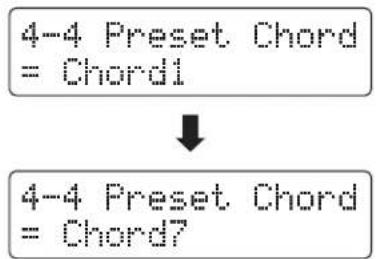
flowchart
graph TD
    A["4-4 Preset Chord\n= Chord1"] --> B["4-4 Preset Chord\n= Chord?"]
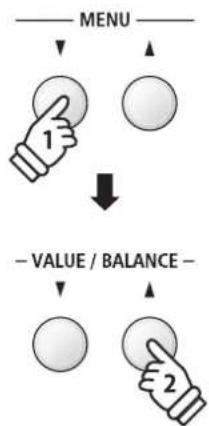
flowchart
graph TD
    A["MENU"] --> B["1"]
    B --> C["○"]
    C --> D["2"]
    D --> E["○"]
    style A fill:#fff,stroke:#000
    style B fill:#fff,stroke:#000
    style C fill:#fff,stroke:#000
    style D fill:#fff,stroke:#000
    style E fill:#fff,stroke:#000
* The A-B LOOP button can also be used to quickly turn the Preset Chord function on/off without entering the ACC Mode settings page.
* When selecting a different style, the Preset Chord setting will reset to the default Preset Chord sequence for that style.
* The preferred Preset Chord setting can be stored to a Registration memory for convenient recall. Please refer to page 34 for more information.
Song Recorder (Internal memory)
The ES8 digital piano allows up to 10 different songs to be recorded, stored in internal memory, and played back at the touch of a button. Each song consists of two separate tracks - referred to as 'parts' - that can be recorded and played back independently. This allows the left-hand part of a song to be recorded first on one track, and the right-hand part to be recorded later on the other track.
1 Recording a Song
1. Entering song recorder mode
Press the REC button.
The LED indicator for the REC button will start to flash, and the Internal Song Recorder screen will be shown in the LCD display.
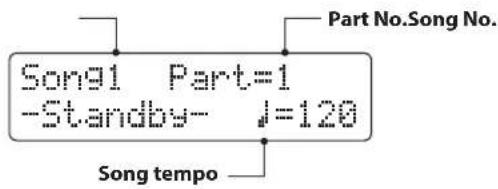
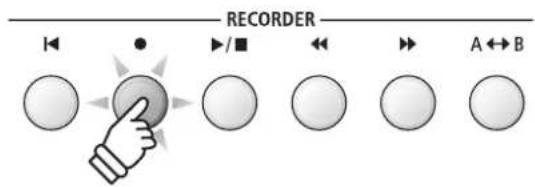
* If a USB memory device is connected, press the MENU ▲ button to select the 'Int. Recorder' function.
* The Recorder shares the song tempo setting with the Metronome and Rhythm Section functions.
2. Selecting the song/part to be recorded
Press the REW or FWD buttons to select the internal song memory (1\~10) to be recorded to.
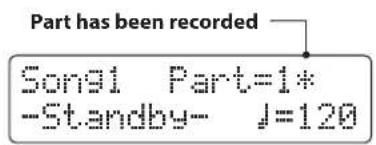
Then press the ▼ or ▲ VALUE buttons to select the part number (1 or 2) to be recorded.
* If a part has already been recorded, a ⚠ symbol will be shown.
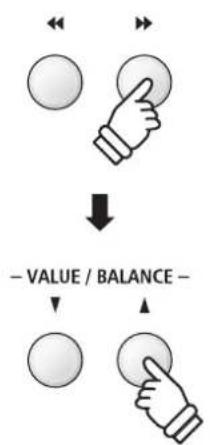

When recording part 1 and part 2 separately, select the song and part number carefully in order to prevent accidentally overwriting a previously recorded part.
3. Starting the song recorder
Press a key on the keyboard.
The LED indicators for the REC and PLAY/STOP buttons will turn on, and recording will start.
The current bar and beat will also be shown in the LCD display.
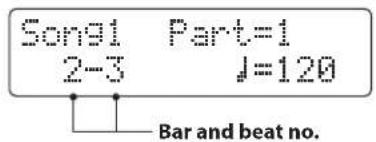
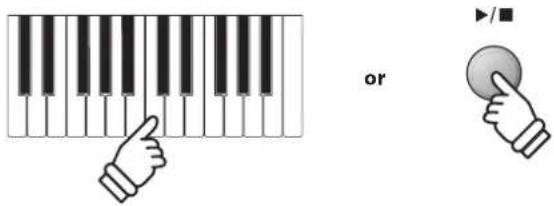
* Recording can also be started by pressing the PLAY/STOP button, allowing a rest period or empty bar to be inserted at the beginning of the song.
4. Stopping the song recorder
Press the PLAY/STOP button.
The LED indicators for the PLAY/STOP and REC buttons will turn off, the recorder will stop, and the part/song will be stored in internal memory.
After a few seconds, the Internal Song Player screen will be shown in the LCD display, indicating that the song is ready for playback.
$$ \begin{array}{c c} \text {Song1} & \text {Part = 1*} \ 1 - 1 & J = 1 2 0 \end{array} $$
To play back the recorded song, please refer to the 'Playing a Song' instructions on page 50.
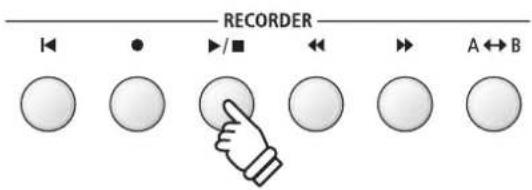
* The maximum recording capacity is approximately 90,000 notes, with button and pedal presses also counted as one note.
* If the maximum recording capacity is reached during recording, the recorder will stop automatically.
* Recorder songs will remain in memory after the power is turned off.
■ Recording a second part
To record a second part, repeat the above instructions, selecting the part that has not been recorded to.
■ Recording with the metronome
It is also possible to record songs with the metronome activated. This is useful when recording parts separately, or wishing to maintain correct timing throughout complex passages. Note that the metronome will not be heard when the song is played back.
* Please refer to page 32 for more information about using the instrument's Metronome function with the Recorder.
■ Changing panel settings while recording
In some cases, it may be desirable to make changes to the selected sound or style while recording a song. The tables below list the various functions which will and will not be remembered during recording.
Panel operations remembered during recording
Changes made to the sound type. (SOUND buttons etc.)
Switching between dual/split modes.
Panel operations NOT remembered during recording\*
Changes made to the reverb settings.
Changes made to the effects settings.
Changes made to the tempo.
Changes made to the volume balance in dual/split mode.
Changes made to transpose, tuning, touch, etc.
* Make changes to desired effects, reverb, and tempo settings etc. before recording a new song.
5. Exiting song recorder mode
Press the EXIT button to exit the Internal Song Recorder.
The instrument will return to normal playing mode.
EXIT

2 Playing a Song
This function is used to playback recorder songs stored in internal memory. To playback a song/part immediately after recording, start this process from step 2.
1. Entering song play mode
Press the PLAY/STOP button.
The LED indicator for the PLAY/STOP button will turn on, and the Internal Song Player screen will be shown in the LCD display.
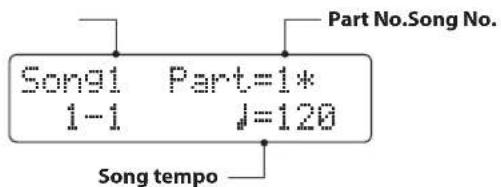
* If a USB memory device is connected, press the MENU ▲ button to select the 'Int. Recorder' function.
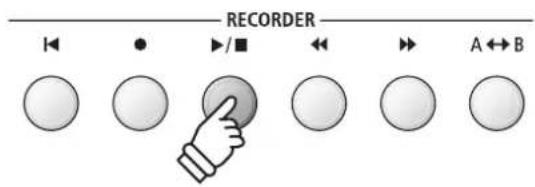
2. Selecting the song/part to be played back
Press the REW or FWD buttons to select the internal song memory (1\~10) to be played back.
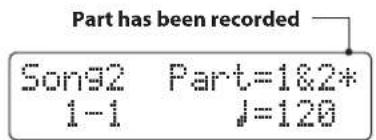
* If a part has already been recorded, a : symbol will be shown.
To select the part(s) of the song to be played back:
Press the ▼ or ▲ MENU buttons to select the Song Part setting, then press the ▼ or ▲ VALUE buttons to select the desired part(s).
$$ \begin{array}{l} \text {Song Part} \ = 1 * \end{array} $$
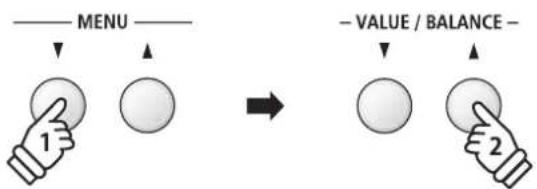
flowchart
graph LR
    A["MENU"] --> B["1"]
    B --> C["Circle"]
    D["VALUE / BALANCE"] --> E["2"]
    E --> F["Circle"]
3. Starting song playback
Press the PLAY/STOP button.
The selected song/part(s) will start to play, and the current bar and beat will also be shown in the LCD display.
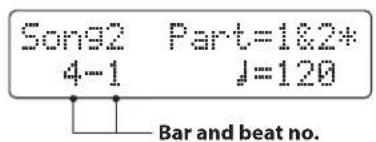
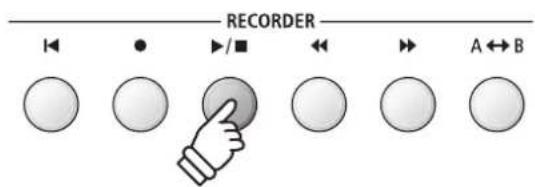
■ Controlling song playback
While the song is playing:
Press the REW or FWD buttons to rewind or advance the playing position of the song. When the playing position is reset, these buttons allow the song memory to be selected.
Press the A-B LOOP button twice to set the start and end points of the loop.
* Pressing the A-B LOOP button for a third time will turn off the loop.
Press the PLAY/STOP button to pause and resume song playback.
Press the RESET button to return to the beginning of the song.
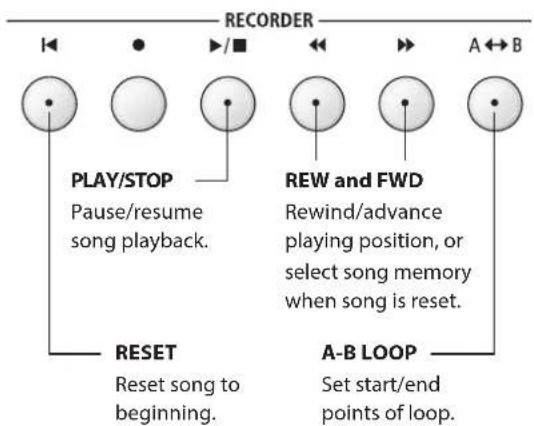
flowchart
graph TD
    A["REORDER"] --> B["PLAY/STOP"]
    B --> C["Pause/resume song playback."]
    C --> D["RESET"]
    D --> E["Reset song to beginning."]
    F["REW and FWD"] --> G["Rewind/advance playing position, or select song memory when song is reset."]
    H["A-B LOOP"] --> I["Set start/end points of loop."]
■ Adjusting the playback tempo
While the song is playing:
Press the ▼ or ▲ VALUE buttons to adjust the playback tempo.
* The playback tempo can be adjusted within the range of 10\~400 beats per minute (BPM).
■ Adjusting playback settings ( playback menu)
The playback menu features settings to adjust the song volume, and pitch (transpose), and change the selected playing part(s).
While the song is playing:
Press the ▼ or ▲ MENU buttons to enter the playback menu and select the desired setting, then press the ▼ or ▲ VALUE buttons to adjust the setting value.
$$ \begin{array}{l} \text {Song Volume} \ = 1 0 0 \end{array} $$
* The song volume setting can be adjusted within the range of 1\~100.
* The song pitch can be raised or lowered by up to 12 semi-tones.
* The song part setting cycles through part 1, part 2, and parts 1&2.
Press the EXIT button to return to the Internal Song Play screen.
flowchart
graph LR
    A["MENU"] --> B["1"]
    B --> C["Circle"]
    C --> D["→"]
    D --> E["-VALUE / BALANCE -"]
    E --> F["2"]
4. Exiting song play mode
Press the EXIT button to exit the Internal Song Player.
The instrument will return to normal playing mode.
3 Recording a Song with the Rhythm Section
It is also possible to record songs while using the Rhythm Section. This feature can be used to record backing accompaniments (including chord changes) for favourite songs, allowing the player to concentrate on the melody or improvised solos using the full keyboard.
The Rhythm Section can only be recorded to Part 1 of each song memory.
1. Entering the Rhythm Section
Press the RHYTHM SECTION button.
The LED indicator for the RHYTHM SECTION button will turn on to indicate that the Rhythm Section is in use.
Make any changes to the Rhythm Section settings (style, volume, tempo, parts, ACC mode etc.)
* Please refer to page 40 for more information.
RHYTHM SECTION

2. Entering song recorder mode
Press the REC button.
The LED indicator for the REC button will start to flash, and the Internal Song Recorder screen will be shown in the LCD display.
* If a USB memory device is connected, press the MENU ▲ button to select the 'Int. Recorder' function.
3. Selecting the song to be recorded
Press the REW or FWD buttons to select the internal song memory (1\~10) to be recorded to.
* Part 1 must be selected in order to record the Rhythm Section. The Rhythm Section will not be recorded if Part 2 is selected.
4. Starting the song recorder
Press a key on the keyboard, or press the PLAY/STOP button.
The LED indicators for the REC and PLAY/STOP buttons will turn on, and recording will start with the Rhythm Section playing.
Press the PLAY/STOP button to stop the recording.
4 Erasing a Part/Song
This function is used to erase recorder parts that have been recorded incorrectly or songs that are no longer listened to. Once a part/song has been erased from memory it cannot be recovered.
1. Entering song erase mode
Press the REC and PLAY/STOP buttons simultaneously.
The LED indicators for the REC and PLAY/STOP buttons will start to flash, and the Erase Song screen with the currently selected song and part number will be shown in the LCD display.
$$ \begin{array}{l l} \text {Delete} & + \text {REC} \ \text {Sonsi} & \text {Part = 1*} \end{array} $$
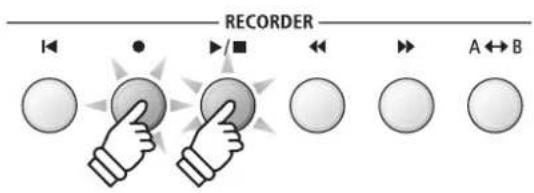
2. Selecting a song and part(s) to be erased
Press the REW or FWD buttons to select the internal song memory (1\~10) to be erased.
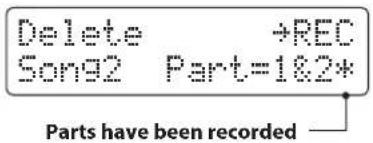
Then press the ▼ or ▲ VALUE buttons to select the part number(s) (1, 2, or 1&2) of the selected song to be erased.
* If a part has already been recorded, a : symbol will be shown.
3. Erasing the selected song and part(s)
Press the REC button.
A confirmation message will be shown in the LCD display, prompting to confirm or cancel the erase operation.
$$ \begin{array}{l}\text {Are you sure?}\\rightarrow \text {Press VALUE}\end{array} $$
Press the VALUE ▲ button to confirm the erase operation and return to the Internal Song Player screen.
Press the EXIT button to to cancel the erase operation.
* If cancelled, press the PLAY/STOP button to return to the Play Internal screen, or REC button to return to the Record Internal screen.
■ Erasing all recorder songs from memory
Press and hold the PLAY/STOP and REC buttons, then turn the instrument's power off/on.
All recorder songs stored in memory will be erased.
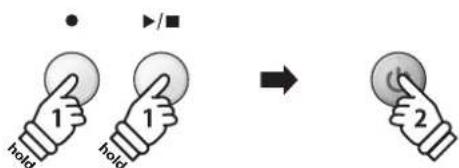
Audio Record/Playback (USB memory)
The ES8 digital piano is also capable of recording performances as digital audio - saving the data to a USB memory device in either MP3 or WAV format. This useful function allows professional quality recordings to be produced directly on the instrument - without the need for additional sound equipment - then emailed to band members, listened to away from the instrument, or edited and remixed further using an audio workstation.
■ Audio Recorder format specifications
| Audio Format Specifications Bitrate | ||
| MP3 44.1 kHz, 16 bit, Stereo 192 kbit/s (fixed) | ||
| WAV 44.1 kHz, 16 bit, Stereo 1,411 kbit/s (uncompressed) |
MPEG Layer-3 audio coding technology licensed from Fraunhofer IIS and Thomson. MP3 codec is Copyright (c) 1995-2007, SPIRIT.
1 Recording an Audio file
1. Entering USB recorder mode
Connect a USB memory device to the USB port.
Press the REC button, then press the MENU ▼ button to select the 'USB Recorder' function.
The LED indicator for the REC button will start to flash, and the USB Recorder screen will be shown in the LCD display.
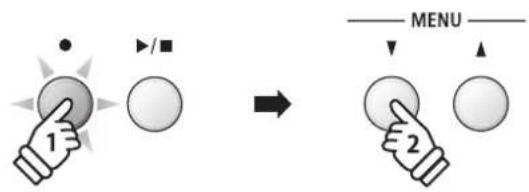
2. Selecting the audio recorder file format
Press the ▼ or ▲ VALUE buttons to select the desired audio recorder file format (MP3 or WAV).
New Song Format = MP3
* MP3 audio files require less storage space than WAV audio files.
* A 1 GB USB memory device can store over 12 hours of MP3 audio data.
3. Starting the audio recorder
Press a key on the keyboard.
The LED indicators for the REC and PLAY/STOP buttons will turn on, and recording will start.
The recording status will also be shown in the LCD display.
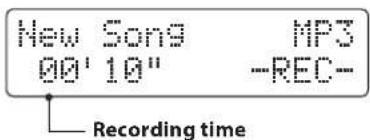
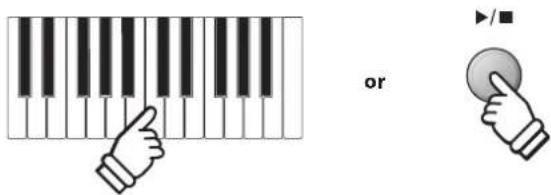
* Recording can also be started by pressing the PLAY/STOP button, allowing a rest period or empty bar to be inserted at the beginning of the song.
4. Stopping the audio recorder, saving to USB
Press the PLAY/STOP button.
The LED indicators for the PLAY/STOP and REC buttons will turn off, and recording will stop.
A confirmation message will be shown in the LCD display, prompting to save the recorded audio file.
Save to USB? Yes→REC No→STOP
Press the REC button to continue, or the PLAY/STOP button to cancel the save operation.
* If cancelled, the audio recorder will return to the previous screen.
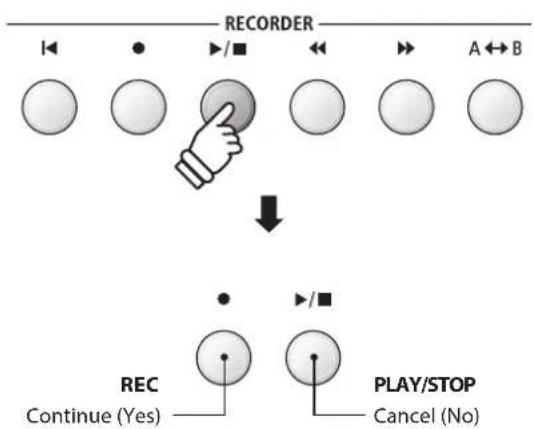
flowchart
graph TD
    A["REORDER"] --> B["↓"]
    B --> C["RECEC Continue (Yes)"]
    B --> D["PLAY/STOP Cancel (No)"]
    style A fill:#f9f,stroke:#333
    style C fill:#ccf,stroke:#333
    style D fill:#cfc,stroke:#333
5. Naming the recorded audio file, confirming save
After pressing the REC button to continue the save:
The filename entry screen will be shown in the LCD display.
Filename: +REC Jazzy Tune MP3
Press the ▼ or ▲ VALUE buttons to cycle through the characters, and the ▼ or ▲ MENU buttons to move the cursor.
Press the REC button again to save the recorded audio file with the specified filename.
After a few seconds, the Audio Player screen will be shown in the LCD display, indicating that the song is ready for playback.
Jazzy Tune.MF3 00'00" VOL.100
To play back the recorded audio file, please refer to the 'Playing an Audio File' instructions on page 56.
■ Overwriting a file
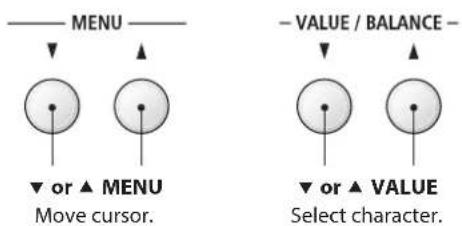

* "Audio-000.MP3" or "Audio-000.WAV" will be used as the default name for the recorded audio files, with the number increasing automatically.
* Saved files are limited to a maximum name length of 11 characters.
* The saved audio file will be stored in the root folder of the USB memory device. It is not possible to store the file in a different folder.
* The audio recorder will only record sounds produced by the instrument. Devices connected via the LINE IN jacks will not be recorded.
If the specified filename already exists:
A confirmation message will be shown in the LCD display, prompting to confirm or cancel the overwrite operation.
Overwrite file? Yes→REC No→STOP
Press the REC button to confirm the overwrite, or the PLAY/STOP button to cancel.
* If cancelled, the audio recorder will return to the saving screen (step 4).
2 Playing an Audio file
The ES8 digital piano is also capable of playing MP3 and WAV audio files stored on a USB memory device directly through the instrument's speaker system. This function is particularly useful when attempting to learn the chords or melody to a new piece, or to simply play along with one's favourite song.
■ Audio Player supported format specifications
| Audio Format Specifications | Bitrate | |
| MP3 32 kHz/44.1 kHz/48 kHz, | Mono/Stereo 8~320 kbit/s (fixed & variable) | |
| WAV 32 kHz/44.1 kHz/48 kHz, | Mono/Stereo, 16 bit - |
MPEG Layer-3 audio coding technology licensed from Fraunhofer IIS and Thomson.
MP3 codec is Copyright (c) 1995-2007, SPIRIT.
■ Preparing the USB memory device
First, prepare a selection of MP3 or WAV audio files, copying the data to a USB memory device.
* USB devices should be formatted to use the 'FAT' or 'FAT32' filesystems. Please refer to page 134 for more information.
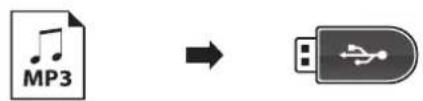
1. Entering USB playback mode
Connect a USB memory device to the USB port.
Press the PLAY/STOP button, then press the MENU ▼ button to select the 'USB Recorder' function.
The LED indicator for the PLAY/STOP button will turn on, and the file selection screen will be shown in the LCD display.
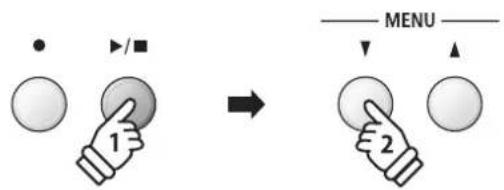
■ File selection screen
The file selection screen provides a listing of relevant files and folders stored on the connected USB device.
The symbol is used to indicate the selected file/folder.
The <> symbols are used to indicate a folder.
An example of a typical file/folder listing screen is shown below. The visible screen height has been extended for the purpose of this illustration.
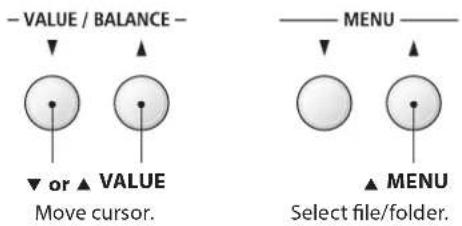
![[Parent Dir ] (Jazz MP3s > Cardova MID I Got You MP3 Man's World MP3 Root Down WAV Previous folder Folders Files Selection cursor](/content/2026/05/881987/images/9bcbb51e7c88dd85790018d52b7d30093add33148f5e45eb7e369c305146cc9c.jpg)
* Files and folders will be listed in alphabetical order, with folders shown at the top of the screen.
* When the USB Recorder function is selected, MP3, WAV, MID, and KSO files will be shown.
* The LCD display is capable of showing filenames with a maximum length of 11 characters (+3 character suffix). Filenames longer than 11 characters will be truncated automatically.
2. Selecting and playing an audio file
Press the ▼ or ▲ VALUE buttons to move the selection cursor, then press the MENU ▲ button to select the file.
The audio play screen will be shown in the LCD display.
Man's World.mp3 00'00" VOL.050
Press the PLAY/STOP button.
The LED indicator for the PLAY/STOP button will turn on and the selected audio file will start to play.
* To activate the 'Chain Play' mode, press and hold the PLAY/STOP button when selecting the file. The contents of the current folder will be played in alphabetical order after the initial file has finished playing.
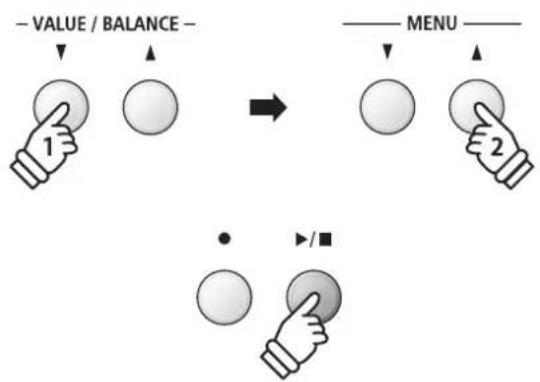
flowchart
graph TD
    A["VALUE / BALANCE"] --> B["1"]
    B --> C["○"]
    C --> D["→"]
    D --> E["MENU"]
    E --> F["2"]
    F --> G["○"]
    G --> H["●"]
    H --> I["○"]
    I --> J["▶/■"]
* If the selected audio file contains embedded metadata (e.g. ID3 tags) such as artist name and song title, this information will be shown beside the filename, on the top line of the LCD display.
■ Controlling audio file playback
While the audio file is playing:
Press the REW or FWD buttons to rewind or advance the playing position of the audio file. When the playing position is reset, these button allow the file/folder to be selected.
Press the A-B LOOP button twice to set the start and end points of the loop.
* Pressing the A-B LOOP button for a third time will turn off the loop.
Press the PLAY/STOP button to pause and resume playback.
Press the RESET button to return to the beginning of the audio file.

flowchart
graph TD
    A["RECORDER"] --> B["PLAY/STOP"]
    B --> C["Pause/resume audio playback."]
    C --> D["RESET"]
    D --> E["Reset audio to beginning."]
    F["REW and FWD"] --> G["Rewind/advance playing position, or select file/folder when song is reset."]
    H["A-B LOOP"] --> I["Set start/end points of loop."]
■ Adjusting the audio file playback volume
Press the ▼ or ▲ VALUE buttons to adjust the playback volume.
* The playback volume can be adjusted within the range of 1\~100.
* There may be a noticeable difference in volume between audio file playback and the ES8 keyboard sound. When playing back MP3/WAV audio data, please adjust the volume of the audio file as desired.
3. Exiting USB playback mode
Press the EXIT button to exit the USB Recorder.
The instrument will return to normal playing mode.
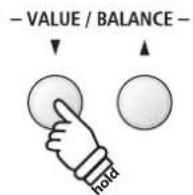
3 Overdubbing an Audio file
This function allows the sound of the ES8 to be recorded (overdubbed) to an existing MP3 or WAV audio file.
1. Entering USB recorder mode
Connect a USB memory device to the USB port.
Press the PLAY/STOP button, then press the MENU ▼ button to select the 'USB Recorder' function.
The LED indicator for the PLAY/STOP button will turn on, and the file selection screen will be shown in the LCD display.
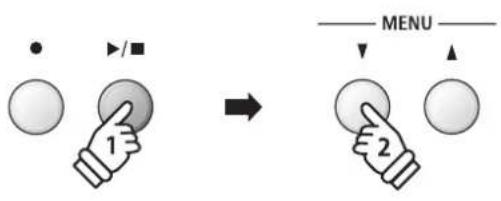
2. Selecting an audio file
Press the ▼ or ▲ VALUE buttons to move the selection cursor, then press the MENU ▲ button to select the file.
The audio play screen will be shown in the LCD display.
Man's World.mp3
00'00" VOL.050
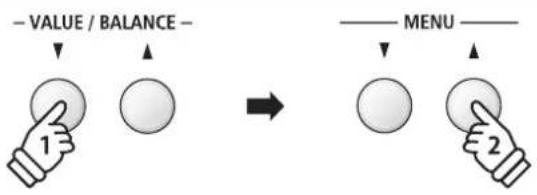
flowchart
graph LR
    A["1"] --> B["VALUE / BALANCE"]
    B --> C["2"]
    C --> D["MENU"]
3. Selecting Overdubbing mode
Press the REC button.
Overdubbing mode will be selected automatically.
Rec Mode +REC = Over Dubbing
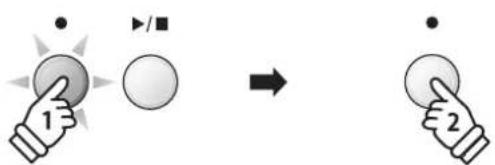
* To record a new song, press the ▼ or ▲ VALUE buttons to select New Song mode.
Press the REC button again.
Over Dubbing
Format. = MP3
4. Selecting the audio recorder file format
Press the ▼ or ▲ VALUE buttons to select the desired audio recorder file format (MP3 or WAV).
Over Dubbing
Format = MP3
5. Starting the audio recorder
Press a key on the keyboard, or press the PLAY/STOP button.
The LED indicators for the REC and PLAY/STOP buttons will turn on, the selected audio file will begin to play, and overdubbing will start.
* The name of the selected audio file will be used as the default name for the overdubbed audio file.
* Saved files are limited to a maximum name length of 11 characters.
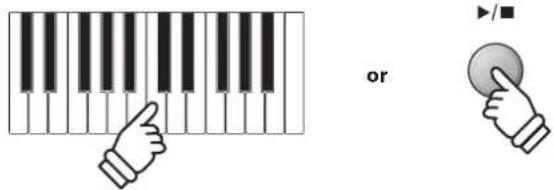
4 Playing a MIDI file
The ES8 digital piano also supports the playback of Standard MIDI File (SMF) song files stored on a USB memory device, allowing a vast selection of widely accessible music to be heard through the instrument's exquisite Harmonic Imaging XL sound engine.
■ Song Player supported format specifications
Song Format Specifications
MID Format 0, Format 1
■ Preparing the USB memory device
First, prepare a selection of MID (SMF) song files, copying the data to a USB memory device.
* USB devices should be formatted to use the 'FAT' or 'FAT32' filesystems. Please refer to page 134 for more information.
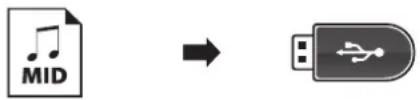
1. Entering USB playback mode
Connect a USB memory device to the USB port.
Press the PLAY/STOP button, then press the MENU ▼ button to select the 'USB Recorder' function.
The LED indicator for the PLAY/STOP button will turn on, and the file selection screen will be shown in the LCD display.
* Please refer to page 56 for information about the file selection screen.
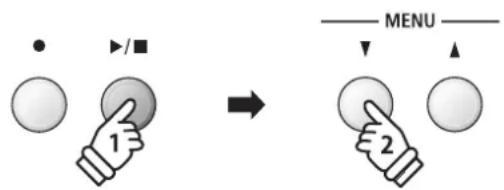
2. Selecting and playing a MIDI file.
Press the ▼ or ▲ VALUE buttons to move the selection cursor, then press the MENU ▲ button to select the MIDI file.
The MIDI player screen will be shown in the LCD display.
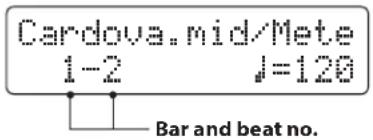
Press the PLAY/STOP button.
The LED indicator for the PLAY/STOP button will turn on and the selected MIDI file will start to play.
* To activate the 'Chain Play' mode, press and hold the PLAY/STOP button when selecting the file. The contents of the current folder will be played in alphabetical order after the initial file has finished playing.
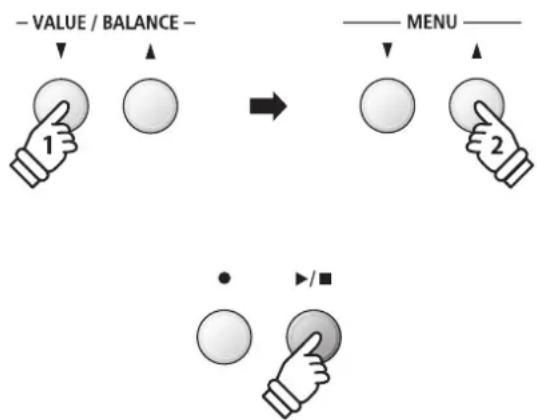
flowchart
graph TD
    A["Input Hand 1"] --> B["Value / Balance"]
    C["Input Hand 2"] --> D["Menu"]
    E["Input Hand 3"] --> F["/■"]
* The ES8 digital piano does not contain the full General MIDI/GM2 sound bank selection. Consequently, some SMF song files may not be reproduced entirely accurately when played through the instrument.
■ Controlling MIDI file playback
While the MIDI file is playing:
Press the REW or FWD buttons to rewind or advance the playing position of the MIDI file. When the playing position is reset, these button allow the file/folder to be selected.
Press the A-B LOOP button twice to set the start and end points of the loop.
* Pressing the A-B LOOP button for a third time will turn off the loop.
Press the PLAY/STOP button to pause and resume playback.
Press the RESET button to return to the beginning of the MIDI file.
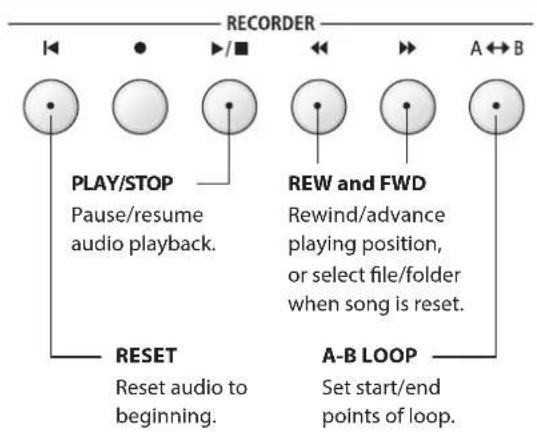
flowchart
graph TD
    A["RECORDER"] --> B["PLAY/STOP"]
    B --> C["Pause/resume audio playback."]
    C --> D["RESET"]
    D --> E["Reset audio to beginning."]
    F["REW and FWD"] --> G["Rewind/advance playing position, or select file/folder when song is reset."]
    G --> H["A-B LOOP"]
    H --> I["Set start/end points of loop."]
■ Adjusting the MIDI file playback tempo
Press the ▼ or ▲ VALUE buttons to adjust the playback tempo.
* The playback tempo can be adjusted within the range of 10\~400.
■ Adjusting playback settings ( playback menu)
The playback menu features settings to adjust the MIDI file's volume, and pitch (transpose), and select the 'Minus One' part.
While the MIDI file is playing:
Press the ▼ or ▲ MENU buttons to enter the playback menu and select the desired setting, then press the ▼ or ▲ VALUE buttons to adjust the setting value.
$$ \begin{array}{l} \text { Song Volume } \ = 1 0 0 \end{array} $$
* The song volume setting can be adjusted within the range of 1\~100.
* The song pitch can be raised or lowered by up to 12 semi-tones.
* The minus one part setting can be set to channels 1\~16 or set to Off.
Press the EXIT button to return to the song player screen.
3. Exiting USB playback mode
Press the EXIT button to exit the USB Recorder.
The instrument will return to normal playing mode.
5 Converting a MIDI file to an Audio file
This function allows MIDI files or ES8 recorder songs stored on a USB memory device to be played back and saved (converted) as an audio file (to the USB device) in either MP3 or WAV format.
1. Entering USB recorder mode
Connect a USB memory device to the USB port.
Press the PLAY/STOP button, then press the MENU ▼ button to select the 'USB Recorder' function.
The file selection screen will be shown in the LCD display.
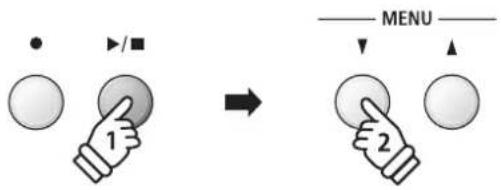
2. Selecting a MIDI file
Press the ▼ or ▲ VALUE buttons to move the selection cursor, then press the MENU ▲ button to select the MIDI file.
The MIDI player screen will be shown in the LCD display.
$$ \begin{array}{c} \text {Cardova.mid / Mete} \ 1 - 2 \quad \downarrow = 1 2 0 \end{array} $$
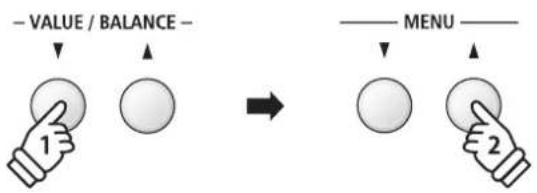
flowchart
graph TD
    A["VALUE / BALANCE"] --> B["1"]
    A --> C["2"]
    D["MENU"] --> E["1"]
    D --> F["2"]
3. Selecting Convert To Audio mode
Press the REC button.
ConvertToAudio mode will be selected automatically.
$$ \begin{array}{l}\text {Rec Mode} \rightarrow \text {REC}\= \text {ConvertToAudio}\end{array} $$
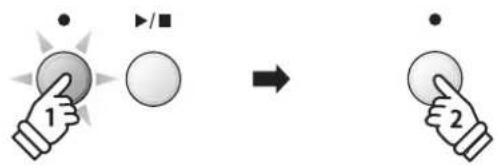
* To record a new song, press the ▼ or ▲ VALUE buttons to select New Song mode.
Press the REC button again.
$$ \begin{array}{c} \text { ConvertToAudio } \ \text { Format = MP3 } \end{array} $$
4. Selecting the audio recorder file format
Press the ▼ or ▲ VALUE buttons to select the desired audio recorder file format (MP3 or WAV).
ConvertToAudio Format = MP3
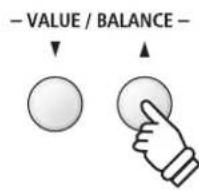
5. Starting the Conversion
Press the PLAY/STOP button.
The LED indicators for the REC and PLAY/STOP buttons will turn on, and conversion will start.
The conversion status will also be shown in the LCD display.
Song9000.MID
00'00" Convert

* Notes played on the keyboard will also be recorded to the audio file.
* When the end of the song is reached, the conversion will stop and the save confirmation screen will be shown automatically.
* The name of the selected MIDI file will be used as the default name for the recorded audio file.
* Saved files are limited to a maximum name length of 11 characters.
6 Recording an Audio file with the Rhythm Section
The ES8 digital piano also allows MP3 or WAV audio files to be recorded while using the Rhythm Section. This feature can be used to produce high quality digital audio recordings with full accompaniment backing, which can then be shared with friends and family.
1. Entering the Rhythm Section
Press the RHYTHM SECTION button.
The LED indicator for the RHYTHM SECTION button will turn on to indicate that the Rhythm Section is in use.
Make any changes to the Rhythm Section settings (style, volume, tempo, parts, ACC mode etc.)
* Please refer to page 40 for more information.
RHYTHM SECTION

2. Entering USB recorder mode, selecting the audio file format
Connect a USB memory device to the USB port.
Press the REC button, then press the MENU ▼ button to select the 'USB Recorder' function.
The USB Recorder screen will be shown in the LCD display.
New Song Format. = MP3
Press the ▼ or ▲ VALUE buttons to select the desired audio recorder file format (MP3 or WAV).
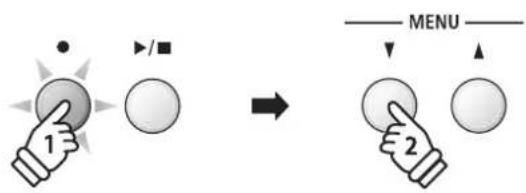
3. Starting the audio recorder
Press a key on the keyboard, or press the PLAY/STOP button.
The LED indicators for the REC and PLAY/STOP buttons will turn on, and recording will start with the Rhythm Section playing.
Press the PLAY/STOP button to stop the recording.
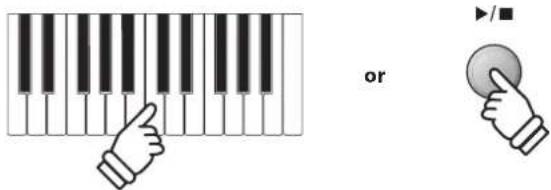
4. Naming and saving the recorded audio file
Please follow the 'Recording an Audio File' instructions on page 55 from step 4.
7 Converting a Song to an Audio file
The ES8 digital piano allows recorder songs stored in internal memory to be played back and saved (converted) as an audio file to a USB device in either MP3 or WAV format.
1. Selecting a song
After recording a song to internal memory:
Connect a USB memory device to the USB port.
Press the PLAY/STOP button, then press the MENU ▲ button to select the 'Int. Recorder' function.
The LED indicator for the PLAY/STOP button will turn on and the Internal Song Player screen will be shown in the LCD display.
$$ \begin{array}{c c} \text {Song1} & \text {Part = 1*} \ 1 - 1 & j = 1 2 0 \end{array} $$
Press the REW or FWD buttons to select the desired internal song memory, and the ▼ or ▲ VALUE buttons to select the desired part(s).
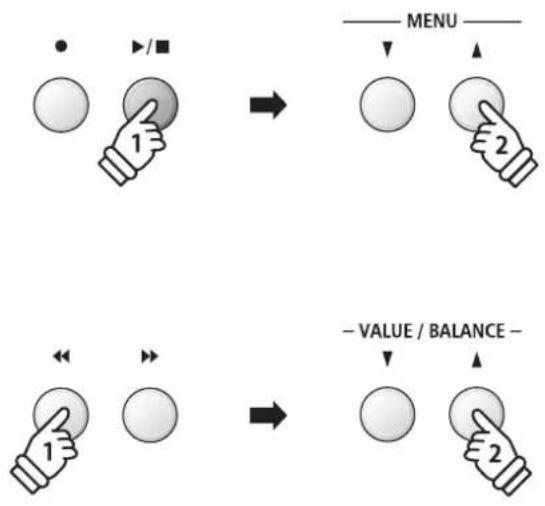
flowchart
graph TD
    A["●"] --> B["○"]
    C["▶/■"] --> D["○"]
    E["→"] --> F["○"]
    G["MENU"] --> H["○"]
    I["2"] --> J["○"]
    K["←"] --> L["○"]
    M["→"] --> N["○"]
    O["VALUE / BALANCE"] --> P["○"]
    Q["2"] --> R["○"]
2. Selecting the Convert to Audio function
Press the USB button.
The Convert to Audio function will be shown in the LCD display.
$$ \begin{array}{c} \text { ConvertToAudio } \ \text { Format = MP3 } \end{array} $$
Press the ▼ or ▲ VALUE buttons to select the desired audio file format for the converted song.
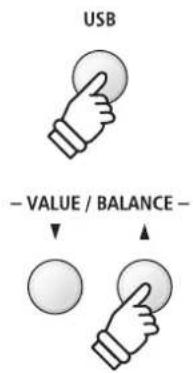
3. Starting the conversion
Press the PLAY/STOP button.
The LED indicators for the REC and PLAY/STOP buttons will turn on, and conversion will start.
The conversion status will also be shown in the LCD display.
$$ \begin{array}{c} \text {Son31 Part = 1*} \ \text {00'00'' Convert} \end{array} $$

* Notes played on the keyboard will also be recorded to the audio file.
* When the end of the song is reached, the conversion will stop and the save confirmation screen will be shown automatically.
4. Naming and saving the converted audio file
8 Deleting an Audio/MIDI file
This function is used to delete MP3/WAV audio files or MIDI song files stored on a USB device.
Once a file has been deleted from the USB device it cannot be recovered.
1. Entering USB playback mode
Connect a USB memory device to the USB port.
Press the PLAY/STOP button, then press the MENU ▼ button to select the 'USB Recorder' function.
The LED indicator for the PLAY/STOP button will turn on, and the file selection screen will be shown in the LCD display.
* Please refer to page 56 for information about the file selection screen.
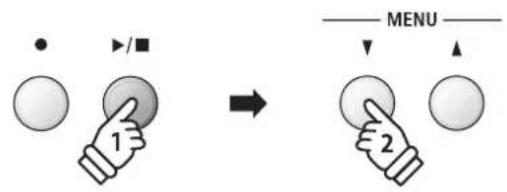
2. Selecting the audio/MIDI file to be deleted.
Press the ▼ or ▲ VALUE buttons to move the selection cursor, then press the MENU ▲ button to select the audio/MIDI file.
The USB player screen will be shown in the LCD display.
$$ \begin{array}{c} \text {Audio - 000.MP3} \ \text {00'00'' VOL.050} \end{array} $$
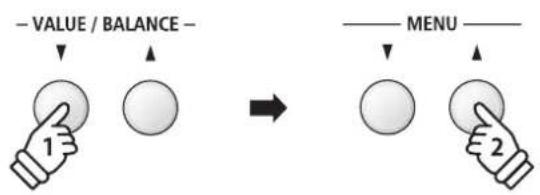
flowchart
graph TD
    A["Hand with '1' Button"] --> B["Value / Balance"]
    B --> C["Circle with arrow"]
    D["Hand with '2' Button"] --> E["Menu with arrow"]
3. Deleting the selected audio/MIDI file
Press the REC button and PLAY/STOP buttons simultaneously.
The LED indicators for the REC and PLAY/STOP buttons will start to flash, and the Delete screen will be shown in the LCD display.
$$ \begin{array}{l}\text {Delete} \quad \rightarrow \text {REC}\\text {Audio - 000 . MP3}\end{array} $$
Press the REC button.
A confirmation message will be shown in the LCD display, prompting to confirm or cancel the erase operation.
$$ \begin{array}{l}\text {Are you sure?}\\rightarrow \text {Press VALUE}.\end{array} $$
Press the VALUE ▲ button to confirm the erase operation and return to the Internal Song Player screen.
Press the EXIT button to to cancel the erase operation.
* If cancelled, press the PLAY/STOP button to return to the Play Internal screen, or REC button to return to the Record Internal screen.
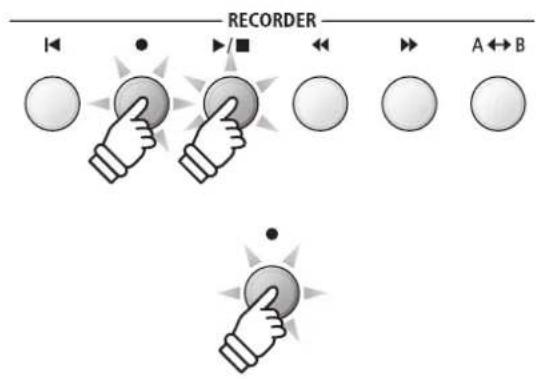
The USB Menu contains functions to load/save registration memories and recorder songs from/to a USB memory device. This menu also allows files to be renamed and deleted, and for the USB memory device to be formatted.
USB Menu functions
Page no. Function Description
1 Load Int. Song Load a recorder song from a USB memory device into the instrument's internal memory.
2 Load Regist Load registration memories (single or all) from a USB memory device into the instrument.
3 Save SMF Song Save a recorder song stored in internal memory to a USB memory device as an SMF (MIDI) file.
4 Save Int. Song Save a recorder song stored in internal memory to a USB memory device.
5 Save Regist Save registration memories (single or all) from the instrument to a USB memory device.
6 Rename File Rename a file stored on a USB memory device.
7 Delete File Delete a file stored on a USB memory device.
8 Format USB Format a USB memory device, erasing all stored data.
1. Entering the USB Menu
Connect a USB memory device to the USB port.
Press the USB button.
The LED indicator for the USB button will turn on, and the first page of the USB Menu will be shown in the LCD display.
USB

1 Load Int. Song *Press VALUE‡
2. Selecting the desired USB Menu function
Press the ▼ or ▲ MENU buttons to cycle through the different USB Menu function pages.
3 Save SMF Song +Press VALUE
Press the VALUE ▲ button to select the function.
3. Exiting the USB Menu
Press the EXIT or USB button to exit the USB Menu.
The LED indicator for the USB button will turn off, and the instrument will return to normal playing mode.
USB

1 Load Internal Song
The Load Internal Song function is used to load recorder songs stored on a USB memory device into the instrument's internal memory.
1. Selecting the Load Int. Song function
Connect a USB memory device, then press the USB button to enter the USB Menu.
Press the ▼ or ▲ MENU buttons then the VALUE ▲ button to select the Load Int. Song function.
The file selection screen will be shown in the LCD display, listing song files stored on the USB memory device.
* Please refer to page 56 for information about the file selection screen.
1 Load Int. Song *Press VALUE

Kendo Strut KSO FnkyMiracle KSO
Recorder song
2. Selecting the song file to be loaded
Press the ▼ or ▲ VALUE buttons to move the selection cursor, then press the MENU ▲ button to select the song file.
The memory selection screen will be shown in the LCD display.
Fnk@Miracle KSO Simple Song KSO
3. Selecting the song memory
Press the ▼ or ▲ VALUE buttons to select the internal song memory for the song to be loaded into.
* If a song memory contains song data, a ✦ symbol will be shown.
Load to: →REC = Son91*
Contains song data
4. Loading the selected song
Press the REC button to load the selected song.
A confirmation message will be shown in the LCD display.
Press the VALUE ▲ button to confirm the load operation. Press the EXIT button to to cancel the load operation.
To play back the loaded song, please refer to the 'Playing a Song' instructions on page 50.
Are you sure? *Press VALUE‡

Completed.
2 Load Registration
The Load Registration function is used to load registration memories stored on a USB memory device into the instrument's internal memory. There are two types of registration file: 'Single' and 'All'.
■ Registration file types
| Registration type Description File extension | ||
| Single A file containing a single registration memory. KM6 | ||
| All A file containing all 28 registration memories. KM3 | ||
1. Selecting the Load Regist function
Connect a USB memory device, then press the USB button to enter the USB Menu.
Press the ▼ or ▲ MENU buttons then the VALUE ▲ button to select the Load Regist function.
The file selection screen will be shown in the LCD display, listing the registration files stored on the USB memory device.
* Please refer to page 56 for information about the file selection screen.
2 Load Regist *Press VALUE

Rhodes+Bass KM6
PianoStrn9s KM6
Registration file
2. Selecting the registration file to be loaded
Press the ▼ or ▲ VALUE buttons to move the selection cursor, then press the MENU ▲ button to select the registration file.
The memory selection screen will be shown in the LCD display.
Rhodes+Bass KM6 PianoStrn9s KM6
3. Selecting the registration memory
Press the ▼ or ▲ VALUE buttons to select the registration memory for the registration to be loaded into.
* If an 'All Registration' file is selected, this step will be skipped.
Load to: →REC = 10
4. Loading the selected registration
Press the REC button to load the selected registration.
A confirmation message will be shown in the LCD display.
Press the VALUE ▲ button to confirm the load operation. Press the EXIT button to to cancel the load operation.
To use the loaded registration, please refer to the Registration instructions on page 34.
Are you sure? →Press VALUE

Completed.
3 Save SMF Song
The Save SMF Song function is used to save recorder songs stored in the instrument's internal memory to a USB memory device as a Standard MIDI File (SMF).
1. Selecting the Save SMF Song function
Connect a USB memory device, then press the USB button to enter the USB Menu.
Press the ▼ or ▲ MENU buttons then the VALUE ▲ button to select the Save SMF Song function.
The song selection screen will be shown in the LCD display.
3 Save SMF Song *Press VALUE

Save SMF →REC = Song1*
2. Selecting the song to be saved
Press the ▼ or ▲ VALUE buttons to select the internal song memory to be saved.
Press the REC button to continue.
The filename entry screen will be shown in the LCD display.
Save SMF →REC = Son93*

Filename: →REC Son9-000 MID
3. Naming the SMF song
Press the ▼ or ▲ VALUE buttons to cycle through the characters, and the ▼ or ▲ MENU buttons to move the cursor.
* Saved files are limited to a maximum name length of 11 characters.
* The saved SMF file will be stored in the root folder of the USB memory device. It is not possible to store the file in a different folder.
Filename: →REC Streetlife MID
4. Saving the SMF song
Press the REC button again to save the SMF song with the specified filename.
A confirmation message will be shown in the LCD display.
Press the VALUE ▲ button to confirm the save operation. Press the EXIT button to to cancel the save operation.
Are you sure? *Press VALUE‡

Completed.
4 Save Internal Song
The Save Internal Song function is used to save recorder songs stored in the instrument's internal memory to a USB memory device in the ES8's native song format.
1. Selecting the Save Int. Song function
Connect a USB memory device, then press the USB button to enter the USB Menu.
Press the ▼ or ▲ MENU buttons then the VALUE ▲ button to select the Save Int. Song function.
The song selection screen will be shown in the LCD display.
4 Save Int. Song *Press VALUE

SaveInt.Song9+REC = Song91*
2. Selecting the song to be saved
Press the ▼ or ▲ VALUE buttons to select the internal song memory to be saved.
Press the REC button to continue.
The filename entry screen will be shown in the LCD display.
SaveInt.Song→REC = Song4*

Filename: +REC Song-000 MID
3. Naming the song
Press the ▼ or ▲ VALUE buttons to cycle through the characters, and the ▼ or ▲ MENU buttons to move the cursor.
* Saved files are limited to a maximum name length of 11 characters.
* The saved song will be stored in the root folder of the USB memory device. It is not possible to store the file in a different folder.
Filename: →REC Soulful MID
4. Saving the song
Press the REC button again to save the recorded song with the specified filename.
A confirmation message will be shown in the LCD display.
Press the VALUE ▲ button to confirm the save operation. Press the EXIT button to to cancel the save operation.
Are you sure? *Press VALUE

Completed.
5 Save Registration
The Save Registration function is used to save registration memories stored in the instrument to a USB memory device. There are two types of registration file: 'Single' and 'All'.
■ Registration file types
Registration type Description File extension
Single A file containing a single registration memory. KM6
All A file containing all 28 registration memories. KM3
1. Selecting the Save Regist function
Connect a USB memory device, then press the USB button to enter the USB Menu.
Press the ▼ or ▲ MENU buttons then the VALUE ▲ button to select the Save Regist function.
The memory selection screen will be shown in the LCD display.
5 Save Resist *Press VALUE‡

Save Resist → REC = All
2. Selecting the registration memory to be saved
Press the ▼ or ▲ VALUE buttons to select the registration memory to be saved.
* The 'All' option will save all registration memories to a single file.
Press the REC button to continue.
The filename entry screen will be shown in the LCD display.
Save Regist →REC = 20

Filename: →REC OneRes-000 KM6
3. Naming the registration file
Press the ▼ or ▲ VALUE buttons to cycle through the characters, and the ▼ or ▲ MENU buttons to move the cursor.
* Saved files are limited to a maximum name length of 11 characters.
* The saved registration will be stored in the root folder of the USB memory device. It is not possible to store the file in a different folder.
Filename: →REC Donny Wurly KMS
4. Saving the registration file
Press the REC button again to save the recorded registration with the specified filename.
A confirmation message will be shown in the LCD display.
Press the VALUE ▲ button to confirm the save operation. Press the EXIT button to to cancel the save operation.
Are you sure? *Press VALUE

Completed.
6 Rename File
The Rename File function is used to rename song, audio, and registration files stored on a USB memory device.
1. Selecting the Rename File function
Connect a USB memory device, then press the USB button to enter the USB Menu.
Press the ▼ or ▲ MENU buttons then the VALUE ▲ button to select the Rename File function.
The file selection screen will be shown in the LCD display, listing song, audio, and registration files stored on the USB memory device.
* Please refer to page 56 for information about the file selection screen.
6 Rename File →Press VALUE

Audio-002 MP3 Audio-003 MP3
2. Selecting the file to be renamed
Press the ▼ or ▲ VALUE buttons to move the selection cursor, then press the MENU ▲ button to select the file.
The filename entry screen will be shown in the LCD display.
Audio-003 MP3 Audio-004 MP3
3. Renaming the selected file
Press the ▼ or ▲ VALUE buttons to cycle through the characters, and the ▼ or ▲ MENU buttons to move the cursor.
* Files are limited to a maximum name length of 11 characters.
Filename: James'G →REC MP3
4. Confirming the rename
Press the REC button to rename the file.
A confirmation message will be shown in the LCD display.
Press the VALUE ▲ button to confirm the rename operation.
Press the EXIT button to to cancel the rename operation.
Are you sure? →Press VALUE

Completed.
5. Exiting the Rename File function
Press the EXIT button to exit the Rename File function.
The LED indicator for the USB button will turn off, and the instrument will return to normal playing mode.
7 Delete File
The Delete File function is used to delete song, audio, and registration files stored on a USB memory device. Once a file has been deleted from the USB device it cannot be recovered.
1. Selecting the Delete File function
Connect a USB memory device, then press the USB button to enter the USB Menu.
Press the ▼ or ▲ MENU buttons then the VALUE ▲ button to select the Delete File function.
The file selection screen will be shown in the LCD display, listing song, audio, and registration files stored on the USB memory device.
* Please refer to page 56 for information about the file selection screen.
7 Delete File *Press VALUE

Audio-002 MP3 Audio-003 MP3
2. Selecting the file to be deleted
Press the ▼ or ▲ VALUE buttons to move the selection cursor, then press the MENU ▲ button to select the file.
Audio-003 MP3 Audio-004 MP3
3. Confirming the delete
A confirmation message will be shown in the LCD display.
Press the VALUE ▲ button to confirm the delete operation. Press the EXIT button to to cancel the delete operation.
Are you sure? *Press VALUE‡

Completed.
4. Exiting the Delete File function
Press the EXIT button to exit the Delete File function.
The LED indicator for the USB button will turn off, and the instrument will return to normal playing mode.
8 Format USB
The Format USB function is used to format the connected USB memory device, erasing all stored data.

The USB Format function will erase all data stored on the connected USB memory device. Exercise caution when using this function in order to prevent accidental data loss.
1. Selecting the Format USB function
Connect a USB memory device, then press the USB button to enter the USB Menu.
Press the ▼ or ▲ MENU buttons then the VALUE ▲ button to select the Format USB function.
An initial confirmation message will be shown in the LCD display.
8 Format USB *Press VALUE↓

Format ? Yes+REC No+STOP
2. Confirming the format operation (initial confirmation)
Press the REC button to confirm the format operation. Press the PLAY/STOP button to to cancel the format operation.
If the REC button is pressed, a final confirmation message will be shown in the LCD display.
Are you sure? +Press VALUE
3. Confirming the format operation (final confirmation)
Press the VALUE ▲ button to confirm the format operation. Press the EXIT button to to cancel the format operation.
Are you sure? +Press VALUE ^1

Formatting... 30%

Completed.
4. Exiting the Format USB function
Press the EXIT button to exit the Format USB function.
The LED indicator for the USB button will turn off, and the instrument will return to normal playing mode.
Settings Menus
The Settings menus contain a variety of options to adjust the ES8's operation and sound. Settings are grouped by category, providing convenient access to relevant controls. Once adjusted, settings can be stored to one of the instrument's 28 registration memories, or selected as the default power-on settings with the Startup Setting function.
■ Entering the Settings menus
While the normal playing mode screen is shown in the LCD display:
Press the ▼ or ▲ MENU buttons.
The first settings menu (Basic Settings) will be shown in the LCD display.
1 Basic Settings +Press VALUE
Press the ▼ or ▲ MENU buttons to cycle through the different settings menus, then press the VALUE▲ button to enter the selected menu.

■ Exiting the Settings menus
Press the EXIT button to return to the main settings menu.
Press the EXIT button again to return to normal playing mode.
EXIT

■ Overview of Settings menus
1. Basic Settings
Tone Control, Speaker Volume, Phones Volume, Line Out Volume,
Audio Rec Gain, Tuning, Damper Hold, F-20 Mode, Four Hands,
Startup Setting, Factory Reset
2. Virtual Technician
Touch Curve, Voicing, Damper Resonance, Damper Noise,
String Resonance, Key-off Effect, Fallback Noise, Hammer Delay,
Topboard, Decay Time, Minimum Touch, Temperament,
Stretch Tuning, Stretch Curve, User Tuning, Temperament Key,
User Temperament, User Key Volume, Half-Pedal Adjust,
Soft Pedal Depth
3. Key Settings
Lower Octave Shift, Lower Pedal On/Off, Split Balance,
Layer Octave Shift, Layer Dynamics, Dual Balance
4. Rhythm Settings
Rhythm Volume, Auto Fill-in, One Finger Ad-lib, ACC Mode,
Bass Inversion, Preset Chord
5. MIDI Settings
MIDI Channel, Send Program Change No., Local Control,
Transmit Program Change No., Multi-timbral Mode, Channel Mute
6. Power Settings
Auto Power Off
The Basic settings menu contains settings to adjust the pitch, tuning, and general sound of the instrument. This menu also allows favourite panel settings to be stored, or reset back to the original factory configuration.
Basic Settings
| Page no. | Setting Description | Default setting | |
| 1-1 | Tone Control Change the EQ settings of the instrument's sound. Off | ||
| 1-2 | Wall EQ | Optimise the instrument's speaker system based on instrument placement. | Off |
| 1-3 | Speaker Volume Change the maximum volume level of the speaker output. Normal | ||
| 1-4 | Phones Volume Change the maximum volume level of the headphones output. Normal | ||
| 1-5 | Line Out Volume | Adjust the output volume of the Line Out connectors. | 10 |
| 1-6 | Audio Rec Gain | Increase or decrease the recording level of the MP3/WAV audio recorder. | +9 dB |
| 1-7 | Tuning | Increase or decrease the pitch of the instrument in 0.5 Hz steps. | 440.0 Hz |
| 1-8 | Damper Hold | Change the effect of pressing the sustain pedal on organ, string, etc. sounds. | Preset |
| 1-9 | F-20 Mode | Change the function of the optional F-20 double pedal. | Damper/Soft |
| 1-10 | Four Hands | Enable the 'Four Hands Mode' function. | Off |
| 1-11 | Startup Setting | Store current panel settings as the default (power-on) configuration. | - |
| 1-12 | Factory Reset | Restore all panel settings to the original factory configuration. | - |
* Default settings will be shown in the first LCD display illustration (i.e. Step 1) for each setting explanation below.
■ Entering the Basic Settings menu
While the normal playing mode screen is shown in the LCD display:
Press the ▼ or ▲ MENU buttons.
The Basic Settings page will be shown in the LCD display.
1 Basic Settings +Press VALUE ^1
Press the VALUE ▲ button to enter the Basic Settings menu.
The first page of the Basic Settings menu will be shown in the LCD display
■ Selecting the desired setting
After entering the Basic Settings menu:
Press the ▼ or ▲ MENU buttons to cycle through the different settings pages.
1- 1 Tone Control
The Tone Control function allows the overall sound character of the ES8 digital piano to be adjusted to ensure the best sound quality within the area that the instrument is located. There are six different preset Tone Control types available, with an additional 'User' setting allowing finer control over the different frequency bands.
■ Tone Control types
| Tone Control type Description | |
| Off (default) The Tone Control is turned off, and the sound character is unchanged. | |
| Brilliance Adjust the overall brightness of the sound, independently of the ‘Voicing’ Virtual Technician setting. | |
| Loudness | Emphasises frequencies to retain the instrument’s sound character when playing at low volume levels. |
| Bass boost Emphasises low-range frequencies, creating a deeper sound. | |
| Treble boost Emphasises high-range frequencies, creating a brighter sound. | |
| Mid cut Reduces mid-range frequencies, creating a clearer sound. | |
| User EQ Allows the low, mid, and high-range frequency bands to be adjusted separately. | |
1. Selecting the Tone Control setting
After entering the Basic Settings menu (page 77):
The Tone Control setting will be selected automatically.
$$ \begin{array}{l} \text {1 - 1 Tone Control} \ = \text {Off} \end{array} $$
2. Changing the Tone Control type
Press the ▼ or ▲ VALUE buttons to cycle through the different Tone Control types.
* Any changes made to the Tone Control type or User Tone Control settings will remain until the power is turned off.
* Preferred Tone Control settings can be stored to a Registration memory for convenient recall. Please refer to page 34 for more information.
$$ \begin{array}{l} \begin{array}{l} \text {1 - 1 Tone Control} \ = \text {Off} \end{array} \ \begin{array}{l} 1 - 1 \text { Tone Control } \ = \text { Bass Boost } \end{array} \ \end{array} $$

3. Exiting the Tone Control setting
Press the EXIT button to exit the Tone Control setting and return to the main settings menu.
Brilliance
The Brilliance setting allows the overall brightness of the ES8 digital piano's sound to be adjusted, independently of the 'Voicing' Virtual Technician setting.
1. Entering the Brilliance setting mode
Press the ▼ or ▲ VALUE buttons to select the Brilliance setting mode.
Then press the ▼ or ▲ MENU button, Brilliance setting screen will be shown in the LCD display.
$$ \begin{array}{l} \text {1 - 1 Tone Control} \ = \text {Brilliance} \end{array} $$

$$ \begin{array}{l} \text {1 - 1 Brilliance} \ = 0 \end{array} $$
2. Adjusting the Brilliance setting
Press the ▼ or ▲ VALUE buttons to adjust the Brilliance setting.
* Brilliance can be adjusted within the range of -10\~+10.
$$ \begin{array}{l} \text {1 - 1 Brilliance} \ = + 5 \end{array} $$
3. Exiting the Brilliance setting
Press the EXIT button to exit the Brilliance setting and return to the main settings menu.
User EQ
■ User EQ setting
User EQ bands Description
Low Adjusts the low range frequency band (20~100 Hz).
Mid-low Adjusts the mid-low range frequency band (355~1000 Hz).
Mid-high Adjusts the mid-high range frequency band (1120~3150 Hz).
High Adjusts the high range frequency band (5000~20000 Hz).
1. Selecting the User EQ setting
While the Equaliser type screen is shown in the LCD display:
Press the ▼ or ▲ VALUE buttons to cycle through the different equaliser types. When the 'User' type is selected, press the MENU ▲ button.
The User EQ setting screen will be shown in the LCD display.
1-1 Tone Control
= User EQ

1-1 User Low = 0 dB
2. Adjusting the User EQ bands (low/mid/high)
Press the ▼ or ▲ MENU buttons to cycle through the different User EQ bands, then press the ▼ or ▲ VALUE buttons to adjust the value of the selected band.
* Each User EQ band can be adjusted within the range of -6 dB\~+6 dB
1-1 User Low = 0 dB

1-1 User High
= +6 dB
3. Exiting the User EQ setting
Press the EXIT button to exit the User EQ settings screen and return to the main settings menu.
1-2 Wall EQ
The Wall EQ setting optimises the ES8 digital piano's speaker system depending on whether the instrument is placed beside a wall, or in an area away from a wall.
* This setting does not affect the headphones or Line Out output.
■ Wall EQ settings
Wall EQ Description
| Off (default) | Optimise the speaker system for placing the ES8 digital piano in an area away from a wall. |
| On Optimise the speaker for placing the ES8 digital piano beside a wall. | |
1. Selecting the Wall EQ setting
After entering the Basic Settings menu (page 77):
Press the ▼ or ▲ MENU buttons to select the Wall EQ setting.
$$ \begin{array}{l} \text {1 - 2 Wall EQ} \ = \text {Off} \end{array} $$
2. Changing the Wall EQ setting
Press the ▼ or ▲ VALUE buttons to turn the Wall EQ setting on or off.
* Any changes made to the Wall EQ setting will remain until the power is turned off.
* Preferred Wall EQ settings will not be stored to a Registration memory, but can be stored to the instrument's Startup Setting for convenient recall. Please refer to page 89 for more information.
3. Exiting the Wall EQ setting
Press the EXIT button to exit the Wall EQ setting and return to the main settings menu.
$$ \begin{array}{l} \text {1 - 2 Wall EQ} \ = \text {Off} \end{array} $$

$$ \begin{array}{l} \text {i - 2 wall EQ} \ = \text {On} \end{array} $$
1-3 Speaker Volume
The Speaker Volume setting allows the maximum volume level of the ES8 digital piano's speaker output to be reduced, providing finer adjustment control over the master volume. This setting can also function as a volume limiter, preventing the instrument from being played too loudly in the home or classroom etc.
* This setting does not affect the headphones or Line Out volume.
■ Speaker Volume settings
Speaker Volume Description
Normal (default) The instrument's speakers will output sound at the normal volume level.
Low The instrument's speakers will output sound at a reduced volume level.
1. Selecting the Speaker Volume setting
After entering the Basic Settings menu (page 77):
Press the ▼ or ▲ MENU buttons to select the Speaker Volume setting.
$$ \begin{array}{l} \text {1 - 3 Speaker Vol.} \ = \text {Normal} \end{array} $$
2. Changing the Speaker Volume setting
Press the ▼ or ▲ VALUE buttons to alternate between 'Normal' and 'Low' speaker volume settings.
* Any changes made to the Speaker Volume setting will remain until the power is turned off.
* Preferred Speaker Volume settings will not be stored to a Registration memory, but can be stored to the instrument's Startup Setting for convenient recall. Please refer to page 89 for more information.
$$ \begin{array}{l} \text {1 - 3 Speaker Vol.} \ = \text {Normal} \end{array} $$

$$ \begin{array}{l} 1 - 3 \text { Speaker Vol. } \ = \text { Low } \end{array} $$
3. Exiting the Speaker Volume setting
Press the EXIT button to exit the Speaker Volume setting and return to the main settings menu.
1-4 Phones Volume
The Phones Volume setting allows the maximum volume level of the headphones output to be increased.
The default setting for Phones Volume is 'Normal' in order to protect an individual's ears from excessive volume levels. The 'High' setting may be selected when using headphones with a high impedance, or in situations where it is desirable to increase the maximum volume level of the headphones output.
* This setting does not affect the speaker or Line Out volume.
■ Phones Volume settings
Phones Volume Description
| Normal (default) | The instrument's headphone connectors will output sound at the normal volume level. |
| High The instrument's | headphone connectors will output sound at an increased volume level. |
1. Selecting the Phones Volume setting
After entering the Basic Settings menu (page 77):
Press the ▼ or ▲ MENU buttons to select the Phones Volume setting.
$$ \begin{array}{l} \text {1 - 4 Phones Vol.} \ = \text {Normal} \end{array} $$
2. Changing the Phones Volume setting
Press the ▼ or ▲ VALUE buttons to alternate between 'Normal' and 'High' phones volume settings.
* Any changes made to the Phones Volume setting will remain until the power is turned off.
* Preferred Phones Volume settings will not be stored to a Registration memory, but can be stored to the instrument's Startup Setting for convenient recall. Please refer to page 89 for more information.
$$ \begin{array}{l} \text {1 - 4 Phones Vol.} \ = \text {Normal} \end{array} $$

$$ \begin{array}{l} \text {1 - 4 Phones Vol.} \ = \text {High} \end{array} $$
3. Exiting the Phones Volume setting
Press the EXIT button to exit the Phones Volume setting and return to the main settings menu.
1-5 Line Out Volume
The Line Out Volume setting allows the level of the instrument's Line Out output to be adjusted. This setting may be useful when connecting the ES8 digital piano to mixers and other audio equipment.
* This setting does not affect the speaker or headphone volume.
1. Selecting the Line Out Volume setting
After entering the Basic Settings menu (page 77):
Press the ▼ or ▲ MENU buttons to select the Line Out Volume setting.
1-5 LineOut Vol.
= 10
2. Adjusting the Line Out Volume setting
Press the ▼ or ▲ VALUE buttons to adjust the Line Out Volume setting.
* The Line Out Volume setting can be adjusted within the range of 0 (no sound) to 10 (full volume).
* Any changes made to the Line Out Volume setting will remain until the power is turned off.
* Preferred Line Out Volume settings will not be stored to a Registration memory, but can be stored to the instrument's Startup Setting for convenient recall. Please refer to page 89 for more information.
1-5 LineOut Vol.
= 10

1-5 LineOut Vol.
= 3
3. Exiting the Line Out Volume setting
Press the EXIT button to exit the Line Out Volume setting and return to the main settings menu.
■ Jump to Line Out Volume setting shortcut
It is also possible to access the Line Out Volume setting directly using the following shortcut:
Press and hold the EXIT button.
The Line Out Volume setting will briefly be shown in the LCD display.
LineOut Vol.
= 10
Press the ▼ or ▲ VALUE buttons to adjust the Line Out Volume setting.
To exit the Line Out Volume setting and return to the previous screen, press the EXIT button or wait 4 seconds.
1-6 Audio Recorder Gain
The Audio Recorder Gain setting allows the recording level of MP3/WAV audio files to be adjusted. While the instrument's default audio recorder level is optimised to capture the broad dynamic range of a grand piano, there may be occasions where it is desirable to increase or decrease this gain setting for certain types of music.
1. Selecting the Audio Recorder Gain setting
After entering the Basic Settings menu (page 77):
Press the ▼ or ▲ MENU buttons to select the Audio Recorder Gain setting.
$$ \begin{array}{l} 1 - 6 \text { AudioRecGain } \ = + 9 \text { dB } \end{array} $$
2. Adjusting the Audio Recorder Gain setting
Press the ▼ or ▲ VALUE buttons to adjust the Audio Recorder Gain setting.
* The Audio Recorder Gain can be adjusted within the range of 0 dB\~+15 dB.
* Increasing the Audio Recorder Gain may result in distorted recordings when playing loud/fortissimo passages.
* Any changes made to the Audio Recorder Gain setting will remain until the power is turned off.
* Preferred Audio Recorder Gain settings will not be stored to a Registration memory, but can be stored to the instrument's Startup Setting for convenient recall. Please refer to page 89 for more information.
$$ \begin{array}{l} \text {1 - 6 AudioRecGain} \ = + 9 \mathrm{dB} \end{array} $$

$$ \begin{array}{l} 1 - 6 \text { AudioRecGain } \ = + 1 4 \text { dB } \end{array} $$
3. Exiting the Audio Recorder Gain setting
Press the EXIT button to exit the Audio Recorder Gain setting and return to the main settings menu.
1-7 Tuning
The Tuning setting allows the overall pitch of the ES8 digital piano to be raised and lowered in 0.5 Hz steps, and may therefore prove useful when playing with other pitched instruments.
1. Selecting the Tuning setting
After entering the Basic Settings menu (page 77):
Press the ▼ or ▲ MENU buttons to select the Tuning setting.
$$ \begin{array}{l} 1 - 7 \text { T u n i n g } \ = 4 4 0. 0 \mathrm{Hz} \ \end{array} $$
2. Adjusting the Tuning setting
Press the ▼ or ▲ VALUE buttons to decrease or increase the value of the Tuning setting in 0.5 Hz steps.
* The Tuning setting can be adjusted within the range of 427.0 Hz\~453.0 Hz.
* Any changes made to the Tuning setting will remain until the power is turned off.
* Preferred Tuning settings can be stored to a Registration memory for convenient recall. Please refer to page 34 for more information.
$$ 1 - 7 \text { Tuning } $$
$$ = 4 4 0. 0 \mathrm{Hz} $$

$$ i - 7 \text { Tuning } $$
$$ = 4 3 7. 5 \mathrm{Hz} $$
3. Exiting the Tuning setting
Press the EXIT button to exit the Tuning setting and return to the main settings menu.
1-8 Damper Hold
The Damper Hold setting is used to determine whether sounds such as organ or strings should be sustained continuously when the sustain (damper) pedal is pressed, or whether these sounds should decay, naturally.
Damper Hold settings
Damper Hold Description
| Preset (default) | Organ sounds will gradually decay, even while the sustain pedal is pressed, but other String, etc. sounds will be sustained coutinuously while the suatain pedal is pressed. |
| On | Organ, string, etc. sounds will be sustained coutinuously while the suatain pedal is pressed. |
| Off Organ, string, etc. | sounds will gradually decay, even while the sustain pedal is pressed. |
1. Selecting the Damper Hold setting
After entering the Basic Settings menu (page 77):
Press the ▼ or ▲ MENU buttons to select the Damper Hold setting.
$$ \begin{array}{l} \text {1 - 8 Damper Hold} \ = \text {Preset}. \end{array} $$
2. Changing the Damper Hold setting
Press the ▼ or ▲ VALUE buttons to turn the Damper Hold setting on or off.
* Any changes made to the Damper Hold setting will remain until the power is turned off.
* Preferred Damper Hold settings can be stored to a Registration memory for convenient recall. Please refer to page 34 for more information.
3. Exiting the Damper Hold setting
Press the EXIT button to exit the Damper Hold setting and return to the main settings menu.
$$ \begin{array}{l} \text {1 - 8 Damper Hold} \ = \text {Preset}. \end{array} $$

$$ \begin{array}{l} \text {1 - 8 Damper Hold} \ = \text {On} \end{array} $$
1-9 F-20 Mode
The F-20 Mode setting is used to change the default pedalling behaviour of the optional F-20 double pedal. When the included F-10H and optional F-20 pedals are connected simultaneously, this setting allows the combined pedals to be used as a triple pedal system.
F-20 Mode
F-20 Mode Description
| Damper/Soft (default) | The right pedal will function as a Damper pedal, the left pedal will function as a Soft pedal. |
| Sostenuto/Soft | The right pedal will function as a Sostenuto pedal, the left pedal will function as a Soft pedal.* This setting is recommended when connecting the included F-10H and optional F-20 pedals simultaneously. |
| Damper/Soste. | The right pedal will function as a Damper pedal, the left pedal will function as a Sostenuto pedal.* When this setting is selected, pressing the left pedal will no longer change the speed of the rotary speaker effect. |
1-10 Four Hands
The Four Hands setting provides an alternative method to enabling the Four Hands Mode function, and may prove useful in teaching environments or situations where this function should be enabled automatically every time the ES8 digital piano is turned on.
* Please refer to page 22 for information about the Four Hands Mode function.
■ Four Hands settings
Four Hands Description
Off (default) Four Hands Mode will be turned off by default.
On Four Hands Mode will be turned on by default.
1. Selecting the Four Hands setting
After entering the Basic Settings menu (page 77):
Press the ▼ or ▲ MENU buttons to select the Four Hands setting.
$$ \begin{array}{l} \text {1 - 10 Four Hands} \ = \text {Off} \end{array} $$
2. Changing the Four Hands setting
Press the ▼ or ▲ VALUE buttons to turn the Four Hands setting on or off.
* When enabled, the LED indicators for the SPLIT and SOUND buttons will start to flash.
* Any changes made to the Four Hands setting will remain until the power is turned off.
* Preferred Four Hands settings can be stored to a Registration memory for convenient recall. Please refer to page 34 for more information.
$$ \begin{array}{l} \text {1 - 10 Four Hands} \ = \text {Off} \end{array} $$

$$ \begin{array}{l} \text {1 - 10 Four Hands} \ = \text {On} \end{array} $$
3. Exiting the Four Hands setting
Press the EXIT button to exit the Four Hands setting and return to the main settings menu.
1-11 Startup Setting
The Startup Setting function allows preferred panel settings to be stored in the instrument's memory, and automatically recalled as the default settings every time the ES8 digital piano is turned on.
■ Settings stored in Startup Setting memory
General
Selected sound
Dual Mode / Split Mode (sounds, volume balance, split point)
Reverb, Effects, Amp Simulator (type, settings)
Transpose (Key Transpose only)
Metronome (Beat, Tempo, Volume)
Settings
Basic Settings
Virtual Technician
Rhythm Settings
Key Settings
MIDI Settings
* Auto Power Off setting is stored to Startup Setting automatically.
1. Selecting the Startup Setting function
After entering the Basic Settings menu (page 77):
Press the ▼ or ▲ MENU buttons to select the Startup Setting function.
1-11 StartupSet. Save? +Press REC
2. Storing current settings to Startup Setting memory
Press the REC button.
A confirmation message will be shown in the LCD display.
Press the VALUE ▲ button to confirm the store operation. Press the EXIT button to to cancel the store operation.
* After storing the Startup Setting, the instrument will exit the settings menu and return to normal playing mode.
i-11 StartupSet. Save? >Press REC

Are you sure? *Press VALUE

Completed.
3. Exiting the Startup Setting function
Press the EXIT button to exit the Startup Setting function and return to the main settings menu.
■ Recalling individual Startup Setting values
After selecting a setting:
Press the ▼ and ▲ VALUE buttons simultaneously.
The selected setting will be restored to the default (power on) value.
- VALUE / BALANCE -
1-12 Factory Reset
The Factory Reset function clears any settings stored using the Startup Setting function above, restoring the ES8 digital piano back to its factory default settings.
* This function does not clear registration memories or recorder songs stored in internal memory.
1. Selecting the Factory Reset function
After entering the Basic Settings menu (page 77):
Press the ▼ or ▲ MENU buttons to select the Factory Reset function.
1-12 FactoryReset Reset?→Press REC
2. Restoring factory settings
Press the REC button.
A confirmation message will be shown in the LCD display.
Press the VALUE ▲ button to confirm the reset operation. Press the EXIT button to to cancel the reset operation.
* After performing a factory reset, the instrument will exit the settings menu and return to normal playing mode.
1-12 FactoryReset Reset?+Press REC

Are you sure? *Press VALUE‡

Completed.
3. Exiting the Factory Reset function
Press the EXIT button to exit the Factory Reset function and return to the main settings menu.
Virtual Technician
An experienced piano technician is essential to fully realise the potential of a fine acoustic piano. In addition to meticulously tuning each note, the technician also performs numerous regulation and voicing adjustments that allow the instrument to truly sing.
The Virtual Technician settings of the ES8 digital piano simulate these refinements digitally, allowing performers to shape various aspects of the instrument's character to suit their personal preferences.
■ Virtual Technician
| Page no. | Setting Description | Default setting | |
| 2-1 | Touch Curve Adjust the touch sensitivity of the keyboard. Normal | ||
| 2-2 | Voicing Adjust the tonal character of the instrument. Normal | ||
| User Voicing Adjust the individual voicing of each of the 88 keys. 0 | |||
| 2-3 | Damper Resonance | Adjust the resonance that is heard when pressing the damper pedal. | 5 |
| 2-4 | Damper Noise | Adjust the volume of the sound that is heard when pressing the damper pedal. | 5 |
| 2-5 | String Resonance | Adjust the resonance that is heard when notes are held. | 5 |
| 2-6 | Key-off Effect | Adjust the volume of the sound that is heard when keys are released. | 5 |
| 2-7 | Fall-back Noise | Adjust the volume of the sound that is heard when the key action falls back. | 5 |
| 2-8 | Hammer Delay | Adjust the delay of the hammer striking strings when playing pianissimo. | Off |
| 2-9 | Topboard | Adjust the position of the grand piano topboard. | Open 3 |
| 2-10 | Decay Time | Adjust the decay time of the piano sound while the keys are pressed. | 5 |
| 2-11 | Minimum Touch | Adjust the minimum key velocity required to produce a sound. | 1 |
| 2-12 | Temperament | Adjust the tuning system to suit Renaissance and Baroque periods etc. | Equal Temp. |
| Stretch Tuning | Select how stretch tuning is applied to piano sounds and other sounds. | Piano Only | |
| Stretch Curve | Adjust the level of stretch tuning for equal temperaments. | Normal | |
| User Tuning | Adjust the individual tuning of each of the 88 keys. | 0 | |
| Temperament Key | Adjust the key of the selected tuning system. | C | |
| User Temperament | Adjust the tuning of each note in the scale to a custom temperament. | 0 | |
| 2-13 | User Key Volume | Adjust the individual volume of each of the 88 keys. | 0 |
| 2-14 | Half-Pedal Adjust | Adjust the point at which the damper pedal begins to sustain the sounds. | 5 |
| 2-15 | Soft Pedal Depth | Adjust the depth/effectiveness of the soft pedal. | 3 |
* Default settings will be shown in the first LCD display illustration (i.e. Step 1) for each setting explanation below.
■ Entering the Virtual Technician menu
While the normal playing mode screen is shown in the LCD display:
Press the ▼ or ▲ MENU buttons to select the Virtual Technician menu.
2 Virtual Tech. *Press VALUE ^1
Press the VALUE ▲ button to enter the Virtual Technician menu.
The first page of the Virtual Technician menu will be shown in the LCD display
■ Selecting the desired setting
After entering the Virtual Technician menu:
Press the ▼ or ▲ MENU buttons to cycle through the different settings pages.
2-1 Touch Curve
As with an acoustic piano, the ES8 digital piano produces a louder sound when the keys are struck with force, and a softer sound when the keys are played gently. The volume and tonal character change in relation to the strength and speed of playing – on a digital piano this system is referred to as 'touch sensitivity'.
The Touch Curve setting allows the touch sensitivity of the keyboard to be conveniently adjusted. There are six different preset touch curve settings available, with two additional 'User' settings allowing performers to customise the instrument's responsiveness to suit their individual playing style.
■ Touch Curve types
| Touch Curve Description | |
| Heavy + Requires considerably more striking force to achieve a loud volume. | |
| Heavy | Requires a heavier touch to produce a loud volume. Ideally suited to those with stronger fingers. |
| Normal (default) Reproduces the standard touch sensitivity of an acoustic piano. | |
| Light | A louder volume is produced even when playing with a soft touch. For those still developing finger strength.* This touch curve is recommended for children and organ players. |
| Light + Requires less striking force to achieve a forte note. For players with a very delicate touch. | |
| Off (constant) | A constant volume is produced regardless of how hard the keys are struck.* This touch curve intended for playing sounds of instruments that have a fixed dynamic range (e.g. organ and harpsichord). |
| User 1 / User 2 A custom touch curve, created to suit an individual's personal playing style. | |
■ Touch Curve graph
The illustration below provides a visual representation of the different Touch Curve settings.
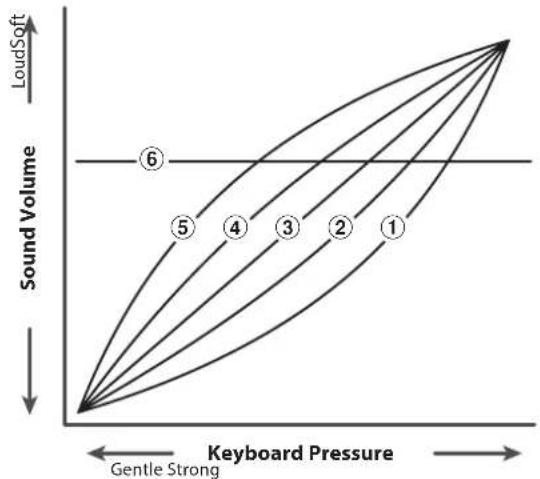
line
| Keyboard Pressure | Sound Volume (Line 1) | Sound Volume (Line 2) | Sound Volume (Line 3) | Sound Volume (Line 4) | Sound Volume (Line 5) | Sound Volume (Line 6) | | ----------------- | --------------------- | --------------------- | --------------------- | --------------------- | --------------------- | --------------------- | | 0 | 0 | 0 | 0 | 0 | 0 | 0 | | 1 | ~1.5 | ~2.0 | ~2.5 | ~3.0 | ~3.5 | ~4.0 | | 2 | ~3.0 | ~3.5 | ~4.0 | ~4.5 | ~5.0 | ~5.5 | | 3 | ~4.5 | ~5.0 | ~5.5 | ~6.0 | ~6.5 | ~7.0 | | 4 | ~6.0 | ~6.5 | ~7.0 | ~7.5 | ~8.0 | ~8.5 | | 5 | ~7.5 | ~8.0 | ~8.5 | ~9.0 | ~9.5 | ~10.0 | | 6 | 0 | 0 | 0 | 0 | 0 | 0 || 1 | Heavy + |
| 2 | Heavy |
| 3 | Normal (default) |
| 4 | Light |
| 5 | Light + |
| 6 | Off (constant) |
■ Jump to Touch Curve setting shortcut
It is also possible to access the Touch Curve setting directly while a piano sound is selected in Single Mode (i.e. not Dual Mode, Split Mode, Four Hands Mode, or Rhythm Section Mode):
Press and hold the MENU or MENU buttons.
The Touch Curve setting will be shown in the LCD display.
Press the or VALUE buttons to change the Touch Curve setting.
To exit the Touch Curve setting and return to the previous screen, press the EXIT button twice.
2-1 Touch Curve (cont.)
1. Selecting the Touch Curve setting
After entering the Virtual Technician menu (page 92):
The Touch setting will be selected automatically.
2-1 Touch Curve = Normal
2. Changing the Touch Curve type
Press the ▼ or ▲ VALUE buttons to cycle through the different touch curve types.
* Any changes made to the Touch Curve type or User Touch settings will remain until the power is turned off.
* Preferred Touch Curve settings can be stored to a Registration memory for convenient recall. Please refer to page 34 for more information.
2-1 Touch Curve = Normal

2-1 Touch Curve = Heavy+
■ Creating a User Touch Curve
Press the ▼ or ▲ VALUE buttons to select the User 1 or User 2 touch curve, then press the REC button.
A message will be shown in the LCD display, prompting for the keyboard to be played.
Play the piano dynamically from very soft to very loud, allowing the instrument to examine the personal playing technique.
* More than one attempt may be required in order to create an accurate User Touch Curve.
* Reducing the master volume fader to the lowest position before creating the User Touch Curve may help to reduce user distractions, thus improving accuracy.
2-1 Touch Curve
= User1+PressREC

Start Playing
Soft → Loud

Press PLAY/STOP when finished.
Press the PLAY/STOP button.
A confirmation message will be shown in the LCD display.
Press the REC button to confirm the store operation. Press the PLAY/STOP button to to cancel the store operation.
* The user touch curve will be stored to the 'User1' or 'User2' touch types and selected automatically.
3. Exiting the Touch Curve setting
Press the EXIT button to exit the Touch Curve setting and return to the main settings menu.
Touch analysis complete.

Save?
Yes→REC No→STOP
2-2 Voicing
On an acoustic piano, the shape, density, and texture of the hammers all influence the tonal character of the instrument's sound. Technicians utilise a variety of tools such as needles, files, and brushes to manipulate these hammer felts, with the ultimate goal of achieving a balanced tonal character across the keyboard.
The Voicing setting recreates various hammer properties, allowing the overall tonal character of the ES8 digital piano to be adjusted. There are six different preset voicing settings available (applied uniformly to all keys), with an additional four 'User' settings that allow players to perform custom adjustments on each individual key.
While the default 'Normal' voicing setting should be appropriate for a broad range of musical genres, it may be desirable to select a softer, more mellow tonal character for romantic pieces, or a brighter, more aggressive tone for modern styles.
* This Virtual Technician setting will affect all sounds.
■ Voicing types
Voicing type Description
| Normal (default) | The normal tonal character of an acoustic piano throughout the entire dynamic range. |
| Mellow 1 A softer, more mellow tonal character throughout the entire dynamic range. | |
| Mellow 2 An even soften tonal character than Mellow 1. | |
| Dynamic | A tonal character that changes dramatically from mellow to bright, depending on the strength of key strike. |
| Bright 1 A bright tonal character throughout the entire dynamic range. | |
| Bright 2 An even brighter tonal character than Bright 1. | |
| User 1~4 A custom tonal character, allowing each key to be individually voiced. | |
1. Selecting the Voicing setting
After entering the Virtual Technician menu (page 92):
Press the ▼ or ▲ MENU buttons to select the Voicing setting.
$$ \begin{array}{l} \text {2 - 2 Voicing} \ = \text {Normal} \end{array} $$
2. Changing the Voicing type
Press the ▼ or ▲ VALUE buttons to cycle through the different voicing types.
* Any changes made to the Voicing settings will remain until the power is turned off.
* Preferred Voicing settings can be stored to a Registration memory for convenient recall. Please refer to page 34 for more information.
$$ \begin{array}{l} \text {2 - 2 Voicing} \ = \text {Normal} \end{array} $$

$$ \begin{array}{l} 2 - 2 \text { Voicing } \ = \text { Dynamic } \end{array} $$
3. Exiting the Voicing setting
Press the EXIT button to exit the Voicing setting and return to the main settings menu.
User Voicing
The User Voicing function allows each of the 88 keys to be voiced individually.
1. Selecting the User Voicing memory
After selecting the Voicing setting (page 95):
Press the ▼ or▲ VALUE buttons to select one of the User Voicing memories.
* Up to four different User Voicing memories can be created and stored.
Press the REC button.
The User Voicing screen will be shown in the LCD display.
2-2 Voicing
= User1+PressREC

UserVoicing C4
= 0 +PressSTOP
2. Selecting the note, adjusting the user voicing value
Press the desired key to be tuned, then press the ▼ or ▲ VALUE buttons to set the desired voicing value.
The desired key can also be selected by pressing the ▼ or ▲ MENU buttons.
* The User Voicing value can be adjusted within the range of -5\~+5, with lower values creating a mellower sound and higher values creating a brighter sound.
* Any changes made to the User Voicing setting will remain until the power is turned off.
* Preferred User Voicing settings can be stored to a Registration memory for convenient recall. Please refer to page 34 for more information.
UserVoicing C4
= 0 +PressSTOP

UserVoicing C#2 = -4 +PressSTOP
3. Exiting the User Voicing function
Press the STOP button to exit the User Voicing setting and return to the Voicing setting.
* The User Voicing settings are saved automatically.
2-3 Damper Resonance
Pressing the damper pedal of an acoustic piano raises all dampers, allowing the strings to vibrate freely. When a note or chord is played on the piano with the sustain pedal pressed, not only will the strings of the notes played vibrate, but also the strings of other notes, vibrating in sympathetic resonance.
The ES8 digital piano recreates this phenomenon, with the Damper Resonance setting allowing the volume of this resonance sound to be adjusted.
* This Virtual Technician setting will affect acoustic piano sounds only.
1. Selecting the Damper Resonance setting
After entering the Virtual Technician menu (page 92):
Press the ▼ or▲ MENU buttons to select the Damper Resonance setting.
$$ \begin{array}{l} \text {2 - 3 Damper Reso.} \ = 5 \end{array} $$
2. Adjusting the Damper Resonance volume
Press the ▼ or ▲ VALUE buttons to adjust the volume of the Damper Resonance setting.
* The Damper Resonance volume can be adjusted within the range of Off, 1\~10, with higher values resulting in a more pronounced resonance.
* Any changes made to the Damper Resonance setting will remain until the power is turned off.
* Preferred Damper Resonance settings can be stored to a Registration memory for convenient recall. Please refer to page 34 for more information.
$$ \begin{array}{l} \begin{array}{l} \text {2 - 3 Damper Reso.} \ = 5 \end{array} \ \begin{array}{l} \boxed {2 - 3 \text {Damper Reso.}} \ = 2 \end{array} \ \end{array} $$

3. Exiting the Damper Resonance setting
Press the EXIT button to exit the Damper Resonance setting and return to the main settings menu.
2-4 Damper Noise
When the damper pedal of an acoustic piano is pressed and released, it is often possible to hear the sound of the damper head touching and releasing the strings.
The ES8 digital piano reproduces this sound, with the Damper Noise setting allowing the volume of this sound to be adjusted. The speed at which the damper pedal is pressed will also influence the prominence of the damper noise, with fast pedalling creating a very pronounced sound.
* This Virtual Technician setting will affect acoustic piano sounds only.
1. Selecting the Damper Noise setting
After entering the Virtual Technician menu (page 92):
Press the ▼ or ▲ MENU buttons to select the Damper Noise setting.
$$ \begin{array}{l} \text {2 - 4 Damper Noise} \ = 5 \end{array} $$
2. Adjusting the Damper Noise volume
Press the ▼ or ▲ VALUE buttons to adjust the volume of the Damper Noise setting.
* The Damper Noise volume can be adjusted within the range of Off, 1\~10, with higher values resulting in a more pronounced noise.
* Any changes made to the Damper Noise setting will remain until the power is turned off.
* Preferred Damper Noise settings can be stored to a Registration memory for convenient recall. Please refer to page 34 for more information.
$$ \begin{array}{c} \text {2 - 4 Damper Noise} \ = 5 \ \downarrow \ \text {2 - 4 Damper Noise} \ = 2 \end{array} $$
3. Exiting the Damper Noise setting
Press the EXIT button to exit the Damper Noise setting and return to the main settings menu.
2-5 String Resonance
String Resonance refers to a phenomenon that exists in acoustic pianos whereby the strings of held notes resonate 'sympathetically' with other notes of the same harmonic overtone series.
The ES8 digital piano recreates this phenomenon, with the String Resonance setting allowing the volume of this resonance to be adjusted.
* This Virtual Technician setting will affect acoustic piano sounds only.
■ Demonstrating String Resonance
To experience the string resonance phenomenon, gently hold down the 'C' key as shown in the illustration below, then press any of the keys marked with a ● symbol. In addition to the sound of each note played, it should also be possible to hear the strings of the first 'C' key resonating 'sympathetically', thus demonstrating String Resonance.
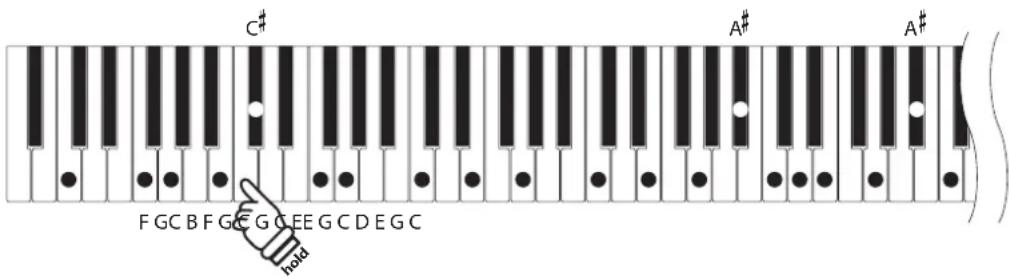
1. Selecting the String Resonance setting
After entering the Virtual Technician menu (page 92):
Press the ▼ or ▲ MENU buttons to select the String Resonance setting.
$$ \begin{array}{l} \boxed {2 - 5 \text {String Reso.}} \ = 5 \end{array} $$
2. Adjusting the String Resonance volume
Press the ▼ or ▲ VALUE buttons to adjust the volume of the String Resonance setting.
* The String Resonance volume can be adjusted within the range of Off, 1\~10, with higher values resulting in a more pronounced resonance.
* Any changes made to the String Resonance setting will remain until the power is turned off.
* Preferred String Resonance settings can be stored to a Registration memory for convenient recall. Please refer to page 34 for more information.
$$ \begin{array}{c} \framebox {2 - 5 \text { String Reso.}} \ = 5 \ \downarrow \ \framebox {2 - 5 \text { String Reso.}} \ = 8 \end{array} $$
3. Exiting the String Resonance setting
Press the EXIT button to exit the String Resonance setting and return to the main settings menu.
2-6 Key-off Effect
When playing an acoustic piano – particularly in the bass region of the keyboard – if a key is played with force and released quickly, it is often possible to hear the faint sound of the damper touching the strings immediately before the vibrations are stopped.
In addition, the speed at which keys are lifted will also affect the character of the sound. For example, when lifting the keys quickly (e.g. staccato playing) the 'release' portion of the sound will be noticeably shorter than when lifting the keys slowly (e.g. legato playing).
The ES8 digital piano reproduces both characteristics, with the Key-off Effect setting allowing the volume of the key-off sound to be adjusted, and the key-off release speed detection to be turned on or off.
* This Virtual Technician setting will affect acoustic piano and electric piano sounds.
1. Selecting the Key-off Effect setting
After entering the Virtual Technician menu (page 92):
Press the ▼ or ▲ MENU buttons to select the Key-off Effect setting.
$$ \begin{array}{l} \boxed {2 - 6 \text { KeyOffEffect }} \ = 5 \end{array} $$
2. Adjusting the Key-off Effect volume
Press the ▼ or ▲ VALUE buttons to adjust the volume of the Key-off Effect setting.
* The Key-off Effect volume can be adjusted within the range of Off, 1\~10, with higher values resulting in a more pronounced effect.
* When the Key-off Effect setting is set to Off, the key-off release speed detection will also be disabled, and the speed at which keys are lifted will not affect the character of the sound.
* Any changes made to the Key-off Effect setting will remain until the power is turned off.
* Preferred Key-off Effect settings can be stored to a Registration memory for convenient recall. Please refer to page 34 for more information.
$$ \begin{array}{l} \boxed {2 - 6 \text { KeyOffEffect }} \ = 5 \end{array} $$

$$ \begin{array}{l} \boxed {2 - 6 \text { KeyOffEffect }} \ = 1 0 \end{array} $$
3. Exiting the Key-off Effect setting
Press the EXIT button to exit the Key-off Effect setting and return to the main settings menu.
2-7 Fall-back Noise
When playing an acoustic piano, it is often possible to hear the faint sound of the keyboard action returning (i.e. 'falling back') to the neutral position after a key is released.
The ES8 digital piano reproduces this sound, with the Fall-back Noise setting allowing the volume of this sound to be adjusted.
While the default value is intended to simulate the natural volume level of the keys as they return to their neutral position, it may occasionally be desirable to adjust the volume of this sound. For example, reducing the volume when playing very soft pieces, where the fall-back noise may become too prominent.
* This Virtual Technician setting will affect acoustic piano and harpsichord sounds.
1. Selecting the Fall-back Noise setting
After entering the Virtual Technician menu (page 92):
Press the ▼ or ▲ MENU buttons to select the Fall-back Noise setting.
$$ \begin{array}{l} \boxed {2 - 7 \text { Fallback Ns. }} \ = 5 \end{array} $$
2. Adjusting the Fall-back Noise volume
Press the ▼ or ▲ VALUE buttons to adjust the volume of the Fall-back Noise setting.
* The Fall-back Noise volume can be adjusted within the range of Off, 1\~10, with higher values resulting in a more pronounced noise.
* Any changes made to the Fall-back Noise setting will remain until the power is turned off.
* Preferred Fall-back Noise settings can be stored to a Registration memory for convenient recall. Please refer to page 34 for more information.
$$ \begin{array}{l} \boxed {2 - 7 \text { Fallback Ns. }} \ = 5 \end{array} $$

$$ \begin{array}{l} \boxed {2 - 7 \text { Fallback Ns. }} \ = \text { Off } \end{array} $$
3. Exiting the Fall-back Noise setting
Press the EXIT button to exit the Fall-back Noise setting and return to the main settings menu.
2-8 Hammer Delay
When playing pianissimo passages using an acoustic piano, there may be a perceived delay between a key being pressed and the hammer striking the strings.
If desired, the ES8 digital piano can recreate this delay, with the Hammer Delay setting allowing the delay length to be adjusted.
While the default value of 'Off' is intended to replicate a well-regulated concert grand piano, with an immediate connection between the keyboard and hammers, some players may find it desirable to introduce a minor delay, in order to mimic different types of piano or instruments with a slightly worn keyboard action.
* This Virtual Technician setting will affect acoustic piano sounds only.
1. Selecting the Hammer Delay setting
After entering the Virtual Technician menu (page 92):
Press the ▼ or ▲ MENU buttons to select the Hammer Delay setting.
$$ \begin{array}{l} \text {2 - 8 Hammer Delay} \ = \text {Off} \end{array} $$
2. Adjusting the Hammer Delay value
Press the ▼ or ▲ VALUE buttons to adjust the value of the Hammer Delay setting.
* The Hammer Delay value can be adjusted within the range of Off, 1\~10, with higher values resulting in an increased delay.
* Any changes made to the Hammer Delay setting will remain until the power is turned off.
* Preferred Hammer Delay settings can be stored to a Registration memory for convenient recall. Please refer to page 34 for more information.
$$ \begin{array}{l} \text {2 - 8 Hammer Delay} \ = \text {Off} \end{array} $$

$$ \begin{array}{l} \text {2 - 8 Hammer Delay} \ = 5 \end{array} $$
3. Exiting the Hammer Delay setting
Press the EXIT button to exit the Hammer Delay setting and return to the main settings menu.
2-9 Topboard
When playing an acoustic grand piano, the position of the instrument's topboard (lid) affects both the volume and 'openness' of the tone produced. A fully open topboard allows sound waves to reflect off the polished lid surface and project into the room, while a closed lid has the opposite effect, resulting in a darker, more opaque tone.
The ES8 digital piano attempts to simulate these characteristics, with four different topboard positions.
* This Virtual Technician setting will affect acoustic piano sounds only.
■ Topboard positions
| Topboard position Description | |
| Closed Simulates the character of a closed topboard, with minimum sound projection. | |
| Open 1 Simulates the character of a partially open topboard, with limited sound projection. | |
| Open 2 Simulates the character of a half open topboard, with reduced sound projection. | |
| Open 3 (default) | Simulates the character of a fully open topboard, with maximum sound projection. |
1. Selecting the Topboard setting
After entering the Virtual Technician menu (page 92):
Press the ▼ or ▲ MENU buttons to select the Topboard setting.
$$ \begin{array}{l} \text {2 - 9 Topboard} \ = \text {Open3} \end{array} $$
2. Changing the Topboard position
Press the ▼ or ▲ VALUE buttons to cycle through the different Topboard types.
* Any changes made to the Topboard setting will remain until the power is turned off.
* Preferred Topboard settings can be stored to a Registration memory for convenient recall. Please refer to page 34 for more information.
3. Exiting the Topboard setting
Press the EXIT button to exit the Topboard setting and return to the main settings menu.
$$ \begin{array}{l} \begin{array}{l} \text {2 - 9 Topboard} \ = \text {Open3} \end{array} \ \begin{array}{l} \text {2 - 9 Topboard} \ = \text {Closed} \end{array} \ \end{array} $$

2-10 Decay Time
When playing an acoustic grand piano, the length of the instrument influences the speed at which held notes decay, with longer grand pianos (i.e. longer strings) characterised by longer decay times.
The ES8 digital piano attempts to simulate this characteristic, with the Decay Time setting allowing the length of decay while keys are pressed to be adjusted.
* This Virtual Technician setting will affect all sounds.
1. Selecting the Decay Time setting
After entering the Virtual Technician menu (page 92):
Press the ▼ or ▲ MENU buttons to select the Decay Time setting.
$$ \begin{array}{l} \text {2 - 10 Decay Time} \ = 5 \end{array} $$
2. Adjusting the Decay Time volume
Press the ▼ or ▲ VALUE buttons to adjust the volume of the Decay Time setting.
* The Decay Time volume can be adjusted within the range of 1\~10, with larger values resulting in increased decay times.
* Any changes made to the Decay Time setting will remain until the power is turned off.
* Preferred Decay Time settings can be stored to a Registration memory for convenient recall. Please refer to page 34 for more information.
* The Decay Time setting can be set independently for each sound.
$$ \begin{array}{l} \text {2 - 10 Decay Time} \ \text {5} \end{array} $$

$$ \begin{array}{l} \text {2 - 10 Decay Time} \ = 9 \end{array} $$
3. Exiting the Decay Time setting
Press the EXIT button to exit the Decay Time setting and return to the main settings menu.
2-11 Minimum Touch
The Minimum Touch setting allows the minimum key velocity required to produce a sound to be adjusted. By default, this setting attempts to recreate the extremely one touch sensitivity of a concert grand piano, allowing a very soft sound to be produced with the slightest of key touches. However, it may be desirable to reduce this sensitivity, when wishing to recreate the feeling of a small grand piano or an upright piano.
* This Virtual Technician setting will affect piano sounds, and the Classic E.P., 60's E.P. and Classic E.P. 2 sounds.
1. Selecting the Minimum Touch setting
After entering the Virtual Technician menu (page 92):
Press the ▼ or ▲ MENU buttons to select the Minimum Touch setting.
$$ \begin{array}{l} 2 \text {-11 Minim.Touch} \ = 1 \end{array} $$
2. Adjusting the Minimum Touch volume
Press the ▼ or ▲ VALUE buttons to adjust the volume of the Minimum Touch setting.
* The Minimum Touch volume can be adjusted within the range of 1\~20, with larger values requiring greater key force in order to produce a sound. For example, a value of 10 will require the keyboard to be played with a velocity of 10 or above in order to produce a sound.
* Any changes made to the Minimum Touch setting will remain until the power is turned off.
* Preferred Minimum Touch settings can be stored to a Registration memory for convenient recall. Please refer to page 34 for more information.
$$ \begin{array}{l} 2 \text {-11 Minim.Touch} \ = 1 \end{array} $$

$$ \begin{array}{l} 2 - 1 1 \text { Minim.Touch } \ = 9 \end{array} $$
3. Exiting the Minimum Touch setting
Press the EXIT button to exit the Minimum Touch setting and return to the main settings menu.
2-12 Temperament
The Temperament setting allows the tuning system used by the ES8 digital piano to be changed from the modern 'Equal Temperament' standard to one of the various temperaments popularised during the Renaissance and Baroque periods. It is also possible to create customised temperaments using the User Temperaments function.
■ Temperament types
| Temperament type Description | |
| Equal Temperament (Equal) | This is the most popular tuning method that divides the scale into twelve equal semi-tones. This produces the same chordal intervals in all twelve keys, and has the advantage of limitless modulation of the key. However, the tonality of each key becomes less characteristic and no chord is in pure consonance. |
| Pure Temperament (Pure Major/Pure minor) | This temperament, which eliminates dissonances for thirds and fifths, is still popular in choral music because of its perfect harmony. Any key modulation will result in dissonances.* The key of the temperament, and major/minor setting must be correctly matched. |
| Pythagorean Temperament (Pythagorean) | This temperament, which uses mathematical ratios to eliminate dissonance for fifths, is very limited for use with chords, but produces very characteristic melodic lines. |
| Meantone Temperament (Meantone) | This temperament, which uses a mean between a major and minor whole tone to eliminate dissonance for thirds, was devised to eliminate the lack of consonances experienced with certain fifths for the Mersenne pure temperament.It produces chords that are more beautiful than those played with equal temperament. |
| Werckmeister III Temperament (Werkmeister)Kirnberger III Temperament (Kirnberger) | These two temperaments are placed in between Meantone and Pythagorean. For music with few accidentals, this temperament produces the beautiful chords of the mean tone, but as accidentals increase, the temperament produces the characteristic melodies of the Pythagorean temperament.It is used primarily for classical music written in the Baroque era to revive the original characteristics. |
| User Temperament (User) | User defined temperament created by raising or lowering the pitch for each semi-tone. |
1. Selecting the Temperament setting
After entering the Virtual Technician menu (page 92):
Press the ▼ or ▲ MENU buttons to select the Temperament setting.
2-12 Temperament = Equal
2. Changing the Temperament type
Press the ▼ or ▲ VALUE buttons to cycle through the different temperament types.
* Any changes made to the Temperament settings will remain until the power is turned off.
* Preferred Temperament settings can be stored to a Registration memory for convenient recall. Please refer to page 34 for more information.
3. Exiting the Temperament setting
2-12 Temperament = Equal
2-12 Temperament = Meantone
Press the EXIT button to exit the Temperament setting and return to the main settings menu.
Stretch Tuning
The Stretch Tuning setting specifies whether stretch tuning should be applied for acoustic piano sounds only, all sounds, or disabled entirely.
Stretch tuning is a piano-specific tuning method used by acoustic piano technicians in which the lower octaves are tuned slightly flatter and the upper octaves are tuned slightly sharper to match the natural harmonics of an acoustic piano.
* This setting is only effective when Temperament is set to Equal Temperament.
■ Stretch Tuning setting
Stretch Tuning Description
Piano Only (default) Stretch tuning is applied to acoustic piano sounds only.
Off Stretch tuning is disabled.
On Stretch tuning is applied to all sounds.
1. Selecting the Stretch Tuning setting
After selecting the Equal Temperament type (page 106):
Press the ▼ or ▲ MENU buttons to select the Stretch Tuning setting.
$$ \begin{array}{l} \text {2 - 12 StretchTune} \ = \text {Piano Only} \end{array} $$
2. Selecting the Stretch Tuning type
Press the ▼ or ▲ VALUE buttons to cycle through the Stretch Tuning setting.
* Any changes made to the Stretch Tuning setting will remain until the power is turned off.
* Preferred Stretch Tuning settings can be stored to a Registration memory for convenient recall. Please refer to page 34 for more information.
$$ \begin{array}{l} \text {2 - 12 StretchTune} \ = \text {Piano Only} \end{array} $$

$$ \begin{array}{l} 2 - 1 2 \text { StretchTune } \ = \text { Off } \end{array} $$
3. Exiting the Stretch Tuning setting
Press the EXIT button to exit the Stretch Tuning setting and return to the main settings menu.
Stretch Curve
The Stretch Curve setting specifies the degree of stretch tuning to be applied to the sound. It is also possible to create custom tuning methods using one of the four User Tuning types.
* This setting is only effective when Stretch Tuning is set to On/Piano Only, and Temperament is set to Equal Temperament.
■ Stretch Curve setting
Stretch Curve Description
Normal (default) Normal stretch tuning.
Wide Wide stretch tuning.
User 1\~4 User defined tuning methods.
1. Selecting the Stretch Curve setting
After entering the Virtual Technician menu (page 92):
Press the ▼ or ▲ MENU buttons to select the Stretch Curve setting.
2-12 S. Curve = Normal
2. Selecting the Stretch Curve type
Press the ▼ or ▲ VALUE buttons to cycle through the different Stretch Curve types.
* Any changes made to the Stretch Curve setting will remain until the power is turned off.
* Preferred Stretch Curve settings can be stored to a Registration memory for convenient recall. Please refer to page 34 for more information.
* The Stretch Curve setting can be set independently for each sound.
2-12 S. Curve = Normal

2-12 S. Curve = Wide
3. Exiting the Stretch Curve setting
Press the EXIT button to exit the Stretch Curve setting and return to the main settings menu.
User Tuning
The User Tuning function allows each of the 88-keys to be tuned individually.
* This function is only effective when Stretch Tuning is set to On/Piano Only, Temperament is set to Equal Temperament, and Stretch Curve is set to User 1\~4.
1. Selecting the User Tuning memory
After selecting the Stretch Curve setting (page 108):
Press the ▼ or ▲ VALUE buttons to select one of the User Tuning memories.
* Up to four different User Tuning memories can be created and stored.
Press the REC button.
The User Tuning screen will be shown in the LCD display.
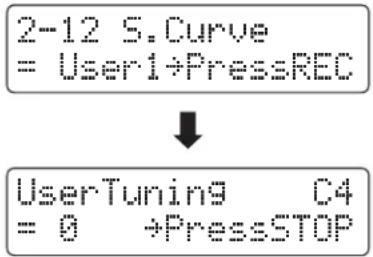
2. Selecting the note, adjusting the user tuning value
Press the desired key to be tuned, then press the ▼ or ▲ VALUE buttons to set the desired tuning value.
The desired key can also be selected by pressing the ▼ or ▲ MENU buttons.
* The User Tuning value can be adjusted within the range of -50\~+50.
* Any changes made to the User Tuning setting will remain until the power is turned off.
* Preferred User Tuning settings can be stored to a Registration memory for convenient recall. Please refer to page 34 for more information.
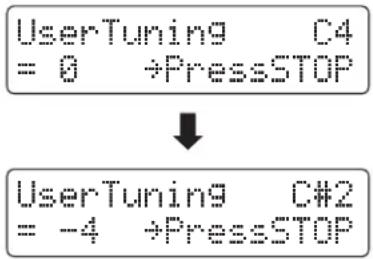
3. Exiting the User Tuning function
Press the STOP button to exit the User Tuning setting and return to the Stretch Curve setting.
* The User Tuning settings are saved automatically.
Temperament Key
The Temperament Key setting allows the key of the selected temperament to be specified. When using a temperament other than Equal temperament, use this setting to specify the key signature of the piece.
* This setting will only affect the 'balance' of the tuning system, the pitch of the keyboard will remain unchanged.
■ Changing the Temperament Key setting
After selecting a temperament other than Equal temperament types:
Press the ▼ or▲ MENU buttons to select Temperament Key setting.
Press the ▼ or ▲ VALUE buttons to select the desired temperament key.
* The temperament key can be set within the range of C to B.
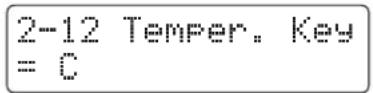

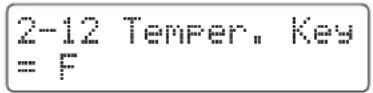
User Temperament
The User Temperament setting allows custom temperaments to be created.
* This setting is only available when User Temperament is selected.
1. Selecting the User Temperament
After selecting the User Temperament type (page 106):
Press the MENU ▲ button.
$$ \begin{array}{l} \boxed {2 - 1 2 \text {UserTemp. C}} \ = 0 \end{array} $$
2. Selecting the note, adjusting the user temperament value
Press the ▼ or ▲ MENU buttons to select the desired note to be adjusted.
Press the ▼ or ▲ VALUE to adjust the cent value for the selected note.
* The User Temperament value can be adjusted within the range of -50\~+50.
* Any changes made to the User Temperament setting will remain until the power is turned off.
* Preferred User Temperament settings can be stored to a Registration memory for convenient recall. Please refer to page 34 for more information.
$$ \begin{array}{l} \boxed {2 - 1 2 \text {UserTemp. C}} \ = 0 \end{array} $$

$$ \begin{array}{l} 2 - 1 2 \text {UserTemp.E} \ = + 5 \end{array} $$
3. Exiting the User Temperament function
Press the EXIT button to exit the User Temperament setting and return to the main settings menu.
2-13 User Key Volume
The User Key Volume settings allows the volume of each of the 88-keys to be adjusted individually.
1. Selecting the User Key Volume setting
After entering the Virtual Technician menu (page 92):
Press the ▼ or ▲ MENU buttons to select the User Key Volume setting.
2-13 UserKeyVol.
= Off
2. Selecting the User Key Volume memory
Press the ▼ or ▲ VALUE buttons to select the User Key Volume memories.
* Up to four different User Key Volume memories can be created and stored.
Press the REC button to adjust the User Key Volume memory.
2-13 UserKeyVol.
= Off

2-13 UserKeyVol.
= User1+PressREO

UserKeyVol. C4 = 0 +PressSTOP
3. Selecting the note, adjusting the User Key Volume
Press the desired key to be adjusted, then press the ▼ or▲ VALUE buttons to select the desired volume value.
The desired key can also be selected by pressing the ▼ or ▲ MENU buttons.
* The User Key Volume setting can be set independently for each sound.
UserKeyVol. C#1 = +5 *PressSTOP
4. Exiting the User Key Volume function
Press the STOP button to exit the User Key Volume setting and return to the User Key Volume memories selection.
* The User Key Volume settings are saved automatically.
2-14 Half-Pedal Adjust
The Half-Pedal Adjust setting allows the point at which the damper/sustain pedal becomes effective (i.e. when the dampers of the piano begin to lift from the strings) to be adjusted. This setting may be useful for pianists that habitually rest their right foot on the damper/sustain pedal, but do not necessarily wish to sustain the sound.
* This Virtual Technician setting will affect all sounds.
1. Selecting the Half-Pedal Adjust setting
After entering the Virtual Technician menu (page 92):
Press the ▼ or ▲ MENU buttons to select the Half-Pedal Adjust setting.
$$ \begin{array}{l} 2 - 1 4 \text {HalfPedalAdj} \ = 5 [ R. C a l ] \div R E C \end{array} $$
2. Adjusting the Half-Pedal Adjust volume
Press the ▼ or ▲ VALUE buttons to adjust the volume of the Half-Pedal Adjust setting.
* The Half-Pedal Adjust volume can be adjusted within the range of 1\~10, with higher values resulting in a later damper pedal point.
* Any changes made to the Half-Pedal Adjust setting will remain until the power is turned off.
* Preferred Half-Pedal Adjust settings can be stored to a Registration memory for convenient recall. Please refer to page 34 for more information.
$$ \begin{array}{l}\text {2 - 14HalfPedalAdj}\= 5 \quad [ R. C a l ] \rightarrow R E C\end{array} $$

$$ \left{ \begin{array}{l} 2 - 1 4 \text {HalfPedalAdj} \ = 9 [ R, C a l ] + R E C \end{array} \right. $$
3. Exiting the Half-Pedal Adjust setting
Press the EXIT button to exit the Half-Pedal Adjust setting and return to the main settings menu.
2-14 Half-Pedal Adjust (cont.)
■ Calibrating the right pedal of the optional double pedal
Depending on the brand and model of the double pedal connected to the ES8, it may be necessary to use the calibration function to ensure that the right (damper) pedal's minimum and maximum range of values are detected correctly.
* This procedure is not required when using the included F-10H single pedal or the optional F-301 triple pedal unit.
Press the REC button while the Half-Pedal Adjust parameter is shown in the LCD display.
A message will be shown in the LCD display, prompting for the right (damper) pedal to be pressed and released. Slowly depress the right (damper) pedal to the maximum position, then slowly release the pedal.
Repeat this process a few times to ensure that the right (damper) pedal's minimum and maximum range of values are detected correctly.
Press the PLAY/STOP button to complete the right (damper) pedal calibration.
The full range of operation for the connected right (damper) pedal will be calculated, allowing the Half-Pedal adjust to be set correctly.
2-14HalfPedalAdj = 10 [R.CaI]→REC

R. Pedal Calib.
Press + Release

Press PLAY/STOP when finished.

R. Pedal Calib.
complete.
2-15 Soft Pedal Depth
The Soft Pedal Depth setting adjusts the effectiveness (i.e. depth/strength) of the soft pedal.
* This Virtual Technician setting will affect all sounds.
1. Selecting the Soft Pedal Depth setting
After entering the Virtual Technician menu (page 92):
Press the ▼ or ▲ MENU buttons to select the Soft Pedal Depth setting.
$$ \begin{array}{l} \boxed {2 - 1 5 \text {SoftPedalDef}} \ = 3 \end{array} $$
2. Adjusting the Soft Pedal Depth volume
Press the ▼ or ▲ VALUE buttons to adjust the volume of the Soft Pedal Depth setting.
* The Soft Pedal Depth volume can be adjusted within the range of 1\~10, with higher values resulting in a softer sound.
* Any changes made to the Soft Pedal Depth setting will remain until the power is turned off.
* Preferred Soft Pedal Depth settings can be stored to a Registration memory for convenient recall. Please refer to page 34 for more information.
$$ \begin{array}{l} \boxed {2 - 1 5 \text {SoftPedalDep}} \ = 3 \end{array} $$

$$ \begin{array}{l} \text {2 - 15SoftPedalDep} \ = 9 \end{array} $$
3. Exiting the Soft Pedal Depth setting
Press the EXIT button to exit the Soft Pedal Depth setting and return to the main settings menu.
The Key Settings menu contains settings to adjust the instrument's operation when using the Dual or Split playing modes.
■ Key Settings
| Page no. | Setting Description | Default setting | |
| 3-1 | Lower Octave Raise the pitch of the lower section in octave steps when using Split mode. 0 | ||
| 3-2 | Lower Pedal | Enable/disable sustain pedal for the lower section when using Split mode. | Off |
| 3-3 | Split Balance Adjust the volume balance between the upper and lower sections. 9 : 9 | ||
| 3-4 | Layer Octave | Raise the pitch of the layered sound in octave steps when using Dual mode. | 0 |
| 3-5 | Layer Dynamics | Adjust the dynamic sensitivity of the layered sound when using Dual mode. | 10 |
| 3-6 | Dual Balance | Adjust the volume balance between the main and layered sounds. | 9 : 9 |
* Default settings will be shown in the first LCD display illustration (i.e. Step 1) for each setting explanation below.
■ Entering the Key Settings menu
While the normal playing mode screen is shown in the LCD display:
Press the ▼ or ▲ MENU buttons to select the Key Settings menu.
3 Key Settings +Press VALUE
Press the VALUE ▲ button to enter the Key Settings menu.
The first page of the Key Settings menu will be shown in the LCD display
■ Selecting the desired setting
After entering the Key Settings menu:
Press the ▼ or ▲ MENU buttons to cycle through the different settings pages.
3-1 Lower Octave Shift
The Lower Octave Shift setting allows the pitch of the lower section when using Split mode to be raised in octave steps.
1. Selecting the Lower Octave Shift setting
After entering the Key Settings menu (page 116):
The Lower Octave Shift setting will be selected automatically.
$$ \begin{array}{l} \text {3 - 1 Lower Octave} \ = 0 \end{array} $$
2. Changing the Lower Octave Shift value
Press the ▼ or ▲ VALUE buttons to decrease or increase the value of the Lower Octave Shift setting.
* The pitch of the lower section can be raised by up to 3 octaves.
* Any changes made to the Lower Octave shift setting will remain until the power is turned off.
* Preferred Lower Octave Shift settings can be stored to a Registration memory for convenient recall. Please refer to page 34 for more information.
$$ \begin{array}{l} \text {3 - 1 Lower Octave} \ = 0 \end{array} $$

$$ \begin{array}{l} \text {3 - 1 Lower Octave} \ = + 3 \end{array} $$
3. Exiting the Lower Octave Shift setting
Press the EXIT button to exit the Lower Octave Shift setting and return to the main settings menu.
■ Jump to Lower Octave Shift setting shortcut
It is also possible to access the Lower Octave Shift setting directly while Split Mode or Four Hands Mode are in use:.
Press and hold the MENU ▼ or MENU ▲ buttons.
The Lower Octave Shift setting will be shown in the LCD display.
Press the ▼ or ▲ VALUE buttons to adjust the Lower Octave Shift setting.
To exit the Lower Octave Shift setting and return to the previous screen, press the EXIT button twice.
$$ \begin{array}{c} \text {SK ConcertGrand} \ \text {Wood Bass} \ \downarrow \ 3 - 1 \text {Lower Octave} \ = 0 \end{array} $$
3-2 Lower Pedal
The Lower Pedal setting determines whether or not the sustain pedal will affect (i.e. sustain) the lower sound when using Split mode.
■ Lower Pedal settings
| Lower Pedal Description | |
| Off (default) | In Split mode, lower section sounds will not be sustained when the sustain pedal is pressed. |
| On In Split mode, lower section sounds will be sustained when the sustain pedal is pressed. | |
1. Selecting the Lower Pedal setting
After entering the Key Settings menu (page 116):
Press the ▼ or ▲ MENU buttons to select the Lower Pedal setting.
$$ \begin{array}{l} \boxed {3 - 2 \text {Lower Pedal}} \ = \text {Off} \end{array} $$
2. Changing the Lower Pedal setting
Press the ▼ or ▲ VALUE buttons to turn the Lower Pedal setting on or off.
* Any changes made to the Lower Pedal setting will remain until the power is turned off.
* Preferred Lower Pedal settings can be stored to a Registration memory for convenient recall. Please refer to page 34 for more information.
$$ \begin{array}{l} \boxed {3 - 2 \text { Lower Pedal }} \ = \text { Off } \end{array} $$

$$ \begin{array}{l} \boxed {3 - 2 \text { Lower Pedal }} \ = 0 n \end{array} $$
3. Exiting the Lower Pedal setting
Press the EXIT button to exit the Lower Pedal setting and return to the main settings menu.
3-3 Split Balance
The Split Balance setting allows the volume balance between the upper and lower sections when using Split mode to be adjusted.
* The Split Balance setting can also be used adjusted directly while Split mode is in use. Please refer to page 21 for more information.
1. Selecting the Split Balance setting
After entering the Key Settings menu (page 116):
Press the ▼ or ▲ MENU buttons to select the Split Balance setting.
$$ \begin{array}{l} \text {3 - 3 SplitBalance} \ = 9: 9 \end{array} $$
2. Adjusting the Split Balance setting
Press the ▼ or ▲ VALUE buttons to adjust the volume balance between the upper and lower sections.
After increasing to the maximum volume (9) of one section, the volume of the other section will start to decrease.
* Any changes made to the Split Balance setting will remain until the power is turned off.
* Preferred Split Balance settings can be stored to a Registration memory for convenient recall. Please refer to page 34 for more information.
$$ \begin{array}{l} \text {3 - 3 SplitBalance} \ = 9: 9 \end{array} $$

$$ \begin{array}{l} \text {3 - 3 SplitBalance} \ = 2: 9 \end{array} $$
3. Exiting the Split Balance setting
Press the EXIT button to exit the Split Balance setting and return to the main settings menu.
3-4 Layer Octave Shift
The Layer Octave Shift setting allows the pitch of the layered sound when using Dual mode to be raised or lowered in octave steps.
1. Selecting the Layer Octave Shift setting
After entering the Key Settings menu (page 116):
Press the ▼ or ▲ MENU buttons to select the Layer Octave Shift setting.
$$ \begin{array}{l} \text {3 - 4 L a w e r O c t a v e } \ = 0 \end{array} $$
2. Changing the Layer Octave Shift value
Press the ▼ or ▲ VALUE buttons to decrease or increase the value of the Layer Octave Shift setting.
* The pitch of the layered sound can be raised or lowered by up to 2 octaves.
* Some layered sounds may not produce a tone when the octave range is raised beyond a certain value.
* Any changes made to the Layer Octave shift setting will remain until the power is turned off.
* Preferred Layer Octave Shift settings can be stored to a Registration memory for convenient recall. Please refer to page 34 for more information.
$$ \begin{array}{l} \text {3 - 4 L a y e r O c t . a v e } \ = 0 \end{array} $$

$$ \begin{array}{l} \text {3 - 4 L a y e r O c t . a v e } \ = + 2 \end{array} $$
3. Exiting the Layer Octave Shift setting
Press the EXIT button to exit the Layer Octave Shift setting and return to the main settings menu.
■ Jump to Layer Octave Shift setting shortcut
It is also possible to access the Layer Octave Shift setting directly while Dual Mode is in use.
Press and hold the MENU ▼ or MENU ▲ buttons.
The Layer Octave Shift setting will be shown in the LCD display.
Press the ▼ or ▲ VALUE buttons to adjust the Layer Octave Shift setting.
To exit the Layer Octave Shift setting and return to the previous screen, press the EXIT button twice.
$$ \begin{array}{l} \begin{array}{l} \text {SK ConcertGrand} \ \text {Slow Strings} \end{array} \ \begin{array}{l} \text {3 - 4 L a y e r O c t a v e} \ = 0 \end{array} \ \end{array} $$

3-5 Layer Dynamics
When using Dual mode, sometimes simply adjusting the volume balance between the two layered sounds is not enough to create the desired sound character, especially if both sounds are very dynamic. Layering two equally dynamic sounds can prove difficult to control and play comfortably.
The Layer Dynamics Function allows the dynamic sensitivity of the layered sound to be reduced, in order to improve the blend between the two combined sounds. In addition to reducing the volume of the layered sound, limiting its dynamic sensitivity also allows the layered sound to be controlled more easily in relation to the main sound.
1. Selecting the Layer Dynamics setting
After entering the Key Settings menu (page 116):
Press the ▼ or ▲ MENU buttons to select the Layer Dynamics setting.
$$ \begin{array}{l} \boxed {3 - 5 \text { LaserDynamic }} \ = 1 0 \end{array} $$
2. Adjusting the Layer Dynamics setting
Press the ▼ or▲ VALUE buttons to decrease or increase the value of the Layer Dynamics setting.
* The layer dynamics value can be adjusted within the range of off, 1\~10.
* Any changes made to the Layer Dynamics setting will remain until the power is turned off.
* Preferred Layer Dynamics settings can be stored to a Registration memory for convenient recall. Please refer to page 34 for more information.
$$ \begin{array}{l} \boxed {3 - 5 \text { LayerDynamic }} \ = 1 0 \end{array} $$

$$ \left[ \begin{array}{l} 3 - 5 \text { LayerDynamic } \ = 5 \end{array} \right] $$
3. Exiting the Layer Dynamics setting
Press the EXIT button to exit the Layer Dynamics setting and return to the main settings menu.
3-6 Dual Balance
The Dual Balance setting allows the volume balance between the main and layered sounds when using Dual mode to be adjusted.
* The Dual Balance setting can also be used adjusted directly while Dual mode is in use. Please refer to page 19 for more information.
1. Selecting the Dual Balance setting
After entering the Key Settings menu (page 116):
Press the ▼ or ▲ MENU buttons to select the Dual Balance setting.
3-6 Dual Balance
= 9:9
2. Adjusting the Dual Balance setting
Press the ▼ or ▲ VALUE buttons to adjust the volume balance between the main and layered sections.
After increasing to the maximum volume (9) of one sound, the volume of the other sound will start to decrease.
* Any changes made to the Dual Balance setting will remain until the power is turned off.
* Preferred Dual Balance settings can be stored to a Registration memory for convenient recall. Please refer to page 34 for more information.
3-6 Dual Balance = 9:9

3-6 Dual Balance = 9:5
3. Exiting the Dual Balance setting
Press the EXIT button to exit the Dual Balance setting and return to the main settings menu.
MIDI Overview
The term MIDI is an acronym for Musical Instrument Digital Interface, an international standard for connecting musical instruments, computers, and other devices to allow the exchange of performance data.
MIDI Terminals
MIDI terminal Function
MIDI IN Receiving note, program change, and other data.
MIDI OUT Sending note, program change, and other data.
MIDI channels
MIDI uses channels to exchange data back and forth between MIDI devices. There are receive (MIDI IN) and transmit (MIDI OUT) channels. Most musical instruments or devices with MIDI functions are equipped with both MIDI IN and OUT jacks and are capable of transmitting and receiving data via MIDI. The receive channels are used to receive data from another MIDI device, and the transmit channels are used to transmit data to another MIDI device.
The illustration below shows three musical instruments, connected together using MIDI.
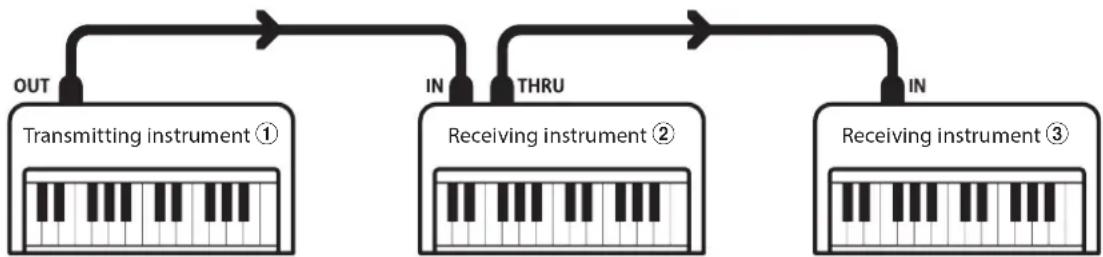
flowchart
graph TD
    A["OUT"] --> B["Transmitting instrument ①"]
    C["IN"] --> D["Receiving instrument ②"]
    E["THRU"] --> F["Receiving instrument ③"]
    B --> G["Output"]
    D --> H["In"]
    F --> I["In"]
Transmitting instrument ① sends transmit channel and keyboard information to receiving instruments ②/③.
The information arrives at the receiving instruments ②/③.
Receiving instruments ②/③ will respond to MIDI data that is sent if their receive channel is the same as the transmit channel of the transmitting instrument ①. If the channels do not match, the receiving instruments ②/③ will not respond to any data that is sent.
For both receiving and transmitting, channels 1\~16 can be used.
■ Recording/playing with a sequencer
When connected to a sequencer (or a computer running MIDI sequencing software), the ES8 digital piano can be used to record and playback multi-track songs, with separate sounds playing simultaneously on each channel.
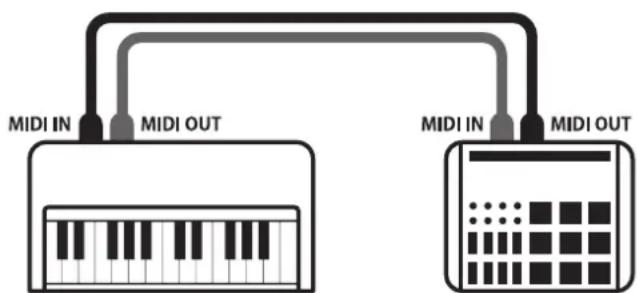
flowchart
graph TD
    A["MIDI IN"] --> B["MIDI OUT"]
    C["MIDI IN"] --> D["MIDI OUT"]
    B --> E[" Piano keyboard "]
    D --> E
    style A fill:#f9f,stroke:#333
    style C fill:#f9f,stroke:#333
    style E fill:#ccf,stroke:#333
Sequencer
MIDI Functions
The ES8 digital piano supports the following MIDI functions:
Transmit/receive note information
Transmit/receive note information to/from a MIDI-connected musical instrument or device.
Transmit/receive channel settings
Specify transmit/receive channels within the range of 1 to 16.
Transmit/receive exclusive data
Transmit/receive front panel or menu function settings as exclusive data.
Multi-timbral mode setting
Receive multiple channel MIDI data from a MIDI-connected musical instrument or device.
Transmit/receive program change information
Transmit/receive program change data to/from a MIDI-connected musical instrument or device.
Transmit/receive pedal data
Transmit/receive sustain, sostenuto, and soft pedal data to/from a MIDI-connected musical instrument or device.
Receive volume data
Receive MIDI volume data sent from a MIDI-connected musical instrument or device.
* Please refer to the 'MIDI Implementation Chart' on page 150 for further information regarding the MIDI capabilities of the ES8 digital piano.
MIDI Settings
Page no. Setting Description Default setting
| 5-1 MIDI Channel Specify the channel that is used to transmit/receive MIDI information. 1 | |||
| 5-2 | Send PGM Change # | Send a MIDI program change number from 1 to 128. | 1 |
| 5-3 | Local Control | Specify whether internal sounds will be heard when the keyboard is pressed. | On |
| 5-4 | Trans. PGM Change | Specify whether program change data is sent when sounds are changed. | On |
| 5-5 | Multi-timbral Mode | Specify whether the instrument can receive Multi-timbral MIDI information. | Off |
| Channel Mute | Specify which channels (1~16) are activated to receive MIDI information. | Play All | |
* Default settings will be shown in the first LCD display illustration (i.e. Step 1) for each setting explanation below.
■ Entering the MIDI Settings menu
While the normal playing mode screen is shown in the LCD display:
Press the ▼ or ▲ MENU buttons to select the MIDI Settings menu, then press the VALUE ▲ button to enter the menu.
The first page of the MIDI Settings menu will be shown in the LCD display.
5 MIDI Settings →Press VALUE
■ Selecting the desired setting
After entering the MIDI Settings menu:
Press the ▼ or ▲ MENU buttons to cycle through the different settings pages.
Settings page no. 5-1 MIDI Channel = 1
4-1 MIDI Channel
The MIDI Channel setting allows the transmit/receive channel to be specified. The selected channel will function as both the transmit and receive channel (separate transmit/receive channels cannot be specified).
1. Selecting the MIDI Channel setting
After entering the MIDI Settings menu (page 124):
The MIDI Channel setting will be selected automatically.
$$ \begin{array}{l} \text {5 - 1 MIDI Channel} \ = 1 \end{array} $$
2. Changing the MIDI Channel value
Press the ▼ or▲ VALUE buttons to decrease or increase the value of the MIDI Channel setting.
* The MIDI Channel setting can be adjusted within the range of 1\~16.
* Any changes made to the MIDI Channel setting will remain until the power is turned off.
* Preferred MIDI Channel settings can be stored to a Registration memory for convenient recall. Please refer to page 34 for more information.
$$ \begin{array}{l} \text {5 - 1 MIDI channel1} \ \text {== 1} \end{array} $$

$$ \begin{array}{l} \text {5 - i MIDI Channel} \ = 5 \end{array} $$
3. Exiting the MIDI Channel setting
Press the EXIT button to exit the MIDI Channel setting and return to the main settings menu.
Omni mode
When the ES8 digital piano is turned on, the instrument is automatically set to 'omni mode on', allowing MIDI information to be received on all MIDI channels (1\~16). When the MIDI Channel setting is used to specify a transmit/receive channel, the instrument will be set to 'omni mode off'.
■ Multi-timbral mode and Split/Dual mode
Using Split mode with Multi-timbral mode enabled
Notes played in the lower section of the keyboard will be transmitted on the channel that is 1 channel higher than the specified channel. For example, if the MIDI channel is set to 3, notes played in the lower section of the keyboard will be transmitted on channel 4.
Using Dual mode with Multi-timbral mode enabled
Notes played will be transmitted on two channels: the specified channel and the channel that is 1 channel higher.
For example, if the MIDI channel is set to 3, notes played on the keyboard will be transmitted on channels 3 and 4.
4-2 Send Program Change Number
The Send Program Change Number function is used to send a Program Change Number (1\~128) to the connected MIDI device.
1. Selecting the Send Program Change Number function
After entering the MIDI Settings menu (page 124):
Press the ▼ or ▲ MENU buttons to select the Send Program Change Number function.
$$ \begin{array}{l} 5 - 2 \text { Send PGM#} \ = 1 + \text { VALUE } \end{array} $$
2. Specifying and transmitting a Program Change Number
Press the ▼ or ▲ VALUE buttons to decrease or increase the Program Change Number.
* The program change number can be set within the range of 1\~128.
Press the ▼ and ▲ VALUE buttons simultaneously to send the specified Program Change Number.
$$ \begin{array}{l} \text {5 - 2 Send PGM} \ = 1 \quad + V A L U E T + 4 \end{array} $$

$$ \begin{array}{l} \text {5 - 2 Send PGM#} \ = 1 5 \quad \text {Sent.} \end{array} $$
3. Exiting the Program Change Number function
Press the EXIT button to exit the Program Change Number function and return to the main settings menu.
4-3 Local Control
The Local Control setting determines whether the instrument will play an internal sound when the keys are pressed. This setting is useful when using the ES8 digital piano to control an external MIDI device.
■ Local Control settings
| Local Control Description | |
| Off The instrument will transmit information to an external MIDI device only. | |
| On (default) | The instrument will play an internal sound and transmit information to an external MIDI device. |
1. Selecting the Local Control setting
After entering the MIDI Settings menu (page 124):
Press the ▼ or ▲ MENU buttons to select the Local Control setting.
$$ \begin{array}{l} \text {5 - 3 LocalControl} \ = \text {On} \end{array} $$
2. Changing the Local Control setting
Press the ▼ or▲ VALUE buttons to turn the Local Control setting on or off.
* Any changes made to the Local Control setting will remain until the power is turned off.
* Preferred Local Control settings can be stored to a Registration memory for convenient recall. Please refer to page 34 for more information.
3. Exiting the Local Control setting
Press the EXIT button to exit the Local Control setting and return to the main settings menu.
$$ \begin{array}{l} \begin{array}{l} \boxed {5 - 3 \text { LocalControl }} \ = 0 n \end{array} \ \begin{array}{l} \text {5 - 3 LocalControl} \ = \text {Off} \end{array} \ \end{array} $$

4-4 Transmit Program Change Numbers
The Transmit Program Change Numbers setting determines whether the ES8 digital piano will transmit program change information via MIDI when the instrument's panel buttons are pressed.
■ Transmit Program Change Numbers settings
Transmit PGM# Multi-timbral setting Effect of pressing panel buttons
On (default) Off, On1 SOUND buttons will send PGM# shown in the left column*.
On On2 SOUND buttons will send PGM# shown in the right column*.
Off Off Program Change information will not be transmitted via MIDI.
* Please refer to the 'Program Change Number List' on page 137.
1. Selecting the Transmit Program Change Numbers setting
After entering the MIDI Settings menu (page 124):
Press the ▼ or ▲ MENU buttons to select the Transmit Program Change Numbers setting.
$$ \begin{array}{l} \text {5 - 4 Trans.PGM#} \ = \text {On} \end{array} $$
2. Changing the Transmit Program Change Numbers setting
Press the ▼ or ▲ VALUE buttons to turn the Transmit Program Change Numbers setting on or off.
* Any changes made to the Transmit Program Change Numbers setting will remain until the power is turned off.
* Preferred Transmit Program Change Numbers settings can be stored to a Registration memory for convenient recall. Please refer to page 34 for more information.
$$ \begin{array}{l} \text {5 - 4 Trans.PGM#} \ = \text {On} \end{array} $$

$$ \begin{array}{l} 5 - 4 \text { Trans. } P G M # \ = 0 f f \end{array} $$
■ Program Change Numbers and Dual/Split mode
- When using Dual or Split mode, On/Off information and sound type settings for are transmitted as exclusive data, however program change numbers will not be transmitted.
■ Program change numbers will also be transmitted when Multi-timbral mode is set to On1 or On2.
4-5 Multi-timbral Mode
The Multi-timbral Mode setting determines whether or not the ES8 digital piano is able to receive MIDI information on more than one MIDI channel simultaneously. This allows the instrument to play back multi-track, multi-timbral performance data sent from an external MIDI device.
■ Multi-timbral Mode settings
| Multi-timbral Mode Effect on sound heard | |
| Off | Only data received from the designated system channel will be sent to the panel setting. The sound shown in the left column is selected*. |
| On1 (default) | Data received from all MIDI channels (ch1~ch16) will be sent to 16 multi timbral tracks. The sound shown in the left column is selected*. |
| On2 | Data received from all MIDI channels (ch1~ch16) will be sent to 16 multi timbral tracks. The sound shown in the right column is selected*. |
* Please refer to the 'Program Change Number List' on page 137.
1. Selecting the Multi-timbral Mode setting
After entering the MIDI Settings menu (page 124):
Press the ▼ or ▲ MENU buttons to select the Multi-timbral Mode setting.
$$ \begin{array}{l} \text {5 - 5 Multi Timbre} \ = \text {On1} \end{array} $$
2. Changing the Multi-timbral Mode setting
Press the ▼ or ▲ VALUE buttons to change the Multi-timbral Mode setting.
* Any changes made to the Multi-timbral Mode setting will remain until the power is turned off.
* Preferred Multi-timbral Mode settings can be stored to a Registration memory for convenient recall. Please refer to page 34 for more information.
3. Exiting the Multi-timbral Mode setting
Press the EXIT button to exit the Multi-timbral Mode setting and return to the main settings menu.
$$ \begin{array}{l} \text {5 - 5 Multi Timbre} \ = \text {On1} \end{array} $$

$$ \begin{array}{l} \text {5 - 5 Multi Timbre} \ = \text {Off} \end{array} $$
Channel Mute
The Channel Mute setting determines which MIDI channels (1\~16) are activated to receive MIDI information when Multi-timbral mode is enabled.
* This setting is only available when the Multi-timbral Mode setting is set to 'On1' or 'On2'.
■ Channel Mute settings
| Channel Mute Description | |
| Play (default) | The instrument will receive MIDI information on the specified MIDI channel. |
| Mute The instrument will not receive MIDI information on the specified MIDI channel. | |
1. Selecting the Channel Mute setting
After setting the Multi-timbral Mode to 'On1' or 'On2':
Press the ▼ or ▲ MENU buttons to select the Channel Mute setting for each MIDI channel.
$$ \begin{array}{l} \text {5 - 5 Ch 1 Mute} \ = \text {Play} \end{array} $$
2. Changing the Channel Mute setting
Press the ▼ or ▲ VALUE buttons to alternate between 'Play' and 'Mute' settings
* Any changes made to the Channel Mute setting will remain until the power is turned off.
* Preferred Channel Mute settings can be stored to a Registration memory for convenient recall. Please refer to page 34 for more information.
$$ \begin{array}{l} \text {5 - 5 Ch i Mute} \ = \text {Play} \end{array} $$

$$ \left[ \begin{array}{l} 5 - 5 \text { Ch } 1 \text { Mute } \ = \text { Mute } \end{array} \right] $$
3. Exiting the Channel Mute setting
Press the EXIT button to exit the Channel Mute setting and return to the main settings menu.
The ES8 digital piano features a 'USB to Host' type connector, allowing the instrument to be connected to a computer using an inexpensive USB cable and utilised as a MIDI device. Depending on the type of computer and operating system installed, additional driver software may be required for USB MIDI communication to function correctly.
USB MIDI driver
| Operating System USB MIDI Driver Support | |
| Windows MEWindows XP (no SP, SP1, SP2, SP3)Windows XP 64-bitWindows Vista (SP1, SP2)Windows Vista 64-bit (SP1, SP2)Windows 7 (no SP, SP1)Windows 7 64-bitWindows 8Windows 8 64-bitWindows 8.1Windows 8.1 64-bit | Additional USB MIDI driver software NOT required.The standard (built-in) Windows USB MIDI driver will be installed automatically when the instrument is connected to the computer.* After driver installation, ensure that the 'USB Audio Device' (Windows ME/Windows XP) or 'USB-MIDI' (Windows Vista/Windows 7/Windows 8/Windows 8 64-bit) device is correctly selected in the application software. |
| Windows 98 seWindows 2000Windows Vista (no SP) | Additional USB MIDI driver software required.Please download the USB MIDI driver from the Kawai Global website:→ http://www.kawai-global.com* After driver installation, ensure that the 'KAWAI USB MIDI' device is correctly selected in the application software. |
| Windows Vista 64-bit (no SP) | USB MIDI is not supported.Please upgrade to service pack 1 or service pack 2. |
| Mac OS X | Additional USB MIDI driver software NOT required.The standard (built-in) Mac OS X USB MIDI driver will be installed automatically when the instrument is connected to the computer. |
| Mac OS 9 | USB MIDI is not supported.Please use the standard MIDI IN/OUT connectors. |
USB MIDI information
If the instrument's MIDI IN/OUT jacks and USB MIDI port are both connected simultaneously, the USB MIDI port will be given priority.
■ Ensure that the instrument is turned OFF before attempting to connect the USB MIDI cable.
■ When connecting the instrument to a computer using the USB MIDI port, there may be a short delay before communications begin.
If the instrument is connected to a computer via a USB hub and USB MIDI communication becomes unreliable/unstable, please connect the USB MIDI cable directly to the one of the computer's USB ports.
■ Disconnecting the USB MIDI cable suddenly, or turning the instrument on/off while using USB MIDI may cause computer instability in the following situations:
- while installing the USB MIDI driver
- while starting up the computer
- while MIDI applications are performing tasks
- while the computer is in energy saver mode
If there are any further problems experienced with USB MIDI communication while the instrument is connected, please double-check all connections and relevant MIDI settings in the computer's operating system.
5 Auto Power Off
The ES8 digital piano features a power saving function that can be used to automatically turn off the instrument after a specified period of inactivity.
* This setting will be stored automatically, and recalled every time the instrument is turned on.
■ Auto Power Off settings
Auto Power Off Description
Off The Auto Power Off function is disabled.
30 min. The instrument will turn off automatically after 30 minutes of inactivity.
60 min. The instrument will turn off automatically after 60 minutes of inactivity.
120 min. The instrument will turn off automatically after 120 minutes of inactivity.
1. Selecting the Auto Power Off setting
While the normal playing mode screen is shown in the LCD display:
Press the ▼ or ▲ MENU buttons to select the Power Settings menu, then press the VALUE ▲ button to enter the menu.
The Auto Power Off setting will be selected automatically.
$$ \begin{array}{l} \text {6 - 1 AutoPowerOff} \ = \text {Off} \end{array} $$
2. Changing the Auto Power Off setting
Press the ▼ or ▲ VALUE buttons to change the Auto Power Off setting.
* The Auto Power Off setting will be stored automatically, and recalled every time the instrument is turned on.
$$ \begin{array}{l} \text {6 - 1 AutoPowerOff} \ = \text {Off} \end{array} $$

$$ \begin{array}{l} 6 - 1 \text { AutoPowerOff } \ = 6 9 \text { min. } \end{array} $$
3. Exiting the Auto Power Off setting
Press the EXIT button to exit the Auto Power Off setting and return to the main settings menu.
Connecting to Other Devices
The rear side of the ES8 digital piano features a variety of jacks that allow the instrument be connected to MIDI devices, computers, speakers, and mixers. It is also possible to connect external audio sources, such as an MP3 player, tablet, or a secondary keyboard, to the ES8's amplifier and speaker system. The illustration below provides a visual overview of the instrument's connectors and typical applications.
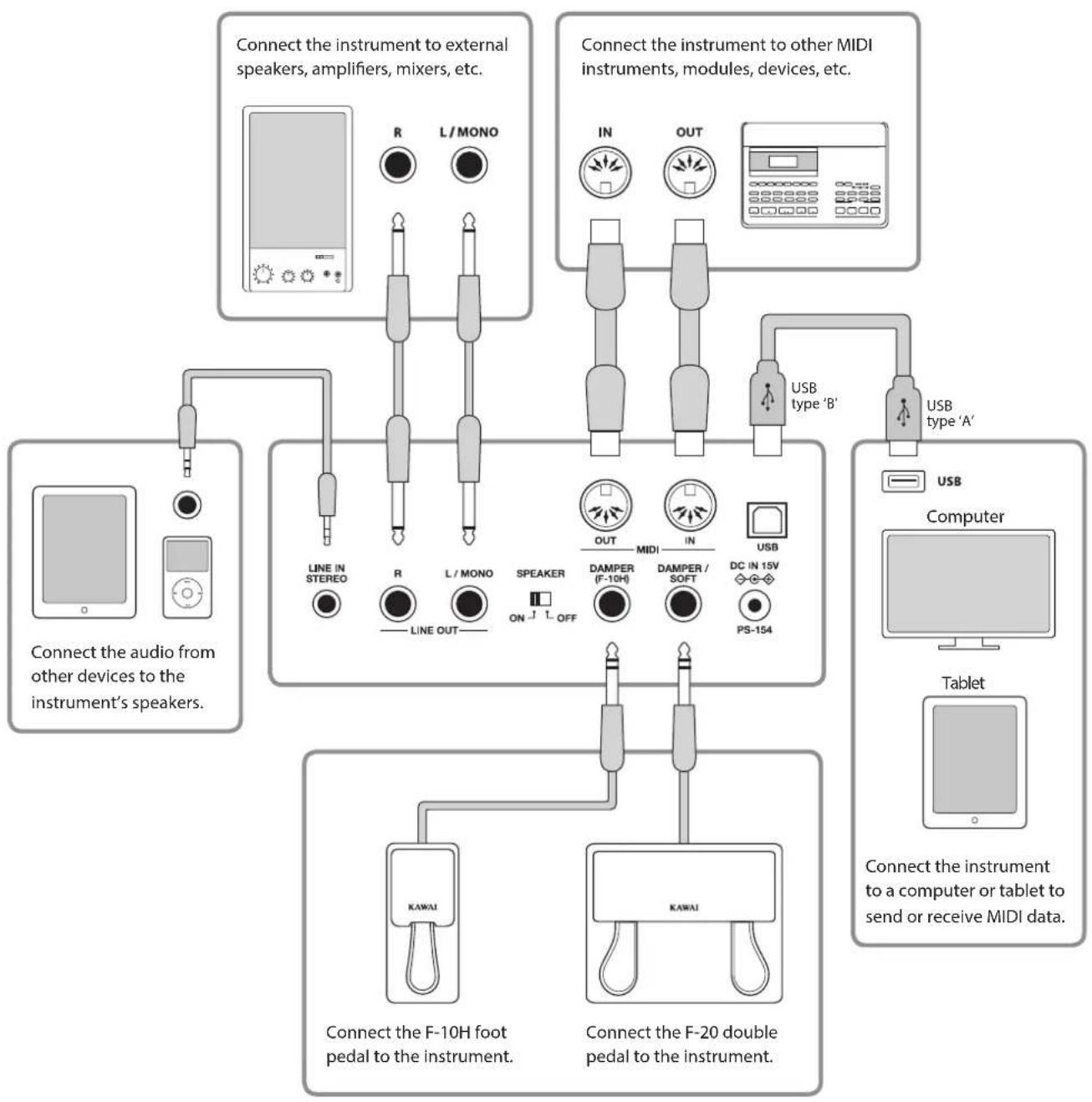
flowchart
graph TD
    A["Connect the audio from other devices to the instrument's speakers."] --> B["Line IN STEREO"]
    A --> C["R"]
    A --> D["L/MONO"]
    A --> E["LINE OUT"]
    F["Connect the instrument to external speakers, amplifiers, mixers, etc."] --> G["R"]
    F --> H["L/MONO"]
    F --> I["SPEAKER ON L OFF"]
    J["Connect the instrument to other MIDI instruments, modules, devices, etc."] --> K["IN"]
    J --> L["OUT"]
    J --> M["USB type 'B'"]
    N["Connect the instrument to a computer or tablet to send or receive MIDI data."] --> O["USB type 'A'"]
    P["Connect the instrument to a computer or tablet to send or receive MIDI data."] --> Q["USB"]
    R["Connect the instrument to a computer or tablet to send or receive MIDI data."] --> S["Tablet"]

Before connecting the ES8 digital piano to other devices, ensure that the power to both the instrument and the other device is turned off. If connections are established while the power is turned on, extraneous noise that can damage the ES8 digital piano may activate the instrument's amplifier protection circuit, preventing any sound from being produced. If this occurs, turn the power off and then on again to reset the amplifier protection circuit.
Do not connect the LINE IN STEREO and LINE OUT jacks of the ES8 digital piano together with the same cable. An audio loop (oscillation sound) will occur, resulting in damage to the unit.
Rear Connectors
■ LINE OUT jacks (1/4" phone jack)
These jacks are used to connect the stereo output of the instrument's sound to external speakers, amplifiers, mixers, recording devices, and similar equipment. Mono signals will be output only if a cable is connected to the L/MONO jack. The MASTER VOLUME slider does not affect the LINE OUT level.
* The Line Out Volume setting can be used to adjust the level of the LINE OUT signal. Please refer to page 84 for more information.
■ LINE IN STEREO jacks (1/8" mini jack)
This jack is used to connect the stereo output from an external audio device, such as a CD or MP3 player, to the instrument's amplifier (incl. LINE OUT) and speaker system. To adjust the LINE IN level, please use the volume controls on the device itself.
MIDI IN/OUT jacks
These jacks are used to connect the ES8 digital piano to external MIDI devices, and also to a computer with a MIDI interface as an alternative to the 'USB to Host' port.
* Please refer to page 123 for more information about MIDI.
This switch is used to turn the ES8's built-in speakers on or off, and may be useful when connecting the instrument to external speakers or an amplification system via the LINE OUT jacks. Please note that when headphones are connected, sound will not be produced by the built-in speakers, regardless of the SPEAKER switch position.
■ DAMPER & DAMPER/SOFT jacks
These jacks are used to connect either the F-10H foot pedal or F-20 double pedal unit to the instrument.
* Please refer to page 14 for more information about pedal functions.
USB to Host port ('B' type)
This USB port is used to connect the ES8 digital piano to a computer using an inexpensive USB cable. When connected, the instrument can be used as a standard MIDI device, allowing it to send a receive MIDI data. Connect a 'B' type USB connector to the instrument, and an 'A' type USB connector to the computer. With additional conversion adaptors, this port may also be used to connect the ES8 digital piano to tablets such as the Apple iPad and other mobile devices.
* Please refer to page 131 for more information about USB MIDI.
Front Connectors
■ PHONES jacks (1/4" phone jack)
These jacks are used to connect stereo headphones to the ES8 digital piano. Two pairs of headphones can be connected and used simultaneously. When a pair of headphones is connected, sound will not be produced by the speakers.
USB to Device port ('A' type)
This USB port is used to connect a USB memory device to the ES8 digital piano. This allows MP3/WAV audio files, and SMF song files to be played directly. It is also possible to record performances to MP3/WAV audio files, and save recorder songs stored in internal memory for posterity.
USB device information
The 'USB to Device' functionality of the ES8 digital piano conforms to USB2.0 Hi-Speed standards. Older USB devices can still be used, however data transfer speed will be limited to the maximum transfer speed of the device.
■ The 'USB to Device' port is intended for connecting USB memory devices, however USB floppy drive devices can also be used to save recorder songs stored in internal memory, or play SMF song files.
It may be necessary to format the USB memory device before it can be used with the ES8 digital piano. If so, please refer to the USB Format function instructions on page 75. Formatting the device will erase all data.
■ Avoid removing the USB memory device while data is being loaded or saved, files are being renamed or deleted, or the device is being formatted.
■ Other USB devices, such as computer mice, keyboards, or battery chargers etc. cannot be used with this instrument.
The table below summarises issues that may be experienced with the ES8 digital piano, explaining the typical cause(s), and recommended solution(s).
| Issue Possible Cause and Solution Page no. | |||
| Power | The instrument does not turn on. | Check that the AC power adaptor is firmly attached to the instrument, and connected to an AC outlet. | p. 15 |
| The instrument turns itself off after a period of inactivity. | Check that the 'Auto Power Off' setting is not enabled. p. 132 | ||
| Sound | The instrument is turned on, however no sound is produced when the keys are pressed. | Check that the MASTER VOLUME slider is not set to the lowest position.Check that a pair of headphones (or headphone adaptor plug) are not connected to the PHONES jacks.Check that the Local Control setting in the MIDI Settings menu is set to On. | p. 15p. 14p. 127 |
| The sound distorts when playing at very loud volume levels. | Check that the MASTER VOLUME slider is set to an appropriate level, reducing the volume if excessive distortion is heard.If connecting the instrument to an amplifier/mixer using the Line Out jacks, reduce the value of the 'Line Out Volume' setting in the Basic Settings menu. | p. 15p. 84 | |
| Strange sounds or noises are heard when playing with piano sounds. | The ES8 digital piano attempts to reproduce the rich variety of tones created by an acoustic grand piano as accurately as possible. This includes string resonances and damper noises, and other subtle characteristics that contribute to the overall piano playing experience.While these additional tones are intended to enhance the realism of the instrument, it is possible to reduce their prominence, or disable the effects altogether using the settings in the Virtual Technician menu. | p. 91 | |
| The top 18 notes of the keyboard sustain far longer than neighbouring notes, even when the damper pedal is not pressed. | This is the correct behaviour, and intended to reproduce the undamped notes (typically the top two octaves) of an acoustic grand piano. | - | |
| Phones | The headphone volume is too low. | Check the technical specifications of the headphones.If the 'Nominal Impedance' specification of the headphones is less than 100 Ω (ohms), set the 'Phones Volume' setting in the 'Basic Settings' menu to 'High'. | p. 83 |
| USB | A USB memory device is not detected, cannot be saved to, or does not appear to function when connected to the 'USB to Device' port. | Check that the USB memory device is formatted to use the FAT/FAT32 filesystem, and not set to 'Write Protect' mode.Disconnect the USB device, turn the instrument off then on, then reconnect the USB device. If the USB device still does not function, it may be damaged or incompatible. Please try using a different USB device. | p. 134 |
| The instrument pauses briefly when connecting a USB memory device. | This is recognised behaviour when using very large capacity (e.g. 8GB+) USB memory devices. | p. 134 | |
| MP3/WAV/SMF Audio | No sound can be heard when playing an MP3/WAV audio file stored on a USB memory device. | Check that the audio player volume is not set to 0.Check that the format of the audio file is supported and listed in the 'Audio Player supported format specifications' table. | p. 57p. 56 |
| An MP3/WAV audio file stored on a USB memory device sounds strange, or does not play back correctly. | Check that the format of the audio file is supported and listed in the 'Audio Player supported format specifications' table.The file transfer speed of the USB memory device may be too slow to play the audio file. Please try using a different USB memory device, ensuring that it conforms to USB2.0 Hi-Speed standards. | p. 56 | |
| An SMF MIDI file stored on a USB memory device sounds strange when played back. | The ES8 digital piano does not contain the full General MIDI sound bank selection. Consequently, some SMF song files may not be reproduced entirely accurately when played through the instrument. | p. 60 | |
| When recording MP3/WAV audio files, the volume is too low/too high (distorted). | Adjust the 'Audio Recorder Gain' setting in the 'Basic Settings' menu. p. 85 | ||
Demo Song List
Sound Name Song Title Composer
| Main Demo Original Kawai |
PIANO 1
| SK ConcertGrand Grande Polonaise Brillante Op.22 Chopin | |
| EX ConcertGrand Polonaise-Fantaisie Chopin | |
| Jazz Clean Original Kawai | |
| Warm Grand Sonata No.30 Op.109 Beethoven | |
| Pop Grand Original Kawai | |
PIANO 2
| SK-5 GrandPiano | Lieder Ohne Worte No.18 “Duetto” | Mendelssohn |
| Upright Piano | Alpenglühen Op.193 | Oesten |
| Modern Piano | Original Kawai | |
| Rock Piano | Original Kawai |
E. PIANO
| Classic E.Piano | Original Kawai | |
| Modern E.P. | Original Kawai |
ORGAN
| Harpsichord | French Suite No. 6 | J. S. Bach |
| Vibraphone | Original Kawai | |
| Clavi | Original Kawai |
STRINGS / CHOIR
| Slow Strings | Original Kawai | |
| String Pad Original Kawai | ||
| String Ensemble | Le quattro stagioni: La primavera A. Vivaldi | |
| Choir Ooh/Aah | Original Kawai | |
| Choir Aah | Londonderry Air | Irish folk song |
| New Age Pad | Original Kawai |
BASS
| Wood Bass | Original Kawai | |
| Electric Bass | Original Kawai | |
| Fretless Bass | Original Kawai | |
| W. Bass & Ride | Original Kawai |
RHYTHM SECTION
| Rhythm Section Demo | Original Kawai |
Program Change Number List
| Sound Name | Multi-timbral mode = off/on1 Multi-timbral mode = on2 | |||
| Program Number Program Number | Bank MSB Bank LSB | |||
| PIANO 1 | ||||
| SK ConcertGrand 1 1 121 0 | ||||
| EX ConcertGrand 2 1 95 27 | ||||
| Jazz Clean 3 1 121 1 | ||||
| Warm Grand 4 1 121 2 | ||||
| Pop Grand 5 1 95 28 | ||||
| PIANO 2 | ||||
| SK-5 GrandPiano 6 1 95 30 | ||||
| Upright Piano | 7 1 95 25 | |||
| Pop Grand 8 1 95 31 | ||||
| Modern Piano | 9 2 121 0 | |||
| Rock Piano | 10 | 2 121 1 | ||
| E. PIANO | ||||
| Classic E.Piano | 11 | 5 121 0 | ||
| 60's E.Piano | 12 | 5 121 3 | ||
| Modern E.Piano | 13 | 6 121 0 | ||
| Classic E.Piano 2 | 14 | 5 121 1 | ||
| DRAWBAR | ||||
| Drawbar Organ | 15 | 17 | 121 | 0 |
| Jazz Organ | 16 | 18 | 121 | 0 |
| Principal Oct. | 17 | 20 95 24 | ||
| Church Organ | 18 | 20 | 121 | 0 |
| HARPSI / MALLETS | ||||
| Harpsichord | 19 | 7 121 0 | ||
| Vibraphone | 20 | 12 | 121 0 | |
| Clavi | 21 | 8 121 0 | ||
| Marimba | 22 | 13 | 121 0 | |
| STRINGS / CHOIR | ||||
| Slow Strings | 23 | 45 | 95 | 1 |
| String Pad | 24 | 49 | 95 | 8 |
| Warm Strings | 25 | 49 | 95 | 1 |
| String Ensemble | 26 | 49 | 121 | 0 |
| Choir Ooh/Aah | 27 | 54 95 53 | ||
| Choir Aah | 28 | 53 | 121 | 0 |
| New Age Pad | 29 | 89 | 121 | 0 |
| Atmosphere | 30 | 100 | 121 0 | |
| BASS & GUITAR | ||||
| Wood Bass | 31 | 33 | 121 | 0 |
| Electric Bass | 32 | 34 | 121 | 0 |
| Fretless Bass | 33 | 36 | 121 | 0 |
| W. Bass & Ride | 34 | 33 | 95 | 1 |
Program Change Number List
| Sound Name | Multi-timbral mode = off/on1 Multi-timbral mode = on2 | ||
| Program Number Program Number | Bank MSB Bank LSB | ||
| MIDI | |||||
| Concert Grand RS 35 1 95 22 | |||||
| Studio Grand RS 36 1 95 23 | |||||
| Studio Grand 2 RS 37 1 95 24 | |||||
| Classic E.Piano RS 38 5 95 3 | |||||
| Vibraphone RS 39 12 | 121 1 | ||||
| String Ensemble RS | 40 49 | 95 2 | |||
| Wood Bass RS | 41 33 | 95 2 | |||
| Electric Bass RS | 42 34 | 95 1 | |||
| Fretless Bass RS | 43 36 | 95 1 | |||
| Drawbar Organ 2 RS | 44 17 | 95 1 | |||
| Jazzer RS | 45 18 | 95 1 | |||
| Perc. Organ RS | 46 18 | 121 1 | |||
| Rock Organ RS | 47 19 | 121 0 | |||
| Nylon Acoustic RS 48 25 | 121 0 | ||||
| Ballad Guitar RS | 49 26 | 95 6 | |||
| Modern Jazz Gtr RS | 50 27 | 95 10 | |||
| Cutting Guitar RS | 51 28 | 95 3 | |||
| Cutting Guitar 3 RS | 52 28 | 95 5 | |||
| Muted Electric RS | 53 29 | 121 0 | |||
| OverdriveGuitar RS | 54 30 | 121 0 | |||
| Wood Bass 4 RS | 55 33 | 95 5 | |||
| Electric Bass 3 RS | 56 34 | 95 6 | |||
| FingerSlap Bass RS | 57 34 | 121 1 | |||
| Pick Bass RS | 58 35 | 121 0 | |||
| Synth Bass 2 RS | 59 40 | 121 0 | |||
| Synth Bass 4 RS | 60 40 | 121 1 | |||
| Strings sf. RS | 61 49 | 95 9 | |||
| StringEnsemble2 RS | 62 50 | 121 0 | |||
| Euro Hit RS | 63 56 | 121 3 | |||
| Synth Brass RS | 64 63 | 121 0 | |||
| Jump Brass RS | 65 63 | 121 3 | |||
| SequencedAnalog RS | 66 82 | 121 4 | |||
| Bright Warm Pad RS | 67 90 | 95 1 | |||
| Bowed Pad RS | 68 93 | 121 0 | |||
| Multi Sweep RS | 69 96 | 95 1 | |||
| Brightness 2 RS | 70 | 101 | 95 1 | ||
| GtrCuttingNoise RS | 71 | 121 | 121 1 | ||
| GtrCuttingNoise2 RS | 72 | 121 | 95 1 | ||
| Analog Set RS | 73 26 | 120 0 | |||
| Ambience Set RS | 74 33 | 120 0 | |||
| Platinum Set RS | 75 1 | 120 0 | |||
| Ballad Set RS | 76 9 | 120 0 | |||
* RS = Rhythm Section / Selectable when Multi-timbral Mode = On1 / On2
Drum Sound Mapping List
| Analog Set RS | Ambience Set RS Platinum S | S Ballad Set RS | |||
| C^a | Snare Roll Snare Roll Snare Roll Snare Roll | ||||
| D Finger | Snap Finger Snap Finger Snap Finger Snap | ||||
| D^a | High Q High Q High Q High Q | ||||
| E Slap Slap Slap Slap | |||||
| F Scratch | Push Scratch Push Scratch Push Scratch Push | ||||
| F^a | Scratch Pull Scratch Pull Scratch Pull Scratch Pull | ||||
| G Sticks Sticks Sticks Sticks | |||||
| G^a | Square Click Square Click Square Click Square Click | ||||
| A | Metronome Click | Metronome Click | Metronome Click | Metronome Click | |
| A^a | Metronome Bell | Metronome Bell | Metronome Bell | Metronome Bell | |
| B | Analog BD2 | Ambi BD2 | Plat BD2 | Bala BD2 | |
| C2 | C | Analog BD1 | Ambi BD1 | Plat BD1 | Bala BD1 |
| C^a | Analog Rim | Ambi Rim | Plat Rim | Plat Rim | |
| D Analog SD1 Ambi SD1 | Plat SD1 | Bala SD1 | |||
| D^a | Hand Clap | Ambi Clap | Ambi Clap | Ambi Clap | |
| E Analog SD2 Ambi SD2 | Plat SD2 | Bala SD2 | |||
| F | Analog LowTom2 | AmbiLowTom2 | FunkLowTom2 | FunkLowTom2 | |
| F^a | Analog HHC Ambi HHC | Funk HHC | Funk HHC | ||
| G | Analog Low Tom1 | AmbiLowTom1 | FunkLowTom1 | FunkLowTom1 | |
| G^a | Analog HHP | Ambi HHP | Funk HHP | Funk HHP | |
| A | Analog Mid Tom2 | AmbiMidTom2 | FunkMidTom2 | FunkMidTom2 | |
| A^a | Analog HHO | Ambi HHO | Funk HHO | Funk HHO | |
| B | Analog Mid Tom1 | AmbiMidTom1 | FunkMidTom1 | FunkMidTom1 | |
| C3 | C | Analog Hi Tom2 | AmbiHiTom2 | FunkHiTom2 | FunkHiTom2 |
| C^a | Analog Crash1 | Ambi Crash1 Funk Crash1 Ambi Crash1 | |||
| D | Analog Hi Tom1 | AmbiHiTom1 | FunkHiTom1 | FunkHiTom1 | |
| D^a | Ride Cymbal 1 | Ambi Ride1 Ambi Ride1 Ambi Ride1 | |||
| E | Chinese Cymbal | Chinese Cymbal | Chinese Cymbal | Chinese Cymbal | |
| F Ride Cup | Ambi Cup | Ambi Cup Ambi Cup | |||
| F^a | Tambourine | Tambourine | Tambourine | Tambourine | |
| G | Splash Cymbal | Funk Splash Funk Splash Funk Splash | |||
| G^a | Analog Cowbell | Cowbell | Cowbell | Cowbell | |
| A Crash Cymbal 2 | Funk Crash2 Funk Crash2 Funk Crash2 | ||||
| A^a | Vibra-slap | Vibra-slap Vibra-slap | Vibra-slap | ||
| B | Ride Cymbal 2 | Ambi Ride2 Ambi Ride2 Ambi Ride2 | |||
| C4 | C | High Bongo High Bongo High Bongo High Bongo | |||
| C^a | Low Bongo | Low Bongo | Low Bongo | Low Bongo | |
| D Analog Hi Conga Mute Hi Conga | Hi Conga | Hi Conga | |||
| D^a | Analog Mid Conga | Open Hi Conga | Mid Conga | Mid Conga | |
| E | Analog Low Conga | Low Conga | Low Conga | Low Conga | |
| F | High Timbale | High Timbale | High Timbale | High Timbale | |
| F^a | Low Timbale | Low Timbale | Low Timbale | Low Timbale | |
| G | High Agogo | High Agogo | High Agogo | High Agogo | |
| G^a | Low Agogo | Low Agogo | Low Agogo | Low Agogo | |
| A Cabasa | Cabasa | Cabasa | |||
| A^a | Analog Maracas | Maracas | Maracas | Maracas | |
| B | Short Whistle | Short Whistle | Short Whistle | Short Whistle | |
| C5 | C | Long Whistle | Long Whistle | Long Whistle | Long Whistle |
| C^a | Short Guiro | Short Guiro | Short Guiro | Short Guiro | |
| D | Long Guiro | Long Guiro | Long Guiro | Long Guiro | |
| D^a | Analog Claves | Claves | Claves | Claves | |
| E | Hi Wood Block | Hi Wood Block | Hi Wood Block | Hi Wood Block | |
| F | Low Wood Block | Low Wood Block | Low Wood Block | Low Wood Block | |
| F^a | Mute Cuica | Mute Cuica | Mute Cuica | Mute Cuica | |
| G Open Cuica | Open Cuica | Open Cuica Open Cuica | |||
| G^a | Mute Triangle | Mute Triangle | Mute Triangle | Mute Triangle | |
| A | Open Triangle | Open Triangle | Open Triangle | Open Triangle | |
| A^a | Shaker | Shaker | Shaker | Shaker | |
| B | Jingle Bell | Jingle Bell | Jingle Bell | Jingle Bell | |
| C6 | C | Bell Tree | Bar Chimes | Bar Chimes | Bar Chimes |
| C^a | Castanets | Castanets | Castanets | Castanets | |
| D | Mute Surdo | Mute Surdo | Mute Surdo | Mute Surdo | |
| D^a | Open Surdo | Open Surdo | Open Surdo | Open Surdo | |
Rhythm Section Style List
| Genre Style Name | |
| 16th Swing Funk Shuffle 1 | |
| Funk Shuffle 2 | |
| Hip Hop 1 | |
| Hip Hop 2 | |
| Hip Hop 3 | |
| Hip Hop 4 | |
| 16 Shuffle 1 | |
| 16 Shuffle 2 | |
| 16 Shuffle 3 | |
| 16th Funk Funky Beat 1 | |
| Funky Beat 2 | |
| Funky Beat 3 | |
| Funk 1 | |
| Funk 2 | |
| Funk 3 | |
| 16th Straight Jazz Funk | |
| 16 Beat 1 | |
| 16 Beat 2 | |
| 16 Beat 3 | |
| 16 Beat 4 | |
| Rim Beat | |
| Roll Beat | |
| Light Ride 1 | |
| Dixie Rock | |
| 16th Latin Surdo Samba | |
| Latin Groove | |
| Light Samba | |
| Songo | |
| Samba | |
| Merenge | |
| 16th Dance/Techno Funky Beat 4 | |
| 16 Beat 5 | |
| Disco 1 | |
| Disco 2 | |
| Techno 1 | |
| Techno 2 | |
| Techno 3 | |
| Heavy Techno | |
| 16th Ballad Ballad 1 | |
| Ballad 2 | |
| Ballad 3 | |
| Ballad 4 | |
| Ballad 5 | |
| Light Ride 2 | |
| Electro Pop 1 | |
| Electro Pop 2 | |
| 16 Shuffle 4 | |
| 8th Ballad Slow Jam | |
| Slow Rock | |
| R&B Ballad | |
| Triplet 50's Ballad | |
| Triplet R&B Ballad |
| Genre Style Name | |
| 8th Straight 8 Beat 1 | |
| 8 Beat 2 | |
| Smooth Beat | |
| Pop 1 | |
| Pop 2 | |
| Ride Beat | |
| Slip Beat | |
| 8th Rock Jazz Rock | |
| 8 Beat 3 | |
| Rock Beat 1 | |
| Rock Beat 2 | |
| Rock Beat 3 | |
| Rock Beat 4 | |
| Blues/Rock | |
| Heavy Beat | |
| Hard Rock | |
| Surf Rock | |
| R&B | |
| 8th Swing Motown 1 | |
| 8th Fast Shuffle | |
| Motown 2 | |
| Gospel Shuffle | |
| Ragtime | |
| Country 2 Beat | |
| Triplet/Waltz Triplet Rock 1 | |
| Triplet Rock 2 | |
| Bembe | |
| Rock Shuffle | |
| Boogie | |
| Triplet 1 | |
| Triplet 2 | |
| Reggae | |
| Gospel Ballad | |
| Waltz | |
| Jazz H.H. Swing | |
| Ride Swing | |
| Fast 4 Beat | |
| Afro Cuban | |
| Jazz Waltz 1 | |
| Jazz Waltz 2 | |
| 5/4 Swing | |
| Latin H.H. Bossa Nova | |
| Ride Bossa Nova | |
| Beguine | |
| Mambo | |
| Cha Cha | |
| Tango | |
| Habanera |
Rhythm Section Chord Types
The tables below list chord types recognised by the ES8 digital piano's Rhythm Section. Each chord can be played by pressing the notes marked with a ● symbol in the diagrams below. When the ACC Mode setting is set to '1 Finger Chord', the common Major, Minor, M7, and 7, chord types can also be played by pressing just the notes marked with a ★ symbol.
| Chord Name Notes | |
| C Maj |  |
| C sus4 |  |
| C aug |  |
| C min |  |
| C M7 |  |
| C 6 |  |
| C m7 |  |
| C mM7 |  |
| C m6 |  |
| C 7 |  |
| C 7(1-5) |  |
| C 7(15) |  |
| C 7sus4 |  |
| C m7(15) |  |
| C dim |  |
Rhythm Section Chord Types
| Chord Name Notes | |
| A Maj | 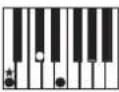 |
| A sus4 | 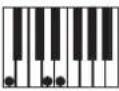 |
| A aug | 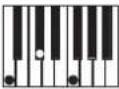 |
| A min | 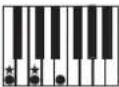 |
| A M7 | 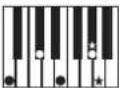 |
| A 6 | 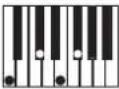 |
| A m7 | 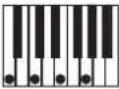 |
| A mM7 | 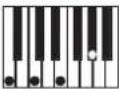 |
| A m6 | 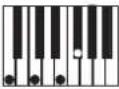 |
| A 7 | 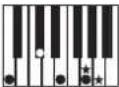 |
| A 7(5) | 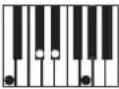 |
| A 7#5) | 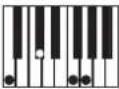 |
| A 7sus4 | 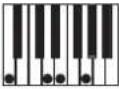 |
| A m7(15) | 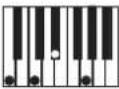 |
| A dim | 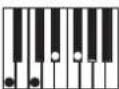 |
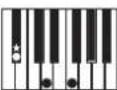
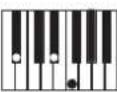
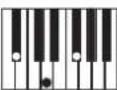
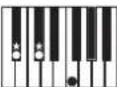
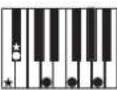
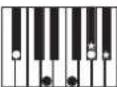
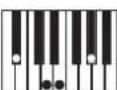
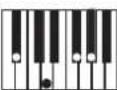
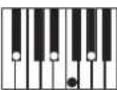
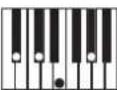
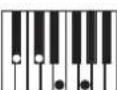
Rhythm Section Preset Chord Sequences
The table below lists Preset Chord sequences utilised by the ES8 digital piano's Rhythm Section when the 'ACC Mode' setting is set to 'Preset Chord'.
The Preset Chord sequences can last for 8, 12, or 16 bars, with the bar number and chord name written in the spaces below. If a chord name is not written, the previous chord will continued to be played. The more complicated chord names, such as 'F#m7(b5)', may appear in a simplified form when shown in the LCD display. If two chords are listed (e.g. 'D/C'), the first letter indicates the key of the chord, while the second letter indicates the key of the bass part.
| Preset Chord No. of bars | Chord pattern | ||||||||||||||||
| 1 (9) 2 (10) 3 (11) 4 (12) 5 (13) 6 (14) 7 (15) 8 (16) | |||||||||||||||||
| Chord1 8 CM7 | 0m7( | I-5I | BI-7 | Am7 | Gm7 | C7 | FM7 | Em7 | A7 | Dm7 | G7sus4 | G7 | |||||
| Chord2 | 12 | Fgm7(L,S) | B7 | Em7 A7 | F | fm7(L,S) | B7 | Em7 A7 | |||||||||
| Dm7 | G7sus4 | ||||||||||||||||
| Chord3 8 C | F | ||||||||||||||||
| Chord4 8 C7 | F7 | B | I-7 | G7 | C7 | ||||||||||||
| Chord5 8 C7 | A | I-7 | B-7 | C7 | AI-7 | G7 | |||||||||||
| Chord6 | 16 | Cm7 | G7sus4 | Cm7 | G7#5) | ||||||||||||
| E,M7 | D7#5) | G7sus4 | G7 | Cm7 | F7 | B μM7 G7( | #5) | ||||||||||
| Chord7 | 12 | CM7 | Am7 | Dm7 | G7sus4 | CM7 | Am7 | Dm7 | G7sus4 | CM7 | Am7 | Dm7 | G7sus4 | CM7 | Am7 | Dm7 | G7sus4 |
| Em7 | Am7 | Em7 | Am7 | Dm7 | G7sus4 | ||||||||||||
| Chord8 | 8 | CM7 | Dm7 | CM7 | Dm7 | G7 | Gm7 | C7 | FM7 | Fm7 | BI-7 CM7 | ||||||
| Chord9 8 C7 | B | I-7 | C7 | G7 | F7 | ||||||||||||
| Chord10 | 16 | C7 | E,P7 | F7 | C7 | ||||||||||||
| C7 | EI-7 | F7 | G7 | ||||||||||||||
| Chord11 | 8 | C7 | F7 | C7 | C7 | F7 | G7 | ||||||||||
| Chord12 | 8 | Cm7 | F7 | Cm7 | F7 | ||||||||||||
| Chord13 | 8 A | I-M7 | DI-M7 | Gm7 | C7 | AM7 | Gm7 | F #dim | G7#5) | ||||||||
| Chord14 | 8 A | I-7 | G7#5) | Cm7 F7 | A | I-7 | G7(#5) | F7 | |||||||||
| Chord15 | 8 C7 | E | I-7 | F7 | C7 | ||||||||||||
| Chord16 | 16 | A-M7 | Gm7 | A-M7 | Gm7 | C7sus4 | C7 | ||||||||||
| A-M7 | Gm7 | A-M7 | G7sus4 | G7 | |||||||||||||
| Chord17 | 8 | C | CM7 | C7 | FM7 | Fm7 | CM7 | F #m7(S) | G7sus4 | G7 | |||||||
| Chord18 | 8 | Cm7 | Dm7 | Gaug | Cm7 | Dm7 | Gaug | ||||||||||
| Chord19 | 16 | A,M7 | BI-7 | B,A17 | A7 | A,M7 | Gaug | Cm7 F7 | |||||||||
| A-M7 | BI-7 | Gm7 | C7 | AM7 | G7(#5) | F7 | |||||||||||
| Chord20 | 8 C | D/C | B | I-C | F/C | ||||||||||||
| Chord21 | 8 C | G | B | I- | F | A- | B- | Dm7 | G7 | ||||||||
| Chord22 | 8 CM7 G7( | #5) | B7 B | I-6 | A7 | A,M7 | Dm7 G7 CM7 | Am7 | Dm7 G7 | ||||||||
| Chord23 | 8 A | I-BL | CM7 A | I-8, | E_M7 | BM7 B | L7 | F/A | Dm7(L),M, | G7 G7( | #5) | ||||||
| Chord24 | 8 C7 | G7 | C7 | ||||||||||||||
| Chord25 | 8 | F7 | C7 | F7 | G7 | ||||||||||||
| Chord26 | 8 CM7 G7( | #5) | Gm7 C7 FM7 Fm7 | B | I-7 CM7 Am7 | D7 G7 | |||||||||||
| Chord27 | 8 C/sus4 | B | I-7sus4 | ||||||||||||||
| Chord28 | 16 | CM7 | C7 | CM7 | C7 | ||||||||||||
| F(m/L,S) | B7 | Em7 A7 | F | fm7(L,S) | B7 | Em7 | |||||||||||
| Chord29 | 8 | Cm | CmM7 | Cm7 | Am7(-S) | A-M7 | G7(#5) | Cm | CmM7 | Cm7 | Am7(-S) | A-M7 | G7#5) | ||||
| Chord30 | 16 | Fm7 | B-7 | B-M7 | A-M7 | Dm7(-S) | G7(#5) | Gm7(S) | C7 | ||||||||
| Fm7 | B-7 | B-M7 | A-M7 | Dm7(-S) | G7(#5) | Cm7 | |||||||||||
| Chord31 | 8 | C | Dm | G | F | C | A7 | Dm | G | F | C | ||||||
| Chord32 | 8 | C | G7 | Am | Am7/G | F | D7 | G7 | |||||||||
| Chord33 | 8 | C | G7 | F | D7 | G7 | Am | ||||||||||
| Chord34 | 16 | C7 | F7 | C7 | F7 | ||||||||||||
| G7 | F7 | G7 | F7 | C7 | |||||||||||||
| Chord35 | 8 C | A | I-M7 | B, | Gm7 | C | A,M7 | B L, | Gm7 | ||||||||
| Chord36 | 8 A | I-M7 | EI-M7 | AM7 | E I-M7 | D7 D | I-M7 | ||||||||||
| Chord37 | 16 | C | Em7 | Fm7 | C | Em7 | Fm7 | C | |||||||||
| Am7 | Em7 | Am7 | G7 | Am7 | Em7 | G/sus4 | G7 | ||||||||||
| Chord38 | 8 | Em7 | Dm7 | Em7 | Dm7 | ||||||||||||
| Chord39 | 8 C7 | B | I-7sus4 | ||||||||||||||
| Chord40 | 8 C7 | B | μm7 | B,P,7 | C7 | Bμm7 | D,P,7 | ||||||||||
| Chord41 | 8 C7 | B | I-/C | Av/B+ | B+ | C7 | B-/C | A/I/3+ | B+ | ||||||||
| Chord42 | 8 | C7 | Cm7 | Gm7/C | F/C | A-/C | Gsu4/C | ||||||||||
| Chord43 | 8 C7 | E | I-7 | D7 | F7 | E7 | A7 | ||||||||||
| Chord44 | 12 | FM7 | Bm7/L1 | Em7 | E μM7 | ||||||||||||
| Dm7 | G7 | C6 | |||||||||||||||
| Chord45 | 8 | C | Am | F | C | G | C | Am | F | G7 | |||||||
| Chord46 | 8 | Em7 | Am7 | Dm7 | G7 | Em7 | A7 | Dm7 | G7 | ||||||||
| Chord47 | 8 | FM7 | Em7 | FM7 | Am7 | Fm7 | B-P | EI-M2 | AI-M2 | Dm7 | G7sus4 | ||||||
| Chord48 | 8 | FM7 | Em7 | FM7 | Em7 | C7sus4 | FM7 | Em7 | FM7 | E7 | Dm7 | G7sus4 | |||||
| Chord49 B CM7 FM7 CM7 F7 Bm7 E7 AM7 GM7 FM7 Gm7us4 | |||||||||||||||||
| Chord50 8 A | I-M7 Gm7 B | I-m7 | A-M7 | A-7 | D-M7 | Cm7 Dm71 | (-5) | G7 | |||||||||
| Chord51 8 C | G/B | Gm/B | > | F/A | A-6 | C/G | Fm7(-6) | G7 | |||||||||
| Chord52 8 F | F | #dim | C/G | E7/Cg | Am7 | D7 | Dm7 | G7+us4 | G7 | ||||||||
| Chord53 8 CM7 B | I,M7 CM7 B | JM7 | Am7 | D7 | Dm7 | G7 | G7(5) | ||||||||||
| Chord54 8 F | #m7(-5) | F7 | Em7 A7 | A/1 | #5) | Dm7/G7 | G7) | #5) | CM7 | Gm7 | C7 | ||||||
| Chord55 | 8 | FM7 | FmM7 | Em7 | E7 | Am7 | Dm7 | G7+us4 | CM7 | ||||||||
| Chord56 8 CM7 FM7 Bm7 | #1 | E7 | Am7 | C7 | FM7 | Em7 | Am7 | Dm7 | G7+us4 | G7 | |||||||
| Chord57 8 C | Q/B | F/A C/G F | C/E D7/F | # | G7 | C | G/8 | F/A C/G D7/F | # | D7 | G7+us4 | G7 | |||||
| Chord58 | 8 | CM7 | FM7 | Dm7 | G7+us4 | G7 | FM7 | G7 | Em7 | Am7 | Dm7 | G7+us4 | G7 | ||||
| Chord59 8 FM7 CM7 FM7 C7 Em7 | (-5) | A7 | Dm7 | Fm7 | G7+us4 | G7 | |||||||||||
| Chord60 | 8 | C | F | C | F | Am | Dm | G | |||||||||
| Chord61 | 8 | C | F | C | F | G | Am | F | G | C | |||||||
| Chord62 | 8 | C | Am | Dm | G | C | Am | Dm | G | Em | Am | Dm | G7 | Em | Am | Dm | G7 |
| Chord63 | 8 | Cm7 | Gm7 | Cm7 | Gm7 | Cm7 | Gm7 | Cm7 | Gm7 | Fm7 | G7 | A,-7 | G7 | ||||
| Chord64 | 8 | C | CM7 | C7 | F | Dm7 | Am7 | D7 | G7 | ||||||||
| Chord65 | 16 | Cm7 | F7 | Cm7 | F7 | ||||||||||||
| Fm7 | B-7 | Cm7 | C? | Fm7 | F#dim | G7(##5) | |||||||||||
| Chord66 | 8 | C | Am | Dm | G | C | |||||||||||
| Chord67 | 16 | Am7 | D7 | G7+us4 | C | Am7 | D7 | G7+us4 | C | ||||||||
| Fm7 | E? | Am7 | D? | G7+us4 | C | ||||||||||||
| Chord68 | 16 | C7 | F7 | ||||||||||||||
| C7 | G? | F? | |||||||||||||||
| Chord69 8 Cm7 | B | L7+us4 | |||||||||||||||
| Chord70 8 Dm7 | E | L7+us4 | Dm7 | L7+us4 | E,sus4 | ||||||||||||
| Chord71 8 C7 | F7 | B | L-7 | G7 | C7 | F7 | |||||||||||
| Chord72 8 C7 | E | L-7 | B- | F | C | G7 | |||||||||||
| Chord73 | 12 | C | F | C | G | F | |||||||||||
| C | F | C | F | ||||||||||||||
| Chord74 8 Cm | B | > | A,-7 | Cm | D,-7 | ||||||||||||
| Chord75 | 16 | C | F7 | C | B- | C | |||||||||||
| G7 | C7 | G7 | C7 | ||||||||||||||
| Chord76 8 C7 | B | L-7 | C? | B-? | F? | ||||||||||||
| Chord77 | 8 | C | G7 | C7 | F7 | C | F | G7 | C | F | C | G7 | |||||
| Chord78 | 16 | C | CM7 | C? | F | ||||||||||||
| Dm7 G7 | Em7 Am7 Dm7 G7 | C | |||||||||||||||
| Chord79 | 8 | C7 | F7 | C7 | F7 | D? | G7 | D? | G7 | ||||||||
| Chord80 | 16 | C | G7 | C | G7 | C | |||||||||||
| F | C | G7 | C | C? | F | C | D? | G7 | |||||||||
| Chord81 | 16 | C | C7 | F | C | G? | |||||||||||
| C | C7 | F | C | G7 | C | ||||||||||||
| Chord82 | 8 | C7 | F7 | C7 | F? | Dm7 | G? | F? | |||||||||
| Chord83 8 C | E | L- | D | F | A- | G | |||||||||||
| Chord84 8 C7+us4 | C7 | CTaus4 | B | L7+us4 | B-7 | B-7+us4 | A-7+us4 | A-7 | A-7+us4 | G7+us4 | G7 | G7+us4 | |||||
| Chord85 8 C | G | F | B | > | C | G | |||||||||||
| Chord86 | 12 | C6 | C7 | F? | C6 | ||||||||||||
| G? | F? | C6 | |||||||||||||||
| Chord87 | 8 | C | G | Em7 | Am7 | Dm7 | D? | G? | C | G | Em7 | A? | Dm7 | G? | C | ||
| Chord88 | 16 | C | CM7 | C? | F | Fm6 | Em7 | A? | Dm7 | G? | |||||||
| C | CM7 | C? | F | Fm6 | Em7 | A? | Dm7 | G? | C | Fm6 | C | ||||||
| Chord89 | 16 | F | G? | Em7 | Am7 | Dm7 | G? | C | CM7 | C? | |||||||
| F | Fm6 | Em7 | A? | D7+us4 | D? | G7+us4 | G? | ||||||||||
| Chord90 | 8 | C | F | C | G? | C | F | C | G? | C | |||||||
| Chord91 | 16 | C | G | B- | Am | ||||||||||||
| F | C | D? | G? | ||||||||||||||
| Chord92 | 12 | C9 | F13 | C9 | F13 | C9 | A7(-13) | ||||||||||
| Dm9 G13 | C9 | A?1 | (+13) | Dm9 | G13 | ||||||||||||
| Chord93 | 16 | C | CM7 | C? | FM7 | Dm | DmM7 | Dm7 | G? | ||||||||
| C | CM7 Em7! | S1 | A? | Dm7 | Fm7 | Em7 | A? | Dm7 | G? | ||||||||
| Chord94 | 16 | Fm7 | B-7 | E-M7 | E-6 | B-m7 | A-? | D-M7 | D-6 | ||||||||
| Gm7 | F-? | Bm7 | E? | Am7 | D? | Dm7 | G? | ||||||||||
| Chord95 | 16 | Cm7 | Fm7B | L-? | E,M7 | A? | A,M7 Dm? | L-? | G? | G?(5) | Cn7 | C? | |||||
| Fm7 | B-? | Gm7 C? | #5) | Fm7B | L-? | E-6 | G? | G7(5) | |||||||||
| Chord96 8 Cm7 | |||||||||||||||||
| Chord97 8 A | I-m7 | D-? | GM7 | CM7 | A-m7 | D-? | G-M7 | Fm7B | L-? | B-M7 | A-/-M7 Fm7 | B | L-? | G? | G7(5) | ||
| Chord98 | 16 | Cm7 Cdlm | B | I-M7 Cm7 Cdlm | B | -A-M7 Gm7 C? | #5) | Fm7 Fm71 | L-5) | ||||||||
| E,M7 | Dm7 | D,M7 Cm7 E | L-M7 | Dm7 | Dm7 | D,M7 Cm7 G? | G? | ±5) | Cm6 | Cm7 | |||||||
| Chord99 | 16 | C | D? | Dm7 | G? | C | D? | Dm7 | G? | C | |||||||
| C | CM7 | C? | F | Fm | C | A? | D? | Dm7 | G? | C | |||||||
| Chord100 | 16 | Cm | G? | Cm | G? | Cm | |||||||||||
| Fm | Cm | G? | Cm | Cm | D? | G? | |||||||||||
The tables below list all of the settings/functions that can be adjusted from the ES8 digital piano's panel interface, in addition to available ranges/types, default settings, and Registration/Startup Setting storing capabilities.
No. Setting Name Range / Type Default Setting Registration Startup Setting
- Basic Settings
| 1-1 Tone Control Off, Brilliance, Loudness, Bass Boost, Treble Boost, Mid Cut, User Off | ● | ● | |||
| Brilliance -10 - +10 0 | ● | ● | |||
| User Low -6 dB - +6dB 0 dB | ● | ● | |||
| User Mid Low -6 dB - +6dB 0 dB | ● | ● | |||
| User Mid High | -6 dB - +6dB 0 dB | ● | ● | ||
| User High -6 dB - +6dB 0 dB | ● | ● | |||
| 1-2 | Wall EQ | Off, On | Off | - | ● |
| 1-3 Speaker Volume | Normal, Low Normal | - | ● | ||
| 1-4 Phones Volume | Normal, High | Normal | - | ● | |
| 1-5 Line Out Volume | 0 - 10 | 10 | - | ● | |
| 1-6 | Audio Rec. Gain | 0 dB - +15 dB | +9 dB | - | ● |
| 1-7 Tuning | 427.0 Hz - 453.0 Hz | 440.0 Hz | ● | ● | |
| 1-8 Damper Hold | Preset, On, Off | Preset | ● | ● | |
| 1-9 | F-20 Mode | Damper/Soft, Sostenuto/Soft, Damper/Soste. | Damper/Soft | ● | ● |
| 1-10 Four Hands | Off, On | Off | ● | ● | |
| 1-11 Startup Setting | - | -- | - | ||
| 1-12 Factory Reset | - | -- | - | ||
- Virtual Technician
| 2-1 | Touch Curve | Light+, Light, Normal, Heavy, Heavy+ Off, User1/2 | Normal | ● | ● |
| 2-2 | Voicing | Normal, Mellow 1, Mellow 2, Dynamic, Bright 1, Bright 2, User 1~4 | Normal | ● | ● |
| 2-3 Damper Resonance | Off, 1 - 10 | 5 | ● | ● | |
| 2-4 Damper Noise | Off, 1 - 10 | 5 | ● | ● | |
| 2-5 String Resonance | Off, 1 - 10 | 5 | ● | ● | |
| 2-6 Key-off Effect | Off, 1 - 10 | 5 | ● | ● | |
| 2-7 Fall-back Noise | Off, 1 - 10 | 5 | ● | ● | |
| 2-8 Hammer Delay | Off, 1 - 10 | Off | ● | ● | |
| 2-9 | Topboard | Close, Open1,Open2,Open3 | Open3 | ● | ● |
| 2-10 Decay Time | 1 - 10 | 5 | ● | ● | |
| 2-11 Minimum Touch | 1 - 20 | 1 | ● | ● | |
| 2-12 Temperamanet | Equal, Pure Major, Pure minor, Pythagorean, Meantone, Werkmeister, Kirnberger, User | Equal | ● | ● | |
| Stretch Tuning | Piano Only, Off, On | Piano Only | ● | ● | |
| Stretch Curve Normal,Wide, User1/2/3/4 | Normal | ● | ● | ||
| Temperament Key | C - B | C | ● | ● | |
| User Temperament | -50 - +50 for each note C - B | 0 | ● | ● | |
| 2-13 User Key Volume | Off, User1/2/3/4 | Off | ● | ● | |
| 2-14 Half Pedal Adjust | 1 - 10 | 5 | ● | ● | |
| 2-15 Soft Pedal Depth | 1 - 10 | 3 | ● | ● | |
- Key Settings
| 3-1 Lower Octave Shift | 0 +3 | 0 | ● | ● | |
| 3-2 Lower Pedal On/Off | Off, On | Off | ● | ● | |
| 3-3 Split Balance 1:9 - 9:9 - 9:1 | 9:9 | ● | ● | ||
| 3-4 Layer Octave Shift | -2 - +2 | 0 | ● | ● | |
| 3-5 Layer Dynamics | Off, 1 - 10 | 10 | ● | ● | |
| 3-6 Dual Balance 1:9 - 9:9 - 9:1 | 9:9 | ● | ● |
No. Setting Name Range / Type Default Setting Registration Startup Setting
- Rhythm Settings
| 4-1 Rhythm Volume 1 - 10 5 | ● | ● | ||
| 4-2 Auto Fill-in Off, 4, 8, 12, 16 8 | ● | ● | ||
| 4-3 One Finger Ad-lib Off, On Off | ● | ● | ||
| 4-4 ACC Mode Normal, 1 Finger Chord, Preset Chord | Normal | ● | ● | |
| Bass Inv. | Off, On Off | ● | ● | |
| Preset Chord | Chord 1 - Chord 100 | Style's default | ● | ● |
- MIDI Settings
| 5-1 MIDI Channel | 1 | 16 1 | ● | ● | |
| 5-2 Send Program Change Number | - | 1 | ● | ● | |
| 5-3 Local Control | Off, On On | ● | ● | ||
| 5-4 Transmit Program Change Number | Off, On Off | ● | ● | ||
| 5-5 Multi Timbral Mode | Off, On1, On2 | Off | ● | ● | |
| Channel Mute | Play, Mute for each channel 1 - 16 | All Play | ● | ● | |
- Power Settings
| 6-1 | Auto Power Off | Off, 30 min., 60 min., 120 min. | Off / 30min.* | - | ●** |
* Depend on the destination.
** Auto Power Off setting is stored to Startup Setting automatically.
Setting Name Range / Type Default Setting Registration Startup Setting
| Transpose | ||||
| Key Transpose On/Off (button) | Off, On Off | ● | ● | |
| Key Transpose Value -12 (C) - +12 (C) 0 | ● | ● | ||
| Song Transpose Value -12 (C) - +12 (C) 0 -- | ||||
Split
| Split On/Off (button) | Off, On Off | ● | ● | |
| Split Point A0 - C8 G3 | ● | ● |
Rhythm Section
| Rhythm Section On/Off (button) | Off, On Off | ● | ● | |
| Rhythm Please refer to page 140. FnkShuffle1 | ● | ● | ||
| Part | All, B+Dr, Drum | All | ● | ● |
| ACC Mode | Normal, 1 Finger Chord, Preset Chord | Normal | ● | ● |
Metronome Menu
| Metronome On/Off (button) | Off, On Off -- | |||
| Tempo | 10 - 400 BPM 120 BPM | ● | ● | |
| Beat | 1/4, 2/4, 3/4, 4/4, 5/4, 3/8, 6/8, 7/8, 9/8, 12/8 | 5/5 | ● | ● |
| Volume | 0 - 10 | 5 | ● | ● |
Internal Recorder : Playback Mode Menu
| Tempo (main screen) | 10 - 400 BPM 120 BPM | -- | |||
| Song Volume | 1 - 100 | 100 | -- | ||
| Song Transpose | -12 (C) - +12 (C) | 0 (C) | - | - | |
| Song Part | 1, 2, 1&2 | 1&2 | -- |
USB Recorder : SMF Playback Mode Menu
| Volume (main screen) | 1 - 100 | 100 | -- | |
| Song Tempo | 10 - 400 BPM 120 BPM -- | |||
| Song Transpose | -12 (C) - +12 (C) | 0 (C) | - | - |
| Minus One Part | Off, 1 - 16 | Off | - | - |
Reverb Menu
| Reverb On/Off (button) | Off, On Off | ● | ● | |
| Reverb Type | Room, Lounge, Small Hall, Concert Hall, Live Hall, Cathedral | Sound's default | ● | ● |
| Reverb Depth | 1 - 10 | 5 | ● | ● |
| Reverb Time | 1 - 10 | 5 | ● | ● |
Effects Menu
| Effects On/Off (button) | Off, On Off | ● | ● | |
| Effect Type | Stereo Delay, Ping Delay, Triple Delay, Chorus, Classic Chorus, Tremolo, Classic Tremolo, Auto Pan, Classic Auto Pan, Phaser, Rotary, Chorus+Chorus, Chorus+Tremolo, Phaser+Pan, Phaser+Chorus | Sound's default | ● | ● |
| Effect Parameter 1 | Dependent on type* | Effect's default | ● | ● |
| Effect Parameter 2 | Dependent on type* | Effect's default | ● | ● |
| Effect Parameter 3 (dependent on type) | Dependent on type* | Effect's default | ● | ● |
| Effect Parameter 4 (dependent on type) | Dependent on type* | Effect's default | ● | ● |
* Please refer to page 27 for more information about Effects parameters.
Amp Simulator Menu
| Amp Sim On/Off (button) | Off, On Off | ● | ● | |
| Amp Type | S.Case I, S.Case II, L.Cabinet | Sound's default | ● | ● |
| Drive | 1 - 10 | 5 | ● | ● |
| Level | 1 - 10 | 5 | ● | ● |
| EQ High | -6 dB - +6dB | 0 dB | ● | ● |
| EQ Low | -6 dB - +6dB | 0 dB | ● | ● |
| Keyboard 88 weighted keys with Ivory Touch key surfacesResponsive Hammer III (RHIII) action with Let-Off | |
| Sound Source Harmonic Imaging XLTM (HI-XL), 88-key piano sampling | |
| Internal Sounds 34 voices PIANO1: | SK ConcertGrand, EX ConcertGrand, Jazz Clean, Warm Grand, Pop GrandPIANO2: SK-5 GrandPiano, Upright Piano, Pop Grand 2, Modern Piano, Rock PianoE.PIANO: Classic E.P., 60's E.Piano, Modern E.P., Classic E.P.2ORGAN: Drawbar Organ, Jazz Organ, Principal Oct., Church OrganHARPSI / MALLETS: Harpsichord, Vibraphone, Clavi, MarimbaSTRINGS / CHOIR: Slow Strings, String Pad, Warm Strings, String Ensemble,Choir Ooh/Aah, Choir Aah, New Age Pad, AtmosphereBASS: Wood Bass, Electric Bass, Fretless Bass, W. Bass & Ride |
| Polyphony max. 256 notes | |
| Keyboard Modes Dual Mode, Split Mode, Four Hands Mode (Volume/Balance adjustable) | |
| Reverb Type: Room, Lounge, Small Hall, Concert Hall, Live Hall, Cathedral | |
| Parameters: Reverb Depth, Reverb Time | |
| Effects | Type: Stereo Delay, Ping Delay, Triple Delay, Chorus, Classic Chorus, Tremolo, Classic Tremolo, Auto Pan, Classic Auto Pan, Phaser, Rotary. Combination effects x 4 |
| Parameters: Dry/Wet, Time, Speed, Feedback, HighDamp, Depth. Parameters dependent on effect type. | |
| Amp Simulator Type: S.Case I, S.Case II, L.Cabinet | |
| Virtual Technician | Parameters: Drive, Level, EQ Low, EQ High |
| Touch Curve: Light+, Light, Normal, Heavy, Heavy+, Off (Constant), User 1, User 2 | |
| Voicing: Normal, Mellow 1, Mellow 2, Dynamic, Bright 1, Bright 2, User1~4 | |
| Resonance, Noise & Effects: Damper Resonance, Damper Noise, String Resonance, Key-off Effect, Fall-back Noise, Hammer Delay, Topboard, Decay Time, Soft Pedal Depth | |
| Temperament: Equal, Pure Major, Pure minor, Pythagorean, Meantone, Werckmeister, Kirnberger,User Temperament, Key of Temperament | |
| Others: Stretch Tuning, Stretch Curve/User Tuning, User Key Volume, Half-Pedal Adjust, Minimum Touch | |
| Internal Recorder 10 song, 2 track recorder - approximately 90,000 note memory capacity | |
| USB Functions Playback: MP3, WAV, SMF | |
| Record: MP3, WAV | |
| Other: Over Dubbing, Convert Song to Audio, Load Internal Song, Save Internal Song, Save SMF Song, Load Registration, Save Registration, Rename File, Delete File, Format USB | |
| Metronome 1/4, 2/4, 3/4, 4/4, 5/4, 3/8, 6/8, 7/8, 9/8, 12/8 (Volume/Tempo adjustable) | |
| Rhythm Section | Styles: 100 rhythms (x 2 variations), 4-part accompaniment, 100 preset chord sequences |
| Settings: Rhythm Volume, Auto Fill-in, One Finger Ad-lib, ACC Mode, Preset Chord, Rhythm Parts Select | |
| Demo Songs Main demo song, Rhythm Section demo song, 27 sound demo songs | |
| Other Functions Key/Song Transpose, Tone Control (incl. Brilliance, UserEQ), Wall EQ, Speaker Volume, Phones Volume, Line Out Volume, Audio Recorder Gain, Tuning, Damper Hold, F-20 Mode, Four Hands, Startup Setting, Factory Reset, Lower Octave Shift, Lower Pedal On/Off, Split Balance, Layer Octave Shift, Layer Dynamics, Dual Balance, MIDI Channel, Send PGM#, Local Control, Transmit PGM#, Multi-timbral Mode, Channel Mute, Auto Power Off, Speakers On/Off | |
| Display 16 x 2 characters LCD | |
| Jacks MIDI (IN/OUT), USB to Host, USB to Device, LINE IN STEREO, LINE OUT (L/MONO, R), DAMPER (for F-10H), DAMPER/SOFT (for F-20), PEDAL (for F-301), Headphones x 2 | |
| Speaker System Speakers: (8 x 12 cm) x 2 | |
| Output Power: 15 W x 2 | |
| Power Consumption 35 W | |
| Dimensions 1362 (W) x 361 (D) x 149 (H) mm / 54" (W) x 14 1⁄2" (D) x 6" (H) | |
| Weight 22.5 kg / 49.6 lbs. | |
MIDI Exclusive Data Format
1st byte 2nd byte 3rd byte 4th byte 5th byte 6th byte 7th byte 8th byte 9th byte 10th byte
12345678910
| Byte ID Description | |
| 1 F0 Start code | |
| 2 40 Kawai ID number | |
| 3 00 - 0F MIDI channel | |
| 4 10, 30 Function code (30 when setting Multi-timbre On/Off) | |
| 5 04 Indicates that the instrument is an electric piano | |
| 6 0C Indicates that the piano is a ES8 model | |
| 7 data 1 | See table below |
| 8 data 2 | |
| 9 data 3 | |
| 10 F7 End code |
| data 1 | data 2 | data 3 | Function |
| 00 | 00 | - | Multi-timbre Off |
| 01 | 00 | - | Multi-timbre On 1 |
| 02 | 00 | - | Multi-timbre On 2 |
| 0F | 00 - 7F | - | Split Point: A0 - C8 |
| 14 | 00 - 7F | - | Dual/Split balance |
| 16 | 1F - 60 | - | Tune, 40: 440 Hz |
| 17 | 00, 7F | - | 00: Program Change Off, 7F: Program Chage On |
| 18 | 00 - 07 - | 00: Light, 01: Normal, 02: Heavy, 03: Off, 04: Light +, 05: Heavy +, 06: User1, 07: User2 | |
| 19 | 00 - 03 - | Lower Octave Shift | |
| 20 | 00 - 21 | 00 - 21 | Dual, data 2: Right sound, data 3: Left sound |
| 21 | 00 - 21 | 00 - 21 | Split, data 2: Upper sound, data 3: Lower sound |
| 22 | 00 - 21 | 00 - 21 | Four Hands, data2: Upper sound, data3: Lower sound |
| 25 | 00 - 08 | 00 - 0B | data2: Temperament00: Equal(Stretch Of f), 01: Pure Major, 02: Pythagorean, 03:Meantone, 04: Werkmeister, 05: Kirnberger, 06: Equal(Stretch On), 07: Pure Minor, 08: Equal(Piano Only), 09:User, data3: Key |
| 26 | 00, 7F | 00 - 0F | Multi-timbre, data 2: 00 (Mute), 7F (Play), data 3: Channel |
Kawai ES8 digital piano
Date: March 2015 Version: 1.0
| Function Transmit Receive Remarks | ||||
| Basic channel | At power-up 1 1Settable 1 - 16 1 - 16 | |||
| Mode | At power-up Mode 3 Mode 1MessageAlternative | ×********** | Mode 1, 3× | * The default for the OMNI mode is On.Specifying MIDI channels automatically turns it Off. |
| Note number | Range | 9 - 120** 0 - 127********** | 0 - 127 | ** The value depends on the Transpose setting. |
| Velocity | Note onNote off | ○○ | ○○ | |
| After touch | Key specificChannel specific | ×× | ×× | |
| Pitch bend | × | × | ||
| Control change | 0, 3271011646667 | ○×××○○*2○*3 | ○○○○○○○○ | Bank Select *1VolumePanpotExpression PedalSustain PedalSostenuto PedalSoft Pedal |
| Program change | True | ○ 0-127********** | ○ | *1 |
| Exclusive | ○ | ○ | On/Off Selectable | |
| Common | Song positionSong selectionTune | ××× | ××× | |
| Real time | ClockCommands | ×× | ×× | |
| Other functions | Local On / OffAll notes OffActive sensingReset | ××× | ○○(123 - 127)○× | |
| *1 Please refer to the Program Change Number List on page 137.*2 Applicable only when the optional F-301 triple pedal unit is connected.*3 Applicable only when the optional F-20 double pedal unit or F-301 triple pedal unit is connected. | ||||
Mode 1: omni mode On, Poly
Mode 2: omni mode On, Mono
○: Yes
Mode 3: omni mode Off, Poly
Mode 4: omni mode Off, Mono
×: No
Owner's Manual Conventions
This owner's manual utilises a number of illustrative conventions in order to explain the ES8's various functions. The examples below provide an overview of the button LED indicator states and press types, and the appearance of difference kinds of text.
■ Button LED indicator states
PIANO 1

LED indicator off:
Sound/Function is not selected.
PIANO 1

LED indicator on:
Sound/Function is selected.
PIANO 1

LED indicator flashing:
Sound/Function is selected in a temporary state.
■ Button press types
PIANO 1

Normal press:
Select a sound or function.
PIANO 1

Press twice:
Select a sound or function.
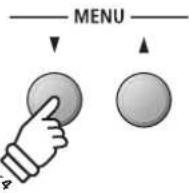
Press multiple times:
Cycle through sounds or settings.
EFFECTS REVERB
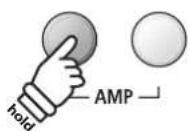
Press and hold:
Select a function's settings.
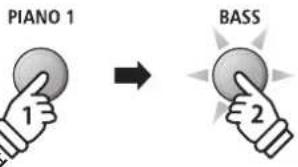
Press and hold, then press X:
Combine two sounds, or store registration memories etc.
■ Text appearance
Normal instruction and explanation text is written in regular type at 9 pt. size.
* Notes about functions are marked with an asterisk and written in 8 pt. size.
Reminders about previous operations are written in italic type at 9 pt. size.
LCD display text looks like this.
- Captions explaining the LCD display or button functions, are written in bold type at 8.5 pt. size.
Example operations are written in italic type at 8 pt. size, and enclosed within a grey box.
User Notes
KAWAI
THE FUTURE OF THE PIANO