
SB521A - Soundbar DELL - Free user manual and instructions
Find the device manual for free SB521A DELL in PDF.


| Product Type | Soundbar |
| Brand | Dell |
| Model | SB521A |
| Connection Type | USB (USB 2.0 / USB 3.0) |
| Compatible Operating Systems | Windows 7, Windows 8, Windows 10, Chrome, Mac, Linux, ThinOS |
| Power Supply | 5V DC via USB |
| Output Power (USB 2.0) | ≥ 1 W × 2 at THD ≤ 1% |
| Output Power (USB 3.0) | ≥ 1.8 W × 2 at THD ≤ 1% |
| Dimensions (H × L × W) | 24.20 × 298.21 × 17.50 mm (0.95 × 11.74 × 0.69 in) |
| Weight | 0.114 kg (0.25 lb) |
| Operating Temperature | 0°C to 40°C (32°F to 104°F) |
| Storage Temperature | -40°C to 65°C (-40°F to 149°F) |
| Operating / Storage Humidity | ≤ 90% RH (non-condensing) |
| Mounting | Magnetic tabs attach to compatible Dell monitors |
| Security | Security loop for optional cable lock |
| Indicators | White power LED |
| Cable Length | Integrated USB cable (approx. 1 m) |
| Warranty | 3-year limited hardware warranty (varies by region) |
| Maintenance | Clean with a soft dry cloth; avoid liquids |
| Reparability | Not user-serviceable; contact Dell support |
Frequently Asked Questions - SB521A DELL
User questions about SB521A DELL
0 question about this device. Answer the ones you know or ask your own.
Ask a new question about this device
Download the instructions for your Soundbar in PDF format for free! Find your manual SB521A - DELL and take your electronic device back in hand. On this page are published all the documents necessary for the use of your device. SB521A by DELL.
USER MANUAL SB521A DELL
Dell Slim Soundbar SB521A
User's Guide
NOTE: A NOTE indicates important information that helps you make better use of your computer.
△ CAUTION: A CAUTION indicates potential damage to hardware or loss of data if instructions are not followed.
⚠ WARNING: A WARNING indicates a potential for property damage, personal injury, or death.
Copyright © 2020 Dell Inc. or its subsidiaries. All rights reserved. Dell, EMC, and other trademarks are trademarks of Dell Inc. or its subsidiaries. Other trademarks may be trademarks of their respective owners.
2020 - 08
Rev. A00
Contents
What's in the box 4
Features 5
Setting up your Dell Slim Soundbar 6
Specifications 8
Troubleshooting 9
Statutory information 13
Warranty 13
What's in the box
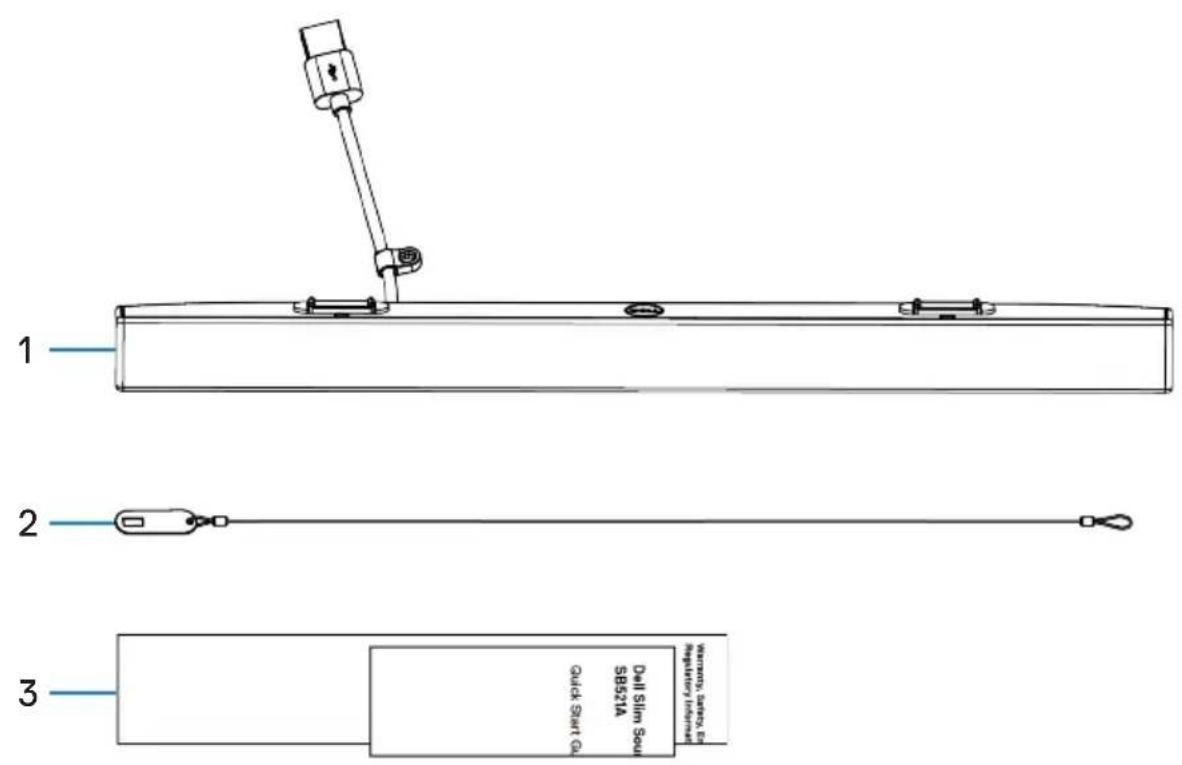
2 Security chain 3 Documents
1 Dell Slim Soundbar

NOTE: The documents shipped with the soundbar may vary based on your region.
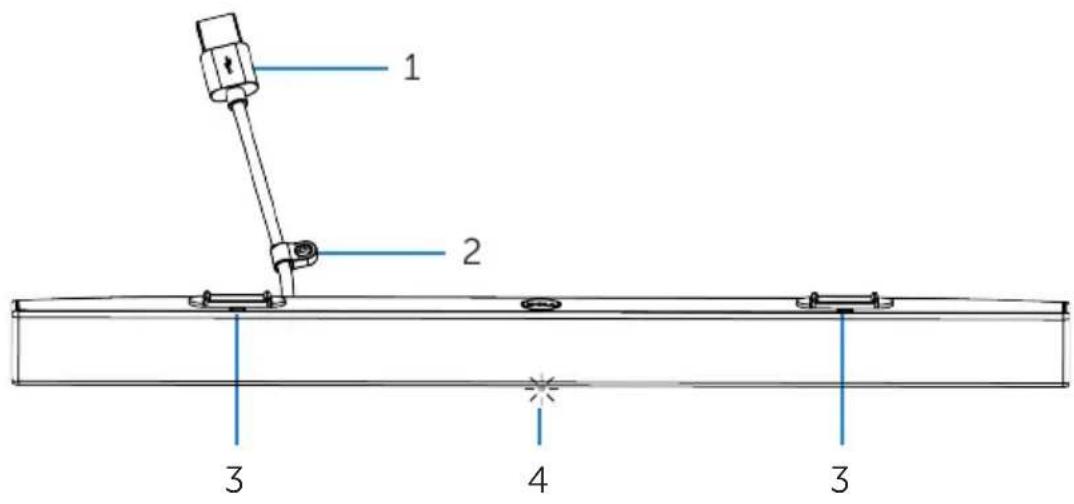
1 USB cable
2 Security loop
3 Magnetic tabs (2)
4 Power indicator
Setting up your Dell Slim Soundbar
- Align the magnetic tabs on the soundbar with the slots on the Dell monitor to secure the soundbar to the monitor's base.
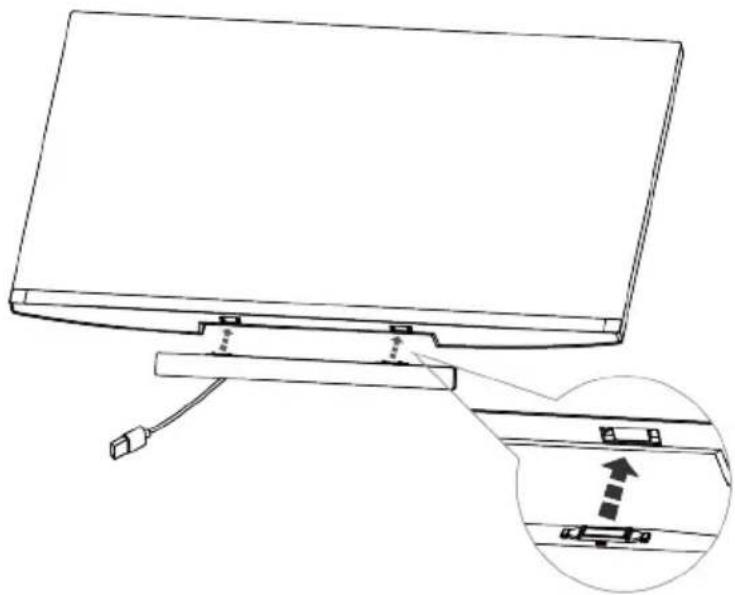
natural_image
Line drawing of a flat-screen monitor with cable and connector, showing an inset close-up of the internal structure (no text or symbols)- Connect the USB cable of the soundbar to the USB port of the Dell monitor. In cases where you connect your monitor using HDMI or DP cable, ensure to connect the upstream USB cable that comes with your monitor to your computer for the soundbar to work.

NOTE: The power indicator on the soundbar turns on indicating that the soundbar is turned on.
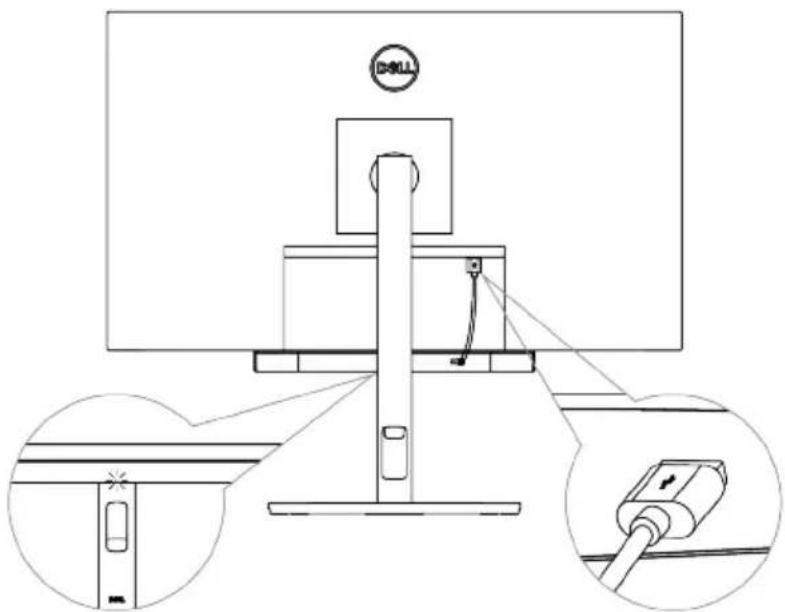

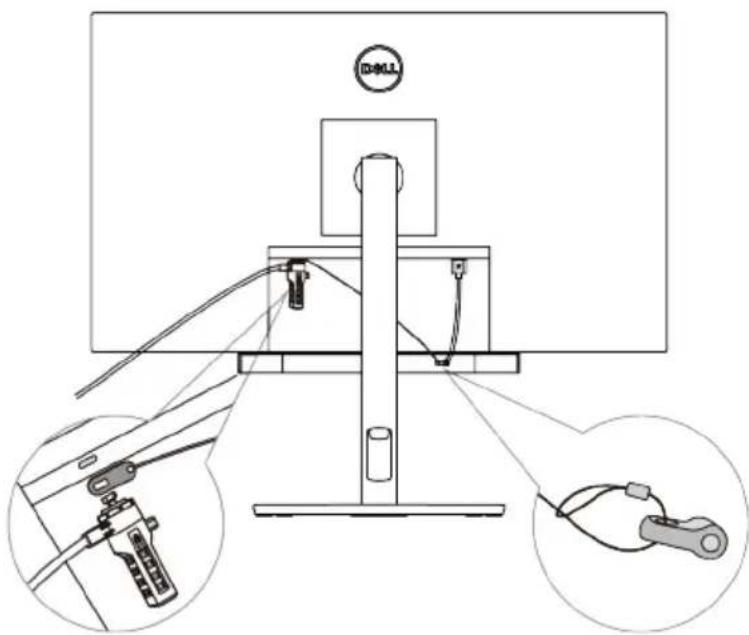
- Install the security chain and security lock, if required.
General
Model number
SB521A
Connection type
USB
Supported operating systems
- Windows 7
- Windows 8
- Windows 10
- Chrome
• Mac - Linux
- ThinOS
Electrical
Operating voltage 5 V
Audio input USB Digital Audio Input
Output power
• USB 2.0: ≥ 1 W × 2 at THD ≤ 1%
• USB 3.0: ≥ 1.8 W × 2 at THD ≤ 1%
where THD refers to Total Harmonic Distortion
Physical
Height (including magnetic tabs)
24.20±0.5 mm (0.95±0.02 in.)
Length
298.21±0.5 mm (11.74±0.02 in.)
Width
17.50±0.5 mm (0.69±0.02 in.)
Weight
0.114±0.005 kg (0.25±0.01 lb)
Environmental
Operating temperature
0°C to 40°C (0°F to 104°F)
Storage temperature
-40°C to 65°C (-40°F to 149°F)
Operating humidity
90% maximum relative humidity, non-condensing
Storage humidity
90% maximum relative humidity, non-condensing
Troubleshooting
Problems
Possible causes
Possible solutions
Soundbar is not functioning properly
Soundbar is not detected or synchronized
- Ensure that the USB upstream cable is connected between your computer and monitor to activate the USB ports of the Dell monitor. This additional USB upstream cable connection is required if your Dell monitor and computer are connected through an HDMI or DisplayPort cable.
- Once the USB cable is connected to the USB port, observe if white light appears in the power indicator located at the bottom of the soundbar.
- If the power indicator is not turned on, check if the USB cable is connected properly to the USB port.
- If power indicator is turned on and the soundbar does not function, remove or disconnect the soundbar from the USB port and restart the computer.
- Connect the soundbar again and check if the power indicator turns on.
- If the soundbar still fails to connect, check if the soundbar is present in the Device Manager.
- Test the USB port by connecting a working USB device.
- If the USB port is still not working, swap the soundbar with another working USB speaker or USB device such as keyboard, or

connect the sour
monitor. If the USB device is not working on the same port, or the original soundbar works properly on another monitor, the USB port on the former monitor might be defective.
No sound even though the power indicator is on
Volume might be low or Dell Slim Soundbar SB521A might not be set as the default playback device.
- Ensure that the soundbar is the default playback device of the monitor.
- Try connecting the soundbar USB cable to different USB ports.
- Ensure that a music file is playing and the volume level is not 0%.
- Set all Windows volume controls to their maximum.
- Play some audio on the computer. For example, an audio CD or MP3 player.
- Clean or reconnect all cables again.
- Test the soundbar with a different music source, such as from another computer.
- Go to the Control Panel in your computer and click Sound. Check if the Dell Slim Soundbar SB521A is displayed in the list of playback devices under the Playback tab of the Sound dialog box. If Dell Slim Soundbar SB521A is not the default device (indicated by a green tick beside the icon), right-click the Dell Slim Soundbar SB521A and select Set Default > Default Device.
Problems
Possible causes
Possible solutions
| • Reinstall the on-board drivers or the sound card drivers. Restart the computer.• Try with a USB speaker that is in a working condition. | ||
| No sound | No sound from USB audio source | • Increase the volume using Windows volume control.• Increase the volume of the audio application.• Test the soundbar with a different music source such as another computer. |
| Distorted sound | Computer's sound card is used as the audio source | • Set all volume controls to their midpoints.• Decrease the volume of the audio application.• Test the soundbar using another audio source such as another computer.• Ensure that no loose objects are touching the soundbar or stuck near the magnet on the soundbar. |
| Distorted sound | Other audio source is used | • Decrease the volume of the audio source.• Turn off the sound processing of the audio source.• Ensure that the soundbar is attached on the monitor.• Ensure that no loose objects are touching the soundbar or stuck near the magnet on the soundbar. |
Problems
Possible causes
Possible solutions
| Unbalanced sound output | Sound is coming from only one side of the soundbar | Set the Window audio balance controls of left and right speaker to their midpoints.Troubleshoot the computer's sound card. |
| Volume is too lowLow volume all Windows volume controls to their maximum.Increase the volume of the audio application.Test the soundbar using another audio source such as another computer. | ||
| Buzzing noise | Noise from the soundbar | Check if any foreign material is attached to the soundbar.Ensure that the soundbar is attached to the monitor and no loose objects are hanging or touching the soundbar, or stuck near the magnet on the soundbar.Try reducing the volume using Windows volume controls.Ensure that the cables do not interfere with the soundbar. |
| Soundbar cannot be mounted on the monitor | Magnetic tabs on the soundbar is missing, damaged, or broken. | Confirm if the monitor model used supports the soundbar. For more information about the supported monitor models, see the SB521A page at https://www.dell.com.Check if the monitor's soundbar slots are open and there is no Mylar cover obstructing the slots. |
Warranty
Limited warranty and return policies
Dell-branded products carry a three-year limited hardware warranty.
For U.S. customers:
This purchase and your use of this product are subject to Dell's end user agreement, which you can find at https://www.dell.com/terms. This document contains a binding arbitration clause.
For European, Middle Eastern and African customers:
Dell-branded products that are sold and used are subject to applicable national consumer legal rights, the terms of any retailer sale agreement that you have entered into (which will apply between you and the retailer) and Dell's end user contract terms.
Dell may also provide an additional hardware warranty—full details of the Dell end user contract and warranty terms can be found by going to
https://www.dell.com/terms, selecting your country from the list at the bottom of the “home” page and then clicking the “terms and conditions” link for the end user terms or the “support” link for the warranty terms.
For non-U.S. customers:
Dell-branded products that are sold and used are subject to applicable national consumer legal rights, the terms of any retailer sale agreement that you have entered into (which will apply between you and the retailer) and Dell's warranty terms. Dell may also provide an additional hardware warranty
—full details of Dell's warranty terms can be found by going to
https://www.dell.com/terms, selecting your country from the list at the bottom of the “home” page and then clicking the “terms and conditions” link or the “support” link for the warranty terms.
Brand : DELL
Model : SB521A
Category : Soundbar