SKBTPB17E - Wireless keyboard Sandstrøm - Free user manual and instructions
Find the device manual for free SKBTPB17E Sandstrøm in PDF.


| Product Type | Wireless Keyboard with Touchpad |
| Brand | Sandstrøm |
| Model | SKBTPB17E |
| Dimensions (L x W x H) | 128.8 x 355 x 15 mm |
| Net Weight | 370 g |
| Power Supply | 2 x AAA batteries (included) |
| Wireless Technology | 2.4 GHz RF |
| Operating Range | < 8 m (open space) |
| Supported Operating Systems | Microsoft Windows 7, 8, 10 |
| Frequency Band | 2403 – 2472 MHz |
| Max RF Power | Keyboard: -8 dBm, Dongle: -4 dBm |
| Connection Type | Nano USB receiver (stored in keyboard) |
| Keyboard Layout | Standard with numeric keypad |
| Touchpad | Multi-touch with gestures (click, scroll, drag) |
| Multimedia Keys | Fn key combo: web, search, power save, email, menu, touchpad toggle, media player, track control, volume |
| Battery Life | Auto power-off after 10 minutes idle; low battery indicator |
| Color | Black (assumed) |
| Package Contents | Keyboard (with Nano dongle), 2 x AAA batteries, instruction manual |
| Certification | R&TTE Directive 1999/5/EC |
| Country of Origin | China (assumed) |
Frequently Asked Questions - SKBTPB17E Sandstrøm
User questions about SKBTPB17E Sandstrøm
0 question about this device. Answer the ones you know or ask your own.
Ask a new question about this device
Download the instructions for your Wireless keyboard in PDF format for free! Find your manual SKBTPB17E - Sandstrøm and take your electronic device back in hand. On this page are published all the documents necessary for the use of your device. SKBTPB17E by Sandstrøm.
USER MANUAL SKBTPB17E Sandstrøm
Wireless Keyboard with Touchpad
Safety Warnings....6
Unpacking....11
Product Overview....12
Top View 12
Bottom View....12
Installing the Batteries....13
Connecting the Nano Dongle....13
Activating the Keyboard 14
Function Keys....14
Touchpad Features ....15
Typing Language-specific Characters....16
Hints and Tips....17
Specifications....18
NO Innhold
Read all the instructions carefully before using the unit and keep them for future reference.
Retain the manual. If you pass the unit onto a third party, make sure to include this manual.
Wireless Devices:
- Before boarding any aircraft or packing a wireless device in luggage that will be checked in, remove the batteries from the wireless device.
- Wireless devices can transmit radio frequency (RF) energy, whenever batteries are installed and the wireless device is turned on (If it has an On/Off switch).
Battery-Powered Devices:
- Improper use of batteries may result in battery fluid leakage, overheating, or explosion.
- Released battery fluid is corrosive and may be toxic. It can cause skin and eye burns, and is harmful if swallowed.
- Do not disassemble the keyboard or remove any parts.
- Do not immerse the keyboard in water or any liquid.
- Do not use the keyboard close to heat sources or expose to high temperatures.
- Do not use the keyboard where strong electromagnetic waves are present. Strong electromagnetic waves will cause damage to the keyboard.
- Keep the keyboard away from direct sunlight, moisture, dirt or abrasive chemical products (cleaning products etc).
To Reduce the Risk of Injury:
- Keep batteries out of the reach of children.
- Do not heat, open, puncture, mutilate, or dispose of batteries in fire.
- Do not mix new and old batteries or batteries of different types.
- Do not allow metal objects to touch the battery terminals on the device; they can become hot and cause burns.
Thank you for purchasing your new product.
We recommend that you spend some time reading this instruction manual in order that you fully understand all the operational features it offers. You will also find some hints and tips to help you resolve any issues.
Read all the safety instructions carefully before use and keep this instruction manual for future reference.
Unpacking
Remove all items from the packaging. Retain the packaging. If you dispose of it please do so according to local regulations.
The following items are included:
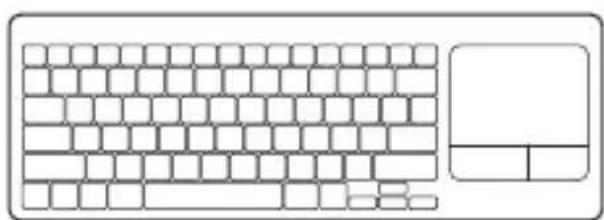
natural_image
Line drawing of a computer keyboard layout with no text or symbolsMain Unit (with Nano Dongle)
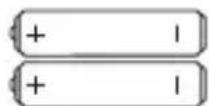

AAA Size Battery x 2 Instruction Manual
Top View

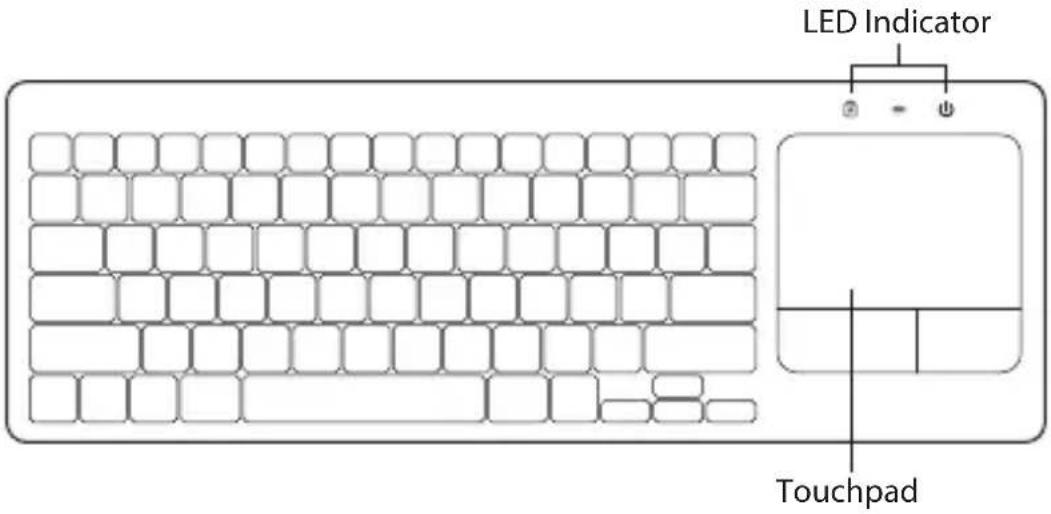
Bottom View

Installing the Batteries
When battery is low, the LED indicator will flash.
- Remove the battery cover.
- Insert 2 x AAA battery.
- Close the battery cover.

flowchart
graph TD
    A["△ Symbol"] --> B["↓ Battery"]
    B --> C["Switch"]
    C --> D["+ 1 +"]
    D --> E["Bottom Left Panel"]
GB

Please ensure the batteries' polarities (+ / -) match the battery compartment's polarities.
Connecting the Nano Dongle
Remove the Nano Dongle from the keyboard and then plug the Nano Dongle directly into your computer's USB port.
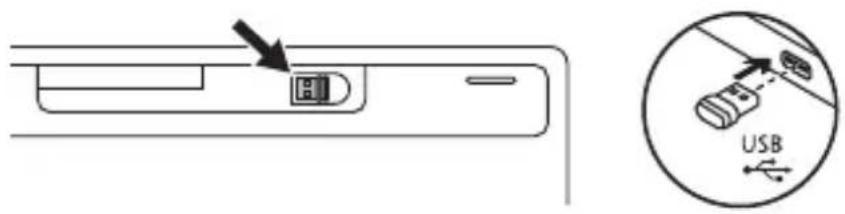
Activating the Keyboard
Switch the ON/OFF button to power on the keyboard and then the keyboard will automatically connect to the Nano Dongle plugged into your computer.

The keyboard will automatically power down when it is idled for 10 minutes. To wake it up press any key.
GB
Function Keys
To access these functions, press the Fn key and the desired function key together.
| Start the default Web browser and load the Home Web page | |
| Open up Search | |
| Activate Power Saving mode | |
| Start the default e-mail programme. | |
| Open Menu | |
| Enable or disable Touchpad features | |
| Start the default Media Player programme. | |
| Back to Previous track | |
| Play/pause track | |
| Go to Next track | |
| Decrease the volume | |
| Increase the volume |

Some function keys may not be available depending on operating system.
Touchpad Features

natural_image
Line drawing of a hand with a finger pointing at a circular button with radiating lines (no text or symbols)One-finger click
→ Left click

natural_image
Line drawing of a human hand touching a glowing sunburst (no text or symbols)Two-finger click
→ Right click
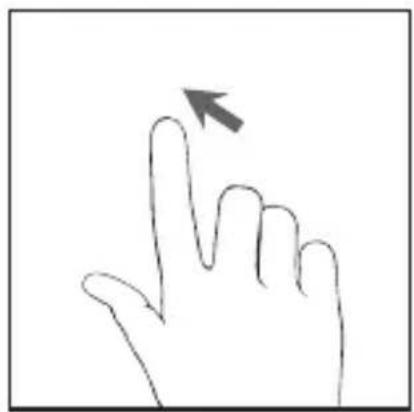
natural_image
Line drawing of a hand with index finger pointing upward and a curved arrow indicating rotation (no text or symbols)One-finger slide
→ Move cursor

natural_image
Illustration of a hand and finger pointing at a circular button with directional arrows (no text or symbols)Double Click then slide
→ Move object

natural_image
Hand gesture diagram showing finger movement with two arrows indicating upward and downward motion (no text or symbols)Two-finger slide up/down
→ Scroll up/down
Typing Language-specific Characters
To type specific Nordic characters, please refer to the table below:
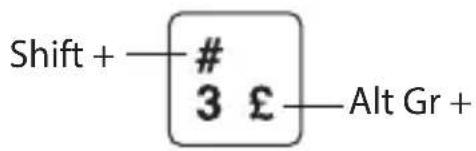
GB
| Keypress NO SE FI DK | ||||
 |  |  |  |  |
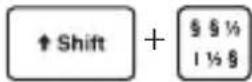 |  |  |  |  |
 |  |  |  |  |
 |  |  |  |  |
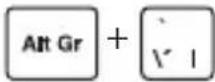 |  |  |  |  |
 |  |  |  |  |
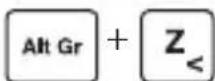 |  |  |  |  |
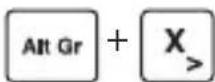 |  |  |  |  |
 |  |  |  |  |
 / / |   |   |   |   |
Keyboard not working:
- Ensure the keyboard is switched on.
- Move the keyboard closer to the device.
- Restart the computer.
- Check battery installation. Replace battery if needed.
In Wireless mode:
- Make sure the Nano Dongle is plugged into a USB port and the computer is on or try the Nano Dongle in a different USB port.
- If the Nano Receiver is plugged into a USB hub, try plugging it directly into the computer.
- If keyboard performance is slow or intermittent around a wireless network, unplug the Nano Dongle from the USB port and then reinsert it. To reactivate the keyboard, switch it on, off and on again using the ON/OFF switch on the bottom of the keyboard.
- If automatic pairing fails, pair the dongle with the keyboard manually.
a) Remove the dongle from your device USB port.
b) Switch on the keyboard.
c) Press and hold the ESC + Q buttons for 2 seconds to enter the pairing mode and the LED indicator will flash.
d) Plug the dongle into the USB port within 10 sec.
e) After successfully connecting in 2.4GHz Wireless mode, the LED indicator will light up.
Specifications
GB
| Model SKBTPB17E | |
| Operating Systems Microsoft® Windows® 7 / 8 / 10 | |
| Wireless Frequency 2.4GHz | |
| Operating Range < 8m (open space) | |
| Frequency Band(s) 2403 – 2472 MHz | |
| Max. Radio Frequency Power Transmitted | Keyboard: -8 dBmDongle: -4 dBm |
| Dimension (L x W x H) 128.8 x 355 x 15 mm | |
| Net Weight 370 g | |
Features and specifications are subject to change without prior notice.
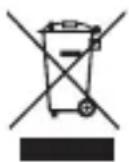
The symbol on the product or its packaging indicates that this product must not be disposed of with your other household waste. Instead, it is your responsibility to dispose of your waste equipment by handing it over to a designated collection point for the recycling of waste electrical and electronic equipment. The separate collection and recycling of your waste equipment at the time of disposal will help conserve natural resources and ensure that it is recycled in a manner that protects human health and the environment.
For more information about where you can drop off your waste for recycling, please contact your local authority, or where you purchased your product.

Notes for battery disposal
The batteries used with this product contain chemicals that are harmful to the environment.
To preserve our environment, dispose of used batteries according to your local laws or regulations. Do not dispose of batteries with normal household waste. For more information, please contact the local authority or your retailer where you purchased the product.
The wireless LAN hardware in your product conforms to the requirements and provisions set out in European Directive 1999/5/EC (R&TTE). Limitations may apply for details go to www.currys.co.uk/compliance.
Windows is a registered trademark of Microsoft Corporation in the United States and other countries.
All trademarks are the property of their respective owners and all rights are acknowledged.
Takk for at du kjøpte ny produktet.
natural_image
Line drawing of a standard computer keyboard layout with no text or symbolsHovedenhet (Med nano-dongle)

natural_image
Line drawing of a hand with a finger pressing a circular button (no text or symbols)natural_image
Line drawing of a human hand with a circular icon above it, no text or symbols presentnatural_image
Hand gesture with index finger pointing upward and a curved arrow indicating motion (no text or symbols)natural_image
Illustration of two hands pointing at a circular icon with radiating arrows, no text or symbols presentnatural_image
Simple line drawing of a hand with two fingers and an upward arrow, no text or symbols presentnatural_image
Line drawing of a computer keyboard layout with no text or symbolsnatural_image
Line drawing of a hand with a finger pointing at a circular button with radiating lines (no text or symbols)natural_image
Line drawing of a human hand with a glowing sunburst effect (no text or symbols)natural_image
Line drawing of a hand with index finger pointing upward and a curved arrow indicating motion (no text or symbols)natural_image
Line drawing of a hand and finger pointing at a circular icon with radial arrows, no text or symbols presentnatural_image
Hand gesture diagram showing finger movement with two arrows indicating upward and downward motion (no text or symbols)natural_image
Line drawing of a computer keyboard layout with no text or symbolsflowchart
graph TD
    A["△"] --> B["1 + 1 +"]
    B --> C["↓"]
    C --> D["Bottom panel with two buttons"]
FI

natural_image
Line drawing of a hand with a finger pressing a circular button (no text or symbols)natural_image
Line drawing of a human hand with a glowing circular icon above it (no text or symbols)natural_image
Hand gesture illustration with index finger and arrow (no text or symbols)natural_image
Illustration of two hands pointing at a circular icon with radiating lines, no text or symbols presentnatural_image
Hand gesture diagram showing finger movement with two arrows indicating upward and downward motion (no text or symbols)natural_image
Line drawing of a computer keyboard layout with no text or symbolsnatural_image
Line drawing of a hand with a finger pointing at a circular button with radiating lines (no text or symbols)natural_image
Line drawing of a human hand with a glowing sunburst above the palm (no text or symbols)natural_image
Line drawing of a hand with index finger pointing upward and a curved arrow indicating motion (no text or symbols)natural_image
Line drawing of a hand and finger pointing at a circular icon with arrows indicating motion (no text or symbols)Dobbeltklik, og stryg derefter
→ Flyt element

natural_image
Hand gesture diagram showing finger movement with two arrows indicating upward and downward motion (no text or symbols)Stryg op/ned med to fingre
→Rul op/ned
DSG Retail Ireland Ltd (259460)
3rd Floor Office Suite
Omni Park SC, Santry, Dublin 9, Republic of Ireland
NO www.elkjop.no/support
www.lefdal.com/support
SE www.elgiganten.se/support
- Wireless Keyboard with Touchpad
- NO Innhold
- Wireless Devices:
- Battery-Powered Devices:
- To Reduce the Risk of Injury:
- Thank you for purchasing your new product.
- Unpacking
- Installing the Batteries
- Connecting the Nano Dongle
- Activating the Keyboard
- Function Keys
- Touchpad Features
- Typing Language-specific Characters
- Keyboard not working:
- In Wireless mode:
- Specifications
- Notes for battery disposal
- Takk for at du kjøpte ny produktet.
Brand : Sandstrøm
Model : SKBTPB17E
Category : Wireless keyboard