
404 CAMCORDER - Camcorder ARCHOS - Free user manual and instructions
Find the device manual for free 404 CAMCORDER ARCHOS in PDF.


| Product Type | Digital Camcorder |
| Brand | ARCHOS |
| Model | 404 CAMCORDER |
| Sensor | CCD (Charge Coupled Device) |
| Maximum Video Resolution | 640 x 480 pixels (VGA) |
| Maximum Photo Resolution | 1.2 megapixels (1280 x 960) |
| Video File Format | MPEG-4 SP (QVGA or VGA) |
| Digital Zoom | 2x |
| White Balance | 5 modes: Auto, Daylight, Cloudy, Fluorescent, Tungsten |
| Exposure Adjustment | From -2 to +2 (in steps of 0.5) |
| Audio Sampling | Up to 48 kHz |
| Photo Timer | 5 or 10 seconds |
| Focal Length | 4.31 mm (equivalent to 36 mm in 35 mm) |
| Aperture (F number) | F2.8 |
| Minimum Focus Distance | 0.50 m |
| Main Functions | Video recording, photo taking, digital zoom, exposure and white balance settings, timer, exposure lock |
| Maintenance and Cleaning | Use the provided protective case to avoid scratches on the lens; clean with a soft, dry cloth |
| Safety | Do not obstruct the sensor with fingers; avoid shocks; do not expose to moisture |
| General Information | Additional user guide for camcorder and camera functions of the ARCHOS 404 |
| Settings Reset | Reset option available in the Camcorder and Camera menus |
Frequently Asked Questions - 404 CAMCORDER ARCHOS
User questions about 404 CAMCORDER ARCHOS
0 question about this device. Answer the ones you know or ask your own.
Ask a new question about this device
Download the instructions for your Camcorder in PDF format for free! Find your manual 404 CAMCORDER - ARCHOS and take your electronic device back in hand. On this page are published all the documents necessary for the use of your device. 404 CAMCORDER by ARCHOS.
USER MANUAL 404 CAMCORDER ARCHOS
Please visit www.archos.com/manuals to download the latest version for this manual.
This manual contains information about the CamCorder and Camera functions of your ARCHOS 404 CamCorder device. These functions can be used by selecting the CamCorder and Camera icons. You can find instructions on how to use all other functions of this device in the ARCHOS 404 User Manual.
All the information contained in this manual was correct at the time of publication. However, as our engineers are always updating and improving our products, your device's software may have a slightly different appearance or modified functionality than presented in this manual.
TABLE OF CONTENTS
INTRODUCTION 3
ARCHOS 404 CAMCORDER DESCRIPTION. 3
On the Back of the Device:
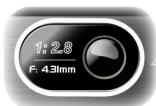
- The optical sensor of the device.
- Be careful not to leave your fingers in front of it when taking a picture or shooting a video.
- Take all appropriate care to avoid scratching the lens: use the included protective pouch to carry the device.
ARCHOS 404 CAMCORDER INTERFACE DESCRIPTION
Home Screen
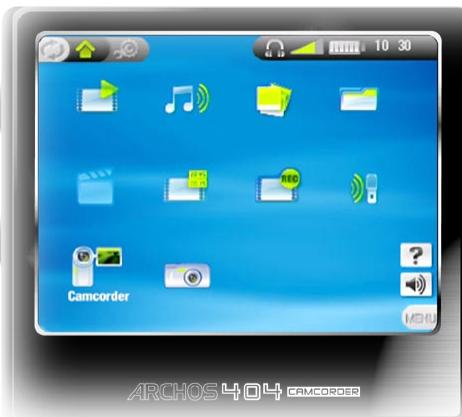
- The Home Screen of the ARCHOS 404 CamCorder has two more icons than that of the ARCHOS 404: CamCorder and Camera.
- Select an icon with the navigation pad and press OK to use the particular function.
In the Home Screen, highlight the CamCorder icon and press OK to display the CamCorder pre-re-cording screen.
All CamCorder recordings made by your ARCHOS device are saved in the "Video/Camcorder" folder. If you wish to keep them in a different location, you can use the Move function of the Archos file browser after recording.
- In the pre-record-ing screen, you can adjust the recording settings if you wish: press MENU, then select Settings to enter the CamCorder Settings Screen (see: CamCorder Settings).
Before and during recording, you can:
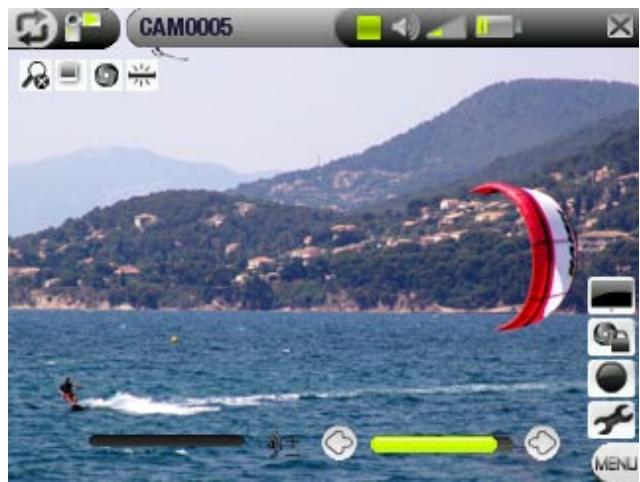
- zoom in and out using / .
λ = no zoom / λ = zoom active . - adjust the recorded sound volume using ↔ / ↔ .
- lock the exposure via the Lock exposure 念 menu item (See Light/Exposure issues).
-
press φ to hide or display the on-screen display (menu, status bar, tabs, icons etc.).
-
Press K to start recording.
- You can pause and restart your recording by pressing OK.
- You can adjust certain settings, such as Exposure and White Balance, during a recording: press MENU and select the Settings menu item.
- Press x to stop recording.
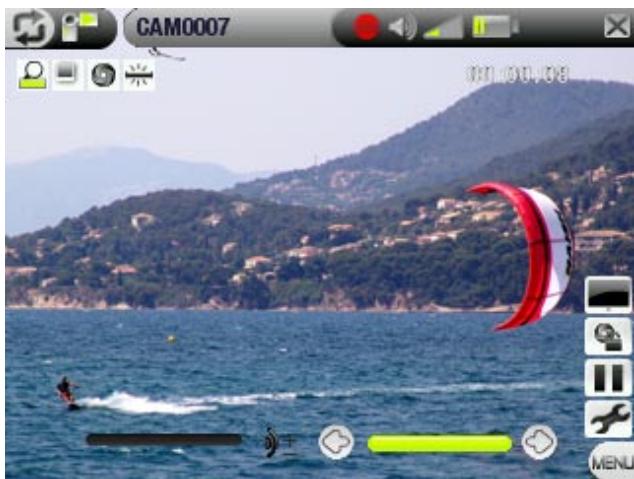
When pressing × from the pre-recording screen, you will be taken to the "Video/Camcorder" folder so you can directly view your recordings.
1.2 CAMCORDER SETTINGS
This screen allows you to adjust the CamCorder recording parameters to your personal taste.
You can access the CamCorder Settings screen via the Settings menu item in the prerecording screen.
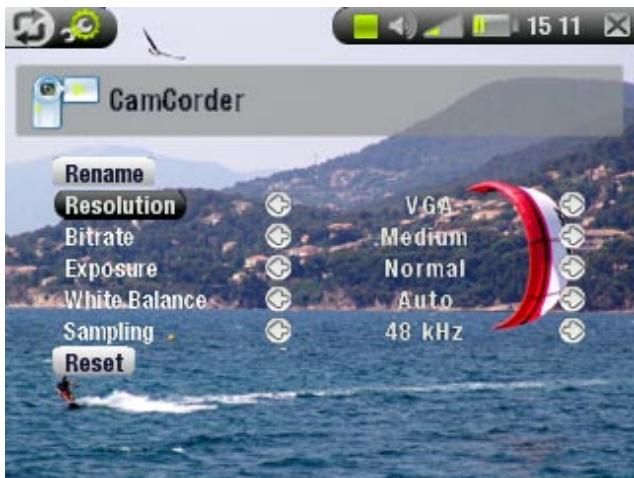
Use / to highlight a different parameter, then use ↔ / → to select a different setting. When you have finished, press × to return to the previous screen: your settings will be saved.
- Rename
- Recorded files are automatically named CAM0000, CAM0001, CAM0002, etc.
- this option allows you to define a custom filename before the recording begins, using the virtual keyboard. See: Using the Virtual Keyboard in the ARCHOS 404 User Manual.
Resolution
- Options: QVGA (320x240) / VGA (640x480).
- Use this to set the resolution (fineness) of the recorded image.
- You can leave this on QVGA if you intend to watch your recorded videos on the built-in screen of your ARCHOS device: the image will be smooth and the file size smaller. However, if you plan to watch your recordings on a TV, you should set this to VGA for a sharper image.
- Bitrate
- Options: Low / Medium (default) / High.
- Use this to set the level of compression of the recorded video file.
- A higher bitrate will result in a higher-quality image, but will also take up more space on the hard drive.
- The default setting (Medium) will be appropriate for most situations.
- Exposure
- Options: Brighter ⑨ +2/+1,5/+1/+0,5 / Normal ⑤ / Darker ⑨ -0,5/-1/-1,5/-2.
- This parameter allows you to adjust to bright or dark conditions.
- Darker values will decrease the amount of exposure.
- Brighter values will increase the exposure.
- If your subject has a bright background, you may want to overexpose your image a little bit so that the person's face is more visible, thus you would set it to Brighter +1 or +2.
- If you are recording a video where there is a lot of snow or the sun's reflection on water, you may want to reduce the exposure, thus set it to Darker -1 or -2.
- White Balance
- Options: Auto AUTO / Daylight Cloudy Fluorescent / Tungsten
- This parameter lets the camera adjust to the ambient light source in order to best record the natural colors.
Sampling
- Options: 22kHz / 32kHz / 44kHz / 48kHz .
- The sound sampling rate. The higher value gives a higher sound quality but will take up more space on the hard drive.
- Reset
- This will reset the values in this screen to the factory default settings.
2. USING THE STILL CAMERA
In the Home Screen, highlight the Camera icon and press OK to enter the still camera mode.
All photographs taken by your ARCHOS device are saved in the "Pictures/Photos" folder. If you wish to keep them in a different location, you can use the Move function of the Archos file browser after taking photos.
2.1 TAKING PHOTOPS
-
In this viewfinder screen, you can adjust the still camera settings if you wish: press MENU, then select Settings to enter the Camera Settings Screen (see: Camera Settings).
-
You can zoom in and out using / .
= no zoom / = zoom active.
- Lock the exposure via the Lock exposure menu item (See Light/Exposure issues).
- Press to hide or display the on-screen display (menu, status bar, tabs, icons etc.).
- Press K to take a picture.
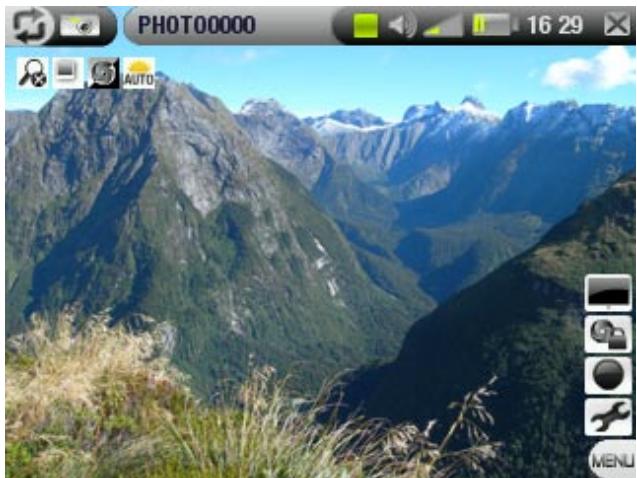
When pressing × from the viewfinder screen, you will be taken to the “Pictures/Photos” folder so you can directly view your photographs.
2.2 CAMERA SETTINGS
This screen allows you to adjust the Camera parameters to your personal taste.
You can access the Camera Settings screen via the Settings menu item in the viewfinder screen.
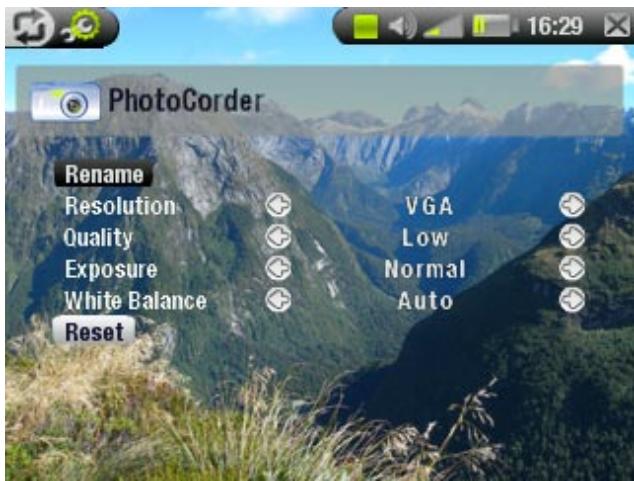
Use / to highlight a different parameter, then use ↔ / → to select a different setting. When you have finished, press × to return to the previous screen: your settings will be saved.
- Rename
- Photographs taken with your ARCHOS device are automatically named PHOTO00000, PHOTO00001, PHOTO00002, etc.
- This option allows you to define the filename before taking a picture, using the virtual keyboard. See: Using the Virtual Keyboard in the ARCHOS 404 User Manual.
Resolution
- Options: VGA / 1.2 Megapixels
- 1.2 Megapixels (1280x960) gives the best image quality but the largest file size.
- VGA (640x480) will give a smaller file size, but the images will not be as sharp.
- Image Quality
- Options: Basic / Normal / Fine
- For the best possible image, set this parameter to Fine.
- Exposure
- Options: Brighter ⑨ +2/+1,5/+1/+1/+0,5 / Normal ⑤ / Darker ⑨ -0,5/-1/-1,5/-2.
- This parameter allows you to adjust to bright or dark conditions.
- Darker values will decrease the amount of exposure.
- Brighter values will increase the exposure.
- If your subject has a bright background, you may want to overexpose your image a little bit so that the person's face is more visible, thus you would set it to Brighter +1 or +2.
- If you are taking a photo where there is a lot of snow or the sun's reflection on water, you may want to reduce the exposure, thus set it to Darker -1 or -2.
- White Balance
- Options: Auto AUTO / Daylight Cloudy Fluorescent / Tungsten
-
This parameter lets the camera adjust to the ambient light source in order to best record the natural colors.
-
Timer
-
Options: Off / 5 seconds 6 / 10 seconds 10
-
The timer setting allows you to delay the moment at which the photo is taken, for example if you want to include yourself in the picture.
-
Reset
-
This will reset the values in this screen to the factory default settings.
- From the Home Screen, select the Camera icon.
- In the viewfinder screen, select the Settings menu item.
- In the Camera Settings screen, highlight the Timer parameter and set it to 5 or 10 seconds. Press × to return to the viewfinder screen.
- The timer icon appears on the top of the viewfinder screen (or). Press K : the ARCHOS device will count down to zero and then take the picture.
Note that the timer function will stay active for successive pictures you take, unless you return to the Home Screen or set the Timer setting to Off.
3. CONTROLLING THE IMAGE QUALITY
3.1 BLURRED IMAGES
If you notice that some of your videos or photographs are blurred, it could be due to various reasons. As with any other camcorder or still camera, keep in mind the following:
- If you use the zoom, you must have a very steady hand to hold the ARCHOS 404 CamCorder when filming or taking a picture. Any shakiness is magnified and often renders the image blurry.
- Shooting in low light conditions requires more time so that the device's sensor can capture a sufficient amount of light. Thus, any camera movement or fast movement in the camera's sight will be blurred.
- Trying to film or take pictures of close objects may also give out-of-focus results.
3.2 LIGHT/EXPOSURE ISSUES
When taking a photo against a bright light source (for example a window when you are inside, or the sun when you are in an open space), it can happen that the object or person appears too dark in the photo. This is because the bright background makes the camera select an exposure which is not appropriate to capture the person or object in the foreground. There are two ways of correcting this:
-
Use the Exposure setting (see: CamCorder Settings or Camera Settings).
-
Use the Lock exposure 品 menu item:
-
Point the ARCHOS 404 CamCorder away from the bright light, towards an area where the light conditions are similar to those around the person or object.
- Select the Lock exposure menu item: the exposure settings become fixed and the exposure-locked icon will appear on top of the screen. Now if you take a picture against the bright light source, the exposure will stay fixed at the previous light adjustment. The image of the person or object should no longer appear as dark as before.
- To return to automatic exposure, select the Auto exposure menu item.
TECHNICAL SPECIFICATIONS
These are specifications for the CamCorder functions only. For general specifications of the ARCHOS 404 series, please see the ARCHOS 404 user manual.
RESOLUTION
- Digital Still Camera: 1.2 mega pixels.
- CamCorder: 640x480 (300.000 pixels).
SENSOR
- CCD (Charge Coupled Device).
CAMCORDERFILEFORMAT
- MPEG-4 SP (QVGA or VGA resolution).
FIELD OF VIEW
- Focale 4.31mm (equivalent to 36mm for a 35mm camera).
F NUMBER
F2.8
DEPTH FIELD
- 0.50m to infinity.
WHITE BALANCE
- 5 settings: Auto - Daylight - Cloudy - Fluorescent - Tungsten.
ZOOM
- Digital 2x.


- TABLE OF CONTENTS
- INTRODUCTION 3
- ARCHOS 404 CAMCORDER DESCRIPTION. 3
- ON THE BACK OF THE DEVICE
- ARCHOS 404 CAMCORDER INTERFACE DESCRIPTION
- HOME SCREEN
- 1.2 CAMCORDER SETTINGS
- USE / TO HIGHLIGHT A DIFFERENT PARAMETER, THEN USE ↔ / → TO SELECT A DIFFERENT SETTING. WHEN YOU HAVE FINISHED, PRESS × TO RETURN TO THE PREVIOUS SCREEN: YOUR SETTINGS WILL BE SAVED
- RENAME
- RESOLUTION
- BITRATE
- EXPOSURE
- WHITE BALANCE
- SAMPLING
- RESET
- USING THE STILL CAMERA
- 2.1 TAKING PHOTOPS
- 2.2 CAMERA SETTINGS
- IMAGE QUALITY
- CONTROLLING THE IMAGE QUALITY
- 3.1 BLURRED IMAGES
- 3.2 LIGHT/EXPOSURE ISSUES
- TECHNICAL SPECIFICATIONS
- SENSOR
- CAMCORDERFILEFORMAT
- FIELD OF VIEW
- F NUMBER
- DEPTH FIELD
- ZOOM
Brand : ARCHOS
Model : 404 CAMCORDER
Category : Camcorder