
TAQ-70302 - Tablet DENVER - Free user manual and instructions
Find the device manual for free TAQ-70302 DENVER in PDF.


| Product Type | Tablet |
| Brand | Denver |
| Model | TAQ-70302 |
| Display Size | 7 inches |
| Dimensions (W x H x D) | 191 x 110 x 10 mm |
| Weight | 300 g |
| Operating System | Android |
| Processor | Quad-core 1.3 GHz |
| RAM | 1 GB |
| Internal Storage | 8 GB |
| Expandable Storage | microSD up to 32 GB |
| Connectivity | Wi-Fi 802.11 b/g/n, Bluetooth 4.0 |
| Camera (Rear) | 2 MP |
| Camera (Front) | 0.3 MP |
| Battery Capacity | 2500 mAh |
| Power Supply | Micro USB, 5V 2A |
| Main Functions | Web browsing, email, video playback, gaming, e-reading |
| Maintenance & Cleaning | Wipe screen with a soft, dry cloth. Avoid liquids. |
| Safety Warnings | Do not expose to water or extreme temperatures. Use only supplied charger. |
| Spare Parts & Repairability | Battery and screen are not user-replaceable. Contact Denver support. |
| General Information | Supports apps from Google Play Store. Includes AC adapter, USB cable. |
Frequently Asked Questions - TAQ-70302 DENVER
User questions about TAQ-70302 DENVER
0 question about this device. Answer the ones you know or ask your own.
Ask a new question about this device
Download the instructions for your Tablet in PDF format for free! Find your manual TAQ-70302 - DENVER and take your electronic device back in hand. On this page are published all the documents necessary for the use of your device. TAQ-70302 by DENVER.
USER MANUAL TAQ-70302 DENVER
natural_image
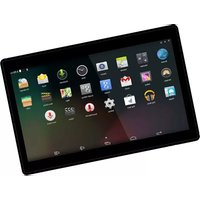
Front view of a blank tablet device with rounded corners and a small circular mark at the top (no text or symbols)USER'S MANUAL
TAQ-70302
www.denver-electronics.com
Before connecting, operating or adjusting this product, please read this user's manual carefully and completely.
Important safety information
WARNING: Read all the safety information below before using this tablet PC.
-
For the electrostatic discharge (ESD) test of EN55020, it was found that manual operation (by switching power ON/OFF switch) is needed to resume normal operation as intended after the test.
-
As this tablet PC is with lithium battery inside, so pls follow below:

- Do not try to open the tablet!
- Do not expose to heat, water, moisture, direct sunlight!
- Only charge with the original adapter supplied with this product!
- Do not attempt to replace the tablet PC battery yourself- you may damage the battery, which could cause overheating and injury. The lithium-ion battery in tablet PC should be replaced only by skilled engineer, and must be recycled or disposed of separately from household waste. Do not incinerate the battery.
-
To reduce the risk of fire or electric shock, do not expose this apparatus to rainor moisture. The apparatus shall not be exposed to dripping or splashing and that objects filled with liquids, such as vases, shall not be placed on apparatus.
-
The direct plug-in adapter is used as disconnect device, the disconnect device shall remain readily operable.
-
This equipment is a Class II or double insulated electrical appliance. It has been designed in such a way that it does not require a safety connection to electrical earth.
-
This lightning flash with arrowhead symbol within an equilateral triangle is intended to alert the user to the presence of non-insulated “dangerous voltage” within the product’s enclosure that may be of sufficient magnitude to constitute a risk of electric shock.
To reduce the risk of electric shock, do not remove cover (or back) as there are o user-serviceable parts inside. Refer servicing to qualified personnel. The exclamation point within an equilateral triangle is intended to alert the user to the presence of important operating and maintenance instructions in the literature accompanying the appliance.
- Correct Disposal of this product. This marking indicates that this product should not be disposed with other household wastes throughout the EU.
To prevent possible harm to the environment or human health from uncontrolled waste disposal, recycle it responsibly to promote the sustainable reuse of material resources. To return your used device, please use the return and collection systems or contact the retailer where the product was purchased.
Table of Contents
Table of Contents 3
Unit at a Glance 4
Getting Started 5
About Applications 7
Preinstalled Applications 7
Connecting to the Internet 8
Email 10
Transferring Files 11
Troubleshooting 12
Specifications 13
Unit at a Glance
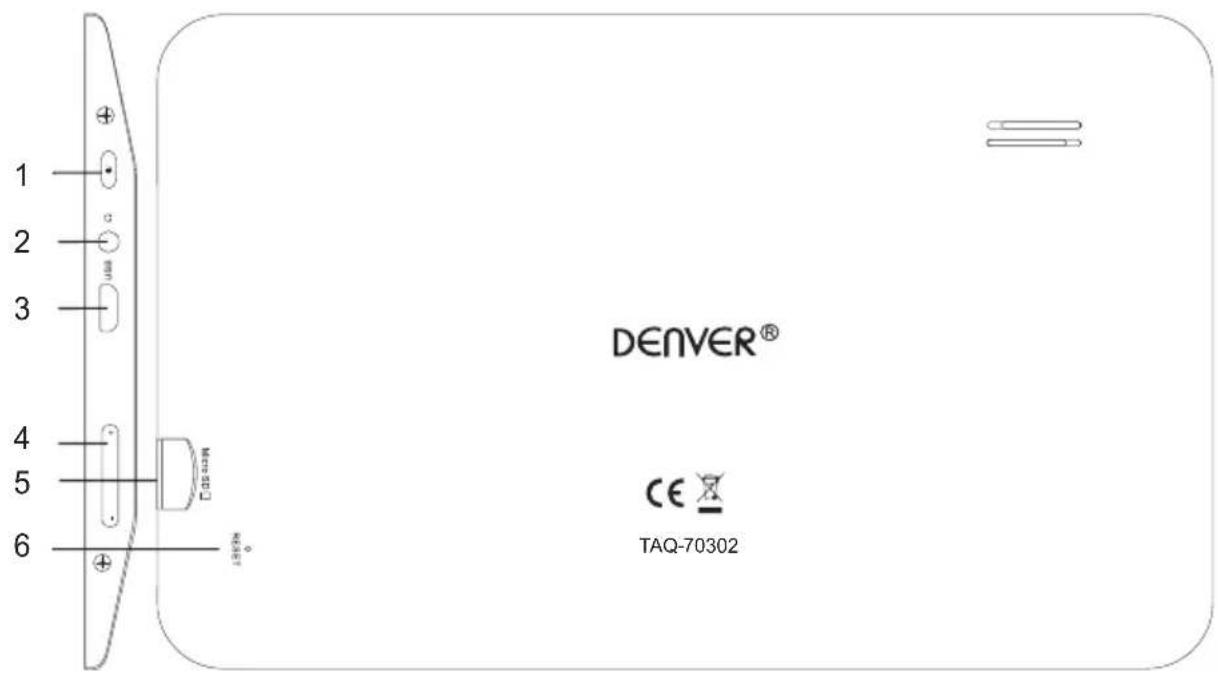
1. POWER
Press to turn the unit on, or to turn the screen on or off. Press and hold to access the Power Off menu.
2. Headphone
Audio output connection for headphones.
3. USB
Connect to USB device or a computer to transfer data (e.g. Music, videos, photos, files)
4. V-/V+
Press this button to adjust the volume
5. microSD
Load external microSD memory cards here.
6.RESET
Use a needle or paper clip to reset unit
Getting Started
Turning the Tablet on or off
To turn the tablet on:
Press and hold the Power key until the LCD screen turns on. Wait until the Home screen appears; the tablet is now ready for use.
To turn the tablet off:
- Press and hold the Power key until the power off menu appears.

- Touch ok the screen to turn off the tablet.
Turning the Screen On or off (Standby)
When the tablet is on, you can turn off the screen to conserve battery power. Simply press the Power key once to turn the screen off. Press the Power key again to turn the screen back on.

To conserve battery power, the screen can be set to turn off automatically when the tablet is use (between 15 seconds and 30 minutes). This Screen timeout option can be found in the menu.
Getting Started
Unlocking the Screen
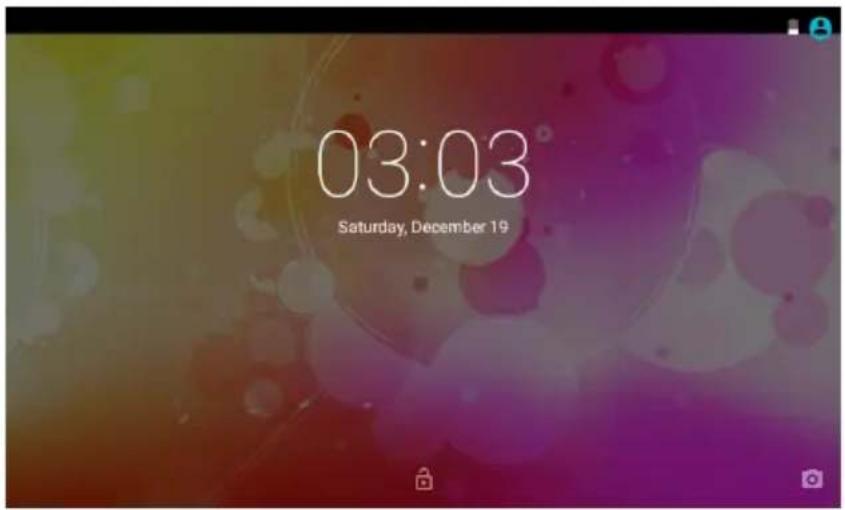
When the screen turns off, you will have to unlock the screen when you turn it back on. To unlock the screen, drag the lock icon across the screen towards the slide lock icon towards up side of the screen where there is an unlock icon shown. This will unlock tablet.
About Applications
To open an application, touch the application icon on the home screen or in the Launcher where you can tap the icon 📄 on the home screen to get in..
Launcher screen:


The screen shown above is for illustrative purposes only. Reserves the right to modify and we the final list of applications available on the tablet.
About Applications
Preinstalled Applications
Some applications have been installed on your tablet for your convenience.
These applications include:

Browse the web.

Perform simple mathematical operations.

Take pictures or videos with the frontfacing camera.

Check your e-mail.

Play music.
Access the Settings menu to adjust the tablet's options.
Preinstalled Applications
Installing Applications
You can also download an install additional applications from the device's applications marketplace, he web browser, or other sources.
The tablet must be set to allow installation of applications from non-Market sources. The Unknown sources option can be set in the Application settings menu.
Connecting to the Internet
Connecting to Wireless Internet
- Press the Settings Icon.
- Locate the Wi-Fi setting and slide it to the On position.

- Select a network from the list of available networks. To refresh the list of available networks, press ☐, select Refresh button.
To manually add a network, select the Add Network button. - Select Connect from the pop up menu.

To see available networks, turn 30-61 on.

- If the network is secured with a password, enter the password to continue.
Once finished connecting, the display will showConnected under the name of the network.

To conserve battery life, turn off Wi-Fi when not in use.
Setting Up an Email account
- Press Email icon under App menu.
- Enter your email address and password, then press Next.
If this does not work, you will need to manually configure your account. Before attempting to configure manually,re-enter you email and password to make sure they are correct.

Manually Configuring an Email account
It is recommended to consult an IT professional before attempting to manually configure your email address.
- To set up your email manually, detailed information is required. Check your provider's website or phone support for individual provider information.
- The first thing you will need to determine is the server type. While most servers are POP3, IMAP and Exchange are also supported services.
- Enter your email address and password then press Next.
- Fill in all information for the Incoming server portion of the manual setup.
- Press Next and the app will test your settings. Wi-Fi is required to be active for this step.
- Fill in all information for the Outgoing server settings.
- Press Next and the app will test your settings. Wi-Fi is required to be active for this step.

Transferring Files
Transferring Files with a Computer
To begin transferring files to your computer, plug one end of the included Mini-USB to USB cord into the unit, and the other into the USB port on a computer.
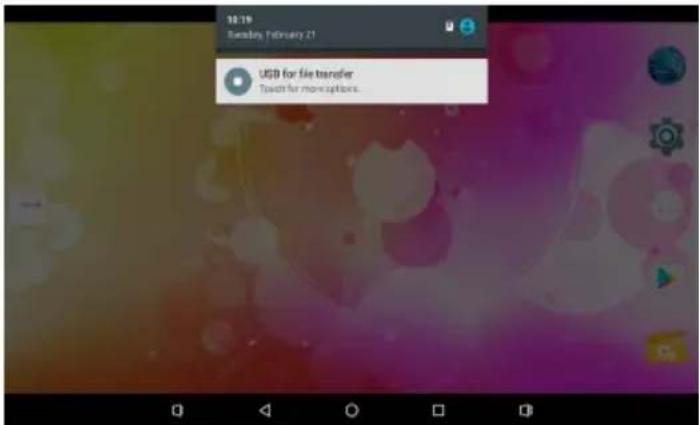
You will now be able to transfer files to and from your computer.
Troubleshooting
1.1 Device can not connect to Wi-Fi
- Ensure the wireless network is working by testing it using another wireless device.
- Ensure the device and the wireless router is within the range of the wireless network to be connected too. Walls or other obstructions will reduce the possible distances between wireless devices.
- Ensure the security password being used is correct.
1.2 Device doesn't turn on
- You can not turn on the device when the battery charge is below the critical level, please charge the battery.
- Use a needle or paper clip to reset unit on the back of the device and check if it is restarting is normally or not.
- Check if the charger is connected correctly.
1.3 Heat Issues
- When running multiple applications, using the screen on its brightest setting, or when being charged, this device can get quite hot. This is normal and should not cause any inconvenience when in use.
1.4 System has anomalies and doesn't work correctly
- Installing some third-party applications may cause the system not to operate correctly. Press the RESET button and perform a system reset to resolve this issue.
1.5 Cannot set E-mail Account or registration application
- Ensure that the MID is connected to a Wi-Fi network and can connect to the Internet.
- Ensure you E-mail settings have been entered correctly for the account being accessed.
- Make sure your system time and local time are correct.
1.6 Can not record
- Use a needle or paper clip to reset unit on the back of the device, then check if the record function works correctly.
1.7 The stand-by time of the device is too short
- The duration of the lithium battery varies with environmental temperature changes and the service conditions. If the environment temperature is too low or too high, the duration of the battery will be affected. It is recommended to use this device at normal temperature.
- Battery life is dependent on usage. High volume, WIFI, and the frequent use may cause the battery to be drained at a higher rate.
1.8 No sound via earphone
- Please check if the volume setting is 0.
- Please check if audio file is broken, and try to playanother audio file to confirm. If the audio file is broken, it may cause severe noise or static.
1.9 The color distortion of video or picture display
- Use a needle or paper clip to reset unit on the back of the device to solve this issue.
1.10 Can not copy files
- Please check if the device is connected to the computer correctly.
- Please check if the memory space is full.
- Please check if the USB cable is broken.
1.11 Other troubles Please follow up the steps as below to fix the other troubles before you return the MID/Tablet PC to us:
- Step 1: Use a needle or paper clip to reset unit on the back of the device, then check if the function works correctly
- Step 2: Upgrade the firmware from the PC and restart the device and then check if the function works correctly.
Specifications
Please visit www.denver-electronics.com. for the latest product information. Design, specifications, and manual are subject to change without notice.
| RAM | 1GB DDR3 |
| Storage | 8GB flash built-in; micro SD card slotStorage (max.32GB supported) |
| Display | 7"TFT LCD(1024x600), Capcitive touchscreen |
| Wi-Fi Networking IE | IEEE 802.11 b/g/n |
| Audio Output | 3.5mm headphone |
| PC Interface | USB 2.0 high speed |
| Additional Features | Built-in microphoneCamera(0.3MP)1W speakerQuad Core |
| Operating System | Android^TM 6.0 |
| Power | Rechargeable Li-poly battery power 2400mAhPower Adapter (5V,2A) |
Factory reset:
Please notice that factory reset of Android 6.0 units takes up to 10 minutes. After restarting it will keep on showing Android on the screen during reload of firmware. Just leave it and don't turn it off during this state. After reloading firmware it will automatically start the tablet again.
ALL RIGHTS RESERVED, COPYRIGHT DENVER ELECTRONICS A/S
DENVER®
www.denver-electronics.com



Electric and electronic equipment and included batteries contains materials, components and substances that can be hazardous to your health and the environment, if the waste material (discarded electric and electronic equipment and batteries) is not handled correctly.
Electric and electronic equipment and batteries is marked with the crossed out trash can symbol, seen below. This symbol signifies that electric and electronic equipment and batteries should not be disposed of with other household waste, but should be disposed of separately.
As the end user it is important that you submit your used batteries to the appropriate and designated facility. In this manner you make sure that the batteries are recycled in accordance with legislature and will not harm the environment.
All cities have established collection points, where electric and electronic equipment and batteries can either be submitted free of charge at recycling stations and other collection sites, or be collected from the households. Additional information is available at the technical department of your city.
Imported by:
DENVER ELECTRONICS A/S
Omega 5A, Soeften
DK-8382 Hinnerup
Denmark
www.facebook.com/denverelectronics
Hereby, Inter Sales A/S declares that the radio equipment type TAQ-70302 is in compliance with Directive 2014/53/EU. The full text of the EU declaration of conformity is available at the following internet address: http://www.denver-electronics.com/denver-taq-70302/



- USER'S MANUAL
- TAQ-70302
- Important safety information
- Table of Contents
- Unit at a Glance
- POWER
- Headphone
- USB
- V-/V+
- microSD
- 6.RESET
- Getting Started
- Turning the Tablet on or off
- Turning the Screen On or off (Standby)
- Unlocking the Screen
- About Applications
- Preinstalled Applications
- Installing Applications
- Connecting to the Internet
- Connecting to Wireless Internet
- Setting Up an Email account
- Manually Configuring an Email account
- Transferring Files
- Troubleshooting
- Device can not connect to Wi-Fi
- Device doesn't turn on
- Heat Issues
- System has anomalies and doesn't work correctly
- Cannot set E-mail Account or registration application
- Can not record
- The stand-by time of the device is too short
- No sound via earphone
- The color distortion of video or picture display
- Can not copy files
- Other troubles Please follow up the steps as below to fix the other troubles before you return the MID/Tablet PC to us:
- Specifications
- Factory reset:
- DENVER®
Brand : DENVER
Model : TAQ-70302
Category : Tablet