
FX-570ES - Scientific calculator CASIO - Free user manual and instructions
Find the device manual for free FX-570ES CASIO in PDF.


| Product Type | Scientific Calculator |
| Brand | CASIO |
| Model | FX-570ES |
| Dimensions | 163 x 80 x 13.9 mm |
| Weight | 110 g |
| Power Source | 1 AAA battery (LR03) |
| Battery Life | Approximately 2 years (1 hour daily use) |
| Display Type | Liquid crystal display (LCD) with natural display |
| Number of Characters | 4 lines of 16 characters |
| Number of Functions | 417 |
| Mathematical Functions | Basic calculations, trigonometry, logarithms, exponentials, powers, roots, fractions, integrals, derivatives, statistics, matrices, vectors, complex numbers, unit conversions, etc. |
| Natural Display Screen | Displays mathematical expressions as they are written in a notebook |
| Memory | 9 variable memories, answer memory, calculation history |
| Statistical Calculations | Single and two-variable statistics, regressions |
| Matrix and Vector Calculations | Up to 4 matrices (up to 4x4) and 4 vectors (up to 5 components) |
| Base N Calculations | Binary, octal, decimal, hexadecimal, logical operations |
| Maintenance and Cleaning | Clean with a soft dry cloth. Do not use solvents. |
| Safety | Do not immerse in water. Protect from shocks and extreme temperatures. |
| Spare Parts and Repairability | Removable sliding cover. User-replaceable battery. |
| Included Accessories | Sliding cover, demonstration battery, instruction manual |
Frequently Asked Questions - FX-570ES CASIO
User questions about FX-570ES CASIO
0 question about this device. Answer the ones you know or ask your own.
Ask a new question about this device
Download the instructions for your Scientific calculator in PDF format for free! Find your manual FX-570ES - CASIO and take your electronic device back in hand. On this page are published all the documents necessary for the use of your device. FX-570ES by CASIO.
USER MANUAL FX-570ES CASIO
- The MATH mark indicates an example that uses Math format, while the LINE mark indicates Linear format. For details about input/output formats, see “Specifying the Input/Output Format”.
- Keycap markings indicate what a key inputs or what function it performs.
Example: 1, 2, +, -, √, AC, etc. - Pressing the SHIFT or ALPHA key followed by a second key performs the alternate function of the second key. The alternate function is indicated by the text printed above the key.
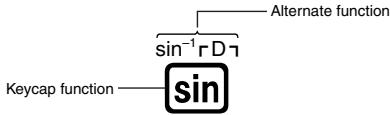
- The following shows what the different colors of the alternate function key text mean.
| If key marking text is this color: | It means this: |
| Yellow | Press SHIFT and then the key to access the applicable function. |
| Red | Press ALPHA and then the key to input the applicable variable, constant, or symbol. |
| Purple (or enclosed in purple brackets) | Enter the CMPLX Mode to access the function. |
| Green (or enclosed in green brackets) | Enter the BASE-N Mode to access the function. |
- The following shows an example of how an alternate function operation is represented in this User's Guide.
Example: SHIFT sin (sin ^-1 ) 1 =
Indicates the function that is accessed by the key operation (SHIFT sin) before it. Note that this is not part of the actual key operation you perform.
- The following shows an example of how a key operation to select an on-screen menu item is represented in this User's Guide.
Example: ① (Setup)
Indicates the menu item that is selected by the number key operation (1) before it. Note that this is not part of the actual key operation you perform.
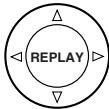
- The cursor key is marked with four arrows, indicating direction, as shown in the illustration nearby. In this User's Guide, cursor key operation is indicated as ▲, ▼, ◀, and ▶.
flowchart
graph TD
    A["REPLAY"] --> B["Top Left Arrow"]
    A --> C["Top Right Arrow"]
    A --> D["Bottom Right Arrow"]
    A --> E["Bottom Left Arrow"]
- The displays and illustrations (such as key markings) shown in this User's Guide and the separate Appendix are for illustrative purposes only, and may differ somewhat from the actual items they represent.
- The contents of this manual are subject to change without notice.
- In no event shall CASIO Computer Co., Ltd. be liable to anyone for special, collateral, incidental, or consequential damages in connection with or arising out of the purchase or use of this product and items that come with it. Moreover, CASIO Computer Co., Ltd. shall not be liable for any claim of any kind whatsoever by any other party arising out of the use of this product and the items that come with it.
■ Using the Separate Appendix
Whenever you see the symbol Appendix in this manual, it means you should refer to the separate Appendix.
Example numbers (like "<#021>") in this User's Guide refer to the corresponding example number in the Appendix.
Specify the angle unit in accordance with the marks in the Appendix:
Deg : Specify Degree for the angle unit.
Rad : Specify Radian for the angle unit.
Initializing the Calculator
Perform the following procedure when you want to initialize the calculator and return the calculation mode and setup to their initial default settings. Note that this operation also clears all data currently in calculator memory.
SHIFT 9 (CLR) 3 (All) = (Yes)
- For information about calculation modes and setup settings, see "Calculation Modes and Calculator Setup".
- For information about memory, see “Using Calculator Memory”.
Safety Precautions
Be sure to read the following safety precautions before using this calculator. Keep this manual handy for later reference.

Caution
This symbol is used to indicate information that can result in personal injury or material damage if ignored.
Battery
- After removing the battery from the calculator, put it in a safe place where it will not get into the hands of small children and accidentally swallowed.
- Keep batteries out of the reach of small children. If accidentally swallowed, consult with a physician immediately.
- Never charge the battery, try to take the battery apart, or allow the battery to become shorted. Never expose the battery to direct heat or dispose of it by incineration.
- Improperly using a battery can cause it to leak and damage nearby items, and can create the risk of fire and personal injury.
- Always make sure that the battery's positive and negative ends are facing correctly when you load it into the calculator.
- Remove the battery if you do not plan to use the calculator for a long time.
- Use only the type of battery specified for this calculator in this manual.
Disposing of the Calculator
- Never dispose of the calculator by burning it. Doing so can cause certain components to suddenly burst, creating the risk of fire and personal injury.
Handling Precautions
- Be sure to press the ON key before using the calculator for the first time.
- Even if the calculator is operating normally, replace the battery at least once every two years.
A dead battery can leak, causing damage to and malfunction of the calculator. Never leave a dead battery in the calculator.
- The battery that comes with this unit discharges slightly during shipment and storage. Because of this, it may require replacement sooner than the normal expected battery life.
- Low battery power can cause memory contents to become corrupted or lost completely. Always keep written records of all important data.
- Avoid use and storage of the calculator in areas subjected to temperature extremes.
Very low temperatures can cause slow display response, total failure of the display, and shortening of battery life. Also avoid leaving the calculator in direct sunlight, near a window, near a heater or anywhere else it might be exposed to very high temperatures. Heat can cause discoloration or deformation of the calculator's case, and damage to internal circuitry.
- Avoid use and storage of the calculator in areas subjected to large amounts of humidity and dust.
Take care never to leave the calculator where it might be splashed by water or exposed to large amounts of humidity or dust. Such conditions can damage internal circuitry.
- Never drop the calculator or otherwise subject it to strong impact.
- Never twist or bend the calculator.
Avoid carrying the calculator in the pocket of your trousers or other tight-fitting clothing where it might be subjected to twisting or bending.
- Never try to take the calculator apart.
- Never press the keys of the calculator with a ballpoint pen or other pointed object.
- Use a soft, dry cloth to clean the exterior of the calculator.
If the calculator becomes very dirty, wipe it off with a cloth moistened in a weak solution of water and a mild neutral household detergent. Wring out all excess liquid before wiping the calculator. Never use thinner, benzene or other volatile agents to clean the calculator. Doing so can remove printed markings and can damage the case.
Before Using the Calculator
■ Removing the Hard Case
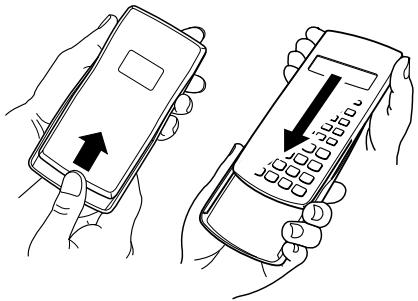
Before using the calculator, slide its hard case downwards to remove it, and then affix the hard case to the back of the calculator as shown in the illustration below.
■ Turning Power On and Off
- Press ON to turn on the calculator.
- Press SHIFT AC (OFF) to turn off the calculator.
■ Adjusting Display Contrast
SHIFT MODE (SETUP) 6 (◄CONT►)
This displays the contrast adjustment screen. Use ◀ and ▶ to adjust display contrast. After the setting is the way you want, press
AC.
![CONTRAST LIGHT [D4] DARK [D5]](/content/2025/01/86780/images/f87cea65b827771b27eef5d6df772359d4ef42d7fbc0a351e4bb38055fef63cc.jpg)
- You can also adjust contrast using ◀ and ▶ while the mode menu (which appears when you press MODE) is on the display.
Important!
- If adjusting display contrast does not improve display readability, it probably means that battery power is low. Replace the battery.
■ About the Display
Your calculator has a 31-dot × 96-dot LCD screen.
Example:
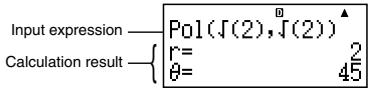
■ Display Indicators
Sample Display:
CMPLX
D

| This indicator: | Means this: |
| S | The keypad has been shifted by pressing the Shift key. The keypad will unshift and this indicator will disappear when you press a key. |
| A | The alpha input mode has been entered by pressing the ALPHA key. The alpha input mode will be exited and this indicator will disappear when you press a key. |
| M | There is a value stored in independent memory. |
| STO | The calculator is standing by for input of a variable name to assign a value to the variable. This indicator appears after you press SHIFT RCL (STO). |
| RCL | The calculator is standing by for input of a variable name to recall the variable's value. This indicator appears after you press RCL. |
| STAT | The calculator is in the STAT Mode. |
| CMPLX | The calculator is in the CMPLX Mode. |
| MAT | The calculator is in the MATRIX Mode. |
| VCT | The calculator is in the VECTOR Mode. |
| D | The default angle unit is degrees. |
| R | The default angle unit is radians. |
| G | The default angle unit is grads. |
| FIX | A fixed number of decimal places is in effect. |
| SCI | A fixed number of significant digits is in effect. |
| Math | Math style is selected as the input/output format. |
| ▼▲ | Calculation history memory data is available and can be replayed, or there is more data above/below the current screen. |
| Disp | The display currently shows an intermediate result of a multi-statement calculation. |
Important!
- For a very complex calculation or some other type of calculation that takes a long time to execute, the display may show only the above indicators (without any value) while it performs the calculation internally.
Calculation Modes and Calculator Setup
■ Calculation Modes
| When you want to perform this type of operation: | Select this mode: |
| General calculations | COMP |
| Complex number calculations | CMPLX |
| Statistical and regression calculations | STAT |
| Calculations involving specific number systems (binary, octal, decimal, hexadecimal) | BASE-N |
| Equation solution | EQN |
| Matrix calculations | MATRIX |
| Generation of a number table based on an expression | TABLE |
| Vector calculations | VECTOR |
Specifying the Calculation Mode
(1) Press MODE to display the mode menu.
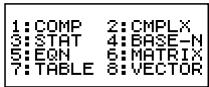
(2) Press the number key that corresponds to the mode you want to select.
- To select the CMPLX Mode, for example, press 2.
■ Configuring the Calculator Setup
Pressing SHIFT MODE (SETUP) displays the setup menu, which you can use to control how the calculations are executed and displayed. The setup menu has two screens, which you can jump between using ▼ and ▲.
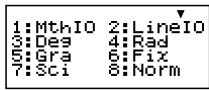

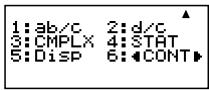
- See "Adjusting Display Contrast" for information about how to use "◄CONT►".
Specifying the Input/Output Format
| For this input/output format: | Perform this key operation: |
| Math | SHIFT MODE 1 (MthIO) |
| Linear | SHIFT MODE 2 (LineIO) |
- Math format causes fractions, irrational numbers, and other expressions to be displayed as they are written on paper.
- Linear format causes fractions and other expressions to be displayed in a single line.
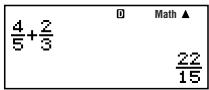
Math Format
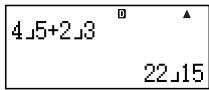
Linear Format
Specifying the Default Angle Unit
| To specify this as the default angle unit: | Perform this key operation: |
| Degrees | SHIFT MODE 3 (Deg) |
| Radians | SHIFT MODE 4 (Rad) |
| Grads | SHIFT MODE 5 (Gra) |
$$ 9 0 ^ {\circ} = \frac {\pi}{2} \text { r a d i a n s } = 1 0 0 \text { g r a d s } $$
Specifying the Number of Display Digits
| To specify this: | Perform this key operation: |
| Number of Decimal Places | SHIFT MODE 6 (Fix) 0 - 9 |
| Number of Significant Digits | SHIFT MODE 7 (Sci) 0 - 9 |
| Exponential Display Range | SHIFT MODE 8 (Norm) 1 (Norm1) or 2 (Norm2) |
Calculation Result Display Examples
- Fix: The value you specify (from 0 to 9) controls the number of decimal places for displayed calculation results. Calculation results are rounded off to the specified digit before being displayed.
Example: 100 ÷ 7 = 14.286 (Fix3)
14.29 (Fix2)
- Sci: The value you specify (from 1 to 10) controls the number of significant digits for displayed calculation results. Calculation results are rounded off to the specified digit before being displayed.
Example: 1 ÷ 7 = 1.4286 × 10^-1 (Sci5)
$$ 1. 4 2 9 \times 1 0 ^ {- 1} (\text { Sci4 }) $$
- Norm: Selecting one of the two available settings (Norm1, Norm2) determines the range in which results will be displayed in non-exponential format. Outside the specified range, results are displayed using exponential format.
Use the following procedure to turn display of the frequency (FREQ) column of the STAT Mode STAT editor screen on or off.
| To specify this: | Perform this key operation: |
| Show FREQ Column | SHIFT MODE 4 (STAT) 1 (ON) |
| Hide FREQ Column | SHIFT MODE 4 (STAT) 2 (OFF) |
Specifying the Decimal Point Display Format
| To specify this decimal point display format: | Perform this key operation: |
| Dot (.) | SHIFT MODE 5 (Disp) 1 (Dot) |
| Comma (,) | SHIFT MODE 5 (Disp) 2 (Comma) |
- The setting you configure here is applied for calculation results only. The decimal point for input values is always a dot ( · ).
■ Initializing the Calculation Mode and Other Settings
Performing the following procedure initializes the calculation mode and other setup settings as shown below.
SHIFT 9 (CLR) 1 (Setup) ☑ (Yes)
| This setting: | Is initialized to this: |
| Calculation Mode | COMP |
| Input/Output Format | MthIO |
| Angle Unit | Deg |
| Display Digits | Norm1 |
| Fraction Display Format | d/c |
| Complex Number Format | a+bi |
| Statistical Display | OFF |
| Decimal Point | Dot |
- To cancel initialization without doing anything, press (Cancel) instead of .
Inputting Expressions and Values
■ Inputting a Calculation Expression Using Standard Format
Your calculator lets you input calculation expressions just as they are written. Then simply press the ☐ key to execute it. The calculator automatically judges the calculation priority sequence for addition, subtraction, multiplication, and division, functions, and parentheses.
Example: 2(5+4)-2 × (-3)=
LINE
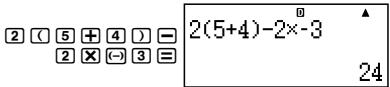
Inputting a Function with Parenthesis
When you input any of the functions shown below, it is automatically input with the open parenthesis (() character. Next, you need to input the argument and the closing parenthesis ()).
(· , (· , (· ,^-1(· ,^-1(· ,^-1(· , (· , (· , (· ,^-1(· ,^-1(· ,^-1(· , (· , (· ,e^(· ,10^(· ,(· ,(·,Abs(·,Pol(·,Rec(·, (d / dx)(·, (·,P(·,Q(·,R(·, (·,Conjg(·,Not(·,Neg(·, (·,Trn(·,Rnd(·,
Example: sin 30 =

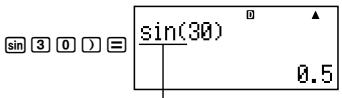
Pressing sin inputs "sin".
- Note that the input procedure is different if you want to use Math format. For more information, see "Inputting with Math Format".
Omitting the Multiplication Sign
You can omit the multiplication sign (×) in any of the following cases.
- Before an open parentheses (☐): 2 × (5 + 4) , etc.
- Before a function with parenthesis: 2 × (30) , 2 × (3) , etc.
- Before a prefix symbol (excluding the minus sign): 2 × h123 , etc.
- Before a variable name, constant, or random number:
20 ± A, 2 ± , 2 ± i, etc.
Final Closed Parenthesis
You can omit one or more closed parentheses that come at the end of a calculation, immediately before the ☐ key is pressed. For details, see “Omitting a Final Closed Parenthesis”.
Displaying a Long Expression
The display can show up to 14 characters at a time. Inputting the 15th character causes the expression to shift to the left. At this time, the ◀ indicator appears to the left of the expression, indicating that it runs off the left side of the screen.
Input expression: 1111 + 2222 + 3333 + 444
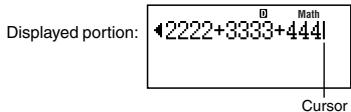
- When the ◀ indicator is displayed, you can scroll left and view the hidden part by pressing the ⬆ key. This will cause the ▶ indicator to appear to the right of the expression. At this time, you can use the ▶ key to scroll back.
Number of Input Characters (Bytes)
- You can input up to 99 bytes of data for a single expression. Basically, each key operation uses up one byte. A function that requires two key operations to input (like ( ^-1 )) also uses only one byte. Note, however, that when you are inputting functions with Math format, each item you input uses up more than one byte. For more information, see "Inputting with Math Format".
- Normally the input cursor appears as a straight vertical (☐) or horizontal (☐) flashing line on the display screen. When there are 10 or fewer bytes of input remaining in the current expression, the cursor changes shape to ☐ to let you know. If the ☐ cursor appears, terminate the expression at a convenient point and calculate the result.
■ Correcting an Expression
This section explains how to correct an expression as you are inputting it. The procedure you should use depends on whether you have insert or overwrite selected as the input mode.
About the Insert and Overwrite Input Modes
With the insert mode, the displayed characters shift to the left to make room when you input a new character. With the overwrite mode, any new character you input replaces the character at the current cursor position. The initial default input mode is insert. You can change to the overwrite mode when you need it.
- The cursor is a vertical flashing line (1) when the insert mode is selected. The cursor is a horizontal flashing line (2) when the overwrite mode is selected.
- The initial default for Linear format input is the insert mode. You can switch to the overwrite mode by pressing SHIFT DEL (INS).
- With Math format, you can only use the insert mode. Pressing SHIFT DEL (INS) when the Math format is selected does not switch to the overwrite mode. See "Incorporating a Value into a Function" for more information.
- The calculator automatically changes to the insert mode whenever you change the input/output format from Linear to Math.
Changing the Character or Function You Just Input
Example: To correct the expression 369 × 13 so it becomes 369 × 12


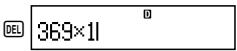
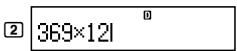
Deleting a Character or Function
Example: To correct the expression 369 × × 12 so it becomes 369 × 12
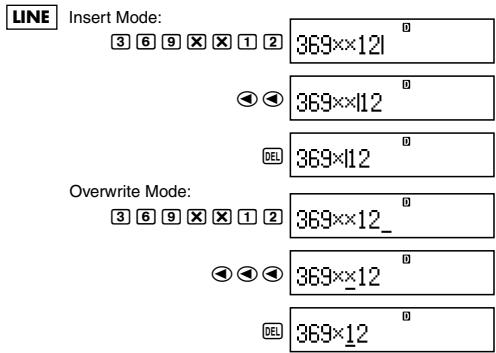
Correcting a Calculation
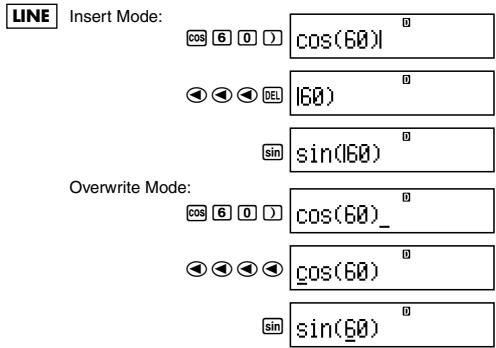
Example: To correct cos(60) so it becomes sin(60)
Inserting Input into a Calculation
Always use the insert mode for this operation. Use ◀ or ▶ to move the cursor to the location where you want to insert new input, and then input what you want.
■ Displaying the Location of an Error
If an error message (like "Math ERROR" or "Syntax ERROR") appears when you press ☐, press ◄ or ▶. This will display the part of the calculation where the error occurred, with the cursor positioned at the error location. You can then make necessary corrections.
Example: When you input 14 ÷ 0 × 2 = by mistake instead of 14 ÷ 10 × 2 =
Use the insert mode for the following operation.
![LINE 1 4 ÷ 0 X 2 ≡ Math ERROR [AC] :Cancel [◀][▶]:Goto Press ▶ or ◀. 14÷0×2 This is causing the error. ◀ 1 14÷10×2 14÷10×2 2.8](/content/2025/01/86780/images/fdc136e21be410e491b1fe46e8ceaaa8593e793eb6280a1e295af8a32ea7f9ba.jpg)
You can also exit the error screen by pressing AC, which clears the calculation.
■ Inputting with Math Format
When inputting with Math format, you can input and display fractions and some functions using the same format as they appear in your textbook.
Important!
- Certain types of expressions can cause the height of a calculation formula to be greater than one display line. The maximum allowable height of a calculation formula is two display screens (31 dots × 2). Further input will become impossible if the height of the calculation you are inputting exceeds the allowable limit.
- Nesting of functions and parentheses is allowed. Further input will become impossible if you nest too many functions and/or parentheses. If this happens, divide the calculation into multiple parts and calculate each part separately.
Functions and Symbols Supported for Math Format Input
- The “Bytes” column shows the number of bytes of memory that are used up by input.
| Function/Symbol | Key Operation | Bytes |
| Improper Fraction | 9 | |
| Mixed Fraction | SHIFT (■■) | 13 |
| log(a,b) (Logarithm) | _ | 6 |
| 10^x (Power of 10) | SHIFT (10^\#) | 4 |
| e^x (Power of e) | SHIFT (e^\#) | 4 |
| Square Root | √ | 4 |
| Cube Root | SHIFT (3■) | 9 |
| Square, Cube | x^2 , SHIFT x^2(x^3) | 4 |
| Reciprocal | x^2 | 5 |
| Power | x^2 | 4 |
| Power Root | SHIFT x^2([3]□) | 9 |
| Integral | 8 | |
| Derivative | SHIFT (^2 ) | 6 |
| Σ Calculation | SHIFT _ ( -) | 8 |
| Absolute Value | SHIFT hyp (Abs) | 4 |
| Parentheses | or | 1 |
Math Format Input Examples
- The following operations are all performed while Math format is selected.
- Pay close attention to the location and size of the cursor on the display when you input using Math format.
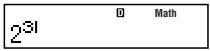
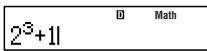
Example 1: To input 2^3 + 1



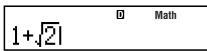
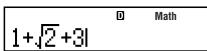
Example 2: To input 1 + 2 + 3



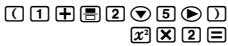
Example 3: To input (1 + 25)^2 × 2 =
MATH
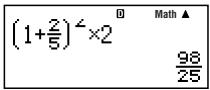
- When you press ☐ and obtain a calculation result using Math format, part of the expression you input can be cut off as shown in the Example 3 screen shot. If you need to view the entire input expression again, press AC and then press ▶.
Incorporating a Value into a Function
When using Math format, you can incorporate part of an input expression (a value, an expression within parentheses, etc.) into a function.
Example: To incorporate the expression inside of the parentheses of 1 + (2 + 3) + 4 into the function
MATH

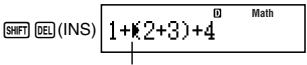
This changes the shape of the cursor as shown here.
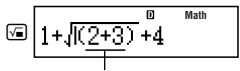
This incorporates the expression in the parentheses into the function .
- If the cursor is located left of a particular value or fraction (instead of an open parentheses), that value or fraction will be incorporated into the function specified here.
- If the cursor is located left of function, the entire function is incorporated into the function specified here.
The following examples show the other functions that can be used in the above procedure, and the required key operations to use them.
Original Expression: 1+|(2+3)+4
| Function | Key Operation | Resulting Expression |
| Fraction | DAD | 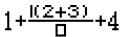 |
| log(a,b) | SFTD | ITAGD |
| Power Root | SFTD X ( V ) | 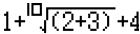 |
Original Expression: 1+|(X+3)+4
| Function | Key Operation | Resulting Expression |
| Integral | 1+_0^0|(X+3)dX+4 | |
| Derivative | 1+(|(X+3))|_x=0 | |
| Σ Calculation | 1+_X=0^0|(X+3)+4 |
You can also incorporate values into the following functions.
SHIFT log (10), SHIFT In (e), , x^ , SHIFT ( 3 ), SHIFT hyp (Abs)
Displaying Calculation Results in a Form that Includes 2 , , etc. (Irrational Number Form)
When “MthIO” is selected for the input/output format, you can specify whether calculation results should be displayed in a form that includes expressions like 2 and (irrational number form).
- Pressing ☐ after inputting a calculation displays the result using irrational number form.
- Pressing SHIFT ☐ after inputting a calculation displays the result using decimal values.
Note
- When “LineIO” is selected for the input/output format, calculation results are always displayed using decimal values (no irrational number form) regardless of whether you press ☐ or SHIFT ☐.
- form (form that includes within irrational number display) display conditions are the same as those for S-D conversion. For details, see "Using S-D Transformation".
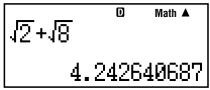
Example 1: 2 +8 = 32

①

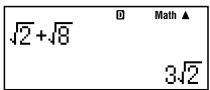
②

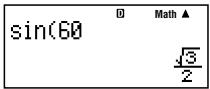
Example 2: (60) = 32
(Angle Unit: Deg)
MATH
sin 6 0 =
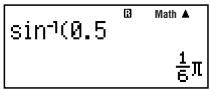
Example 3: ^-1(0.5) = 16
(Angle Unit: Rad)
MATH
SHIFT sin (sin ^-1 ) 0 · 5 =
- The following are the calculations for which form (form that includes within irrational number display) results can be displayed.
a. Arithmetic calculations of values with square root symbol ( ), x^2 , x^3 , x^-1
b. Trigonometric function calculations
c. Complex number Abs calculations
d. CMPLX Mode polar coordinate display (r ∠ θ)
The following are the input value ranges for which form is always used for display of trigonometric calculation results.
| Angle Unit Setting | Angle Value Input | Input Value Range for √Form Calculation Result |
| Deg | Units of 15° | |x| < 9 × 10^9 |
| Rad | Multiples of 112 radians | |x| < 20 |
| Gra | Multiples of 503 grads | |x| < 10000 |
Calculation results may be displayed in decimal form for input values outside of the above ranges.
■ √ Form Calculation Range
Note
When performing complex number calculations in the CMPLX Mode, the following conditions apply respectively to both the real part and the imaginary part.
Results that include square root symbols can have up to two terms (an integer term is also counted as a term).
form calculation results use display formats like those shown below.
$$ \pm a \sqrt {b}, \pm d \pm a \sqrt {b}, \pm \frac {a \sqrt {b}}{c} \pm \frac {d \sqrt {e}}{f} $$
The following shows the range for each of the coefficients (a, b, c, d, e, f) .
$$ 1 \leq a < 1 0 0, 1 < b < 1 0 0 0, 1 \leq c < 1 0 0 $$
$$ 0 \leq d < 1 0 0, 0 \leq e < 1 0 0 0, 1 \leq f < 1 0 0 $$
Example:
| 23 × 4 = 83 | form |
| 352 × 3 = 148.492424 (= 1052) | decimal form |
| 150225 = 8.485281374 | |
| 2 × (3 - 25) = 6 - 45 | form |
| 23 × (5 - 23) = 35.32566285 (= 115 - 463) | decimal form |
| 102 + 15 × 33 = 453 + 102 | form |
| 15 × (102 + 33) = 290.0743207 (= 453 + 1502) | decimal form |
| 2 + 3 + 8 = 3 + 32 | form |
| 2 + 3 + 6 = 5.595754113 | decimal form |
The underlined areas in the above examples indicate what caused decimal form to be used.
Reasons why the results of the examples are displayed in decimal form
- Value outside of the allowable range
- More than two terms in the calculation result
- Calculation results displayed in form are reduced to a common denominator.
$$ \frac {a \sqrt {b}}{c} + \frac {d \sqrt {e}}{f} \rightarrow \frac {a ^ {\prime} \sqrt {b} + d ^ {\prime} \sqrt {e}}{c ^ {\prime}} $$
- c' is the least common multiple of c and f .
- Since calculation results are reduced to a common denominator, they are displayed in form even if coefficients (a', c', and d') are outside the corresponding ranges of coefficients (a, c, and d) .
Example: 311 + 210 = 103 + 112110
- The result is displayed in decimal form even when any intermediate result has three or more terms.
Example: (1 + 2 + 3)(1 - 2 - 3) (= -4 - 26)
$$ = - 8. 8 9 8 9 7 9 4 8 6 $$
- If a term is encountered during the calculation cannot be displayed as a root ( ) form or a fraction, the calculation result is displayed in decimal form.
Example: 3 + 2 = 1.891334817
Basic Calculations
(COMP)
This section explains how to perform arithmetic, fraction, percent, and sexagesimal calculations.
All calculations in this section are performed in the COMP Mode (MODE 1).
Arithmetic Calculations
Use the ⊕, ⊖, ✗, and ÷ keys to perform arithmetic calculations.
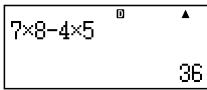
Example: 7 × 8 - 4 × 5 = 36
LINE

- The calculator automatically judges the calculation priority sequence. For more information, see “Calculation Priority Sequence”.
Number of Decimal Places and Number of Significant Digits
You can specify a fixed number of decimal places and significant digits for the calculation result.
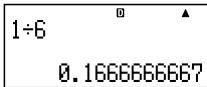
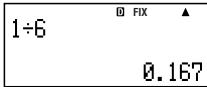
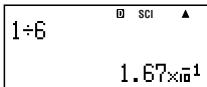
Example: 1 ÷ 6 =
LINE
Initial default setting (Norm1)
3 decimal places (Fix3)
3 significant digits (Sci3)
- For more information, see “Specifying the Number of Display Digits”.
Omitting a Final Closed Parenthesis
You can omit any closed parenthesis ( ) immediately preceding operation of the ☐ key at the end of a calculation.
This is true only in the case of Linear format.
Example: (2 + 3) × (4 - 1) = 15
LINE
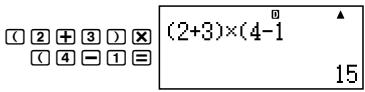
■ Fraction Calculations
How you should input fractions depends on the input/output format that is currently selected.
| Improper Fraction | Mixed Fraction | |
| Math Format | max | max |
| Linear Format | maxNumerator Denominator(7 3) | 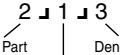 3minatorNumerator(2 1 3) 3minatorNumerator(2 1 3) |
- Under initial default settings, fractions are displayed as improper fractions.
- Fraction calculation results are always reduced before being displayed.
Appendix
$$ < # 0 0 1 > \frac {2}{3} + \frac {1}{2} = \frac {7}{6} $$
$$ < # 0 0 2 > 3 \frac {1}{4} + 1 \frac {2}{3} = 4 \frac {1 1}{1 2} (\text { Fraction Display Format: ab / c }) $$
$$ 4 - 3 \frac {1}{2} = \frac {1}{2} (\text { Fraction Display Format: ab / c }) $$
- If the total number of digits used for a mixed fraction (including integer, numerator, denominator, and separator symbols) is greater than 10, the value is automatically displayed in decimal format.
- The result of a calculation that involves both fraction and decimal values is displayed in decimal format.
Switching between Improper Fraction and Mixed Fraction Format
Pressing the +D (a ) key toggles the display fraction between mixed fraction and improper fraction format.
Switching between Fraction and Decimal Format

- The format of the fraction depends on the currently selected fraction display format setting (improper fraction or mixed fraction).
- You cannot switch from decimal format to mixed fraction format if the total number of digits used in the mixed fraction (including integer, numerator, denominator, and separator symbols) is greater than 10.
- For details about the S+D key, see "Using S-D Transformation".
■ Percent Calculations
Inputting a value and pressing SHIFT (%) causes the input value to become a percent.
Appendix
$$ < # 003 > 2 \% = 0.02\qquad \left(\frac{2}{100}\right) $$
$$ < # 004 > 150 \times 20 \% = 30 \quad \left(150 \times \frac{20}{100}\right) $$
<#005> Calculate what percentage of 880 is 660. (75%)
<#006> Increase 2500 by 15%. (2875)
<#007> Discount 3500 by 25%. (2625)
<#008> Discount the sum of 168, 98, and 734 by 20%. (800)
<#009> If 300 grams are added to a test sample originally weighing 500 grams, what is the percentage increase in weight? (160%)
<#010> What is the percentage change when a value is increased from 40 to 46? How about to 48? (15%, 20%)
■ Degree, Minute, Second (Sexagesimal) Calculations
You can perform calculations using sexagesimal values, and convert values between sexagesimal and decimal.
Inputting Sexagesimal Values
The following is the syntax for inputting a sexagesimal value.
{Degrees} ☐, " {Minutes} ☐, " {Seconds} ☐, "
Appendix <#011> Input 2°0'30".
- Note that you must always input something for the degrees and minutes, even if they are zero.
Sexagesimal Calculations
- Performing the following types of sexagesimal calculations produces a sexagesimal result.
- Addition or subtraction of two sexagesimal values
- Multiplication or division of a sexagesimal value and a decimal value
Appendix
$$ < # 0 1 2 > 2 ^ {\circ} 2 0 ^ {\prime} 3 0 ^ {\prime \prime} + 3 9 ^ {\prime} 3 0 ^ {\prime \prime} = 3 ^ {\circ} 0 0 ^ {\prime} 0 0 ^ {\prime \prime} $$
Converting Values between Sexagesimal and Decimal
Pressing ☐ while a calculation result is displayed toggles the value between sexagesimal and decimal.
Appendix
$$ < # 0 1 3 > \text { Convert } 2. 2 5 5 \text { to its sexagesimal equivalent. } $$
Using Multi-statements in Calculations
You can use the colon character (:) to connect two or more expressions and execute them in sequence from left to right when you press ☐.
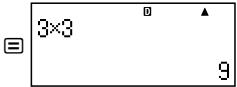
Example: To create a multi-statement that performs the following two calculations: 3 + 3 and 3 × 3
LINE

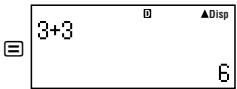
“Disp” indicates this is an intermediate result of a multi-statement.
Using Calculation History Memory and Replay
Calculation history memory maintains a record of each calculation expression you input and execute, and its result.
Modes that support calculation history memory: COMP (MODE 1), CMPLX (MODE 2), BASE-N (MODE 4)
Recalling Calculation History Memory Contents
Press ⬆ to back-step through calculation history memory contents. Calculation history memory shows both calculation expressions and results.
Example:
LINE
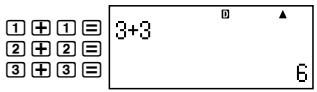
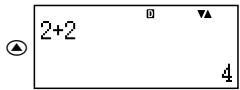
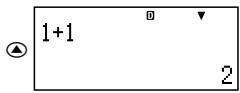
- Note that calculation history memory contents are cleared whenever you turn off the calculator, press the ON key, change to the calculation mode or the input/output format, or perform any reset operation.
- Calculation history memory is limited. When the calculation you are performing causes calculation history memory to become full, the oldest calculation is deleted automatically to make room for the new calculation.
Replay Function
While a calculation result is on the display, you can press AC and then ◀ or ▶ to edit the expression you used for the previous calculation. If you are using Linear format, you can display the expression by pressing ◀ or ▶, without pressing AC first.
Appendix <#014>
Using Calculator Memory
| Memory Name | Description |
| Answer Memory | Stores the last calculation result obtained. |
| Independent Memory | Calculation results can be added to or subtracted from independent memory. The “M” display indicator indicates data in independent memory. |
| Variables | Six variables named A, B, C, D, X, and Y can be used for storage of individual values. |
This section uses the COMP Mode (MODE 1) to demonstrate how you can use memory.
■ Answer Memory (Ans)
Answer Memory Overview
- Answer Memory contents are updated whenever you execute a calculation using any one of the following keys: , , + , + (M-), , (STO). Answer Memory can hold up to 15 digits.
- Answer Memory contents are not change if an error occurs during the current calculation.
- Answer Memory contents are maintained even if you press the AC key, change the calculation mode, or turn off the calculator.
- If a CMPLX Mode calculation produces a complex number result, both the real part and imaginary part are stored in Answer Memory. In this case, however, the imaginary part will be cleared from Answer Memory if you change to another calculation mode.
Using Answer Memory to Perform a Series of Calculations
Example: To divide the result of 3 × 4 by 30
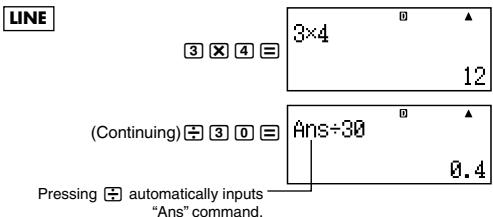
- With the above procedure, you need to perform the second calculation immediately after the first one. If you need to recall Answer Memory contents after pressing AC, press the Ans key.
Inputting Answer Memory Contents into an Expression
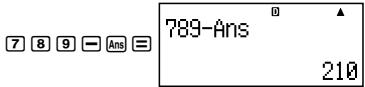
Example: To perform the calculations shown below:
$$ 1 2 3 + 4 5 6 = \underline {{5 7 9}} \quad 7 8 9 - \underline {{5 7 9}} = 2 1 0 $$

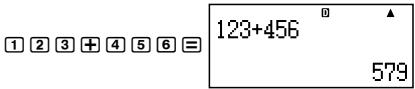
■ Independent Memory (M)
You can add calculation results to or subtract results from independent memory. The “M” appears on the display when independent memory contains a value.
Independent Memory Overview
- The following is a summary of the different operations you can perform using independent memory.
| To do this: | Perform this key operation: |
| Add the displayed value or result of the expression to independent memory | M+ |
| Subtract the displayed value or result of the expression from independent memory | SHIFT M+ (M-) |
| Recall current independent memory contents | RCL M+ (M) |
- You can also insert the M variable into a calculation, which tells the calculator to use the current independent memory contents at that location. The following is the key operation for inserting the M variable.
ALPHA M+ (M)
- The “M” indicator appears in the upper left of the display when there is any value other than zero stored in independent memory.
- Independent memory contents are maintained even if you press the AC key, change the calculation mode, or turn off the calculator.
Calculation Examples Using Independent Memory
- If the “M” indicator is on the display, perform the procedure under “Clearing Independent Memory” before performing this example.
| Example: | 23 + 9 = 32 |
| 53 - 6 = 47 | |
| -45 × 2 = 90 | |
| 99 ÷ 3 = 33 | |
| (Total) 22 |
| 2 | 3 | + | 9 | M+ |
| 5 | 3 | - | 6 | M+ |
| 4 | 5 | × | 2 | SHIFT M+(M-) |
| 9 | 9 | ÷ | 3 M+ | |
| RCL M+(M) |
Clearing Independent Memory
Press 0 SHIFT RCL(STO)M+. This clears independent memory and causes the "M" indicator to disappear from the display.
■ Variables (A, B, C, D, X, Y)
Variable Overview
- You can assign a specific value or a calculation result to a variable. Example: To assign the result of 3 + 5 to variable A.
3 + 5 SHIFT RCL (STO) (-)(A)
- Use the following procedure when you want to check the contents of a variable.
Example: To recall the contents of variable A
RCL (-)(A)
- The following shows how you can include variables inside of an expression.
Example: To multiply the contents of variable A by the contents of variable B
ALPHA (-) (A) ✗ ALPHA ☐” (B) =
- Variable contents are maintained even if you press the AC key, change the calculation mode, or turn off the calculator.
Appendix <#015>
Clearing the Contents of a Specific Variable
Press 0 SHIFT RCL (STO) and then press the key for the name of the variable whose contents you want to clear. To clear the contents of variable A, for example, press 0 SHIFT RCL (STO) (A).
■ Clearing the Contents of All Memories
Use the following procedure to clear the contents of Answer Memory, independent memory, and all of the variables.
Press SHIFT 9 (CLR) 2 (Memory) = (Yes).
- To cancel the clear operation without doing anything, press (Cancel) instead of = .
Using CALC
The CALC feature lets you input a calculation expression that contains variables, and then assign values to the variables and perform the calculation.
You can use CALC in the COMP Mode (MODE 1) and in the CMPLX Mode (MODE 2).
■ Expressions Supported by CALC
The following describes the types of expressions that can be used with CALC.
• Expressions that contain variables
Example: 2X + 3Y, 5B + 3i, 2AX + 3BY + C
- Multi-statements
Example: X + Y : X (X + Y)
• Expressions with a single variable on the left
Example: {variable} = {expression}
The expression on the right of the equals sign (input using ALPHA CALC(=)) can contain variables.
Example: Y = 2X, A = X ^2 + X + 3
■ Example Calculation Using CALC
To start a CALC operation after inputting an expression, press the CALC key.
Example:
LINE
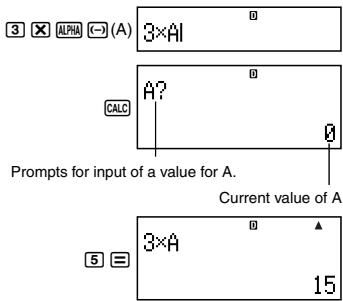
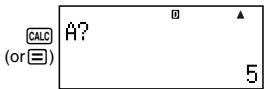
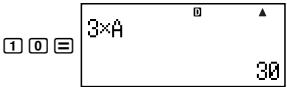
- To exit CALC, press AC.
- If the expression you are using contains more than one variable, an input prompt appears for each one.
Appendix
<#016> Calculate an + 1 = an + 2n (a1 = 1) as the value of an changes from a2 to a5. (Results: a2 = 3, a3 = 7, a4 = 13, a5 = 21)
*1 Assigns 1 to a1. *2 Assigns 1 to n.
*3 Value of a2 *4 Assigns value to a2.
*5 Assigns 2 to n. *6 Value of a3
*7 Value of a4 *8 Value of a5
Using SOLVE
(COMP)
SOLVE uses Newton's Method of approximation to solve an equation.
You can use SOLVE in the COMP Mode (MODE 1) only.
■ Rules Governing Equations when Using SOLVE
- You can use the following types of syntax for the solution variable. Example: Y = X + 5 , Y (Solves for Y ).
$$ X B = C + D, B (S o l v e s f o r B.) $$
The following shows the syntax for the log function.
| Y = X × (2) | (When the variable specification ",X" is omitted,the equation Y = X × _102 is solved for X.) |
| Y = X × (2,Y) | (When the variable specification ",Y" is included,the equation Y = X × _102 is solved for Y.) |
| Y = X × (2,Y) | (When the variable specification ",X" is omitted,the equation Y = X × _2Y is solved for X.) |
- Unless you specify otherwise, an equation is solved for X .
Example: Y = X + 5 , X = (M) , X + 3 = B + C ,
$$ X Y + C (T r e a t e d a s X Y + C = 0.) $$
- SOLVE cannot be used to solve an equation that contains an integral, derivative, (function, Pol( function, Rec( function, or multi-statement.
- An error (Variable ERROR) occurs when the solution variable is not included in the expression being solved.
■ Example SOLVE Operation
Example: To solve y = ax^2 + b for x when y = 0, a = 1, and b = -2.
MATH

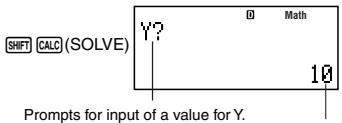
Current value of Y
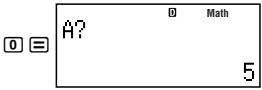
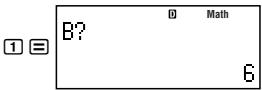
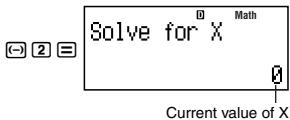
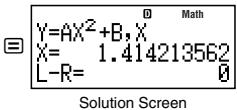
- To interrupt an ongoing SOLVE operation, press AC.
Precautions when Using SOLVE
- SOLVE may not be able to obtain a solution because of the initial value (assumed value) of the solution variable. If this happens, try changing the initial value of the solution variable.
- SOLVE may not be able to determine the correct solution, even when one exists.
- SOLVE uses Newton's Method, so even if there are multiple solutions, only one of them will be returned.
- Newton's Method can have problems obtaining solutions for the following types of functions.
- A periodic function (y = sin(x), etc.)
- A function whose graph includes a steep slope
- A discontinuous function ( y = , etc.)
$$ (y = e ^ {x}, y = 1 / x, \text { etc. }) $$
Solution Screen Contents
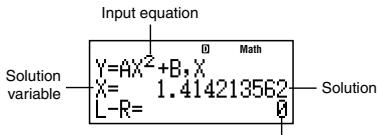
(left side) - (right side) form result
- The “(left side) – (right side) form result” shows the result when the obtained solution is assigned to the solution variable. The closer this value is to zero, the higher is the precision of the obtained solution.
Continue Screen
SOLVE performs convergence a preset number of times. If it cannot find a solution, it displays a confirmation screen that shows "Continue: [=]", asking if you want to continue.
Press ☐ to continue or ☐ to cancel the SOLVE operation.
Appendix
<#017> Solve y = x^2 - x + 1 for x when y = 3, 7, 13, and 21. (Solutions: x = 2, 3, 4, 5 when y = 3, 7, 13, 21 respectively)
*1 Assigns 3 to Y.
*2 Assigns an initial value of 1 to X.
Function Calculations
This section explains how to use the calculator's built-in functions.
The functions available to you depends on the calculation mode you are in. The explanations in this section are mainly about the functions that are available in all calculation modes. All of the examples in this section show operation in the COMP Mode (MODE 1).
- Certain function calculations may take some time to display calculation results. Before performing an operation, be sure to wait until execution of the current operation is complete. You can interrupt an ongoing operation by pressing AC.
■ Pi ( ) and Natural Logarithm Base e
You can input pi ( ) or natural logarithm base e into a calculation. The following shows the required key operations and the values this calculator uses for pi ( ) and e.
$$ \pi = 3. 1 4 1 5 9 2 6 5 3 5 8 9 8 0 (\boxed {\text {SHIFT}} \boxed {\times 1 0 ^ {x}} (\pi)) $$
$$ e = 2. 7 1 8 2 8 1 8 2 8 4 5 9 0 4 (\boxed {\text { ALPHA }} \boxed {\times 1 0 ^ {x}} (e)) $$
- You can use and e in any calculation mode except for BASE-N.
■ Trigonometric and Inverse Trigonometric Functions
- Trigonometric and inverse trigonometric functions can be used in the COMP, STAT, EQN, MATRIX, TABLE, and VECTOR calculation modes. They can also be used in the CMPLX Mode, as long as complex numbers are not used for their arguments.
- The angle unit required by trigonometric and inverse trigonometric functions is one specified as the calculator's default angle unit. Before performing a calculation, be sure to specify the default angle unit you want to use. See "Specifying the Default Angle Unit" for more information.
Appendix <#018> sin 30 = 0.5, sin ^-1 0.5 = 30
■ Hyperbolic and Inverse Hyperbolic Functions
Hyperbolic and inverse hyperbolic functions can be used in the same modes as the trigonometric functions. Pressing the hyp key displays a menu of functions. Press the number key that corresponds to the function you want to input.
Appendix <#019> sinh 1 = 1.175201194, cosh ^-1 1 = 0
■ Converting an Input Value to the Calculator's Default Angle Unit
After inputting a value, press SHIFT Ans (DRG▶) to display the angle unit specification menu shown below. Press the number key that corresponds to the angle unit of the input value. The calculator will automatically convert it to the calculator's default angle unit.
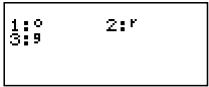
Example: To convert the following values to degrees:
$$ \frac {\pi}{2} \text { radians } = 9 0 ^ {\circ}, 5 0 \text { grads } = 4 5 ^ {\circ} $$
The following procedure assumes that the calculator's default angle unit is degrees.
![LINE [1 SHIFT x10° (π) ⊕ 2] SHIFT Ans (DRG▶) [2 (r) ≡ (π÷2)r 90 5 0 SHIFT Ans (DRG▶) 3 (9) ≡ 50° 45](/content/2025/01/86780/images/d538b858bed1a0a7ed144812f9c833f2bcdaf09a4359e879ff91f8547ca50d74.jpg)
Appendix
$$ < # 0 2 0 > \cos (\pi \text { radians }) = - 1, \cos (1 0 0 \text { grads }) = 0 $$
$$ < # 0 2 1 > \cos^ {- 1} (- 1) = 1 8 0 $$
$$ \cos^ {- 1} (- 1) = \pi $$
■ Exponential Functions and Logarithmic Functions
- Exponential and logarithmic functions can be used in the same modes as the trigonometric functions.
- For the logarithmic function “log(”, you can specify base m using the syntax “log(m, n)”.
If you input only a single value, a base of 10 is used for the calculation.
- “In(” is a natural logarithm function with base e .
- You can also use the _m key when inputting an expression with the form of "logmn" while using Math format. For details, see
Appendix <#022>. Note that you must input the base (base m) when using the _a key for input.
Appendix <#023> to <#025>
*1 A base of 10 (common logarithm) is used if no base is specified.
■ Power Functions and Power Root Functions
- Power functions and power root functions can be used in the COMP, STAT, EQN, MATRIX, TABLE, and VECTOR calculation modes.
- The X^2 , X^3 , X^-1 functions can be used in complex number calculations in the CMPLX Mode, and complex number arguments are supported.
- The X^ , , 3 , || functions can be used in the CMPLX Mode, as long as complex numbers are not used as their arguments.
Appendix <#026> to <#030>
■ Integration Calculations
This calculator performs integration using the Gauss-Kronrod method of numerical integration.
(f(x),a,b,tol)
f(x) : Function of X (All non-X variables are treated as constants.)
a: Integration interval lower limit
b: Integration interval upper limit
tol: Tolerance range (input/output format: Linear)
- You can omit specification of the tolerance range. A default value of 1 × 10^-5 is used when you do.
- (, d / dx), Pol, Rec, and ( cannot be used within f(x) , a, b , or tol.
- Integration calculations can be performed in the COMP Mode only.
- The integration result will be negative when f(x) < 0 within an integration interval that conforms with a ≤ x ≤ b .
Example: (0.5X^2-2,-2,2)=-5.333333333
- A “Time Out” error occurs when an integration calculation ends without the ending condition being fulfilled.
- When performing an integration calculation involving trigonometric functions, specify Rad as the calculator's default angle unit.
- Integration calculations can take considerable time to complete.
- A smaller tol value provides better precision, but it also causes the calculation to take more time. Specify a tol value that is 1 × 10^-14 or greater.
- You cannot input a tol value when using Math format.
- There may be large error in obtained integration values and errors may occur due to the type of function being integrated, the presence of positive and negative values in the integration interval, or the interval.
- Pressing AC will interrupt an ongoing integration calculation.
Tips on Improving Integration Value Accuracy
- When a periodic function or integration interval results in positive and negative f(x) function values
Perform separate integrations for each cycle, or for the positive part and the negative part, and then combine the results.
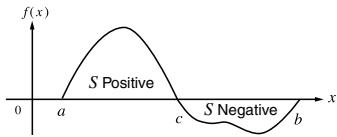
$$ \int_{a}^{b}f(x)dx = \underbrace{\int_{a}^{c}f(x)dx}{\substack{\text{Positive Part}\ (S\text{Positive})}} + \underbrace{(-\int{c}^{b}f(x)dx)}_{\substack{\text{Negative Part}\ (S\text{Negative})}} $$
- When integration values fluctuate widely due to minute shifts in the integration interval
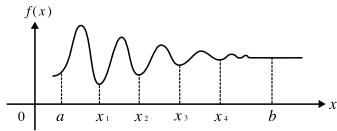
Divide the integration interval into multiple parts (in a way that breaks areas of wide fluctuation into small parts), perform integration on each part, and then combine the results.
line
| x | f(x) | | ---- | ---- | | a | Low | | x₁ | High | | x₂ | Low | | x₃ | High | | x₄ | Low | | b | Stable |$$ \int_ {a} ^ {b} f (x) d x = \int_ {a} ^ {x _ {1}} f (x) d x + \int_ {x _ {1}} ^ {x _ {2}} f (x) d x + \dots . + \int_ {x _ {4}} ^ {b} f (x) d x $$
Appendix
$$ \begin{array}{l} < # 0 3 1 > \int (\ln (x), 1, e) = 1 \ < # 0 3 2 > \int \left(\frac {1}{x ^ {2}}, 1, 5, 1 \times 1 0 ^ {- 7}\right) = 0. 8 \ \end{array} $$
(tol specification omitted.)
■ Differential Calculations
Your calculator performs differential calculations by approximating the derivative based on centered difference approximation.
d / dx(f(x),a,tol)
f(x) : Function of X (All non-X variables are treated as constants.)
a: Input a value to specify the point for which the derivative should be obtained (differential point)
tol: Tolerance range (input/output format: Linear)
- You can omit specification of the tolerance range. A default value of 1 × 10^-10 is used when you do.
- (, d / dx), Pol, Rec, and ( cannot be used within f(x) , a , or tol.
- Differential calculations can be performed in the COMP Mode only.
- When performing a differential calculation involving trigonometric functions, specify Rad as the calculator's default angle unit.
- A “Time Out” error occurs when a differential calculation ends without the ending condition being fulfilled.
- A smaller tol value provides better precision, but it also causes the calculation to take more time. Specify a tol value that is 1 × 10^-14 or greater.
- You cannot input a tol value when using Math format.
-
Inaccurate results and errors can be caused by the following :
-
discontinuous points in x values
- extreme changes in x values
- inclusion of the local maximum point and local minimum point in x values
- inclusion of the inflection point in x values
- inclusion of undifferentiable points in x values
- differential calculation results approaching zero
- Pressing AC will interrupt an ongoing differential calculation.
Appendix
<#033> Determine f'(2) when f(x) = (x)
(tol specification omitted.)
$$ < # 0 3 4 > \frac {d}{d x} (3 x ^ {2} - 5 x + 2, 2, 1 \times 1 0 ^ {- 1 2}) = 7 $$
■ Σ Calculations
With , you can obtain the sum of an input f(x) expression for a specific range. calculations are performed using the following formula.
$$ \Sigma (f (x), a, b) = f (a) + f (a + 1) + \dots . + f (b) $$
f(x) : Function of X (All non-X variables are treated as constants.)
a: Calculation range start point
b: Calculation range end point
- a and b are integers in the range of -1 × 10^10 < a ≤ b < 1 × 10^10 .
- The calculation step is fixed at 1.
- (, d/dx(, Pol(, Rec(, and ( cannot be used within f(x), a, or b.
- Pressing will interrupt an ongoing calculation.
Appendix <#035> Σ (X + 1, 1, 5) = 20
■ Rectangular-Polar Coordinate Conversion
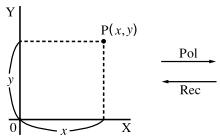
Rectangular Coordinates (Rec)
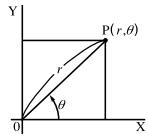
Polar Coordinates (Pol)
- Coordinate conversion can be performed in the COMP, STAT, MATRIX, and VECTOR calculation modes.
Converting to Polar Coordinates (Pol)
Pol(X, Y) X: Specifies the rectangular coordinate X value Y: Specifies the rectangular coordinate Y value
- Calculation result is displayed in the range of -180^ < ≤ 180^ .
- Calculation result is displayed using the calculator's default angle unit.
- Calculation result r is assigned to variable X, while is assigned to Y.
Converting to Rectangular Coordinates (Rec)
Rec(r, ) r: Specifies r value of polar coordinate : Specifies value of polar coordinate
- Input value is treated as an angle value, in accordance with the calculator's default angle unit setting.
- Calculation result x is assigned to variable X , while y is assigned to Y .
- If you perform coordinate conversion inside of an expression instead of a stand-alone operation, the calculation is performed using only the first value (either the r -value or the X-value) produced by the conversion.
Example: Pol(2,2)+5=2+5=7
Appendix <#036> to <#037>
■ Other Functions
This section explains how to use the functions shown below.
!, Abs(, Ran#, nPr, nCr, Rnd(
- These functions can be used in the same modes as the trigonometric functions. In addition, the Abs( and Rnd( functions can be used in complex number calculations in the CMPLX Mode.
Factorial (!)
This function obtains the factorials of a value that is zero or a positive integer.
Appendix <#038> (5 + 3)! = 40320
Absolute Value Calculation (Abs)
When you are performing a real number calculation, this function simply obtains the absolute value.
Appendix <#039> Abs (2 - 7) = 5
This function generates a 3-digit pseudo random number that is less than 1.
Appendix
<#040> Generate three 3-digit random numbers.
The random 3 digit decimal values are converted to 3-digit integer values by multiplying by 1000.
Note that the values shown here are examples only. Values actually generated by your calculator will be different.
Permutation (nPr) and Combination (nCr)
These functions make it possible to perform permutation and combination calculations.
n and r must be integers in the range of 0 ≤ r ≤ n < 1 × 10^10 .
Appendix
<#041> How many four-person permutations and combinations are possible for a group of 10 people?
Rounding Function (Rnd)
This function rounds the value or the result of the expression in the function's argument to the number of significant digits specified by the number of display digits setting.
Display Digits Setting: Norm1 or Norm2
The mantissa is rounded to 10 digits.
Display Digits Setting: Fix or Sci
The value is rounded to the specified number of digits.
Example: 200 ÷ 7 × 14 = 400
LINE

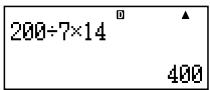
(Specifies three decimal places.)

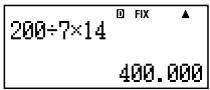
(Calculation is performed internally using 15 digits.)

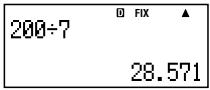
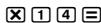
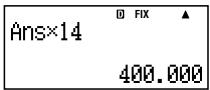
The following performs the same calculation with rounding.

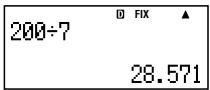
(Round the value to the specified number of digits.)

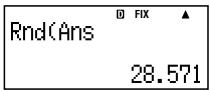
(Check rounded result.)
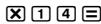
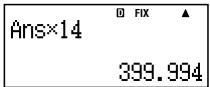
■ Practical Examples
Appendix
$$ < # 0 4 2 > \int_ {0} ^ {\pi} (\sin X + \cos X) ^ {2} d X = \pi $$
(tol: Not specified)
<#043> Confirm that the two sides of the following equation are equal:
$$ e = \sum_ {n = 0} ^ {\infty} \frac {1}{n !} $$
Transforming Displayed Values
You can use the procedures in this section to transform a displayed value to engineering notation, or to transform between standard form and decimal form.
■ Using Engineering Notation
A simple key operation transforms a displayed value to engineering notation.
Appendix
<#044> Transform the value 1,234 to engineering notation, shifting the decimal point to the right.
<#045> Transform the value 123 to engineering notation, shifting the decimal point to the left.
■ Using S-D Transformation
You can use S-D transformation to transform a value between its decimal (D) form and its standard (S) form (fraction, ).
Formats Supported for S-D Transformation
S-D transformation can be used to transform a displayed decimal calculation result to one of the forms described below. Performing S-D transformation again converts back to the original decimal value.
Note
- When you transform from decimal form to standard form, the calculator automatically decides the standard form to use. You cannot specify the standard form.
Fraction: The current fraction display format setting determines whether the result is an improper fraction or mixed fraction.
π: The following are the π forms that are supported.
This is true only in the case of Math format.
n ( n is an integer.)
or a (depending on fraction display format setting)
- Transformation to a fractional form is limited to inverse trigonometric function results and values that are normally expressed in radians.
- After obtaining a calculation result in form, you can convert it to decimal form by pressing the key. When the original calculation result is in decimal form, it cannot be converted to form.
Examples of S-D Transformation
Note that S-D transformation can take some time to perform.
Example: Fraction → Decimal
MATH


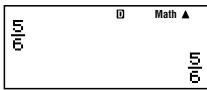
• Each press of the S+D key toggles between the two forms.

0.8333333333

5/6
Appendix
<#046> π Fraction → Decimal
<#047> √ → Decimal
Complex Number Calculations (CMPLX)
Your calculator can perform the following complex number calculations.
- Addition, subtraction, multiplication, division
- Argument and absolute value calculations
• Reciprocal, square and cube calculations - Conjugate complex number calculations
All calculations in this section are performed in the CMPLX Mode (MODE 2).
Appendix
$$ < # 0 4 8 > (1 + 3 i) \div (2 i) = \frac {3}{2} - \frac {1}{2} i $$
■ Inputting Complex Numbers
- In the CMPLX Mode, the ENG key changes function to become an imaginary number i input key. In this section, the ENG key is referred to as the i key. Use the i key when inputting a complex number of the format a + bi . The key operation below shows how to input 2 + 3 i , for example.

- You can also input complex numbers using polar coordinate format (r ) . The key operation below shows how to input 5 30 , for example.

- The angle unit for argument input and result display is the calculator's default angle unit.
■ Calculation Result Display Format
Your calculator can display complex number calculation results in rectangular coordinate or polar coordinate format. You can select the coordinate format by configuring the calculator's setup. For more information, see "Specifying the Complex Number Display Format".
Examples of Calculation Results Using Rectangular Coordinate Format (a + bi)
Example 1: ( 2 \times (\sqrt{3} + i) = 2\sqrt{3} + 2i = 3.464101615 + 2i \$


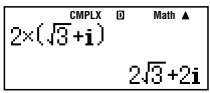
- With Linear format, the real part and imaginary part are shown in two different lines.
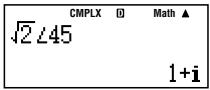
Example 2: 2 45 = 1 + i
(Angle Unit: Deg)


Examples of Calculation Results Using Polar Coordinate Format ( r )
Example 1: 2 × (3 + i) = 23 + 2i = 4 30
(Angle Unit: Deg)


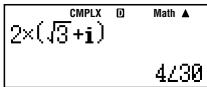
- With Linear format, the absolute value and argument are shown in two different lines.
Example 2: 1 + i = 2 45
(Angle Unit: Deg)

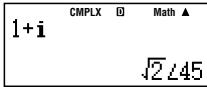
- Argument is output in the range of -180^ < ≤ 180^ .
Specifying the Calculation Result Display Format
You can override complex number display settings and specify the format that should be used to display calculation results.
- To specify rectangular coordinate format for the calculation result, perform the following key operation at the end of the calculation.

- To specify polar coordinate format for the calculation result, perform the following key operation at the end of the calculation.


$$ < # 0 4 9 > 1 + i (= \sqrt {2} \angle 4 5) = 1. 4 1 4 2 1 3 5 6 2 \angle 4 5 $$
■ Conjugate Complex Number (Conjg)
You can use the following operation to obtain a conjugate complex number.
SHIFT 2 (CMPLX) 2 (Conjg)

<#050> Determine the conjugate of the complex number 2 + 3i .
■ Absolute Value and Argument (Abs, arg)
You can use the following procedure to obtain the absolute value (|Z|) and argument (arg) on the Gaussian plane for a complex number of the format Z = a + bi .
SHIFT hyp (Abs); SHIFT 2 (CMPLX) 1 (arg)

<#051> Obtain the absolute value and argument of 2 + 2i .
*1 Absolute Value
*2 Argument
Statistical Calculation (STAT)
All calculations in this section are performed in the STAT Mode (MODE 3).
Selecting a Statistical Calculation Type
In the STAT Mode, display the statistical calculation type selection screen.
Statistical Calculation Types
| Key | Menu Item | Statistical Calculation |
| 1 | 1-VAR | Single-variable |
| 2 | A+BX | Linear regression |
| 3 | _+CX^2 | Quadratic regression |
| 4 | In X | Logarithmic regression |
| 5 | e^ | e exponential regression |
| 6 | A*B^X | ab exponential regression |
| 7 | A*X^B | Power regression |
| 8 | 1/X | Inverse regression |
Inputting Sample Data
Displaying the STAT Editor Screen
The STAT editor screen appears after you enter the STAT Mode from another mode. Use the STAT menu to select a statistical calculation type. To display the STAT editor screen from another STAT Mode screen, press SHIFT 1 (STAT) 2 (Data).
STAT Editor Screen
There are two STAT editor screen formats, depending on the type of statistical calculation you selected.
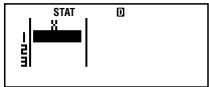
Single-variable Statistics
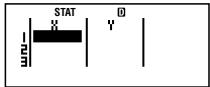
Paired-variable Statistics
- The first line of the STAT editor screen shows the value for the first sample or the values for their first pair of samples.
FREQ (Frequency) Column
If you turn on the Statistical Display item on the calculator's setup screen, a column labeled "FREQ" will also be included on the STAT editor screen.
You can use the FREQ column to specify the frequency (the number of times the same sample appears in the group of data) of each sample value.
Rules for Inputting Sample Data on the STAT Editor Screen
- Data you input is inserted into the cell where the cursor is located. Use the cursor keys to move the cursor between cells.
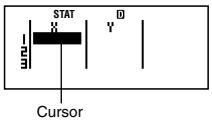
- The values and expressions you can input on the STAT editor screen are the same as those you can input in the COMP Mode with Linear format.
- Pressing AC while inputting data clears your current input.
- After inputting a value, press ☐. This registers the value and displays up to six of its digits in the currently selected cell.
Example: To input the value 123.45 in cell X1
(Move the cursor to cell X1.)
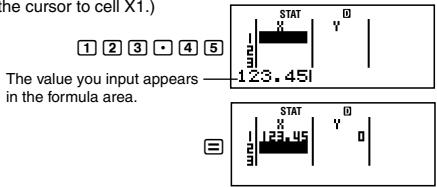
Registering a value causes the cursor to move down one cell.
STAT Editor Screen Input Precautions
- The number of lines in STAT editor screen (the number of sample data values you can input) depends on the type of statistical data you selected, and on the Statistical Display setting of the calculator's setup screen.
| Statistic Type\Statistical Display | OFF(No FREQ column) | ON(FREQ column) |
| Single-variable | 80 lines | 40 lines |
| Paired-variable | 40 lines | 26 lines |
- The following types of input are not allowed on the STAT editor screen.
- M+, SHIFT M+ (M−) operations
- Assignment to variables (STO)
Precautions Concerning Sample Data Storage
Sample data you input is deleted automatically whenever you change to another mode from the STAT Mode or change the Statistical Display setting (which causes the FREQ column to be shown or hidden) on the calculator's setup screen.
Editing Sample Data
Replacing the Data in a Cell
(1) On the STAT editor screen, move the cursor to the cell you want to edit.
(2) Input the new data value or expression, and then press ☐.
Important!
- Note that you must totally replace the existing data of the cell with new input. You cannot edit parts of the existing data.
Deleting a Line
(1) On the STAT editor screen, move the cursor to the line you want to delete.
(2) Press DEL.
Inserting a Line
(1) On the STAT editor screen, move the cursor to the line that will be under the line you will insert.
(2) Press SHIFT 1 (STAT) 3 (Edit).
(3) Press 1 (Ins).
Important!
- Note that the insert operation will not work if the maximum number of lines allowed for the STAT editor screen are already used.
Deleting All STAT Editor Contents
(1) Press SHIFT 1 (STAT) 3 (Edit).
(2) Press ② (Del-A).
- This clears all of the sample data on the STAT editor screen.
Note
- Note that you can perform the procedures under “Inserting a Line” and “Deleting All STAT Editor Contents” only when the STAT editor screen is on the display.
■ STAT Calculation Screen
The STAT calculation screen is for performing statistical calculations with the data you input with the STAT editor screen. Pressing the AC key while the STAT editor screen is displayed switches to the STAT calculation screen.
The STAT calculation screen also uses Linear format, regardless of the current input/output format setting on the calculator's setup screen.
■ Using the STAT Menu
While the STAT editor screen or STAT calculation screen is on the display, press SHIFT 1 (STAT) to display the STAT menu.
The content to the STAT menu depends on whether the currently selected statistical operation type uses a single variable or paired variables.
| 1:Type | 2:Data |
| 3:Edit | 4:Sum |
| 5:Var | 6:MinMax |
| 7:Distr |
Single-variable Statistics
| 1:Type | 2:Data |
| 3:Edit | 4:Sum |
| 5:Var | 6:MinMax |
| 7:Res |
Paired-variable Statistics
STAT Menu Items
Common Items
| Select this menu item: | When you want to do this: |
| 1 Type | Display the statistical calculation type selection screen |
| 2 Data | Display the STAT editor screen |
| 3 Edit | Display the Edit sub-menu for editing STAT editor screen contents |
| 4 Sum | Display the Sum sub-menu of commands for calculating sums |
| 5 Var | Display the Var sub-menu of commands for calculating the mean, standard deviation, etc. |
| 6 MinMax | Display the MinMax sub-menu of commands for obtaining maximum and minimum values |
Single-variable Menu Item
| Select this menu item: | When you want to do this: |
| 7Distr | Display the Distr sub-menu of commands for normal distribution calculations• For more information, see “Distr Sub-menu”. |
Paired-variable Menu Item
| Select this menu item: | When you want to do this: |
| 7 Reg | Display the Reg sub-menu of commands for regression calculationsFor details see “Commands when Linear Regression Calculation (A+BX) Is Selected” and “Commands when Quadratic Regression Calculation ( _+ CX ^2 ) Is Selected”. |
Single-variable (1-VAR) Statistical Calculation Commands
The following are the commands that appear on the sub-menus that appear when you select 4 (Sum), 5 (Var), 6 (MinMax), or 7 (Distr) on the STAT menu while a single-variable statistical calculation type is selected.
See Appendix <#052> for information about the calculation formula used for each command.
Sum Sub-menu (SHIFT 1 (STAT) 4 (Sum))
| Select this menu item: | When you want to obtain this: |
| 1 x^2 | Sum of squares of the sample data |
| 2 x | Sum of the sample data |
Var Sub-menu (SHIFT 1 (STAT) 5 (Var))
| Select this menu item: | When you want to obtain this: |
| 1n | Number of samples |
| 2 | Mean of the sample data |
| 3x n | Population standard deviation |
| 4x n-1 | Sample standard deviation |
MinMax Sub-menu (SHIFT 1 (STAT) 6 (MinMax))
| Select this menu item: | When you want to obtain this: |
| 1 minX | Minimum value |
| 2 maxX | Maximum value |
Distr Sub-menu (SHIFT 1 (STAT) 7 (Distr))
① P(
2 Q(
③ R(
4 ▶ t
This menu can be used to calculate the probability of standard normal distribution. Normalized variate t is calculated with the expression shown below, using the mean value () and population standard deviation value (x n) obtained from the data input on the STAT editor screen.
Standard Normal Distribution
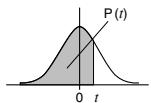
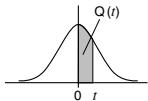
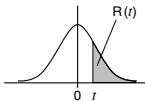
line
| t | R(t) | | ---- | ---- | | 0 | Peak | | t/2 | Peak | | t | Decline |$$ X \triangleright t = \frac {X - \bar {x}}{x \sigma_ {n}} $$
Appendix Single-variable Statistical Calculation
<#053> Select single-variable (1-VAR) and input the following data: {1, 2, 3, 4, 5, 6, 7, 8, 9, 10} (FREQ: ON)
<#054> Edit the data to the following, using insert and delete:
{0, 1, 2, 3, 4, 5, 6, 7, 9, 10} (FREQ: ON)
<#055> Edit the FREQ data to the following:
{1, 2, 1, 2, 2, 2, 3, 4, 2, 1} (FREQ: ON)
- Examples <#056> through <#059> all use the same data as Example <#055>.
<#056> Calculate sum of squares of the sample data and sum of the sample data.
<#057> Calculate number of samples, mean, and population standard deviation.
<#058> Calculate minimum value and maximum value.
<#059> Performing standard normal distribution approximation on the input sample data (from Example <#055>) produces the probabilities shown below.
Distribution probability that is a value less than the normalized variate when the sample value is 3 (P value for normalized variate when X = 3)
Distribution probability that is a value greater than the normalized variate when the sample value is 7 (R value for normalized variate when X = 7)
Commands when Linear Regression Calculation (A+BX) Is Selected
With linear regression, regression is performed in accordance with the following model equation.
$$ y = A + B X $$
The following are the commands that appear on the sub-menus that appear when you select 4 (Sum), 5 (Var), 6 (MinMax), or 7 (Reg) on the STAT menu while linear regression is selected as the statistical calculation type.
See Appendix <#060> for information about the calculation formula used for each command.
Sum Sub-menu (SHIFT 1 (STAT) 4 (Sum))
| Select this menu item: | When you want to obtain this: |
| 1 x^2 | Sum of squares of the X-data |
| 2 x | Sum of the X-data |
| 3 y^2 | Sum of squares of the Y-data |
| 4 y | Sum of the Y-data |
| 5 xy | Sum of products of the X-data and Y-data |
| 6 x^3 | Sum of cubes of the X-data |
| 7 x^2y | Sum of (X-data squares × Y-data) |
| 8 x^4 | Sum of biquadrate of the X-data |
Var Sub-menu (SHIFT 1 (STAT) 5 (Var))
| Select this menu item: | When you want to obtain this: |
| 1n | Number of samples |
| 2 | Mean of the X-data |
| 3x n | Population standard deviation of the X-data |
| 4x n-1 | Sample standard deviation of the X-data |
| 5 | Mean of the Y-data |
| 6y n | Population standard deviation of the Y-data |
| 7y n-1 | Sample standard deviation of the Y-data |
MinMax Sub-menu (SHIFT 1 (STAT) 6 (MinMax))
| Select this menu item: | When you want to obtain this: |
| 1 minX | Minimum value of the X-data |
| 2 maxX | Maximum value of the X-data |
| 3 minY | Minimum value of the Y-data |
| 4 maxY | Maximum value of the Y-data |
Reg Sub-menu (SHIFT 1 (STAT) 7 (Reg))
| Select this menu item: | When you want to obtain this: |
| 1 A | Regression coefficient constant term A |
| 2 B | Regression coefficient B |
| 3 r | Correlation coefficient r |
| 4 | Estimated value of x |
| 5 | Estimated value of y |
Appendix
Linear Regression Calculation: <#061> to <#064>
- Examples <#062> through <#064> all use the data input in Example <#061>.
*1 Estimated Value (y = -3 → x̂ = ?)
*2 Estimated Value (x = 2 → = ?)
Commands when Quadratic Regression Calculation (_+CX^2) Is Selected
With quadratic regression, regression is performed in accordance with the following model equation.
$$ y = A + B X + C X ^ {2} $$
See Appendix <#065> for information about the calculation formula used for each command.
Reg Sub-menu (SHIFT 1 (STAT) 7 (Reg))
| Select this menu item: | When you want to obtain this: |
| 1A | Regression coefficient constant term A |
| 2B | Linear coefficient B of the regression coefficients |
| 3C | Quadratic coefficient C of the regression coefficients |
| 4 1 | Estimated value of x1 |
| 5 2 | Estimated value of x2 |
| 6 | Estimated value of y |
- Sum sub-menu (sums), Var sub-menu (number of samples, mean, standard deviation), and MinMax sub-menu (maximum value, minimum value) operations are the same those for linear regression calculations.
Appendix
Quadratic Regression Calculation: <#066> to <#068>
- Examples <#066> through <#068> all use the data input in Example <#061> .
Comments for Other Types of Regression
For details about the calculation formula of the command included in each regression type, refer to the indicated calculation formulas (Appendix <#069> to <#073>).
| Statistical Calculation Type | Model Equation | Calculation Formula |
| Logarithmic Regression (ln X) | y = A + B X | <#069> |
| e Exponential Regression ( e^ ) | y = Ae^BX | <#070> |
| ab Exponential Regression (A•B^X) | y = AB^X | <#071> |
| Power Regression (A•X^B) | y = AX^B | <#072> |
| Inverse Regression (1/X) | y = A + | <#073> |
Appendix | Comparison of Regression Curves
- The following example uses the data input in Example <#061> . <#074> Compare the correlation coefficient for logarithmic, e exponential, ab exponential, power, and inverse regression.
(FREQ: OFF)
Appendix Other Types of Regression Calculation: <#075> to
<#079>
Command Usage Tips
- The commands included in the Reg sub-menu can take a long time to execute in logarithmic, e exponential, ab exponential, or power regression calculation when there are a large number of data samples.
Base-n Calculations (BASE-N)
The BASE-N Mode lets you perform arithmetic calculations, negative value calculations, and logical operations with binary, octal, decimal, and hexadecimal values.
All calculations in this section are performed in the BASE-N Mode (MODE 4).
■ Number Base Setting and Value Input
Use the keys listed below to specify the number base.
The key markings used in this section are the ones that are above each key, on the right.
| Key | Number Base | Screen Indicator |
| DEC | Decimal | Dec |
| HEX | Hexadecimal | Hex |
| BIN | Binary | Bin |
| OCT | Octal | Oct |
- The current number base setting is indicated in the second line of the display.
- The initial default number base setting when you enter the BASE-N Mode is always decimal (DEC).
Inputting Values
In the BASE-N Mode, you can input values using the currently selected number base.
- A Syntax ERROR occurs if you input values that are not allowed for the currently selected number base (such as inputting 2 while binary is selected).
- You cannot input fractional values or exponential values in the BASE-N Mode. If a calculation produces a fractional value, the decimal part is cut off.
Inputting Hexadecimal Values
Use the keys shown below to input the alphabetic letters (A, B, C, D, E, F) required for hexadecimal values.

Value Ranges
| Base | Range |
| Binary | Positive: 0000000000000000 ≤ x ≤ 01111111111111111Negative: 1000000000000000 ≤ x ≤ 11111111111111111 |
| Octal | Positive: 00000000000 ≤ x ≤ 17777777777Negative: 20000000000 ≤ x ≤ 37777777777 |
| Decimal | -2147483648 ≤ x ≤ 2147483647 |
| Hexa-decimal | Positive: 00000000 ≤ x ≤ 7FFFFFFNegative: 80000000 ≤ x ≤ FFFFFFFF |
- The allowable calculation range is narrower from binary (16 bits) than it is for the other number systems (32 bits).
- A Math ERROR occurs when a calculation result is outside the applicable range for the number system being used.
Specifying the Base during Input
The BASE-N Mode lets you override the current default number base setting and input a particular value using a different base. When inputting the value, press SHIFT 3 (BASE) ▼ to display page two of the BASE menu, and then press the number key that corresponds to the base you want to specify.
| Press this key: | To specify this number base: |
| 1(d) | Decimal (Base 10) |
| 2(h) | Hexadecimal (Base 16) |
| 3(b) | Binary (Base 2) |
| 4(o) | Octal (Base 8) |
The key operation below shows how to input a value of 3 using the decimal number base, for example.
The value you input here is decimal number base.
Appendix
<#080> Calculate 1_2 + 1_2 in binary.
<#081> Calculate 78 + 18 in octal.
<#082> Calculate 1F_16 + 1_16 in hexadecimal.
<#083> Convert the decimal value 30_10 to binary, octal, and hexadecimal.
<#084> Transform the result of 5_10 + 5_16 to binary.
■ Negative Number Calculations and Logical Operations
To input a negative number calculation or logical operation command, press SHIFT 3 (BASE) to display page one of the BASE menu, and then press the number key that corresponds to the command you want to specify.
| Press this key: | When you want to input this: |
| 1 (and) | Logical operator “and” (logical product), which returns the result of a bitwise AND |
| 2 (or) | Logical operator “or” (logical sum), which returns the result of a bitwise OR |
| 3 (xor) | Logical operator “xor” (exclusive logical sum), which returns the result of a bitwise XOR |
| 4 (xnor) | Logical operator “xnor” (exclusive negative logical sum), which returns the result of a bitwise XNOR |
| 5 (Not) | “Not(” function, which returns the result of a bitwise complement |
| 6 (Neg) | “Neg(” function, which returns the result of a two’s complement |
- Negative binary, octal, and hexadecimal values are produced by taking the binary two's complement and then returning the result to the original number base. With the decimal number base, negative values are displayed with a minus sign.
Appendix
Examples <#085> through <#090> show examples of calculations with negative binary values and examples of logical operations. Before starting each calculation, be sure to press first.
Equation Calculations
(EQN)
All calculations in this section are performed in the EQN Mode (MODE 5).
Equation Types
An equation type menu appears when you press MODE 5 (EQN) and enter the EQN Mode.
| Key | Menu Item | Equation Type |
| 1 | a_nX + b_nY = c_n | Simultaneous Linear Equations with Two Unknowns |
| 2 | a_nX + b_nY + c_nZ = d_n | Simultaneous Linear Equations with Three Unknowns |
| 3 | aX^2 + bX + c = 0 | Quadratic Equation |
| 4 | aX^3 + bX^2 + cX + d = 0 | Cubic Equation |
Changing the Current Equation Type Setting
Press MODE 5 (EQN) to re-enter the EQN Mode. This clears all current EQN Mode input and displays the equation type menu described above.
■ Inputting Coefficients
Use the coefficient editor screen to input the coefficients of an equation. The coefficient editor screen shows input cells for each of the coefficients required by the currently selected equation type.
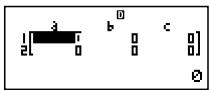
Simultaneous linear equations with two unknowns
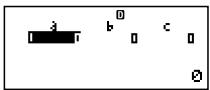
Cubic equation
Rules for Inputting and Editing Coefficients
- Data you input is inserted into the cell where the cursor is located. When you register input into a cell, the cursor moves to the next cell to the right.
-
When simultaneous linear equations with three unknowns or cubic equation is selected as the equation type, the d column will not be visible on the display when the coefficient editor screen is first displayed. The d column will become visible when you move the cursor to it, which causes the screen to shift.
-
The values and expressions you can input on the coefficient editor screen are the same as those you can input in the COMP Mode with Linear format.
- Pressing AC while inputting data clears your current input.
- After inputting data, press ☐. This registers the value and displays up to six of its digits in the currently selected cell.
- To change the contents of a cell, use the cursor keys to move the cursor to the cell and then input the new data.
Initializing All Coefficients to Zero
You can clear all coefficients to zero by pressing the AC key while inputting values on the coefficient editor screen.
Coefficient Editor Screen Input Precautions
Coefficient editor screen precautions are basically the same as those for the STAT editor screen. The only difference is that the first STAT editor screen precaution does not apply in the case of the coefficient editor screen. For details, see “STAT Editor Screen Input Precautions”.
■ Solution Display
After inputting and registering values on the coefficient editor screen, press ☐ to display the solution(s) for the equation.
- Each press of ☐ displays the next solution, if there is one. Pressing ☐ while the final solution is displayed returns to the coefficient editor screen.
- In the case of simultaneous linear equations, you can use ⚠ and ⬇ to switch the display between the solutions for X and Y (and Z).
- When there are multiple solutions for a quadratic or cubic equation, you can use the and keys to scroll the display between X1, X2, and X3. The actual number of solutions depends on the equation.
- Pressing AC while a solution is displayed will return to the coefficient editor screen.
- The display format of solutions is in accordance with the input/output format and complex number display format settings of the calculator's setup screen.
- Note that you cannot transform values to engineering notation while an equation solution is displayed.
Appendix
Equation Calculation: <#091> to <#095>
Matrix Calculations
(MATRIX)
You can save matrices under the names “MatA”, “MatB”, and “MatC” in matrix memory. Matrix calculation results are stored in a special Matrix Answer Memory named “MatAns”.
All calculations in this section are performed in the MATRIX Mode (MODE 6).
■ Creating and Managing a Matrix
Creating a Matrix and Storing It in Matrix Memory
(1) In the MATRIX Mode, press SHIFT 4 (MATRIX) 1 (Dim).
- This displays the matrix selection screen.
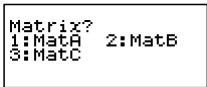
- Note that the matrix selection screen also appears whenever you enter the MATRIX Mode.
(2) Press a number key (1, 2, or 3) to specify the name of the matrix you want to select.
- This displays a screen for configuring dimension settings.
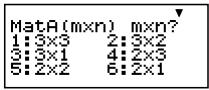

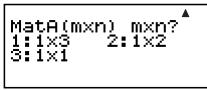
(3) Press a number key (1 through 6) to specify the matrix dimension you want to use.
- Pressing a number key to specify the matrix dimension causes the matrix editor screen to appear.
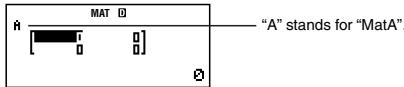
(4) Use the matrix editor screen to input each of the elements into the matrix.
- Input is subject to the same rules as those that govern the coefficient editor screen in the EQN Mode. For more information, see “Rules for Inputting and Editing Coefficients”.
- If you want to create another matrix, repeat this procedure from step (1).
Copying the Contents of One Matrix to Another Matrix
(1) Use the matrix editor screen to display the matrix you want to copy, or display the Matrix Answer Memory screen.
- If you want to copy Matrix A, for example, press SHIFT 4 (MATRIX) 2 (Data) 1 (MatA).
(2) Press SHIFT RCL (STO).
- This causes the "STO" indicator to appear on the display.
(3) Specify the destination of the copy operation.
| To specify this destination: | Press this key: |
| Matrix A | - (MatA) |
| Matrix B | -> (MatB) |
| Matrix C | (MatC) |
- Pressing (MatB) copies the matrix to Matrix B, and displays the matrix editor screen for Matrix B.
■ Performing Matrix Calculations
Pressing AC while the matrix selection screen or matrix editor screen is on the display switches to the matrix calculation screen.
Matrix Answer Memory Screen
The Matrix Answer Memory (MatAns) screen shows the results of matrix calculations.
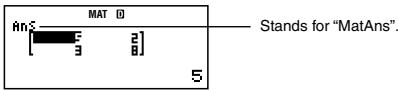
- You cannot edit the contents of a cell.
- To switch to the matrix calculation screen, press AC.
- While the MatAns screen is on the display, you can press an arithmetic operator key (like or - ) and use the screen contents in a subsequent calculation, just as with Answer Memory contents. For more information, see "Using Answer Memory to Perform a Series of Calculations".
■ Matrix Menu Items
The following are the menu items on the matrix menu that appears when you press SHIFT 4 (MATRIX).
| Select this menu item: | When you want to do this: |
| 1 Dim | Select a matrix (MatA, MatB, MatC) and specify its dimension |
| 2 Data | Select a matrix (MatA, MatB, MatC) and display its data on the matrix editor screen |
| 3 MatA | Input “MatA” |
| 4 MatB | Input “MatB” |
| 5 MatC | Input “MatC” |
| 6 MatAns | Input “MatAns” |
| 7 det | Input the “det(“ function for obtaining the determinant |
| 8 Trn | Input the “Trn(“ function for obtaining a transposed data in Matrix |
Appendix
$$ < # 0 9 6 > \text {Input MatA} = \left[ \begin{array}{c c} 2 & 1 \ 1 & 1 \end{array} \right], \text {MatC} = \left[ \begin{array}{c c c} 1 & 0 & - 1 \ 0 & - 1 & 1 \end{array} \right]. $$
$$ \begin{array}{l} < # 0 9 7 > \text {Copy MatA = \left[ \begin{array}{cc} 2 & 1 \ 1 & 1 \end{array} \right] to MatB and edit the contents} \ \text {of MatB to MatB = \left[ \begin{array}{cc} 2 & -1 \ -1 & 2 \end{array} \right].} \end{array} $$
- The following examples use the matrices input in Examples <#096> and <#097> (MatA, MatB, MatC).
<#098> MatA + MatB (Adding Two Matrices)
<#099> MatA × MatB, MatB × MatA - MatA × MatB (Multiplying Two Matrices)
<#100> 3 × MatA (Matrix Scalar Multiplication)
<#101> Obtain the determinant of Matrix A (det(MatA)).
<#102> Obtain the transposition of Matrix C (Trn(MatC)).
<#103> Obtain the inverse matrix of Matrix A (MatA ^-1 ).
- Use the key to input “ -1 ”. Note that you cannot use for this input.
<#104> Obtain the absolute value (Abs(MatB)) of each element of Matrix B.
- Use SHIFT hyp (Abs).
<#105> Determine the square (MatA ^2 ) or cube (MatA ^3 ) of Matrix A.
- Use ^2 to specify squaring, and ^2(x^3) to specify cubing. Note that you cannot use ^n for this input.
Generating a Number Table from a Function (TABLE)
All calculations in this section are performed in the TABLE Mode (MODE 7).
■ Configuring a Number Table Generation Function
The procedure below configures the number table generation function with the following settings.
Function: f(x) = x^2 + 12
Start Value: 1, End Value: 5, Step Value: 1
LINE
(1) Press MODE 7 (TABLE).
$$ f (X) = 1 \quad^ {\circ} $$
(2) Input the function.
$$ f (X) = X ^ {2} + 1 \text { } \text { } 2 \text { } $$
(3) After making sure the function is the way you want, press ☐.
- This displays the start value input screen.
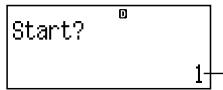
Indicates the initial default start value of 1.
- If the initial value is not 1, press ① to specify the initial start value for this example.
(4) After specifying the start value, press ☐.
- This displays the end value input screen.
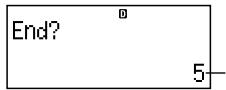
Indicates the initial default end value of 5.
- Specify the end value.
(5) After specifying the end value, press ☐.
- This displays the step value input screen.
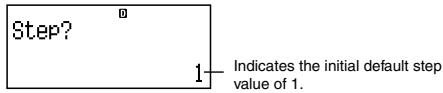
- Specify the step value.
- For details about specifying the start, end, and step values, see "Start, End, and Step Value Rules".
(6) After specifying the step value, press ☐.
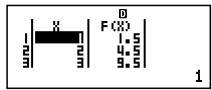
- Pressing the AC key returns to the function editor screen.
■ Supported Function Types
- Except for the X variable, other variables (A, B, C, D, Y) and independent memory (M) are all treated as values (the current variable assigned to the variable or stored in independent memory).
- Only variable X can be used as the variable of a function.
- The derivative (d / dx) , integration () , coordinate conversion (Pol, Rec), and sum () functions cannot be used for a number table generation function.
- Note that the number table generation operation causes the contents of variable X to be changed.
■ Start, End, and Step Value Rules
- Linear format is always used for value input.
- You can specify either values or calculation expressions (which must produce a numeric result) for Start, End, and Step.
- Specifying an End value that is less than the Start value causes an error, so the number table is not generated.
- The specified Start, End, and Step values should produce a maximum of 30 x-values for the number table being generated. Executing a number generation table using a Start, End, and Step value combination that produces more than 30 x-values causes an error.
Note
- Certain functions and Start, End, Step value combinations can cause number table generation to take a long time.
■ Number Table Screen
The number table screen shows x-values calculated using the specified Start, End, and Step values, as well as the values obtained when each x-value is substituted in the function f(x) .
- Note that you can use the number table screen for viewing values only. Table contents cannot be edited.
- Pressing the AC key returns to the function editor screen.
TABLE Mode Precautions
Note that changing the input/output format settings (Math format or Linear format) on the calculator's setup screen while in the TABLE Mode clears the number table generation function.
Vector Calculations (VECTOR)
You can save vectors under the names "VctA", "VctB", and "VctC" in vector memory. Vector calculation results are stored in a special Vector Answer Memory named "VctAns".
All calculations in this section are performed in the VECTOR Mode (MODE 8).
■ Creating and Managing a Vector
Creating a Vector and Saving It in Vector Memory
(1) In the VECTOR Mode, press SHIFT 5 (VECTOR) 1 (Dim).
- This displays a vector selection screen.
- Note that the vector selection screen also appears whenever you enter the VECTOR Mode.
(2) Press a number key (1, 2, or 3) to specify the name of the vector you want to select.
- This displays a screen for configuring dimension settings.
(3) Press a number key (1 or 2) to specify the vector dimension you want to use.
- You can select either 3-dimension (1) or 2-dimension (2).
- Pressing a number key to specify the dimension displays the vector editor screen.
![VCTD A [ ] [ ] “A” stands for “VctA”. 0](/content/2025/01/86780/images/a6a4e887f9679beaafaf60481482a7505352a57b68492d23b5075f4cbebadb84.jpg)
(4) Use the vector editor screen to input each element.
- Input is subject to the same rules as those that govern the coefficient editor screen in the EQN Mode. For more information, see “Rules for Inputting and Editing Coefficients”.
- If you want to create another vector, repeat this procedure from step (1).
Copying the Contents of One Vector to Another Vector
You can copy the contents of Vector Answer Memory (VctAns) or of a vector in vector memory to another vector in vector memory. The vector copy operation is basically the same as the matrix copy operation. See “Copying the Contents of One Matrix to Another Matrix” for more information.
■ Performing Vector Calculations
To perform a vector calculation, display the vector calculation screen by pressing the AC key.
Vector Answer Memory Screen
The Vector Answer Memory screen shows the result of the last vector calculation.
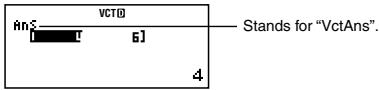
- You cannot edit the contents of a cell.
- To switch to the vector calculation screen, press AC.
■ Vector Menu Items
The following are the menu items on the vector menu that appears when you press SHIFT 5 (VECTOR).
| Select this menu item: | When you want to do this: |
| 1 Dim | Select a vector (VctA, VctB, VctC) and specify its dimension |
| 2 Data | Select a vector (VctA, VctB, VctC) and display its data on the vector editor screen |
| 3 VctA | Input “VctA” |
| 4 VctB | Input “VctB” |
| 5 VctC | Input “VctC” |
| 6 VctAns | Input “VctAns” |
| 7 Dot | Input the “♦” command for obtaining the dot product of a vector |
Appendix
<#106> Store VctA = (1, 2) and VctC = (2, -1, 2).
<#107> Copy VctA = (1, 2) to VctB and then edit Vector B to VctB = (3, 4).
- The following examples use the vectors input in Examples <#106> and <#107> (VctA, VctB, VctC).
<#108> VctA + VctB (Vector Addition)
<#109> 3 × VctA (Vector Scalar Multiplication) VctB - 3 × VctA (Calculation example using VctAns)
<#110> VctA • VctB (Vector Dot Product)
<#111> VctA × VctB (Vector Cross Product)
<#112> Obtain the absolute values of VctC.
<#113> Determine the size of the angle (angle unit: Deg) formed by vectors A = (-1, 0, 1) and B = (1, 2, 0), and one of the size 1 vectors perpendicular to both A and B.
*1 cos = (A · B)|A||B| , which becomes = ^-1 (A · B)|A||B|
*2 Size 1 vector perpendicular to both A and B = (A × B)|A × B|
Scientific Constants
Your calculator comes with 40 built-in constants that are commonly used in scientific calculations. You can use the scientific constants in any calculation mode except for BASE-N.
- To recall a scientific constant, press SHIF7 (CONST). This displays the scientific constant menu. Input the two-digit number that corresponds to the constant you want to recall. When you recall a constant, its unique symbol appears on the display.
- The following are all of the built-in scientific constants.
01: proton mass; 02: neutron mass; 03: electron mass; 04: muon mass; 05: Bohr radius; 06: Planck constant; 07: nuclear magneton; 08: Bohr magneton; 09: Planck constant, rationalized; 10: fine-structure constant; 11: classical electron radius; 12: Compton wavelength; 13: proton gyromagnetic ratio; 14: proton Compton wavelength; 15: neutron Compton wavelength; 16: Rydberg constant; 17: atomic mass unit; 18: proton magnetic moment; 19: electron magnetic moment; 20: neutron magnetic moment; 21: muon magnetic moment; 22: Faraday constant; 23: elementary charge; 24: Avogadro constant; 25: Boltzmann constant; 26: molar volume of ideal gas; 27: molar gas constant; 28: speed of light in vacuum; 29: first radiation constant; 30: second radiation constant; 31: Stefan-Boltzmann constant; 32: electric constant; 33: magnetic constant; 34: magnetic flux quantum; 35: standard acceleration of gravity; 36: conductance quantum; 37: characteristic impedance of vacuum; 38: Celsius temperature; 39: Newtonian constant of gravitation; 40: standard atmosphere
- The values are based on ISO Standards (1992) and CODATA Recommended Values (1998). For details, see Appendix <#114>.
Appendix <#115> and <#116>
Perform all of these examples in the COMP Mode (MODE 1).
Metric Conversion
The calculator's built-in metric conversion commands make it simple to convert values from one unit to another. You can use the metric conversion commands in any calculation mode except for BASE-N and TABLE.
To recall a metric conversion command, press SHIFT 8 (CONV). This displays the metric conversion command menu. Input the two-digit number that corresponds to the metric conversion you want to recall.
See Appendix <#117> for a list of all of the metric conversion commands and conversion formulas.
- Conversion formula data is based on the “NIST Special Publication 811 (1995)”.
* "cal" uses the NIST value at 15°C.
Appendix <#118> to <#120>
Perform all of these examples in the COMP Mode (MODE 1).
Technical Information
■ Calculation Priority Sequence
The calculator performs calculations according to a calculation priority sequence.
- Basically, calculations are performed from left to right.
• Expressions within parentheses have the highest priority. -
The following shows the priority sequence for each individual command.
-
Function with parentheses:
Pol(, Rec( ∫(, d/dx), Σ( P(, Q(, R( sin(, cos(, tan(, sin ^-1 ), cos ^-1 (, tan ^-1 (, sinh(, cosh(, tanh(, sinh ^-1 (, cosh ^-1 (, tanh ^-1 ( log(, ln(, e ^ , 10 ^ , √ ^- , 3√ ^- ( arg(, Abs(, Conjg( Not(, Neg( det(, Trn( Rnd(
- Functions preceded by values, powers, power roots:
x^2, x^3, x^-1, x!, , ", , r, g, , x Normalized variate: ▶ t Percent: %
- Fractions: ab/c
- Prefix symbol: (−) (negative sign)
d, h, b, o (base n symbol) - Metric conversion commands: cm▶in, etc.
Statistical estimated value calculation: ,,1,2 - Permutations, combinations: nPr, nCr
Complex polar form symbol: ∠ - Dot product: • (Dot)
- Multiplication and division: ×, ÷
Multiplication where sign is omitted: Multiplication sign omitted immediately before , e, variables, scientific constants (2 , 5A, A, 3mp, 2i, etc.), functions with parentheses (2 (3), Asin(30), etc.) - Addition and subtraction: +, -
- Logical AND: and
- Logical OR, XOR, XNOR: or, xor, xnor
If a calculation contains a negative value, you may need to enclose the negative value in parentheses. If you want to square the value -2, for example, you need to input: (-2)^2 . This is because x^2 is a function preceded by a value (Priority 2, above), whose priority is greater than the negative sign, which is a prefix symbol (Priority 4).
Example:
(-) 2 x^2 =
$$ - 2 ^ {2} = - 4 $$
( - ) 2 ) x^2 =
$$ (- 2) ^ {2} = 4 $$
Multiplication and division, and multiplication where the sign is omitted are the same priority (Priority 8), so these operations are performed from left to right when both types are mixed in the same calculation. Enclosing an operation within parentheses causes it to be performed first, so the use of parentheses can result in different calculation results.
Example:
1 ÷ 2 i =
$$ 1 \div 2 i = \frac {1}{2} i $$
1 ÷ ( 2 i ) =
$$ 1 \div (2 i) = - \frac {1}{2} i $$
■ Stack Limitations
This calculator uses memory areas called stacks to temporarily store lower calculation priority sequence values, commands, and functions. The numeric stack has 10 levels and the command stack has 24 levels, as shown in the illustration below.
$$ 2 \times ((3 + 4 \times (5 + 4) \div 3) \div 5) + 8 = $$
flowchart
graph TD
    A["①"] --> B["②"]
    B --> C["③"]
    C --> D["④"]
    D --> E["⑤"]
123

56

Numeric Stack
| 1 | 2 | 4 | 5 |
| 2 | 3 | 5 | 4 |
| 3 | 4 |
Command Stack
| 1 | × | 5 | × |
| 2 | ( | 6 | ( |
| 3 | ( | 7 | + |
| 4 | + | ⋮ |
A Stack ERROR occurs when the calculation you are performing causes the capacity of either stack to be exceeded.
Stack Issues to Keep in Mind for Each Mode
- In the CMPLX Mode, each input value uses two levels of the numeric stack, regardless of whether the input value is a real number or a complex number. This means that the numeric stack effectively has only five levels in the CMPLX Mode.
- The MATRIX Mode uses its own matrix stack, which is used in combination with the general-purpose numeric stack. The matrix stack has three levels. Performing a calculation that involves a matrix causes one level of the matrix stack to be used for storage of the result. Squaring, cubing, or inverting a matrix also uses one level of the matrix stack.
- The VECTOR Mode uses its own vector stack, which is used in combination with the general-purpose numeric stack. The vector stack has five levels. Vector stack usage follows the same rules as the matrix stack, described above.
■ Calculation Ranges, Number of Digits, and Precision
The calculation range, number of digits used for internal calculation, and calculation precision depends on the type of calculation you are performing.
Calculation Range and Precision
| Calculation Range | ± 1 × 10^-99 to ± 9.999999999 × 10^99 or 0 |
| Number of Digits for Internal Calculation | 15 digits |
| Precision | In general, ± 1 at the 10th digit for a single calculation. Precision for exponential display is ± 1 at the least significant digit. Errors are cumulative in the case of consecutive calculations. |
Function Calculation Input Ranges and Precision
| Functions | Input Range | |
| x | DEG | 0 ≤ |x| < 9 × 10^9 |
| RAD | 0 ≤ |x| < 157079632.7 | |
| GRA | 0 ≤ |x| < 1 × 10^10 | |
| x | DEG | 0 ≤ |x| < 9 × 10^9 |
| RAD | 0 ≤ |x| < 157079632.7 | |
| GRA | 0 ≤ |x| < 1 × 10^10 | |
| x | DEG | Same as x , except when |x| = (2n-1) × 90 . |
| RAD | Same as x , except when |x| = (2n-1) × /2 . | |
| GRA | Same as x , except when |x| = (2n-1) × 100 . | |
| ^-1x | 0 ≤ |x| ≤ 1 | |
| ^-1x | ||
| ^-1x | 0 ≤ |x| ≤ 9.999999999 × 10^99 | |
| x | 0 ≤ |x| ≤ 230.2585092 | |
| x | ||
| ^-1x | 0 ≤ |x| ≤ 4.999999999 × 10^99 | |
| ^-1x | 1 ≤ x ≤ 4.999999999 × 10^99 | |
| Functions | Input Range | |
| x | 0 ≤ |x| ≤ 9.999999999 × 10^99 | |
| ^-1x | 0 ≤ |x| ≤ 9.999999999 × 10^-1 | |
| x/ x | 0 < x ≤ 9.999999999 × 10^99 | |
| 10^x | -9.999999999 × 10^99 ≤ x ≤ 99.99999999 | |
| e^x | -9.999999999 × 10^99 ≤ x ≤ 230.2585092 | |
| 0 ≤ x < 1 × 10^100 | ||
| x^2 | |x| < 1 × 10^50 | |
| 1/x | |x| < 1 × 10^100; x 0 | |
| ^3 | |x| < 1 × 10^100 | |
| x! | 0 ≤ x ≤ 69 (x is an integer) | |
| nPr | 0 ≤ n < 1 × 10^10, 0 ≤ r ≤ n (n, r are integers) 1 ≤ !/(n-r)! < 1 × 10^100 | |
| nCr | 0 ≤ n < 1 × 10^10, 0 ≤ r ≤ n (n, r are integers) 1 ≤ n!/r! < 1 × 10^100 or 1 ≤ n!/(n-r)! < 1 × 10^100 | |
| Pol(x, y) | |x|, |y| ≤ 9.999999999 × 10^99 ^2+y^2 ≤ 9.999999999 × 10^99 | |
| Rec(r, ) | 0 ≤ r ≤ 9.999999999 × 10^99 : Same as sin x | |
| _ 'n | |a|, b, c < 1 × 10^100 0 ≤ b, c | |
| _ 'n | |x| < 1 × 10^100 Decimal Sexagesimal Conversions 0^ 0^ " ≤ |x| ≤ 99999999^ 59'59" | |
| ^(x^y) | x > 0: -1 × 10^100 < y x < 100 x = 0: y > 0 x < 0: y = n, 2n+1 (m, n are integers) However: -1 × 10^100 < y |x| < 100 | |
| x[y] | y > 0: x 0, -1 × 10^100 < 1/x y < 100 y = 0: x > 0 y < 0: x = 2n+1, 2n+1m (m 0; m, n are integers) However: -1 × 10^100 < 1/x |y| < 100 | |
| a^b/c | Total of integer, numerator, and denominator must be 10 digits or less (including division marks). | |
- Precision is basically the same as that described under “Calculation Range and Precision”, above.
- (x^y) , x , 3 , x! , nPr , nCr type functions require consecutive internal calculation, which can cause accumulation of errors that occur with each calculation.
- Error is cumulative and tends to be large in the vicinity of a function's singular point and inflection point.
■ Error Messages
The calculator will display an error message when a result exceeds the calculation range, when you attempt an illegal input, or whenever any other similar problem occurs.
When an error message appears...
The following are general operations you can use when any error message appears.
- Pressing ◀ or ▶ displays to the calculation expression editing screen you were using before the error message appeared, with the cursor located at the position of the error. For more information, see “Displaying the Location of an Error”.
- Pressing AC clears the calculation expression you input before the error message appeared. You can then re-input and re-execute the calculation, if you want. Note that in this case, the original calculation will not be retained in calculation history memory.
Math ERROR
- Cause
- The intermediate or final result of the calculation you are performing exceeds the allowable calculation range.
- Your input exceeds the allowable input range (particularly when using functions).
- The calculation you are performing contains an illegal mathematical operation (such as division by zero).
- Action
- Check the input values, reduce the number of digits, and try again.
- When using independent memory or a variable as the argument of a function, make sure that the memory or variable value is within the allowable range for the function.
Stack ERROR
- Cause
- The calculation you are performing has caused the capacity of the numeric stack or the command stack to be exceeded.
- The calculation you are performing has caused the capacity of the matrix stack to be exceeded.
- The calculation you are performing has caused the capacity of the vector stack to be exceeded.
- Action
- Simplify the calculation expression so it does not exceed the capacity of the stack.
- Try splitting the calculation into two or more parts.
Syntax ERROR
- Cause
- There is a problem with the format of the calculation you are performing.
- Action
- Make necessary corrections.
Argument ERROR
- Cause
- There is a problem with the argument of the calculation you are performing.
- Action
- Make necessary corrections.
Dimension ERROR (MATRIX and VECTOR Modes only)
- Cause
- The matrix or vector you are trying to use in a calculation was input without specifying its dimension.
- You are trying to perform a calculation with matrices or vectors whose dimensions do not allow that type of calculation.
- Action
- Specify the dimension of the matrix or vector and then perform the calculation again.
- Check the dimensions specified for the matrices or vectors to see if they are compatible with the calculation.
Variable ERROR (SOLVE feature only)
- Cause
- You did not specify a solution variable, and there is no X variable in the equation you input.
- The solution variable that you specified is not included in the equation you input.
- Action
- The equation you input must include an X variable when you do not specify the solution variable.
- Specify a variable that is included in the equation you input as the solution variable.
Can't Solve Error (SOLVE feature only)
- Cause
- The calculator could not obtain a solution.
- Action
- Check for errors in the equation that you input.
- Input a value for the solution variable that is close to the expected solution and try again.
Insufficient MEM Error
- Cause
- There is not enough memory to perform your calculation.
- Action
- Narrow the table calculation range by changing the Start, End, and Step values, and try again.
Time Out Error
- Cause
- The current differential or integration calculation ends without the ending condition being fulfilled.
- Action
- Try increasing the tol value. Note that this also decreases solution precision.
■ Before assuming malfunction of the calculator...
Perform the following steps whenever an error occurs during a calculation or when calculation results are not what you expected. If one step does not correct the problem, move on to the next step.
Note that you should make separate copies of important data before performing these steps.
(1) Check the calculation expression to make sure that it does not contain any errors.
(2) Make sure that you are using the correct mode for the type of calculation you are trying to perform.
(3) If the above steps do not correct your problem, press the ON key. This will cause the calculator to perform a routine that checks whether calculation functions are operating correctly. If the calculator discovers any abnormality, it automatically initializes the calculation mode and clears memory contents. For details about initialized settings, see "Initializing the Calculation Mode and Other Settings" under "Calculation Modes and Calculator Setup".
(4) Initialize all modes and settings by performing the following operation:
SHIFT 9 (CLR) 1 (Setup) ≡ (Yes).
Reference
■ Power Requirements and Battery Replacement
This calculator is powered by a single AAA-size battery (R03 (UM-4)).
Replacing the Battery
Dim figures on the display of the calculator indicate that battery power is low. Continued use of the calculator when the battery is low can result in improper operation. Replace the battery as soon as possible when display figures becomes dim.
Even if the calculator is operating normally, replace the battery at least once every two years.
Important!
- Removing the battery from the calculator causes independent memory contents and values assigned to variables to be cleared.
① Press SHIFT AC (OFF) to turn off the calculator.
② On the back of the calculator, remove the screws and the back cover.
③ Remove the old battery.
④ Load a new battery into the calculator with its positive ⊕ and negative ⊖ ends facing correctly.
⑤ Replace the back cover and secure it in place with its screws.
⑥ Perform the following key operation:
ON SHIFT 9 (CLR) 3 (All) = (Yes).
- Make sure you perform the above key operation. Do not skip it.
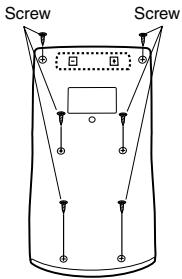
Auto Power Off
Your calculator will turn off automatically if you do not perform any operation for about six minutes. If this happens, press the ON key to turn the calculator back on.
Specifications
Power Requirements:
AAA-size battery: R03 (UM-4) × 1
Battery Life: Approximately 17,000 hours (continuous display of flashing cursor)
Power Consumption: 0.0002 W
Operating Temperature: 0°C to 40°C
Dimensions: 13.7 (H) × 80 (W) × 161 (D) mm
$$ { } ^ { 9 / 1 6 ^ { \prime \prime } } ( H ) \times 3 ^ { 1 / 8 ^ { \prime \prime } } ( W ) \times 6 ^ { 5 / 1 6 ^ { \prime \prime } } ( D ) $$
Approximate Weight: 110 g (3.9 oz) including the battery
Bundled Items: Hard Case
CASIO®
CASIO COMPUTER CO., LTD.
6-2, Hon-machi 1-chome
Shibuya-ku, Tokyo 151-8543, Japan
- ■ Using the Separate Appendix
- Initializing the Calculator
- Safety Precautions
- Caution
- Battery
- Disposing of the Calculator
- Handling Precautions
- Before Using the Calculator
- ■ Removing the Hard Case
- ■ Turning Power On and Off
- ■ Adjusting Display Contrast
- Important!
- ■ About the Display
- ■ Display Indicators
- Calculation Modes and Calculator Setup
- Specifying the Calculation Mode
- ■ Configuring the Calculator Setup
- Specifying the Input/Output Format
- Specifying the Default Angle Unit
- Specifying the Number of Display Digits
- Calculation Result Display Examples
- ■ Initializing the Calculation Mode and Other Settings
- Inputting Expressions and Values
- ■ Inputting a Calculation Expression Using Standard Format
- Inputting a Function with Parenthesis
- Omitting the Multiplication Sign
- Final Closed Parenthesis
- Displaying a Long Expression
- Number of Input Characters (Bytes)
- ■ Correcting an Expression
- About the Insert and Overwrite Input Modes
- Changing the Character or Function You Just Input
- Deleting a Character or Function
- Correcting a Calculation
- Inserting Input into a Calculation
- ■ Displaying the Location of an Error
- ■ Inputting with Math Format
- Functions and Symbols Supported for Math Format Input
- Math Format Input Examples
- Incorporating a Value into a Function
- Displaying Calculation Results in a Form that Includes 2 , , etc. (Irrational Number Form)
- Note
- ■ √ Form Calculation Range
- Reasons why the results of the examples are displayed in decimal form
- Basic Calculations
- (COMP)
- Arithmetic Calculations
- LINE
- Number of Decimal Places and Number of Significant Digits
- Omitting a Final Closed Parenthesis
- ■ Fraction Calculations
- Appendix
- Switching between Improper Fraction and Mixed Fraction Format
- Switching between Fraction and Decimal Format
- ■ Percent Calculations
- ■ Degree, Minute, Second (Sexagesimal) Calculations
- Inputting Sexagesimal Values
- Appendix <#011> Input 2°0'30".
- Sexagesimal Calculations
- Converting Values between Sexagesimal and Decimal
- Using Multi-statements in Calculations
- Using Calculation History Memory and Replay
- Recalling Calculation History Memory Contents
- Example:
- Replay Function
- Appendix <#014>
- Using Calculator Memory
- ■ Answer Memory (Ans)
- Answer Memory Overview
- Using Answer Memory to Perform a Series of Calculations
- Inputting Answer Memory Contents into an Expression
- ■ Independent Memory (M)
- Independent Memory Overview
- Calculation Examples Using Independent Memory
- Clearing Independent Memory
- ■ Variables (A, B, C, D, X, Y)
- Variable Overview
- Clearing the Contents of a Specific Variable
- ■ Clearing the Contents of All Memories
- Using CALC
- ■ Expressions Supported by CALC
- ■ Example Calculation Using CALC
- Using SOLVE
- ■ Rules Governing Equations when Using SOLVE
- ■ Example SOLVE Operation
- Precautions when Using SOLVE
- Solution Screen Contents
- Continue Screen
- Function Calculations
- ■ Pi ( ) and Natural Logarithm Base e
- ■ Trigonometric and Inverse Trigonometric Functions
- ■ Hyperbolic and Inverse Hyperbolic Functions
- ■ Converting an Input Value to the Calculator's Default Angle Unit
- ■ Exponential Functions and Logarithmic Functions
- ■ Power Functions and Power Root Functions
- ■ Integration Calculations
- Tips on Improving Integration Value Accuracy
- ■ Differential Calculations
- ■ Σ Calculations
- ■ Rectangular-Polar Coordinate Conversion
- Converting to Polar Coordinates (Pol)
- Converting to Rectangular Coordinates (Rec)
- ■ Other Functions
- Factorial (!)
- Absolute Value Calculation (Abs)
- Permutation (nPr) and Combination (nCr)
- Rounding Function (Rnd)
- ■ Practical Examples
- Transforming Displayed Values
- ■ Using Engineering Notation
- ■ Using S-D Transformation
- Formats Supported for S-D Transformation
- Examples of S-D Transformation
- MATH
- Complex Number Calculations (CMPLX)
- ■ Inputting Complex Numbers
- ■ Calculation Result Display Format
- Examples of Calculation Results Using Rectangular Coordinate Format (a + bi)
- Examples of Calculation Results Using Polar Coordinate Format ( r )
- Specifying the Calculation Result Display Format
- ■ Conjugate Complex Number (Conjg)
- ■ Absolute Value and Argument (Abs, arg)
- Statistical Calculation (STAT)
- Selecting a Statistical Calculation Type
- Inputting Sample Data
- Displaying the STAT Editor Screen
- STAT Editor Screen
- FREQ (Frequency) Column
- Rules for Inputting Sample Data on the STAT Editor Screen
- STAT Editor Screen Input Precautions
- Precautions Concerning Sample Data Storage
- Editing Sample Data
- Replacing the Data in a Cell
- Deleting a Line
- Inserting a Line
- Deleting All STAT Editor Contents
- ■ STAT Calculation Screen
- ■ Using the STAT Menu
- Single-variable (1-VAR) Statistical Calculation Commands
- Distr Sub-menu (SHIFT 1 (STAT) 7 (Distr))
- Standard Normal Distribution
- Appendix Single-variable Statistical Calculation
- Commands when Linear Regression Calculation (A+BX) Is Selected
- Commands when Quadratic Regression Calculation (_+CX2) Is Selected
- Comments for Other Types of Regression
- Appendix | Comparison of Regression Curves
- Appendix Other Types of Regression Calculation: <#075> to
- Command Usage Tips
- Base-n Calculations (BASE-N)
- ■ Number Base Setting and Value Input
- Inputting Values
- Inputting Hexadecimal Values
- Specifying the Base during Input
- ■ Negative Number Calculations and Logical Operations
- Equation Calculations
- (EQN)
- Equation Types
- Changing the Current Equation Type Setting
- ■ Inputting Coefficients
- Rules for Inputting and Editing Coefficients
- Initializing All Coefficients to Zero
- Coefficient Editor Screen Input Precautions
- ■ Solution Display
- Matrix Calculations
- (MATRIX)
- ■ Creating and Managing a Matrix
- Creating a Matrix and Storing It in Matrix Memory
- Copying the Contents of One Matrix to Another Matrix
- ■ Performing Matrix Calculations
- Matrix Answer Memory Screen
- ■ Matrix Menu Items
- Generating a Number Table from a Function (TABLE)
- ■ Configuring a Number Table Generation Function
- ■ Supported Function Types
- ■ Start, End, and Step Value Rules
- ■ Number Table Screen
- TABLE Mode Precautions
- Vector Calculations (VECTOR)
- ■ Creating and Managing a Vector
- Creating a Vector and Saving It in Vector Memory
- Copying the Contents of One Vector to Another Vector
- ■ Performing Vector Calculations
- Vector Answer Memory Screen
- ■ Vector Menu Items
- Scientific Constants
- Metric Conversion
- Technical Information
- ■ Calculation Priority Sequence
- ■ Stack Limitations
- Stack Issues to Keep in Mind for Each Mode
- ■ Calculation Ranges, Number of Digits, and Precision
- ■ Error Messages
- When an error message appears...
- Math ERROR
- - Cause
- - Action
- Stack ERROR
- Syntax ERROR
- Argument ERROR
- Dimension ERROR (MATRIX and VECTOR Modes only)
- Variable ERROR (SOLVE feature only)
- Can't Solve Error (SOLVE feature only)
- Insufficient MEM Error
- Time Out Error
- ■ Before assuming malfunction of the calculator...
- Reference
- ■ Power Requirements and Battery Replacement
- Replacing the Battery
- Auto Power Off
- Specifications
- Power Requirements:
- CASIO®
Brand : CASIO
Model : FX-570ES
Category : Scientific calculator