
25008 - Remote control GE - Free user manual and instructions
Find the device manual for free 25008 GE in PDF.


| Product Type | Universal Remote Control |
| Brand | GE |
| Model | 25008 |
| Power Supply | 2 AAA batteries (alkaline recommended) |
| Compatible Devices | TV, DVD, CBL, SAT, DVR, AUX, AUDIO, VCR |
| Programming Methods | Direct Code Entry and Auto Code Search |
| Key Features | GUIDE, MENU, Navigation, ABCD buttons, MUTE, FAVORITE, transport controls (Record, Play, Stop, Rewind, Fast Forward, Pause), Volume/Channel control, LAST, EXIT, Number pad, DOT for digital channels |
| Master Volume Feature | Allows volume control to be assigned to a specific device (e.g., audio receiver) |
| SHIFT Button | Provides secondary functions for MENU, OK, EXIT, and Navigation |
| Code Saver | Retains programmed codes for up to 10 minutes after battery removal (if no buttons are pressed) |
| Battery Saver | Automatic shut-off if buttons are pressed for more than 8 seconds |
| Favorite Channel Function | Store up to 10 favorite channels for quick access via FAV button |
| Dimensions | Approximately 21.6 x 6.4 x 3.0 cm (8.5 x 2.5 x 1.2 inches) |
| Weight | Approximately 100 g (with batteries) |
| Color | Black (typical) |
| Cleaning and Maintenance | Wipe with a slightly damp cloth; do not use liquids or abrasive cleaners |
| Battery Precautions | Do not mix old and new batteries; remove weak batteries promptly; recycle according to local regulations |
| Warranty | 90-day limited warranty from date of purchase |
| FCC Compliance | Part 15 of FCC rules; Class B digital device |
| Manufacturer | Jasco Products Company LLC (under license from GE) |
| Country of Origin | Made in China |
Frequently Asked Questions - 25008 GE
User questions about 25008 GE
0 question about this device. Answer the ones you know or ask your own.
Ask a new question about this device
Download the instructions for your Remote control in PDF format for free! Find your manual 25008 - GE and take your electronic device back in hand. On this page are published all the documents necessary for the use of your device. 25008 by GE.
USER MANUAL 25008 GE
Universal Remote Instruction Manual
Control Remoto Universal Manual de Instrucciones
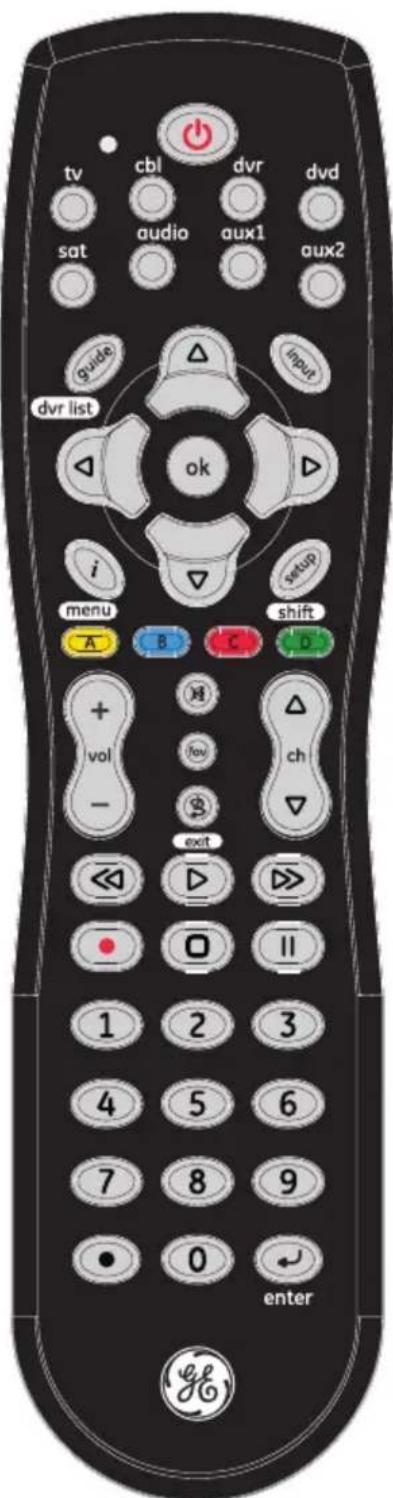
Table of Contents
Introduction....2
Setup 3
Button Functions 4
Programming Your Remote....6
Direct Code Entry......6
Auto Code Search 8
Using Your Remote 11
Controlling Combo Devices....11
Using SHIFT....11
Master Volume Feature....12
Reset to Factory Settings....13
Troubleshooting....14
Warranty 15
FCC Statement....16
Congratulations on your purchase of the GE Universal Remote. This remote is capable of operating thousands of audio/video devices, including TVs, DVD players, cable, satellite and more!
IMPORTANT: SAVE THIS MANUAL AND CODE LIST FOR FUTURE REFERENCE
Scan to view remote setup video
http://www.jascoproducts.com/remote
Setup
Your universal remote requires two (2) AAA batteries (not included). Alkaline batteries are recommended.
Battery Installation
- On the back of the remote, push in on the textured surface and slide battery cover downward to remove.
- Match the (+) and (-) marks on the batteries to the (+) and (-) marks inside the battery compartment, then insert two (2) AAA batteries. Be sure to use fresh batteries.
- Position battery cover slightly below opening and push upward to lock into place.
NOTE: If your remote stops operating properly, replace the batteries with new ones. The remote will retain the codes you have programmed for up to 10 minutes after the batteries are removed.
Battery Precautions
- Do not mix old and new batteries.
- Do not mix alkaline, standard (carbon-zinc), or rechargeable (Ni-Cd, Ni-MH, etc.) batteries.
- Always remove old, weak or worn-out batteries promptly and recycle or dispose of them in accordance with local and national regulations.
Battery Saver
Your remote automatically turns off if the buttons are depressed more than 8 seconds. This will save your batteries should your remote get stuck in a place where the buttons remain depressed (e.g., between the sofa cushions).
Code Saver
You will have up to 10 minutes to change the batteries in your remote without losing codes you have programmed. However, do not press any buttons until batteries are installed in the remote. If buttons are pressed without batteries in the remote, all codes will be lost.
Button Functions
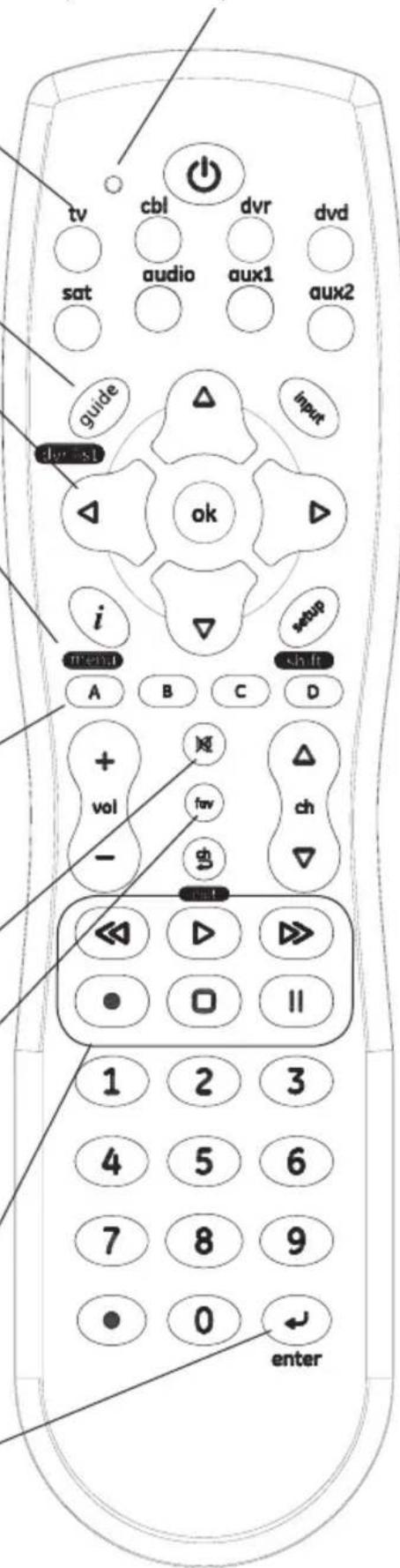
TV, DVD, CBL, SAT, DVR, AUX, AUDIO, VCR Selects device to control.
GUIDE Displays satellite or cable on-screen program guide.
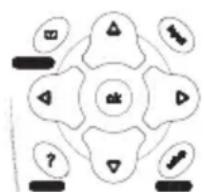
UP, DOWN, LEFT & RIGHT Navigation buttons.
MENU Displays the Menu on the TV.
ABCD (Red, Green, Yellow & Blue) Allows access to additional features for DVR's, Cable Box, Satellite, Blu-ray, etc... (additional features vary by device type and brand, see device owner's manual for information).
MUTE Turns off the TV sound while the picture remains.
FAVORITE Used to store 10 of your favorite channels for quick access.
RECORD, PLAY, STOP, REW (rewind), FF (fast forward), PAUSE
ENTER
For some TV models, used after direct channel number entry to immediately change to the selected channel.
Red Indicator lights when any button is pressed.
Button Functions, cont.
ON•OFF Turns devices On or Off.
INPUT Selects the video inputs from available viewing sources.
— OK Selects menu items for the device you are controlling.
Info (i) Displays on-screen channel information, etc.
/ SETUP Used to setup the remote, and for code search function.
VOLUME UP/DOWN Changes the volume level of the device, normally the TV.
CHANNEL UP/DOWN Changes the channels.
LAST Returns to the previously selected channel, or DVD repeat toggle.
EXIT
Exits on-screen Menus.
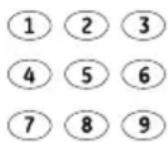
NUMBERS
Enter numbers for direct channel selection. (Some devices require ENTER to be pressed after channel selection.)
DOT: Used to select digital channels, e.g., 2.3.
Programming Your Remote
Your GE universal remote control is designed to control multiple audio/video devices such as a TV, DVD, DVR, satellite, cable and audio device using only one remote. To use this remote, you will need to program it to control the devices of your choice. There are two ways to program the remote - direct code entry or auto code search.
Direct Code Entry (Recommended)
- Locate the Remote Code List. Find the DEVICE CATEGORY you wish to program (for example TV, DVD, CBL, SAT, DVR, AUX, AUDIO, VCR) and then find the BRAND of that device. Circle all the codes under that brand. Example: For a GE TV, locate the TV code section then circle all of the GE TV codes.
- Manually turn on the device you wish to control.
- Press and hold the SETUP button until the red indicator light stays on (approximately 2 seconds) and then release the SETUP button.
- Press and release the device button on the remote (TV, DVD, CBL, SAT, DVR, AUX, AUDIO, VCR). The red indicator will blink once and then remain on.
- Enter the first 4-digit code previously found in the code list using the number buttons on the remote. If the code entered is a valid code, the red indicator light will turn off. If the code entered is not a valid code, the red indicator light will flash and remain on allowing you to re-enter the code.
Note: If no buttons are pressed for 35 seconds, the remote will exit the SETUP mode and you will have to start over.


Programming Your Remote, cont.

-
Point the remote at the device. Press the POWER button—if the device turns off, no further programming is required for that device. If the device does not turn off, return to step 3 and use the next code found in the code list. Continue this process until a code for your device is found.
-
Repeat this process for each device (for example TV, DVD, CBL, SAT, DVR, AUX, AUDIO, VCR) in your home entertainment system you wish to control.
Programming Notes
- If your device does not respond to the remote after trying all codes listed or your brand is not listed in the code list, use the Auto Code Search method to program your remote.
- Sometimes the first code that "works" with your device may operate only a few functions of your device. There may be another code in the code list that performs more functions. Try other codes from the code list for more functionality.
- With the Direct Code Entry method, you can program any device button to control any device in your home entertainment system.
For example, you can use the DVR or AUX device button to control an audio receiver or a DVD, VCR, satellite device, etc. - For combination devices, you may have to enter a code for each device. For example, for a VCR/DVD device, you may have to enter a code for the DVD under the DVD button and enter a code for the VCR using a different device button on the remote.
- Write down the code found to operate your device for future reference.
Programming Your Remote, cont.
Auto Code Search
The Auto Code Search searches automatically through the codes stored in this remote. Read all the following steps prior to starting the auto code search as you will need to be prepared to lock-in the proper code when found.

- Manually turn on the device you wish to control.
- Press and hold the SETUP button until the red indicator light stays on (approximately 2 seconds) and then release the button.
- Press and release the desired device button on the remote (TV, DVD, CBL, SAT, DVR, AUX, AUDIO, VCR) the type of device you wish to control. The red indicator will blink once and then remain on.


- Point the remote at the device and press and release the POWER button (for TV) or PLAY button (for DVD, VCR, etc.) to start the search. The red indicator will flash (approximately every 2 seconds) as the remote searches. Note: The remote must be pointed at the device for the duration of this search.

- Place your finger on the #1 button so you are prepared to lock-in the code.

-
When the device shuts off or begins playing, press the #1 button to lock-in the code. The red indicator light will turn off. Note: You have approximately two seconds after the device shuts off or begins playing to lock-in the code.
-
Point the remote at the device and check to see if the remote operates the device as desired. If it does, no further programming is required for that device. If it does not, return to step 2 and start the auto code search again.
Programming Your Remote, cont.
- Repeat this process for each device (for example TV, DVD, SAT, AUX) in your home entertainment system you wish to control.
Programming Notes
- This process may take several minutes as the remote contains many codes.
- When using the Auto Code Search programming method, the device button corresponding to the type of device you want to control must be selected (for example, the TV device button must be selected in step 3 if you want to control a TV, the DVD device button for a DVD player, etc.)
- The SETUP button can be used during the search process to reverse the direction of the search of the remote codes. For example, if you miss the code for your device and the remote is continuing to search (as indicated by the blinking red light), press the SETUP button and the code search will reverse direction and return to the code.
- Sometimes the first code that “works” with your device may operate only a few functions of your device. There may be another code in the code list that performs more functions. Continue the auto code search as directed above until the best code is found.
Favorite Function
Allows user to program up to 10 of their favorite channels for quick access.
- Setup Favorite Function
- Press and release the device button (tv, cbl, dvr, etc). The indicator light will blink once. Note: User must select the device type that controls the channels; for example if a user has a Cable Box for controlling channels, then this device button must be selected to properly change the channels on the cable box.
Programming Your Remote, cont.
- Press and hold the SETUP button for 2 seconds or until the red indicator light turns on, then release the SETUP button.
- Press and release the FAV button. The red indicator will blink once and remain on.
- Press and release the numerical button (0 – 9) that you will use for storing your favorite channel. The red indicator will blink once and remain on.
- Enter the channel number you wish to program, for example channel 4, 21, 4-1, 52-2.
- Press and release the FAV button, the red indicator will turn off. Your favorite channel is now saved.
• Using Favorite Function - Press and release the FAV button. The red indicator light will turn on.
- Press and release the programmed button (0-9) The red indicator will blink twice and the remote will send the code for your pre-programmed channel.
Controlling Combo Devices
Some Combo devices (e.g. TV/VCR, TV/DVD, DVD/VCR, etc.) will require you to set up two different Mode buttons to control both parts of the Combo device. For example, if you have a TV/DVD Combo, you might need to set up one code under the TV button to control the TV part AND a separate code (under any other Mode button) to control the DVD part.
Using SHIFT for Menu and Navigation
The SHIFT button allows access to more than one function for certain buttons.
Use the SHIFT/SETUP button prior to accessing the MENU, GUIDE OK, EXIT and Navigation functions,
for example:
For MENU, press and release
SHIFT/SETUP then INFO/MENU.
For OK, press and release
SHIFT/SETUP then MUTE/OK.
For EXIT, press and release
SHIFT/SETUP then LAST/EXIT.
For Up, Down, Left or Right Navigation, press and release
SHIFT/SETUP
followed by the respective Channel or Volume button.






flowchart
graph TD
    A[" "] --> B[" "]
    B --> C[" "]
    C --> D["?"]
    D --> E[" "]
    E --> F[" "]
    F --> G[" "]
    G --> H[" "]
    H --> I[" "]
    I --> J[" "]
    J --> K[" "]
    K --> L[" "]
    L --> M[" "]
    M --> N[" "]
    N --> O[" "]
    O --> P[" "]
    P --> Q[" "]
    Q --> R[" "]
    R --> S[" "]
    S --> T[" "]
    T --> U[" "]
    U --> V[" "]
    V --> W[" "]
    W --> X[" "]
    X --> Y[" "]
NOTE: Remote will stay in shift mode until the SHIFT button is pressed again, or until 10 seconds of inactivity. The red indicator light will blink when the remote is in shift mode.
Master Volume Feature
The Master Volume Feature allows you to select a single device (TV or audio receiver) that the volume control always controls. For example, the remote can be in TV mode while the volume buttons control the volume on your audio receiver instead of your TV.
Enabling the Master Volume Feature




- Press and hold the SETUP button until the red indicator stays on (approximately 2 seconds) and then release the button.
- Press and release desired device button (TV, DVD, SAT, AUX) for the device you wish to setup to always control the volume.
- Press and release the MUTE button.
- Press and release the VOL + button. The red indicator will blink twice and then go off.
To test the feature put the remote in another mode such as the TV mode if you programmed the audio receiver to be the Master Volume Device. Point the remote at the audio receiver, press and hold either the VOL - or the VOL + button. If the audio receiver volume changes then the remote is programmed correctly. If the TV volume changes and not the audio receiver, you will have to repeat the steps above and test again.


Disabling the Master Volume Feature
- Press and hold the SETUP button until the red indicator stays on (approximately 2 seconds) and then release the button.
- Press and release the device button (TV, DVD, SAT, AUX) which is programmed to control the Master Volume Feature.
Using Your Remote, cont.






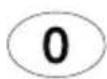
- Press and release the MUTE button.
- Press and release the VOL - button. The red indicator light will blink twice and go off.
Code Identification
- Press and hold the SETUP button until the red indicator stays on (approximately 2 seconds) and then release the button.
- Press and release the desired device button (TV, DVD, CBL, SAT, DVR, AUX, AUDIO, VCR) you would like the code for.
- Press and release ENTER button.
- Press and release the #1 button. Count the number of times the remote light flashes. This is the number corresponding to the first digit of the code. Repeat the process by pressing the #2, #3 and #4 buttons for the remaining digits.
- Press and release ENTER button to exit this mode.
Reset to Factory Settings
- Press and hold the SETUP button until the red indicator stays on (approximately 2 seconds) and then release the button.
- Press and release the MUTE button.
- Press and release the number #0 button. The red indicator light will flash twice.
Troubleshooting
Remote does not operate your device.
- Press the device button of the device you wish to control.
• Program the remote with a new code. - Install new batteries. (You might have to reprogram your remote after installing new batteries.)
• Remote may not be compatible with your device.
Remote does not operate some features of your device.
- Sometimes a particular code might operate some features but not all. Try programing remote with a new code.
- Remote may not be able to operate all features of your device or button names might be different than your device.
Red Indicator blinks and stays on after you program a product code.
• Remote did not accept the code.
- Try to program the code again or try a different code.
Remote Code is not available for a device (e.g. TV/VCR)
• See section for controlling combo devices.
If you have any questions or would like additional information, please visit www.jascoproducts.com or contact our Technical Support Group at 1-800-654-8483 between of 7:30AM—5:00PM CST.
90-Day Limited Warranty
Jasco Products Company warrants this product to be free from manufacturing defects for a period of ninety days from the original date of consumer purchase. This warranty is limited to the repair or replacement of this product only and does not extend to consequential or incidental damage to other products that may be used with this unit. This warranty is in lieu of all other warranties express or implied. Some states do not allow limitations on how long an implied warranty lasts or permit the exclusion or limitation of incidental or consequential damages, so the above limitations may not apply to you. This warranty gives you specific rights, and you may also have other rights which vary from state to state. If unit should prove defective within the warranty period, return prepaid with dated proof of purchase to:
Made in China
GE is a trademark of General Electric Company and is under license by Jasco Products Company LLC, 10 E. Memorial Rd., Oklahoma City, OK 73114.
This Jasco Products comes with a 90-day limited warranty. Visit www.jascoproducts.com for warranty details. Questions? Contact us at 1-800-654-8483 between 7:30AM—5:00PM CST.
FCC Statement
This device complies with part 15 of the FCC rules. Operation is subject to the following two conditions: (1) this device may not cause harmful interference, and (2) this device must accept any interference received, including interference that may cause undesired operation.
FCC NOTE: The manufacturer is not responsible for any radio or TV interference caused by unauthorized modifications to this equipment. Such modifications could void the user's authority to operate the equipment.
NOTE: This equipment has been tested and found to comply with the limits for a Class B digital device, pursuant to Part 15 of the FCC Rules. These limits are designed to provide reasonable protection against harmful interference in a residential installation. This equipment generates, uses and can radiate radio frequency energy and, if not installed and used in accordance with the instructions may cause harmful interference to radio communications. However, there is no guarantee that interference will not occur in a particular installation. If this equipment does cause harmful interference to radio or television reception, which can be determined by turning the equipment off and on, the user is encourage to try to correct the interference by one or more of the following measures:
- Reorient or relocate the receiving antenna.
- Increase the separation between the equipment and receiver.
- Connect the equipment into an outlet on a circuit different from that to which the receiver is connected.
- Consult the dealer or an experienced radio/TV technician for help.
This Class B digital apparatus complies with Canadian ICES-003.
TV, DVD, CBL, SAT, DVR, AUX, AUDIO, VCR
RECORD, PLAY, STOP, REW (rewind), FF (fast forward), PAUSE
ENTER
- Universal Remote Instruction Manual
- Table of Contents
- Setup
- Battery Installation
- Battery Precautions
- Battery Saver
- Code Saver
- Button Functions
- ENTER
- Button Functions, cont.
- EXIT
- NUMBERS
- Programming Your Remote
- Direct Code Entry (Recommended)
- Programming Your Remote, cont.
- Programming Notes
- Auto Code Search
- Favorite Function
- Controlling Combo Devices
- Using SHIFT for Menu and Navigation
- Master Volume Feature
- Enabling the Master Volume Feature
- Disabling the Master Volume Feature
- Using Your Remote, cont.
- Code Identification
- Reset to Factory Settings
- Troubleshooting
- Remote does not operate your device.
- Remote does not operate some features of your device.
- Red Indicator blinks and stays on after you program a product code.
- Remote Code is not available for a device (e.g. TV/VCR)
- 90-Day Limited Warranty
- FCC Statement
Brand : GE
Model : 25008
Category : Remote control