
SR 300 - Hi-Fi System SENNHEISER - Free user manual and instructions
Find the device manual for free SR 300 SENNHEISER in PDF.


| Product Type | 2-channel/stereo rack-mount monitoring transmitter (evolution wireless G3) |
| Dimensions | Approx. 202 mm x 212 mm x 43 mm |
| Weight | Approx. 980 g |
| Power Supply | 12 V DC via included NT 2-3 mains unit (100-240 V~, 50/60 Hz) |
| RF Output Power | Typ. 10/30 mW (Low/Standard), switchable |
| Frequency Ranges | 516-558, 566-608, 626-668, 734-776, 780-822, 823-865 MHz (depending on version) |
| Switching Bandwidth | 42 MHz |
| Number of Transmission Frequencies | 1,680 (tuneable in 25 kHz steps), 20 factory-preset banks + 6 user banks |
| Modulation | Wideband FM stereo (MPX pilot tone) |
| Compander System | Sennheiser HDX |
| AF Frequency Response | 25 Hz – 15 kHz |
| Audio Inputs | 2 x XLR-3/1/4" (6.3 mm) combo socket (balanced), line level |
| Audio Outputs | 2 x 1/4" (6.3 mm) stereo jack (loop out, balanced) |
| Headphone Output | 1/4" (6.3 mm) stereo jack, with volume control |
| Display | Backlit LCD (orange), showing AF level, frequency, bank/channel, EQ, sensitivity, lock, RF mute |
| Menu Navigation | Jog dial and STANDBY/ESC button; main and extended menus |
| Synchronization | Infra-red interface for Easy Setup Sync and Sync functions |
| Network Connectivity | Ethernet RJ-45 (for Wireless Systems Manager remote control) |
| Antenna Output | BNC socket, 50 Ω, with remote power supply for active antennas |
| Operating Temperature | -10°C to +55°C |
| Total Harmonic Distortion (THD) | < 0.9% (at 1 kHz, nominal deviation) |
| Signal-to-Noise Ratio | > 90 dB (at nominal load and peak deviation) |
| Safety Compliance | CE, FCC Part 74, Industry Canada RSS 123, RoHS, WEEE |
| Accessories Included | NT 2-3 mains unit, rod antenna, GA 3 rack adapter, device feet, manuals |
Frequently Asked Questions - SR 300 SENNHEISER
User questions about SR 300 SENNHEISER
0 question about this device. Answer the ones you know or ask your own.
Ask a new question about this device
Download the instructions for your Hi-Fi System in PDF format for free! Find your manual SR 300 - SENNHEISER and take your electronic device back in hand. On this page are published all the documents necessary for the use of your device. SR 300 by SENNHEISER.
USER MANUAL SR 300 SENNHEISER
evolutionwireless G3
SR 300 IEM
Contents
Important safety instructions 2
The evolution wireless series ew 300 IEM G3 4
The SR 300 IEM G3 rack-mount transmitter 4
The frequency bank system 4
Delivery includes 5
Product overview 6
Overview of the SR 300 IEM G3 transmitter 6
Overview of the displays 7
Putting the transmitter into operation 8
Setting up the transmitter on a flat surface 8
Mounting the transmitter into a 19" rack 9
Connecting an audio source to the input sockets 11
Connecting an audio source to the output sockets 11
Daisy chaining audio signals 11
Connecting a remote antenna to the BNC socket 12
Connecting the AC 3 antenna combiner to the BNC socket 12
Connecting transmitters in a network 12
Connecting the mains unit 13
Using the transmitter 14
Switching the transmitter on/off 14
Deactivating the lock mode temporarily 15
Activating/deactivating the RF signal 16
Monitoring the audio signal via headphones 16
Synchronizing transmitters and receivers via the infra-red interface 16
Using the operating menu 19
The buttons 19
Overview of the operating menu 20
Working with the operating menu 22
Adjusting settings via the operating menu 24
The main menu "Menu" 24
The extended menu "Advanced Menu" 28
Synchronizing the transmitter with an EK 300 IEM G3 receiver 33
Synchronizing the transmitter with an EK 300 IEM G3 receiver – individual operation .... 33
Synchronizing transmitters with EK 300 IEM G3 receivers – multi-channel operation .... 33
Cleaning the transmitter 35
Recommendations and tips 35
Accessories and spare parts 36
Specifications 38
Manufacturer Declarations 40
Index 41
Important safety instructions
- Read this instruction manual.
- Keep this instruction manual. Always include this instruction manual when passing the product on to third parties.
- Heed all warnings and follow all instructions in this instruction manual.
- Only clean the product when it is not connected to the mains. Use a cloth for cleaning.
- Never open the product, otherwise you can receive an electric shock. If products are opened by customers in breach of this instruction, the warranty becomes null and void.
- Refer all servicing to qualified service personnel.
Servicing is required if the product has been damaged in any way, liquid has been spilled, objects have fallen inside, the product has been exposed to rain or moisture, does not operate properly or has been dropped.
- WARNING: To reduce the risk of fire or electric shock, do not use the product near water and do not expose it to rain or moisture. Do not place objects filled with liquids, such as vases or coffee cups, on the product.
- Only use the supplied mains unit.
- Unplug the mains unit from the wall socket
– to completely disconnect the product from the mains,
– during lightning storms or
– when unused for long periods of time.
- Only operate the mains unit from the type of power source specified in the chapter "Specifications" (see page 38).
- Ensure that the mains unit is
– in a safe operating condition and easily accessible,
– properly plugged into the wall socket,
– only operated within the permissible temperature range,
- not covered or exposed to direct sunlight for longer periods of time in order to prevent heat accumulation (see "Specifications" on page 38).
- Do not block any ventilation openings. Install the product and the mains unit in accordance with the instructions given in this instruction manual.
- Do not install the product near any heat sources such as radiators, stoves, or other devices (including amplifiers) that produce heat.
- Only use attachments/accessories specified by Sennheiser.
- Do not overload wall outlets and extension cables as this may result in fire and electric shock.
Replacement parts
When replacement parts are required, be sure the service technician uses replacement parts specified by Sennheiser or those having the same characteristics as the original part. Unauthorized substitutions may result in fire, electric shock, or other hazards.
Danger of hearing damage due to high volumes
This product is also intended for professional use. Commercial use is subject to the safety-at-work regulations. Sennheiser, as the manufacturer, is therefore obliged to expressly point out possible health risks arising from use.
This product is capable of producing sound pressure exceeding 85 dB(A). 85 dB(A) is the sound pressure corresponding to the maximum permissible volume which is by law (in some countries) allowed to affect your hearing for the duration of a working day. It is used as a basis according to the specifications of industrial medicine. Higher volumes or longer durations can damage your hearing. At higher volumes, the duration must be shortened in order to prevent hearing damage. The following are sure signs that you have been subjected to excessive noise for too long a time:
- You can hear ringing or whistling sounds in your ears.
- You have the impression (even for a short time only) that you can no longer hear high notes.
Intended use
Intended use of the product includes:
- having read this instruction manual, especially the chapter "Important safety instructions" on page 2,
- using the product within the operating conditions and limitations described in this instruction manual.
"Improper use" means using the product other than as described in these instructions, or under operating conditions which differ from those described herein.
The evolution wireless series ew 300 IEM G3
This transmitter is part of the evolution wireless series generation 3 (ew G3). With this series, Sennheiser offers high-quality state-of-the-art RF transmission systems with a high level of operational reliability and ease of use. Transmitters and receivers are designed for monitoring applications and permit wireless transmission with studio-quality sound.
The SR 300 IEM G3 rack-mount transmitter
With the SR 300 IEM G3 2-channel/stereo monitoring transmitter, musicians, video and sound amateurs, reporters/broadcasters, etc. can directly monitor the received sound signals without troublesome cables or monitor speakers being required. In addition, it can also be used for any application where talkback signals are to be transmitted.
Features of the SR 300 IEM G3 transmitter:
- Optimized PLL synthesizer and microprocessor technology
- Stereo / monoselection
• HDX noise reduction system - Switching bandwidth of 42 MHz
- Safe configuration of a multi-channel system using the "Wireless Systems Manager" (WSM)
- Easy setup of a multi-channel system using the Easy Setup Sync function
The frequency bank system
The transmitter is available in 6 UHF frequency ranges with 1,680 transmission frequencies per frequency range:

line
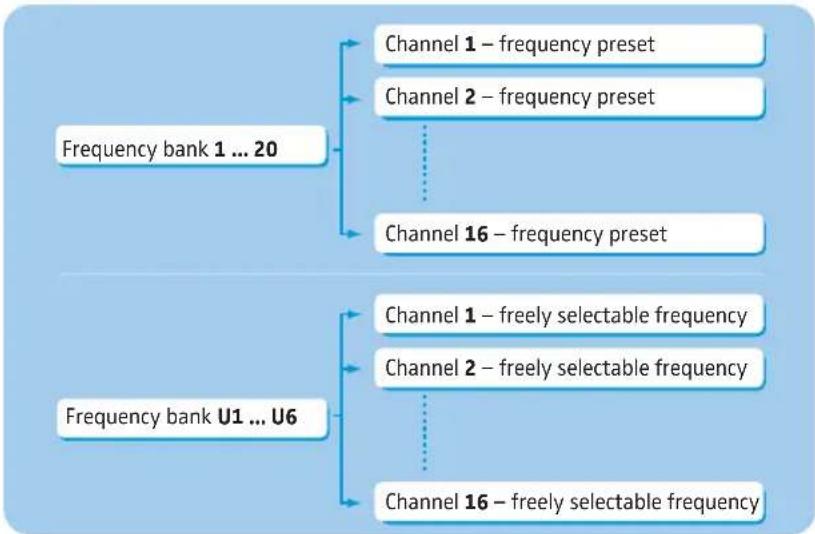
| Range | Value | |---|---| | Range A: | 516 - 558 | | Range G: | 626 - 668 | | Range B: | 734 - 776 | | Range B: | 823 - 865 | | Range C: | 865 | | Range D: | 780 - 822 | | Range E: | |Each frequency range (A–E, G) offers 26 frequency banks with up to 16 channels each:
flowchart
graph TD
    A["Frequency bank 1 ... 20"] --> B["Channel 1 – frequency preset"]
    A --> C["Channel 2 – frequency preset"]
    A --> D["Channel 16 – frequency preset"]
    E["Frequency bank U1 ... U6"] --> F["Channel 1 – freely selectable frequency"]
    E --> G["Channel 2 – freely selectable frequency"]
    E --> H["Channel 16 – freely selectable frequency"]
Each of the channels in the frequency banks "1" to "20" has been factory-preset to a fixed transmission frequency (frequency preset). The factory-preset frequencies within one frequency bank are intermodulation-free. These frequencies cannot be changed.
For an overview of the frequency presets, please refer to the supplied frequency information sheet. Updated versions of the frequency information sheet can be downloaded from the corresponding product page on our website at www.sennheiser.com.
The frequency banks "U1" to "U6" allow you to freely select and store transmission frequencies. It might be that these transmission frequencies are not intermodulation-free (see page 34).
Delivery includes
The packaging contains the following items:
1 SR 300 IEM G3 rack-mount transmitter
1 NT 2-3 mains unit with one country adapter
1 rod antenna
1 GA 3 rack adapter
1 instruction manual
1 frequency information sheet
1 RF licensing information sheet
4 device feet
Product overview
Overview of the SR 300 IEM G3 transmitter
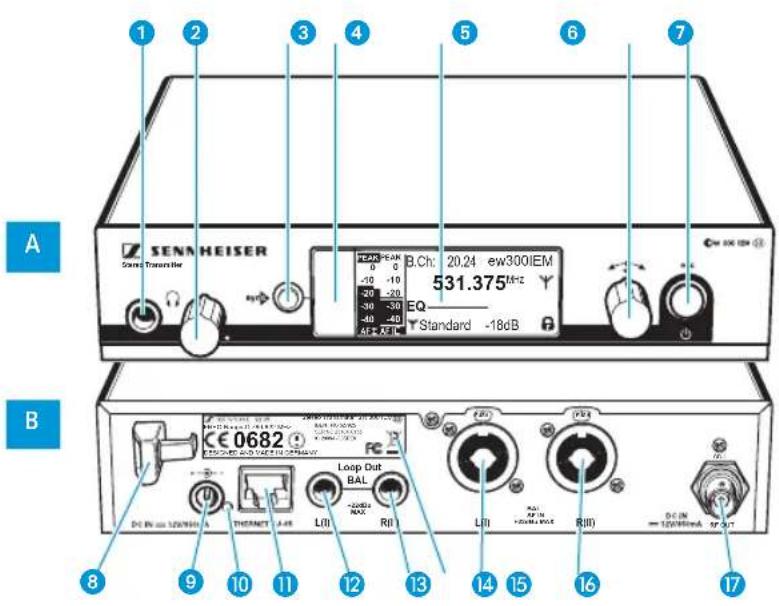
A Operating elements – front panel Ope B g elements – rear panel
1 Headphone output, 14'' (6.3 mm) jack socket ( )
2 Headphone volume control
3 button, backlit
4 Infra-red interface
5 Display panel, backlit in orange
6 Jog dial
7 STANDBY button ⏻ with operation indication (red backlighting); ESC function (cancel)
* During mono operation, the signal from the left audio input (1/4" (6.3 mm) jack/XLR-3 combo socket 15) is transmitted.
8 Cable grip for power supply DC cable of the NT 2-3 mains unit
9 DC socket (DC IN) for connection of NT 2-3 mains unit
10 LED (yellow) for network activity indication
11 LAN socket (ETHERNET RJ 45)
12 Audio output left (LOOP OUT BAL L(I)), 14 " (6.3 mm) jack socket
13 Audio output right (LOOP OUT BAL R(II)), 14 " (6.3 mm) jack socket
14 Type plate
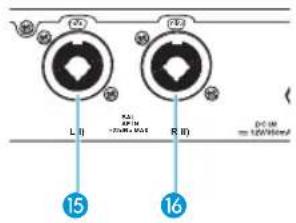
15 Audio input left (BAL AF IN L(I)), 14 " (6.3 mm) jack/XLR-3 combo socket)*
16 Audio input right (BAL AF IN R(II)), 14 " (6.3 mm) jack/XLR-3 combo socket
17 Antenna output (RF OUT) with remote power supply input, BNC socket
Overview of the displays
After switch-on, the transmitter displays the standard display.
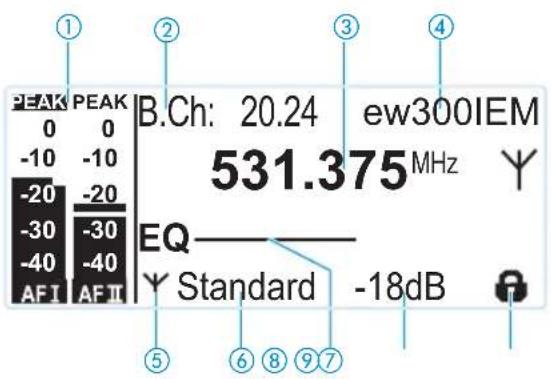
| Display Meaning | ||
| 1Audio level"AF IN L(I)" and"AF IN R(II) "(AF = Audio Frequency) | 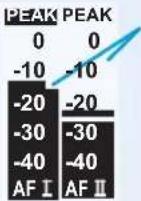 | Modulation of the left (I) and right (II) audio channel with peak hold functionWhen the level displays for audio level show full deflection, the audio input level is excessively high. When the transmitter is overmodulated frequently or for extended periods of time, the "PEAK" display is shown inverted. |
| 2Frequency bank and channel | Current frequency bank and channel number | |
| 3Frequency Current transmission frequency | ||
| 4Name Freely selectable name of the transmitter | ||
| 5Transmission icon RF signal is being transmitted | ||
| 6Transmission power Current transmission power | ||
| 7Equalizer setting Current equalizer setting | ||
| 8Input sensitivity | Current input sensitivity for the audio signal available at the audio input sockets BAL AF IN L (I) 15and BAL AF IN R (II) 16. | |
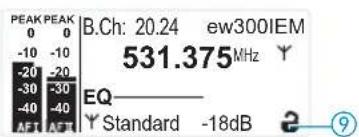
| 9Lock mode icon(see page 15) | Lock mode is activated | |
Putting the transmitter into operation

When using more than one transmitter, we recommend connecting remote antennas and, if necessary, using Sennheiser antenna accessories. For more information, visit the ew G3 product page at www.sennheiser.com.
Setting up the transmitter on a flat surface
Place the transmitter on a flat, horizontal surface. Please note that the device feet can leave stains on delicate surfaces.

The rack mount "ears" are designed to help protect the operating elements from damage or deformation, e.g. if the transmitter is dropped. Therefore, fasten the rack mount "ears", even if you do not want to rack mount your transmitter.
Mounting the rack mount "ears"
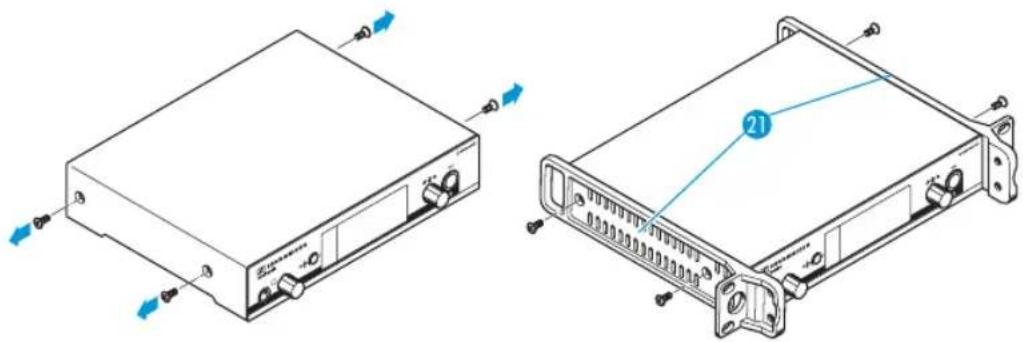
To fasten the rack mount "ears" 21
▶ Unscrew and remove the two recessed head screws (M4x8) on each side of the transmitter (see left-hand diagram).
Secure the rack mount "ears" 21 to the sides of the transmitter using the previously removed recessed head screws (see right-hand diagram).
natural_image
Technical line drawing of two electronic device modules with ports and connectors, no text or symbols presentFitting the device feet

Do not fit the device feet when mounting the transmitter into a 19" rack.
Clean the base of the transmitter where you want to fix the device feet.
Fit the device feet to the four corners of the transmitter.
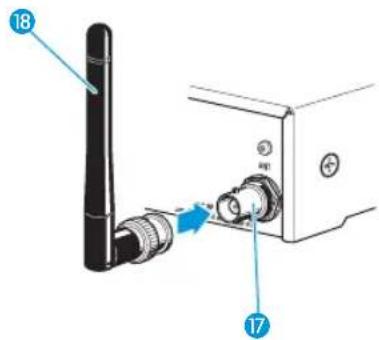
The supplied rod antenna 18 is suitable for use in good reception conditions.
Connect the rod antenna 18 (see diagram on page 9).
Connecting the rod antenna
Mounting the transmitter into a 19" rack

Do not fit the device feet when mounting the transmitter into a 19" rack.
CAUTION! Risks when rack mounting the transmitter!

When installing the device in a closed or multi-rack assembly, please consider that, during operation, the ambient temperature, the mechanical loading and the electrical potentials will be different from those of devices which are not mounted into a rack.
Make sure that the ambient temperature within the rack does not exceed the permissible temperature limit specified in the SR 300 IEM G3 specifications. If necessary, provide additional ventilation.
Make sure that the mechanical loading of the rack is even.
When connecting to the power supply, observe the information indicated on the type plate. Avoid circuit overloading. If necessary, provide overcurrent protection.
When rack mounting, please note that intrinsically harmless leakage currents of the individual mains units may accumulate, thereby exceeding the allowable limit value. As a remedy, ground the rack via an additional ground connection.
Rack mounting one transmitter
Secure the rack mount "ears" 21 of the supplied GA 3 rack adapter to the transmitter as described on page 8.
Secure the blanking plate 22 to one of the rack mount "ears" using two recessed head screws (M 6x10) (see diagram).
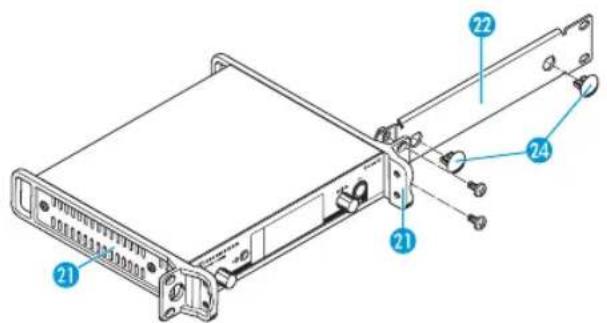
Connect the antenna. You have the following options:
- You can connect the supplied rod antenna 18 to the rear of the transmitter (see page 8). In this case, insert the two blanking plugs 24 into the holes of the blanking plate (see diagram on page 9).
- You can use the AM 2 antenna front mount kit (see "Accessories and spare parts" on page 36) and mount the rod antenna to the blanking plate ^2
- You can use a remote antenna, if necessary in conjunction with the AC 3 antenna combiner.
Slide the transmitter with the mounted blanking plate 22 into the 19" rack.
Secure the rack mount "ear" and the blanking plate to the 19" rack.
Rack mounting two transmitters
To mount two transmitters into a rack using the GA 3 rack adapter:
Place the two transmitters side by side upside-down onto a flat surface.
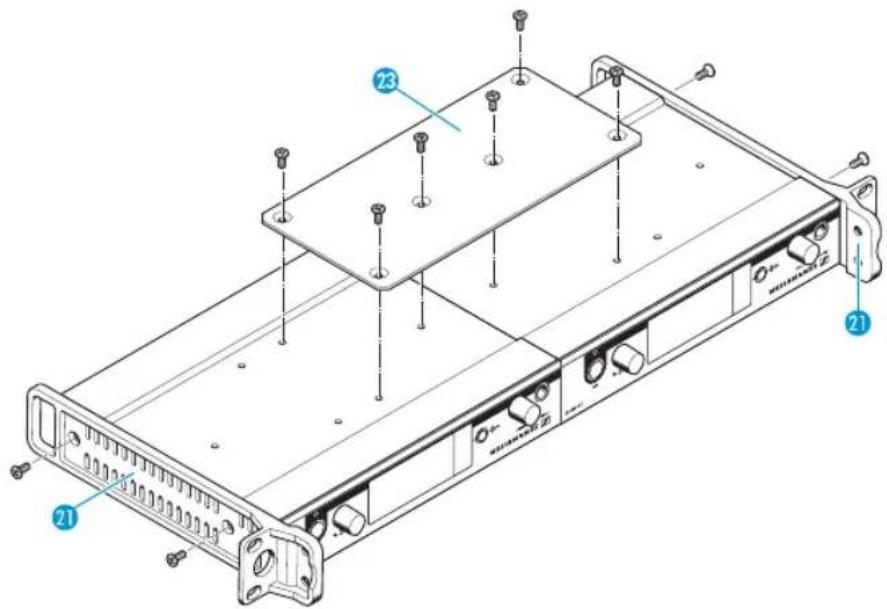
Secure the jointing plate 23 to the transmitters using six recessed head screws (M 3x6).
Secure the rack mount "ears" 21 to the transmitters as described on page 8.
To mount the transmitters into the rack:
Use remote antennas, if necessary in conjunction with the AC 3 antenna combiner. For more information, visit the ew G3 product pages at www.sennheiser.com.
To mount the transmitters into the rack:
▶ Slide the transmitters into the 19" rack.
▶ Secure the rack mount "ears" to the 19" rack.
Connecting an audio source to the input sockets
Use a suitable cable to connect the output of an audio source (e.g. a mixing console or an additional SR 300 IEM G3) to the input socket BAL AF IN L(I) 15 and/or BAL AF IN R(II) 16 (see also page 11).
Adjust the output level of your external device.
Via the operating menu, adjust the transmitter's input sensitivity. The input sensitivity is adjusted via the "Sensitivity" menu item and is common for both inputs (see page 20).

The input amplifier of the SR 300 IEM G3 is designed for line level input.
Connecting an audio source to the output sockets
Use a suitable cable to connect the audio input of an external device (e.g. a mixing console or an additional SR 300 IEM G3) to the output socket LOOP OUT BAL L(I) 12 and/or LOOP OUT BAL R(II) 13 (see also page 11).

The signal received from the AF input sockets BAL AF IN L(I) 15 and BAL AF IN R(II) 16 is actively buffered and then routed to the output sockets LOOP OUT BAL L(I) 12 and LOOP OUT BAL R(II) 13. The AF output sockets will therefore work only when the transmitter is switched on and powered.
Daisy chaining audio signals
The output sockets LOOP OUT BAL L 12 and/or LOOP OUT BAL R 13 allow you to daisy chain a signal that is to be transmitted to all receivers from an audio source (e.g. a mixing console) to one transmitter and then to the other transmitters.
To daisy chain an audio signal from one transmitter to the next:
Route a signal from the mixing console to the input socket (in this example: BAL AF IN R 16) of transmitter A.
Connect the output socket LOOP OUT BAL R 13 of transmitter A to the input socket BAL AF IN R 16 of transmitter B.
Connect the output socket LOOP OUT BAL R 13 of transmitter B to the input socket BAL AF IN R 16 of transmitter C.
▶ Repeat for the other transmitters.
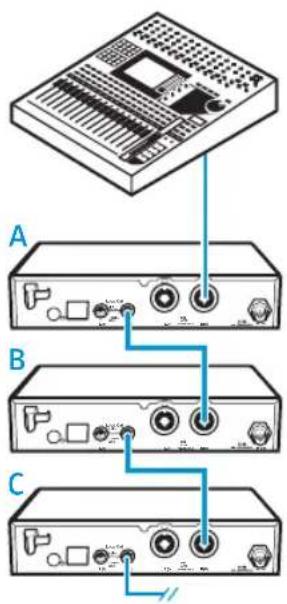

The AF output sockets LOOP OUT BAL L(I) 12 and/or LOOP OUT BAL R(II) 13 will work only when the transmitter is switched on and powered (see page 11).
Connecting a remote antenna to the BNC socket
Use a remote antenna when the transmitter position is not the best antenna position for optimum transmission. You can choose between two antennas:
• A 2003 UHF passive directional antenna
• A 1031 passive omni-directional antenna
Use a low-attenuation 50- cable to connect the antenna to the transmitter.
If possible, use a short antenna cable and as little connections as possible, since long cables and many connectors lead to an attenuation of the antenna signal.
▶ Position the antenna in the same room in which the transmission takes place.
Observe a minimum distance of 1 m between the antenna and metal objects (including reinforced concrete walls).
Connecting the AC 3 antenna combiner to the BNC socket
To make multi-channel systems, you should use the AC 3 antenna combiner (see "Accessories and spare parts" on page 36). The AC 3 allows you to operate up to four transmitters with a single antenna without virtually any intermodulation.
In addition, the AC 3 incorporates DC distribution to enable simultaneous powering of up to four transmitters via its BNC sockets.
Connect the AC 3 antenna combiner to the BNC socket 17.
Connecting transmitters in a network
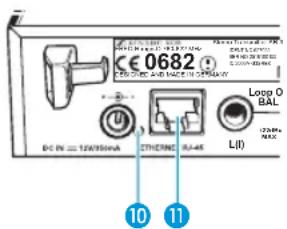
You can connect several transmitters in a network. The transmitters are remote controlled via a PC running the "Wireless Systems Manager" (WSM) software. This software will assist in the quick and safe configuration of multi-channel systems.

The "Wireless Systems Manager" (WSM) software can be downloaded from on our website at www.sennheiser.com.
Connect a standard network cable (at least Cat 5) to the LAN socket 11 of the transmitter.
Connect your transmitter to an Ethernet switch.
Connect the other transmitters to the Ethernet switch.
Connect a PC to the Ethernet switch.
When a transmitter is properly connected to the Ethernet switch or the PC, the yellow LED 10 at the rear of the transmitter lights up.

For further information on network operation using the WSM, refer to page 33.
Connecting the mains unit
Only use the supplied mains unit. It is designed for the transmitter and ensures safe operation.
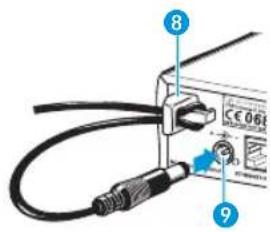
Insert the yellow connector of the NT 2-3 mains unit into the yellow socket ⑨ of the transmitter.
▶ Pass the cable of the mains unit through the cable grip 8.
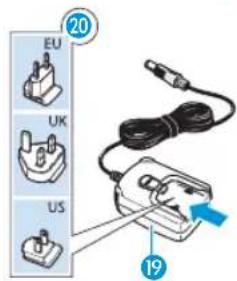
Slide the supplied country adapter 20 onto the mains unit 19.
Plug the mains unit 19 into a wall socket. The STANDBY button 7 is backlit in red.

The AC 3 antenna combiner incorporates DC distribution to enable simultaneous powering of up to four transmitters via its BNC sockets. These transmitters do not require their individual power supply (see also page 12).
Using the transmitter
To establish a transmission link, proceed as follows:
-
Switch the transmitter on (see next section).
-
Switch the receiver on (see the instruction manual of the receiver).
The transmission link is established.

It is vital to observe the notes on frequency selection on page 33.
If you cannot establish a transmission link between transmitter and receiver:
Make sure that transmitter and receiver are set to the same frequency bank and to the same channel.
If necessary, read the chapter "If a problem occurs ..." on page 37.
Switching the transmitter on/off
To switch the transmitter on (online operation):

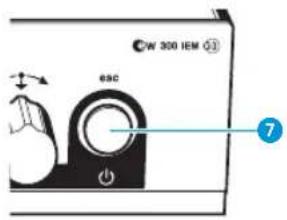
Briefly press the STANDBY button ⏻ ⑦. The transmitter switches on and the standard display appears. The transmitter transmits an RF signal and the transmission icon ⑤ is displayed.

You can switch the transmitter on and deactivate the RF signal on switch-on. For more information, refer to page 15.
To switch the transmitter to standby mode:
If necessary, deactivate the lock mode (see page 15).

Keep the STANDBY button 7 pressed until "OFF" appears on the display panel. The display panel switches off.

When in the operating menu, pressing the STANDBY button ⏻ 7 will cancel your entry (ESC function) and return you to the standard display.
The STANDBY button ⏻ 7 is backlit in red both during operation and in standby mode.
To completely switch the transmitter off:
▶ Disconnect the transmitter from the mains by unplugging the mains unit from the wall socket.
The backlighting of the STANDBY button ⏻ 7 goes off.
To switch the transmitter on and to deactivate the RF signal on switch-on (offline operation):

Keep the STANDBY button 7 pressed until "RF Mute On?" appears on the display panel.

Press the jog dial. The transmission frequency is displayed but the transmitter does not transmit an RF signal. The transmission icon ⑤ is not displayed. In addition, the display backlighting changes from orange to red and "RF Mute" flashes in alternation with the standard display.

Use this function to prepare a transmitter for use during live operation without causing interference to existing transmission links.
To activate the RF signal:

Briefly press the STANDBY button 7. "RF Mute Off?" appears on the display panel.

▶ Press the jog dial. The transmission icon ⑤ is displayed again.
Deactivating the lock mode temporarily
You can activate or deactivate the automatic lock mode via the "Auto Lock" menu item. If the lock mode is activated, you have to temporarily deactivate it In order to be able to operate the transmitter:

Press the jog dial. "Locked" appears on the display panel.

▶ Turn the jog dial. "Unlock?" appears on the display panel.

▶ Press the jog dial. The lock mode is temporarily deactivated:
When you are in the operating menu
The lock mode remains deactivated until you exit the operating menu.
When the standard display is shown
The lock mode is automatically activated after 10 seconds.
The lock mode icon ⑨ flashes prior to the lock mode being activated again.
Activating/deactivating the RF signal
To deactivate the RF signal:

When the standard display is shown on the display panel, briefly press the STANDBY button. "RF Mute On?" appears on the display panel.

Press the jog dial. The RF signal is deactivated. The transmission icon ⑤ is not displayed. In addition, the display backlighting changes from orange to red and "RF Mute" flashes in alternation with the standard display.
To activate the RF signal:

Press the STANDBY button. "RF Mute Off?" appears on the display panel.

▶ Press the jog dial. The RF signal is activated and the transmission icon ⑤ is displayed. The display backlighting changes from red to orange.

You can also deactivate the RF signal on switch-on. For more information, refer to the chapter "Switching the transmitter on/off" on page 14.
Monitoring the audio signal via headphones
You can monitor the audio signal via the headphone output.
CAUTION! Danger of hearing damage!

Listening at high volume levels for long periods can lead to permanent hearing defects.
Set the headphone volume control ② to the minimum position before putting the headphones on.
Do not continuously expose yourself to high volumes.
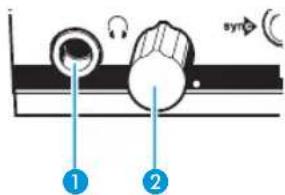
Set the headphone volume control ② to the minimum position.
Connect headphones with a 14 " (6.3 mm) stereo jack plug to the headphone output 🔒 1.
Gradually increase the volume and monitor the audio signal with the lowest possible volume.

Synchronizing transmitters and receivers via the infra-red interface
Easy Setup Sync function (EK 300 IEM G3 -> SR 300 IEM G3)
Once you have performed a frequency preset scan with your EK 300 IEM G3 receiver (see the instruction manual of the receiver), you can use the Easy Setup Sync function to transfer unused frequency presets from the receiver to several transmitters via the infra-red interface. The receiver transfers the first unused channel from the current frequency bank to the first transmitter and the next unused channel to the second transmitter and so on.
Sync function (SR 300 IEM G3 -> EK 300 IEM G3)
On the other hand, you can use the Sync function to adjust settings for your EK 300 IEM G3 portable receiver directly on your SR 300 IEM G3 rack-mount transmitter and transfer these settings to the receiver via the infra-red interface (see page 30).

When carrying out the Sync function, the transmitter's current frequency bank and channel setting is automatically transferred to the receiver via the infra-red interface.
Carrying out an Easy Setup Sync or a Sync function
The following assumes that you are using the Easy Setup Sync function for setting up a multi-channel system. You can also you the Easy Setup Sync function for establishing a transmission link between one transmitter and one EK 300 IEM G3 receiver.
Easy Setup Sync Sync
▶ Switch all rack-mount transmitters and one portable receiver on.
On all transmitters, call up the "Easy Setup" menu item.
The text "Easy Setup Sync" and the sync icon appear on the display panels of the transmitters.
The RF signal of the transmitters is automatically deactivated.
▶ Use your EK 300 IEM G3 portable receiver to perform a frequency preset scan.
▶ Select a frequency bank with a sufficient number of unused channels (see the instruction manual of the receiver).
▶ Switch your rack-mount transmitter and your portable receiver on.
Press the sync button 3 on the transmitter.
The syicon appears on the display panels of the transmitter.
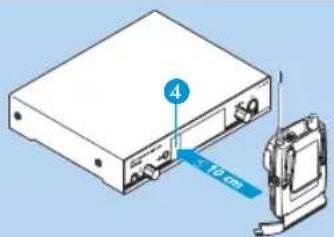
Place the infra-red interface of the receiver (see the instruction manual of the receiver) in front of the infra-red interface 4 of the first transmitter.
The first unused frequency preset is transferred from the receiver to the transmitter.
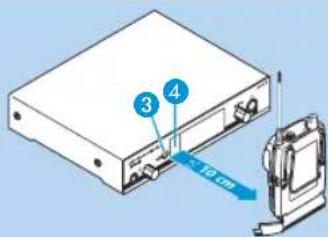
Place the infra-red interface of the receiver (see the instruction manual of the receiver) in front of the infra-red interface 4 of your transmitter.
The parameters adjusted via the "Sync Settings" menu item are transferred from the transmitter to the receiver. In addition, the current frequency bank and channel setting is transferred.
| Easy Setup Sync Sync | |
| When the transfer is completed, the display panel of the transmitter displays the numbers of the transferred frequency bank and channel.Please note that the transmitter does not automatically store the frequency bank and channel setting. | When the transfer is completed, “√” appears on the display panel of the transmitter. The transmitter then switches back to the standard display.The transferred parameters are automatically adjusted and stored by the receiver. The transmission link between transmitter and receiver is now established. |
| Place the infra-red interface of the portable receiver in front of the infra-red interfaces of the remaining transmitters, one after the other.In each case, the next unused frequency preset is transferred from the receiver to the transmitter. | - |
| Store the frequency bank and channel setting by pressing the jog dial on your transmitters. The RF signal is activated.You can carry out the Sync function (see right-hand column) at a later time to establish a transmission link between transmitters and receivers. | - |
| OR:Immediately synchronize your receivers with your transmitters by carrying out the Sync function (see right-hand column).This establishes a transmission link between transmitters and receivers.The icon in the left lower corner of the transmitter display indicates that the Sync function can be carried out. | |
| -To cancel the transfer: | Press the STANDBY button ⏻ 7 on the transmitter.“X” appears on the display panel of the transmitter. “X” also appears if no suitable receiver was found. |
Using the operating menu
A special feature of the Sennheiser ew G3 series is the consistent, intuitive menu structure of transmitters and receivers. As a result, adjustments to the settings can be made quickly – even in stressful situations, for example on stage or during a live show or presentation.
The buttons
| Button Function of the button | |
Press the STANDBY button | Switches the transmitter on and offCancels the entry and returns to the standard display (ESC function)Activates/deactivates the RF signal (special function, see page 16) |
Press the jog dial • Changes from the standard display to the operating menu | Calls up a menu itemEnters a submenuStores the settings and returns to the operating menu |
Turn the jog dial • Changes to the next/previous menu item | Changes the setting of a menu item |
Overview of the operating menu
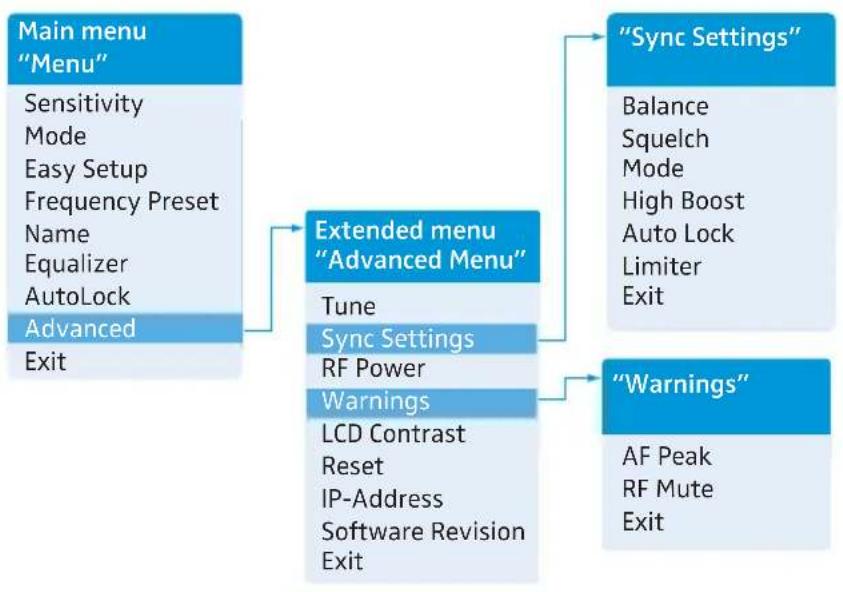
flowchart
graph TD
    A["Main menu "Menu""] --> B["Extended menu "Advanced Menu""]
    B --> C["Sync Settings"]
    B --> D["Warnings"]
    A --> E["Sensitivity"]
    A --> F["Mode"]
    A --> G["Easy Setup"]
    A --> H["Frequency Preset"]
    A --> I["Name"]
    A --> J["Equalizer"]
    A --> K["AutoLock"]
    A --> L["Advanced"]
    L --> M["Exit"]
    B --> N["Tune"]
    B --> O["Sync Settings"]
    B --> P["RF Power"]
    B --> Q["Warnings"]
    Q --> R["LCD Contrast Reset"]
    Q --> S["IP-Address Software Revision Exit"]
    B --> T["Balance\nSquelch\nMode\nHigh Boost\nAuto Lock\nLimiter\nExit"]
    B --> U["AF Peak\nRF Mute\nExit"]
When the standard display is shown on the display panel, you can get into the main menu by pressing the jog dial. The extended menu "Advanced Menu" and the other menus can be accessed via the corresponding menu items.
| Display Function of the menu item Page | ||
| Main menu “Menu” | 24 | |
| Sensitivity | Adjusts the input sensitivity (0 to -42 dB in steps of 3 dB) | 24 |
| Mode Selects mono or stereo operation 25 | ||
| Easy Setup | Deactivates the RF signal and activates the Easy Setup Sync function (see page 16) | |
| Frequency Preset | Sets the frequency bank and the channel | 26 |
| Name Enters a freely selectable name 26 | ||
| Equalizer Changes the frequency response of the output signal using a graphic equalizer (+/- 12 dB in steps of 2.4 dB) | 27 | |
| AutoLock | Activates/deactivates the automatic lock mode | 28 |
| Advanced | Calls up the extended menu “Advanced Menu” | 28 |
| Exit | Exits the operating menu and returns to the standard display | |
Extended menu "Advanced Menu"
| Tune Sets the transmission frequencies for the frequency banks “U1” to “U6” | 28 | |
| Sets the frequency bank, the channel and the transmission frequency (frequency banks “U1” to “U6”) | 29 | |
| Sync Settings | Adjusts the receiver parameters and activates/deactivates their transfer to the receivers | 30 |
| Display | Function of the menu item | Page |
| RF Power | Adjusts the transmission power ("Low" or "Standard") | 31 |
| Warnings | Calls up "Warnings" (see below) | 31 |
| LCD Contrast | Adjusts the contrast of the display panel (adjustable in 16 steps) | 31 |
| Reset Resets the settings made in the operating menu 31 | ||
| IP-Address Adjusts the IP address of the transmitter 32 | ||
| Software Revision | Displays the current software revision | 32 |
| Exit | Exits the extended menu "Advanced Menu" and returns to the main menu | |
"Sync Settings"
| Balance, Squelch, Mode, High Boost, Auto Lock, LimiterFor a detailed overview of the settings, refer to page 30. | 30 | |
| Exit | Exits "Sync Settings" and returns to the extended menu "Advanced Menu" | |
"Warnings"
Activates/deactivates warnings (color change and warning messages)
| AF Peak Audio overmodulation | 31 | |
| RF Mute RF signal is deactivated | ||
| Exit | Exits “Warnings” and returns to the extended menu “Advanced Menu” | |
Working with the operating menu

If the lock mode is activated, you have to deactivate it In order to be able to work with the operating menu (see page 15).
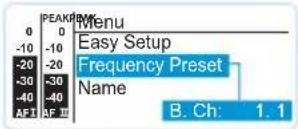
By way of example of the "Frequency Preset" menu, this section describes how to use the operating menu.
Changing from the standard display to the operating menu

▶ Press the jog dial. The standard display is replaced by the main menu. The last selected menu item is displayed.
Selecting a menu item
Menu
Sensitivity
Mode
Easy Setup
Frequency Preset
Name
Equalizer
Auto Lock
Advanced
Exit

▶ Turn the jog dial to change to the "Frequency Preset" menu item. The current setting of the selected menu item is displayed:
Changing and storing settings
flowchart
graph LR
    A["Menu"] --> B["Easy Setup"]
    B --> C["Frequency Preset"]
    C --> D["Name"]
    D --> E["B.Ch: 1.1"]
    E --> F["Call up "Frequency Preset""]
    F --> G["Select the frequency bank and confirm"]
    G --> H["516.000 MHz"]
    H --> I["Select the channel; store the setting"]
    I --> J["516.000 MHz"]
    J --> K["Stored"]

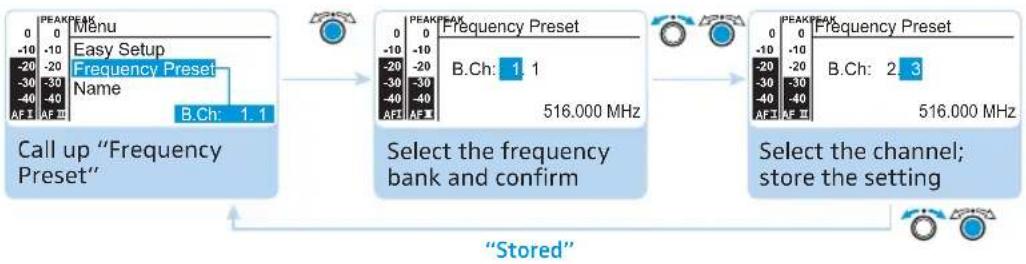
▶ Press the jog dial to call up the menu item.

▶ Turn the jog dial to set the frequency bank.

▶ Press the jog dial to confirm your selection.

▶ Turn the jog dial to set the channel.

▶ Press the jog dial to store the setting.

By briefly turning the jog dial to the left or right, the display jumps either forwards or backwards to the next menu item or setting. If you turn the jog dial to the left or right and hold it in this position, the display cycles continuously ("fast search" function).
Canceling an entry

▶ Press the STANDBY button to cancel the entry. The standard display appears on the display panel.
To subsequently return to the last edited menu item:

▶ Press the jog dial repeatedly until the last edited menu item appears.
Menu
Sensitivity
Mode
Easy Setup
Frequency Preset Name
Equalizer
Auto Lock
Advanced
Exit
Exiting a menu item

Change to the "Exit" menu item.

▶ Confirm your selection. You return to the next higher menu level or you exit the operating menu and return to the standard display.
To directly return to the standard display:

▶ Press the STANDBY button.
Adjusting settings via the operating menu
The main menu "Menu"
Menu
Sensitivity
Mode
Easy Setup
Frequency Preset
Name
Equalizer
Auto Lock
Advanced
Exit
Adjusting the input sensitivity – "Sensitivity"
flowchart
graph LR
    A["PEAK/PEAK Menu"] --> B["Exit Sensitivity Mode"]
    B --> C["-18dB"]
    D["Select the desired setting"] --> E["PEAK/PEAK Sensitivity"]
    E --> F["-18 dB"]
    G["Store the setting"] --> H["PEAK/PEAK Sensitivity"]
    H --> I["-15 dB"]
    J["Call up "Sensitivity""] --> K["Stored"]
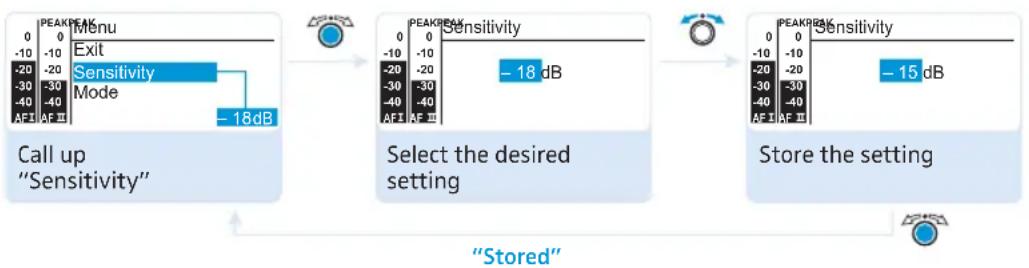
Adjustment range: 0 to -48 dB, adjustable in steps of 3 dB
Via the "Sensitivity" menu item, you can adjust the transmitter's input sensitivity to the output signal of the audio source. The adjusted input sensitivity is common for both audio inputs of the transmitter.

The audio level display "AF" always indicates the audio level, even if the transmitter is muted, e.g. allowing you to check the adjusted sensitivity before live operation.
| Input sensitivity is adjusted ... | Effect/display |
| ... too high Close talking distances, speakers with loud voices or loud music passages cause overmodulation in the transmission link.The audio level display “AF I” and/or “AF II” 1 shows full deflection for the duration of the overmodulation. | |
| ... correctly | The audio level display “AF I” and/or “AF II” 1 shows full deflection only during the loudest passages. |
| ... too low The transmission link is undermodulated. This results in a signal with high background noise. | |
Menu
Sensitivity
Mode
Easy Setup
Frequency Preset
Name
Equalizer
Auto Lock
Advanced
Exit
Selecting mono or stereo operation – "Mode"
flowchart
graph LR
    A["Call up "Mode""] --> B["Select the desired setting"]
    B --> C["Store the setting"]
    subgraph "Stored"
        D["Menu"] --> E["Sensitivity"]
        E --> F["Mode"]
        F --> G["Easy Setup"]
        G --> H["Stereo"]
        H --> I["Mode"]
        I --> J["Stereo"]
        J --> K["Mode"]
        K --> L["Mono"]
    end
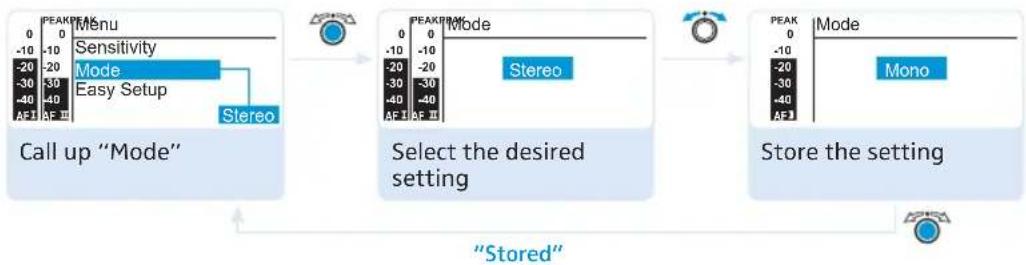
Select "Stereo" if you want to transmit the audio signals from the left and right audio input (BAL AF IN L (I) 15 and BAL AF IN R (II) 16).
Select "Mono" if you only want to transmit the audio signal from the left audio input BAL AF IN L (I) 15.

During mono operation, you have to deactivate the pilot tone evaluation on your EK 300 IEM G3 receiver in order to ensure that the receiver outputs the same signal on channel I and II.
Menu
Sensitivity
Mode
Easy Setup
Frequency Preset
Name
Equalizer
AutoLock
Advanced
Exit
Starting synchronization – "Easy Setup"

flowchart
graph LR
    A["Call up "Easy Setup""] --> B["RF signal is deactivated"]
    B --> C["Infra-red transmission is awaited"]
▶ Call up "Easy Setup" to transfer an unused frequency preset from the EK 300 IEM G3 receiver to the transmitter via the infra-red interface (see page 16).
The RF signal of the transmitter is automatically deactivated ("RF Mute" flashes) and the transmitter awaits the data transfer.
If you do not want to start the transfer or to chancel the transfer:

▶ Press the STANDBY button.

For a detailed description of the Easy Setup function, refer to the chapter "Synchronizing transmitters and receivers via the infra-red interface" on page 16.
Menu
Sensitivity
Mode
Easy Setup
Frequency Preset
Name
Equalizer
Auto Lock
Advanced
Exit
Selecting the frequency bank and the channel manually – "Frequency Preset"
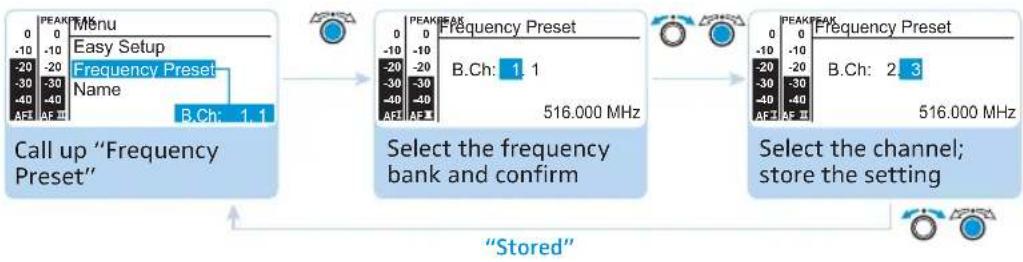
flowchart
graph LR
    A["Call up "Frequency Preset""] --> B["Select the frequency bank and confirm"]
    B --> C["Select the channel; store the setting"]
    D["Stored"] --> A

When you are in the "Frequency Preset" menu item, the RF signal is deactivated.
Overview of the frequency banks and channels:
| Frequency bank Channels Type | ||
| "1" to "20" | up to 16 per frequency bank | System bank: frequencies are factory-preset |
| "U1" to "U6" | up to 16 per frequency bank | User bank: frequencies are freely selectable (see page 28) |

When setting up multi-channel systems, please observe the following:
Only the factory-preset frequencies within one frequency bank ("1" to "20") are intermodulation-free. It is vital to observe the notes on frequency selection on page 33.
Menu
Sensitivity
Mode
Easy Setup
Frequency Preset
Name
Equalizer
Auto Lock
Advanced
Exit
Entering a name – "Name"
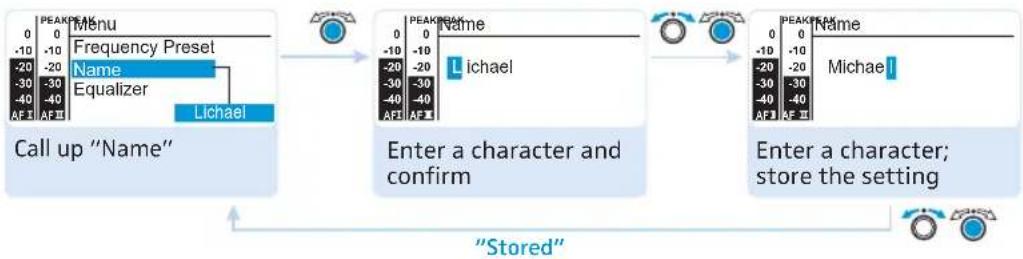
flowchart
graph LR
    A["Menu Frequency Preset"] --> B["Name Equalizer"]
    B --> C["Lichael"]
    C --> D["Enter a character and confirm"]
    D --> E["Enter a character; store the setting"]
    E --> F["Stored"]
    style A fill:#f9f,stroke:#333
    style B fill:#ccf,stroke:#333
    style C fill:#cfc,stroke:#333
    style D fill:#fcc,stroke:#333
    style E fill:#cff,stroke:#333
Via the "Name" menu item, you can enter a freely selectable name (e.g. the name of the performer) for the transmitter. The name is displayed on the standard display. The name can consist of up to 8 characters such as:
- letters (without pronunciation marks),
- numbers from 0 to 9,
• special characters and spaces.
To enter a name, proceed as follows:

▶ Turn the jog dial to select a character.

▶ Press the jog dial to change to the next segment/character or to store the complete entry.
Menu
Sensitivity
Mode
Easy Setup
Frequency Preset
Name
Equalizer
Auto Lock
Advanced
Exit
Using the equalizer
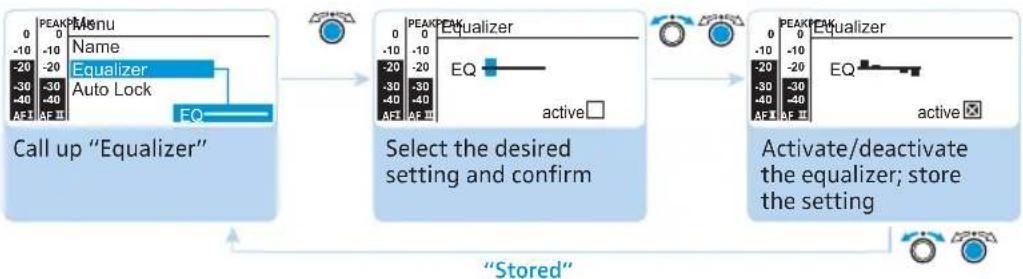
flowchart
graph LR
    A["Call up "Equalizer""] --> B["Select the desired setting and confirm"]
    B --> C["Activate/deactivate the equalizer; store the setting"]
    C --> D["Stored"]
Adjustment range: +/- 12 dB, adjustable in steps of 2.4 dB
You can change the treble and bass of the audio output signal in 5 frequency ranges.
| Display Frequency range | |
| 20 to 100 Hz | |
| 100 to 300 Hz | |
| 300 Hz to 1 kHz | |
| 1 to 3 kHz | |
| 3 to 10 kHz |
To change the treble and bass of the audio output signal, proceed as follows:


▶ Turn the jog dial to boost or cut the frequency range.
▶ Press the jog dial to change to the next frequency range or to store the complete entry.
Menu
Sensitivity
Mode
Easy Setup
Frequency Preset
Name
Equalizer
Auto Lock
Advanced
Exit
Activating/deactivating the automatic lock mode – "Auto Lock"
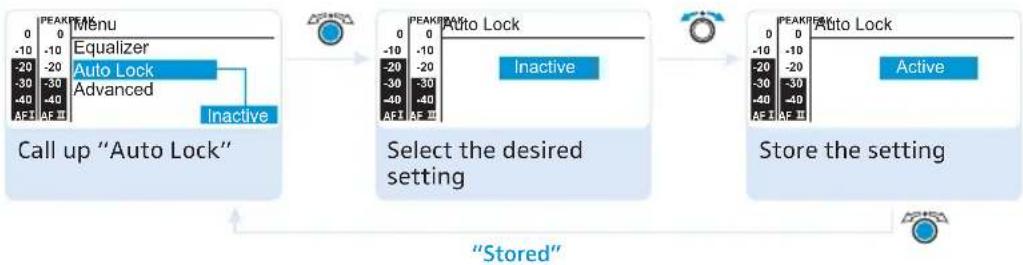
flowchart
graph TD
    A["Call up "Auto Lock""] --> B["Select the desired setting"]
    B --> C["Store the setting"]
    subgraph "Stored"
        D["Menu"] --> E["Equalizer"]
        E --> F["Auto Lock"]
        F --> G["Advanced"]
        G --> H["Inactive"]
    end
The lock mode prevents that the transmitter is accidentally switched off or programmed during operation. The lock mode icon on the standard display indicates that the lock mode is activated. For information on how to use the lock mode, refer to page 15.

▶ Turn the jog dial to select the desired setting.
The extended menu "Advanced Menu"
Advanced Menu
Tune
Sync Settings
RF Power
Warnings
LCD Contrast
Reset
IP-Address
Software Revision
Exit
Setting the transmission frequencies and the frequency banks "U1" to "U6" – "Tune"

When you have selected one of the system banks and then select the "Tune" menu, the transmitter automatically switches to channel 1 of the frequency bank "U1". In this case, "U1.1" briefly appears on the display panel.
Upon delivery, the channels of the frequency banks "U1" to "U6" are not assigned a transmission frequency.
When you are in the "Tune" menu item, the RF signal is deactivated.
Via the "Tune" menu item, you can:
- set a transmission frequency to be stored in the current channel of the selected frequency bank ("U1" to "U6")
or
- select a frequency bank ("U1" to "U6") and a channel and assign this channel a transmission frequency.
Advanced Menu
Tune
Sync Settings
RF Power
Warnings
LCD Contrast
Reset
IP-Address
Software Revision
Exit
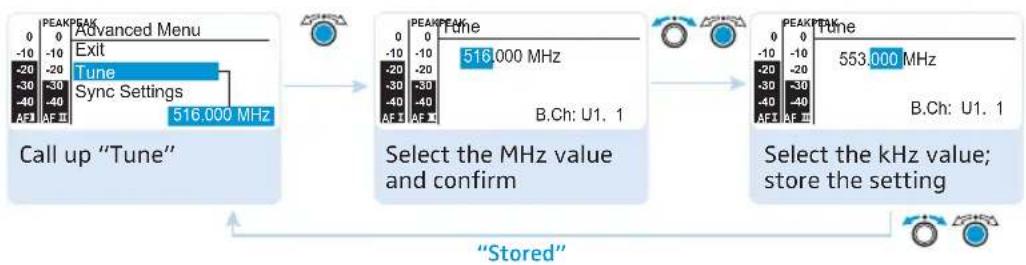
Setting a transmission frequency for the current channel

▶ Turn the jog dial until the "Tune" menu item appears.

▶ Press the jog dial. The frequency selection appears.
flowchart
graph LR
    A["Advanced Menu"] --> B["Tune"]
    B --> C["Select the MHz value and confirm"]
    C --> D["Select the kHz value; store the setting"]
    A --> E["Call up "Tune""]
    B --> F["Select the MHz value and confirm"]
    D --> G["Select the kHz value; store the setting"]
    style A fill:#4CAF50,stroke:#333
    style B fill:#2196F3,stroke:#333
    style C fill:#2196F3,stroke:#333
    style D fill:#2196F3,stroke:#333
▶ Set the desired frequency.

▶ Press the jog dial. Your settings are stored. You are back to the operating menu.

It is vital to observe the notes on frequency selection on page 33.
Advanced Menu
Tune
Sync Settings
RF Power
Warnings
LCD Contrast
Reset
IP-Address
Software Revision
Exit
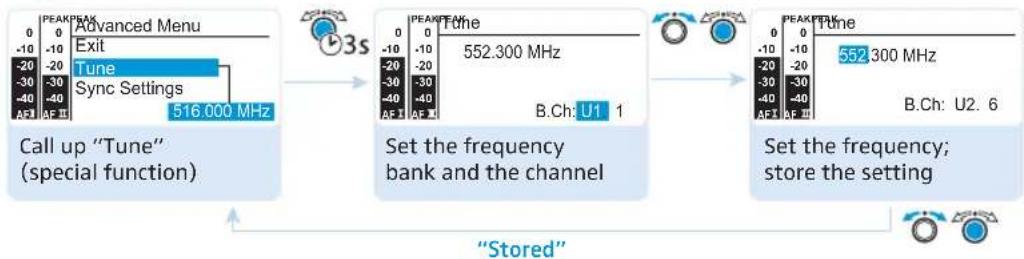
Selecting a frequency bank and a channel and assigning this channel a transmission frequency

▶ Turn the jog dial until the "Tune" menu item appears.
Keep the jog dial pressed until the frequency bank selection appears.

flowchart
graph LR
    A["Call up "Tune" (special function)"] --> B["Set the frequency bank and the channel"]
    B --> C["Set the frequency; store the setting"]
    D["Advanced Menu"] --> E["Tune Sync Settings 516.000 MHz"]
    E --> F["3s"]
    F --> G["B.Ch: U1 1"]
    G --> H["552.300 MHz"]
    H --> I["552.300 MHz"]
    I --> J["B.Ch: U2. 6"]
▶ Set the desired frequency bank.

▶ Press the jog dial. The channel selection appears.
▶ Set the desired channel.

▶ Press the jog dial. The frequency selection appears.
▶ Set the desired frequency (MHz and kHz values).

▶ Press the jog dial. Your settings are stored. You are back to the operating menu.
Advanced Menu
Tune
Sync Settings
RF Power
Warnings
LCD Contrast
Reset
IP-Address
Software Revision
Exit
Adjusting the receiver parameters and activating/deactivating their transfer to the receiver – "Sync Settings"
Via the "Sync Settings" submenu, you can adjust the following parameters for the EK 300 IEM receiver:
Menu item Transferred receiver parameter
| Balance Balance or Focus setting (“-15”/“+15”) |
Squelch Squelch setting
| ("5 dB" ... "25 dB") |
Mode Audio mode setting
| ("Stereo"/"Focus") |
High boost Treble boost setting for output signal
| ("flat"/"High boost" (8 dB at 10 kHz)) |
Auto Lock Lock mode setting
| ("active"/"inactive") |
Limiter Limiter setting
| ("−18 dB", "−12 dB", "−6 dB", "Off") |
You can specify for each parameter whether it is to be transferred to the receiver during synchronization.
Parameter Transfer is ...
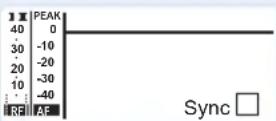
... deactivated
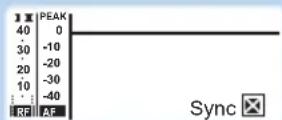
... activated
By pressing the sync 3 button on the transmitter, the parameters are transferred from the transmitter to the receiver (see page 16).
Advanced Menu
Tune
Sync Settings
RF Power
Warnings
LCD Contrast
Reset
IP-Address
Software Revision
Exit
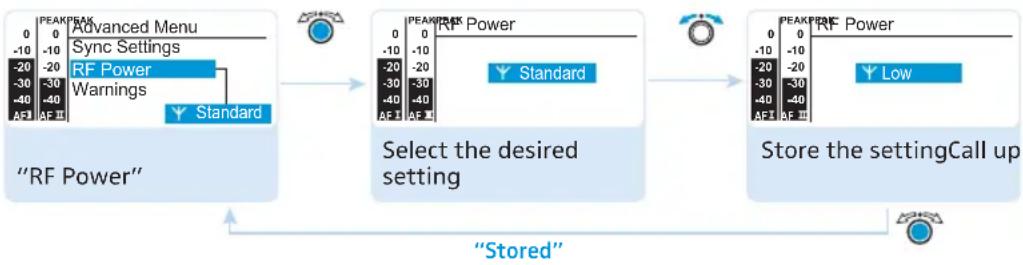
Adjusting the transmission power – "RF Power"
flowchart
graph LR
    A["RF Power"] --> B["Select the desired setting"]
    B --> C["Store the settingCall up"]
    D[""Advanced Menu"] --> E["RF Power Settings"]
    E --> F["Standard"]
    G["Sync Settings"] --> H["RF Power Warnings"]
    H --> I["Standard"]
    J["PEAK PEAK Power"] --> K["Standard"]
    L["PEAK PEAK Low"] --> M["Low"]
    N[""Stored"] --> O[""Stored"]
Via the "RF Power" menu item, you can adjust the transmission power in two steps (Low, Standard).

It is vital to observe the notes on the enclosed frequency information sheet!
Advanced Menu
Tune
Sync Settings
RF Power
Warnings
LCD Contrast
Reset
IP-Address
Software Revision
Exit
Activating/deactivating warning messages – "Warnings"
Via the "Warnings" menu item, you can activate or deactivate different warning messages.
| Setting Warning message* | Trigger | |
| AF Peak | “AF Peak” | Audio overmodulation |
| RF Mute | “RF Mute” | RF signal is deactivated (see page 16) |
* with color change on the standard display
Adjusting the contrast of the display panel – “LCD Contrast”
You can adjust the contrast of the display panel in 16 steps.
Advanced Menu
Tune
Sync Settings
RF Power
Warnings
LCD Contrast
Reset
IP-Address
Software Revision
Exit
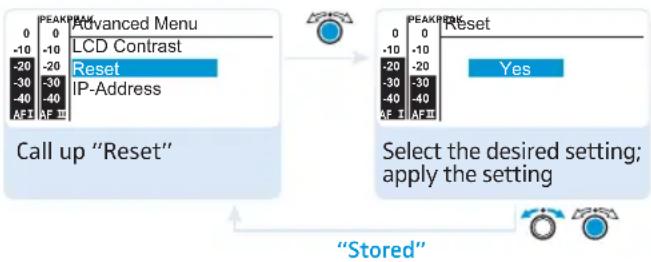
Resetting the settings made in the operating menu – "Reset"
flowchart
graph LR
    A["Advanced Menu"] --> B["LCD Contrast"]
    B --> C["Reset"]
    C --> D["IP-Address"]
    E["Call up "Reset""] --> F["Select the desired setting; apply the setting"]
    G["PEAK/REF"] --> H["Reset"]
    I["AFI"] --> J["AFIII"]
    K["0"] --> L["0"]
    M["10"] --> N["10"]
    O["-10"] --> P["-10"]
    Q["-20"] --> R["-20"]
    S["-30"] --> T["-30"]
    U["-40"] --> V["-40"]
    W["0"] --> X["0"]
    Y["10"] --> Z["10"]
    AA["-20"] --> AB["-20"]
    AC["-30"] --> AD["-30"]
    AE["-40"] --> AF["-40"]
    AG["AFI"] --> AH["AFIII"]
    AI["AFII"] --> AJ["AFIII"]
    AK["AFIII"] --> AL["AFIII"]
    AM["AFII"] --> AN["AFIII"]
    AO["AFIII"] --> AP["AFIII"]
    AQ["AFII"] --> AR["AFIII"]
    AS["AFIII"] --> AT["AFIII"]
    AU["AFII"] --> AV["AFIII"]
    AW["AFIII"] --> AX["AFIII"]
    AY["PEAK/REF"] --> AZ["Reset"]
    BA["APK/REF"] --> BB["APK/REF"]
    BC["SET"] --> BD["SET"]
    BE["SET"] --> BF["SET"]
    BG["SET"] --> BH["SET"]
    BI["SET"] --> BJ["SET"]
    BK["SET"] --> BL["SET"]
    BM["SET"] --> BN["SET"]
    BO["SET"] --> BP["SET"]
    BQ["SET"] --> BR["SET"]
    BS["SET"] --> BT["SET"]
    BU["SET"] --> BV["SET"]
    BW["SET"] --> BX["SET"]
    BY["SET"] --> BZ["SET"]
When resetting the settings made in the operating menu, only the selected settings for the pilot tone and for the frequency banks "U1" to "U6" remain unchanged. For an overview of the factory-preset default settings, refer to the enclosed frequency information sheet.
Advanced Menu
Tune
Sync Settings
RF Power
Warnings
LCD Contrast
Reset
IP-Address
Software Revision
Exit
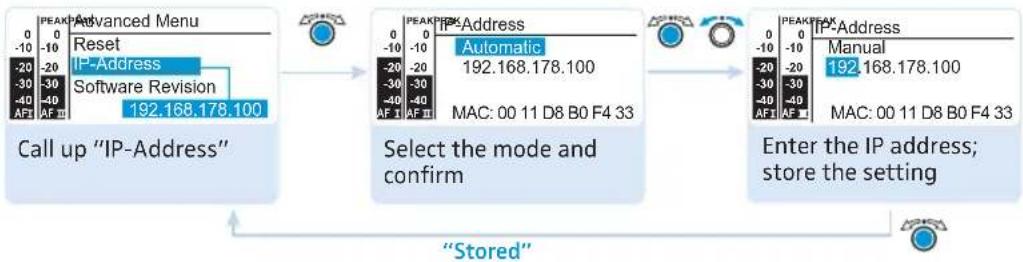
Adjusting the network configuration – "IP Address"
flowchart
graph LR
    A["Call up "IP-Address""] --> B["Select the mode and confirm"]
    B --> C["Stored"]
    C --> D["Enter the IP address; store the setting"]

    subgraph_A["Call up "IP-Address""]
        A1["0 PEAK"] --> A2["0"]
        A3["-10"] --> A4["-10"]
        A5["-20"] --> A6["-20"]
        A7["-30"] --> A8["-30"]
        A9["-40"] --> A10["-40"]
        A11["AF I"] --> A12["AF II"] --> A13["AF III"] --> A14["AF IV"] --> A15["AF V"] --> A16["AF VI"] --> A17["AF VII"] --> A18["AF VIII"] --> A19["AF IX"] --> A20["AF X"] --> A21["AF Y"] --> A22["AF Z"] --> A23["AF AA"] --> A24["AF AB"] --> A25["AF AC"] --> A26["AF AD"] --> A27["AF AE"] --> A28["AF AF"] --> A29["AF AG"] --> A30["AF AH"] --> A31["AF AI"] --> A32["AF AJ"] --> A33["AF AK"] --> A34["AF AL"] --> A35["AF AM"] --> A36["AF AN"] --> A37["AF AO"] --> A38["AF AP"] --> A39["AF AQ"] --> A40["AF AR"] --> A41["AF AV"] --> A42["AF AW"] --> A43["AF AX"] --> A44["AF AXI"] --> A45["AF AXII"] --> A46["AF AXIII"] --> A47["AF AXIV"] --> A48["AF AXV"] --> A49["AF AXVII"] --> A50["AF AXVIII"] --> A51["AF AXVIV"] --> A52["AF AXVIII"] --> A53["AF AXVII"] --> A54["AF AXVIII"] --> A55["AF AXVIV"] --> A56["AF AXVIII"] --> A57["AF AXVII"] --> A58["AF AXVIII"] --> A59["AF AXVIV"] --> A60["AF AXVIII"] --> A61["AF AXVII"] --> A62["AF AXVIII"] --> A63["AF AXVIV"] --> A64["AF AXVIII"] --> A65["AF AXVII"] --> A66["AF AXVIII"] --> A67["AF AXVIV"] --> A68["AF AXVIII"] --> A69["AF AXVII"] --> A70["AF AXVIII"] --> A71["AF AXVIV"] --> A72["AF AXVIII"] --> A73["AF AXVII"] --> A74["AF AXVIII"] --> A75["AF AXVIV"] --> A76["AF AXVIII"] --> A77["AF AXVII"] --> A78["AF AXVIII"] --> A79["AF AXVIV"] --> A80["AF AXVIII"] --> A81["AF AXVII"] --> A82["AF AXVIII"] --> A83["AF AXVIV"] --> A84["AF AXVIII"] --> A85["AF AXVII"] --> A86["AF AXVIII"] --> A87["AF AXVIV"] --> A88["AF AXVIII"] --> A89["AF AXVII"] --> A90["AF AXVIII"] --> A91["AF AXVIV"] --> A92["AF AXVIII"] --> A93["AF AXVII"] --> A94["AF AXVIII"]
    end

    subgraph B
        B1["0 PEAK"] --> B2["0"]
        B3["-10"] --> B4["-10"]
        B5["-20"] --> B6["-20"]
        B7["-30"] --> B8["-30"]
        B9["-40"] --> B10["-40"]
        B11["AF I"] --> B12["AF II"]
        B13["AP Address Automatic 192.168.178.100"]
        B14["Automatic 192.168.178.100"]
        B15["-30 -30"]
        B16["-40 -40"]
        B17["-40 -40"]
        B18["AUTIC 192.168.178.100"]
        B19["MAC: 00 11 D8 B0 F4 33"]
    end

    subgraph C
        C1["0 PEAK"] --> C2["0"]
        C3["-10"] --> C4["-10"]
        C5["-20"] --> C6["-20"]
        C7["-30"] --> C8["-30"]
        C9["-40"] --> C10["-40"]
        C11["AUTIC 192.168.178.100"]
        C12["Automatic 192.168.178.100"]
        C13["-30 -30"]
        C14["-40 -40"]
        C15["-40 -40"]
        C16["AUTIC 192.168.178.100"]
        C17["AUTIC 192.168.178.100"]
        C18["-30 -30"]
        C19["-40 -40"]
        C20["AUTIC 192.168.178.100"]
        C21["AUTIC 192.168.178.100"]
        C22["-30 -30"]
        C23["-40 -40"]
        C24["AUTIC 192.168.178.100"]
        C25["AUTIC 192.168.178.100"]
        C26["-30 -30"]
        C27["-40 -40"]
        C28["AUTIC 192.168.178.100"]
        C29["AUTIC 192.168.178.100"]
        C30["-30 -30"]
        C31["-40 -40"]
        C32["-40 -40"]
        C33["AUTIC 192.168.178.100"]
        C34["AUTIC 192.168.178.100"]
        C35["-30 -30"]
        C36["-40 -40"]
        C37["AUTIC 192.168.178.100"]
        C38["AUTIC 192.168.178.100"]
        C39["-30 -30"]
        C40["-40 -40"]
        C41["AUTIC 192.168.178.100"]
        C42["AUTIC 192.168.178.100"]
        C43["-30 -30"]
        C44["-40 -40"]
        C45["AUTIC 192.168.178.100"]
        C46["AUTIC 192.168.178.100"]
        C47["-30 -30"]
        C48["-40 -40"]
        C49["AUTIC 192.168.178.100"]
        C50["AUTIC 192.168.178.100"]
        C51["-30 -30"]
        C52["-40 -40"]
        C53["AUTIC 192.168.178.100"]
        C54["AUTIC 192.168.178.100"]
        C55["-30 -30"]
        C56["-40 -40"]
        C57["AUTIC 192.168.178.100"]
        C58["AUTIC 192.168.178.100"]
        C59["-30 -30"]
        C60["-40 -40"]
        C61["AUTIC 192.168.178.100"]
        C62["AUTIC 192.168.178.100"]
        C63["-30 -30"]
        C65["-40 -40"]
        C66["AUTIC 192.168.178.100"]
        C67["AUTIC 192.168.178.100"]
        C68["-30 -30"]
        C70["-40 -40"]
        C72["AUTIC 192.168.178.100"]
        C73["AUTIC 192.168.178.100"]
        C74["-30 -30"]
        C76["-40 -40"]
        C77["AUTIC 192.168.178.100"]
        C78["AUTIC 192.168.178.100"]
    end

    subgraph Legend
    LegendA["Advanced Menu"]
    LegendB["Reset IP-Address"]
    LegendC["Software Revision"]
    LegendD["Select the mode and confirm"]
    LegendE["Enter the IP address; store the setting"]
    LegendF["Pre-Address Manual"]
    LegendG["Pre-Address Manual"]
    LegendH["Pre-Address Manual"]
    LegendI["Pre-Address Manual"]
    LegendJ["Pre-Address Manual"]
    LegendK["Pre-Address Manual"]
    LegendL["Pre-Address Manual"]
    LegendM["Pre-Address Manual"]
    LegendN["Pre-Address Manual"]
    LegendO["Pre-Address Manual"]
    LegendP["Pre-Address Manual"]
    LegendQ["Pre-Address Manual"]
    Legend_R["Pre-Address Manual"]
    Legend_S["Pre-Address Manual"]
    Legend_T["Pre-Address Manual"]
    Legend_U["Pre-Address Manual"]
    Legend_V["Pre-Address Manual"]
    Legend_W["Pre-Address Manual"]
    Legend_X["Pre-Address Manual"]
    Legend_Y["Pre-Address Manual"]
    Legend_Z["Pre-Address Manual"]
    Legend_AA["Pre-Address Manual"]
    Legend_AB["Pre-Address Manual"]
    Legend_AC["Pre-Address Manual"]
    Legend_AD["Pre-Address Manual"]
    Legend_AE["Pre-Address Manual"]
    Legend_AF["Pre-Address Manual"]
    Legend_AG["Pre-Address Manual"]
    Legend_AH["Pre-Address Manual"]
    Legend_AI["Pre-Address Manual"]
    Legend_AJ["Pre-Address Manual"]
    Legend_AK["Pre-Address Manual"]
    Legend_AL["Pre-Address Manual"]
    Legend_AM["Pre-Address Manual"]
    Legend_AN["Pre-Address Manual"]
    Legend_AO["Pre-Address Manual"]
    Legend_AP["Pre-Address Manual"]
    Legend_AQ["Pre-Address Manual"]
    Legend_AR["Pre-Address Manual"]
    Legend_AS["Pre-Address Manual"]
    Legend_AT["Pre-Address Manual"]
    Legend_AU["Pre-Address Manual"]
    Legend_AV["Pre-Address Manual"]
    Legend_AW["Pre-Address Manual"]
You can either automatically allocate or manually enter an IP address. This menu item also shows the transmitter's unique and unchangeable MAC address. In order to ensure safe communication between transmitters in multi-channel systems (see page 33), we recommend using automatic allocation of IP addresses.
Displaying the software revision – "Software Revision"
You can display the current software revision of the transmitter.
For information on software updates, visit the SR 300 IEM G3 product page on our website at www.sennheiser.com.
Synchronizing the transmitter with an EK 300 IEM G3 receiver
When synchronizing your transmitter with a receiver, please observe the following:

▶ Only use a transmitter and a receiver from the same frequency range (see the type plates on the transmitter and the receiver).
Make sure that the desired frequencies are listed in the enclosed frequency information sheet.
Make sure that the desired frequencies are approved and legal in your country and, if necessary, apply for an operating license.
Synchronizing the transmitter with an EK 300 IEM G3 receiver – individual operation
Upon delivery, transmitter and receiver are synchronized with each other. If, however, you cannot establish a transmission link between transmitter and receiver, you have to synchronize the channels of the devices:
Carry out the Easy Setup Sync function and then the Sync function (see page 17). This establishes a transmission link between the transmitter and the receiver.
Alternatively, you can set the channel on the transmitter manually:
Make sure that you set the transmitter to the same frequency bank and the same channel as the receiver.
Synchronizing transmitters with EK 300 IEM G3 receivers – multi-channel operation
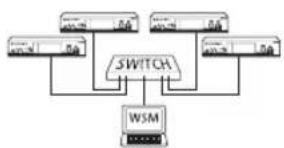
Network operation using the WSM
In multi-channel operation, the transmitters are remote controlled via a PC running the "Wireless Systems Manager" (WSM) software.
flowchart
graph TD
    A["Input Device 1"] --> C["SWITCH"]
    B["Input Device 2"] --> C["SWITCH"]
    D["Input Device 3"] --> C["SWITCH"]
    E["Input Device 4"] --> C["SWITCH"]
    F["Input Device 5"] --> C["SWITCH"]
    C --> G["WSM"]
    style C fill:#f9f,stroke:#333,stroke-width:2px

Advantages of controlling the transmitters via the "Wireless Systems Manager" (WSM) software
• Detailed overview of all transmission and receiving channels
- Remote control of all transmitters in the network
• Combination of transmitters of different frequency ranges (see page 4)
Connect your transmitters and your PC in a network (see page 12).
▶ Switch your transmitters and your PC on.
Launch the "Wireless Systems Manager" (WSM) software.
To set up your multi-channel system, proceed as described in the instruction manual of the "Wireless Systems Manager" (WSM) software.
Operation without network
Carry out the Easy Setup Sync function and then, for each transmitter/receiver pair, the Sync function (see page 17).
This establishes a transmission link between the transmitter and the receiver.
Using freely selectable transmission frequencies
You can also freely select the frequencies and store these frequencies in the frequency banks "U1" to "U6".
If you want to use the frequency banks "U1" to "U6":
Make sure to use transmitters and receivers from the same frequency range (see page 4 and the type plates of the devices).
▶ Only use frequencies that are approved and legal in your country (see page 33).

To ensure that the desired frequencies are intermodulation-free:
Contact your Sennheiser partner (see www.sennheiser.com).
▶ Set each transmitter to the same frequency bank.
On one of the transmitters, select a channel within this frequency bank (see page 20).
▶ Assign this channel one of the calculated transmission frequencies (see page 20).
▶ Synchronize a receiver with your transmitter ( sync see page 17). OR
▶ Manually set the receiver to the same frequency bank, channel and frequency that you set on the transmitter.
▶ Repeat for the remaining transmitters and receivers as described above.
Cleaning the transmitter
CAUTION!

Liquids can damage the electronics of the transmitter!
Liquids entering the housing of the transmitter can cause a short-circuit and damage the electronics.
▶ Keep all liquids away from the transmitter.
Before cleaning, disconnect the transmitter from the mains.
▶ Use a cloth to clean the transmitter from time to time. Do not use any solvents or cleansing agents.
Recommendations and tips
... for optimum reception
- Transmission range depends to a large extent on location and can vary from about 10 m to about 150 m. There should be a "free line of sight" between transmitting and receiving antennas.
- To avoid overloading the receiver, observe a minimum distance of 5 m between transmitting and receiving antennas.
... for multi-channel operation
- Each of the frequency banks "1" to "20" accommodates factory-preset receiving frequencies which are intermodulation-free. For possible frequency combinations, please refer to the supplied frequency information sheet.
- The channels in the frequency banks "U1" to "U6" can be assigned freely selectable frequencies (see page 34).
- When using several transmitters simultaneously, interference can be avoided by maintaining a minimum distance of 20 cm between two transmitters.
- Use accessories recommended by Sennheiser for multi-channel applications (see page 36).
Accessories and spare parts
Cat. No. Accessory/spare part
532711 Stacking elements, 1 pair
503167 GA 3 rack adapter
009912 AM 2 antenna front mount kit (for GA 3 rack adapter)
503157 NT 2-3 EU: Mains unit for powering the SR 300 IEM G3; EU version
503870 NT 2-3 US: Mains unit for powering the SR 300 IEM G3; US version
503871 NT 2-3 UK: Mains unit for powering the SR 300 IEM G3; UK version
503159 NT 3-1 EU: Table top power supply for powering the AC 3 and four transmitters; EU version
503876 NT 3-1 US: Table top power supply for powering the AC 3 and four transmitters; US version
503877 NT 3-1 UK: Table top power supply for powering the AC 3 and four transmitters; UK version
503166 AC 3 antenna combiner
528212 A 5000 CP circularly polarized broadband antenna
003658 A 2003 directional broadband antenna
004645 A 1031 omni-directional broadband antenna
087969 Antenna daisy-chain cable, 50 Ω, BNC, 0.25 m
002324 GZL 1019-A1 coaxial cable, type RG 58, BNC to BNC, 1 m
If a problem occurs ...
| Problem Possible cause Possible solution | ||
| Transmitter cannot be operated, “Locked” appears on the display panel | Lock mode is activated Deactivate the lock mode (see page 15 and page 20). | |
| No operation indication | No mains connection | Check the connections of the mains unit. |
| No RF signal at the receiver | Transmitter and receiver are not on the same channel | Set the transmitter and receiver to the same channel. To do so, use the synchronization function (see page 16). |
| If “RF Mute” additionally appears on the transmitter display: RF signal is deactivated | Activate the RF signal (see page 16). | |
| Very weak RF signal at the receiver | Transmission range is exceeded Reduce the distance between receiver and transmitter. | |
| Reposition the antennas. | ||
| Increase the transmission power (see page 21). | ||
| Check the squelch threshold setting on the receiver. | ||
| Reduce the squelch threshold (see the instruction manual of the receiver). | ||
| RF signal available, no audio signal at the receiver | No input signal at the transmitter Check the audio level on the transmitter display (see page 7). | |
| Very low input signal Check the audio level on the transmitter display (see page 7), increase the level of the input signal or adjust the input sensitivity (see page 20). | ||
| Audio signal has a high level of background noise | Transmitter sensitivity is adjusted too low | Adjust the transmitter sensitivity correctly. |
| Audio signal is distorted | If “AF PEAK” additionally appears on the transmitter display: transmitter sensitivity is adjusted too high | Adjust the transmitter sensitivity correctly. |
| Receiver's audio output level is adjusted too high | Reduce the audio output level (see the instruction manual of the receiver). | |
If a problem occurs that is not listed in the above table or if the problem cannot be solved with the proposed solutions, please contact your local Sennheiser partner for assistance. To find a Sennheiser partner in your country, search at www.sennheiser.com under "Service & Support".
Specifications
RF characteristics
| Frequency ranges 516–558, 566–608, 626–668, 734–776, | |
| 780–822, 823–865 MHz (A to E, G, see page 4) | |
| Transmission frequencies | 1,680 frequencies, tuneable in steps of 25 kHz |
| 20 frequency banks, each with up to 16 factory-preset channels | |
| 6 frequency banks with up to 16 user programmable channels | |
| Switching bandwidth 42 MHz | |
| Frequency stability ±10 ppm (-10°C to +55°C) | |
| Antenna output BNC socket, 50 Ω | |
| RF output power at 50 Ω | typ. 10/30 mW(Low/Standard), switchable |
AF characteristics
| Modulation wideband FM stereo (MPX pilot tone) | |
| Compander system Sennheiser HDX | |
| Nominal/peak deviation ±24 kHz/±48 kHz | |
| MPX pilot tone (frequency/deviation) 19 kHz/±5 kHz | |
| AF frequency response 25 Hz to 15 kHz | |
| AF input BAL AF IN L (I)/BAL AF IN R (II) | 2 x XLR-3/1⁄4" (6.3 mm) jack combo socket,electronically balanced |
| Max. input level +22 dBu | |
| THD(at 1 kHz and nominal deviation) | < 0.9 % |
| Signal-to-noise ratioat nominal load and peak deviation | > 90 dB |
| AF output LOOP OUT BAL L (I)/LOOP OUT BAL R (II) | 1⁄4" (6.3 mm) stereo jack socket, balanced |
Overall device
| Temperature range -10 °C to +55 °C | |
| Power supply 12 V | === |
| Current consumption | max. 350 mA |
| Dimensions | approx. 202 mm x 212 mm x 43 mm |
| Weight | approx. 980 g |
In compliance with
| EuropaCE | EMC | EN 301489-1/-9 |
| Radio | EN 300422-1/-2 | |
| Safety | EN 60065 |
Approved by
Canada Industry Canada RSS 123,
IC: 2099A-G3SREK
limited to 806 MHz
USA FCC-Part 74 FCC-ID: DMOG3SREK
limited to 698 MHz
NT 2-3 mains unit
Input voltage 100 to 240 V\~, 50/60 Hz
Current consumption max. 120 mA
Output voltage 12 V
Secondary output current 400 mA
Temperature range -10^ to +40^
In compliance with
Europe

EMC EN 55022, EN 55024,
EN 55014-1/-2
Safety EN 60065
USA

47 CFR 15 subpart B
Canada ICES 003
The mains unit is certified in accordance with the legal safety requirements of Europe, the United States, Canada, Russia and Japan.
Connector assignment
| Audio Other connectors | ||
1/4" (6.3 mm) stereo jack plug, balanced (Audio In/Loop out)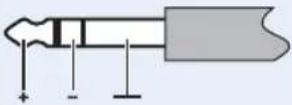 | XLR-3F connector, balanced (Audio In)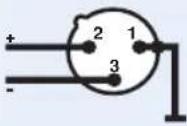 | DC connector for power supply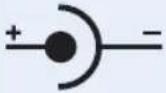 |
1/4" (6.3 mm) mono jack plug, unbalanced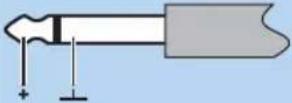 | 1/4" (6.3 mm) stereo jack plug for headphone output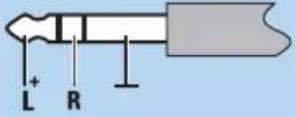 | |
Manufacturer Declarations
Warranty
Sennheiser electronic GmbH & Co. KG gives a warranty of 24 months on this product.
For the current warranty conditions, please visit our website at www.sennheiser.com or contact your Sennheiser partner.
In compliance with the following requirements
• RoHS Directive (2002/95/EC)
• WEEE Directive (2002/96/EC)

Please dispose of the transmitter at the end of its operational lifetime by taking it to your local collection point or recycling center for such equipment.
CE Declaration of Conformity
• CE 0682
- R&TTE Directive (1999/5/EC), EMC Directive (2004/108/EC), Low Voltage Directive (2006/95/EC)
The declarations are available at www.sennheiser.com.
Before putting the device into operation, please observe the respective country-specific regulations.
Statements regarding FCC and Industry Canada
This device complies with Part 15 of the FCC Rules and with RSS-210 of Industry Canada. Operation is subject to the following two conditions: (1) this device may not cause harmful interference, and (2) this device must accept any interference received, including interference that may cause undesired operation.
This equipment has been tested and found to comply with the limits for a Class B digital device, pursuant to Part 15 of the FCC Rules. These limits are designed to provide reasonable protection against harmful interference in a residential installation. This equipment generates, uses and can radiate radio frequency energy and, if not installed and used in accordance with the instructions, may cause harmful interference to radio communications. However, there is no guarantee that interference will not occur in a particular installation. If this equipment does cause harmful interference to radio or television reception, which can be determined by turning the equipment off and on, the user is encouraged to try to correct the interference by one or more of the following measures:
- Reorient or relocate the receiving antenna.
- Increase the separation between the equipment and receiver.
- Connect the equipment into an outlet on a circuit different from that to which the receiver is connected.
- Consult the dealer or an experienced radio/TV technician for help.
This class B digital device complies with the Canadian ICES-003.
Changes or modifications made to this equipment not expressly approved by Sennheiser electronic Corp. may void the FCC authorization to operate this equipment.
Before putting the device into operation, please observe the respective country-specific regulations!
Index
activating/deactivating
AF Peak (warning message) 31
lock mode (Auto Lock) 28
RF Mute (warning message) 31
warning messages (Warnings) 31
adjusting
contrast (LCD Contrast) 31
input sensitivity (Sensitivity) 24
network configuration (IP Address) 32
receiver parameters (Sync Settings) 30
transmission power (RF Power) 31
Advanced Menu (extended menu)
overview 20
settings 28
antenna
connecting a remote antenna 12
connecting the AC 3 antenna
combiner 12
connecting the rod antenna to the
front 10
connecting the rod antenna to the
rear 8
antenna front mount kit 10
audio signal
connecting to input 11
daisy chaining 11
monitoring 16
audio source
connecting 11
daisy chaining 11
Auto Lock (activating/deactivating the lock mode) 28
buttons
function 19
using 19
channel
assigning a frequency 29
display 7
overview 4
selecting (Frequency Preset) 26
selecting (Tune) 28
connecting
antenna 8
mains unit 13
transmitters in a network 12
device feet, fitting 8
displays
adjusting the contrast of the display panel
(LCD Contrast) 31
AF (audio level) 7
equalizer setting 7
frequency 7
frequency bank and channel 7
input sensitivity 7
lock mode icon 7
name of the transmitter 7
overview 7
PEAK (overmodulation) 7
transmission icon 7
transmission power 7
Easy Setup Sync 16 , 17
equalizer
display of equalizer setting 7
settings 27
extended menu (Advanced Menu)
overview 20
settings 28
factory default settings (resetting the settings made in the operating menu) 31
frequency
\~ ranges 4
display 7
preset frequencies 4
selecting \~ presets 26
setting a transmission frequency 28
using freely selectable transmission
frequencies 34
frequency bank
\~ system 4
display 7
overview 4
selecting (Frequency Preset) 26
Frequency Preset (selecting a frequency bank/channel) 26
infra-red transmission 16
IP-Address (adjusting the network configuration) 32
LCD Contrast (contrast of the display panel) 31
lock mode
activating/deactivating (Auto Lock) 28
deactivating temporarily 15
Locked (lock mode activated) 15
main menu (Menu)
overview 20
settings 24
mains unit, connecting 13
Menu (main menu)
overview 20
settings 24
mixing console, connecting 11
Mode (mono/stereo selection) 25
modulation (input sensitivity/adjusting the sensitivity) 24
mono operation 6, 25
Name (entering a name) 26
network
adjusting the network configuration (IP
Address) 32
setting up 12
offline operation (RF signal deactivated) 15
online operation (RF signal activated) 14
operating menu
overview 20
using 22
receiver settings
activating/deactivating the infra-red
transmission (Sync Settings) 30
adjusting (Sync Settings) 30
receiver, synchronizing with transmitter 16
Reset (resetting the settings made in the operating menu) 31
RF Mute (warning message) 15, 16, 21
RF Mute Off (activating the RF signal) 15, 16
RF Mute On (deactivating the RF signal) 16
RF Power (adjusting the transmission power) 31
selecting
channel (Frequency Preset) 26
frequency bank (Frequency Preset) 26
frequency bank (Tune) 28
mono or stereo operation (Mode) 25
Sensitivity (adjusting the input sensitivity) 24
Software Revision (displaying the software revision) 32
standby 14
stereo operation 25
switching on/off 14
Sync 17
Sync Settings (adjusting transferable receiver settings) 30
synchronizing (transmitter/receiver) 16
transmission frequency
selecting (Frequency Preset) 26, 28
setting (Tune) 28
transmission power, optimizing 35
transmitter
cleaning 35
connecting in a network 12
fitting the device feet 8
mounting into a 19" rack 9
setting up on a flat surface 8
switching on/off 14
switching to standby 14
synchronizing with receiver 16
using 14
troubleshooting 37
Tune (setting the transmission frequencies and frequency banks) 28
Unlock (deactivating the lock mode) 15
using
buttons 19
equalizer 27
operating menu 22
warning messages (Warnings)
activating/deactivating 31
overview 21
Warnings (warning messages)
activating/deactivating 31
overview 21
WSM (Wireless Systems Manager) 12
Sennheiser electronic GmbH & Co. KG Am Labor 1, 30900 Wedemark, Germany www.sennheiser.com
Printed in Germany Publ. 01/09 529680/A01