
TD-X461M - Screen TOSHIBA - Free user manual and instructions
Find the device manual for free TD-X461M TOSHIBA in PDF.


| Product Type | LCD Monitor |
| Model | TD-X461M |
| Brand | Toshiba |
| Screen Size | 46 inches (diagonal) |
| Resolution | 1920 x 1080 (Full HD) |
| Aspect Ratio | 16:9 |
| Brightness | 350 cd/m² |
| Contrast Ratio | 4000:1 (typical) |
| Response Time | 5 ms |
| Viewing Angle | 178° horizontal / 178° vertical |
| Connectivity | HDMI, VGA, DisplayPort, USB |
| Power Consumption | 120 W (typical), <0.5 W (standby) |
| Dimensions (W x H x D) | 41.3 x 24.8 x 2.8 inches (without stand) |
| Weight | 28.7 lbs (13.0 kg) without stand |
| VESA Mount Compatibility | 400 x 200 mm |
| Built-in Speakers | Yes, 2 x 10W |
| Operating Temperature | 0°C to 40°C (32°F to 104°F) |
| Cleaning Instructions | Use a soft, dry cloth. Avoid harsh chemicals. |
| Safety Features | Overheat protection, Kensington lock slot |
| Spare Parts Availability | Replacement power supply available from Toshiba service centers |
| Warranty | 1 year limited warranty |
Frequently Asked Questions - TD-X461M TOSHIBA
User questions about TD-X461M TOSHIBA
0 question about this device. Answer the ones you know or ask your own.
Ask a new question about this device
Download the instructions for your Screen in PDF format for free! Find your manual TD-X461M - TOSHIBA and take your electronic device back in hand. On this page are published all the documents necessary for the use of your device. TD-X461M by TOSHIBA.
USER MANUAL TD-X461M TOSHIBA
Leading Innovation >>>
LCD Display Monitor
User's Guide
TD-X552M
TD-X552X
Dear Customer,
Thank you for purchasing this Toshiba LCD Display Monitor. This document will help you use the many exciting features of your new LCD Display Monitor. Before operating your LCD Display Monitor, carefully read this manual completely.
Safety Precautions
CAUTION: TO REDUCE THE RISK OF FIRE OR ELECTRIC SHOCK, DO NOT EXPOSE THIS APPLIANCE TO RAIN OR MOISTURE.

CAUTION: RISK OF ELECTRIC SHOCK DO NOT OPEN.
CAUTION: TO PREVENT ELECTRIC SHOCK. DO NOT REMOVE THE ENCLOSURE. NO USER-SERVICEABLE PARTS INSIDE.

The lightning flash with arrowhead symbol, within an equilateral triangle, is intended to alert the user to the presence of uninsulated “dangerous voltage” within the product’s enclosure that may be of sufficient magnitude to constitute a risk of electric shock to persons.

The exclamation point within an equilateral triangle is intended to alert the user to the presence of important operating and maintenance (servicing) instructions in the literature accompanying the appliance.
WARNING: If you decide to wall mount this monitor, always use a mounting bracket that has been Listed by an independent laboratory (such as UL, CSA, ETL) and is appropriate for the size and weight of this monitor. The use of inappropriate or non-Listed mounting brackets could result in serious bodily injury and/or property damage.
Important Safety Instructions
1) Read these instructions.
2) Keep these instructions.
3) Heed all warnings.
4) Follow all instructions.
5) Do not use this apparatus near water.
6) Clean only with dry cloth.
7) Do not block any ventilation openings. Install in accordance with the manufacturer's instructions.
8) Do not install near any heat sources such as radiators, heat registers, stoves, or other products (including amplifiers) that produce heat.
9) Do not defeat the safety purpose of the grounding type plug.
A grounding type plug has two blades and a third grounding prong. The third prong is provided for your safety. If the provided plug does not fit into your outlet, consult an electrician for replacement of the obsolete outlet.
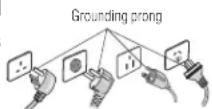
10) Protect the power cord from being walked on or pinched, particularly at plugs, convenience receptacles, and the point where they exit from the apparatus.
11) Only use attachments/accessories specified by the manufacturer.
12) Refer all servicing to qualified service personnel.
Servicing is required when the apparatus has been damaged in any way, such as power-supply cord or plug is damaged, liquid has been spilled or objects have fallen into the apparatus, the apparatus has been exposed to rain or moisture, does not operate normally, or has been dropped.
Additional Safety Precautions
13) CAUTION: If the monitor is dropped and the cabinet or enclosure surface has been damaged or the monitor does not operate normally, take the following precautions:
- ALWAYS turn off the monitor and unplug the power cord to avoid possible electric shock or fire.
- NEVER allow your body to come in contact with any broken glass or liquid from the damaged monitor. The LCD panel inside the monitor contains glass and a toxic liquid. If the liquid comes in contact with your mouth or eyes, or your skin is cut by broken glass, rinse the affected area thoroughly with water and contact your doctor immediately.
- ALWAYS contact a service technician to inspect the monitor any time it has been damaged or dropped.
14) CAUTION:
- To reduce the risk of electric shock, do not use the polarized plug with an extension cord, receptacle, or other outlet unless the blades can be inserted completely to prevent blade exposure.
- To prevent electric shock, match wide blade of plug to wide slot; fully insert.
15) CAUTION:
- Do not let children swallow any small parts included on or with the product or play with the plastic bag. Keep the small parts and the plastic bag out of the reach of children.
16) CAUTION:
- Do not let water or other liquids come into contact with the product, as it may result in damage.
17) WARNING:
- To prevent the spread of fire, keep candles or other open flames away from this product at all times.
- Keep the product away from direct sunlight, fire or a heat source such as a heater. This may reduce the product life time or result in fire.
Installation, Ergonomics, Care, and Service
Installation
Follow these recommendations and precautions and heed all warnings when installing your monitor:
18) When operating the LCD display with its AC 220 - 240 V power supply in Europe, use the power supply cord provided with the monitor. If a power cord is not supplied with this monitor, please
contact your supplier. This equipment requires an Earthed mains supply connection.
19) In UK, use a BS-approved power cord with molded plug having a black (10 A) fuse installed for use with this monitor.
20) When operating the LCD display with a 120V, 60Hz AC power supply in the United States or Canada, use the power cord provided with the monitor. If a power cord is not supplied with the monitor, please contact your supplier.
21) For all other cases, use a power cord that matches the AC voltage of the power outlet and has been approved by and complies with the safety standard of your particular country.
22) Avoid displaying fixed patterns on the monitor for long periods of time to avoid image persistence (after image effects).
23) WARNING: Never expose the batteries to excessive heat such as sunshine, fire, or the like.
24) ALWAYS plug the product into an outlet that is located in such a manner that it can be easily unplugged in case the product requires service.
25) NEVER route the product's power cord inside a wall or similar enclosed area.
26) Never modify this equipment. Changes or modifications may void: a) the warranty, and b) the user's authority to operate this equipment under the rules of the Federal Communications Commission.
27) DANGER: RISK OF SERIOUS PERSONAL INJURY, DEATH, OR EQUIPMENT DAMAGE!
Never place the monitor on an unstable cart, stand, or table. The monitor may fall, causing serious personal injury, death, or serious damage to the monitor.

28) When selecting a location for the monitor,
- NEVER allow any part of the monitor to hang over the edge of the supporting furniture,
- NEVER place the monitor on tall furniture (for example, entertainment centers or bookcases) without anchoring both the furniture and the monitor to a suitable support,
- Never place cloth or other material between the monitor and the supporting furniture.
- NEVER allow children to climb on the monitor.
29) To avoid damage to this product, never place or store the monitor in direct sunlight; hot, humid areas; or areas subject to excessive dust or vibration.
30) The product shall not be exposed to dripping or splashing, and that no objects filled with liquids, such as vases, shall be placed on the apparatus.
31) Never block or cover the slots or openings in the monitor cabinet back, bottom, and sides. Never place the monitor:
• on a bed, sofa, rug, or similar surface;
- too close to drapes, curtains, or walls; or
- in a confined space such as a bookcase, built-in cabinet, or any other place with poor ventilation.
32) Always leave a space of at least 10cm - 4 (four) inches around the monitor. The slots and openings are provided to protect the monitor from overheating and to help maintain reliable operation of the monitor.
33) Never allow anything to rest on or roll over the power cord, and never place the monitor where the power cord is subject to wear or abuse.
34) Never overload wall outlets and extension cords.
Ergonomics
To realize the maximum ergonomic benefits, we recommend the following:
35) For optimum performance, allow 20 minutes for warm-up.
36) Rest your eyes periodically by focusing on an object at least 5 feet away. Blink often.
37) Use the preset Size and Position controls with standard signals.
38) Use the preset Color Setting.
39) Use non-interlaced signals.
40) Do not use primary color blue on a dark background, as it is difficult to see and may produce eye fatigue due to insufficient contrast.
41) Adjust the monitor's brightness, contrast, and sharpness controls to enhance readability.
42) Position the monitor at a 90° angle to windows and other light sources to minimize glare and reflections.
Care
For better performance and safer operation of your TOSHIBA monitor, follow these recommendations and precautions:
43) Always unplug the monitor before cleaning. Gently wipe the display panel surface (the monitor screen) using a dry, soft cloth (cotton, flannel, etc.). A hard cloth may damage the surface of the panel. Avoid contact with alcohol, thinner, benzene, acidic or alkaline solvent cleaners, abrasive cleaners, or chemical cloths, which may damage the surface. Never spray volatile compounds such as insecticide on the cabinet. Such products may damage or discolor the cabinet.
44) Never hit, press, or place anything on the back cover. These actions will damage internal parts.
45)

Never spill liquids or push objects of any kind into the monitor cabinet slots.
46) During a lightning storm, do not touch the connecting cables or product.
47) Always unplug the monitor to completely disconnect from main power. When the monitor is turned off using the on/off switch, it is not completely disconnected from power and a minute amount of current is still consumed.
48) During normal use, the monitor may make occasional snapping or popping sounds. This is normal, especially when the unit is being turned on or off. If these sounds become frequent or continuous, unplug the power cord and contact a Toshiba Authorized Service Provider.
49) Handle with care when transporting. Save packaging for transporting. Please clean the ventilation slots on the back of the cabinet to remove dirt and dust at least once a year to maintain reliable operation of the monitor.
50) If using the cooling fan continuously, it's recommended to clean the ventilation slots at least once a month.
51) When installing the remote control batteries;
- Align the batteries according to the (+) and (-) indications inside the case.
- Align the (-) indication of the batteries first inside the case.
Service
52)

WARNING: RISK OF ELECTRIC SHOCK!

Never attempt to service the monitor yourself. Opening and removing the covers may expose you to dangerous voltage or other hazards. Failure to follow this WARNING may result in death or serious injury. Refer all servicing not specified in this manual to a Toshiba Authorized Service Provider.
53) If you have the monitor serviced:
- Ask the service technician to use only replacement parts specified by the manufacturer.
- Upon completion of service, ask the service technician to perform routine safety checks to determine that the monitor is in safe operating condition.
Important Information
Canadian Department of Communications Compliance Statement.
This product complies with any mandatory product specification in any country/region where the product is sold. In addition, the product complies with the following:
DOC: This Class B digital apparatus meets all requirements of the Canadian Interference-Causing Equipment Regulations.
C-UL: Bears the C-UL Mark and is in compliance with Canadian Safety Regulations according to CAN/CSA C22.2 No. 60950-1.
FCC Declaration of Conformity Compliance Statement (Part 15):
This equipment has been tested and found to comply with the limits for a Class B digital device, pursuant to part 15 of the FCC Rules.
These limits are designed to provide reasonable protection against harmful interference in a residential installation. This equipment generates, uses and can radiate radio frequency energy and, if not installed and used in accordance with the instructions, may cause harmful interference to radio communications.
However, there is no guarantee that interference will not occur in a particular installation.
If this equipment does cause harmful interference to radio or television reception, which can be determined by turning the equipment off and on, the user is encouraged to try to correct the interference by one or more of the following measures:
- Reorient or relocate the receiving antenna.
- Increase the separation between the equipment and receiver.
- Connect the equipment into an outlet on a circuit different from that to which the receiver is connected.
- Consult the dealer or an experienced radio/TV technician for help.

This device complies with part 15 of the FCC Rules. Operation is subject to the following two conditions: (1) This device may not cause harmful interference, and (2) this device must accept any interference received, including interference that may cause undesired operation.
You are cautioned that changes or modifications not expressly approved by the party responsible for compliance could void your authority to operate the equipment.
- Use the attached specified cables with the TD-X552 Series LCD displays so as not to interfere with radio and television reception.
1) Please use the supplied power cord to ensure FCC compliance. If a power cord is not provided, please contact your supplier.
2) Please use the supplied shielded video signal cable, 15-pin mini D-SUB to 15-pin mini D-SUB.
EU conformity Statement

This product is labeled with the CE Mark in accordance with the related European Directives, notably Low Voltage Directive 2006/95/EC, Electromagnetic Compatibility Directive 2004/108/EC and RoHS Directive 2011/65/EU.
Responsible for CE-marking is TOSHIBA EUROPE GMBH, Hammfelddamm 8, 41460 Neuss, Germany
Warning
This is a Class A product. In a domestic environment this product may cause radio interference, in which case the user may be required to take adequate measures.
REACH Information
The European Union (EU) chemical regulation, REACH (Registration, Evaluation, Authorization and Restriction of Chemicals), entered into force on 1 June 2007, with phased deadlines to 2018. Toshiba will meet all REACH requirements and is committed to provide our customers with information about the presence in our articles of substances included on the candidate list according to REACH regulation. Please consult the following website www.toshiba.eu/reach for information about the presence in our articles of substances included on the candidate list according to REACH in a concentration above 0.1% weight by weight.
Disposal of your old product and batteries
Following information is only valid for EU meber states:
Disposal of products
The crossed out wheeled dust bin symbol indicates that products must be collected and disposed of separately from household waste. Integrated batteries and accumulators can be disposed of with the product. They will be separated at the recycling centres. The black bar indicates that the product was placed on the market after August 13, 2005. By participating in separate collection of products and batteries, you will help to assure the proper disposal of products and batteries and thus help to prevent potential negative consequences for the environment and human health. For more detailed information about the collection and recycling programmes available in your country, please contact your local city office or the shop where you purchased the product.
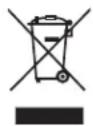
Disposal of batteries and/or accumulators
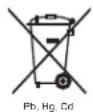
The crossed out wheeled dust bin symbol indicates that batteries and/or accumulators must be collected and disposed of separately from household waste. If the battery or accumulator contains more than the specified values of lead (Pb), mercury (Hg), and/or cadmium (Cd) defined in the Battery Directive (2006/66/EC), then the chemical symbols for lead (Pb), mercury (Hg) and/or cadmium (Cd) will appear below the crossed out wheeled dust bin symbol. By participating in separate collection of batteries, you will help to assure the proper disposal of products and batteries and thus help to prevent potential negative consequences for the environment and human health. For more detailed information about the collection and recycling programmes available in your country, please contact your local city office or the shop where you purchased the product.
ENERGY STAR® User Information
ENERGY STAR User Information Statement: the factory default settings of this display meet ENERGY STAR ^® requirements. Changing Picture Settings may increase energy consumption, possibly beyond the limits required for ENERGY STAR qualification.
ENERGY STAR ^® qualified display. Products that earn the ENERGY STAR prevent green house gas emissions by meeting strict guidelines set by the U.S. Environmental Protection Agency. ENERGY STAR and the ENERGY STAR mark are registered U.S. marks.
Important notes about your monitor
The following symptoms are technical limitations of LCD Display technology and are not an indication of malfunction; therefore,
Toshiba is not responsible for perceived issues resulting from these symptoms.
1) An afterimage (ghost) may appear on the screen if a fixed, non-moving image appears for a long period of time. The afterimage is not permanent and will disappear in a short period of time.
2) The LCD panel contained in this monitor is manufactured using an extremely high level of precision technology; however, there may be an occasional pixel (dot of light) that does not operate properly (does not light, remains constantly lit, etc.). This is a structural property of LCD technology, is not a sign of malfunction, and is not covered under your warranty. Such pixels are not visible when the picture is viewed from a normal viewing distance.
Note: Interactive video games that involve shooting a "gun" type of joystick at an on-screen target may not work with this monitor.
WARNING: This product contains chemicals, including lead, known to the State of California to cause cancer and birth defects or other reproductive harm. Wash hands after handling.
Trademark Information
- Windows is either a registered trademark or trademark of Microsoft Corporation in the United States and/or other countries.
- The terms HDMI and HDMI High-Definition Multimedia Interface, and the HDMI Logo are trademarks or registered trademarks of HDMI Licensing LLC in the United States and other countries.
• DOLBY DIGITAL PLUS Manufactured under license from Dolby Laboratories. Dolby and the double-D symbol are trademarks of Dolby Laboratories. - All other brand and product names are trademarks or registered trademarks of their respective companies.
Copyright
Under the copyright laws, this guide cannot be reproduced in any form without the prior written permission of Toshiba. No patent liability is assumed, however, with respect to the use of the information contained herein.
© 2015 by Toshiba Lifestyle Products & Services Corporation. All rights reserved.
Notice
The information contained in this manual, including but not limited to any product specifications, is subject to change without notice. TOSHIBA LIFESTYLE PRODUCTS & SERVICES CORPORATION (TOSHIBA) PROVIDES NO WARRANTY WITH REGARD TO THIS MANUAL OR ANY OTHER INFORMATION CONTAINED HEREIN AND HEREBY EXPRESSLY DISCLAIMS ANY IMPLIED WARRANTIES OF MERCHANTABILITY OR FITNESS FOR ANY PARTICULAR PURPOSE WITH REGARD TO ANY OF THE FOREGOING. TOSHIBA ASSUMES NO LIABILITY FOR ANY DAMAGES INCURRED DIRECTLY OR INDIRECTLY FROM ANY TECHNICAL OR TYPOGRAPHICAL ERRORS OR OMISSIONS CONTAINED HEREIN OR FOR DISCREPANCIES BETWEEN THE PRODUCT AND THE MANUAL. IN NO EVENT SHALL TOSHIBA BE LIABLE FOR ANY INCIDENTAL, CONSEQUENTIAL, SPECIAL, OR EXEMPLARY DAMAGES, WHETHER BASED ON TORT, CONTRACT OR OTHERWISE, ARISING OUT OF OR IN CONNECTION WITH THIS MANUAL OR ANY OTHER INFORMATION CONTAINED HEREIN OR THE USE THEREOF.
Table Of Contents
Introduction....1
1. Unpacking and Installation....2
1.1. Unpacking....2
1.2. Package Contents....2
1.3. Installation Notes 2
1.4. Installing and Removing Table Stands (optional) .....3
1.5. Mounting on a Wall....4
1.5.1. VESA Grid 4
1.6. Mounting in Portrait Position....5
1.7. Connect Power code 5
1.8. Avoiding Image Retention....5
2. Parts and Functions....6
2.1. Control Panel....6
2.2. Input/Output Terminals....7
2.3. Remote Control....8
2.3.1. General functions....8
2.3.2. ID Remote Control....9
2.3.3. Inserting the batteries in the remote control....10
2.3.4. Handling the remote control....10
2.3.5. Operating range of the remote control...10
3. Connecting External Equipment.... 11
3.1. Connecting External Equipment (DVD/VCR/VCD) 11
3.1.1. Using COMPONENT video input.....11
3.1.2. Using Video Source input....11
3.1.3. Using HDMI video input....12
3.2. Connecting a PC....12
3.2.1. Using VGA input....12
3.2.2. Using DVI input....12
3.2.3. Using HDMI input....13
3.2.4. Using DisplayPort input....13
3.3. Connecting Audio Equipment....13
3.3.1. Connecting external speakers....13
3.3.2. Connecting an external audio device.....14
3.4. Connecting Multiple Displays in a Daisy-chain Configuration....14
3.4.1. Display control connection....14
3.4.2. Digital video connection....14
3.4.3. Analog video connection....15
3.5. IR connection....16
3.6. IR Pass-through Connection....16
3.7. Wire-connecting to Network....17
4. Operation....18
4.1. Display the Connected Video Source....18
4.2. Change Picture Format....18
4.3. Choose your Preferred Picture Settings.....18
4.4. Choose your Preferred Sound Settings....18
4.5. Adjust volume for Audio output terminal.....18
4.6. Adjust picture position....18
4.7. Play multimedia files via Local Area Network.....18
4.7.1. Set up the network....18
4.7.2. How to use DLNA-DMP....19
4.7.3. How to use DLNA-DMR from PC......19
4.8. Play multimedia files from USB device....20
4.9. Play options....20
4.9.1. Playing music files 20
4.9.2. Playing movie files 20
4.9.3. Playing photo files 21
4.9.4. Operate Folder....21
5. Change your settings 21
5.1. Settings....22
5.1.1. Picture....22
5.1.2. Sound 22
5.1.3. Tiling....23
5.1.4. General settings....23
5.2. Network Settings....26
6. USB device compatibility....27
7. Input Mode....29
8. Cleaning and Troubleshooting....30
8.1. Cleaning....30
8.2. Troubleshooting....31
9. Technical Specifications 32
Introduction
Safety Icons
This manual contains safety instructions that must be observed to avoid potential hazards that could result in personal injuries, damage to your equipment, or loss of data. These safety cautions have been classified according to the seriousness of the risk, and icons highlight these instructions as follows:
| △DANGER | Indicates an imminently hazardous situation which, if not avoided, will result in death or serious injury. |
| △WARNING | Indicates a potentially hazardous situation which, if not avoided, could result in death or serious injury. |
| △CAUTION | Indicates a potentially hazardous situation which, if not avoided, may result in minor or moderate injury. |
| CAUTION | Indicates a potentially hazardous situation which, if not avoided, may result in property damage. |
| NOTE | Provides important information. |
About This Manual
This Installation/Operations Manual describes how to install, set up and operate the TD-X552 multi screen display..
1. Unpacking and Installation
1.1. Unpacking
• This product is packed in a carton, together with the standard accessories.
• Any other optional accessories will be packed separately.
• Due to the size and weight of this display it is recommended for two people to move it.
• After opening the carton, ensure that the contents are complete and in good condition.
1.2. Package Contents
Please verify that you received the following items with your package content:
- LCD display
• Remote control with AAA batteries
• Power cord (1.8 m)
• VGA cable (1.8 m)
• IR Extender Receiver - User manual
- RS-232C Cable
• RS-232C Daisy Chain Cable
natural_image
Plain light blue background with no visible text, symbols, or objects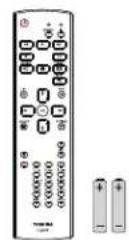
Remote Control and AAA Batteries
* The supplied power cord varies depending on destination.
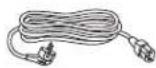
Power Cord
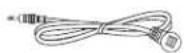
IR Extender Receiver
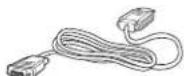
Video Signal Cable (D-SUB to D-SUB Cable)
User manual
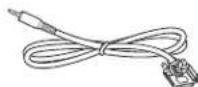
RS-232C Cable
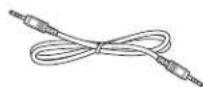
RS-232C Daisy Chain Cable
NOTE
- For all other regions, apply a power cord that conforms to the AC voltage of the power socket and has been approved by and complies with the safety regulations of the particular country.
• You might like to save the package box and packing material for shipping the display.
1.3. Installation Notes
- Due to the high power consumption, always use the plug exclusively designed for this product. If an extended line is required, please consult your service agent.
- The product should be installed on a flat surface to avoid tipping. The distance between the back of the product and the wall should be maintained for proper ventilation. Avoid installing the product in the kitchen, bathroom or any other places with high humidity so as not to shorten the service life of the electronic components.
• The product can normally operate only under 3000m in altitude. In installations at altitudes above 3000m, some abnormalities may be experienced.
• Always use the handles on the back of the LCD panel. Do not hold the display by its edges (outer bezel). - Two people or more are required when moving or raising the LCD panel. Use both hands, one positioned on the top handle and the other on the bottom handle

flowchart
graph LR
    A["Start"] --> B["Task Setup"]
    B --> C{Approval Check}
    C -->|Yes| D["Action: ✓"]
    C -->|No| E["Action: ✗"]
    D --> F["Check Point"]
    E --> G["Check Point"]
    F --> H["End"]
    G --> H
• Use a cart to move multiple panels at one time.
- When the panel is sitting on a surface, do not tilt it more than 10^ to avoid damaging the screen
1.4. Installing and Removing Table Stands (optional)
To install table stands:
- Ensure your display is powered off.
- Spread a protective sheet on a flat surface.
- Grab the carrying handles and place the display face-down on the protective sheet.
- After inserting the stand in the guide block, tighten the screws on both sides of the display.
NOTE
The longer side of the stand should face the front of the display.
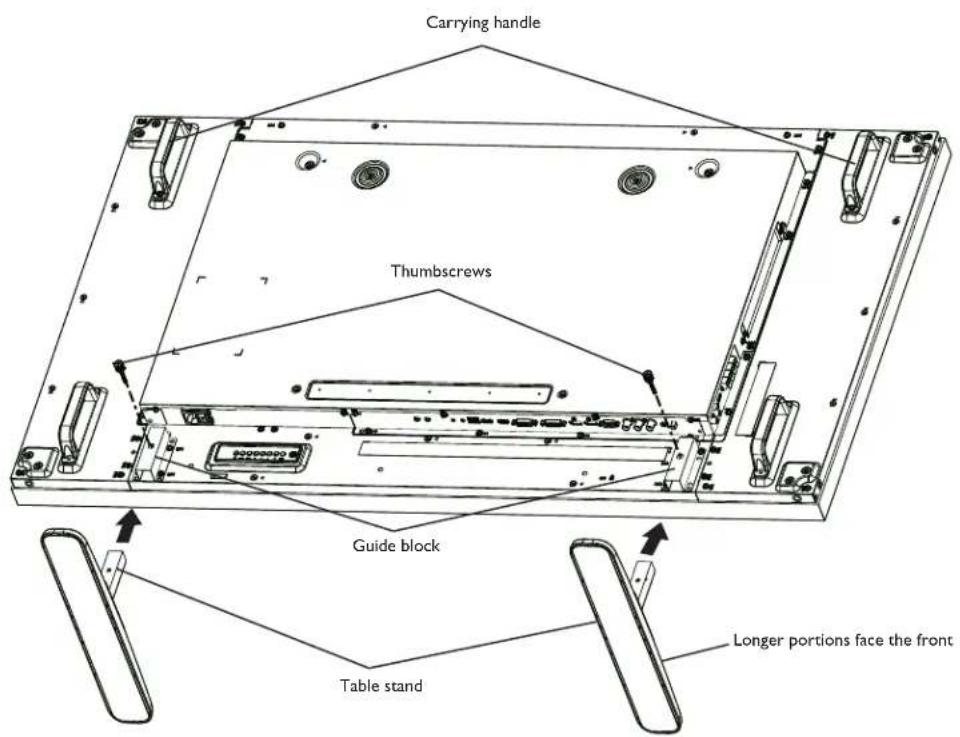
To remove table stands:
- Power off the display.
- Spread a protective sheet on a flat surface.
- Grab the carrying handles and place the display face-down on the protective sheet.
- Remove screws using a screwdriver and place them in a safe place for reuse.
1.5. Mounting on a Wall
To mount this display to a wall, you will have to obtain a standard wall-mounting kit (commercially available). We recommend using a mounting interface that complies with TUV-GS and/or UL1678 standard in North America.
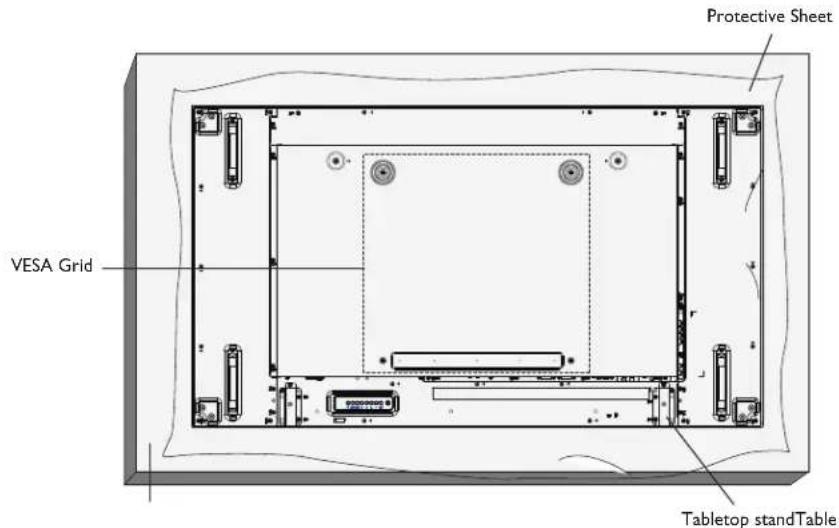
- Lay a protective sheet on a table, which was wrapped around the display when it was packaged, beneath the screen surface so as not to scratch the screen face.
- Ensure you have all accessories for mounting this display (wall mount, ceiling mount, table stand, etc).
- Follow the instructions that come with the base mounting kit. Failure to follow correct mounting procedures could result in damage to the equipment or injury to the user or installer. Product warranty does not cover damage caused by improper installation.
- For the wall-mounting kit, use M6 mounting screws (having a length 10 mm longer than the thickness of the mounting bracket) and tighten them securely.
- Unit without base weight= 29.2 kg. The equipment and its associated mounting means still remain secure during the test. For use only with UL Listed Wall Mount Bracket with minimum weight/load: 87.6 kg.
1.5.1. VESA Grid
| TD-X552M/TD-X552X | 400(H) × 400(V) mm |
CAUTION
To prevent the display from falling:
- For wall or ceiling installation, we recommend installing the display with metal brackets which are commercially available. For detailed installation instructions, refer to the guide received with the respective bracket.
- To lessen the probability of injury and damage resulting from fall of the display in case of earthquake or other natural disaster, be sure to consult the bracket manufacturer for installation location.
Ventilation Requirements for enclosure locating
To allow heat to disperse, leave space between surrounding objects as shown in the diagram below.
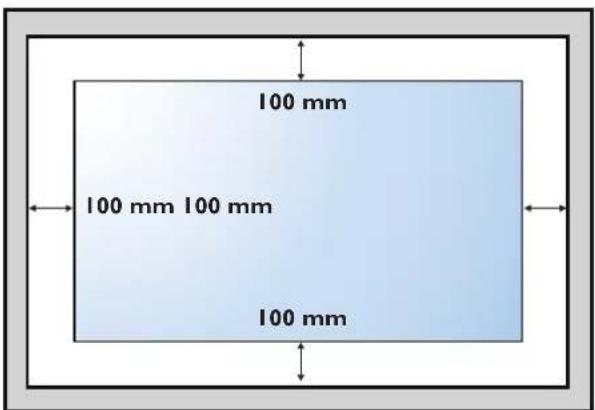
1.6. Mounting in Portrait Position
This display can be installed in portrait position.
- Remove the table stand, if attached.
- Rotate 90 degrees anticlockwise. Key board comes in the lower right position when facing the display at the back.
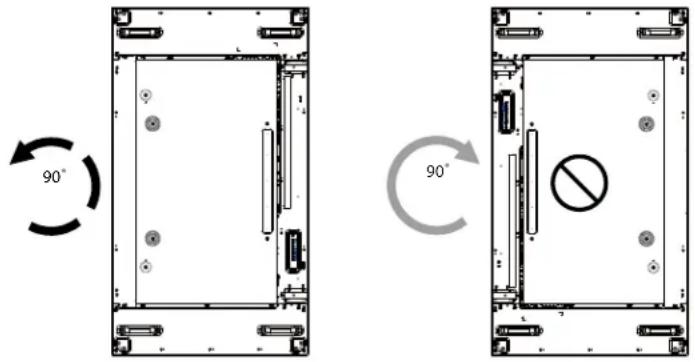
1.7. Connect Power code
- Confirm Main Switch is switched off before Making any connections.
- Use AC socket near the display.
1.8. Avoiding Image Retention
CAUTION
Do not display static (non-moving) content on the display for long periods of time. This may cause image "burn-in" or image retention, which is not covered under warranty.
Avoid Static Content
• Display dynamic (moving) images whenever possible.
- Turn off the display when not in use, or use the scheduling feature (refer to General Setting on page 23) to automatically turn off the display at preset times of the day.
Set pixel shift ON
• To help prevent image retention, set Pixel Shift (refer to General Settings on page 25) to On.
2. Parts and Functions
2.1. Control Panel
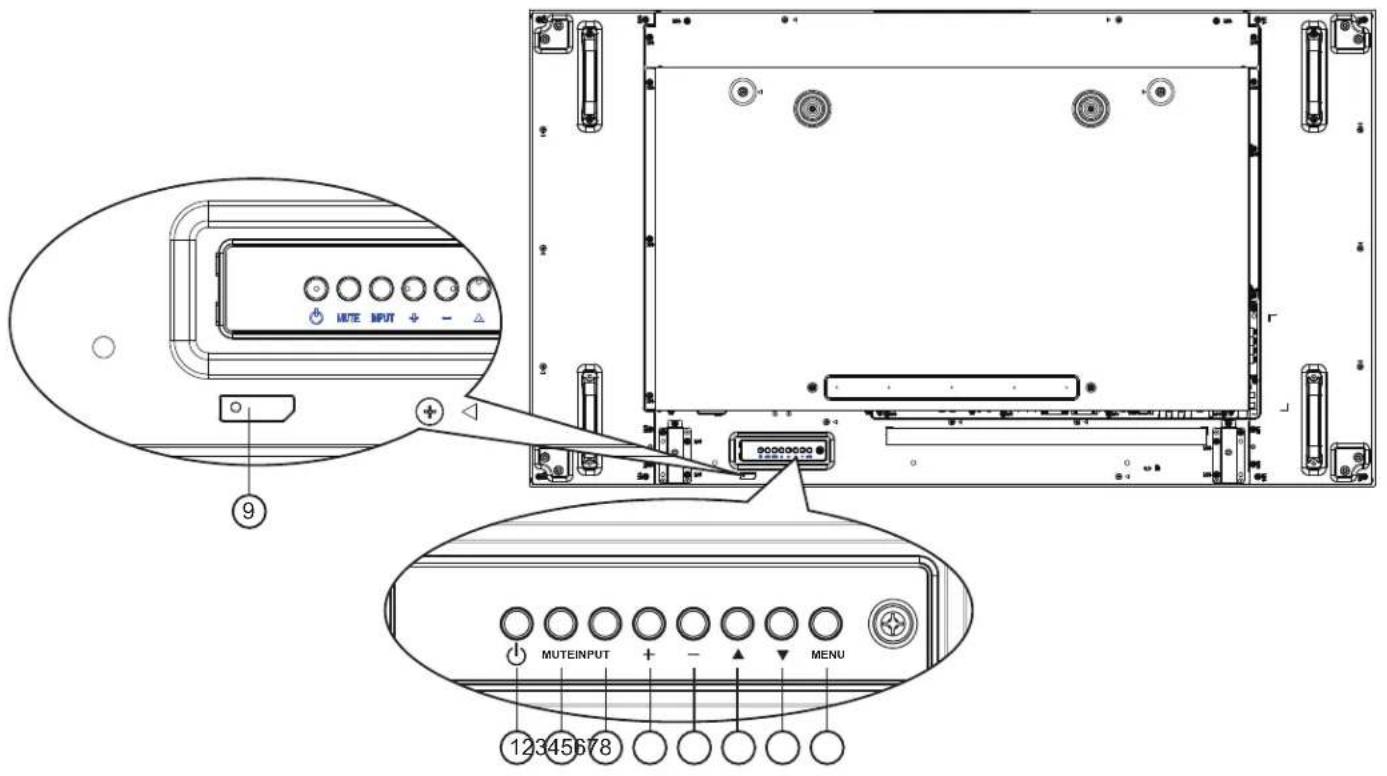
① [button
Use this button to turn the display on or put the display to standby.
② [MUTE] button
Switch the audio mute ON/OFF.
③ [INPUT] button
Choose the input source.
• Used as [ ] button in the On-Screen-Display menu.
④ [+] button
Increase the adjustment while OSD menu is on, or increase the audio output level while OSD menu is off.
⑤ [+]button
Decrease the adjustment while OSD menu is on, or decrease the audio output level while OSD menu is off.
⑥ [▲button
Move the highlight bar up to adjust the selected item while OSD menu is on.
⑦ [▼button
Move the highlight bar down to adjust the selected item while OSD menu is on.
⑧ [MENU] button
Return to previous menu while OSD menu is on, or to activate the OSD menu when OSD menu is off.
⑨ Remote control sensor and power status indicator
• Receives command signals from the remote control.
• Indicates the operating status of the display without OPS:
- Lights green when the display is turned on
- Lights red when the display is in standby mode
- If the light blinks red and green, it indicates that a failure has been detected
- Indicator is off when the main power of the display is turned off
2.2. Input/Output Terminals
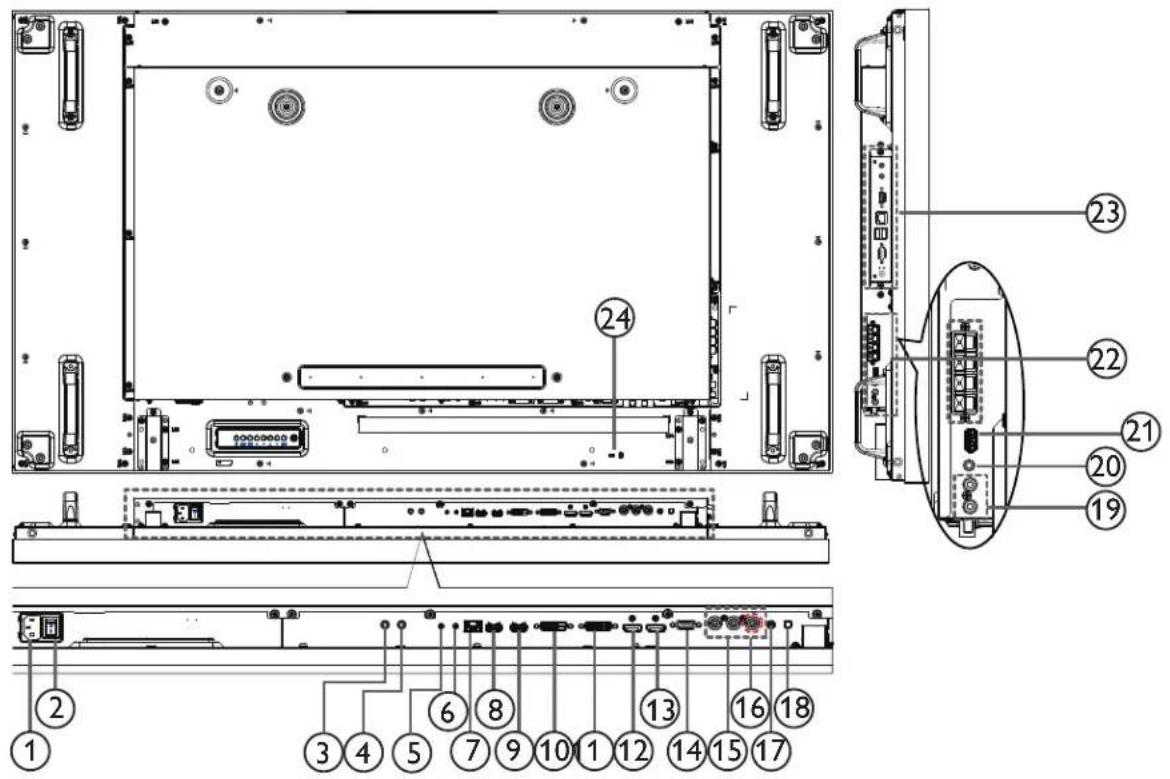
① AC IN
AC power input from the wall outlet.
② MAIN POWER SWITCH
Switch the main power on/off.
③ IR IN / ④ IR OUT
IR signal input / output for the loop-through function.
NOTE
- This display's remotecontrol sensor will stop working if the jack [IR IN] is connected.
- To remotely control your A/V device via this display, refer to page 16 for IR Pass Through connection.
⑤ RS-232C IN / ⑥ RS-232C OUT
RS232C network input / output for the loop-through function.
⑦ RJ-45
LAN control function for the use of remote control signal from control center.
⑧ HDMI1 IN / ⑨ HDMI2 IN
HDMI video/audio input.
⑩ DVI IN
DVI-D video input.
⑪ DVI OUT / VGA OUT
DVI or VGA video output.
⑫ DisplayPort IN / ⑬ DisplayPort OUT
DisplayPort video input / output.
⑭ VGA IN (D-Sub)
VGA video input.
⑮ COMPONENT IN (BNC)
Component YPbPr video source input.
⑯ Composite Y/CVBS
Video source input.
17 PC LINE IN
Audio input for VGA source (3.5mm stereo phone).
18 SPEAKER SWITCH
Internal speaker on/off switch.
19 AUDIO IN
Audio input from external AV device (RCA).
20 AUDIO OUT
Audio output to external AV device.
②1 USB PORT
Connect your USB storage device.
22 SPEAKERS OUT
Audio output to external speakers.
23 OPS SLOT
Slot for installing the optional OPS module.
24 ANTI-THEFT LOCK
Used for security and theft prevention.
2.3. Remote Control
2.3.1. General functions
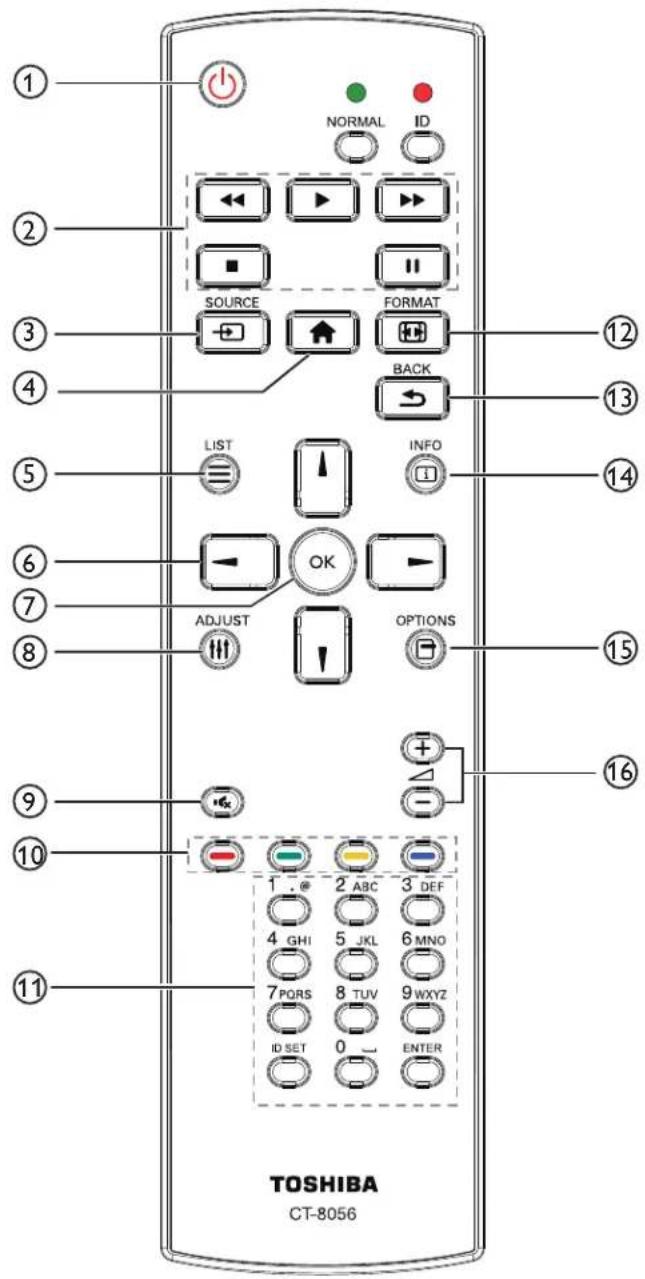
① [+] POWER button
Turn the display on or put the display to standby.
② [PLAY] buttons
Control playback of media files.
③ [→SOURCE button]
Choose input source, Press [+] or [] button to choose from USB. Network HDMI 1. HDMI 2. DisplayPort Card OPS. DVI-D.YPbPr.AV, or VGA. Press OK button to confirm and exit.
④ [HOME button
Access the OSD menu.
⑤ LIST button
Not available for use.
⑥ [1] [1] [+] [ ]-NAVIGATION buttons
Navigate through menus and choose items.
⑦ [OButton]
Confirm an entry or selection.
⑧ [↑]ADJUST button
Access currently available options, picture and sound menus.
⑨ [×] MUTE button
Press to turn the mute function on/off.
⑩ [ ] [ ] [ ] [ ] COLOR buttons
Choose tasks or options.
⑪ [Number/ ID SET/ ENTER] button
Enter text for network setting.
Press to set the display ID. Refer to 2.3.2. ID Remote Control for more detail.
⑫ [▶] FORMAT button
Change picture format.
⑬ BACK button
Return to the previous menu page or exit from the previous function.
⑭ [i] INFO button
Display information about current activity.
⑮ [OPTIONS button
Access currently available options, picture and sound menus.
⑯ [—] [+] VOLUME button
Adjust volume.
2.3.2. ID Remote Control
You can set the remote control ID when you want to use this remote control on one of several different displays.
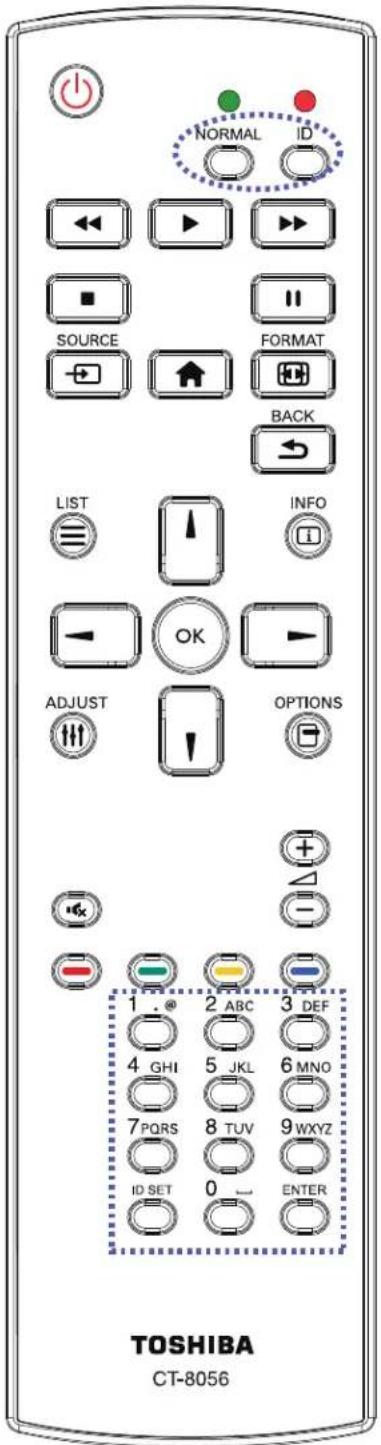
Press [ID] button. The red LED blinks twice.
- Press [ID SET] button for more than 1 second to enter the ID Mode. The red LED lights up. Press the [ID SET] button again will exit the ID Mode. The red LED turns off.
Press the digit numbers [0] \~ [9] to select the display you want to contro.
For example: press [0] and [1] for display No.1, press [1] and [1] for display No.11.
The numbers available are from [01] \~ [255].
-
Not pressing any button within 10 seconds will exit the ID Mode.
-
If you mistakenly press a button, wait 1 second after the red LED lights off and then lights up again, then press the correct digits again.
-
Press [ENTER] button to confirm. The red LED blinks twice and then lights off.
NOTE
- Press [NORMAL] button. The green LED blinks twice, indicating the display is in normal operation.
- It is necessary to set up the ID number for each display before selecting its ID number.
2.3.3. Inserting the batteries in the remote control
The remote control is powered by two 1.5V AAA batteries.
To install or replace batteries:
- Press and then slide the cover to open it.
- Align the batteries according to the (+) and (−) indications inside the battery compartment.
- Replace the cover.
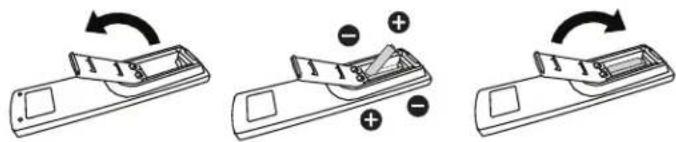
CAUTION
The incorrect use of batteries can result in leaks or bursting. Be sure to follow these instructions:
- Place "AAA" batteries matching the (+) and (−) signs on each battery to the (+) and (−) signs of the battery compartment.
• Do not mix battery types. - Do not combine new batteries with used ones. It causes shorter life or leakage of batteries.
- Remove the dead batteries immediately to prevent them from liquid leaking in the battery compartment. Don't touch exposed battery acid, as it can damage your skin.
NOTE
If you do not intend to use the remote control for a long period, remove the batteries.
2.3.4. Handling the remote control
• Do not subject to strong shock.
- Do not allow water or other liquid to splash the remote control. If the remote control gets wet, wipe it dry immediately.
- Avoid exposure to heat and steam.
• Other than to install the batteries, do not open the remote control.
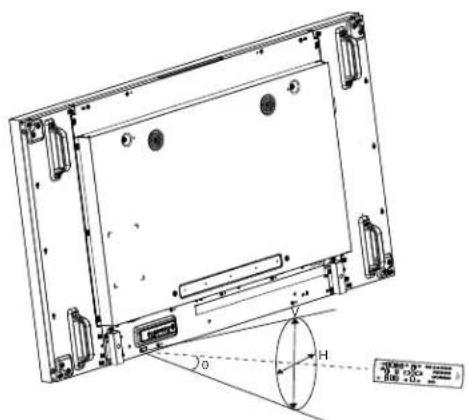
2.3.5. Operating range of the remote control
Point the top of the remote control toward the display's remote control sensor(back side) when pressing a button.
Use the remote control within the range which is shown in the following table.
| Operation Angle RC operational distance | |
| θ=0°(for H & V) ≥8m | |
| θ=20°(for H & V) ≥5m | |
| θ=45°(for H only) ≥2m | |
NOTE
The remote control may not function properly when the remote control sensor on the display is under direct sunlight or strong illumination, or when there is an obstacle in the path of signal transmission.
3. Connecting External Equipment
3.1. Connecting External Equipment (DVD/VCR/VCD)
3.1.1. Using COMPONENT video input
![Audio Out COMPONENT Out (YPbPr) DVD / VCR / VCD [R] [L] [AUDIO IN] [COMPONENT IN] (YPbPr)](/content/2026/05/860875/images/ce5fa4d631d47072ebe3879096c732a61adf0e4de78491c11a72327f96681c55.jpg)
3.1.2. Using Video Source input
![Y/CVBS Out DVD / VCR / VCD [L] [AUDIO IN] [Y/CVBS IN]](/content/2026/05/860875/images/df79763d4d46fb09b4ad3bd2bd2dde99317e2c370f134f82badbba66ee803287.jpg)
3.1.3. Using HDMI video input
![DVD / VCR / VCD HDMI Out [HDMI IN]](/content/2026/05/860875/images/8087481a42a207c3bc9e02825d8c0b5ccaa72af23ff9fb2aac0da3437c0387f3.jpg)
3.2. Connecting a PC
3.2.1. Using VGA input
![VGA Out D-Sub 15 pin PC Audio Out [VGA IN] [VGA AUDIO IN]](/content/2026/05/860875/images/7cf550d6e5a1a9acb889a62511b7ed2197a7a7da794859e3ad58925ed1f6c88e.jpg)
3.2.2. Using DVI input
![DVI Out PC Audio Out [DVI IN] [VGA AUDIO IN]](/content/2026/05/860875/images/8de90c5a03912c0b1184db2ee5b76e71a71841b2618f52c7ee4d26657cfac4b3.jpg)
3.2.3. Using HDMI input
![HDMI Out PC [HDMI IN]](/content/2026/05/860875/images/85b8b2520c6edfcefa913a011a753ac5ae779468cde2ef6fb23af9be3564ae25.jpg)
3.2.4. Using DisplayPort input
![DisplayPort Out [DisplayPort IN] PC](/content/2026/05/860875/images/7112bee3ed92b32287e090d5e27d1d9a6316d6a4e3502565fbef786da00ec642.jpg)
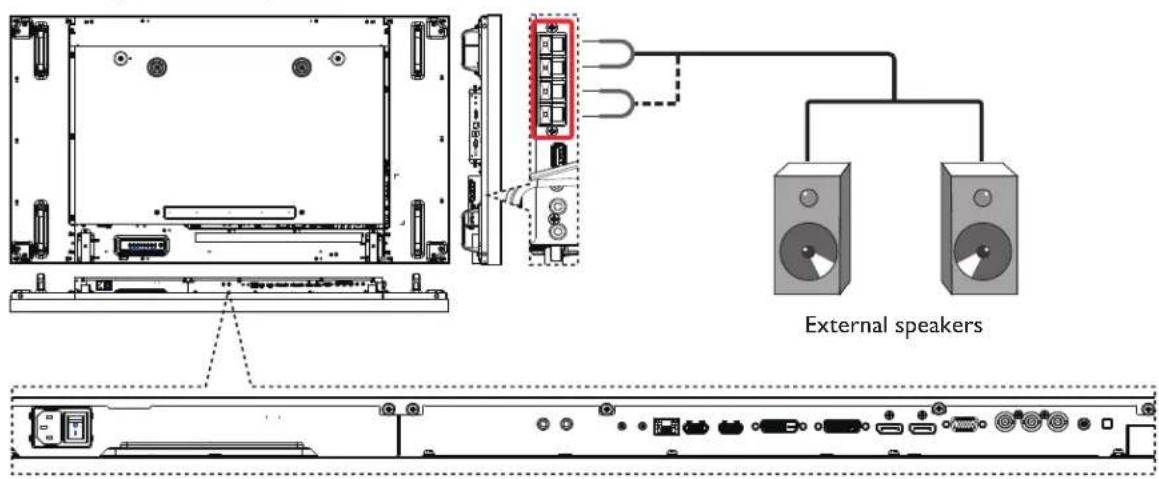
3.3. Connecting Audio Equipment
3.3.1. Connecting external speakers
3.3.2. Connecting an external audio device
![[AUDIO OUT] Audio In Stereo Amplifier](/content/2026/05/860875/images/b26d9795e496ff4c54cfaba2a4798d5e6b4d0d2a7f7363eebb344b6c06cd5eef.jpg)
3.4. Connecting Multiple Displays in a Daisy-chain Configuration
You can interconnect multiple displays to create a daisy-chain configuration for applications such as a video wall.
The maximum supported video wall size depends on the type of video source, as follows:
• Maximum video wall size using a single digital source and DVI/DisplayPort pass through connectors: 3 x 3
• Maximum video wall size using a single analog source and VGA pass through connectors: 2 x 2
• Maximum video wall size using multiple source signals from an external splitter or distribution amplifier: 10 x 10
• For DP1.2 multi stream, maximum video wall size is 2 × 2 .
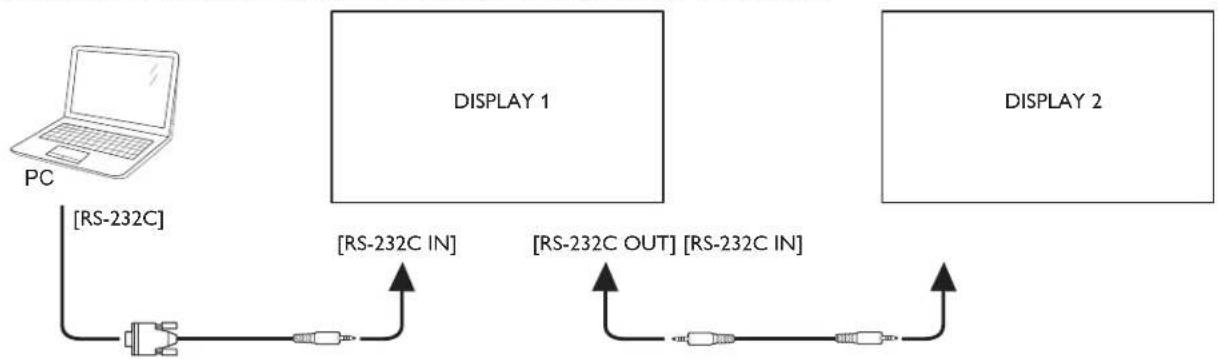
3.4.1. Display control connection
Connect the [RS232C OUT] connector of DISPLAY 1 to the [RS232C IN] connector of DISPLAY 2.
flowchart
graph LR
    PC["PC"] -->|[RS-232C]| A["Switch"]
    A --> B["RS-232C IN"]
    B --> C["DISPLAY 1"]
    C --> D["DISPLAY 2"]
    D --> E["RS-232C OUT"]
    E --> F["RS-232C IN"]
3.4.2. Digital video connection
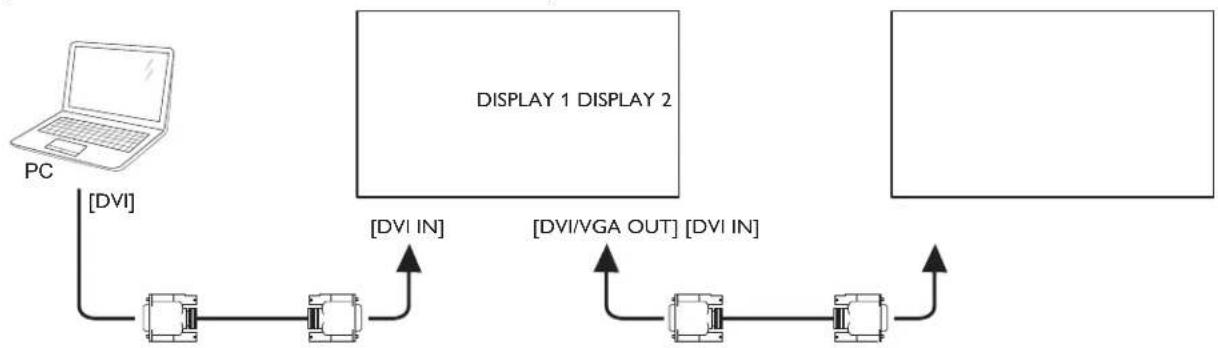
Connect the [DVI OUT / VGA OUT] connector of DISPLAY 1 to the [DVI IN] connector of DISPLAY 2.
Signal output from the OPS module installed in DISPLAY1 can be daisy-chained via DVI.
flowchart
graph TD
    PC["PC"] -->|DVI| A["Device 1"]
    A -->|DVI IN| B["Display 1 DISPLAY 2"]
    B -->|DVI VGA OUT| C["Device 2"]
    C -->|DVI IN| B
    style PC fill:#f9f,stroke:#333
    style_Display1["DISPLAY 1 DISPLAY 2"] fill:#ccf,stroke:#333
    style_Display2["DISPLAY 2"] fill:#cfc,stroke:#333
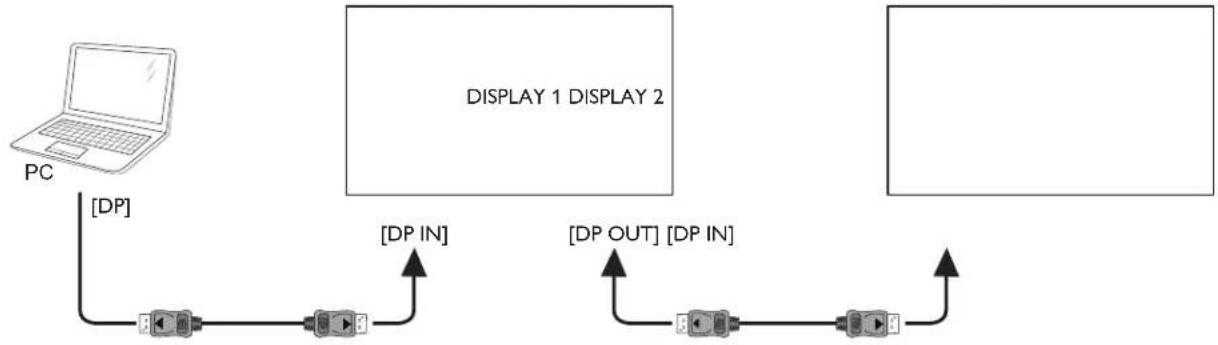
Connect the [DP OUT] connector of DISPLAY 1 to the [DP IN] connector of DISPLAY 2.
DP1.2 multi stream is dependent on PC spec and performance. Consult with your dealer on confirmed types of PC and graphics card.
flowchart
graph TD
    PC["PC"] -->|[DP]| A["verter"]
    A -->|[DP IN]| B["Display 1"]
    B -->|[DP OUT] | C["verter"]
    C -->|[DP IN]| B
    B --> D["Display 2"]
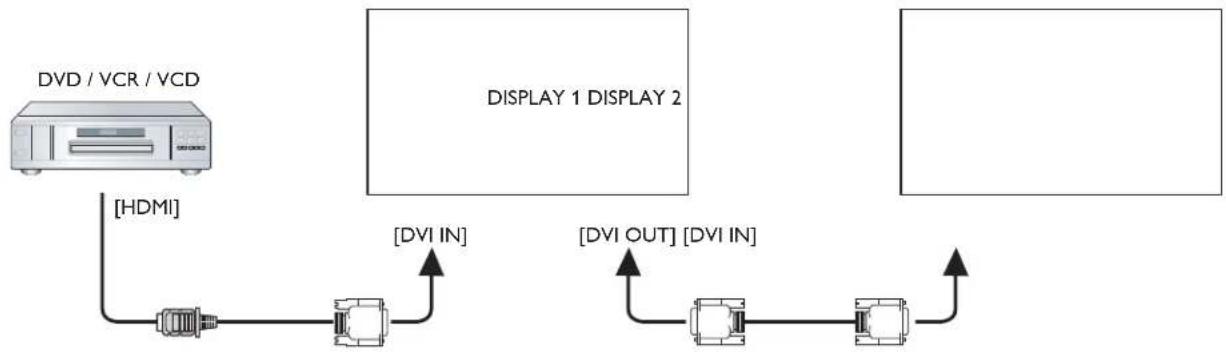
Connect the [DVI OUT] connector of DISPLAY 1 to the [DVI IN] connector of DISPLAY 2.
flowchart
graph LR
    A["DVD / VCR / VCD"] -->|HDMI| B["Device 1"]
    B -->|DVI IN| C["Display 2"]
    B -->|DVI OUT| D["Display 2"]
    D -->|DVI IN| E["Display 2"]
    D -->|DVI OUT| F["Display 2"]
3.4.3. Analog video connection
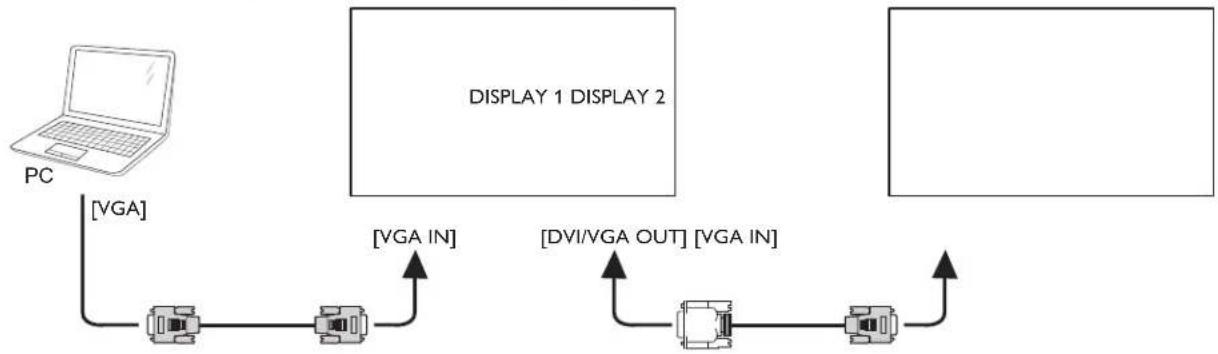
Connect the [DVI OUT / VGA OUT] connector of DISPLAY 1 to the [VGA IN] connector of DISPLAY 2.
flowchart
graph TD
    PC["PC"] -->|VGA| A["Device 1"]
    A -->|VGA IN| B["Display 2"]
    B -->|DVI/VGA OUT| C["Device 2"]
    C -->|VGA IN| A
    style PC fill:#f9f,stroke:#333
    style Display 2 fill:#ccf,stroke:#333
3.5. IR connection
![External IR Receiver [IR IN]](/content/2026/05/860875/images/3667f6754290d83fa04cf6f01fe39604c674961d0c7f4143dc8b1265d2234e18.jpg)
NOTE
This display's remote control sensor will stop working if the [IR IN] is connected.
3.6. IR Pass-through Connection
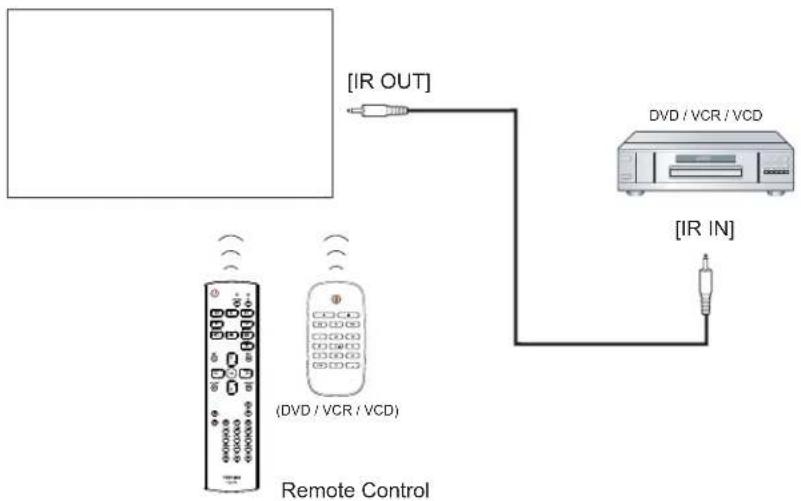
flowchart
graph TD
    A["Remote Control"] -->|IR OUT| B["DVD / VCR / VCD"]
    A -->|IR IN| C["Device"]
3.7. Wire-connecting to Network
If you connect this display to existing network, you can play photos, music and videos from your computer. See Play multimedia files via Local Area Network (Page 18) for more details.
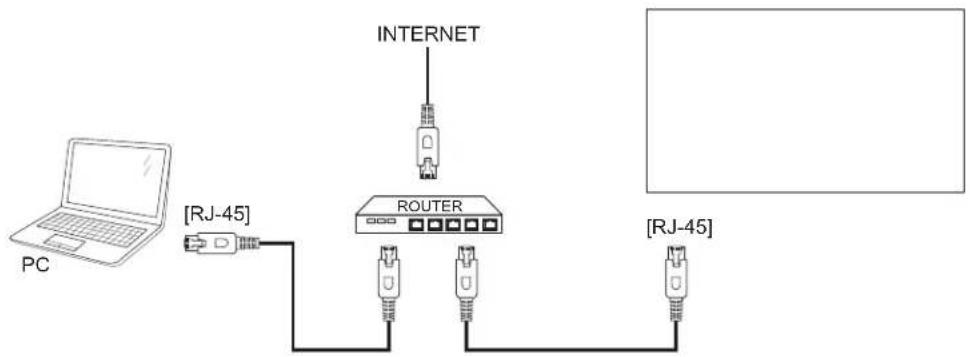
flowchart
graph TD
    PC["PC"] -->|[RJ-45]| A["Router"]
    A --> B["INTERNET"]
    A --> C["RJ-45"]
To setup the network:
- Switch on the router and switch on its DHCP setting.
- Connect the router to this display with an Ethernet cable.
- Press [ ] HOME button to display the OSD menu.
- Press or button to select the menu item {Network setting}. Press OK button to enter its submenu.
- Press ,1, -, or number button to adjust its value. Press OK button to confirm.
NOTE
Connecting with a shielded CAT-5 Ethernet cable to comply with the EMC directive.
4. Operation
NOTE
The control button described in this section is mainly on the remote control unless specified otherwise.
4.1. Display the Connected Video Source
See page 11 for external equipments connection.
-
Press [SOURCE button.
-
Press [ ] or [ ] button to choose a device, then press [OK] button.
4.2. Change Picture Format
You can change the picture format to suit the video source. Each video source has its available picture formats.
The available picture formats depend on the video source:
-
Press [ ]FORMAT button.
-
Press [1] or [7] button to choose a picture format, then press [0] button.
-
{Auto zoom}: Enlarge the picture to fill the screen. Recommended for minimal screen distortion but not for HD or PC.
• (Movie expand 16:9): Scale 4:3 format to 16:9. Not recommended for HD or PC. - {Wide screen}: Shows wide screen format content unstretched. Not recommended for HD or PC.
- {Unscaled}: Provide maximum detail for PC. Only available when PC mode is selected in the {Picture} menu.
• {4:3}: Display the classic 4:3 format.
4.3. Choose your Preferred Picture Settings
- While this display is playing video source, press [HH] ADJUST button.
- Press [→] or [→] button to choose Picture style, then press [OK] button.
- Press [] or [] button to choose an option, then press OK button:
• {Personal}: Apply your personalised picture settings.
• {Vivid}: Rich and dynamic settings, ideal for daytime viewing.
• {Natural}: Natural picture settings.
- {Standard}: Default settings that suit most environments and types of video.
• {Movie}: Ideal settings for movies.
• {Photo}: Ideal settings for photos.
• {Energy saving}: Settings that conserve the most energy.
4.4. Choose your Preferred Sound Settings
- While this display is playing video source, press [↑↑] ADJUST button.
- Press [→] or [→] button to choose Sound style, then press [0] button.
- Press [] or [] button to choose an option, then press OK button:
• {Personal}: Apply your personalized sound settings.
- {Original}: Settings that suit most environments and types of audio.
• {Movie}: Ideal settings for movies.
• {Music}: Ideal settings for listening to music.
• {Game}: Ideal settings for games.
• {News}: Ideal settings for spoken audio, such as the news.
4.5. Adjust volume for Audio output terminal
- When this display is playing video source with an audio source, press the [↑]adjust button.
- Press [→] or [→] button and select Audio output. Then press the [OK] button.
- Adjust volume of Audio output terminal to press [▲] or [▼] button. After adjustment, press [OK] button.
4.6. Adjust picture position
- When this display is playing video source, press the [↑] adjust button.
- Press [→] or [→] button and select Picture Shift. Then press the [OK] button.
- Adjust picture position to press [▲] or [▼] button. After adjustment, press the [OK] button.
4.7. Play multimedia files via Local Area Network
To play files via Local Area Network, you will need:
- A wired existing network, connected with a Universal Plug and Play (uPnP) router.
- Optional: A LAN cable that connects your display to your existing network.
• A media server running on your computer. - Appropriate settings on your computer firewall to allow you to run the media server.
4.7.1. Set up the network
- Connect your display and the computer to the same network. See illustration below to connect your display to a network.
- Switch on your computer and the router. • Single display setup:
![PC [3J-45] PC/EN [FJ-45]](/content/2026/05/860875/images/d6faf847da501126bc69f4bdc64f84e83dd023ea126d874728318769b7c6554d.jpg)
• Multiple display setup:
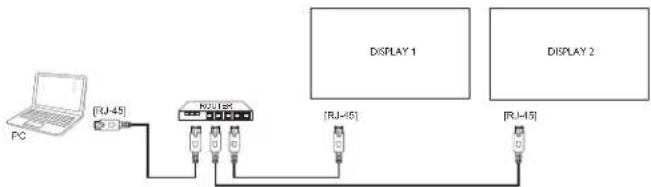
If the apparatus does not return to DLNA mode due to external electrical disturbances (e.g. electrostatic discharge), user intervention is required.
Set up media sharing
- Install a media server on your computer to share media files. These are some media servers:
• For PC: Windows Media Player 11 (or higher) or TVersity
- For Mac: Twonky
- Switch on media sharing on your computer using the media server. For more information on how to set up the media server, refer to the website of the media server.
4.7.2. How to use DLNA-DMP
-
Please connect display and your PC to the same router via RJ-45.
-
Run windows media player. Set stream handling as public sharing.
Play files from display
- Press SOURCE button, choose network and press [OK] button.
| USB |
| Network |
| HDMI 1 |
| HDMI 2 |
| Display Port |
| Card OPS |
| DVI-D |
| YPbPr |
| AV |
| VGA |
-
Now, you can see all the PC's connected to the same router on the screen. Choose the right one.
-
Press [1] and [→] to choose the directory and files to play.
-
You can connect up to 4 displays to the same PC and play same media stream.
We suggest to use DLNA-DMP function via wired network for the benefit of higher security and sufficient network bandwidth.
4.7.3. How to use DLNA-DMR from PC
- Press [ ] HOME button, Choose Network Settings and press OK
| Picture Sound Tiling General settings Network settings | View network settings Network configuration Static IP configuration Digital Media Render... Network name |
- Set DMR as ON.
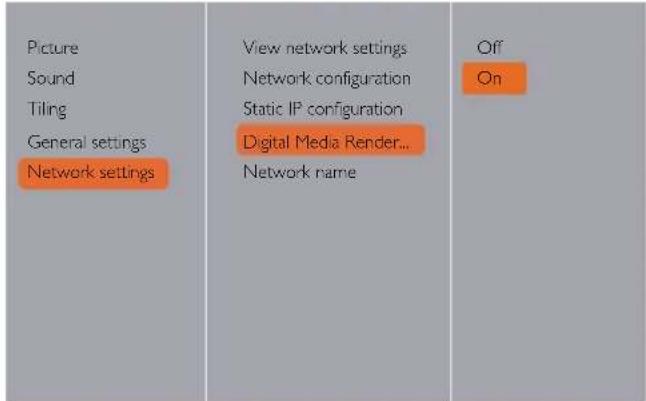
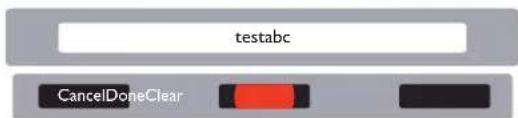
- Set the name of your display.
| Picture Sound Tiling General settings Network settings | View network settings Network configuration Static IP configuration Digital Media Render... Network name |
- Press SOURCE button, choose network and press [OK] button.
- On your PC, open Network and Sharing Center, and click Choose homegroup and sharing options.
-
Check the media formats. Then, click Choose media streaming options.....
-
Open Advanced sharing settings, and check Turn on network discovery.
-
Now, go to the directory of your media files. Choose the media file by right click. On the submenu from Play To you can find all the displays connected to your network. Choose the display, and click the media file to play.
Play files
-
Press [ ]SOURCE button.
-
Choose Network, and press [1] button.
-
Choose a file from the content browser, and press [OK] button to start playing.
-
Press the [PLAY] buttons on the remote control to control playing.
Tips:
- Choose the top bar to filter your files by type.
- Choose Sort to arrange the files by album name, artist, or other fields.
- To clear the list of offline media servers, press [OPTIONS] button. Then, choose Clear offline servers and press [OK] button.
4.8. Play multimedia files from USB device
- Connect your USB device to the USB port on the display.
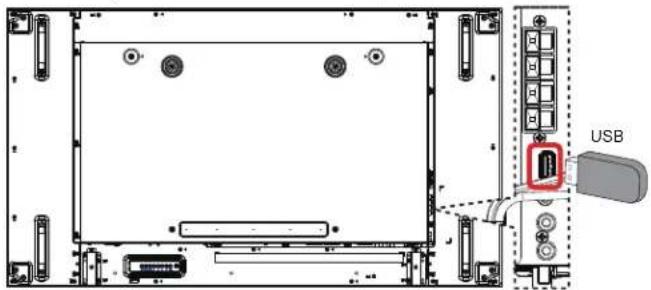
- Press [ ]-SOURCE button, choose button.
USB, and press [OK]
| USB |
| Network |
| HDMI 1 |
| HDMI 2 |
| Display Port |
| Card OPS |
| DVI-D |
| YPbPr |
| AV |
| VGA |
- The connected USB device is detected automatically for all its playable files, which will be automatically sorted into 3 types:
Music, Movie, and Photo
- Press [←] BACK button to go up to the top layer in the screen. Press [→] or [→] button to choose the file type. Press [OK] button to enter its play list.
- Choose the file you want. Press [OK] button to start playing.
- Follow the on-screen instruction to control the play option.
- Press [PLAY] buttons ( ■ □ ◀◀ ▶ ▶▶) to control playing.
4.9. Play options
4.9.1. Playing music files
- Choose 🎶 Music in the top bar.

-
Choose one music track, and press [] button.
-
To play all the tracks in a folder, choose one music file. Then, press [] to Play All.
• To skip to the next or previous track, press [1] or [7] button.
• To pause the track, press [OK] button. Press [OK] button again to resume playback. - To skip backward or forward 10 seconds, press [→] or [→] button.
- To search backward or forward, press [◀◀] or [▶▶] button, press repeatedly to toggle between different speeds.
• To stop the music, press [■] button.
Music options
While you play music, press OPTIONS button, then press []OK button to choose an option:
• {Shuffle}: Enable or disable random play of tracks.
- {Repeat}: Choose {Repeat} to play a track or an album repeatedly, or choose {Play once} to play a track once.
NOTE
To view information about a song (for example, title, artist or duration), choose the song, then press [i] INFO button. To hide the information, press [i] INFO button again.
4.9.2. Playing movie files
- Choose ☐ Movie in the top bar.

-
Choose a video, and press [] button.
-
To play all the videos in a folder, choose one video file. Then, press [] to Play All.
• To pause the video, press [OK] button. Press [OK] button again to resume playback. - To skip backward or forward 10 seconds, press [→] or [→] button.
- To search backward or forward, press [◀◀] or [▶▶] button, press repeatedly to toggle between different speeds.
• To stop the video, press [■] button.
Movie options
While playing video, press [ ]OPTIONS button, then press []OK button to choose an option:
- {Subtitles}: Choose the available subtitle settings.
• {Subtitle Language}: Choose the language for subtitles if available.
• {Shuffle}: Enable or disable random play of video files. - {Repeat}: Choose {Repeat} to play the video file repeatedly or {Play once} to play the video file once.
- {Status}: To view information about a video (for example, played position, duration, title, or date).
4.9.3. Playing photo files
- Choose 📄 Photo in the top bar.

- Choose a photo thumbnail, then press J button.
Start a slideshow
If there are multiple photos in a folder, choose a photo. Then, press

Play All.
- To skip to the previous or next photo, press [→] or [→] button, and then press [→] button.
• To stop the slideshow, press [■] button.
Slideshow options
While you play a slideshow, press OPTIONS button, then press [OK] button to choose an option:
- {Shuffle}: Enable or disable random display of pictures in the slideshow.
- {Repeat}: Choose {Repeat} to watch a slideshow repeatedly or {Play once} to watch once.
- {Slideshow Time}: Choose the displaying time for each photo in the slideshow.
- {Slideshow Transitions}: Choose the transition from one photo to the next.
4.9.4. Operate Folder
- Choose the menu bar

-
Display automatically detect playable file in the USB device and display on the screen choose folder from "Music, Movie, Picture" and press [OK] button. The display start playing the file
-
When play all the file for each format in the folder, select one of the file and press Red button. Then start the play all the selected format file.
- Operation for each folder "Music, Movie, Picture", please refer to for each folder part.
NOTE
Daisychaining is not supported on media file playback.
5. Change your settings
Using the remote control:
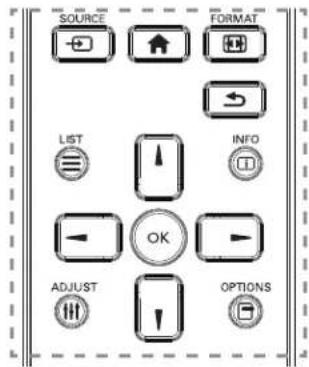
- Press [ ] HOME button to display the OSD menu.
- Press [1] [7] [→] or [→] button to choose Picture, sound, Tiling, General Settings or Network settings. Press [OK] button to enter.
- Press [1] [7] [→] or [→] button to choose its menu item or to adjust its value. Press [1] button to confirm.
- Press [→] BACK button to go back to the previous menu layer.
- Press [ ] HOME button to exit the OSD menu.
Using the display's control buttons
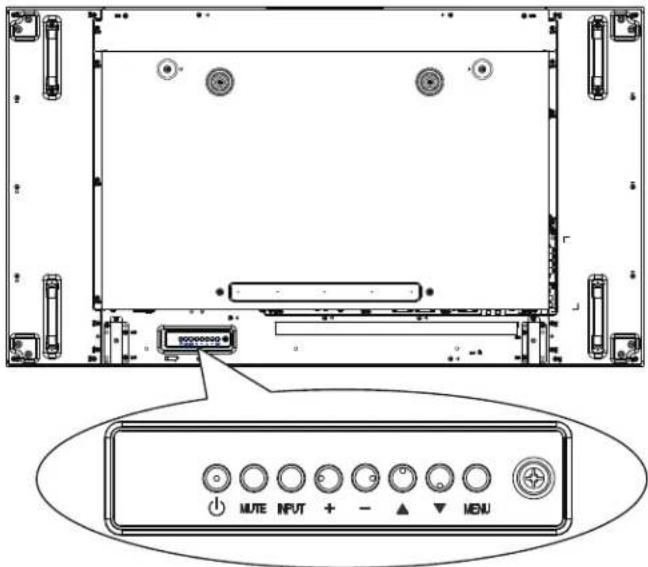
- Press [MENU] button to display the OSD menu.
- Press [▲] [▼] [+] or [−] button to choose menu item or adjust its value.
- Press [INPUT] button to confirm menu selection and enter its submenu.
- Press [MENU] button to exit the OSD menu.
5.1. Settings
5.1.1. Picture
| Picture Sound Tiling General settings Network settings | Picture style Restore style Backlight Color Sharpness Noise reduction MPEG artifact reduction... Digital Crystal Clear Advanced Game or computer Foramal and edges |
Picture style
Choose a predefined picture setting.
Restore style
Restore the last-selected predefined picture setting.
Backlight
Adjust the brightness of this display's backlight.
Color
Adjust the color saturation of the picture.
Sharpness
Adjust the sharpness of the picture.
Noise reduction
Choose the amount of noise reduction for the picture.
MPEG artifact reduction
Smoothen transitions and haziness in the digital picture.
Digital Crystal Clear
Fine-tune each pixel to match surrounding pixels and produce a brilliant, high-definition image.
- {Advanced sharpness}: Enable superior sharpness, especially on lines and contours in the picture.
• {Dynamic contrast}; Dynamically enhance the details in the dark, medium and light areas of the picture.
• {Color enhancement}: Dynamically enhance the vividness and details of colours.
Advanced
Access advanced settings such as gamma, tint, video contrast and so on.
- {Gamma}: Adjust the non-linear setting for picture luminance and contrast.
• {Tint}: Change the color balance. - {Custom tint}: Customise color balance setting. Only available if {Tint} → {Custom} is chosen.
• {Video contrast}: Adjust video contrast.
• {Brightness}: Adjust screen brightness.
• {Hue}: Adjust screen hue.
Game or computer
When viewing content from a connected game console, choose {Game} to apply game settings. When a computer is connected through HDMI, choose {Computer}.
Make sure that {Format and edges} → {Picture format} → {Unscaled} is selected so as to view maximum detail.
Format and edges
• {Picture format}: Change the picture format.
See page 18 for the descriptions about Picture format.
5.1.2. Sound
| Picture Sound Tiling General settings Network settings | Sound style Restore style Bass Treble Balance Surround mode Audio out Advanced |
Sound style
Access predefined sound settings.
Restore style
Restore the last-selected predefined sound setting.
Bass
Adjust to increase or decrease lower-pitched sounds.
Treble
Adjust to increase or decrease higher-pitched sounds.
Balance
Adjust to emphasize left or right audio output balance.
Surround mode
Enhance your audio experience.
Audio out
Adjust audio output volume.
Advanced
Access advanced settings to enhance your audio experience.
• {Auto volume leveling}: Enable the reduction of sudden volume changes.
• {Speaker settings}: Turn on or off the internal speakers.
• {Clear sound}: Enhance sound quality.
5.1.3. Tiling
| Picture | Enable | |
| Sound | H monitors | |
| Tiling | V monitors | |
| General settings | Position | |
| Network settings | Frame comp. |
With this function you can create a single large-screen matrix (video wall) that consists of up to 100 sets of this display (up to 10-sets on the vertical and 10-sets on the horizontal sides).
Enable
Choose to {On} or {Off} the Tiling function. If {On}, the display will apply the settings in {H monitors}, {V monitors}, {Position}, and {Frame comp.}.
H monitors
Adjust displays on the horizontal side.
V monitors
Adjust displays on the vertical side.
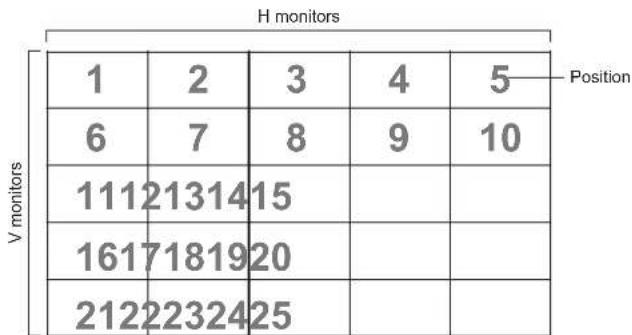
Position
Adjust the position of this display in the screen matrix.
Example: 2 x 2 screen matrix (4 displays)
H monitors = 2 displays
V monitors = 2 displays
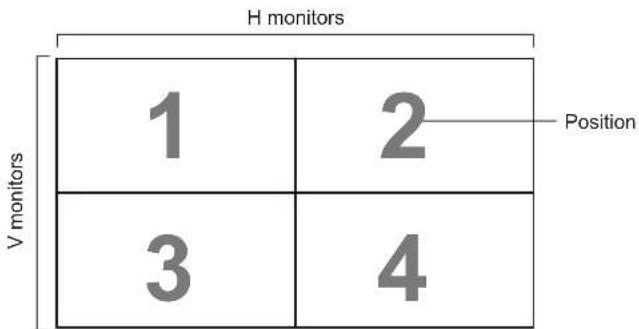
Example: 5 x 5 screen matrix (25 displays)
H monitors = 5 displays
V monitors = 5 displays
heatmap
H monitors | Position | 1 | 2 | 3 | 4 | 5 | | :--- | :--- | :--- | :--- | :--- | :--- | | V monitors | 6 | 7 | 8 | 9 | 10 | | | 111 | 213 | 14 | 15 | | | | 161 | 718 | 19 | 20 | | | | 212 | 223 | 24 | 25 | | Position: (top row) or (bottom row)Frame comp.
Choose to turn the frame compensation function on or off. If selected {On}, the display will adjust the image to compensate for the width of the display bezels in order to accurately display the image.
5.1.4. General settings
| Picture | Menu language |
| Sound | Monitor ID |
| Tiling | Auto search |
| General settings | Clock |
| Network settings | Scheduling |
| Sleep timer | |
| Link | |
| Local KB lock | |
| RC lock | |
| Pixel shift |
Menu language
Choose language used for OSD menus.
Monitor ID
Adjust the ID number for controlling the display via the RS232C connection. Each display must have a unique ID number when multiple sets of this display are connected. Monitor ID number range is between 1 to 255. The default setting is 1.
Auto search
Choose to let this display detect and display available signal sources automatically.
Clock
Set the current date and time for the display's internal clock.
Scheduling
This function allows you to program up to 7 different scheduled time intervals for this display to activate.
You can set:
- Which input source the display will use for each scheduled activation period.
• The time for the display to turn on and turn off.
• The days in a week for the display to activate.
NOTE
- It is recommended you to set up current date and time in the {Clock} menu before using this function.
- After changing the {Clock} option in the {General settings} menu, you need to set this {Scheduling} again.
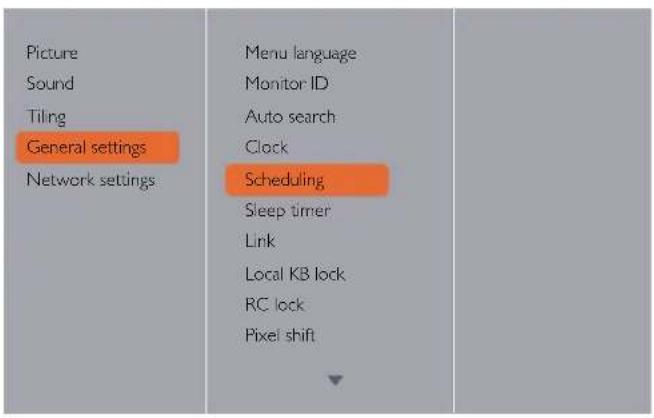
- There are 7 schedule can be set. Go to Status and choose On.
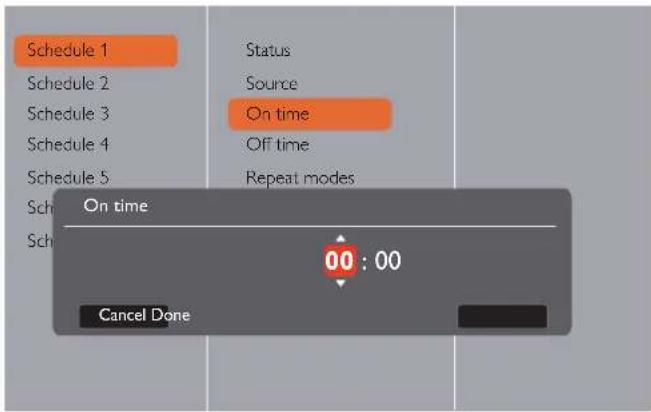
- Set Off time.
| Schedule 1 | Status | Off |
| Schedule 2 | Source | On |
| Schedule 3 | On time | |
| Schedule 4 | Off time | |
| Schedule 5 | Repeat modes | |
| Schedule 6 | Playlist setting | |
| Schedule 7 |
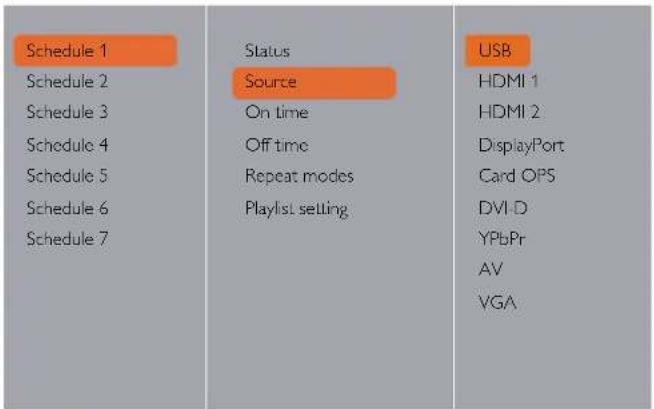
- Go to Source and choose input source. If {Source} → {USB} is chosen. You need to set playlist.
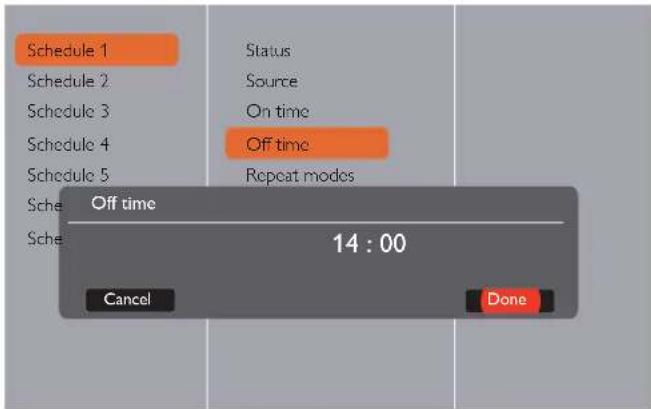
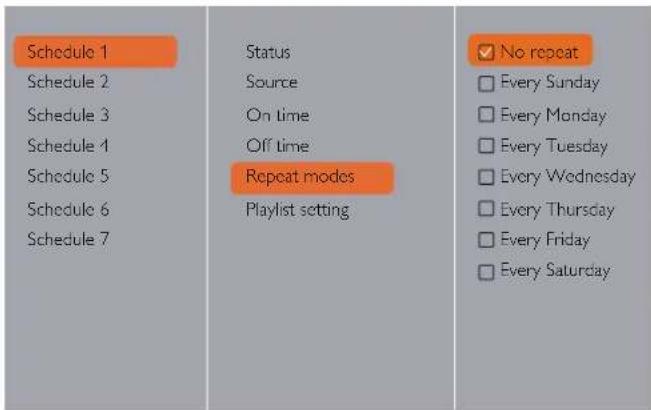
- Go to Repeat modes and choose.
- Set On time.
- If {Source} → {USB} is chosen. Go to Playlist setting.
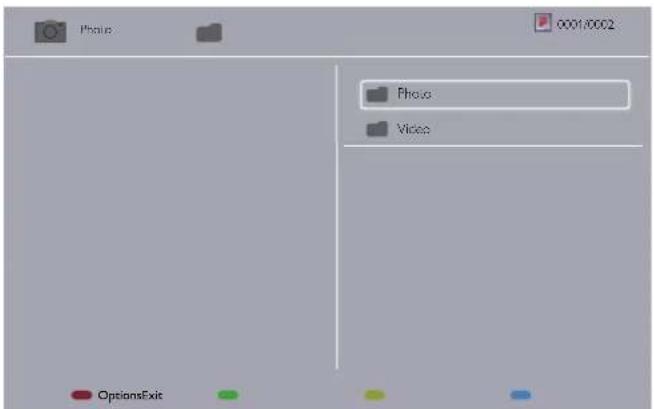
- Press [1] [7] buttons to choose files.
- Press [◀] [▶] buttons to switch Playlist and File Manager.
- Press [OK] button to set or clear the playlist.
- To save the playlist, press [] and choose
Save list
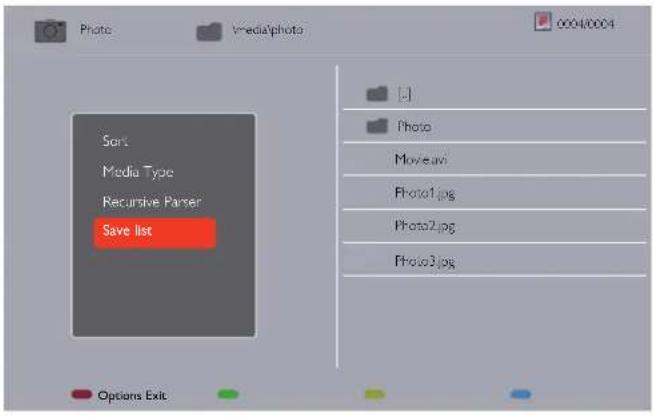
NOTE
• Each Playlist supports up to 30 files.
- Playlist will not be cleared after {Factory settings}. You have to manually remove the files or delete usb_schedulinglist.txt in the USB.
Sleep timer
Switch off this display after a specified time.
Link
Select Link on, Display Connect and control your HDMI-CEC compliant devices through HDMI port to this display with the same remote control.
Auto adjust
Use this function to automatically optimize the display of VGA input image.
NOTE
This item is functional for VGA input only.
Local KB lock
Choose to enable or disable the keyboard (control buttons) function of the display.
• {Unlock}: Enable the keyboard function.
• {Lock all}: Lock all keyboard function.
- {Lock but volume}: Disable all the keyboard function except the [+] and [+] button.
- {Lock but power}: Disable all the keyboard function except the [0] button.
- {Lock all expect volume and power}: Disable all the keyboard function except the [—], [+] and [⏻] button:
RC lock
Choose to enable or disable the button function of the remote control.
• {Unlock}: Enable the keyboard function.
• {Lock all}: Lock all keyboard function.
- {Lock but volume}: Disable all the keyboard function except the [+] and [ ] buttons.
- {Lock but power}: Disable all the keyboard function except the [d]POWER buttons.
- {Lock all expect volume and power}: Disable all the keyboard function except the [—] [+] and [☐] POWER buttons:
NOTE
To disable the lock function from Local KB lock or -RC lock item, press buttons [icon] and 1998 on the remote contro
Pixel shift
For video input sources, you may choose {On} to move the screen image automatically to protect the display from "bum-in" or "after-image" symptoms 30 seconds after not operating the display.
Smart power
Choose a backlight level to optimise dynamic power consumption and picture contrast.
The options are: {Off}, {Standard}, {Best Power}, {Best Picture}.
Wake on LAN
Choose {On} and you can turn on the display by network.
Switch on state
Choose the display status used for the next time you connect the power cord.
- {On} - The display will turn on when the power cord is connected to a wall outlet.
- {Standby} - The display will remain Standby when the power cord is connected to a wall outlet.
- {Last status} - The display will return to the previous power status (on/off/standby) when removing and replacing the power cord.
LED
Choose {Off} to turn off the indicator.
Switch on delay
Adjust the power-on delaying time (in seconds) allows a sequential powering-on for each display by their ID number when multiple displays are connected.
APM(Auto Power Management)
Choose {On}. Then, when no signal, the display will automatically turn off.
Information OSD
When you press [POWER] button to turn on the display from standby mode or change the input signal, the information OSD is displayed on the upper left corner of the screen.
Choose {Off} to turn off this function.
DisplayPort Ver.:
Choose Display Port Version 1.1a or 1.2.
Cooling Fan
Select {On} to turn on the cooling fan all the time. Select {Auto} to turn on/off the cooling fan according to the display's temperature.
NOTE
- The default {Auto} option will start running the cooling fan if the temperature of 60°C (140°F) is reached.
- A temperature-warning message will be shown on the screen if the temperature reaches 70°C (158°F).
- After the temperature reaches 70°C (158°F), for three successive minutes and a temperature-waning message shown on the screen for 10 seconds, the display power will be shut down automatically while Power LED will be blinking red & green.
Network control port
Choose the RS232 control from the OPS or embedded RS232 from the display.
Factory settings
Reset all your customized settings to the factory defaults.
5.2. Network Settings
- Press [ ] HOME button, choose Network Settings and press [ ] button.
| Picture | View network settings | |
| Sound | Network configuration | |
| Tiling | Static IP configuration | |
| General settings | Digital Media Render... | |
| Network settings | Network name |
View network settings
View connected network status.
Network Configuration
{Network configuration}: Choose how this display should assign addresses to the network resources. The user can choose {DHCP & Auto IP} (suggested) or {Static IP}.
Static IP Configuration
Define {IP address}, {Netmask}, {Gateway}, {DNS1}, and {DNS2} for this display. If {Network settings} → {Static IP} is chosen.
Digital Media Renderer - DMR
Receive multimedia files from the connected device on your network.
Network name
In the multiple-display connection, you can rename each display for easy identification.
Use the on-screen keyboard or the remote control keypad to enter the name.
6. USB device compatibility
USB Video Subtitle Formats (for language subtitles, etc.)
| File Extensions | Container | Video codec | Maximum resolution Max.Frame Rate (fps) | Max.Bit Rate (Mbps) | Audio codec | |
| *.avi *.mkv | AVI MKV | XviD 1920x1080 6 ~ 30 8 | MP3 / AC3/ LPCM / ADPCM | |||
| H.264 BP / MP / HP | 1920x1080 6 ~ 30 25 | |||||
| MPEG4 SP / ASP | 1920x1080 6 ~ 30 8 | |||||
| Motion JPEG | 1920x1080 6 ~ 30 8 | |||||
| XviD 1920x1080 6 ~ 30 8 | ||||||
| *.asf ASF | H.264 BP / MP / HP | 1920x1080 6 ~ 30 25 | MP3 / AC3/ LPCM / ADPCM/WMA | |||
| MPEG4 SP / ASP | 1920x1080 6 ~ 30 8 | |||||
| Motion JPEG | 1920x1080 6 ~ 30 8 | |||||
| Window Media Video v9 | 1920x1080 6 ~ 30 25 | |||||
| H.264 BP / MP / HP | 1920x1080 6 ~ 30 25 | |||||
| *.wmv | ASF | MPEG4 SP / ASP | 1920x1080 6 ~ 30 8 | WMA | ||
| *.mp4 | MP4 | XVID | 1920x1080 6 ~ 30 8 | MP3 / ADPCM / AAC | ||
| H.264 BP / MP / HP | 1920x1080 6 ~ 30 25 | |||||
| HEMPEG4 SP / ASP | 1920x1080 6 ~ 30 8 | |||||
| *.3gp | 3GPP | MPEG1 352x288 | 24 / 25 / 30 | 30 | ADPCM / AAC / HE- AAC | |
| MPEG2 | 1920x1080 24 / 25 / 30 | 30 | ||||
| *.vro | VRO VOB | MPEG1 352x288 | 24 / 25 / 30 | 30 | AC3 / MPEG / LPCM | |
| MPEG2 | 1920x1080 24 / 25 / 30 | 30 | ||||
| "*.mpg *.mpeg" | PS | H.264 | 1920x1080 6 ~ 30 25 | AC3 / MPEG / LPCM / AAC | ||
| MPEG2 | 1920x1080 24 / 25 / 30 | 30 | ||||
| H.264 | 1920x1080 6 ~ 30 25 | |||||
| "*.ts *.trp" | TS | VC1 | 1920x1080 6 ~ 30 25 | AC3 / AAC / MP3 / DD+ / HE-AAC | ||
USB Multimedia Formats
| File Extensions Container | Frequency (kHz) | Max.Bit Rate (Mbps) | Audio codec | |
| .mp3 MP3 | 3244.148 | 384 MPEG-1,2,25 L3 | ||
| .wma.asf | WMA(V2 up to V9.2) | 3244.148 | 192 WMA | |
| .wma WMA Pro | 96 768 WMA,WMA Pro | |||
| .wav(PC) LPCM | 192 768 LPCM | |||
| .aif(Mac).aiff(Mac) | LPCM 192 768 | LPCM | ||
| .aac.mp4.m4a | AAC 48 1024 | AAC,HE-AAC(v1&v2) | ||
| .pls.m3u | Playlists | - | - | - |
| .m4a | M4A 48 1024 | AC,HE-AAC(v1&v2) | ||
USB Photo file format type: JPEG, BMP, PNG, GIF
NOTE
- Sound or video may not work if the contents have a standard bit rate/frame rate above the compatible Frame/sec listed in the table above.
- Video content with a Bit rate or Frame rate larger than the rate specified in the table above can cause stutter video during playback.
7. Input Mode
VGA Resolution:
| Standard Resolution | Active Resolution | Refresh Rate Pixel Rate Aspect Ratio | Stand for Mode | |||
| H Pixels V Lines | ||||||
| VGA 640 480 | 60 Hz 25.175 | MHz | 4:3 Video | Graphic Array67 Hz 30.24 MHz | ||
| 75 Hz 31.5 MHz | ||||||
| WVGA | 720 | 400 | 70 Hz | 28.3 MHz | 16:9 | Wide Video Graphic Array |
| SVGA | 800 | 600 | 60 Hz | 40 MHz | 4:3 | Super VGA |
| SVGA | 832 | 624 | 75 Hz | 57.283 MHz | 4:3 | Super VGA |
| XGA | 1024 | 768 | 60 Hz | 65 MHz | 4:3 | Extended Graphic Array |
| XGA | 1152 | 870 | 75 Hz | 100 MHz | 4:3 | Extended Graphic Array |
| WXGA | 1280 | 720 | 60 Hz | 74.5 MHz | 16:9 | Wide XGA |
| SXGA | 1280 | 1024 | 60 Hz | 108 MHz | 5:4 | Super XGA |
| WXGA | 1360 | 768 | 60 Hz | 85.5 MHz | 16:9 | Wide XGA |
| WXGA | 1440 | 900 | 60 Hz | 106.5 MHz | 16:10 | Wide XGA |
| WXGA | 1600 | 900 | 60 Hz | 119 MHz | 16:9 | Wide XGA |
| SXGA | 1400 | 1050 | 60 Hz | 146.25 MHz | 4:3 | Super XGA |
| WSXGA | 1680 | 1050 | 60 Hz | 146.25 MHz | 16:10 | Wide SXGA |
| HD1080 | 1920 | 1080 | 60 Hz | 148.5 MHz | 16:9 | HD1080 |
SDTV Resolution:
| Standard Resolution | Active Resolution | Refresh Rate Pixel Rate Aspect Ratio | Stand for Mode | ||
| H Pixels V Lines | |||||
| 480i | 720 480 | 29.97 Hz | 13.5 MHz | 4:3 Modified NTSC Standard | |
| 480p | 59.94 Hz 27 MHz | ||||
| 576i | 720 576 | 25 Hz 13.5 MHz | 4:3 | Modified PAL Standard | |
| 576p | 50 Hz | 27 MHz | |||
HDTV Resolution:
| Standard Resolution | Active Resolution | Refresh Rate Pixel Rate Aspect Ratio | Stand for Mode | ||
| H Pixels V Lines | |||||
| 720p | 1280 | 720 | 50 Hz | 74.25 MHz 16:9 | Normally DVB Mode |
| 60 Hz | |||||
| 1080i | 1920 | 1080 | 50 Hz | 74.25 MHz 16:9 | Normally ATSC Mode |
| 60 Hz | |||||
| 1080p | 1920 | 1080 | 50 Hz | 148.5 MHz 16:9 | Normally ATSC Mode |
| 60 Hz | |||||
• The PC text quality is optimum in HD 1080 mode (1920 × 1080, 60Hz).
- Your PC display screen might appear different depending on the manufacturer (and your particular version of Windows).
- Check your PC user's manual for information about connecting your PC to a display.
- If a vertical and horizontal frequency-select mode exists, select 60Hz (vertical) and 31.5KHz (horizontal). In some cases, abnormal signals (such as stripes) might appear on the screen when the PC power is turned off (or if the PC is disconnected). If so, press the [INPUT] button to enter the video mode. Also, make sure that the PC is connected.
- When horizontal synchronous signals seem irregular in RGB mode, check PC power saving mode or cable connections.
• The display settings table complies to the IBM/VESA standards, and based on analog input.
• The DVI support mode is regarded as same to the PC support mode.
• The best timing for the vertical frequency to each mode is 60Hz.
8. Cleaning and Troubleshooting
8.1. Cleaning
Caution When Using the Display
- Do not put your hands, face or objects close to the ventilation holes of the display. The top of the display is usually very hot due to the high temperature of exhaust air being released through the ventilation holes. Burns or personal injuries may occur if any body parts are brought too close. Placing any object near the top of the display could also result in heat related damage to the object as well as the display itself.
- Be sure to disconnect all cables before moving the display. Moving the display with its cables attached may damage the cables and thus cause fire or electric shock.
- Disconnect the power plug from the wall outlet as a safety precaution before carrying out any type of cleaning or maintenance procedure.
Front Panel Cleaning Instructions
• The front of the display has been specially treated. Wipe the surface gently using only a cleaning cloth or a soft, lint-free cloth.
- If the surface becomes dirty, soak a soft, lint-free cloth in a mild detergent solution. Wring the cloth to remove excess liquid. Wipe the surface of the display to remove dirt. Then use a dry cloth of the same type to dry.
- Do not scratch or hit the surface of the panel with fingers or hard objects of any kind.
- Do not use volatile substances such as insect sprays, solvents and thinners.
Cabinet Cleaning Instructions
• If the cabinet becomes dirty, wipe the cabinet with a soft, dry cloth.
- If the cabinet is extremely dirty, soak a lint-free cloth in a mild detergent solution. Wring the cloth to remove as much moisture as possible. Wipe the cabinet. Use another dry cloth to wipe over until the surface is dry.
- Do not allow any water or detergent to come into contact with the surface of the display. If water or moisture gets inside the unit, operating problems, electrical and shock hazards may result.
- Do not scratch or hit the cabinet with fingers or hard objects of any kind.
- Do not use volatile substances such as insect sprays, solvents and thinners on the cabinet.
- Do not place anything made from rubber or PVC near the cabinet for any extended periods of time.
8.2. Troubleshooting
| Symptom Possible Cause Remedy | ||
| No picture is displayed 1. The power cord is disconnected.2. The main power switch on the back of the display is not switched on.3. The selected input has no connection.4. The display is in standby mode. | 1. Plug in the power cord.2. Make sure the power switch is switched on.3. Connect a signal connection to the display. | |
| Interference displayed on the display or audible noise is heard | Caused by surrounding electrical appliances or fluorescent lights. | Move the display to another location to see is the interference is reduced. |
| Color is abnormal | The signal cable is not connected properly. | Make sure that the signal cable is attached firmly to the back of the display. |
| Picture is distorted with abnormal patterns | 1. The signal cable is not connected properly.2. The input signal is beyond the capabilities of the display. | 1. Make sure that the signal cable is attached firmly.2. Check the video signal source to see if it is beyond the range of the display. Please verify its specifications with this display's specification section. |
| Display image doesn't fill up the full size of the screen | 1. The zoom mode is not set correctly.2. Scan Mode may be set incorrectly to underscan.3. If the image exceeds the screen size, Scan Mode may need to be set to Underscan. | Use the Zoom mode or Custom zoom function in the Screen menu to fine tune display geometry and time frequency parameter. |
| Can hear sound, but no picture | Improperly connected source signal cable. | Make sure that both video inputs and sound inputs are correctly connected. |
| Can see picture but no sound is heard | 1. Improperly connected source signal cable.2. Volume is turned all the way down.3. {Mute} is turned on.4. No external speaker connected when the internal speaker is set to off.. | 1. Make sure that both video inputs and sound inputs are correctly connected.2. Press [+] or [−] button to hear sound.3. Switch MUTE off by using the [×] button.4. Connect external speakers and adjust the volume to a suitable level or set the internal speaker switch to on.. |
| Some picture elements do not light up | Some pixels of the display may not turn on. | This display is manufactured using an extremely high level of precision technology: however, sometimes some pixels of the display may not display. This is not a malfunction. |
| After-Images can still be seen on the display after the display is powered off. (Examples of still pictures include logos, video games, computer images, and images displayed in 4:3 normal mode) | A still picture is displayed for an over extended period of time | Do not allow a still image to be displayed for an extended period of time as this can cause a permanent after-image to remain on the display. |
9. Technical Specifications
Display:
| Item Specifications | |
| Screen Size (Active Area) 54,6" (138.7 cm) LCD | |
| Aspect Ratio 16:9 | |
| Number of pixels 1920 (H) × 1080 (V) | |
| Pixel pitch 0.630 (H) × 0.630 (V) [mm] | |
| Displayable colors 1.06B colors | |
| Brightness (typical) 500 cd/m | ^2 (TD-X552M) 700 cd/m^2 (TD-X552X) |
| Contrast ratio (typical) 1400:1 | |
| Viewing angle 178 degrees |
In/Out Terminals:
| Item | Specifications | |
| Speaker Output | Internal SpeakersExternal Speakers | 10W (L) + 10W (R) [RMS]/8Ω1 Way 1 Speaker System82 dB/W/M/160 Hz ~ 13 kHz |
| Audio Output | 3.5mm phone jack x 1 | 0.5V [rms] (Normal) / 2 Channel (L+R) |
| Audio Input | RCA Jack x 23.5mm phone jack x 1 | 0.5V [rms] (Normal) / 2 Channel (L+R) |
| RS-232C | 2.5mm Phone jack x 2 | RS-232C in/RS-232C out |
| RJ-45 | RJ-45 Jack x 1 (8 pin) | 10/100 LAN Port |
| HDMI Input | HDMI Jack x 2(Type A) (18 pin) | Digital RGB: TMDS (Video + Audio)MAX: Video - 720p, 1080p, 1920 x 1080/60 Hz (WUXGA)Audio - 48 KHz/ 2 Channel (L+R)Supports LPCM only |
| DVI-D Input | DVI-D jack | Digital RGB: TMDS (Video) |
| VGA Input | D-Sub Jack x 1 (15 pin) | Analog RGB: 0.7V [p-p] (75Ω), H/CS/V:TTL (2.2kΩ), SOG: 1V [p-p] (75Ω)MAX: 720p, 1080p, 1920 x 1080/60 Hz (WUXGA) |
| DVI-I (DVI-D & VGA)Output | DVI-I Jack x 1 (29 pin) | Digital RGB: TMDS (Video)Analog RGB: 0.7V [p-p] (75Ω), H/CS/V:TTL (2.2kΩ), SOG: 1V [p-p] (75Ω)MAX: 720p, 1080p, 1920 x 1080/60 Hz (WUXGA) |
| Component Input | BNC Jack x 3 | Y: 1V [p-p] (75Ω), Pb: 0.7V [p-p] (75Ω), Pr: 0.7V [p-p] (75Ω)MAX: 480i, 576i, 480p, 576p, 720p, 1080i, 1080p |
| Video Input | BNC x 1 (Share with Component_Y) | Composite 1V [p-p] (75Ω) |
| Displayport in/out | Displayport Jack x 2(20 pin) | Digital RGB: TMDS (Video + Audio)MAX: Video - 720p, 1080p, 1920 x 1080/60 Hz (WUXGA)Audio - 48 KHz/ 2 Channel (L+R)Supports LPCM only |
General:
| Item Specifications | |
| Power Supply AC 100 - 240V, 50 - 60Hz, 3.5A | |
| Power Consumption (Max) 320 W (TD-X552M) | 420 W (TD-X552X) |
| Power Consumption (typ.) 185 W (TD-X552M) | 275 W (TD-X552X) |
| Power Consumption (Standby & Off) <0.5 W (RS-232C in active) | |
| Dimensions (Without Stand) [W x H x D] 1214mm | x 685mm x 95mm. @Wall Mount Plane/104mm (D) @Handle (47.8 " x 26.9" x 3.7") |
| Net Weight 29.2 Kg (64.4 lbs) | |
| Gross Weight 43.5 Kg (95.9 lbs) | |
Environmental Condition:
| Item Specifications | ||
| Temperature Operationa | Landscape mode: 0 ~ 40°C, Portrait mode: 0 ~ 35°C | |
| Storage -20 ~ 60°C (-4 ~ 140°F) | ||
| Humidity | Operational 20 ~ 80% RH (No condensation) | |
| Storage 5 ~ 95% RH (No condensation) | ||
| Altitude | Operational 0 ~ 3,000 m (0 ~ 9842.5 ft) | |
| Storage / Shipment | 0 ~ 9,000 m (0 ~ 29527.6 ft) | |
Internal Speaker:
| Item Specifications | |
| Type | Full range speaker |
| Input | 10 W (RMS) |
| Impedance | 8Ω |
| Output Sound Pressure | 82 dB/W/M |
| Frequency Response | 160 Hz ~ 13 kHz |