
SieRRa - Remote control Neets - Free user manual and instructions
Find the device manual for free SieRRa Neets in PDF.


| Product Type | Remote Control with Touch Screen and Hardware Buttons |
| Model | SieRRa (DK: 310-0200, EU: 310-0100) |
| Power Supply | 12 VDC (110–230 VAC adapter included); USB powered for programming |
| Connectivity | RS-232 (1 port), IR/RS-232 (2 configurable ports), LAN (10/100 Mbit), USB (mini B, programming only), I/O (3 ports), NEB expansion bus, uSD card slot |
| Buttons | 8 hardware buttons with 7-color LEDs (Green, Red, Blue, Orange, Turquoise, Purple, White) |
| Control Capabilities | RS-232, IR, LAN device control; supports up to 4 devices via IR; volume control with LED level; screen up/down; room darkening; alarm on RS-232 device removal |
| Built-in Web Server | Yes; allows secondary touch panel (smartphone, tablet) for additional functions |
| RS-232 Specifications | Baud 1200–115200, data bits 7/8, parity none/even/odd, stop bits 1/1.5/2 |
| IR Specifications | Transmit 381 Hz – 500 kHz |
| I/O Ports | 3 ports; input low <1 VDC, high >4 VDC; output open drain, max 24 VDC / 0.5 A |
| Network Default IP | 192.168.254.253, subnet 255.255.255.0, DHCP disabled |
| uSD Card | Stores firmware, homepage, settings; filesystem FAT; remove power before extraction |
| Real-Time Clock | Available via add-on board |
| PIR Sensor Input | Yes |
| Light On/Off | Yes |
| Device Feedback | Yes |
| Color Options | Polar White and Anthracite |
| Dimensions (approx.) | Not specified in manual; standard desktop remote form factor |
| Weight (approx.) | Not specified in manual |
| Care and Maintenance | Keep dry; clean with soft cloth; avoid solvents; remove power before servicing |
| Safety | Use only supplied adapter; do not open unit; avoid exposure to moisture |
| Spare Parts / Repairability | Contact Neets or local dealer for replacement; uSD card can be replaced; unit not user-serviceable |
Frequently Asked Questions - SieRRa Neets
User questions about SieRRa Neets
0 question about this device. Answer the ones you know or ask your own.
Ask a new question about this device
Download the instructions for your Remote control in PDF format for free! Find your manual SieRRa - Neets and take your electronic device back in hand. On this page are published all the documents necessary for the use of your device. SieRRa by Neets.
USER MANUAL SieRRa Neets
Neets Control - SieRRa

natural_image
Abstract orange square logo with overlapping geometric shapes and a central black square (no text or symbols)How does it work?
Foreword:
The purpose of this document is to describe how to install and congregate the Neets Control – SieRRa DK and EU models.
COPYRIGHT - All informaon contained in this manual is the intellectual property of and copyrighted material of Neets. All rights are reserved. You may not allow any third party access to content, informaon or data in this manual without Neets' express written consent.
CHANGES - Neets reserve the right to change the specicaon and funcons of this product without any noce.
Quesons, AFTER reading this manual, can be addressed to your local dealer or:
Neets
Langballe 4
8700 Horsens
Denmark
by E-Mail: Support@Neets.dk
or you may use our contact form at www.neets.dk
Revision list:
| Author: Date | Descripon | Pages |
| TSA 07/03-11 | First release. | All |
| DB 08/03-12 | New company address | 1 |
Table of content
Foreword....1
Revision list .... 1
Table of content....2
Descripon 3
Connecons on units....4
Technical descripon 5
USB 5
RS-232 Port 5
IR/RS-232 ports 6
uSD-Card 6
I/O Ports 7
LAN 7
Fault nding....8
System log le....9
Descripon:
Neets Control – SieRRa is the best of both worlds (touch screen interface combined with hardware buttons).
An extra dimension is added by a built-in web server, which means you can use a secondary touch panel to get more funcons.
To get an unlimited number of buons you can use for instance a smart phone, PC or touch panel (e.g. Android tablet, Ipad, Ipod touch).
Other special features are a exible and recognizable design between small and big room installaons, level indicaon and easy installaon.
Neets Control – SieRRa is available in polar white and anthracite.
Front view:
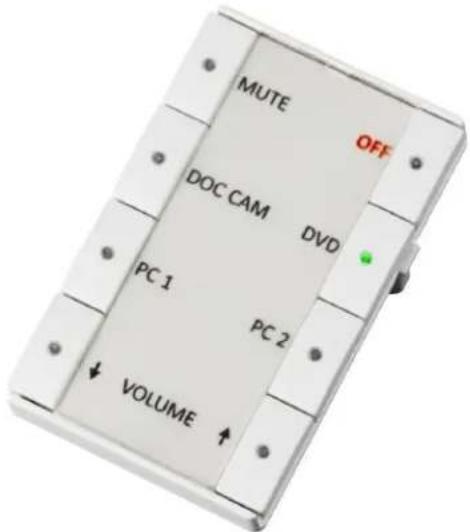
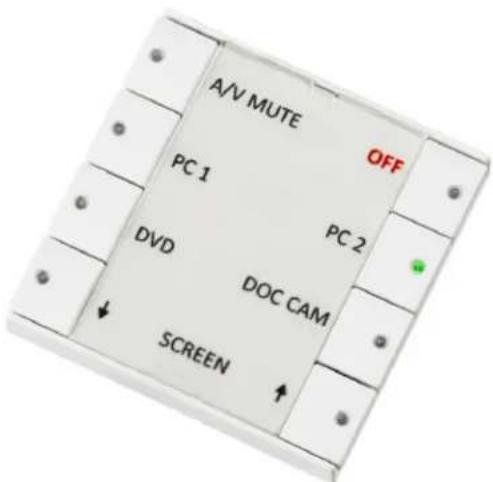
Back view:
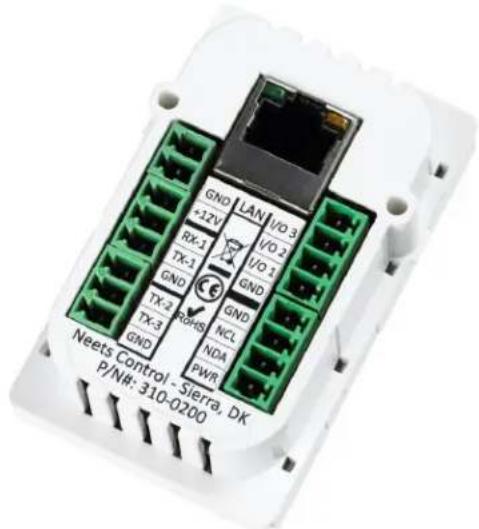
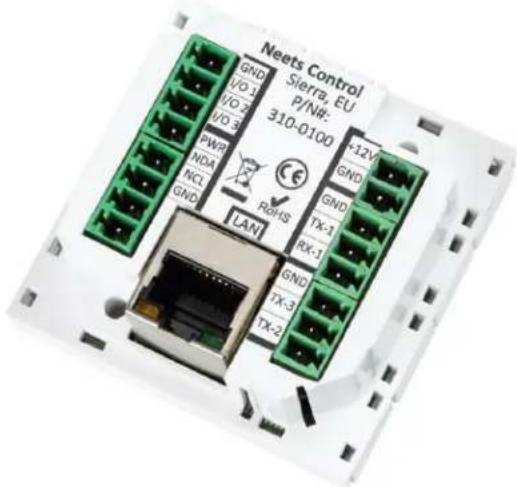
| Descripon | Neets Control - SieRRa |
| RS-232 (Rx/Tx) | 1 |
| RS-232 (Tx) / IR (controls up to 4 devices) | 2 |
| LAN device control | 5 |
| Expansion bus (for level knot, real-me clock, extra buons...) | 1 |
| I/O | 3 |
| Micro SD card | 1 |
| Real me clock | Add on board |
| Buons | 8 |
| LED | 8 |
| LED colors (Green, Red, Blue, Orange, Turquoise, Purple, White) | 7 |
| USB port for programming | 1 |
| PIR sensor input | Yes |
| Light on/o | Yes |
| Room darkening | Yes |
| Screen up/down | Yes |
| Volume control (with LED level) | Yes |
| Alarm when RS-232 device is removed | Yes |
| Device feedback | Yes |
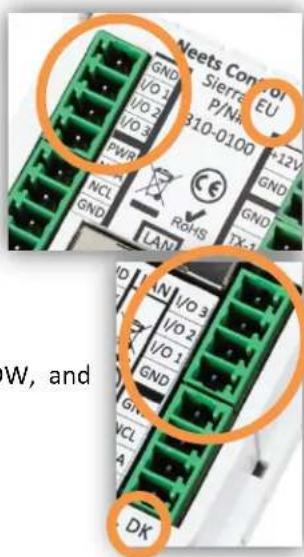
Connecons on units
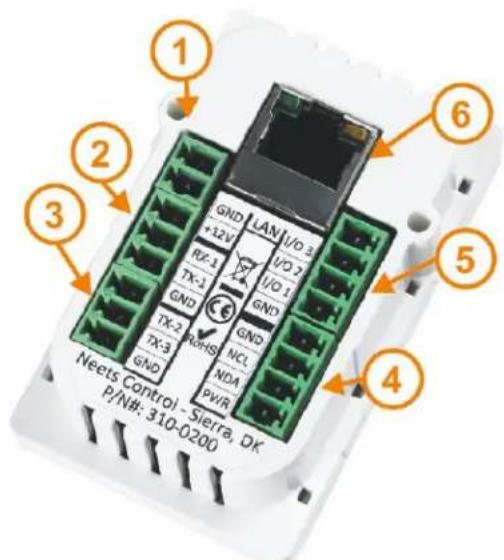
DK version
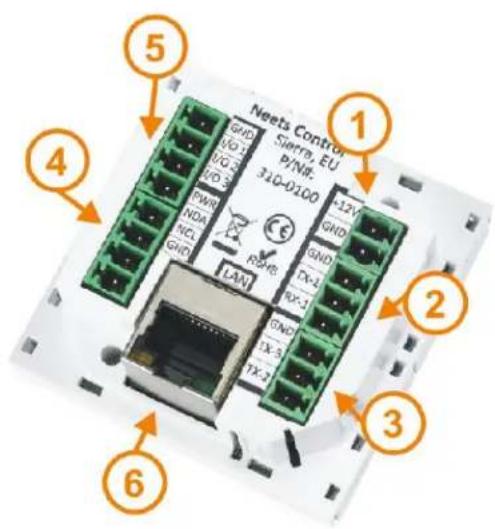
EU version
Number Descripon
1: Extern 12V DC input
2: RS-232 port
3: RS-232 or IR control out
4: NEB Neets External Bus (for adding e.g. level control, RS-485, RTC, extra buons)
5: Input/Output
6: LAN
Technical descripon
Technical details:
| RS-232 | Baud: 1200-115200Data bit:7/8Parity: none, even, oddStop bit: 1/1,5/2 |
| IR | Transmit 381 Hz – 500 KHz |
| LAN | 10/100 MBit |
| Input | Sence low < 1 VDCSence high >4 VDC |
| Output | Open drainMax voltage: 24 VDCMax current: 0,5 A |
| Power | 12VDC (110-230VAC Adapter included) |
USB
The USB port can only be used to program the Neets Control – SieRRa from the Neets Project designer soware. It cannot be used to control any devices what so ever.
From the USB you can also power the system. This is to be used in programming situations, so you do not have to connect 12VDC to the unit to program it.
The USB connector needed to connect to the Neets Control – SieRRa is of the type mini USB B 5P. You can either buy this cable from Neets or via the web (buy a USB A to Mini USB B 5P). The cable type is also widely used for MID device and compact cameras and so on.
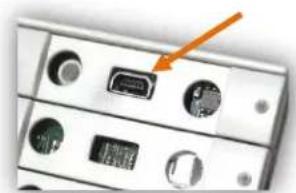
natural_image
Close-up of a computer interface panel showing ports and connectors (no visible text or symbols)EU version
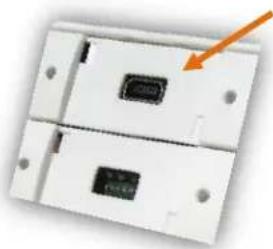
natural_image
Close-up of a white electronic component with two internal slots and a small black chip, no visible text or symbols.DK version
RS-232 Port
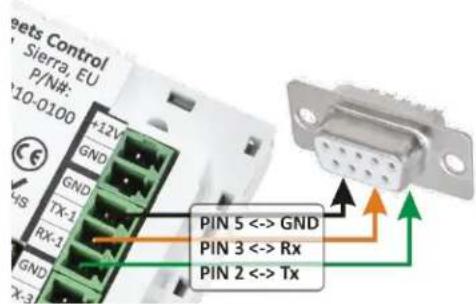
The onboard RS-232 port (TX-1 and RX-1) is used for two way communicaon. This port is used for the device you want to use reply on (e.g. your projector). It can also be used for uploading sengs to the unit (be aware that this is the most slow way to do this).
To connect the Neets Control - SieRRa you must wire the RS-232 cable as shown here to the right. This is a Female 9 pin SUB-D connector that will t into a standard computer RS-232 port, or any USB to RS-232 converter.
IR/RS-232 ports
The SieRRa has 2 ports (TX-2 and TX-3) that can be congured (in soware) either as RS-232 or as IR emier.
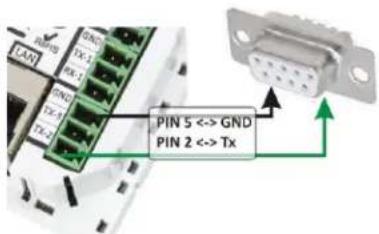
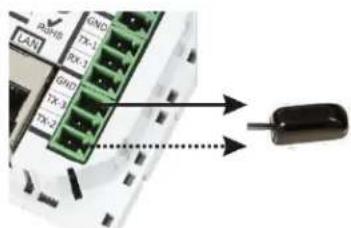
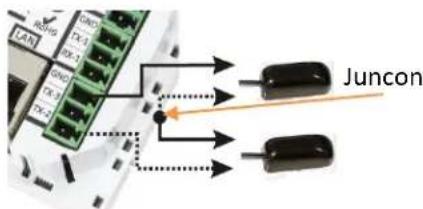
When used as RS-232 transmit port: Connect the device to e.g. TX-2 and GND, as shown here above.
When used as single IR port: Connect the IR emier to e.g. TX-2 (white striped wire) and GND, as shown here above.
When used as dual IR port: Connect the IR-1 emier to e.g. TX-2 (white striped wire) and black wire on IR-1 emier to IR-2 emier (white striped wire), and black wire from IR-2 emier to GND, as shown here above.
uSD-Card
The uSD-Card is used to storage rmware, homepage and the sengs. Under normal operaon, removal of the uSD-Card is not needed. If needed, you can copy the sengs and the rmware directly onto the card.
To remove the uSD Card from the unit, please rst remove the front plasc (all the buons). Bellow those you will nd the uSD-Card, please be very careful when you remove the card.

REMEMBER to remove power from the unit before removing Micro SD card!
I/O Ports
The Neets Control – SieRRa has 3 I/O's onboard. They can be used for external keyboard, PIR (movement) sensor, keyboard lock, extra relays and so on. The ports are not potenal free, which means you will need external relays, if you need to prevent e.g. ground loops.
When used as output they are acve low (when the soware says acvated, the pin are ed to GND through a FET transistor - also called open drain/collector funcon). You can draw up to 24VDC/500mA.
When used as input the voltage has to be below 1 Volt DC to be accepted as LOW, and above 4 VDC (but below 24 VDC) to be accepted as high.
LAN
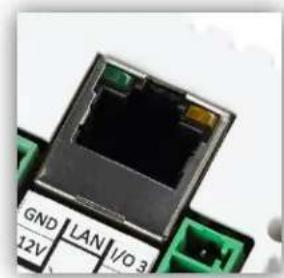
The network connector is for connecng the system to the local area network.
There are two LED's on the connector. They have the following meaning:
Color:
| O | On | Blink | |
| Yellow | No Link | Link | Acvity |
| Green | 10Mbit | 100Mbit |
Default IP sengs are:
IP address: 192.168.254.253
Subnet: 255.255.255.0
10/100Mbit: Auto
DHCP: Disabled
natural_image
Close-up of a black Ethernet connector with green and yellow ports, placed on a circuit board (no readable text or symbols)Fault nding
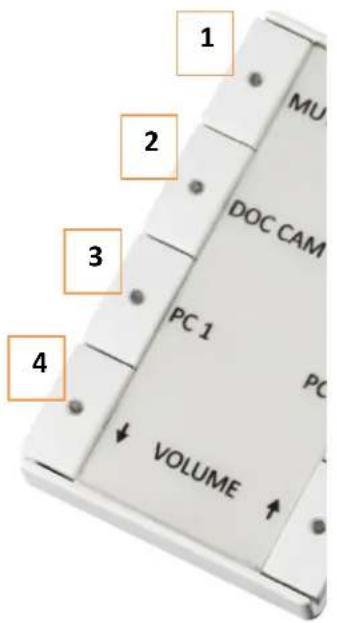
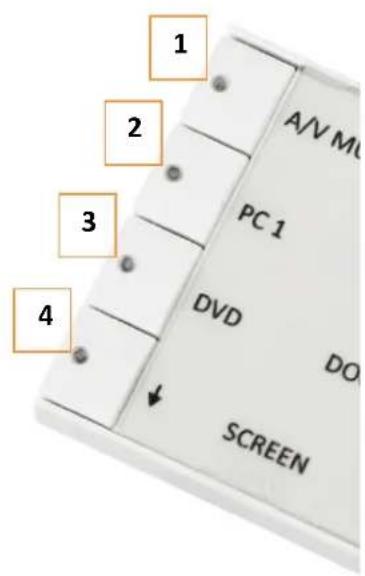
When errors occur the LED will indicate this. The following will give you a guide to nd these errors. In the Neets Control – SieRRa the LED's are placed here:
Fault

Soluon
uSD-card missing

Control that the uSD-card is mounted correctly and that the uSD-card you are using are formed with FAT.
Unexpected Error

There are properly problems in the project you have uploaded. Try e.g. to upload a empty project and see if this works or contact Neets or your local dealer.
Error in serial number

During the producon of the unit, something has gone wrong. You need to return the unit to Neets or your local dealer for replacement/repair.
Unzipping cong.zip le aer power on

If you have placed a project le manually on the uSD-card, the system will extract the les needed to run the project. Aer extracon, the system will start to run the project.
Unable to start the project

This scenario oen happens, when the uSD-card in the unit is replaced with a blank uSD-card. Alternatively, there can be a problem in the project you have uploaded. In this case e.g. try to upload an empty project and see if this works - or contact Neets or your local dealer.
Fault

Soluon
System are in boot mode

You have put the system in boot mode.
This mode allows you to communicate with the system using Rx1/Tx1. To get the system in boot mode, hold down all 4 corner buons for more than 2 seconds (2 in the top, and 2 in the boon).
System are resuming factory default sengs
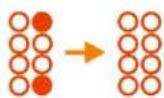
When pressing Switch 1 and 4 during power on, the system will delete the current sengs and resume factory default.
This method are only intended to be used, if the control system lock up and enters "Unexpected Error".
System log le
The Neets Control – SieRRa has a log le, which contains informaon, warnings and errors that the system encounters during run.
The log le looks like below:
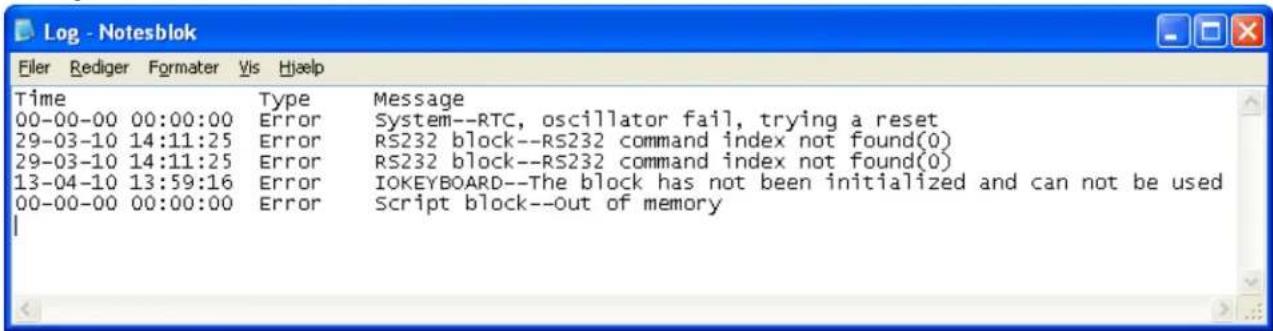
To give you the best support possible we recommend that you have access to the log le, when contacting support.
There are two ways to get access to this le:
uSD-card:
If you put the uSD-card into your computer you nd the log le here: Drive\System\Log.txt
HTTP:
Enter the following address into your browser: hp://xxx.xxx.xxx.xxx//System/Log.txt.
xxx.xxx.xxx.xxx are the IP address of your Neets Control – SieRRa.
Remember the two"//".

Brand : Neets
Model : SieRRa
Category : Remote control