
Cronos - Mp3 player Sunstech - Free user manual and instructions
Find the device manual for free Cronos Sunstech in PDF.


| Product Type | Portable MP3 Player |
| Brand | Sunstech |
| Model | Cronos |
| Display | 4.3 inch touch color display, 480x272 pixels |
| Dimensions | 111.7 x 73.8 x 12.6 mm |
| Weight | 120 g |
| Power Supply | 3.7V Lithium battery (1400 mAh) |
| Battery Charging Time | Approximately 4.5 hours |
| Audio Playback Formats | MP3, WMA, OGG, APE, FLAC, AAC, WAV |
| Video Playback Formats | RM, RMVB, AVI, WMV, MP4, MPG |
| Photo Browsing Formats | BMP, JPG, GIF, PNG |
| E-book Formats | TXT, PDF |
| Recording Format | MP3 |
| External Memory | Micro SD card up to 32 GB |
| Interface | USB 2.0 High Speed |
| Earphone Jack | 3.5 mm |
| TV Output | 3.5 mm |
| Built-in Speaker | 1W |
| S/N Ratio | 85 dB |
| Distortion | 0.03% |
| Earphone Max Output | (L) 5mW + (R) 5mW, 32 Ohm |
| Frequency Response | 20 Hz – 20 kHz |
| PC Compatibility | Windows Me/2000/XP/Vista/Windows 7 |
| Warranty | 2 years |
| Included Accessories | USB cable, earphone, warranty card, user manual |
Frequently Asked Questions - Cronos Sunstech
User questions about Cronos Sunstech
0 question about this device. Answer the ones you know or ask your own.
Ask a new question about this device
Download the instructions for your Mp3 player in PDF format for free! Find your manual Cronos - Sunstech and take your electronic device back in hand. On this page are published all the documents necessary for the use of your device. Cronos by Sunstech.
USER MANUAL Cronos Sunstech
natural_image
Blank rectangular frame with rounded corners, no text or symbols presentnatural_image
Battery icon with glowing white outline on dark background (no text or symbols)Nota:

flowchart
graph TD
    A["Up"] --> B["Down"]
    C["Right"] --> D["Down"]
    E["Square"] --> F["Up"]
    G["Arrow"] --> H["Right"]
- Salida de TV
Seleccione la “Salida de TV” entre “LCD”, “NTSC”, “PAL”.
natural_image
Blank rectangular frame with rounded corners, no text or symbols presentO que há na caixa?
Unidade Operacional
Cartão de Garantia
Manual de Usuário
CABO USB
Auriculares de Ouvido
Conteúdo
Resumo
natural_image
Battery icon with glowing white outline on dark background (no text or symbols)Nota:
Clique no ícone do Explorador no menu principal para entrar no menu Explorador.

flowchart
graph TD
    A["Upward Arrow"] --> B["Square"]
    C["Downward Arrow"] --> D["Downward Arrow"]
    E["Leftward Arrow"] --> F["Rightward Arrow"]
- Saída de TV
natural_image
Blank rectangular frame with rounded corners, no text or symbols presentWhat's in the box?
Operating Unit
Warranty Card
User Manual
USB Cable
Earphone
Content
Overview
Basic Operation & Charging
Main interface
Explorer
Operation of Music Mode
Operation of Video Mode
Operation of Photo Mode
Operation of Record Mode
Operation of E-Book Mode
Operation of FM Mode
Operation of TV-Out
File Explorer
Calculator
System Setting
Trouble Shooting
Technical information
Warranty Conditions
Overview
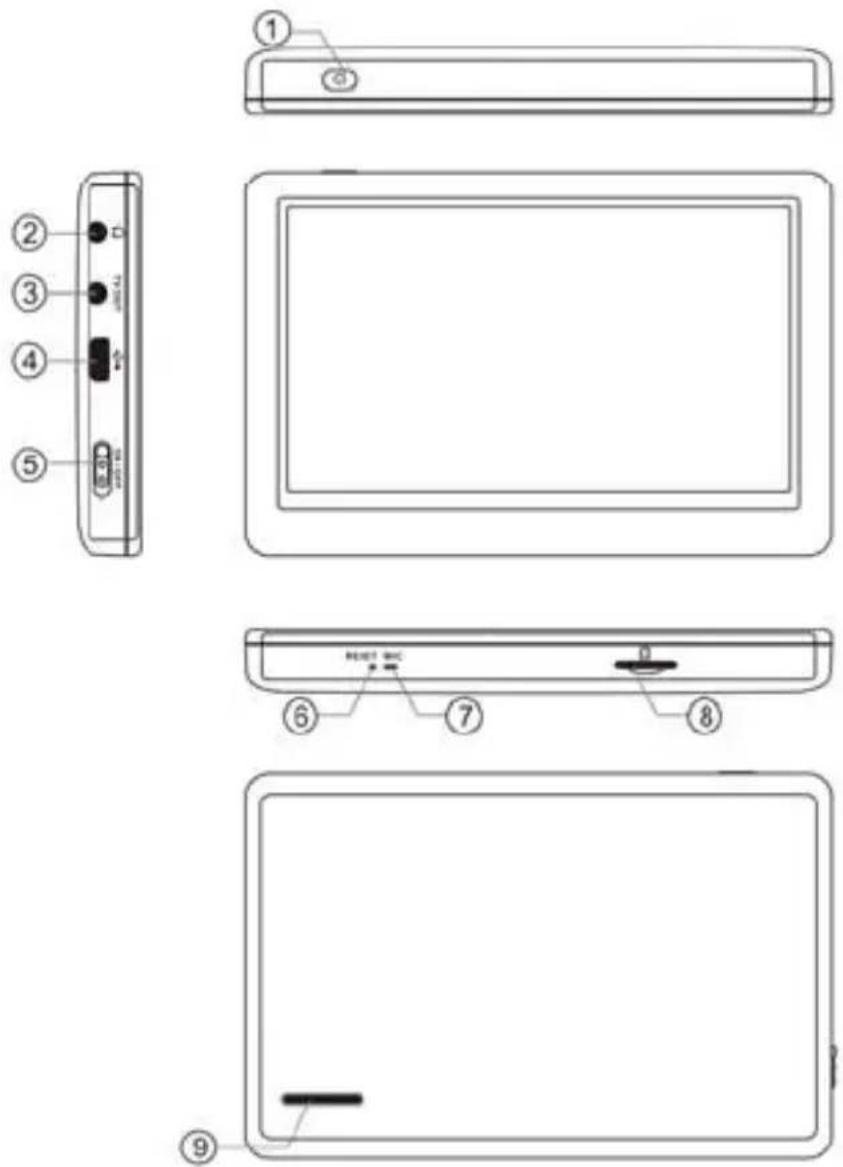
- Power button
- Earphones Jack
- TV out Jack
- USB Port
- ON/OFF
- Reset
- MIC
- Micro SD Card Slot
- Built-in Speaker
Basic Operation
Power ON
Turn the ON/OFF switch to ON position, then hold the Power button for 3-5 seconds to turn on the player and enter the main menu.
Power Off
a. Hold the Power button long or turn the ON/OFF switch to OFF position to turn off the player.
b. The player will turn off automatically under the low power state.
Dark Screen Mode
Press the Power button shortly to enter the dark screen mode and lock the player.
Activate Dark Screen Mode
In the Dark Screen Mode, press the Power button shortly to return the light screen and unlock the player.
Reset
If the player doesn't work suddenly when it is working, press the Reset button by a needle, then turn on the player again.
Removable disk function
Use the USB cable to connect with PC, you can use the removable
disk properly after the icon

show up at the right bottom of the
PC. It is better to use the USB cable provided
Note: To avoid any malfunction caused, please turn off the player before connect PC.
Charging
In order to charge the battery, please make sure disconnect the removable disk from the computer, but do not pull USB cable out from, and enter the charging mode
It will stop charging automatically when the player is fully charged.

natural_image
Battery icon with glowing white outline on black background (no text or symbols)Note:
- Battery is fully charged in about 4.5 hours.
. Under the battery power is low and the USB power output less than 100mA, do not charging, and no display, need to be charged before use, - Fully charged time will be extended if playing or turn on the screen during charging.
- To save charging time, please do not operate the player during charging.
- Please charging in time if low power. It may cause damage to the device if turn on the player many times under the low power.
Touch on the screen to enter the main menu. The display will be turn off if no any operation.
How to insert and pull out Micro SD card
How to insert: with the front (the side with characters) of the Micro SD card up (towards the screen of the player), slightly push to insert into the card holder of the player to connect. After the card is inserted, the player can play the files in the Micro SD card.
How to pull out: slightly push the Micro SD card and the Micro SD card will partly come out, and then pull the card out.
Note: please insert or pull out the card when the player is off, or the internal files of the player will be lost or damaged.
Main Interface
Turn on the player to enter the main menu as below. Click any particular icon at the bottom of the screen to enter the select mode.

Drag the widget out of the widget toolbar to the screen to activate it. To move the widget back to the widget toolbar, drag it to the position you want on the widget toolbar
***With the Widget toolbar function on the screen, you can organize the customization menu, panel of the desktop screen, playing music, etc, and you can touch gently & drag horizontal to re-setup the desktop toolbar anyway you like.
Explorer

Click the Explorer icon in the main menu to enter the Explorer menu.
In the Explorer menu, you can select any files or folders from local memory, SD card or USB folders.
Copy / Paste / Delete files

Tap on the right hand side of the selected files 📄 to select copy, paste or delete, cancel function. For delete file, click yes to double confirm.
Operation of Music Mode
Music explorer
Click the Music icon in the main menu to enter the Music explorer. Click the small icon 📞 on the screen, your library of music can be showed by Artist, Album, Genre, Star, Year, and All Music.
Artist: Sort the music by all artists and unknown artist Album: Sort the music by all album and unknown album.
Genre: Sort the music by all genre.
Star: Sort the music by number of stars.
Year: Sort the music by year
All music: Sort out all music.

- Return to main menu.
- Adjusting volume
- Return to previous menu
- Battery power
- Previous icon
- Play / Pause
- Next icon
- Play mode setting
- Current playing time
- Total playing time
- EQ mode
Play / Pause
Click the song name (6) in playing mode to pause, click song name (6) again to resume playing.
Fast Forward / Fast Backward
When playing music, press and hold ◀◀ / ▶▶Icon to fast backward / forward, press ◀◀ / ▶▶once to jump to the previous / next track.
Adjusting Volume
When playing music, drag the volume bar to adjust volume.
Play mode setting
- When playing music ,Click it will appear the image as below.

- Click ↻, return to previous menu.
- Click 📊 to set the play mode, there are “Only once”, “Rotate one”, “Rotate all”, Sequential”, “Random” for selection, then click the 🔒 to confirm.
- Click 🙏 to set the EQ mode, there are “Nature”, “Base”, “Pop”, “Rock”, “Classic”, “Jazz”, “Language”, “Dance” for selection, then click the 🙏 to confirm.
- Click to set the "Spectrum" or "Lyric" mode.
- Click to set the brightness of the screen, range from 1 - 5.
- Click ☆ to rate number of stars.
- Click A to set the lyric color ,there are “Blue / Red”, “Red / Blue”, “Yellow / Green”, “Green / Yellow”, “Orange / Blue”, “Red / Yellow”, “Blue /Green” for selection.
Operation of Video Mode
Click the Video icon in the main menu to enter the Video explorer, click any particular movie in the list to start playing.
Resume Play: It will show up “Play for break point?” when you enter the movie which is not the first time play in the player. Click “yes” to resume play, and “No” to start play at the beginning.

- Return to main menu
- Adjusting volume
- Return to previous menu
- Battery power
- Previous
-
Play / Pause
-
Next
- Play mode setting
- Current playing time
- Total playing time
- Display size
Play / Pause
Click Center of display in playing mode to pause, click center of display again to resume playing.
Fast Forward / Fast Backward
When playing video, hold ◀◀ / ▶▶Icon to fast backward / forward, click the ◀◀ / ▶▶once to jump to the previous / next movie.
Adjusting Volume
In the playing mode, drag the volume bar to adjust volume.
Showing display rate
While playing video files, click icon to choose the ratio of the display: Full Screen – video ratio / Full Screen – screen ratio / Default / 4:3 / 16:9.
Movie play mode setting
When playing the movie ,click the setting mode icon

- Click ↻, return to previous menu
- Click 📂, to select number of tracks
- Click A, to switch on/off of subtitle.
- Click 📄, to set the brightness of screen ,range from1-5.
- Click 📋 to set the screen display size, there are “Full Screen – video ratio”, “Full Screen – screen ratio”, “Default”, “4:3”, “16:9” for selection, then click the 📋 to confirm
- Click 📊 to set the play mode ,there are “Only once”, “Rotate one”, “Rotate all”, Sequential”, “Random” for selection , then click the 🔒 to confirm.
- Click 📁 to select the “Stereo”, “Left channel”, “Right channel”.
- Click to select the "Sub: Zoom in", "Sub: Zoom out", "Subtitle size"
- Click to select "default", "Blue", "Red" color of lyric
Deactivate the subtitles
When playing the movie with subtitle, click the screen to enter the sub-menu, and click the icon 📄 at the bottom-left quarter to enter into the second screen, moveleft the icons till the end, and click the last icon 🖼️.

And then the player will enter into the following screen to deactivate the subtitles.

Operation of Photo Mode
Click the Photo icon in the main menu to enter the Photo explorer, click any particular photo to open it.

- Click ↻, return to previous menu.
- Click ▶, auto play photos.
- Click resize photo and rotate photo clockwise and anti-clockwise.
- Click , review photo by choosing photo on right hand side.
- Click 🎧 review photos by different background music.
- Click reviewing photo by different effects.
- Click ☒ select time slot “1s”, “3s”, “5s”, “10s” between photos.
- Click enter play mode “Next”, “Previous”, “Random switch”.
- Click to set the brightness of screen, range from 1-5.
- Click set current photo as wallpaper.
Operation of Record Mode
Click Record icon in the main menu to enter the Record mode.
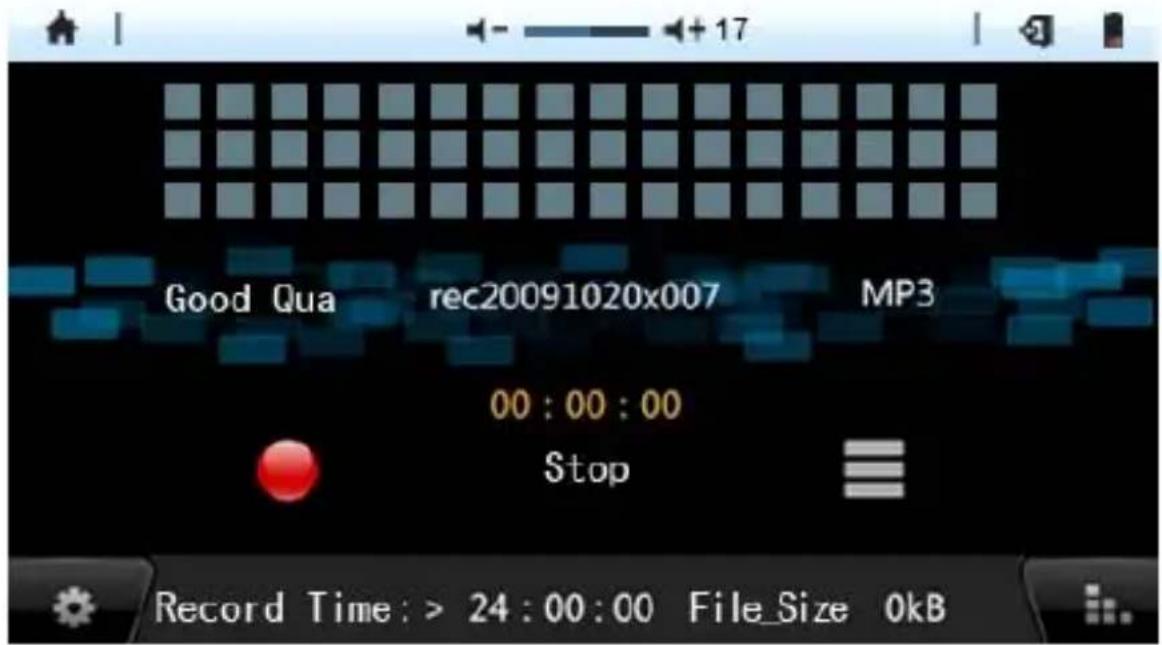
Click icon to start recording, click 【Ⅱ】 icon to pause recording, click again to resume recording. Click to stop recording.
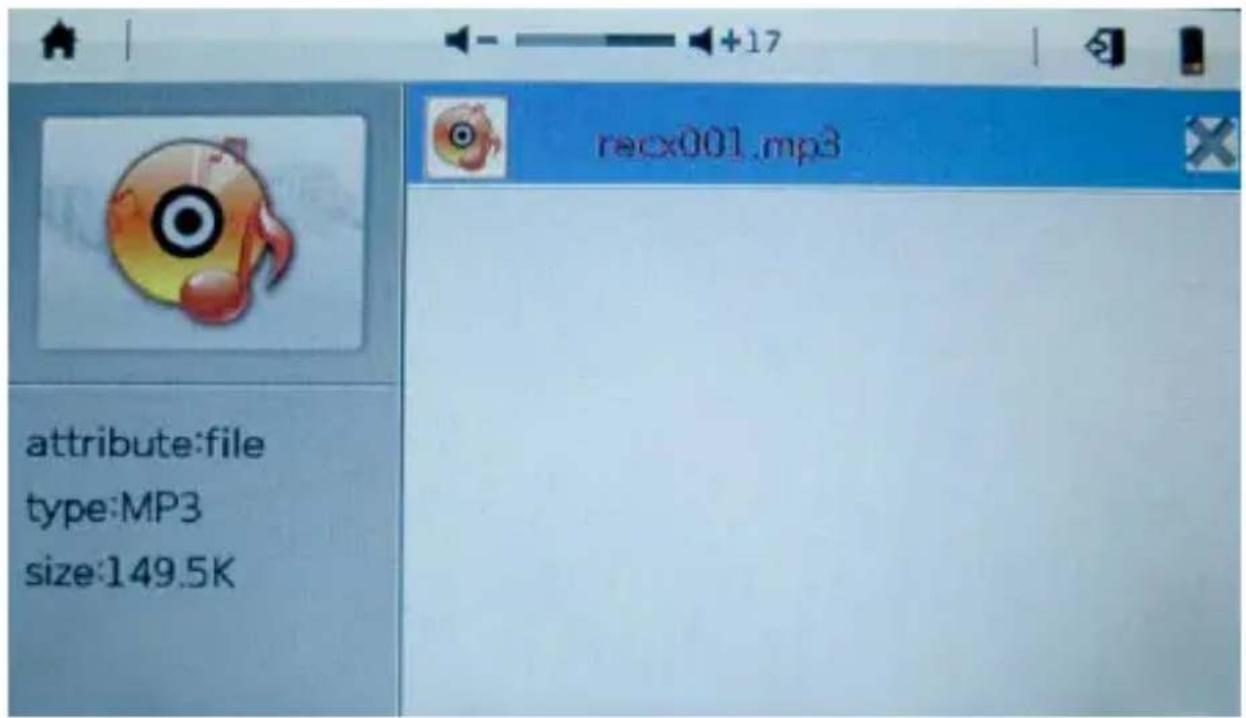
Click ☐ to enter the recording playback list. In record file list, click X to delete selected record file. Click on the file to playback.
Play mode setting

- Click ☐, delete current record file
- Click 📁, select sound quality “Good Quality”, “Normal Quality”, “Poor Quality”.
Operation of E-book
Click E-BOOK icon in the main menu to enter the E-BOOK mode. Tap on the file that you want to read from the list.
Resume read: It will show up “Play from breakpoint?” enter the page which is not the first time read in the player. Click “Yes” to resume read, and “No” to start read at the beginning.

- Click ↩, return to previous menu.
- Click ▶, E-book auto go to the next page.
- Click 1, rotate page and view in vertical or horizontal.
- Click 📄, add bookmark by selecting a number in order.
- Click 📄, open bookmark by tapping on bookmark that you want to open.
- Click A set font size "16", "20", "24", "28", "32".
- Click A set font color "Black", "Blue", "Green", "Red", White".
- Click [icon] select background among 4 defaulted background.
- Click to set range of 1-5 brightness of screen.
- Click ♪ insert music in reading mode.
- Click ⚙ select auto turn page by a preset time among “5s”, “10s”, “15s”, “20s”, “30s”.
- Click select font width from 0-4.
Operation of FM Radio Mode
Click Radio icon in the main menu to enter the FM radio mode.

In FM mode, Press the / to change the frequency by
0.1MHZ, Hold the / to start the FM auto search function.
It'll stop when an FM channel is detected. Repeat the above steps to auto search any particular channel.
Radio Setting
Click the left bottom icon 🔍 ,it will appear the setting interface as below.

Click the icon or press the ESC button return to the prev. menu.
Click the second icon 📋 to open the favorites, you can scan the preservations channel, you can click one to listen to.
Click the third icon to update the channel list.
Click the forth icon 📄 to select the channels saved into the favorites folder. And you can select and click the sequence number position needed to save current favorite channel.
Click the fifth icon 📁 to set the screen brightness.
Operation of TV-Out
Use the AV cable connect the device to TV and enter the Setting menu to select TV-Output, then select your local TV system among "LCD", "NTSC", "PAL".
When the player connects to TV successfully, the device will in OFF (Black) mode.
How to operate the device in Video mode when connect it to TV?
The operation is same as the device in Video mode when not connect to TV, the only difference is the display in OFF (Black)
mode:

flowchart
graph TD
    A["Upward Arrow"] --> B["Downward Arrow"]
    C["Square"] --> D["Downward Arrow"]
    E["Right Arrow"] --> F["Left Arrow"]
Touch Left/Right part to select Video mode in the main menu and touch Up/Down part on the middle of screen to select a video file, then touch Middle part to confirm and enter: when the TV is playing a video file, hold Left/Right part in the middle of screen to Backward or Forward the video, touch Middle part to Pause/Play the video, touch Left/Right part on the top middle of screen to decrease or increase the volume, touch Left corner on the top of screen to return to the main menu, touch Left corner on the bottom of screen to enter its submenu, touch Right corner on the top of screen to return to previous menu.
Calculator
From main menu, select calculator icon
Use the keys that correspond to the calculator display to perform mathematical operations.
System Setting
From main menu, select system setting icon to enter system setting menu.

- TV output
Select "TV output" among "LCD", "NTSC", "PAL".
- Power
Show battery power and discharging time of unit.
- Language
Select multi language from the list.
- Wallpaper
Select different wallpaper from the list.
- Auto Off
Select switching off time from “5mins”, “10mins”, “30mins”, “1hour”, “Always on”.
- Screen shutdown
Select screen shutdown time from “5s”, “10s”, “15s”, “30s”, “1mins”, “5mins”, “Always on”.
- Key Tone
Select on/off of key tone.
- Brightness
Select the screen brightness from level 1 to 5.
- Calibration
To calibrate touch screen. Tap the cross on touch screen until calibration is finished.
- System Information
Show the details of unit: software version; local memory size(used and total); memory card size(used and total).
- Color temperature adjustment
Adjust color temperature level from 1 to 10 "Red – R" "Green – G" "Blue – B".
- Restore default
Restore factory setting (files stored in player will not be deleted.)
Trouble Shooting
If you experience any of the following difficulties while using the player, use this Trouble-shooting guide to help you remedy the problem. Should any problem persists, consult the service center immediately
No power
- Check if the battery have been inserted properly.
- Check if the player is switched ON.
- Check if the player has run out of battery.
- Connect the player with charger or PC via USB and check again.
- If the player still cannot be charged, please contact the service center.
No sound is heard from earphone
- Check if volume is set to "0".
- Check if earphone plug is clean and being connected firmly.
- Make sure music files are not corrupted.
Noise
- Check if earphones are connected securely.
- Check if earphones plug is clean, residue attached on earphones plug may cause unnecessary noise.
- Check if audio source is not damaged. Try to play other audio files for comparison. Damaged audio files could cause unnecessary noise and cause skip track.
Display characters corrupted
- Check if the correct display language is selected.
Problem with downloading files
- Check if the player is connected to PC properly.
- Check if the player's memory is full.
- Check if USB cable is working properly.
Technical Information
| Power Supply 3.7V Lithium | battery(1400mAh) |
| Dimensions | 111.7mm x 73.8mm x 12.6mm |
| Net Weight 120 g | |
| Display | 4.3 inch touch color display |
| Display resolution | 480x272 pixel |
| Operating System Window | Me/2000/XP/Vista/Window 7 |
| Interface | USB 2.0 High Speed |
| Earphones 3.5mm | |
| TV output 3.5mm | |
| Built in speaker 1W | |
| External memory extension | Micro SD card (up to 32GB) |
| Audio playback MP3, WMA | OGG, APE, FLAC, AAC, WAV |
| Video playback RM, RMVB | AVI, WMV, MP4, MPG |
| Photo browsing | BMP, JPG, GIF, PNG |
| Recording format | MP3 |
| E-Book | TXT, PDF |
| S/N ratio 85dB | |
| Distortion | 0.03% |
| Earphone max output power | (L) 5mW + (R) 5mW, 32Ohm |
| Frequency response | 20Hz – 20KHz |
Warranty conditions
- The warranty of this product is for 2 years since the purchase date.
- The warranty will exclude breakdowns caused by bad use of the product, wrong installation or installation in not desirable places for a proper maintenance of the product, rips, updates of the products that are not the supplied by the brand, pieces wore away for its use or for not domestic or inappropriate use. Also are excluded breakdowns caused for manipulations of the products by people or companies alien to our company.
- For any request regarding the warranty terms, the purchase receipt must be attached.

- Nota:
- O que há na caixa?
- Conteúdo
- Resumo
- What's in the box?
- Operating Unit
- Warranty Card
- User Manual
- USB Cable
- Earphone
- Content
- Overview
- Basic Operation & Charging
- Trouble Shooting
- Technical information
- Warranty Conditions
- Basic Operation
- Power ON
- Power Off
- Dark Screen Mode
- Activate Dark Screen Mode
- Reset
- Removable disk function
- Charging
- Note:
- How to insert and pull out Micro SD card
- Main Interface
- Explorer
- Operation of Music Mode
- Music explorer
- Play / Pause
- Fast Forward / Fast Backward
- Adjusting Volume
- Play mode setting
- Operation of Video Mode
- Showing display rate
- Movie play mode setting
- Deactivate the subtitles
- Operation of Photo Mode
- Operation of Record Mode
- Operation of E-book
- Operation of FM Radio Mode
- Radio Setting
- Operation of TV-Out
- Calculator
- System Setting
- No power
- No sound is heard from earphone
- Noise
- Display characters corrupted
- Problem with downloading files
Brand : Sunstech
Model : Cronos
Category : Mp3 player