
DVD-330 - DVD player LENCO - Free user manual and instructions
Find the device manual for free DVD-330 LENCO in PDF.


| Product Type | DVD Player |
| Brand | Lenco |
| Model | DVD-330 |
| Power Supply | AC 100-240V, 50/60Hz |
| Power Consumption | 15W |
| Video Standard | NTSC/PAL |
| Disc Compatibility | MPEG4, DVD, DVD+/-R/RW, VCD, JPEG, CD-DA, CD-R, CD-RW |
| Video Output | 1.0V(p-p)/75Ω, sync negative |
| Audio Output Level | 2Vrms -1/+0.2 |
| Frequency Response | 20Hz - 20kHz |
| Signal-to-Noise Ratio | >90dB |
| Total Harmonic Distortion | <0.025% |
| Output Interfaces | SCART, HDMI, 5.1CH Audio (FL, FR, SL, SR, CEN, SW), USB |
| Front Panel Controls | Open/Close, Play/Pause, Stop, Prev, Next, MIC, USB port |
| Remote Control | Included: power, navigation, playback, setup, karaoke, etc. |
| Playable File Formats | MP3, WMA, JPEG, MPEG4, Picture CD |
| Karaoke Function | Yes, with microphone input (MIC jack on front) |
| Parental Control | Yes, password-protected (default password: 6666) |
| Screen Saver | Yes, can be enabled/disabled in MISC setup |
| Language Setup | OSD, Subtitle, Audio, DVD menu – multiple languages |
| Aspect Ratio | 4:3 Pan Scan, 4:3 Letterbox, 16:9 Wide |
| TV System Selection | PAL / NTSC |
| Video Output Modes | Composite, RGB, S-Video, HDMI |
| HDMI Resolution | Auto, selectable resolution |
| Dimensions (approx) | 430 x 250 x 45 mm |
| Weight (approx) | 1.8 kg |
Frequently Asked Questions - DVD-330 LENCO
User questions about DVD-330 LENCO
0 question about this device. Answer the ones you know or ask your own.
Ask a new question about this device
Download the instructions for your DVD player in PDF format for free! Find your manual DVD-330 - LENCO and take your electronic device back in hand. On this page are published all the documents necessary for the use of your device. DVD-330 by LENCO.
USER MANUAL DVD-330 LENCO
Please read this User Manual carefully before using this product and keep this manual for future reference
Content
Introduction
Important Safety Instructions 2
Caution ....3
Features....3
Front Panel and Rear Panel Illustration 4
Remote Control 5
Connections 6
Advanced Features
System setup....7
MP3/WMA/JPEG/MPEG4 playback.... 10
Picture CD playback.... 11
Card Reader, USB, Karaoke Optional 11
Others
Troubleshooting....12
Specifications....13
Important Safety Instructions
1) Read these instructions.
2) Keep these instructions.
3) Heed all warnings.
4) Follow all instructions.
5) Do not use this apparatus near water.
6) Clean only with dry cloth.
7) Do not block any ventilation openings, install in accordance with the instructions.
8) Do not install near any heat sources such as radiations, heat registers, stoves, or other apparatus (including amplifiers) that produce heat.
9) Do not defeat the safety purpose of the polarized plug. If the provided plug does not fit into your outlet, consult an electrician for replacement of the obsolete outlet.
10) Protected the power cord from being walked on or pinched particularly at plugs, convenience receptacles, and the point where they exit from the apparatus.
11) Only use attachments/accessories specified by the manufacturer.
12) Unplug this apparatus during lighting storms or when unused for long periods of time.
13) Refer all servicing to qualified service personnel. Servicing is required when the apparatus has been damaged in any way, such as power-supply cord or plug is damaged, liquid has been spilled or objects have fallen into the apparatus, the apparatus has been exposed to rain or moisture, does not operate normally, or has been dropped.
14) Mains plug is used as the disconnect device, the disconnect device shall remain readily operable.
15) The ventilation should not be impeded by covering the ventilation openings with items, such as newspapers, table-cloth, curtains, etc.
16) No naked flame sources, such as lighted candles, should be placed on the apparatus.
17) Attention should be drawn to the environmental aspects of battery disposal.
18) The use of apparatus in moderate climate.
19) Portable Cart Warning
A product and cart combination should be moved with care. Quick stop, excessive force, and uneven surface may cause the product and cart combination to overturn.
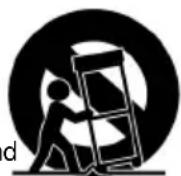
(Symbol provided by RETAC)
WARNING: To reduce the risk of fire or electric shock, do not expose this apparatus to rain or moisture.
WARNING: The batteries shall not be exposed to excessive heat such as sunshine, fire or the like.

The symbol indicates that dangerous voltages constituting a risk of electric shock are present within this unit.

The symbol indicates that there are important operating and maintenance instructions in the literature accompanying this unit.

This symbol indicates that this product incorporates double insulation between hazardous main voltage and user accessible parts. When servicing use only identical replacement parts.
Caution
- Please use the original box and packing materials for safe transportation of this product.
- It is normal for the cover and rear panel to become warm after the player has been operating for an extended period of time.
- Do not move this product during playback. Doing so may cause damage to the pickup and the disc.
- Press OPEN/CLOSE on the front panel or remote to open or close the disc tray. Do not push or touch the tray while it is opening or closing.
Features
Disc formats and features supported by this player:

MPEG4 files on discs
Multi-angle

MP3 files on CD-R/CD-RW
Subtitle choices
DVD video
Audio choices
TV Aspect Ratio modes
Parental Lock

You can help protect the environment! Please remember to respect the local regulations: hand in the non-working electrical equipments to an appropriate waste disposal center.
This product incorporates copyright protection technology that is protected by method claims of certain U.S.patents and other intellectual property rights owned by Macrovision Corporation and other rights owners. Use of this copyright protection technology must be authorized by Macrovision Corporation, and is intended for home and other limited viewing uses only unless otherwise authorized by Macrovision Corporation. Reverse engineering or disassembly is prohibited.
The product complies with the Picture CD format and will display Picture CDs.
Front Panel and Rear Panel Illustration
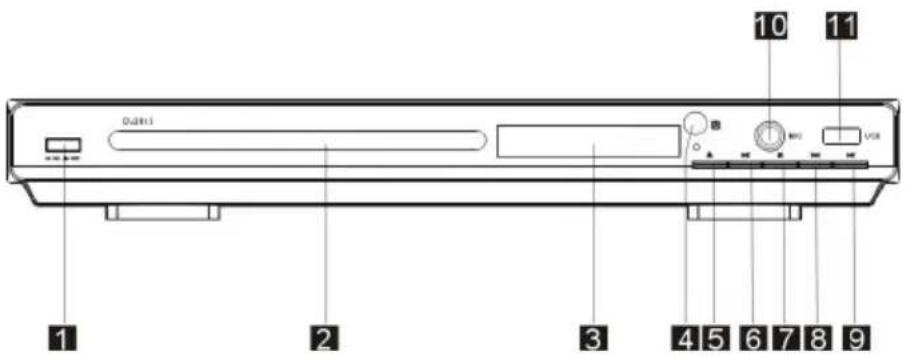
Front Panel
Back Panel
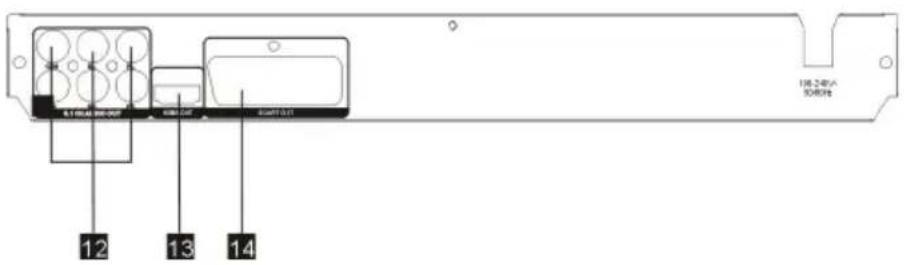
- Power
- Tray Door
- LED
- Sensor
- Open/Close button
- Play/Pause Button
- Stop Button
- Prev Button
- Next Button
- MIC
11.USB Port - 5.1CH Audio
output(FL,FR,SL,SR,CEN,SW)
13.HDMI Output - SCART Output
Remote Control
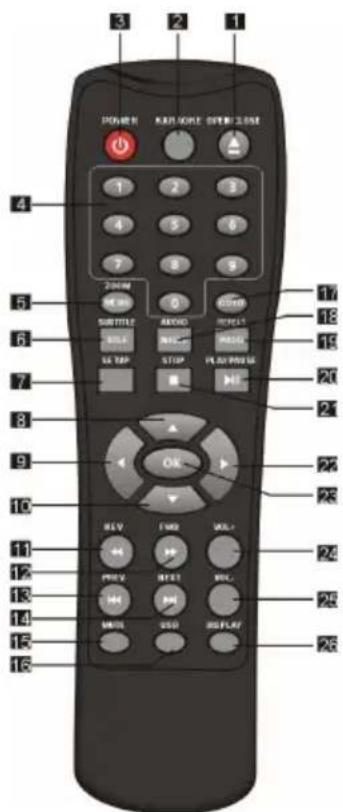
-
OPEN/CLOSE
-
KARAOKE
-
POWER
-
0-9 NUMBER KEY
-
ZOOM/MENU
-
SUBTITLE/TITLE
-
SETUP
-
UP
-
LEFT
-
DOWN
-
REVERSE
-
FORWARD
-
PREVIOUS
-
NEXT
-
MUTE
-
USB
17.GOTO
- AUDIO/ANGLE
19.REPEAT/PROGRAM
-
PLAY/PAUSE
-
STOP
-
RIGHT
-
OK
-
VOLUME INCREASE
-
VOLUME DECREASE
-
DISPLAY
Note:
- Press 5□ 6□ 18□ 19 for more than 1.5s, there will be functions marked on these buttons(MENU, TITLE, ANGLE, PROG).
- Press 5□ 6□ 18□ 19 for less than 1s, there will be functions marked above these buttons(ZOOM, SUBTITLE, AUDIO, REPEAT).
Connections
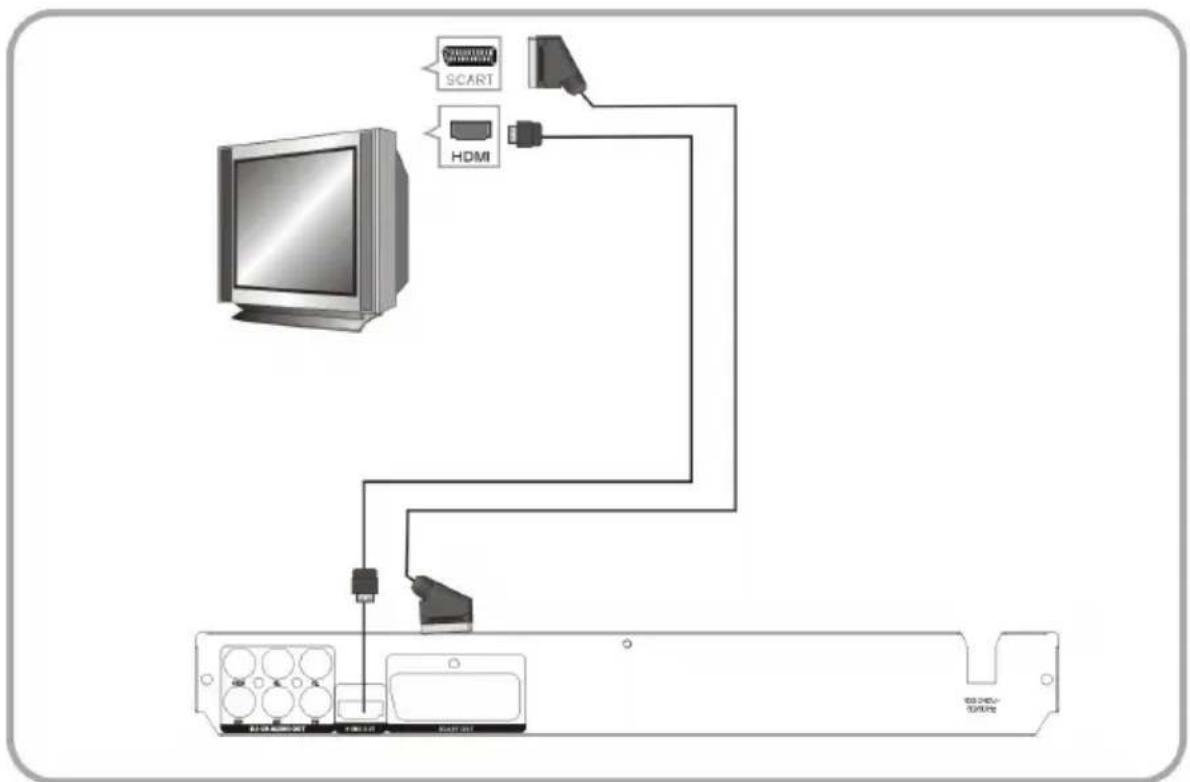
- CONNECT DVD PLAYER TO TV SET WITH SCART SOCKET
Use the SCART cable to connect DVD player and your TV. Set the [Video Out] to [Composite] or [RGB].
- CONNECT DVD PLAYER TO TV SET WITH HDMI CABLE
Use the HDMI cable to connect DVD player and your TV. Set the [Video Out] to [HDMI].
SYSTEM SETUP
MENU OPERATION
Press the SETUP button on the remote control, the SETUP MENU will be displayed. Use the up/down buttons for up and down movement trough the menu Press RIGHT direction button to enter the submenu and press left direction button to go back to the previous menu. Confirm the adjust settings by pressing the OK button
LANGUAGE SETUP
Select Language in the setup menu, and display the Language submenu:
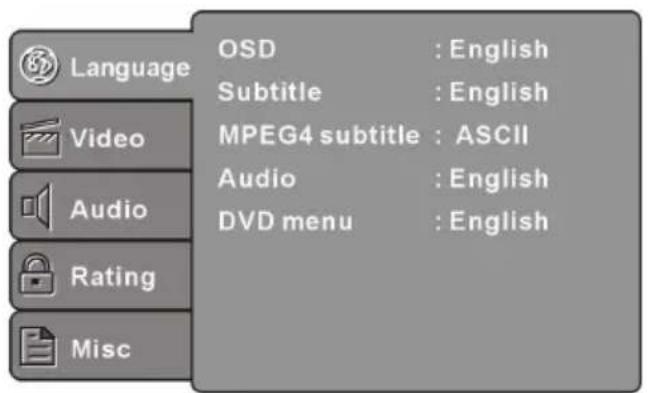
OSD
Use this item to select the language of the setup menu and screen display.
Subtitle
Use this option to select the default subtitle language.
Note: Not all discs support this option.
MPEG4 Subtitle
Select different MPEG4 subtitle encoding option.
Note: Not all discs support this option.
Audio
Use this option to select the default disc language.
Note: Not all discs support this option.
DVD Menu
Use this option to select the default menu language.
Note: Not all discs support this option.
VIDEO SETUP
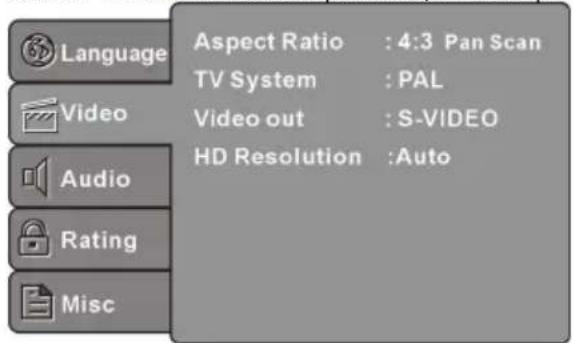
Select Video in the setup menu, and display the Video submenu:
SYSTEM SETUP
Aspect Ratio
Use this option to select the aspect ratio.
Notes:
The image display ratio is related to the recorded disc format. Some disc can not display images in the aspect ratio you choose. If you play a disc recorded in 4:3 format on a wide screen TV, black bars will appear on the left and right side of the screen. adjust the screen setting depending on the type of the television you have.
TV System
Select the desired TV system.
Note: The DVD player setting should be matched to your TV set. For more information of output format, refer to the instructions of your TV set.
Video Out
Select the desired video output format.
HD Resolution
After you set the video output to HD output, you can choose the resolution of HDMI output. Note: the resolution must match with the supported resolution of your tv set
AUDIO SETUP
Select Audio in the setup menu, and display the Audio submenu.
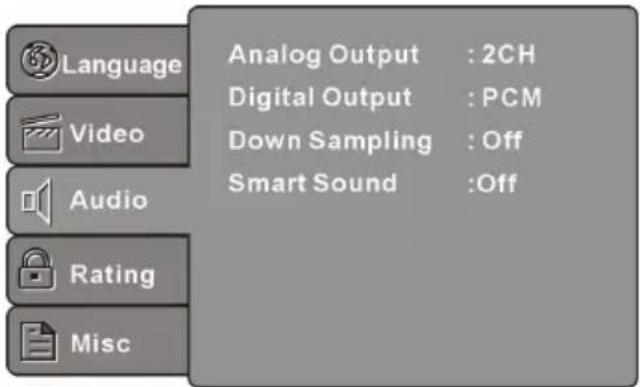
Analog output
Analog out select 5.1CH or 2.0 CH(select down mix) audio output.
Note: This item is only for 5.1ch player.
Digital output
Adjust the audio output on Coaxial ports to work in harmony with the audio equipment (e.g. receiver, amplifier) connected to the player.
Off Digital audio output is disabled.
PCM Transfer stereo 2 channels signals
SYSTEM SETUP
Down sampling
Select down sampling function on or off.
ON: System will down sampling rate for high sampling rate audio(more than 96K).
OFF: Disable this function.
Smart sound
Select different music effect whiling listening music.
RATING SETUP
Select Rating in the setup menu, and display the Rating submenu:
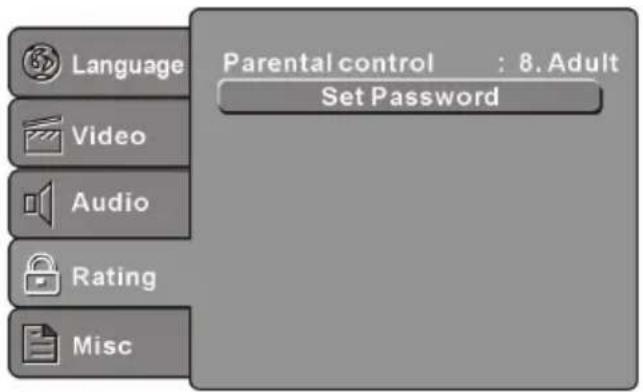
Parental Control
Set the parental control feature of the player
Note: Password is needed before setting Parental Control.
Set Password
Input four digits (password), then press ENTER to confirm.
Note: If you forget your password, please use the universal password 6666 to unlock.
MISC SETUP
Select MISC in the setup menu, and display the submenu:
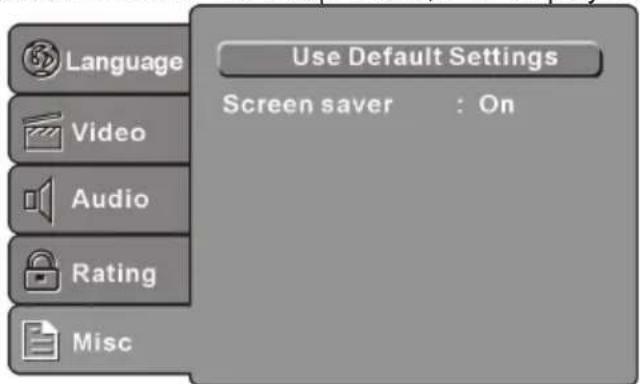
Use Default Settings
Reset setup data to factory default value.
Screen Saver
Enable/disable the screen saver function.
MP3/WMA/JPEG/MPEG4 PLAYBACK
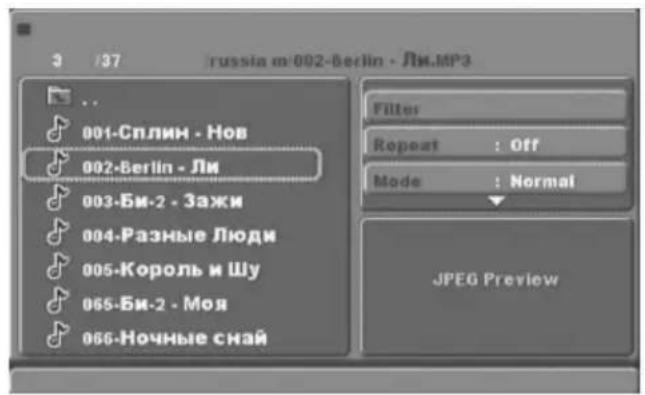
The MP3/WMA/MPEG4 disc has such a directory structure as shown picture above.
Press Direction key to choose the root directory and then press ENTER button to enter the sub directory. Use Direction keys to choose the desired track and press ENTER to play the selected file. To return to the upper menu, press Direction keys and choose 🔒, press ENTER button to go back to the upper menu. Use direction keys to enter the play settings menu (right part of the screen). Open option submenu by pressing OK. Select desired setting and confirm with OK
Option menu
Filter: Allows selecting the categories of files displayed in the browser list.
Repeat: To switch different repeat playing mode
Mode: Select different playing mode as follows:
Normal: Normal playback.
Shuffle: Shuffle mode enabled. When playback reaches the end of the current chapter/track, playback jumps to a random chapter/track
Music Intro: In this mode, the media will play 10 seconds and then skip to next media.
Edit Mode: Use this option to enable programmed playback mode. Select the mode, press LEFT Direction key to directory and press ENTER to choose the desired track and press Add to program to program the playback list.
Program view: Display directory/folder.
Brower view: Display playback list directory.
Add to program: Use this in combination with Edit Mode to create a playlist.
Clear program: When entered the Browser View and in complete stop state(press STOP button twice), use this option in combination with Edit Mode to delete tracks from the playback list.
PICTURE CD PLAYBACK
The PICTURE CD disc has such a directory structure structure as shown in the following picture.
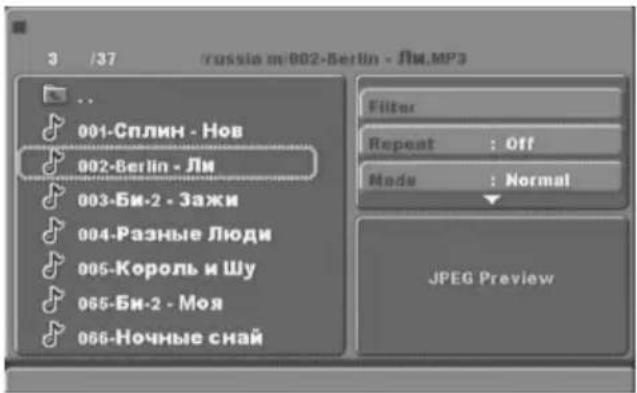
Press Direction key to choose the root directory and then press ENTER button to enter into the sub directory. Press Direction key to choose the desired picture and then press ENTER to open the picture. Once opened a picture the slideshow will start automatically. Press Play/Pause button to pause or resume the playback of the slideshow. To return to the upper menu, press Direction key to choose 📄 the icon and press ENTER button.
Image rotation
In picture play state, press Direction key to rotate the picture, press ANGLE button to change the picture scan mode.
USB, KARAOKE
USB
Before entering USB Mode make sure there is no CD/DVD in the tray, (when there is please remove it). Insert a USB device or MP3 Player in the USB Interface to play the MP3 music or and JPEG files. The controls are equal to playing a disc, see chapter MP3/WMA/JPEG/MPEG4 playback. To open the USB Interface Mode press USB button, use direction buttons to select USB Mode and enter by pressing OK.
Note: Not all USB device can be supported by this system.
KARAOKE
-
Connect the microphone to the MIC jack on the front panel.
-
A. Put the DVD or VCD disc in the tray..
B. Press the KARAOKE button on the remote control to activate the Karaoke function.
Note: Please set karaoke off if you want 5.1CH audio output when playing 5.1CH disc.
Troubleshooting
If you have any questions, please consult the troubleshooting guide below.
NO PICTURE OR SOUND
- Ensure the power button is on.
- Ensure the power outlet is operational.
- Ensure the power cord is not damaged.
- Ensure the power plug is connected firmly to the outlet.
"BAD DISC" DISPLAYED
- Ensure the disc is not warped, damaged or deformed.
- Ensure the disc is not badly stained or damaged.
- Ensure the disc format is compatible with the player.
- Please check whether you have tried to play a software CD. If so, please restart the player.
PICTURE BUT NO SOUND
- Ensure the audio jacks are securely connected.
- Ensure the audio connector is not damaged.
- Ensure the volume is turned up in VOUCH setup.
- Ensure the audio is not set to mute.
- Ensure you have set the player's AUDIO settings correctly. Point the remote control directly at the player's IR
- Ensure you have entered the correct AV input for your TVsensor.
REMOTE NOT WORKING
- Make sure the Main units POWER button is on
- Ensure the remote batteries are working.
- Make sure the Main units POWER button is on
- Ensure the remote batteries are working.
ctlyPoint the remote control directly at the player's IR
TVsensor.
- Remove any obstacles between the remote and the IR sensor.
SOUND BUT NO PICTURE
- Ensure the video jacks are securely connected.
- Ensure you have entered the correct AV input for your TV
- Ensure the video connector is not damaged.
- Ensure you have set the player's VIDEO settings correctly.
UNIT NOT WORKING
- Turn off the power, and then turn it on again.
POOR PICTURE OR SOUND
- Ensure you have set the player's AUDIO settings correct
- Ensure the disc is not scratched or stained.
- Ensure the AV connector or the output terminal is not damaged.
"NO DISC" DISPLAYED
Estly Ensure you have put the disc on the tray.
- Ensure the disc is not upside down.
- Ensure the disc is not distorted, stained or scratched.
Specifications
Power requirements: AC 100-240 Volt, 50/60Hz
Power consumption: 15W
Video standard: NTSC/PAL
Discs Compatibility: MPEG4, DVD, DVD+/-R/RW, VCD, JPEG. CD-DA, CD-R, CD-RW
Video out
Video out: 1.0V(p-p)/75Q, sync, negative polarity
Audio out
Audio out level: 2Vrms -1/+0.2
Frequency response: 20Hz to 20kHz
S/N ratio: >90dB
Total harmonic distortion: <0.025%
Accessories
Remote Control x 1
User's Manual x 1
Note: Specifications are subject to change without notice.
For information and support, www.lenco.eu
If at any time in the future you should need to dispose of this product please note that: Waste electrical products should not be disposed of with household waste. Please recycle where facilities exist. Check with your Local Authority or retailer for recycling advice. (Waste Electrical and Electronic Equipment Directive)

- Content
- Introduction
- Advanced Features
- Others
- Important Safety Instructions
- Caution
- Features
- Front Panel and Rear Panel Illustration
- Front Panel
- Remote Control
- Note:
- Connections
- - CONNECT DVD PLAYER TO TV SET WITH SCART SOCKET
- - CONNECT DVD PLAYER TO TV SET WITH HDMI CABLE
- SYSTEM SETUP
- MENU OPERATION
- LANGUAGE SETUP
- OSD
- Subtitle
- MPEG4 Subtitle
- Audio
- DVD Menu
- VIDEO SETUP
- Aspect Ratio
- Notes:
- TV System
- Video Out
- HD Resolution
- AUDIO SETUP
- Analog output
- Digital output
- Down sampling
- Smart sound
- RATING SETUP
- Parental Control
- Set Password
- MISC SETUP
- Use Default Settings
- Screen Saver
- MP3/WMA/JPEG/MPEG4 PLAYBACK
- Option menu
- PICTURE CD PLAYBACK
- Image rotation
- USB, KARAOKE
- USB
- KARAOKE
- Troubleshooting
- NO PICTURE OR SOUND
- "BAD DISC" DISPLAYED
- PICTURE BUT NO SOUND
- REMOTE NOT WORKING
- SOUND BUT NO PICTURE
- UNIT NOT WORKING
- POOR PICTURE OR SOUND
- "NO DISC" DISPLAYED
- Specifications
- Audio out
- Accessories
- For information and support, www.lenco.eu
Brand : LENCO
Model : DVD-330
Category : DVD player