
Flix Gamepad - Game controller TechBite - Free user manual and instructions
Find the device manual for free Flix Gamepad TechBite in PDF.


| Product Type | Wireless game controller (gamepad) |
| Model | Flix Gamepad |
| Brand | TechBite |
| Connectivity | Bluetooth 3.0, Wired (USB) |
| Battery | Built-in Li-po 600 mAh |
| Power Supply | 5V-500 mA via microUSB |
| Compatible Platforms | Android 7.0+, Android TV 7.0+, Windows 7+, PS3 |
| Charging Time | Not specified; typically 2-3 hours |
| Operating Time | Not specified; depends on usage |
| Connection Modes | Bluetooth (Android, Smart TV), USB wired (PC, PS3) |
| Buttons | R1, R2, L1, L2, SELECT, TURBO, CLEAR, START, X, Y, B, A, HOME, D-Pad, analog sticks (with L3/R3) |
| Special Functions | Turbo mode, mouse simulation, sleep mode, automatic reconnection |
| Indicators | 4 LEDs for connection status and battery |
| Package Contents | Gamepad, microUSB-USB cable, user manual, warranty card |
| Maintenance | Clean with dry soft cloth; avoid liquids and extreme temperatures |
| Safety | Do not use while driving; only qualified personnel for repairs; follow battery disposal guidelines |
| Spare Parts / Repairability | Use only original accessories; contact authorized service center for repairs |
| Manufacturer | mPTech Ltd., made in China |
Frequently Asked Questions - Flix Gamepad TechBite
User questions about Flix Gamepad TechBite
0 question about this device. Answer the ones you know or ask your own.
Ask a new question about this device
Download the instructions for your Game controller in PDF format for free! Find your manual Flix Gamepad - TechBite and take your electronic device back in hand. On this page are published all the documents necessary for the use of your device. Flix Gamepad by TechBite.
USER MANUAL Flix Gamepad TechBite
INSTRUKCJA OBSŁUGI
Flix Gamepad
Nr. partii: 201810
For the sake of your safety, please read this manual carefully.
Manufacturer:
mPTech Ltd.
Manufactured in China
User manual
The actual product, accompanying accessories and some of its features may differ from the presented in this manual images and descriptions. The newest version of the manual is available on the website: www.techbite.eu/qr/flix-gamepad

Safety
Read these guidelines carefully. Not following them may be dangerous or illegal. All wireless devices may cause interferences, which could affect the performance of other devices. Do not switch on the device when the use of mobile phones is prohibited or if it might cause interference or danger. Abide by any kinds of prohibitions, regulations and warnings conveyed by the staff of the site. Do not use this device while driving any kind of vehicle. Only qualified personnel or an authorized service center may install or repair this product. Repairing by an unauthorized or unqualified service may cause device damage and warranty loss. The battery should be used according to its purpose.
Technical Data
| Connection | Bluetooth 3.0, wired (USB) |
| Battery | Built-in Li-po 600 mAh battery |
| Compatible | Android 7.0, Android TV 7.0, Windows 7 or later, PS3 |
| Power supply parameters | 5V-500 mA |
Package content
- Flix Gamepad + microUSB-USB cable
- User manual + Warranty card

If any of the above items is missing or damaged, please contact your dealer. We advise to keep the container in case of any complaints. Keep the container out of reach of children. Dispose of container in accordance with local regulations when it is no longer needed.
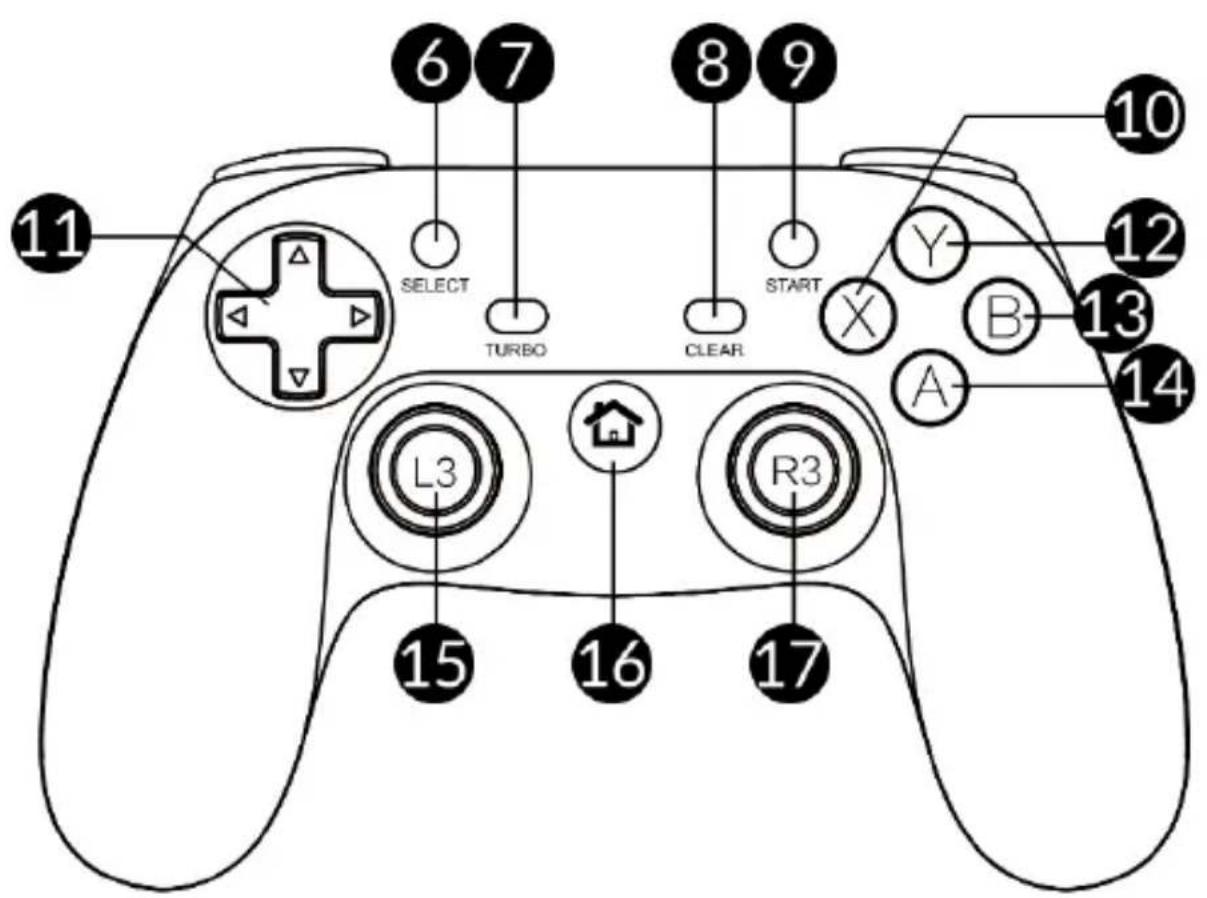
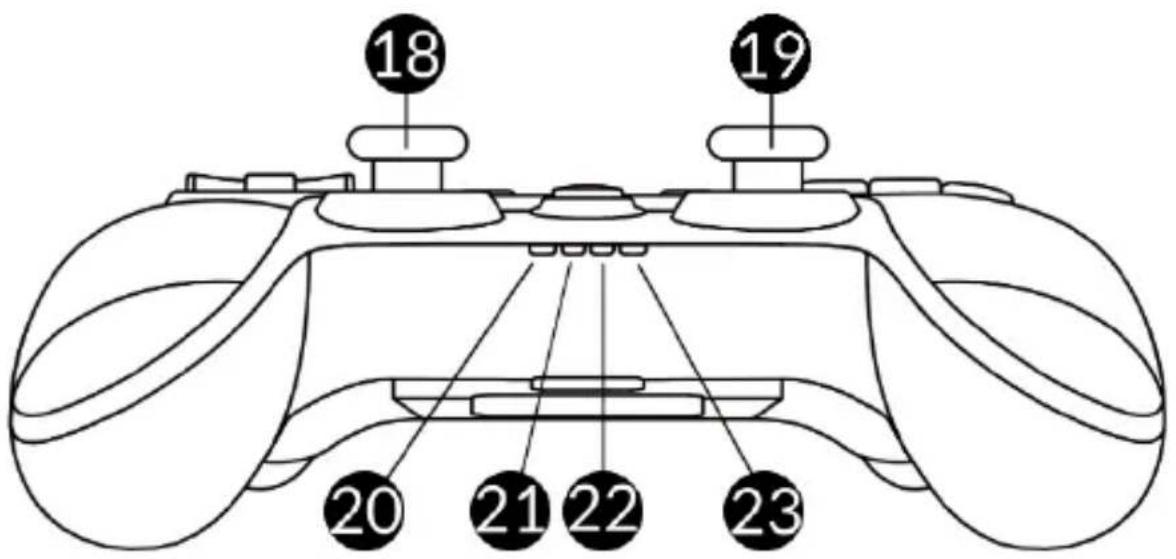
Components of the device
| 1 | R1 button |
| 2 | L1 button |
| 3 | R2 button |
| 4 | MicroUSB port |
| 5 | L2 button |
| 6 | SELECT button |
| 7 | TURBO button |
| 8 | CLEAR button |
| 9 | START button |
| 10 | X button |
| 11 | 4-way D-Pad |
| 12 | Y button |
| 13 | B button |
| 14 | A button |
| 15 | L3 button (after pressing the left analogue controller) |
| 16 | HOME button |
| 17 | R3 button (after pressing the right analogue controller) |
| 18 | Left analogue controller |
| 19 | Right analogue controller |
| 20 | LED1 diode |
| 21 | LED2 diode |
| 22 | LED3 diode |
| 23 | LED4 diode |
© 2018 techBite. All rights reserved.
Flix Gamepad - EN
Before the first start - recharging the battery
Before turning the device on for the first time, charge the battery using the power cord provided. Use only the cable supplied or recommended by the manufacturer. If in doubt, contact your dealer or the manufacturer's service department. The device indicates low battery charge by flashing LED4. To charge the battery, connect the microUSB plug of the cable to the power socket (4) on the device and the USB to a power source (computer, power bank, etc.). When the battery is recharged, LED4 will light up.

Do not use too much force as this may damage the device or power source. The damages resulting from improper handling are not covered by the warranty. The device can heat up during charging. It is a regular occurrence and should not affect the stability or performance of the device. Avoid exposing the battery to very high/low temperatures (below 0^ C/32°F and over 40^ C/104°F). Extreme temperatures may influence capacity and battery life. If the device does not charge properly or there are other problems with the battery, it should be delivered with the power supply to the manufacturer's service center. A single battery charge should not last longer than 1 day. Do not destroy, impair or throw the battery into flames - it is dangerous and may cause fire. Worn-out or impaired battery should be placed in a dedicated container. Please dispose of battery according to the instructions.
Sleep mode
The device goes into sleep mode one minute after disconnection. When connected, it will enter sleep mode after 5 minutes of inactivity.
Android Platform
To connect the gamepad to your Android device via Bluetooth (wired connection will not work) turn on the gamepad by pressing the X and HOME button for 2 seconds. LED1 starts flashing quickly. Turn on the Bluetooth module on your Android device and search for the device with the name "Flix Gamepad" and pair it. When LED1 is on, the connection is active.
Enter/exit mouse simulation mode
Gamepad can be used to simulate a mouse on Android. The left joystick controls the cursor, button A is responsible for the left and button B is responsible for the right mouse button. To activate the mouse mode on the gamepad, press and hold the X button and briefly press the SELECT button. When LED3 lights up, the mode is active. To exit mouse mode, press the button sequence as described above. When LED3 is off, the mouse mode is deactivated.
Smart TV platform/ TV BOX (Android)
To connect the gamepad to a Smart TV system or a TV Box using the Android operating system, turn on the gamepad via Bluetooth (wired connection does not work) by pressing and holding the A and HOME buttons simultaneously for 2 seconds. LED1 will blink. When LED1 is on, the connection is active.
The device may not work with some Smart TV systems.
PC platform (X-Input mode)
The Gamepad can work with PCs only when connected with a microUSB-USB cable (as when charging the battery). The drivers will be installed automatically. In older versions of your system, if automatic installation fails, find a problematic device in Device Manager and choose a driver for it called "XBOX 360 Console Controller for Windows". When LED4 flashes, the gamepad battery is charged, when it lights up permanently, it is fully charged.
PS3 platform
To make the gamepad work in conjunction with the PS3 system, turn it on by pressing and holding down the TURBO and HOME buttons simultaneously for 2 seconds. LED1, LED2 and LED3 will start to flash. Connect the gamepad to the console with a microUSB-USB cable. When LED4 blinks, the gamepad battery is being charged, when it lights up permanently, it is fully charged.
Automatic reconnection
To resume the Bluetooth gamepad when it is switched off, press the HOME button for 2 seconds and the devices should start working together again.
To resume use of the gamepad with the Bluetooth connection when it is on, activate the Bluetooth module in the device, and the device should automatically resume cooperation with the gamepad.
TURBO function
The TURBO function allows for semi-automatic use of buttons - mainly in games like shooters. To use it press one or more buttons (except for D-Pad, analog controllers, SELECT and START buttons), and then press TURBO button. Holding down the programmed buttons will start their automatic pressing and releasing. To return to the previous state, press one or more preset buttons and then press the CLEAR button.
Troubleshooting
If you have any problems with your device, read the following tips and follow the suggestions below.
| I cannot switch the gamepad on. | Check that the gamepad battery is charged. |
| Gamepad does not work in the game | Make sure that the gamepad is turned on and properly connected by wire or wirelessly to the device on which the game has been started.Check if a gamepad support is possible in the game or if devices can cooperate.Check that the appropriate gamepad mode is selected. |
| If the problem persists, contact service center. | |
Maintenance of the device
To prolong the lifespan of the device act according to further instructions. Keep the device and its accessories out of reach of children and pets. Avoid contact with liquids; it can cause damage to electronic components of the device. Avoid very high temperatures for it can shorten the life of device electronic components, melt the plastic parts and destroy the battery. Do not try to disassemble the device. Tampering with the device in an unprofessional manner may cause serious damage to the device or destroy it completely. For cleaning use only a dry, soft cloth. Use the original accessories only. Violation of this rule may result in an invalidation of the warranty.

The packaging of the device can be recycled in accordance with local regulations.
Correct disposal of used equipment

The device is marked with a crossed-out garbage bin, in accordance with the European Directive 2012/19/EU on used electrical and electronic Equipment (Waste Electrical and Electronic equipment - WEEE). Products marked with this symbol should not be disposed of or dumped with other household waste after a period of use. Collecting this type of waste in designated locations, and the actual process of their recovery contribute to the protection of natural resources.
Correct disposal of used battery

According to the EU directive 2006/66/EC with changes contained in EU directive 2013/56/UE on the disposal of batteries, this product is marked with crossed-out garbage bin symbol. This symbol indicates that batteries or accumulators used in this product should not be disposed of together with regular household waste. Users of batteries and accumulators must use the available collection points of these items,
which allows them to return, recycle and disposal.
Declaration of conformity with European Union Directives

mPTech Ltd, hereby declares that the product complies with all relevant provisions of the so called the 'New Approach' Directive of the European Union.
Distributor:
C.P.A. CZECH s.r.o.
U Panasonicu 376
530 06 Pardubice
Česká republika
Bezpečnost
Bezpečnost'
Biztonság
- INSTRUKCJA OBSŁUGI
- Flix Gamepad
- User manual
- Safety
- Package content
- Before the first start - recharging the battery
- Sleep mode
- Android Platform
- Enter/exit mouse simulation mode
- Smart TV platform/ TV BOX (Android)
- PC platform (X-Input mode)
- PS3 platform
- Automatic reconnection
- TURBO function
- Troubleshooting
- Maintenance of the device
- Correct disposal of used equipment
- Correct disposal of used battery
- Declaration of conformity with European Union Directives
- Bezpečnost
- Bezpečnost'
- Biztonság
Brand : TechBite
Model : Flix Gamepad
Category : Game controller