
RoadRunner 525 - Caméra auto PRESTIGIO - Free user manual and instructions
Find the device manual for free RoadRunner 525 PRESTIGIO in PDF.


| Product Type | Car video recorder (dashcam) |
| Display | 3.0 inch, 960 x 240 pixels |
| Image Sensor | OmniVision 2720 2.0 MP 1/5.8 |
| Viewing Angle | 120° |
| Video Resolution | 1920x1080p (30 fps), 1280x720p (30 fps) |
| Photo Resolution | 5 MP |
| Video Codec | H.264 |
| Picture Format | AVI |
| Memory Support | microSD up to 32 GB (Class 6/10 recommended) |
| Microphone | Built-in |
| Motion Detection | Yes |
| G-Sensor | Yes |
| Power Source | Rechargeable battery 300 mAh, car charger (12V) |
| Battery Charging Time | 1-2 hours |
| Interface | Micro USB (charging and data) |
| Dimensions (LxWxD) | 86 x 50 x 37.5 mm |
| Weight | 117 g |
| Loop Recording | 1, 3, 5 minutes or off |
| Time Stamp | Yes (date/time overlay) |
| EV Compensation | -2.0 to +2.0 (13 steps) |
| Audio Recording | On/off via button |
| Emergency Recording | Lock current video with dedicated button |
| Mounting | Suction mount for windshield or dashboard |
| Language Support | Multi-language (selectable in settings) |
Frequently Asked Questions - RoadRunner 525 PRESTIGIO
User questions about RoadRunner 525 PRESTIGIO
0 question about this device. Answer the ones you know or ask your own.
Ask a new question about this device
Download the instructions for your Caméra auto in PDF format for free! Find your manual RoadRunner 525 - PRESTIGIO and take your electronic device back in hand. On this page are published all the documents necessary for the use of your device. RoadRunner 525 by PRESTIGIO.
USER MANUAL RoadRunner 525 PRESTIGIO
About this user manual
This user manual is specially designed to detail the device's functions and features.
- Please read this manual before using the device to ensure safe and proper use.
- Descriptions are based on the device's default settings.
- Prestigio continuously strives to improve its products. Due to software upgrading, some contents in this user manual may be different from your product. Prestigio reserves the rights to revise this user manual or withdraw it at any time without prior notice. Please take your product as standard.
Conventions used in this manual
In this user manual, we use the following symbols to indicate useful and important information:

Caution: provides safety precaution and important information.

Note: gives additional information.

Tips: usage tips.
The order of options or menus you must select to perform a step.
Contents
1. Unboxing.... 1
Inside your package .... 1
Device overview....1
2. Getting started.... 2
Insert a microSD card....2
Install the suction mount....2
Charge the battery....3
3. Settings 4
Video settings 4
Picture settings....4
General settings 4
4. Recording 5
Record a video....5
Take a picture .... 5
5. File management 6
Browse files....6
Delete a file....6
Lock and unlock a file ....6
6. Playback 7
Play video on DVR....7
Playback on PC....7
7. Specifications 7
1. Unboxing
Inside your package
1
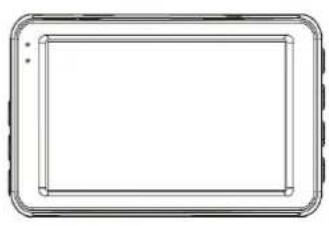
natural_image
Simple line drawing of a rectangular device with rounded corners and a horizontal centerline (no text or symbols)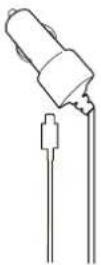
natural_image
Line drawing of a mechanical device with a base, wheels, and a knob (no text or symbols)
- Car video recorder
- Car charger
- Quick start guide
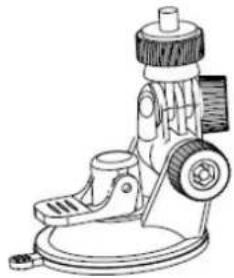
- Suction mount
- USB cable
- Warranty Card
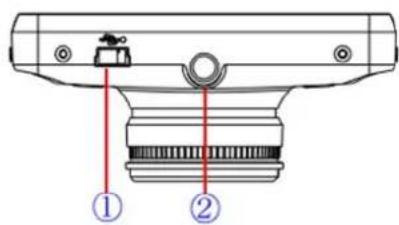
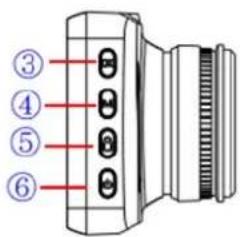
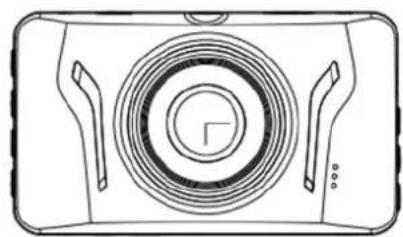
Device overview
natural_image
Line drawing of a camera lens with concentric rings and two handles (no text or symbols)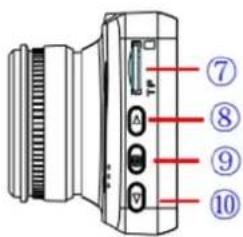
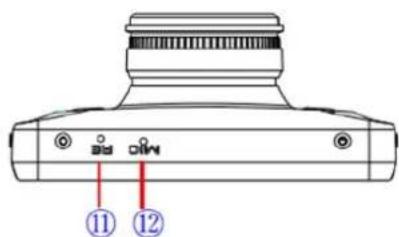
① USB interface
② Bracket hole
③ Record/Playback/OK button
④ Menu button (Hereinafter referred to as M Button)
⑤ Emergency recording
⑥ Power button
⑦ TF card slot
⑧ up button
⑨ Mode button
⑩ down button
⑪ Reset
⑫ MIC
2. Getting started
Insert a microSD card
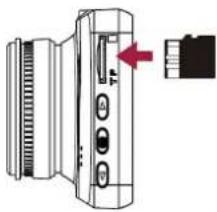
Before starting video recording, please insert a microSD card (not included) into the slot until it locks in place.
natural_image
Diagram of a device with ports and a red arrow pointing to a connector (no text or symbols present)

The device will automatically recognize it as default storage and all the data will be saved on this card.
Install suction mount
flowchart
graph TD
    A["Camera with left-angle sensor"] --> B["Actuator with rotary knob"]
    B --> C["Connect the holder"]
    C --> D["Close-up of monitor"]
    D --> E["Adjust the angle"]
    E --> F["Close-up of monitor"]
    F --> G["Turn the rotary knob to fasten"]
    G --> H["Close-up of monitor"]
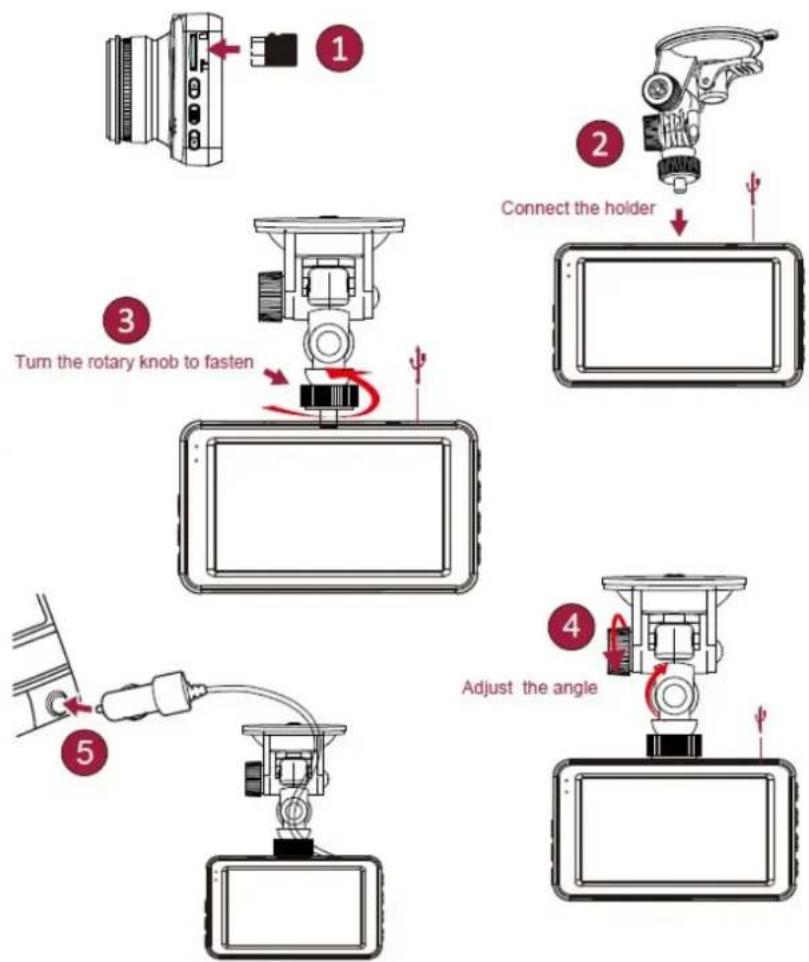
- Follow the arrow pointing direction to insert the suction mount and lock the device into its holder
- Remove the protection paper from the suction mount, and position the device on the clean windshield or dashboard.
Charge the battery
Before using the device for the first time, please fully charge the Li-ion battery. The battery will be completely charged in 1-2 hours.
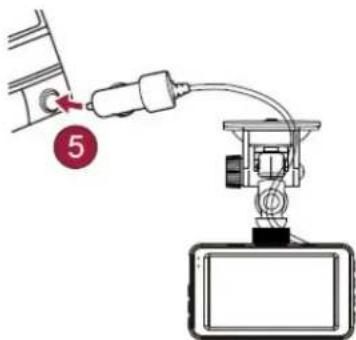
- Using the car charger: charge the device through cigarette lighter. The device will start charging after the car engine is turned on.
- Using micro USB cable: connect the device to AC 5V adapter or the USB port of a computer/laptop.
3. Settings
Before recording, you can set up the device according to your requirements.
- In video/picture preview mode, press [MENU] to enter video/picture settings, press [Set up] go the general settings, press [MENU] two time to exit.
- In setting list, use [▲]/[▼] to navigate the menu, press [OK] to get the options and confirm the selection, press [MENU] to exit.

Video Settings
Size: Select the resolution to record video 1080p30, 720p30.
Time Stamp: Add date and time stamp into video.
Loop Recording: Set the video duration (1, 3, 5 minutes or off) for loop recording. When the microSD card is full, the device will delete the oldest unlocked video file automatically.
Audio Record: on/off.
EV: Exposure compensation. Select from EV-2.0, EV-5/3, EV-4/3, EV-1.0, EV-2/3, EV-1/3, EV0.0, EV+1/3, EV+2/3, EV+1.0, EV+4/3, EV+5/3, EV+2.0.
Motion Detection: Turn on or off motion detection. If there is any motion detected while the car engine is stopped, your car DVR will start recording automatically.
Setup: Press setup to enter to General Settings.
Picture Settings
Press mode button to enter Picture Settings.
Size: Select the picture image size from 3MP, 5MP.
Time Stamp: Select the time stamp format: off, Date only, Date&time.
Loop Settings: Select the time length between photo shootings: Single, 1Mlin, 3Min, 5Min.
Setup: Press setup to enter to General Settings.
General Settings
Format: Format the memory card.
Formatting will erase all your stored data. Back up your data before proceeding.
Language: Choose your language.
Beep: Switch on/off key tone.
Auto Off: Set automatic power off when the device is not in use: 5min, 3min, 1min or off.
Screen Off: Set screen saver time: 5min, 3min, 1min or off.
Power Delay: Set delay power off time: 10sec, 20sec, 30sec or off
G-sensor: Select the sensitivity of the G-sensor.
Light Frequency: For a given luminance, the frequency of light fluctuation that evokes a sensation of flicker. Set a right flickering frequency to avoid horizontal stripe interference.
Date Format: Select date format.
Date Input: Set date on device.
Time Input: Set time on device.
System Reset: Reset the system to the factory setting.
FW Version: Display the current system version.
4. Recording
Record a video

Auto video recording
Connect the device to car charger, when the car engine launches, the device will automatically turn on and start loop video recording. When shut off the car engine, the device will save the last file and turn off.
Manual video recording
In video preview mode, press [OK] button to start and stop video recording.
Record the sound
In preview mode or recording mode, press[ ▲][MENU] to turn on or off the sound.
Emergency video recording
During recording, press [Emergency video recording] to lock the video
Take a picture
Press [MODE] to select the picture mode, and then press [OK] to take photos.
5. File management
You can manage your videos and pictures in playback mode.
5
Browse files
- In video preview mode, press [MODE] two times to enter the playback mode.
- Press [▲]/[▼] to scroll through the files.
Delete a file
Press [MENU] to delete one file or all the files, and press [OK] to confirm the deletion.

To delete a protected file, remove the protection first.
Lock and unlock a file
Press [MENU] to protect or unprotect the selected file or all.
6. Playback

Play video on DVR
- In playback mode, press [▲]/[▼] to scroll through the files.
- Press [OK] to start/Pause playback.
- Press [MODE] again to exit playback mode.
Playback on PC
- Remove memory card from DVR and insert it into computer's card reader.
(DVR's USB port data transmission OFF: for charging purpose only)
- Connect DVR to PC
( DVR's USB port data transmission ON: for charging and data transmission )

There are two versions for DVR's port, please choose a method according real function
7. Specifications

Display 3.0", 960 x 240 pixels
Image sensor OmniVision 2720 2.0PM 1/5.8
View angle 120°
Video resolution 1920x1080p (30 fps) 1280x720p (30 fps)
Photo resolution 5 MP
Video codec H.264
Picture format AVI
Memory Up to 32 GB (microSD class 6 or 10 recommended)
Microphone Built-in
Motion detection Yes
G-sensor Yes
Power source Detachable rechargeable battery 300mAh, car charger
Interfaces Micro USB
Dimension 86 x 50 x 37.5 mm (Lx W x D)
Weight 117g