
StrongPhone X5 - Smartphone Evolveo - Free user manual and instructions
Find the device manual for free StrongPhone X5 Evolveo in PDF.


| Product Type | Smartphone |
| Brand | Evolveo |
| Model | StrongPhone X5 |
| Network | GSM 900/1800 MHz |
| SIM Card | Dual SIM (miniSIM), dual standby |
| Display | 2.4" color LCD, 240x320 pixels |
| Camera | 0.3 MP |
| Bluetooth | V3.0 |
| FM Radio | 87.5-108.0 MHz |
| Memory Card | MicroSD up to 32 GB |
| Battery | Li-Ion 2500 mAh, replaceable |
| Water and Dust Resistance | IP68 (1.5m, 60 min fresh water) |
| Operating Temperature | 0°C to 40°C |
| Storage Temperature | -20°C to 45°C |
| Charging Port | USB-C |
| Headphone Jack | 3.5mm |
| SOS Button | Yes |
| Flashlight | Yes (long press 0 key) |
| Keypad | Full numeric keypad |
| Messaging | SMS |
| Profiles | Normal, Silent, Meeting, Outdoor |
| Organizer | Calendar, Alarm, Calculator, Notes, SOS settings |
| File Manager | Yes |
| Languages | Multiple (set in settings) |
| Warranty | See manual for conditions |
Frequently Asked Questions - StrongPhone X5 Evolveo
User questions about StrongPhone X5 Evolveo
0 question about this device. Answer the ones you know or ask your own.
Ask a new question about this device
Download the instructions for your Smartphone in PDF format for free! Find your manual StrongPhone X5 - Evolveo and take your electronic device back in hand. On this page are published all the documents necessary for the use of your device. StrongPhone X5 by Evolveo.
USER MANUAL StrongPhone X5 Evolveo
SAFETY WARNINGS AND INSTRUCTIONS .....4
SAFETY WARNINGS AND INSTRUCTIONS
(BATTERIES): 7
PACKAGING CONTENT......7
SPECIFICATIONS 8
DESCRIPTION OF INDIVIDUAL PARTS ......9
BEFORE FIRST USE 14
SERVICE....14
BASIC FUNCTIONS....16
PROFILES....19
SETTINGS 20
MULTIMEDIA 21
PHOTOS....21
FM RADIO 22
FILE MANAGER 22
ORGANIZER....23
SOS SETTINGS 23
CALENDAR....24
BUDÍK....25
CALLER 25
NOTES 26
CLEANING AND MAINTENANCE 26
WELCOME TO THE EVOLVEO FAMILY OF PRODUCTS
- Before putting this product into operation, please read this entire user manual carefully through to the end, even if you are familiar with the use of a similar type of product in the past.
- Keep this user manual for future reference - it is an integral part of the product and may contain important instructions on commissioning, operation and care of the product.
- Make sure that other people who will be using this appliance read this user manual.
- If you give, donate or sell this appliance to others, please give them this user manual together with this product and remind them to read it.
- During the warranty period, we recommend keeping the original packaging of the product - this will protect the appliance in the best possible way during transport.
THE MOST UP-TO-DATE VERSION OF THE USER MANUAL
Due to the ongoing innovation of EVOLVEO products and changes in legislation, you can always find the most up-to-date version of this user manual on the website www.evolveo.cz or by simply scanning the QR code shown below with your mobile phone:
SAFETY WARNINGS AND INSTRUCTIONS
- The EVOLVEO StrongPhone X5 is designed to be significantly more durable than a regular mobile phone, but it is not indestructible.
- The EVOLVEO StrongPhone X5 mobile phone is IP68 certified. However, even this standard does not guarantee complete watertightness of the device.
- The phone is waterproof and dustproof provided the following conditions are met: the back cover is tightly
closed; the phone is not submerged more than 1.5 metres for more than 60 minutes; the water must be fresh. Occasional use in chlorinated swimming pools is possible provided you rinse the phone with clean water afterwards. Do not use in seawater or saltwater pools. Improper use of the equipment will void the warranty.
- Prolonged exposure to metal filings and other metal particles can damage, for example, the speaker or earpiece and is not covered by the warranty.
- This phone is a complex electronic device, so protect it from shocks and magnetic fields.
- Due to many different uses, such as whether or not the back cover is properly closed, we are not responsible for liquid damage.
- The phone's display is made of tempered glass, which can crack if dropped on a hard surface, if subjected to a strong impact, or if the display is bent or otherwise deformed. If the display is damaged, do not attempt to repair it. Glass cracked due to misuse or abuse is not covered under warranty.
- Clean your phone immediately if it comes into contact with products that can cause stains, such as ink, dyes, make-up, food, oil, etc.
- Do not use window cleaners, household cleaners, aerosol sprays, solvents, alcohol, ammonia or abrasives.
- If your phone falls into water, do not press the buttons, wipe it immediately with a dry cloth and let it dry freely before switching it back on.
- Do not attempt to dry your phone with an external heat source such as a microwave or hair dryer.
- The phone is designed to operate in temperatures from 0^ to 40^ C and can be stored in temperatures from -20^ to 45^ C. Lower or higher temperatures can affect the phone's behaviour and battery life.
- Do not use your phone outdoors during a storm, we are not responsible for any damage to your device or health related to this use.
- Do not pierce the speaker, insert objects into the holes, or paint the phone - all of these activities affect the functionality and tightness of the phone.
- EVOLVEO StrongPhone X5 has been tested in accordance with EU standards for radio waves, WiFi and Bluetooth. If you want to limit the effect of radio frequency energy, limit the time of direct exposure to the radiation, e.g. by using a Bluetooth handsfree kit, or keep a greater distance between your body and the phone.
- Never repair your phone yourself, as disassembling your phone, including removing external screws, may cause damage that is not covered by the warranty.
- Importers, distributors and resellers are not liable for any loss of data or direct or indirect damage caused by the operation of the phone, however caused.
SAFETY WARNINGS AND INSTRUCTIONS (BATTERIES):
- Keep the batteries out of the reach of children. In their presence, they can pose a danger. If the child swallows the battery, seek medical attention immediately.
- If you will not be using the appliance for a longer period of time (more than 3 months), remove the batteries from the appliance, otherwise there is a risk of them leaking into the battery compartment and irreparably damaging the product.
PACKAGING CONTENT
- StrongPhone X5
- Batteries
- Charging adapter
- User manual
- Quick User Guide
SPECIFICATIONS
- Phone frequency: GSM 900, 1800 MHz
- SIM cards: 2 SIM (miniSIM). Two SIM cards in standby mode
- News: SMS
- Bluetooth: V3.0
- Display: 2.4", colour LCD display, 240x320 px
- Camera: 0.3 MPx
- FM radio: 87.5-108.0 MHz
- Micro-SD: Up to 32 GB
- Batteries: Li-Ion, 2500 mAh
Degree of protection against electric shock:
Class III - Protection against electric shock is provided by safe low voltage.
DESCRIPTION OF INDIVIDUAL PARTS
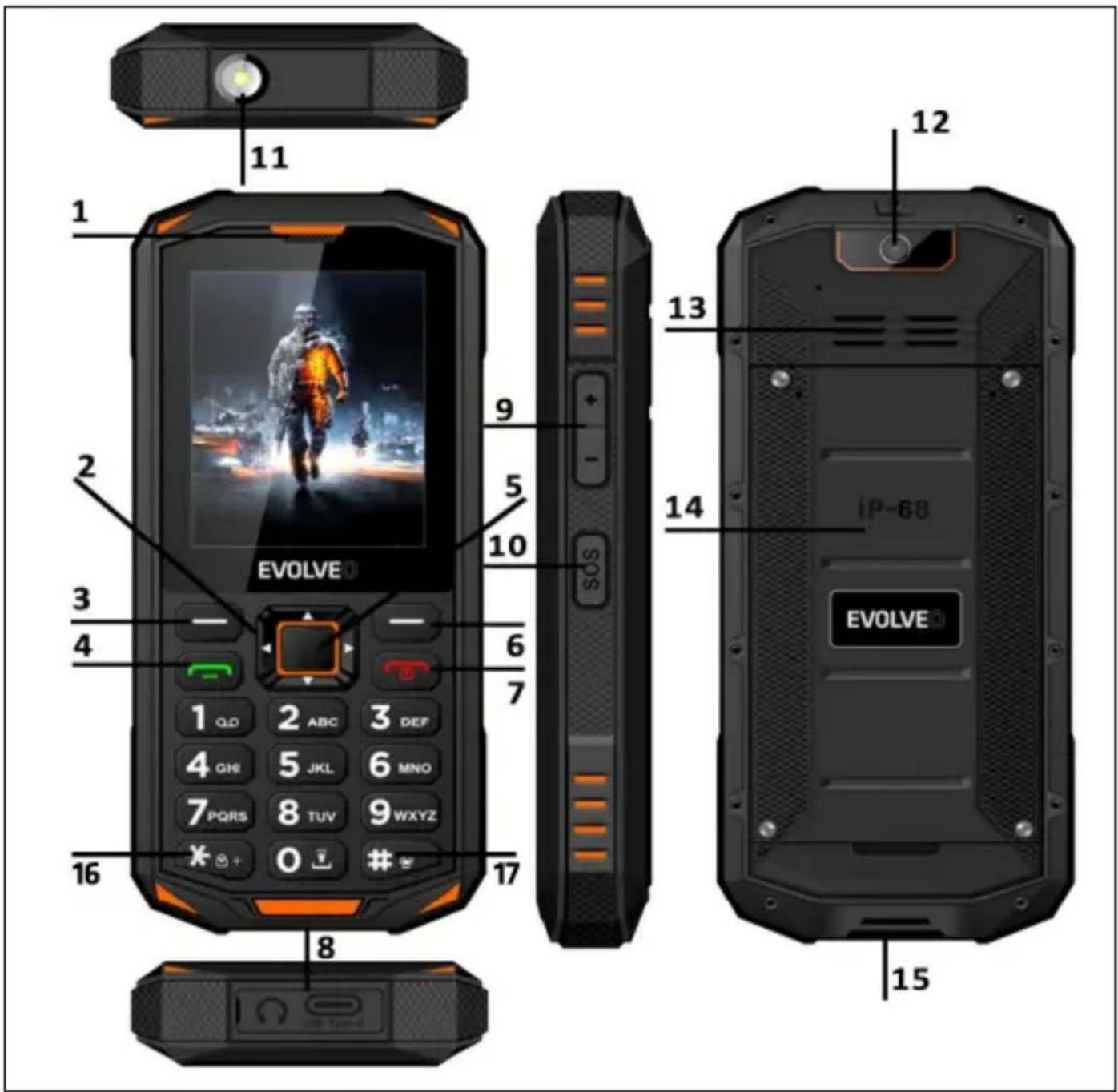
| 1 | Handset (receiver) | 10 | SOS button |
| 2 | Control buttons(right/left/up/down) | 11 | Flashlight |
| 3 | Left function button | 12 | Camera |
| 4 | Call button | 13 | Speaker |
| 5 | Central button (OK) | 14 | Battery cover |
| 6 | Right function button | 15 | Hole for lanyard |
| 7 | End of call button (on/off) | 16 | # button |
| 8 | Cover with USB-Ccharging port and3.5 mm Jack port | 17 | The * button |
| 9 | Volume buttons |
| PRINTS | FEATURES |
| Left function button (3) | Press this button to enter the standby menu. You start the function, which is immediately displayed in the bottom left corner of the screen. |
| Right function button (6) | Press this button to go to the contact list. You will go back to the previous menu. Delete the information you have written down. |
| Call button(4) | Press this button to start a call to the selected phone number. You will receive an incoming call.In standby mode, you can access your call history. |
| End of call button (7) | Switching off the phone: Hold the standby button longer to turn off the phone. Switching on your phone: Press and hold the button for a longer time to switch the phone back on. Press this button to return to standby mode. Press this button to end the call. Press on the main screen to turn off the display and lock the keyboard. |
| Control and central buttons (2, 5) | You can move up and down, left and right in the menu. On the home screen, you will find quick access functions that can be set freely. The middle button is used to confirm an action or enter the menu. |
| * button (17) | Press the "*" button twice in standby mode to enter the "+" symbol forinternational calls. In text writing mode, it allows you to insert special characters |
| Button 0 - flashlight | Long press the button to switch the flashlight on/off |
| Button # (16) | Switches the way you enter characters in text mode. Change profiles (long press). |
| SOS button (10) | Long press the button to activate the SOS alarm |
| ICON | IMPORTANCE |
 | GSM network signal strength |
 | Battery level display |
 | New report |
 | Missed calls |
 | Inserted memory card |
 | The alarm is on |
 | Normal profile is on |
 | Silent profile is on |
 | Meeting profile is on |
 | Outdoor profile is on |
 | The keyboard is locked |
 | Bluetooth is active |
BEFORE FIRST USE
1) Check the product for protective stickers, films or other materials designed only for transport to the customer to protect the phone from scratches or other damage. Remove such before use.
SERVICE
BATTERY INSERTION
Follow these instructions to correctly and safely insert the battery into your phone.
- Remove the four screws on the battery cover and insert the battery. Make sure the battery is aligned correctly.
- Put the battery cover back on your phone.
-
Check that the rubber seal is correctly fitted.
-
Screw the four screws on the battery cover until they are tight.
INSERTING A SIM CARD AND A MICROSD MEMORY CARD
- Remove the four screws on the battery cover.
- Remove the battery cover.
- Remove the battery.
- Insert the SIM card(s) / MicroSD card into the slot marked SIM 1(2) / MicroSD.
- Check that the rubber seal is correctly fitted.
- Screw the four screws on the battery cover until they are tight.
BATTERY CHARGE
Connect the charger to the USB connector. Charging starts automatically. The phone can be charged both on and off
Condition. The battery level is indicated on the phone screen.
SWITCHING YOUR PHONE ON/OFF
Press and hold the end of call button (7) for 3 seconds.
UNLOCKING/LOCKING THE KEYPAD
To wake up your phone, press the left function button (3) or the end call button (7). Then press the left function button (3) and then the * button (17) to unlock. To lock the keypad, press the end of call button (7) briefly. You
can set the keypad to lock automatically in Menu/Settings/Phone settings/Show properties/Automatic keypad lock
CALLING
Enter the desired number on the keypad and then press the green button (4) to make the call.
To answer an incoming call, press the green button (4). To reject the call, press the red button (7).
To adjust the volume during a call, use the Up/Down navigation button (2).
BASIC FUNCTIONS
NEWS
Your phone can receive and send SMS text messages. Use the Left navigation button (2) or the Left function button (3) /Menu/Messages to enter the menu. From the Messages menu, you can write text messages, view, reply to, forward and delete received and sent text messages, write message concepts and make other settings.
PHONE BOOK
From this menu, you can edit contacts, e.g. add a new contact, move, copy or delete existing contacts. You can also set speed dials for numbers 2-9.
To access the menu, use the right function key (6) Names or the left function key (3) /Menu/Phone list.
ADDING A PHONE NUMBER TO THE PHONE BOOK
- Go to Phonebook → Add new entry.
- Select the storage (On SIM or To phone).
- Enter your name and phone number.
- Press the left function button (3) and select Option → Save or Cancel, or press the central button (5) and save directly.
SPEED DIAL SETTINGS
If you want to dial certain phone numbers even faster, you can assign contacts from the phone book to each of the 2-9 buttons.
- Go to Phonebook/Options/Contact settings/Speed dial/Status/Disabled.
- Select Phonebook/Options/Contact settings/Speed dial/Number settings to assign speed dial numbers to contacts already stored in the phonebook.
STATEMENT OF TALKS
Use the Left function key (3) /Menu/Call list to access the menu.
CALL HISTORY
Here's a list of your Missed Calls, Called Calls, Received Calls and All Calls. Press LFT (3) to open various options, e.g. View, Call, Send text message, Save to contacts, Add to blocked, Delete.
CALL SETTINGS
Press the left function key (3) to open the settings for each of your SIM cards, such as call waiting and call forwarding, and you can also select the answer mode and set blocked numbers.
Call waiting: Specify whether to signal a new incoming call with a call waiting tone when a call is already in progress.
- Go to Call history/Call settings/SIM 1 (SIM 2)/Call waiting
- Select Activate or Deactivate to save the settings.
- You need to check if the service is available.
To enable the service, contact your mobile service provider. Please note that the range of available features may vary depending on your mobile service provider.
CALL FORWARDING
Determine whether and in what situations incoming calls to your mobile phone should be forwarded to another designated phone number.
- Go to Call listing/Call settings/SIM 1 (SIM 2)/Call forwarding
- Select the desired call forwarding settings
- Select Activate/To new number to forward your calls to.
- You can also Activate/Do voicemail
Confirm with Options/Ready and the settings will be saved.
BLOCKED NUMBERS - BLACKLIST
You can block up to 20 phone numbers. If you use this feature, you will not be able to reach the phone numbers in the blocked numbers list. The caller will automatically receive a signal that your number is busy.
ADD A PHONE NUMBER TO THE BLOCKED NUMBERS
- Go to Call listing/Call settings/Advanced settings/Blacklist.
- Enter the phone numbers you want to add to the blocked numbers.
- Confirm by pressing Option/Finish and the settings will be saved.
PROFILES
This mobile phone offers several profiles: Main, Silent, Meeting, Outside. You can tailor the settings to specific events or environments.
Here is a customization of Normal mode for demonstration.
- To enter the menu, use the left function button (3) /Menu/Profiles/Main/Options/Activate
- In the Customize menu, you can adjust the settings: notification type, ring type, ring volume, button tone volume, call and SMS ringtone settings for each SIM card
SETTINGS
Left function button (3) /Menu/Settings
Phone settings
- Time and date:
- Language: set the language of your phone
- Typing language: setting the language when typing
- Display: allows wallpaper setting, screen lock, keypad and LCD backlight, date and operator display on the home screen
- Dedicated keys (2): Allows 4 directional keys to be set up for ease of access
- Scheduled switch-on: Two scheduled times can be set to turn the phone on or off
SECURITY SETTINGS
SIM card and phone security settings.
DUAL SIM SETTINGS
Enables Dual SIM and flight mode (airplane mode) settings
CONEKTIVITY
Allows Bluetooth and network settings.
RESTORING FACTORY SETTINGS
The default password is 0000. Keep in mind that once you restore the factory settings, everything you have stored on the device will be erased!
MULTIMEDIA
Your mobile phone can display and play various forms of multimedia content (photos, music and videos). Various applications are available.
- Use the left function button (3) /Menu/Multimedia to enter the menu
- To play music stored on your device or on a micro-SD memory card, select Audio player.
- To view the photos stored on your device or micro-SD memory card, select Image Viewer.
- To play videos stored on your device or on a micro-SD memory card, select Video player.
- Select VCR to record a video file
- Select Sound Recorder to record an audio file
PHOTOS
Use the left function button (3) /Menu/Multimedia/Camera to access the menu
The camera supports the shooting function, you can take photos by pressing the navigation button. Insert a microSD memory card into your mobile phone before using the camera.
FM RADIO
The mobile phone is equipped with an integrated radio that allows you to receive FM radio stations.
- Use the left function button (3) /Menu/FM radio to enter the menu
- Go to FM Radio/Options where you can either manually enter or automatically search for a channel, set to play in the background.
- Press the navigation button to switch on or pause the radio.
- Press the * (17) and # (16) buttons to adjust the volume.
- Use the right and left navigation buttons to switch to the previous or next available channel.
- Use the up and down buttons to increase or decrease the frequency value.
FILE MANAGER
Use the file manager to manage your files as needed. View, copy, move and perform other maintenance operations on files such as pictures, videos, music and apps stored on your phone or microSD card.
Use the left function button (3) /Menu/File Manager to enter the menu
ORGANIZER
Use the left function key (3) /Menu/Organiser to enter the menu
SOS SETTINGS
This mobile phone is equipped with an SOS function - if you long press the side button and hold for 1.5 seconds, the phone will automatically call and/or send a text message to your selected emergency contacts. If no SOS number is set, the "No emergency SOS number" warning will be displayed. Then you should first set up emergency contacts.
- To access the menu, press Menu/Organiser/SOS Settings
- Press SOS Number - Press the navigation button to select a contact from the phone book, or press the left button to enter a phone number. There are 5 numbers available in the list.
- Select SOS SMS content to set the SMS content and whether to send an SOS message after an emergency call.
SOS will be stopped if any person answers the call or if no person answers the call even after the third dial.
Important Notice: The phone is equipped with the function of sending the approximate location of the phone
via SOS message after triggering the SOS alarm. The phone uses the GSM mobile network to determine its location. The accuracy of positioning depends on the density of GSM network coverage - in cities the accuracy is tens to hundreds of metres, outside cities the accuracy is significantly lower.
There is no guarantee for this service and the accuracy of the results or availability of the service is in no way guaranteed by the phone supplier, operator or map provider. The service may be terminated at any time without notice.
CALENDAR
Use Calendar to create and manage events, appointments and visits.
- Go to Organizer/Calendar and the current month with the days of the week will appear.
- Use the navigation buttons to navigate horizontally and vertically.
ADDING AN EVENT TO THE CALENDAR
- Press the left function button (3) to open the main menu.
- Go to Calendar/Choices/Add Event.
- Enter the subject of the event - enter the date and time of the event - set the event type, reminder, recurrence method, event location, event description and save.
BUDÍK
Five deactivated alarms are set by default. You can activate one, more or all of them as required. You can customize the settings for each alarm.
- Go to Organiser/Alarm clock/Select alarm settings/Edit
- Select Status/On to turn it on.
- Enter the desired time.
- Select the number of repetitions: Once/Every day/Own
- Select the alarm tone, five ringtones are available
- Save the selected settings.
CALLER
The phone's handy built-in calculator allows you to perform basic mathematical operations.
- Go to Organizer/Calculator.
- Enter numbers using the numeric keypad.
- Press the appropriate button for the arithmetic operation
- Press the navigation button (5) for the result.
- Press the * button to insert a decimal point
- Press the # key to insert 00
- Press the left function key (3) to delete the numbers.
NOTES
- Go to Organiser/Notes.
- Enter a note and save.
CLEANING AND MAINTENANCE
Clean with a soft, lint-free cloth. Do not use detergents or solvents to clean the equipment.
The warranty does NOT cover:
- Installing firmware other than the one originally installed on the EVOLVEO phone.
- Electrical or mechanical damage to your phone caused by improper use (e.g. cracked display, cracked front or back cover, damaged USB power connector, SIM card slot, microSDHC card slot, headphone input, etc.)
- Damage to the speaker and headphones caused by metal particles.
- Damage from natural influences such as fire, water, static electricity, high temperature.
- Failures caused by normal wear and tear.
- Damage caused by repairs carried out by an unqualified person
- Your phone's firmware, if it needs updating due to changes in mobile network parameters.
-
Mobile network failures
-
The battery if it does not retain its original capacity after 6 months or more (the battery capacity warranty is 6 months).
- Intentional damage.
Warranty and post-warranty service
Repairs and servicing can only be carried out at an authorized service point for EVOLVEO products (more at www.evolveo.com), otherwise you may damage your mobile phone and lose your warranty.

Disposal: The crossed-out container symbol on the product, in the accompanying documentation or on the packaging means that in EU countries, all electrical and electronic equipment, batteries and accumulators must be disposed of separately at the end of their useful life as separated waste. Do not dispose of these products in unsorted municipal waste.

DECLARATION OF CONFORMITY
Abacus Electric, s.r.o. hereby declares that the EVOLVEO StrongPhone X5 meets the requirements of the standards and regulations that are relevant for the type of device.
The full text of the Declaration of Conformity can be found at http://ftp.evolveo.com/ce/
Importer / Manufacturer
Abacus Electric, s.r.o.
Planá 2, 370 01, Czech Republic
Made in China
Copyright © Abacus Electric, s.r.o.
www.evolveo.com
www.facebook.com/EvolveoCZ
All rights reserved. The appearance and technical specifications of the product are subject to change without notice.

- WELCOME TO THE EVOLVEO FAMILY OF PRODUCTS
- THE MOST UP-TO-DATE VERSION OF THE USER MANUAL
- SAFETY WARNINGS AND INSTRUCTIONS
- SAFETY WARNINGS AND INSTRUCTIONS (BATTERIES):
- PACKAGING CONTENT
- SPECIFICATIONS
- Degree of protection against electric shock:
- DESCRIPTION OF INDIVIDUAL PARTS
- BEFORE FIRST USE
- SERVICE
- BATTERY INSERTION
- INSERTING A SIM CARD AND A MICROSD MEMORY CARD
- BATTERY CHARGE
- SWITCHING YOUR PHONE ON/OFF
- UNLOCKING/LOCKING THE KEYPAD
- CALLING
- BASIC FUNCTIONS
- NEWS
- PHONE BOOK
- ADDING A PHONE NUMBER TO THE PHONE BOOK
- SPEED DIAL SETTINGS
- STATEMENT OF TALKS
- CALL HISTORY
- CALL SETTINGS
- CALL FORWARDING
- BLOCKED NUMBERS - BLACKLIST
- ADD A PHONE NUMBER TO THE BLOCKED NUMBERS
- PROFILES
- SETTINGS
- SECURITY SETTINGS
- DUAL SIM SETTINGS
- CONEKTIVITY
- RESTORING FACTORY SETTINGS
- MULTIMEDIA
- PHOTOS
- FM RADIO
- FILE MANAGER
- ORGANIZER
- SOS SETTINGS
- CALENDAR
- ADDING AN EVENT TO THE CALENDAR
- BUDÍK
- CALLER
- NOTES
- CLEANING AND MAINTENANCE
- The warranty does NOT cover:
- Warranty and post-warranty service
- DECLARATION OF CONFORMITY
Brand : Evolveo
Model : StrongPhone X5
Category : Smartphone