
StrongPhone W4 - Smartphone Evolveo - Free user manual and instructions
Find the device manual for free StrongPhone W4 Evolveo in PDF.


| Product Type | Smartphone |
| Brand | Evolveo |
| Model | StrongPhone W4 |
| Dimensions (H x W x D) | 158 mm x 77 mm x 14 mm |
| Weight | 240 g |
| Display | 5.0-inch IPS LCD |
| Resolution | 1280 x 720 pixels |
| Processor | Quad-core 1.3 GHz |
| RAM | 2 GB |
| Internal Storage | 16 GB (expandable via microSD) |
| Battery | 4000 mAh, removable |
| Operating System | Android 10 |
| Rear Camera | 8 MP |
| Front Camera | 2 MP |
| Connectivity | 4G LTE, Wi-Fi 802.11 b/g/n, Bluetooth 4.0, GPS |
| Water Resistance | IP68 |
| Main Functions | Dual SIM, NFC, rugged design |
| Maintenance | Wipe with a dry cloth; do not use aggressive chemicals |
| Safety | Do not expose to extreme temperatures or moisture |
| Spare Parts and Repairability | Screen and battery replaceable; service center available |
| General Information | User manual in PDF format at notice-facile.com |
Frequently Asked Questions - StrongPhone W4 Evolveo
User questions about StrongPhone W4 Evolveo
0 question about this device. Answer the ones you know or ask your own.
Ask a new question about this device
Download the instructions for your Smartphone in PDF format for free! Find your manual StrongPhone W4 - Evolveo and take your electronic device back in hand. On this page are published all the documents necessary for the use of your device. StrongPhone W4 by Evolveo.
USER MANUAL StrongPhone W4 Evolveo
EN
Table of Contents
Overview....3
Inserting the battery ....4
Insert a SIM card and a MicroSD memory card ..5
Switching on your mobile phone....5
Basic functions....6
Status bar ....7
Overview of the most important features .....7
Maintenance instructions .... 18
Overview
In the following picture you can see a detailed overview of the parts of your mobile phone.
ATTENTION! If you insert an accessory into the wrong socket, you can damage your phone.
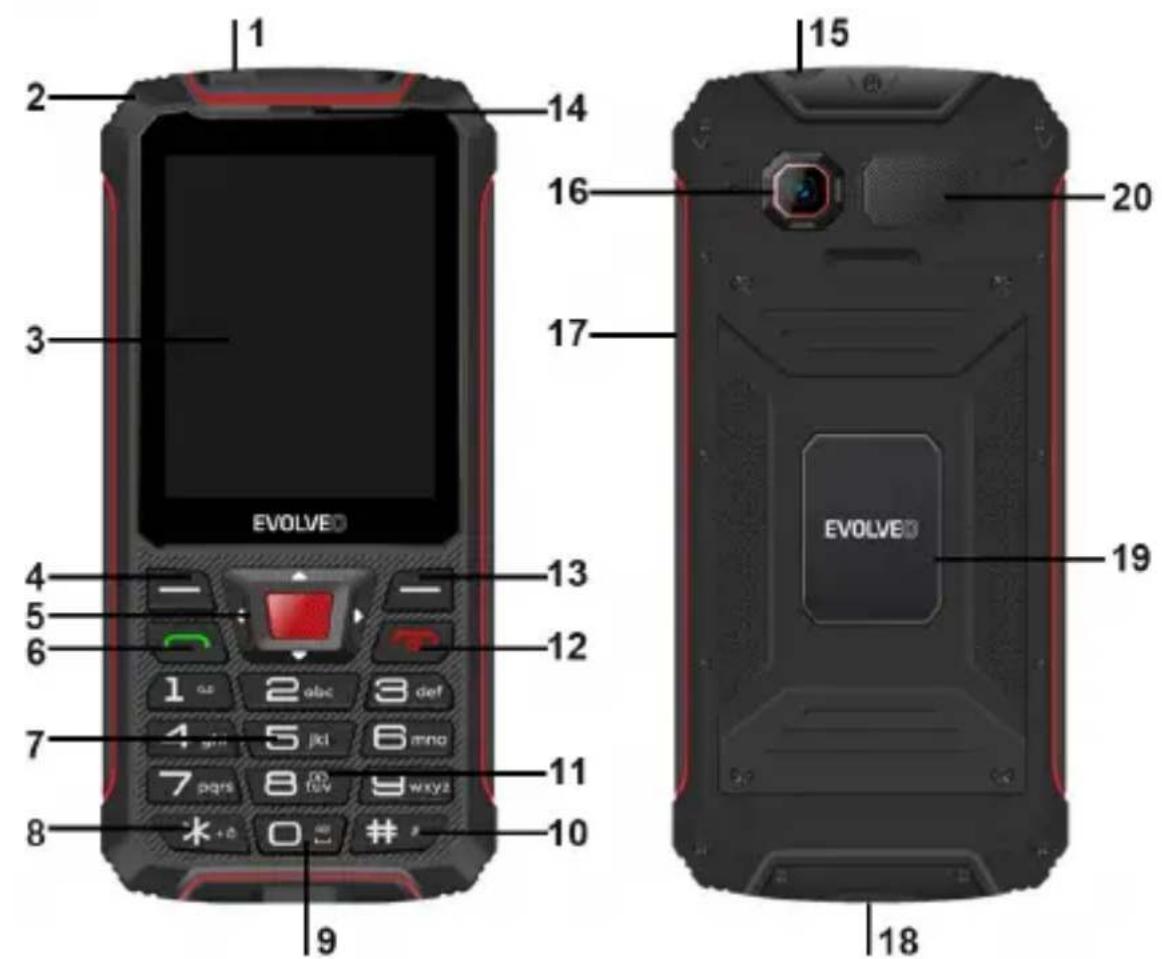
1) Headphone connector
2) Hanging rope hole
3) Display
4) Left button
5) Navigation button
6) Call button
7) Alphanumeric buttons
8) * button
9) Button 0: Flashlight
10) # button
Inserting the battery
Follow these instructions to correctly and safely insert the battery into your phone.
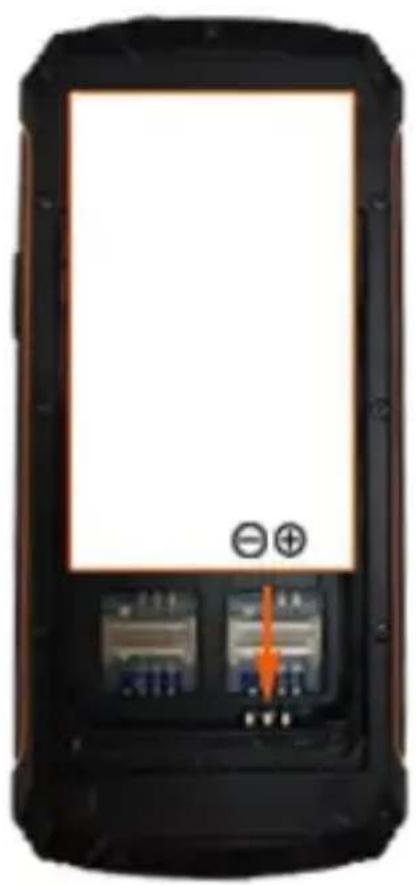
- Using a screwdriver, turn the four screws on the inner battery cover and insert the battery as shown. Make sure the battery is aligned correctly.
- Put the battery cover back on your phone.
- Using a screwdriver, turn the four screws on the inner battery cover until they are tight.
Squeeze the edges of the battery cover to ensure that the phone is properly sealed and waterproof.
natural_image
Front view of a black rectangular electronic device with two ports and an orange arrow pointing to one port (no visible text or symbols)
natural_image
Black and red mobile phone with keypad and control buttons (no visible text or symbols)
To insert a SIM card and a MicroSD memory card
-
Remove the four screws on the inner battery cover.
-
Remove the battery cover.
-
Remove the battery.
-
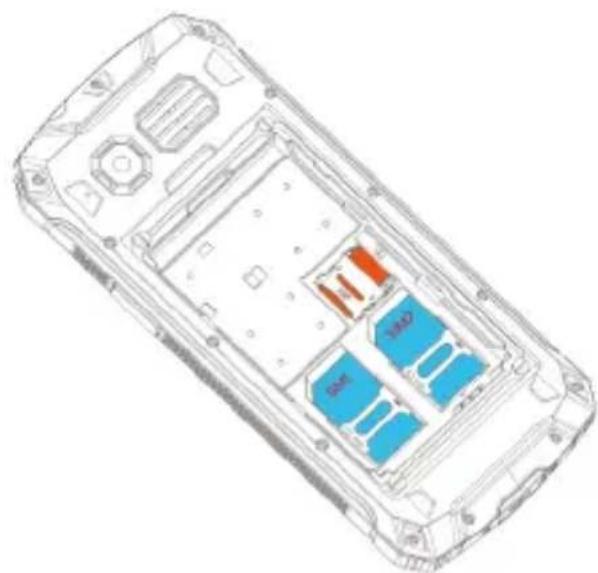
Insert the SIM card(s) / MicroSD card into the slot marked SIM 1(2) / MicroSD. Check that the SIM card / MicroSD card is aligned correctly as shown below.
natural_image
Line drawing of a mobile phone casing with internal compartments and labeled ports (no text or symbols)Switching on your mobile phone
Press and hold the on/off button for 3 seconds.

Switching off your mobile phone
Press and hold the on/off button for 3 seconds.

Basic functions
Use the following buttons to navigate through the menus on your mobile phone. Some buttons can control two functions depending on the menu selected.

natural_image
Abstract graphic with a red square and surrounding geometric shapes (no text or symbols)You can move up and down, left and right in the menu. On the home screen, you will find quick access functions that can be set freely. The middle button is used to confirm an action or enter the menu.

natural_image
Simple black rectangle with a horizontal white line inside, no text or symbols present.Cancel the settings or go back one menu level.

natural_image
Simple geometric shape with a horizontal line inside a shaded rectangular frame (no text or symbols)Open the sub-menu or confirm the action.
To answer, end or reject a call, use the following buttons:

natural_image
Simple green curved arrow icon on a dark gray rectangular background with diagonal stripes (no text or symbols)Answer an incoming call or start a conversation. Press on the main screen to view all calls made.

natural_image
Red circular icon with a downward arrow on a dark gray background, no text or symbols visible.End a call in progress.
Or reject an incoming call. Press on the main screen to turn off the display and lock the keypad
Use the following buttons to enter a phone number or delete call records:

natural_image
Simple black rectangle with a horizontal white line inside, no text or symbols present.Delete records.
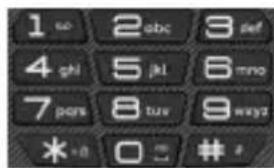
Enter numbers and letters.
Status bar
The status bar at the top of the home screen contains notifications and information about your phone's status and services.
Remark: Status and notification icons may change. Not all icons are shown below.
| Icon | Status |
 | Bluetooth® active |
 | Vibration mode |
 | Silent mode |
 | Network (full signal) |
 | Network (roaming) |
 | Airplane mode |
 | Battery (charging) |
 | Battery (fully charged) |
 | Battery (discharged) |
 | New SMS message |
 | Alarm clock |
Overview of the most important features
These menus are displayed directly on the mobile phone screen.
News
-
From the Messages menu, you can write text messages (also called "SMS"), view, reply to, forward and delete received and sent text messages, write message concepts and make other settings.
-
The maximum memory capacity of a mobile phone is 50 messages. External SIM capacity depends on the operator.
◆ Telephone directory
From this menu, you can edit contacts, e.g. add a new contact, move, copy or delete existing contacts. You can also set speed dials for numbers 2-9.
To add a phone number to the Phonebook
- Press the left button to open the main menu, or directly press Names on the home screen
- Go to Phonebook → Add new entry.
- Select the storage(On SIM or To phone).
- Enter your name and phone number.
Press the left button and select Option → Save or Cancel, or press the middle button and save directly.
View or search for a contact.
- Press the left button to open the main menu, or directly press Names on the home screen.
- Go to Phonebook and you'll see a list of contacts.
Speed dial settings.
If you want to dial certain phone numbers even faster, you can assign contacts from the phonebook to the individual buttons 2-9.
- Press the left button to open the main menu.
- Go to Phonebook → Options → Directory settings → Speed dial → Status → On.
- Select Set numbers → Edit to assign speed dial numbers to contacts already stored in the phonebook.
◆ Call history
Here you can view your call history and call settings.
Call history
Press the left or middle button to access your call history in the Call history menu. Here's a list of your Missed Calls, Called Calls, Received Calls and All Calls. Press the left or middle button to open various options, e.g. View, Call, Send text message, Save to contacts, Add to blocked, Delete.
Call settings
Press the left or middle button to open the settings for each of your SIM cards, such as call waiting and call forwarding, and you can also select the answer mode and set up blocked numbers.
Call waiting: Specify whether to signal a new incoming call with a call waiting tone when a call is already in progress.
- Press the left button to open the main menu.
- Go to Call history → Call settings → SIM 1 (SIM 2) call settings → Call waiting
- Select Activate or Deactivate to save the settings.
- You need to check if the service is available.
To enable the service, contact your mobile service provider. Please note that the range of available features may vary depending on your mobile service provider.
Call forwarding:
Determine whether and in what situations incoming calls to your mobile phone should be forwarded to another designated phone number.
-
Press the left button to open the main menu.
-
Go to Call history → Call settings → SIM 1 (SIM 2) call settings → Call forwarding
- Select the desired call forwarding settings (Forward all voice calls, Forward if not answered, Forward if call not answered, Forward if busy, Forward all data calls.)
- Select Activate → To new number to forward your calls to.
- You can also Activate → To voicemail
Confirm with Options → Done and the settings are saved.
◆ Blocked numbers - Blacklist
You can block up to 20 phone numbers. If you use this feature, you will not be able to reach the phone numbers in the blocked numbers list. The caller will automatically receive a signal that your number is busy. This feature is useful, for example, when you want to avoid unwanted calls (e.g. marketing calls or opinion polls).
To add a phone number to the blocked numbers
- Press the left button to open the main menu.
- Go to Call history → Call settings → Advanced settings → Blacklist.
- Enter the phone numbers you want to add to the blocked numbers.
- Confirm by pressing Option → Done and the settings are saved.
◆ Date and time settings
- Press the left button to open the main menu.
- Go to Settings → Phone settings → Time and date → Set time/date.
- Enter the current time and date.
- Click Save to activate the settings.
◆ Language settings
You can choose from five languages. Press the left button to open the main menu.
- Go to Settings → Phone settings → Language settings.
- Select the desired language
- Press OK to activate settings.
Setting the SOS function
This mobile phone is equipped with an SOS function - if you long press the side button and hold for 1.5 seconds, the phone will automatically call and/or send a text message to your selected emergency contacts. If no SOS number is set, the "No trouble number near SOS" warning will be displayed. Then you should first set up emergency contacts.
- Press the left button to open the main menu.
- Go to Settings → Phone settings → SOS → SOS → On.
- Press SOS Number - Press the middle button to select a contact from the phone book, or press the left button to enter a phone number. There are 4 numbers available in the list.
- Select SOS SMS content to set the SMS content and whether to send an SOS message after an emergency call.
- You can also set the alarm sound status: on/off in the Alarm sound menu.
◆ Restore factory settings
The default password is 1234. Keep in mind that once you restore the factory settings, everything you have stored on the device will be erased!
◆ Security settings
SIM 1 (SIM2) security: In this case, that means a PIN lock. You must enter the correct PIN code to activate the PIN lock. If you turn on the PIN lock, you must enter your PIN every time you switch on your mobile phone. If you enter an incorrect PIN three times in a row, you must enter the PIN Unblocking Key (PUK). The PUK is used to unlock and change the PIN. To get the PUK code, contact your SIM card provider.
Phone security: This feature allows you to lock/unlock your phone. If you enable it, you must enter the password, which defaults to 1234, every time you turn on your phone.
◆ Profiles
This mobile phone offers several profiles: Main, Silent, Meeting, Outside. You can tailor the settings to specific events or environments.
Here is a customization of Normal mode for demonstration.
- Press the left button to open the main menu.
- Go to Profiles → Main → Selection → Activate
-
Go to Customize, where you can adjust the settings
-
Type of notice: Ring only, Vibrate only, Vibrate and ring, Vibrate and then ring
● Type of ringing: Repeat, Once - Ringtone: Sound 1, Sound 2....or select from the file.
- Adjust the ringtone volume using the navigation button.
● Report: Quiet, Tone 1, Tone 2,...Tone 5 - Use the navigation button to adjust the tone volume of the buttons
- Switching on your phone: Quiet, Tone 1, Tone 2,...Tone 5
- Switching off the phone: Quiet, Tone 1, Tone 2,...Tone 5
Multimedia
Your mobile phone can display and play various forms of multimedia content (photos, music and videos). Various applications are available.
- Press the left button to open the main menu.
- Go to Multimedia
- To play music stored on your device or on a micro-SD memory card, select Audio player.
- To view the photos stored on your device or micro-SD memory card, select Image Viewer.
- To play videos stored on your device or on a micro-SD memory card, select Video player.
- Select VCR to record a video file
- Select Sound Recorder to record an audio file
◆ Camera and camcorder
The camera supports the shooting function, you can take a photo by pressing the OK button. Insert a microSD memory card into your mobile phone before using the camera. Photos are taken in JPG format and videos are taken in AVI format. After downloading the photos to your computer, view them in the appropriate program.
You can adjust the camera settings:
- Press the left button to open the main menu.
- Go to Camera → Option → Camera settings
- Anti-flicker: 50Hz/60Hz
- Scene mode: Car/Night
- White balance: Car/ Sun/Wolfram/ Fluorescent/ Cloudy/ Bulb/
- Timer: Off/5s/10s/15s
You can also adjust the size of the photo: 1280*960/1600x1200 and Photo Quality : Low/Normal/High.
You can also switch to a VCR using camera → Options → Switch to VCR.
◆ FM radio
The mobile phone is equipped with an integrated radio that allows you to receive FM radio stations.
- Press the left button to open the main menu.
- Go to FM radio → Options, where you can either manually enter or automatically search for a channel.
- Press the middle button to switch on or pause the radio.
- Press the * and # buttons to adjust the volume.
- Use the right and left buttons to switch to the previous or next available channel.
- Use the up and down buttons to increase or decrease the frequency value.
◆ File management
You can use the file manager to manage your mobile phone memory and the memory of the installed microSD memory card.
- Press the left button to open the main menu.
- Go to File Management
- Here you can manage your files as needed. View, copy, move and perform other maintenance operations on files such as pictures, videos, music and apps stored on your phone or microSD card.
Bluetooth
With Bluetooth, you can exchange data with other Bluetooth-enabled devices for free.
Bluetooth on/off:
-
Press the left button to open the main menu.
-
Go to Organiser → Bluetooth → Connections.
- Select On/Off to turn Bluetooth on/off.
Visibility:
You can choose whether to make your mobile phone visible to other Bluetooth devices in the vicinity.
- Select on/off to make your phone visible/invisible.
My device:
Find other Bluetooth-enabled devices in your area that you can connect to.
- Press the left button to open the main menu.
- Go to Organiser → Bluetooth → My devices → Search for a new device. Select the device you want to pair with and press the left or middle button to pair.
- Follow the on-screen instructions. Your mobile phone is connected to the selected device.
Name of the device:
You can give your mobile phone a name under which other Bluetooth-enabled devices can find it.
- Press the left button to open the main menu.
- Go to Organiser → Bluetooth → My name
- Enter the name of your mobile phone. The mobile phone name is limited to 18 characters.
- Confirm with Option → Done. The settings are saved.
Receiving information via Bluetooth
With Bluetooth, your phone is able to receive a wide range of file types including images, music tracks, videos and documents such as txts, pdfs, xlsx and docs.
-
When another device attempts to send a file to your phone via Bluetooth, a notification will appear.
-
Press the left button to confirm receipt of the file.
Sending information via Bluetooth
Depending on the type of device you are sending the file to, you can send the following types of data: Images and videos; apps, documents and audio files.
- Find the files you want to share, press Options → Send → Via Bluetooth.
- Select the name of the device you want to share the data with, or choose to search for a new device (see My devices for more information), then press the left key to send.
◆ Calendar
The calendar provides an overview of the days, weeks and months of the year. Use Calendar to create and manage events, appointments and visits.
- Press the left button to open the main menu.
- Go to Organiser → Calendar and a summary of the current month with the days of the week will appear.
- Use the navigation buttons to navigate horizontally and vertically.
Add an event to the calendar
- Press the left button to open the main menu.
- Go to Calendar → Option → Add event.
- Enter the subject of the event - enter the date and time of the event - set the type of event:
reminder/meeting/course/date/call/anniversary - set reminder and recurrence method - enter the location of the event - add a description of the event - save.
◆ Alarm clock
Your phone has a built-in alarm clock that has multiple alarm options. Five deactivated alarms are set by default. You can activate one, more or all of them as required. You can customize the settings for each alarm.
- Press the left button to open the main menu.
- Go to Organiser → Alarm clock → Select alarm settings → Edit
- Select Status → On to turn it on.
- Enter the desired time.
- Select the number of repetitions: Once/Every day/Own
- Select an alarm tone, five ringtones are available → Save.
◆ Calculator
The phone's handy built-in calculator allows you to perform basic mathematical operations.
- Press the left button to open the main menu.
- Go to Organizer → Calculator.
- Enter numbers using the numeric keypad.
- Press the appropriate button for the arithmetic operation (+ - × ÷).
- Press the middle button (=) for the result.
- Press the * button to enter 00.
- Press the # key to insert a decimal point.
- Press the left button to delete all numbers.
♦ OTG charger
Your phone can be used as a power bank with OTG function to charge other devices.
- Press the left button to open the main menu.
-
Go to Organizer→ OTG charger → On
It can also be activated and deactivated by holding down the 8 key in the main menu -
Connect your phone to another device using the OTG connector and USB cable.
Maintenance instructions
Clean with a soft, lint-free cloth. Do not use detergents or solvents to clean the equipment.
The warranty does NOT cover:
- Installing firmware other than the one originally installed on the EVOLVEO phone.
-Electromechanical or mechanical damage to your phone caused by improper use (e.g. cracked display, cracked front or back cover, damaged USB-C power connector, SIM card slot, microSDHC card slot, headphone input, etc.) - Damage to the speaker and headphones caused by metal particles.
- Damage from natural influences such as fire, water, static electricity, high temperature.
- Failures caused by normal wear and tear.
- Damage caused by repairs carried out by an unqualified person
- Your phone's firmware, if it needs updating due to changes in mobile network parameters.
- Mobile network failures
- The battery if it does not retain its original capacity after 6 months or more (the battery capacity warranty is 6 months).
- Intentional damage.
Warranty and post-warranty service
Repairs and servicing can only be carried out at an authorized service point for EVOLVEO products (more at www.evolveo.com), otherwise you may damage your mobile phone and lose your warranty.

Disposal: The crossed-out container symbol on the product, in the accompanying documentation or on the packaging means that in EU countries, all electrical and electronic equipment, batteries and accumulators must be disposed of separately at the end of their useful life as separated waste. Do not dispose of these products in unsorted municipal waste.
CE DECLARATION OF CONFORMITY
The company Abacus Electric, s.r.o. hereby declares that the EVOLVEO StrongPhone W4 meets the requirements of the standards and regulations that are relevant for this type of device.
The full text of the Declaration of Conformity can be found at http://ftp.evolveo.com/ce/
Importer / Manufacturer
Abacus Electric, s.r.o.
Planá 2, 370 01, Czech Republic
Made in P.R.C.
Copyright © Abacus Electric, s.r.o.
www.evolveo.com
www.facebook.com/EvolveoCZ
All rights reserved.
The appearance and technical specifications of the product are subject to change without notice.

- Table of Contents
- Overview
- Inserting the battery
- To insert a SIM card and a MicroSD memory card
- Switching on your mobile phone
- Switching off your mobile phone
- Basic functions
- Status bar
- Overview of the most important features
- News
- ◆ Telephone directory
- To add a phone number to the Phonebook
- View or search for a contact.
- Speed dial settings.
- ◆ Call history
- Call history
- Call settings
- Call forwarding:
- ◆ Blocked numbers - Blacklist
- To add a phone number to the blocked numbers
- ◆ Date and time settings
- ◆ Language settings
- Setting the SOS function
- ◆ Restore factory settings
- ◆ Security settings
- ◆ Profiles
- Multimedia
- ◆ Camera and camcorder
- ◆ FM radio
- ◆ File management
- Bluetooth
- Bluetooth on/off:
- Visibility:
- My device:
- Name of the device:
- Receiving information via Bluetooth
- Sending information via Bluetooth
- ◆ Calendar
- Add an event to the calendar
- ◆ Alarm clock
- ◆ Calculator
- ♦ OTG charger
- Maintenance instructions
- The warranty does NOT cover:
- Warranty and post-warranty service
- CE DECLARATION OF CONFORMITY
Brand : Evolveo
Model : StrongPhone W4
Category : Smartphone