
MF286C - Router ZTE - Free user manual and instructions
Find the device manual for free MF286C ZTE in PDF.


| Product Type | 4G LTE Router |
| Brand | ZTE |
| Model | MF286C |
| Dimensions (approx.) | 170 x 120 x 16 mm |
| Weight (approx.) | 300 g |
| Power Supply | 12V DC, 1A |
| Network | 4G LTE (Cat4) with fallback to 3G/2G |
| Wi-Fi | Dual-band 2.4GHz & 5GHz, 802.11 b/g/n/ac |
| Max Users | Up to 32 concurrent devices |
| Ethernet Ports | 1 x WAN/LAN (Gigabit), 1 x LAN (Gigabit) |
| SIM Card Slot | Standard SIM (2FF) |
| Antennas | Internal, 2 x external SMA connectors (optional) |
| LED Indicators | Power, Network, Wi-Fi, Signal strength |
| Buttons | Power, WPS/Reset |
| Maintenance & Cleaning | Wipe with a soft, dry cloth. Do not use liquid or aerosol cleaners. |
| Safety Warnings | Place in a well-ventilated area away from heat sources. Do not cover. |
| Spare Parts & Repairability | Contact ZTE support for replacement parts. No user-serviceable internal parts. |
| General Information | Works with major carriers. Supports VPN passthrough, NAT, firewall. |
Frequently Asked Questions - MF286C ZTE
User questions about MF286C ZTE
0 question about this device. Answer the ones you know or ask your own.
Ask a new question about this device
Download the instructions for your Router in PDF format for free! Find your manual MF286C - ZTE and take your electronic device back in hand. On this page are published all the documents necessary for the use of your device. MF286C by ZTE.
USER MANUAL MF286C ZTE
Getting started with your device.
ZTE CORPORATION
NO. 55, Hi-tech Road South, Shenzhen, P.R.China
Postcode: 518057
LEGAL INFORMATION
Copyright © 2019 ZTE CORPORATION.
All rights reserved.
No part of this publication may be excerpted, reproduced, translated or utilized in any form or by any means, electronic or mechanical, including photocopying and microfilm, without the prior written permission of ZTE Corporation.
The manual is published by ZTE Corporation. We reserve the right to make modifications on print errors or update specifications without prior notice.
Version No.: R1.0
Edition Time: August 30, 2019
Getting to Know Your Device
External View
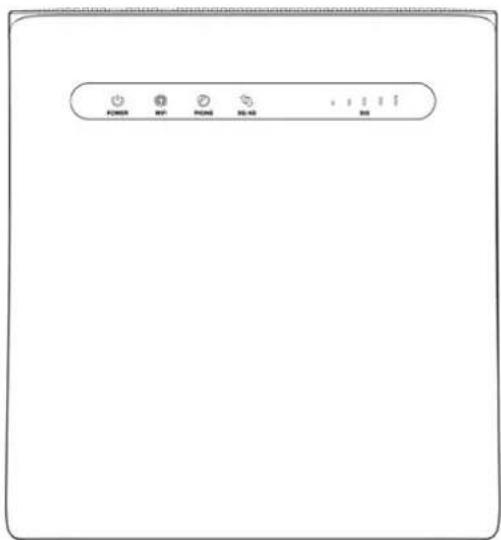
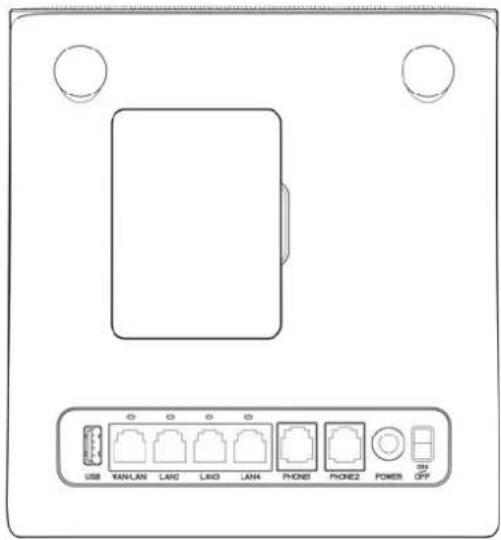

NOTE:
Please use the original external antenna if necessary.
Indicators
| Indicator | State | Description |
| POWER | Blue on | Power is on and external power supply is working normally. |
| Off | Power is off or external power supply is working abnormally. | |
| WIFI | Blue on | Wi-Fi works normally with no data transmission. |
| Blue Blinking | Wi-Fi works normally with data transmission. | |
| Off | Wi-Fi works abnormally or the Wi-Fi function is disabled. | |
| PHONE | Off The phone is not in use. | |
| Blue Blinking The phone is ringing. | ||
| Blue on The phone is in calling. | ||
| 3G/4G | Red | The device is turned on but not registered to the mobile network. No (U)SIM card is inserted or there is no network service available. |
| Blue Blinking | The device is connected to the 4G network and data is being transferred. | |
| Blue Solid The device is registered to the 4G network. | ||
| Indicator | State | Des |
| Green Blinking | The device is connected to the 2G/3G network and data is being transferred. | |
| Green Solid | The device is registered to the 2G/3G network. | |
| SIG... | Blue on | Signal level panel. Strength is from weak to strong. |
| Off | There is no signal or no (U)SIM card is inserted. | |

NOTE:
The phone function needs the network support.
Buttons
| Button | Description |
| RESET Press and hold for about 3 seconds to restore factory default configurations. | |
| WLAN Press to turn off/on the Wi-Fi function. | |
| WPS | Press to activate the WPS function.Press to wake device up. |
Installing the (U)SIM card (optional)
Hold the (U)SIM card with the cut corner oriented as shown and slip it into the card slot until you hear a click.
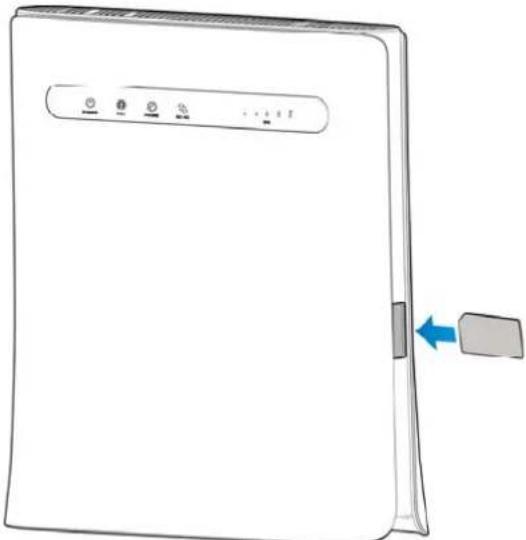
natural_image
Illustration of a white electronic device with a blue arrow pointing to its side panel (no text or symbols present)
WARNINGS!
- Before installing the (U)SIM card, power off your device and remove the external power adapter.
- Your device does not support micro-SIM and nano-SIM card or any other nonstandard (U)SIM cards. To avoid device damage, please do not use them or any card holders.
Getting Started With Your Device
Connecting Your Device
Follow the number to connect your device.
If you select a different operation mode, the connection of the LAN port will be different. Please refer to the chapter “Accessing the Internet”. If you want to use the mobile network to connect to the Internet or use your home phone, you need to insert your (U)SIM card first.
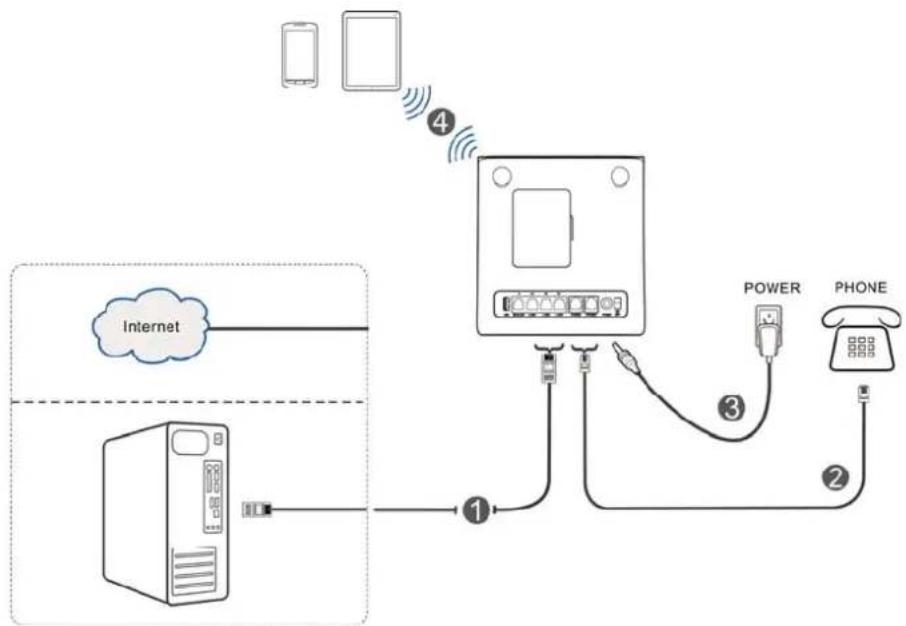
flowchart
graph TD
    A["Internet"] -->|1| B["Router"]
    B -->|2| C["Phone"]
    B -->|3| D["Power"]
    D -->|4| E["Mobile Device"]
    style A fill:#f9f,stroke:#333
    style B fill:#ccf,stroke:#333
    style C fill:#cfc,stroke:#333
    style D fill:#fcc,stroke:#333
    style E fill:#ffc,stroke:#333
Starting Your Device

CAUTION:
Your device must be placed in a well-ventilated environment. Do not cover the device.
Slide the on/off switch to start your device. After the device is initialized, make sure the LED indicators are in normal status.

NOTE:
After your device is powered off, if you are called, the caller will hear a prompt tone like “The subscriber you are dialing cannot be reached now.”
Configuring Your PC
The following procedure describes how to configure the Internet Protocol in Windows for your Wi-Fi connection.
- Right-click Network and select Properties.
- Select Change adapter settings.
- Right-click Wireless Network Connection and select Properties.

NOTE:
If you use a network cable to connect your PC to your device, you need to right-click Local Area Connection and select Properties.
-
Select Internet Protocol Version 4 (TCP/IPv4) and click Properties.
-
Select Obtain an IP address automatically and Obtain DNS server address automatically, and click OK.
Accessing the Internet
Before accessing the Internet, please make sure that the following operations are finished.
- Your device is connected to the terminal device via a network cable or Wi-Fi.
• The terminal device is set to obtain an IP address automatically.
To access the Internet:
- Launch the Internet browser and enter http://192.168.0.1 in the address bar. The login page appears.
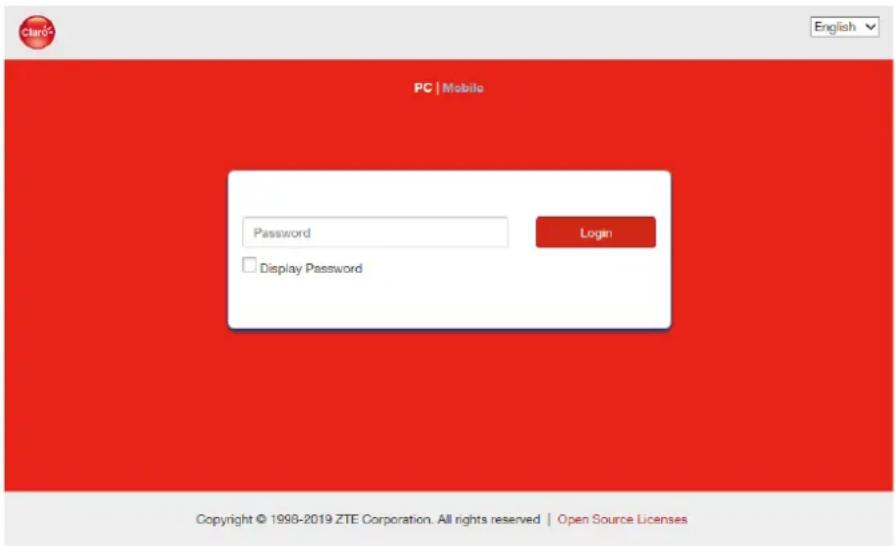
- Input the password and then click Login.
NOTE:
View the label on your device to get the default password.
- View the current mode and click Change.
Current Mode: Wireless Broadband Mode Change
-
Select the operation mode which you want to use and then click Apply.
-
Cable Broadband Mode: You need to connect the WAN to the WAN/LAN1 port via a network cable and get the WAN information from your service provider.
- Wireless Broadband Mode: Your device will use the (U)SIM card to access the Internet. You need to insert the (U)SIM card first, and then you can set connection mode to Automatic or Manual. The default connection mode is Automatic.
• Automatic: In this mode, your device will choose the operation mode automatically.
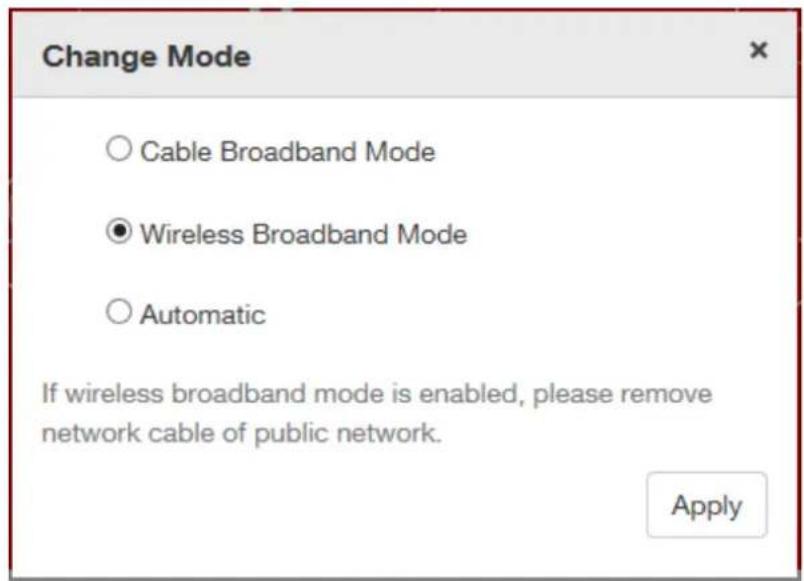
NOTE:
If you change the operation mode, the device will be restarted automatically.
- Set the detailed parameters for the operation mode.
- Begin to enjoy your Internet service.
Telephone Function
Your device supports the telephone function. Before using the telephone function, connect the telephone and insert the (U)SIM card.
To make a call:
- Pick up the handset.
-
Key in the telephone number.
-
Press the # key on the telephone to send the call, or wait 4\~8 seconds for the call to be dialed automatically.
NOTE:
If there is no SIG indication, the radio signal is unavailable. Change the location of the device and make sure nothing is blocking it.
WPS Function
Your device supports WPS function. You can use this function to connect the client to your device.
- Power on your device and enable the Wi-Fi function on your device.
- Press the WPS button on your device to activate the WPS function.
- Enable the WPS function on your client.
- Follow the system prompts on your client to finish the connection.
NOTE:
For detailed operations on the client, refer to the corresponding product instructions.
Wireless Connection
If you want to use Wi-Fi to connect to your device, please refer to the following steps.
- Make sure that the Wi-Fi works normally. Please check the Wi-Fi Settings on the 4G CPE page or check the WIFI indicator.
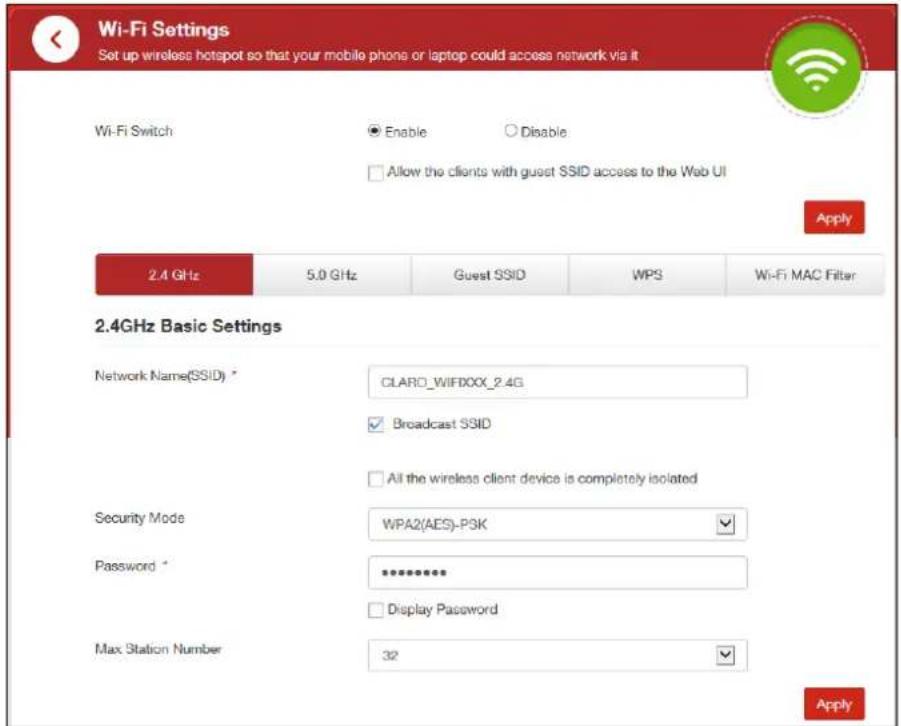
- Use your normal Wi-Fi application on the client to search for the available wireless network.

NOTE:
Please set the client to obtain an IP address automatically, and the client will get an IP address like "192.168.0.101". For the detailed procedure, refer to Configuring Your PC.
- Select the SSID (Network Name) of your device, and then click Connect.

NOTE:
Please check the label on your device to get the default SSID.
- Enter the password and then click OK.

NOTE:
View the label on your device to get the default password.
- Wait until the client is connected to your device successfully
Troubleshooting
Voice Related Problems
| Symptoms Possible Problems/ Solutions | |
| There is no dial tone. | Please wait for 1~2 minutes after the device is turned on.If the SIG indicator is week, you have no good RF reception. Change the location of the device. |
| There is a prompt / phone alert / announcement as soon as I lift the phone off the hook. | Make sure your (U)SIM card is inserted correctly and the PIN number has been entered. If the PIN number has been entered incorrectly then you will need to enter the PUK code when prompted. |
| The line is noisy/distorted when I lift the phone off the hook. | Remove any electrical appliance which is too close to the phone or your device.The cable or phone set might be faulty. |
| I hear a rapid engaged tone as soon as I lift the phone off the hook. | Put the phone on the hook and try again.Please contact with your servicer provider. |
| After dialing the last digit I hear nothing/silence. | When you have finished dialing you can press the # key or wait 4-8 seconds to connect the call. |
Internet Related Problems
| Symptoms Possible Problems/ Solutions | |
| I cannot access the Internet at all. | Please check your configuration settings.Please wait 1~2 minutes for the device to initialize.Check your service indicators. |
| The download or upload speed is very slow. | The speed is dependent on signal strength. Check your signal strength and network type. |
| I cannot visit the 4G CPE page. | Enter the correct address. The default address is http://192.168.0.1.Only use one network adapter in your PC.Do not use any proxy server. |
| I cannot establish the Wi-Fi connection between my device and the client. | Make sure the Wi-Fi function is active.Refresh network list and select the correct SSID.Check the IP address to make sure your client can obtain an IP address automatically in the Internet protocol (TCP/IP) properties.Type the correct network key (Wi-Fi password) when you connect to the device. |
Others
| Symptoms Possible Problems/ Solutions | |
| About the password | For the Wi-Fi connection password, please check the label on the device.View the label on your device to get the default password of the 4G CPE page.If you changed the password and forgot the new password, you need to restore the device to the factory default settings. |
Warning and Notice
Safety Precautions
- Some electronic devices may be susceptible to electromagnetic interference. Locate the device away from TV set, radio and other electronic equipment to avoid electromagnetic interference.
- The device may interfere with medical devices like hearing aids and pacemakers. Consult a physician or the manufacturer of the medical device before using your device.
- Please keep yourself at least 20 centimeters away from your device.
- Do not use your device in dangerous environments such as oil terminals or chemical factories where there are explosive gases or explosive products being processed.
- Please use original accessories or accessories that are authorized by ZTE. Unauthorized accessories may affect the device performance, damage the device or cause danger to you.
- Do not attempt to dismantle the device. There are no user serviceable parts.
- Do not allow the device or accessories to come into contact with liquid or moisture at any time. Do not immerse the device in any liquid.
- Do not place objects on top of the device. This may lead to overheating of the device.
- The device must be placed in ventilation environment for use.
- Do not expose the device to direct sunlight or store it in hot areas. High temperature can shorten the life of electronic devices.
- Do not allow children to play with the device or charger.
- Keep the length of the cable between the device and the phone less than 10 meters.
- The device is for indoor use only. Do not use the device outside. Do not connect telephone extensions which run outside of the building. These can result in lightning damage to your unit.
- For pluggable equipment, the socket-outlet shall be installed near the equipment and shall be easily accessible.
Cleaning and Maintaining
- Use an antistatic cloth to clean the device. Do not use chemical or abrasive cleanser as these could damage the plastic case. Turn off your device before you clean it.
- Use the router within the temperature range of -20^ +55^ , and the storage temperature range is -40^ +70^ . The humidity range is 5% 95% .
- Do not use your device during a thunderstorm. Remove the mains power pack from the wall socket.
- Do not take out your (U)SIM card unnecessarily. The (U)SIM card may be easily lost or it can be damaged by static electricity.
Limited Warranty
- This warranty does not apply to defects or errors in the Product caused by:
i. Reasonable abrasion.
ii. End User's failure to follow ZTE's installation, operation or maintenance instructions or procedures.
iii. End User's mishandling, misuse, negligence, or improper installation, disassembly, storage, servicing or operation of the Product.
iv. Modifications or repairs not made by ZTE or a ZTE-certified individual.
v. Power failures, surges, fire, flood, accidents, actions of third parties or other events outside ZTE's reasonable control.
vi. Usage of third-party products, or usage in conjunction with third-party products provided that such defects are due to the combined usage.
vii. Any other cause beyond the range of normal usage intended for the Product.
End User shall have no right to reject or return the Product, or receive a refund for the Product from ZTE under the above-mentioned situations.
- This warranty is End User's sole remedy and ZTE's sole liability for defective or nonconforming items, and is in lieu of all other warranties, expressed, implied or statutory, including but not limited to the implied warranties of merchantability and fitness for a particular purpose, unless otherwise required under the mandatory provisions of the law.
Limitation of Liability
ZTE shall not be liable for any loss of profits or indirect, special, incidental or consequential damages resulting from or arising out of or in connection with using of this product, whether or not ZTE had been advised, knew or should have known of the possibility of such damages, including, but not limited to lost profits, interruption of business, cost of capital, cost of substitute facilities or product, or any downtime cost.
For more assistance, please:
- Send E-mail to mobile@zte.com.cn
- Visit www.ztedevices.com
FCC Regulations:
This device complies with part 15 of the FCC Rules. Operation is subject to the following two conditions: (1) This device may not cause harmful interference, and (2) this device must accept any interference received, including interference that may cause undesired operation.
This device has been tested and found to comply with the limits for a Class B digital device, pursuant to Part 15 of the FCC Rules. These limits are designed to provide reasonable protection against harmful interference in a residential installation. This equipment generates, uses and can radiated radio frequency energy and, if not installed and used in accordance with the instructions, may cause harmful interference to radio communications. However, there is no guarantee that interference will not occur in a particular installation If this equipment does cause harmful interference to radio or television reception, which can be determined by turning the equipment off and on, the user is encouraged to try to correct the interference by one or more of the following measures:
-Reorient or relocate the receiving antenna.
-Increase the separation between the equipment and receiver.
-Connect the equipment into an outlet on a circuit different from that to which the receiver is connected.
-Consult the dealer or an experienced radio/TV technician for help.
Caution: Changes or modifications not expressly approved by the party responsible for compliance could void the user 's authority to operate the equipment.
FCC RF Exposure Information
This device is designed and manufactured not to exceed the emission limits for exposure to radio frequency (RF) energy set by the Federal Communications Commission of the United States.
This equipment complies with FCC radiation exposure limits set forth for an uncontrolled environment. This equipment should be installed and operated with minimum distance 20cm between the radiator & your body.
- LEGAL INFORMATION
- Getting to Know Your Device
- External View
- NOTE:
- Indicators
- Installing the (U)SIM card (optional)
- WARNINGS!
- Getting Started With Your Device
- Connecting Your Device
- Starting Your Device
- CAUTION:
- Configuring Your PC
- Accessing the Internet
- Current Mode: Wireless Broadband Mode Change
- Telephone Function
- WPS Function
- Wireless Connection
- Troubleshooting
- Warning and Notice
- Safety Precautions
- Cleaning and Maintaining
- Limited Warranty
- Limitation of Liability
- For more assistance, please:
- FCC Regulations:
- FCC RF Exposure Information
Brand : ZTE
Model : MF286C
Category : Router