
AVIIC-F900BT - Gps PIONEER - Free user manual and instructions
Find the device manual for free AVIIC-F900BT PIONEER in PDF.


| Product Type | GPS Navigation System with Multimedia |
| Brand | Pioneer |
| Model | AVIIC-F900BT |
| Display | 7-inch Touchscreen LCD |
| Dimensions (W x H x D) | 178 x 100 x 150 mm (Double DIN) |
| Weight | Approx. 2.0 kg |
| Power Supply | 12V DC (Car Battery) |
| Navigation | Built-in GPS with Maps (SD Card based) |
| Audio Playback | CD, DVD, MP3, WMA, AAC |
| Bluetooth | Hands-free calling and audio streaming |
| Connectivity | USB, SD Card, AUX input, Rear View Camera input |
| iPod/iPhone Compatibility | Yes (via USB) |
| Radio | AM/FM Tuner with RDS |
| Screen Resolution | 800 x 480 pixels |
| Operating System | Proprietary Pioneer OS |
| Maintenance | Clean with soft, dry cloth; avoid liquids |
| Safety | Follow installation guides; do not obstruct airbags |
| Spare Parts & Repairability | Contact Pioneer service; use genuine parts |
Frequently Asked Questions - AVIIC-F900BT PIONEER
User questions about AVIIC-F900BT PIONEER
0 question about this device. Answer the ones you know or ask your own.
Ask a new question about this device
Download the instructions for your Gps in PDF format for free! Find your manual AVIIC-F900BT - PIONEER and take your electronic device back in hand. On this page are published all the documents necessary for the use of your device. AVIIC-F900BT by PIONEER.
USER MANUAL AVIIC-F900BT PIONEER
Pioneer sound.vision.soul
FLASH MEMORY MULTIMEDIA AV NAVIGATION RECEIVER
AVIC-F900BT AVIC-F700BT AVIC-F7010BT
Quick Start Guide
This guide is intended to guide you through the basic functions of this navigation system. For details, please refer to the operation manual.

Basic Hardware buttons
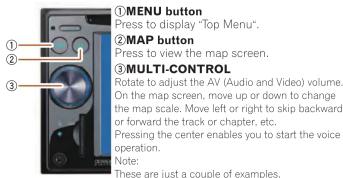
Switching the screen
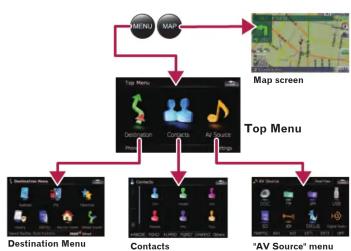
flowchart
graph TD
    A["Top Menu"] --> B["Map screen"]
    B --> C["Top Menu"]
    C --> D["Destination Menu"]
    C --> E["Contacts"]
    C --> F[""AV Source" menu"]
    D --> G["Menu Icon"]
    E --> H["Menu Icon"]
    F --> I["Menu Icon"]
Search function overview
This navigation system provides multiple search methods.
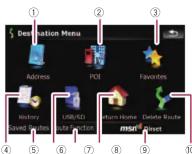
①Searching for location by address
②Searching for a place from stores, restaurants, and other busi-
nesses in the points of interest database
③Selecting your stored location
④Selecting a destination you searched for recently
⑤Selecting a route from a stored route
⑥Searching for POIs by using the data on external storage (USB,
SD)
⑦Viewing the current route information, searching for a destina-
⑧Set a route to your home
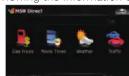
⑨Viewing the information on MSN Direct™
⑩ Canceling your current route
Searching for your destination by address
1 Display Destination Menu and touch Address.
2 Input the information that you want to set as the destination.

Touching the item next to each option displays the screen to enter the character or select one of options. After narrowing down your destination, "Map Confirmation screen" will
3 Touch Route
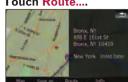
4 Touch Add Destination.
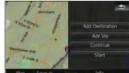
When route calculation is completed, navigation guidance begins

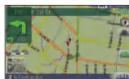
This navigation systems gives you route guidance both visually and by voice.
Setting the voice guidance volume
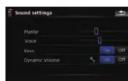
1 Touch the keys in the following order in Top Menu; Settings → Navi Settings → Sound Settings 2 Touch or drag the slider.
Basic operation on the map screen
Basic items on the map
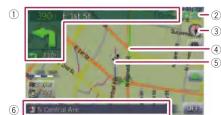
①Information for the
next guidance point
②Current time
③Compass ④Compass
④Current route ⑤Current position
⑥Current position ⑥Current read
② Current road
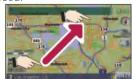
Scrolling the map
Dragging the map allows scrolling. The scroll speed will change depending on your drag speed.
3D map screen
Touch to change the view,
touch the key again to return
the previous view.
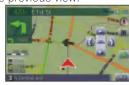

Touching the 3D
map shows the key
for changing the 3D
map to angle.
Selecting the AV source
1 Display "AV Source" menu and touch the key to select your desired AV source.
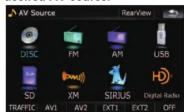
The AV source is disabled if the equipment is not connected.
Playing files from a SD memory card
You can play an audio and video file on a SD memory card.
(For details about playable files, refer to "Operation Manual".)
1 Push the dummy SD card
until it clicks and pull out

2 Insert your SD memory
card until it clicks.
| | | |

3 Touch keys to operate the music/video source.

Now having
Macyi Tigravil
POWER TIME
sound vision soul
①Playback control
②Move to the previous or next
folder.
③Switch to the screen for
video control.
Playing your Apple iPod®
You can control an iPod by connecting the USB interface cable for iPod ^® (CD-IU230V) (sold separately) to the navigation system.
1 Touch AV1 Input on AV
Settings menu to select
" iPod"
2 Connect your iPod.
To AV input on the backside
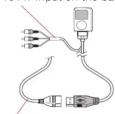
USB connector
3 Switch the AV source to
iPod.
Music control
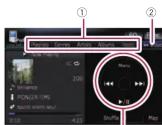
①Touch one of the categories
in which you want to search
for a song.
②Touch to switch between the
video screen and the music
screen.
③Playback control
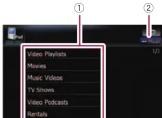
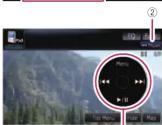
Video control
Touch Video to switch to the
iPod-video screen
Pairing your
phone
1 Activate the Bluetooth function on your phone.
2 Touch the keys in the fol-
lowing order in Top Menu;
- Turn Bluetooth On/Off to
On.
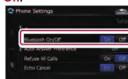
4 Touch the keys in the fol-
lowing order;
Connection → Add Device
→ Search devices
The system tries to find and lists nearby devices.
lists nearby devices.
3 Touch your phone on the list and then enter the PIN
code from your phone.
(1111 is default.).
When the pairing is success-
ful, the message will appear.
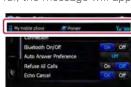
Transferring
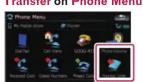
the phone book
1 Touch Phone Book Transfer on Phone Menu
2 Touch OK to enter the
waiting screen.
3 Operate your phone to
transfer the phone book
entries during waiting
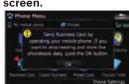
4 After transferring, touch
OK.
When the transferring is suc-
cessful, "Completed data
loading!" will appear
- AVIC-F900BT AVIC-F700BT AVIC-F7010BT
- Quick Start Guide
- Basic Hardware buttons
- Search function overview
- Searching for your destination by address
- Basic operation on the map screen
- Basic items on the map
- Scrolling the map
- 3D map screen
- Selecting the AV source
- Playing files from a SD memory card
- Playing your Apple iPod®
- Pairing your
- phone
- Transferring
- the phone book
Brand : PIONEER
Model : AVIIC-F900BT
Category : Gps