
NV-FJ625 - Video player PANASONIC - Free user manual and instructions
Find the device manual for free NV-FJ625 PANASONIC in PDF.


| Product Type | Video Cassette Recorder (VCR) |
| Brand | Panasonic |
| Model | NV-FJ625 |
| Video Format | VHS |
| Dimensions (W x H x D) | Approx. 430 x 95 x 310 mm |
| Weight | Approx. 4.5 kg |
| Power Supply | AC 220-240 V, 50/60 Hz |
| Power Consumption | Approx. 20 W (operating) |
| Recording System | Helical scanning with rotary heads |
| Playback System | VHS standard |
| Timer Recording | Programmable timer (up to 8 events, 1 month) |
| Video Heads | 4-head drum for improved picture quality |
| Audio | Monaural audio track (Hi-Fi optional?) |
| Inputs | Antenna (RF), AV input (RCA), S-Video input |
| Outputs | RF out, AV output (RCA), S-Video output |
| Remote Control | Infrared remote included |
| Maintenance | Use a VHS head cleaning cassette periodically |
| Safety | Do not expose to moisture or excessive heat; unplug during cleaning |
| Spare Parts | Remote control, power cord available from service centers |
| Reparability | Serviceable by authorized technicians; user-replaceable items: none |
| General Information | This is a standard definition VHS VCR with timer recording and basic editing features. |
Frequently Asked Questions - NV-FJ625 PANASONIC
User questions about NV-FJ625 PANASONIC
0 question about this device. Answer the ones you know or ask your own.
Ask a new question about this device
Download the instructions for your Video player in PDF format for free! Find your manual NV-FJ625 - PANASONIC and take your electronic device back in hand. On this page are published all the documents necessary for the use of your device. NV-FJ625 by PANASONIC.
USER MANUAL NV-FJ625 PANASONIC
natural_image
Line drawing of a desktop television set with monitor, tower, and remote control (no text or symbols)
natural_image
Black-and-white close-up of blooming flowers with visible petals and leaves (no text or symbols)G-CODE
Video Cassette Recorder
NV-FJ620 Series
NV-FJ625AM
Operating Instructions
Contents Page
Warning and Important Information 2
Controls and Components 3
Connections 5
Tuning the TV to Your VCR 6
Storing TV Broadcasts in Your VCR 7
Preparations for G-Code Programming 11
Settings Using the On Screen Display 12
Option Setting 13
Playback 14
Recording 16
Timer Recording 19
G-Code Programming 22
Search Functions 23
Editing 26
Before Requesting Service 27
Specifications 29
VHS
PAL NTSC
SUPER DRIVE
Warning and Important Information
As this equipment gets hot during use, operate it in a well ventilated place; do not install this equipment in a confined space such as a book case or similar unit.
Important
Your attention is drawn to the fact that the recording of pre-recorded tapes or discs or other published or broadcast material may infringe copyright laws.
Warning
To reduce the risk of fire or shock hazard, do not expose this equipment to rain or moisture.
For your safety
Do not remove outer cover.
Touching internal parts of the VCR is dangerous, and may seriously damage it.
To prevent electric shock, do not remove cover. There are no user serviceable parts inside. Refer all servicing to qualified service personnel.
Inserting Remote Control Batteries
Insert the batteries with the polarity (⊕ and ⊖) correctly aligned.
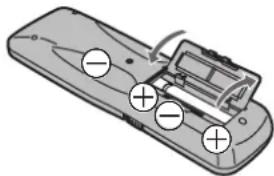
natural_image
Illustration of a handheld device with labeled terminals and internal components (no text or symbols)Notes:
The service life of the batteries is approximately 1 year. However, it varies considerably depending on the frequency of use.
- When they are exhausted, replace them with two AA, UM3, or R6 size batteries.
- When the batteries are exhausted, remove them immediately and dispose of them correctly.
- Make sure that the batteries are inserted with the polarity ( and ) correctly aligned.
- Do not mix old battery with new battery.
- Do not mix different battery types, i.e. Alkaline and Manganese.
- Do not use rechargeable (Ni-Cd) batteries.
- Do not heat or short-circuit the batteries.
- When you do not use the remote control for a long time, take out the batteries and store them in a cool, dry place.
Longrun Head System
This longrun head system enables approximately 8,000 hours of recording/playback with high quality images. Newly developed head cylinder with narrower head windows and tapered cylinder design effectively protects heads from dust and prevents head clogging.
Plus, [Alumina] Head Cleaner further enhanced cleaning efficiency.
– Based on in-house tests with Panasonic video cassettes. Actual head life may vary according to conditions of use, tape type, temperature, humidity, etc.
Cautions before you operate this VCR
Avoid:
– Humidity and dust.
- Covering the ventilation holes with soft materials such as cloth or paper.
- Extreme heat such as direct sunlight.
– Magnets or electromagnetic objects.
- Touching internal parts of the VCR.
– Water or some other liquid.
– Lightning. (Disconnect the aerial plug from the VCR during lightning storms.)
– Anything heavy on the VCR.
- Connecting or handling the equipment with wet hands.
- Using a cell phone near the VCR because doing so may cause noise to adversely affect the picture and sound.
Do:
– Wipe the VCR with a clean and dry cloth.
- Install the VCR in a horizontal position.
- Keep the VCR, TV and other equipment switched off until you have finished all connections.
Condensation may form in the following cases:
- The VCR is brought from cold surroundings into a well-heated room.
- The VCR is suddenly brought from cool surroundings, such as an air-conditioned room or car, to a place which is hot and humid.
Note:
– In any of the above-mentioned conditions, do not operate the VCR for at least 1 hour.
This VCR is not equipped with a dew sensor.
Press the POWER button ① to switch the VCR from on the standby mode or vice versa. In the standby mode, the VCR is still connected to the mains.
Plug in Auto Tuning
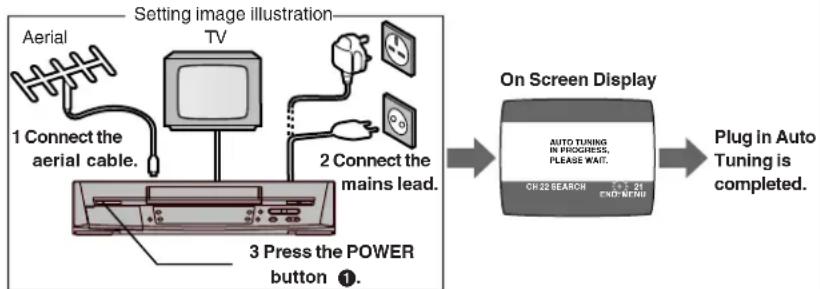
flowchart
graph LR
    A["Aerial"] -->|1 Connect the aerial cable.| B["TV"]
    B -->|2 Connect the mains lead.| C["On Screen Display"]
    C -->|3 Press the POWER button ①.| D["Plug in Auto Tuning is completed."]
All broadcasting stations that can be received in the area are automatically tuned and stored in memory.
- Do not turn off the VCR halfway. (See page 7.)
Controls and Components
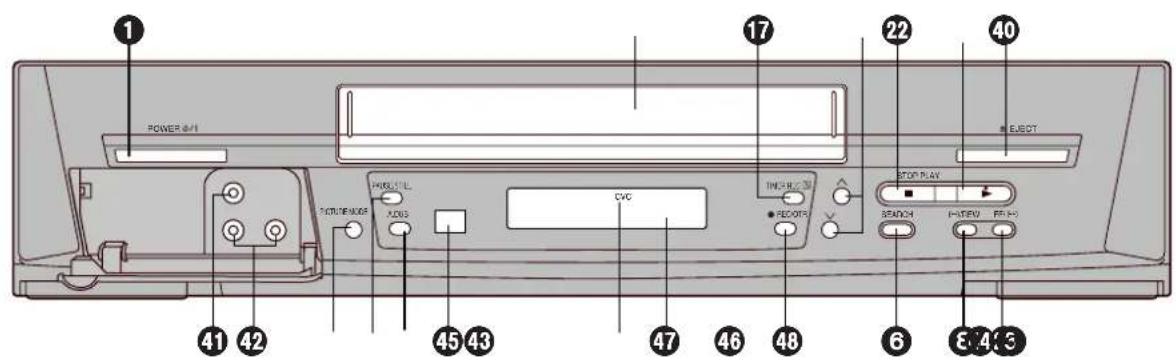
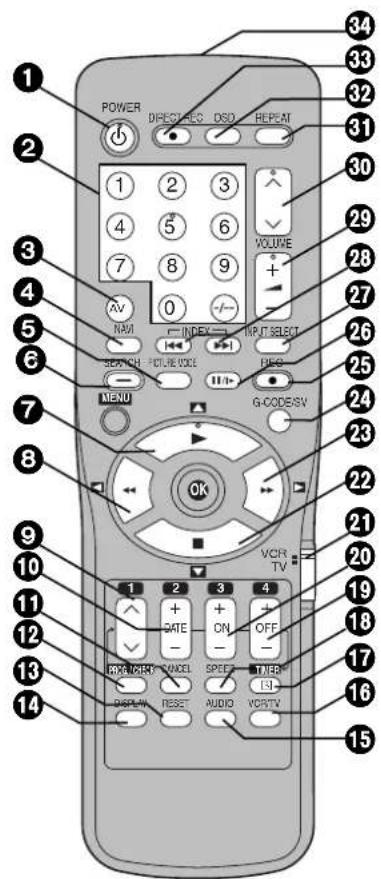
① POWER button
② Numeric buttons
To select the programme positions (1–99).
Example:
9: ⑨
19: ⏻ → ① → ⑨
To enter a G-Code number.
To enter numbers for various settings.
③ AV button
4 NAVI button
⑤ PICTURE MODE button
⑥ SEARCH button
⑦ Play button
⑧ Rewind button
⑨ Channel button
10 DATE button
⑪ CANCEL button
⑫ PROG./CHECK button
⑬ RESET button
To reset the tape counter (elapsed time) to [0:00.00].
- The tape counter is automatically reset to [0:00.00] when a video cassette is inserted.
14 DISPLAY button
15 AUDIO button
16 VCR/TV button
17 TIMER (REC) button
18 SPEED button
19 OFF button
20 ON button
21 VCR/TV switch
22 Stop button
23 Fast Forward button
24 G-CODE/SV button
25 REC button
26 Pause/Slow button
27 INPUT SELECT button
28 INDEX button
29 VOLUME button
30 Channel button
31 REPEAT button
32 OSD button
33 DIRECT REC button
34 Infra-red transmitter
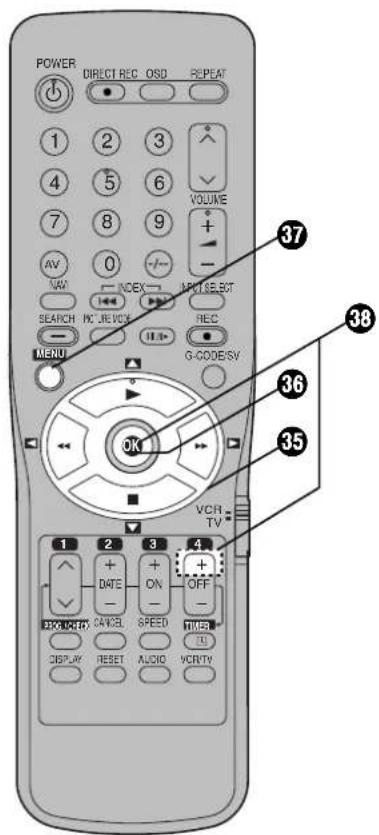
35 Cursor buttons
36 OK button
37 MENU button
38 Child Lock Function buttons
(Convenient function to prevent unauthorized use)
This function deactivates all buttons on the VCR and the remote control. Use this function, when you do not want other people to operate the VCR.
To Activate the Child Lock Function:
1 Hold down the OK and the OFF (+) buttons 38 simultaneously until the [× hold] indication appears in the VCR display.
- If you press a button while the Child Lock function is on, the [× hold] indication appears in the VCR display to inform you that no operation is possible.
To Cancel the Child Lock Function:
1 Hold down the OK and the OFF (+) buttons 38 simultaneously until the [▷ ◁ hold] indication disappears.
39 Cassette compartment
40 EJECT button
41 VIDEO IN (AV2)
42 AUDIO IN (AV2)
43 PAUSE/ STILL button
44 A.DUB button
45 Infra-red Remote Control Receiver window
46 CVC indicator
The crystal view control function ensure that you always obtain the optimum picture quality so that you get the best picture automatically.
While the VCR is turned on, the CVC indication 46 is always displayed to show that the Crystal View Control is activated.
47 VCR display
48 REC/OTR button
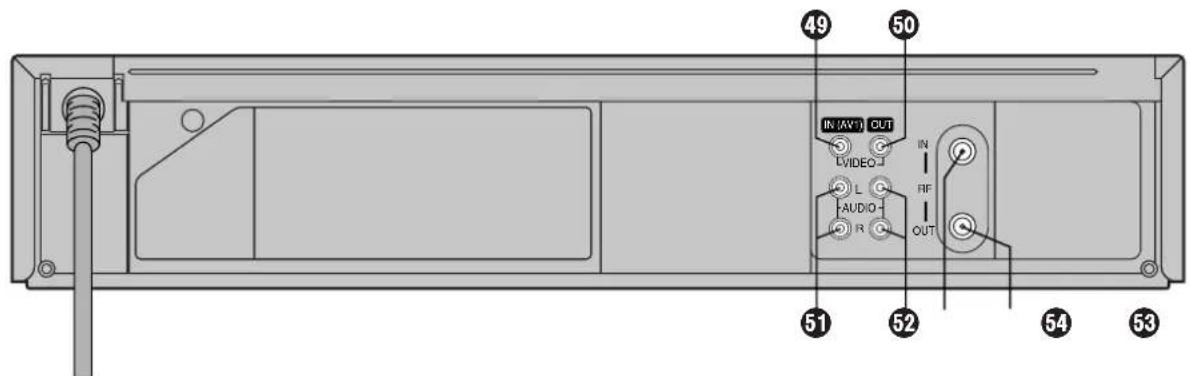
49 VIDEO IN socket
50 VIDEO OUT socket
51 AUDIO IN socket
52 AUDIO OUT socket
53 RF IN socket
54 RF OUT socket
Note:
You can use the POWER 1*1, Numeric 2*2, AV 3*3, VOLUME 29*4 and Channel 30*5 button for your TV operation.
- Set the VCR/TV switch 21 to [TV].
*1 To switch the TV on from standby mode (OFF) or vice versa.
On some TVs it is only possible to switch the TV to standby mode (OFF) with this button, but not on. In this case, try to turn the TV on with one of the following buttons:
Numeric buttons ②
AV button ③
Channel button 30
*2 To select the programme positions (1–99) on the TV.
*3 To select desired AV input on the TV.
*4 To adjust the volume of the TV.
*5 To select the desired programme position (TV station) on the TV.
Setting the Remote Control to Operate Your TV
You can operate the TVs of the manufacturers listed below with the remote control after setting it.
This setting procedure allows you to operate the TVs of some manufacturers using the supplied remote control.
Preparation
- Set the VCR/TV switch 21 to [TV].
Operations
1 Find the manufacturer number of your TV while referring to the following table.
2 While holding down the POWER button ①, use the Numeric buttons ② to enter the manufacturer number. This completes the settings for the TV manufacturer.
- Be sure to enter the number in two digits.
Example: 1 → 01
3 To confirm the correct settings were made, check whether the TV can be operated properly.
- When a manufacturer has multiple numbers in the following table, try entering other numbers if the TV operations cannot be performed properly, and then select the optimal number.
Notes:
- If you are using a Panasonic TV, this setting has already been made, and so you do not need to perform the above setting procedure. However, this remote control may not work with some Panasonic TVs.
- Some TV models cannot be operated using this remote control (including all TVs non-remote compatible).
List of TVs Compatible with the VCR's Remote Control
| [Brand] [Code] | |
| Panasonic/National 01-04 | |
| SONY 05 | |
| TOSHIBA 06 | |
| JVC 07 | |
| HITACHI 08 | |
| MITSUBISHI 09, 10 | |
| SHARP 11 | |
| PHILIPS, SAMSUNG 12 | |
| NEC 13 | |
| SANYO 14 | |
| GOLDSTAR/LG 15, 16 | |
| SAMSUNG | 17, 18 |
| SANYO 19 | |
Connections
This section shows you how to connect the VCR to an aerial, TV, etc.
When the VCR is turned on after unpacking and connecting the aerial cable and the mains lead, Plug in Auto Tuning starts automatically.
Basic Connections
The following connections are required to record and play back the video cassette through the TV.
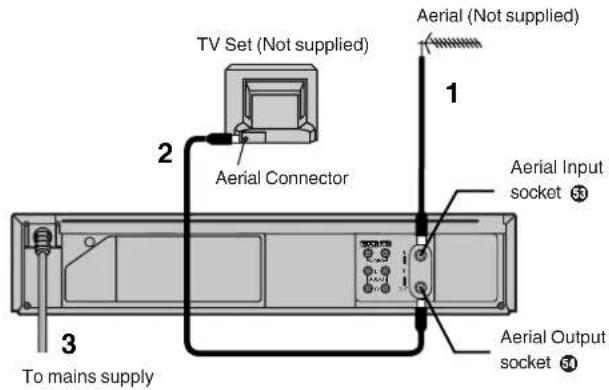
Connection to a TV using the Audio/Video Input Socket Set the RF output channel of the VCR to [—] (RF OFF) when the VCR is connected to the TV via the Audio/Video cable. (See page 6.)
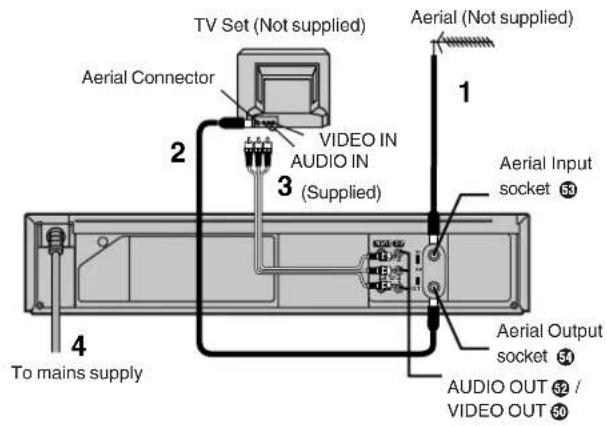
Connection to a Stereo Amplifier
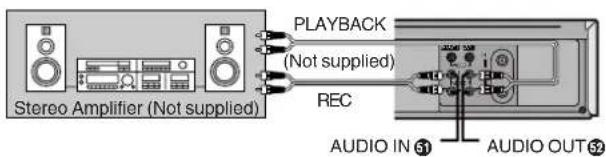
Tuning the TV to Your VCR
The VCR supplies a signal to the TV via the RF coaxial cable on channel E21–E69.
It is possible to view the video picture on your TV in the same way that you watch TV broadcasts.
If you have connected the VCR to the TV through the Audio/Video input sockets, then you do not need to follow the procedure below.
When the VCR is turned on after unpacking and connecting the aerial cable and the mains lead, Plug in Auto Tuning starts automatically.
Notes:
- If the VCR is turned on with the aerial not connected, all channels are skipped. Therefore, firmly connect the aerial and then turn the VCR off and on again to execute Auto Tuning.
- When Auto Tuning is cancelled halfway, Auto Tuning is not executed even if the VCR is turned off and then turned on again. In this case, see page 7 [To Restart Plug in Auto Tuning].
Operations
1 Turn on the TV and the VCR.
2 Set the TV to an unused position which you wish to use for your video playback.
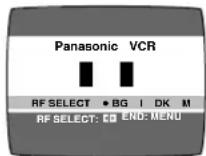
- Tune the TV until the display shown below appears on the screen. (Please refer to the TV manufacturers operating instructions regarding tuning.)
- Set [RF SELECT] by pressing the Cursor buttons (◀▶)
35 to select the colour TV system used by the TV set to be connected.
BG: PAL B.G.H/SECAM B.G
I: PAL I
DK: PAL D/SECAM D.K.K1
M: NTSC (For NV-FJ620BD/BDX)
On Screen Display
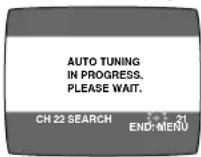
During Plug in Auto Tuning
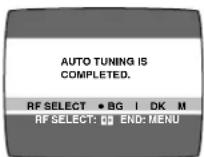
After Plug in Auto Tuning
3 Press the MENU button 37.
To Change the RF output Channel
In some rare cases after tuning the TV to your VCR, interference may be visible on the picture. To get rid of this interference, you can manually adjust the RF output channel a few channels up and down from the current setting. The procedure is described below.
Operations
1 Hold down MENU button 37 for 5 seconds or more. – The VCR display changes as shown below and the VCR picture on the TV displays this pattern.
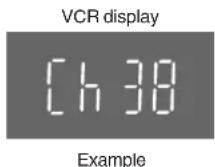
2 Enter the desired channel number (E21–E69) by the Numeric buttons ② or the Channel button ③0.
- Ensure that the VCR/TV switch 21 is set to [VCR]. - Set the RF output channel of the VCR to [—] (RF OFF) when the VCR is connected to the TV via the Audio/Video cable.
Press the Channel button 30 to display [—].
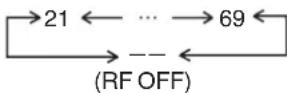
Example: 28: ② → ⑧
3 Press the MENU button ③7 to finish the setting mode.
4 Retune your TV to the new RF channel for the VCR.
Note:
- Even if the RF output channel has been changed, it is not necessary to perform Auto Tuning.
Storing TV Broadcasts in Your VCR
The VCR is fitted with its own tuner (just like a normal TV) and can be preset to receive up to 99 TV broadcast stations.
Plug in Auto Tuning
When the VCR is turned on after connecting the aerial cable and the mains lead, Auto Tuning starts.
On Screen Display
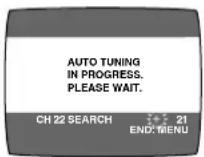
Auto tuning searches for TV stations from VHF minimum to UHF maximum and memorizes every tuned programme position.
- If you turn the VCR off during Auto Tuning, Auto Tuning will stop halfway.
- If the VCR starts playback during Auto Tuning, Auto Tuning will stop halfway.
To Cancel Auto Tuning Mid-Operation:
Press the MENU button 37 during Auto Tuning. Auto Tuning is cancelled.
To Restart Plug in Auto Tuning:
1 Press the EJECT button 40 and remove the video cassette.
2 Keep the Channel buttons 30 on the VCR pressed simultaneously for 3 seconds or more during the VCR on. – The channel displayed on the VCR display disappears for a moment then changes to 1.
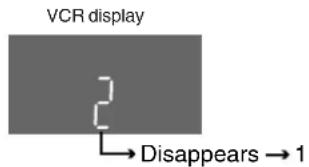
3 Disconnect the mains lead and then reconnect it.
4 Turn off the VCR and then turn it on.
– Auto Tuning commences.
If Auto Tuning stops halfway by turning the VCR off, playback or a power failure:
1 Disconnect the mains lead and then reconnect it.
2 Turn off the VCR and then turn it on.
– Auto Tuning commences.
Auto Tuning Using the On Screen Display
Introduction
The VCR is tuned automatically by Plug in Auto Tuning. However, Auto Tuning using the On Screen Display should be performed according to the following method if necessary.
Preparations
- Confirm that the TV is on and the VCR viewing channel is selected.
- Turn on the VCR and select any programme position except A1 or A2.
- Set the VCR/TV switch 21 to [VCR].
Operations
1 Press the MENU button 37 to display the Main menu on the TV screen.
2 Press the Cursor buttons ( ▲▼) 35 to select [TUNER PRESET] then press OK button 36.
3 Press the Cursor buttons ( ▲▼) ③5 to select [AUTO TUNE] then press the Cursor buttons ( ◀▶ ) ③5 to start the Auto Tuning.
- When Auto Tuning is completed, the On Screen Display disappears and programme position 1 is selected.
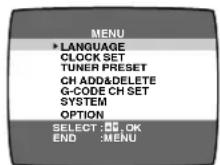
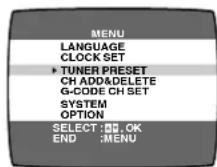
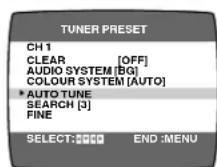
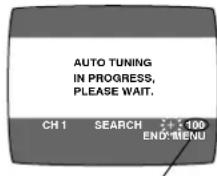
The number displayed here is the number of channels still to be auto tuned.
Channels that can be Received
| SYSTEM | VHF | CATV | UHF | |
| BG | CCIR Standard (B.G.H) | E2-E12 | S01-S05M1-M10U1-U10S21-S41 | E21-E69 |
| I | Hong Kong Special Administrative Region of China, UK (I) | - | - | E21-E69 |
| DK | East Europe (D.K.K1) | R1-R12 | 44-470MHz | E21-E69 |
| M* | USA (NTSC) | 5AA-5-FFF | 14-792-13 | |
| JAPAN (NTSC) | 13-621-12 C13-C6 | |||
* For NV-FJ620BD/BDX
Notes:
– Auto Tuning searches for TV stations from VHF minimum to UHF maximum and memorizes every tuned programme position. Other programme positions are skipped.
- Auto Tuning takes five or more minutes to complete its search.
- If the VCR is not correctly tuned by Auto Tuning, follow the procedure on the next page.
Manual Tuning Procedure
1 Press the MENU button 37 to display the Main menu on the TV screen.
2 Press the Cursor buttons (▲▼) 35 to select [TUNER PRESET] then press OK button 36.
3 Press the Cursor buttons (▲▼) 35 to select [CH] then select the channel number you want tuned by pressing the Cursor buttons (◀▶) 35.
4 Confirm that [CLEAR] is set to [OFF].
5 Press the Cursor buttons (▲▼) 35 to select [AUDIO SYSTEM] then select the broadcasting system by pressing the Cursor buttons (◀▶) 35.
- BG: PAL B.G.H/SECAM B.G
- I: PAL I
- DK: PAL D/SECAM D.K.K1
- M: NTSC (For NV-FJ620BD/BDX)
6 Press the Cursor buttons (▲▼) 35 to select [COLOUR SYSTEM] then select [AUTO] by pressing the Cursor buttons (◀▶) 35.
- The VCR automatically distinguishes between PAL, SECAM and NTSC broadcasts.
- If the picture lacks colour when [AUTO] is selected, select [MESECAM], [PAL] or [NTSC (For NV-FJ620BD/BDX)].
7 Press the Cursor buttons (▲▼) 35 to select [SEARCH] then press the Cursor buttons (◀▶) 35 to start the Manual Tuning.
- If the desired TV station has not been tuned, press the Cursor buttons (◀▶) 35 again.
- Press the MENU button 37 and repeat steps 3–7 for each programme position you want to tune to a station.
On Screen Display
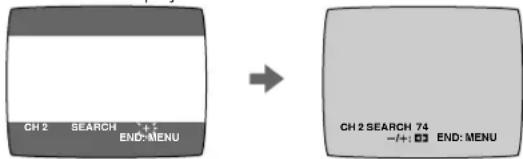
8 Press the MENU button 37 three times to exit the On Screen Display.
Direct Tuning
Follow steps 1 to 3 of Manual Tuning Procedure.
4 Confirm that [CLEAR] is set to [OFF].
5 Press the Cursor buttons (▲▼) 35 to select [SEARCH].
6 Press the Numeric buttons ② to enter the number of the desired programme position.
- For other channels that require tuning, repeat steps 3–6.
7 Press the MENU button 37 twice to exit the On Screen Display.
Fine Tuning Procedure
Follow steps 1 to 3 of Manual Tuning Procedure.
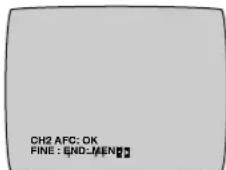
4 Press the Cursor buttons (▲▼) 35 to select [FINE] then press the Cursor buttons (◀▶) 35 to obtain the best tuning condition.
- Press the OK button 36 to return the tuning to its former state.
5 Press the MENU button 37 to exit the On Screen Display.
Blanking of Unused Programme Positions
Follow steps 1 to 3 of Manual Tuning Procedure.
4 Press the Cursor buttons (▲▼) 35 to select [CLEAR] then press the Cursor buttons (◀▶) 35 to select [ON].
- Repeat steps 3–4 for other unused programme positions to skip during the selection of programme positions.
- To cancel the blanking of a programme position select that programme position then set [CLEAR] to [OFF].
5 Press the MENU button 37 twice to exit the On Screen Display.
To Add and Delete the Channel
Example:
If you want to add a new channel between Channel 4 and Channel 6,
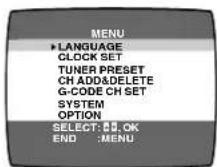
1 Press the MENU button 37 to display the Main menu on the TV screen.
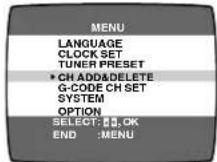
![2 Press the Cursor buttons (▲▼) 35 to select [CH ADD&DELETE] then press the OK button 36. 3 Press the Cursor buttons (▲▼) 35 to select the desired programme position (example CH3) then press the Cursor button (►) 35 to select [ADD]. On Screen Display MENU • LANGUAGE CLOCK SET TUNER PRESET CH ADD&DELETE G-CODE CH SET SYSTEM OPTION SELECT: OK END: MENU](/content/2026/05/846712/images/b1d20e11fe1b90c4f60d93758c0434757ba7ad9e7b882c184a26aed2526d6141.jpg)
Example:
If you want to delete Channel 6,
1 Press the MENU button 37 to display the Main menu on the TV screen.
2 Press the Cursor buttons (▲▼) 35 to select [CH ADD&DELETE] then press the OK button 36.
3 Press the Cursor buttons (▲▼) 35 to select the desired programme position (example CH3) then press the Cursor button (◀) 35 to select [DELETE].
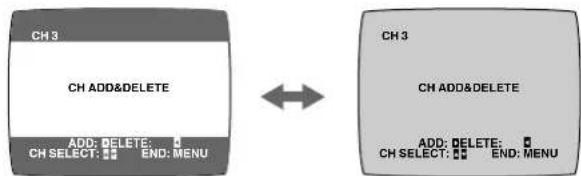
flowchart
graph LR
    A["CH 3"] --> B["CH ADD&DELETE"]
    B --> C["ADD: DELETE: CH SELECT: END: MENU"]
    C --> D["CH 3"]
    D --> E["CH ADD&DELETE"]
    E --> F["ADD: DELETE: CH SELECT: END: MENU"]
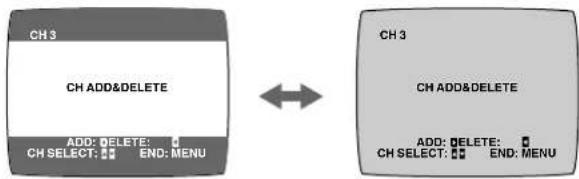
flowchart
graph LR
    A["CH 3"] --> B["CH ADD&DELETE"]
    B --> C["CH SELECT: 📄️ END: MENU"]
    C --> D["CH 3"]
    D --> E["CH ADD&DELETE"]
    E --> F["CH SELECT: 📄️ END: MENU"]
    style A fill:#f9f,stroke:#333
    style D fill:#f9f,stroke:#333
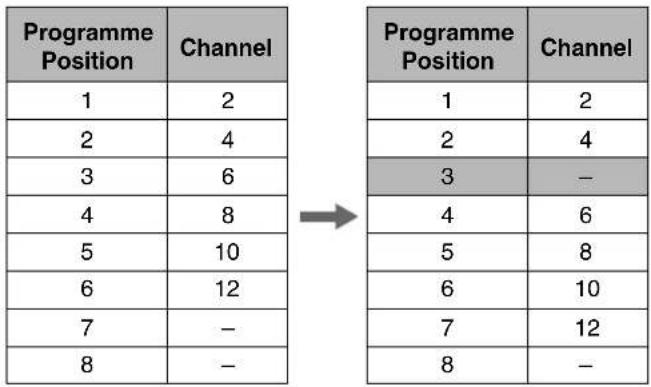
other
| Programme Position | Channel | |---|---| | 1 | 2 | | 2 | 4 | | 3 | 6 | | 4 | 8 | | 5 | 10 | | 6 | 12 | | 7 | - | | 8 | - |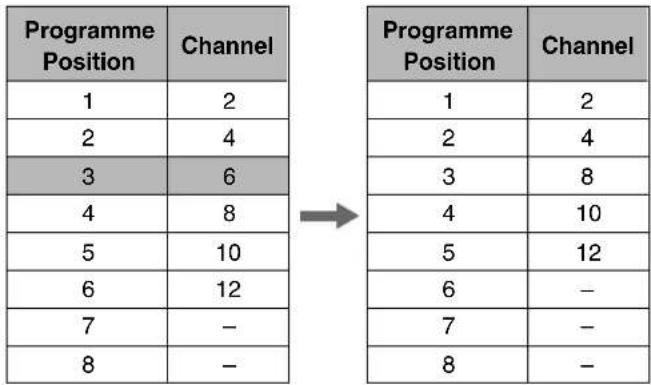
other
| Programme Position | Channel | |---|---| | 1 | 2 | | 2 | 4 | | 3 | 6 | | 4 | 8 | | 5 | 10 | | 6 | 12 | | 7 | - | | 8 | - |- Adding a channel shifts the programme positions of Channel 6 to Channel 12 up, as shown in the list above.
- The list of the programme positions do not appear on the On Screen Display.
4 After adding, tune the added channel. (See steps 3–7 in Manual Tuning on page 8.)
- Press the MENU button ③7 twice and repeat steps 3–4 for each of the other programme positions.
5 Press the MENU button 37 four times to exit the On Screen Display.
- Deleting a channel shifts the programme positions of Channel 8 to Channel 12 down, as shown in the list above.
- The list of the programme positions do not appear on the On Screen Display.
- Repeat step 3 for each of the other programme positions.
4 Press the MENU button 37 twice to exit the On Screen Display.
Language Setting of the On Screen Display
Select one of the three languages displayed: English, Arabic and Russian.
Preparations
- Confirm that the TV is on and the VCR viewing channel is selected.
- Turn on the VCR.
Operations
1 Press the MENU button 37 to display the Main menu on the TV screen.
2 Press the Cursor buttons (▲▼) 35 to select [LANGUAGE] then press the OK button 36.
3 Press the Cursor buttons (▲▼) 35 to select the desired language.
4 Press the MENU button 37 twice to exit the On Screen Display.
On Screen Display
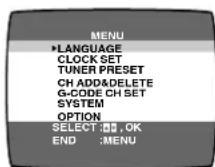
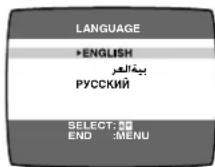
Setting the Clock of Your VCR
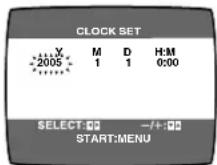
The clock will operate for at least 3 years in total after it has been set, - in the event of a power failure, it will operate on its backup system. After 3 years, it will only operate for 1 hour on its backup system.
Preparations
- Confirm that the TV is on and the VCR viewing channel is selected.
- Turn on the VCR.
Example:
Date: 16 October, 2005
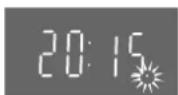
Time; 20:15
Operations
1 Press the MENU button 37 to display the Main menu on the TV screen.
2 Press the Cursor buttons (▲▼) 35 to select [CLOCK SET] then press the OK button 36.
3 Set each item by pressing the Cursor buttons (▲▼▶) 35. Press the Cursor button (◀) 35 to return to the previous item.
At the set time (H:M) point:
- When it is kept pressed, the indication changes in 30 minute steps.
- There is no need to press the Cursor button (▶) 35.
4 Press the MENU button 37.
– The clock starts.
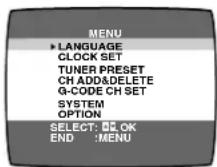
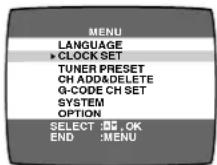
Time Reset Function
If the clock is less than two minutes slow or fast, it can easily be reset to the proper time.
Example:
Resetting the clock to 12:00.00
1 Press the MENU button 37 to display the Main menu on the TV screen.
2 Press the Cursor buttons (▲▼) 35 to select [CLOCK SET] then press the OK button 36.
3 When the current clock display on the VCR is between 11:58.00 and 12:01.59, press the MENU button ③7 as soon as you hear the 12:00.00 signal. This resets the time to 12:00.00.
Preparations for G-Code Programming
Identification numbers must be set for G-Code programming. Proceed with the G-Code programming operation described on page 22, and the identification numbers of the TV stations concerned will be set automatically. This will allow G-Code programming to be undertaken without performing the operation described on this page. However, you can follow the setting procedure described below if you wish to set the identification numbers of all the TV stations prior to actual programming.
[Identification numbers] refer to the numbers used for identifying TV stations.
The programme positions on the VCR receiving the TV stations are set in these identification numbers.
Have a newspaper or magazine which lists today's local TV station programmes and G-Code numbers on hand.
Preparations
- Set the clock of the VCR. See page 10.
- Store TV broadcasts in your VCR. See pages 7–9.
- Confirm that the TV is on and the VCR viewing channel is selected.
- Turn on the VCR.
Operations
1 Press the MENU button 37 to display the Main menu on the TV screen.
On Screen Display
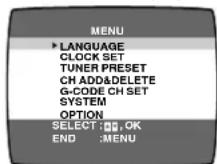
2 Press the Cursor buttons (▲▼) 35 to select [G-CODE CH SET] then press the OK button 36.
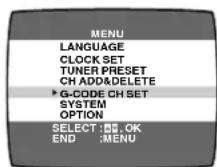
3 Press the Cursor buttons (▲▼) 35 to select the identification number (GUIDE CH) (001–255).
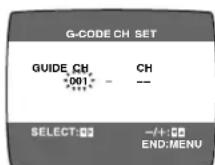
4 Press the Cursor buttons (◀▶) 35 then press the Cursor buttons (▲▼) 35 to select the programme position (1–99, A1 or A2).
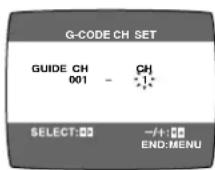
- To set the other TV stations, press the Cursor buttons (◀▶) 35 then repeat steps 3 and 4.
5 Press the MENU button 37 twice to exit the On Screen Display.
Note:
To receive satellite stations, the satellite receiver must be connected to the VCR and programme position must be set depending on the type of connection.
A1/A2: When the satellite receiver is connected to the Audio/Video input sockets (AV1/AV2).
- When the satellite receiver is connected by means of the RF coaxial cable, set to a free programme position between 1 and 99.
The guide channel numbers are subject to change. Please refer to the guide channels listed in the latest newspapers or TV listings.
Example:
| TV Station Name Guide Channel | |
| TVB Jade 001 | |
| ATV Home 002 | |
| TVB Pearl 003 | |
| ATV World 004 | |
| Star Prime Sports 005 | |
| Star Channel V 006 | |
| Star Phoenix 007 | |
| Star Plus 009 | |
| Cable Movie Channel I 022 | |
| Cable Preview Channel | 023 |
| Cable News I | 024 |
| Cable Children Channel | 025 |
| Cable Movie Channel II | 025 |
| Cable ESPN | 026 |
| Cable YMC | 027 |
| Cable English Channel/CNNI | 028 |
| Cable Learning Channel | 029 |
| Cable Women Channel | 030 |
| Cable International Channel | 031 |
| Cable BBC Channel | 032 |
| Cable Sports Channel | 037 |
| Cable News II | 038 |
| Cable 18 Channel | 039 |
| Cable CNBC | 040 |
| TDM Chinese Channel 041 | |
| TDM Portuguese Channel | 042 |
| Australia TV | 043 |
| Asia Business News (ABN) | 044 |
| Cable HBO | 045 |
| Cable CCTV4 | 046 |
| CETV | 047 |
| Cable Cineplex Channel 79 | 079 |
| Cable Cineplex Channel 80 | 080 |
| Cable Cineplex Channel 81 | 081 |
| Cable Cineplex Channel 82 | 082 |
| Cable Cineplex Channel 83 | 083 |
| Cable Cineplex Channel 84 | 084 |
| Cable Cineplex Channel 85 | 085 |
| Cable Cineplex Channel 86 | 086 |
Settings Using the On Screen Display
Preparations
- Confirm that the TV is on and the VCR viewing channel is selected.
- Turn on the VCR.
- Set the VCR/TV switch 21 to [VCR].
To Set the Colour TV System
1 Press the MENU button 37 to display the Main menu on the TV screen.
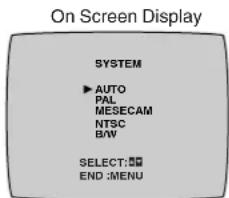
2 Press the Cursor buttons (▲▼) 35 to select [SYSTEM] then press the OK button 36.
3 Press the Cursor buttons (▲▼) 35 to select [AUTO].
- The VCR automatically distinguishes between [PAL], [SECAM/MESECAM] and [NTSC] signals. If the picture lacks colour during AV external recording or playback, set to [PAL], [MESECAM] or [NTSC].
- When you want to record or play back in black and white, set to [B/W].
4 Press the MENU button 37 twice to exit the On Screen Display.
To Make Various Indicators Appear On Screen Display ①②③ ④⑤⑥⑦
At a press of the OSD button 32, the following indications appear on the TV screen.
- Press the OSD button 32 again to make the On Screen Display disappear.
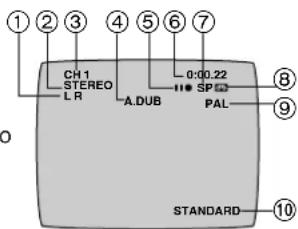
①Audio Output Mode Indicators
At each press of the AUDIO button 15, the selected sound mode is indicated with Left (L) and Right (R).
Stereo: Both the Left (L) and Right (R) Indicators appear.
Left: The Left (L) Indicator appears
Right: The Right (R) Indicator appears.
Normal: Neither the Left (L) nor Right (R) Indicator appears.
- At every push of this button, the audio output mode changes as follows.
During playback:

While the broadcast signals are being received:

②STEREO or BILINGUAL indicator
When receiving a TV programme, the type of sound system in which it is broadcast is automatically indicated. STEREO, M1 and M2 Indicator
When receiving a TV programme with the Stereo, Bilingual or NiCAM sound system, the type of sound system in which it is broadcast is automatically indicated.
STEREO: When receiving a Stereo/NICAM stereo broadcast.
M1 M2: When receiving a Bilingual/NICAM dual-sound broadcast.
M1: When receiving a NICAM monaural broadcastl.
- To hear stereo performance connect as shown on page 5 to a TV or Stereo Amplifier with left and right audio inputs.
③Programme position
④Edit mode
When edit mode is set, the On Screen Display appears A.DUB: Audio Dubbing
⑤Tape running display
| Stop, Eject | |
| Rewind, Review | ◀◀ |
| Fast Forward, Cue | ▶▶ |
| Playback | ▶ |
| Recording, Audio dubbing, | ● |
| Recording pause, Audio dubbing pause | II ● |
| Repeat playback | R ▶ |
⑥Present time/Tape counter/Remaining tape time/ Index Search/OTR indication/Play-Off Timer
| Information | Display |
| Present time | 17:24 |
| Tape counter | -2:35.47 |
| Remaining tape time | REMAIN 2:34 |
| Index Search | S 01 |
| OTR indication | OTR 60 |
| Play-Off Timer | OFF 60 |
⑦Tape speed indicator (SP/LP/EP)
⑧Cassette-in indicator
⑨Colour system indicator
Any selected colour TV system except [AUTO] appears on screen display. (See pages 8 and 12.)
⑩Picture mode indicator
At each press of the PICTURE MODE button ⑤, the selected picture mode is set and following picture mode indicators appear.
Example:
STANDARD: For TV programme recorded
DYNAMIC: For Scenery, Sports
SOFT: For Rental soft tape
CARTOON: For Cartoon
Note:
- The on screen display may be disturbed or disappear during special playback.
Option Setting
1 Press the MENU button 37 to display the Main menu on the TV screen.
2 Press the Cursor buttons (▲▼) 35 to select [OPTION] then press the OK button 36.
3 Press the Cursor buttons (▲▼) 35 to select the desired field.
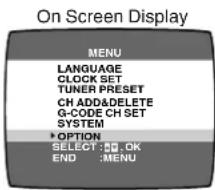
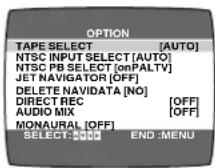
TAPE SELECT: To select the corresponding video cassette tape length to display the approximaster remaining tape time.
- Press the Cursor buttons (◀▶) 35 to select the corresponding video cassette tape length.
AUTO: The VCR automatically distinguishes E30, -60, -90, -120, -180 and -240 tapes.
E195: For E195 tape
E260: For E260 tape
E300: For E300 tape
- The remaining tape time may not be displayed correctly depending on the tape used.
NTSC INPUT SELECT: To select the colour TV system used to record NTSC signals.
- Press the Cursor buttons (◀▶) 35 to select [AUTO]. Allows NTSC [4.43] or [3.58] signals to be distinguished automatically.
- If the tape has not recorded correctly, select 4.43 or 3.58.
4.43: When recording NTSC 4.43 signals.
3.58: When recording NTSC 3.58 signals. Some programmes on NTSC 3.58 system cannot be recorded correctly at this position.
NTSC PB SELECT: To select the colour TV system of the TV used to play back a tape recording NTSC signals.
- Press the Cursor buttons (◀▶) 35 to select the desired position according to the colour TV system of the TV.
on PAL TV: For TVs that can receive PAL signals.
4.43: For TVs that can receive NTSC 4.43 signals.
3.58: For TVs that can receive NTSC 3.58 signals.
JET NAVIGATOR: To set to the conditions for the Jet Navigator Function.
- Press the Cursor buttons (◀▶) 35 to select [ON] or [OFF].
OFF: Initially set at this position.
ON: 📄N appears on the VCR display and Jet Navigator function works.
DELETE NAVIDATA: To delete all the Jet Navigator data stored in the VCR's memory.
- Press the Cursor buttons (◀▶) 35 to select [OK] then press the OK button 36 to do the deletion.
NO: Initially set at this position.
END: It is done to delete all the Jet Navigator data.
DIRECT REC: To set to the conditions for Direct Recording Function.
- Press the Cursor buttons (◀▶) 35 to select [ON] or [OFF].
OFF: Initially set at this position.
ON: This setting enables Direct Recording. AV Input (A1) becomes exclusive channel for Direct Recording. (See page 17.)
AUDIO MIX: To set the Audio mode to be used during playback.
- Press the Cursor buttons (◀▶) 35 to select [ON] or [OFF].
ON: Both sound tracks (the Hi-Fi sound track and the normal sound track) are played back mixed together.
OFF: Normally set at this position to reproduce the better sound available from the Hi-Fi track.
MONAURAL: To select the sound mode.
- Press the Cursor buttons (◀▶) 35 to select [ON] or [OFF].
ON: To record the normal sound during a NICAM broadcast or if the stereo sound is distorted due to inferior reception conditions.
OFF: Normally set at this position.
4 Press the MENU button 37 twice to exit the On Screen Display.
Playback
Preparations
– Confirm that the VCR is on.
- Confirm that the TV is on and the VCR viewing channel is selected.
- Insert a recorded video cassette.
For Normal Playback:
Press the Play button 7.
VCR display

For Cue or Review Playback:
During playback, tap the Fast Forward button 23 or the Rewind button 8.
- To return to normal playback, press the Play button ⑦.
- If you press and hold down the Fast Forward button 23 or the Rewind button 8, cue or review playback continues for as long as you keep the button pressed, and operation returns to normal playback when the button is released.


For High speed Cue or Review Playback (JET SEARCH):
During playback, tap the Fast Forward button 23 or the Rewind button 8 twice.
For Still Playback:
During playback, press the
Pause/Slow button 26 or the
PAUSE/STILL button 43.
- To return to normal playback, press the Play button ⑦, the Pause/Slow button ⑧ or the PAUSE/STILL button ⑬.

For Slow Playback:
During playback, keep the
Pause/Slow button 26 or the
PAUSE/STILL button 43 pressed for
2 seconds or more.
- To return to normal playback, press the Play button ⑦.

Fast-forwarding or Rewinding the Tape:
Press the Fast Forward button ② or the Rewind button ⑧ in the stop mode.
- To stop fast-forwarding or rewinding, press the Stop button 22.
- To briefly view the picture during fast-forwarding or rewinding, press and hold down the corresponding button.
To Stop Playback
Press the Stop button 22.
Notes:
- JET SEARCH, cue, review or slow playback will be automatically cancelled after 10 minutes, and still playback after 5 minutes.
– During playback function other than normal playback, horizontal noise bars may appear in the picture, the colour of the picture may be unstable, or the picture may be otherwise distorted. - When you play back a tape recorded in the LP mode, the picture may be in black and white.
- When you play back a tape recorded in the EP mode, the picture and the sound may be unstable. However, these are not malfunctions.
To Play back S-VHS Cassette Tape (SQPB=S-VHS Quasi Playback)
It is also possible to play back tapes recorded in the S-VHS system.
- Some picture noise may occur depending on the type of tape used.
- It is not possible to fully obtain the high resolution that S-VHS is capable of.
- It is not possible to record in the S-VHS system with this VCR.
To Play Back a Recorded Part Repeatedly
Press the REPEAT button 31.
The [R ▶] indication appears on the TV screen.
- Repeat Playback function does not work during Play-Off Timer.
To Cancel the Repeat Playback Mode:
Press the Stop button 22.
To Stop Playback Automatically (Playback Off Timer Function)
If you set the playback duration, the playback will stop automatically.
After the set playback time has elapsed, the VCR automatically stops playback and switches off.
To Activate the Playback Off Timer Function:
During normal playback, press the Play button 7 on the VCR for more than 2 seconds to put the VCR in the Playback Off Timer mode.
After that, press the Play button ⑦ on the VCR repeatedly until the desired playback duration is displayed on the VCR display.
- Repeatedly pressing this button changes the indication in the following order:
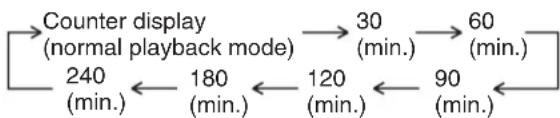
flowchart
graph LR
    A["Counter display\n(normal playback mode)"] --> B["30 (min.)"]
    B --> C["60 (min.)"]
    D["240 (min.)"] <--_E["180 (min.)"]
    E <--_F["120 (min.)"]
    F <--_G["90 (min.)"]
- The VCR will automatically switch off when Play-Off Timer is completed. To turn the VCR on again, press the POWER button ①.
Notes:
– The Play-Off Timer function works during normal playback.
- When the tape reaches its end during Play-Off Timer, the tape will be rewound to the start and the VCR will turn itself off.
To Stop Midway:
Press the Stop button 22.
NTSC Playback
Tapes recorded in the NTSC system can be played back with this VCR via a PAL system TV.
- Select [NTSC PB SELECT] from the on screen display according to the colour TV system of the TV. (See page 13.)
- NTSC 3.58 recording requires [NTSC INPUT SELECT] to be in the AUTO or 3.58 position (see page 13), however if [NTSC INPUT SELECT] is in this position when recording a NTSC 3.58 signal, no colour is available for the PAL TV. Once the recording is completed, you then need to select [on PAL TV] to view the recording in colour on PAL TV.
- On some TVs, the playback picture may roll up or down; if your TV has V-HOLD control or equivalent adjustment function, use it to adjust the picture.
Note for only NTSC Playback on PAL system TV
This function is designed to allow only the playback of tapes recorded by NTSC signals on a PAL system TV. The NTSC signal is not completely converted to a PAL signal. For this reason, images played back by this function cannot be recorded correctly on other VCRs.
To Playback in the Desired Picture Quality (Picture Mode)
This function reproduces optimum playback picture from various kind of recorded tapes and contents.
Press the PICTURE MODE button ⑤ and select the corresponding Picture Mode as follows.
Example:
| Mode Characteristic Example for Purpose |
| STANDARD Normal TV Programme recorded |
| DYNAMIC Clear & Vivid Scenery, Sports |
| SOFT Mild Rental soft tape |
| CARTOON Delicate Cartoon |
- Pressing the PICTURE MODE button ⑤ once makes the On Screen Display appear; after that, pressing it repeatedly changes the indication in the following order:

flowchart
graph LR
    A["STANDARD\n(Initial Setting)"] --> B["DYNAMIC"]
    C["CARTOON"] <--_D["SOFT"]
Convenient Automatic Functions
VCR Auto Power On
When you insert a video cassette, the VCR switches on automatically.
Auto Playback Start
When you insert a video cassette with a broken erasure prevention tab, playback start automatically without having to press the Play button ⑦.
VCR-off Playback
When the VCR is off, an inserted cassette can be played back by pressing the Play button ⑦.
Auto Rewind
When the tape reaches the end, the VCR automatically rewinds it to the beginning.
- This function does not work during timer recording and OTR.
Automatic Switching Off and Ejection
When the VCR is switched off, an inserted cassette can be ejected simply by pressing the EJECT button 40. The VCR will eject the cassette and automatically turn itself off again.
VCR-off Search
When the VCR is off, the VCR starts intro-jet scan of an inserted cassette by pressing the SEARCH button ⑥.
To Eject Video Cassette Using the Remote Control
Keep pressing the Stop button 22 for at least 3 seconds.
Recording
Preparations
– Confirm that the VCR is on.
- Confirm that the TV is on and the VCR viewing channel is selected.
- Set the VCR/TV switch 21 to [VCR].
Operations
1 Insert a video cassette with an intact erasure prevention tab.
- If it has already been inserted, press the POWER button ① to turn the VCR on.
2 Select the TV station using the Channel buttons 30.
- It is also possible to select by pressing the Numeric buttons ②.
3 Press the REC (REC/OTR) button 25 (48) to start recording.
VCR display


4 Press the Stop button 22 to stop recording.
To Select the Desired Tape Speed
Press the SPEED button 18 before recording.
- SP provides standard recording time, optimum picture and sound quality. LP provides doubled recording time with slightly reduced picture and sound quality.

EP provides tripled recording time with slightly reduced picture and sound quality.
When you play back a tape recorded in the EP mode, the monaural sound may be unstable.
When you start the recording in the EP mode, [EP] indication on the VCR display flashes for about 8 seconds.
EP mode means Super Long Play (SLP).
To Pause Recording
Press the Pause/Slow button 26 or the PAUSE/STILL button
48 during recording.
Press it again to continue recording.
To View One TV Programme while Recording Another TV Programme
After pressing the REC button 25 to start recording, select on your TV the programme position of the TV programme that you want to view.
To Prevent Accidental Erasure of Recorded Contents
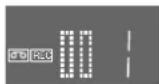
Break out the erasure prevention tab after recording. If you insert a video cassette with a broken out erasure prevention tab and press the REC button 25, the 00 indication flashes on the VCR display to indicate that recording is not possible.
In this case, cover the tab hole with two layers of adhesive tape.
To Display the Approximate Remaining Tape Time
The remaining tape time can be displayed in the VCR display.
1 Select [TAPE SELECT] from the on screen display and select the corresponding video cassette tape length. See page 13.
2 Press the DISPLAY button 14 repeatedly until the Remaining Tape Time appears on the VCR display.

flowchart
graph LR
    A["Clock Counter"] --> B["Remaining Tape Time"]
    B --> C["1.05 REMAIN"]
For certain cassettes, the remaining tape time may not be displayed correctly.
Notes:
- When playing back a cassette recorded in the LP or EP mode, some picture and sound distortion may occur. However, this is not a malfunction.
- The recording pause mode will be automatically cancelled after 5 minutes and return to the stop mode.
- The tape recorded in the EP mode on this VCR cannot be played back on the other VCR without EP mode function.
- On the other VCR (even with EP mode function), when you play back the tape recorded in the EP mode, the picture and the sound may be distorted. However, this is not a malfunction.
- When a video cassette with a broken off erasure prevention tab is inserted, the [OTO] indication will flash to indicate that recording is not possible even if the REC (REC/OTR) button 25 (48) is pressed.
Recording of Stereo or Bilingual Programmes
1 Recording is automatically made in the stereo or bilingual mode. This prevents errors in the selection of the dubbed or the original language.
2 During playback press the AUDIO button 15 to select the desired sound mode. (See page 12.)
The NICAM Broadcast System
The VCR is equipped with the NICAM sound system. NICAM is a 2 channel sound broadcast system to provide either a high quality stereo sound track or 2 independent MONO sound tracks, M1 and M2.
NICAM programmes are always accompanied by standard sound broadcasts and you can select the desired sound with the AUDIO button 15 during playback.
- The NICAM digital stereo sound can only be recorded on the Hi-Fi audio track.
- When NICAM programme is being received, the indicators are lit to inform you of the type of broadcast. (See page 12.)
- To record the regular sound (ordinary normal sound) on the FM audio tracks when a NICAM programme is received, set [MONAURAL] to [ON]. (See page 13.)
- To hear stereo performance connect as shown on page 5 to a TV or Stereo Amplifier with left and right audio inputs.
Important Note for the NICAM System
When the VCR is switched on, the tuner will automatically switch to a NICAM broadcast, if NICAM is being transmitted. At this time the NICAM signal is transmitted on stereo channels only, since the M1 and M2 formats are not yet available. Even if the sound track is MONO, the stereo indicator will appear.
To Immediately Record the Same Scenes of Programme That You Are Viewing on the TV (Direct Recording)
This function allows you to immediately start recording the same scenes of programme that you are viewing on the TV.
Conditions for correct operation of the Direct TV Recording function:
- Set [DIRECT REC] to [ON] (see page 13).
- The VCR must be connected to the TV's Audio/Video output socket via Audio/Video cable as shown.
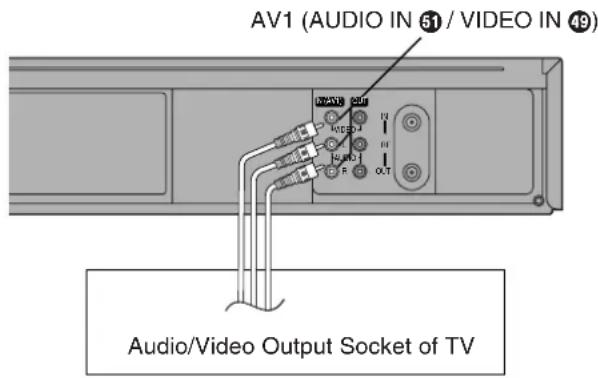
To Perform Direct Recording:
1 Insert a video cassette with an intact erasure prevention tab.
2 Press the DIRECT REC button 33.
- Recording of the TV programme that you are viewing on the TV starts.
– In some cases, it may not be possible to change the programme position on the TV during Direct TV Recording.
When viewing or displaying the programme from your TV:
- Do not press the AV button ③, Numeric buttons ② or Channel button ⑩ during Direct Recording, otherwise the recording may not be performed correctly.
When viewing or displaying the programme from your VCR:
- It is possible to select and view any other TV programme from your TV while the Direct Recording continues.
After pressing the DIRECT REC button 33 to start recording, select on your TV the programme position of the TV programme that you want to view.
3 Press the Stop button 22 to stop recording.
To Select the Recording Duration and Perform Timer Recording (OTR Recording)
OTR means One-Touch Recording and is called this way, because you can start recording and select the recording duration by repeatedly pressing a single button. This is very convenient, for example when you want to start recording immediately but need to go out or want to go to bed.
After the selected recording duration has elapsed, recording stops and the VCR automatically switches off.
To Perform an OTR Recording:
1 Display the VCR picture on the TV.
2 Insert a video cassette with an intact erasure prevention tab.
3 Press the Channel buttons 80 to select the programme position on which the TV programme to be recorded will be broadcast.
4 Press the REC/OTR button 48 to start recording.
5 Press the REC/OTR button 48 repeatedly to select the desired recording duration.
- Every time you press this button, the recording duration indicated in the VCR display changes in the following order.
- For example, if you select [30], the VCR records a programme from that moment on for 30 minutes.
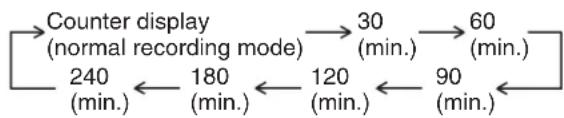
flowchart
graph LR
    A["Counter display\n(normal recording mode)"] --> B["30 (min.)"]
    B --> C["60 (min.)"]
    A --> D["240 (min.)"]
    D --> E["180 (min.)"]
    E --> F["120 (min.)"]
    F --> G["90 (min.)"]
To Stop the OTR Recording Before the End:
Press the Stop button 22.
Notes:
- The OTR function works during normal recording.
- When the tape reaches its end during OTR, the VCR will turn itself off.
Recording from an external source
This function can be used to make up an edited tape from other recordings or video sources.
A new scene can be added to the end of previous one.
AV1 (AUDIO IN 51 / VIDEO IN 49)
AV2 (AUDIO IN 42 / VIDEO IN 41)
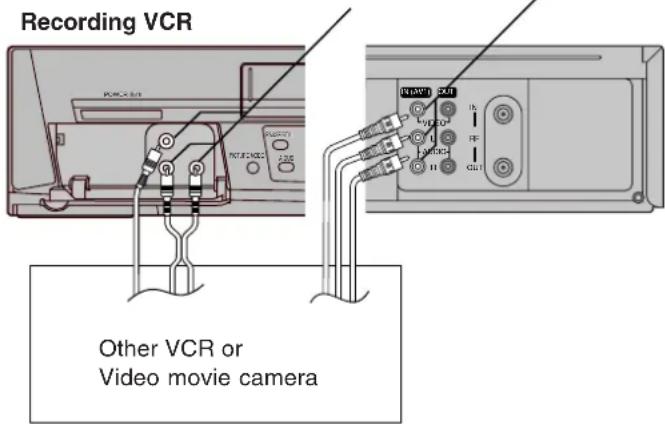
Preparations
- Connect a video movie camera or another VCR to this VCR as shown.
- Display the VCR picture on the TV.
- Insert the cassette on which the copying is to be performed, and make sure that its erasure prevention tab is not broken out.
- Select the audio source required by pressing the INPUT SELECT button 27 to set A1 or A2.
A1: Through the AV1 (AUDIO IN/VIDEO IN) sockets.
A2: Through the AV2 (AUDIO IN/VIDEO IN) sockets on front panel.
- Use the L and R connectors for operations in the normal (monaural) mode.
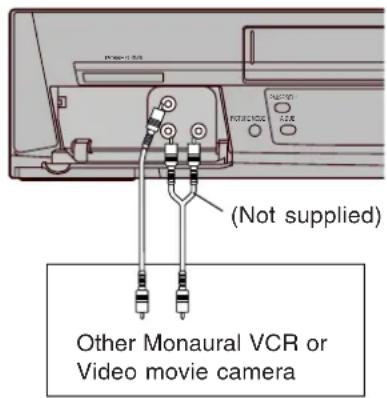
Operations
1 Press the Play button ⑦ to start playback.
2 At the point where you want to join a new scene, press the Pause/Slow button 26 to put it in the still playback mode.
3 Press the REC button 25 to put it in the recording pause mode.
4 Start playback on the source unit and search for the point from which you want to record (copy) onto this VCR.
5 When that point is reached, press the Pause/Slow button 26 again to start recording the new picture and sound from the playback unit.
6 To record (copy) additional scenes, press the Pause/ Slow button 26 to put this VCR in the recording pause mode and then perform above steps 4 and 5 again.
7 At the point where you want to stop recording, press the Stop button 22 to finish recording.
Hint:
- The new sound is recorded on both the Hi-Fi audio tracks and the normal audio track. The sound recorded on the normal audio track is always in mono.
Notes:
- If you leave the VCR in the recording pause mode for more than 5 minutes in step 3 or 6, the VCR automatically switches over to the stop mode to protect the video heads.
- If [DIRECT REC] is set to [ON], connect with AV2 sockets and select A2.
Timer Recording
4-Key Programming
Up to 16 timer programmes, including weekly and daily programmes, can be recorded up to one month in advance by setting the timer.
Preparations
- Confirm that the VCR is on.
- Confirm that the TV is on and the VCR viewing channel is selected.
- Insert a video cassette with an intact erasure prevention tab.
- Check that the clock is set to the correct time. If it has not been set, refer to page 10.
- Set the VCR/TV switch ② to [VCR].
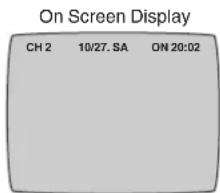
Example (In case of [JET NAVIGATOR] is set to [ON].):
Programme position (channel); 2
Date; 27 October
Starting time; 20:02
Ending time; 21:30
Tape speed; LP
Category; MUSIC
(Present date; 16 October)
![PANASONIC NV-FJ625 - Example (In case of [JET NAVIGATOR] is set to [ON].): - 1](/content/2026/05/846712/images/f2b4db40ee3fd41a203e8e52b8b76c576a99f1cbe9ccbd6753bdcb3d420e36ad.jpg)
Operations
1 Press the PROG./CHECK button ⑫ to display the menu for timer programme on the TV screen.
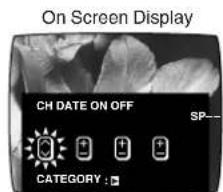
2 Press the Channel button ⑨ to select the programme position of the desired TV station.
- Every time you select the programme position, the background changes.
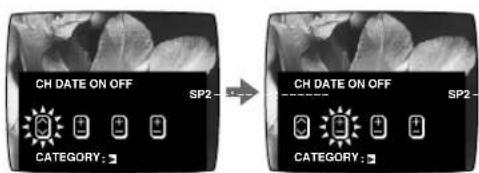
- The next item will flash after about 2 seconds.
3 Press the DATE button ⑩ to set the date on which the TV programme will be broadcast.
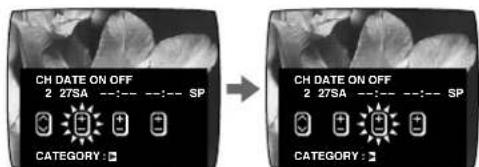
4 Press the ON button 20 to set the starting time.
- When it is kept pressed, the indication changes in 30 minute intervals.
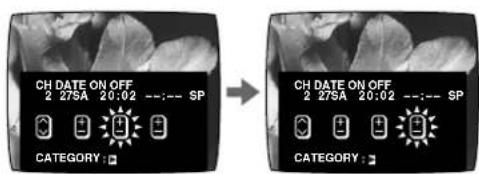
5 Press the OFF button 19 to set the ending time.
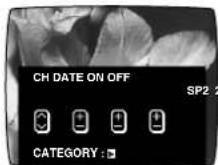
6 Press the SPEED button ⑩ to set the desired tape speed.
- SP provides standard recording time, optimum picture and sound quality.
LP provides double recording time with slightly reduced picture and sound quality.
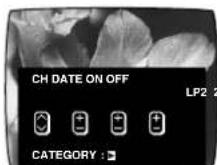
EP provides triple recording time with slightly reduced picture and sound quality.
Regarding the [A] indication, refer to page 20.
When you play back a tape recorded in the EP mode, the monaural sound may be unstable.
7 Press the Cursor button (▶) 35 to select the Category. Then, select the desired category by pressing the Cursor buttons (▲▼◀▶) 35.
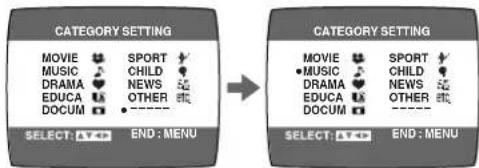
- Alternatively, you can set the category on the Navigator list. (See page 23 for details.)
- This function is activated when [JET NAVIGATOR] is set to [ON]. (See page 13.) When [JET NAVIGATOR] is set to [OFF], proceed to the step 9.
8 Press the MENU button 37 to make the previous display appear.
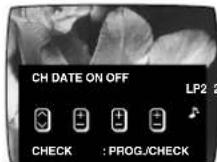
9 Press the TIMER (REC) button ⑰ to switch the VCR over to the timer recording standby mode.
- When [JET NAVIGATOR] is set to [ON], the [PROGRAMME IS COMPLETE. REMAINING PROGRAMME 49.] message appers. (See page 13.)
- When [JET NAVIGATOR] is set to [OFF], the [PROGRAMME IS COMPLETE.] message appears. (See page 13.)
- The VCR will be set to the timer recording stanby mode after about 1 minute if the TIMER (REC) button ⑰ is not pressed.
To Suspend the Timer Recording Standby Mode
When you want to use the VCR for playback, normal recording or some other operation before the programmed timer recording will be performed, you can temporarily suspend the timer recording standby mode by pressing the TIMER (REC) button 17 so that the [L] indication on the VCR display disappears.
However, after you have finished using the VCR, be sure to reactivate the timer recording standby mode by pressing the TIMER (REC) button 17 again otherwise the programmed timer recording will not be performed.
On Screen Display
Weekly Timer Recording
In step 3 of 4-Key Programming, select the desired day by pressing the DATE button 10.
For example, SU (Sunday)
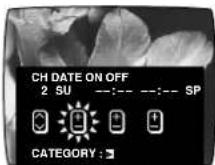
(SU=Sunday, MO=Monday, TU=Tuesday, WE=Wednesday, TH=Thursday, FR=Friday, SA=Saturday)
Daily Timer Recording
In step 3 of 4-Key Programming, select the desired days by pressing the DATE button ⑩.
For example, ©
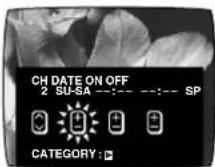
Ⓐ Daily recording from Monday to Friday (MO–FR)
⑧ Daily recording from Monday to Saturday (MO-SA)
© Daily recording from Sunday to Saturday (SU-SA)
Timer Recording from an External Signal Source
If timer recording is performed by a unit connected to the Audio/Video input sockets, select the A1 or A2 indicator in step 2 of 4-Key Programming for the programme position.
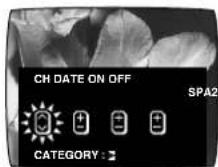
- If the [DIRECT REC] is set to [ON], A1 is skipped.
Setting other Programmes in Succession
Repeat steps 1–9 of 4-Key Programming.
Programming a Timer Recording of a TV Programme Until its End (Tape Speed Auto Change Function)
If the VCR determines that the remaining tape time is insufficient to record the programme to its end during a timer recording performed in the SP mode, this function automatically changes the tape speed to ensure that the whole programme will be recorded.
The tape speed will change as follows.
PAL system: SP → LP
NTSC system: SP → EP
- This function cannot change the recording speed to the EP mode for PAL system.
Depending on the remaining tape length, recording may be performed in the LP (EP) mode from the start. However, if the remaining tape time is still not sufficient in this case, the programme cannot be recorded to the end.
- The tape length must be set correctly. (See page 13.)
- Some tapes may not work correctly.
- If the recording speed changes from SP to LP during a timer recording, some brief picture distortion occurs at that point.
To Activate the Tape Speed Auto Change Function:
Press the SPEED button 18 to select [A].
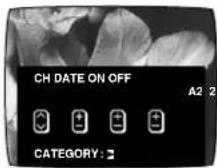
- Every time you press the SPEED button 18, the indication changes in the following order:
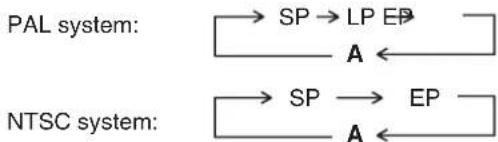
flowchart
graph LR
    A["SP"] --> B["LP EP"]
    B --> C["A"]
    D["SP"] --> E["EP"]
    E --> F["A"]
Checking a Timer Programme
- The VCR must be turned on, or in timer recording standby mode.
- Confirm that the TV is on and the VCR viewing channel is selected.
1 Press the PROG./CHECK button ⑫ twice.
- Every time you press the PROG./CHECK button ⑫, the programme shifts below.
On Screen Display
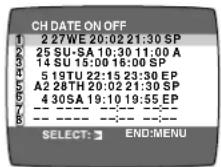
2 Press the Cursor button (▶) 35 to display the Category. (When [JET NAVIGATOR] is set to [ON].) Press the Cursor button (▶) 35 again to make the previous display appear.
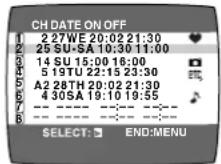
3 Press the MENU button ③7 to exit the On Screen Display.
Cancelling a Timer Programme
- The VCR must be turned on, or in timer recording standby mode.
- Confirm that the TV is on and the VCR viewing channel is selected.
1 Press the PROG./CHECK button ⑫ twice.
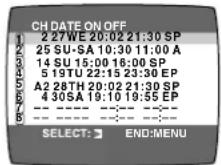
2 Press the PROG./CHECK button 12 repeatedly until the desired timer programme number flashes on and off.
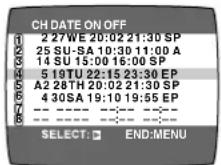
3 Press the CANCEL button ⑪.
4 Press the MENU button 37 to exit the On Screen Display.
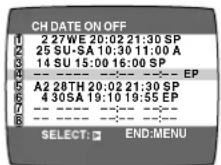
Note:
- If timer recording is not completed (due to insufficient tape or cancellation by the user), the programmed timer recording data will be cancelled from the memory by 4 A.M two days later.
However, if the timer recording function is activated at that time, the programmed timer recording data will not be cancelled.
G-Code Programming
Programming is now easier than ever; simply enter the G-Code number found in the programme scheduling pages of newspapers and magazines.
G-Code numbers are numbers assigned to programmes listed in the TV programme schedule found in newspapers and TV guides. When these numbers are entered, the numbers are converted to actual programming.
G-CODE is a registered trademark of Gemstar Development Corporation. The G-CODE system is manufactured under licence from Gemstar Development Corporation.
Preparations
- Confirm that the VCR is on.
- Confirm that the TV is on and the VCR viewing channel is selected.
- Insert a video cassette with an intact erasure prevention tab.
- Set the VCR/TV switch 21 to [VCR].
- Check that the clock is set to the correct time. If it has not been set, refer to page 10.
Example:
Programming a timer recording of a TV programme with the G-Code number 123456
Operations
1 Press the G-CODE/SV button 24 to display the menu for entering the G-Code number on the TV.
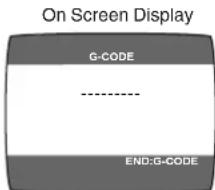
2 Press the Numeric buttons ② to enter the G-Code number.
- It is also possible to check the number with VCR display without appearing the On Screen Display.
- If you have entered the wrong number, press the CANCEL button 11 then enter the proper number. An alternative method is to press the Cursor button (◀) 35 and then enter the proper number.
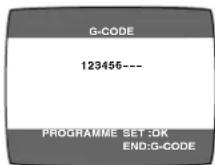
3 Press the OK button 36.
– The entered programme appears on the display.
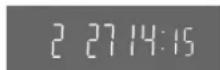
- The starting time and the ending time appears alternately each 5 seconds on the VCR display.
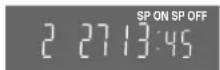

- Confirm that the number corresponds to the right programme. If the display looks like this and ☐ on the VCR display flashes on and off: select the desired programme position using the Channel button ⑨, then press the OK button ⑩.
- To make any corrections, use the DATE button 10, the ON button 20, the OFF button 19 and the SPEED button 18 the same way as described on page 19.
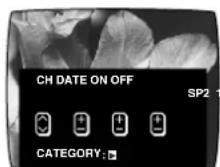
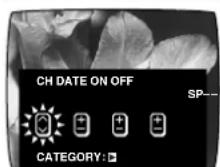
4 Press the Cursor button (▶) 35 to select the Category. Then, select the desired category by pressing the Cursor buttons (▲▼◀▶) 35.
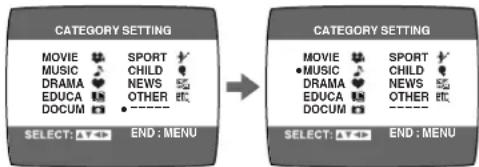
- Alternatively, you can set the category on the Navigator list. (See page 23 for details.)
- This function is activated when [JET NAVIGATOR] is set to [ON]. (See page 13.) When [JET NAVIGATOR] is set to [OFF], proceed to the step 6.
5 Press the MENU button ③7 to make the previous display appear.
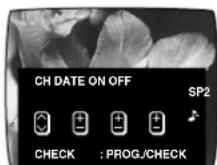
6 Press the TIMER (REC) button ⑰ to switch the VCR over to the timer recording standby mode.
- When [JET NAVIGATOR] is set to [ON], the [PROGRAMME IS COMPLETE. REMAINING PROGRAMME 49.] message appears. (See page 13.)
- When [JET NAVIGATOR] is set to [OFF], the [PROGRAMME IS COMPLETE.] message appears. (See page 13.)
- Check that [☐] is lit on the VCR display. If it is flashing, check the timer recording details again. (See page 21.)
Notes:
- When the G-Code number is used for programming, the recording time may be slightly longer than the actual programme time.
- Repeat steps 2 and 3 if [PROGRAMME IS INCOMPLETE.] appears.
- When programming two or more programmes, repeat steps 1–6.
– The procedures for checking and cancelling a timer programme are the same as on page 21.
To Suspend the Timer Recording Standby Mode
See page 20.
Search Functions
Jet Navigator
This VCR can display a list of the recorded programmes on the inserted video cassette on the TV screen. You can then select the desired programme, and the VCR will quickly locate its beginning and start playback.
Conditions for correct operation of the Jet Navigator function:
- The tape length of the inserted cassette must be set correctly.
- The VCR must not be in the timer recording standby mode.
– A programme of at least 15 minutes must be recorded on the tape.
Preparations
– Display the VCR picture on the TV.
- Be sure to set [JET NAVIGATOR] to [ON] (See page 13.) and preform recording.
Operations
1 Press the NAVI button ④ to display the Jet Navigator list.
- Up to 14 programme data that have been recorded last are displayed on the Jet Navigator list.
(7 programme data for each page)
On Screen Display
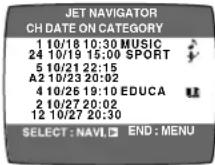
- When more than 15 programmes have been recorded for one cassette, the programme data are deleted from the first one.
- When pressing NAVI button ④ during playback, playback stops and the Jet Navigator list appears.
2 Press the NAVI button 4 several times to select the programme that you want to locate and play back. After more than 3 seconds, the VCR starts the search for the beginning of the selected programme and playback starts automatically.
- Every time you press the NAVI button 4, the programme shifts above.
- If, after playback has started, you want to search for the beginning of the same or another programme, press the NAVI button 4.
Playback stops and the Jet Navigator list appears.
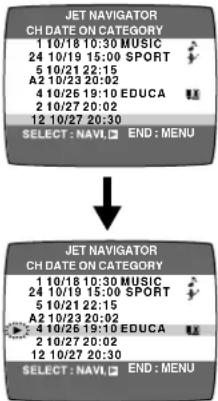
To cancel the Jet Navigator list:
Press the MENU button 37.
To Set the Category
The category setting allows you to find what kind of programmes are recorded by the character and the icon indications.
Press the Cursor button (▶) 35 while the Jet Navigator list appears.
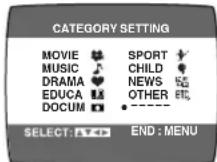
| Category Indication Icon | ||
| MOVIE MOVIE | ||
| MUSIC MUSIC | ||
| DRAMA DRAMA | ||
| EDUCATION EDUCA | ||
| DOCUMENTARY | DOCUM | |
| SPORTS | SPORT | |
| CHILDREN | CHILD | |
| NEWS | NEWS | |
| OTHERS | OTHER | |
To Delete the Jet Navigator Data of a Single Video Cassette Tape:
Keep the CANCEL button 11 pressed for more than 5 seconds while the Jet Navigator list appears.
[--] appears on the list.
- See page 13 on the way to delete all the Jet Navigator data stored in the VCR's memory.
Notes:
- The Jet Navigator list is stored in each cassette.
- Signals approximately 10 seconds before and after the current tape position are checked. (During this checking, [CHECKING JET NAVIGATOR DATA.] is displayed on the TV screen.)
- Checking cannot be performed properly when signals are attempted to be checked at portions of the tape where there are no signals such as at unrecorded portions of the tape. In this case, press the NAVI button ④ at a portion of the tape where a programme has been recorded of this VCR. This will allow signal checking to be performed more reliably. When a signal can still not be found, [CAN NOT FIND JET NAVIGATOR DATA.] is displayed on the TV and you cannot find the beginning of the programme.
- Up to 20 cassettes and 50 programmes can be registered.
- If 50 recorded programmes data is already stored in memory and you attempt to store timer recording data for another programme, the message [REMAINING PROGRAMME 0. DELETE JET NAVIGATOR DATA.] appears. If you attempt to make a new recording, this same message also appears after you insert the cassette and the Jet Navigator data is checked. As each timer recording or manual recording is finished, the programme data is deleted, starting from the oldest data.
- When a new programme is attempted to be recorded if programmes equivalent to 20 cassettes are already stored in memory, [REMAINING CASSETTE 0. FOR JET NAVIGATOR.] is displayed. Programmes recorded without deleting data as instructed are not registered in the list.
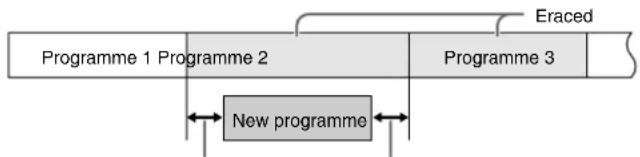
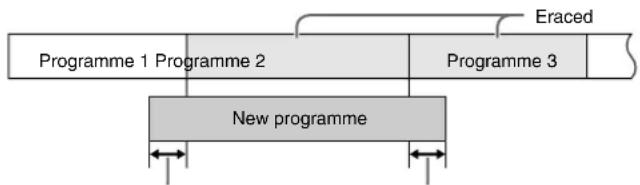
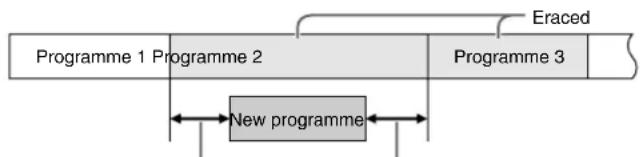
When Recording Over the Same Location on a Tape:
– The originally recorded programme is deleted from the list.
- Programme contents starting near the start and end of the newly recorded programme (within 10 minutes before the start and after the end of the newly recorded programme in the EP mode) are also erased.
(Although old programme contents are also similarly erased in the case of ordinary recording, the newly recorded programme is not registered in the list.)
flowchart
graph LR
    A["Programme 1 Programme 2"] --> B["Eraced"]
    C["Programme 3"] --> D["Eraced"]
    E["New programme"] <--> F["Eraced"]
Within 10 minutes in the EP mode
Within 10 minutes in the EP mode
flowchart
graph LR
    A["Programme 1 Programme 2"] --> B["Eraced"]
    C["Programme 3"] --> D["New programme"]
    style A fill:#f9f,stroke:#333
    style B fill:#ccf,stroke:#333
    style C fill:#cfc,stroke:#333
    style D fill:#fcc,stroke:#333
10 minutes or more in the EP mode
To Demonstrate the Jet Navigator Function
Keep the NAVI button ④ pressed for more than 5 seconds without inserting a cassette tape.
To Check the Recorded Programming Data (Time Stamp Function)
When playback starts after searching with Jet Navigator function or index search function, recorded programming data (called Time Stamp) appears on the TV screen for approx. 5 seconds.
Preparation
– Display the VCR picture on the TV.
Note:
– Time Stamp does not appear if the beginning of the Jet Navigator data are not recorded 10 minutes before and after the current tape position in the EP mode even when index signals are recorded.
To Find the Beginning of Each Recording (VHS Index Search System)
This VCR automatically records special index signals on the tape every time a recording is started. The Index search function makes use of these index signals to let you find the beginning of a desired programme quickly and easily.
Index signals are automatically recorded in the following cases:
- When you start a recording by pressing the REC button 25, REC/OTR button 48, or DIRECT REC button 33.
- When a timer recording starts.
- When you press the REC button 25 on the remote control during recording.
Conditions for correct operation of the Index search function:
- The VCR must be in the stop mode or in the playback mode.
– Each programme recorded on the tape must be at least 5 minutes long.
Preparations
– Display the VCR picture on the TV.
– Insert a recorded video cassette.
Operation
1 Press the INDEX button 28 (that corresponds to the direction from the current tape position in which the desired programme is located on the tape) to start the index search.
For example, if you want to search for the 2nd recorded programme in forward direction, press the INDEX ▶▶1 button 28 twice.
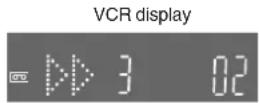
- The VCR fast-forwards or rewinds the tape and searches for the specified index signal (the beginning of the desired recorded programme). When it has been found, playback starts automatically.
To Cancel the Index Search or to Stop Playback:
Press the Stop button 22.
Notes:
- Searching in either direction is possible up to the 20th index signal.
- If you press either of the INDEX button 28 too many times, simply press the other INDEX button 28 (indicating the opposite direction) to correct it. In this way, you can reduce the displayed figure down to 1.
- The figure on the VCR display decreases by 1 every time an index signal is located.
Searching while Checking the Video Cassette Contents (Intro-Jet Scan)
This VCR automatically records special index signals on the tape every time a recording starts. The Intro-Jet Scan function makes use of these index signals to play back the beginning of each programme recorded on the cassette one after another at high speed. This lets you quickly and easily check the contents of a cassette and find a desired programme.
Index signals are automatically recorded in the following cases:
- When you start a recording by pressing the REC button 25, REC/OTR button 48, or DIRECT REC button 33.
- When a timer recording starts.
- When you press the REC button 25 on the remote control during recording.
Conditions for correct operation of the Intro-Jet Scan function:
- VCR must be switched on, be in the playback mode or be in the standby mode.
– Each programme recorded on the tape must be at least 15 minutes long.
Preparations
– Display the VCR picture on the TV.
- Insert a recorded video cassette.
Operations
1 Press the SEARCH button ⑥ to start the Intro-Jet Scan. - After rewinding the tape to the beginning, the VCR plays it back at high speed for approximately 10 seconds. It then fast-forwards the tape to the next tape position marked by an index signal (beginning of a programme), and every time an index signal is found, the VCR switches over to high-speed playback (Cue) for about 10 seconds.
On Screen Display
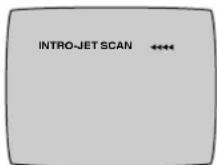
2 When you have found the programme that you want to view, press the Play button ⑦ to start normal playback.
To Cancel the Intro-Jet Scan or to Stop Playback:
Press the Stop button 22.
Editing
Audio Dubbing
The audio dubbing function lets you record new sound onto the normal (mono) audio track. Although this erases the original sound on the normal audio track, the sound on the Hi-Fi audio tracks remains unchanged. Use this function to add narration or background music to a previously made recordings.
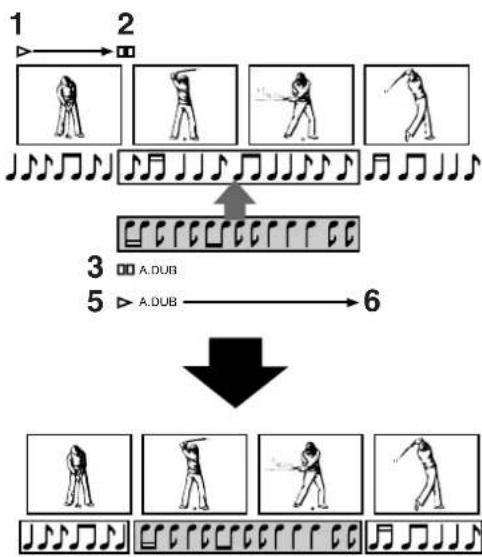
flowchart
graph TD
    A["1: Gymnian at 2D"] --> B["2: Gymnian at 3D"]
    B --> C["3: Action at 4D"]
    C --> D["4: Action at 5D"]
    D --> E["5: Action at 6D"]
    E --> F["6: Action at 7D"]
Preparations
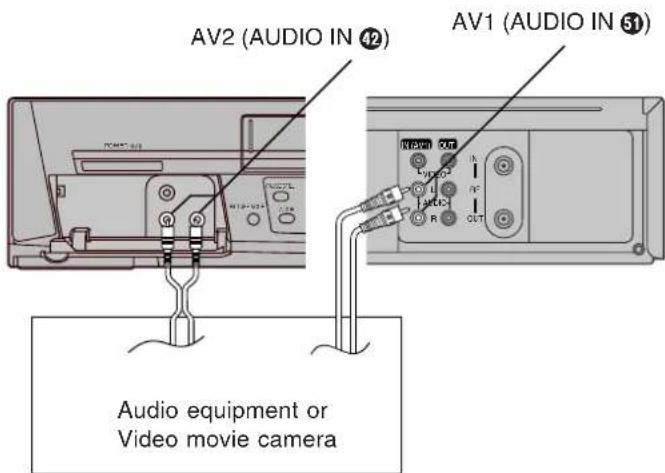
- Connect the audio equipment or a video movie camera to this VCR with an audio cable.
- Display the VCR picture on the TV.
- Insert the cassette on which the audio dubbing is to be performed, and make sure that its erasure prevention tab is not broken out.
- Select the audio source required by pressing the INPUT SELECT button 27 to set A1 or A2.
A1: When connected to the AV1(AUDIO IN) sockets.
A2: When connected to the AV2 (AUDIO IN) sockets on front panel.
- Use the L and R connectors for operations in the normal (monaural) mode.
Operations
1 Press the Play button ⑦ on this VCR to start playback to search for the point from which you want to start audio dubbing.
2 At the point from which you want to perform audio dubbing, press the PAUSE/STILL button 43 on this VCR to put it in the still playback mode.
3 Press the A.DUB button 44 on this VCR to put it in the recording pause mode.
4 Start playback on the source unit so that you can hear the sound.
5 When you reach the point from which you want to start audio dubbing, press the PAUSE/ STILL button 43 on this VCR again to start recording the new sound or start your narration.
6 At the point where you want to stop audio dubbing, press the Stop button 22 to finish recording.
Hints:
- The new sound is recorded on the normal audio track. The original sound remains on the Hi-Fi audio tracks. The sound recorded on the normal audio track is always in mono.
- For audio dubbing with narration, you can use the built-in microphone of the connected video movie camera.
- To listen to the sound recorded with audio dubbing, press the AUDIO button 15 during playback to select the normal audio track. (For details, refer to page 12.)
- To listen to the sound recorded with audio dubbing together with the original sound, first set [AUDIO MIX] to [ON] (for details, refer to page 13).
Before Requesting Service
Message of On Screen Display
The error message is indicated in brackets [ ].
[PLEASE PUT IN A VIDEO CASSETTE.]
- REC/OTR button 48 (REC button 25), TIMER (REC) button 17 or DIRECT REC button 33 has been pressed without a video cassette inserted. Insert a video cassette.
[PLEASE STOP THE TAPE.]
– [TUNER PRESET] has been selected during playback. Stop the tape.
[PLEASE SET THE CLOCK.]
- TIMER (REC) button 17, G-CODE/SV button 24 or PROG./CHECK button 12 has been pressed when the clock is not set. Set the clock.
[PLEASE USE A CASSETTE WITH TAB.]
- REC/OTR button 48 (REC button 25), TIMER (REC) button 17 or DIRECT REC button 33 has been pressed without a video cassette with an intact erasure prevention tab. Use a video cassette with an intact erasure prevention tab.
[NO TIMER RECORDING HAS BEEN SET.]
- TIMER (REC) button 17 has been pressed with no timer programmes. Set timer recording.
[TIMER PROGRAMMES ARE FULL.]
- G-CODE/SV button 24 has been pressed when 16 programmes have been already set. Cancel unnecessary programmes.
[VCR IS IN THE TIMER STANDBY MODE.]
- POWER button ① has been pressed during the timer standby mode. Press the TIMER (REC) button ⑰ to release the VCR from the timer standby mode.
The VCR will not operate correctly
The symptom description is indicated in brackets [ ].
[The VCR display is not illuminated.]
- The mains lead has not been connected. Connect the mains lead to the mains supply.
[The VCR display is illuminated but the VCR will not operate.]
- The VCR is in the timer mode. Press the TIMER (REC) button 17 to operate the VCR manually.
- Safety devices are operating. Disconnect the mains lead and wait for 1 minute. Reconnect the mains supply and check functions.
– Dew may have formed. Do not operate the VCR for 1 hour.
[An unknown language appears on the TV screen.]
- The language setting has been set to an unknown language. Select the desired language. See page 10.
Playback will not operate correctly
The symptom description is indicated in brackets [ ].
[The picture is noisy or is not in color. Horizontal bars or lines run down the screen.]
- Tracking is not correct. Adjust the tracking. See page 28.
- The TV has not been tuned to the VCR. Tune the TV to the VCR. See page 6.
– The video heads are clogged or worn. Consult your dealer for further advice.
- The playback picture is distorted when using an E300 type video cassette that was recorded in the LP or EP mode. We recommend that you use video cassettes other than type E300.
- The playback picture is distorted when you record the tape in the EP mode using MESECAM system. However, this is not a malfunction. We recommend PAL system for recording in the EP mode.
Recording will not operate correctly
The symptom description is indicated in brackets [ ].
[The 00 indication flashes whenever recording is attempted.]
- The erasure prevention tab on the video cassette has been broken off.
Use a tape with an intact erasure prevention tab, or cover the tab hole with adhesive tape, if the original recording is no longer required.
[The picture is recorded with noise or a blank screen.]
– The aerial or aerial cable is defective.
Check the aerial connection to the VCR. See pages 5. Check your normal TV picture. If there is no picture, check your aerial.
– The VCR is not correctly tuned. Retune the VCR. See pages 7–9.
– A1 or A2 has been selected. Select the required TV programme.
[Timer recording cannot be performed.]
- The clock or calendar has been incorrectly set. Check the clock and calendar. Set them to the present time. (Note that this is a 24-hour clock.) See page 10.
- The recording starting or ending time setting is incorrect. Set the recording starting and ending time correctly.
- The VCR has not been set for timer recording. Press the TIMER (REC) button ⑰ after programming for timer recording.
[AV external recordings cannot be made.]
- A1 or A2 has not been selected. Select A1 or A2 by pressing the INPUT SELECT button 27.
- External AV connections are incorrect. Check that the connections for external video and audio sources are correct. See page 18.
- A1 has not been selected. [ DIRECT REC] is set to [ON]. Set [ DIRECT REC ] to [ OFF ] . See page 13.
The remote control will not operate correctly
The symptom description is indicated in brackets [ ].
[The remote control does not operate correctly.]
- The remote control transmitter beam is not reaching the VCR. Ensure that the remote control is being pointed at the VCR and that the transmitter beam is not obstructed.
- The distance is too far. Use the remote control within 7 m of the VCR.
- The batteries are exhausted. Replace the batteries. Note the precautions for replacement on page 2.
- The batteries are incorrectly fitted with (/) reversed. Fit the batteries correctly as shown on page 2.
Adjusting the Playback Picture
Under normal conditions, the VCR automatically adjusts the playback picture for optimum quality. However, in some cases it may be necessary to adjust it manually.
If the Picture Contains Noise Bars and It Is Not Clear to See (Tracking adjustment):
If noise bars appear during normal playback, slow playback or still playback, follow the operations below.
During normal or slow playback, press the Channel button 30 ∨ (−) or ∧ (+) until the bars noise disappear.
- If the noise bars appear during still playback, switch the VCR over to the slow playback mode and then adjust the tracking as explained above.
TV screen
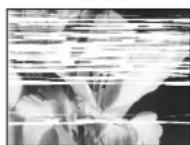
Playback picture containing noise bars
To Return to Auto Tracking:
Press the Channel button 30 ∨ (−) and ∧ (+) simultaneously.
If the Still Picture Scrolls Up or Down (V-Lock Adjustment):
If the still picture scrolls up or down, perform the following operation.
During still playback, keep the Channel button 30 √ (−) or ∧ (+) pressed until the picture stops scrolling.
Precautions:
- With certain TV models and tapes, it may not be possible to adjust the tracking.
- If you play back a cassette that was recorded on another VCR, the picture quality may be inferior and it may be necessary to adjust the tracking. Also, on some TVs, the picture may scroll up and down in the special playback functions.
However, these are not malfunctions.
Dirt on the video heads
If the video heads get dirty, pictures will not be recorded or played back clearly. (See the following conditions.)
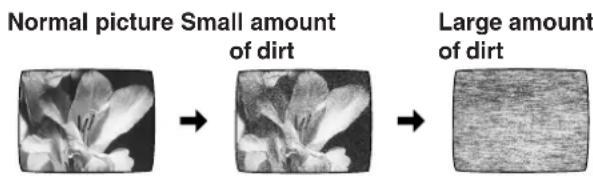
If this happens, insert and eject a cassette 5–10 times successively to remove the dirt from the video heads. If the problem still persists after performing above, contact a service personnel to request assistance.
Head cleaning by service agents is not covered by warranty.
Specifications
NV-FJ620BD/BDX
NV-FJ625AM
Power Source: 110–240 V AC 50/60 Hz
Power Consumption: 18 W
Video Recording System: 2 rotary heads, helical scanning system
Video Heads: 4 heads
Audio Heads: 2 heads (Hi-Fi)
Tape Speed: PAL SP; 23.39 mm/s LP; 11.7 mm/s EP; 7.8mm/s
NTSC SP; 33.3 mm/s EP; 11.1 mm/s
Tape Format: VHS tape
Record/Playback Time: PAL SP; 240 min with NV-E240
PAL LP; 480 min with NV-E240
PAL EP; 720 min with NV-E240
FF/REW Time: approx. 60 s with NV-E180
VIDEO
Television System: CCIR; 625 lines, 50 fields, PAL colour signal
EIA; 525 lines, 60 fields, NTSC colour signal
Modulation System: Luminance; FM azimuth recording
Colour signal; converted subcarrier phase shift recording
Input Level: VIDEO IN (PHONO); 1.0 Vp-p, 75 ohm, terminated
Output Level: VIDEO OUT (PHONO); 1.0 Vp-p, 75 ohm, terminated
RF Modulated; UHF channel E21–E69, 75 ohm
AUDIO
Input Level: AUDIO IN (PHONO); -6 dBV, more than 47 kohm
Output Level: AUDIO OUT (PHONO); -6 dBV, less than 1 kohm
Audio Track: 1 track (Normal-mono only), 2 channels (Hi-Fi sound-stereo)
Video Horizontal Resolution: Colour; more than 240 lines (SP)
Signal-to-Noise Ratio: Video; more than 43 dB (SP)
Dynamic Range: Audio; more than 90 dB (Hi-Fi audio track)
Audio Frequency Response: 20 Hz–20 kHz/Hi-Fi
Wow and Flutter: 0.005% Wrms/Hi-Fi
Operating Temperature: 5^ C– 40^ C
Operating Humidity: 35%–80%
Weight: 3.3 kg
Dimensions: 430 (W)×87 (H)×282 (D) mm
Standard Accessories: 1 pc. RF Coaxial cable
1 pc. Remote Control
2 pcs. R6 size batteries
1 pc. Audio/Video cable
Weight and dimensions shown are approximate.
Specifications are subject to change without notice.