
GV-PCR310 - Access Control System Geovision - Free user manual and instructions
Find the device manual for free GV-PCR310 Geovision in PDF.


| Product Type | Access Control Enrollment Reader |
| Brand | Geovision |
| Model | GV-PCR310 |
| Operating Frequency | 13.56 MHz, ISO14443A MIFARE Classic |
| Read Distance | 2 cm (0.79 in) |
| Operating Temperature | -10 ~ 60°C (14 ~ 140°F) |
| Operating Humidity | 10 ~ 90% RH (non-condensing) |
| LED Indicators | 2 LEDs (power, status) |
| Connector | USB |
| Cable Length | 160 cm (63 in) |
| Dimensions (W x H x D) | 65 x 100 x 24.7 mm (2.6 x 3.9 x 0.97 in) |
| Weight | 115 g (0.25 lb) |
| Power Supply | 5V DC via USB (from computer) |
| Certification | CE, FCC |
| Compatible Software | GV-ASManager V4.1 or later |
| Supported OS (32-bit) | Windows XP / Vista / 7 / 8 / Server 2008 |
| Supported OS (64-bit) | Windows 7 / 8 / Server 2008 R2 / Server 2012 |
| Key Function | Enrolls cards to GV-ASManager for user account creation |
| Maintenance | Clean exterior with a dry, soft cloth. Avoid liquids. |
Frequently Asked Questions - GV-PCR310 Geovision
User questions about GV-PCR310 Geovision
0 question about this device. Answer the ones you know or ask your own.
Ask a new question about this device
Download the instructions for your Access Control System in PDF format for free! Find your manual GV-PCR310 - Geovision and take your electronic device back in hand. On this page are published all the documents necessary for the use of your device. GV-PCR310 by Geovision.
USER MANUAL GV-PCR310 Geovision
GV-PCR310 Enrollment Reader
The GV-PCR310 is a USB card reader designed to assist with card enrollment to GV-ASManager. It reads and transfers the identification data of a detected card to GV-ASManager. The user can conveniently establish user accounts on GV-ASManager by inserting the cards in the GV-PCR310 Enrollment Reader.
IMPORTANT: GV-PCR310 is only compatible with GV-ASManager V4.1 or later.
1. Packing List
- GV-PCR310 Enrollment Reader x 1
- Velcro patch x 2 (sets)
- GV-PCR310 Installation Guide x 1
Note: Optionally purchase the 13.56 MHz GV-AS ID Card / Tag or GV-AS ID F Card / Tag.
2. Installation
Put GV-PCR310 Enrollment Reader on a surface as a desktop device or secure it to the wall using the supplied Velcro patch.
3. Panel Overview
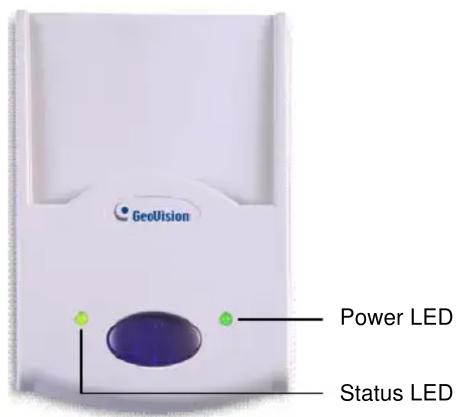
4. Setting up GV-PCR310 with GV-ASManager
- Plug GV-PCR310's USB connector to the computer installed with GV-ASManager. The power LED turns on.
- Insert the GV-ASManager Software DVD to the computer. The DVD runs automatically and this window appears.
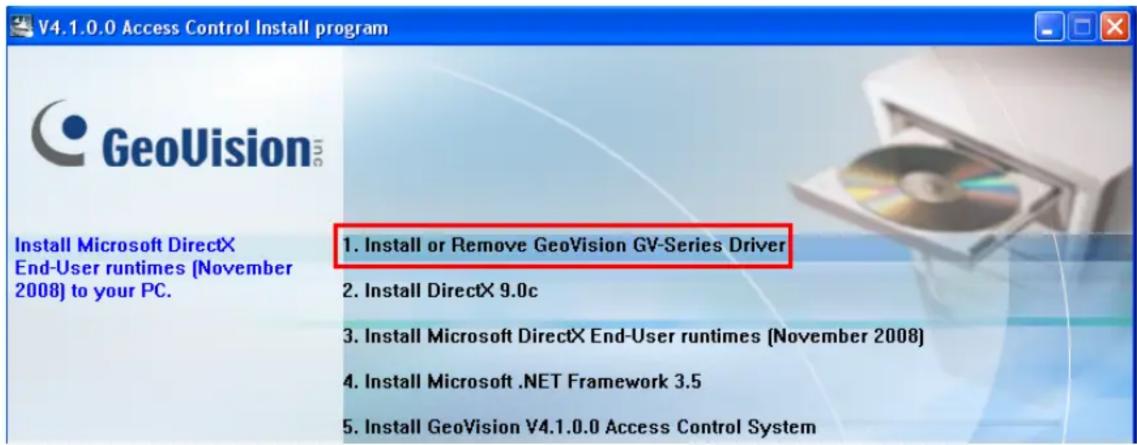
- Select Install or Remove GeoVision GV-Series Driver, select Install GeoVision USB Devices Driver and follow the on-screen instructions.
5. Adding a Card Using GV-PCR310 Enrollment Reader
Follow the steps below to add a card to GV-ASManager.
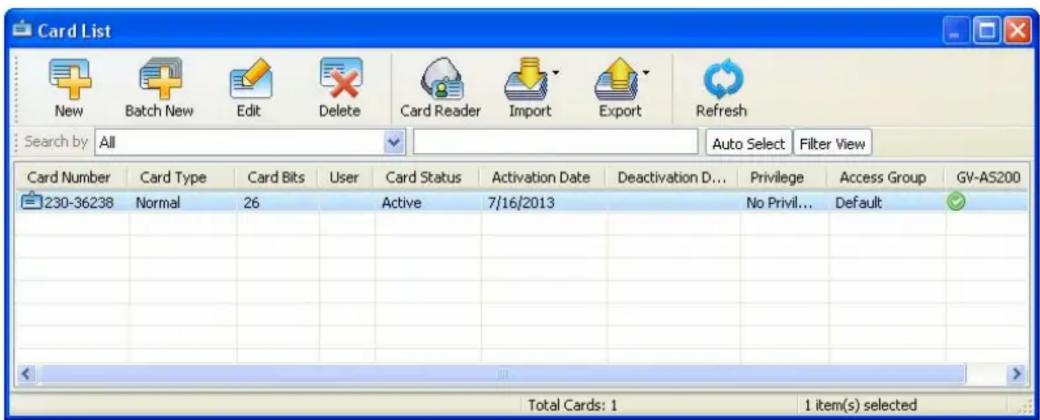
- On the GV-ASManager's main window, select Personnel and then select Cards. The Card List window appears.
- Click the Card Reader button for GV-ASManager to detect the reader. When the reader is detected, this dialog box appears and the status LED flashes.
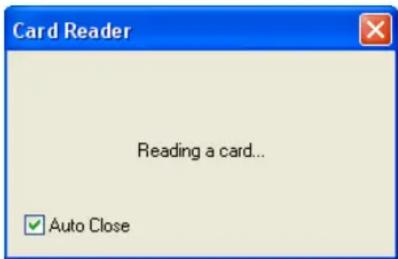
- Insert your card to the reader. The status LED becomes steadily green and this window appears.
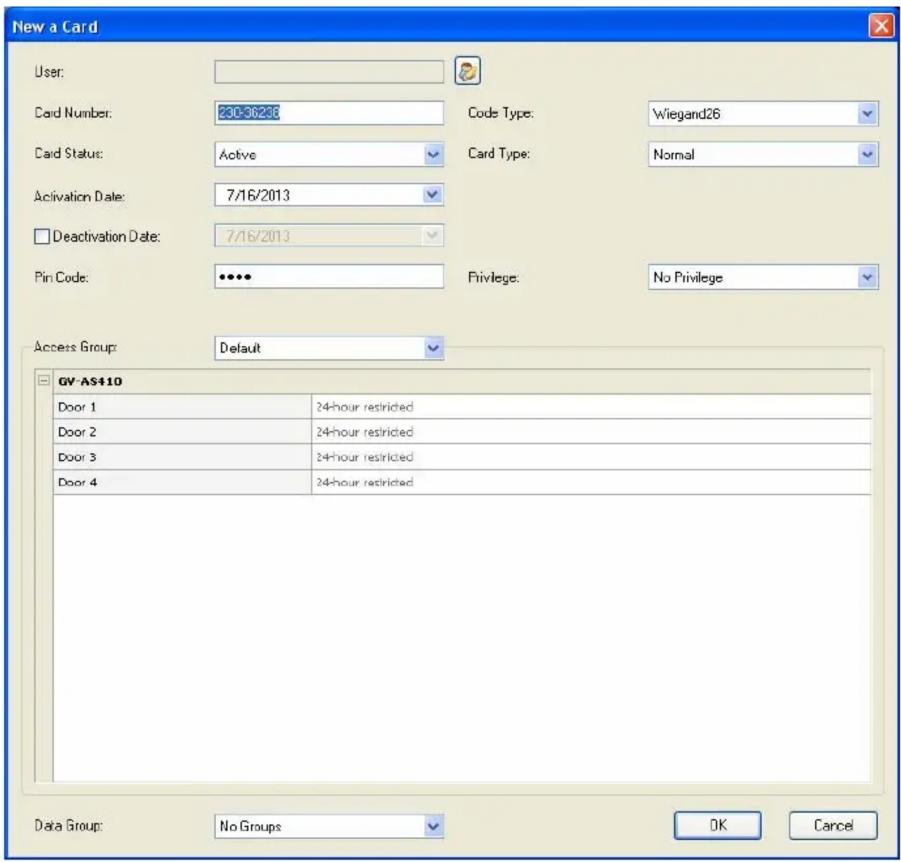
- Configure the information if necessary. For details, see 4.3.1 Adding a Single Card, GV-ASManager User's Manual on the GV-ASManager Software DVD.
- Click OK to finish. This card is added to the GV-ASManager.
6. Specifications
| System Requirements | ||
| OS | 32-bit | Windows XP / Vista / 7 / 8 / Server 2008 |
| 64-bit | Windows 7 / 8 / Server 2008 R2 / Server 2012 | |
| GV-AS Manager Version | V4.1 or later | |
| Operational | ||
| Frequency | 13.56 MHz, ISO14443A MIFARE Classic | |
| Distance | 2 cm | |
| Environmental | ||
| Operating Temperature | -10 ~ 60°C (14 ~ 140°F) | |
| Operating Humidity | 10 ~ 90% RH (non-condensing) | |
| Mechanical | ||
| LED Indicator | 2 LED (power, status) | |
| Connector | USB | |
| Dimensions | 65 x 100 x 24.7 mm (2.6" x 3.9" x 0.97") | |
| Cable Length | 160 cm (63") | |
| Weight | 115 g (0.25 lb) | |
| Others | ||
| Certification | CE, FCC | |
All specifications are subject to change without notice.

Brand : Geovision
Model : GV-PCR310
Category : Access Control System