
SHARK ZONE M51+ - Mouse Sharkoon - Free user manual and instructions
Find the device manual for free SHARK ZONE M51+ Sharkoon in PDF.


| Product Type | Gaming Mouse |
| Model | SHARK ZONE M51+ |
| Dimensions (L x W x H) | 126 x 88.1 x 41.8 mm |
| Weight | 150 g (without cable) |
| Sensor | Avago 9800 Laser Sensor |
| Maximum DPI/CPI | 8200 |
| Maximum FPS | 12000 |
| Maximum IPS | 150 |
| Buttons | 11 programmable (Omron switches) |
| Scroll Wheel | 4-way, programmable |
| Polling Rate | Up to 1000 Hz |
| Acceleration | 30 g |
| Lift-off Distance | 1 - 5 mm |
| Connection | USB (gold-plated connector) |
| Cable Length | 180 cm (textile sheathing) |
| Mouse Feet | 4 PTFE glides |
| Weight Tuning System | Yes |
| Grip | Rubberized surface |
| Onboard Memory | Yes, for 5 profiles |
| Software | Configuration software included (CD) |
| Supported OS | Windows XP/Vista/7/8 |
| Illumination | LED with adjustable color and effects |
| Package Contents | Mouse, additional mouse feet, transport bag, CD with software and manual |
Frequently Asked Questions - SHARK ZONE M51+ Sharkoon
User questions about SHARK ZONE M51+ Sharkoon
0 question about this device. Answer the ones you know or ask your own.
Ask a new question about this device
Download the instructions for your Mouse in PDF format for free! Find your manual SHARK ZONE M51+ - Sharkoon and take your electronic device back in hand. On this page are published all the documents necessary for the use of your device. SHARK ZONE M51+ by Sharkoon.
USER MANUAL SHARK ZONE M51+ Sharkoon
natural_image
Abstract geometric logo design with stylized letter 'S' in a circular form (no text or symbols)SHARK ZONE
M51
Manual
natural_image
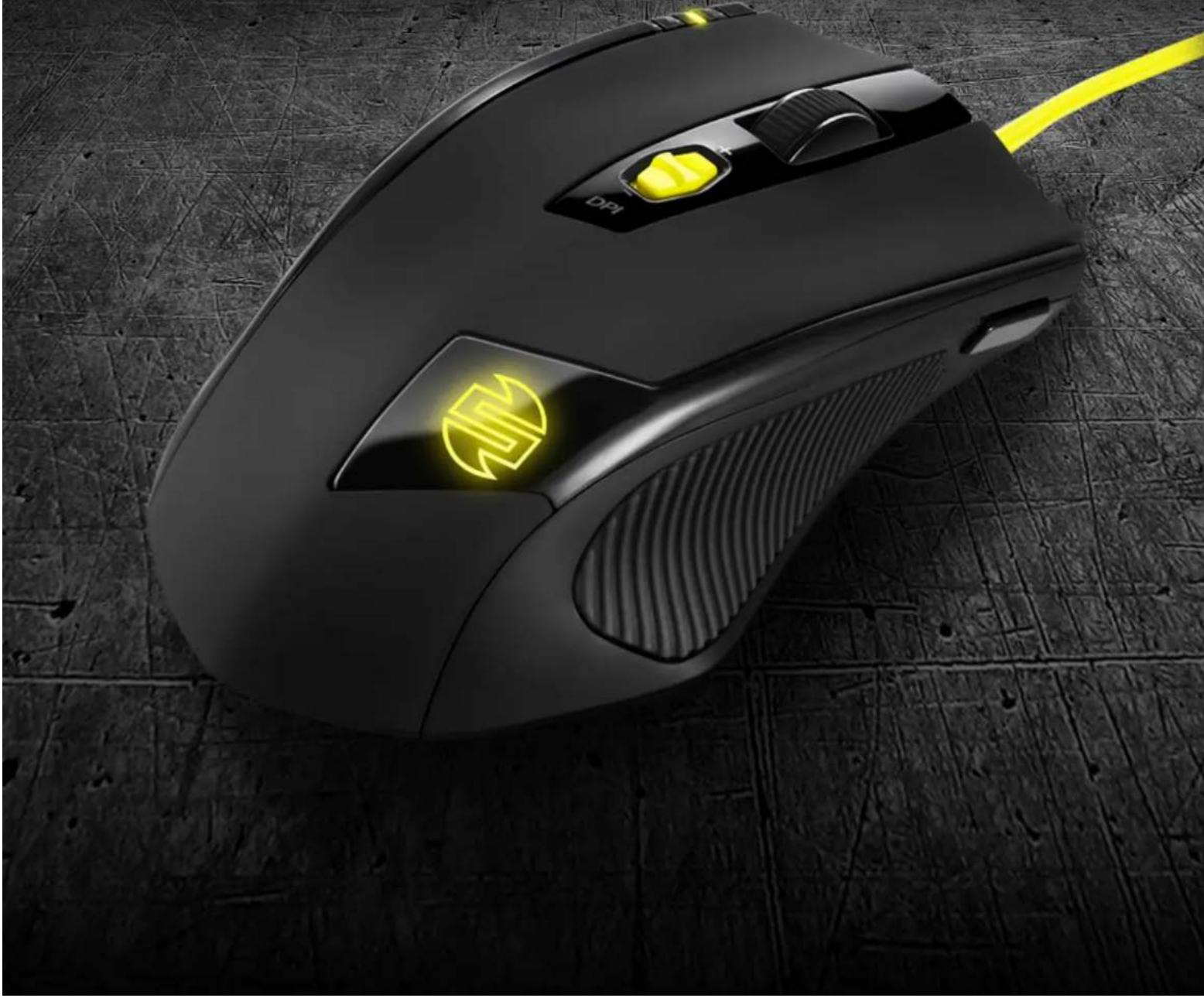
Close-up of a black DAPI computer mouse with glowing yellow neon light on the cover, resting on a textured surface (no text or symbols visible)Content
- Features 3
- Specifications 3
- Package contents 3
- The mouse at a glance 4
- Connecting to the PC 5
- Installing the software 5
- The Editor 6
7.1 Starting the editor 6
7.2 Main Control window 6
7.3 Pull down menus 7
7.3.1 Basic sub menu 8
7.3.2 Advanced sub menu 8
7.3.3 Media sub menu 8
7.4 Advanced setting window 9
7.5 Color Control window 10
CAUTION LASER! Avoid direct eye contact with the laser beam!
Dear customer!
Congratulations for purchasing one premium quality SHARKOON product. For a long life time and to take full advantage of this product we recommend that you read this manual completely.
Enjoy your time with our product! SHARKOON Technologies
1. Features
• Avago 9800 Laser sensor
• 11 programmable buttons
- 4-way scroll wheel
• LEDs for DPI indication
- Internal memory for user profiles
• Gold-plated USB connector
• Cable with textile sheathing
• Weight tuning System
• Rubberized surface for maximum grip
- Configuration software included
• Supported operating systems:
Windows XP/Vista/7/8
- Specifications
| Sensor type: Avago 9800 | |
| Max. DPI/CPI: 8200 | |
| Max. FPS: 12000 | |
| Max. IPS: 150 | |
| Buttons: 11 (Click switches: Omron) | |
| Max. polling rate: 1000 Hz | |
| Max. acceleration: 30 g | |
| Lift-off sensitivity: 1 - 5 mm | |
| Connector: USB | |
| Mouse feet: 4, PTFE | |
| Cable lenght: | 180 cm (textile sheating) |
| Dimensions (L x W x H): | 126 x 88.1 x 41.8 mm |
| Weight: | 150 g (w/o cable) |
3. Package contents
- SHARK ZONE M51
• Additional set of mouse feet - Transport bag
• CD with software and manual (as PDF)
Note:
If you are missing any of the items listed above, please contact our customer service immediately: support@sharkoon.com (Germany and Europe).
support@sharkoon.com.tw (international).
4. The mouse at a glance
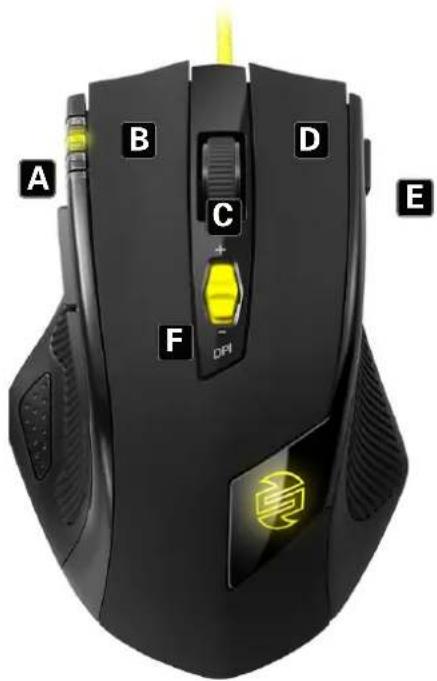
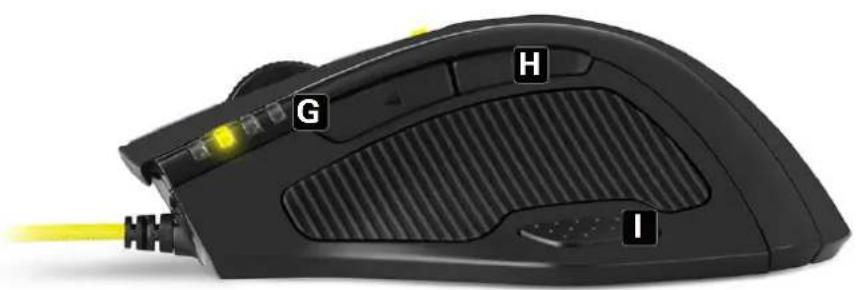
(A) DPI display
(B) Left mouse button
(C) 4-way scroll wheel and middle mouse button (freely programmable)
(D) Right mouse button
(E) Game button
(F) DPI selector
(G) Thumb button 1
(H) Thumb button 2
(I) Thumb button 3
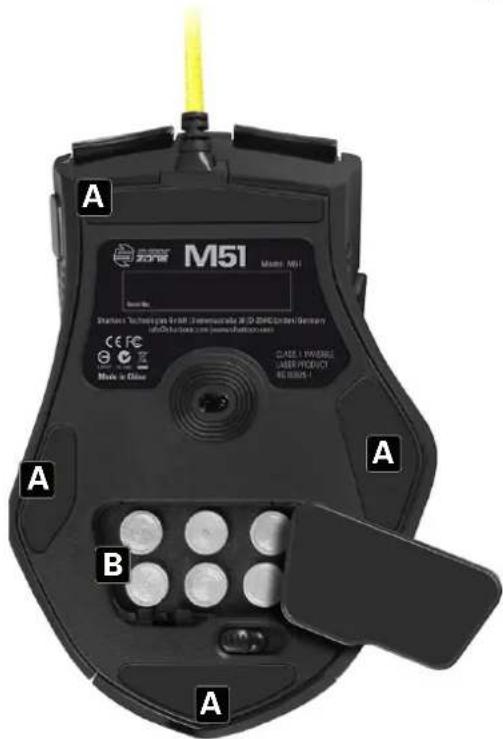
(A) Slide pads
(B) Weight tuning System
5. Connecting to the PC
- Plug the mouse's USB connector into an available USB port on your PC.
- The operating system will automatically recognize the mouse and install all needed drivers.
- If your mouse is not recognized, disconnect it and try a different USB port on your PC.
6. Installing the software
- Before installing the included software, uninstall all other existing mouse software.
- Insert the software CD.
- Run the automatic installation, setup.exe.
- Follow the software instructions.
- At the end of the installation, confirm with "Finish" and perform a restart.

Start the software via the icon in the taskbar and/or through the installed programs in the Windows Start Menu.
7. The Editor
7.1 Starting the Editor
Start the application via its Windows start menu entry or the symbol in the task bar.
7.2 Main Control window
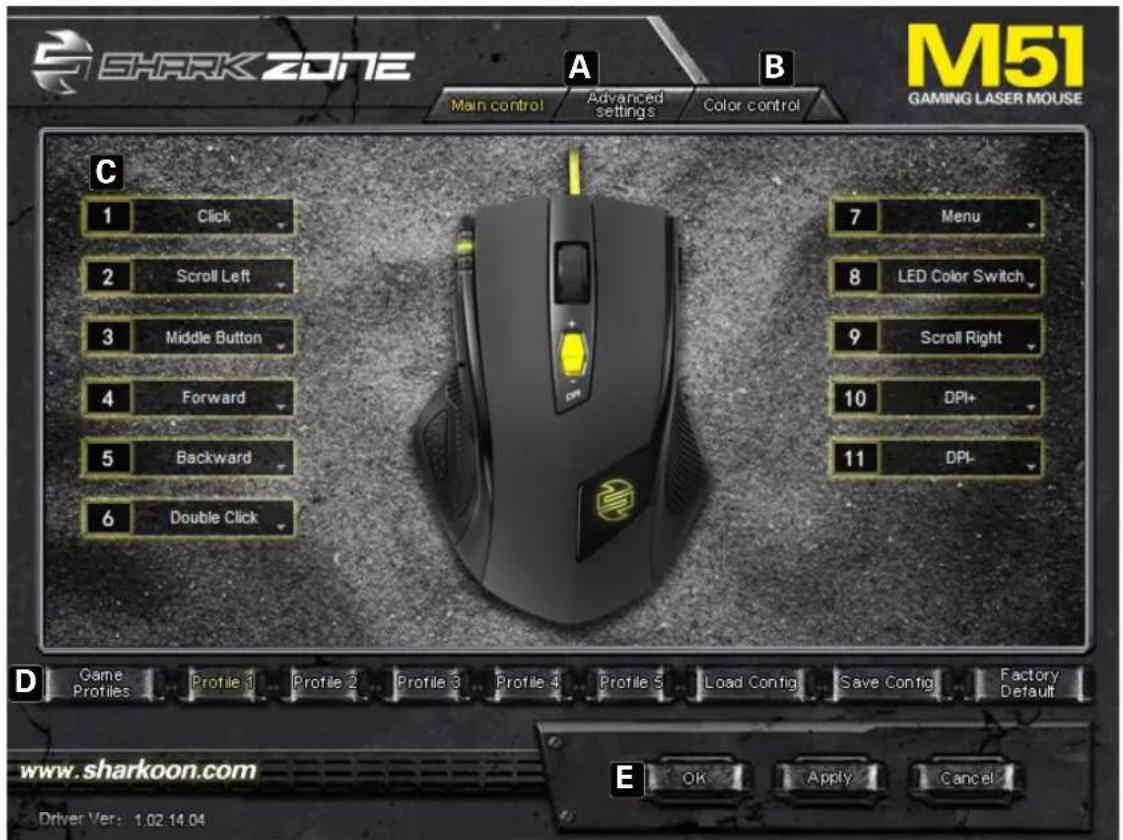
(A) Advanced Settings: See below 7.4
(B) Color Control: See below 7.5
(C) Button assignment: Every mouse button and the scroll wheel can be assigned different functions, which you can select from the respective pull down menu (see below 7.3).
(D) Game Profiles: The SHARK ZONE M51 can be assigned up to five different user profiles. With "Load Config" an already defined profile is loaded, while "Save Config" stores the current settings as new profile. "Factory Default" resets the selected profile.
(E) "OK" transfers the settings to the mouse and closes the window, "Apply" transfers the settings to the mouse, and leaves the window open, "Cancel" discards the settings.
7.3 Pull down menus
The pull down menus open up after the respective button is clicked. All pull down menus are the same for all the mouse buttons:
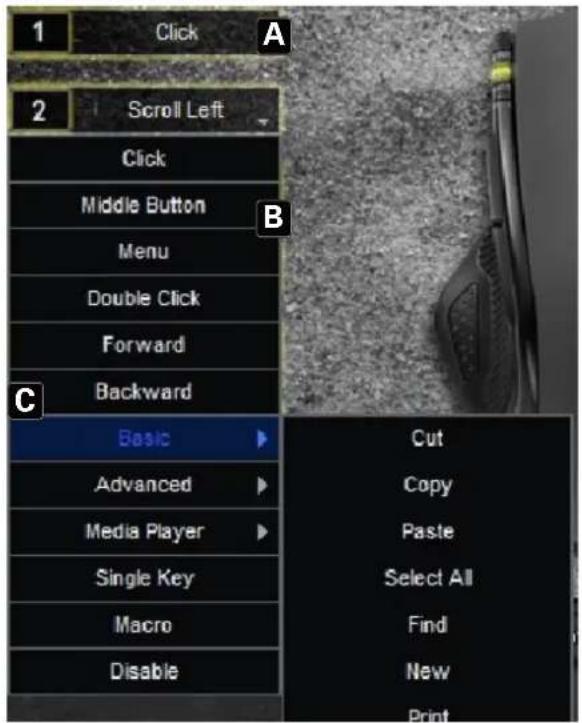
(A) Button
(B) Menu items
(C) Sub menus with further functions/options
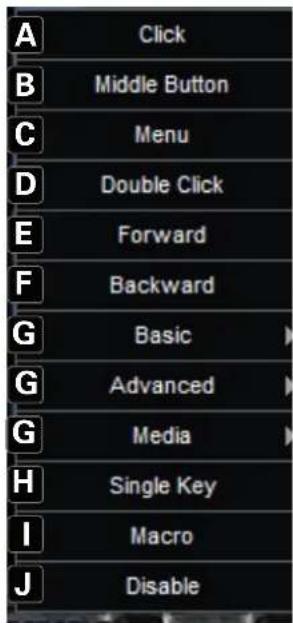
(A) Left click
(B) Activates scrolling by mouse movement
(C) Right click, opens the application context menu
(D) Double left-click
(E) Forward
(F) Backward
(G) Sub menus
(H) Assigns a keyboard letter to the mouse button
(I) Starts the macro manager. The SHARK ZONE M51 can record and execute macros, thus the most common orders and shortcuts can be defined, to increase gaming speed and precision
(J) Deactivates the button
7.3.1 Basic sub menu
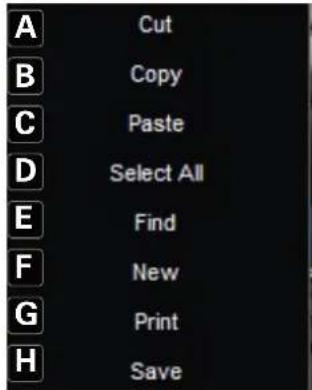
(A) Cut
(B) Copy
(C) Paste
(D) Select all
(E) Starts the search function
(F) Create new document
(G) Open print dialog
(H) Save document
7.3.2 Advanced sub menu
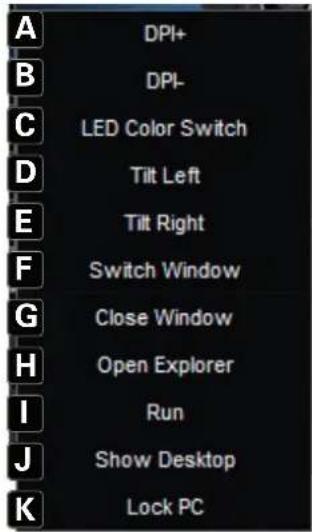
(A) Increase DPI
(B) Lower DPI
(C) Change LED color
(D) Scroll left/tilt scroll wheel to the left
(E) Scroll right/tilt scroll wheel to the right
(F) Swap window
(G) Close window
(H) Open Windows Explorer
(I) Execute file
(J) Switch to desktop
(K) Lock PC
7.3.3 Media sub menu
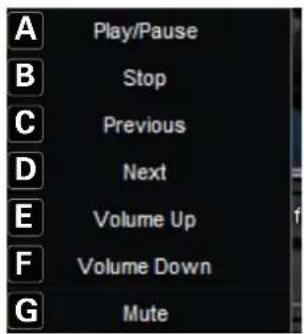
(A) Play/Pause
(B) Stop
(C) Previous track
(D) Next track
(E) Increase volume
(F) Decrease volume
(G) Mute
7.4 Advanced Settings window
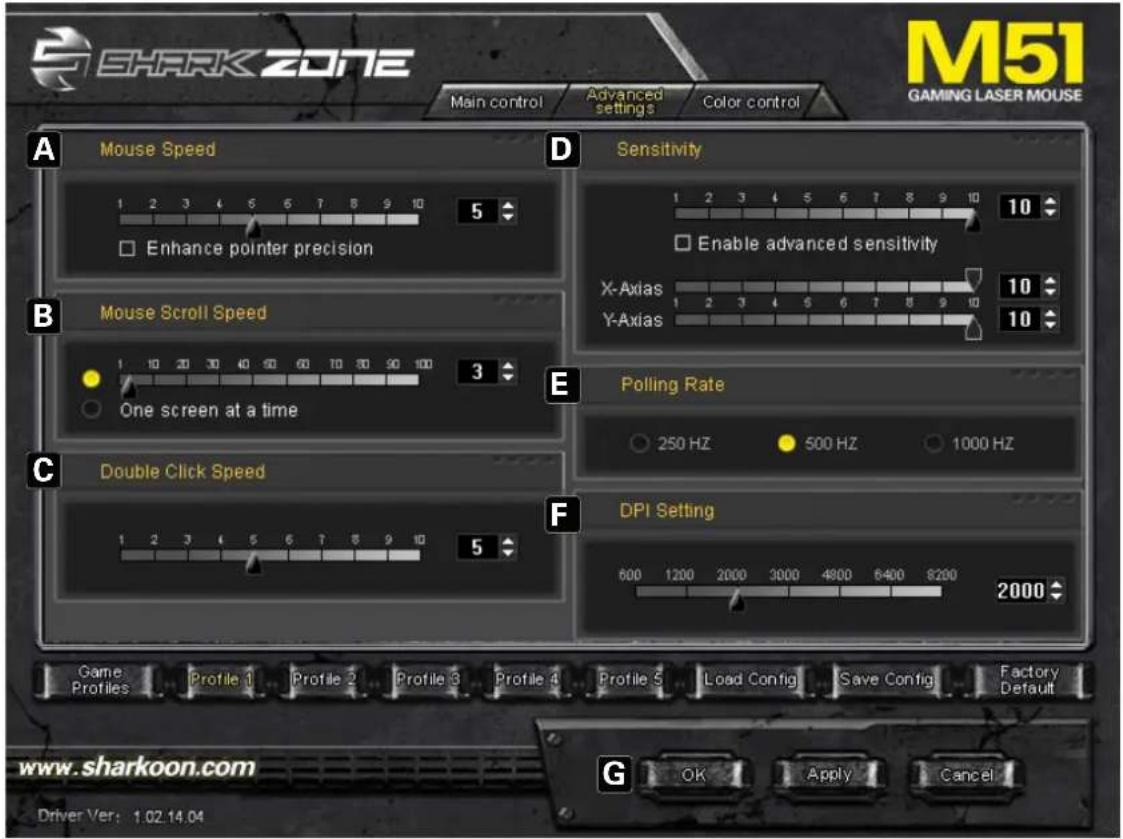
(A) Adjusts the mouse pointer speed
(B) Sets the vertical scroll speed
(C) Sets the double-click speed
(D) Sets the sensitivity, if required even separately for x- and y-axis
(E) Sets the polling rate, this defines how often the computer polls the mouse information
(F) Sets the DPI rate
(G) "OK" transfers the settings to the mouse and closes the window, "Apply" transfers the settings to the mouse, and leaves the window open, "Cancel" discards the settings
7.5 Color Control window
This dialog allows defining the LED color settings of the mouse.
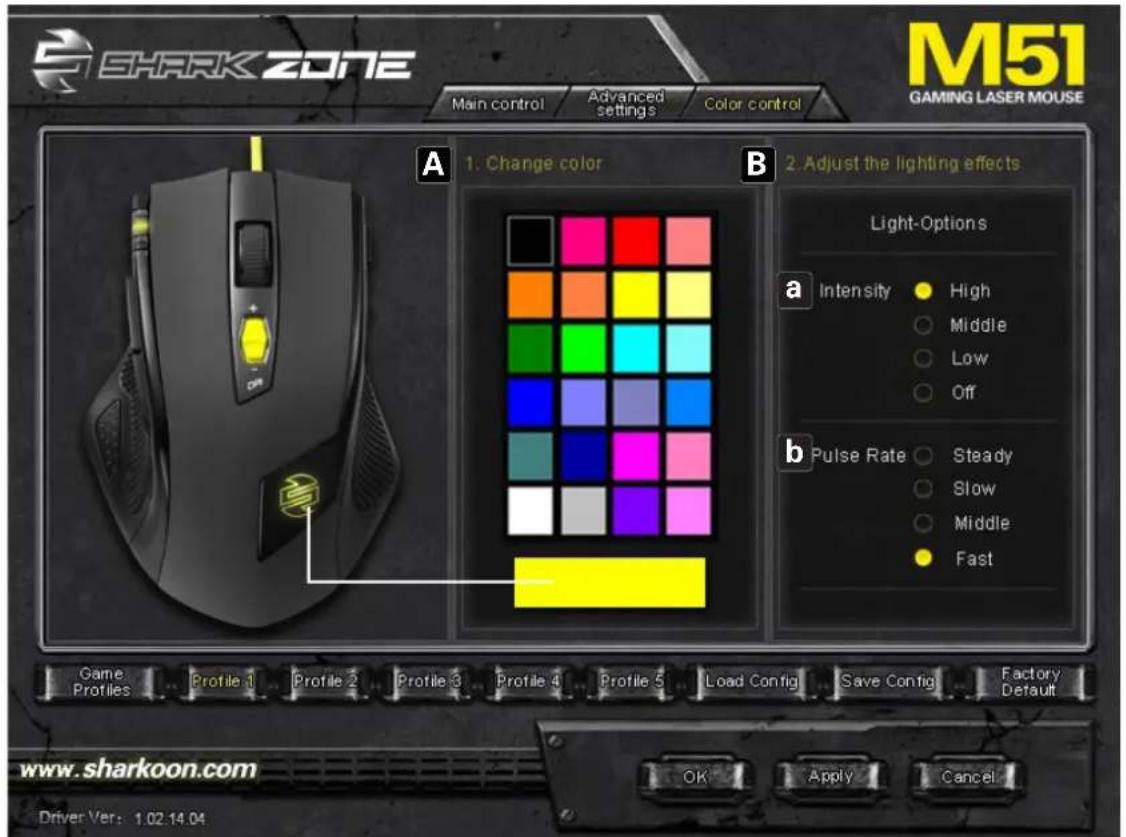
(A) Color palette with all selectable color options
(B) Settings for the illumination effect
a - Illumination intensity
b - Settings for the pulsating effect
Legal disclaimer
For potential loss of data, especially due to inappropriate handling, SHARKOON assumes no liability.
All named products and descriptions are trademarks and/or registered trademarks of the respective manufacturers and are accepted as protected.
As a continuing policy of product improvement at SHARKOON, the design and specifications are subject to change without prior notice. National product specifications may vary.
The legal rights of the enclosed software belong to the respective owner. Please observe the license terms of the manufacturer before using the software.
All rights reserved especially (also in extracts) for translation, reprinting, reproduction by copying or other technical means. Infringements will lead to compensation.
All rights reserved especially in case of assignation of patent or utility patent. Means of delivery and technical modifications reserved.
Disposal of your old product
Your product is designed and manufactured with high quality materials and components, which can be recycled and reused.

When this crossed-out wheeled bin symbol is attached to a product, it means the product is covered by the European Directive 2002/96/EC.
Please be informed about the local separate collection system for electrical and electronic products.
Please act according to your local rules and do not dispose of your old products with your normal household waste. The correct disposal of your old product will help prevent potential negative consequences to the environment and human health.
© SHARKOON Technologies 2015
www.sharkoon.com
↑
- SHARK ZONE
- M51
- Content
- Features
- Package contents
- The mouse at a glance
- Connecting to the PC
- Installing the software
- The Editor
- Starting the Editor
- Main Control window
- Pull down menus
- Basic sub menu
- Advanced sub menu
- Media sub menu
- Advanced Settings window
- Color Control window
- Legal disclaimer
- Disposal of your old product
Brand : Sharkoon
Model : SHARK ZONE M51+
Category : Mouse