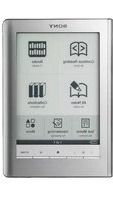
PRS-600SC - E-reader SONY - Free user manual and instructions
Find the device manual for free PRS-600SC SONY in PDF.


| Product Type | E-reader (Digital Book Reader) |
| Model | PRS-600 / PRS-600SC |
| Display | 6-inch touch screen |
| Dimensions (W x H x D) | Approx. 121 x 174.3 x 9.8 mm (4.875 x 6.875 x 0.375 inches) |
| Weight | Approx. 286 g (10.1 oz) |
| Power Source | Built-in rechargeable battery DC 3.7 V; AC adapter DC 5.2 V; USB |
| Battery Life | Approx. 7,500 continuous page turns (reading only) |
| User Available Capacity | Approx. 380 MB |
| Operating Temperature | 5 to 35 °C (41 to 95 °F) |
| Supported Book Formats | BBeB (.lrf, .lrx), PDF, EPUB, Text, RTF, Word (converted) |
| Supported Audio Formats | MP3, AAC (unsecured) |
| Supported Picture Formats | Bitmap, JPEG, GIF, PNG |
| Memory Card Slots | Memory Stick Duo, SD Memory Card |
| Connectivity | USB 2.0 (High-Speed) |
| Optional Accessories | AC Adapter AC-S5220E, headphones, hand strap, cover |
| System Requirements | Windows XP/Vista/7 or Mac OS X 10.4.11+ or 10.5.6+; Internet connection for software installation |
| Key Features | Touch screen with stylus, built-in dictionaries (New Oxford American, Oxford Dictionary of English), note-taking (bookmark, highlight, markup, comment), text memo, drawing, audio playback, picture slideshow, search, page jump, text size adjustment (5 levels), zoom, orientation switch, sleep mode, power management |
| Cleaning | Clean case with soft cloth; wipe stylus with dry cloth; avoid water and solvents |
| Safety | Do not use headphones while driving; avoid high volume; do not disassemble battery; keep away from water |
Frequently Asked Questions - PRS-600SC SONY
User questions about PRS-600SC SONY
0 question about this device. Answer the ones you know or ask your own.
Ask a new question about this device
Download the instructions for your E-reader in PDF format for free! Find your manual PRS-600SC - SONY and take your electronic device back in hand. On this page are published all the documents necessary for the use of your device. PRS-600SC by SONY.
USER MANUAL PRS-600SC SONY
Jump to the table of contents
User's Guide
PRS-600
Digital Book Reader
Table of Contents
Introduction
What You Can Do with the Reader 5
Getting Started
Parts and Controls 6
Turning on the Reader 10
About the Power Management of the Reader ....11
Charging the Reader 13
About charging 13
Charging the Reader via USB connection ....13
Installing eBook Library 17
How to Use the Touch Screen 18
How to Use the Home Menu 22
About the Home menu ....24
Inserting a Memory Card . 33
Importing and Transferring Content
Importing Content 37
Authorizing the Reader and your computer ....37
Downloading eBooks from eBook store....40
Importing content to eBook Library ....41
Transferring Content...... 44
Transferring content to the Reader 44
Transferring content via a memory card 48
Synchronizing content in Library with the Reader ....52
Reading Books
Reading Books 54
Using the Option menu of the book list ....56
Sorting a list ....58
Switching the list display format ....61
Searching for a book with a keyword ....62
Operations on the book page 69
Using the Useful Features 76
Embedded dictionaries ....76
Adjusting the text size ....79
Zooming in/out 82
Using the Option menu of the book page 84
Jumping to pages ("Go to Page") 86
Going back to previously displayed pages ("History") .....89
Searching a book for keywords ("Search") 90
Creating a bookmark on a book page (“Create/Edit Notes”) 94
Highlighting a word(s) ("Create/Edit Notes") .....98
Marking up a book page by handwriting ("Create/Edit Notes") 102
Adding a comment to a bookmark or highlight ....104
Selecting a note ("Create/Edit Notes") 109
Using the Option menu of the "Notes" List ....111
Hiding notes ("Hide Notes") 112
Deleting a book ("Delete Book") 112
Displaying book information ("Info") 113
Switching screen orientation (vertical/horizontal) ("Orientation") ....114
Creating Drawings and Text Memos
Creating Drawings and Text Memos 116
Drawing by handwriting 116
Creating a text memo 121
Using the Option menu of the Handwriting and Text Memo lists 125
Playing Audio Files
Playing Audio Files 127
Playing audio files transferred from your computer ....127
Using the Option menu of Audio ....131
Viewing Pictures
Viewing Pictures 133
Viewing pictures transferred from your computer ....133
Using the Option menu of Pictures ....137
Settings
Changing Settings 139
Settings menu items ....141
Advanced Settings menu items ....146
Troubleshooting
Troubleshooting 150
Restoring default settings ....163
Uninstalling eBook Library . 166
Other Information
Updating the Reader Device Software 167
About Books Pre-installed on the Reader . 168
Notes on Reader Disposal 169
Precautions 170
On safety 175
On heat build-up 176
On the headphones 176
Note on use 177
Notes on memory cards ....179
On software 181
On Cleaning 182
On Copyrights 183
About GNU GENERAL PUBLIC LICENSE ....184
Specifications 186
Index 188
What You Can Do with the Reader
First, read the Quick Start to prepare the Reader for use. Initially after purchase, you need to charge the Reader battery, and install the dedicated software “eBook Library” on your computer.
Once initial preparation is complete, you can transfer content from your computer to the Reader to take anywhere you wish.

flowchart
graph LR
    A["Global"] --> C["Laptop"]
    B["CD"] --> C["Laptop"]
    C["Laptop"] --> D["File Exchange"]
    style A fill:#f9f,stroke:#333
    style B fill:#f9f,stroke:#333
    style C fill:#ccf,stroke:#333
    style D fill:#cff,stroke:#333
Transferring eBooks/Audio/Picture file to the Reader
*1 Online eBook store. An Internet connection is required.
*2 Books/Personal Documents/Audio/Picture files that you already have
Getting Started
Charge the Reader, then install eBook Library.

Importing

Downloaded eBooks from eBook store.
Transferring

Transfer content from your computer to the Reader using eBook Library.
Reading/ Playing/Viewing
Enjoy content on the Reader.
Parts and Controls

1 Touch screen
The touch screen gives you simple access to the various functions on the Reader (▶ page 18).
2 < Page Turn) buttons
Turns the page. You can turn multiple pages by pressing and holding the buttons. You can also turn the page using the touch screen (▶ page 19).
3 (Home) button
Displays the Home menu (▶ page 24).
4 (Size) button
Displays the Size menu ( page 79, 136 ).
You can adjust the text size and zoom in/out a page or picture from the Size menu.
5 OPTIONS button
Displays the Option menu (▶ page 29, 32, 57, 84, 111, 125, 131, 137).
You can use various functions such as creating notes, jumping to a page, etc., from the Option menu.
6 VOL -/+ button
Adjusts the volume ( ≥ page 130).
To mute the sound, press and hold either edge of the VOL -/+ button. To restore the sound, press the VOL -/+ button again.
7 Ⓝ (Headphones) jack
Used to connect headphones (optional) (▶ page 127).
8 USB connector
Used to connect the USB cable (supplied) ( > page 13).
9 DC IN jack
Used to connect the AC Adapter for Reader (AC-S5220E) (optional).
Hint
- The Reader can be charged by connecting to a computer using the supplied USB cable.
10 RESET button
Resets the Reader if no operation is possible (▶ page 150).
11 Hole for hand strap
Used to attach the hand strap (optional).
12 Holes for cover attachment
Used to attach the cover (optional).
13 Charge indicator
Lights up in red while charging, and goes off when charging is complete (▶ page 14).
Flashes in orange when your computer starts accessing the Reader via USB.
14 POWER switch
Switches the Reader on/off (▶ page 10).
To shut down the Reader, slide and hold for more than 3 seconds (▶ page 11).
15 "Memory Stick Duo" slot
Used to insert a “Memory Stick Duo” Memory Card (optional) (▶ page 33).
16 SD Memory Card slot
Used to insert an SD Memory Card (optional) (▶ page 33).
17 Stylus
The stylus enables you to perform drawing or precise operations, such as selecting a word, on the touch screen (▶ page 9, 18, 150).
About the serial number
The serial number is for customer registration purposes. The number is on the label on the rear of the Reader. Do not remove the label.
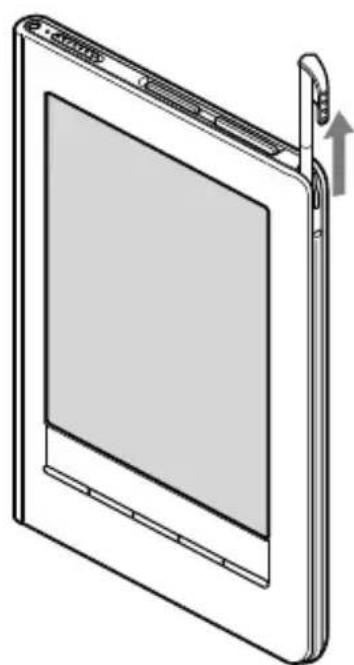
Removing the supplied stylus
The supplied stylus is stored on the top right side of the Reader. Pull it out from the top when you use it.
natural_image
Illustration of a flat-screen tablet device with a scroll wheel and a pull-up arrow, no text or symbols present.Note
- When you put the supplied stylus back into the holder, make sure to insert it fully to the bottom of the holder.
Turning on the Reader
Slide the POWER switch to turn on the Reader. Make sure to turn on the Reader before connecting to your computer.
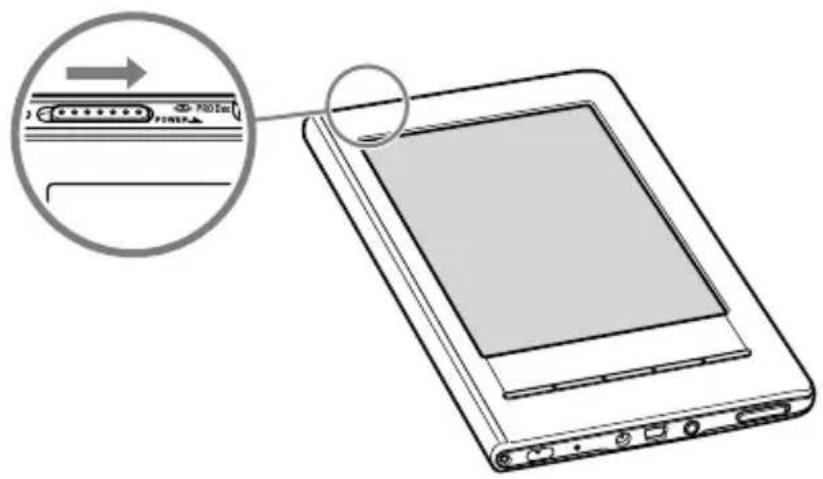
- When you turn on the Reader for the first time after purchase, “Welcome!” screen appears in all four languages followed by the “Calibrate Touch Screen” (▶ page 18). After completing the calibration, “Menu Language” screen appears. If you select “English”, the “Keyboard” screen appears. If not, Home menu appears. For details about settings, refer to “Settings menu items” and “Advanced Settings menu items” (▶ page 144, 147).
- It may take a few moments for the Reader to turn on and the initial setting screen to appear when using it for the first time, after a reset (▶ page 150) or shutdown (▶ page 12), or after the battery has been fully depleted.
Note
- If the Reader does not turn on, charging is required. For details, see “Charging the Reader” (▶ page 13).
To turn off the Reader
Slide the POWER switch again.
The Reader turns off. After turned off, the Reader enters sleep mode.
When turning off the Reader, if you slide the POWER switch and hold it for more than 3 seconds, the Reader shuts down.
Hint
- When the “Power Management” setting is set to “On” ( ≥ page 142), the Reader enters sleep mode after 60 minutes of inactivity even if you do not turn off manually.
About the Power Management of the Reader
The Reader has a Power Management feature to avoid unnecessary battery consumption. At purchase, the Power Management is activated. The Power Management operates as follows:
- After 60 minutes of inactivity, the Reader enters sleep mode automatically while the battery power is consumed slightly.
- After 5 days of inactivity, the Reader automatically shuts down and stops consuming the battery power.
- If the battery power is at a low level, the Reader will shut down after 60 minutes of inactivity.
Hint
- You can activate/deactivate the Power Management from “Power Management” in the “Settings” menu (▶ page 142).
Note
- In the following states, the Reader does not enter sleep mode after 60 minutes of inactivity even if “Power Management” is set to “On.”
- When connected to the computer using the supplied USB cable
- When connected to the AC Adapter for Reader (AC-S5220E) (optional) to charge
- When playing audio files or a slideshow
To shut down the Reader manually
You can shut down the Reader manually in one of the following ways.
- Slide the Power switch and hold it for more than 3 seconds.
- Use “Device Shutdown” in the “Advanced Settings” menu (▶ page 149).
Charging the Reader
About charging
You need to charge the Reader when using it for the first time, or when the remaining battery power is low. Charge in one of the following ways.
- Connect to a computer via USB.
- Connect to an AC outlet using the AC Adapter for Reader (AC-S5220E) (optional).
It will take approximately 4 hours to fully charge the battery.
Charging the Reader via USB connection
To charge the Reader via USB connection, follow the steps below.
1 Make sure your computer is connected to an AC outlet and turned on (not in sleep mode).
2 Connect the Reader to your computer using the supplied USB cable.
appears on the Reader and charging starts.
(At purchase, the Reader is in the shutdown state, therefore, it takes 5 minutes or more until 📄 appears. The same applies when the Reader's battery is fully depleted.)
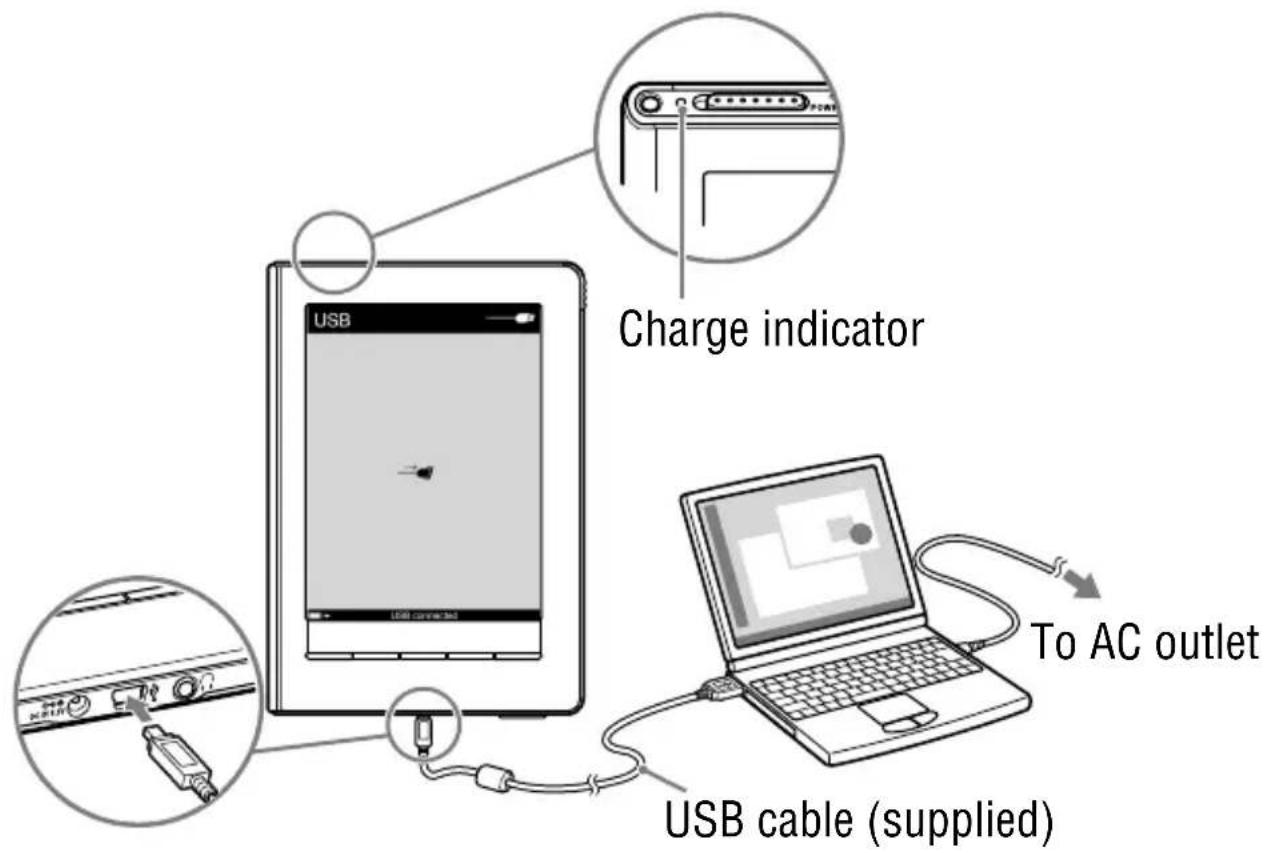
* The displayed screen during the USB connection varies depending on the using environment.
Hints
- If eBook Library has not been installed on your computer, the AutoPlay window appears (Windows only) (▶ page 17).
- To check how much the Reader has been charged, disconnect the Reader from your computer, then check the battery icon (▶ page 15).
- When the Reader is charged fully, the charge indicator (lights up in red while charging) goes off, and the icon indicating that charging is in progress (the bottom left of the touch screen) disappears.
Notes
- While charging via USB, you cannot operate the Reader.
- Do not leave the Reader connected to a notebook computer which is not connected to an AC outlet for an extended period. It will consume the battery of the notebook computer.
- Connection via an extension cable or USB hub is not guaranteed. Connect the USB cable directly to the computer.
- While the Reader is connected to your computer, do not turn on, restart, wake up from sleep mode, or shut down the computer. These operations may cause the Reader to malfunction. Disconnect the Reader from the computer before performing these operations.
To check the battery status
You can verify the remaining battery power by checking the battery indicator in the bottom left of the screen. Charge the battery when remaining power is low (the fewer black segments indicated, the lower the remaining power).

flowchart
graph LR
    A["Battery"] --> B["Charging Cell"]
    B --> C["Charging Cell"]
    C --> D["Charging Cell"]
    D --> E["Charging Cell"]
    E --> F["Charging Cell"]
Note
- If the remaining battery power is low, the following warning appears. Charge the battery ( ≥ page 13).

If you continue to use without charging, the following warning appears, and the Reader will turn off automatically.
Charge the Reader and turn it on again (▶ page 13).

Installing eBook Library
eBook Library is the content management software you use with the Reader.
Notes
- An Internet connection is required to install eBook Library.
- Your computer needs to meet the minimum system requirements for eBook Library. For details, see “System Requirements”
(> page 187).
1 Make sure the Reader and your computer are turned on, then connect them via USB ( > page 14).
The “Installer for Reader” window appears.
Hint
- If you have disabled the AutoPlay feature of Windows, start the installation launcher that is stored on the Reader manually. From the Start menu, click “My Computer” (“Computer” in the case of Vista) - “Installer for Reader” - “Windows” - “Setup eBook Library.”
2 Click “Install eBook Library” in the “Installer for Reader” window, then follow the on-screen instructions.
■ To install eBook Library in Macintosh
When the Reader is connected to your computer, "LAUNCHER" appears on the desktop. Click it - "Mac" - "Setup eBook Library," and then follow the on-screen instructions.
How to Use the Touch Screen
Using the touch screen, you can perform various operations with a finger or with the supplied stylus.
Note
- When you use the supplied stylus, make sure to use the pointed end of it for tapping dragging, or drawing on the touch screen. Do not use a ballpoint pen, pencil, or other sharp object.
Tapping
By tapping on the touch screen, you can select an item on the menu or list, etc.

Double-tapping
By tapping twice (double-tap) on the touch screen, you can create bookmarks (▶ page 94), highlight (▶ page 99), search (▶ page 90), or look up words (▶ page 76), etc.

Dragging
By dragging on the touch screen, you can turn a page (▶ page 70), drag a magnified page in Zoom mode (▶ page 83) or select a word to highlight (▶ page 101).

Double-tapping and dragging
By double-tapping and dragging on the touch screen, you can select consecutive words (▶ page 91, 99).
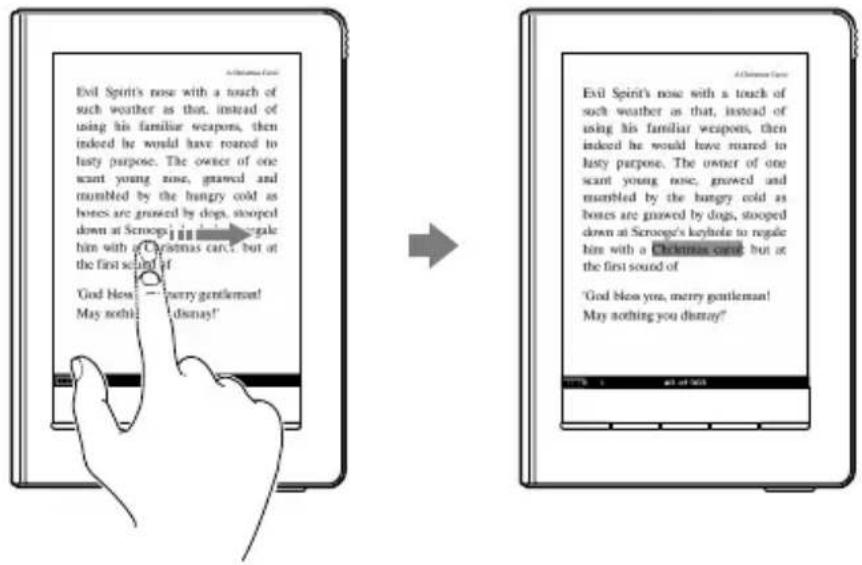
Dragging and Holding
By holding on the touch screen after dragging, you can turn pages repeatedly (▶ page 70).

Handwriting
Using the supplied stylus or a finger, you can create drawing on the touch screen (▶ page 102, 104, 116).


How to Use the Home Menu
The Home menu is the starting point to read/play/view content, create a drawing/text memo and configure settings. You can select menu items by tapping them.
In this manual, the operating instructions on the Reader are described as follows.
Example: Reading a book
1 In the Home menu, tap 📄("Books") → desired book.
The actual operation for the example is shown as below:
2 In the Home menu, tap 📄 (“Books”).
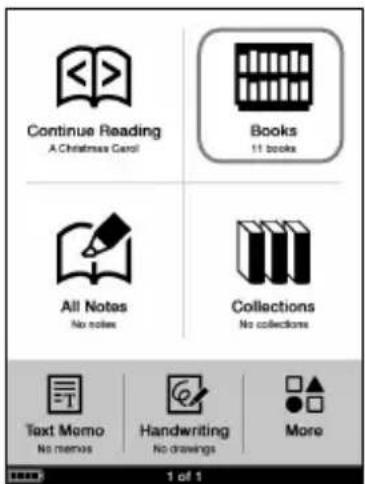
Home menu
3 Tap the desired book on the "Books" list.
- If more than 10 books are stored, the index bar appears on the right side of the list. The books are stored alphabetically. If your desired book is not displayed in the list, drag the index bar until the book appears or tap the first letter of the book title in the index bar. You can also turn the list page by pressing < 🔒> (Page Turn) buttons.
Index bar

"Books" list
To return to the Home menu
In the Home menu, frequently used items are arranged by default. To display other items, tap □▲ (“More”). You can change the items in the bottom left of the Home menu in “Customize Home Menu” under “Advanced Settings.” You can readily display the Home menu by pressing the ⬆ (Home) button.
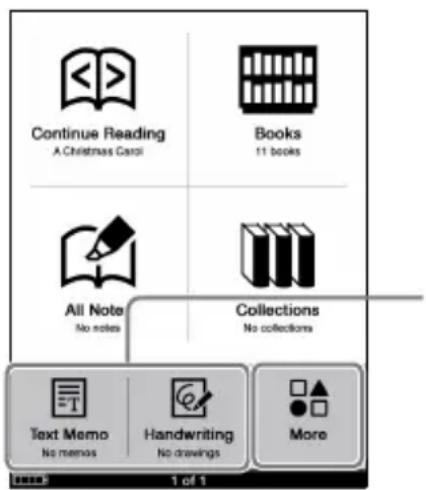
These items can be rearranged in the “Advanced Settings” menu (▶ page 31).
Home menu
| Menu item Description | |
| (Continue Reading) | Displays the page of the last book being read. |
| (Books) | Displays the “Books” list (>page 54). |
| (All Notes) | Displays a list of all the bookmarks, highlights, and markups created in books within the Reader (>page 26).Refer to page 94 for bookmarks, 98 for highlights and 102 for markups. |
| (Millions) (Collections)*1 | Displays the list of collections created by eBook Library (➤ page 30). |
| (More) | Displays items that are not displayed on the Home menu (➤ page 24). |
| (Handwriting)*2 | Displays the “Handwriting” list (➤ page 116). |
| (Text Memo)*2 | Displays the “Text Memo” list (➤ page 121). |
| (Audio)*2 | Displays the “Audio” list (➤ page 127). |
| (Pictures)*2 | Displays the “Pictures” list (➤ page 133). |
| (Settings)*2 | Displays the “Settings” menu (➤ page 139). |
*1 Collections can only be created in eBook Library. For details on how to create or transfer a collection, refer to the eBook Library Help.
*2 Interchangeable items in “Customize Home Menu” ( > page 31).
■ Using the Option menu in the Home menu
You can display the Option menu by pressing the OPTIONS button. From the Option menu, you can search for a book by title or author (▶ page 62), display the audio Playback screen (▶ page 130), or change the screen orientation (▶ page 114).
Searching notes
Using the Reader, you can highlight a word(s), create a bookmark, or mark up a book page. Also, you can add a comment to them.
In this manual, highlights, bookmarks with/without a comment and markups are collectively referred to as “note(s).”
- For details on highlights, refer to page 98.
- For details on bookmarks, refer to page 94.
- For details on markups, refer to page 102.
From “All Notes”) in the Home menu, you can search the Reader for notes. The “All Notes” list includes all the notes of all the books stored on the Reader and memory cards.
Hint
- You can search the “All Notes” list for a note containing text comment using the on-screen keyboard ( > page 29).
1 In the Home menu, tap 📄("All Notes").
The list of all the bookmarks, highlights and markups on the Reader appears.
Back icon

"All Notes" list
* The type of bar varies depending on the "Sort" type.
- Sorted "by Date": Scroll bar
- Sorted "by Type": Index bar with icons
- Sorted "by Comment": Alphabetic index bar
For details, refer to “About the index bar and scroll bar” ( > page 59).
Types of note
| Icons Descriptions Sentences displayed in the headline | ||
| Bookmark created on a book page. | First sentence of a bookmarked page. | |
| Bookmark containing a text comment. | Added comment. | |
| Bookmark containing a handwritten comment. | First sentence of a bookmarked page. | |
| Icons | Descriptions Sentences displayed | in the headline |
 | Highlight on a word(s). Highlighted word. | |
 | Highlight containing a text comment. | Added comment. |
 | Highlight containing a handwritten comment. | Highlighted word. |
 | Markup drawn on a book page. | First sentence of a marked page. |
2 Tap a note.
The page that contains the note is displayed.
Hints
- You can also create notes (excluding markups and handwritten comments) in eBook Library.
In eBook Library, you can set to merge the notes of the Reader and eBook Library while synchronizing. When merging the notes, any inconsistent note for the same word will be replaced with the latest note. - When you copy a book from eBook Library to the Reader, the notes of the Reader will be replaced with the ones of the eBook Library (or vice versa).
Using the Option menu of the "All Notes" list
Press the OPTIONS button to open the Option menu. ("Now Playing" appears only while a track is playing.)

Option menu
| Option item Description | |
| Sort Sorts the list by date, type, or comment (➤ page 58). | |
| Search Searches a desired note by keyword (➤ page 62). | |
| Now Playing Goes to the audio playback screen (➤ page 130). | |
| Orientation | Switches the screen orientation (vertical/horizontal) (➤ page 114). |
To close the Option menu
Tap ☒, or press the OPTIONS button.
Selecting a book from the “Collections” list
Using eBook Library, you can group books by genre or author, etc., in a folder which is called collection.
In the “Collections” list, you can select and read a book from a folder list of collections.
Hints
- For details on how to create or transfer a collection, refer to the eBook Library Help.
- You can display the Option menu of the “Collections” folder list by pressing the OPTIONS button. You can switch the screen orientation from the Option menu (▶ page 114).
- You can also display the Option menu of the book list in the "Collections" folder list by pressing the OPTIONS button ( > page 56).
- For details on the book list, refer to “Using the Option menu of the book list” (▶ page 56).
1 In the Home menu, tap III("Collections").
The “Collections” folder list appears.
2 Tap the desired collection on the list.
The book list appears.
3 Tap the desired book.
To customize the Home menu
Of the Home menu items, “Handwriting,” “Text Memo,” “Audio,” “Pictures” and “Settings” can be rearranged. You can select two of these items to display on the Home menu. By default, “Handwriting” and “Text Memo” are displayed on the Home menu.
1 In the Home menu, tap □ (“More”) → □ (“Settings”) → □ (“Advanced Settings”) → □ (“Customize Home Menu”).
The “Customize Home Menu” screen appears.
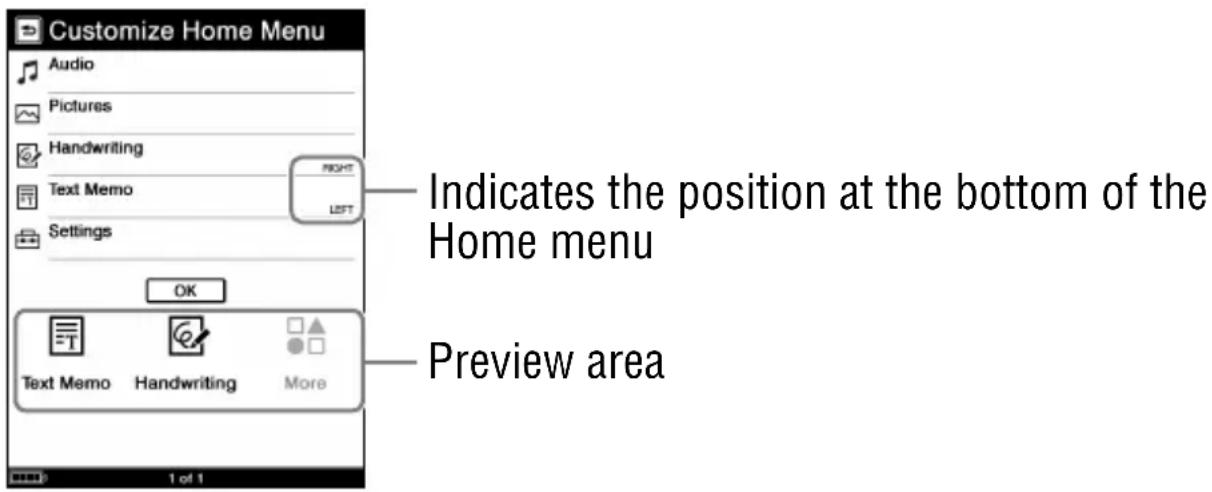
2 Tap the item that you want to display on the left bottom of the Home menu.
The tapped item is placed on the left of the preview area. The item already set on the left moves to the center, and the one in the center disappears.
You can confirm the result in the preview area.
Below illustrates the movement of items when you select "Pictures."

3 Tap "OK" to apply the setting.
Inserting a Memory Card
You can use the following memory cards with the Reader.
Note
- The Reader has separate slots for “Memory Stick Duo” Memory Card and the SD Memory Card. Be sure to insert the memory card in the correct slot. Otherwise, you may damage the slot or the memory card.
| “Memory Stick Duo”*1Memory Card | “Memory Stick Duo”“Memory Stick PRO Duo” |
| SD Memory Card*2 | SD Memory CardSDHC Memory CardminiSD Card *3 |
*1 The Reader does not comply with MagicGate standard, and the data requiring the copyright protection function cannot be copied or played on the Reader.
*2 The Reader does not comply with copyright protection of SD Memory Cards.
*3 miniSD Card adapter (sold separately) required.
Notes
- Do not remove a memory card from the memory card slot while the data on the memory card is being edited. Otherwise, edited data will not be saved.
- Sony's “Memory Stick Duo” Memory Card of up to 16 GB has been tested to work with the Reader. For other brand's “Memory Stick Duo” Memory Cards, please check compatibility before use.
- SD Memory Card of up to 16 GB has been tested to work with the Reader; however, not all SD Memory Cards are guaranteed to work.
- When inserting the memory card into the Reader, it may take time for the Reader to recognize the content files in the memory card if the number of the content files stored on the memory card is large.
Inserting a memory card into the Reader
The Memory slot protective inserts are inserted in the “Memory Stick Duo” slot and the SD Memory Card slot at purchase. Before inserting a memory card, remove the Memory slot protective inserts from the “Memory Stick Duo” slot and SD Memory Card slot.
1 Press the protective insert until it clicks, then release your finger to let it eject automatically. Gently remove the protective insert.
When not using the memory card, insert the Memory slot protective insert into the slot.
Note
- If the Memory slot protective insert is not inserted in the slot, foreign objects may enter the slot, and cause malfunction or damage.
2 Insert a memory card in the ▶ direction with its label side up until it clicks into the place.
Note
- The Reader has separate slots for “Memory Stick Duo” Memory Card and the SD Memory Card. Be sure to insert the memory card in the correct slot. Inserting the memory card in the wrong slot may damage the slot and the memory card.
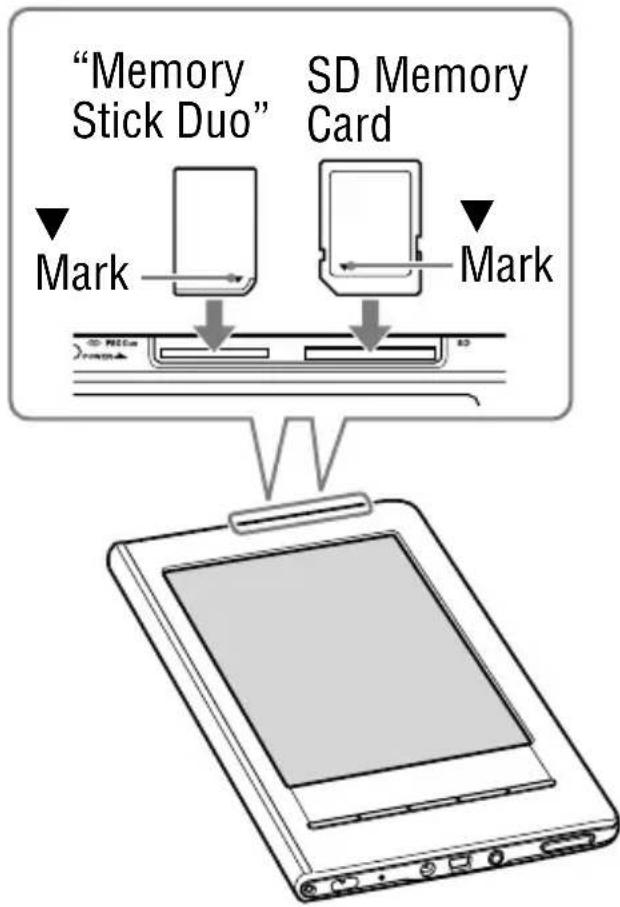
Notes
- Be sure to insert the memory card in the correct direction. Forced insertion may damage the slot.
- Do not insert an incompatible memory card, as it may cause malfunction.
- Do not use a deformed memory card or adapter.
Removing a memory card from the Reader
1 Gently push in the memory card.
You will hear a click, and the memory card should pop out.

2 Remove the memory card squarely from the slot.
Notes
- Do not remove a memory card or turn off the Reader while reading or writing data as data may be damaged.
- For details on handling memory cards, refer to “Notes on memory cards” (▶ page 179).
Importing Content
Authorizing the Reader and your computer
Before purchasing and downloading eBooks from an online eBook store, the Reader and your computer need to be authorized.
Hint
- You can check whether the Reader is authorized from “About” in the “Settings” menu ( > page 145). If it has already been authorized, “Authorized for the eBook Store.” or “This device is authorized for Adobe DRM protected content.” is displayed.
Note
- An Internet connection is required to authorize the Reader and your computer.
1 Slide the POWER switch.
The Reader is turned on.
Note
- If the Reader does not turn on, the battery has been fully depleted. In this case, go to the next step. Although charging is in progress (charge indicator lights up in red), the Reader will not turn on until (indicating connection via USB) appears on the screen (it takes about 5 minutes).
2 Connect the Reader to your computer using the supplied USB cable.
eBook Library starts automatically.

Reader
Source view
Notes
- If eBook Library does not start automatically, start it manually by double-clicking the desktop icon.
- If the Reader in the shutdown state is connected to your computer, the Reader will not be recognized by your computer. Make sure to turn on the Reader before the USB connection.
3 Click "eBook Store" in the Source view.
The View area is switched to the Store view.
Hint
- The available eBook store varies depending on the country.
4 Follow the store instructions.
To download Adobe DRM-protected files
When you download Adobe DRM-protected PDF or EPUB files for the first time, you are required to enter your Adobe ID. Enter your Adobe ID by following the on-screen instructions. If you do not have an Adobe ID, create it by following the on-screen instructions, or refer to Sony support web sites.
Downloading eBooks from eBook store
You can download eBooks from an online eBook store to your computer.
Notes
- To download eBooks, an Internet connection is required on your computer. - You need to authorize your computer to download eBooks from an eBook store.
You also need to authorize the Reader to transfer and read downloaded eBooks on the Reader.
For details, see “Authorizing the Reader and your computer” (▶ page 37) or refer to the eBook Library Help.
1 Start eBook Library.
2 Click “eBook Store” in the Source view.
The View area is switched to the Store view and the eBook store page appears.
3 Follow the store instructions to purchase (download).
Downloaded eBooks are automatically imported to "Library" in the Source view.
Hint
- Purchased eBooks are grouped under “Purchased” in the Library.
Hint
- eBooks can be read on eBook Library using your computer. For details on eBook Library operations, refer to the eBook Library Help.
Importing content to eBook Library
You can import content files stored on your computer into eBook Library.
You can import the following content files.
- Book
PDF file, EPUB file, Text file, RTF file, Word file (unsecured)*, BBeB Book
• Audio MP3 and AAC format audio files (unsecured)
- MP3 file (.mp3 file extension)
The following specifications should be met in order to import an MP3 file.
Bit rate: 32 to 320 kbps
Sampling frequency: 22.05, 44.1 kHz
- AAC file (.mp4, .m4a, .mov, or .qt file extension)
The following specifications should be met in order to import an AAC file.
Bit rate: 40 to 320 kbps
Sampling frequency: 24.0, 44.1, 48.0 kHz
Note
- Movie files are not supported.
- Picture
Bitmap file, JPEG file, GIF file ^*2 , PNG file
*1 Word files will be automatically converted into RTF files during transfer to the Reader only if Microsoft Word is installed on your computer.
^*2 For an animation GIF file, only the first frame will be shown.
For details on content files you can import, refer to the eBook Library Help.
1 Start eBook Library.
2 Click "Import Files" on the "File" menu.
The “Import Files” dialog box appears.
3 Select the content file to be imported.
Hint
- You can import all the content files in a selected folder at the same time from “Import Folder” on the “File” menu.
Book types supported by the Reader
The following are the book types supported by the Reader and eBook Library.
| File type (file extension) | Description |
| BBeB (.lrf, .lrx) | A file in BBeB format used in digital books and publications.The links embedded in eBooks (page jumps, etc.) can be used (➤ page 75). |
| PDF file (.pdf) A file | in PDF format (Version 1.4 or before).Bookmarks and links on PDF files can be used. |
| EPUB file (.epub) A | file in EPUB format used in digital books and publications that can adjust the layout automatically to fit the screen size. |
| Text file (.txt) A com | computer file that contains only characters, which is readable on most computers. |
| RTF file (.rtf) A document file format that can contain information such as font type, size or color in addition to text content. | |
| Word file*1 (.doc, .docx*2) | Supported only by eBook Library.Word files will be automatically converted into RTF files transferred to the Reader. |
*1 Only if Microsoft Word is installed on your computer.
*2 On Macintosh, eBook Library does not support .docx files.
Transferring Content
Transferring content to the Reader
You can transfer (copy) the content from eBook Library to the Reader.
You can transfer the following content files.
- Book
PDF file, EPUB file, Text file, RTF file, Word file (unsecured)*, BBeB Book
- Audio
MP3 and AAC format audio files (unsecured)
- MP3 file (.mp3 file extension) The following specifications should be met in order to import an MP3 file.
Bit rate: 32 to 320 kbps
Sampling frequency: 22.05, 44.1 kHz
- AAC file (.mp4, .m4a, .mov, or .qt file extension)
The following specifications should be met in order to import an AAC file.
Bit rate: 40 to 320 kbps
Sampling frequency: 24.0, 44.1, 48.0 kHz
Note
- Movie files are not supported.
- Picture
Bitmap file, JPEG file, GIF file ^*2 , PNG file
*1 Word files will be automatically converted into RTF files during transfer to the Reader only if Microsoft Word is installed on your computer.
*2 For an animation GIF file, only the first frame will be shown.
Notes
- If the Reader is locked, it will not be recognized on your computer and content cannot be transferred. Deactivate the “Device Lock” setting before USB connection ( > page 146).
- If the Reader has not been authorized, eBook Library will not transfer the DRM-protected files to the Reader. Make sure to authorize the Reader before the file transfer ( > page 39).
Hints
- The book content can be grouped in the Library as a collection, which can be transferred to the Reader. For details on how to create or transfer a collection, refer to the eBook Library Help.
- You can synchronize content in eBook Library with the Reader (▶ page 52).
1 Slide the POWER switch.
The Reader is turned on.
Note
- If the Reader does not turn on, the battery has been fully depleted. In this case, go to the next step. Although charging is in progress (charge indicator lights up in red), the Reader will not turn on until (indicating connection via USB) appears on the screen (it takes about 5 minutes).
2 Connect the Reader to your computer using the supplied USB cable ( > page 14).
eBook Library starts automatically and “Reader” appears in the Source view of eBook Library.

Notes
- If eBook Library does not start automatically, start it manually by double-clicking the desktop icon.
- If “Reader” does not appear in the Source view after connecting the Reader to your computer, disconnect the USB cable from the Reader, then reconnect it after a while.
- If the Reader in the shutdown state is connected to your computer, the Reader will not be recognized by your computer. Make sure to turn on the Reader before USB connection.
3 Click “Library” in the Source view, then click (List view).
The View area is switched to the List view and all the content in the Library is listed.
Hint
- When you click 📄 (Thumbnail View), content can be displayed as thumbnails.
4 Select the content you want to transfer from the list.
5 Drag the content from the list to “Reader” in the Source view.
The content is transferred to the Reader.

Reader
Notes
- If there is not enough free space on the internal memory of the Reader, content may not be transferable. The internal memory of the Reader can be increased in the following 2 ways.
- Transfer any unnecessary content back to eBook Library, then delete it to increase free space on the Reader.
— Delete any unnecessary books on the Reader (▶ page 112).
- Do not delete files in the folder under “database,” or files in “database” on your computer. Perform data management using the eBook Library. For details on the eBook Library operations, refer to the eBook Library Help.
- In eBook Library, you can set to merge the notes (bookmark/highlight/markup) of the Reader and eBook Library while synchronizing. When merging the notes, any inconsistent note for the same word will be replaced with the latest note.
- When you copy a book from eBook Library to the Reader, the notes of the Reader will be replaced with the ones of the eBook Library (or vice versa).
Transferring content via a memory card
You can transfer the content imported into eBook Library to a memory card on the Reader.
Hints
- “Memory Stick Duo” Memory Card and SD Memory Card can be used.
- You can synchronize content in eBook Library with a memory card on the Reader by specifying a folder (such as “Library” or the sub-items under “Library”) (▶ page 52). For details on how to synchronize content with a memory card, refer to the eBook Library Help.
1 Slide the POWER switch.
The Reader is turned on.
Note
- If the Reader does not turn on, the battery has been fully depleted. In this case, go to the next step. Although charging is in progress (charge indicator lights up in red), the Reader will not turn on until (indicating connection via USB) appears on the screen (it takes about 5 minutes).
2 Connect the Reader to your computer using the supplied USB cable ( > page 14).
eBook Library starts automatically and “Reader” appears in the Source view of eBook Library.
Notes
- If eBook Library does not start automatically, start it manually by double-clicking the desktop icon.
- If “Reader” does not appear in the Source view after connecting the Reader to your computer, disconnect the USB cable from the Reader, then reconnect it after a while.
- If the Reader in the shutdown state is connected to your computer, the Reader will not be recognized by your computer. Make sure to turn on the Reader before USB connection.
3 Insert a memory card into the appropriate memory card slot of the Reader ( ≥ page 33).
"Memory Stick on Reader/SD Card on Reader" appears in the Source view.
4 Click “Library” in the Source view, then click (List view).
The View area is switched to the List view and all the content in Library is listed.
Hint
- When you click 📄 (Thumbnail view), contents can be displayed as thumbnails.
5 Select the content you want to transfer from the list.
6 Drag the content from the list to “Memory Stick on Reader/SD Card on Reader” in the Source view.
The content is transferred to the memory card on the Reader.
Notes
- If there is not enough free space on the memory card, content may not be transferred. The free space of the memory card can be increased in the following two ways.
— Transfer any unnecessary content back to eBook Library, then delete it to increase free space on the memory card.
— Delete any unnecessary book on the Reader (▶ page 112).
- Do not delete files and folders in the “Sony Reader” folder. Perform data management on eBook Library. For details on eBook Library operations, refer to the eBook Library Help.
To transfer content back to eBook Library
1 Slide the POWER switch.
The Reader is turned on.
2 Connect the Reader to your computer using the supplied USB cable ( > page 14).
eBook Library starts automatically and “Reader” appears in the Source view of eBook Library.
3 Click "Reader" in the Source view, then click (List view).
The View area is switched to the List view and all the content in Library is listed.
4 Select the content you want to transfer back from the list.
5 Drag the content from the list to “Library” in the Source view.
The content is transferred back to eBook Library.
Synchronizing content in Library with the Reader
You can synchronize content in eBook Library with the Reader by specifying a folder (such as “Library” or the sub-items under “Library”). The Reader will be automatically updated to match the content in eBook Library when you connect it to your computer. For details, refer to the eBook Library Help.
Note
- To synchronize content in eBook Library with the Reader, you need to specify a folder (such as “Library” or the sub-items under “Library”). For details on how to specify a folder, refer to the eBook Library Help.
Hint
- When you want to synchronize content in eBook Library with the Reader right away, you can also synchronize them manually. For details on how to synchronize content manually, refer to the eBook Library Help.
1 Slide the POWER switch.
The Reader is turned on.
Note
- If the Reader does not turn on, the battery has been fully depleted. In this case, go to the next step. Although charging is in progress (charge indicator lights up in red), the Reader will not turn on until 📄 (indicating connection via USB) appears on the screen (it takes about 5 minutes).
2 Connect the Reader to your computer using the supplied USB cable ( > page 14).
eBook Library starts and synchronizes content in the Library with the Reader automatically.
Notes
- If eBook Library does not start automatically, start it manually by double-clicking the desktop icon.
- If the Reader in the shutdown state is connected to your computer, the Reader will not be recognized by your computer. Make sure to turn on the Reader before the USB connection.
Hints
- eBook Library also starts synchronizing content in Library with the Reader automatically in the following situations:
— When you start eBook Library after connecting the Reader to your computer.
— After a period of time when any changes have been made to the specified folder.
- You can also synchronize content in the computer drive with the Reader by specifying a folder as a favorite folder. For details, refer to the eBook Library Help.
Reading Books
Follow the steps below to find books transferred from your computer.
Note
- If you perform an invalid operation, ⊖ appears at the bottom of the screen.
1 In the Home menu, tap 📄("Books").
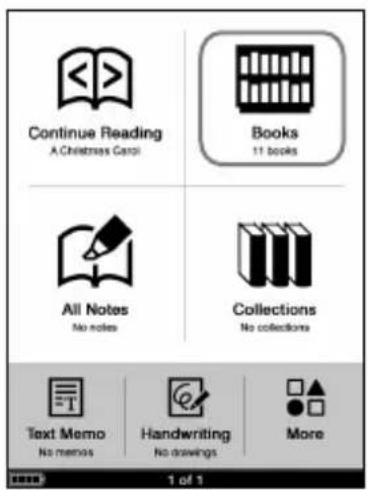
Home menu
Hints
- If you want to continue reading from the last displayed page, tap 📋 (“Continue Reading”) in the Home menu. The last displayed page appears.
- If you want to select a book from a collection, tap 📂 (“Collections”) in the Home menu. Then, tap the desired collection, and then tap a book of your choice.
2 Tap the desired book on the list.
Back icon
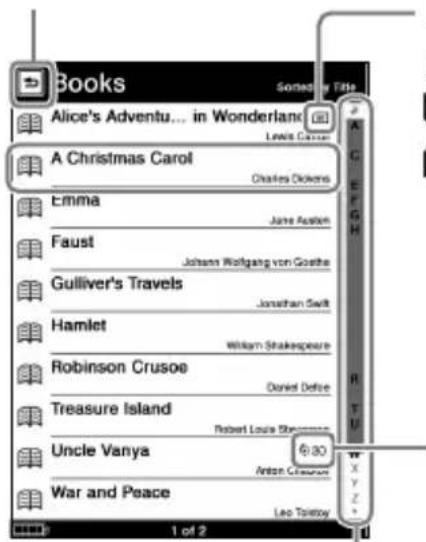
"Books" list
Indicates that content is stored on a memory card.
MS: "Memory Stick Duo" Memory Card
SD: SD Memory Card
(Expiration): Indicates days remaining until expiration. “Expired” is displayed when the book has expired.
Index bar: The type of index bar varies depending on the “Sort” type. For details, refer to “About the index bar and scroll bar” (▶ page 59).
Hints
- If more than 10 books are stored, the index bar appears on the right side of the list. The books are stored alphabetically. If your desired book is not displayed in the list, drag the index bar until the book appears or tap the first letter of the book title in the index bar. You can also turn the list page by pressing < Page Turn> (Page Turn) buttons.
- If you have read the book before, the last displayed page of the book appears when you open the book.
Note
- The content on the inserted memory card also appears in the Book list.
To return to the "Books" list
Press the OPTIONS button to display the Option menu, and tap "Return to List."
Using the Option menu of the book list
In the book list, press the OPTIONS button to open the Option menu.
("Now Playing" appears only while a track is playing.)
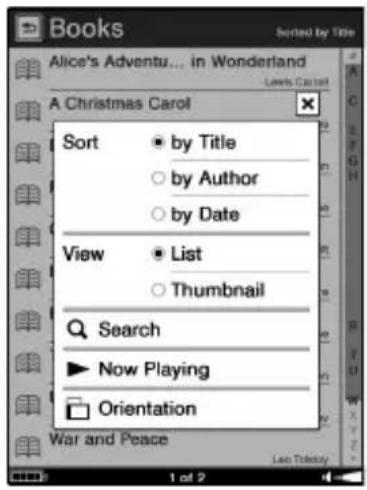
Option menu of the "Books" list
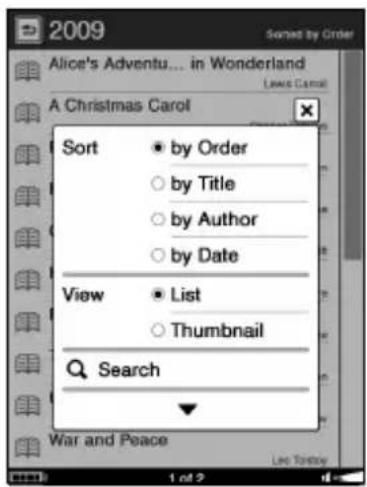
Option menu of the book list in the "Collections" folder

| Option item Description/Reference page | |
| Sort Sorts the | “Books” list by title, author, or date.Sorts the book list in the “Collections” folder by title, author, date, or order (➤ page 58). |
| View | Switches the list display format (➤ page 61). |
| Search | Searches a desired book title by keyword (➤ page 62). |
| Now Playing | Goes to the audio Playback screen (➤ page 130). |
| Orientation Switches the screen orientation (vertical/horizontal) (➤ page 114). | |
To close the Option menu
Tap ☒, or press the OPTIONS button.
Hint
- You can display the Option menu of the “Collections” folder list by pressing the OPTIONS button. You can switch the screen orientation from the Option menu (▶ page 114).
Sorting a list
You can sort the lists of books, collections, notes, audio files and pictures.
Here the instructions to sort the “Books” list are given as an example. You can sort the list by title, author, or transferred date.
Hint
- The sorting criteria vary depending on the list. The default sorting criteria are as follows:
"Books" list: "by Title"
Book list in the "Collections" folder: "by Order"
"All Notes" list: "by Date"
"Notes" list: "by Page"
"Audio" list: "by Title"
"Pictures" list: "by Title"
① In the Option menu, tap “by Title,” “by Author” or “by Date” to sort the list.
The "Books" list is sorted as specified.
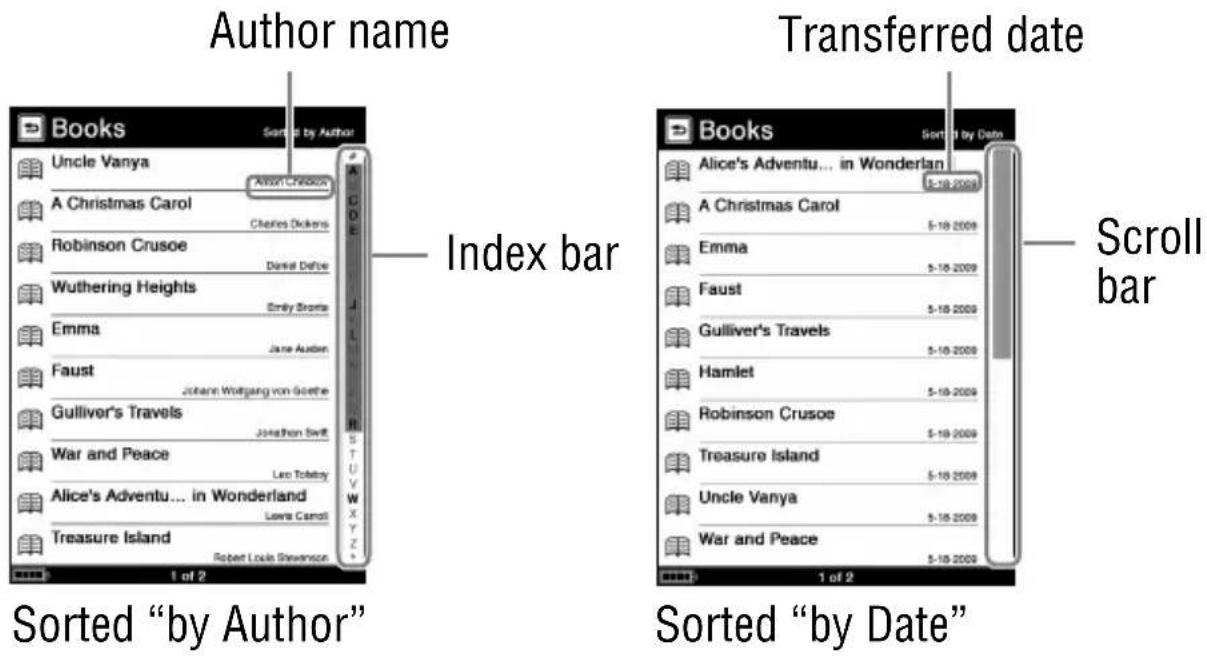
■ About the index bar and scroll bar
If more than 10 items are stored in a list, the index bar or scroll bar appears on the right side of the list. You can use them to search for an item that does not appear on the current page.
The appearance of the index bar differs depending on the sorting criteria.
Alphabetic index bar
If this appears, drag the bar until the desired item appears, or tap the first letter of its title/author/artist/comment, by which the list is sorted, in the index bar.
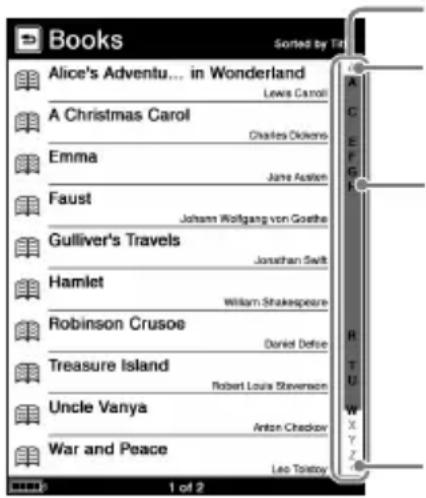
Alphabetic index bar
“#” contains books or authors that begin with a number.
Bold letter indicates that the letter contains any applicable book or author.
“★” contains books or authors that begin with a symbol.
Index bar with icons
This bar appears when you sort the “All Notes” or “Notes” list “by Type.”
Respective icons on the bar represent the type of note. Tap the desired note type to find it.
For details about the icons displayed on the bar, refer to "Searching notes" (▶ page 26).
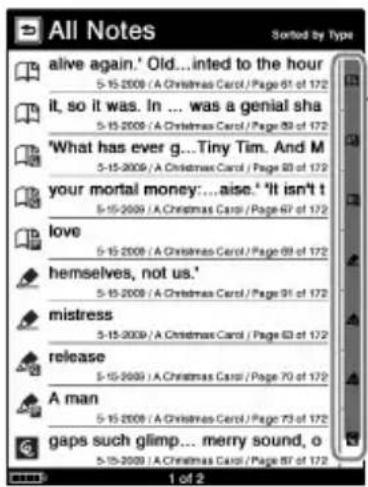
Index bar with icons
Scroll bar
If this appears, drag the bar until the desired item appears.

Switching the list display format
You can choose to display the list format in either "List" or "Thumbnail" view.
In the Option menu, tap “Thumbnail” of “View” to switch the list display format.


"List" (default) "Thumbnail"
When you change the list display format, the “Audio” list and the “Pictures” list are also switched to the selected format.
Notes
- In the “Handwriting” list, only “Thumbnail” view is available, and in the “Text Memo” list, only “List” view is available.
- In the “Books” list and the “Audio” list, the thumbnail can be displayed only if the book or the track has cover art information.
- Some cover art may not be displayable, depending on the file format.
- If a book or track does not include cover art information, the default image will be displayed in the “Thumbnail” list.
Searching for a book with a keyword
Using the on-screen keyboard, you can search for a desired book, note or word from the Option menus.
Here the instruction to search the “Books” list for a book is given as an example. You can search for a book by entering the book title or author.
Hint
- For details on how to use the on-screen keyboard, refer to “How to use the on-screen keyboard” (▶ page 65).
1 In the Option menu, tap “Search” to display the keyboard.
The on-screen keyboard appears.

2 Enter a word in the input area of the keyboard.
The word appears in the input area.
3 Tap "Search."
The "Search Results" list appears.
Books including the input word in their titles/authors are displayed.

"Search Results" list
4 Tap the desired book.
The book page appears.
To close the Search Results list
Tap (Back).
Hints
- You can perform other search operations in the same manner as above after selecting “Search” in each Option menu (excluding searching a book for a word.)
- For details on searching a book for a word, refer to “Searching a book for keywords” ( > page 90).
Search target and criteria
Search target and criteria (metadata) vary depending on the type of Option menu as follows:
| Option menu type Search target Criteria | ||
| “Books” listBook list in the “Collections” folder | Book Title, author | |
| “Collections” folder list | Collection Collection folder | |
| “All Notes” list Note Book title, created | date, first sentence of the page containing a bookmark or markup, target word in an added comment, target word which is highlighted | |
| “Notes” list Note First sentence of the | page containing a bookmark or markup, target word in an added comment, target word which is highlighted | |
| Home menu Book Title, author | ||
| Book page Word Word in a book | ||
How to use the on-screen keyboard
The Reader provides “United States,” “United Kingdom,” “French,” “German” and “Dutch” keyboards. When you set the language in the “Menu Language” screen for the first time, the keyboard type is automatically set depending on the language set. However, you can change the keyboard type in the “Advanced Settings” menu at any time ( > page 147).

To input a character
- Tap any character key on the keyboard. The tapped character is entered in the input area. As you input characters, predictive words from previously typed ones will appear in the Keyboard History area. If you tap the word, it appears in the input area.
- To input characters with umlaut or accent, etc., tap and hold a character key to pop up candidate characters, and select the desired one. For details on available characters, refer to "Characters available from the pop-up window" ( > page 67).
-
To toggle alphabetic characters between lower-case and upper-case, tap “↑” (Shift key).
-
To input symbols, tap “Symbols” to display the symbol keyboard. You can also tap “@#\$” to display another type of symbol keyboard.
- To return to the alphabet keyboard, tap "Abc."
- To give a line feed, tap the “Return” key. (The “Return” key is only available in the Comment editor and Text memo editor (> page 106 and 123).
- A maximum of 64 (in vertical screen) / 98 (in horizontal screen) characters can be input in the input area.
To edit an input word
Tap the input word directly to move the cursor.
To delete a character
Locate the cursor right next to the character by tapping and then tap ← (Backspace).
Notes
- Keyboard history records letters and hyphens. Numbers or other symbols are not recorded.
- Keyboard history records only words of 3 to 16 letters in length.
Characters available from the pop-up window
If you tap and hold a character key, optional characters will pop up, from which you can select the desired one.
Characters selectable from the pop-up window are as follows:
Operations on the book page
On the book page screen, you can perform the following operations.
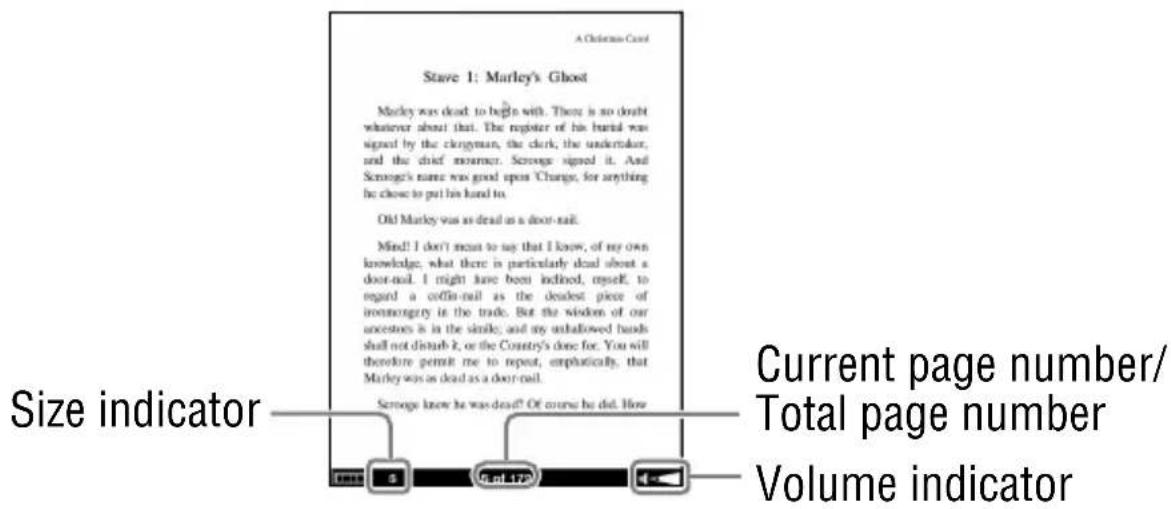
Note
- When the text on an EPUB file is magnified, the page number of some divided sections may be displayed as “3-4,” for example, which implies that you are viewing a section between page 3 and 4.
Turning a page
Drag on the touch screen.


- To go back to the previous page, drag on the page the opposite direction or press the < 🔒 (Page Turn) button.
■ Turning pages repeatedly
Hold on the touch screen after dragging, or press and hold the < 🔊> (Page Turn) buttons.

Hint
- You can reverse the direction of dragging in the “Settings” menu (▶ page 143).
Tapping operations
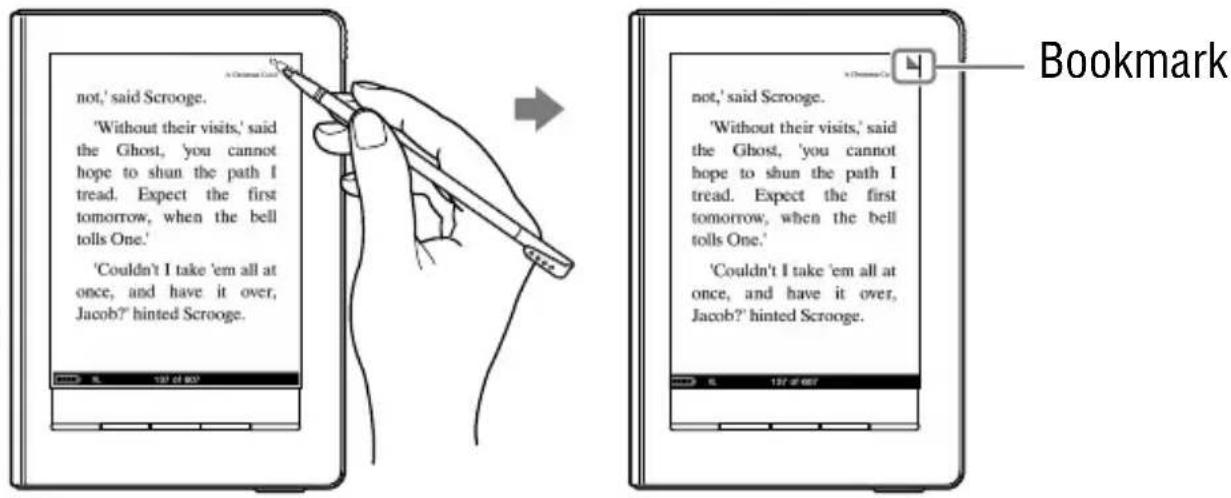
■ Double-tapping on the top right corner of a book page
You can add/remove a bookmark ( > page 94).
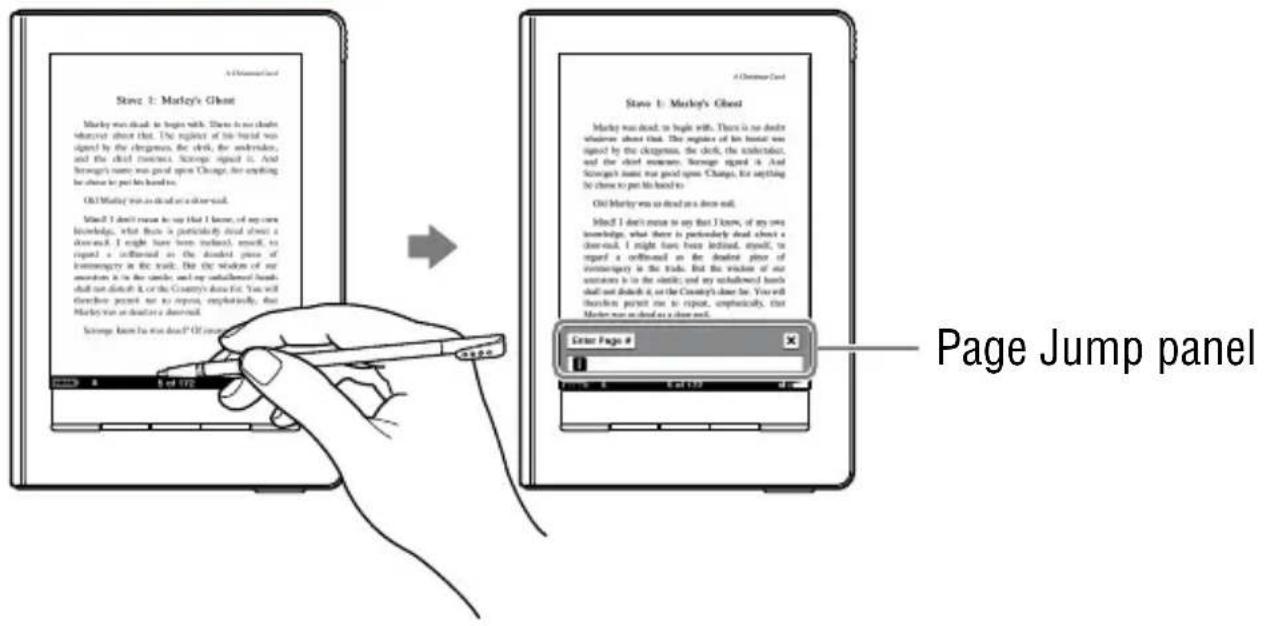
■ Tapping the page number at the bottom of the screen
You can jump to the desired page from the Page Jump panel (▶ page 86).
■ Double-tapping a word
You can highlight (▶ page 99), search (▶ page 90), or look up the word (▶ page 76) from the pop-up menu.

■ Double-tapping and dragging the consecutive words
You can highlight ( > page 99) or search the consecutive words from the pop-up menu ( > page 90).

■ Tapping a bookmark or a highlighted word(s)
You can add a comment by text/handwriting to the tapped bookmark/highlighted word(s), or edit the comment from the displayed menu (▶ page 104).
Highlighted word
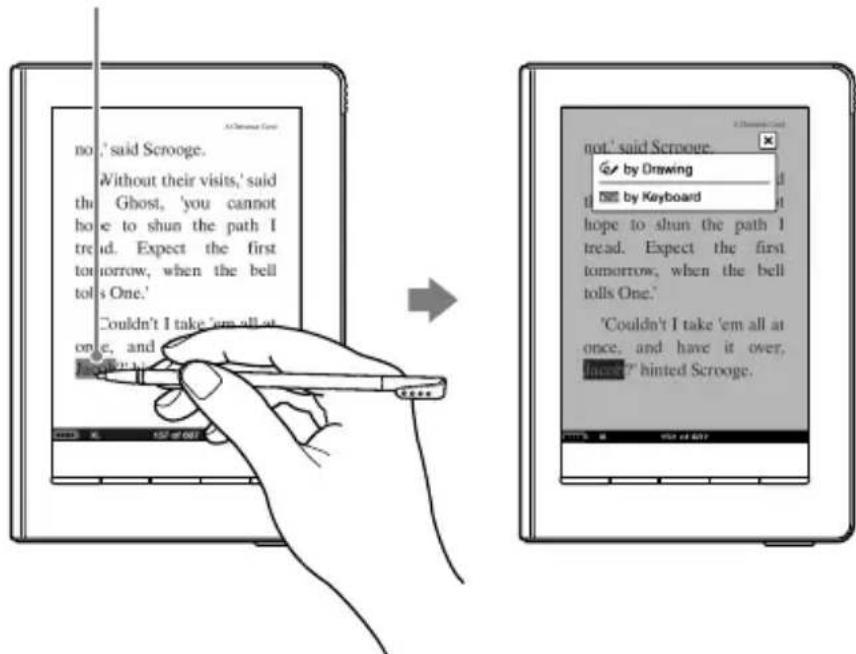
Example: Tapping a highlighted word
To use the links of eBooks files on the Reader
You can use the links on a BBeB, PDF or EPUB file.
The link appears highlighted on the screen. Tap to jump to the linked page.

flowchart
graph TD
    A["SONY Reader"] --> B["Jump to the table of contents"]
    B --> C["Link"]
Hint
- If you want to return to the previous page after you jumped to the linked page, press the OPTIONS button to display the Option menu, and then tap “History” → ⏻ (Previous View).
Using the Useful Features
You can use the various features to enhance readability.
Embedded dictionaries
You can look up words using the English dictionaries incorporated in the Reader.
Notes
- Only English dictionaries (“New Oxford American Dictionary” and “Oxford Dictionary of English”) are available.
- If you set “English” for “Menu Language” at the initial setting, the dictionary used is automatically selected from “New Oxford American Dictionary” or “Oxford Dictionary of English” according to the type of English keyboard you selected. However, you can change it in the “Advanced Settings” menu at any time ( > page 148).
- If you set a language other than “English” for “Menu Language” at the initial setting, the dictionary function becomes disabled. To enable a dictionary, set either “New Oxford American Dictionary” or “Oxford Dictionary of English” in the “Dictionary” setting ( page 148 ).
1 In the book page, double-tap the desired word.
The pop-up menu appears, in which the headline of the word definition is displayed.
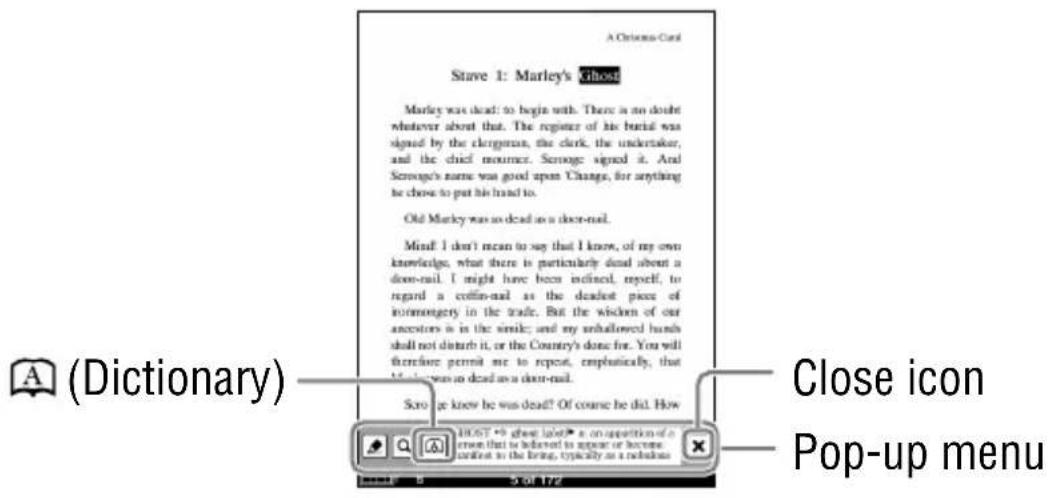
2 Tap(A(Dictionary).
The definition is fully displayed in the dictionary viewer.
![New Oxford American Dictionary Close icon • an apparition of a dead person that is believed to appear or become manifest to the living, typically as a problematic image. The ghost is bound by the ghost of a work [figurative]. The ghost of creation returned to inner the image. • an adj appearing or manufacturing but not actually existing: the Ghost (which is the most frequent ghost ship) • a faint trace of something; they give the ghost of a scale. • [article] a spirit or soul. • a faint secondary image produced by a fault in an optical system or on a cathode ray screen, e.g., by faulty television reception or internal reflection in a mirror or camera • 1 [true] not so ghostwriter of [is work]: As mathematics were smoothly ghosted by a questionnaire. 2 [antrane] pixel smoothly and effectively, they ghosted up the other. • Old English color FORAGES: 0 the ghost is the machine [Philosophy]. The job-spelling occurs first in Cauton, probably influenced by Phleish ghost. 0 ghost-like (-1 fl) and • for example: 0 the ghost is the machine [Philosophy]. The mind was to direct from the body randomly used in a demographic habit by critics of challenge, created by the philosopher Gilbert Ryle (HAN). I give up the ghost due. • if a machine stop working, I look as if you have seen a ghost look very pure and blocked? Not stand a ghost of a chance have no chance at all. ghost+head+or 'ghost hostor' (inferred). • 1 a person who claims to be able to finish ghost and pathogens. • a person psychologist. • 2 an investigator of tax fraud. ghost crink • a juke yellowish crink that • (Keyboard) (> page 78)](/content/2026/05/844294/images/11047f2073d008732accba487266836b22158385f97301398f43451d37193c8f.jpg)
Dictionary viewer
Hints
- You can turn the dictionary pages by dragging the definition area or pressing the <图标> (Page Turn) buttons.
- If you press and hold the < or (Page Turn) button while the dictionary viewer is displayed, you can accelerate turning the pages.
To close the dictionary viewer
Tap X.
Looking up other words
You can view a list of words found by the same keyword and select a headword to read its detailed definition.
1 In the dictionary viewer, tap 📄(Keyboard).
The lookup result screen with the on-screen keyboard appears.
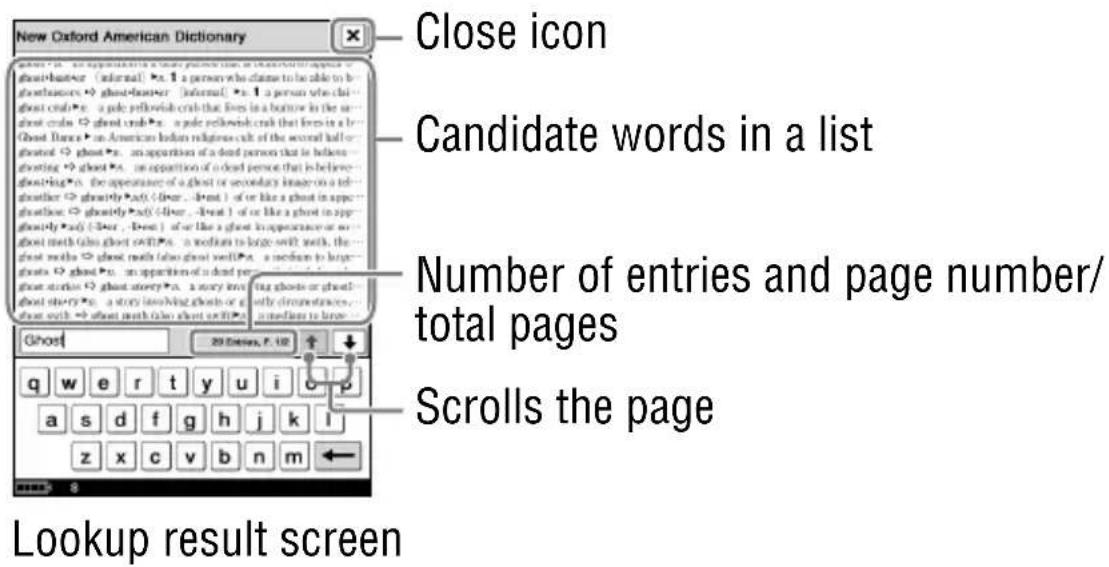
2 Tap the desired headword.
The definition is fully displayed in the dictionary viewer.
Hints
- You can also look up another word by modifying the selected word using the on-screen keyboard. As you modify the characters in the input area of the keyboard, the lookup result changes accordingly.
- You can input up to 39 (in vertical screen) / 72 (in horizontal screen) characters in the input area.
Note
- When using the embedded dictionary, you cannot input alphabet with umlaut or accent. The tap and hold operation on the on-screen keyboard is not available.
Adjusting the text size
You can adjust the text size using the size menu. Select from 5 different text sizes (S, M, L, XL or XXL). “S” (original size) is set by default.
1 In the book page, press the ⊕(Size) button.
The Size menu appears.
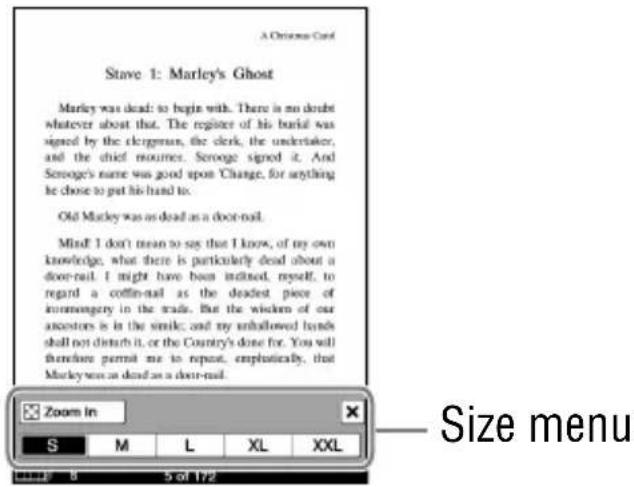
2 Tap “M,” “L,” “XL” or “XXL.”
The text size is changed, and the text and layout of the book page are adjusted automatically to fit the screen size. The selected size is indicated at the bottom of the screen.
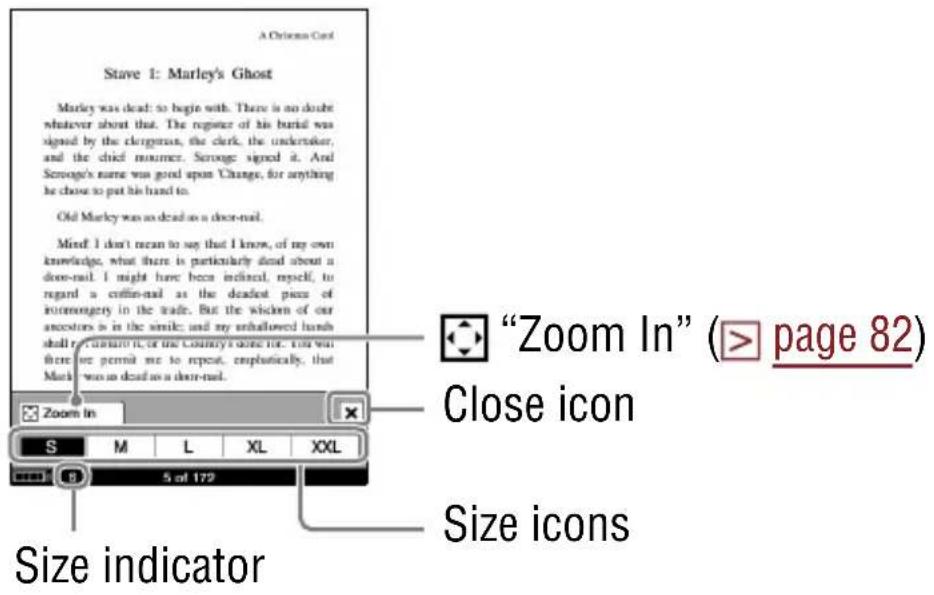
3 Tap ☒, or press the⊕(Size) button.
After the Size menu is closed, the texts are displayed in the selected size. To return the texts to the default size, tap "S" in the Size menu.
Hints
- When the texts on a PDF or EPUB file are magnified, the page is divided into multiple sections. To display the rest of the page, drag the page or press the <图标> (Page Turn) buttons.
- When viewing a PDF file in S size, you can magnify the text size by switching the screen orientation to “Horizontal.” This should be used only if you wish to retain the original layout of the PDF file.
- The text size of BBeB, PDF or EPUB files will be magnified as follows:
BBeB file: S(100%), M(120%), L(150%), XL(200%), XXL(260%)
PDF file: S(100%), M(200%), L(300%), XL(450%), XXL(600%)
EPUB file: S(100%), M(130%), L(180%), XL(230%), XXL(310%)
Notes
- If you change the text size of a BBeB, Text or RTF file, the total page number displayed on the Reader increases with the number of divided sections.
- When you view PDF files in M, L, XL, or XXL size, some functions such as highlighting, searching, or the temporary selection of a word, may not work correctly.
- When you view PDF files in M, L, XL or XXL size, the page layout is adjusted automatically to fit the screen size. In certain situations, only text appears in these scales as some tables and graphics may be reformatted and altered. In these cases, viewing in S size will retain the original formatting.
- Certain image-based pages such as the cover page of a book, or a PDF file created as an image file, cannot be magnified to M, L, XL or XXL size. In these cases, it is recommended to use the Zoom Mode.
Zooming in/out
The book page enters zoom mode by tapping “Zoom In” on the size menu (▶ page 79).
1 In the book page, press the Ⓕ(Size) button, then tap “Zoom In.”
The Zoom bar appears.
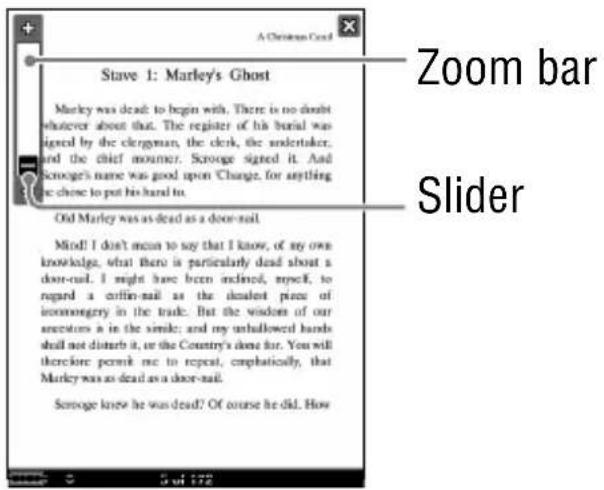
2 Drag the slider, or tap + or – of the Zoom bar repeatedly until the page is zoomed to the desired scale.
The page is zoomed in.
Hints
- You can also zoom in a book page by tapping a point in the Zoom bar.
- By double-tapping on a book page in zoom mode, the page is zoomed in and the double-tapped point is centered.
To scroll a magnified page
When the book page is zoomed in, ↕ ↗ appear at the edges of the screen. You can display the edge of the page by tapping ↕ ↗ ↗ ▽
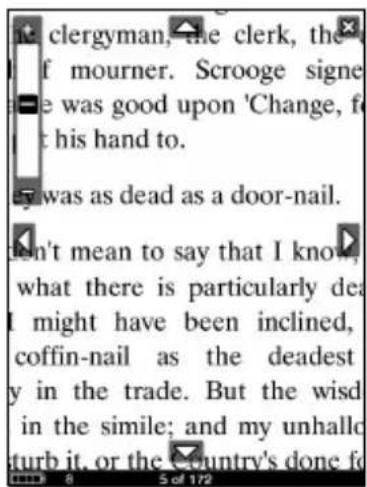
You can also scroll the page by dragging it.

To exit the Zoom mode
Tap ☒, or press the ⭕(Size) button. The Zoom bar disappears and the book page screen returns to the selected text size.
Using the Option menu of the book page
Press the OPTIONS button to open the Option menu of the book page.
The Option menu consists of 2 pages and includes various useful features.
("Now Playing" appears only while a track is playing.)

1st page

2nd page
| Option item Description/Reference page | |
| Go to Page | Displays the Page Jump panel (➤ page 86). |
| History | Navigates previously viewed pages (➤ page 89). |
| Table of Contents*1 | Displays the table of contents. |
| Search | Searches words in the book (➤ page 90). |
| Create/Edit Notes | Displays the tool bar to create/delete a bookmark (➤ page 95)/highlight (➤ page 100)/markup (➤ page 102) or displays the “Notes” list (➤ page 109). |
| Hide Notes/Show Notes*2 | Hides/Displays the bookmark/highlight/markup (➤ page 112). |
| Return to List | Closes the book and goes back to the list from which you opened the book. |
| Delete Book | Deletes a book (➤ page 112). |
| Info | Displays the book information (➤ page 113). |
| Now Playing | Goes to the audio Playback screen (➤ page 130). |
| Orientation | Switches the screen orientation (vertical/horizontal) (➤ page 114). |
*1 The displayed items vary depending on the content.
*2 "Hide Notes"/"Show Notes" is displayed only when notes are present in the book.
To close the Option menu
Tap ☒, or press the OPTIONS button.
Jumping to pages ("Go to Page")
You can jump to pages using the Page Jump panel. There are two ways to perform the operation:
- Using the Page Jump bar.
- Specifying the page number ( > page 87).
■ To jump to pages using the Page Jump bar
1 In the book page, press the OPTIONS button, then tap “Go to Page.”
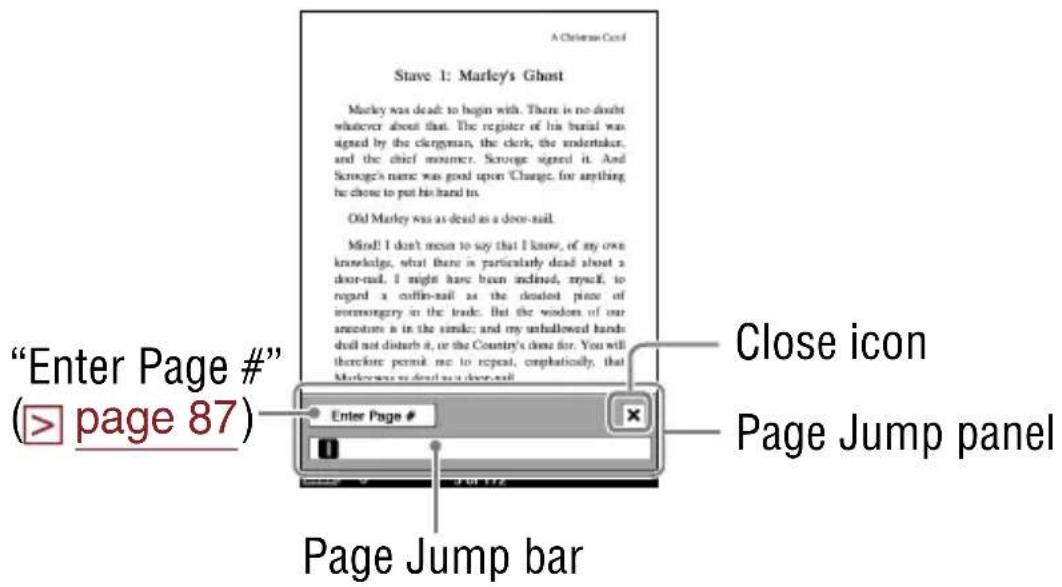
The Page Jump panel appears.
Hints
- You can also display the Page Jump panel by tapping the page number at the bottom of the screen.
- If you press and hold the < or (Page Turn) button while the Page Jump panel is displayed, you can accelerate turning the pages.
2 Drag the slider, or tap a point on the Page Jump bar. The page is displayed based on the slider position in the Page Jump bar.

To close the Page Jump panel
Tap ☒ or the page number at the bottom of the screen, or press the OPTIONS button.
■ Jumping directly to a specific page
You can jump directly to a page by inputting the page number with the on-screen numeric keyboard.
1 Tap “Enter Page #” on the Page Jump panel. The numeric keyboard appears.
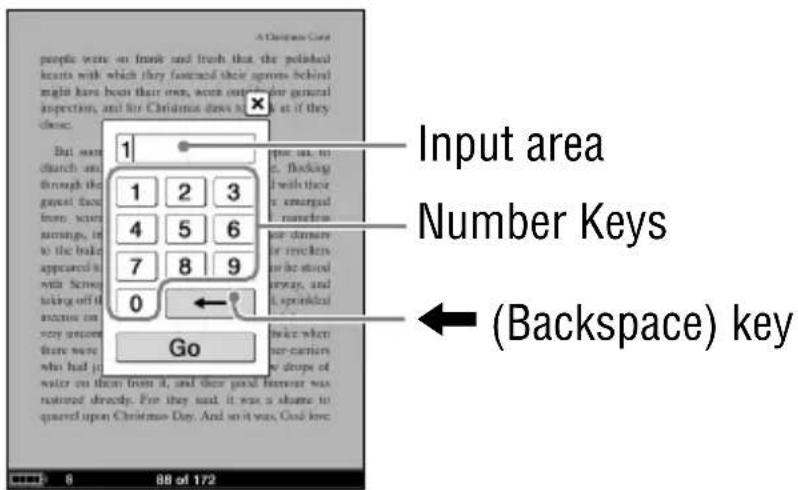
2 Tap the number key to input the page number. The input number is displayed in the input area. To delete the number, tap the ← (Backspace) key.
Hint
- Up to 11-digit number can be input.
3 Tap "Go."
The input page appears.
To close the numeric keyboard
Tap ☒, or press the OPTIONS button.
Going back to previously displayed pages ("History")
You can go back to previously displayed pages.
1 In the book page, press the OPTIONS button, then tap “History.”
The History Jump icons appear.
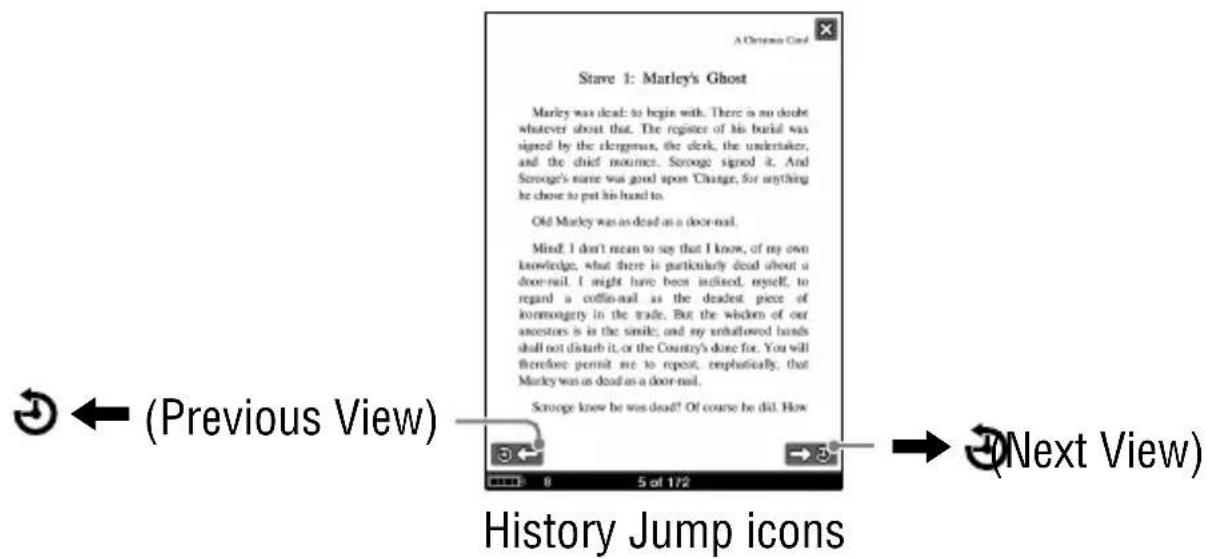
2 Tap← (Previous View).
The previously displayed page appears. To return to the current page, tap → ⚙ (Next View).
Hints
- You can also perform the same operation by dragging on the touch screen or pressing < 🔒> (Page Turn) buttons while the History Jump icons are displayed.
- If you tap on the page number, the History Jump icons disappear, and the Page Jump bar appears.
To hide the History Jump icons
Tap ☒, or press the OPTIONS button.
Searching a book for keywords (“Search”)
You can search for keywords by using the on-screen keyboard (▶ page 65).
There are two ways to search for a keyword:
– Double-tapping a word in the book page of the book.
- Using the Option menu (▶ page 92).
■ To search by double-tapping a word
1 In the book page, double-tap the desired word. The pop-up menu appears.

Note
- If you display the tool bar from “Create/Edit Notes” within the Options menu, you cannot display the pop-up menu, but only select the word temporarily by double-tapping on that page. (However, you can search a word by selecting “Search” from the Option menu.)
To cancel the selection, deactivate all the items on the tool bar, then tap any point on that page of the book.
Hint
- To select consecutive words, double-tap the first word and drag across the desired portion.
2 Tap Q(Search).
The search result page containing the input word(s) appears. The results are highlighted on the page.

Search result page
3 Tap → Q (Next Search) to skip to the next page that contains the input word(s).
The next page containing the input word(s) appears. To return to the previous page containing your input word(s), tap ← ⚫ (Previous Search).
To exit the search result page
Tap ☒. The highlight of input word(s) disappears.
Hint
- If you select "Search" from the Option menu again, the on-screen keyboard will appear with the searched word in its input area.
To search from the Option menu
1 In the book page, press the OPTIONS button, then tap “Search.”
The on-screen keyboard appears.
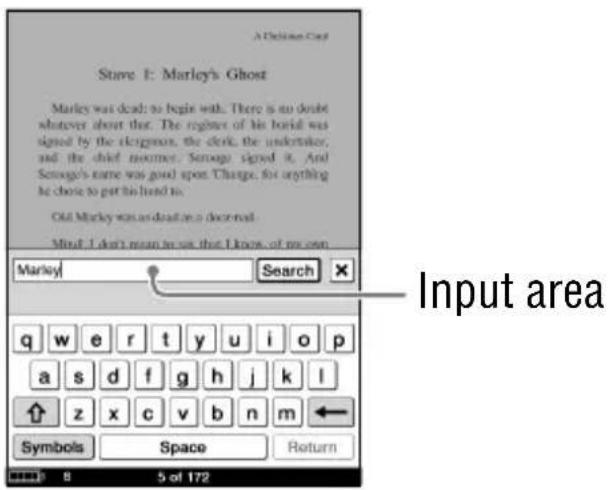
2 Input a word using the on-screen keyboard ( > page 65), then tap “Search”.
The search result page containing the input word appears. The results are highlighted on the page.

Search result page
3 Tap → Q (Next Search) to skip to the next page that contains the input word(s).
The next page containing the input word(s) appears. To return to the previous page containing your input word(s), tap ← ⚫ (Previous Search).
To exit the search result page
Tap X.
Creating a bookmark on a book page ("Create/Edit Notes")
You can create a bookmark on a book page for your future reference.
There are two ways to perform the operation:
- Double-tapping a page.
- Using the Option menu (▶ page 95).
To create a bookmark by double-tapping a page
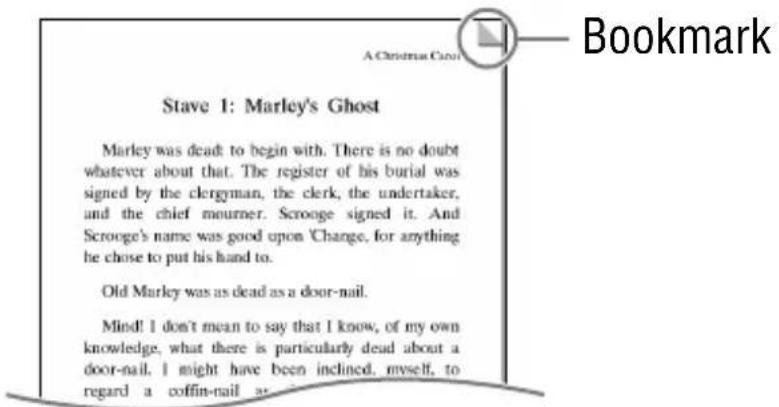
In the book page, double-tap near the upper right corner of the screen.
The upper right corner of the page is shown as folded.
Hint
- To delete the bookmark, double-tap it again.
To create a bookmark from the Option menu
1 In the book page, press the OPTIONS button, then tap “Create/Edit Notes.”
The tool bar appears.

2 Tap(Bookmark).
The upper right corner of the page is shown as folded, and the color of 📋 in the tool bar is shaded.

Hint
- To delete the bookmark, tap 📋 (Bookmark).
To close the tool bar
Tap X.
Hints
- You can add a comment to a bookmark. For details, refer to "Adding a comment to a bookmark or highlight" (▶ page 104).
- While you are viewing a comment of a bookmark in the Comment viewer, you can delete both the bookmark and comment by tapping "Delete" (▶ page 108).
- You can delete all the notes within a book from the Option menu of the “Notes” list ( > page 110).
Notes
- When you delete a bookmark with a comment, the comment will also be removed. Tap “Yes” in the confirmation message to delete both the bookmark and the comment.
- By adjusting the text size, the displayed bookmark on the adjusted page may contain a variety of bookmark information. Note that all this bookmark information on the page will be deleted if the bookmark is removed.
- While an item on the tool bar is active, you cannot select a word by double-tapping. While no item is active, you can select the word, but cannot display the pop-up menu. (However, you can search a word by selecting “Search” from the Option menu.)
To cancel the selection, deactivate all the items on the tool bar, then tap any point on that page of the book.
■ To display a bookmarked page
You can display the bookmarked page from the “All Notes” list (▶ page 26) and the “Notes” list (▶ page 109).
Highlighting a word(s) ("Create/Edit Notes")
You can highlight a word(s) on a book page.
There are two ways to perform the operation:
- Double-tapping a word in the book page of the book.
- Using the Option menu ( ≥ page 100).
Hints
- You can add a comment to a highlight. For details, refer to “Adding a comment to a bookmark or highlight” (▶ page 104).
- You can also highlight a word(s) with a hyperlink and add a comment to it ( > page 104).
Notes
- When you tap a highlighted word(s) with a hyperlink, the Comment editor ( > page 105, 106) or the Comment viewer ( > page 108) appears instead of jumping to a page. To enable the hyperlink, hide the highlights using “Hide Notes” in the Option menu ( > page 112), or delete the highlight ( > page 99).
- You cannot highlight the cover page and pictures, as well as book/chapter titles that are displayed in the upper right of a book page.
■ To highlight a word(s) by double-tapping
1 In the book page, double-tap the desired word, then tap 🔒 (Highlight).
The word is highlighted.

Hints
- To highlight consecutive words or multiple lines, double-tap the first word and drag across the desired portion, then tap (Highlight).
- To delete the highlight, press the OPTIONS button, then tap "Create/Edit Notes" → (Eraser) on the tool bar. Then, tap or stroke a part of the highlighted word(s).
Note
- If you display the tool bar from “Create/Edit Notes” within the Options menu, you cannot display the pop-up menu, but only select the word temporarily by double-tapping on that page. (However, you can search a word by selecting “Search” from the Option menu.)
To cancel the selection, deactivate all the items on the tool bar, then tap any point on that page of the book.
To highlight a word(s) from the Option menu
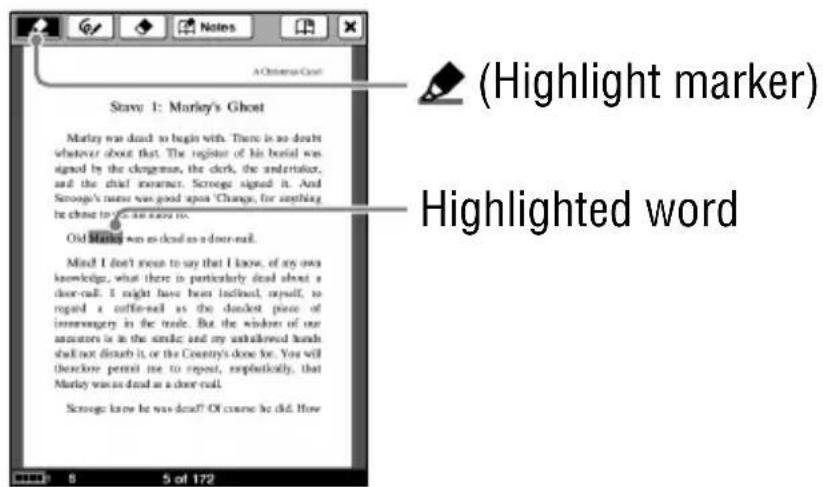
1 In the book page, press the OPTIONS button, then tap “Create/Edit Notes” ➔ (Highlight marker).
The color of ♦ in the tool bar is shaded and the highlighting function becomes available.
2 Drag across the word(s) on the book page. The word(s) is highlighted.
Hints
- To highlight multiple lines of text all at once, drag across the lines starting from the first character to the last character.
- To delete the highlight, tap ◆ (Eraser), then tap or stroke a part of the highlighted word(s).
Notes
- Once you tap 📋 (Highlight marker) / ◊(Eraser), it will remain active until you tap another item in the tool bar.
- While an item on the tool bar is active, you cannot select a word by double-tapping. While no item is active, you can select the word, but cannot display the pop-up menu. (However, you can search a word by selecting “Search” from the Option menu.)
To cancel the selection, deactivate all the items on the tool bar, then tap any point on that page of the book.
Hints
- While you are viewing a comment of a highlight in the Comment viewer, you can delete both the highlight and comment by tapping "Delete" (▶ page 108).
- You can delete all the notes within a book from the Option menu of the “Notes” list ( > page 110).
Note
- When you delete a highlight with a comment, both highlight and comment will be removed. Tap “Yes” in the confirmation message to delete both the highlight and comment.
Marking up a book page by handwriting ("Create/Edit Notes")
You can freely mark up a book page using the supplied stylus or a finger.
1 In the book page, press the OPTIONS button, then tap “Create/Edit Notes” → Ⓞ (Pen).
The color of ⚙ in the tool bar is shaded and the markup function becomes available.
2 Mark up the book page.
Lines are drawn as you drag on the touch screen.
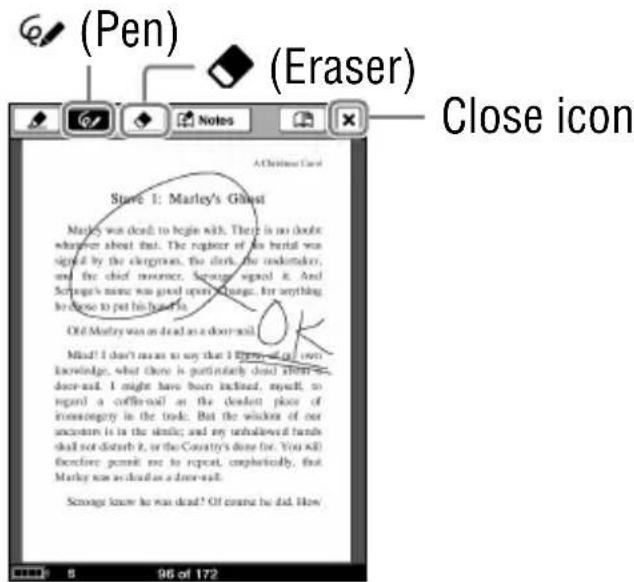
Hint
- To erase the line, tap (Eraser), then stroke a part of the line. If the markup was drawn by multiple lines, stroke across all points of each line thoroughly in order to completely erase the markup.
3 Tap X.
The markup is saved, and the tool bar is closed.
Note
- During the markup operation, the current page is saved by performing the operations, such as pressing a button, closing a book.
■ To display a marked page
You can display a marked page from the “All Notes” list (▶ page 26) and the “Notes” list (▶ page 109).
To display an iconized markup in original form
If you magnify/reduce the text size, the markup is displayed as 🔒 at the first character of the marked page. To display the markup on the original page, tap 🔒 to pop up its thumbnail, and tap the thumbnail. (If the marked page was not created on the PRS-600, only the thumbnail will be displayed.)

Thumbnail of the marked page
Notes
- If multiple Ⓠ fall on the same position, they appear side by side.
- This product (PRS-600) cannot display a markup that was created on a model whose screen size is different.
Adding a comment to a bookmark or highlight
You can add a comment to a bookmark or highlighted word.
There are two ways to perform the operation:
- "by Drawing"
- "by Keyboard" ( ≥ page 106)
■ Adding a comment by drawing
① In the book page, tap the desired bookmark or highlighted word.
The Method menu appears.

Method menu
2 Tap "by Drawing."
The Comment editor with the freehand tool bar appears.
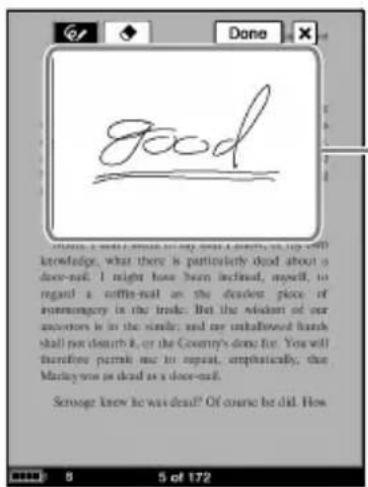
Drawing area
Comment editor
3 Draw freely in the drawing area.
Lines are drawn as you drag on the touch screen.
Note
- The handwritten comment cannot have multiple pages.
Hint
- To erase the line, tap ◆ (Eraser), then tap any point on the line.
4 Tap “Done” to save the comment.
The Comment editor is closed, and 📋 is attached to the bookmark or the highlight.
Note
- Make sure to tap "Done" when you wish to save the comment. If you tap , the confirmation screen appears.
■ Adding a comment using the on-screen keyboard
1 In the book page, tap the desired bookmark or highlighted word.
The Method menu appears.
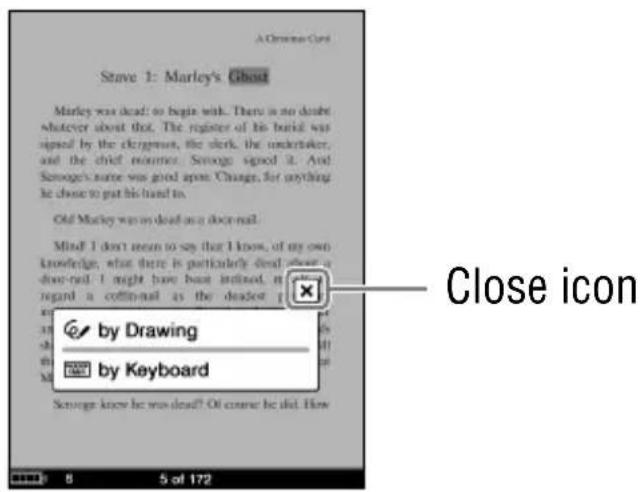
Method menu
2 Tap "by Keyboard."
The Comment editor with the on-screen keyboard appears.
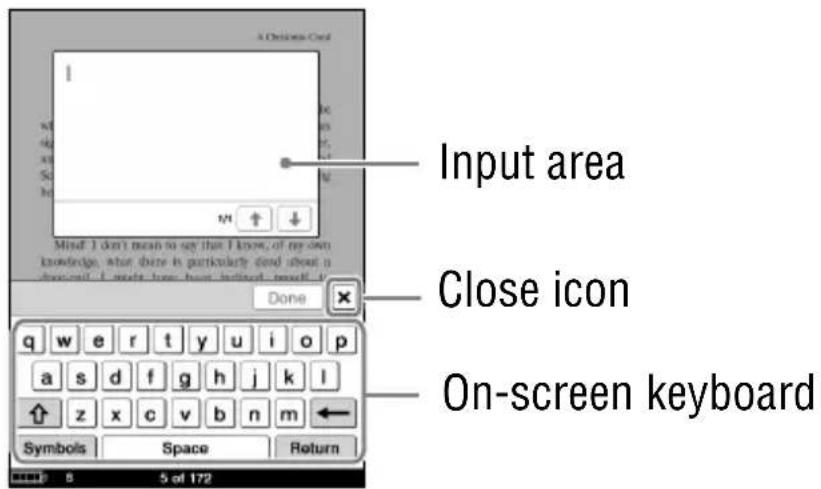
Comment editor
3 Enter your comment using the on-screen keyboard ( > page 65).
Hints
- Up to 2048 characters can be input in a comment.
- The on-screen keyboard in the Comment editor has a “Return” key. You can provide a line feed using this key.
4 Tap “Done” to save the comment.
The Comment editor is closed, and 📋 is attached to the bookmark or the highlight.
Note
- Make sure to tap “Done” when you wish to save the comment. If you tap ☒, the confirmation screen appears.
To view a comment
Tap a bookmark or highlight with 📄 on a book page.
The Comment viewer appears.
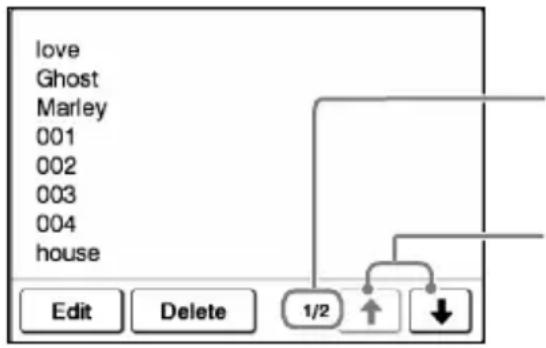
Comment viewer
Page number of the comment (not displayed for handwritten comment)

The arrows become available when the comment has multiple pages (not displayed for handwritten comment).
To display the previous/next page of the comment, tap ↑/↓.
Hint
- You can also view a comment from the "Notes" list ( ≥ page 109).
Note
- When you tap a highlighted word(s) with a hyperlink, the Comment editor ( > page 105, 106) or the Comment viewer ( > page 108) appears instead of jumping to a page. To enable the hyperlink, hide the highlights using “Hide Notes” in the Option menu ( > page 112), or delete the highlight ( > page 99).
To edit a comment
Tap “Edit” in the Comment viewer to display the Comment editor. Edit the comment using the on-screen keyboard ( > page 65) or the Comment editor for handwriting.
To delete a comment
Tap “Delete” in the Comment viewer. The comment and the bookmark/highlight will be deleted.
You can also delete all the notes in a book from the “Notes” list.
Selecting a note ("Create/Edit Notes")
You can display the “Notes” list by tapping “Notes” in the tool bar. The “Notes” list includes all the notes of the currently viewed book. You can jump to a page by tapping an item in the list.
Hint
- You can search the "Notes" list for a note containing a text comment using the on-screen keyboard (▶ page 111).
1 In the book page, press the OPTIONS button, then tap “Create/Edit Notes.”
The tool bar appears.
2 Tap "Notes."
The list of all the bookmarks, highlights, and markups in the current book appears.

3 Tap a note.
The page that includes the note is displayed.
Hints
- You can also create notes (excluding markups and handwritten comments) in eBook Library.
In eBook Library, you can set to merge the notes of the Reader and eBook Library while synchronizing. When merging the notes, any inconsistent note for the same word will be replaced with the latest note. - When you copy a book from eBook Library to the Reader, the notes of the Reader will be replaced with the ones of the eBook Library (or vice versa).
■ To delete all the notes within a book
In the Option menu of the “Notes” list, tap “Delete Notes.” Tap “Yes” to delete all the notes in the list.
Using the Option menu of the "Notes" List
Press the OPTIONS button to open the Option menu. ("Now Playing" appears only while a track is playing.)

Option menu
| Option item Description | |
| Sort Sorts the list “by Page,” “by Type” or “by Comment” (➤ page 58). | |
| Search Searches a desired note by keyword (➤ page 62). | |
| Delete Notes Deletes all the bookmarks, highlights, markups and comments within the book. | |
| Now Playing | Goes to the audio Playback screen (➤ page 130). |
| Orientation | Switches the screen orientation (vertical/horizontal) (➤ page 114). |
To close the Option menu
Tap ☒, or press the OPTIONS button.
Hiding notes ("Hide Notes")
Notes, such as bookmarks, highlights and markups in a book can be hidden/shown from the Option menu of a book page.
1 In the book page, press the OPTIONS button, then tap “Hide Notes.”
All bookmarks, highlights, and markups within a book are tentatively hidden. To show them, in the book page, press the OPTIONS button, then tap “Show Notes”.
Note
- When you select “Hide Notes” in one book, the other books notes are also hidden.
Deleting a book ("Delete Book")
You can delete a book on the Reader or memory cards that are inserted into the Reader.
1 In the book page, press the OPTIONS button, then tap ▼ to display the second page of the Option menu, and tap “Delete Book.”
2 Tap "Yes."
The book is deleted and the screen switches to the book list.
Displaying book information ("Info")
You can check book information, such as title, author, book cover thumbnail and etc.
In the book page, press the OPTIONS button, then tap ▼ to display the second page of the Option menu, and tap “Info.”
The book information appears.
| Items Description | |
| Book cover thumbnail | The book cover thumbnail. (BBeB file only) |
| Title The book title. | |
| Author | The name of author(s). |
| Publisher The | publisher. (BBeB file only) |
| Category The | book category (BBeB file only) |
| eBook ID The | Book ID. (BBeB file only) |
| Kind The file type. | |
| Date The latest update and creation date. | |
| Size The file size. | |
| Location The | memory location where the book is stored. Internal memory: The book is stored on the Reader. Memory Stick/SD Memory Card: The book is stored on a memory card. |
| Path The file path location. | |
| Digital Rights | This field is only displayed if a book with DRM is selected. (BBeB, PDF and EPUB file only) Full viewable: The entire book can be read. Restricted: Some or all of the book cannot be read. |
| Expiration date | This field is only displayed when a book with DRM and an expiration date is selected. (PDF and EPUB file only) |
Switching screen orientation (vertical/horizontal) ("Orientation")
In the Option menu, you can switch the screen orientation from vertical to horizontal or vice versa. Once the screen orientation is switched, all menus and contents are displayed in the selected orientation.
Hint
- You can switch the screen orientation from any of the Option menus.
1 In the book page, press the OPTIONS button, then tap ▼ to display the second page of the Option menu, and tap “Orientation.”
The orientation is switched from vertical to horizontal.
■ About screen division when screen orientation is set to horizontal
When set to horizontal, the book page is divided into 2 parts (upper and lower). To display the lower part, drag the page horizontally or press the 📋 > (Page Turn) button.
Displaying upper half Displaying lower half
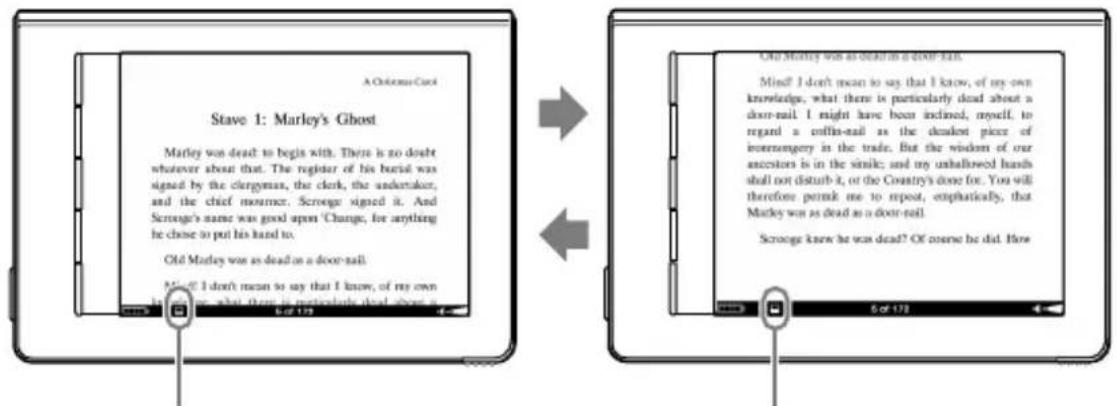
Position indicator Position indicator
Creating Drawings and Text Memos
You can create either a handwritten drawing or a text memo independent of any book stored in the Reader.
Note
- If you perform an invalid operation, 📄 appears at the bottom of the screen.
Drawing by handwriting
You can create handwritten drawings.
1 In the Home menu, tap 📄("Handwriting").

Home menu
Hint
- When more than 8 drawings are stored, the scroll bar appears on the right side of the list. You can display the next page of the list by scrolling the bar, or pressing the 📋 > (Page Turn) button.
2 Tap "New Drawing."
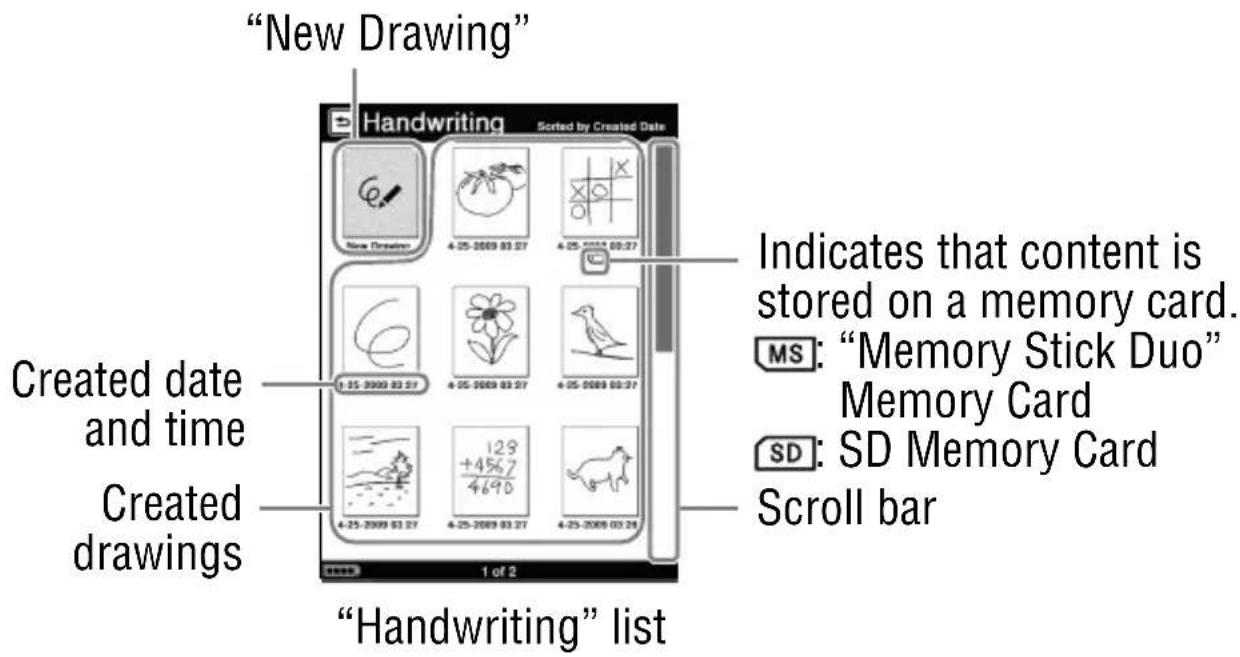
Note
- In the "Handwriting" list, only "Thumbnail" view is available.
3 Start to draw in the drawing area.

Drawing editor
Hint
- To erase a line, tap (Eraser), then stroke a part of the line.
4 Tap “Done” to save the drawing.
Note
- Make sure to tap “Done” when you wish to save the drawing. If you tap , the confirmation screen appears.
- Newly created drawings will be saved only on the internal memory.
Hint
- If you tap “New,” the current drawing is saved, and a new drawing editor opens.
How to use the drawing editor
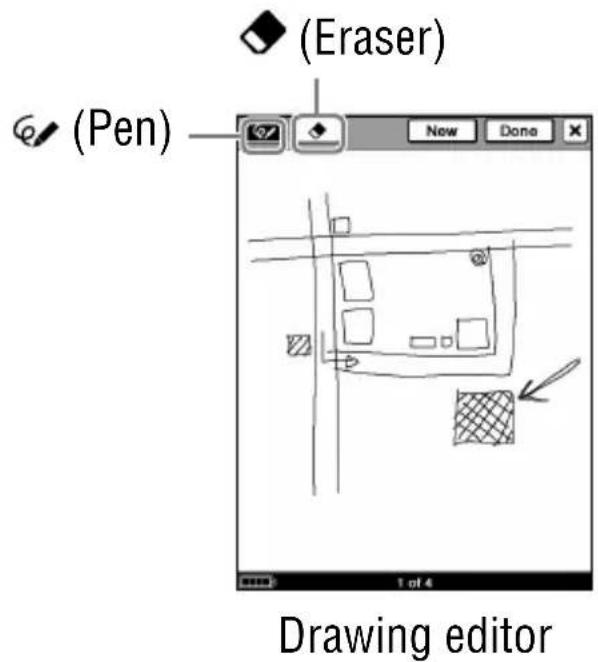
To draw
With 6(Pen) selected, drag on the screen with the supplied stylus or your finger.
To erase a drawing
Tap ◆(Eraser), stroke across the drawing thoroughly. To erase only a line, tap any point on the line.
To create a new drawing
Tap "New." The current drawing is saved, and a new drawing editor opens.
To close the drawing editor
To save and close the current drawing, tap "Done."
To close without saving the drawing, tap ☒, then "Yes" in the confirmation screen. Tap "No" to cancel the operation.
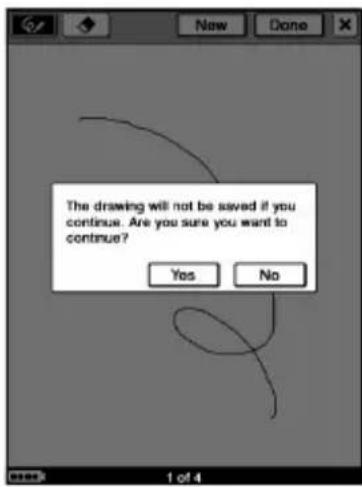
To view a drawing
In the “Handwriting” list, tap the desired drawing. Press the <图标> (Page Turn) buttons or drag on the touch screen to display the previous/next drawing.
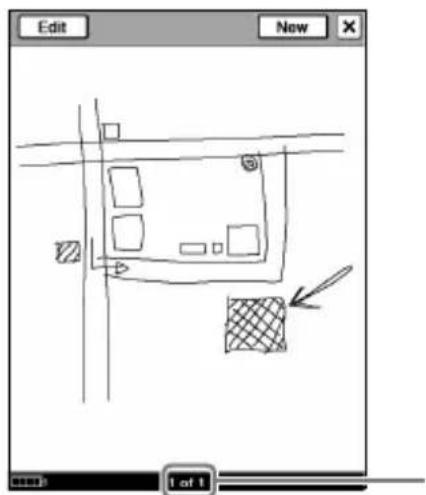
Drawing viewer
Current drawing number/ Total drawing number
To edit a drawing
In the drawing viewer, tap “Edit” to display the tool bar. Edit the drawing in the same manner as you drew it (▶ page 119).
To delete a drawing
With the drawing viewer open, press the OPTIONS button. Tap "Delete Drawing" → "Yes" in the confirmation screen.
Creating a text memo
You can create a text memo using the on-screen keyboard.
1 In the Home menu, tap 📊("Text Memo").

Home menu
Hints
- When more than 9 text memos are stored, the scroll bar appears on the right side of the list. You can display the next page of the list by scrolling the bar, or pressing the 📄 > (Page Turn) button.
2 Tap "New Memo."
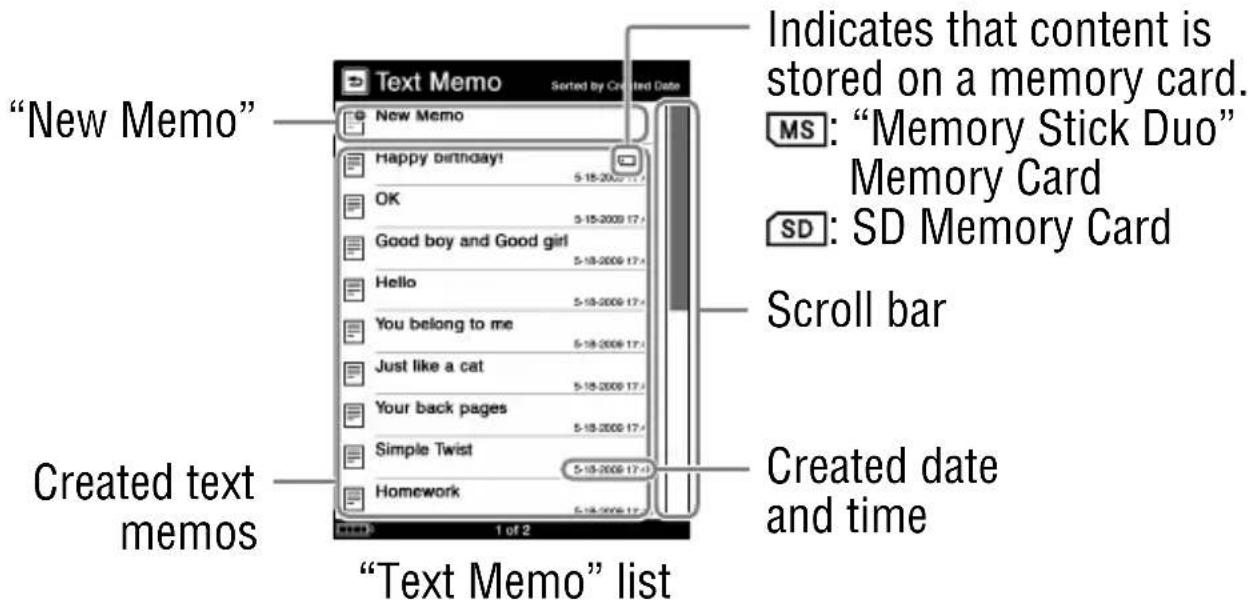
Note
- In the “Text Memo” list, only “List” view is available.
3 Enter text on the input area using the on-screen keyboard ( > page 65)

Text memo editor
Hint
- The on-screen keyboard in the Text memo editor has a "Return" key. You can provide a line feed using this key.
4 Tap “Done” to save the text memo.
The text memo is saved, and the text memo editor closes.
Notes
- Make sure to tap "Done" when you wish to save the text. If you tap , the confirmation screen appears.
- Newly created text memos will be saved only on the internal memory.
Hint
- If you tap “New,” the current text memo is saved, and a new text memo editor opens.
To view a text memo
In the “Text memo” list, tap the desired text memo. Press the < ➕> (Page Turn) buttons or drag on the touch screen to display the previous/next text memo.
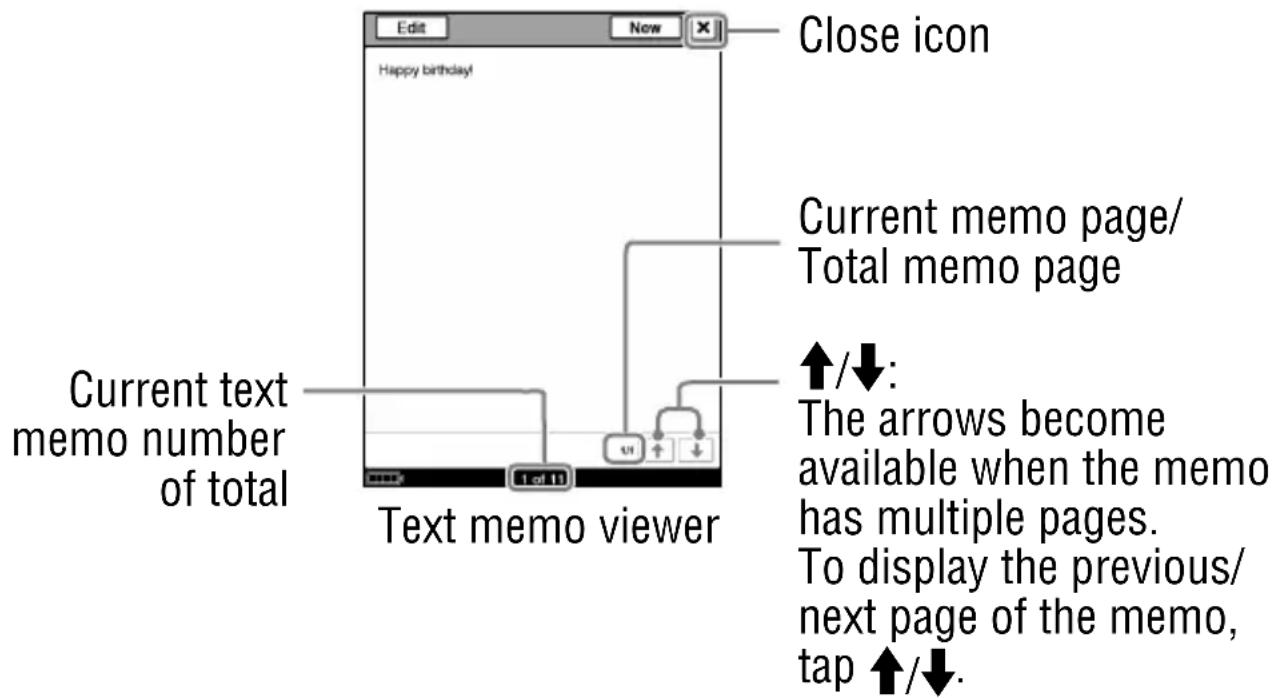
■ To edit a text memo
In the text memo viewer, tap “Edit” to display the on-screen keyboard, then edit the text.
■ To delete a text memo
With the text memo viewer open, press the OPTIONS button. Then, tap “Delete Memo” → “Yes” in the confirmation screen.
Using the Option menu of the Handwriting and Text Memo lists
Press the OPTIONS button to open the Option menu. ("Now Playing" appears only while a track is playing.)

Option menu of the "Handwriting" list

Option menu of the "Text Memo" list
| Option item Description/Reference page | |
| Now Playing Goes to the audio playback screen (➤ page 130). | |
| Orientation Switches the screen orientation(vertical/horizontal) (➤ page 114). |
To close the Option menu
Tap ☒, or press the OPTIONS button.
Option menus of the drawing and text memo viewers

Option menu of the drawing viewer

Option menu of the text memo viewer
| Option item Description/Reference page | |
| Delete Drawing/Delete Memo | Deletes the drawing/memo (➤ page 121, 124). |
| Now Playing | Opens the audio Playback screen (➤ page 130). |
| Orientation | Switches the screen orientation (vertical/horizontal) (➤ page 114). |
To close the Option menu
Tap ☒, or press the OPTIONS button.
Playing Audio Files
Playing audio files transferred from your computer
You can play back MP3 and AAC files (unsecured) on the Reader. You can also read books while listening to an audio file (▶ page 129). When listening to audio files, connect the optional headphones to the headphone jack.
Note
- If you perform an invalid operation, ⊕ appears at the bottom of the screen.
1 In the Home menu, tap □ (“More”) ➔ ⌘ (“Audio”).

Home menu
Hints
- The content on the memory card also appears in the "Audio" list.
- When more than 10 tracks are stored, the index bar appears on the right side of the list. You can display the next page of the list by scrolling the bar, or pressing the 📋 > (Page Turn) button.
- You can place ♪ (“Audio”) in the Home menu in “Customize Home Menu” (▶ page 31).
2 In the “Audio” list, tap the desired track.
Thumbnails of pictures (if contained on files)
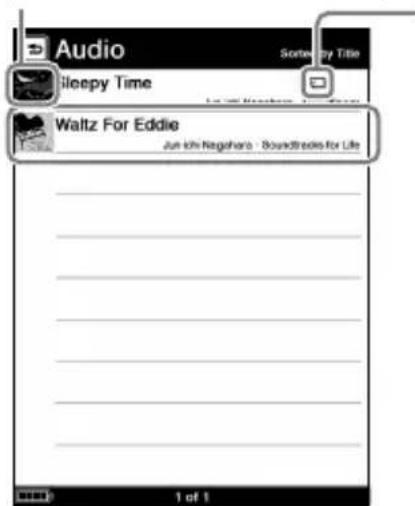
"Audio" list
Indicates that content is stored on a memory card.
MS : "Memory Stick Duo" Memory Card
SD : SD Memory Card


Playback screen
• To stop playback, tap II on the screen.
- Succeeding tracks are played in the listed order.
To close the "Audio" list
Tap ⇌ (Back).
To close the Playback screen
Press the OPTIONS button to display the Option menu, and tap “Return to List.”
Hints
- You can read a book while playing tracks. To do so, play the track before you begin to read a book.
- You can display the Option menu of "Audio" by pressing the OPTIONS button (▶ page 131).
- While a track is playing, the volume indicator appears at the bottom right of the screen.
Operations on the Playback screen
On the Playback screen, you can perform the following operations.

*1 The play mode icons appear while tracks are playing in shuffle play or repeat play (▶ page 132).
| Button/Gesture Operation | |
| • Dragging (➤ page 70) • < ➕ (Page Turn) buttons | Skips to the previous/next track. |
| Playback progress bar | Rewinds/Fast-forwards the track by dragging the slider or tapping a point of the Playback progress bar. |
| II/▶ | Stops/Restarts the playback. |
| VOL -/+ button | • Adjusts the volume.• Mutes on/off by pressing and holding it. |
Using the Option menu of Audio
Press the OPTIONS button to open the Option menu. ("Now Playing" appears only while a track is playing.)
Option menu of the "Audio" list

| Option item Description/Reference page | |
| Sort Sorts the “Audio” list “by Title” or “by Artist” (➤ page 58). | |
| View | Switches the list display format (➤ page 61). |
| Now Playing | Goes to the audio Playback screen (➤ page 130). |
| Orientation | Switches the screen orientation (vertical/horizontal) (➤ page 114). |
To close the Option menu
Tap ☒, or press the OPTIONS button.
Option menu of the Playback screen

| Option item Description/Reference page | |
| Repeat Off (default setting): | Stops playback after playing all tracks.1 Song: Plays the current track repeatedly.All Songs: Plays all tracks repeatedly. |
| Shuffle Off/ Shuffle On Plays | all tracks in random order. |
| Continue Reading Goes to | the book page screen.The last displayed page appears. |
| Return to List Closes the Play | Playback screen and displays the “Audio” list. |
| Orientation | Switches the screen orientation(vertical/horizontal) (page 114). |
To close the Option menu
Tap ☒, or press the OPTIONS button.
Viewing Pictures
Viewing pictures transferred from your computer
You can view BMP/JPEG/GIF/PNG files on the Reader.
Note
- If you perform an invalid operation, 📄 appears at the bottom of the screen.
1 In the Home menu, tap □ (“More”) → □ (“Pictures”).


Home menu
Hints
- The content on the memory card also appears in the “Pictures” list.
- When more than 10 pictures are stored, the index bar appears on the right side of the list. You can display the next page of the list by scrolling the bar, or pressing the 📋 > (Page Turn) button.
- You can place 📂 (“Pictures”) in the Home menu in “Customize Home Menu” (▶ page 31).
2 In the “Pictures” list, tap the desired picture.
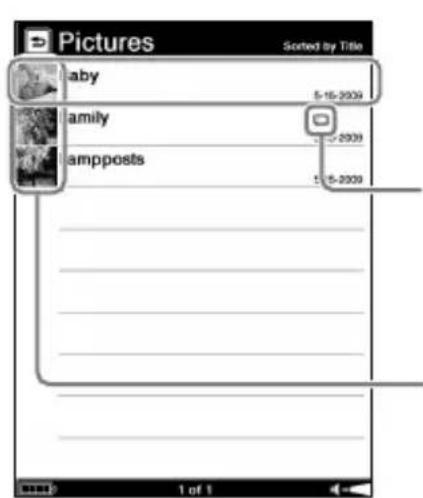
"Pictures" list
Indicates that content is stored on a memory card.
MS : "Memory Stick
Duo" Memory Card
SD : SD Memory Card
Thumbnails


natural_image
Black-and-white photo of a baby lying on a blanket, no visible text or symbolsPicture viewer
To close the Picture list
Tap ≈(Back).
To close the Picture viewer screen
Press the OPTIONS button to display the Option menu, and tap "Return to List."
Hints
- The Size menu of the Picture viewer can be displayed by pressing the ⊕ (Size) button. In the Size menu, you can zoom in/out a picture (▶ page 82).
- You can display the Option menu of "Pictures" by pressing the OPTIONS button (▶ page 137).
- To increase the resolution of landscape pictures, view them in horizontal mode (▶ page 114).
Operations on the Picture viewer
On the Picture viewer, you can perform the following operations.

natural_image
Black-and-white photo of a baby lying down with visible teeth and hands (no text or symbols)Current picture number/ total picture number
Picture viewer
| Button/Gesture Operation | |
| • Dragging (➤ page 70)• < ➕ (Page Turn) buttons | To display the previous/next picture. |
To zoom in/out a picture
You can zoom in/out a picture. On the Picture viewer, press the Ⓧ (Size) button to display the Zoom bar.
For details about using the Zoom bar and scrolling the magnified picture, refer to “Zooming in/out” (▶ page 82).

Using the Option menu of Pictures
Press the OPTIONS button to open the Option menu. ("Now Playing" appears only while a track is playing.)
Option menu of the "Pictures" list

| Option item Description/Reference page | |
| Sort | Sorts the “Pictures” list “by Title” or “by Date” (➤ page 58). |
| View | Switches the list display format (➤ page 61). |
| Now Playing | Goes to the audio Playback screen (➤ page 130). |
| Orientation | Switches the screen orientation (vertical/horizontal) (➤ page 114). |
To close the Option menu
Tap ☒, or press the OPTIONS button.
Option menu of the Picture Viewer

| Option item Description/Reference page | |
| Slideshow On/Off | Starts/Stops a slideshow of pictures.The “Slideshow” setting can be configured from the “Settings” menu (➤ page 143). |
| Return to List Closes the Picture viewer screen. | |
| Now Playing | Goes to the audio Playback screen (➤ page 130). |
| Orientation | Switches the screen orientation (vertical/horizontal) (➤ page 114). |
Note
- Even when the “Slideshow” setting in the “Settings” menu is set to “Off,” you can start a slideshow by selecting “Slideshow On” in the Option menu of the Picture Viewer.
To close the Option menu
Tap ☒, or press the OPTIONS button.
Changing Settings
You can configure various settings in the "Settings" menu.
Note
- If you perform an invalid operation, 📄 appears at the bottom of the screen.
1 In the Home menu, tap □("More") → (“Settings”).


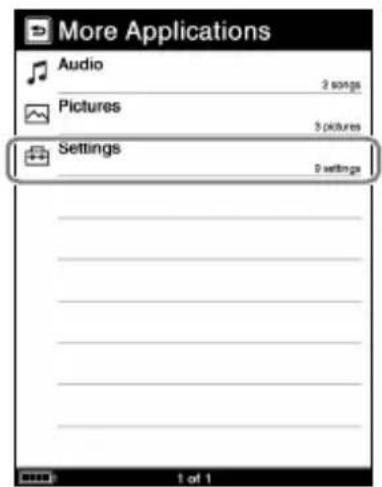
Home menu
Hint
- You can place 🔒 (“Settings”) in the Home menu in “Customize Home Menu” (▶ page 31).
2 In the “Settings” menu, select the setting item you want to change.
- Illustrations below show the "Date and Time" setting.

"Settings" menu
3 Tap the desired part or field to change the setting. To input a number, tap the numeric key.

"Date and Time" setting screen
4 Tap “OK” or “Yes” to confirm the setting, or tap (Back) to cancel the setting.
Settings menu items
In the “Settings” menu, you can configure the following settings.
| Setting item Description | |
Date and Time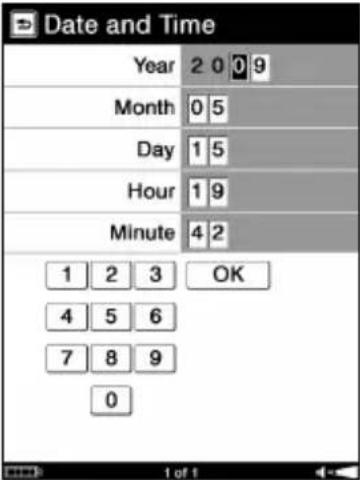 | Sets date and time displayed on the Reader. To input the value, tap the numeric key.HintWhen you connect the Reader to your computer with eBook Library open, the date and time of the Reader is automatically synchronized with your computer clock. |
Date and Time Format | Sets the display format of date and time. Active settings are displayed in black."Date": "Month-Day-Year," "Day-Month-Year""Time": "12 hour," "24 hour" |
Power Management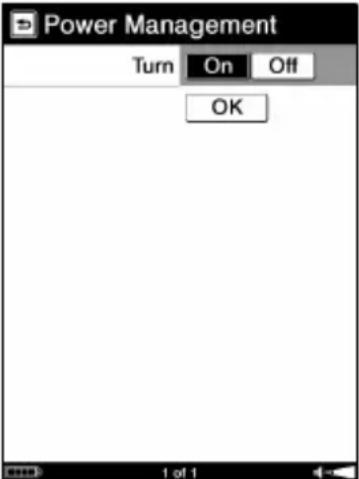 | Activates or deactivates the Power Management.On (default setting):After 60 minutes of inactivity, the Reader enters sleep mode automatically while the battery power is consumed slightly.After 5 days of inactivity, the Reader automatically shuts down and stops consuming the battery power.If battery power is at a low level, the Reader will shut down after 60 minutes of inactivity.Off: Power Management is not activated. For details, refer to “About the Power Management of the Reader” (➤ page 11).NoteIn the following states, the Reader does not enter sleep mode after 60 minutes of inactivity even if “Power Management” is set to “On.”- When connected to a computer using the supplied USB cable- When connected to the AC Adapter for Reader (AC-S5220E) (optional) to charge- When playing a track or slideshow |
Page Turn Gesture | Changes the drag direction to turn pages.→ (default setting): Proceeds to the next page by dragging from left to right on the touch screen.←: Proceeds to the next page by dragging from right to left on the touch screen. |
Slideshow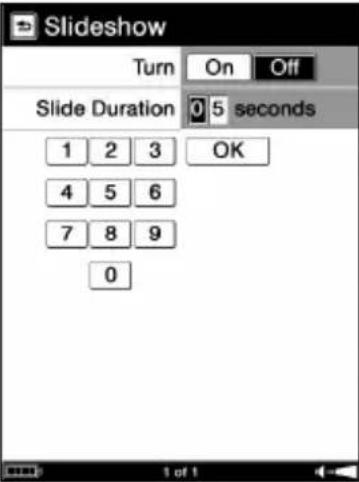 | Configures the slideshow settings.On: Activates the slideshow.Off (default setting): Deactivates the slideshow.Slide Duration: Use the numeric keypad to input the duration time. The duration time can be set up to 60 seconds in 1 second increments.NoteLarge size pictures may take more time to display than is shown in the “Slide Duration.” |
Menu Language | Sets the language of the displayed menu or messages.Available languages: “English,”“Français,” “Deutsch,” “Nederlands”HintsWhen you turn on the Reader for the first time or after restoring the default settings (page 163), you are required to set the language in the initial setting. If you select a language other than “English,” the “Keyboard” setting is set automatically.The setting of “Keyboard” also determines “Date and Time Format” and “Dictionary” settings.Once the initial setting is completed, setting “Menu Language” will not set “Date and Time Format”, “Keyboard” or “Dictionary” settings automatically. |
Advanced Settings | Refer to “Advanced Settings menu items”(page 146). |
| Setting item Description | tion |
| About | Displays the firmware version of the Reader, the product name, license information, etc. |
| Restore Defaults | Refer to “Restoring default settings”(➤ page 163). |
To cancel the operation
Tap ≈(Back).
Advanced Settings menu items
In the “Advanced Settings” menu, you can configure the following settings.
Setting item Description
Device Lock

Locks the Reader by setting a password.
On: The Reader is locked by the password.
Off (default setting): The Reader is not locked.
Code: To input a password, tap in the 4-digit number using the numeric keys.
Once the password is set, the next time you turn on the Reader, the screen asking for the password appears. To unlock it, input the password using the numeric keys, and then tap "OK."
Notes
- You are recommended to make a note of your password and keep it in a safe place separate from the Reader. If you forget your password, contact your Sony Support Center (▶ page 152); however note that in unlocking your device, all content on it will be erased.
- When the “Device Lock” setting is activated, the Reader will not be recognized by your computer. Make sure to deactivate the “Device Lock” setting before the USB connection.
| Setting item Description | Lets you calibrate the touch screen by following the on-screen instructions. |
| Calibrate Touch Screen | Lets you calibrate the touch screen by following the on-screen instructions. |
Keyboard | Sets the country whose standard keyboard arrangement is employed for the on-screen keyboard.Available keyboards: “United States,”“United Kingdom,” “French,” “German,”“Dutch”HintsWhen you turn on the Reader for the first time or after restoring the default settings (page 163), the “Keyboard” setting screen appears only if you select “English” for “Menu Language.” (If you select a language other than “English,” the “Keyboard” setting is determined according to the language you set.) The setting of “Keyboard” automatically sets “Date and Time Format” and “Dictionary” settings.Once the initial setting is completed, setting “Keyboard” will not set the “Date and Time Format” and “Dictionary” settings automatically. |
| Setting item Description | |
Dictionary | Sets the dictionary used. The type of dictionary is automatically set according to the keyboard that you set in the initial setting.Available dictionaries: “New Oxford American Dictionary,” “Oxford Dictionary of English,” “None”Hint• At the initial setting, if you select “United States” for the “Keyboard” setting, “New Oxford American Dictionary” is automatically set, while selecting “United Kingdom” sets “Oxford Dictionary of English.” For settings other than those above, “None” is automatically selected. |
| Customize Home Menu | Refer to “To customize the Home menu”(➤ page 31). |
| Clear Keyboard History | Deletes the record of all typed words made via the on-screen keyboard. After deleting the record, no word will appear in the Keyboard History area on the on-screen keyboard. |
Format Memory | Formats the internal memory of the Reader or memory card. Formatting will erase all the contents."Internal Memory": Formats the internal memory."Memory Stick": Formats the "Memory Stick Duo" memory card."SD Card": Formats the SD memory card.NoteBefore formatting, make sure to transfer data that you do not want to lose to your computer or other device. |
| Device Shutdown | Shuts down the Reader to minimize battery consumption.HintYou can also shut down the Reader by sliding the POWER switch and holding it for more than 3 seconds.NotesAfter shutdown, the Reader may take a few moments to turn on.If you connect the Reader to your computer after shutdown, the Reader will need to be turned on again. |
To cancel the operation
Tap ≈(Back).
Troubleshooting
If the Reader does not function as expected, try the following steps to resolve the issue.
1 Reset the Reader by pressing the RESET button with the tip of the supplied stylus, or a small pin or clip, then slide the POWER switch to turn on the Reader.
Removing the tip from the supplied stylus
Twist the tip until it detached from the supplied stylus. To push the RESET button, use the other end of the tip that is stored in the body. Be sure to attach again after using it.

natural_image
Diagram of a mechanical tool with rotating arm and handle, showing motion direction (no text or symbols)Use to push the RESET button
The content and settings stored on the Reader are not affected by resetting, and no information is erased.

natural_image
Line drawing of a hand holding a tablet device with a stylus, no text or symbols presentNotes
- If you reset the Reader and connect it to your computer without turning it on, the Reader is not recognized by your computer, and does not appear on the screen of the Reader. Make sure to turn on the Reader before the connection.
- The bookmarks, highlights, markups, or the setting information may be deleted by resetting.
- The screen will not change after pressing the RESET button. Slide the POWER switch to turn on the Reader again.
2 Check the symptoms in “Troubleshooting” (▶ page 153).
3 Check for information about the issue in eBook Library Help.
4 Look for information about the issue on one of the support Web sites.
For customers in the USA:
http://www.sony.com/readersupport
Phone number: 1-866-962-7669
For customers in Canada:
http://www.sony.ca/ElectronicsSupport/
Phone number: 1-877-899-7669
For customers in Europe:
http://support.sony-europe.com/eBook/PRS
5 If the approaches listed above fail to resolve the issue, consult Sony Service Center.
Power
| Symptom Cause or corrective action | |
| Battery cannot be charged (the charge indicator does not light up). | → Charge the battery within the temperature range of 50 °F to 86 °F (10 °C to 30 °C). Otherwise, the charging may be insufficient or may not start. |
| Battery life seems short. | → The operating temperature is below 41 °F (5 °C). This is due to the battery characteristics and not a malfunction.→ You have not used the Reader for a prolonged period. Efficiency of the battery will be improved by occasionally charging and discharging.→ The battery needs to be replaced. Consult your nearest Sony Service Center.→ The battery has not been given enough time to charge fully. Charge the battery until the charge indicator goes off. (The battery icon does not indicate remaining battery power during charging.) |
Power (continued)
Symptom Cause or corrective action
The Reader cannot be turned on.
→ Moisture condensation may have occurred. Wait for a few hours and then turn on the Reader.
→ Battery power has been fully depleted. Charge the Reader via USB (▶ page 13). The charge indicator lights up in red and charging starts. After about 5 minutes, the Reader automatically turns on and 📄 (indicating connection via USB) appears on the screen.
Screen
| Symptom Cause or corrective action | |
| It takes time for the display to appear. | → In a cold place such as outdoors, it may take time for the display to appear.This is due to the display characteristics and not a malfunction. |
| The Reader authorization/deauthorization is not possible with an eBook store. | → The Reader authorization/deauthorization is not possible with eBook stores if “Device Lock” of the Reader is set to “On.” Set it to “Off,” then authorize/deauthorize the Reader. |
| You cannot select items even if you tap the center of them. | → Calibrate the touch screen from “Calibrate Touch Screen” in the “Advanced Settings” menu (➤ page 147). |
| The screen is frozen. | → Reset the Reader by pressing the RESET button. Then, slide the POWER switch to activate the Reader again (➤ page 150). |
Reading/playing/viewing contents
| Symptom Cause or corrective action | |
| A book cannot be read. | → A book with copyright protection cannot be read on any device other than the authorized one.→ If the book has an expiration date, confirm whether the book has already expired (➤ page 55).→ The Reader is authorized for some different user. |
| An audio file cannot be played back. | → Audio files that are not supported by the Reader cannot be played. For details on supported audio files, refer to➤ page 44. |
| Sound is not output. | → Increase the volume if it is set to low.→ If sound is not output through headphones, make sure the headphone plug is firmly inserted in the headphone jack. |
| A picture cannot be displayed. | → Picture files that are not supported by the Reader cannot be viewed. For details on supported picture files, refer to➤ page 44.→ A picture of large size may not be displayable, and its file will not appear in the list. Delete the picture file using eBook Library. |
Reading/playing/viewing contents (continued)
Symptom Cause or corrective action
"Continue Reading" does not work or the bookmarks are missing.
→ If the file status has changed (such as in the following cases), the data on Continue Reading or notes may be deleted.
- A Text/RTF/PDF file is edited.
- An eBook purchased with an authorized Reader is read on another de-authorized Reader by memory card transfer.
Connection to the computer
| Symptom Cause or corrective action | |
| The Reader cannot be operated during USB connection. | → Disconnect the USB cord from the Reader, and reset it, then reconnect the USB cord.→ The Reader is locked. |
| The Reader cannot be recognized. | → The Reader is turned off or the USB cable is not connected properly.Verify the above and try again.→ A USB hub or USB extension cable is used for the connection.Connection via an extension cable or USB hub is not guaranteed. Connect the USB cable directly to the computer.→ Verify that indicating connection via USB) is displayed at the top of the Reader's screen. If the Reader still cannot be recognized, disconnect the USB cable from the Reader, then reconnect it after a while.→ If “Device Lock” of the Reader is set to “On,” set it to “Off.” If the Reader is locked, it will not be recognized by your computer.→ While the Reader is connected to a computer, do not turn on, restart, wake up from sleep mode, or shut down the computer. These operations may render the Reader unrecognizable by the computer.Disconnect the Reader from the computer before performing these operations. |
Connection to the computer (continued)
| Symptom Cause or corrective action | |
| The Reader cannot be recognized. | → Use the supplied USB cable.→ There may be a malfunction with the USB port on your computer. Connect the supplied USB cable to another port on the computer.→ It may take a while for the software to be recognized by the computer. Wait for a moment.→ If none of the above solves the problem, perform “Device Shutdown,” press the RESET button of the Reader, turn on the Reader again, and then reconnect the supplied USB cable. |
| (indicating connection via USB) does not appear when connected to your computer via USB. | → The Reader is in shutdown state. Disconnect it from your computer, turn it on, then reconnect it.→ Battery power has been fully depleted. Charge the Reader via USB (➤ page 13). The charge indicator lights up in red and charging starts. After about 5 minutes, the Reader automatically turns on and 🔍 appears on the screen. |
Connection to the computer (continued)
| Symptom Cause or corrective action | |
| Content cannot be transferred to the Reader from your computer. | → The USB cable is not connected properly. Disconnect the USB cable, then reconnect it.→ There is not enough free space on the Readers memory. Transfer any unnecessary content back to eBook Library or to a “Memory Stick Duo” Memory Card, then delete it to increase free space on the Reader.→ The Reader is not authorized to transfer DRM content. |
| There is no response from eBook Library during communication with the Reader. | → Disconnect the USB cable from the Reader, then reconnect it. |
| The Reader becomes unstable while it is connected to the computer. | → A USB hub or USB extension cable is used for the connection. Connection via an extension cable or USB hub is not guaranteed. Connect the USB cable directly to the computer. |
| The Reader's battery cannot be charged (The charge indicator does not light up). | → The USB cable is not connected properly. Verify and try again.→ Are you using a USB hub or USB extension cable? Connection via an extension cable or USB hub is not guaranteed. Connect the USB cable directly to the computer. |
eBook
Symptom Cause or corrective action
An eBook cannot be read.
→ You may not have signed up or performed authorization for the service (which is necessary for reading secure eBooks). Authorize your computer and the Reader.
→ You may have tried to read the content owned by another user. The content owned by another user cannot be read.
→ The authorization data may have been damaged as a result of shutting down while reading an eBook. Deauthorize your computer and the Reader, then authorize again.
Memory card
| Symptom Cause or corrective action | |
| Content on a memory card cannot be read/played/viewed. | → Check that the memory card is inserted in the Media slot in the correct direction.→ Check to see that you are using a memory card that is supported by the Reader.→ Clean the terminal area of the memory card gently with a soft cloth if it is dirty.→ Check whether the books/pictures/tracks are transferred by eBook Library or Adobe Digital Editions. |
| Content cannot be transferred to a memory card. | → Unlock the erasure prevention switch if it is locked.→ There is not enough free space on the memory card. Delete unnecessary data. |
| A memory card cannot be recognized. | → A memory card which is not formatted in FAT 16 or FAT 32 may not be able to be recognized on eBook Library.When formatting a memory card, format it using the Reader. |
| Content on a memory card cannot be deleted. | → Unlock the erasure prevention switch if it is locked.→ Uncheck the read-only attribute of content. |
Restoring default settings
You can restore all the default settings of the Reader. The default settings will be restored as shown in the table below:
| Items Default settings | |||
| Option menu | Sort Books: by Title | ||
| Book list in the “Collections” folder: by Order | |||
| Audio: by Title | |||
| Pictures: by Title | |||
| All Notes: by Date | |||
| Notes: by Page | |||
| View List | |||
| Orientation Vertical | |||
| Repeat Off | |||
| Shuffle Off | |||
| Show Notes/Hide Notes | Show Notes | ||
| Settings menu | Power Management On | ||
| Page Turn Gesture Left-to-right to turn to the next page. | |||
| Slideshow Turn: Off | Slideshow Duration: 05 seconds | ||
| Advanced Settings | Device Lock | Device lock: OffPassword: 0000 | |
| Customize Home Menu | (“Text Memo”) is displayed in the right of bottom row, and(“Handwriting”) in the center. | ||
| VOL -/+ button | Sound volume Mute: Off | Volume level: Level 3 | |
1 In the Home menu, tap □ (“More”) → ☐ (“Settings”) → “Restore Defaults.”
The "Restore Defaults" screen appears.
If “Device Lock” (▶ page 146) is set to “On,” the screen asking for the password appears. Input the password, then tap “OK.”
2 Tap "Yes" to restore default settings.
To cancel the operation, tap ➤ (Back).
3 Follow the on-screen instructions to set the initial settings ( > page 10).
Uninstalling eBook Library
To uninstall the supplied software from your computer, follow the procedures below.
Note
- Before uninstalling, de-authorize your computer if it is authorized. For details on de-authorization, refer to the eBook Library Help.
Uninstalling from Windows
1 Click “Start” – “Control Panel.”
2 Double-click "Add/Remove Programs." *
3 Click “eBook Library by Sony” in the “Currently Installed Programs” list, then click “Remove.” ^2
Follow the on-screen instructions and restart your computer. The uninstallation is complete when the computer has restarted.
*1 "Uninstall a program" or "Programs and Features" in the case of Windows Vista.
*2 "Uninstall" in the case of Windows Vista.
Note
- For details on how to uninstall eBook Library from Macintosh, refer to the eBook Library Help.
Updating the Reader Device Software
By updating the Reader device software, you can ensure your Reader has the latest features. The latest software updates can be performed from the update menu on eBook Library from “Help” – “Check for Updates.”
For details on updates, refer to the eBook Library Help or the following website.
For customers in the USA:
http://www.sony.com/readersupport
For customers in Canada:
http://www.sony.ca/ElectronicsSupport/
For customers in Europe:
http://support.sony-europe.com/eBook/PRS
About Books Pre-installed on the Reader
The Reader is pre-installed with sample content so that you can try them out right away. The pre-installed sample content is for the purpose of trial reading, viewing and listening.
About sample content
The Reader is pre-installed with sample content. If you delete pre-installed sample content, you cannot restore it, and Sony will not supply any replacement content.
Notes on Reader Disposal
The built-in rechargeable battery of the Reader is recyclable. Do not remove the battery yourself, consult Sony Support Center (▶ page 152).

Li-ion Mn
Precautions
Disposal of Old Electrical & Electronic Equipment (Applicable in the European Union and other European countries with separate collection systems)

This symbol on the product or on its packaging indicates that this product shall not be treated as household waste. Instead it shall be handed over to the applicable collection point for the recycling of electrical and
electronic equipment. By ensuring this product is disposed of correctly, you will help prevent potential negative consequences for the environment and human health, which could otherwise be caused by inappropriate waste handling of this product. The recycling of materials will help to conserve natural resources. For more detailed information about recycling of this product, please contact your local Civic Office, your household waste disposal service or the shop where you purchased the product. Applicable accessories: Headphones
Disposal of waste batteries (applicable in the European Union and other European countries with separate collection systems)
This symbol on the battery or on the packaging indicates that the battery provided with this product shall not be treated as household waste.
On certain batteries this symbol might be used in combination with a chemical symbol. The chemical symbols for mercury (Hg) or lead (Pb) are added if the battery contains more than 0.0005% mercury or 0.004% lead.
By ensuring these batteries are disposed of correctly, you will help prevent potentially negative consequences for the environment and human health which could otherwise be caused by inappropriate waste handling of the battery. The recycling of the materials will help to conserve natural resources.
In case of products that for safety, performance or data integrity reasons require a permanent connection with an incorporated battery, this battery should be replaced by qualified service staff only.
To ensure that the battery will be treated properly, hand over the product at end-of-life to the applicable collection point for the recycling of electrical and electronic equipment.
For all other batteries, please view the section on how to remove the battery from the product safely. Hand the battery over to the applicable collection point for the recycling of waste batteries.
For more detailed information about recycling of this product or battery, please contact your local Civic Office, your household waste disposal service or the shop where you purchased the product.
Notice for customers: the following information is only applicable to equipment sold in countries applying EU directives
The manufacturer of this product is Sony Corporation, 1-7-1 Konan, Minato-ku, Tokyo, Japan. The Authorized Representative for EMC and product safety is Sony Deutschland GmbH, Hedelfinger Strasse 61, 70327 Stuttgart, Germany.
For any service or guarantee matters please refer to the addresses given in separate service or guarantee documents.
Owner's Record
The model and serial numbers are located on the back of the unit. Record the serial number in the space provided below. Refer to these numbers whenever you call upon your Sony dealer regarding this product.
Model No. ____ Serial No. ____
The following FCC statement applies only to the version of this model manufactured for sale in the USA.
Other versions may not comply with FCC technical regulations.
INFORMATION:
NOTE: This equipment has been tested and found to comply with the limits for a Class B digital device, pursuant to Part 15 of the FCC Rules. These limits are designed to provide reasonable protection against harmful interference in a residential installation. This equipment generates, uses, and can radiate radio frequency energy and, if not installed and used in accordance with the instructions, may cause harmful interference to radio communications.
However, there is no guarantee that interference will not occur in a particular installation. If this equipment does cause harmful interference to radio or television reception, which can be determined by turning the equipment off and on, the user is encouraged to try to correct the interference by one or more of the following measures:
- Reorient or relocate the receiving antenna.
- Increase the separation between the equipment and receiver.
- Connect the equipment into an outlet on a circuit different from that to which the receiver is connected.
- Consult the dealer or an experienced radio/TV technician for help.
You are cautioned that any changes or modifications not expressly approved in this manual could void your authority to operate this equipment.
If you have any questions about this product:
Visit:
www.sony.com/readersupport
Contact:
Sony “Digital Book Reader” Support Center at 1-(866)-962-7669
Write:
Sony Customer Information Service Center 12451 Gateway Blvd., Fort Myers, FL 33913
Declaration of Conformity
Trade Name: SONY
Model No.: PRS-600
Responsible Party: Sony Electronics Inc.
Address: 16530 Via Esprillo,
San Diego, CA 92127
U.S.A.
Telephone Number: 858-942-2230
This device complies with Part 15 of the FCC Rules. Operation is subject to the following two conditions: (1) this device may not cause harmful interference, and (2) this device must accept any interference received, including interference that may cause undesired operation.
For Customers in the USA and Canada RECYCLING LITHIUM-ION BATTERIES
Lithium-ion batteries are recyclable.
You can help preserve our environment by returning your used rechargeable batteries to the collection and recycling location nearest you.

For more information regarding recycling of rechargeable batteries, call toll free 1-800-822-8837, or visit http://www.rbrc.org/.
Caution: Do not handle damaged or leaking Lithium-ion batteries.
On safety
- Do not insert any foreign objects in the DC IN jack of the Reader.
- Be sure not to short-circuit the terminals of the Reader with metallic objects.
On heat build-up
Heat may build up in the Reader while charging, or if it is used for an extended period of time.
On the headphones
Road safety
Do not use headphones while driving, cycling, or operating any motorized vehicle. It may create a traffic hazard and is illegal in many areas. It can also be potentially dangerous to play at a high volume while walking, especially at pedestrian crossings. You should exercise extreme caution or discontinue use in potentially hazardous situations.
Preventing hearing damage
Avoid using the headphones at a high volume. Hearing experts advise against continuous, loud and extended play. If you experience a ringing in your ears, reduce the volume or discontinue use.
Caring for others
Keep the volume at a moderate level. This will allow you to hear outside sounds and to be considerate to the people around you.
Warning
If lightning occurs while you are using the Reader, take off the headphones immediately.
Note on use
- Replacement or repair of the touch screen if broken or scratched during use is not covered by the warranty.
- Do not drop or submit the Reader to excessive shock.
- Never subject the Reader to extremes of light, temperature, moisture or vibration.
- Never wrap the Reader in anything when it is being used with the AC adapter. Heat build-up in the Reader may cause malfunction or damage.
- Do not put any heavy object on top of the Reader or apply a strong shock to the Reader. It may cause a malfunction or damage.
- Do not leave the Reader on an unstable surface.
- Do not expose the Reader to water. The Reader is not waterproof.
-
Remember to follow the precautions below.
-
Be careful not to drop the Reader into a sink or other container filled with water.
- Do not use the Reader in humid locations or bad weather, such as in the rain or snow.
- Do not get the Reader wet.
If you touch the Reader with wet hands, or put the Reader in a damp article of clothing, the Reader may get wet and this may cause a malfunction.
- The touch screen is delicate and subject to cracking. Handle the Reader with due care.
- Do not poke people using the supplied stylus.
- Do not treat or use the supplied stylus roughly, such as bending it, or scratching the touch screen with it.
-
Use the supplied stylus only for touch screen operations.
-
Do not use the stylus if it is damaged or deformed.
- Depending on the types of the text and characters, the text shown on the Reader may not be displayed properly on device. This is due to:
– The capacity of the Reader. - The Reader is not functioning normally.
- Content information is written in the language or the character that is not supported by the Reader.
Notes on memory cards
■ About "Memory Stick Duo" Memory Card
"Memory Stick Duo" Memory Card is a high-capacity compact IC recording media. Not only can you exchange data among "Memory Stick Duo" Memory Card compatible devices, but also you can use as an external removable data storage.
About SD Memory Card
SD Memory Card complies with compact memory card standard and is commonly used as a storage media for digital still cameras.
For details on memory cards supported by the Reader, refer to “Inserting a Memory Card” on ➤ page 33.
Notes on handling memory cards
- When using miniSD Card on the Reader, an adapter (sold separately) is required.
- The Reader does not comply with the following:
- MagicGate standard.
– copyright protection of SD Memory Cards.
- You cannot record or delete data stored in a memory card when its erasure prevention switch is locked.

flowchart
graph TD
    A["Device 1"] -->|Upward Arrow| B["Device 2"]
    B -->|Downward Arrow| C["Device 3"]
    C -->|LOCK| D["Device 4"]
- Keep a memory card in its case when you carry or store it.
- Do not touch the connector of a memory card with bear hands or metallic objects.
- Do not bend, drop, or subject a memory card to excessive shock.
- Do not disassemble or modify a memory card.
- Do not allow a memory card to get wet.
- Avoid the following to prevent data damage. Sony does not provide any guarantee for damaged data.
- Remove a memory card or turn off the Reader while reading or writing data.
- Operate the Reader in the location where static charge or electrical noise is present.
- Do not use a label other than the dedicated one in the label area.
- Do not use or store the Reader in a location subject:
– extreme high temperature, such as in a sun-heated car.
- direct sunlight.
– high humidity or places with corrosive substances.
On software
- Copyright laws prohibit reproducing the software or the manual accompanying it in whole or in part, or renting the software without the permission of the copyright holder.
- In no event will SONY be liable for any financial damage, or loss of profits, including claims made by third parties, arising out of the use of the software supplied with this Reader.
- The software provided with this Reader cannot be used with equipment other than that which is so designated.
- Please note that, due to continued efforts to improve quality, software specifications may be changed without notice.
- Operation of this Reader with software other than that provided is not covered by the warranty.
- The ability to display the languages on your eBook Library will depend on the OS installed on your computer. For better results, please ensure that the installed OS is compatible with the desired language you want to display.
- We do not guarantee all the languages will be able to be displayed properly on your eBook Library.
- User-created characters and some special characters may not be displayed.
- Explanations in this manual assume that you are familiar with the basic operations of Windows or Mac OS. For details on the use of your computer and operating system, please refer to the respective manuals.
On Cleaning
- Clean the case of the Reader with a soft cloth, such as a cleaning cloth for eyeglasses.
- If the case of the Reader becomes very dirty, clean it with a soft cloth slightly moistened with water or a mild detergent solution.
- Do not use any type of abrasive pad, scouring powder, or solvent, such as alcohol or benzene, as it may mar the finish of the case.
- Be careful not to let water get into the Reader.
- Clean the headphone plug periodically.
- Tapping or dragging on the touch screen using a dirty stylus may damage the surface. Wipe the stylus with a dry cloth when it gets dirty.
If you have any questions or problems concerning the Reader, consult your nearest Sony dealer.
Notes
- Recorded content is limited to private use only. Use of the content beyond this limit requires permission of the copyright holders.
- Sony is not responsible for incomplete recording/downloading or damaged data due to problems of the Reader or computer.
On Copyrights
The contents of each book pre-installed on this product are copyrighted works, edited with the cooperation of the publisher and editor hereto mentioned.
Copyright laws prohibit copying the data of this product or the contents of this manual (illustrations, related documents, etc.) in whole or in part without the permission of the copyright holder. Additionally, use of the data of this product or the contents of this manual is not allowed without Sony's permission except for personal use.
- SONY and the SONY logo are registered trademarks of Sony Corporation.
- BBeB, BBeB Book, and their logos are trademarks of Sony Corporation.
- “Memory Stick,” “Memory Stick Duo,” “Memory Stick PRO Duo,” and their logos are trademarks of Sony Corporation.
- Bitstream is a registered trademark, and Dutch, Font Fusion, and Swiss are trademarks, of Bitstream Inc.
- Microsoft, Windows, Windows Vista and Windows Media are trademarks or registered trademarks of Microsoft Corporation in the United States and / or other countries.
- Macintosh and Mac OS are trademarks of Apple Inc., registered in the U.S. and other countries.
- Adobe, the Adobe logo, Reader and PDF are either registered trademarks or trademarks of Adobe Systems Incorporated in the United States and/or other countries.
- MPEG Layer-3 audio coding technology and patents licensed from Fraunhofer IIS and Thomson.
- This product includes software developed by the OpenSSL Project for use in the OpenSSL Toolkit. (http://www.openssl.org/) Copyright © 1998-2006 The OpenSSL Project. All rights reserved. This product includes cryptographic software written by Eric Young (eay@cryptsoft.com). This product includes software written by Tim Hudson (tjh@cryptsoft.com). For details on OpenSSL License, refer to “openssl.txt” on the Reader.
All other system names and product names appearing in this document are generally the registered trademarks or trademarks of their respective manufacturers. Further, the trademark ^™ and registered trademark ^® symbols are not indicated throughout this document.
Program ©2009 Sony Corporation Documentation ©2009 Sony Corporation
About GNU GENERAL PUBLIC LICENSE
Dear customers
Thank you for purchasing this product.
Included with this product is the following software which applies to GPL/LGPL. You may obtain, modify and redistribute the source codes of the software.
busybox dosfstools FreeType gcc glibc intiscripts Kernel kernel header
libgcc libstdc++ make MAKEDEV mtd procps uClibc udev USB driver util-linux zlib
These source codes are available on the web site.
Access the following web site to download.
http://www.sony.net/Products/Linux/
Note that Sony accepts no inquiries concerning the contents of these source codes.
For details on GNU GENERAL PUBLIC LICENSE, refer to "GPL (English).rtf," "GPL (French).rtf," "LGPL (English).rtf" and "LGPL (French).rtf" on the Reader.
Specifications
Model name
PRS-600
Power source
Built-in rechargeable battery: DC 3.7 V
AC adapter: DC 5.2 V
USB
Battery life (continuous playback)
Maximum Battery: Approx. 7,500 continuous page turns when reading only *
* Measured using a fully charged battery and counting consecutive BBeB Book and ePub format page-turns at approx 1 page per sec. Actual battery life may vary based on usage patterns and specific device.
User available capacity
Approx. 380MB
Available memory capacity of the Reader may vary.
Operating temperature
41 to 95 °F (5 to 35 °C)
Dimensions (w/h/d)
Approx. 4^7/8 × 6^7/8 × ^12/_32 inches ( 121 × 174.3 × 9.8 mm )
Mass
Approx. 10.1 oz (286 g)
Optional Accessories
AC Adapter for Reader: AC-S5220E
System requirements
The following are requirements to use eBook Library.
| OS | |
| Microsoft Windows Vista | Windows Vista Home Basic with Service Pack 1 or laterWindows Vista Home Premium with Service Pack 1 or laterWindows Vista Business with Service Pack 1 or laterWindows Vista Ultimate with Service Pack 1 or later |
| Microsoft Windows XP | Microsoft Windows XP Home Edition with Service Pack 2 or laterWindows XP Professional with Service Pack 2 or laterWindows XP Media Center Edition 2004 & 2005 with Service Pack 2 or later |
| Macintosh Mac | OS X version 10.4.11 or laterMac OS X version 10.5.6 or later |
| CPU 800 MHz | Celeron class processor or better for WindowsIntel, PowerPC G3, G4 or G5 processor for Mac |
| RAM 128 MB or more (minimum 512 MB for Windows Vista) | |
| Free space on hard disc | 20 MB or moreDepending on the content amount, more space may be required. |
| Monitor High Color or more, 1024 × 768 pixels or more (True Color, 1280 × 1024 pixels, or more recommended) | |
| Other devices | USB port (High-Speed USB Compatible), pointing device such as mouse or track pad |
- Internet connection (broadband recommended, some fees may apply) is also required on your computer.
-
This software is not supported by the following environments:
-
An operating system other than those included above
- Personally built computer or operating system
- Upgraded manufacturer-installed operating system
- Multi-boot environment
- Multi-monitor environment
Design and specifications are subject to change without notice.
Index
Symbols
(“Continue Reading”) .....54
(“Books”) 54
("All Notes") 27
(“Collections”) 30
(“Text Memo”) 121
(“Handwriting”)....116
☐▲ ("More")....24
♪ ("Audio")......127
("Pictures") 133
("Settings") 139
Home (Home) button 6
⊕ (Size) button ......7, 79
< 📄> (Page Turn) buttons ......6
(Expiration) 55
A
Advanced Settings ....146
Calibrate Touch Screen .....147
Clear Keyboard History .....148
Customize Home Menu .....148
Device Lock....146
Device Shutdown ......149
Dictionary 148
Format Memory ......149
Audio files ......127
B
Battery 15
Book list ....55
Bookmark 94
C
Charge indicator 8
Charging 13
Collection ....30
Comment 104
D
DC IN jack ....7
Default settings ......163
Dictionary 76
Drawing ......102, 104, 116
E
eBook Library ......17, 41, 44, 48
Install......See "Quick Start"
Uninstalling ....166
eBooks 42
H
Headphone jack ....7
Highlight 98
Hole for hand strap ....8
Holes for cover attachment .....8
Home menu 24
Horizontal 114
|
Import 41
Information 113
L
Link 75
M
Markup 102
Media slot 8,33
"Memory Stick Duo" slot ......8
SD Memory Card slot .....8
Memory Card ....33
"Memory Stick" 33, 179
N
Note 26,109
Now Playing .....29, 56, 85, 111, 125, 126, 130, 131, 137, 138
0
On-screen keyboard 65
Option menu .....29, 56, 84, 111, 125, 131, 137
OPTIONS button ....7
Orientation ....114
P
Page Jump panel ....86
Picture 133
Power Management ......11
POWER switch 8, 10
R
Reading Books ....54
Reset 150
RESET button .....7, 150
S
SD Memory Card ......33, 179
Search .....29, 56, 62, 84, 90, 111
Setting 139
About......145
Date and Time......141
Date and Time Format .....141
Menu Language ......144
Page Turn Gesture ......143
Power Management .....142
Restore Defaults ....145
Slideshow 143
Slideshow ....138
Sort ......29, 56, 111, 131, 137
Stylus 8,9,150
Synchronizing ....52
T
Table of Contents ......84
Tool bar 95
Touch Screen 6
Transfer 44
Troubleshooting ....150
U
Updating ....167
USB 13,46,49
USB connector ....7
v
Vertical 114
View ....56, 131, 137
VOL -/+ button .....7, 130
z
Zoom in/out ......136
- Table of Contents
- Introduction
- Getting Started
- Importing and Transferring Content
- Reading Books
- Creating Drawings and Text Memos
- Playing Audio Files
- Viewing Pictures
- Settings
- Troubleshooting
- Other Information
- What You Can Do with the Reader
- Importing
- Transferring
- Reading/ Playing/Viewing
- Parts and Controls
- Touch screen
- < Page Turn) buttons
- (Home) button
- Hint
- About the serial number
- Removing the supplied stylus
- Note
- Turning on the Reader
- To turn off the Reader
- About the Power Management of the Reader
- To shut down the Reader manually
- Charging the Reader
- About charging
- Charging the Reader via USB connection
- Connect the Reader to your computer using the supplied USB cable.
- Hints
- Notes
- To check the battery status
- Installing eBook Library
- Make sure the Reader and your computer are turned on, then connect them via USB ( > page 14).
- Click “Install eBook Library” in the “Installer for Reader” window, then follow the on-screen instructions.
- ■ To install eBook Library in Macintosh
- How to Use the Touch Screen
- Tapping
- Double-tapping
- Dragging
- Double-tapping and dragging
- Dragging and Holding
- Handwriting
- How to Use the Home Menu
- Example: Reading a book
- Tap the desired book on the "Books" list.
- To return to the Home menu
- ■ Using the Option menu in the Home menu
- Searching notes
- In the Home menu, tap 📄("All Notes").
- Tap a note.
- Using the Option menu of the "All Notes" list
- To close the Option menu
- Selecting a book from the “Collections” list
- To customize the Home menu
- Tap the item that you want to display on the left bottom of the Home menu.
- Tap "OK" to apply the setting.
- Inserting a Memory Card
- Inserting a memory card into the Reader
- Press the protective insert until it clicks, then release your finger to let it eject automatically. Gently remove the protective insert.
- Insert a memory card in the ▶ direction with its label side up until it clicks into the place.
- Removing a memory card from the Reader
- Gently push in the memory card.
- Remove the memory card squarely from the slot.
- Importing Content
- Authorizing the Reader and your computer
- Slide the POWER switch.
- Click "eBook Store" in the Source view.
- Follow the store instructions.
- To download Adobe DRM-protected files
- Downloading eBooks from eBook store
- Importing content to eBook Library
- Book types supported by the Reader
- Transferring Content
- Transferring content to the Reader
- Connect the Reader to your computer using the supplied USB cable ( > page 14).
- Transferring content via a memory card
- Insert a memory card into the appropriate memory card slot of the Reader ( ≥ page 33).
- To transfer content back to eBook Library
- Synchronizing content in Library with the Reader
- In the Home menu, tap 📄("Books").
- Tap the desired book on the list.
- To return to the "Books" list
- Using the Option menu of the book list
- Sorting a list
- ■ About the index bar and scroll bar
- Alphabetic index bar
- Index bar with icons
- Scroll bar
- Switching the list display format
- Searching for a book with a keyword
- In the Option menu, tap “Search” to display the keyboard.
- Enter a word in the input area of the keyboard.
- Tap "Search."
- Tap the desired book.
- To close the Search Results list
- Search target and criteria
- How to use the on-screen keyboard
- To input a character
- To edit an input word
- To delete a character
- Characters available from the pop-up window
- Operations on the book page
- Turning a page
- ■ Turning pages repeatedly
- Tapping operations
- ■ Double-tapping on the top right corner of a book page
- ■ Tapping the page number at the bottom of the screen
- ■ Double-tapping a word
- ■ Double-tapping and dragging the consecutive words
- ■ Tapping a bookmark or a highlighted word(s)
- To use the links of eBooks files on the Reader
- Using the Useful Features
- Embedded dictionaries
- In the book page, double-tap the desired word.
- Tap(A(Dictionary).
- To close the dictionary viewer
- Looking up other words
- In the dictionary viewer, tap 📄(Keyboard).
- Tap the desired headword.
- Adjusting the text size
- In the book page, press the ⊕(Size) button.
- Tap “M,” “L,” “XL” or “XXL.”
- Tap ☒, or press the⊕(Size) button.
- Zooming in/out
- To scroll a magnified page
- To exit the Zoom mode
- Using the Option menu of the book page
- Jumping to pages ("Go to Page")
- ■ To jump to pages using the Page Jump bar
- In the book page, press the OPTIONS button, then tap “Go to Page.”
- To close the Page Jump panel
- ■ Jumping directly to a specific page
- Tap "Go."
- To close the numeric keyboard
- Going back to previously displayed pages ("History")
- In the book page, press the OPTIONS button, then tap “History.”
- Tap← (Previous View).
- To hide the History Jump icons
- Searching a book for keywords (“Search”)
- ■ To search by double-tapping a word
- Tap Q(Search).
- Tap → Q (Next Search) to skip to the next page that contains the input word(s).
- To exit the search result page
- To search from the Option menu
- In the book page, press the OPTIONS button, then tap “Search.”
- Input a word using the on-screen keyboard ( > page 65), then tap “Search”.
- Creating a bookmark on a book page ("Create/Edit Notes")
- To create a bookmark by double-tapping a page
- In the book page, double-tap near the upper right corner of the screen.
- To create a bookmark from the Option menu
- In the book page, press the OPTIONS button, then tap “Create/Edit Notes.”
- Tap(Bookmark).
- To close the tool bar
- ■ To display a bookmarked page
- Highlighting a word(s) ("Create/Edit Notes")
- ■ To highlight a word(s) by double-tapping
- In the book page, double-tap the desired word, then tap 🔒 (Highlight).
- To highlight a word(s) from the Option menu
- In the book page, press the OPTIONS button, then tap “Create/Edit Notes” ➔ (Highlight marker).
- Drag across the word(s) on the book page. The word(s) is highlighted.
- Marking up a book page by handwriting ("Create/Edit Notes")
- In the book page, press the OPTIONS button, then tap “Create/Edit Notes” → Ⓞ (Pen).
- Mark up the book page.
- Tap X.
- ■ To display a marked page
- To display an iconized markup in original form
- Adding a comment to a bookmark or highlight
- ■ Adding a comment by drawing
- ① In the book page, tap the desired bookmark or highlighted word.
- Tap "by Drawing."
- Draw freely in the drawing area.
- Tap “Done” to save the comment.
- ■ Adding a comment using the on-screen keyboard
- In the book page, tap the desired bookmark or highlighted word.
- Tap "by Keyboard."
- Enter your comment using the on-screen keyboard ( > page 65).
- To view a comment
- To edit a comment
- To delete a comment
- Selecting a note ("Create/Edit Notes")
- Tap "Notes."
- Tap a note.
- ■ To delete all the notes within a book
- Using the Option menu of the "Notes" List
- Hiding notes ("Hide Notes")
- In the book page, press the OPTIONS button, then tap “Hide Notes.”
- Deleting a book ("Delete Book")
- Tap "Yes."
- Displaying book information ("Info")
- In the book page, press the OPTIONS button, then tap ▼ to display the second page of the Option menu, and tap “Info.”
- Switching screen orientation (vertical/horizontal) ("Orientation")
- ■ About screen division when screen orientation is set to horizontal
- Drawing by handwriting
- Tap "New Drawing."
- Start to draw in the drawing area.
- Tap “Done” to save the drawing.
- How to use the drawing editor
- To draw
- To erase a drawing
- To create a new drawing
- To close the drawing editor
- To view a drawing
- To edit a drawing
- To delete a drawing
- Creating a text memo
- In the Home menu, tap 📊("Text Memo").
- Tap "New Memo."
- Enter text on the input area using the on-screen keyboard ( > page 65)
- Tap “Done” to save the text memo.
- To view a text memo
- ■ To edit a text memo
- ■ To delete a text memo
- Using the Option menu of the Handwriting and Text Memo lists
- Option menus of the drawing and text memo viewers
- Playing audio files transferred from your computer
- In the “Audio” list, tap the desired track.
- To close the "Audio" list
- To close the Playback screen
- Operations on the Playback screen
- Using the Option menu of Audio
- Option menu of the "Audio" list
- Option menu of the Playback screen
- Viewing pictures transferred from your computer
- In the Home menu, tap □ (“More”) → □ (“Pictures”).
- In the “Pictures” list, tap the desired picture.
- To close the Picture list
- To close the Picture viewer screen
- Operations on the Picture viewer
- To zoom in/out a picture
- Using the Option menu of Pictures
- Option menu of the "Pictures" list
- Option menu of the Picture Viewer
- Changing Settings
- In the Home menu, tap □("More") → (“Settings”).
- Settings menu items
- To cancel the operation
- Advanced Settings menu items
- Setting item Description
- Removing the tip from the supplied stylus
- Look for information about the issue on one of the support Web sites.
- If the approaches listed above fail to resolve the issue, consult Sony Service Center.
- Power (continued)
- Symptom Cause or corrective action
- Reading/playing/viewing contents (continued)
- Connection to the computer (continued)
- eBook
- Restoring default settings
- In the Home menu, tap □ (“More”) → ☐ (“Settings”) → “Restore Defaults.”
- Uninstalling eBook Library
- Uninstalling from Windows
- Updating the Reader Device Software
- About Books Pre-installed on the Reader
- About sample content
- Notes on Reader Disposal
- Precautions
- Disposal of Old Electrical & Electronic Equipment (Applicable in the European Union and other European countries with separate collection systems)
- Disposal of waste batteries (applicable in the European Union and other European countries with separate collection systems)
- Notice for customers: the following information is only applicable to equipment sold in countries applying EU directives
- Owner's Record
- INFORMATION:
- Declaration of Conformity
- For Customers in the USA and Canada RECYCLING LITHIUM-ION BATTERIES
- On safety
- On heat build-up
- On the headphones
- Road safety
- Preventing hearing damage
- Caring for others
- Warning
- Note on use
- Notes on memory cards
- ■ About "Memory Stick Duo" Memory Card
- About SD Memory Card
- Notes on handling memory cards
- On software
- On Cleaning
- On Copyrights
- About GNU GENERAL PUBLIC LICENSE
- Dear customers
- Specifications
- Model name
- Power source
- Battery life (continuous playback)
- User available capacity
- Operating temperature
- Dimensions (w/h/d)
- Mass
- Optional Accessories
- System requirements
- Index
- Symbols
- A
- B
- C
- D
- E
- H
- |
- L
- M
- N
- 0
- P
- R
- S
- T
- U
- v
- z
Brand : SONY
Model : PRS-600SC
Category : E-reader