
PL8R - Flash COLBOR - Free user manual and instructions
Find the device manual for free PL8R COLBOR in PDF.


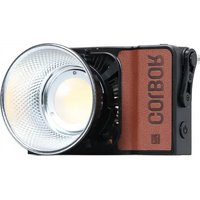
| Product Type | RGB LED Light |
| Model | PL8R |
| Brand | COLBOR |
| Color Rendering Index (CRI) | 95+ |
| TLCI | 96+ |
| Color Temperature Range | 2500K – 9000K |
| Number of LEDs | RGB: 42, C/W: 49 |
| Power | 8W |
| Battery Capacity | 3100mAh |
| Runtime at 100% Brightness | Approximately 80 minutes |
| Charging Input | Type-C, 5V/2A max |
| Charging Time | Approximately 3 hours |
| Display | OLED 23x13mm |
| Light Effects (EFF Mode) | 13 effects: Fire, Fireworks, CCT Chase, Pulsing, Cop Car, TV, Party, Explosion, Faulty Bulb, Welding, Strobe, Lightning, SOS |
| Wireless Control | COLBOR STUDIO App (Bluetooth + NFC) |
| Cooling Mode | Passive |
| Housing Material | ABS |
| Dimensions (L×W×H) | 115 × 68 × 16 mm |
| Net Weight | 125 g |
| Operating Temperature | -10°C to 40°C |
| Package Contents | PL8R LED Light, Type-C Charging Cable, Cold Shoe Mount, Warranty Card |
| Care Instructions | Keep in dry, clean environment; use soft dry cloth; avoid liquids and heat sources. |
| Safety Warnings | Do not disassemble; charge every 3 months if unused; keep away from corrosive chemicals. |
Frequently Asked Questions - PL8R COLBOR
User questions about PL8R COLBOR
0 question about this device. Answer the ones you know or ask your own.
Ask a new question about this device
Download the instructions for your Flash in PDF format for free! Find your manual PL8R - COLBOR and take your electronic device back in hand. On this page are published all the documents necessary for the use of your device. PL8R by COLBOR.
USER MANUAL PL8R COLBOR
natural_image
Pure electrical circuit lines without any symbolsPL8R RGB LED Light User Manual
Thank you for choosing COLBOR product. Please read this manual carefully before use and follow all instructions mentioned herein.
Caring For Your COLBOR Product
- Please keep the product in a dry, clean, dust-free environment.
- Keep corrosive chemicals, liquids, and heat sources away from the product to prevent mechanical damage.
- Use only a soft and dry cloth for cleaning the product.
- Malfunction may be caused by dropping, the impact of external force.
- Do not attempt to disassemble the product. Doing so voids the warranty.
- Please have the product checked or repaired by authorized technicians if any malfunctions happen.
- Please remove the USB charging cable when the battery is fully charged.
- The product might get hot during use, which is normal. Please allow a certain space for the heat sink when using it.
- If you do not use the product for a long time, it might not be able to turn on instantly due to the dead battery. Please charge the product and it can resume work. Please charge the product every 3 months regularly.
- Failure to follow all the instructions may result in mechanical damage.
- Warranty does not apply to human errors.
Product Instructions
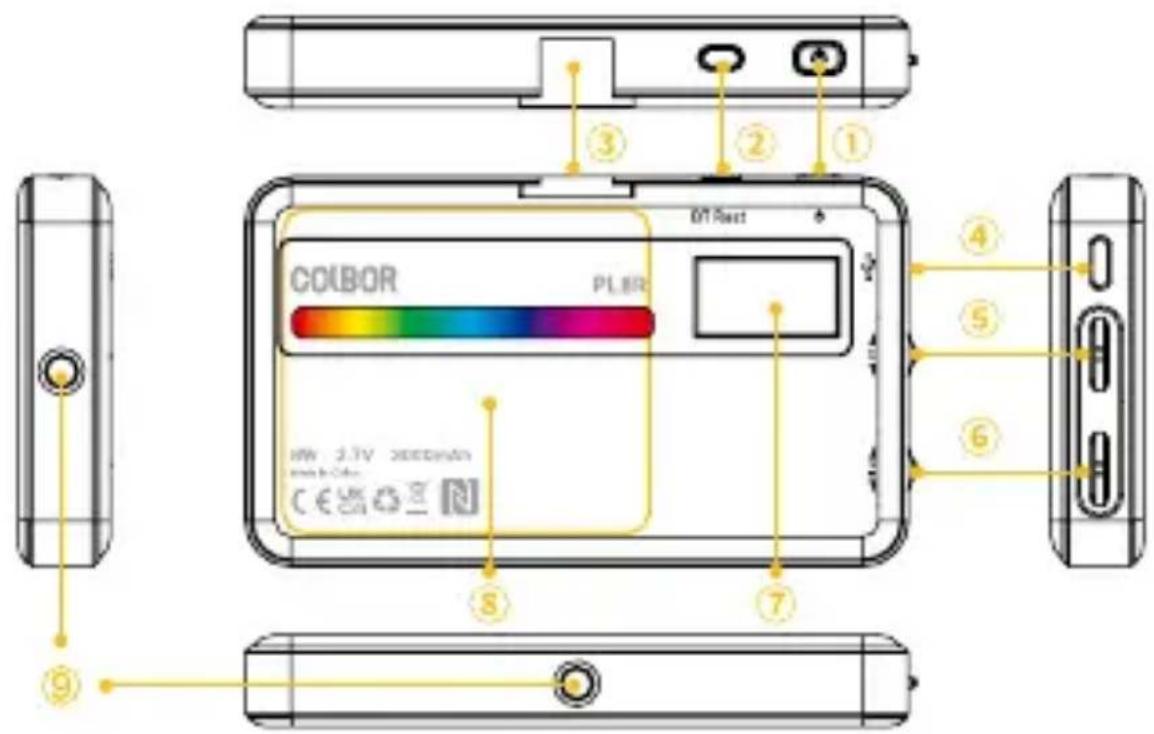
① On/Off/Mode Button
② APP Pairing Button
③ Cold Shoe Connection
④ USB-C Port
⑤ Option & Adjustment Wheel
⑥ Brightness Control Wheel
⑦ Display Screen
⑧ NFC Detection Area
⑨ 1/4-inch connection
Charge
Connect the Type-C cable into the USB-C port, it supports 5V 2A input at maximum.
* Charging time varies depending on the power of the charger.
Operation Instructions
1. Power On/Off
Long press the ON/OFF/MODE BUTTON for 3s to turn it on/off.
2. PARAM Control
Short press the ON/OFF/MODE BUTTON to switch among 3 modes: CCT/HSI/EFF mode.

CCT Mode


① Color Temperature Control (2500K–9000K):
Roll the OPTION & ADJUSTMENT WHEEL up/down to adjust the value, short press to select the preset CCT (2500K, 4200K, 5600K, 7500K, 9000K).
② Brightness Control (0%\~100%)
Roll the BRIGHTNESS CONTROL WHEEL up/down to adjust the value, short press to select preset brightness (0%, 25%, 50%, 75%, 100%).


① Adjust HUE/SAT
Short press the OPTION & ADJUSTMENT WHEEL to choose the option: HUE/SAT, roll up/down to adjust the value.

② Brightness Control (0%\~100%)
Roll the BRIGHTNESS CONTROL WHEEL up/down to adjust the value, short press to select preset brightness (0%, 25%, 50%, 75%, 100%).
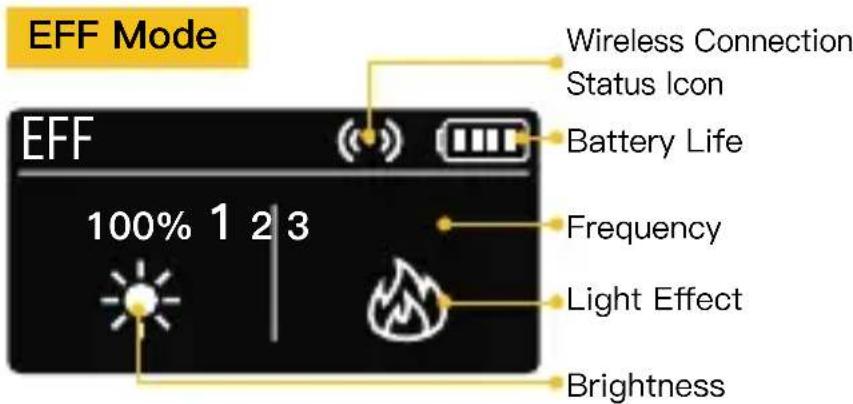
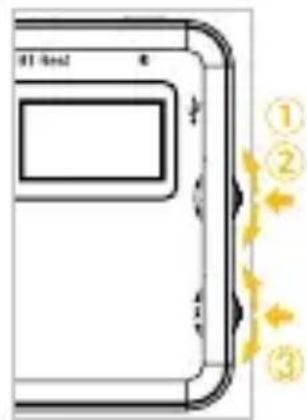
① Light Effect Switch
Short press the OPTION & ADJUSTMENT WHEEL to switch light effects among: Fire → Fireworks → CCT Chase → Pulsing → Cop Car → TV → Party → Explosion → Faulty Bulb → Welding → Strobe → Lightning → SOS.
② Frequency Control
Roll the OPTION & ADJUSTMENT WHEEL up/down to adjust the value.
③ Brightness Control (0%\~100%)
Roll the BRIGHTNESS CONTROL WHEEL up/down to adjust the value, short press to select preset brightness (0%, 25%, 50%, 75%, 100%).
3. Wireless Connection
Scan or search in the app store to download the COLBOR STUDIO for further functions.

APP Connection & Operation
- Short press the APP pairing button to enter the wireless connecting mode.
(Show the icon 📤)

- Open the COLBOR STUDIO APP and click "Add Fixtures", and find the light to confirm adding it.
APP Connection


NFC Connection
Tag your phone's NFC sensing area close to the light's NFC logo. A prompt will automatically appear to open the APP. Click it to open the APP.
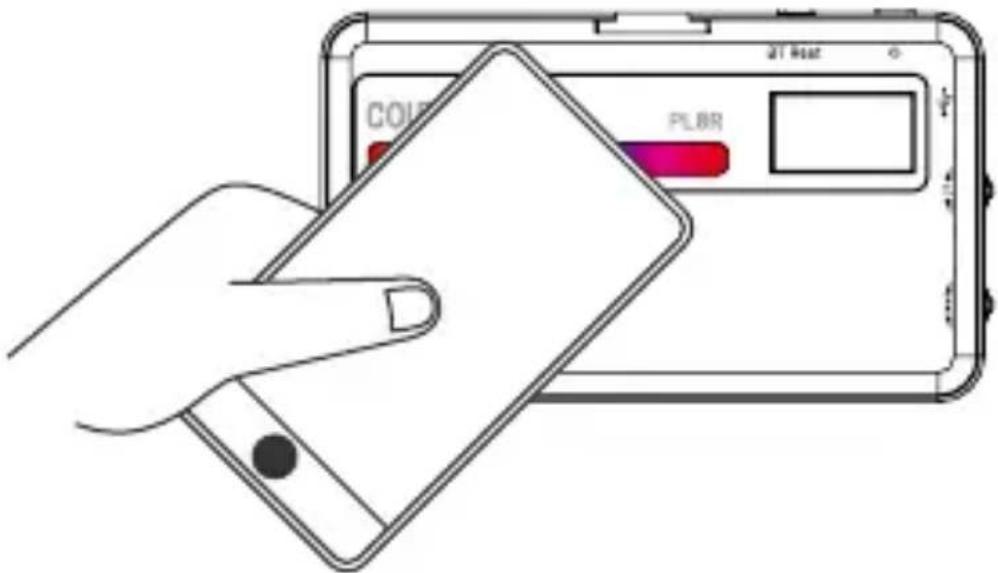
* If the app has not been installed, a prompt to install will appear. Click it to enter the app download page or the APP store.
* Devices before IOS13 (iPhone XS/iPhone XR) are not available for this function.
* If the light has never connected to a device via NFC, please enable the Bluetooth connection option and activate the light's NFC function first:
a) Connect the light via the APP connection method (refer to the APP connection operation).
b) Click on the “Edit Icon” of the CL8R in the list, then click “Activate NFC.” Tag your phone’s NFC area close to the light’s NFC logo to activate NFC. Reconnect the light by tagging your phone’s NFC sensing area close to the light’s NFC logo area to complete the pairing.


* A light is allowed to be controlled by multiple phones simultaneously. For the real-time parameters, please refer to the phone that last controlled the light and the light itself.
APP Operation
Click the links for more information about COLBOR STUDIO APP User Manual.
Graphic: https://www.colborlight.com/pages/cb-studio-help-center
Video: https://youtu.be/SYEqPTvuy3M
Specifications
| CRI / TLCI | 95+/96+ |
| Color Temperature Range | 2500K–9000K |
| Number of bead | RGB:42 Pcs C/W:49 Pcs |
| Display Screen | OLED 23x13mm |
| Power | 8W |
| Battery Capacity | 3100mAh |
| Runtime | About 80 minutes at 100% brightness |
| EFF | 13 |
| Wireless Control | COLBOR STUDIO APP |
| Cooling Mode | Passive |
| Power Input | Type-C |
| Input Voltage/Current | 5V/2A (Max) |
| Battery Charging Time | About 3H |
| Working Voltage | 3.7V |
| Power Requirement | Built-in Lithium Battery /DC Power Supply |
| Housing Material | ABS |
| Dimension | 115*68*16mm |
| Net Weight | 125g |
| Operating Temperature | -10–40°C |
Packing List

natural_image
Blank rectangular frame with no visible text, symbols, or markingsPL8R LED Light x1 Type-C

Charging Cable

Cold Shoe
Mount x1

Warranty
Card x1
WARRANTY
Warranty Period
Thank you for purchasing COLBOR products.
- Customers are entitled to free replacement or repair service in case of quality defect(s) found in the product under normal use within 30 days upon receipt of the product.
- Original COLBOR products are entitled to 12-month limited warranty service. The warranty period begins on the date of purchase of brand new, unused products by the first end-user
Within the warranty period, if product defect or failure is attributable to material defection or technological problem, the defective product or defective part will be repaired or replaced without charge (service and materials fee).
Warranty Exclusions and Limitations
- Faults resulted from inappropriate use of a product without following its operation specification
- Artificial damage, e.g. crash, squeeze, scratch, soaking, exposing to rain or damp
- Modifications to a product by its user or a third party without prior written consent of COLBOR, e.g. replacement of element or circuit, label alteration
- The code on product is inconsistent with that of warranty certificate, or the code on the product or warranty certificate is altered or torn off
- All consumable accessory attached to a product, like cable, cover
- Faults as a result of force majeure, such as fire, flood, lightning, etc.
Warranty Claim Procedure
- If failure or any problem occurs to your product after purchase, please contact a local agent for assistance, or you can always contact COLBOR's customer service through email.
- Please retain your sales receipt and warranty certificate as proof of purchase. If any of these documents is missing, only sales return or chargeable service will be provided.
- If the COLBOR product is out of the warranty coverage, the service and the parts cost will be charged.
Guangzhou Zhiying Technology Co., Ltd
Room 2401, 24 / F, South Tower, Lisheng Plaza, No. 68 Huadi Avenue, Liwan District, Guangzhou, China, 510000
support@colborlight.com
www.colborlight.com

- PL8R RGB LED Light User Manual
- Caring For Your COLBOR Product
- Product Instructions
- Charge
- Operation Instructions
- Power On/Off
- PARAM Control
- CCT Mode
- ① Adjust HUE/SAT
- ② Brightness Control (0%\~100%)
- ① Light Effect Switch
- ② Frequency Control
- ③ Brightness Control (0%\~100%)
- Wireless Connection
- APP Connection & Operation
- NFC Connection
- APP Operation
- Specifications
- Packing List
- WARRANTY
- Warranty Period
- Warranty Exclusions and Limitations
- Warranty Claim Procedure
- Guangzhou Zhiying Technology Co., Ltd
Brand : COLBOR
Model : PL8R
Category : Flash