
Buzzard Claw - Computer Mouse SureFire - Free user manual and instructions
Find the device manual for free Buzzard Claw SureFire in PDF.


| Product Type | Gaming Mouse |
| Number of Buttons | 6 (Left, Right, Middle, Forward, Backward, DPI Loop) |
| Sensor Type | Optical |
| Resolution | 800 / 1600 / 2400 / 3200 / 4800 / 7200 DPI |
| Polling Rate | 125 / 250 / 500 / 1000 Hz |
| Lighting | Multi-colour RGB with 13 modes |
| Connection | Wired USB (Plug & Play) |
| Cable Length | 1.80 m |
| Dimensions (L x W x H) | 124.5 mm x 68.2 mm x 40.8 mm |
| Weight | 133 g |
| Power Supply | USB 4.5-5.5V DC |
| Button Life | 3 million clicks |
| Acceleration | 20 G |
| Frame Rate | 7000 FPS |
| Software | Windows only (download from www.surefire-gaming.com/support) |
| Warranty | 2 years (excluding batteries) |
| Cleaning and Maintenance | Clean with a dry, soft cloth |
| Safety Compliance | EMC Directive 2014/30/EU, General Product Safety 2001/95/EC, RoHS compliant |
Frequently Asked Questions - Buzzard Claw SureFire
User questions about Buzzard Claw SureFire
0 question about this device. Answer the ones you know or ask your own.
Ask a new question about this device
Download the instructions for your Computer Mouse in PDF format for free! Find your manual Buzzard Claw - SureFire and take your electronic device back in hand. On this page are published all the documents necessary for the use of your device. Buzzard Claw by SureFire.
USER MANUAL Buzzard Claw SureFire
Gaming 6-Button Mouse with RGB
QUICK START GUIDE
- Left Key
- Middle Key
- Right Key
- Forward Key
- Backward Key
- DPI Loop
Features:
- 6-button macro programmable Gaming mouse with multi-colour RGB
• High-defi nition optical sensor with adjustable resolution up to 7200DPI - The polling rate of 1000Hz ensures a perfect reactivity of the mouse
- Buttons, lighting and advanced settings adjustable via software (Windows only)

RGB lighting:
• 13 LED modes: Rainbow wave (default setting) / Flicker / Galaxy / Flow / Random / Response / LED off / Breathing / Static / Tail / Space / Star / Neon.
- Press the Forward or Backward + DPI Loop keys to change the RGB lighting mode.
- Press and hold DPI button for 3 seconds to turn on/off lighting.
DPI switch:
• Resolution: 800/1600/2400/3200/4800/7200 DPI
- Press the DPI button on top of mouse to switch the DPI resolution.
- When changing to different DPI settings the mouse will light in the corresponding DPI colour about 3 seconds and return to the set lighting effect.
- DPI and colour switch as follows: 1600 DPI: Blue (default) / 2400 DPI: Purple / 3200 DPI: Green / 4800 DPI: Red / 7200 DPI: Cyan / 800 DPI: Yellow
Software (only for Windows as download)
- Please download the software from www.surefi re-gaming.com/support.
- Start the installation by executing the downloaded file from your download place.
- Follow the installation process.
- Plug the mouse into the USB Port of your computer.
- Start the software via the shortcut on your desktop and configure your mouse with your preferred setup.
- For further details please see opposite.
Button Setup:


You can configure your key setup in this mode. Click on the button you want to adjust and select the function you want, confirm every selection by pressing "Save" to transfer your selection to the mouse. Macros have to be defined in the Macro section of the software.
Macro Setting:

To set Macros to one or more of your mouse keys you have to configure them in this section. Macros can be individual combinations of keys and functions to suit your personal preferences.
DPI Setting:
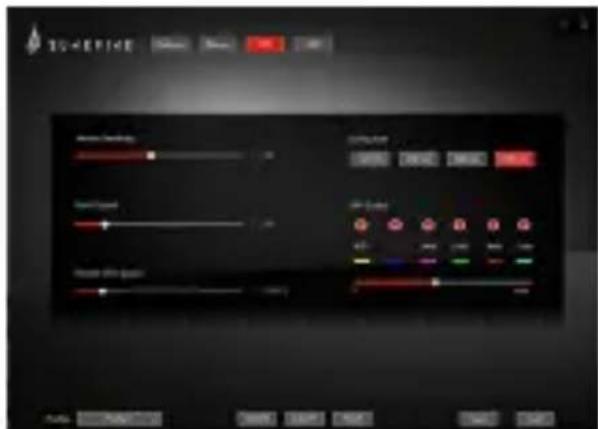
In this menu you can adjust advanced settings of your mouse to your preferences, please transfer your settings to the mouse by pressing "Save".
LED Setting:

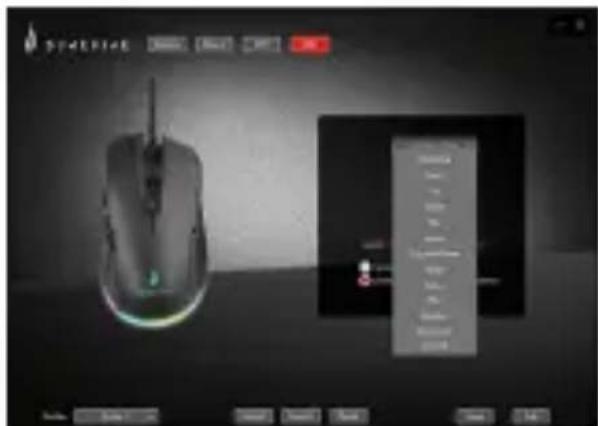
You can select different lighting modes or turn off the lighting on your mouse. Please transfer your selection to the mouse by pressing "Save".
Number of buttons: 6 buttons
Operation Voltage: USB 4.5-5.5V DC
Sensor: Optical sensor
Resolution: 800/1600/2400/3200/
4800/7200 DPI (6 DPI stages)
Polling Rate: 125/250/500/1000 Hz
Lifetime: 3 million clicks
Acceleration: 20G
FPS: 7000 FPS
Backlight: multi-colour RGB LED
Settings: fully programmable via software (Windows only)
Cable Length: 1.80m
Connector: USB Plug&Play
Product Dimensions: 124.5mm x
68.2mm × 40.8mm
Product Weight: 133g
Limited Warranty Terms
Verbatim GmbH warrants this product to be free from defects in material and workmanship for a period of 2 years from date of purchase.
This warranty excludes batteries. If this product is found to be defective within the warranty period, it will be replaced at no cost to you. You may return it with your original cash register receipt to the place of purchase or contact Verbatim.
Product replacement is your sole remedy under this warranty, and this warranty does not apply to normal wear or to damage resulting from abnormal use, misuse, abuse, neglect or accident, or to any incompatibility or poor performance due to the specific computer software or hardware used.
VERBATIM WILL NOT BE LIABLE FOR DATA LOSS OR ANY INCIDENTAL, CONSEQUENTIAL OR SPECIAL DAMAGES, HOWEVER CAUSED, FOR BREACH OF WARRANTIES OR OTHERWISE.
This warranty gives you specific legal rights and you may also have other rights which vary from state to state or country to country.
Note
Verbatim GmbH may at any time revise the content of this user guide without further notice.
Rights
Copyright © 2021 Verbatim GmbH. No part of this document may be reproduced in any form or by any means, for any purpose, without the express written permission of Verbatim GmbH. All rights reserved. All other brands and product names referenced herein are property of their respective owners.
Complies with the requirements set out in the Council Directive on the Approximation of the Laws of the Member States relating to Electromagnetic Compatibility (2014/30/EC) and General Product Safety Directive (2001/95/EC).
This declaration applies to all specimens manufactured identical to the model submitted for testing/evaluation.
EN 55032:2015+A11:2020 EN 55035:2017+A11:2020 EN 62368-1:2014+A11:2017
RoHS Compliance
This product is in compliance with Directives 2011/65/EU and 2015/683 of the European Parliament and of the Council of 18th December 2006, on the restriction of the use of hazardous substances in electrical and electronic equipment (RoHS) and its amendments.
Substances of Very High Concern (SVHC) including 219 substances contained in Candidate List of July 8th 2021 are not present in this product range above permitted levels.
WEEE Notice
The Directive on Waste Electrical and Electronic Equipment (WEEE), which entered into force as European law on 13th February 2003, resulted in a major change in the treatment of electrical equipment at end-of-life.

natural_image
Symbol of a trash bin crossed out by two crossed lines, with no text or labels present.The WEEE logo (shown at the left) on the product or on its box indicates that this product must not be disposed of or dumped with your other household waste.
For more information about electronic and electrical waste equipment disposal, recovery, and collection points, please contact your local municipal household waste disposal service or shop from where you purchased the equipment.
EN If you have any questions about this product, please contact the SureFire support team – www.surefire-gaming.com/support.
F Si vous avez des questions au sujet de ce produit, contactez l'équipe d'assistance SureFire à l'adresse www.surefire-gaming.com/support.
DE Wenn Sie Fragen zu diesem Produkt haben, wenden Sie sich bitte an den SureFire-Support: www.surefire-gaming.com/support.
⑪ Per maggiori informazioni su questo prodotto, contattare il Supporto Tecnico di SureFire – www.surefire-gaming.com/support.
ES Si tiene alguna pregunta sobre este producto, póngase en contacto con el equipo de soporte de SureFire: www.surefire-gaming.com/support.
© Caso tenha alguma dúvida sobre este produto, entre em contacto com a equipa de apoio da SureFire - www.surefire-gaming.com/support.
PL W przypadku jakichkolwiek pytań na temat tego produktu prosimy o kontakt z działem wsparcia firmy SureFire — www.surefire-gaming.com/support.
Если у вас есть какие-либо вопросы об этом продукте, обратитесь в службу технической поддержки SureFire по адресу www.surefire-gaming.com/support.
© Máte-li k tomuto produktu nějaké otázky, kontaktujte tým podpory společnosti SureFire – www.surefire-gaming.com/support.
© Ha bármilyen kérdése van a termékkel kapcsolatban, kérjük, lépjen kapcsolatba a SureFire ügyfélszolgálatával: www.surefire-gaming.com/support.
SK Če imate vprašanja glede izdelka, se obrnite na skupino za podporo strankam SureFire – www.surefire-gaming.com/support.
HR/SR Ukoliko vas zanima bilo šta u vezi ovog proizvoda, obratite se timu za podršku kompanije SureFire – www.surefire-gaming.com/support.
® Dacă aveți întrebări despre acest produs, vă rugăm să contactați echipa de asistență SureFire - www.surefire-gaming.com/support.
EUROPE/ MIDDLE EAST/ AFRICA:
Verbatim GmbH, Düsseldorfer Straße 13, 65760 Eschborn, Germany
SureFire is a brand owned by Verbatim GmbH.
Verbatim.

Brand : SureFire
Model : Buzzard Claw
Category : Computer Mouse