
Explore KM1406 - Laptop Krüger&Matz - Free user manual and instructions
Find the device manual for free Explore KM1406 Krüger&Matz in PDF.


| Product Type | Laptop |
| Brand | Krüger&Matz |
| Model | Explore KM1406 |
| Display Size | 14.1 inches |
| Display Resolution | 1920 x 1080 pixels, IPS |
| Processor | Intel Celeron N4000, Dual-Core, 1.1 GHz (max 2.6 GHz) |
| RAM | 4 GB LPDDR4 |
| Internal Storage | 64 GB |
| Graphics | Intel UHD Graphics 600 |
| Operating System | Windows 10 S mode |
| Camera | 2 MP front camera |
| Audio | Built-in microphone and speakers |
| Ports | 3x USB (1x USB 2.0, 1x USB 3.0, 1x USB-C), mini HDMI, combo audio jack, microSD slot, DC-in |
| Connectivity | Wi-Fi 802.11 b/g/n, Bluetooth 4.0 |
| Battery Capacity | 5000 mAh, 7.4 V (non-removable) |
| Power Adapter | 12 V, 2.5 A |
| Cleaning Instructions | Use soft, slightly damp cloth; no abrasives or chemicals. |
| Safety Warnings | Do not disassemble, use only authorized accessories, avoid extreme temperatures. |
| Repairability | Not user-serviceable; contact authorized service point. Battery not detachable. |
Frequently Asked Questions - Explore KM1406 Krüger&Matz
User questions about Explore KM1406 Krüger&Matz
0 question about this device. Answer the ones you know or ask your own.
Ask a new question about this device
Download the instructions for your Laptop in PDF format for free! Find your manual Explore KM1406 - Krüger&Matz and take your electronic device back in hand. On this page are published all the documents necessary for the use of your device. Explore KM1406 by Krüger&Matz.
USER MANUAL Explore KM1406 Krüger&Matz
BEDIENUNGSANLEITUNG
OWNER'S MANUAL
INSTRUKCJA OBSŁUGI
MANUAL DE UTILIZARE
All rights reserved. No part of this manual may be reproduced or transmitted in any form or by any n without the prior written permission of the producer of this product.
Please note: below illustrations and descriptions concerning operating system are for reference only, and vary from actual software on your device! Any information included in this manual are subject to change prior notice.
Producer reserves the rights to errors and misprints.
Read the instruction manual carefully before first use and keep it for future reference.
-
Protect this product from moisture, humidity, water and any other liquid. Avoid using/storing it in extreme temperatures. Do not expose it to direct sunlight and sources of heat.
-
Avoid using/storing it in the strong magnetic environment.
-
Never use this device if the power adapter or the device itself is damaged.
-
Disconnect the device from the power supply if it is not going to be used for a long time.
-
Use only authorized accessories.
-
Prevent the device from falling on the ground or being strongly impacted.
-
This product is not a toy; keep it beyond children's reach.
-
Producer does not claim liability for any data loss, damage caused by inappropriate use and handling, or any mechanical damage. Warranty repair does not cover restoring the operating system after it has been removed by the user.
-
Do not attempt to repair/disassemble this device yourself. In case of damage, contact with an authorized service point for check-up/repair.
-
ALWAYS disconnect this device from power supply mains before cleaning. Clean this device with soft, slightly damp cloth. Do not use any abrasives or chemical agents to clean this product.
-
Do not press or touch the display panel.
-
Do not disconnect the device suddenly when formatting or uploading/downloading - it can lead to program errors.
-
Do not handle the device with wet hands.
-
Keep the volume at a reasonable level throughout entire time of using the speaker. To prevent damage to your hearing, do not raise the volume too high.
-
Producer does not claim liability for any data loss, damage caused by inappropriate use and handling or any mechanical damage.
-
Producer does not claim liability to any damages caused by inappropriate upgrade performed by the user.
-
Before connecting the device to power supply socket, make sure the voltage indicated on the appliance corresponds to the voltage in the power supply socket.
NOTE: The battery is not detachable. Do not attempt to disassemble the battery.
PRODUCT OVERVIEW
Preparing the device for operation:
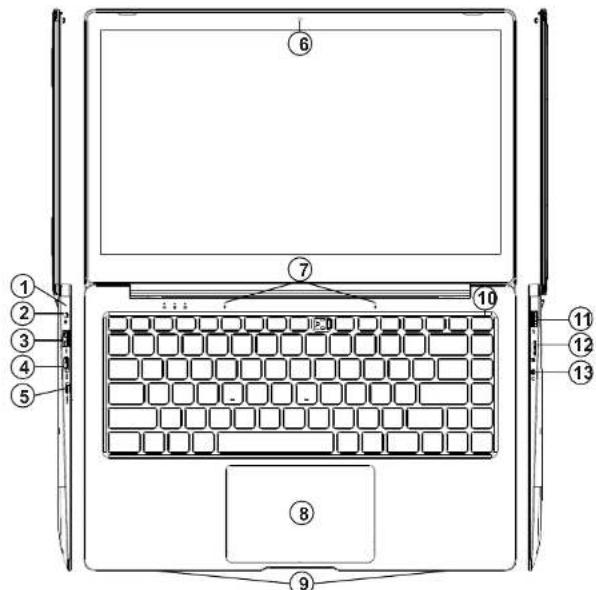
| 1. | Charging indicator |
| 2. | DC-in |
| 3. | USB ports |
| 4. | Mini HDMI port |
| 5. | USB-C port |
| 6. | Front camera |
| 7. | Microphone |
| 8. | Touchpad |
| 9. | Speakers |
| 10. | Power button |
| 11. | USB ports |
| 12. | microSD slot |
| 13. | Audio jack (earphone output and microphone input) |
Krüger&Matz
Owner's manual Owner's manual
Krüger&Matz

Please note: below illustrations and descriptions concerning Windows operating system are for reference only, and may vary from actual software on your device!
- Connect one end of the power adapter to the device and the other to power mains outlet and charge the device fully.
- Press the power switch for about 2-3 seconds to switch the device on.
- Follow the instructions in the startup wizard to set up your device.
During the startup, the wizard prompts you to register for your Microsoft account. If you do not yet have a Microsoft account, please set one up here.

- After completion of the startup, your device is configured. This may take several minutes to complete. Do not turn the device off during this process!
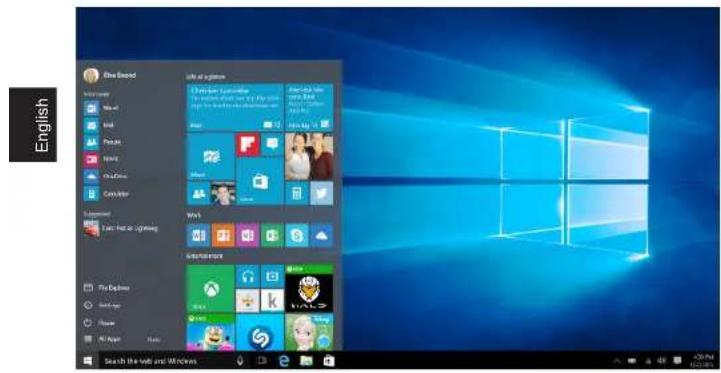
Start Screen
To get to the Start menu, select Start in the lower-left corner of the taskbar. You can also open the Start menu by pressing the Start button located on your keyboard.
The Info Center
The Info Center is a bar with quick links to some important device functions,
which you can either display or hide. To access the Info Center, swipe the screen from the right edge towards the center or click the memo ☐ symbol the bottom right-hand corner.
Among other things, the Info Center includes a shortcut to tablet mode function switch. Press it to turn on/off tablet mode.

Account options
Click on your account name to change your account picture, lock your device c sign out of your account.
Power
Click ⏻ Power, then choose appropriate action to sleep, shut down or restart your device.
Quick links and frequently used apps
Left side of the Start menu lists quick links to frequently used apps and option: If you see an arrow next to a program, move your mouse over it to see a list your recently used files for that program.
All apps
Click All Apps to see all your apps and programs listed alphabetically. To find specific app, type its name in the search box.
Pin your favorite apps
Pin apps, programs and folders to the Start menu for fast access to the you use the most. Click Start, select All Apps, right-click the app you want to pin, and then select Pin to Start.
Once pinned, your app will show up as a tile on the right. Right-click the tile t change its size. Drag and drop to move the tile.
Note: the Start menu will automatically resize to hold every app tile you add.
Tablet mode
Krüger&Matz
Owner's manual Owner's manual
Krüger&Matz
To change between tablet mode and desktop mode follow the below steps:
- Click Start, open Settings, go to System.
- Choose Tablet mode.
- Move the slider to ON to enable tablet mode.
Multitasking
Snap windows

Working in multiple apps and programs is easier and more intuitive thanks to enhancements in snapping. You can have up to four programs snapped on the same screen; Windows will even suggest how to fill the gaps with other open apps and programs.
To snap, click and hold the top of the window and drag it to either the side or corner of the screen. You'll see a shadow of where the window will snap; release the window to snap it into place.
Note:
- Windows Store apps can only be snapped into half screen.
- To snap app full screen click and hold the top of the window and drag it to top of the screen.
If you have other apps or programs running on your desktop, Windows will suggest how to fill the remaining space. Simply select an app or program that
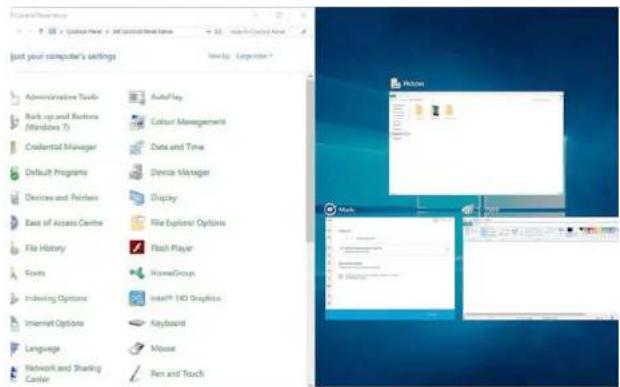
you would like to use simultaneously.
Task view
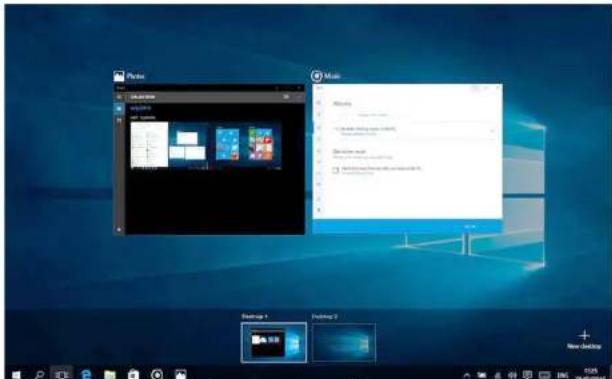
If you have a lot of apps and programs opened at the same time, there is a new Task view button so you can quickly switch between them. Click Task view to see all of your running apps and programs; select any item to open it.
Multiple desktops
Windows 10 introduces a new concept of multiple desktops, to facilitate working on a lot of different projects, with various apps and programs.
Select Task view from the taskbar, and then click Add a desktop. A thumbnail will show up at the bottom of the task view page. Click the blank thumbnail to open up a clean desktop.
To switch between desktops, click ☐ Task view and then choose a desktop from the bottom of the page.
Note: multiple desktops are not available in tablet mode.
Enabling Wi-Fi
- Select "All settings" in the Info Center.
Open „Network & Internet" in the settings menu.
3. Go to "Wi-Fi" on the left.
4. Move the slider for Wi-Fi from "Off" to "On".
5. Click the network that you wish to connect to.
6. Click „Connect”. Enter the network key (password) if necessary. The device connects to the selected network.
Conserving energy
- Deactivate the Wi-Fi function when it is not in use.
- Keep the device connected to power mains only until it is fully charged.
- Reduce the display brightness in the unit settings.
- Switch to standby mode/turn it off when the device is not in use.
Overheating
While charging, the temperature of the device and the charger may get increased. This does not affect the device's lifespan or performance and is in the device's normal range of operation.
However, if there is an excessive increase in temperature or overheating, depending on the factor that caused it: device's performance may be significantly reduced, charging process may be stopped, the device may turn off or display notification about switching off for cooling. Function available only in selected models. Important: if the device displays notification about overheat, turn it off and do not turn it back on until completely cooled down!
In case of overheat during charging:
- Disconnect the charger from the device.
- Close any running apps.
- Wait for the device to cool down, and then begin charging the device again.
If the part of the device where the DC-in is placed overheats, check for damage to the connected charger. Replace the damaged charger with a new authorized charger.
The device may also overheat during operation when using several battery consuming applications or functions. In case of overheat during usage:
- Close any running apps.
- Disconnect any connectivity (Bluetooth, Wi-Fi etc.).
- Lower the screen brightness settings.
- Wait for the device to cool down before attempting to use it again.
Safety precautions concerning operation environment
In order to maintain battery's longevity, and to avoid overheat, follow basic precautions including provisions listed below:
- Do not use / store the device in very hot or cold environments nor expose to direct sunlight.
- Do not place the device on surfaces that may cause overheat e.g. electric heating m
- Do not place near sources of heat e.g. radiators, microwave ovens, hot kitchen appliances nor high pressure containers.
- DO NOT use damaged charger or battery!
- Use only authorized chargers, batteries and cables! Using unauthorized accessories may damage the device or battery. Connecting charger with inadequate parameters may result with damage to the device and poses risk to the user.
Specification
While charging, the temperature of the device and the charger may get increased. This does not affect the device's lifespan or performance and is in the device's normal range of operation.
However, if there is an excessive increase in temperature or overheating, depending on the factor that caused it: device's performance may be significantly reduced, charging process may be stopped, the device may turn off or display notification about switching off for cooling. Function available only in selected models. Important: if the device displays notification about overheat, turn it off and do not turn it back on until completely cooled down!
In case of overheat during charging:
| Display Size 14.1" | ||
| Resolution 1920 x 1080 px, IPS | ||
| System CPU | Intel® Celeron® N4000 processor, Dual-Core | |
| CPU frequency | 1,1 GHz (max. 2,6 GHz) | |
| RAM | 4 GB LPDDR4 | |
| GPU | Intel® UHD Graphics 600 | |
| Internal memory | 64 GB | |
| Operation system | Windows 10 S mode | |
| Multimedia | Camera | 2 Mpx |
| Microphone | yes | |
| Speakers | yes | |
| I/O ports | SD card slot | microSD |
| USB port | 3x USB (1x USB 2.0, 1x USB 3.0, 1x USB-C) | |
| HDMI output | mini HDMI port | |
| Audio jack | Combo jack | |
| DC-in | x1 | |
| Communication | Wi-Fi | 802.11 b/g/n |
| Bluetooth | 4.0 | |
| Power | AC adapter | 12 V, 2,5 A |
| Battery capacity | 5000 mAh; 7,4 V | |
LEARN MORE
For more information on this device visit: www.krugermalz.com.
Read owner's manual carefully before using your device.
Visit www.krugermatz.com website for more products and accessories.
In case of any doubts or questions reach out to our Frequently Asked Questions section.
IMPORTANT: The producer allows the possibility for minor variations in display brightness and color between individual devices. There may be visible light or dark spots on the display. Up to 5 defective pixels are acceptable to be present on the display of the device. Above mentioned cases concerning device's display are not covered under warranty nor statutory warranty rights.
Lechpol Electronics Sp. z o.o. Sp.k. hereby declares that ultrabook KM1406 is consistent with directive 2014/53/UE. Full text of the EU Declaration of Conformity is available at following Internet address: www.lechpol.eu.
English
Correct Disposal of This Product
(Waste Electrical & Electronic Equipment)

(Appliable in the European Union and other European countries with separate collection systems) This marking shown on the product or its literature, indicates that it should not be disposed with other household wastes at the end of its working life. To prevent possible harm to the environment or human health from uncontrolled waste disposal, please separate this from other types of wastes and recycle it responsibility to promote the sustainable reuse of material resources. Household users should contact either the retailer where they provide a product or a general customer for their use of a trade or sale. Where they can take this item for environmentally safe recycling. Business should continue to offer similar and check the terms and conditions of the purchase contract. This product said not be mixed with other commercial wastes for disposal.
Made in China for LECHPOL ELECTRONICS Sp. z o.o. Sp.k., ul. Garwolinska 1, 08-400 Miętne.
Krüger&Matz
Instrukcja obsługi
Instrukcja obsługi
Krüger&Matz
Centrum Akcji
Uwaga:
Este mult mai usor si mai intuitiv sa lucrezi cu aplicatii si programe multiple, gratie ferestrelor. Puteti avea pana la 4 programe pe ecran in aceeasi fereastra; Windows va sugereaza cum sa completati cu alte aplicatii sau programe. Pentru aceasta, faceti click si tineti apasat in partea de sus a ferestreii si trageti de ea. Veti vedea o umbra in locul in care aplicatia se va aseza; eliberati fereastra si aplicatia se va aseza pe locul respectiv.
Nota:
- Aplicatiil Windows Store vor ocupa jumatate de ecran.
b. Apasati „Network & Internet" in meniul setarilor.
c. Apasati „Wi-Fi“ in stanga.
d. Mutati cursorul de la Wi-Fi de pe „Off” pe „On”.
e. Faceti click pe reteaua la care doriti sa va conectati.
f. Faceti click pe „Connect”. Introduceti parola daca este necesar. Dispozitivul se conecteaza la reteaua selectata.
Economisire energie

www.krugermatz.com
Krüger&Matz is a registered trademark
- PRODUCT OVERVIEW
- KRÜGER&MATZ
- OWNER'S MANUAL OWNER'S MANUAL
- START SCREEN
- THE INFO CENTER
- ACCOUNT OPTIONS
- POWER
- QUICK LINKS AND FREQUENTLY USED APPS
- ALL APPS
- PIN YOUR FAVORITE APPS
- TABLET MODE
- MULTITASKING
- SNAP WINDOWS
- NOTE
- TASK VIEW
- MULTIPLE DESKTOPS
- ENABLING WI-FI
- CONSERVING ENERGY
- OVERHEATING
- SPECIFICATION
- LEARN MORE
- CENTRUM AKCJI
- ECONOMISIRE ENERGIE
Brand : Krüger&Matz
Model : Explore KM1406
Category : Laptop