
LifeTab E10700 (MD 61761) - Graphic tablet MEDION - Free user manual and instructions
Find the device manual for free LifeTab E10700 (MD 61761) MEDION in PDF.


| Product Type | Graphic Tablet |
| Brand | Medion |
| Model | LifeTab E10700 (MD 61761) |
| Dimensions (W x H x D) | 247 x 171 x 8.6 mm |
| Weight | 484 g |
| Display | 25.5 cm (10") IPS panel, 1920 x 1200 pixels, 16 million colors |
| Processor | Quad Core (2 GHz) |
| RAM | 2 GB |
| Internal Memory | 32 GB (approx. 25 GB available) |
| Expandable Memory | Micro SD card, max. 128 GB |
| Battery | Lithium-ion, 3.8 V / 6000 mAh / 22.8 Wh, built-in |
| Operating System | Android 9 (Pie) |
| Connectivity | WLAN 802.11 a/b/g/n/ac (2.4/5 GHz), Bluetooth 5.0, 4G LTE |
| Front Camera | 5 MP, video resolution 1920 x 1080 |
| Ports | USB 2.0 Type C (5 V, max 500 mA), 3.5 mm headphone jack, micro SD slot, micro SIM slot |
| Sensors | Acceleration sensor, GPS receiver |
| Power Supply | Mains adapter: 100–240 V ~, 0.45 A, 50–60 Hz; Output: 5 V, 2 A |
| Operating Temperature | +5°C to +30°C |
| Storage Temperature | 0°C to +60°C |
| Relative Humidity | 20% to 80% (non-condensing) |
| Cleaning and Care | Unplug adapter; use soft lint-free cloth; avoid solvents; clean display with glass cleaner |
| Safety | Do not open device; use only supplied adapter; keep away from water; avoid high temperatures |
| Reparability | Do not attempt self-repair; contact service center; battery non-removable |
Frequently Asked Questions - LifeTab E10700 (MD 61761) MEDION
User questions about LifeTab E10700 (MD 61761) MEDION
0 question about this device. Answer the ones you know or ask your own.
Ask a new question about this device
Download the instructions for your Graphic tablet in PDF format for free! Find your manual LifeTab E10700 (MD 61761) - MEDION and take your electronic device back in hand. On this page are published all the documents necessary for the use of your device. LifeTab E10700 (MD 61761) by MEDION.
USER MANUAL LifeTab E10700 (MD 61761) MEDION
natural_image
Black tablet device with a yellow kayaking on its back, displayed against a plain background (no text or symbols visible)25,5 cm / 10" Tablet PC
MEDION® LIFETAB® E1070X
Table of Content
1. About this user manual .... 3
1.1. Explanation of symbols ...... 3
1.2. Proper use....5
2. Safety information
2.1. Restricted group of people 6
2.2. Information regarding the mains adapter 7
2.3. Restricted use 9
2.4. Information on the integrated rechargeable battery ....10
2.5. General instructions on how to handle lithium-ion batteries .....11
3. Specific safety instructions for the tablet PC 11
3.1. Data backup....12
3.2. Information regarding the display 12
3.3. If there are defects....12
4. Package contents
5. Device overview
5.1. Front....14
5.2. Top....15
5.3. Bottom....15
5.4. MEDION® keyboard dock 16
6. Preparing for first use 17
6.1. Power supply 17
6.2. Charging the battery....17
7. Operation 1
7.1. Switching on the tablet PC 18
7.2. Operating the tablet PC 18
7.3. Using the device for the first time 18
7.4. Putting the tablet PC into sleep mode....19
7.5. Lock screen....19
7.6. Home screen....20
7.7. Basic use of the Android™ software....21
7.8. Home screen pages ......21
7.9. Status bar....22
7.10. Quick settings....23
7.11. System settings....24
7.12. Software updates....24
7.13. Enabling WLAN 24
7.14. Enabling Bluetooth ^® 25
7.15. Switching off the tablet PC....25
8. Google Play Store 25
9. Connecting the tablet PC to a PC 26
10. External storage media 26
10.1. Inserting a micro SD memory card 26
10.2. Setting up a micro SD memory card for the first time 27
10.3. Removing the micro SD memory card 27
10.4. Connecting a USB memory device ....28
10.5. Removing the USB memory device 28
11. MEDION® keyboard dock 29
11.1. Inserting the tablet PC into the keyboard dock 29
11.2. Angle of the tablet PC standing in the keyboard dock 30
11.3. Setting the key assignment 30
11.4. Specific instructions for using the tablet PC with the keyboard dock 31
11.5. Special keys on the keyboard dock keyboard ....31
11.6. Touchpad 33
12. Frequently asked questions.... 34
12.1. Cleaning and care 35
13. Storing the device when not in use.... 35
14. EU – Declaration of Conformity 36
14.1. Trademark information 37
15. Technical specifications 38
15.1. Information about the radio technology used ....40
16. Disposal 41
17. Legal notice 42
18. Privacy statement 43
19. Licence information 44
1. About this user manual

Read this user manual carefully and comply with the information provided. This will ensure that your device works reliably and has a long service life. The user manual is provided as a digital file. You may want to save it to an external storage medium. Do not delete the user manual from your tablet PC so that it is always available as reference material.
1.1. Explanation of symbols
If a block of text is marked with one of the warning symbols listed below, the hazard described in that text must be avoided to prevent the potential consequences described there from occurring.

DANGER!
Warning: risk of fatal injury!

WARNING!
Warning: risk of possible fatal injury and/or serious irreversible injuries!
WARNING!
Warning: danger due to loud volume!

NOTICE!
Follow these instructions to prevent damage to the device!

More detailed information about using the device!

Follow the instructions in the user manual!

Products that feature this symbol meet the requirements of the EU directives.

Devices with this symbol are intended solely for indoor use.

Due to the 5 GHz frequency range of the wireless LAN solution used, the device may only be used inside buildings in the EU.

Protection class II
Electrical devices in protection class II are devices that have double and/or reinforced insulation throughout, and do not have an option for connecting a protective earth. The housing of an electrical device in protection class II, with surrounding insulating material, might either form all of the additional or reinforced insulation, or part of it.
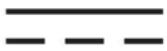
Symbol for direct current (DC)

Symbol for alternating current (AC)
- Bullet point/information on steps during operation
▶ Instruction to be carried out
Safety instructions to be performed

This symbol means that the packaging and/or device contains lithium batteries or rechargeable batteries.
1.2. Proper use
This is an information electronics device.
Your tablet PC is intended to be used for the following purposes:
...accessing the internet via WLAN
...playing audio and video files
...editing and managing electronic documents and multimedia content etc.
The device is only intended for private use and not for industrial/commercial use.
Please note that we shall not be liable in cases of improper use.
Comply with all the information in this user manual, especially the safety information. Any other use is considered improper and can cause personal injury or property damage.
2. Safety information
2.1. Restricted group of people

WARNING!
Risk of injury!
Risk of injury to persons with limited physical, sensory or mental abilities (for example, partially disabled people or older people with limited physical or mental abilities) or to those without experience and knowledge (such as older children).
- Keep the device and its accessories out of the reach of children.
Before each use, check the tablet PC and all accessories for damage. Defective devices or components must not be used.
This device can be used by children over the age of 8 and by persons with reduced physical, sensory or mental abilities or by those without experience and/or knowledge, if they are supervised or have been instructed in the safe use of the device and have understood the dangers that result from it.
Children must not be allowed to play with the device.
- Cleaning and maintenance must not be carried out by children.

DANGER!
Risk of choking and suffocation!
There is a risk of choking and suffocation if plastic film or small parts are breathed in or swallowed.
▶ Keep packaging away from children.
▶ Do not allow children to play with the packaging material.
The packaging material is not a toy!
WARNING!
Damage to hearing!
Listening to a device at high volumes when using headphones or earphones and changing the basic settings of the equaliser, the driver, the software or the operating system creates excessive sound pressure and can result in damage to and/or loss of hearing.
Before pressing play, set the volume to the lowest setting.
▶ Start playback and increase the volume to a comfortable level.
2.2. Information regarding the mains adapter

DANGER!
Risk of electric shock!
The mains adapter contains live parts. They pose a risk of electric shock or fire if an unintentional short circuit occurs!
▶ Use only the supplied mains adapter with the supplied USB cable.
Do not open the housing of the mains adapter.
Do not insert anything into the device through the slots or openings. This could result in an electric short-circuit, electric shock or even fire, which will cause damage to your device.
Children younger than 8 must be kept away from the device and the mains adapter.
- Avoid exposing the device and the mains adapter to water droplets or spray and do not place any liquid-filled containers, such as vases, on or next to the device or the mains adapter. Liquids penetrating the device may impair the electrical safety of the product.
▶ Only operate the mains adapter from an earthed AC 100–240 V\~, 50/60 Hz outlet. Contact the local energy supplier if you have any questions about the power supply at the installation location.
The device must be close to the outlet, which must always be easily accessible.
For additional safety, we recommend using a surge protection device to protect the mains adapter against damage due to voltage spikes or lightening strike from the power supply.
If you want to disconnect the tablet PC from the mains power supply, unplug the mains adapter from the socket first and then remove the charging cable from the tablet PC. Performing these two steps the wrong way round may cause damage to the tablet PC or the mains adapter. Always hold all plugs and the mains adapter by the housing; never pull on the cable.
▶ Never touch the mains adapter with wet hands.

WARNING!
Risk of fire!
There is a risk of fire due to improper use of the device.
▶ To prevent overheating, do not cover the mains adapter (with newspapers, covers etc.).
▶ Do not place any objects on the cables as they may be damaged.
▶ Do not expose plug connections to impacts/pressure, e.g. from lateral forces. This could cause internal and external damage to the device.
Do not apply force when connecting cables and plugs and make sure that connectors are the right way round.
▶ Do not crush or bend the cable to avoid cable breaks and short circuit.
- Keep the device at a distance of at least one metre from sources of high-frequency or magnetic interference (televisions, speakers, mobile telephones, DECT telephones etc.) to avoid malfunctions and data loss.
The only devices which may be connected to the device are those which meet the requirements set out in the EN60950 standard “Information Technology Equipment – Safety” or the EN60065 standard “Audio, video and similar electronic apparatus – Safety requirements”.

The mains adapter also uses electricity when connected to the mains socket without the tablet PC.
2.3. Restricted use
Always switch off the tablet PC in the following situations:
- Before you get on a plane or before you pack the tablet PC in your luggage. The use of tablet PCs and other devices that transmit radio waves may interfere with the aircraft's radio communications systems, jeopardising flight safety. The use of all devices that transmit radio waves is prohibited on planes.
- In hospitals, clinics or other health centres and in all places in the immediate vicinity of medical equipment.
- Everywhere that there is a risk of explosion (e.g. petrol stations or in dusty environments, e.g. where there is metal dust).
- In places where it is compulsory to switch off radio-controlled equipment, e.g. on major construction sites or in places where blasting operations are carried out.
Due to the 5 GHz WLAN technology used, the tablet PC may only be used inside buildings.
▶ If you need to use the device outside buildings, disable the 5 GHz WLAN.
▶ Always use the tablet PC on a stable surface to minimise vibrations and to prevent the device from falling.
The tablet PC is not suitable for use at workstations in line with the regulation for computer workstations.
2.4. Information on the integrated rechargeable battery

WARNING! Risk of explosion!
There is a risk of explosion if the battery is replaced incorrectly.
▶ Charge the battery regularly and as fully as possible. Do not leave the battery discharged for a long period of time.
- Keep the removed rechargeable battery and the tablet PC away from heat sources such as radiators or open flames such as candles. Risk of explosion!
If the tablet PC only switches on when connected to the mains adapter, contact the Service team.
The rechargeable battery is an integral component of the device and users must not remove or replace it themselves.

WARNING! Risk of chemical burns!
There is a risk of chemical burns if the rechargeable battery is handled incorrectly.
▶ Do not use rechargeable batteries that are damaged in any way.
▶ Do not take the rechargeable batteries apart or deform them.
▶ Leaked liquids must not come into contact with the skin, eyes or mucous membranes. Do not swallow the liquid under any circumstances.
▶ Always wear appropriate protective gloves when handling leaking rechargeable batteries.
If you nevertheless come into contact with the liquid, rinse the affected areas with plenty of clean water.
- Consult a doctor immediately if you notice any skin changes or feel discomfort.
- Keep rechargeable batteries away from children. Consult a doctor immediately if rechargeable batteries are swallowed.
2.5. General instructions on how to handle lithium-ion batteries
When handling rechargeable batteries, it is important to make sure that they are used and charged properly to guarantee that the full battery capacity is utilised and the service life is maintained for as long as possible. The ideal temperature for use is around 20^ C.
The battery/device should not be charged unattended.
The battery/tablet PC should not be placed on sensitive or highly flammable materials during the charging process.
3. Specific safety instructions for the tablet PC
Take care when handling your tablet PC and observe the following safety instructions:
Do not modify the device without our consent and do not use any auxiliary equipment that we have not approved or supplied.
▶ Only use replacement parts or accessories that we have supplied or approved.
▶ Keep your tablet PC dry.
▶ Do not expose it to extremely hot or cold temperatures.
▶ Only operate the tablet PC at an ambient temperature of between +5°C and +30°C and relative air humidity of between 20% and 80% (non-condensing).
▶ Do not drop, knock or shake the tablet PC. Being rough with the device can cause damage to internal parts.
Do not paint your tablet PC, as the paint might affect the speaker, microphone or moving parts and stop the device from working properly.
▶ Do not use any liquid coatings such as liquid foil.
▶ Owing to the high power consumption, never use a PC or laptop to charge the tablet PC.
3.1. Data backup

NOTICE! Risk of data loss!
There is a risk of data being lost when running updates.
▶ Back up your data to external storage media before each update.
We do not accept any liability for claims for compensation arising from loss of data or any consequential loss or damage.
3.2. Information regarding the display
▶ Never put anything on top of the device and never exert any heavy pressure on the display, as this may cause the display to break.
▶ Only ever use your finger or a special stylus on the display.
▶ Do not touch the display with sharp objects to avoid damage.
There is a risk of injury if the display breaks. If this occurs, wear protective gloves when wrapping up cracked parts and send them to your Service Centre for proper disposal. Wash your hands with soap afterwards, as the risk of chemicals escaping cannot be excluded.
If the device is exposed to strong sunlight for a prolonged period, the screen may appear defective if the display has not been updated. Updating the display will get rid of any such effects.
3.3. If there are defects
If the mains adapter, charging cable or tablet PC is damaged, pull the mains adapter out of the mains socket immediately.
Do not use the tablet PC or accessories if they are damaged, generate smoke or emit unusual operating noises. In this case, disconnect the power supply immediately.
▶ Never, under any circumstances, attempt to open and/or repair the tablet PC or mains adapter yourself. In the event of a fault, contact our Service Centre.
4.Packagecontents

DANGER!
Risk of choking and suffocation!
There is a risk of choking and suffocation if plastic film or small parts are breathed in or swallowed.
▶ Keep packaging away from children.
▶ Do not allow children to play with the packaging material.
The packaging material is not a toy!
Remove the product from the packaging and remove all packaging material.
▶ Check your purchase to ensure that all items are included. If anything is missing, please contact our Service team within 14 days of purchase.
Before each use, check the tablet PC for any damage.
▶ Contact our Service Centre if you find any damage.
The following items are supplied with your product:
- Tablet PC
• USB mains power adapter
(model: ASSA55e-050200, manufacturer: Aquilstar, China
Alternative model: KSC-10A-050200HE, manufacturer: KTEC, China) - USB cable
- Safety instructions with user manual
- Warranty documents
The MEDION ^® keyboard dock is included with the following device models:
• MEDION® LIFETAB® E10702 (MD 61614)
• MEDION® LIFETAB® E10704 (MD 61764)

If you are interested in buying the MEDION keyboard dock as an optional accessory, get in touch with our Service team or visit our online store (www.medion.com).
5. Device overview
5.1. Front
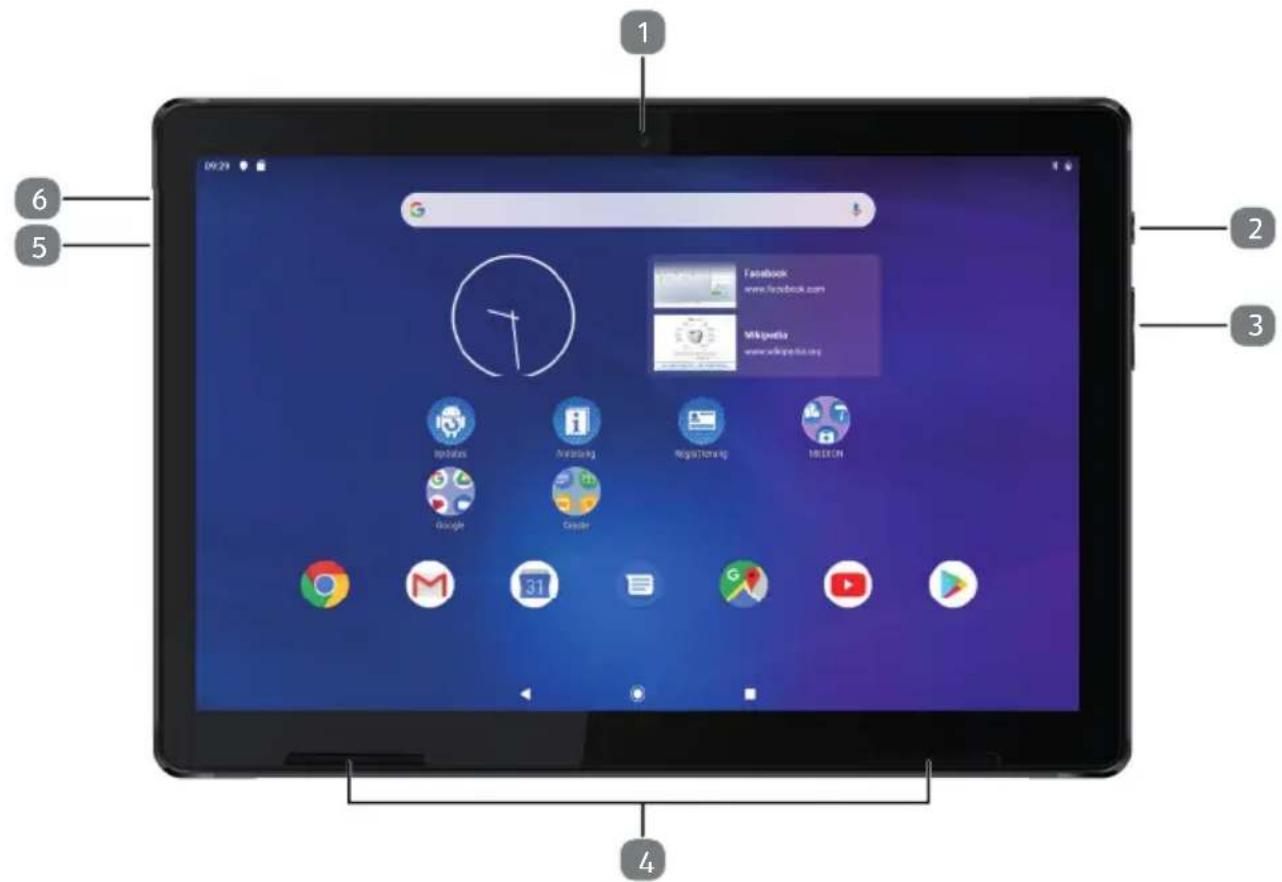
1) Front camera
2) On/Off button
3) Increase (+) volume, decrease (-) volume
4) Loudspeaker
5) USB port
6) Microphone
5.2. Top
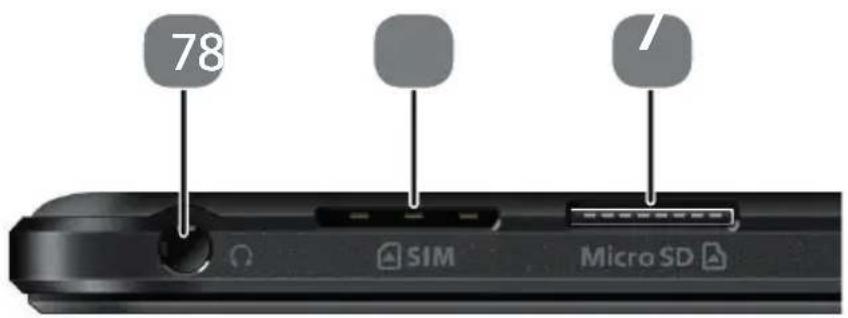
7) Headphone socket
8) Micro SIM card slot
9) Micro SD card slot
5.3. Bottom
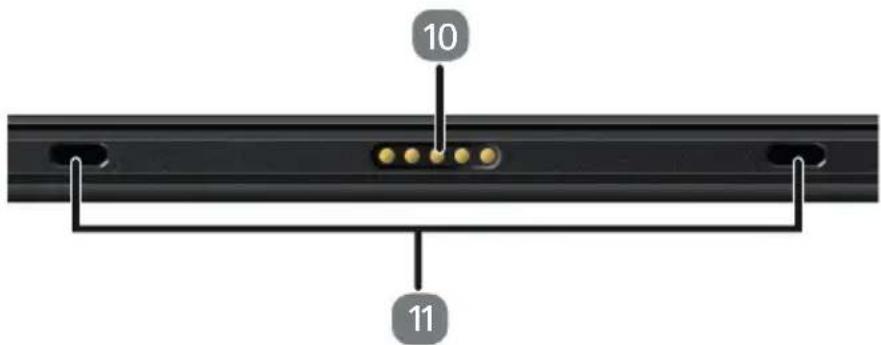
10) Contacts for connecting to the MEDION® keyboard dock (optional accessory; included with some device models)
11) Recesses for stabilisers on the MEDION® keyboard dock (optional accessory; included with some device models)
5.4. MEDION® keyboard dock \*\*
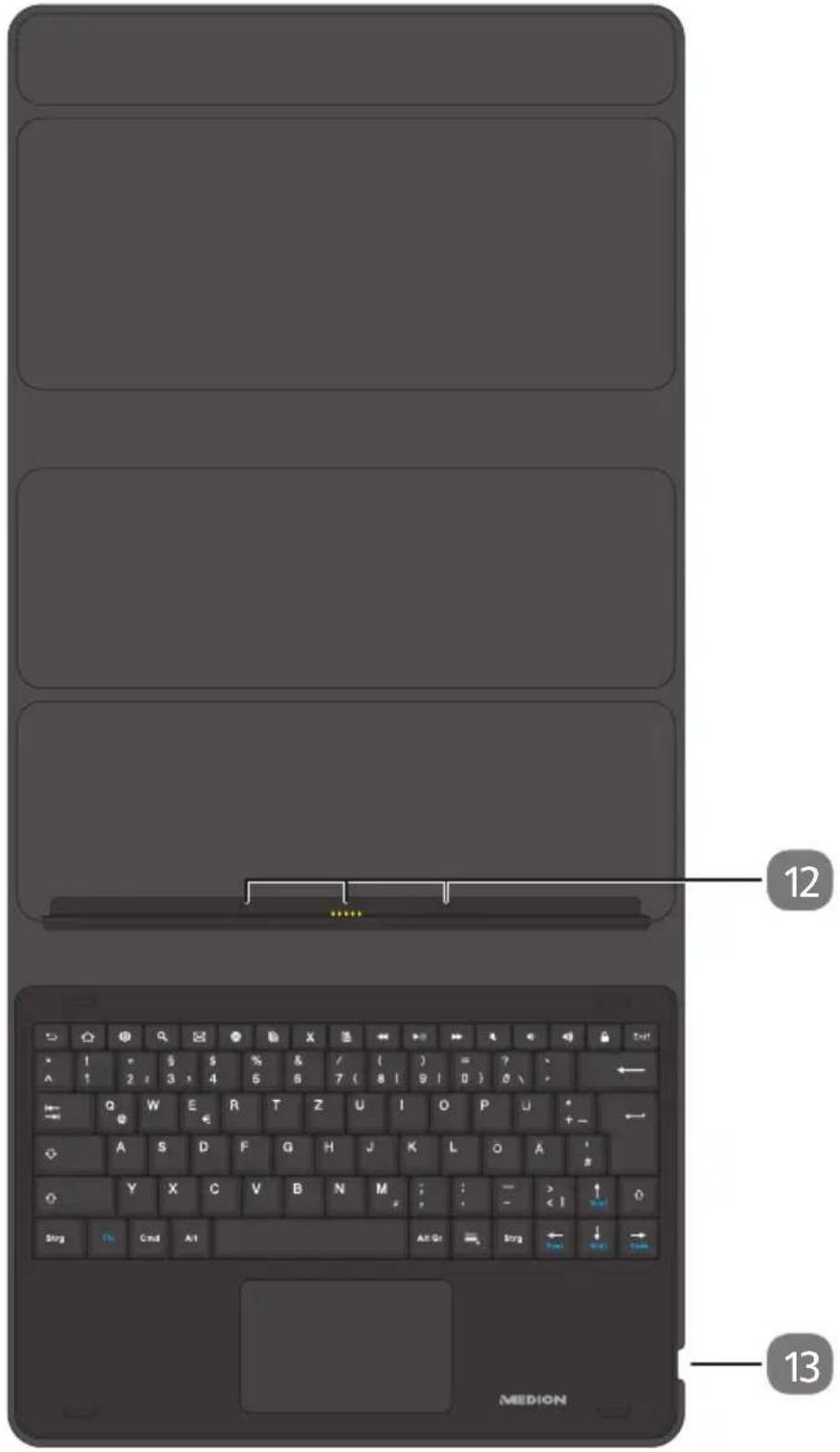
(Keyboard layout will vary in different countries)
12) Stabilisers and contacts for connecting the tablet PC
13) Micro USB port
6. Preparing for first use
6.1. Power supply

NOTICE!
Risk of damage!
There is a risk of causing damage to the device by using unauthorised accessories.
▶ Only ever use the mains adapter supplied with the tablet PC.
Your tablet PC comes with a universal mains adapter. The following range is supported: AC 100–240 V\~50/60 Hz alternating current
For more information on this, refer to section "2.2. Information regarding the mains adapter" on page 7.
The mains adapter supplies the tablet PC with power and charges the battery.

The battery will also be charging when you are using the tablet PC with the mains adapter connected. If the mains adapter is plugged into the mains socket, it will still use a small amount of electricity even if the tablet PC is not connected to the mains adapter. Make sure that you disconnect the mains adapter from the mains power supply when it is not connected to the tablet PC for that reason.
6.2. Charging the battery
The tablet PC has an integrated rechargeable lithium-ion battery that you can charge up using the mains adapter supplied.

The rechargeable battery is an integral component of the device and users must not replace it themselves.
▶ Charge the battery up fully before using the tablet PC for the first time.
▶ Always charge the tablet PC battery up fully when it has run out of charge.
To charge the battery, proceed as follows:
Connect the supplied USB cable to the corresponding USB port on the tablet PC. Ensure that the connector is the right way round when you plug it into the port. Do not apply any force.
▶ Plug the other end of the cable into the USB port on the mains power adapter supplied.
- Connect the mains power adapter to a mains socket that is always easily accessible from the device.

The battery will automatically be charged whenever the mains adapter is connected regardless of whether the tablet PC is switched on or off. If the tablet PC is switched on, it will take much longer to charge the battery.
7. Operation
7.1. Switching on the tablet PC
▶ Press and hold the On/Off button until the display lights up.
If necessary, enter the four- to eight-digit PIN code for the inserted SIM card and tap to confirm.
▶ If you make a mistake, tap x.
7.2. Operating the tablet PC
Use your fingertips to operate the tablet PC. Do not use any sharp or pointed objects.
Tap the display to select and open apps.
▶ Use your finger to swipe the display to move the content on the screen up, down, left or right.
▶ Move two fingers apart across the display or double-tap on the display to zoom in/zoom out on a website.
7.3. Using the device for the first time
Proceed as follows when switching on your tablet PC for the first time:
▶ Select the desired Language and tap START.
▶ Follow the further instructions to complete the initial set-up process for your tablet PC.

During the set-up process, you may be prompted to update the software on your device. Such updates are used to perform troubleshooting and optimise the software. Updates will be run automatically once you have agreed to them. Start the Updates app after the initial installation to ensure that the software is completely up to date. Use the Updates app to check for available updates at regular intervals.
7.4. Putting the tablet PC into sleep mode
▶ Briefly press the On/Off button once to put the tablet PC into sleep mode.

Some apps will continue to use power even when the device is in sleep mode. The device usually remains ready for use in sleep mode for several days before it needs to be connected to the mains adapter.
7.5. Lock screen
The device is locked when it is in sleep mode. This means that you will need to pass a security measure when you switch the device back on.
The default setting simply requires you to swipe up on the display.
You do, however, also have the option of setting a password or other security measure on your tablet PC by changing the system settings under Security & location > Screen lock.
7.6. Home screen
The home screen appears when your tablet PC is started up properly with no other apps running in the foreground. Shortcuts and widgets for apps appear on the home screen. You will see some of these elements on the home screen when you start up your tablet PC for the first time. The search bar (1) and the navigation bar (2) also appear here amongst other things for ease of use.
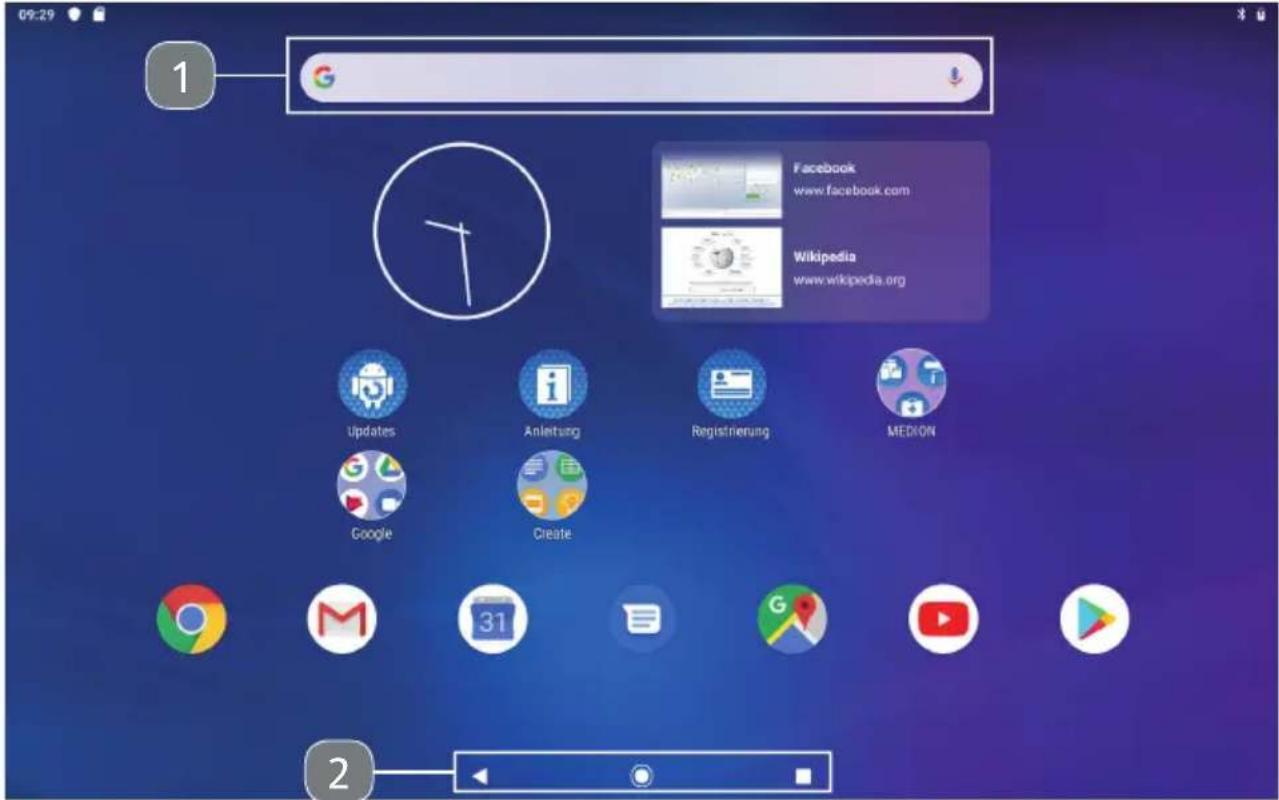
(Similar to illustration)
7.6.1. Search bar
▶ Type into the search bar (1) to start an online search on Google™.
You can search through everything that is saved on your tablet PC (e.g. your contacts and installed applications) as well as searching the internet. Autocomplete suggestions will appear as you type into the search bar.
Tap the 🤨 icon to start a Google™ search by voice.
Speaking into the microphone in your tablet PC, say what you would like to search for.
7.6.2. Navigation bar
The following icons appear in the navigation bar (2), which you can find at the very bottom of the home screen:
| Icon Description | |
 | Back button:You can use this icon to return to a previous view in most apps (just like on an internet browser). |
 | Home button:You can use this icon to push the current app into the background, so you can return to the home screen.Please note that apps that have been pushed into the background may still use storage and processor resources. |
 | Recently used apps:You can use this icon to obtain an overview of the apps you have used recently. This practical view also allows you to switch between the different apps that appear there. |
7.7. Basic use of the Android ^TM software
Tap an element on the home screen to launch the relevant app or to find out further information.
▶ Hold your finger on an app element and drag it to move it to a different position on the home screen.

Some apps come up with specific quick settings options if you press and hold the element for a bit longer. For example, you may be able to uninstall the selected app or view the app details this way.
▶ Swipe up from anywhere at the bottom of the home screen to open up an overview of all of the apps installed on the device.
▶ Press and hold an app element in this overview and drag it to the bottom of the screen. Stop holding down once you have reached the position on the home screen where you would like to create a shortcut.
7.8. Home screen pages
The home screen can by extended onto several pages or desktops that you can access by using your finger to swipe to the left.
▶ You can also press and hold an app shortcut, for example, and then drag it to the right of the screen to move it onto the next desktop.
7.9. Status bar
The status bar is located at the very top of the display. It is divided up into a left-hand and right-hand section.
Right-hand section of the status bar:
 | Flight mode on (all radio connections are disabled in flight mode) |
 | Battery charge level |
| [DBWS] | Battery charge level, battery charging |
| [TA40] | Energy-saving mode on |
| [ZOHS] | Active Bluetooth connection to another Bluetooth-enabled device |
| [8X6H] | Wi-Fi connected |
 | Do not disturb mode on (ringtones and vibration are disabled for any messages received) |
 | Streaming on |
| [SAWX] | Location detection on (an app is actively using enabled location detection) |
The time is displayed on the left-hand side.
This is also where all kinds of warnings, updates and notifications appear, including:
- downloads that are in progress/ready
• screenshots that have been taken
- applications that are running
- emails that have been received.
If you wish to view these notifications in more detail, use your finger to swipe down from the top of the screen.

It is also possible to tap some of these notifications to open apps or view further details.
7.10. Quick settings
Quick settings provides a quick way to change frequently used settings.
▶ Swipe down from the top of the display to open the quick settings menu.
▶ Once the window has opened, swipe down again to see more quick settings options.
Each setting has an icon and a name.
Tap the relevant icon to enable/disable the setting. This is a quick way of enabling/disabling Wi-Fi, for example.
▶ Press and hold an icon to access the advanced settings, such as the Wi-Fi configuration.
The following quick settings options are available as standard:
 | Increase/decrease display brightness |
 | Enable/disable Wi-Fi |
 | Switch Bluetooth on/off |
 | Enable/disable do not disturb mode |
 | Switch auto-rotate screen (portrait/landscape orientation) on/off |
| [S+40] | Switch energy-saving mode on/off |
| [S+82] | Switch flight mode on/off (all radio connections are disabled in flight mode) |
| [S+44] | Switch streaming (screen sharing on another device) on/off |
Tap to add further quick settings options, such as location detection (switch GPS on/off), or to remove existing options from the quick settings menu.
Tap the icon to manage the user and profile settings.
7.11. System settings
▶ Open the Settings app to change the system settings on your Android device, e.g. configure Wi-Fi, manage apps and update security settings.
▶ Alternatively, in the quick settings menu, tap 🔒 to open up the advanced settings.
7.12. Software updates
Updates are used to optimise the system performance. If there is an update ready to download for your device software, a notification will automatically appear in the status bar on your tablet PC. Updates usually require an internet connection and will only be installed automatically once you have agreed to them.
You can also check for available updates yourself by opening the Updates app.

Individual apps are usually updated automatically via the Google Play Store.
7.13. Enabling WLAN
We recommend that you follow the steps below to connect the tablet PC to a Wi-Fi network:
▶ Swipe down from the top of the display to open up the quick settings.
▶ Press and hold ▼ to access the Wi-Fi configuration settings.
Tap the switch icon to the right of the Use Wi-Fi option to enable Wi-Fi as required.
A list of all of the available Wi-Fi access points near you will then appear.
Tap the name of a network that you recognise. If the network is encrypted, you will be asked to enter a password to gain access. The password will be case-sensitive so take care when typing it in.
If the network you wish to connect to is not visible, you can always add it by tapping + Add network. You will need to know the exact name (SSID) of the network.
You will know when your device has been connected to the network access point because the icon will appear in the status bar.
7.14. Enabling Bluetooth ^®
Bluetooth allows for a direct wireless connection to be established between two devices for the purpose of exchanging data. The devices usually need to be no more than a few metres away from one another in an enclosed space. This is how you can connect Bluetooth keyboards and headsets to your tablet PC, for example.
We recommend that you follow the steps below to set up a Bluetooth connection between your tablet PC and another Bluetooth-enabled device:
Enable Bluetooth on the Bluetooth-enabled device you want to connect to.
☐ Swipe down from the top of the display to open up the quick settings.
□ Start by briefly tapping ✗ once to enable Bluetooth on your tablet PC.
Press and hold ✝ to open the Connected devices menu entry.
Tap + Pair new device.
Your tablet PC can now be found by other Bluetooth-enabled devices and you will see a list of all of the available Bluetooth-enabled devices near you.
Tap the name of a device that you recognise to connect your tablet PC to it.
☐ You may be asked to follow certain steps to ensure that a secure connection is established – this will depend on the device and the Bluetooth standard. Follow the instructions on the screen.

If you have connected your tablet PC to the same Bluetooth-enabled device before, you will also have the option of selecting it directly from the list of previously connected devices when you want to reconnect.
7.15. Switching off the tablet PC
Press and hold the On/Off button and tap ⏻Power off.
Your tablet PC will switch off.
8. Google Play Store
The Google Play Store is a platform operated by Google™, where Android users can download games, apps, films, music, books and other digital content for their devices. There is a charge for some of the content, but there is plenty available for free too.

If you want to use the Google Play Store, you will need to have a free Google user account. If you don't yet have an account, you will be prompted to set one up when you first open one of the Google apps.
9. Connecting the tablet PC to a PC
You can connect your tablet PC to a PC using the supplied USB cable so that data can be transferred between the two devices.
Plug the micro USB connector on the USB cable into the corresponding port on the tablet PC and then plug the USB connector into an empty USB port on your PC.
▶ Then swipe down from the top of the display to open up the notification window.
▶ Quickly tap twice on the Android system message giving you a USB charging update for the device to open the USB usage settings.
▶ Choose what you would like to do with the USB connection.

Select File Transfer if you would like to view your tablet PC as a mass storage device on your PC and transfer data.
10. External storage media
You can use external storage media with your tablet PC. The following types of storage media are compatible:
- Micro SD memory cards
- USB memory devices, such as USB sticks and USB hard drives
If you wish to use USB storage devices, you will need a compatible OTG adapter (not supplied).
The maximum output current at the USB port is 5 V, 500 mA.
If you would like to connect an external hard drive, you may need to provide an additional power supply for the hard drive depending on the model.
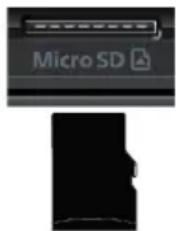
10.1. Inserting a micro SD memory card
Insert the micro SD memory card into the relevant slot until it clicks into place. The contacts should be facing up towards the display.
10.2. Setting up a micro SD memory card for the first time
When you insert an unknown micro SD memory card into the tablet PC, the symbol appears in the top left-hand corner of the status bar.
▶ Swipe down from the top of the display to open up the notification window.
▶ Tap SET UP in the notification for the SD card.
▶ Next, select whether you would like to use the inserted micro SD card as extra tablet storage or portable storage.

If you decide to use the inserted memory card as tablet storage, it will be used in addition to the device's internal memory.
This means that you may not be able to access saved data and apps when the memory card is not inserted. Data stored on the memory card is also encrypted by the tablet PC and cannot be read by other devices.
ATTENTION: If the tablet PC is reset to factory settings, it will no longer be possible to access the data on this micro SD memory card on this tablet PC either.

If you decide to use the inserted memory card as portable storage, you will still be able to use the card to transfer data between devices.
ATTENTION: If the Android system does not recognise the file format, you will be given the option of formatting the micro SD memory card. This will delete all of the data stored on the memory card!
10.3. Removing the micro SD memory card
Tap the Settings app and then the Storage subitem.
In the Portable storage submenu, tap ▲ next to the SD card that appears to prepare it to be removed safely.
▶ Then gently push the micro SD memory card.
The memory card will be released and stick out of the slot a little.
▶ Carefully pull the memory card to remove it.

NOTICE!
Risk of data loss!
There is a risk of data being lost if you do not remove storage media safely.
▶ Never remove an external storage medium from the device without following the steps for safe removal, as there is a risk of data being lost.
10.4. Connecting a USB memory device
Connect the OTG adapter (not supplied) to the tablet PC.
Connect the USB stick to the OTG adapter.
The ⬤ icon will appear in the top left-hand corner of the status bar when the USB memory device has been connected.
10.5. Removing the USB memory device
Tap the Settings app and then the Storage subitem.
In the Portable storage submenu, tap ▲ next to the USB memory device that appears to prepare it to be removed safely.
Carefully pull the OTG adapter out to remove the USB memory device.

NOTICE!
Risk of data loss!
There is a risk of data being lost if you do not remove storage media safely.
▶ Never remove an external storage medium from the device without following the steps for safe removal, as there is a risk of data being lost.
11. MEDION® keyboard dock\*\*\*
The MEDION® keyboard dock is a multi-mode case with a built-in keyboard and touchpad for your MEDION® LIFETAB.
The keyboard dock is physically connected to the tablet PC via contacts. There is no need to set up a Bluetooth® connection between the two devices. The tablet PC powers the keyboard dock, as it does not have its own battery. There are a number of points to bear in mind when setting up and using the device. These points are outlined below.
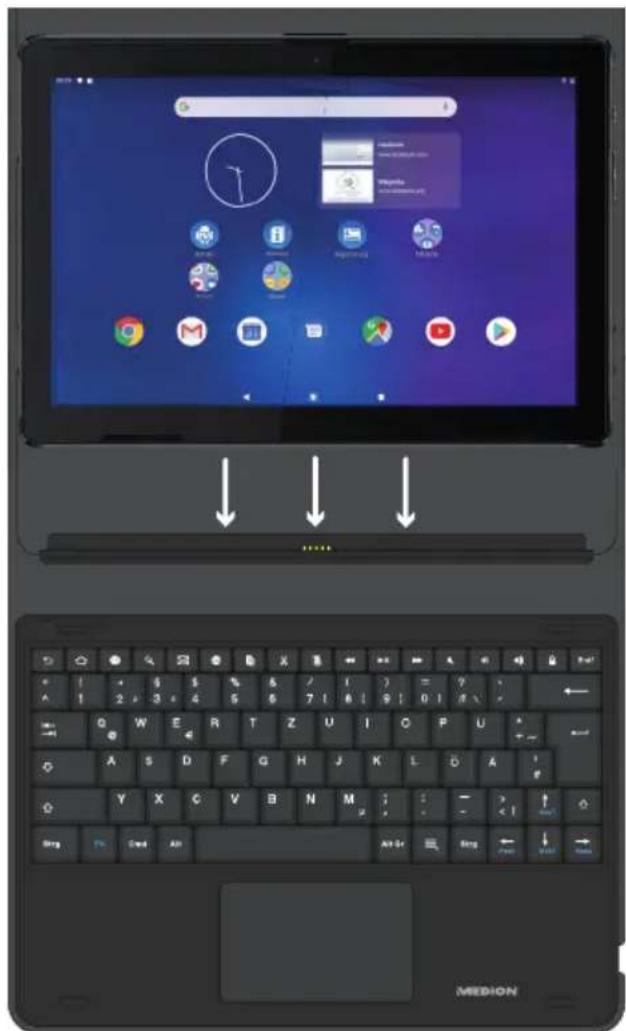
11.1. Inserting the tablet PC into the keyboard dock
Place the tablet PC centrally on the contacts and stabilisers on the keyboard dock as shown.
11.2. Angle of the tablet PC standing in the keyboard dock
You can position your tablet PC at different angles in the keyboard dock.
The different positions are shown in the image below:
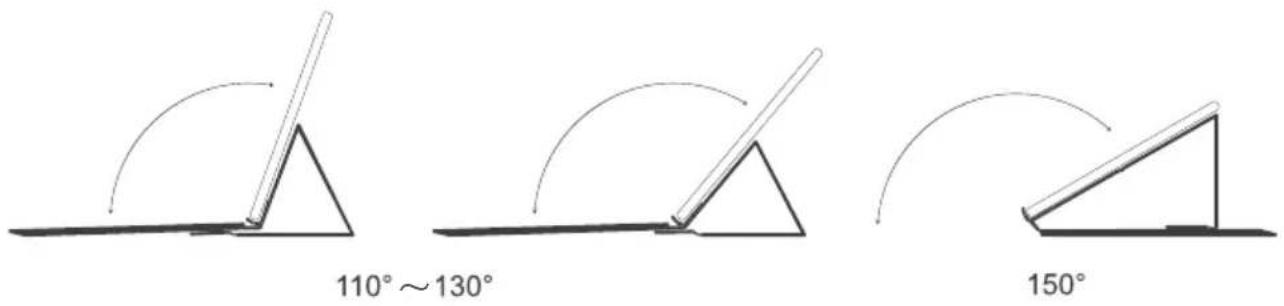

There are marks on the keyboard dock to help you position the tablet PC at the perfect angle.

Enable the virtual keyboard if you want to type when the tablet PC is in the 150° position.
11.3. Setting the key assignment
When you first use the keyboard dock with your tablet PC, the key assignment may not be to your liking. You can test this out by pressing the "y" and "z" keys or um-lauts.
There are various ways of permanently changing the way the keys are assigned:
1) Open the notification in the status bar at the very top of the screen. or
2) Open the Settings app and then select Languages & input under System followed by Physical keyboard.
The keyboard will then be shown as "Android USB KeyBoard" when it is connected to the tablet PC.
▶ Select your preferred keyboard layout under GBoard - Multilingual input.

This assignment will be retained even if you temporarily disconnect the keyboard dock from the tablet PC.
11.4. Specific instructions for using the tablet PC with the keyboard dock
When using the tablet PC with the keyboard dock, you can only use the USB port on the tablet PC for charging. You will not be able to transfer data this way. There is a USB port on the keyboard that you can use to transfer data instead.

NOTICE!
Risk of damage!
▶ Always use the USB port on the tablet PC to charge/operate both devices with the mains power adapter.
It is not possible to charge/operate both devices using the USB port on the keyboard dock.
If the keyboard dock is not connected, use the USB port on the tablet PC to share data with a PC (PTP, MTP) or to connect data media like USB sticks using a suitable OTG adapter (not supplied).
If the keyboard dock is connected, use the USB port on the keyboard to connect data media like USB sticks using a suitable OTG adapter (not supplied). It is not possible to share data with a PC when the keyboard dock is connected.
11.5. Special keys on the keyboard dock keyboard
The keyboard dock has a number of special keys that you can use as shortcuts for frequently used features:
| Key Description | |
 | Back buttonYou can use this key to return to a previous view in most apps (just like on an internet browser). |
 | Home buttonYou can use this key to push the current app into the background, so you can return to the home screen.Please note that apps that have been pushed into the background may still use storage and processor resources. |
 | SettingsYou can use this key to access the Android system settings. |
 | GoogleTMsearchYou can use this key to perform an online search on Google. |
 | EmailYou can use this key to open your email program. |
 | Internet browserYou can use this key to open your internet browser. |
 | CopyYou can use this key to copy selected text. |
 | CutYou can use this key to cut selected text. |
 | PasteYou can use this key to paste copied or cut text. |
 | Previous media fileYou can use this key to go back to the previous item in a music or video playlist. |
 | Play/PauseYou can use this key to pause/play a song or video. |
 | Next media fileYou can use this key to skip forwards to the next item in a music or video playlist. |
 | MuteYou can use this key to switch the sound on or off. |
 | Turn down volumeYou can use this key to turn down the volume. |
 | Turn up volumeYou can use this key to turn up the volume. |
 | Lock/sleep modeYou can use this key to lock the tablet PC and put it into sleep mode. |
 | Menu/unlockYou can use this key to access menus in some apps and also unlock the tablet PC when you see the lock screen. |
 | Jump to the startYou can use this combination of keys to jump to the start of a line of text or a website. |
 | Jump to the endYou can use this combination of keys to jump to the end of a line of text or a website. |
 | Scroll upYou can use this combination of keys to gradually scroll up through a website or document. |
 | Scroll downYou can use this combination of keys to gradually scroll down through a website or document. |
11.6.Touchpad

NOTICE!
Risk of damage!
Do not use unsuitable objects to operate the device, as there is a risk of permanent damage being caused to the touchpad.
Do not use pens or other objects, as this may cause damage to your touchpad.
12. Frequently asked questions
How do I reset the tablet PC to factory settings?
Tap Settings > System > Advanced > Reset options > Erase all data (factory reset) to reset the system to factory settings.

NOTICE!
Loss of data!
When you do this, all of the data on the tablet PC's internal memory will be deleted.
Make sure you back up your personal data, such as music and photos, on an external storage medium beforehand.

It is only possible to reset the device to factory settings from the owner's user account.
What can I do to maximise battery life?
▶ Reduce the display brightness to a moderate level.
Switch off WLAN and Bluetooth® when you are not using those features.
Tap Settings > Display > Sleep to reduce the setting for the amount of idle time before the display switches off.
How do I switch off the tablet PC when the system is locked?
▶ Press and hold the On/Off button for more than 10 seconds until the device switches off.
You can then switch your tablet PC on again as normal.
What should I do if the display is not clear or photos/videos taken are not being shown clearly?
▶ Make sure that the protective film has been removed from the device display.
▶ Make sure that the camera lens is clean and dry. Clean it with a soft, lint-free cloth if necessary.
What should I do if a micro SD memory card is not being read?
▶ Try inserting the micro SD memory card into the relevant card slot again and re-start the tablet PC.
Larger storage media have to be indexed and loaded by the system first, which may take a few minutes.

There are so many different micro SD memory cards available on the market that we cannot guarantee compatibility with all of them. You can always try a different memory card.
Why are Bluetooth and WLAN disabled?
▶ Check whether flight mode Airplane mode has been activated. If so, all radio connections, including Bluetooth and WLAN, will have been disabled. Switch flight mode off.
Why are videos being recorded with a resolution of 1280 x 720 pixels (HD)?
The default setting for the video resolution on your tablet PC is 1280 x 720 pixels (HD).
Proceed as follows to change the resolution of videos you record:
▶ Open the camera app on your tablet PC.
▶ Select the Video option within the image preview.
▶ Next, ta within the image preview and then tap in the next view to access the video settings menu.
Tap the Video quality menu item to select the video resolution you want, e.g. FHD (1920 x 1080).
The selected camera will use the resolution you have set for videos from now on.
12.1. Cleaning and care
You can increase the lifespan of your device by taking the following measures:
▶ Always unplug the mains power adapter and disconnect all cables before cleaning.
Do not use solvents or corrosive or gaseous cleaning agents.
▶ Only ever use suitable cleaning agents to clean the display and touchpad, e.g. glass or monitor cleaner (available from specialist retailers).
Clean the tablet PC display and the keyboard dock with a soft, lint-free cloth.
▶ Do not place the display in strong sunlight or near ultraviolet light.
Take care to ensure that no water droplets remain on the device. Water can cause permanent discolouration.
When transporting the tablet PC, place it inside a suitable case that is the right size (not supplied).
13. Storing the device when not in use
It is important to store the tablet PC and keyboard dock properly if you do not intend to use them for a prolonged period:
- Store your tablet PC and the keyboard dock in a clean and dust-free place.
▶ Ensure that the tablet PC is switched off and store at a temperature of between 0^ C and +60^ C and relative air humidity of between 20% and 80% (non-condensing).
▶ Perform a complete discharge/charge cycle once a month. After charging has finished, completely switch off the tablet PC. - Store the tablet PC with the battery charged to about 50% of its maximum capacity. This prevents the battery from completely discharging and becoming permanently damaged.
14. EU – Declaration of Conformity

MEDION AG hereby declares that this device complies with the fundamental requirements and the other relevant provisions of:
• Radio Equipment Directive 2014/53/EU
• Ecodesign Directive 2009/125/EC (and Ecodesign Regulation 2019/1782)
• RoHS Directive 2011/65/EU
You can download the complete EU Declaration of Conformity at www.medion.com/conformity.
Due to the 5 GHz frequency range of the integrated wireless LAN solution, the device may only be used inside buildings in the EU (see table).
 | ||||
| AT BE | BG CZ | DK | ||
| EE FR | DE IS IE | |||
| IT EL | ES CY LV | |||
| LI LT | LU HU | MT | ||
| NL | NO | PL | PT | RO |
| SI SK | TR | FI SE | ||
| CH | UK | HR | ||
AT = Austria, BE = Belgium, CZ = Czech Republic, DK = Denmark, EE = Estonia, FR = France, DE = Germany, IS = Iceland, IE = Ireland, IT = Italy, EL = Greece, ES = Spain, CY = Cyprus, LV = Latvia, LT = Lithuania, LU = Luxembourg, HU = Hungary, MT = Malta, NL = Netherlands, NO = Norway, PL = Poland, PT = Portugal, RO = Romania, SI = Slovenia, SK = Slovakia, TR = Turkey, FI = Finland, SE = Sweden, CH = Switzerland, UK = United Kingdom, HR = Croatia
14.1. Trademark information
The Bluetooth ^® word mark and logos are registered trademarks of Bluetooth SIG, Inc. and are used by MEDION under licence.
The Android ^™ word mark and logos are registered trademarks of Google LLC and are used by MEDION under licence.
The USB ^™ word mark and the logos are registered trademarks of the USB Implementers Forum, Inc. and are used by MEDION under licence.
Other trademarks are the property of their respective owners.
15. Technical specifications
| Dimensions (W x H x D)/weight | |
| Tablet PC 247 x 171 x 8.6 mm/484 g | |
| Mains adapter | |
| Manufacturer Aquilstar, China | |
| Model ASSA55e - 050200 (EU) | |
| Input voltage/current/frequency 100–240 V ~ 0.45 A 50–60 Hz | |
| Output voltage/current 5 V | ·s 2 A |
| Alternative mains adapter | |
| Manufacturer KTEC, China | |
| Model KSC-10A-050200HE | |
| Input voltage/current/frequency 100–240 V ~ 0.45 A 50–60 Hz | |
| Output voltage/current 5 V | ·s 2 A |
| Battery (built-in) | |
| Model Li-ion | |
| Capacity 3.8 V/6000 mAh/22.8 Wh | |
| Ambient conditions | |
| Temperatures: In operation +5°C to +30°C | |
| Temperatures: Not in operation 0°C to +60°C | |
| Relative humidity 20% to 80% | |
| Display | |
| Type | 25.5 cm/10" IPS panel |
| Native resolution | 1920 x 1200 pixels |
| Display colours | 16 million (with 8 Bit) |
| Technical specifications | |
| Operating system | AndroidTM 9 (Pie) |
| Bluetooth® version | 5.0 |
| Technical specifications | |
| Bluetooth profiles | GATT, HFP, A2DP, HID, HDP, PAN, HSP, OPP, HBAP, AVRCP |
| Bluetooth range | Up to 10 metres (depending on ambient conditions) |
| Processor Quad Core (2 GHz) | |
| Expandable memory Micro SD card, max. | 128 GB |
| Headphone output voltage Max. 150 mV | |
| Power supply via mains adapter (in operation) | Up to 12 W (charging) |
| Power supply via mains adapter (in sleep mode) | Up to 7 W (charging) |
| Power supply via mains adapter (switched off) | Up to 7 W (charging),<0.5 W when fully charged |
| RAM | |
| Model E10700 (MD 61761) 2 GB | |
| Model E10702 (MD 61614) 3 GB | |
| Model E10703 (MD 61762) 3 GB | |
| Model E10704 (MD 61764) 3 GB | |
| Internal memory | |
| Model E10700 (MD 61761) | 32 GB,with around 25 GB available to use |
| Model E10702 (MD 61614) | 32 GB,with around 25 GB available to use |
| Model E10703 (MD 61762) | 64 GB,with around 57 GB available to use |
| Model E10704 (MD 61764) | 64 GB,with around 57 GB available to use |
| Video formats supported by Android^TM | |
| MP4V/MPEG-4 (licence 2), AVC1 (licence 6)/H.264, HEVC/H.265 (licence 7), H.263, MP2V/MPEG2 (only MPEG-TS), VC1/WMV9 (WMV3) (licence 3), VP80/VP8, VP9 | |
| Audio formats supported by Android^TM | |
| AAC, HE-AAC v1, HE-AAC v2, AMR, AWB, MIDI, MP3, OGG VORBIS, WAV, FLAC | |
| Front camera | |
| Resolution 5 megapixels | |
| Video resolution 1920 x 1080 pixels | |
| Connections | |
| Headphones 3.5 mm, CTIA | |
| USB port | |
| Model E10700 (MD 61761) USB 2.0 type C, 5 V --- max. 500 mA | |
| Model E10702 (MD 61614) Micro USB 2.0, 5 V max. 500 mA --- | |
| Model E10703 (MD 61762) USB 2.0 type C, 5 V max. 500 mA --- | |
| Model E10704 (MD 61764) USB 2.0 type C, 5 V max. 500 mA --- | |
| Sensors | |
| Acceleration sensorGPS receiver | |
| Technical specifications for the MEDION® keyboard dock | |
| Dimensions (W x H x D) 256 x 191 x 22 mm | |
| Weight 589 g | |
| USB port Micro USB 2.0, 5 V | --- max. 500 mA |
15.1. Information about the radio technology used
Frequency range: 2.4 GHz/5 GHz
WLAN standard: 802.11 a/b/g/n/ac
Encryption: WEP/WPA/WPA2
Mobile network standard: 4G (LTE)
| Band Max. transmitting power/dBm | |
| WLAN 2.4 GHz 17.2 | |
| WLAN 5 GHz | 16.4 |
| Band Max. transmitting power/dBm | |
| Bluetooth® 9.0 | |
| GSM900 27.32 | |
| DSC1800 22.69 | |
| WCDMA B1 22.30 | |
| WCDMA B8 24.83 | |
| LTE B3 24.52 | |
| LTE B7 22.96 | |
| LTE B20 25.43 | |
16. Disposal

PACKAGING
Your device has been packaged to protect it from damage in transit. The packaging is made of materials that can be recycled in an environmentally friendly manner.
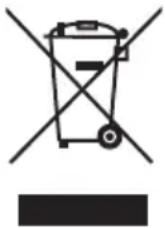
DEVICE
Do not dispose of old devices in normal household waste.
In accordance with Directive 2012/19/EU, these devices must be disposed of correctly at the end of their service life. This involves separating the materials in the devices for the purpose of recycling and minimising the environmental impact. Take old devices to a collection point for electrical scrap or a recycling centre.
Contact your local waste disposal company or your local authority for more information on this subject.
The integrated battery cannot be removed. Take the entire device for disposal. At the end of its service life, do not dispose of the device in the normal household rubbish. Instead, contact your local authority to find out how to dispose of it in an environmentally friendly manner at collection points for electrical and electronic scrap. The crossed-out wheelie bin symbol means that the battery must not be disposed of with household rubbish.
17. Legal notice
Copyright © 2019
Date: 19.12.2019
All rights reserved.
This user manual is protected by copyright.
Mechanical, electronic and any other forms of reproduction are prohibited without the written permission of the manufacturer.
Copyright is owned by the distributing company:
MEDION AG
Am Zehnthof 77
45307 Essen
Germany
Please note that you cannot use the above address for returns. Please always contact our Customer Service team first.
18. Privacy statement
Dear Customer,
We wish to inform you that we, MEDION AG, Am Zehnthof 77, 45307 Essen, Germany process your personal data as a data controller.
For matters regarding data protection, we are supported by our company data protection officer, who can be contacted at MEDION AG, Datenschutz, Am Zehnthof 77, D – 45307 Essen; datenschutz@medion.com. We process your data for the purpose of warranty processing and associated processes (e.g. repairs) and rely on the sales contract concluded with us when processing your data.
Your data will be provided to repair service providers contracted by us for the purpose of warranty processing and associated processes (e.g. repairs). We generally store your personal data for a period of three years in order to fulfil your legal warranty rights.
You have the right to be informed of the personal data concerned as well as the right to rectification, erasure, restriction of processing, the right to object to processing and the right to data portability.
In the case of the right to be informed and the right to erasure, restrictions apply according to paragraphs 34 and 35 of the BDSG (Federal Data Protection Act) (Art. 23 of the GDPR). In addition, there is a right of appeal to a competent data protection supervisory authority (Article 77 of the GDPR in conjunction with paragraph 19 of the BDSG). For MEDION AG, this is the state official for data protection and freedom of information North Rhine-Westphalia, PO box 200444, 40212 Düsseldorf, Germany, www.ldi.nrw.de.
The processing of your data is necessary for warranty processing: it is not possible to process the warranty without the provision of the required data.
19. Licence information
Parts of this product are based on open-source software. The use of this software falls under Version 2 of the GNU General Public Licence (GPL). This means that the manufacturer is obliged to make the corresponding source code, which may have been updated, available under this licence too.
You can access the source code for this product in the following ways:
- Visit the MEDION Service page on the website
(http://www.medion.com/de/service/start) and type the name, MD number or MSN number of your device into the search box. You can find this information on the back of your device. Select the "Software" category in the window that appears next. - Alternatively, we can provide you with the source code on a data medium at no cost to you. If you would like us to do this, please send an email to opensource@medion.com or give us a call on +49 (0)201 22099-345 (there will be no additional charges on top of the standard fees charged by your telephone provider).
Please note that the source code is only of interest to software developers. Regular users of the product do not normally need it.
You can read the full GPL text on the device here:
Settings/System/Advanced/About the Tablet/Legal Information.
You can find further information on the GPL and official translations into a range of languages at: http://www.fsf.org/licensing.

- Table of Content
- About this user manual .... 3
- Safety information
- Specific safety instructions for the tablet PC 11
- Package contents
- Device overview
- Preparing for first use 17
- Operation 1
- Google Play Store 25
- Connecting the tablet PC to a PC 26
- External storage media 26
- MEDION® keyboard dock 29
- Frequently asked questions.... 34
- Storing the device when not in use.... 35
- EU – Declaration of Conformity 36
- Technical specifications 38
- Disposal 41
- Legal notice 42
- Privacy statement 43
- Licence information 44
- About this user manual
- Explanation of symbols
- DANGER!
- WARNING!
- NOTICE!
- Protection class II
- Proper use
- Restricted group of people
- Risk of injury!
- Risk of choking and suffocation!
- Damage to hearing!
- Information regarding the mains adapter
- Risk of electric shock!
- Risk of fire!
- Restricted use
- Information on the integrated rechargeable battery
- WARNING! Risk of explosion!
- WARNING! Risk of chemical burns!
- General instructions on how to handle lithium-ion batteries
- Specific safety instructions for the tablet PC
- Data backup
- NOTICE! Risk of data loss!
- Information regarding the display
- If there are defects
- 4.Packagecontents
- Front
- Top
- Bottom
- MEDION® keyboard dock \*\*
- Preparing for first use
- Power supply
- Risk of damage!
- Charging the battery
- Operation
- Switching on the tablet PC
- Operating the tablet PC
- Using the device for the first time
- Putting the tablet PC into sleep mode
- Lock screen
- Home screen
- Search bar
- Navigation bar
- Basic use of the Android TM software
- Home screen pages
- Status bar
- Quick settings
- System settings
- Software updates
- Enabling WLAN
- Enabling Bluetooth ®
- Switching off the tablet PC
- Google Play Store
- Connecting the tablet PC to a PC
- External storage media
- Inserting a micro SD memory card
- Setting up a micro SD memory card for the first time
- Removing the micro SD memory card
- Risk of data loss!
- Connecting a USB memory device
- Removing the USB memory device
- MEDION® keyboard dock\*\*\*
- Inserting the tablet PC into the keyboard dock
- Angle of the tablet PC standing in the keyboard dock
- Setting the key assignment
- Specific instructions for using the tablet PC with the keyboard dock
- Special keys on the keyboard dock keyboard
- 11.6.Touchpad
- Frequently asked questions
- How do I reset the tablet PC to factory settings?
- Loss of data!
- What can I do to maximise battery life?
- How do I switch off the tablet PC when the system is locked?
- What should I do if the display is not clear or photos/videos taken are not being shown clearly?
- What should I do if a micro SD memory card is not being read?
- Why are Bluetooth and WLAN disabled?
- Why are videos being recorded with a resolution of 1280 x 720 pixels (HD)?
- Cleaning and care
- Storing the device when not in use
- EU – Declaration of Conformity
- Trademark information
- Technical specifications
- Information about the radio technology used
- Disposal
- PACKAGING
- DEVICE
- Legal notice
- Privacy statement
- Licence information
Brand : MEDION
Model : LifeTab E10700 (MD 61761)
Category : Graphic tablet