Sansa c200 - Mp3 player SANDISK - Free user manual and instructions
Find the device manual for free Sansa c200 SANDISK in PDF.


| Product Type | Portable Digital Audio Player |
| Brand | SanDisk |
| Model | Sansa c200 |
| Display | Color LCD |
| Audio Formats | MP3, WAV, WMA, Secure WMA, Audible |
| Photo Formats | JPEG, TIFF, PNG, BMP, GIF (via Sansa Media Converter) |
| Radio | FM tuner with presets (up to 20) |
| Recording | Voice recording with built-in microphone |
| Expandable Storage | microSD/microSDHC card slot |
| Battery | Rechargeable Li-polymer, replaceable |
| Charging Time | Approximately 3.5 hours |
| Connectivity | USB 2.0 via dock connector |
| Equalizer | 5 presets (Normal, Rock, Jazz, Classic, Pop) + Custom |
| Playback Modes | Repeat (Off, Song, All), Shuffle |
| Supported Languages | English, French, Italian, German, Spanish, Portuguese, Hebrew, Swedish, Finnish, Dutch, Japanese, Chinese (Trad/Simp), Korean, Thai |
| System Requirements | Windows XP SP2, Windows Media Player 10, CD-ROM drive, USB 2.0 port |
| Package Contents | Player, earphones, USB cable, CD with manual and software, quick start guide, lanyard, lithium polymer battery |
| Cleaning Instructions | Use a soft lint-free cloth |
| Safety Features | Hold switch, auto power off, sleep timer, hearing safety warnings |
| Warranty | 1 year limited warranty |
Frequently Asked Questions - Sansa c200 SANDISK
User questions about Sansa c200 SANDISK
0 question about this device. Answer the ones you know or ask your own.
Ask a new question about this device
Download the instructions for your Mp3 player in PDF format for free! Find your manual Sansa c200 - SANDISK and take your electronic device back in hand. On this page are published all the documents necessary for the use of your device. Sansa c200 by SANDISK.
USER MANUAL Sansa c200 SANDISK
Worldwide Tech Support numbers: www.sandisk.com/techsupport
For more information on this product, please visit www.sandisk.com/sansa.
SAFETY TIPS & CLEANING INSTRUCTIONS....1
IMPORTANT - SAFETY HEARING LEVEL INFO ....1
INTRODUCTION 3
FEATURES 3
PACKAGE CONTENTS 3
MINIMUM SYSTEM REQUIREMENTS....4
GETTING STARTED ....5
MAIN MENU SCREEN 6
PLAYBACK SCREEN....7
LI-POLYMER BATTERY 7
CHARGING BATTERY OVER USB 7
CHARGING BATTERY WITH AC POWER ADAPTER 8
HOW TO REPLACE THE BATTERY....8
HOLD SWITCH....9
CONNECTING TO THE COMPUTER 9
LOADING PHOTOS AND IMAGES 9
TRANSFERRING MUSIC TO SANSA PLAYER....10
CREATING PLAYLIST....11
TRANSFER PLAYLIST....13
DELETE MUSIC FILES 15
SYNCHRONIZE FILES 15
SAFELY REMOVING SANSA PLAYER FROM YOUR COMPUTER....15
BASIC USAGE....16
POWER BUTTON....16
USING NAVIGATION BUTTONS 16
Music Mode 16
Music/Voice/FM/Audible Playback 16
PHOTO MODE 19
View Photos....19
Slideshow....19
FM RADIO MODE (IF APPLICABLE) 19
FM Radio....19
FM Presets....20
RECORDING MODE 20
Voice Recording....20
SETTINGS MODE 21
Equalizer....21
Power....21
Display 21
Language 21
FM Settings (if applicable)....21
Volume 22
System Info 22
Reset All 22
Format 22
TIPS, FAQ, AND TROUBLESHOOTING....23
SERVICE AND WARRANTY INFORMATION 25
GETTING TECHNICAL SUPPORT 25
LEARN MORE 25
SANDISK LIMITED WARRANTY 25
USER NOTICE....26
FCC REGULATION 29
Safety Tips & Cleaning Instructions
Read the safety instructions carefully before using your Sansa player.
- Read this entire manual to ensure proper usage.
- Keep this User's Manual for future reference.
- Do not use Headphones/Earphones while driving, cycling, or operating any motorized vehicle. This may create a traffic hazard and may be illegal in some areas. It can also be dangerous to play your music with Headphones/Earphones at high volume while walking, or engaged in other activities. You should exercise extreme caution and discontinue use in potentially hazardous situations.
- Avoid using Headphones/Earphones at high volume. Hearing experts advise against continuous loud and extended music play. Keep the volume at a moderate level, so that you are better able to hear outside sound, and to be considerate of the people around you.
- Keep your player away from sinks, drinks, bathtubs, showers, rain, and other sources of moisture. Moisture can cause electric shocks with any electronic device.
- Follow these tips to keep your player working well for a long time:
- Clean your player with a soft lint-free cloth used on glass lenses.
- Do not allow young children to use your player unsupervised.
-
Never force any connector into the ports of your player or your computer. Make sure your connectors are the identical shape and size before you connect.
-
Do not disassemble, crush, short-circuit or incinerate battery as it May cause fire, injury, burns or other hazards.
Important – Safety Hearing Level Info
YOU MUST READ THIS BEFORE USING YOUR SANSA MP3 PLAYER
Congratulations on the purchase of your Sansa® media player!
Your media player is equipped with a variety of features. To help you maximize your listening pleasure, SanDisk would like to advise you that it is important to use your headphones with your media player at a safe hearing level.
Exposure or repeated exposure for an extended period of time to music and other sounds that are too loud can cause damage to your hearing resulting in temporary or even permanent “noise induced hearing loss”.
Symptoms of hearing loss increase gradually with prolonged exposure at high levels of loudness. Initially, you may not even be aware of the loss unless detected with a hearing test.
HEARING LEVELS
To help you understand what may be considered a safe hearing level, the following examples are included for your reference.
Examples of Typical Approximate Sound level:
• Sound Levels in Decibels (dB)*
• Refrigerator humming 40
• Normal conversation 60
- City traffic 80
- Motorcycles and lawnmowers 90#
• Rock concerts 110-120#
- Firearms 120-140#
* A decibel (dB) is a unit of relative measurement of the strength of sound wave. In decibels (dB), a measured signal level doubles with every additional 3 dB.
These sound decibel levels are considered harmful under extended exposure.
Information courtesy of the National Institute of Deafness & Other Communication Disorders (NIDCD) http://www.nidcd.nih.gov/health/hearing/noise.asp
FOR YOUR SAFETY!
Your hearing may adapt to higher volumes of sound. In order to prevent any harmful impact to your hearing, you must control the sound emanating from your headphones and set the media player volume to a low setting where you can hear it clearly and comfortably.
Studies, including one from NIDCD indicate that sounds of less than 80 decibels, even after long exposure, are unlikely to cause a hearing loss.
Listen to your media player at such a level that you can still hear conversation and other people in your environment without shouting when you attempt to converse.
It can also be dangerous to play your music with headphones/earphones at high volume while walking, or engaged in other activities. You should exercise extreme caution and discontinue use in potentially hazardous situations.
Do not use headphones/earphones while driving, cycling, or operating any motorized vehicle. This may create a traffic hazard and may be illegal in some areas.
Disposal Instructions
Do not dispose of this device with unsorted waste. Improper disposal may be harmful to the environment and human health. Please refer to your local waste authority for information on return and collection systems in your area.
Introduction
The Sansa ^® c200 is a high performance portable digital audio player with a photo browser, a FM radio and a voice recorder plus a microSD ^™ slot. The Sansa c200 player enables users to play MP3, WMA, secure WMA, and audible files. It also shows photo files that are transferred to the player through the Sansa Media Converter (available for download at www.sandisk.com/support/sansa). You can listen to FM radio broadcast (if applicable), and record voice (if applicable).
Additionally, you can use the microSD slot to expand your storage and/or move files via microSD and microSDHC ^™ cards.
Features
- Digital Audio Player – supports MP3, WAV, WMA, secure WMA, and audible files playback.
• Color LCD display. - Photo Browser – presents pictures and provides slideshow function
- FM Radio (if applicable) – includes an integrated FM radio for listening to live-broadcast FM radio stations.
- Voice Recorder – supports voice recording function with built-in microphone.
- Digital Equalizer – supports 5 equalizer types: Normal, Rock, Jazz, Classic, Pop, and one custom equalizer.
- Internal Memory – allows users to store data on the internal memory as an USB drive.
- microSD™ slot – allows users to expand memory capacity and read microSD and microSDHC cards.
NOTE: For Home and Personal Use
This product is intended to be used for recording and playback for your home and personal enjoyment. Copying and commercial use of copyrighted material without permission of the copyright owner may be prohibited by law. Use of your media player, in compliance with all copyright and applicable intellectual property laws, remains the responsibility of the user of the product.
Package Contents
Please unpack your Sansa c200 player and check that the following were included.
- Sansa c200 digital audio player
- Earphones
-
USB Cable
-
CD with User's Manual and Software
- Quick Start Guide
- Lanyard
• 1 lithium polymer battery
Minimum System Requirements
• Intel Pentium class PC or higher
- Windows XP SP2
- Windows Media Player v10
- CD-ROM drive
- USB 2.0 port required for hi-speed transfers
Getting Started Sansa c200 Overview

1 - Record
2 - Hold/Lock
3 - MIC
4 - Strap Eyelet
5 - Earphone Port
6 - microSD Card Slot
7 - Volume Up/Down
8 - Dock Connector Port
9 - Power/Menu
Voice Record Button
Factory set to locked position (shows
Orange color). Slide to unlock controls.
When locked all controls are disabled to prevent accidental activation of controls
Internal Microphone
Lanyard connection
Connect earphones here to listen to player
Insert microSD™ or Gruvi™ content cards
To adjust the volume level
Plug the Dock Connector Cable here
Press and hold to power on or off; press to enter menu
10 - Down/Option Menu
Press to move to next item or to select Option Menu
11 - Previous/Rewind
Press for previous track or move left; press and hold for fast rewind
12 - Display Window
Display the status and information
13 - Select Button
Press to select the highlight item
14 - Up/Play/Pause/Resume
Press to move up one item, pause playing track, or resume playing
15 - Next/Forward
Press for next track or to move right; press and hold to fast forward
Main Menu Screen
Music – browse and listen to music loaded in the internal library or microSD card.

FM Radio – listen to FM broadcast radio (if applicable).

Voice – enter voice recording mode.

Photo – view photos loaded in the library memory or microSD card.

Settings – view or customize the player's features.
Playback Screen

1 – Submenu Indicates that there is a Submenu available
2 - Shuffle Indicates when the Shuffle function is enabled
3 - Repeat Indicates when the Repeat function is enabled
4 - Track Number Displays the current track number and the total number of tracks
5 – Battery Indicates the battery status
6 - Track Length Displays the elapsed time of currently playing track
7 - Progress Meter Displays status of the currently playing track
8 – Play/Pause To play, resume, or pause currently playing track
9 – Track Name Displays name of currently playing track
10 - Album Name Displays album name of the currently playing track
11 – Artist Name Displays artist name of the currently playing track
Li-Polymer Battery
The Sansa c200 player comes with a replaceable and rechargeable lithium polymer battery. Remember to fully charge the battery before using the device for the very first time. It takes approximately 3.5 hours to fully charge the battery. The battery can be charged through the USB port of the computer, the car adapter (not included) USB port, or the USB-AC adapter (not included) port.
Note:
- Some low-power USB ports may not be able to provide enough charge power.
- The Li-polymer rechargeable battery may eventually need to be replaced as they have limited charge cycles.
• To purchase a replacement battery, visit your local retailer or www.sandisk.com
Charging battery over USB
1) Connect the larger end of the USB cable into the dock connector of the Sansa player.
2) Connect the smaller end of the USB cable to an available USB port on the computer.
3) The Sansa c200 display screen will say Connected.
4) To stop recharging, disconnect the cables.
Note: The computer must be on for most USB ports to charge your battery.
Charging battery with AC power adapter
1) Connect the larger end of the USB cable into the dock connector of the Sansa player.
2) Connect the smaller end of the USB cable to the AC-USB adapter.
3) Plug the AC-USB charger into a power source.
4) To stop recharging, disconnect the cables.
How to replace the battery
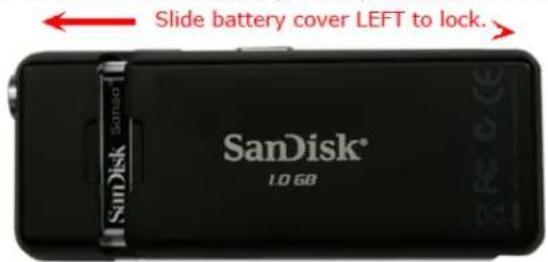
1) Press in on the tab of the battery compartment then slide to the right to remove the cover.

2) Remove the existing battery by lifting the battery removal tab up.

3) Orient and insert the new battery according to the battery icon with the pins inside the compartment.
4) Press down the battery removal tab.

5) Put back the battery compartment cover and slide to the left to lock.
Hold Switch
The Hold Switch is located on the side of the device, and is used to prevent any accidental operation. Once the Hold Switch is moved to the lock position, all function keys will be disabled. The buttons on the player will not operate when the Hold Switch is active (Orange Color visible).

Connecting to the computer
Please execute the following steps:
1) Connect the larger end of the USB cable into the dock connector of the Sansa player.
2) Connect the smaller end of the USB cable to an available USB port on the computer.
3) Once connected to computer:
a. The Sansa c200 player display screen should say Connected.
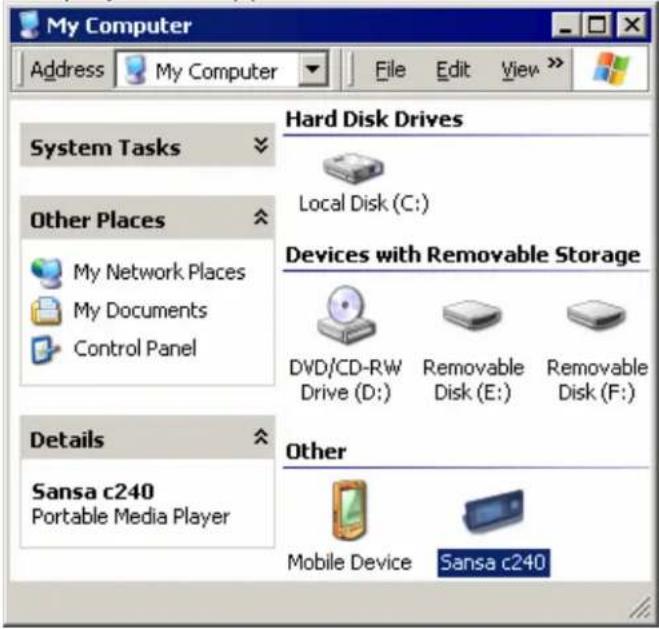
b. The computer's Operating System will detect the player automatically. and prompt user to choose one of the following options.
The player will appear as Sansa c200 Portable Media Player in My Computer.
Loading Photos and Images
You need to use the Sansa Media Converter (available to download at www.sandisk.com/support/sansa) to transfer photos to your Sansa player.
Getting Started
The Sansa Media Converter supports the following import media types:
- Still Image Files: JPEG, TIFF, PNG, BMP, and GIF.
Sansa Media Converter software lets you convert photos as appropriate, and then transfer them to your Sansa player. Sansa Media Converter offers features such as cropping, rotating, and resizing before transferring them to your player as well as the ability to transfer photo files to your microSD card.
To transfer photos to your Sansa c200 player, please execute the following instructions:
1) Connect the player to a computer using the provided USB Sansa cable
2) Select Sansa Media Converter using Sansa Media Converter on initial connection.
The software will list the available & total space on detected the device. If more than one device is inserted, only the first device will be supported.
3) Click Add Media to select files to be converted.
4) Sansa Media Converter will place all files in My Album by default.
a. To place converted files in a different folder, highlight My Album, Album Name: My Album then type in a new Album Name at the bottom of the screen.
5) Click on the Sansa c200 device from the information pane.
6) Select the Click Convert to start the conversion process. A status box will appear showing which files are being converted.
- Do not move your photo files from the location the Sansa Media Converter places them.
Delete Photos
The photos are stored in your Sansa...My Album. The instructions below for deleting photos from your player were created using Windows XP with Windows Media Player 11.
1) Connect your Sansa c200 player to your computer.
2) Select Open device to view files using Windows Explorer on initial connection.
3) Double-click the drive containing your photos.
4) Double-click on the Photo folder.
5) Highlight and delete the photos stored in My Computer\ Sansa c200\ selected drive\ Photo\ My Album.
Transferring Music to Sansa Player
To transfer music to your Sansa player, please execute the following steps:
1) Connect your player to your computer.
2) Select Open device to view files using Windows Explorer on initial connection.
3) Double-click on drive that you want to transfer music to.
4) Double-click on the Music Folder.
5) Drag and drop music files from your computer to My Computer\ Sansa c200\ Internal memory\MUSIC. (You can also select from a variety of music software to transfer or synchronize files).
6) For correct Album Work functionality, the art and associated music file may need to be located in the same folder.
Creating Playlist
1) Launch Windows Media Player 11.
2) Clear the List pane by clicking the Clear List pane button.

3) Click the arrow below the Library Tab and select Create Playlist.

4) Type in the name of your new playlist.

5) Drag songs from Details pane to the List Pane
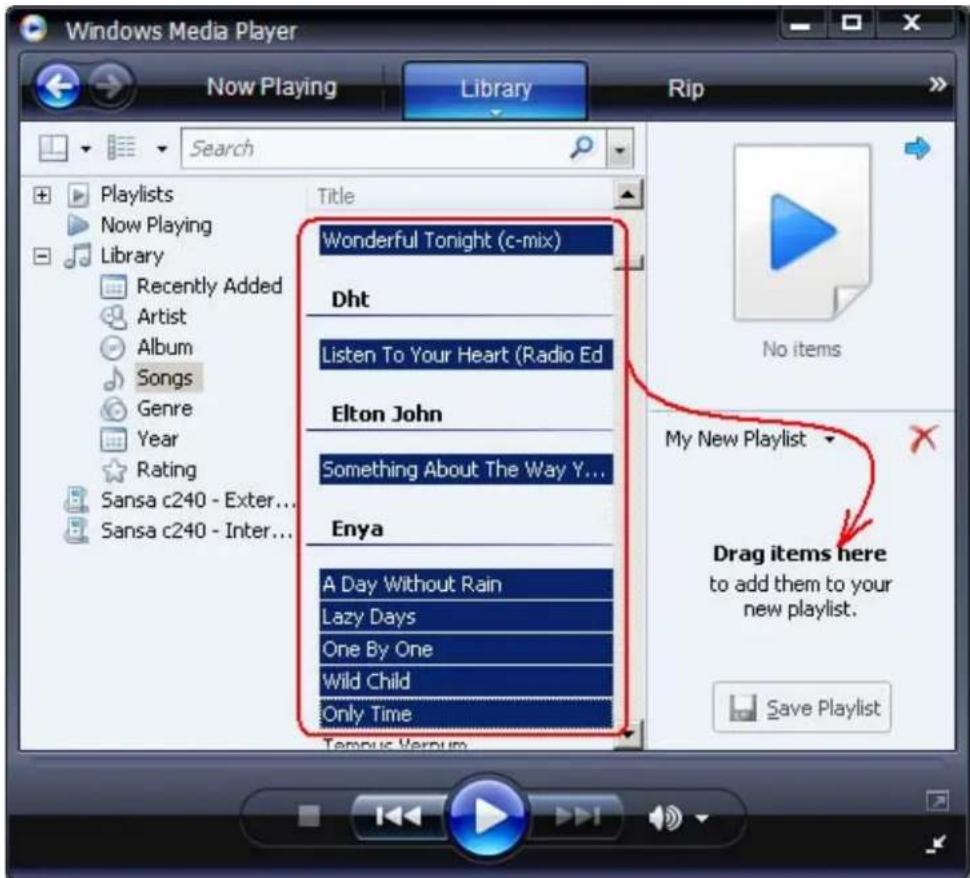
6) To re-arrange the songs, drag them up or down in the List pane.
7) Click Save Playlist Save Playlist
Transfer Playlist
To transfer playlists to the player using Windows Media Player v10 please execute the following steps:
1) Create a playlist in Windows Media Player 10.
2) Connect your Sansa player to the computer.
3) Select Sync digital media files to this devices using Windows Media Player on initial connection.
4) Right-click on Sansa c200 - Internal Memory and select Set Up Sync.

5) Select Personal Playlists from the drop down menu on the left pane.
6) Highlight the playlists under Personal Playlists you want transfer to the Sansa player, click Add then Finish.
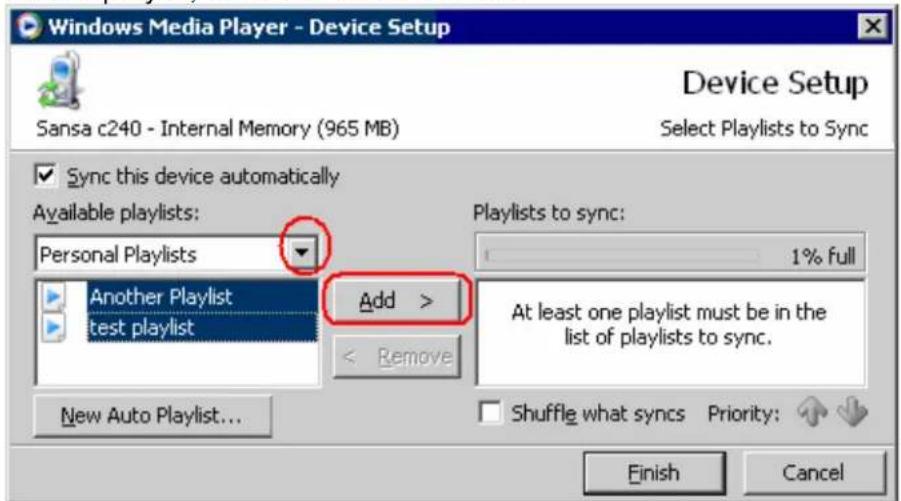
7) Synchronization will start as soon as you click Finish. To see the Sync progress, click on Sync Results.

Delete Music Files
When your player is connected to your computer, you can use your operating system file browser to view and files on your player.
1) Connect your Sansa player to the computer.
2) Select Open device to view files using Windows Explorer on initial connection.
3) Select the place where you want to delete music files from.
4) Highlight and delete the music file/s or folder from My Computer\ Sansa c200\ Internal Memory\MUSIC folder.
Synchronize files
Various software packages are available to synchronize songs on your device. Please refer to the specific software package instructions.
Safely Removing Sansa player from your computer
Simply disconnect the Sansa USB cable from the Sansa player after you have completed charging, transferring, firmware upgrading, or synchronizing files.
WARNING: Do not disconnect the player while it is transferring data.
Disconnecting the Sansa device from the computer while data is being transferred can damage the device.
Basic usage
Power Button
natural_image
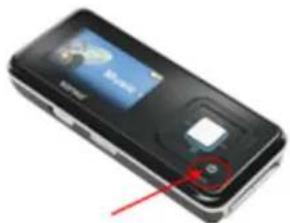
Close-up of a black mobile phone with a screen displaying the same logo and a red arrow pointing to a button (no visible text or symbols on device)For initial power up, you must unlock the control buttons by moving the HOLD switch to the un-lock position (no orange color visible). Press the Power Button once to turn on the Sansa c200 player. The LCD will light up with the SanDisk screensaver.
To turn off the Sansa c200 player, press and hold the Power Button for approximately 2 seconds or until the display screen is turned off.
Move the HOLD switch to the locked position after the player is turned off to prevent accidental power on.
Using Navigation Buttons
Use Navigation Buttons as described in the Getting Started section, to navigate though the menus, play music or audio book, listen to FM radio (if applicable), record voice, and browse or view photos.
Music Mode
Music/ Voice/ FM/ Audible Playback
To listen to music, FM radio, audible files, or voice recordings stored on the Sansa c200 player, please execute the following instructions:
1) Press the Menu button then select Music.
- Voice files are located under Recordings.
- Audible files are located under Audiobooks.
2) Select Play All (to play all music files), Artists, Albums, Songs,
3) Genres, Playlists, Recordings (Voice), Audiobooks, or Music Options, from the Music Menu.
- Music will start automatically once Play All has been selected
4) Browse through the menu selections, highlight the desired track or file, and press Select button to play. Press the Right (>>|) button to skip to the next song.
- Press and hold the Right (>>|) to fast forward.
5) Press the Left ( |<< ) button to go back to the beginning of the song.
- Press Left (|<<) button twice to go back to the previous song.
- Press and hold the Left (|<<) button to fast rewind.
6) Press the Select (Center) button to display the current track's album art (if available).
Repeat Mode
1) In playback mode, press the Submenu (Down) button to enter Music Option.
2) Press the Down button to highlight Repeat.
3) Press the Select or Right (>>|) button to choose a repeat mode:
Off: No repeat of tracks
Song: Repeat the current track
All: Repeat all selected tracks
4) Press Left (|<<) button to return to the Music Playback screen.
Shuffle Mode
1) In playback mode, press the Submenu (Down) button to enter Music Option.
2) Press the Down button to highlight Shuffle.
3) Press the Select or Right (>>|) button to toggle between. shuffle on and shuffle off (Set the shuffle to On to play songs in the random order).
4) Press Left (|<<) button to return to the Music Playback screen.
Music EQ
Sansa c200 player provides 6 equalizer types: Normal, Rock, Pop, Jazz, Classic, and Custom, for users to choose as following step to increase the enjoyment of listening to music, and to meet the personal need or habit.
1) In playback mode, press Submenu (Down) button to enter Music Option.
2) Press the Down button to highlight and select Music EQ.
3) Press the Up (>||) or Down (Submenu) button to select the equalizer type desired then press the Select or Right (>>|) button to choose.
4) For Custom EQ, press the Up (>||) or Down (Submenu) button to adjust parameters of one equalizer band, then use the Right (>>|) or Left (|<<) button to switch between each equalizer bands.
a. Press the Select button to save the customer EQ settings
b. Press the Left (|<<) button to return to Music Option Menu.
5) Press Left (|<<) button to return to the Music Playback screen.
Add Songs to Go List
1) In playback mode, press the Submenu (Down) button to enter Music Option.
2) Press the Down (submenu) button to highlight and select Add Song to GoList.
3) Press Left (|<<) button to return to the Music Playback screen.
Remove Songs from Go List
1) Play a song from the Go List.
a. Select Music from the Main Menu.
b. Select Playlists.
c. Select GoList.
d. Select a song to play..
2) Press the Submenu (Down) button to enter Music Option.
3) Press the Down (submenu) button to highlight and select Remove Song from GoList.
Note: The Remove Song from GoList option is available if the current song had already been added to the GoList.
4) Press Left (|<<) button to return to the Music Playback screen.
Clear Go List
1) In playback mode, press the Submenu (Down) button to enter Music Option.
2) Press the Down (Submenu) button to highlight and select Clear GoList.
3) Select Yes to clear the list.
4) Press Left (|<<) button to return to the Music Playback screen.
Delete Song
1) In playback mode, press the Submenu (Down) button to enter Music Option.
2) Press the Down (Submenu) button to highlight Delete Song.
3) Press the Select or Right (>>|) button to delete current song from Sansa c200 player.
Audiobooks Settings
The audiobooks settings are only available while playing audiobooks.
1) In playback mode of audible files, press the Submenu (Down) button to enter Audiobooks Option.
2) Press the Down (Submenu) button to highlight Ch. Mode, Speed, or Delete Book.
a. Select Ch. Mode On will enable chapter navigation by pressing
the Select or Right (>>|) buttons.
b. Select Speed to Fast, Normal, or Slow to control the speed of the current audible playback by pressing the Select or Right (>>|) buttons.
c. Select Delete Book will erase the current audiobook from the player pressing the Select or Right (>>|) buttons.
3) Press Left (|<<) button to return to the Audiobook Playback screen.
Photo Mode
View Photos
To view photos stored in your Sansa player, please execute the following instructions.
1) Press the Menu button and select Photo from the Main Menu.
2) Select View All.
3) Select a photo album to view.
4) Select a photo to view.
5) Press the Right (>>|) button to view the next image or Left (|<<) button to view the previous image.
6) Press the Menu button to exit photo viewing.
Slideshow
To play slideshow, please execute the following instructions:
1) Press the Menu button and select Photo from the Main Menu.
2) Select Start Slide Show.
3) Press the > || button to pause or resume the slide show.
4) Press the Submenu (Down) button to change the slideshow options:
a. Highlight Random and press the Select or Right (>>|) button to select Random On or Off.
b. Highlight Loop and press the Select or Right (>>|) button to select Loop On or Off.
c. Highlight Duration and press the Select or Right (>>|) button to choose duration time (2 seconds, 5 seconds, or 10 seconds) for each slide.
5) Press the Left (|<<) button to return to the Photo Slide Show.
FM Radio Mode (if applicable)
FM Radio
1) To listen to radio broadcast, select FM Radio from the Main Menu.
2) When the radio frequency appears on the screen, press the Right (>>|) or Left (|<<) button to search the frequency you want.
3) Press and hold the Left (<<) or Right (>>) button to scan for Radio stations.
FM Presets
1) To program the preset Radio stations, press the Submenu (Down) button in Radio mode.
2) Select Add this Preset to save the current frequency into presets.
3) Select the Delete a Preset to remove the current frequency from the presets.
4) Select the View All Presets to view all preset frequencies.
a. Select Auto-scan for Presets to allow the Sansa c200 player to automatically scan and store all available FM radio stations to preset. You can store up to 20 radio preset stations. Note: This action will erase all presets you have set previously b. Press the Left (|<<) button to return to the Radio Options.
5) Press the Left (|<<) button to return to the Radio playback menu.
Recording Mode
NOTE: For Home and Personal Use
This product is intended to be used for recording and playback for your home and personal enjoyment. Copying and commercial use of copyrighted material without permission of the copyright owner may be prohibited by law. Use of your media player, in compliance with all copyright and applicable intellectual property laws, remains the responsibility of the user of the product.
Voice Recording
Sansa player has a built-in microphone allowing you to record your voice, an interview or a speech. The recorded audio files will be saved in the RECORD folder. To use the voice recording function, please execute the following instructions.
1) Press the Menu button to return to the Main Menu.
2) Press the REC button at the side of the Sansa c200 player for approximately 2 seconds.
a. Or, select Voice from the Main Menu.
3) A Record screen will appear. Press the Play/Pause (>| |) button to begin recording.
a. To pause the recording, press the Play/Pause (>| |) button.
b. To resume recording, press Play/Pause (>| |) again.
c. To stop the recording, press the Select button.
d. A confirmation message will appear on the screen. Select Yes to save the recording.
4) Select the Menu button to return to Main Menu.
Settings Mode
You can personalize your Sansa c200 player's setting to suit your needs.
Equalizer
Equalizer can be set in the same manner as Music Option. The Equalizer options are: Normal, Rock, Pop, Jazz, Classical, and Custom.
Power
You can set the timer under Auto Power Off setting to turn off Sansa c200 player automatically when it is playing for a certain time. Auto Power options: Off, 1 minute, 5 minutes, 10 minutes, 20 minutes, 30 minutes, and 60 minutes. Sleep options: Off, 10 minutes, 20 minutes, 30 minutes, 45 minutes, 60 minutes, 90 minutes, and 120 minutes.
1) Select Settings from the Main Menu.
2) Select Power.
3) Select Auto Power Off or Sleep.
4) Select the setting you want.
5) Press Select to save the setting.
Display
Adjust display brightness for better viewing in different lighting environment. Backlight option: 5 seconds, 10 seconds, 15 seconds, 30 seconds, 45 seconds, 60 seconds, 90 seconds, and always ON.
1) Select Settings from the Main Menu.
2) Select Display.
3) Select Backlight or Brightness.
4) Press the Left (< < ) or Right ( >> ) button to set the brightness or backlight level.
5) Press Select save the setting.
Language
Supported language: English, French, Italian, German, Spanish, Portuguese, Hebrew, Swedish, Finnish, Dutch, Japanese, Traditional Chinese, Simplified Chinese, Korean, and Thai.
1) Select Settings from the Main Menu.
2) Select Language.
3) Select a language you want to use.
FM Settings (if applicable)
FM Region options: USA, Japan, and World. FM Mode options: Stereo and Mono.
1) Select Settings from the Main Menu.
2) Select FM Settings.
3) Select FM Region or FM Mode.
4) Select the setting you want.
Volume
1) Select Settings from the Main Menu.
2) Select Volume.
3) Select Normal or High.
System Info
This displays the information on your Sansa c200 player such as the Firmware revision, total memory, available memory, total songs, and total Voice recordings.
1) Select Settings from the Main Menu.
2) Select System Info.
3) You can read device information on the display screen.
Reset All
This allows you to reset your Sansa c200 player to the factory settings.
1) Select Settings from the Main Menu.
2) Select Reset All.
3) Select Yes to reset to factory settings or No to cancel.
Format
This will format your Sansa c200 player's internal memory.
1) Select Settings from the Main Menu.
2) Select Format.
3) Select Yes to format the internal memory or No to cancel.
TIPS, FAQ, AND TROUBLESHOOTING
This chapter provides answers to common questions you may have.
Question: How do I copy files to the Sansa ^® MP3 Player?
Answer: Sansa MP3 player will automatically detect and connect to MTP or MSC mode which is supported by your PC. If Sansa MP3 player is connected to PC, copy files to the Sansa ^® c200 is just like copying files to a Hard Drive.
Question: What file formats does the Sansa ^® c200 support?
Answer: The Sansa ^® MP3 Player will support MP3, WAV, WMA, secure WMA, and audible files.
Question: What is MTP?
Answer: Media Transfer Protocol (MTP) is a new protocol and accompanying set of drivers developed by Microsoft to connect portable devices to a Windows XP PC and synchronize digital media content between those devices and the PC.
Question: Some of my music files are on my player, but cannot be played. When I select them, another song begins to play. What is wrong?
Answer: You may not have purchased the rights to play the song on an additional device. To test this, try to play a song that you have copied from an older CD and converted to MP3 format. If you can play that song, but not the song that will not play, then you need to purchase the rights to play the song.
Question: Why should I update the firmware?
Answer: You should always update the player to the latest firmware to ensure that it functions correctly and has all the latest features.
Question: How can I use non-supported file types with my mp3 player?
Answer: First you must convert the songs to a supported format. Then you can transfer the songs to the player as normal, either by copying and pasting, or transferring.
Question: In MTP mode, how do I drag files to the player?
Answer: As long as the files are wma, wav, or mp3, they can be dragged into the Media folder. Otherwise, they can be dragged into the Data folder (these files will not appear on the player).
Question: Is the player compatible with podcasts?
Answer: As long as the podcasts are in mp3 format and an appropriate bit rate (32-320 kbps), then the player should be capable of playing the files.
Service and Warranty Information
This chapter provides information about how to get support for your player and the terms of your warranty.
Getting Technical Support
Before you contact Technical Support, we encourage you to read the Tips, FAQ, and Troubleshooting section.
If you have questions about the use or features of your player, please call the SanDisk Technical Support Center for US: 1-866-SanDisk (1-866-726-3475), Worldwide: see http://www.sandisk.com/techsupport for local country phone numbers or fill out an on-line support request at http://www.sandisk.com/techsupport
If you have questions about our partner services, please call their Technical Support Center.
When you call or contact us for support, please include as much information as you can from your packaging material. This will allow us to help you more quickly.
Learn More
You also can visit us on the web at http://www.sandisk.com to learn more about your player as well as other SanDisk products.
SanDisk Limited Warranty
SanDisk warrants that this product will be free from material defects in design and manufacture and will substantially conform to the published specifications under normal use for one year from your date of purchase, subject to the conditions below. This warranty is provided to the original end user purchasing from SanDisk or an authorized reseller, and is not transferable. Proof of purchase may be required. SanDisk is not responsible for any failure or defect caused by any third party product or component, whether authorized or not. This warranty does not apply to any third party software provided with the product and you are responsible for all service and repair needed for such software. This warranty is void if the product is not used in accordance with the product instructions, or if it is damaged as a result of improper installation, misuse, unauthorized repair, modification or accident.
To obtain warranty service contact SanDisk at 1-866-SanDisk or send an email to: support@SanDisk.com. You must return the product in tamper resistant packaging, freight prepaid, as instructed by SanDisk. You must obtain a tracking confirmation number, which you may be required to provide to SanDisk. SanDisk will, at its option, repair or replace the product with new or refurbished product of equal or greater capacity and functionality, or refund the purchase price. The warranty duration on replaced product will be that time period remaining on the original product. THIS CONSTITUTES SANDISK'S ENTIRE LIABILITY AND YOUR EXCLUSIVE REMEDY FOR BREACH OF THIS WARRANTY.
SanDisk does not warrant, and shall not be responsible for, any lost data or information contained in any product (including in any returned product), regardless of the cause of the loss. SanDisk's products are not warranted to operate without failure. SanDisk products should not be used in life support systems or other applications where failure could threaten injury or life. This warranty gives you specific legal rights, and you may also have other rights which vary by jurisdiction.
THE FOREGOING IS SANDISK'S SOLE WARRANTY. SANDISK DISCLAIMS ALL OTHER EXPRESS AND IMPLIED WARRANTIES TO THE FULLEST EXTENT PERMITTED BY APPLICABLE LAW. THE IMPLIED WARRANTIES OF MERCHANTABILITY AND FITNESS FOR A PARTICULAR PURPOSE ARE LIMITED TO THE DURATION OF THE EXPRESS WARRANTY. SOME JURIDSICTIONS DO NOT ALLOW LIMITATION ON HOW LONG AN IMPLIED WARRANTY LASTS, SO THE ABOVE LIMITATION MAY NOT APPLY TO YOU. IN NO EVENT SHALL SANDISK OR ANY AFFILIATED OR SUBSIDIARY COMPANY BE LIABLE UNDER ANY CIRCUMSTANCES FOR ANY DIRECT, INDIRECT, OR CONSEQUENTIAL DAMAGES, ANY FINANCIAL LOSS OR ANY LOST DATA OR IMAGE, EVEN IF SANDISK HAS BEEN ADVISED OF THE POSSIBILITY OF SUCH DAMAGE. SOME JURISDICTIONS DO NOT ALLOW THE EXCLUSION OR LIMITATION OF INCIDENTAL OR CONSEQUENTIAL DAMAGES, SO THE ABOVE LIMITATION OR EXCLUSION MAY NOT APPLY TO YOU. IN NO EVENT WILL SANDISK'S LIABILITY EXCEED THE AMOUNT PAID BY YOU FOR THE PRODUCT.
SanDisk, the SanDisk logo, and Sansa are trademarks of SanDisk Corporation, registered in the United States and other countries. TrustedFlash and gruvi are trademarks of SanDisk Corporation. microSD and microSDHC are trademarks. Other brand names mentioned herein are for identification purposes only and may be trademarks of their respective holder(s).
© 2007 SanDisk Corporation. All rights reserved. Made in China
USER NOTICE
This product is protected by certain intellectual property rights of Microsoft Corporation. Use or distribution of such technology outside of this product is prohibited without a license from Microsoft or an authorized Microsoft subsidiary.
Content providers are using the digital rights management technology for Windows Media contained in this device (“WM-DRM”) to protect the integrity of their content (“Secure Content”) so that their intellectual property, including copyright, in such content is not misappropriated. This device uses WM-DRM software to play Secure Content (“WM-DRM Software”). If the security of the WM-DRM Software in this device has been compromised, owners of Secure Content (“Secure Content Owners”) may request that Microsoft revoke the WM-DRM Software’s rights to acquire new licenses to copy, display and/or play Secure Content. Revocation does not alter the WM-DRM Software’s ability to play unprotected content. A list of revoked WM-DRM Software is sent to your device whenever you download a license for Secure Content from the Internet or from a PC. Microsoft, may, in conjunction with such license, also download revocation lists onto your device on behalf of Secure Content Owners.
END USER LICENSE AGREEMENT
SANDISK CORPORATION
DO NOT DOWNLOAD, INSTALL OR USE THE SOFTWARE UNTIL YOU HAVE CAREFULLY READ THE TERMS OF THIS END USER LICENSE AGREEMENT ("AGREEMENT"). BY DOWNLOADING, USING OR INSTALLING THE SOFTWARE, YOU AGREE TO ALL OF THE TERMS OF THIS AGREEMENT. IF YOU DO NOT AGREE TO ALL OF THE TERMS, DO NOT DOWNLOAD, INSTALL OR USE THE SOFTWARE AND, IF APPLICABLE, PROMPTLY RETURN IT TO YOUR PLACE OF PURCHASE FOR A REFUND. IF THE SOFTWARE WAS INCLUDED WITH YOUR PURCHASE OF HARDWARE, YOU MUST RETURN THE ENTIRE HARDWARE/SOFTWARE PACKAGE IN ORDER TO OBTAIN A REFUND. IF THE SOFTWARE WAS ACCESSED ELECTRONICALLY, CLICK "NOT ACCEPT" TO STOP THE DOWNLOAD PROCESS.
The firmware, computer programs, device drivers, data or information (“Software”) is provided to each person who downloads, uses or installs the Software (“you” or “your”) under the terms of this Agreement between you and SanDisk Corporation (“SanDisk,” “we,” or “us”), and may be subject to additional terms and conditions in an agreement between you and SanDisk’s third party licensors (“Licensors”). The Software is owned by SanDisk or its Licensors. The Software is protected by copyright laws and international copyright treaties, as well as other intellectual property laws and treaties.
Software License. Subject to the terms and conditions contained herein, SanDisk grants to you a limited, non-exclusive, non-sub licensable, transferable in accordance with these terms, royalty-free license under SanDisk's intellectual property rights to use the Software in executable form solely for your personal use only with a SanDisk product and only on a single computer or other hardware device at any given time (the "License"). The Software is "in use" when it is either downloaded, copied, loaded into RAM or installed into the hard disk or other permanent memory of a computer or other hardware device.
Restrictions. SanDisk and its Licensors retain all rights in the Software not expressly granted to you. You may not modify, adapt, translate or create
derivative works (new versions) of the Software. No source code is provided under this Agreement. You may not reverse engineer, disassemble, decompile, rent, lease, or encumber the Software, or re-create or discover the source code of the Software. You may not embed or combine the Software within any other software product or device. The Software contains proprietary and confidential information of SanDisk and its Licensors, which you agree not to discover or reveal to others. Any and all permitted copies of the Software that you make or distribute must be unmodified, must contain all of the original Software's proprietary notices, and must include or be accompanied by this Agreement. You may not separate the Software into component parts for sublicense, distribution or transfer to a third party.
DISCLAIMER OF WARRANTIES. TO THE MAXIMUM EXTENT PERMITTED BY APPLICABLE LAW, THE SOFTWARE IS PROVIDED "AS IS" AND "AS AVAILABLE" WITH NO WARRANTIES AND NEITHER SANDISK NOR ITS LICENSORS MAKE ANY REPRESENTATION OR WARRANTY, STATUTORY OR OTHERWISE, IN LAW OR FROM THE COURSE OF DEALING OR USAGE OF TRADE, EXPRESS OR IMPLIED, INCLUDING WITHOUT LIMITATION, ANY WARRANTIES OF MERCHANTABILITY, FITNESS FOR A PARTICULAR PURPOSE, NON-INTERFERENCE, OR NON-INFRINGEMENT OF ANY THIRD PARTY INTELLECTUAL PROPERTY RIGHTS, OR EQUIVALENTS UNDER THE LAWS OF ANY JURISDICTION. YOU ASSUME THE ENTIRE RISK AS TO THE QUALITY AND PERFORMANCE OF THE SOFTWARE. SHOULD THE SOFTWARE PROVE DEFECTIVE, YOU, AND NOT SANDISK, ITS LICENSORS OR RESELLERS, ASSUME THE ENTIRE COST OF NECESSARY SERVICING, REPAIR, OR CORRECTION.
LIMITATION OF LIABILITY. TO THE EXTENT NOT PROHIBITED BY LAW, IN NO EVENT WILL SANDISK OR ITS LICENSORS, OR THEIR RESPECTIVE DIRECTORS, OFFICERS, EMPLOYEES, CONSULTANTS, LICENSORS, LICENSEES OR AFFILIATES, BE LIABLE FOR ANY INDIRECT, INCIDENTAL, SPECIAL, CONSEQUENTIAL, OR EXEMPLARY DAMAGES, ARISING OUT OF OR IN CONNECTION WITH THE DOWNLOAD, DISTRIBUTION, USE OR PERFORMANCE OR NON-PERFORMANCE OF THE SOFTWARE, EVEN IF SANDISK HAS BEEN ADVISED OF THE POSSIBILITY OF SUCH DAMAGES. THE FOREGOING LIMITATIONS OF LIABILITY SHALL APPLY NOTWITHSTANDING ANY FAILURE OF ANY REMEDY PROVIDED FOR HEREUNDER IN ITS ESSENTIAL PURPOSE. IN NO EVENT WILL SANDISK'S OR ITS LICENSORS' TOTAL LIABILITY TO YOU EXCEED THE AMOUNT YOU PAID TO US FOR THE USE OF THE SOFTWARE.
-
The Software is provided with “RESTRICTED RIGHTS.” Use, duplication or disclosure by the Government is subject to restrictions as set forth in FAR 52.227-14 and DFARS 252.227-7013 et seq. Use of the Software by the Government constitutes acknowledgement of SanDisk’s proprietary rights therein. Contractor or Manufacturer is SanDisk Corporation, 601 McCarthy Blvd., Milpitas, CA 95035.
-
Transfer. If you sell or otherwise transfer the SanDisk product that incorporates the Software as a whole, you may transfer the Software as fully integrated into such product provided that you also supply this Agreement to the purchaser or recipient of the product, at which time all of your rights under this Agreement will immediately cease. Except as stated above, you may not assign or transfer this Agreement in part or in whole, and any attempt to do so shall be void.
-
Termination. We may terminate this Agreement and the license immediately and without notice if you breach it. Upon termination of this Agreement, you must delete or destroy all copies of the Software.
-
High Risk Activities Software is not fault-tolerant and is not designed or intended for use in hazardous environments requiring fail-safe performance, or any other application in which the failure of the Software could lead directly to death, personal injury, or severe physical or property damage (collectively, "High Risk Activities"). SANDISK AND ITS LICENSORS DISCLAIM ANY EXPRESS OR IMPLIED WARRANTY OF FITNESS FOR HIGH RISK ACTIVITIES AND SHALL NOT BE LIABLE FOR ANY LIABILITIES OR DAMAGES ARISING FROM SUCH USE.
-
General. This Agreement contains the entire understanding between the parties with respect to your use of the Software. If any part of this Agreement is found void and unenforceable, it will not affect the validity of the balance of this Agreement, which shall remain valid and enforceable according to its terms. This Agreement is governed by and construed under the laws of the State of California and controlling U.S. federal law without regard to conflicts of laws provisions thereof. The U.N. Convention on Contracts for the International Sale of Goods shall not apply to this Agreement. Any action or proceeding arising from or relating to this Agreement shall be adjudicated in the state or federal courts of Santa Clara County, California, and the parties hereby agree to the exclusive jurisdiction and venue of such courts. You will not remove or export from the United States or re-export from anywhere any part of the Software or any direct product thereof to any country in violation of U.S. Export Administration Regulations, or a successor thereto, except in compliance with and with all licenses and approvals required under applicable export laws and regulations including, without limitation, those of the U.S. Department of Commerce. Any waivers or amendments of this Agreement shall be effective only if made in writing and signed by an authorized representative of each party. You agree that the Licensors are third party beneficiaries of this Agreement to enforce your performance of the terms and conditions of this Agreement. The provisions of Sections 2, 3, 4, 5, 6, 7, 8 and 9 shall survive the termination or expiration of this Agreement.
FCC Regulation
This device complies with part 15 of the FCC Rules. Operation is subject to the following two conditions:
1) This device may not cause harmful interference, and
2) This device must accept any interference received, including interference that may cause undesired operation.
This equipment has been tested and found to comply with the limits for a Class B digital device, pursuant to Part 15 of the FCC Rules. These limits are designed to provide reasonable protection against harmful interference in a residential installation. This equipment generates, uses, and can radiate radio frequency energy and, if not installed and used in accordance with the instructions, may cause harmful interference to radio communications. However, there is no guarantee that interference will not occur in a particular installation. If this equipment does cause interference to radio or television reception, which can be
determined by turning the equipment off and then on, the user is encouraged to try to correct the interference by one or more of the following measures:
1) Increase the separation between the equipment and receiver.
2) Correct the equipment to a different outlet so that the equipment and receiver are on different branch circuits.
3) Consult the dealer or an experienced radio / TV technician for help.
- SAFETY TIPS & CLEANING INSTRUCTIONS....1
- IMPORTANT - SAFETY HEARING LEVEL INFO ....1
- INTRODUCTION 3
- GETTING STARTED ....5
- MAIN MENU SCREEN 6
- PLAYBACK SCREEN....7
- LI-POLYMER BATTERY 7
- HOLD SWITCH....9
- CONNECTING TO THE COMPUTER 9
- LOADING PHOTOS AND IMAGES 9
- TRANSFERRING MUSIC TO SANSA PLAYER....10
- BASIC USAGE....16
- Safety Tips & Cleaning Instructions
- Important – Safety Hearing Level Info
- YOU MUST READ THIS BEFORE USING YOUR SANSA MP3 PLAYER
- HEARING LEVELS
- These sound decibel levels are considered harmful under extended exposure.
- FOR YOUR SAFETY!
- Disposal Instructions
- Introduction
- Features
- NOTE: For Home and Personal Use
- Package Contents
- Minimum System Requirements
- Getting Started Sansa c200 Overview
- Main Menu Screen
- Playback Screen
- Li-Polymer Battery
- Note:
- Charging battery over USB
- Charging battery with AC power adapter
- How to replace the battery
- Hold Switch
- Connecting to the computer
- Loading Photos and Images
- Delete Photos
- Transferring Music to Sansa Player
- Creating Playlist
- Transfer Playlist
- Delete Music Files
- Synchronize files
- Safely Removing Sansa player from your computer
- Basic usage
- Power Button
- Using Navigation Buttons
- Music Mode
- Music/ Voice/ FM/ Audible Playback
- Repeat Mode
- Shuffle Mode
- Music EQ
- Add Songs to Go List
- Remove Songs from Go List
- Clear Go List
- Delete Song
- Audiobooks Settings
- Photo Mode
- View Photos
- Slideshow
- FM Radio Mode (if applicable)
- FM Radio
- FM Presets
- Recording Mode
- Voice Recording
- Settings Mode
- Equalizer
- Power
- Display
- Language
- FM Settings (if applicable)
- Volume
- System Info
- Reset All
- Format
- TIPS, FAQ, AND TROUBLESHOOTING
- Question: How do I copy files to the Sansa ® MP3 Player?
- Question: What file formats does the Sansa ® c200 support?
- Question: What is MTP?
- Question: Some of my music files are on my player, but cannot be played. When I select them, another song begins to play. What is wrong?
- Question: Why should I update the firmware?
- Question: How can I use non-supported file types with my mp3 player?
- Service and Warranty Information
- Getting Technical Support
- Learn More
- SanDisk Limited Warranty
- USER NOTICE
- END USER LICENSE AGREEMENT
- SANDISK CORPORATION
- FCC Regulation
Brand : SANDISK
Model : Sansa c200
Category : Mp3 player